Data for Sale?

I read an interesting article by Stephen Swoyer today on the TWDI site today, about a new Gartner report that suggests that companies should start selling the data they collect for BI purposes to third parties via public data marketplaces. This is a subject I’ve seen discussed a few times over the last year or so – indeed, I remember at the PASS Summit last year I overheard a member of the Windows Azure Marketplace dev team make a similar suggestion – and I couldn’t resist the opportunity to weigh in with my own thoughts on the matter.

The main problem that I had with the article is that it didn’t explore any of the reasons why companies would not want to sell the data they’re collecting in a public data marketplace. Obviously there are a lot of hurdles to overcome before you could sell any data: you’d need to make sure you weren’t selling your data to your competitors, for example; you’d need to make sure you weren’t breaking any data privacy laws with regard to your customers; and of course it would have to be financially worth your while to spend time building and maintaining the systems to extract the data and upload it to the marketplace – you’d need to be sure someone would actually want to buy the data you’re collecting at a reasonable price. Doing all of this would take a lot of time and effort. The main hurdle though, I think, would be disinterest: why would a company whose primary business is something else start up a side-line selling its internal data? It has better things to be spending its time doing, like focusing on its core business. If you sell cars or operate toll roads why are you going to branch out into selling data, especially when the revenue you’ll get from doing this is going to be relatively trivial in comparison?

What’s more, I think it’s a typical piece of tech utopianism to think that data will sell itself if you just dump it on a public data marketplace. Maybe apps on the Apple App Store can be sold in this way, but just about everything else in the world, whether it’s sold on the internet or face-to-face, needs to be actively marketed and this is something that the data generators themselves are not going to want to make the effort to do. As I said earlier, those companies that are interested in selling their data will still need to be careful about who they sell to, and the number of potential buyers for their particular data is in any case going to be limited. Someone needs to think about what the data can be used for, target potential customers and then show these potential customers how the data can be used to improve their bottom line.

For example, imagine if all the hotels around the Washington State Convention Centre were to aggregate and sell information on their bookings for the next six months into the future to all the nearby retailers and restaurants, so it was possible for them to predict when the centre of Seattle would be full of wealthy IT geeks in town for a Microsoft conference and therefore plan staffing and purchasing decisions appropriately. In these cases a middle man would be required to seek out the potential buyer and broker the deal. The guy that owns the restaurant by the convention centre isn’t going to know about this data unless someone tells him it’s available and convinces him it will be useful. And just handing over the data it isn’t really good enough either – it needs to be used effectively to prove its value, and the only companies who’ll be able to use this data effectively will be the ones who’ll be able to integrate it with their existing BI systems, even if that BI system is the Excel spreadsheet that the small restaurant uses to plan its purchases over the next few weeks. Which of course may well require outside consultancy… and when you’ve got to this point, you’re basically doing all of the same things that most existing companies in the market research/corporate data provider space do today, albeit on a much smaller scale.

I don’t want to seem too negative about the idea of companies selling their data, though. I know, as a BI consultant, that there is an immense amount of interesting data now being collected that has real value to companies other than the ones that have collected it. Rather than companies selling their own data, however, what I think we will see instead is an expansion in the number of intermediary companies who sell data (most of which will be very small), and much greater diversity in the types of data that they sell. Maybe this is an interesting opportunity for BI consultancies to diversify into – after all, we’re the ones who know which companies have good quality data, and who are already building the BI systems to move it around. Do public data marketplaces still have a role to play? I think they do, but they will end up being a single storefront for these small, new data providers to sell data in the same way that eBay and Amazon Marketplace act as a single storefront for much smaller companies to sell second-hand books and Dr Who memorabilia. It’s going to be a few years before this ecosystem of boutique data providers establishes itself though, and I suspect that the current crop of public data marketplaces will have died off before this happens.

Importing Azure Marketplace Data into Excel 2013 with Web Queries

A few weeks ago, when I was playing around with the new WebService() function in Excel 2013, I was disappointed to learn that it didn’t work with services that require authentication – a pretty big limitation in my opinion – so, for example, it meant I couldn’t use it to import data from the Azure Marketplace into Excel. You might be wondering why I’d want to do this, when there’s already built-in functionality for importing Azure Marketplace data into Excel 2013 and an addin to do this for earlier versions of Excel; the reason is that I want to be able to dynamically construct the url used to call the service inside the spreadsheet. For example, in this post I’m going to be using the Bing Search API and I want to be able to enter the search term I pass to it in a cell in a worksheet rather than hard-code it in the connection, which is what happens when using the native functionality. I’m sure I could use some VBA to do the same thing but using VBA always seems like an admission of defeat to me, so in this post I’m going to show how you can use Excel Web Queries to do it instead.

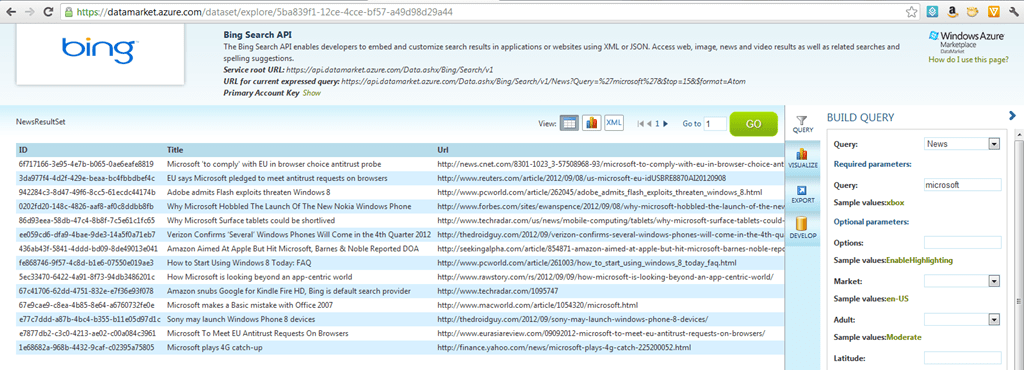
So let’s start with the Bing Search API, one of the many APIs and datasets available via the Windows Azure Marketplace. There are plenty of posts explaining how to use the Azure Marketplace website to import data into PowerPivot (see here for example) so I won’t go into too much detail at this point, but here’s an example Url that returns the top 15 news results for the search term ‘Microsoft’:

https://api.datamarket.azure.com/Data.ashx/Bing/Search/v1/News?Query=%27microsoft%27&$top=15&$format=Atom

image

Next, you need to fire up Excel 2013 and create a Web Query, a feature that’s been in Excel since ohhhh, Office 2000. There are a lot of good articles on the web describing how this feature works but here’s one of the best I found:
http://www.vertex42.com/News/excel-web-query.html

Specifically, you need to go to the Data tab and click the From Web button:

image

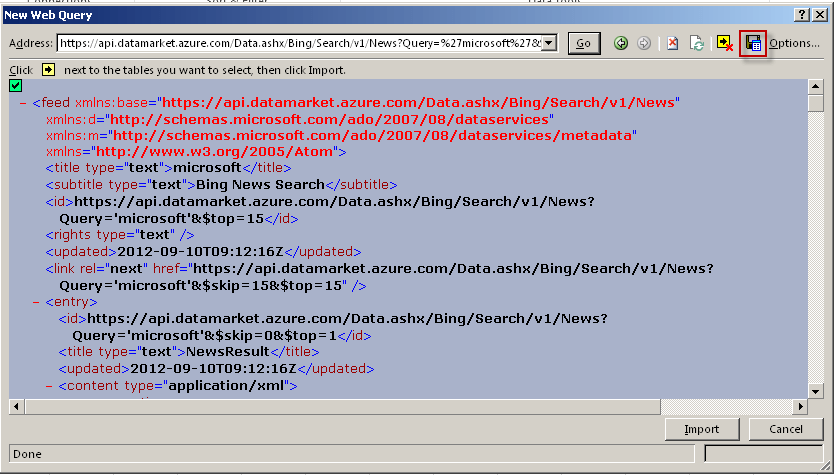
This opens the New Web Query dialog; you then paste the Url from the Azure Marketplace into the Url box and click go. You’ll be prompted for a username and password, and you need to enter your Azure Marketplace account key for both. Click on the small yellow arrow in the top left hand corner of the browser window and you’ll see something like this:

image

Do not press Import at this point though! Instead, press the Save Query button in the toolbar (highlighted in the screenshot above) and then save the query to disk as an .iqy file and click Cancel. Next, find the .iqy file you’ve just saved and open it in Notepad. The contents will be something like this:

WEB
1
https://api.datamarket.azure.com/Data.ashx/Bing/Search/v1/News?Query=%27microsoft%27&$top=15&$format=Atom

Selection=EntirePage
Formatting=None
PreFormattedTextToColumns=True
ConsecutiveDelimitersAsOne=True
SingleBlockTextImport=False
DisableDateRecognition=False
DisableRedirections=False

What you need to do now is to parameterise the Url in this file so that, instead of hard-coding it to search for news about microsoft (as in this example) you can enter your own search term. The link above describes how to do this in detail, but here’s the parameterised version of the Url for reference:

https://api.datamarket.azure.com/Data.ashx/Bing/Search/v1/News?Query=%27%5B"Query", "Search For:"]%27&$top=15&$format=Atom

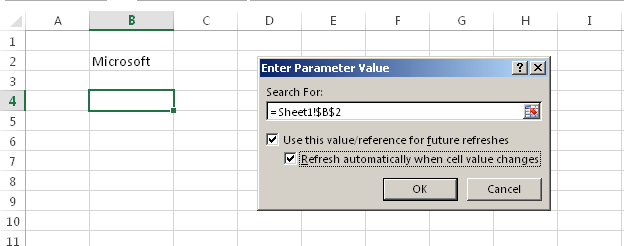
You then need to save the file and go back to Excel.  First, enter a search term in a cell in a worksheet. Then, go to the Data tab, click the Existing Connections button and then the Browse For More button and select the .iqy file. The next step is to choose a cell in a worksheet to dump the data to, and then when prompted for the parameter value click on the cell where you entered your search term and check the Use This Value/Reference For Future Refreshes and Refresh Automatically When Cell Value Changes boxes.

image

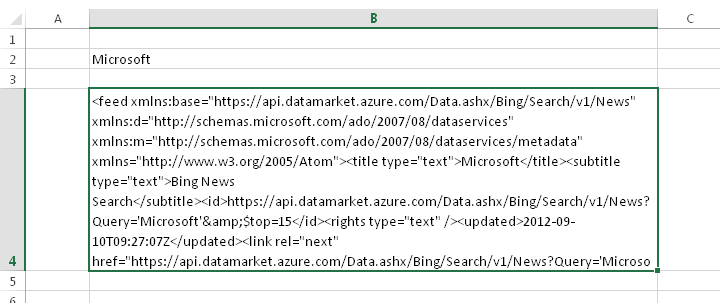
Click OK and you’ll be prompted for credentials again – although Excel will remember them – and the query will run, resulting in some XML appearing in the cell you selected:

image

This is ugly, and indeed Excel has the ability to import XML returned from a Web Query as XML – but what I’ve found is that if you don’t use the approach I’m showing here, you won’t be able to refresh you query properly.

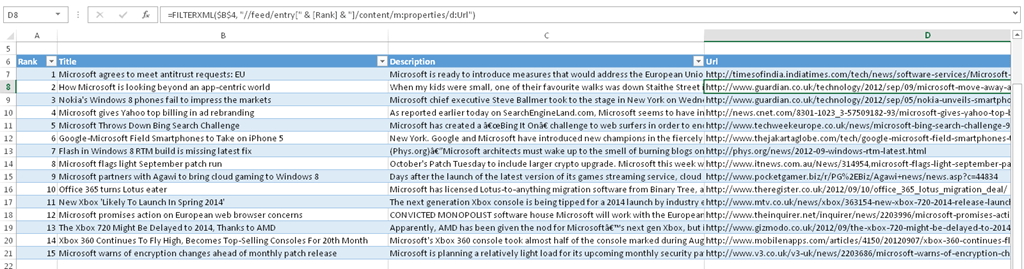
So you now have our search results as XML and you want to be able to display them in a more meaningful way. This is where the new FilterXML function in Excel 2013 comes into its own. Create an Excel table with four columns: Rank, Title, Description and Url; then enter numbers from 1 to 15 in the Rank column (there are fifteen results returned from the Bing search). You can then use Excel table formulas like this one to get the Title, Description and Url from the XML and display it in the table:

=FILTERXML($B$4, "//feed/entry[" & [Rank] & "]/content/m:properties/d:Description")

image

(I’m very grateful to Phil Quinn, who I met at SQL Saturday 162, for helping me with the XPath here – I spent ages trying to get it to work with no luck and he managed to provide a working query in 2 minutes)

With this done, you now have the ability to enter a search term in your worksheet and automatically get Bing search results displayed in an Excel table. Of course, this approach would work with any dataset from the Azure Marketplace and indeed any OData source – for example, now that SSRS 2008 R2 and greater can render reports to OData, it should be possible to consume data from an SSRS report in a much more elegant way than the method I described here, because you’d be able to pass parameters from Excel to SSRS (hmmm, maybe this needs its own blog post). Of course, now you have a table in Excel you can add it to the Excel Model and do all kinds of interesting PowerPivot-y things with it.

What this really highlights, though, is that it should be much easier to parameterise the queries used to load data into the Excel Model/PowerPivot, whether they are OData data sources, SQL, MDX or DAX. Not being able to parameterise these queries means you increase the temptation to load all the data that might ever be needed by a user into PowerPivot; if it were easier to parameterise these queries then it would encourage PowerPivot users to build solutions where they only imported the data they actually needed to work with at any given moment.

Autumn Speaking and Teaching Schedule

I’ve got a busy speaking and teaching schedule this autumn, and in time-honoured fashion here’s a list of where and when each of my sessions will be:

If you’re going to be at one of these events, come and say hello! Next year we’ll hopefully have another SQLBits, although we don’t have a date fixed yet, and hopefully I’ll be speaking at Database Days in Switzerland too.

Microsoft SQL Server 2012: The BISM Tabular Model is now available to buy!

I decided to wait until I had a real, physical, made-of-dead-tree copy of it in my hands before blogging, but I’m pleased to announced that the new book that Marco, Alberto and I wrote on SSAS 2012 Tabular models is now available to purchase (even though, as Marco says here it was actually officially released a few weeks ago).

A sample chapter can be found here:
http://cdn.oreilly.com/oreilly/booksamplers/msp/9780735658189_sampler.pdf

You can buy it all all good bookshops, including Amazon UK. It has two five-star reviews on Amazon already, and Javier Guillén wrote a very detailed review here. Why not buy several copies so you can share it with your colleagues, friends, significant others, children, neighbours etc? It also makes ideal beach reading if you are currently on your holidays.

You may also have noticed there’s another SSAS Tabular book out, by Teo Lachev. Teo is an author I have the utmost respect for and I’m a big fan of everything he’s written; this book lives up to the high standards of his previous work. While it’s true there’s some overlap between his book and ours, the focus of his book is broader, covering topics such as Sharepoint, whereas ours has a narrower focus and goes into much greater detail on subjects such as DAX; so (again, as Marco says) you should probably consider buying both.

Storage and the NameColumn and KeyColumns Properties

Those of you who have worked with SSAS Multidimensional for a reasonable amount time will, no doubt, be very familiar with the NameColumn and KeyColumns properties of an attribute (if you’re not, see here and here) and how they should be used. You will probably also know that when the KeyColumns property has been set to only one column, then the NameColumn property can be left unset and the key will be used as the name of the attribute’s members.

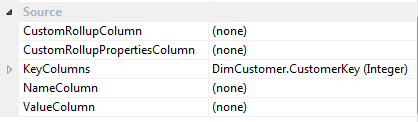
However, while onsite with a customer recently I noticed something strange. Here’s an illustration: if you create a simple dimension based on the DimCustomer table in Adventure Works and create a single attribute based on the CustomerKey column, this is what you see in the Properties for that attribute:

image

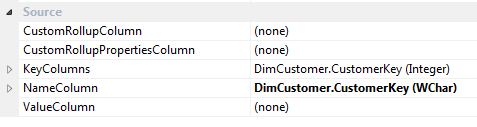
However, if you deploy the database then import it into a new project in SSDT/BIDS, then you see that the NameColumn property has been set:

image

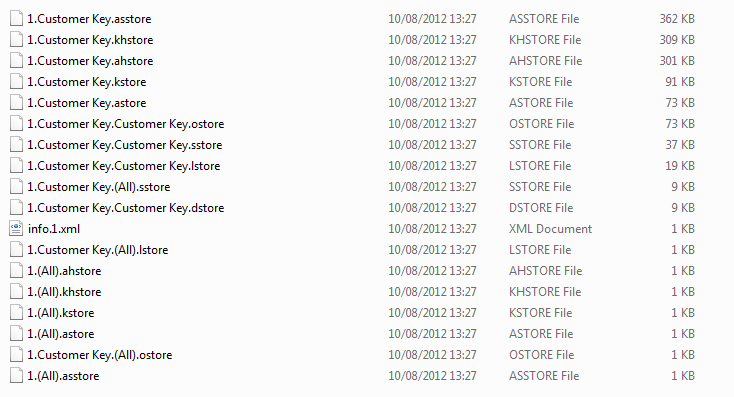
My first thought was that this was a bit dangerous, because it might mean that the imported version of the database would start storing extra strings for the names. But this was incorrect because a look at the data directories for the two versions of the dimensions showed they contained the same files and were using the same amount of storage:

image

I’m very grateful to Akshai Mirchandani of the dev team for confirming that in this situation, it is irrelevant whether you set the NameColumn or not – data duplication will always happen, and the key values will be stored again as strings. The only time it doesn’t happen is when the key and the name of the attribute are both the same column and that column is a string.

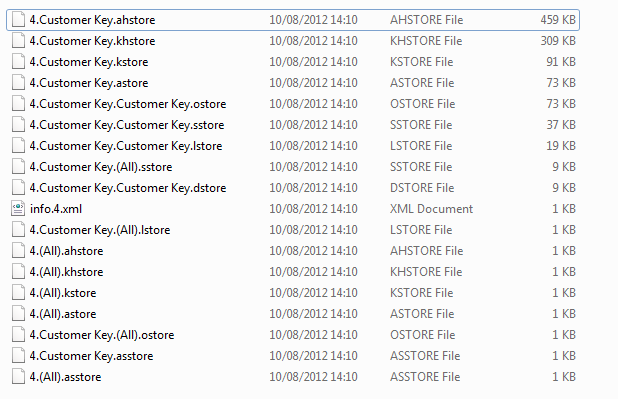
This means that if you have a very large attribute that is in danger of exceeding the infamous 4GB limit (although this is of course fixed in SSAS 2012) and which never needs to be visible, you can use the trick that Greg Galloway describes here to reduce the size of the string store. This involves creating a dummy column in your DSV (or underlying view or table) that contains only an empty string and then setting this as the NameColumn of your attribute. For the example above, this is the result:

image

image

For this example, the overall amount of storage used for the dimension has gone down from 1.24MB to 1.04MB, and although you can see the .ahstore file (the hash store) for the Customer Key attribute have grown, the size of the string store, Customer Key.asstore (note: don’t get confused between .asstore and .astore files), has reduced from 362KB to 1KB.

Office 2013 Store and BI

By now you’ve probably already seen that the new Office Store, where you can get hold of apps for Office and Sharepoint, is now open. If you haven’t, check out the following blog posts:
http://blogs.office.com/b/office-next/archive/2012/08/06/introducing-apps-for-the-new-office-and-sharepoint-and-the-office-store.aspx
http://blogs.msdn.com/b/officeapps/archive/2012/08/06/173-173-the-office-store-is-now-open.aspx
http://www.theregister.co.uk/2012/08/07/microsoft_apps_for_office/

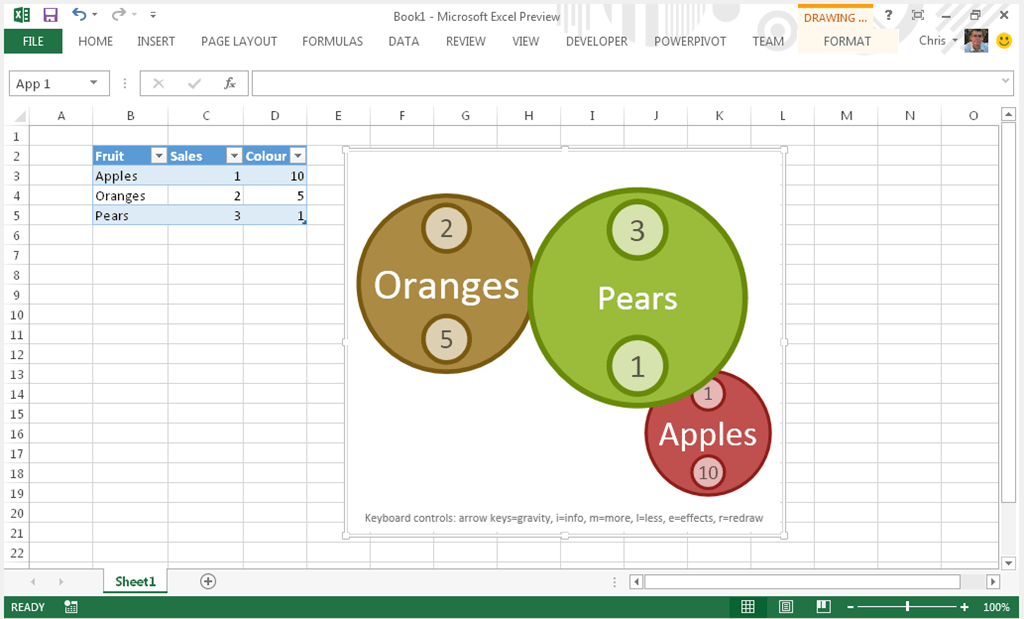
The implications for BI are obvious: new apps for data visualisation (along the lines of what’s available in  Sparklines for Excel maybe; perhaps also the long-lost decomposition tree from Proclarity?), analysis, importing and exporting data. I’ve already downloaded and had a play with the Bubbles app, which is quite fun:

image

Will it take off? Who knows; it’ll certainly be a while before enough people are on Office 2013 before we can tell. Will anyone want to pay for apps? Again, who knows – I wonder if we’ll see something similar to OLAP PivotTable Extensions appear, and if free, open source apps will kill the paid app market at least in some areas? If you’ve got any ideas for a BI-related app, please leave a comment!

Access 2013 and Self-Service BI

Wait, I know what you’re thinking: Access, isn’t that dead yet? Well, no – and if you’ve been reading the blogs about Access 2013 that it’s undergone something of a transformation, one that’s very interesting from a BI point of view. The key change is mentioned here:

http://blogs.office.com/b/microsoft-access/archive/2012/07/20/introducing-access-2013-.aspx

One of the biggest improvements in Access 2013 is one you may not even notice—except that you’re whole app will be faster, more reliable, and work great with large amounts of data. When Access databases are published to SharePoint—whether on-premise or through Office 365—a full-fledged SQL Server database is automatically created to store the data. Advanced users who are already familiar with SQL Server will be able to directly connect to this database for advanced reporting and analysis with familiar tools such as Excel, Power View, and Crystal Reports. Everyday users can rest assured that their apps are ready for the future if they ever need to enhance them with advanced integrations or migrations.

So while Access 2013 is still a desktop database, the Access Web App is essentially a power-user-friendly tool for creating SQL Server/Azure SQL database applications. As Tim Anderson points out here (in a post that’s also worth a read) there seems to be a bit of an overlap with LightSwitch; but that’s incidental here. The real point I wanted to make is that this is another key piece in the Microsoft self-service BI stack in place. By the time users are working with Office 2013 for real, I can imagine some quite sophisticated self-service BI solutions being built where data is loaded into a SQL Server database designed in Access (maybe using Data Explorer?) before it gets to Excel/PowerPivot, a much more robust approach than loading data direct from the original source into Excel/PowerPivot. I’m sure there’ll still be plenty of opportunity for SQL Server DBAs to look down on the work of Access developers, but it looks like this will give Access a new lease of life.

Unfortunately it looks like Access 2013 Web Apps won’t support OData just yet. Here’s a comment from Todd Haugen, a program manager on the Access team, on the first blog post referenced above:

Sorry to say we did not get to enable support for OData at RTM. This is a key area we are looking at for the next release. In the near-term SQL Azure will be turning on ODBC access which will allow you to hook Excel and PowerPivot together with Access. This feature will be available by RTM.

I had hoped to be able to write up a demo of PowerPivot connecting to a database created with the Access Web App, but this comment (and my inability to get it working, even though I can see the server name and database name I’d need to connect to in Access) means you’ll just have to imagine what might be possible…

Further reading:
http://msdn.microsoft.com/en-us/library/office/jj250134(v=office.15)
http://blogs.office.com/b/microsoft-access/archive/2012/07/30/get-started-with-access-2013.aspx

Using the WebService() function in Excel 2013

One thing that piqued my interest when looking over the new functions in Excel 2013 were the new functions available that allow you to retrieve data from a web service directly into worksheet: EncodeURL(), Webservice and FilterXML(). Here’s a brief demo of how to use them.

First, find a web service that returns XML and doesn’t require any authentication (I say that because I haven’t worked out how to pass usernames and passwords with these functions yet – I hope it’s possible, and if/when I work out how to do it I’ll blog again). The example I’m going to use is the BBC weather web service, which allows you to subscribe to an RSS feed containing the weather forecast for a particular postcode (similar to a zip code for my US readers). Here’s an example URL which returns the forecast for my home, which has the postcode HP6 6HF:

http://open.live.bbc.co.uk/weather/feeds/en/hp66hf/3dayforecast.rss

Let’s now build an Excel 2013 spreadsheet that allows you to enter a postcode and then displays the weather forecast for it using this web service. First of all, I’ll specify cell E2 as the place to enter the postcode:

image

Next, in cell D4, I need to construct the URL for the web service and retrieve the data like so:

=WEBSERVICE(“http://open.live.bbc.co.uk/weather/feeds/en/” & ENCODEURL(E2) & “/3dayforecast.rss”)

Here, I’ve used the EncodeURL() function to URL encode the text entered in cell E2, and then dynamically generated the URL and passed it to the Webservice() function which simply retrieves the response from the web service. If it’s successful you should see the XML returned displayed in the cell:

image

If it’s not successful, you get a #Value error:

image

Finally, you can get values from the response and display them in cells by using the FilterXML() function, which allows you to query the response using XPath. Here are some examples of how you can use FilterXML():

=FILTERXML(D4,”//rss/channel/title”)

=FILTERXML(D4,”//rss/channel/item[1]/title”)

=FILTERXML(D4,”//rss/channel/item[1]/description”)

And here are what these three formulae return when placed in cells D6, D8 and D9:

image

UPDATE: I have had official confirmation from Microsoft that the WebService() function will only work with services that do not require any authentication, which is a shame – I was hoping to use it with things like the Bing Search API and the Microsoft Translator API. Hohum.

UPDATE #2: Since writing this post, it’s become clear that Microsoft’s Power Query add-in provides much better functionality for working with web services in Excel – it handles most forms of authentication, for a start, and it’s much easier to work with any XML or JSON that a web service returns.

For more information, see my blog posts here:
http://blog.crossjoin.co.uk/2014/03/26/working-with-web-services-in-power-query/

http://blog.crossjoin.co.uk/2014/04/19/web-services-and-post-requests-in-power-query/

Consuming OData feeds from Excel Services 2013 in PowerPivot

In yesterday’s post I showed how you could create surveys in the Excel 2013 Web App, and mentioned that I would have liked to consume the data generated by a survey via the new Excel Services OData API but couldn’t get it working. Well, after a good night’s sleep and a bit more tinkering I’ve been successful so here’s the blog post I promised!

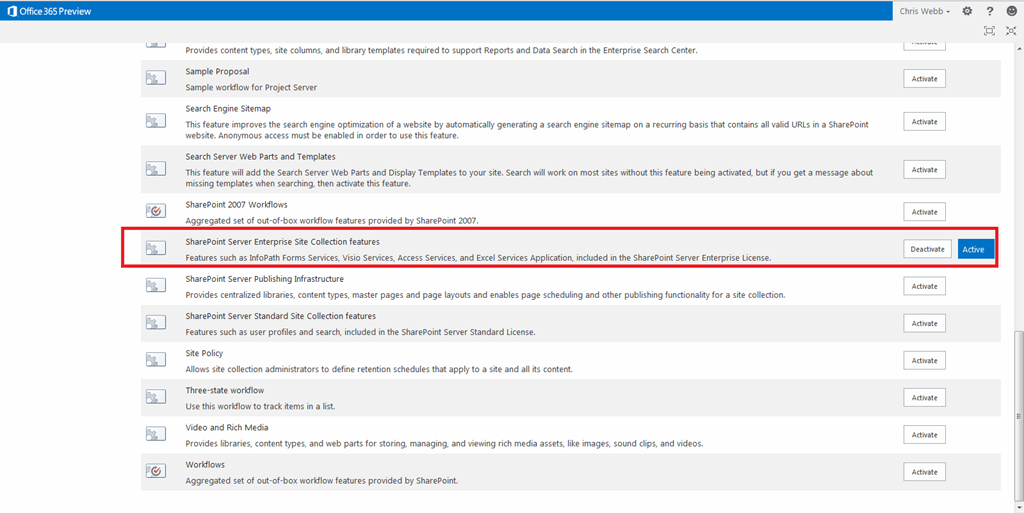
First of all, what did I need to do to get this working? Well, enable Excel Services for a start, duh. This can be done by going to Settings, then Site Collections features, and activating Sharepoint Server Enterprise Site Collection features:

image

With that done, and making sure that my permissions are all in order, I can go into Excel, start the OData feed import wizard (weirdly, the PowerPivot equivalent didn’t work) and enter the URL for the table in my worksheet (called Table1, helpfully):

image

Here’s what the URL for the Survey worksheet I created in yesterday’s post looks like:
https://mydomain.sharepoint.com/_vti_bin/ExcelRest.aspx/Shared%20Documents/SurveyTest.xlsx/OData/Table1

(there’s much more detail on how OData requests for Excel Services can be constructed here).

And bingo, the data from my survey is loaded into Excel/PowerPivot and I can query it quite happily. Nothing to it.

image

In a way it’s a good thing I’m writing about this as a separate post because I’m a big fan of OData and I believe that the Excel Services OData API is a big deal. It’s going to be useful for a lot more than consuming data from surveys: I can imagine it could be used for simple budgeting solutions where managers input values on a number of spreadsheets, which are then pulled together into a PowerPivot model for reporting and analysis; I can also imagine it being used for simple MDM scenarios where dimension tables are held in Excel so users can edit them easily. There are some obvious dangers with using Excel as a kind of database in this way, but there are also many advantages too, most of which I outlined in my earlier discussions of data stores that are simultaneously human readable and machine readable (see here and here). I can see it as being the glue for elaborate multi-spreadsheet-based solutions, although it’s still fairly clunky and some of the ideas I saw in Project Dirigible last year are far in advance of what Excel 2013 offers now. It’s good to see Microsoft giving us an API like this though and I’m sure we’ll see some very imaginative uses for it in the future.

Creating Surveys using Excel 2013 Forms

Jamie Thomson and I share a number of… obscure enthusiasms. For instance, last week when he spotted the new forms/surveys feature in the Excel 2013 Web App (see here for a mention) he knew I’d be excited. And I was. Excited enough to devote a whole blog post to them.

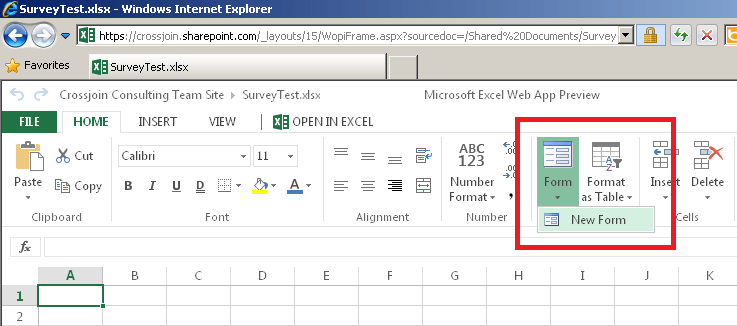
What is this feature? Basically a rip-off of homage to the Google docs functionality I mentioned here that allows you to create simple questionnaires and save the data back to a spreadsheet. To use it you need to create a new Excel spreadsheet in the Excel Web App (I can’t seem to find it in desktop Excel and it may not even exist there), then click on Form/New Form in the ribbon:

image

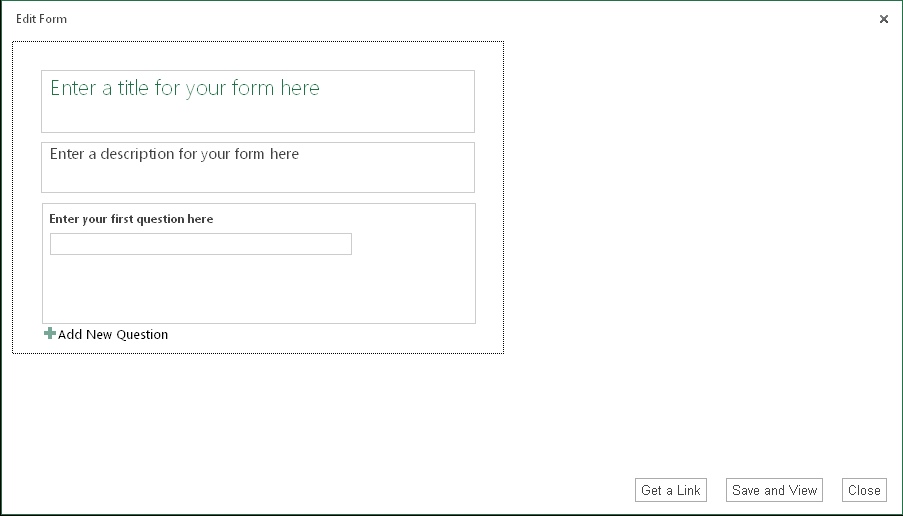
This opens a new dialog where you can create your form/survey:

image

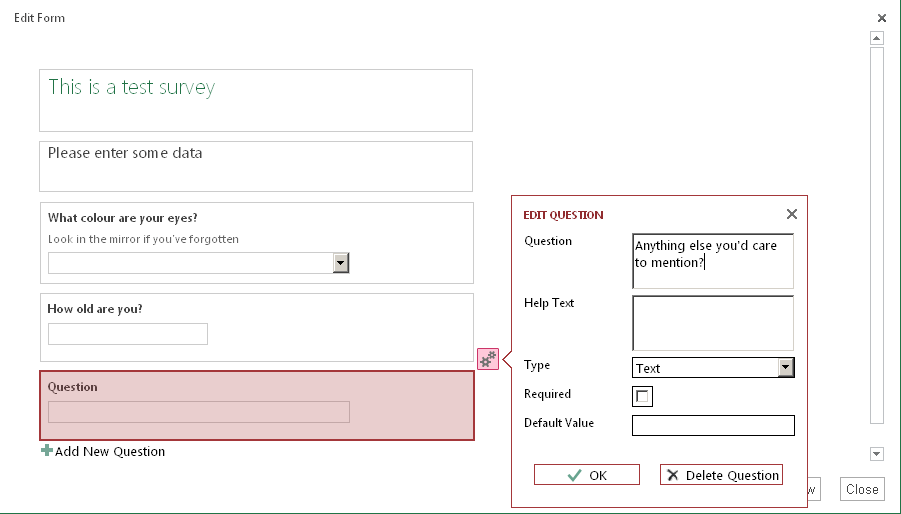
It’s all pretty self-explanatory from there, you just enter a title and description and then some questions, which can be various types (returning text, numbers, multiple choices etc):

image

You can then answer the questions yourself or send a link out to other people so they can too:

image

If you’d like to take the survey you can do so here btw.

The data then lands in a table in the original Excel spreadsheet, ready for you to do something useful with it:

image

For my next trick, and to go back to another issue that Jamie and I have been moaning about for years, I would have liked to consume the data in this table via an OData feed as detailed here:
http://msdn.microsoft.com/en-us/library/sharepoint/jj163874(v=office.15)

Unfortunately I couldn’t get it to work. Whether this is a temporary problem or a limitation with Office 365 (as opposed to on-prem Sharepoint) I don’t know… if someone knows how to make it work, though, I’d be much obliged if you could leave a comment.

UPDATE: First of all, if you can’t see the survey don’t worry – the service seems to be very unreliable. Secondly I’ve got the OData feed working now and will blog about it later.