Building a Simple BI Solution in Excel 2013, Part 2

In part 1 of this series I showed how to build a BI dashboard with UK weather data in Excel 2013. What I’m going to do now is show, very quickly, how this dashboard can be shared with other people via a web browser.

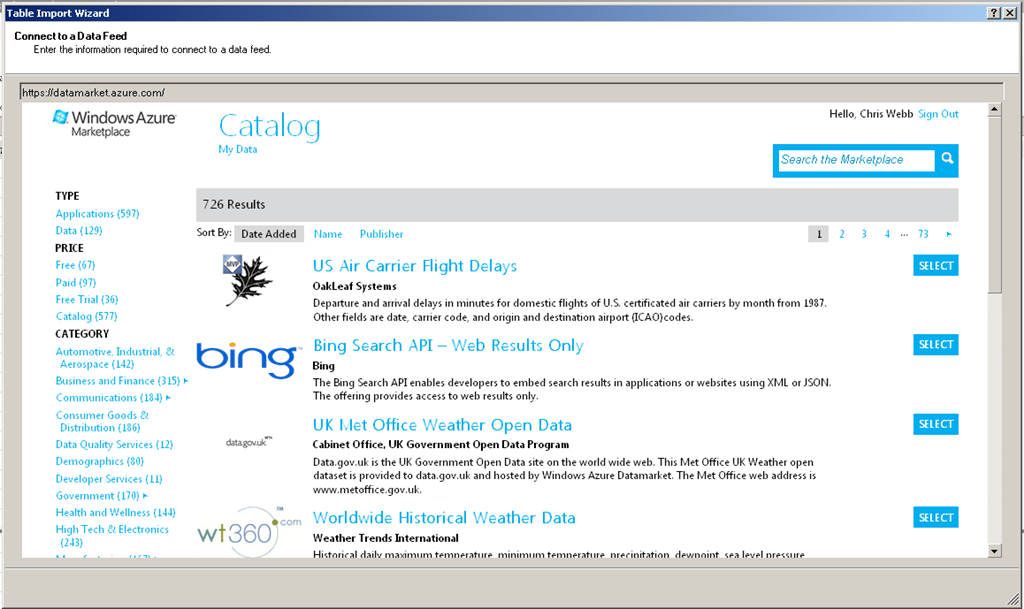
Before I do that, though, an aside: I found a bug in the preview version of Excel 2013 which means that the dashboard I built in the previous post won’t work with what I’m going to describe here. It’s related to how I imported the data – in my last post I imported data from the Azure DataMarket from the Data tab, and what I’ve had to do for this post is import data from inside the PowerPivot window instead. In a way it’s a good thing I did this because the UI for importing data from the Azure DataMarket in PowerPivot is much better than what I showed before (although it too is quite buggy at the moment). No more fumbling around for account keys and OData queries in the way that Rob Collie complains about here, it’s all handled from within the wizard. All you need to do is pick a data set:

image

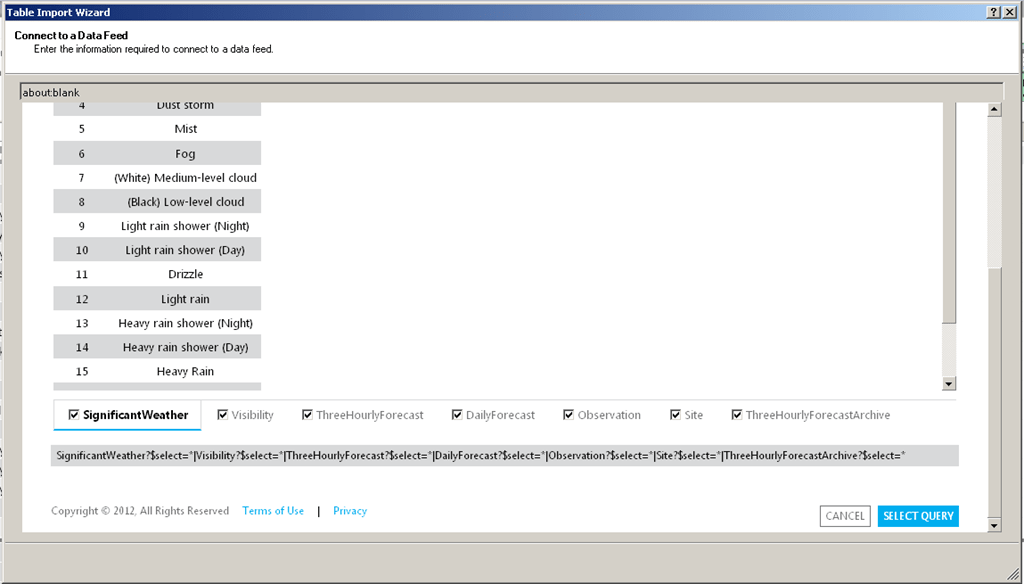
And then check the tables you want and optionally apply filters to certain columns that support it:

image

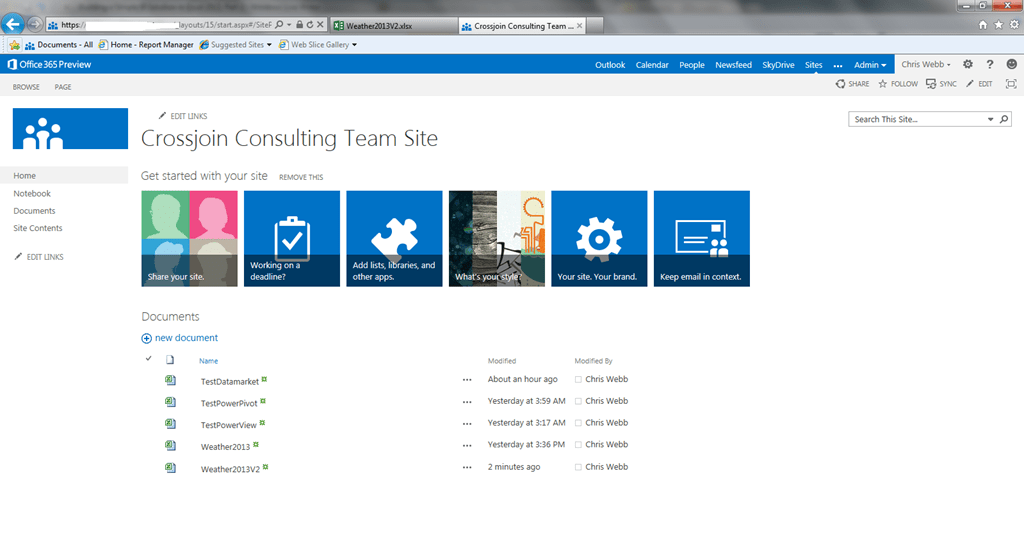
Anyway, with my workbook rebuilt, the next thing I’m going to do is save it. There’s actually a lot more to saving in Office 2013 than you might expect, and certainly lots of different options for places to save stuff too, so I recommend you read this post to get a feeling of what’s possible. I’ve signed up for the Office 365 Professional Plus Preview which means I have access to all kinds of cloud-based services including Sharepoint in the cloud, so I can save my workbook up to Sharepoint:

image

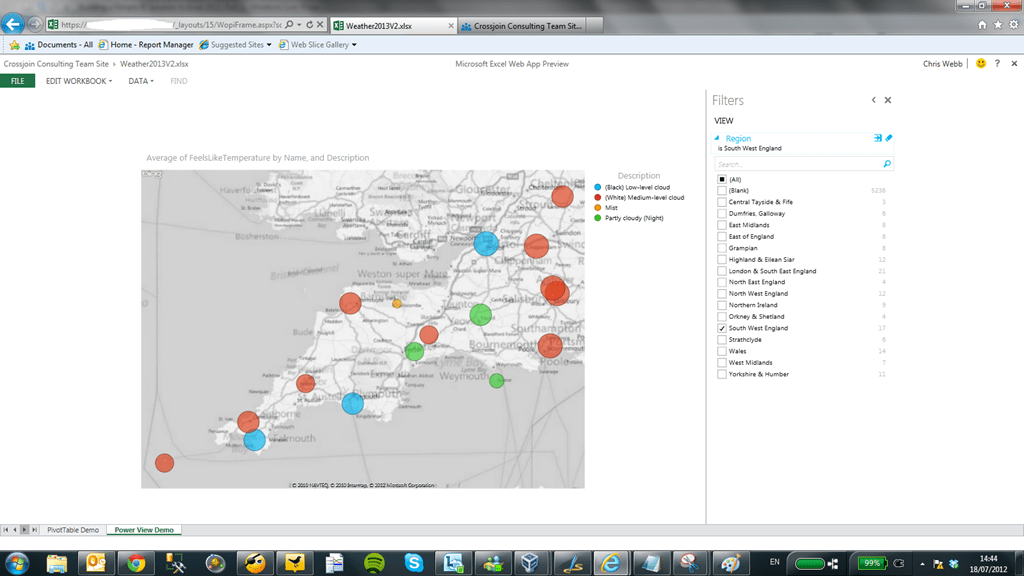
I can then go to my Sharepoint site on another computer and view and interact with my dashboard using Office Web Apps in the browser:

image

image

Yes, that’s my Power View dashboard in a web browser – and I can change filters and it all works! Here’s my PivotTable:

image

I can not only drill down, but I can even change what’s on rows and columns by dragging and dropping fields in the Field list in the usual way. It’s a bit slow and (again) a bit buggy at the moment, but by RTM I can see this being a big selling point: anyone with Office 365 will have in place everything they need not only for BI on the desktop, but for sharing their reports over the web (though data refresh may be a problem here). I’m very impressed, and it’s good to see such a strong answer to the question I asked here last year.

Finally, the question I know you’re all dying to ask. Does this work on an iPad? Well, yes and no. The PivotTable works properly and there’s no loss of interactivity, although I’d say that the touch interface doesn’t work all that smoothly yet:

iPad1

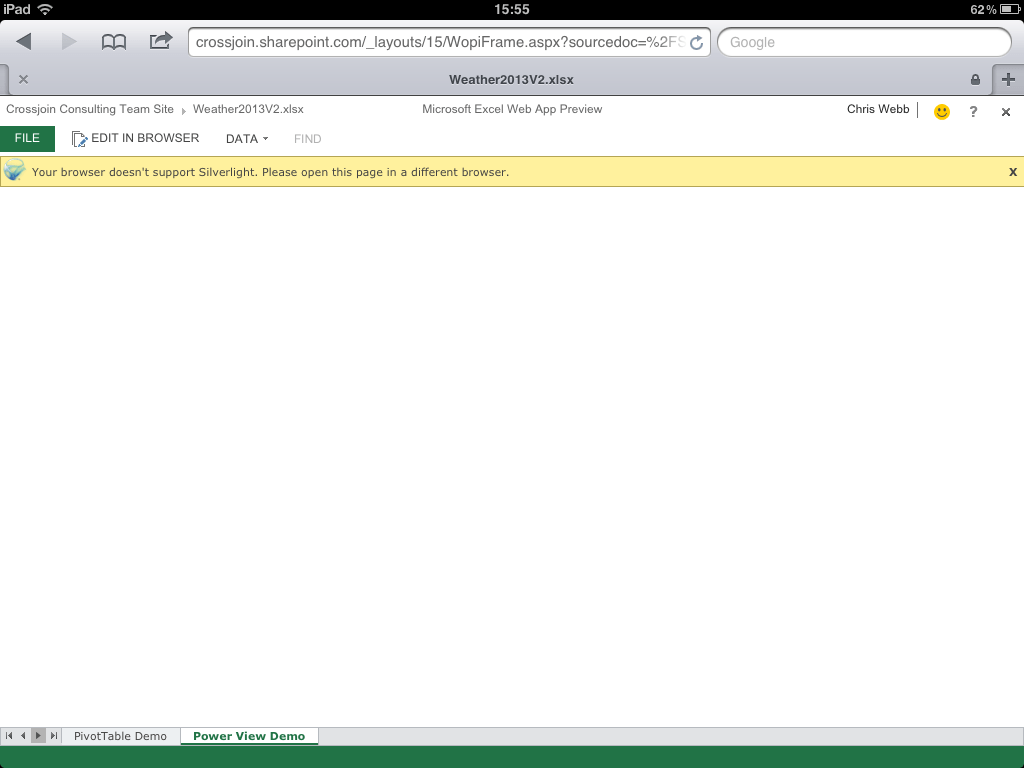
Unfortunately the Power View sheet doesn’t work at all – no Silverlight!

iPad2

Oh well, maybe that was too much to ask for… this is clearly not the Microsoft mobile BI solution that was promised at PASS last year. That’s not to say it isn’t useful though – there’s still some good stuff you can do with PivotTables and regular Excel sheets. I’m still very happy with what’s been delivered so far!

Building a Simple BI Solution in Excel 2013, Part 1

nsurprisingly there’s been a lot of interest in Office 2013 since it was announced yesterday, and I’m certainly very excited by all of the new BI features in it. Luckily I wasn’t working today so I had the chance to have a proper play with it, and I thought it would be useful to walk through the process of building a simple BI solution in Excel 2013 to show off some of the new features.

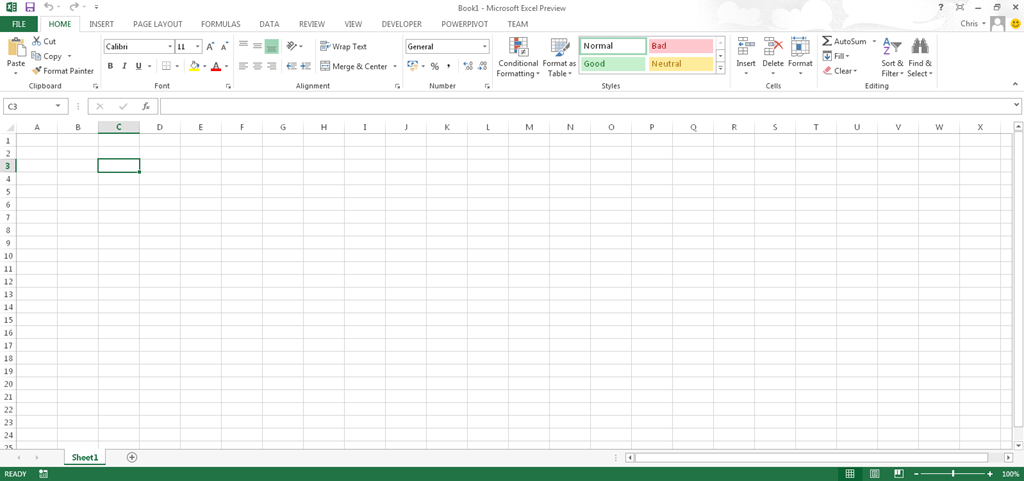
Let’s start with a blank workbook:

image

Some people don’t like the new look for Office, but I quite like it. You can even set custom backgrounds: you may just be able to see some wispy clouds in the top right-hand corner of the screenshot above. But anyway, to business. To import some data, I first need to go to the Data tab as normal:

image

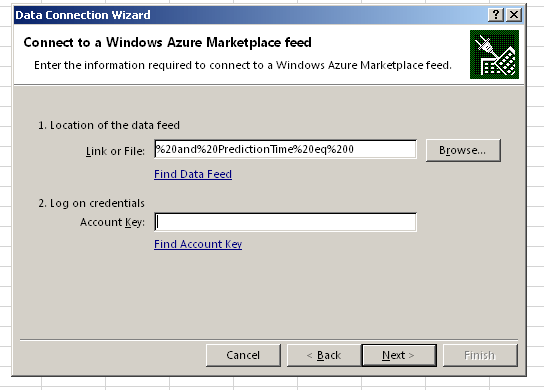
As you can see there are some new options available here, and I’m going to go to the Windows Azure Marketplace. Actually, I’m going to cheat a little and just say that I’m going to import the UK weather forecast from 12:00am today (July 17th) along with some related tables as described in this blog post. The UI for the import wizard is plain but functional:

image

Interestingly, the data is always imported at the end of the wizard even if I check the ‘Only Create Connection’ option on the last step of the wizard.

Once the data from all the tables has been imported, I need to specify some relationships. I can either do this by clicking on the Relationships button in the Data tab or (better still) going to the PowerPivot window and using the Diagram View. Now as I said yesterday, xVelocity in-memory database is now integrated into Excel but I still need to use the PowerPivot addin in some cases; The PowerPivot addin comes bundled with Excel 2013 but isn’t enabled by default, so in order to use it I first need to enable it; the steps to do this are detailed here. I can then click on the Manage button in the PowerPivot tab to open the PowerPivot window:

image

And then build some relationships between my tables in Diagram View, which can be reached by clicking on the small Diagram button in the very bottom right hand corner of the PowerPivot window. Once in the Diagram View, building relationships is simply a matter of dragging one column onto another:

image

I can also build hierarchies here; Duncan Sutcliffe shows how to do this here, and also how to use hierarchies in Power View which is something new. I’ve created a hierarchy going from Region to Weather Station.

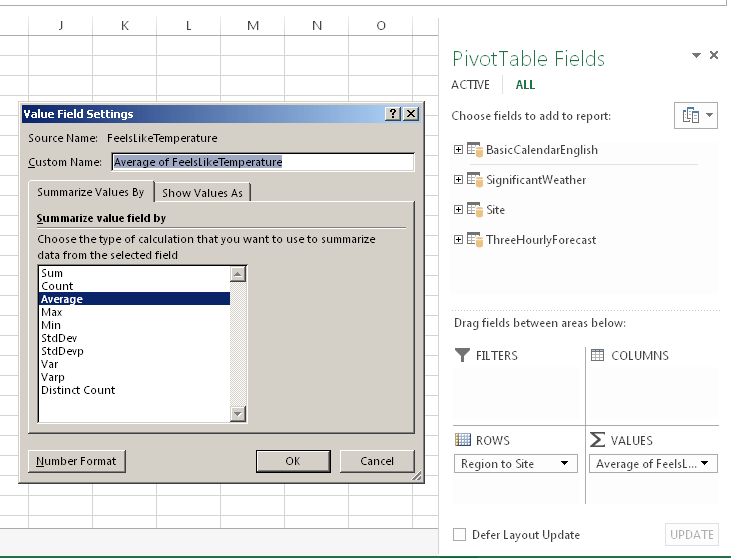
With that done I can of course build a PivotTable. The first thing I’ve noticed is that there isn’t now a separate type of PivotTable for PowerPivot, which is kind of a shame because this means that you don’t seem to be able to create Slicers in the Field List any more, and have to go up to the Ribbon. It’s good for consistency though I suppose. Measure aggregation and number formats are all handled in the Value Field Settings dialog:

image

There’s a new type of Slicer available too for dates called the TimeLine which Raphael has a lot of good detail on here.

Here’s what the new Quick Explore option, which provides some options on where to drill to and for charts to create, looks like when I hover over a Region on Rows:

image

Really, though, the thing to do is to create a Power View sheet. This can be accomplished by going to the Insert tab and clicking the Power View button:

image

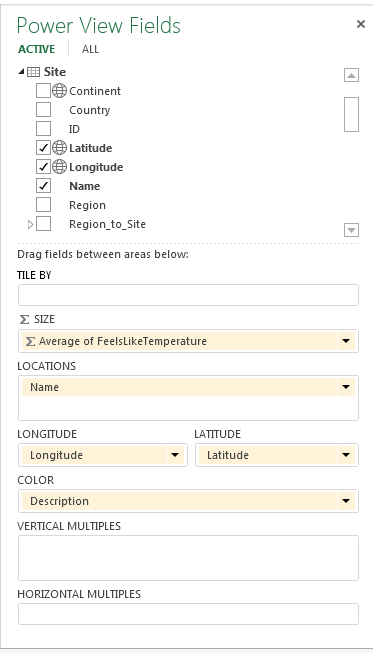
This is where things get exciting. Power View in Excel now supports maps and because my weather data contains the latitude and longitude of all of the weather stations in the UK it’s very easy to plot each weather station on a map and visualise the temperature and predicted weather for each station. To do this I just need to drop the Region Name column onto the Filters selection (choosing a region reduces the number of Weather Stations displayed down to a manageable number for the purposes of this demo), then drop the Latitude and Longitude columns onto the main canvas, turn the resulting table into a map, and then set the size of the markers to show temperature and the colour to show the type of weather:

image

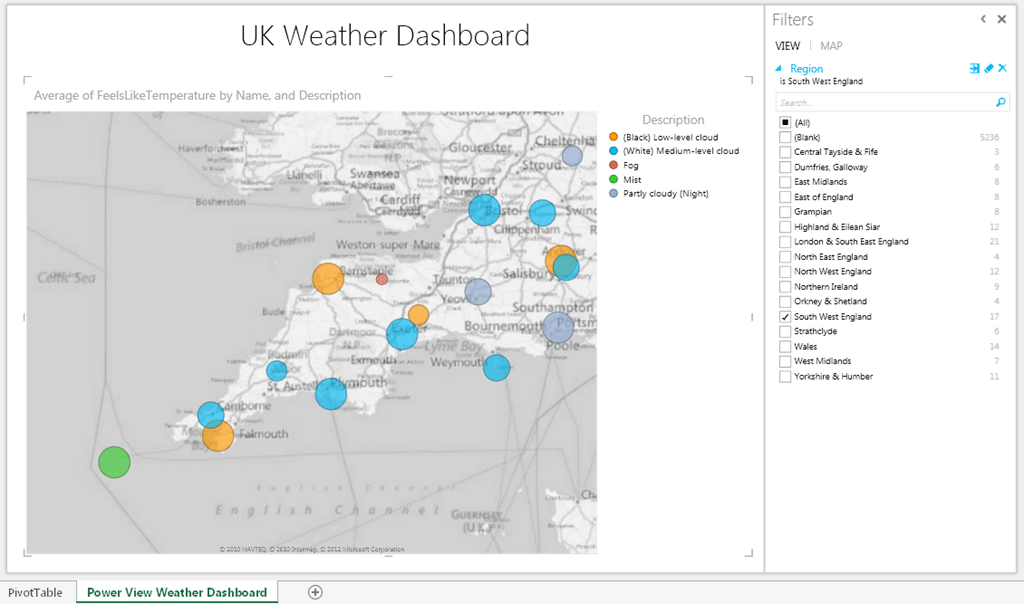
I’ll be speaking at SQL South West this week so what’s the weather like down there at the moment?

image

From this I can see that today there’s fog in the Scilly Islands (shown by the green marker in the bottom left hand corner) and that it’s very cold and foggy in Liscombe (shown by the small red marker in the middle of the map). This dashboard was ridiculously easy to create, by the way, and I am already completely in love with Excel 2013 simply because of Power View – it’s a killer feature in my opinion.

At this point we’ve got a working self-service BI solution, made very quickly in Excel 2013 and it’s something that every competent Excel user would be able to achieve.

In Part 2, you’ll see how you can share this solution with your co-workers in the Office Web App.

What Are The Big Changes In Excel 2013 For BI?

As you may already have read, the first public preview for Office 2013 is now available and there’s lots of new BI functionality in there – see here for an overview. Here’s a quick summary of what the two really important changes are:

  • PowerPivot has been integrated into Excel, kind of. This means that the xVelocity (aka Vertipaq) engine is now native to Excel, and you can do all the basic PowerPivot stuff like loading vast amounts of data from multiple data sources and querying it via PivotTables directly in Excel, without installing any extra addins. PowerPivot does still exist as an optional extra however: you need it if you want to use the more advanced functionality that exists in PowerPivot today, such as filtering data before import, using diagram view, defining hierarchies and perspectives and so on.
  • Power View has also been integrated into Excel: Power View reports become a new type of sheet inside a workbook, and you can use it against data held in the integrated xVelocity/PowerPivot engine; I’m not clear yet whether it will work on a SSAS 2012 Tabular model (and at some point a SSAS Multidimensional model, once support for DAX on Multidimensional models arrives) but I hope it does. No more need to moan about Power View being tied to Sharepoint!

There are a whole bunch of other BI-related changes in Excel which I’ll try to summarise in another post soon (stuff like the suggestions for charts and PivotTables, flash fill, timeline slicer). However I think that the two changes above represent a master-stroke on the part of Microsoft: they make Excel 2013 a serious contender in the self-service BI tool stakes. Certainly, other vendors will be quick to point out the features they have and that Excel doesn’t, and dedicated BI vendors will always be able to add new features faster and more frequently than Excel, but that’s not the point. It won’t happen overnight but at some point every company will upgrade to Office 2013 and when they do, all users will have a BI tool on their desktops which is vastly more capable than Excel today and will be good enough for the majority of BI scenarios – which means that the need to even look at third party tools will disappear.

UPDATE A few clarifications:

  • The PowerPivot addin, while still an addin, comes bundled with Excel – there’s no separate download
  • As the comments below show, and I can confirm, Power View does work with SSAS 2012 Tabular models

I’ll be posting more details throughout the day on Twitter as I play with the new preview, and will post something more substantial here later

PowerPivot Course In London This October

I’m pleased to announce a new addition to the Technitrain course catalogue: along with Bob Phillips (a UK-based Excel MVP) I’ll be teaching a PowerPivot course in London this October. Full details and registration can be found here:
http://www.technitrain.com/coursedetail.php?c=18&trackingcode=CWB

The course is the one written by Marco and Alberto to tie in with their excellent book “PowerPivot for Excel 2010: Give Your Data Meaning”, and is suitable for BI professionals and Excel professionals. It costs £499 + VAT if you book before August 31st, and £549 + VAT after that.

Other courses coming up this autumn include:

PowerPivot Top N Reports Using Excel Cube Formulas

Top N reports are an extremely common requirement: my customers are always trying to find their top 10 products or sales people or geographies by some measure or other. Luckily this type of report is fairly easy to build in PowerPivot if you’re using a PivotTable; in fact, Rob Collie wrote a good blog post on this subject only last week which is well worth a read. The problem with PivotTables is, however, that they are a pain to format and many people prefer to use Excel cube formulas for their dashboards – and unfortunately dynamic Top N reports are surprisingly difficult to implement with cube formulas. As the discussions here and here show, even when you’re using CubeSet and CubeRankedMember you need to know MDX pretty well and even then it’s a bit messy. Here, instead, is a pure DAX solution to the problem which, while not as simple as I’d like, involves no MDX, no clever use of Excel cube functions, and works when you select more than one item in a slicer.

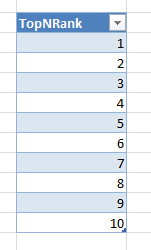
The first thing you need to do is to create a table with as many rows in as you need items in your Top N report. In my example I’m going to return the top 10 products in a model built from the Adventure Works database, so here’s my table (called TopNRank):

image

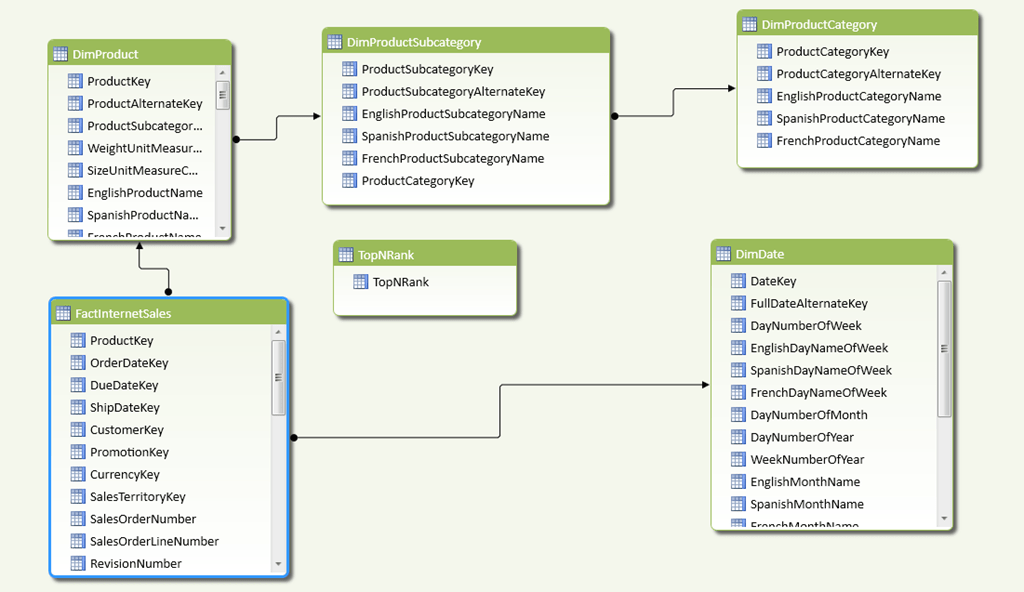
Here’s my model in Diagram View:

image

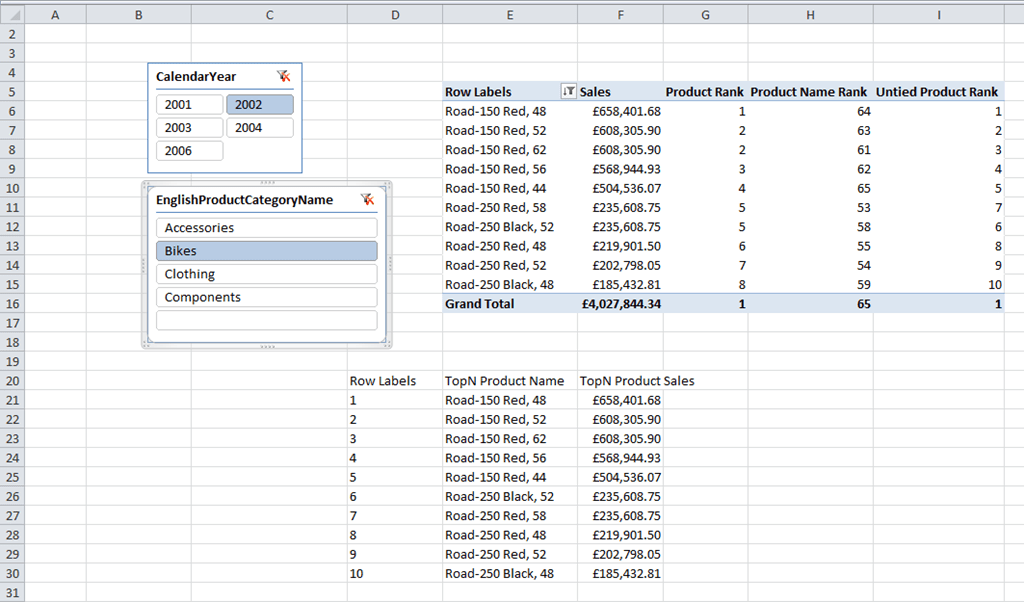
And here’s a screenshot of my main worksheet, for reference, with two Slicers on CalendarYear and EnglishProductCategoryName; a PivotTable with a Top 10 filter applied on EnglishProductName (to check the output and for debugging); and below it my Excel formulas, with the ten values from the TopNRank table on rows and two measures called [TopN Product Name] and [TopN Product Sales] on columns, showing the same top 10 values:

image

Step 1 is to create a measure called [Sales] that simply sums up the values in the [Sales Amount] column:

Sales:=SUM([SalesAmount])

You can then create a measure, called [Product Rank] here (and shown in the PivotTable above), that returns the rank of each product by [Sales] for the current year and category:

Product Rank:=
IF(
  ISBLANK([Sales])
    , BLANK()
    , RANKX(ALL(DimProduct[EnglishProductName]), [Sales], [Sales], 0, Dense)
)

The basic idea for this approach is that with the Excel cube formulas, you’re going to use the values from the TopNRank table on rows and then use a measure to return the name of the top Nth Product for each row. This measure needs to return the name of the product that has the same rank value as whichever value from the TopNRank table is on rows. For example, in the screenshot above, in cell D21 there is a CubeMember function that returns the value 1 from TopNRank table; in cell D22 there is a CubeValue function that references the new measure, and this filters the list of all Products to return the name of the Product where [Product Rank] is 1, which is Road-150 Red, 48 (as you can see from the PivotTable).

There’s a problem with this approach, however, and that is that the RankX function always returns tied ranks when two products have the same value for [Sales]. So, in the PivotTable in the screenshot above, there are two products with the rank 2 because they have the same value for the [Sales] measure – and this causes big problems for the approach described in the previous paragraph. Despite what BOL says you can’t calculate a rank by more than one column, so the only way to get around this is to ensure that tied ranks can never occur, and the way I’ve done this is to rank by [Sales] and the name of the product by using the following measures:

Product Name:=
FIRSTNONBLANK(VALUES(DimProduct[EnglishProductName]), DimProduct[EnglishProductName])

Product Name Rank:=
IF(
  ISBLANK([Sales])
    , BLANK()
    , RANKX(ALL(DimProduct[EnglishProductName]),[Product Name])
)

Combined Rank:=
[Product Rank] + (1/[Product Name Rank])

Untied Product Rank:=
RANKX(ALL(DimProduct[EnglishProductName]), [Combined Rank],,1)

With this done, at long last it’s possible to create the measure that returns the name of the Top Nth product as follows:

TopN Product Name:=
IF(
  ISFILTERED(‘TopNRank'[TopNRank]) && ISBLANK([Sales])=FALSE()
    , FIRSTNONBLANK(
        FILTER(VALUES(DimProduct[EnglishProductName])
        , [Untied Product Rank]=VALUES(‘TopNRank'[TopNRank]))
    , DimProduct[EnglishProductName])
  , BLANK()
)

And here’s the measure that returns the value of [Sales] for each product:

TopN Product Sales:=
IF(
  ISFILTERED(‘TopNRank'[TopNRank]) && ISBLANK([Sales])=FALSE()
  , CALCULATE(
    SUM(FactInternetSales[SalesAmount])
    , FILTER(
      VALUES(DimProduct[EnglishProductName])
      , DimProduct[EnglishProductName]=[TopN Product Name]))
    , BLANK()
)

I’ve been told by the customer that implemented this approach that performance on larger models, while acceptable, is a bit slow and that it gets worse the more items you display in your top n list. This doesn’t surprise me and to be honest I’ll need to do some experiments to see if I can improve performance.

You can download my sample workbook (Excel 2010 64 bit, PowerPivot V2.0) from here.

My PowerPivot Post on the Microsoft BI Blog

Just a quick note to mention that a guest post I wrote on PowerPivot and how it can be used with some other new, obscure and/or experimental BI tools in Excel is now live here on the Microsoft BI Blog:

http://blogs.msdn.com/b/microsoft_business_intelligence1/archive/2012/07/05/the-microsoft-self-service-bi-stack-it-s-more-than-just-powerpivot.aspx

This post follows the outline of a session I’ll be presenting at the PASS Summit this year; I’ve presented it a few times already to whip it into shape (including last week at the Leeds UG) and I can promise you it’s even more fun in person!

Storage Engine Cache Aggregation and its Implications for Dimension Design

SSAS Multidimensional does caching in a number of places, but the most important type of caching for most cubes happens in the Storage Engine (SE) – the part of SSAS that reads data from disk and aggregates it up to a given granularity. After the SE has answered a single request for data it stores the resulting subcube in cache so that if the same request is made in the future then it can be answered from there very quickly. In addition, in some cases the SE is also able to answer requests at a higher granularity from data that is currently in its cache, and increasing the likelihood of this happening can have a significant positive impact on the performance of large cubes.

Let’s see an example of how SE caching works using a very simple cube built on the Adventure Works database, with one Sum measure and just one dimension, a Date dimension with the following attribute relationships:

image

Running the following query on a cold cache:

select {[Measures].[Sales Amount]} on 0,
[Date].[Year].[Year].members
on 1
from [SECacheDemo]

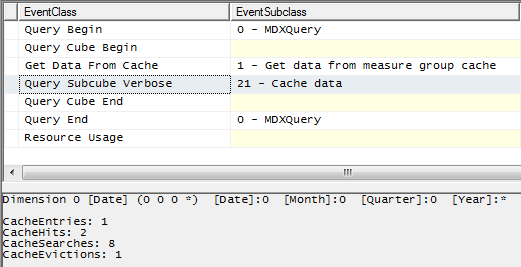
…and then looking in Profiler shows that the SE has to go to disk to get the data it needs (as shown by the Progress Report Begin/End events):

image

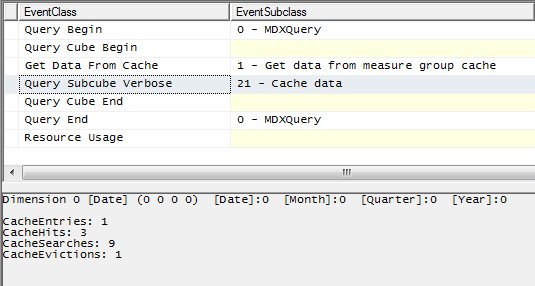
Running the same query immediately afterwards shows the SE can get the data it needs from cache:

image

Running the following query, where I’m getting the All Member from the Year hierarchy, shows that the SE is also able to answer this request from cache:

select {[Measures].[Sales Amount]} on 0,
{[Date].[Year].[All]}
on 1
from [SECacheDemo]

image

This is as you’d expect because, of course, the All Member on the Years hierarchy represents the aggregated total of all the years returned in the first query.

There are several limits on the ability of the SE to derive aggregated totals from data it already has in cache. For a start, the SE cannot aggregate multiple cache entries to derive a single figure. So, for example, if I run the following three queries:

select {[Measures].[Sales Amount]} on 0,
{[Date].[Year].&[2001],[Date].[Year].&[2002]}
on 1
from [SECacheDemo]

select {[Measures].[Sales Amount]} on 0,
{[Date].[Year].&[2003],[Date].[Year].&[2004]}
on 1
from [SECacheDemo]

select {[Measures].[Sales Amount]} on 0,
{[Date].[Year].&[2006]}
on 1
from [SECacheDemo]

…which together return all the years, when I run the query to get the All Member that will not be answered from the SE cache. Each of the three queries above create separate entries in the SE cache; this is one of the reasons why, when cache warming, it’s better to use a few very large queries rather than lots of small, filtered queries.

Furthermore (and this is something that surprised me a little when I found out about it recently), despite the presence of attribute relationships, the SE cannot always work out how to derive higher-level values from lower-level cached data. Running the following query on a cold cache:

select {[Measures].[Sales Amount]} on 0,
[Date].[Date].[Date].members
on 1
from [SECacheDemo]

image

…populates the SE cache with data at the Date granularity, but the following query to get the values for all years:

select {[Measures].[Sales Amount]} on 0,
[Date].[Year].[Year].members
on 1
from [SECacheDemo]

…is not answered from cache, even though the year values could be derived from the date values already in cache.

image

Why is this happening? Well, the SE does not (at least at the time of writing) decode the attribute relationships when working out which granularities can be aggregated from cache. If you look at the granularities as represented in the Query Subcube Verbose events shown in the previous two screenshots, the granularity for the request at Date is
* 0 0 0
…and the granularity for the request at Year is
0 0 0 *
The four characters in this representation of the granularity stands for the four attributes on the dimension: Date, Month, Quarter and Year. The 0 character shows that a request is not at the granularity of that attribute, any other value shows that it is, and the asterisk character shows the request returns all the values at the specified granularity (this white paper gives more detail on how to interpret these values). So, without knowing anything about attribute relationships, the SE can say that the granularity
0 0 0 0
can be aggregated from
* 0 0 0
but it cannot say that
0 0 0 *
can be aggregated from
* 0 0 0

Luckily these limitations on what can be aggregated do not apply to aggregations: if I was to build an aggregation at the Date granularity, my query at the Year granularity would be able to make use of that aggregation.

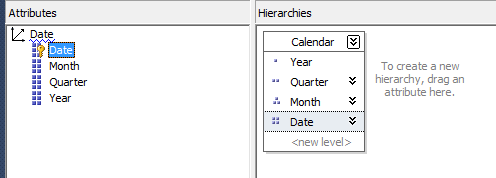
Also, the use of natural user hierarchies can work around this limitation. Consider the following user hierarchy built on the dimension:

image

Querying at the Date level of this user hierarchy, like so:

select {[Measures].[Sales Amount]} on 0,
[Date].[Calendar].[Date].members
on 1
from [SECacheDemo]

image

…results in a request at the granularity
* * * *
which can then be aggregated up to many more granularities – querying at a level in a natural user hierarchy automatically includes the granularities of all the attributes used for the levels above in the user hierarchy.

Therefore, both the following queries:

select {[Measures].[Sales Amount]} on 0,
[Date].[Calendar].[Year].members
on 1
from [SECacheDemo]

select {[Measures].[Sales Amount]} on 0,
[Date].[Year].[Year].members
on 1
from [SECacheDemo]

…can be answered from the cache created by the query at the [Date].[Calendar].[Date] level.

The conclusion must be, then, that using natural user hierarchies will allow for much better SE cache reuse than using the attribute hierarchies on their own. Also, if you have a natural user hierarchy, it might be a good idea to hide the underlying attribute hierarchies so users and other developers do not reference them in their queries and calculations. You may not notice the performance difference that better SE cache reuse gives you on most cubes, but on very large cubes or cubes that are very SE-intensive (for example, because they are reprocessed frequently) this could make a noticeable difference to your overall query performance.

Thanks to Akshai Mirchandani and Hrvoje Piasevoli for their help in understanding this.

OR Selections in DAX

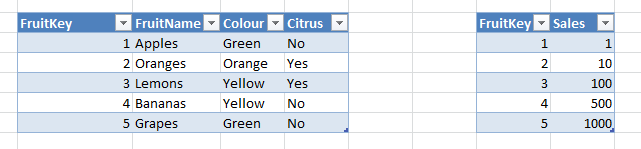
Most of the time, selecting items in a PivotTable in a PowerPivot or SSAS 2012 Tabular model works in the way you want: if you select more than one item from a column it acts as an OR filter on that column; selecting items on another column acts as an AND filter on the selection. Consider a simple PowerPivot model built from the following Excel tables (where the only relationship is on the FruitKey columns):

image

With a measure that sums up the Sales column, such as:

Sum of Sales:=SUM(SalesFact[Sales])

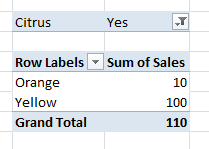
You can built a PivotTable like the one below that shows the sales of Citrus fruit that are Orange or Yellow (Citrus=Yes and (Colour=Orange OR Colour=Yellow):

image

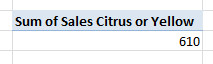
So far so good. What happens if you want to see the sales of fruit that are either Citrus OR Yellow? If you know the selection in advance, or you have control over how your DAX is generated, you can build an expression like this measure that does the job:

Sum of Sales Citrus or Yellow:=
CALCULATE(
  SUM(SalesFact[Sales])
  , FILTER(ALL(Fruit1), Fruit1[Citrus]="Yes" || Fruit1[Colour]="Yellow")
)

image

But what if you don’t want to hard-code the filter you’re using, and want to let your users control what they are ORing? Here’s how…

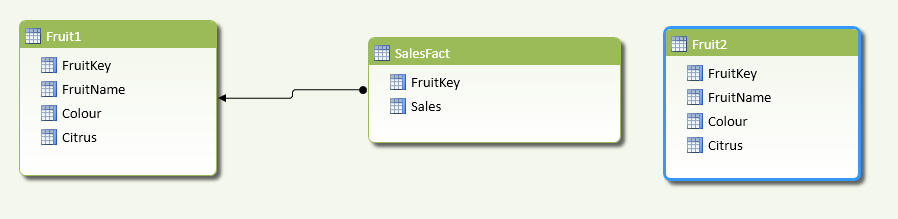
First of all, you need to have two identical tables in your model that allow the user to make selections for the two conditions they are ORing. Here’s an example with the data from above:

image

Here I’ve got two tables, Fruit1 and Fruit2, for controlling the OR selection; only Fruit1 has a relationship with SalesFact though. Next, you need a measure that will apply the OR filter. The way this needs to work is as follows: take the whole of the Fruit table and if the user has selected something on Fruit1 then allow those rows through, and if the user has selected something on Fruit2 then allow those rows through the filter as well. Here’s the final DAX measure:

OR Sales:=
IF(
  OR(ISCROSSFILTERED(Fruit1[FruitKey]), ISCROSSFILTERED(Fruit2[FruitKey]))
  ,CALCULATE(
    SUM(SalesFact[Sales])
    , FILTER(
      ALL(Fruit1)
      , IF(ISCROSSFILTERED(Fruit1[FruitKey]), CONTAINS(Fruit1, Fruit1[FruitKey], [FruitKey]), FALSE())
      ||
      IF(ISCROSSFILTERED(Fruit2[FruitKey]), CONTAINS(Fruit2, Fruit2[FruitKey], [FruitKey]), FALSE())
    )
  )
  , SUM(SalesFact[Sales])
)

The key points here are (starting from the inside of the expression and working outwards):

  • I’m using ALL(Fruit1) to get all the rows from the Fruit1 table, regardless of what has been selected, and then passing that table to the FILTER() function
  • I’m then using the ISCROSSFILTERED() function on the FruitKey columns on both tables to see if the user has selected anything from any columns on those tables; if they have, then the FruitKey column will be filtered in some way
  • Then, if something has been selected on either table, in my filter of ALL(Fruit1) I’m allowing a row to pass through the filter if the value of FruitKey is present in the user-selections on Fruit1 or Fruit2. This preserves the original selection on Fruit1 and adds the selection on Fruit2 to it. It would be much easier to do this if there was a way of unioning table expressions in DAX!
  • Finally, I’m using the resulting table in the CALCULATE() function to get the sum of Sales for that selection. If nothing has been selected, however, the outer IF() simply returns the sum of Sales Amount with none of this logic applied.

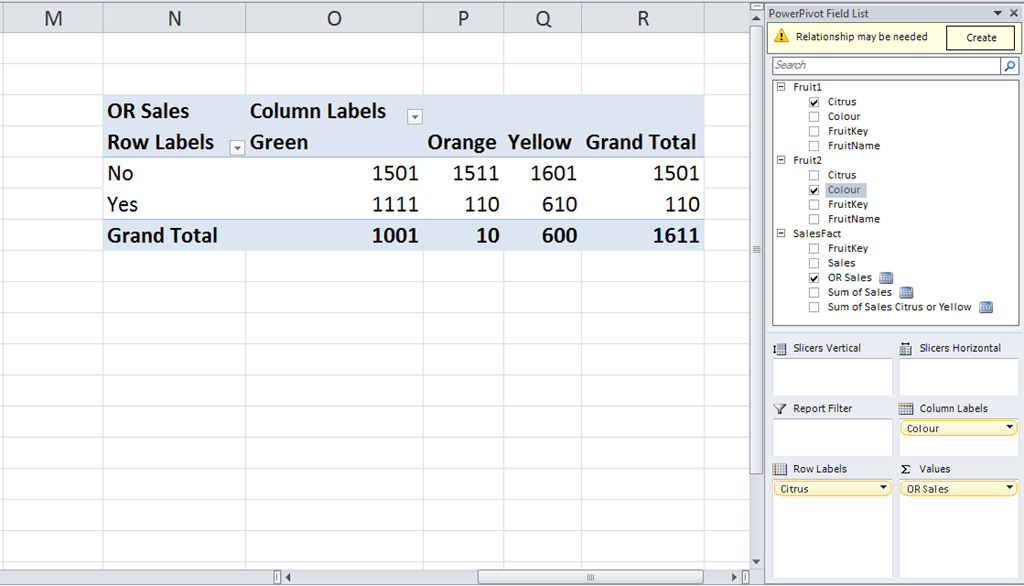
Here’s a PivotTable using this measure with Citrus from Fruit1 on rows and Colour from Fruit2 on columns:

image

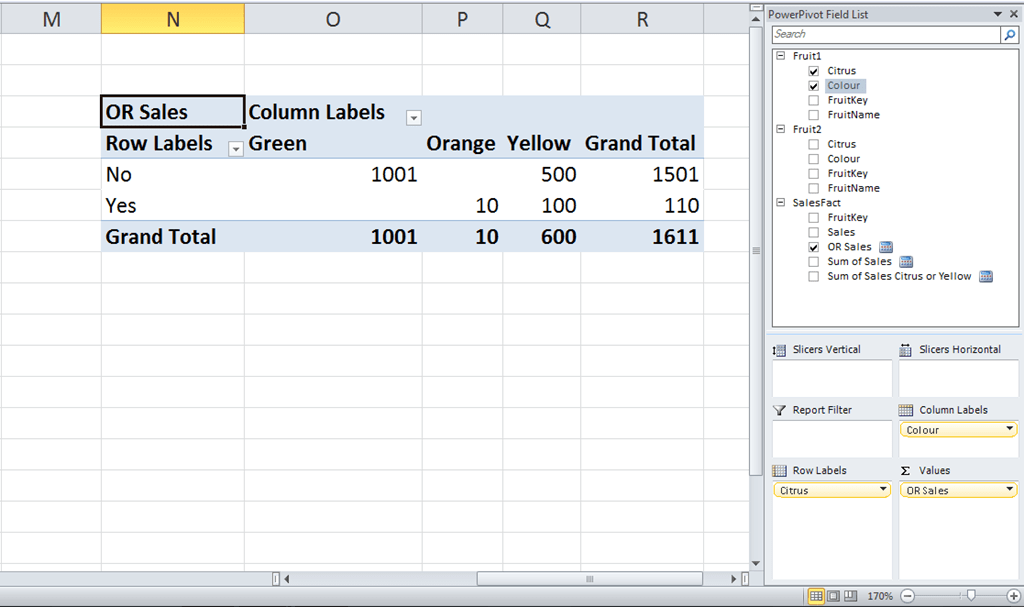
And, if you don’t want this OR functionality, all you need to do is ignore the Fruit2 table. Here’s a PivotTable with Citrus and Colour from Fruit1 on rows and columns:

image

I’m not sure this is the most elegant solution to this problem… if I think of one I’ll blog about it, and if you can think of one then please leave a comment!

Comparing Any Two Time Periods in DAX

Simple time series calculations, such as comparing sales in the current year with the previous year, are easy to do in DAX and well-documented. What happens if, in PowerPivot or the SSAS 2012 Tabular model, you want to compare the sales in any two arbitrary time periods – for example you want to compare (and maybe find the growth from) sales in January last year and February this year?

There are several ways of solving this, but here’s one. First, you need two Date dimension tables, one for each of the two time periods you’re comparing. Using the Adventure Works DW database here’s an example of how this can be done:

image

In this case I loaded DimDate and FactInternetSales and created an active relationship between the two tables on OrderDateKey=DateKey. I then loaded DimDate again, called it DimDateCompare, and created another relationship between it and FactInternetSales on OrderDateKey=DateKey but set this second relationship as inactive. This means that any selection on DimDateCompare will be ignored unless the relationship between it and FactInternetSales is activated using the UseRelationship() function.

You can then create a measure to get the Sum of the SalesAmount column for the selection on DimDate, which is simply:

Sum of Sales Amount:=SUM([SalesAmount])

Then create another measure that uses the relationship between DimDateCompare and FactInternetSales and ignores any selections on DimDate (to do this, you just need to use the All() function):

Sum of Sales Amount for Comparison Period:=
CALCULATE(
    SUM([SalesAmount])
, ALL(DimDate)
, USERELATIONSHIP(FactInternetSales[OrderDateKey], DimDateCompare[DateKey]))

And finally create a measure to find the difference between these two measures:

Difference:=[Sum of Sales Amount] – [Sum of Sales Amount for Comparison Period]

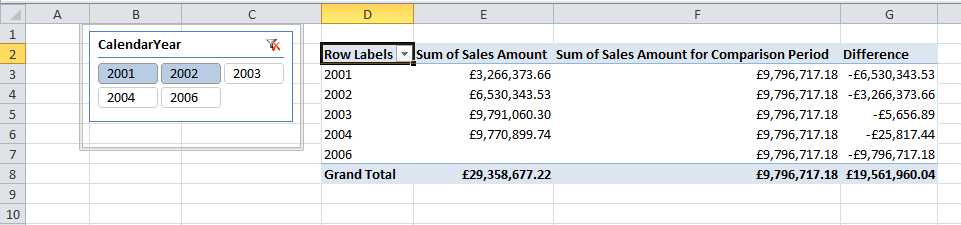
To show how this works, look at the following PivotTable showing these three measures:

image

I have CalendarYear from DimDate on the rows of the PivotTable and CalendarYear from DimDateCompare on the Slicer. The Sum of Sales Amount measure shows, as you would expect, the sum of sales for each year on DimDate; the Sum of Sales Amount for Comparison Period ignores what’s on rows and returns the sum of sales for the two years selected on DimDateComparison, ie 2001 and 2002. This is £3,266,373.66 + £6,530,343.53 = £9,796,717.18; and Difference shows the second of these values subtracted from the first.

Not a very interesting calculation in itself perhaps, but I’m intrigued by the possibilities of having tables in the model that only have inactive relationships with other tables; up to now I’ve only used inactive relationships in scenarios where there have been another active relationship between the same two tables, for example as described in Kasper’s post here.

PASS Global Growth Initiatives

Earlier this year I got involved in one of the slanging matches that seem to blow up every so often about some aspect of PASS politics. I argued that PASS could only grow to become a truly international organisation if changes were made to its constitution, to ensure that all of the different SQL Server communities around the world have a say in the way it is run. I was therefore interested to read this announcement about what PASS has planned in this area:
http://www.sqlpass.org/Community/PASSBlog/entryid/442/PASS-Global-Growth-Initiatives.aspx
More details can be found here:
http://www.sqlpass.org/Community/GlobalGrowth.aspx
http://www.sqlpass.org/LinkClick.aspx?fileticket=-HbsvHNwH_U%3d&tabid=8515
…but if you’ve only got 30 seconds, I think these org charts showing the proposed structure of the PASS Board in the coming years (next year there would be a new “EMEA Director at Large” seat on the board with voting rights, and a similar APAC seat would be created the year after) are important:
http://www.sqlpass.org/LinkClick.aspx?fileticket=95puV_d_sxU%3d&tabid=8515

If you’re reading this outside the US, why should you care about what PASS is doing here? I know from my involvement with SQLBits that a lot of good things can be accomplished at the national level without the direct involvement of PASS; but I also know from my involvement with SQLBits that at a certain point the benefits of international co-operation between different SQL Server communities becomes clear, and that the only body that can co-ordinate these activities is PASS. I don’t want to see PASS assume day-to-day control over every single aspect of the SQL Server community everywhere in the world and I doubt that would ever happen, but I do want to see PASS active in providing help and support to foster the growth of national SQL Server communities when it is needed and requested. I believe that can only happen effectively if PASS has an international leadership.

So if you’ve ever been to a SQLBits, a SQLRally, a SQL Saturday, a user group or any other SQL Server community event and thought it was worthwhile then I’d urge you to get involved. Join PASS if you aren’t already a member (it’s easy and free), vote for the people you think will represent your views and needs, and make your voice heard. It will benefit PASS, it will benefit your local SQL Server community and ultimately it will benefit you.