SSAS on Windows Azure Virtual Machines

You may have already seen the announcement about Windows Azure Virtual Machines today; what isn’t immediately clear (thanks to Teo Lachev for the link) is that Analysis Services 2012 Multidimensional and Reporting Services are installed on the new SQL Server images. For more details, see:
http://msdn.microsoft.com/en-us/library/jj992719.aspx

SSAS 2012 Tabular is also supported but not initially installed.

Applying a Function to Every Cell in a Table in Data Explorer (Power Query)

NOTE: This post was written before Data Explorer was renamed as Power Query. All of the content is still relevant to Power Query.

Now that the PASS Business Analytics Conference is over, I can get back to playing around with Data Explorer and blogging about it. I’ve been working on a fun demo that I’ll try to blog about later this week, but in the course of creating this demo I came across a technique that I didn’t end up using but which I thought deserved a post on its own: how to apply a function to every cell in a table, rather than just every cell in a column.

For example, let’s imagine that you have a table that looks like this:

image

…and you want to add one to every single cell in the table, so you get:

image

It’s possible in the UI by creating lots of custom columns and then deleting the original columns, for sure, but I found a more elegant solution. Here’s the full DE code:

let

    Source = Excel.CurrentWorkbook(){[Name="Input"]}[Content],

    FunctionToApply = (x) =>; x + 1,

    GetColumnNames = Table.ColumnNames(Source),

    TransformList = List.Transform(GetColumnNames, each {_ , FunctionToApply}),

    Output = Table.TransformColumns(Source, TransformList)

in

    Output

Here’s what each step does:

  • Source: gets the data from the Excel table named Inputimage
  • FunctionToApply: defines a new function that takes a single parameter, x, and returns the value x+1. See this post for more details on using function in Data Explorer.image
  • GetColumnNames: returns a list object which contains the names of all of the columns in the table returned in the Source step.image
  • TransformList: this is the interesting step! It creates a new list based on GetColumnNames, but whereas GetColumnNames contains just one record per item in the list (the column name), this returns a list of lists, each with two items: the column name and a reference to the function FunctionToApply. It looks like this in the UI:imageIf you click on the first of the list links shown (and this isn’t part of the process, I’m only doing this to show what’s there) you see the following:

    image

  • Output: the list of lists created in the previous step can now be passed to the Table.TransformColumns() function to apply the function FunctionToApply() to every cell in every column in the table.image

I’m sure this is going to be useful to me at some point in the future… You can download the sample workbook here.

PASS Business Analytics Conference Summary

The PASS Business Analytics Conference in Chicago finished yesterday, and because I was there and because I did a fair amount of cheerleading for it (see here and here for example) I wanted to post a few thoughts on how it went.

I’ll be honest and say that I had a few worries before the event. Would anyone want to go? Would the sessions be a repeat of what get on the BI tracks at the PASS Summit and hundreds of other SQL Server conferences? In fact, everything went really, really well. Some of the sessions were quite sparsely attended (though this had nothing to do with the quality of the content – some of the best sessions didn’t get much of an audience) but overall there was a very respectable number of people (1200ish?). I had as many people in my session on OData as I’d get at any other large conference, and it was standing room only in at least one of Marco’s sessions. I also rather liked the fact that it was smaller than the Summit – it made it much easier to meet all the people I wanted to meet. If it carries on for a few years it could easily attract a much larger number of people.

Regarding the content I was particularly pleased because a lot of the topics I’d asked for turned up on the schedule. In fact one thing that struck me (and a few other people said the same thing to me as well) was that this was the first conference I’d been to in a long time where there were sessions that I really wanted to see in every time slot. My favourite session of the whole conference was Marc Smith on NodeXL; anyone that reads my blog knows I’ve been a big fan of NodeXL for a long time, but I learned a lot from this session because it concentrated on the basics of social network analysis rather than the tool itself. This was a prime example of the kind of topic that you simply wouldn’t get at a regular SQL Server conference – it was a business analytics session. Even the more technical presentations, such as the one on HPC Services for Excel, was outside the usual boundaries of SQL Server BI. Incidentally, I must get round to playing with HPC Services for Excel – you could use it to parallelise some DAX calculations, or even to batch process large numbers of PowerPivot models on desktop machines overnight…

So, in summary, the conference was a big success and I had a great time. I’ll definitely be going back next year. And did I mention that I got to meet Steven Levitt of Freakonomics fame?

GeoFlow Public Preview Available

First big news from the PASS BA Conference: the public preview for GeoFlow is now available. You can download it here:
http://www.microsoft.com/en-us/download/details.aspx?id=38395

Here are the official announcements with all the details:
http://blogs.technet.com/b/dataplatforminsider/archive/2013/04/11/day-2-pass-business-analytics-conference-new-3d-mapping-analytics-tool-for-excel.aspx
http://blogs.office.com/b/microsoft-excel/archive/2013/04/11/dallas-utilities-electricity-seasonal-use-simulation-with-geoflow-preview-and-powerview.aspx

GeoFlow is an addin for Excel 2013 that allows you to visualise your data on a 3D map, to zoom in and explore that data, and record ‘tours’ of this data. It’s a lot of fun! As a taster, here’s a screenshot of a visualisation showing English secondary schools exam results data (average A-Level point score per pupil) broken down by school gender of entry:

image

UPDATE: one other thing I have to mention is that when this was announced in the keynote at the PASS BA Conference this morning, Amir Netz did an absolutely astounding demo showing GeoFlow’s touch-based capabilities running on a massive Perceptive Pixel screen (I think it was this one: http://www.perceptivepixel.com/products/82-lcd-multi-touch-display). It was possibly the most impressive demo I’ve seen of any Microsoft BI product. Anyway, I got to play on it myself later and it was as cool as it looked. If you’ve got $80000 burning a hole in your pocket then you could do worse than invest in one of these babies.

SSAS Multidimensional and MDX Training in Australia

This is just a quick post to mention that this summer I’ll be running two courses in Australia, one in Sydney on July 23-26, and one in Melbourne on July 29-August 1, in association with the folks at Wardy IT. The course content will cover all things Analysis Services Multidimensional: there’ll be one day on SSAS cube design, two days on MDX queries and calculations, and one day on SSAS performance tuning; you can see the full course outline here. It’s aimed at intermediate-to-advanced SSAS developers who want to deepen their knowledge and learn best practices. I’m really looking forward to it, and I hope to see you there!

LightSwitch and Self-Service BI

Visual Studio LightSwitch has been on my list of Things To Check Out When I Have Time for a while now; my upcoming session on the uses of OData feeds for BI at the PASS BA Conference (which will be a lot more exciting than it sounds – lots of cool demos – please come!) has forced me to sit down and take a proper look at it. I have to say I’ve been very impressed with it. It makes it very, very easy for people with limited coding skills like me to create data-driven line-of-business applications, the kind that are traditionally built with Access. Check out Beth Massi’s excellent series of blog posts for a good introduction to how it works.

How does LightSwitch relate to self-service BI though? The key thing here is that aside from its application-building functionality, LightSwitch 2012 automatically publishes all the data you pull into it as OData feeds; it also allows you to create parameterisable queries on that data, which are also automatically published as OData. Moreover, you can publish a LightSwitch app that does only this – it has no UI, it just acts as an OData service.

This is important for self-service BI in two ways:

  • First of all, when you’re a developer building an app and need to provide some kind of reporting functionality, letting your end users connect direct to the underlying database can cause all kinds of problems. For example, if you have application level security, this will be bypassed if all reporting is done from the underlying database; it makes much more sense for the reporting data to come from the app itself, and LightSwitch of course does this out of the box with its OData feeds. I came across a great post by Paul van Bladel the other day that sums up these arguments much better than I ever could, so I suggest you check it out.
  • Secondly, as a BI Pro setting up a self-service BI environment, you have to solve the problem of managing the supply of data to your end users. For example, you have a PowerPivot user that needs sales data aggregated to the day level, but only for the most recent week, plus a few other dimension tables to with it, but who can’t write the necessary SQL themselves. You could write the SQL for them but once that SQL is embedded in PowerPivot it becomes very difficult to maintain – you would want to keep as much of the complexity out of PowerPivot as possible.  You could set up something in the source database – maybe a series of views – that acts as a data supply layer for your end users. But what if you don’t have sufficient permissions on the source database to go in and create the objects you need? What if your source data isn’t actually in a database, but consists of other data feeds (not very likely today, I concede, but it might be in the future)? What if you’re leaving the project and need to set up a data supply layer that can be administered by some only-slightly-more-technical-than-the-rest power user? LightSwitch has an important role to play here too I think: it makes it very extremely easy to create feeds for specific reporting scenarios, and to apply security to those feeds, without any specialist database, .NET coding or SQL knowledge.

These are just thoughts at this stage – as I said, I’m going to do some demos of this in my session at the PASS BA Conference, and I’ll turn these demos into blog posts after that. I haven’t used LightSwitch as a data provisioning layer in the real world, and if I ever do I’m sure that will spur me into writing about it too. In the meantime, I’d be interested in hearing your feedback on this…

Creating And Using Functions in Data Explorer (Power Query)

NOTE: This post was written before Data Explorer was renamed as Power Query. All of the content is still relevant to Power Query.

I’ve been reading through the Data Explorer Formula Language and Library specifications (which can be downloaded here) over the last few weeks, learning about what’s possible with it when you go beyond the UI. This will translate into a lot of Data Explorer blog posts in the coming weeks…! Here’s the first of those posts.

Today I’m going to look at how to create and use functions. Page 86 onwards in the Formula Language specification has a lot of detail about how to define a function in the M language that Data Explorer uses, but it doesn’t include any practical examples of how functions can be created and used in Data Explorer and Excel unfortunately. I’ve done some experimentation, though, and this post aims to fill that gap.

First of all, take a look at this Excel worksheet with two tables in it, called InputNumbers1 and InputNumbers2:

image

Let’s say that you want to create two Data Explorer queries that each use one of these tables as a source, and in both cases you want to add a third column that displays the product of the two existing columns. So, for example, for the first table you want a new column with the values 2, 12, 30 and 56 in.

Now this is a very simple calculation and certainly one that Data Explorer can handle easily, but let’s say that you want to perform this operation many times in many different queries and for obvious reasons you don’t want to have to duplicate the same logic in each query. You want to create a function!

To do this, you need to use the Write Query option from the From Other Sources button on the Data Explorer tab in the ribbon:

image

Then change the name of the new query to MultiplicationFunction by double-clicking on the query name in large letters at the top of the Edit Query dialog:

image

Then enter the following code as the only step:

= (x,y) => x * y

This defines a query with two parameters, x and y, and returns the product of x and y. Click Done to save the query. The query will show the following result in the worksheet:

image

You can ignore this new table, and you can disable the data load onto the worksheet, but it seems like you always need to have the table there and you certainly can’t delete it.

To use this new function create a new query from the table InputNumbers1 (shown above) using the From Table button. Then in the Edit Query dialog create a new step by selecting Insert Column/Custom:

image

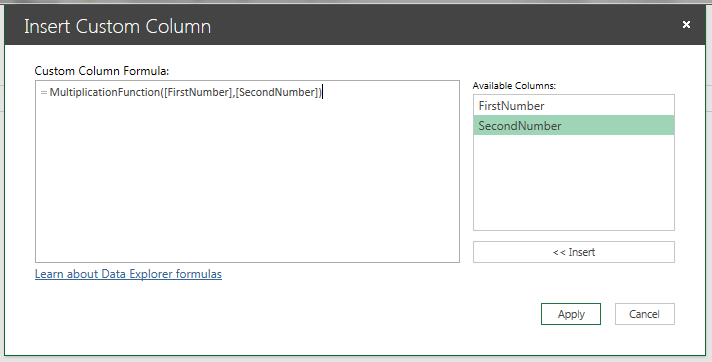
And then use the new function to calculate each row in the new column, passing the two existing columns as parameters:

image

This results in the following step:

= Table.AddColumn(Source, “Custom”, each MultiplicationFunction([FirstNumber],[SecondNumber]))

image

And so you have your new column showing the product of the [FirstNumber] and [SecondNumber] columns. Then do the same thing for the InputNumbers2 table and you’ll have two Data Explorer queries now with custom columns in:

image

image

Finally, to make sure that the function is indeed being used, go and alter the definition of the function to be

= (x,y) => x / y

Refresh both of the other queries, and you’ll see the contents of the custom column have changed for both of them:

image

image

I can imagine that the ability to break functionality out into functions will reduce the complexity, and improvement the maintainability, of many ETL solutions that get built with Data Explorer in the future.

You can download my sample Excel workbook with this demo in here.

UK/US Date Format Bug in PowerPivot and SSAS Tabular

I don’t usually blog about bugs, but this one has been irritating me no end for the last year – so I thought it deserved some publicity…

In Excel 2010 PowerPivot and and in SSAS 2012 Tabular models (but not the Excel 2013 Data Model interestingly), if you have an English locale that is not US English (eg UK or Australian English), you may find that date columns appear to be formatted correctly as dd/mm/yyyy inside the PowerPivot window or in SSDT, but when you get to Excel you see the dates formatted in the US mm/dd/yyyy format. So, for example, on my laptop if I import the DimDate table from Adventure Works into Excel 2010 then I see dates formatted as dd/mm/yyyy as I’ve specified in the Formatting section of the ribbon in the PowerPivot window:

image

image

However, in an Excel PivotTable, I see dates formatted as mm/dd/yyyy:

image

There is a workaround though, which I found on the PowerPivot forum (thank you Steve Johnson, if you’re reading) – you can get the dates to format correctly if you go to More Date Formats and choose dd/MM/yy or one of the other formats from the dropdown list that appears:

image

image

Here are the correctly formatted dates in a PivotTable:

image

It seems like there is already a Connect open on this issue here, so please vote to get it fixed!

Finding Shakespeare’s Favourite Words With Data Explorer (Power Query)

NOTE: This post was written before Data Explorer was renamed as Power Query. All of the content is still relevant to Power Query.

The more I play with Data Explorer, the more I think my initial assessment of it as a self-service ETL tool was wrong. As Jamie pointed out recently, it’s really the M language with a GUI on top of it and the GUI itself, while good, doesn’t begin to expose the power of the underlying language: I’d urge you to take a look at the Formula Language Specification and Library Specification documents which can be downloaded from here to see for yourself. So while it can certainly be used for self-service ETL it can do much, much more than that…

In this post I’ll show you an example of what Data Explorer can do once you go beyond the UI. Starting off with a text file containing the complete works of William Shakespeare (which can be downloaded from here – it’s strange to think that it’s just a 5.3 MB text file) I’m going to find the top 100 most frequently used words and display them in a table in Excel.

Before I do that, though, some things to point out. First, there’s a new update of Data Explorer that appeared a few days ago – the Data Explorer team blog has the details. One of the new bits of functionality is a button that allows you to edit all of the expressions in your query at once:

image

Second, when you’re building a query, when you want to add a new step manually that refers to the previous step but doesn’t apply any calculations or transforms, you need to click on the fx button next to the expression on an existing step:

image

I’ve used this quite extensively to write custom steps that aren’t possible with the UI.

Here is the full code for my query to find the top 100 words:

Source = Lines.FromBinary(File.Contents("C:\Users\Chris\Documents\CompleteShakespeare.txt")),

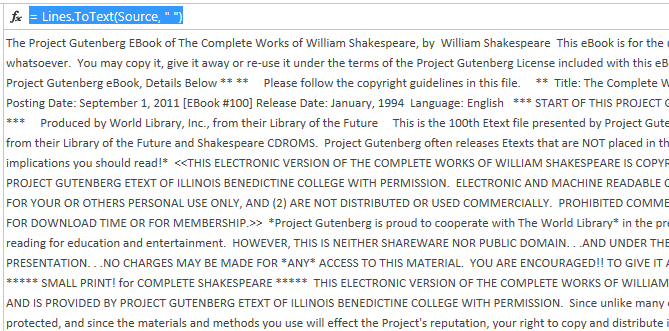
RemoveLineBreaks = Lines.ToText(Source, " "),

RemovePunctuation =

Text.Remove(RemoveLineBreaks,{"," ,"." ,"?" ,";" ,":" ,";" ,"'"

                            ,"@" ,"#" ,"~" ,"{" ,"[" ,"}" ,"]" ,"(" ,")", "*"}),

Lowercase = Text.Lower(RemovePunctuation),

TurnIntoTable = Table.FromValue(Lowercase),

SplitIntoWords = Table.TransformColumns(TurnIntoTable, {"Value", Splitter.SplitTextByWhitespace()}),

ListOfWords = SplitIntoWords{0}[Value],

TableFromList = Table.FromList(ListOfWords, Splitter.SplitByNothing(), null, null, ExtraValues.Error),

RenameColumnToWord = Table.RenameColumns(TableFromList,{{"Column1", "Word"}}),

RemoveBlanks = Table.SelectRows(RenameColumnToWord, each ([Word] <;> "")),

FindWordCounts = Table.Group(RemoveBlanks, {"Word"}, {{"Count", each Table.RowCount(_), type number}}),

SortedRows = Table.Sort(FindWordCounts,{{"Count", Order.Descending}}),

KeptFirstRows = Table.FirstN(SortedRows,100)

Broken down step-by-step:

Source = Lines.FromBinary(File.Contents(“C:\Users\Chris\Documents\CompleteShakespeare.txt”))

This loads the contents of CompleteShakespeare.txt into Data Explorer and breaks it up into lines of text:

image

RemoveLineBreaks = Lines.ToText(Source, ” “)

This removes all the line breaks and creates a single chunk of text:

image

RemovePunctuation = Text.Remove(RemoveLineBreaks,{“,” ,”.” ,”?” ,”;” ,”:” ,”;” ,”‘” ,”@” ,”#” ,”~” ,”{” ,”[” ,”}” ,”]” ,”(” ,”)”, “*”})

Removes any punctuation, and

Lowercase = Text.Lower(RemovePunctuation)

Turns all the words to lowercase:

image

TurnIntoTable = Table.FromValue(Lowercase)

Takes the text and creates a table with one column and one row containing the text:

image

SplitIntoWords = Table.TransformColumns(TurnIntoTable, {“Value”, Splitter.SplitTextByWhitespace()})

Takes the text and creates a List object with one entry for every word in the text.

ListOfWords = SplitIntoWords{0}[Value]

TableFromList = Table.FromList(ListOfWords, Splitter.SplitByNothing(), null, null, ExtraValues.Error)

RenameColumnToWord = Table.RenameColumns(TableFromList,{{“Column1”, “Word”}})

Takes the list and turns it into a table with one column and one row for each word:

image

RemoveBlanks = Table.SelectRows(RenameColumnToWord, each ([Word] <> “”))

Removes any rows containing blanks.

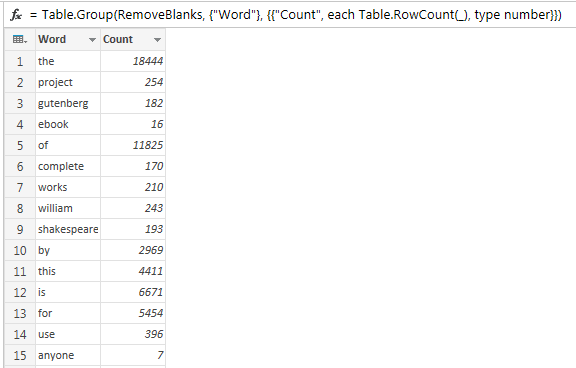
FindWordCounts = Table.Group(RemoveBlanks, {“Word”}, {{“Count”, each Table.RowCount(_), type number}})

Does a ‘group by’ to return a table with one row for each distinct word, and a column containing the number of occurrences of that word:

image

SortedRows = Table.Sort(FindWordCounts,{{“Count”, Order.Descending}})

Sorts this table in descending order by word count.

KeptFirstRows = Table.FirstN(SortedRows,100)

Only returns the first 100 rows from this table.

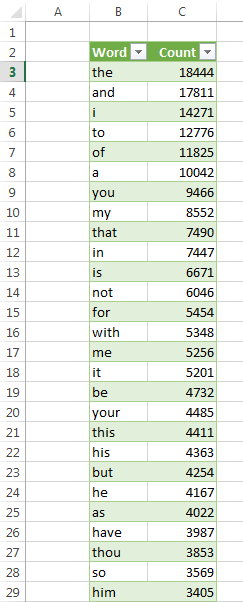
And at this point, we have the top 100 words used by Shakespeare (admittedly including the text at the beginning and end of the file inserted by Project Gutenberg that I couldn’t be bothered to remove):

image

No surprises here really – ‘the’ comes in at #1 with 18444 occurrences, “lord” comes in at #45, “king” at #69 and so on.

While you probably aren’t interested in Shakespeare for your own business purposes, it shows what would be possible if you wanted to analyse what was being said in Facebook updates, Tweets, product reviews and so on. It wasn’t all that hard to write either, especially considering that I’m fairly new to Data Explorer, so more sophisticated variations on this would certainly be possible without much extra effort. And it’s worth pointing out that it’s fast too: it takes a couple of seconds to refresh, and I’m not even sure I’ve done everything in the most efficient way possible.

You can download the sample workbook (but not the Complete Works of Shakespeare) here. If you want to point it at a different text file, just modify the first line of the code.

UPDATE: it turns out there is either a bug in PQ or I’m hitting one of its limits, and the counts here aren’t all correct. See the comments from Frank below for a version that works.

The Dangers of Non_Empty_Behavior

One thing I see quite often when I’m reviewing MDX is the incorrect use of the Non_Empty_Behavior property. 99% of the time it’s set without the developer really knowing what it does, and luckily in most cases it makes no difference to performance or what the calculation returns. However… in this post I’m going to argue that you should not use it unless you really know what you’re doing and you can prove that it’s beneficial – because if it’s set incorrectly it can sometimes mean you get incorrect results from your queries.

First of all, what does Non_Empty_Behavior actually do? Basically, it’s a hint to the SSAS Formula Engine that says that a calculation will return a null value if a given tuple also returns a null value. Moreover it’s a hint that may or may not be ignored. For example, if you had an MDX calculated measure that was defined as

CREATE MEMBER CURRENTCUBE.[Measures].[MyMeasure] as [Measures].[Internet Sales Amount]*2;

It would be true to say that this calculated measure would always return a null value when the real measure [Measures].[Internet Sales Amount] returned null, so you would be able to say:

CREATE MEMBER CURRENTCUBE.[Measures].[MyMeasure] as [Measures].[Internet Sales Amount]*2
, NON_EMPTY_BEHAVIOR=[Measures].[Internet Sales Amount];

The late, great Mosha covered its use in detail in a number of blog posts from a few years ago:
http://sqlblog.com/blogs/mosha/archive/2006/11/05/budget-variance-a-study-of-mdx-optimizations-evaluation-modes-and-non-empty-behavior.aspx
http://sqlblog.com/blogs/mosha/archive/2007/03/06/averages-ratios-division-by-zero-and-non-empty-behavior.aspx

These posts all refer to SSAS 2005, and from SSAS 2008 onwards a lot of work went on to ensure that most of the scenarios where Non_Empty_Behavior had been necessary to get good performance were optimised away. Certainly, in the simple example I showed above there would be no need to set Non_Empty_Behavior at all – the Formula Engine will already be able to optimise it as much as it can. This means that if you’re on SSAS 2005 then Non_Empty_Behavior can be very useful for tuning calculations, but if you are using SSAS 2008 or greater it’s highly likely that you do not need to use Non_Empty_Behavior at all. In fact, Mosha’s advice back in 2009 when he did a preconference seminar at the PASS Summit on SSAS performance tuning was summed up in these two slides:

image

image

I think the message here is pretty clear…

So, it probably won’t help your query performance, but why is it dangerous? Consider the following query:

WITH
MEMBER MEASURES.SomeTest AS
IIF(Now()>0, "Internet", "Reseller")
MEMBER MEASURES.Demo as
STRTOMEMBER("[Measures].[" + measures.sometest + " Sales Amount]")
SELECT
{[Measures].Demo} 
ON 0,
NON EMPTY
[Product].[Category].[Category].members
*
[Date].[Date].[Date].members
ON 1
FROM [Adventure Works]

This returns 1887 rows. However, if I set Non_Empty_Behavior incorrectly, like so:

WITH
MEMBER MEASURES.SomeTest AS
IIF(Now()>0, "Internet", "Reseller")
MEMBER MEASURES.Demo as
STRTOMEMBER("[Measures].[" + measures.sometest + " Sales Amount]")
, NON_EMPTY_BEHAVIOR=[Measures].[Reseller Sales Amount]
SELECT
{[Measures].Demo}
ON 0,
NON EMPTY
[Product].[Category].[Category].members
*
[Date].[Date].[Date].members
ON 1
FROM [Adventure Works]

The query now returns only 64 rows! By saying that the calculation will return a null value when Reseller Sales Amount is null – which is not the case – then rows that do in fact have values will get filtered out by the non empty clause. Clearly this is a bad thing, and also one that may be very hard to see happening when you are testing.

The example above was quite obviously wrong, and in fact it’s quite hard on SSAS 2012 to find a query where Non_Empty_Behavior returns incorrect results. More often I see calculations like this:

WITH
MEMBER MEASURES.PreviousSales AS
([Measures].[Internet Sales Amount], [Date].[Calendar].CURRENTMEMBER.PREVMEMBER)
, NON_EMPTY_BEHAVIOR=[Measures].[Internet Sales Amount]
SELECT {[Measures].[Internet Sales Amount], measures.PreviousSales} ON 0,
[Date].[Calendar].[Calendar Year].MEMBERS ON 1
FROM [Adventure Works]

…where Non_Empty_Behavior is set incorrectly (the calculation returns the Internet Sales Amount for the previous time period, and it’s not true to say that the previous time period’s sales will be null if the current time period’s sales are null) but the query still returns the correct results. This is because, luckily, Non_Empty_Behavior is being ignored.

So, to sum up, if you are using SSAS 2008 or greater Non_Empty_Behavior may not solve your performance problem and may result in incorrect results. That is not to say that there are still one or two isolated scenarios where it can still be useful. Jorg Klein came across one fairly recently and blogged about it here:
http://sqlblog.com/blogs/jorg_klein/archive/2013/02/18/implement-ssas-md-cell-security-using-dimension-security-with-blazing-performance.aspx

But these scenarios are few and far between. Therefore don’t use it if you’re not sure what it does!