Deprecated And Discontinued Functionality In SSAS 2016

Some time ago I blogged about the deprecated and discontinued functionality in SSAS 2014, so I thought it would be a good idea to follow my last post on what’s new in SSAS 2016 Multidimensional with a discussion of what’s going or gone from it.

The same page that I linked to last time has been updated for 2016, and there are four more subpages with all the details. There’s nothing much interesting to say about the breaking changes (basically AMO has been rejigged) or behaviour changes (there’s no in-place upgrade for Tabular models using DirectQuery – you have to open the project and edit some settings) but the other two pages do have some news worthy of comment:

Discontinued Functionality

Here’s the official definition of a discontinued feature:

A discontinued feature is one that is no longer supported. It might also be physically removed from the product.

A few comments about what is now discontinued:

  1. The Non_Empty_Behavior property for calculated measures. To be honest, I’m happy to see this go: it doesn’t usually make much difference to performance and in most cases people use it incorrectly too. It really should be removed from Form View in the SSDT cube editor.
  2. COM assemblies. Note that this is not the same thing as .NET assemblies like the Analysis Services Stored Procedure Project! If you are using a custom MDX function implemented in a COM assembly you will probably find that the equivalent function implemented in a .NET assembly is a lot slower, but in my experience it’s almost always possible to avoid custom functions completely and use pure MDX – and this will give you the best query performance.
  3. I’m a bit sad to see the CalculationCurrentPass() and CalculationPassValue() functions die because you could do cool things like this with them, but I haven’t actually needed to use them for a long, long time.

Deprecated Functionality

Here’s the official definition of a deprecated feature:

A deprecated feature is a feature will be cut from the product in a future release, but is still supported and included in the current release to maintain backward compatibility. Typically, a deprecated feature is removed in a major release, often within two releases of the original announcement. For example, deprecated features announced in SQL Server 2012 are likely to be unsupported by SQL Server 2016.

A few comments on what’s been deprecated:

  1. The only thing that someone may possibly be using on the list of features that will not be supported in the next major release is linked dimensions; remote partitions and remote linked dimensions were always a very bad idea.
  2. The death of dimension writeback (note: not the same thing as writing values back to cells) is a bit of a shame: I never needed to use it, and most client tools didn’t support it, but it always struck me as one of those features that people might have used more if they had known about it.
  3. I see session cubes (as used by Excel PivotTables’ grouping functionality) will not be supported in a future release, which is probably a good thing given all the problems they cause. However I bet there are a lot of Excel workbooks out there that will be affected when this does go.
  4. Local cubes will also go in a future release, though I doubt anyone uses them anymore. That said, I think it would be really useful if there was something similar that allows you to create a Power Pivot model that was a local copy of an SSAS Tabular database, with the option to filter the data in it. Offline access is not so important these days but this would allow users to create their own customised Power Pivot models from a properly designed, central model rather than always having to start from scratch.
  5. Profiler for trace capture is also deprecated, and I discussed this in-depth here.
 

What’s New In Analysis Services 2016 Multidimensional?

With the recent release of SQL Server 2016 some of you old faithful SSAS Multidimensional users out there might be wondering if it’s worth upgrading. There is an official page describing what’s new in Analysis Services 2016 here:

https://msdn.microsoft.com/en-us/library/bb522628.aspx

…but it’s mostly concerned with SSAS Tabular and, unfortunately, it’s somewhat misleading. For example, it says:

a number of enhancements have been made to multidimensional models; for example, distinct count ROLAP optimization for data sources like DB2 and Oracle, drill-through multi-selection support with Excel 2016, and Excel query optimizations.

In fact the drillthrough/multi-select improvements (which I blogged about here) already shipped as part of SSAS 2014 and are reliant on improvements in Excel 2016 as much as in SSAS; similarly the Excel 2016 query optimisations are not reliant on any changes in SSAS 2016 and will benefit users of all versions of SSAS.

So what has actually changed with SSAS 2016 Multidimensional? I don’t know all the details on every change, but here’s what I know right now:

  • As the above quote shows, there have been improvements in ROLAP distinct count performance for DB2 and Oracle. I’ve also heard there are improvements for the SQL generated in ROLAP mode to take advantage of SQL Server’s columnstore indexes.
  • We now have Database Consistency Checker for SSAS, which you can read more about here or in Dustin Ryan’s post here. For Multidimensional it will only tell you whether your partition indexes are corrupt (it does a lot more for Tabular) and if they are you need to delete the database and then either restore it or re-deploy/reprocess.
  • Extended Events for SSAS now have UI support in SQL Server Management Studio, although the UI still looks like it needs some work. I still see myself using Profiler for my SSAS performance tuning work for the foreseeable future – or at least until I work out what the extra information that Extended Events give you is useful for. I know other people, like Bill Anton, are more excited about Extended Events and their possibilities though.
  • You can now use computer accounts to be members of the Analysis Services Administrators group in SQL Server Management Studio.
  • If you are developing applications that need to create, alter, process or otherwise do stuff to an Analysis Services database in .NET code then you need to be aware that Analysis Management Objects (AMO) has been refactored to include a second assembly which “paves the way for future extensions to AMO, with clear division between generic and context-specific APIs”.
  • There’s a new default setting for the MemoryHeapType server property that helps to avoid memory fragmentation and is relevant to Tabular and Multidimensional; Marco Russo has the details here.

Not the most exciting or inspiring set of changes, I have to say, even if there’s lots of cool new stuff in SSAS Tabular 2016. There are also usually other fixes and improvements like the MemoryHeapType property that get added but are never documented, and when I find out about them I’ll be sure to blog or tweet. If you find any please let me know!

Excel 2016 PivotTable MDX Changes Lead To Big Query Performance Gains

Yesterday, the Excel team announced a bunch of performance improvements in Excel 2016 for PivotTables connected to Analysis Services (Multidimensional or Tabular), Power Pivot and Power BI. If you haven’t read the official blog post already, here it is:

https://blogs.office.com/2016/07/07/faster-olap-pivottables-in-excel-2016/

In that post, Microsoft point out that how much of a performance increase you get will depend on a number of factors. I guess they have to do this to manage expectations. However I’m going to come right out and say that these changes are probably the most important thing that has happened in the last five years for Analysis Services or Power Pivot query performance and if you are using Excel PivotTables with SSAS or Power Pivot for reporting, you should upgrade to Excel 2016 (you’ll need the Office 365 click-to-run version) just for these changes.

The key improvement that Microsoft have made here is to stop Excel bringing back unnecessary subtotal values in the MDX queries that it generates. This has been a gigantic problem for years and several people have blogged about it: I did here, and among other people Rui Quintino and Richard Lees have posts on the subject that are worth reading. A lot of my consultancy work involves SSAS and MDX performance tuning and I think I see around five to ten customers every year who are seriously affected by this – and I’m sure this is just the tip of the iceberg. Even if you don’t think you are affected, you may have users who are putting up with slow refresh times for Excel-based reports without your knowledge.

Let’s go into some technical detail, see what the original problem was and what has changed in Excel 2016. I’m going to provide some examples using Excel 2013/2016 against SSAS Multidimensional but as I said the same problems occur (although less severely) with SSAS Tabular and Power Pivot.

Consider the following Excel 2013 PivotTable connected to the Adventure Works cube:

image
image

It’s typical of the kind of thing an end user wants to build, and there are two things to point out:

  1. Notice there are three fields that have been placed on the Rows axis of the PivotTable: the Gender and Marital Status hierarchies from the Customer dimension, and the Category hierarchy from the Product dimension. It’s pretty common for users to put many more fields together on an axis when they want to display detailed data.
  2. The user has also turned off grand totals and subtotals in the PivotTable so that only the detailed data is shown. This often happens in combination with (1) because if the user only wants to see the detailed data the subtotals and grand totals are a distraction.

In this case the PivotTable layout has been switched Tabular and the Repeat All Item Labels option is selected to make the PivotTable look like a table, but these are just aesthetic changes.

This PivotTable contains 12 rows, but if you look at the MDX query that is generated by Excel 2013 to populate it, it returns 36 rows of data (actually the MDX in this case returns 36 columns, but that’s a quirk of Excel) because the subtotals and grand total that Excel is not displaying are still being returned. Here’s the query:

SELECT 
NON EMPTY 
CrossJoin(
CrossJoin(
Hierarchize(
{DrilldownLevel(
{[Customer].[Gender].[All Customers]}
,,,INCLUDE_CALC_MEMBERS)}), 
Hierarchize(
{DrilldownLevel({[Customer].[Marital Status].[All Customers]}
,,,INCLUDE_CALC_MEMBERS)})), 
Hierarchize(
{DrilldownLevel({[Product].[Category].[All Products]}
,,,INCLUDE_CALC_MEMBERS)})) 
DIMENSION PROPERTIES PARENT_UNIQUE_NAME,HIERARCHY_UNIQUE_NAME 
ON COLUMNS  
FROM 
[Adventure Works] 
WHERE ([Measures].[Internet Sales Amount]) 
CELL PROPERTIES VALUE, FORMAT_STRING, 
LANGUAGE, BACK_COLOR, FORE_COLOR, FONT_FLAGS

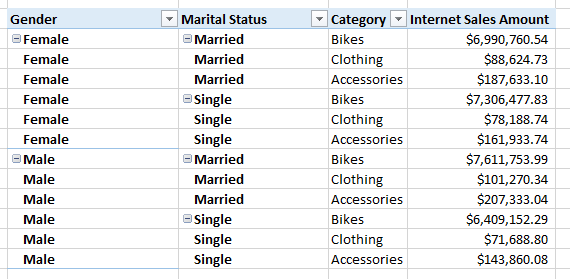
And here’s a sample of what it returns, with the unwanted values highlighted:

image

You can probably guess that these unwanted subtotals and grand totals make the query slower, and the more fields you put together on the rows or columns of a PivotTable the greater the number of subtotals/grand totals are returned and slower things get. PivotTables connected to SSAS or Power Pivot often become completely unusable with more than six or seven fields put together on the same axis, and the only workarounds before Excel 2016 are either to write custom MDX in a named set (I show how to do this here) or if you are using SSAS Multidimensional try to use member properties instead of separate fields (as Richard Lees shows here), but neither are really great alternatives.

Building the same PivotTable using Excel 2016, however, gives the following MDX:

SELECT 
NON EMPTY 
CrossJoin(
CrossJoin(
Hierarchize(
{[Customer].[Gender].[Gender].AllMembers}), 
Hierarchize(
{[Customer].[Marital Status].[Marital Status].AllMembers})), 
Hierarchize(
{[Product].[Category].[Category].AllMembers})) 
DIMENSION PROPERTIES PARENT_UNIQUE_NAME,HIERARCHY_UNIQUE_NAME 
ON COLUMNS  FROM [Adventure Works] 
WHERE ([Measures].[Internet Sales Amount]) 
CELL PROPERTIES VALUE, FORMAT_STRING, 
LANGUAGE, BACK_COLOR, FORE_COLOR, FONT_FLAGS

Which returns just the data needed for the PivotTable:

image

What has changed? Focusing on just the Gender hierarchy, the difference between the two queries is that in Excel 2013 the selection on Gender is given using the DrillDownLevel() function on the All Member of the hierarchy. Isolated and put in its own query, the set expression used looks like this:

SELECT 
{[Measures].[Internet Sales Amount]}
ON COLUMNS,
DrilldownLevel(
{[Customer].[Gender].[All Customers]}
,,,INCLUDE_CALC_MEMBERS)
ON ROWS
FROM
[Adventure Works]
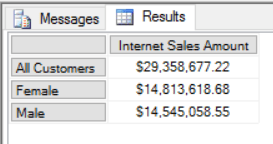
image

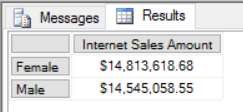
Notice how the All Member, used by Excel to return subtotals and grand totals, is returned by the set. Excel 2016 instead just asks for the members on the Gender level of the Gender hierarchy, not including the All Member. Again, put inside its own query, you can see what it returns:

SELECT 
{[Measures].[Internet Sales Amount]}
ON COLUMNS,
{[Customer].[Gender].[Gender].AllMembers}
ON ROWS
FROM
[Adventure Works]
image

Apart from the fact that no All Member is returned, it’s also a lot cleaner and easier to read.

I’ve been very excited about this change since I first heard it was happening, and I think it will benefit a lot of people. A big thanks to Alexander Lahuerta and the rest of the Excel team for making this happen!

What Monthly Updates For SQL Server Management Studio And SSDT Mean For SSAS Developers

Last month I upgraded the laptop I use for teaching to SQL Server 2016 and, as is always the way, not long afterwards I ran into a problem while I was doing a demo during a course: the SSAS Deployment Wizard didn’t work for SSAS 2016 Tabular projects created at the new 1200 compatibility level. I made some enquiries and was told that the tooling team hadn’t had time to do the necessary dev work before RTM but had finished it soon after, and that the new update would be in the July release of SQL Server Management Studio.

This reminded me of something I had heard about but forgotten, thinking it wasn’t all that relevant to me: SQL Server Management Studio is now no longer bundled with SQL Server but is instead a free, separate download that is updated monthly. This official blog post from May has all the important details; Aaron Bertrand’s blog post from April is a great summary of what this means for SQL Server in general (his interview with Kent van Hyning, the Engineering Manager for SQL Server Client Tools is also worth reading); and the SQL Server Release Services blog is the place to look for new update announcements. To get back to my story, when the July update for SSMS was released a few days ago I hit the Check For Updates menu option in SSMS, it updated, and I got a working version of the Deployment Wizard (the Changelog has a complete list of all of the fixes/improvements in this version). The moral of this story is that even though all of the publicity around the new direction for SQL Server Management Studio is directed at the SQL Server relational engine community, it’s equally important for us BI developers – and we are going to have to make the effort to update SSMS regularly from now on.

Of course a similar change has happened with SQL Server Data Tools, which is also now getting monthly updates. I’ve heard a few complaints around bugs and instability in SSDT recently and it looks like these issues are being fixed fairly rapidly: check out the list of SSAS-related fixes in the July update for SSDT in the post on the SSDT team blog and the associated Changelog. Again, as BI developers we’re going to have to get into the habit of updating SSDT on a regular basis.

While getting bugs fixed quickly is great, I really hope that this new focus on tooling means that we get new BI-related features in SSMS and SSDT. SSMS has, in particular, been shockingly bad at supporting BI developers: for example, I find it unbelievable that we still don’t have a DAX query window in SSMS when the language has been in SSAS Tabular since SQL Server 2012 (I know the community have filled the gap with DAX Studio, but that’s not the point). Aaron Nelson recently announced a Trello board where ideas for new features in SSMS can be debated but there’s very little BI-related stuff there at the time of writing.

Finally, a recent Reddit AMA with the SQL Server Tooling Team gave away a few interesting titbits about what might be happening in the future for BI:

  • In response to a question about version control for SSIS/SSAS/SSRS:
    In regards to AS and RS version control. We are considering improvements to AS model where we actually break up the single model file into independent objects (tables, measure, roles, etc…).
  • Regarding MSBuild support for SSAS and SSRS:
    At least for SSAS and SSRS, we have MSBuild support on the backlog, but it isn’t the highest priority at the moment.
    The SSIS team has plans for MSBuild support and are considering to support this in a future release of SSDT. Stay tuned!
  • Regarding tooling support for the new SSAS 2016 1200 compatibility level:
    The plan is to gradually improve the Tabular experiences in SSDT and SSMS, particularly for the new compat level 1200. We now have a better scripting language (TMSL) and a way better object model (TOM) and this sets us up for introducing improvements with the upcoming monthly releases. If everything goes to plan, you will see a significant new capability in the SSDT Tabular August release, and it will give you an idea where things are going. Sorry for not giving more details at this time. Let’s count the chickens when they hatch.
  • On the question of why there’s no support for DAX in SSMS:
    These things simply didn’t fit into the SQL Server 2016 release timeframe. You’ll see improvements in future versions of the tools.

Step Descriptions And Comments In M Code In Power BI Desktop

The June release of Power BI Desktop has what seems to be a fairly unremarkable new feature in that it allows you to add descriptions to each step in a query in the Query Editor window. However the implementation turns out to be a lot more interesting than you might expect: the step descriptions become comments in the M code, and even better if you write M code in the Advanced Editor window your comments appear as descriptions in the Applied Steps pane.

Take the following M query, entered in the Advanced Editor, as an example:

[sourcecode language='text'  padlinenumbers='true']
let
    Step1 = 5,
    Step2 = 10,
    Step3 = Step1 * Step2
in
    Step3
[/sourcecode]

There are three variables declared in the let expression which appear as three steps in the Applied Steps pane. The first two steps declare integers and the third multiplies these two integers together, returning 50.

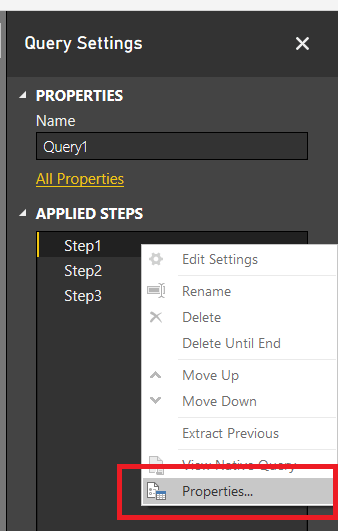
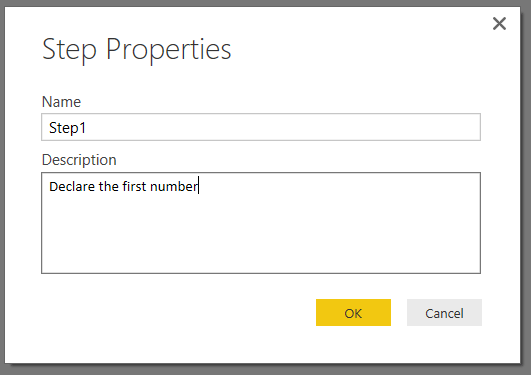
If you right-click on the first step and select Properties, then you can enter a description for the step in the Properties pane that appears:

image

image

After you click OK, the description is visible as a tooltip when you mouse-over the step:

image

If you then open the Advanced Editor window you’ll see the M code for the query has now been changed to include a comment (NB comments in M code start with //):

[sourcecode language='text'  highlight='2']
let
    // Declare the first number
    Step1 = 5,
    Step2 = 10,
    Step3 = Step1 * Step2
in
    Step3
[/sourcecode]

image

If you then edit the M code in the Advanced Editor window to add a comment in the line before a step, like so:

[sourcecode language='text'  highlight='5']
let
    // Declare the first number
    Step1 = 5,
    Step2 = 10,
    // Multiple the two numbers together
    Step3 = Step1 * Step2
in
    Step3
[/sourcecode]

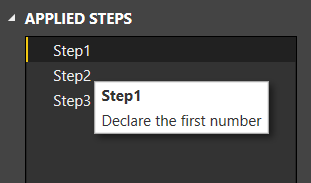
…then this will also show up as a description when you mouse-over the step in the Applied Steps pane:

image

As a result, for anyone like me who writes a lot of M code manually in the Advanced Editor window, this turns out to be a really handy feature.

The Ellipsis/Not Implemented Error In M

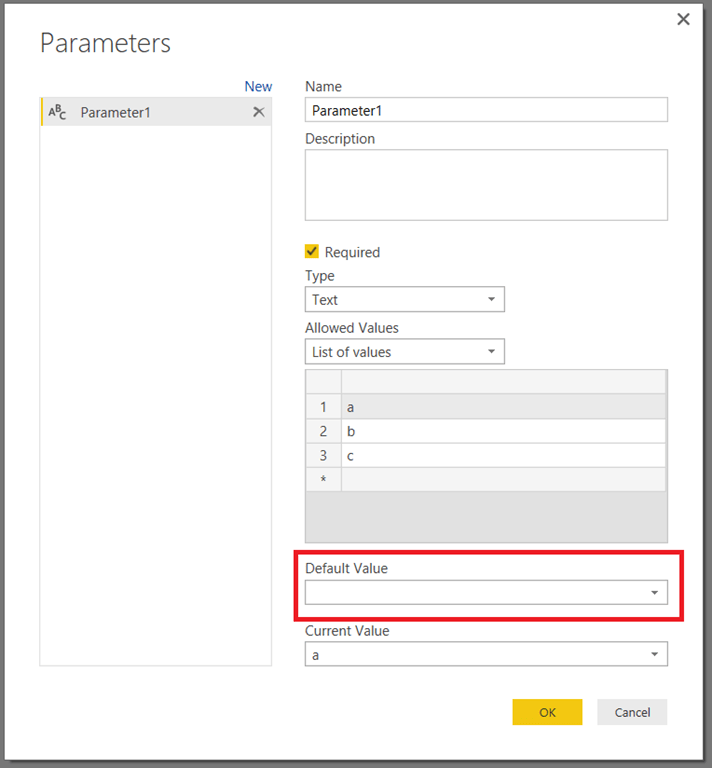
Recently I was creating a parameter in Power BI Desktop and had it configured something like this:

image

I didn’t bother to choose anything in the Default Value dropdown box, and when I looked at the code for the parameter in the Advanced Editor I saw this:

[sourcecode language=”text” padlinenumbers=”true” highlight=”5″]
"a"
meta
[IsParameterQuery=true,
List={"a", "b", "c"},
DefaultValue=…,
Type="Text",
IsParameterQueryRequired=true]
[/sourcecode]

I was interested to know what the ellipsis symbol (three dots …) in the DefaultValue field in the record meant, and looking in the Language Reference I found that in M it can be used for two purposes: as an open record marker (maybe something for a future blog post) and, as in this case, as a quick way of returning an error. The language reference says that it is directly equivalent to the following expression, which returns a “Not Implemented” error:

[sourcecode language=”text”]
error Error.Record("Expression.Error", "Not Implemented")
[/sourcecode]

But from what I can see, it actually returns a “Value was not specified” error instead. Here’s another example of how it can be used in a function definition, and what it returns:

[sourcecode language=”text”]
let
MyFunction = (x,y) => if x>y then true else …,
Output = MyFunction(0,1)
in
Output
[/sourcecode]

image

It’s not something I think I’ll be using in my own code, but it’s good to know what it means!

Creating Sequences Of Integers And Characters In Power BI/Power Query Lists

When you’re writing your own M code you often find yourself needing to create a list containing a sequence of numbers or characters. Luckily the M language allows you to do this very easily when you are defining lists by using expressions in the format

{lowest_integer..highest_integer}

For example, imagine you want to create a list with all of the integers between 1 and 5. Instead of writing

{1, 2, 3, 4, 5}

You can write the following:

{1..5}

and it will return the same list:

image

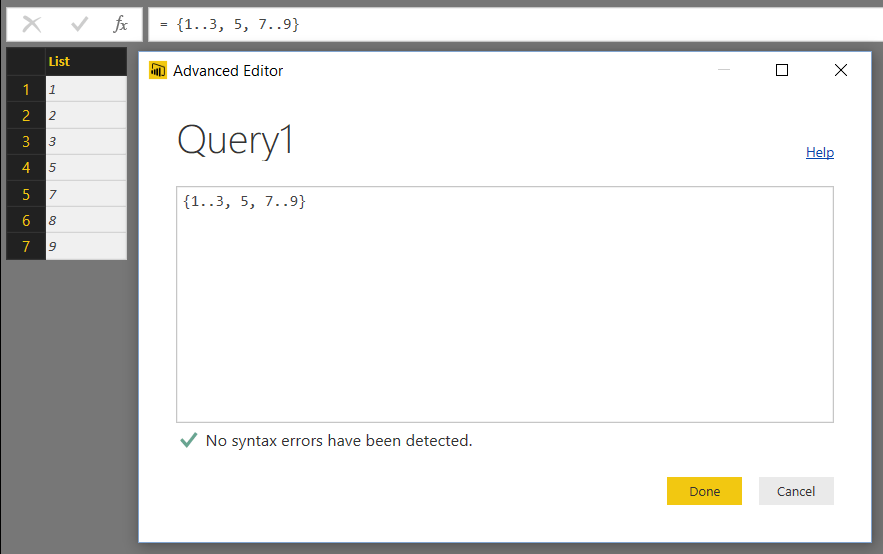
You can also use this format in more complex list definitions, for example

{1..3, 5, 7..9}

Returns the list

{1, 2, 3, 5, 7, 8, 9}

image

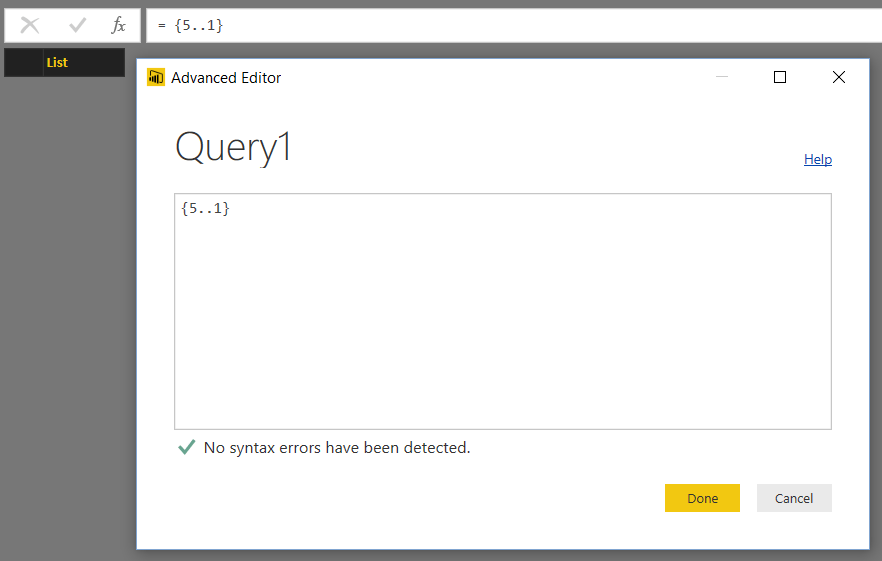
When you’re using this technique you must always put the lowest integer first and the highest integer last; if you don’t do this you get an empty list. So, for example, the expression

{5..1}

Returns an empty list:

image

It’s also possible to use this technique to create lists of characters. For example, the expression:

{"a".."z"}

Returns a list containing all of the lowercase letters of the alphabet:

image

The first character in the expression has to have the lowest Unicode value and the second character has to have the highest Unicode value, and the sequence of characters returned is the list of all characters with Unicode values in that range. As a result, the expression

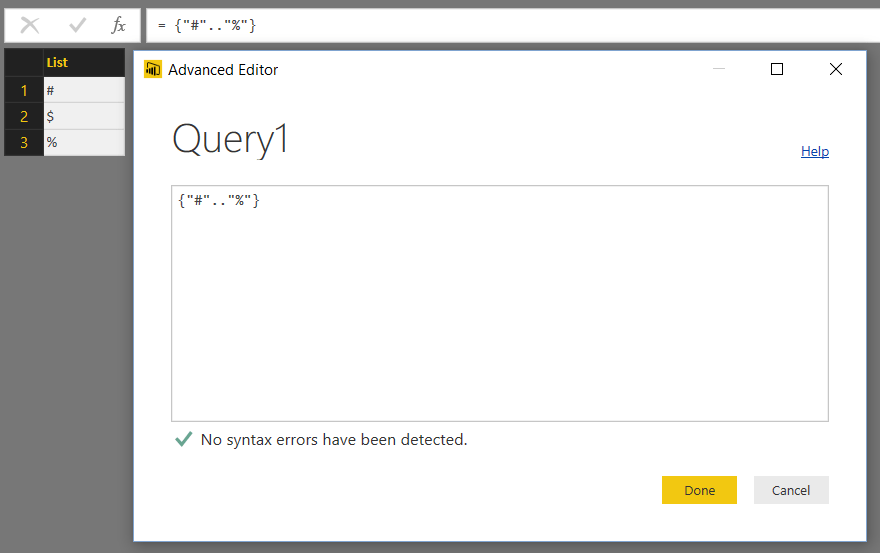
{"#".."%"}

Returns the list

{"#", "$", "%"}

image

And the expression

{"a".."Z"}

Returns an empty list because the Unicode value of “a” is greater than the Unicode value of “Z”.

This technique doesn’t work for decimal numbers, dates or other data types. If you want a sequence of values of these types you need to use functions list List.Dates() and List.Numbers().

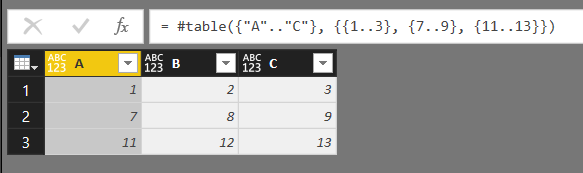
Lists are, of course, used all over the place in M. Building on my recent post on using #table() to create tables with no data source, here’s one last example of using lists containing sequences to create a simple table with three columns and three rows:

#table({"A".."C"}, {{1..3}, {7..9}, {11..13}})

image

Two Upcoming Power BI Webinars

This is just a quick post to let you know about two webinars I’m presenting soon. First, on the 21st of June (today!) at 1pm PST I’m presenting a webinar on “Introduction to M” as part of the Power BI community webinar series; more details on it and how to register can be found here:

https://powerbi.microsoft.com/en-us/blog/week-of-june-20th-webinars-power-bi-security-and-introduction-to-m-by-chris-webb/

Second, I’m presenting a webinar with Pyramid Analytics about their on-premises BI solution and how it integrates with Power BI on the 30th of June called “The Public Cloud Is Not For Everyone”:

http://pages.pyramidanalytics.com/ThePublicCloudIsNotForEveryone.html

[Full disclosure – I’m being paid for this – but it won’t be marketing fluff, just honest discussion, similar to the webinars I did with Pyramid last year]

MDX, DAX, Power BI, Cortana Intelligence And SQL Server HA Training Courses

If you’re looking for expert-led training courses in Microsoft BI and SQL Server, check out the courses we have coming up in London at Technitrain:

If you’d like to keep up-to-date with all our new course announcements, please join our mailing list!

Power BI Diagnostics, Trace Logs And Query Execution Times (Again)

I’ve blogged a few times now about how to monitor Power BI query execution times, most recently here, and while using functions like DateTime.FixedLocalNow() is all very well I’ve never been happy with the fact that you have to alter your queries in order to be able to time them. Using the Power BI trace logs always seemed a much better option – and since the log files are in a reasonably easy to understand text format, you can use a Power BI query to load data from them. I wrote a post on importing data from the trace logs (using Power Query) here back in 2014 and Rui Romano has a great post on doing the same thing for Power BI here. The big problem with the Power BI trace logs, though, is that there is too much information in them: they’re really meant for Microsoft internal use, I guess, and not for the likes of you or me. In fact it’s all low-level data in there and there’s no way to see (as far as I know) the overall time taken for a query to run.

However, last month when I was looking for new M functions using the old #shared trick I came across the Diagnostics.Trace() function which allows you to write to the Power BI trace log direct from your query.  After a bit of experimentation, I found out that this function is the key to a truly elegant way of logging query execution times. Here’s a proof-of-concept that I’ve put together to show how it could be used…

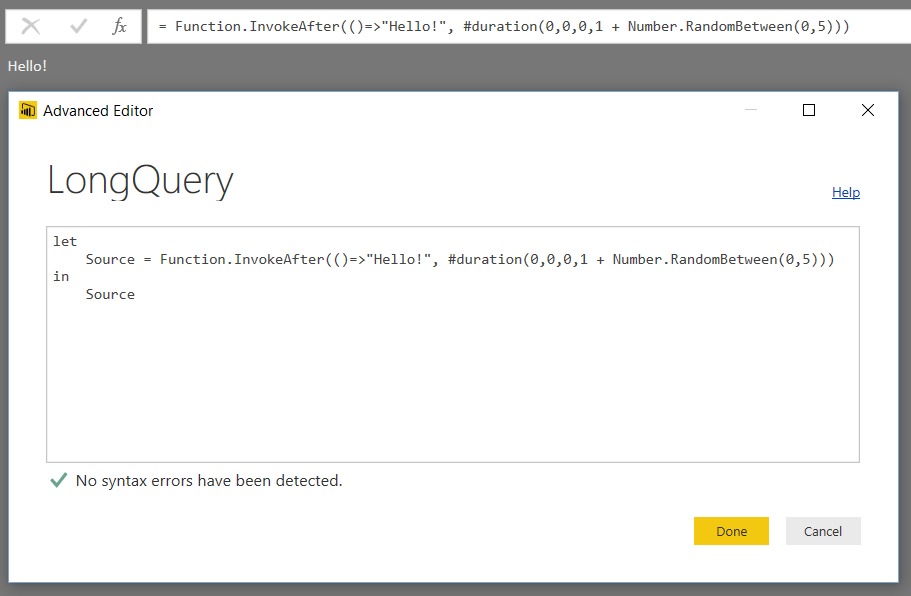
First of all, consider the following query called LongQuery:

[sourcecode language=”text” padlinenumbers=”true”]
let
Source = Function.InvokeAfter(
()=>"Hello!",
#duration(0,0,0,1 + Number.RandomBetween(0,5)))
in
Source
[/sourcecode]

image

It returns the text “Hello” and uses the Function.InvokeAfter() and Number.RandomBetween() functions to wait anything from one to six seconds before doing so. Let’s pretend that this is a real query that does something complex and that we’re trying to tune it.

Rather than alter this query, instead the best thing to do is to create a new query that calls this query through Diagnostics.Trace(). Here’s the code:

[sourcecode language=”text”]
let
Executing = Diagnostics.Trace(
TraceLevel.Information,
#"Trace Message",
()=>LongQuery,
true)
in
Executing
[/sourcecode]

image

I’ve called this query Diagnostics. All it does is return the same value as LongQuery but in doing so it also writes a single message to the trace log. #”Trace Message” is a text parameter that allows you to specify what message to write – you might want to put some kind of version number in here, or a description of any changes you’ve made to your query while tuning it:

image

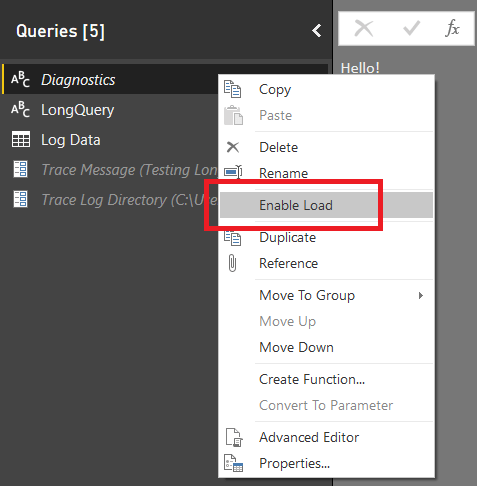
You should also make sure that the Diagnostics query doesn’t get loaded into the data model by making sure the Enable Load option is deselected:

image

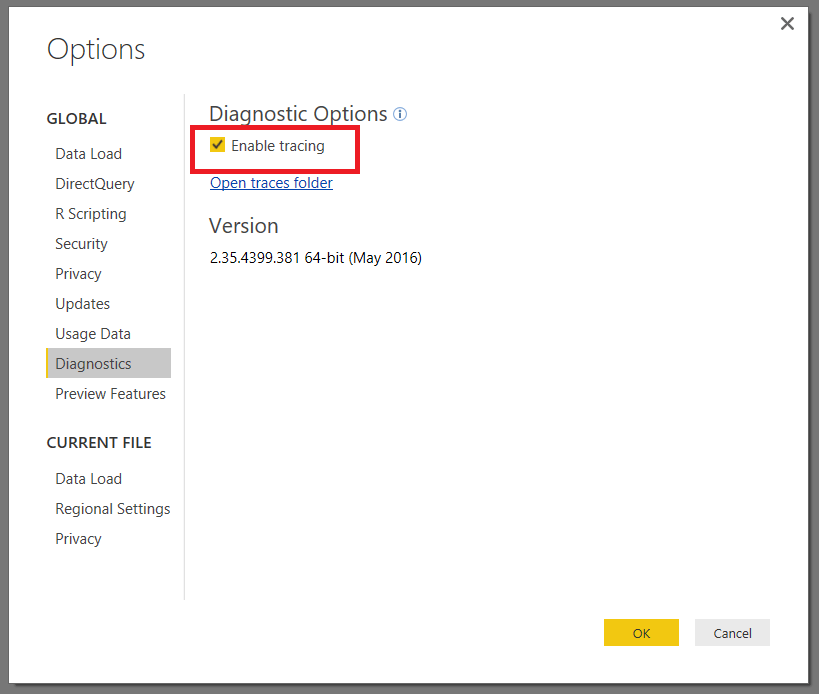
One important thing to remember is that for the Diagnostics query to actually log anything, you need to have the Enable Tracing option turned on in the main Options dialog (you can find this on the File menu in the main Power BI window under Options and settings/Options):

image

image

You will also need to remember to turn this on every time you open Power BI Desktop.

With that done, you just need to hit the Refresh Preview button to refresh the Diagnostics query in the Query Editor window:

image

The Diagnostics query will run, calling the LongQuery query and making an entry in the Power BI trace log. You can find the directory with the trace logs in them by clicking on the Open Traces Folder link in the Options dialog shown above, and you can open the any of the trace log files using your favourite text editor.

image

Loading this trace file into Power BI is pretty straightforward using code similar to that in Rui’s or my blog post. The difference is now, instead of loading everything, you can filter the rows to only load the events created by Diagnostics.Trace(). as far as I can see you can identify these rows because they have the value

“Action”:”Engine/User”,”Message”

Somewhere inside them, as you can see from the last screenshot. Most importantly of all, the duration logged for this event is the amount of time taken to execute the query.

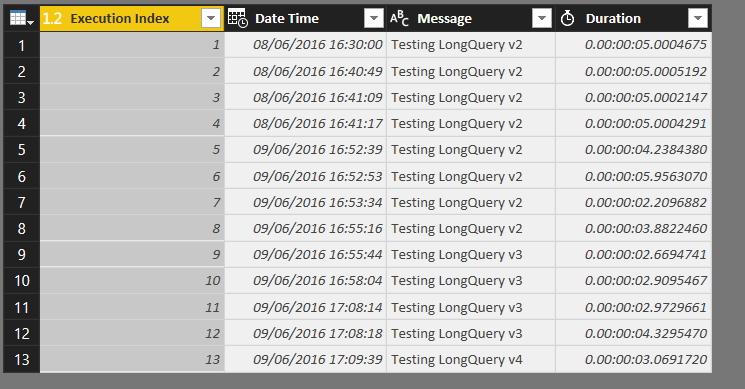
Therefore, with some Power BI M magic, you can load all the data from all of the log files in the log directory, filter the rows to only those created by Diagnostics.Trace(), and end up with a query that gives you something like this:

image

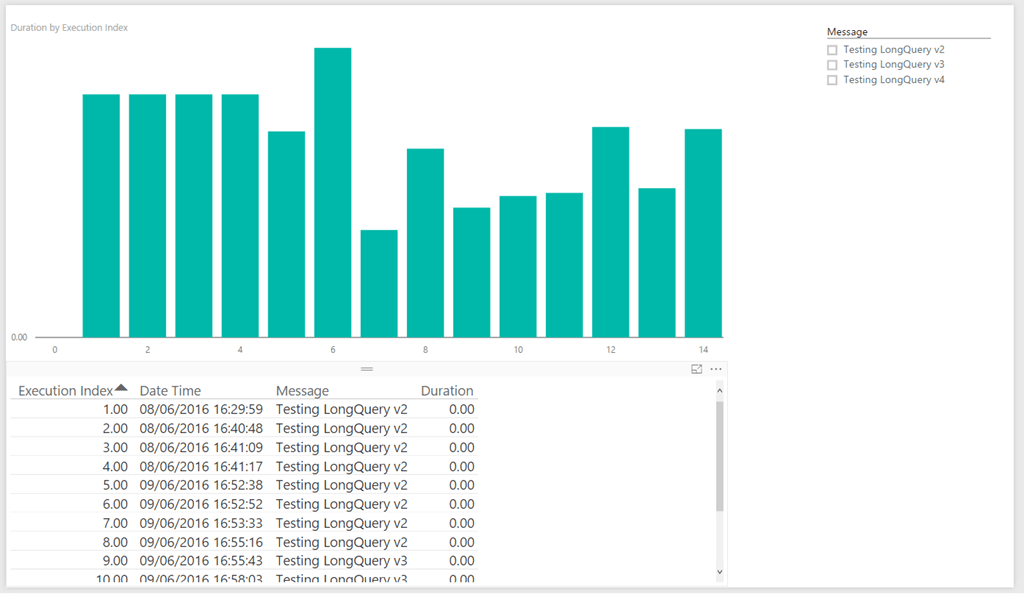
The Execution Index and Date Time columns tell you when the query was executed, the Message column contains the value of the Trace Message parameter at the time the query was executed, and the Duration column tells you how long the query took to execute. You can then, of course, load this table into the data model and build a report that helps you analyse these execution times:

image

To sum up, the workflow for tuning your query is:

  • Make some changes to the LongQuery query that hopefully make it faster
  • Update the Trace Message parameter with some notes about which version of the LongQuery query it is that you’ll be testing
  • Click the Refresh Preview button for the Diagnostics query to test how long LongQuery now runs for
  • Refresh, or load, the query that reads the data from the trace logs so you can see how all of your changes have affected query execution times

Some other closing comments:

  • As I said before, this is just a proof-of-concept and I although haven’t tested it thoroughly but it seems to work.
  • Microsoft may well change the format of its trace logs or make other changes in the future that could break this code shown here.
  • Although I haven’t tried it, this approach should work for Power Query too with some minor modifications.
  • Since it relies on you turning on tracing in Power BI Desktop, this won’t work after you have published your reports. In fact I’ve deliberately structured the queries here so that logging only takes place when you click the Refresh Preview button for the Diagnostics query in the Query Editor window – I found this was the best way to reduce noise in the log files, especially given the fact that a query can be executed multiple times when data is actually being loaded into the data model.
  • That said, the Power BI Enterprise Gateway has its own log files, so maybe you could adapt this approach somehow to work with them?
  • I suspect there are lots of other uses that Diagnostics.Trace() could be put to for even lower-level debugging and analysis of queries, but that’s something for a future blog post.

You can download the sample code as a Power BI template from here. When you open the template you’ll be prompted to enter two parameter values: the message to record for your events in the trace log and the path of your trace log directory.