I can hear you yawning already – yet another blog post on getting data from multiple Excel workbooks in Power Query and Power BI. Just about everyone who has ever written a blog post on Power BI has written about this subject, including me. However there’s a twist this time: what if your Excel workbooks are stored in SharePoint or OneDrive For Business? If they are, then your dataset may not refresh successfully after you have published unless you load your data in a particular way.
Some background first. A few weeks ago I was contacted by a reader who had seen my post on data refresh errors and the Web.Contents() function and was experiencing the same issue when using Web.Contents() to get data from multiple Excel workbooks stored in SharePoint. Up until recently the Web.Contents() function – which is used by the From Web option in Power BI’s Get Data experience – was the only way to get data reliably from single Excel files stored in SharePoint or OneDrive For Business. However the limitations on Web.Contents(), M functions and data refresh described in my blog post meant that it wasn’t possible to use Web.Contents() to get data from multiple Excel files stored in SharePoint or OneDrive For Business.
The April 2016 Power BI Desktop update introduced a new way of getting data from Excel files stored in SharePoint: the SharePoint Files data source, based on the SharePoint.Files() M function. Both Mike Carlo and Ken Puls have already blogged about this in depth and so I won’t repeat what they’ve written; their posts have a lot of good information on how to construct the URLs to find your files in SharePoint. How do you use it to combine data from multiple Excel workbooks though?
Imagine you have four identically-structure Excel workbooks stored in a folder in OneDrive For Business:

Each one has a table called Table1 with some sales data in it:

In Power BI Desktop, create a new query and click the Get Data button. In the Get Data dialog, go to Files and click on SharePoint Folder:

Enter the URL for your OneDrive For Business site:

You’ll then see all the files in all your folders in OneDrive For Business:

Filter the folders in the Folder Path column so you only see the files in the folder containing your Excel workbooks:

Right-click on the Content column and select Remove Other Columns to get rid of all but the Content column. Then click the Add Custom Column button and add the following expression:
[sourcecode language='text' ]
Excel.Workbook([Content])
[/sourcecode]

This tells Power BI to treat each file in this folder as an Excel Workbook. Click OK, and then right-click on the Content column and select Remove (you won’t need this any more). Next, click on the Expand icon in the top right-hand corner of the Custom column and click OK on the flyout:

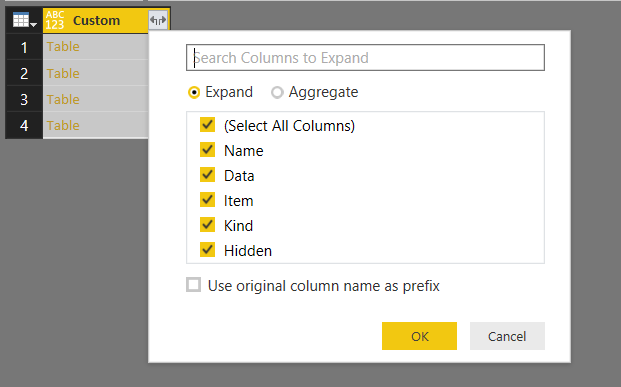
This will give you a table listing all of the contents of each workbook:

Filter this table so you only have the four tables from each workbook:
Next, right-click on the Data column and select Remove Other Columns, then finally click OK on the Expand icon again:

You’ll now have a table containing all of the data from the tables called Table1 in each workbook in the folder:

Don’t forget to set appropriate data types for each column (columns will have the data type Any by default, which will be treated as text later on)! You can now build your report and publish it:

In order for refresh to work, you’ll need to configure the credentials used by the Power BI service to connect to your data. In the browser, click on the ellipses for the Dataset for your report and select Schedule Refresh:

This will take you to the Datasets tab on the Settings page. You can schedule refresh here if you want, but the important thing is to click the Edit Credentials link:

If like me you have an Office 365 subscription and use SharePoint Online, then the dialog choose oAuth2 in the Authentication Method dropdown box and click Sign In:

You’ll see the Windows Organizational Account sign-in page appear briefly while you are signed in but you shouldn’t need to do anything. And that’s it!
You can now edit the data in any of your Excel workbooks and, once the dataset has refreshed, those changes will show up in the report. If you want to do a manual refresh of the data, clicking the Refresh button at the top of the report won’t do any good; you have to click on the Refresh Now option on the dataset (seen in the screenshot above, just below the Schedule Refresh option).