Calling Microsoft Flow From Power Query And Power BI

Since last week’s blog post caused quite a lot of interest, here’s something similar: did you know you can trigger a Flow in Microsoft Flow and get a response from it back using Power Query/Power BI?

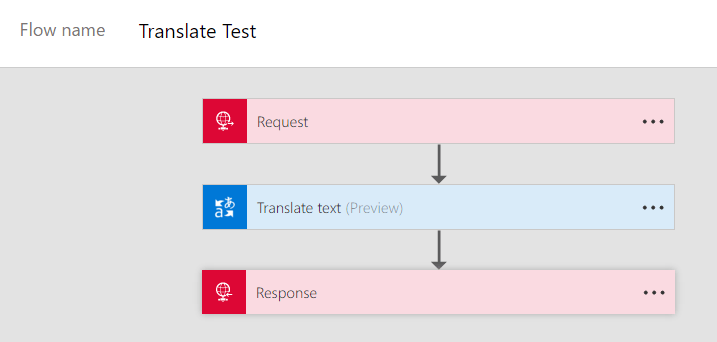
To start off, I suggest you read this post by Irina Gorbach which shows how a Flow can be triggered by a call to a REST API. Now consider the following Flow which is similar to the one in that post:

image

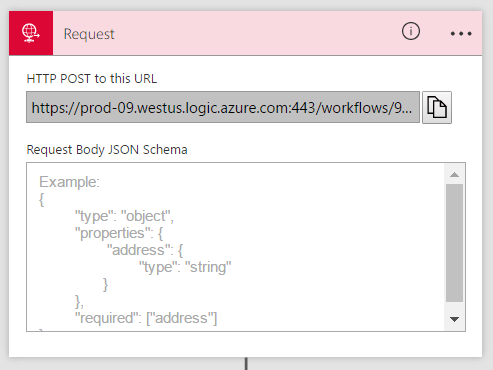
It has a Request trigger:

image

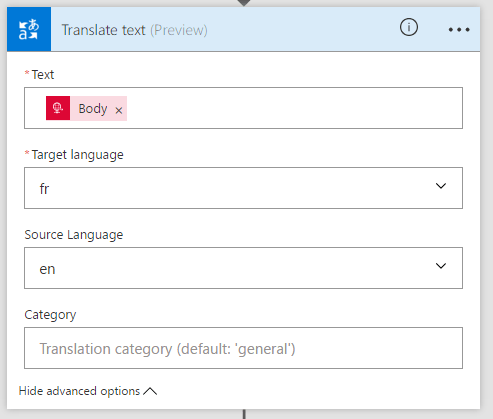
…a Translate text step as the second step, that takes the text passed in to the Request trigger through the request body and passes it to the Microsoft Translator API where it is translated from English to French:

image

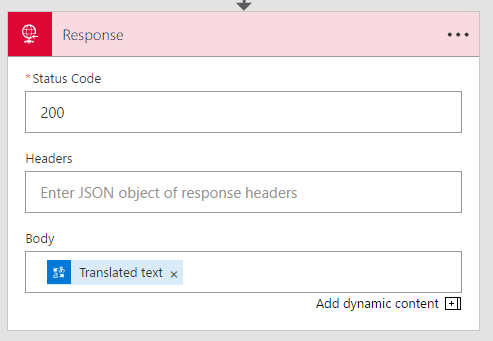
…and then, finally, returns the translated text back using a Response step:

image


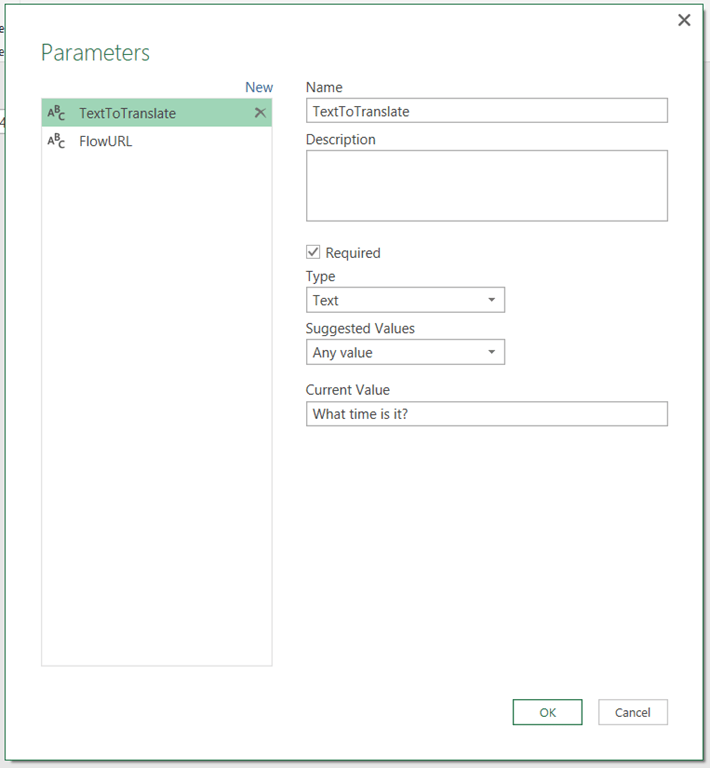
It’s very easy to call this Flow from Power Query or Power BI. First, create two parameters in the Query Editor: one called TextToTranslate that contains the text you want to translate from English to French (in this case, “What time is it?”)

image

…and another called FlowURL which is the URL copied from the Request trigger of the Flow

image

Then all you need to do is to call the Flow using a query that makes a POST request to the Request trigger:

[sourcecode language='text'  padlinenumbers='true']
let
    Source = Web.Contents(FlowURL,
                [Content=Text.ToBinary(TextToTranslate)]),
    GetText = Text.FromBinary(Source)
in
    GetText
[/sourcecode]

And voilà, your query will pass the text in the TextToTranslate parameter to the Flow and return the translated text:

image

So basically, in this case I’ve used Flow to create a web service without writing a single line of code. I can see a lot of potential uses for this and I suspect I’ll be blogging about Flow a lot in the future. A word of warning though: do not try to use this as a way of updating a data source. As I mentioned last time, when you run your query you’ll find Power Query/Power BI calls the web service twice. For example, I created a Flow similar to the one above that used the Insert Row step to take text sent to a Request trigger and add it to a table in an Excel workbook, and of course every time I refreshed my query I got two identical rows in my Excel table.

Pushing Data From Excel To Power BI Using Streaming Datasets

One Power BI feature that almost passed me by (because it was released in August while I was on holiday) was the ability to create streaming datasets in the Power BI web app and push data to them via the Power BI REST API. This blog post has the announcement:
https://powerbi.microsoft.com/en-us/blog/real-time-in-no-time-with-power-bi/
The documentation is here:
https://powerbi.microsoft.com/en-us/documentation/powerbi-service-real-time-streaming/
And Charles Sterling has an example of how to use it with Flow and PowerApps here:
https://blogs.msdn.microsoft.com/charles_sterling/2016/10/17/how-to-create-and-customize-applications-with-powerapps-with-laura-onu-webinar-1020-10am-pst/

However, when I played around with this I found there were a few things that were either confusing or not properly documented, so I thought it would be useful to give an example of how to use this functionality to automatically synch data from a table in Excel to Power BI using a Power Query query.

Creating the streaming dataset in Power BI

Imagine that you have a table called Sales in an Excel workbook on your desktop:

image

There are three columns: Month and Product, which contain text values, and Sales, which contains an integer value. This is the data that we want to push up to Power BI.

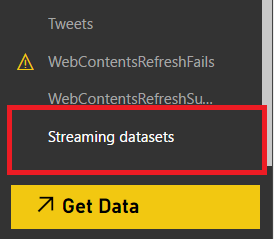
The first step is to create a streaming dataset in Power BI to receive this data. Go to PowerBI.com and on the left-hand menu, under the Datasets heading, you’ll find a link called Streaming Datasets right at the bottom next to the Get Data button:

image

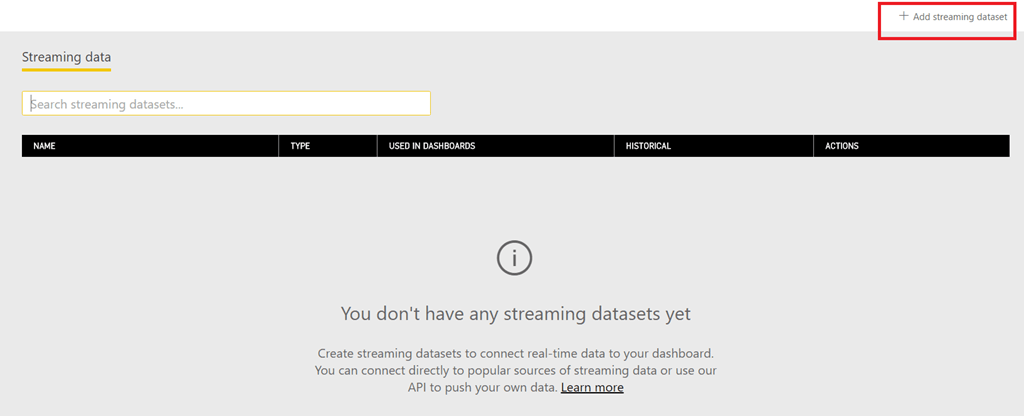
Click it and you’ll go to the Streaming data screen. Click on the “Add streaming dataset” button in the top-right to create a new streaming dataset:

image

Choose the API option in the pop-out pane then click Next:

image

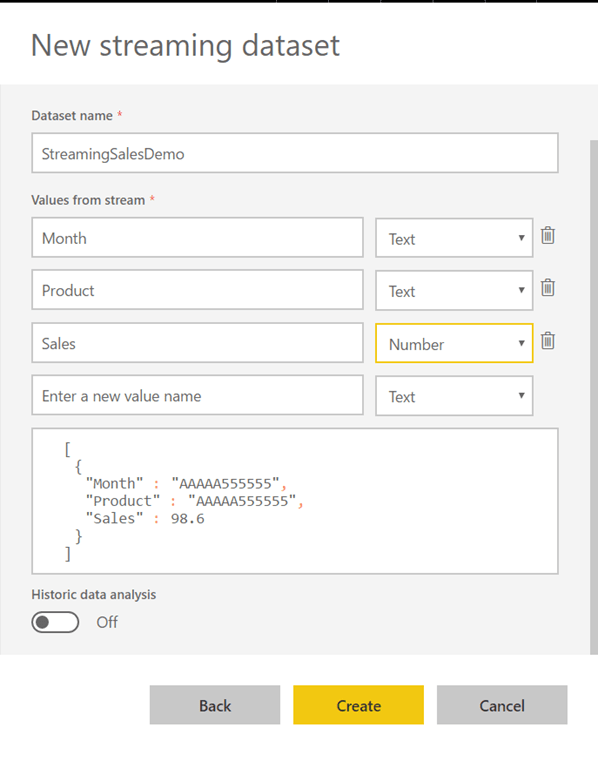
Then give your dataset a name, enter the names and data types for the columns in the table and leave the Historic data analysis option turned off (we’ll come back to this later):

image

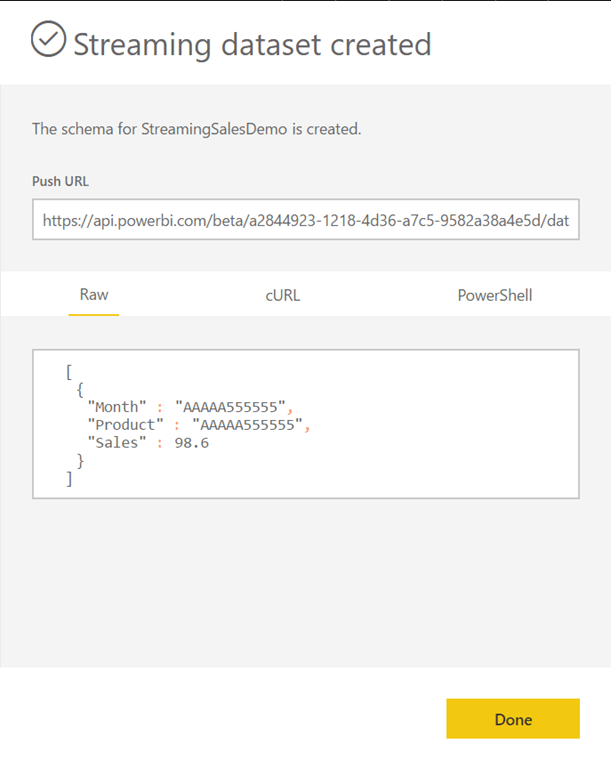
Hit Create and you’ll see a screen showing the URL to use to push data to the dataset and an example of the JSON to use to send the data:

image

Copy the URL and put it somewhere handy – you’ll need it in a moment.

Pushing data to the streaming dataset from Excel

Back in your Excel workbook, open the Power Query Query Editor window and create a new text parameter called PowerBIStreamingDatasetURL and paste in the URL for the streaming dataset:

image

Next, create a new blank query and use the following M code:

[sourcecode language=”text” padlinenumbers=”true”]
let
Source = Excel.CurrentWorkbook(){[Name="Sales"]}[Content],
ChangedType = Table.TransformColumnTypes(
Source,
{
{"Month", type text},
{"Product", type text},
{"Sales", Int64.Type}
}),
ConvertToJson = Json.FromValue(ChangedType),
SendToPowerBI = Web.Contents(PowerBIStreamingDatasetURL,
[Content=ConvertToJson,
ManualStatusHandling={400,404}]),
GetMetadata = Value.Metadata(SendToPowerBI),
GetResponseCode = GetMetadata[Response.Status],
CurrentTime = DateTime.ToText(DateTime.FixedLocalNow()),
Output = #table({"Status"},
{{
if GetResponseCode=200 then
"Data updated successfully at " & CurrentTime
else
"Failure at " & CurrentTime}})
in
Output
[/sourcecode]

This query does the following:

  • Reads the data from the Sales table in the workbook
  • Converts the data to JSON (for some background on how it does this, see here)
  • Sends the data to the streaming dataset using Web.Contents() to make a POST request. See this post on how to make POST requests using Web.Contents() and this post on the technique I’m using to handle HTTP errors manually.
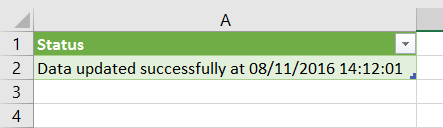
  • Returns a table containing a message saying whether the data was updated successfully or not, and the time of execution like so:image

Finally, back in Excel, go to the Data tab on the ribbon, click on the Connections button to open the Workbook Connections dialog, select the connection that represents the query you’ve just created, click Properties, then in the Connection Properties dialog tick the “Refresh every” box and set the query to refresh automatically every minute:

image

Displaying data in a Power BI dashboard

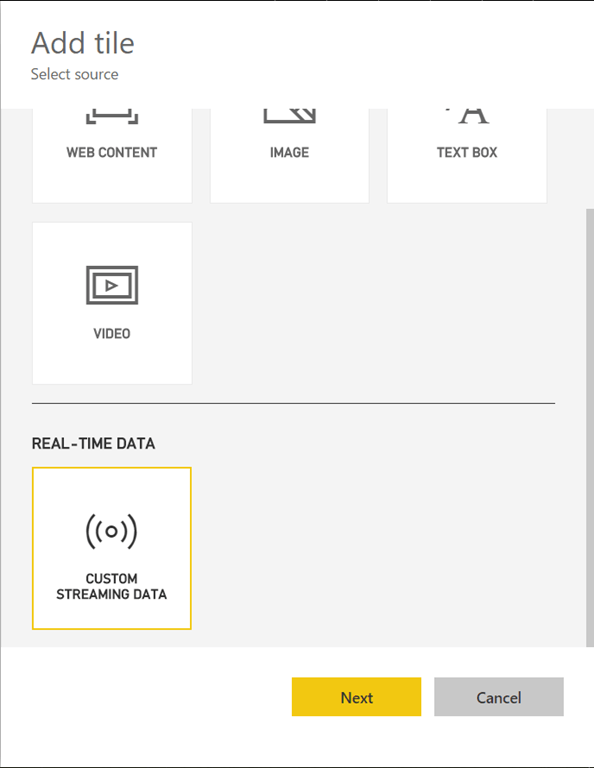
Back in the browser in Power BI, create a new dashboard, click the Add Tile button and choose the Custom Streaming Data option:

image

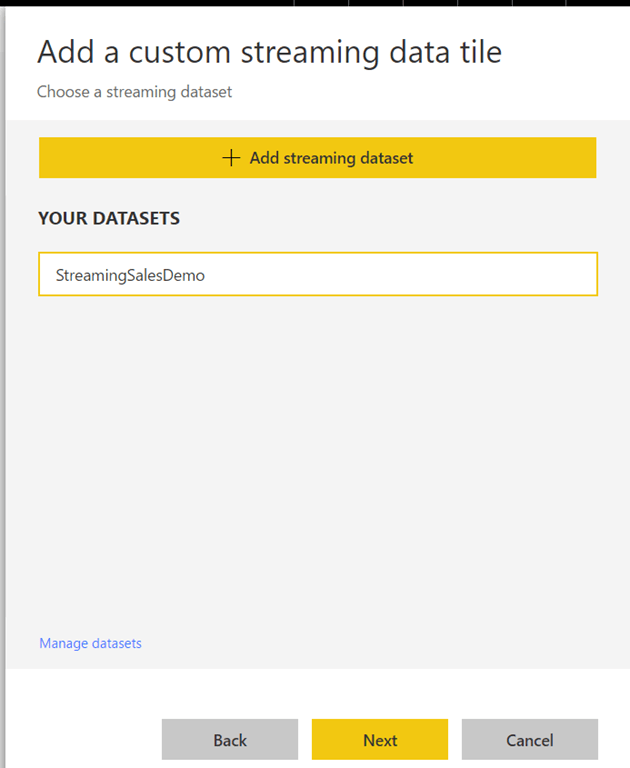
Click Next and select the streaming dataset created earlier:

image

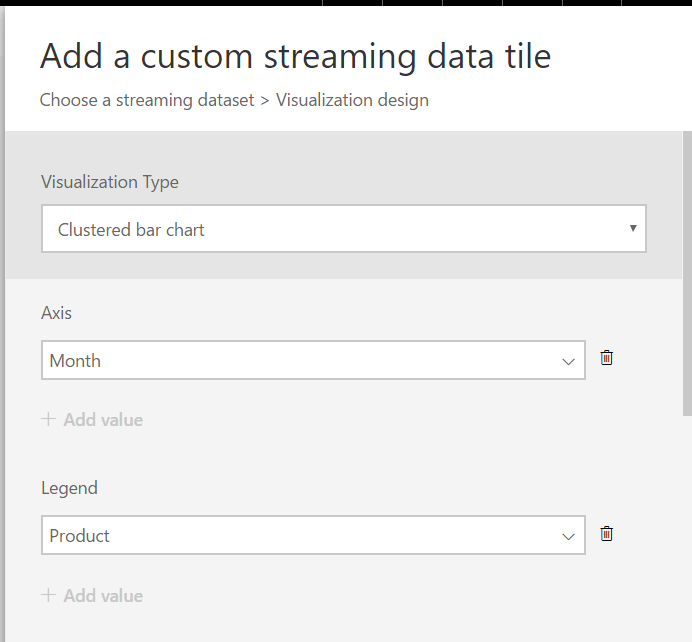
Click Next again and then choose Clustered bar chart as your Visualization Type, select the Month field of the dataset for the Axis, Product for the Legend…

image

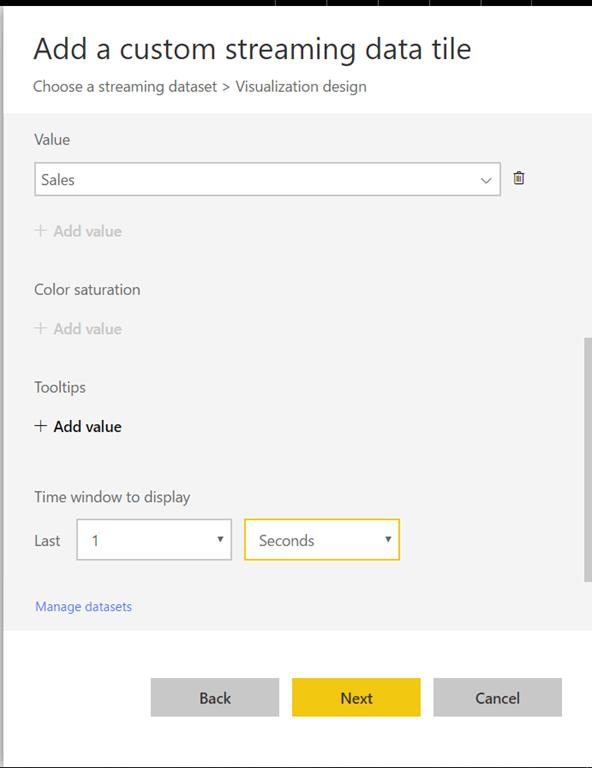
…the Sales field for the Value and set the time window to display to 1 second:

image

Frustratingly there’s no way to create a measure or otherwise aggregate data here. In this example you’re using all of the fields in dataset in the chart; if you left out Product, however, you wouldn’t see aggregated sales for all products you would just see data for one (the last?) row in the table for each month.

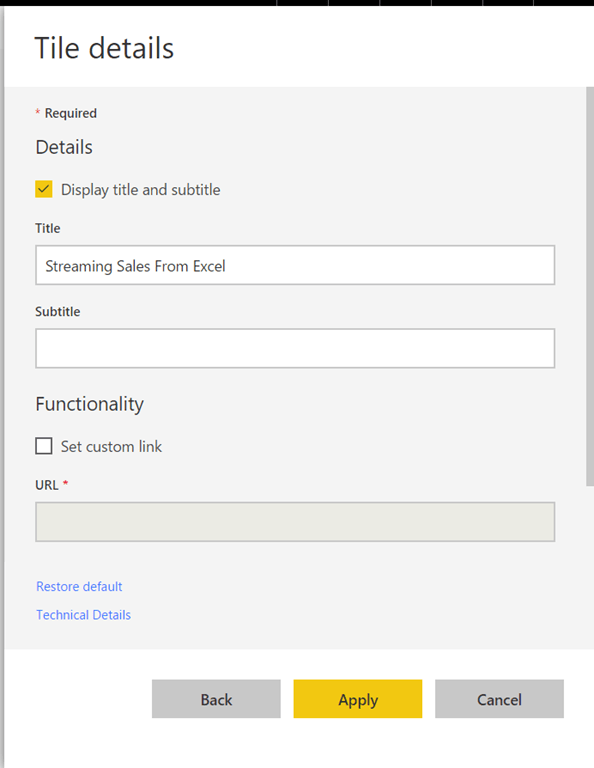
Finally, set a title for the chart:

image

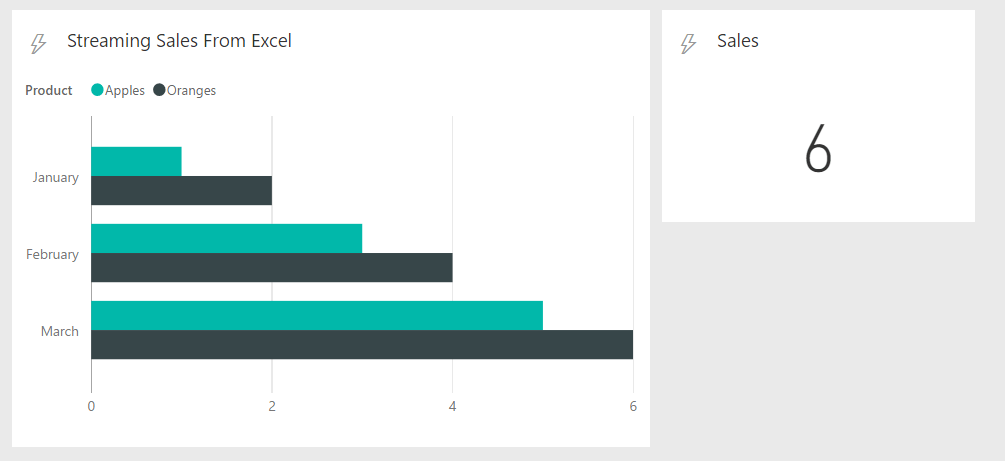
You now have a dashboard that gets updated automatically and shows the data from the Sales table in the Excel workbook:

image

When you change the data in Excel, after the Power Query query has run in the background every minute, the new data will appear in the chart.

[Be aware that it might take a few minutes for everything to start working when you first create a new tile]

Other ways of visualising the data

There are other types of data visualisation your can use such as line charts that are all very straightforward. One thing that did confuse me was the card visual: it shows one number, but which number? In this example if you create a card and link it to the Sales field in the dataset, it will always display the value from the last row in the table:

image

Again, it would be really nice if there was a way of creating a measure here…

The Historic Data Analysis option

You may remember the Historic Data Analysis option from an earlier step. What happens if you turn it on? Basically, instead of storing just one copy of the table you push through the API it stores multiple copies of the table (although it doesn’t store everything – I guess it’s subject to this retention policy or something similar). For example, consider the following variation on the streaming dataset above:

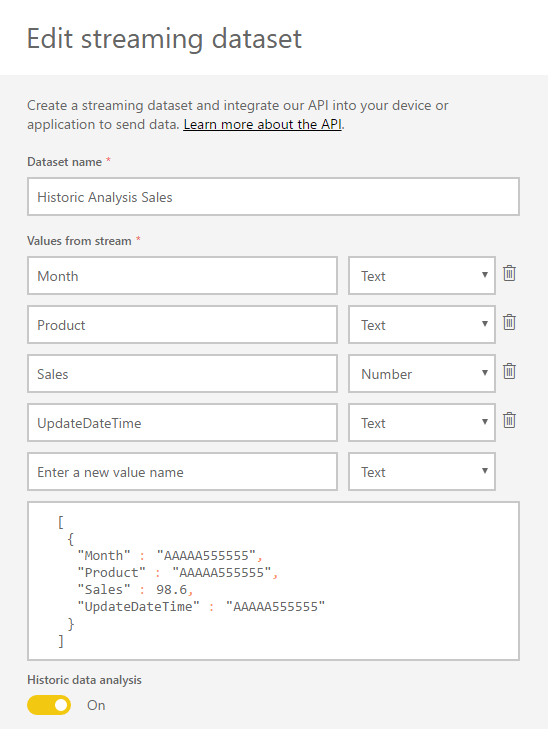
image

There’s a new field called UpdateDateTime (which is of type text, not datetime, because I found this worked better in reports) and the Historic data analysis switch is turned on.

Here’s an updated version of the Power Query query that populates the UpdateDateTime field with the date and time that the query was run:

[sourcecode language=”text”]
let
Source = Excel.CurrentWorkbook(){[Name="Sales"]}[Content],
CurrentTime = DateTime.ToText(DateTime.FixedLocalNow()),
AddUpdateDateTime = Table.AddColumn(Source, "UpdateDateTime",
each "Data Update: " & CurrentTime),
ChangedType = Table.TransformColumnTypes(
AddUpdateDateTime ,
{
{"Month", type text},
{"Product", type text},
{"Sales", Int64.Type},
{"UpdateDateTime", type text}
}),
ConvertToJson = Json.FromValue(ChangedType),
SendToPowerBI = Web.Contents(PowerBIStreamingDatasetURL,
[Content=ConvertToJson,
ManualStatusHandling={400,404}]),
GetMetadata = Value.Metadata(SendToPowerBI),
GetResponseCode = GetMetadata[Response.Status],
Output = #table({"Status"},
{{
if GetResponseCode=200 then
"Data updated successfully at " & CurrentTime
else
"Failure at " & CurrentTime}})
in
Output
[/sourcecode]

You can download a demo workbook with this second example query in here.

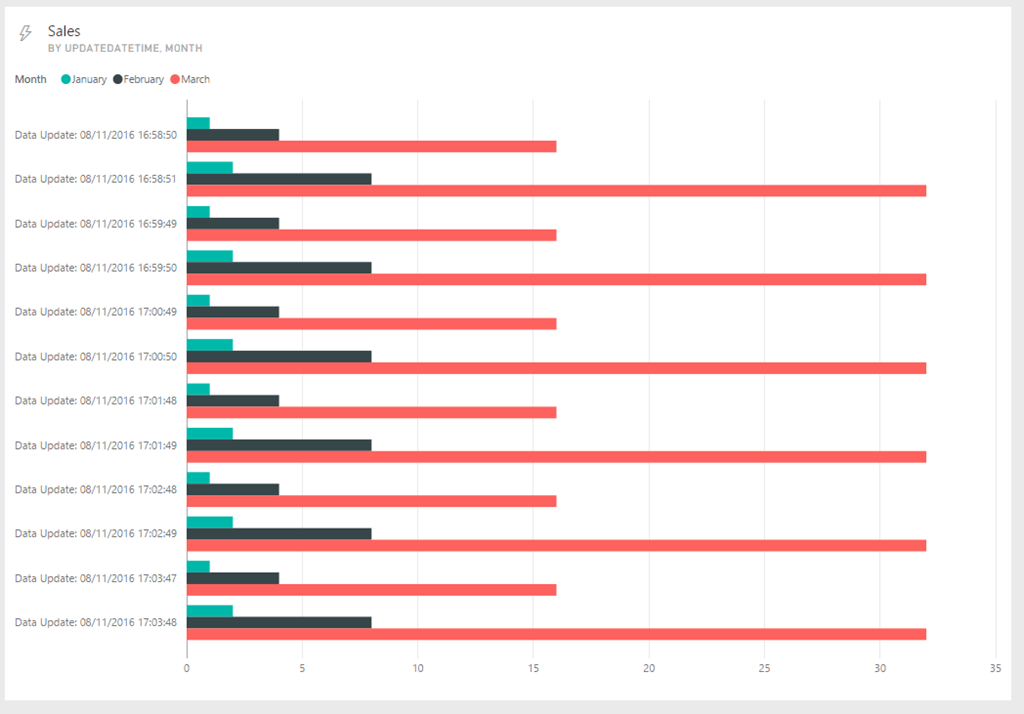
The dashboards now work in more or less the same way. The Time Window To Display option that we set to 1 Second above can be used to control the number of copies of the pushed table that are displayed. For example, setting it to five minutes shows data from all of the copies of the table pushed in the last five minutes:

image

[Incidentally, if you’re using the Power Query query above you’ll see that every time the query runs, the web service is actually called twice! This is a feature of Power Query and M in general – there’s no guarantee that the web service will be called just once even if the query itself is executed once. This is why the dev team always tells people never to use Power Query to update data in a data source (see here for another example of this)]

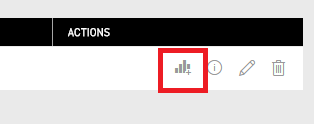
You now also get a new option to create a report from a streaming dataset on the Streaming Data screen – you need to click the small graph icon next to the name of the streaming dataset:

image

image

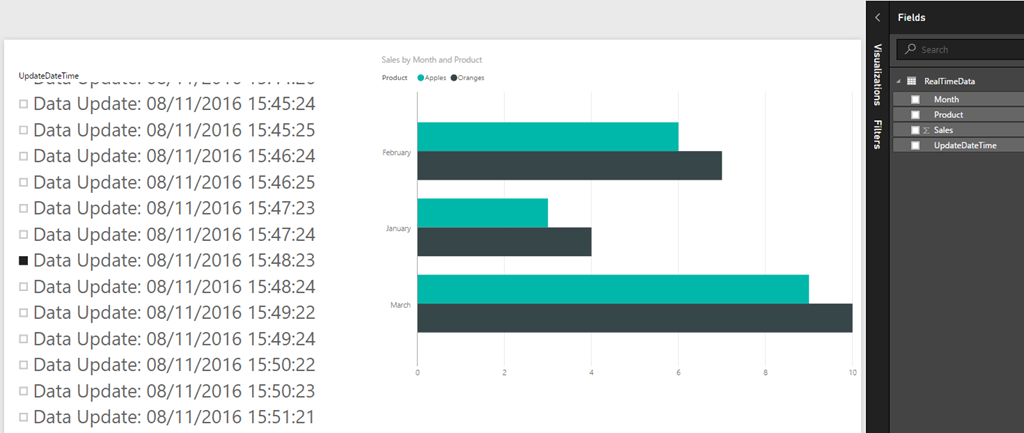
So now you can create reports that show how the data in your Excel table has changed over time, and slice by the values in the UpdateDateTime field:

image

It’s important to realise that unlike the dashboards, reports connected to a streaming dataset don’t refresh automatically – you have to click the Refresh button on the report.

Conclusion

Although the examples in this post are perhaps not all that practical, hopefully they show what’s possible with the streaming API and some M code. It would be great if we could do data modelling-type stuff like add measures in the web interface, in the same way that we can in Power BI Desktop, because that would open the door to doing even more cool things with streaming data.

SSAS Documentation With Squarehouse Commentary

A few months ago I found out about a new tool for managing and viewing Analysis Services Multidimensional documentation called Squarehouse Commentary. I’ve now had the chance to play around with it and talk to the company that makes it and I have to say I’m impressed: in my opinion it’s by far the best tool of its type that I’ve seen. Rather than generating a large pile of documentation that no-one will read and which will get left, forgotten on a fileshare or a SharePoint site, it allows you to synch the descriptions created in its own web application with the description properties in your SSAS cubes and dimensions. It also automatically generates actions so that end users can easily view rich web-based documentation for hierarchies and measures direct from whatever client tool they are using in a few clicks.

This video does a good job of showing off the main features:

Overall, definitely something to check out. It doesn’t support Tabular models yet, but I’m told that this is in the planning stages.

Deleting Cached Logins For Azure Analysis Services In SQL Server Management Studio

When Azure Analysis Services was announced I had to try it out right away. Of course I didn’t read the instructions properly so when I tried to log in to my Azure Analysis Services instance from SQL Server Management Studio, like an idiot I logged in with the wrong username. The problem is that once you’ve done this, with current versions of SQL Server Management Studio there’s no way of logging out and logging in as a different user. Luckily Igor Uzhviev of Microsoft had a solution for me and I thought I’d share it for anyone else who’s made the same mistake. Here’s what you need to do:

  • Go to your user local app data folder (the path is like this: C:\Users\<your_user_name>\AppData\Local\)
  • In this directory you need to delete:
    1) Any .dat files with names that start with "omlibs-tokens-cache…"
    2) The folder AADCacheOM, if it exists
  • You also need to open Internet Explorer and delete  all cookies and website data, because IE caches auth tokens too

Once you’ve done this, the next time you try to connect to Azure Analysis Services from SSMS you’ll get prompted to log in again. Future releases of SSMS will have proper support for logging in and out of Azure SSAS, but even with the latest version (version 16.5) you’ll still need to following these steps.

First Thoughts On Azure Analysis Services

Hurray! At last we have proper cloud-based Analysis Services! The official blog post with the announcement is here:

https://azure.microsoft.com/en-in/blog/introducing-azure-analysis-services-preview/

…the pricing details are here:

https://azure.microsoft.com/en-us/pricing/details/analysis-services/

…and the documentation is here:

https://azure.microsoft.com/en-us/documentation/services/analysis-services/

It’s still in preview, so while there are some missing features I’m confident that they’ll be added soon. Similarly it’s SSAS Tabular only right now, but the blog post says

Support for multidimensional models will be considered for a future release, based on customer demand.

I’m pretty sure there there will be plenty of demand for Multidimensional support given the installed base that’s out there.

Why should we be excited about this, though? What will Azure Analysis Services be useful for? Obviously, if you want to build a completely cloud-based Microsoft BI solution then Azure SSAS is an important component to have available. Also, consider the fact that the load on a typical SSAS server varies a lot over time: daytime is usually much busier than night-time, weekdays are usually busier than weekends, and some days of the month (such as month ends) may be much busier than others. It will be great to be able to build cloud-based SSAS solutions that can be scaled-up and scaled-down to meet demand, rather than expensive on-premises SSAS solutions that are underutilised most of the time. I also think Azure SSAS will be very interesting to ISVs, and to Power BI users looking to move up from native Power BI storage, although in both cases pricing will be key to adoption. I can’t wait to start using this with my customers!

UPDATE 27/10/2016: You can see the top-rated requests on the Azure Analysis Services forum here https://feedback.azure.com/forums/556165 unsurprisingly, support for SSAS Multidimensional is #1

Nested Variables In DAX

Last week, at the SQL Server Days conference in Belgium, Kasper mentioned in his presentation that it was possible to define variables inside variables in DAX. So, for example, you could define a measure like so:

[sourcecode language='text'  padlinenumbers='true']
MyMeasure = 
var Outer1 = 
               var Inner1 = 1
               var Inner2 = 2
               return Inner1 + Inner2
var Outer2 = 3
return Outer1 + Outer2
[/sourcecode]

This measure returns 6 as you might expect:

image

There aren’t any performance benefits to doing this, although of course it helps with code readability and organisation (thanks to Marius for confirming this).

With my newly rekindled love of DAX I thought this was quite interesting. I’m not really sure why though, given that it’s not particularly useful; I think Matt might be right:

image

Defining Variables In DAX Queries

Variables are the best thing to happen to DAX since, well forever – they are so cool I’m almost ready to like DAX as much as I like MDX. There are already several good articles and blog posts out there describing how to use them (see here and here), but I was looking at a Profiler trace the other day and saw something I hadn’t yet realised about them: you can declare and use variables in the DEFINE clause of a DAX query. Since my series of posts on DAX queries still gets a fair amount of traffic, I thought it would be worth writing a brief post showing how this works.

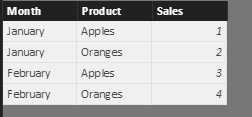
Say you have the following table (called Sales) in your model:

image

You can declare DAX variables in the DEFINE clause of a query like so:

[sourcecode language=”text” padlinenumbers=”true”]
DEFINE
VAR MyMonth = "January"
VAR FilteredMonths =
FILTER ( VALUES ( Sales[Month] ), Sales[Month] = MyMonth )
EVALUATE
CALCULATETABLE ( Sales, FilteredMonths )
[/sourcecode]

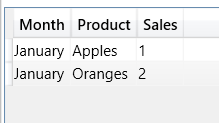
This query returns the following result:

image

The benefits of using variables in this way are the same as you get when using variables in measures and calculated columns: improved readability, less repetition and potential performance improvements.

I also wondered whether I would be able to refer to these variables inside measures declared in the DEFINE clause, but unfortunately you can’t. The following query:

[sourcecode language=”text” padlinenumbers=”true”]
DEFINE
VAR MyMonth = "January"
VAR FilteredMonths =
FILTER ( VALUES ( Sales[Month] ), Sales[Month] = MyMonth )
MEASURE Sales[FirstMeasure] =
COUNTROWS ( FilteredMonths )
EVALUATE
ROW ( "First Measure", [FirstMeasure] )
[/sourcecode]

…returns the error

“Failed to resolve name ‘FilteredMonths’. It is not a valid table, variable or function name”.

However if you define your calculations inside the query itself, for example using the Summarize() or AddColumns() functions, or like so:

[sourcecode language=”text”]
DEFINE
VAR MyMonth = "January"
VAR FilteredMonths =
FILTER ( VALUES ( Sales[Month] ), Sales[Month] = MyMonth )
EVALUATE
ROW (
"First Calc", COUNTROWS (FilteredMonths),
"Second Calc", CALCULATE (SUM(Sales[Sales]), FilteredMonths)
)
[/sourcecode]

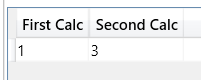
…the query works:

image

In a lot of cases, multiple calculations contain some of the same logic and being able to use variables to share tables and values between calculations opens up some really interesting opportunities for performance optimisations.

Generating JSON In Power BI And Power Query

Often, when calling web services from Power BI or Power Query, you’ll need to generate some JSON inside your query to send to these web services. The M language makes this relatively easy to do with the Json.FromValue() function but there’s only one example of how to use it in the help so I though it might be useful to provide some worked examples of M data types and how Json.FromValue() turns them into JSON.

First, here’s a function – that I’ve called GetJson() for the examples here – that takes a parameter of any data type, passes it to Json.FromValue() and returns the JSON representation of the input as text:

(InputData) =>

let
JsonOutput = Json.FromValue(InputData),
OutputText = Text.FromBinary(JsonOutput)
in
OutputText

Now, let’s see what this returns for a variety of different data types.

Tables

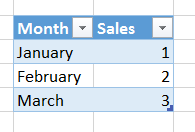
Take the following table on an Excel worksheet, called “Sales”:

image

The following query loads the data from this table and calls the GetJson() function defined above:

let

Source = Excel.CurrentWorkbook(){[Name="Sales"]}[Content],
#"Changed Type" = Table.TransformColumnTypes(
Source,
{{"Month", type text}, {"Sales", Int64.Type}}),
Output = GetJson(#"Changed Type")
in
Output

It returns the following JSON, an array of objects:

[

{"Month":"January","Sales":1},
{"Month":"February","Sales":2},
{"Month":"March","Sales":3}
]

Lists

M language lists are represented as JSON arrays, so the following query:

GetJson({"Apples", "Oranges", "Pears"})

…returns

["Apples","Oranges","Pears"]

And

GetJson({{1,"Apples"}, {2,"Oranges"}, {3,"Pears"}})

…returns

[[1,"Apples"],[2,"Oranges"],[3,"Pears"]]

Records

M language records are represented as JSON objects, so:

GetJson([month="January", product="Apples", sales=1])

…returns

{"month":"January","product":"Apples","sales":1}

Nested Data

Finally, in M it’s possible to have nested data structures: lists of tables, records containing lists and so on. These can be converted to JSON too, so in the following example of a record containing a text value, a list and a table (created using #table):

GetJson(

[
product="Apples",
colours={"Red","Green"},
sales=
#table({"Month", "Sales"},
{
{"January", 1},
{"February", 2}
}
)
]
)

…the JSON output is:

{

"product":"Apples",
"colours":[
"Red",
"Green"
],
"sales":[
{
"Month":"January",
"Sales":1
},
{
"Month":"February",
"Sales":2
}
]
}

You can download the sample Excel 2016 workbook with these examples in here.

Using The Invoke Custom Function Button In Power BI

There are a lot of cool new features in the September 2016 update for Power BI, so many in fact that several of the really important changes in the Query Editor are in danger of going unnoticed. In this post I want to walk through how to use the new Invoke Custom Function button in the Query Editor in Power BI and explain why it’s such a useful thing to have.

More advanced Power BI users will know that a lot of data loading patterns involve using custom M functions. In the past implementing these patterns involved learning M both for writing functions and also for invoking those functions. A few months ago Power BI introduced the ability to automatically generate functions from queries that use parameters, without needing to write code, and now with the latest update we can also invoke functions easily by clicking a button. This means that a lot more advanced data loading patterns are now available to users who don’t know any M and there’s even less need for someone like me to open the Advanced Editor window and start writing code.

Let’s take a look at how this works with a very simple example. Say you have a table that contains sales data, with the number of units sold and the price paid:

image

You now want to add a new column to this table that calculates the sales value as Units * Price, and you have a function to do this. Here’s what the M code for that function (called “Calculate Value”) could look like:

[sourcecode language=”text” padlinenumbers=”true”]
(Units as number, Price as number) => Units * Price
[/sourcecode]

image

With a query that returns your sales data and another query that returns the Calculate Value function, you can easily create a new column on the sales data query and invoke the function for each row. Go to the Sales query, go to the Add Column tab on the ribbon, and click Invoke Custom Function:

image

You’ll see the Invoke Custom Function dialog appear. Here you can choose the query that returns the function you want to use and enter the values you want to pass to that functions’ parameters. At the moment you can type in a value or pass values from a column in the table you’re invoking (strangely enough you don’t seem to be able to use Power BI parameters here yet though?):

image

Click OK and the function is invoked for every row in the table:

image

To take a more realistic example, look at this post – this new functionality replaces the step where I create a new Custom Column and invoke the GetSheet1() function that I created.

This is why Power BI is so successful: Microsoft are not only implementing high-profile wow features but also adding the obscure, unsexy features that nonetheless make a real difference to the productivity of advanced users.

SSAS Multidimensional Caching-Related Performance Problems With Power BI Tables

Last week I was doing some performance tuning for a customer using Power BI on top of a large SSAS Multidimensional cube via a Live connection. Some of their reports were performing particularly badly and I uncovered a problem with the DAX generated by Power BI for tables with a large number of rows, fields from two or more large hierarchies and totals turned on.

The problem is very easy to reproduce; I’m going to do it using a simplified version of the Adventure Works cube that contains only the Date and Product dimensions. Take a look at the following table from a Power BI report:

image

It has the Date attribute from the Date dimension, and the Product attribute from the Product dimension, on rows and two measures on columns. The table has a large number of rows in it (both Date and Product are fairly large hierarchies) and if you look at the DAX generated by Power BI you can see that it only requests the first 501 rows. That’s fine – the real problem is that Power BI also generates a second DAX query to get the two values displayed in the Total line at the bottom of the table. The DAX looks something like this, and is easily identifiable because it uses the Row() function:

[sourcecode language="text" padlinenumbers="true"]
EVALUATE
  CALCULATETABLE(
    ROW(
      "Sales_Amount", 'Internet Sales Facts'[Sales Amount],
      "Tax_Amt", 'Internet Sales Facts'[Tax Amt]
    ),
    KEEPFILTERS(
      GENERATE(
        KEEPFILTERS(VALUES('Product'[Product.Key0])),
        CALCULATETABLE(
          FILTER(
            KEEPFILTERS(VALUES('Order Date'[Date.Key0])),
            OR(
              NOT(ISBLANK('Internet Sales Facts'[Sales Amount])),
              NOT(ISBLANK('Internet Sales Facts'[Tax Amt]))
            )
          )
        )
      )
    )
  )
[/sourcecode]

This query has something in it – I don’t know what – that means that it cannot make use of the Analysis Services Storage Engine cache. Every time you run it SSAS will go to disk, read the data that it needs and then aggregate it, which means you’ll get cold-cache performance all the time. On a big cube this can be a big problem. This is very similar to problems I’ve seen with MDX queries on Multidimensional and which I blogged about here; it’s the first time I’ve seen this happen with a DAX query though. I suspect a lot of people using Power BI on SSAS Multidimensional will have this problem without realising it.

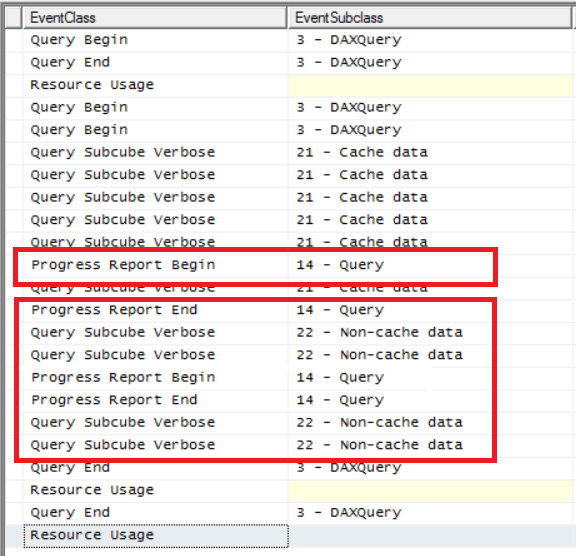
This problem does not occur for all tables – as far as I can see it only happens with tables that have a large number of rows and two or more hierarchies in. The easy way to check whether you have this problem is to refresh your report, run a Profiler trace that includes the Progress Report Begin/End and Query Subcube Verbose events (and any others you find useful) and then refresh the report again by pressing the Refresh button in Power BI Desktop without changing it at all. In your trace, if you see any of the Progress Report events appear when that second refresh happens, as well as Query Subcube Verbose events with an Event Subclass of Non-cache data, then you know that the Storage Engine cache is not being used.

image

Also look at the Duration column in the trace for these events which shows the time in milliseconds that they took to execute. This will tell you how much of an impact this problem is having on your report refresh times.

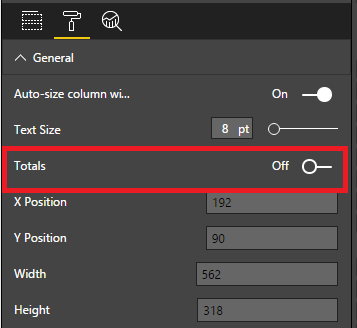
The easy way to stop this happening is to turn off the totals row in the table:

image

Displaying the totals in a separate table also seems to avoid the problem, although of course it doesn’t look as good. Only putting one hierarchy in the table apart from your measures, also seems to solve the problem. You could also try all the usual methods to improve SSAS performance such as building aggregations on the cube.

The dev team is aware of this problem but it’s unlikely to be fixed in the short term.

UPDATE 8th September 2020: This problem has finally been fixed as part of the general SuperDAX performance improvements in Analysis Services 2019 CU5. See https://powerbi.microsoft.com/en-us/blog/improving-power-bi-performance-when-querying-multidimensional-models/ for more details.