Upcoming SSAS and MDX Training Course Dates

If you’ve got some training budget burning a hole in your pocket, here’s a quick reminder of some upcoming SSAS and MDX courses I’m teaching:

Hope to see you there! If you’d like to find out about new courses by me and other SQL Server people, you can sign up to the Technitrain newsletter at http://www.technitrain.com

PS I’ve also got Andy Leonard coming over to London to run his ever-popular SSIS Design Patterns course too, in early September.

Flattening A Parent/Child Relationship In Data Explorer (Power Query)

NOTE: This post was written before Data Explorer was renamed as Power Query. All of the content is still relevant to Power Query.

I was teaching my SSAS cube design and performance tuning course this week (which I’ll be teaching in Sydney and Melbourne next month, along with some MDX – places still available!) and demonstrating BIDS Helper’s excellent functionality for flattening parent/child relationships, and it got me thinking – can I do the same thing in Data Explorer? Not that I need to do this in Data Explorer, you know, but it’s the kind of challenge I like to set myself. Of course you can do it, and quite elegantly, and since I learned yet more interesting stuff about Data Explorer and M while I was cracking this problem I thought I’d blog about it.

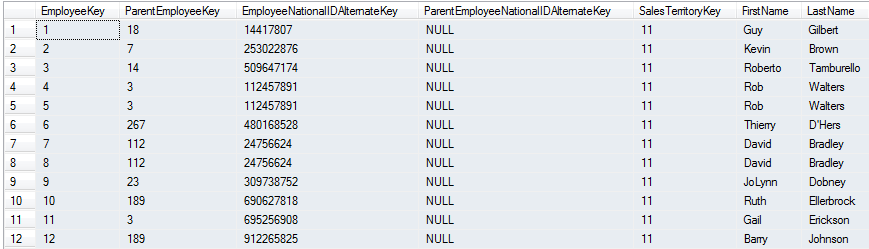
Here’s what I want to do. Consider the parent/child hierarchy in the DimEmployees table in the Adventure Works DW database:

image

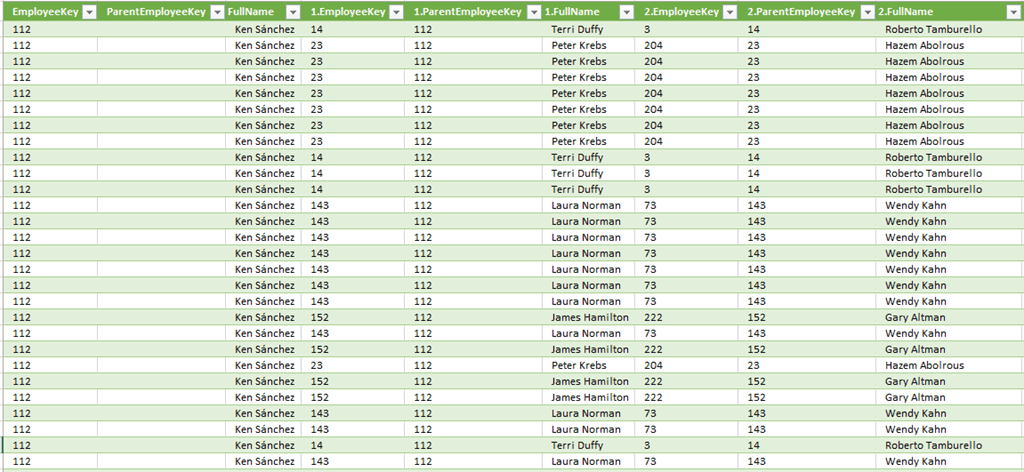
Each row represents an employee, EmployeeKey is the primary key and ParentEmployeeKey is the key of the employee’s boss. Therefore, by joining the table to itself, we can recreate the org chart of the Adventure Works company (ie who reports to who). The problem though is that we need to join the table to itself multiple times to do this, and the number of times we need to do the join depends on the data itself. If you flatten a parent/child hierarchy by doing this, the end result should have a series of columns representing each level in the hierarchy, and look something like this:

image

This problem can be solved in SQL reasonably easily, even if the SQL you end up writing might look a little scary (see the views that BIDS Helper generates for an example of this). What about Data Explorer?

At the heart of my approach was a recursive function. I’ve blogged about creating functions in Data Explorer already, so you might want to read that post for some background. Here’s my function declaration:

let

    Source = (FromTable, KeyColumn, ParentKeyColumn, ToTable, optional Depth) =>

let

    GetDepth = if (Depth=null) then 1 else Depth,

    GetKeyColumn = if (Depth=null) then KeyColumn

        else Number.ToText(GetDepth-1) & "." & KeyColumn,

    GetParentKeyColumn = Number.ToText(GetDepth) & "." & ParentKeyColumn,

    JoinTables = Table.Join(FromTable,{GetKeyColumn},

        Table.PrefixColumns(ToTable , Number.ToText(GetDepth)),

            {GetParentKeyColumn}, JoinKind.LeftOuter),

    FinalResult = if

        List.MatchesAll(Table.Column(JoinTables, GetParentKeyColumn), each _=null)

        then FromTable

        else RecursiveJoin(JoinTables, KeyColumn, ParentKeyColumn, ToTable, GetDepth+1)

in

    FinalResult

in

    Source

A few interesting things to point out:

  • I’ve used a LET statement inside my function declaration, so I can have multiple statements inside it
  • I’ve used Table.Join to do the left outer join between the two tables I’m expecting
  • The parameters I’m using are:
    • FromTable – the table on the left hand side of the join. When the function is first called, this should be a table that contains the Employees who have no parents (ie where ParentEmployeeKey is null); when the function calls itself, this will be the result of the join.
    • ToTable – the table on the right hand side of the join. This is always a table that contains the Employees who do have parents.
    • KeyColumn – the name of the Employee’s key column
    • ParentKeyColumn – the name of the Employee’s parent key column
  • I’ve used Table.PrefixColumn to rename all the columns in the table on the right hand side of the join, prefixing them with the depth of the call stack, so I get distinct column names.
  • The function calls itself until it finds it has done a join where the last ParentKeyColumn contains only null values. I’ve used List.MatchesAll to check this.

Here’s the call to this function – you only need to include one step in the Data Explorer query to do this – to return the flattened structure:

= RecursiveJoin(

    Table.SelectRows(Employees, each [ParentEmployeeKey]=null),

    "EmployeeKey",

    "ParentEmployeeKey",

    Table.SelectRows(Employees, each [ParentEmployeeKey]<>null)

    )

And here’s the output:

image

In this case the output isn’t exactly the same as what BIDS Helper might produce, because BIDS Helper has some special requirements for SSAS user hierarchies. Also, since I’m still learning Data Explorer and M, I’m not sure my code in the most efficient, elegant way. But I still think it’s an interesting example and I hope it’s useful to other Data Explorer enthusiasts out there – we’re a small but growing band!

You can download my demo workbook here.

A New Events-In-Progress DAX Pattern

I’ve been working on a very complex SSAS Tabular implementation recently, and as a result I’ve learned a few new DAX tricks. The one that I’m going to blog about today takes me back to my old favourite, the events-in-progress problem. I’ve blogged about it a lot of times, looking at solutions for MDX and DAX (see here and here), and for this project I had to do some performance tuning on a measure that uses a filter very much like this.

Using the Adventure Works Tabular model, the obvious way of finding the number of Orders on the Internet Sales table that are open on any given date (ie where the Date is between the dates given in the Order Date and the Ship Date column) is to write a query something like this:

EVALUATE

ADDCOLUMNS (

    VALUES ( 'Date'[Date] ),

    "OpenOrders",

    CALCULATE (

        COUNTROWS ( 'Internet Sales' ),

        FILTER( 'Internet Sales', 'Internet Sales'[Ship Date] > 'Date'[Date] ),

        FILTER( 'Internet Sales', 'Internet Sales'[Order Date] <= 'Date'[Date] )

    )

)

ORDER BY 'Date'[Date]

On my laptop this executes in around 1.9 seconds on a cold cache. However, after a bit of experimentation, I found the following query was substantially faster:

EVALUATE

ADDCOLUMNS (

    VALUES ( 'Date'[Date] ),

    "OpenOrders",

    COUNTROWS(

        FILTER(

            'Internet Sales',

            CONTAINS(

                DATESBETWEEN('Date'[Date]

                    , 'Internet Sales'[Order Date]

                    , DATEADD('Internet Sales'[Ship Date],-1, DAY))

                , [Date]

                , 'Date'[Date]

            )

        )

    )

)

ORDER BY 'Date'[Date]

On a cold cache this version executes in just 0.2 seconds on my laptop. What’s different? In the first version of the calculation the FILTER() function is used to find the rows in Internet Sales where the Order Date is less than or equal to the Date on rows, and where the Ship Date is greater than the Date. This is the obvious way of solving the problem. In the new calculation the DATESBETWEEN() function is used to create a table of dates from the Order Date to the day before the Ship Date for each row on Internet Sales, and the CONTAINS() function is used to see if the Date we’re interested in appears in that table.

I’ll be honest and admit that I’m not sure why this version is so much faster, but if (as it seems) this is a generally applicable pattern then I think this is a very interesting discovery.

Thanks to Marco, Alberto and Marius for the discussion around this issue…

UPDATE: Scott Reachard has some some further testing on this technique, and found that the performance is linked to the size of the date ranges. So, the shorter your date ranges, the faster the performance; if you have large date ranges, this may not be the best performing solution. See https://twitter.com/swreachard/status/349881355900952576

UPDATE: Alberto has done a lot more research into this problem, and come up with an even faster solution. See: http://www.sqlbi.com/articles/understanding-dax-query-plans/

BI Survey 13

Just a quick post to say that the BI Survey 13 is now open and would like your feedback about the BI tools you’re using. Here’s the link:
https://digiumenterprise.com/answer?link=1358-CTDDUWQN

It’s worth doing because you’ll get a summary of the results and will get entered in a draw for some Amazon vouchers; and of course you get to make sure that lots of nice things are said about the Microsoft BI stack! I’ll blog about the results later in the year when they come out – the findings are always very interesting.

Analysis Services Multidimensional Now Works With Power View–And Why That’s Important

By now you may have already heard the news that, as part of SQL Server 2012 SP1 CU4, new functionality has been released that means that Power View now works with Analysis Services Multidimensional (ie cubes, as opposed to the Tabular Model, which always worked with Power View). I won’t bother to repeat the technical details which you can read about here:
http://blogs.msdn.com/b/analysisservices/archive/2013/05/31/power-view-connectivity-for-multidimensional-models-released.aspx

…but the main points are that Analysis Services Multidimensional can now be queried in DAX, and this plus some tweaks to Power View mean that the two can be used together for the first time. Unfortunately Power View in Excel 2013 doesn’t work with Analysis Services Multidimensional yet, but I hope that will also be fixed very soon.

I’ve been playing with the public CTP of this for a while and done a few presentations with it, and from a technical point of view it’s a solid bit of work by the Analysis Services dev team. It just works, and while there are a few limitations they’re trivial. Arguably it should not have been necessary to do it in the first place – why didn’t Power View speak MDX when it was built, which would have meant it could have queried both Tabular and Multidimensional? But it’s here now, and that’s what counts. It also opens up some interesting possibilities for using DAX queries to create detail-level reports on cubes, and also for defining DAX calculations inside those queries.

However I think its real importance is strategic. This is the first significant bit of new functionality in Analysis Services Multidimensional for a long while, and it acts as a bridge between the classic SQL Server BI stack that most of us are using and the brave new world of Office/Sharepoint-led BI. It is also the first time in a long time that Analysis Services Multidimensional users have had a dedicated client tool for data analysis from Microsoft that isn’t Excel. Don’t get me wrong, I love Excel as a client tool for SSAS but I’ve always thought (and I think industry trends over the last few years support this view) that even though Excel is a great way to bring data analysis to the masses, there’s still an important niche among power users for a more advanced data analysis and data visualisation tool.

You may be thinking at this point that pretty graphs and charts are all very well, but your users don’t need anything other than the SSRS reports and basic PivotTables that they’ve been using for the last few years. I say that you ignore Power View at your own risk. Microsoft’s competitors in the BI space are hungry for new customers and are interested in migration projects. You might well arrive at the office next Monday morning to find that there’s a new CFO who used QlikView in his last job, and who wants the same pretty graphs and charts he had there again. It’s not going to be any use arguing that you’ve spent years developing this cube, that it’s lightning fast and has all sorts of tricky business logic coded into thousands of lines of MDX – if your BI solution’s user interface looks and feels dated, then whatever its technical merits it will have the musty smell of legacy software about it. If, however, you can fire up a VM with Sharepoint 2013 and Power View on and show off some slick dashboards created from your existing cubes, even if this is something the majority of your end users wouldn’t really be interested in (and you may be wrong, they might love it), you’re going to be showing the business two important things:

  • Microsoft can do sexy dashboards and visualizations too, and while they come at a price, that price is probably a lot less than it would cost to rip and replace what you’ve got with a competitor’s software. So the option’s there if you want to spend the money and do the upgrade.
  • Analysis Services cubes are not a dead-end, and Microsoft has made a significant investment here to prove this. I’d still love to see a coherent roadmap that explains where Microsoft is heading with its BI tools and how it expects its existing customers to get there, but I doubt we’ll get one. This functionality was, however, delivered in response to popular demand, so I’m hopeful that if we as customers can make our voices heard as to what we want in the future then we can influence Microsoft’s direction.

So go forth and Power View. Both Rob Kerr and Koen Verbeeck have recently published some excellent, detailed guides to setting up a Sharepoint 2013 demo environment; you have no excuse for not testing this out and being ready to face the competition.

Sharing Data From Excel as OData with FlatMerge

At last, the Excel 2013 app I’ve really been waiting for! Those data visualization apps from last week have generated a lot of interest, but this is even cooler for a data geek like me.

A few months ago I came across FlatMerge, a startup that allows you to upload data and then make it available as an OData feed; I was going to blog about it but my fellow OData fan Jamie Thomson beat me to it. However at that point it was only a website where you could upload data… today, FlatMerge released its own, free (for the time being) Excel 2013 app which allows you to upload data direct from Excel. So you can take data from an Excel table:

image

Save it to FlatMerge:

image

And then import it into Excel 2013, PowerPivot, Data Explorer or any tool that supports OData feeds. Here’s the URL for the table I just uploaded (which, if I’ve read the docs correctly, should be publicly available):

https://fmsecure.azurewebsites.net/Data/oData/a5462e03-e0bc-44b4-a654-5dbbbd59cb59

It’s still a version 1.0 and there are a few features it’s missing that I’d like to see (like the ability to update a data source, and to control who has access to that data), but I think it’s very cool. I’ve seen tools that allow you to share data from Excel before but this is the first that uses OData, and this means you have a much greater degree of flexibility about how you consume your data. Arguably you could do the same thing by saving your Excel file to Sharepoint 2013 Excel Services and using the OData feed from an Excel Services table, but that’s a much more expensive and less user-friendly option.

I can imagine a whole bunch of uses for this, for example in a budgeting application where multiple Excel users need to submit their figures, which then need to be consolidated in a single Excel spreadsheet, maybe using Data Explorer.

Aggregating the Result of an MDX Calculation Using Scoped Assignments

I don’t usually like to blog about topics that I think other people have blogged about already, but despite the fact that Mosha blogged about this several years ago (in fact more than eight years ago, blimey) this particular problem comes up so often with my customers and on the MSDN Forum that I thought I should write something about it myself. So apologies if you know this already…

Here’s the problem description. If you define a calculated measure in MDX, that calculation will take place after the real measure values have all aggregated. For example, consider a super-simple cube with a Year dimension, two real measures called A and B and a calculated measure called [A * B] that returned the value of A multiplied by B. In a PivotTable you’d see the following result:

image

Note how the Grand Total for the [A * B] calculated measure is 12*16=192, and not 12+12+12+12=48. This is expected behaviour for calculated measures, and indeed the way you want your calculations to behave most of the time.

However, there are some scenarios where you want to do the calculation first and then aggregate up the result of that calculation; in our previous example that means you’d get 48 for the Grand Total instead. Currency conversion and weighted averages are common examples of calculations where this needs to happen. How can you handle this in MDX?

Let’s look at a slightly more complex example than the one above. In the following cube, based on Adventure Works data, I created a Date dimension that looks like this:

image

image

…and a Product dimension that looks like this:

image

image

I also created two measures on a fact table called A and B:

image

Now, let’s say that once again you want to calculate the value of A*B at the Date and Product granularity, and aggregate the result up. Probably the easiest way of handling this would be to do the calculation in the fact table, or in the DSV, and then bringing the result in as a new real measure. However this may not be possible with some types of calculation, or if the granularity that you want to do the calculation is not the same as the granularity of the fact table.

One way of approaching this in MDX would be to create a calculated measure like this:

CREATE MEMBER CURRENTCUBE.MEASURES.[CALC] AS
SUM(
DESCENDANTS([Date].[Calendar].CURRENTMEMBER, [Date].[Calendar].[Date])
*
DESCENDANTS([Product].[Category – Product].CURRENTMEMBER, [Product].[Category – Product].[Product])
, [Measures].[A] * [Measures].[B]);

image

The big problem with this approach (apart from the fact that it may break when you do a multi-select in certain client tools – but you could work around that) is that it is usually very, very slow indeed. Depending on the calculation, it may be unusably slow. So you need a different approach.

This is where scoped assignments come in. If you make a scoped assignment to a real measure, as opposed to a calculated measure, then the value of the assignment will aggregate up outside of the original scope. So, in this case, since you want the calculation to take place at the Date and Product granularity, if you scope on a real measure at that granularity the result of the calculation will aggregate up automatically.

The first step here is to create a new real (ie not calculated) measure for the calculation. This can be done in the DSV by creating a named calculation on your fact table which returns the value NULL:

image

You then need to create a new real measure on your measure group from this new named calculation:

image

In this example, I’ve left the AggregateFunction property of the measure to be the default of Sum, but you could use a different setting if you wanted a different type of aggregation. The next step is to process the cube, and once you’ve done that you’ll see a new measure that only returns the value 0:

image

Next, you need to create the scoped assignment on the Calculations tab of the Cube Editor. If you remember in my post last week about scoped assignments, I recommended avoiding writing scopes using user hierarchies; using only attribute hierarchies the scope statement becomes:

SCOPE([Measures].[A Multiplied By B]);
    SCOPE([Date].[Date].[Date].MEMBERS);
        SCOPE([Product].[Product].[Product].MEMBERS);
            THIS = [Measures].[A] * [Measures].[B];
        END SCOPE;
    END SCOPE;
END SCOPE;

image

One very important thing to notice: the sets I’ve used for scoping on the Dates and Products do not include the All Member: for example, [Date].[Date].[Date].MEMBERS. If you use a set that includes the All Member, such as [Date].[Date].MEMBERS, the calculation will not aggregate up correctly.

Here’s the result:

image

This is going to be much more efficient than the pure MDX calculated measure approach, though just how well the calculation performs will depend on the complexity of the calculation and the size of the area that you are scoping on.

New Treemap, Histogram and Streamgraph Apps for Excel 2013

I blogged about the new app model for Office 2013 and what it means for BI last year, but since then there hasn’t exactly been a massive flood of new data visualisation apps. However… yesterday, I was interested to see that some new apps had been published by the Visualization and Interaction for Business and Entertainment team at Microsoft Research. You can read all the details in this blog post:
http://blogs.technet.com/b/inside_microsoft_research/archive/2013/05/23/new-ways-to-visualize-your-data.aspx

The new apps (which are all free) are:

To test the Treemap out, I used Data Explorer to get the overall size on disk of the contents of the folders I use to store my presentation materials; I won’t go into detail about how I did it, but Erik Svenson has a great post on how to do this here. I ended up with a the following treemap:

image

It’s worth pointing out one cool thing about these apps: they still work when your worksheet is deployed to Sharepoint and viewed in a browser with the Excel Web App, even in Office 365!

Using Scoped Assignments To Show Calendar and Financial Year-To-Date Values In The Same Calculated Measure

I’ve had a lot of requests for more MDX content on my blog, so here’s something I’ve been meaning to write up for a long time: a worked example of how to use scoped assignments to implement two different types year-to-date calculation on two different hierarchies in the same dimension. Knowledge of how to use scoped assignments is the sign of a true MDX master (you can watch a video of a session I gave on the basics of scoped assignments at SQLBits here if you’re unfamiliar with them) but that’s because they can be very difficult to write and there’s surprisingly little information out there on the internet about them. They are incredibly powerful, though, and often they provide the most elegant and best-performing way to solve a problem.

Let’s start by looking at the Date dimension in the Adventure Works DW sample database, and more specifically the attributes, user hierarchies and attribute relationships:

image

image

Notice how we have two user hierarchies for Calendar Years (which start on January 1st) and Fiscal Years (which start on July 1st), called Calendar and Fiscal. Now, let’s say that you have a requirement to to show year-to-date values for a measure for both the Calendar and Fiscal hierarchies. It would be very easy to implement this as two separate calculated measures but what if you needed to show both types of year-to-date in the same calculated measure, showing Fiscal year-to-dates when the Fiscal hierarchy was used in a query and Calendar year-to-dates when the Calendar hierarchy was used in a query?

This is possible using scoped assignments. The first thing to point out, though, is that this is only going to be possible if you change the structure of the dimension. Why? Well, take a look at the Date levels of both hierarchies: they are both built using the Date attribute. If you were running a query with your YTD calculation on columns and only the Date attribute hierarchy on rows, would you expect to see Calendar or Fiscal YTD values? Certainly you couldn’t see both in the same cell, and this is the problem: if you expect to see Calendar YTD values at the bottom of your Calendar hierarchy, and Fiscal YTD values at the bottom of your Fiscal hierarchy, you need two separate Date attributes to do this. If you overwrite the values in the same cells twice using a scoped assignment, then you will only see the result of the second assignment.

Therefore, what we need to do is to create two new attributes, Calendar Date and Fiscal Date, to serve as the lowest levels of the Calendar and Fiscal hierarchies instead of the Date attribute. Here’s what the new attribute relationships look like:

image

From the end-user’s point of view nothing seems to have changed (these new attributes can have their AttributeHierarchyVisible property set to False) but this now means we have two attributes, two different slices of the cube, whose values we can overwrite separately instead of just one.

Now for the MDX. A good rule to follow when writing scoped assignments is to always use attribute hierarchies and never use user hierarchies; this is because there are rules you have to obey about the shape of the subcube of data you are overwriting with your scoped assignment. When defining a scope using only attribute hierarchies, you can only use the following types of set:

  • Every single member on the attribute hierarchy
  • Just one member on the attribute hierarchy
  • Multiple members on the attribute hierarchy not including the All Member

I wrote up a detailed set of rules for defining scopes in MDX Solutions, if you’re interested; if you don’t follow these rules you’ll get the infamous “An arbitrary shape of the sets is not allowed in the current context” error (I know a joke about that, incidentally).

For this calculation, we need to make two scoped assignments on a single calculated measure called [YTD Sales]: one to show the Fiscal YTD calculation for the Fiscal Date, Fiscal Month Name, Fiscal Quarter, Fiscal Semester and Fiscal Year attributes; and one to show the Calendar YTD calculation for the Calendar Date, Calendar Month Name, Calendar Quarter, Calendar Semester and Calendar Year attributes. When scoping on ranges of attributes like this, there’s another easy rule to follow: scope on the set of every member, including the All Member, from the attribute hierarchy at the lowest granularity attribute, and the set of every member, not including the All Member, from the highest granularity attribute. These two sets also need to be in the same, rather than separate, SCOPE statements for reasons I explain here.

This results in the following MDX:

CREATE MEMBER CURRENTCUBE.MEASURES.[YTD Sales] AS NULL;


SCOPE(MEASURES.[YTD Sales]);

    --Calendar YTD

    SCOPE([Date].[Calendar Date].MEMBERS, [Date].[Calendar Year].[Calendar Year].MEMBERS);

        THIS = AGGREGATE(

                PERIODSTODATE([Date].[Calendar].[Calendar Year], [Date].[Calendar].CURRENTMEMBER), 

                [Measures].[Internet Sales Amount]);

    END SCOPE;

    --Fiscal YTD

    SCOPE([Date].[Fiscal Date].MEMBERS, [Date].[Fiscal Year].[Fiscal Year].MEMBERS);

        THIS = AGGREGATE(

                PERIODSTODATE([Date].[Fiscal].[Fiscal Year], [Date].[Fiscal].CURRENTMEMBER),

                [Measures].[Internet Sales Amount]);

    END SCOPE;

END SCOPE;

Now you can see the YTD Sales calculated measure returns Calendar YTD values for the Calendar hierarchy:

image

…and it returns Fiscal YTD values for the Fiscal hierarchy:

image

There’s one last trick I want to show. It can be very difficult to know that your scoped assignment is covering the subcube you want it to cover, so while debugging scoped assignments I find it helps to assign values to the BACK_COLOR cell property so I can see exactly where I’m scoping. Here’s the MDX above with extra assignments to set the cell background colour to orange for the Calendar YTD calculation and blue for the Fiscal YTD calculations:

CREATE MEMBER CURRENTCUBE.MEASURES.[YTD Sales] AS NULL;


SCOPE(MEASURES.[YTD Sales]);

    --Calendar YTD

    SCOPE([Date].[Calendar Date].MEMBERS, [Date].[Calendar Year].[Calendar Year].MEMBERS);

        THIS = AGGREGATE(

                PERIODSTODATE([Date].[Calendar].[Calendar Year], [Date].[Calendar].CURRENTMEMBER), 

                [Measures].[Internet Sales Amount]);

        BACK_COLOR(THIS) = RGB(255,128,64);

    END SCOPE;

    --Fiscal YTD

    SCOPE([Date].[Fiscal Date].MEMBERS, [Date].[Fiscal Year].[Fiscal Year].MEMBERS);

        THIS = AGGREGATE(

                PERIODSTODATE([Date].[Fiscal].[Fiscal Year], [Date].[Fiscal].CURRENTMEMBER),

                [Measures].[Internet Sales Amount]);

        BACK_COLOR(THIS) = RGB(64,128,255);

    END SCOPE;

END SCOPE;

This now shows up in an Excel PivotTable as you can see below:

image

image

It can also help you understand what’s going on in the scenarios where the scopes overlap, for example if you put the Calendar and Fiscal hierarchies on rows and columns in the same PivotTable: the Fiscal hierarchy takes precedence, because it’s defined second.

image

Comments And Descriptions In DAX

With my Technitrain hat on I’m sitting in on Marco’s Advanced DAX course in London today, and the question of comments in DAX came up – which reminded me that this is something I’ve been meaning to blog about. DAX as a language supports comments, but unfortunately it’s not possible to add comments inside a DAX measure or calculated column expression in either PowerPivot or SSAS Tabular right now (which is where they’re most needed – I hope this changes in the future). That said, there are some other things you can do to add textual explanations and descriptions to your DAX measure code.

Before we get onto the workarounds, a quick word about comments in DAX. These can only be used in DAX queries, and the types of comment supported are the same as in MDX: double-dashes and double-forward-slashes for single line comments, and forward-slash-asterisk to start a multi-line comment and asterisk-forward-slash to close a multi-line comment. Here’s an example:

--single line comment

//another single line comment

/*a multi-line

comment*/

evaluate table1


What can be done with measures though? After all, that’s where the most complex DAX is usually written.

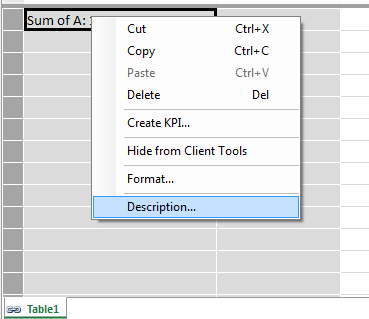
First of all, you can add a description to a measure by right-clicking on it in the measure grid and selecting Description:

image

image

Unfortunately this description is not easily accessible to end users anywhere (it would be great if it appeared as a tooltip in a PivotTable, for example) but it can be seen in an Excel worksheet by running a DMV query. DMV queries can be run in Excel 2013 in the same way as DAX queries, using a query table as described here; the DMV query to use is:

select 

measure_name as [Measure Name], [description], measure_is_visible 

from $system.mdschema_measures


image

Unfortunately all hidden and implicit measures are returned, and even when the table is filtered so that only measure_is_visible=true there are still a lot of measures that probably shouldn’t be shown.

Similarly, descriptions can be added to any column (calculated or not) in your model, again by right-clicking on it and selecting Description.

image

This description can be displayed in the worksheet using the following DMV query:

select

hierarchy_name as [Column Name], [description] as [Description] 

from $system.mdschema_hierarchies

where cube_name='model'


image

You can also write text direct to cells in the measure grid too. When I first saw a customer do this I was worried that it might not be supported, but I’ve been told that it is; so long as you don’t use the =: used for defining measures then you should be ok.

image

This is probably the best way to add comments to your code, if only because it’s the most visible to anyone looking at your PowerPivot/SSAS Tabular model. Of course, for it to be effective you’ll need to have a system for arranging your measures in the measure grid; in “SQL Server Analysis Services 2012: The BISM Tabular Model”, Marco, Alberto and I recommended that you arrange all your measures in the top-left hand corner of the measure grid and I think that’s still a good idea, but the use of text in cells to create headings for groups of measures as well as descriptions can help a lot too.