SSAS on Windows Azure Virtual Machines

You may have already seen the announcement about Windows Azure Virtual Machines today; what isn’t immediately clear (thanks to Teo Lachev for the link) is that Analysis Services 2012 Multidimensional and Reporting Services are installed on the new SQL Server images. For more details, see:
http://msdn.microsoft.com/en-us/library/jj992719.aspx

SSAS 2012 Tabular is also supported but not initially installed.

UK/US Date Format Bug in PowerPivot and SSAS Tabular

I don’t usually blog about bugs, but this one has been irritating me no end for the last year – so I thought it deserved some publicity…

In Excel 2010 PowerPivot and and in SSAS 2012 Tabular models (but not the Excel 2013 Data Model interestingly), if you have an English locale that is not US English (eg UK or Australian English), you may find that date columns appear to be formatted correctly as dd/mm/yyyy inside the PowerPivot window or in SSDT, but when you get to Excel you see the dates formatted in the US mm/dd/yyyy format. So, for example, on my laptop if I import the DimDate table from Adventure Works into Excel 2010 then I see dates formatted as dd/mm/yyyy as I’ve specified in the Formatting section of the ribbon in the PowerPivot window:

image

image

However, in an Excel PivotTable, I see dates formatted as mm/dd/yyyy:

image

There is a workaround though, which I found on the PowerPivot forum (thank you Steve Johnson, if you’re reading) – you can get the dates to format correctly if you go to More Date Formats and choose dd/MM/yy or one of the other formats from the dropdown list that appears:

image

image

Here are the correctly formatted dates in a PivotTable:

image

It seems like there is already a Connect open on this issue here, so please vote to get it fixed!

Thoughts on the PASS Summit 2012 Day 1 Keynote

Normally I’d rush to blog about the announcements made in the keynotes each day at the PASS Summit, but this year I had a session to deliver immediately afterwards and once I’d done that I saw Marco had beaten me to it! So, if you want the details on what was announced in today’s keynote I’d advise you to read his post here:
http://sqlblog.com/blogs/marco_russo/archive/2012/11/07/pass-summit-2012-keynote-and-mobile-bi-announcements-sqlpass.aspx

I can’t not comment on some of these announcements though, so here (in no particular order) are some things that occurred to me:

  • The first public sighting of Power View on Multidimensional raised the biggest cheer of the morning, which surprised even me – I didn’t realise there were so many SSAS fans in the audience. I’m certainly very pleased to see it, even if it isn’t shipping right now (it’s not in SP1 either). Part of why I’m pleased is that all too often Microsoft BI has been good at building amazing new products but then forgetting about the migration path for its existing customers: think of the Proclarity debacle, and more recently I’ve heard a lot of complaints about the abandonment of Report Models. I suspect this is because Microsoft is not like most other software companies in that it doesn’t do much direct selling itself, but lets partners do the selling for it, and when partners get stick from customers over issues like Proclarity migration then the partners have no leverage over Microsoft to make it deal with the problem. Power View on Multidimensional is a welcome exception to this pattern, and I’d like to see more consideration given to this issue in the future even if it comes at the expense of developing cool new features.
  • The PDW V2 news is interesting too. It was clearly stated that Polybase will, initially allow TSQL to query data in Hadoop but that other data sources might be supported in the future. I wonder what they will be? DAX/Tabular perhaps? Or something more exotic – wouldn’t it be cool if you could query the Facebook graph or Twitter or even Bing directly from TSQL? I’m probably letting my imagination run away with me now…
  • The other thing that popped into my mind when hearing about Polybase was that it might be possible, one day, to use SSAS Tabular in DirectQuery mode on top of PDW/Polybase to query data in Hadoop interactively. I know Hadoop isn’t really designed for the kind of response times that SSAS users expect but I’d still like to try it.
  • It hardly seems worth repeating the fact that Mobile BI is very, very late but again it was good to get some details on what is coming. As partners we can deal with the criticism we get from customers and plan better if we have some idea of what will be delivered and the timescales involved, something that has been conspicuously lacking with Mobile BI up to today. To use a current phrase, Microsoft and its partners are “all in this together”, so please, Microsoft, let us help you!

Introduction to MDX for PowerPivot Users, Part 1

This is a series of posts I’ve wanted to write for a long time. The more I use PowerPivot, the more I realise how many more cool things you can do when building your Excel reports if you know a bit of MDX. Of course it seems a bit strange to say this, because (at least if you hear Marco and Alberto present at a conference!) MDX is a bit passé and DAX is the native language of PowerPivot, SSAS Tabular and, well the future. But Excel speaks MDX and Excel will continue to speak MDX for a long time to come, so it’s MDX that you need to know if you want to get the most out of PowerPivot.

So, before I start, when is it useful to know MDX with PowerPivot? Here’s the functionality that it’s relevant for:

  • The Excel cube functions, especially but by no means limited to, the CubeSet() function.
  • The Create Set Based on Rows/Columns options under the Fields, Items and Sets button on the PivotTable Options tab on the ribbon
  • When binding the results of an MDX query to a table in Excel, as described here
  • If you ever wanted to write MDX calculations using OLAPPivotTableExtensions, though I’m struggling to think of scenarios where you’d want to do this

I’ll come back to the practical uses of MDX in future posts; the next task is to understand how the objects in a PowerPivot model map onto the multidimensional objects that MDX understands. From now on I’ll be using the MDX terminology so it might be useful to refer back to the list below if you get confused!

  • A PowerPivot model is seen as a single cube in MDX; you can think of a cube and a PowerPivot model as being the thing that holds all the data, the thing you’re querying. The cube that a PowerPivot model is exposed as is called [Model].
  • In PowerPivot a model is made up of multiple tables; in MDX a cube is made up of multiple dimensions. Each table in a PowerPivot model becomes a dimension in MDX.
  • In PowerPivot a table is made up of multiple columns, each of which can be dragged onto the rows and columns of a PivotTable. Each of these columns becomes a hierarchy in MDX. Confusingly, hierarchies in PowerPivot also become hierarchies in MDX. Basically, anything that you can put on rows, columns, a filter or in a slicer is a hierarchy in MDX.
  • Each distinct value in a column becomes a member on a hierarchy in MDX. For example, the value ‘Bikes’ from a column called EnglishProductCategoryName on a table called DimProductCategory becomes an MDX member with the name:
    [DimProductCategory].[EnglishProductCategoryName].&[Bikes]
  • Each measure in a PowerPivot model becomes a member on a dimension called [Measures] (which only has one, invisible hierarchy) in MDX. For example a PowerPivot model called [Sum of SalesAmount] becomes an MDX member with the following name:
    [Measures].[Sum of SalesAmount]

In Part 2 I’ll introduce the concept of sets and how they can be used.

Microsoft SQL Server 2012: The BISM Tabular Model is now available to buy!

I decided to wait until I had a real, physical, made-of-dead-tree copy of it in my hands before blogging, but I’m pleased to announced that the new book that Marco, Alberto and I wrote on SSAS 2012 Tabular models is now available to purchase (even though, as Marco says here it was actually officially released a few weeks ago).

A sample chapter can be found here:
http://cdn.oreilly.com/oreilly/booksamplers/msp/9780735658189_sampler.pdf

You can buy it all all good bookshops, including Amazon UK. It has two five-star reviews on Amazon already, and Javier Guillén wrote a very detailed review here. Why not buy several copies so you can share it with your colleagues, friends, significant others, children, neighbours etc? It also makes ideal beach reading if you are currently on your holidays.

You may also have noticed there’s another SSAS Tabular book out, by Teo Lachev. Teo is an author I have the utmost respect for and I’m a big fan of everything he’s written; this book lives up to the high standards of his previous work. While it’s true there’s some overlap between his book and ours, the focus of his book is broader, covering topics such as Sharepoint, whereas ours has a narrower focus and goes into much greater detail on subjects such as DAX; so (again, as Marco says) you should probably consider buying both.

OR Selections in DAX

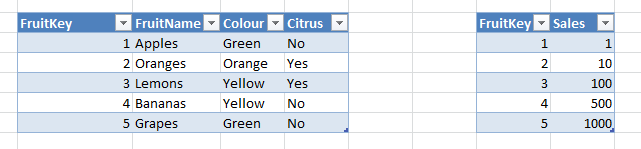
Most of the time, selecting items in a PivotTable in a PowerPivot or SSAS 2012 Tabular model works in the way you want: if you select more than one item from a column it acts as an OR filter on that column; selecting items on another column acts as an AND filter on the selection. Consider a simple PowerPivot model built from the following Excel tables (where the only relationship is on the FruitKey columns):

image

With a measure that sums up the Sales column, such as:

Sum of Sales:=SUM(SalesFact[Sales])

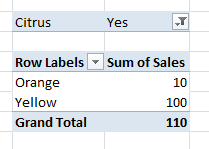
You can built a PivotTable like the one below that shows the sales of Citrus fruit that are Orange or Yellow (Citrus=Yes and (Colour=Orange OR Colour=Yellow):

image

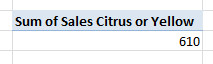
So far so good. What happens if you want to see the sales of fruit that are either Citrus OR Yellow? If you know the selection in advance, or you have control over how your DAX is generated, you can build an expression like this measure that does the job:

Sum of Sales Citrus or Yellow:=
CALCULATE(
  SUM(SalesFact[Sales])
  , FILTER(ALL(Fruit1), Fruit1[Citrus]="Yes" || Fruit1[Colour]="Yellow")
)

image

But what if you don’t want to hard-code the filter you’re using, and want to let your users control what they are ORing? Here’s how…

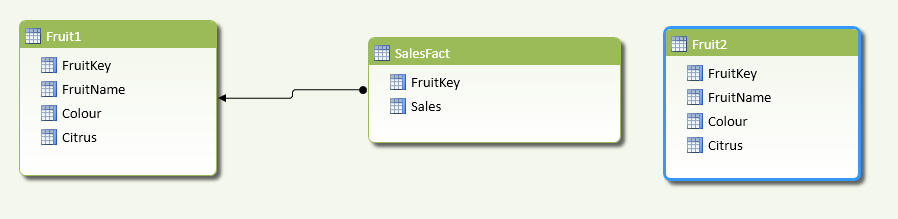
First of all, you need to have two identical tables in your model that allow the user to make selections for the two conditions they are ORing. Here’s an example with the data from above:

image

Here I’ve got two tables, Fruit1 and Fruit2, for controlling the OR selection; only Fruit1 has a relationship with SalesFact though. Next, you need a measure that will apply the OR filter. The way this needs to work is as follows: take the whole of the Fruit table and if the user has selected something on Fruit1 then allow those rows through, and if the user has selected something on Fruit2 then allow those rows through the filter as well. Here’s the final DAX measure:

OR Sales:=
IF(
  OR(ISCROSSFILTERED(Fruit1[FruitKey]), ISCROSSFILTERED(Fruit2[FruitKey]))
  ,CALCULATE(
    SUM(SalesFact[Sales])
    , FILTER(
      ALL(Fruit1)
      , IF(ISCROSSFILTERED(Fruit1[FruitKey]), CONTAINS(Fruit1, Fruit1[FruitKey], [FruitKey]), FALSE())
      ||
      IF(ISCROSSFILTERED(Fruit2[FruitKey]), CONTAINS(Fruit2, Fruit2[FruitKey], [FruitKey]), FALSE())
    )
  )
  , SUM(SalesFact[Sales])
)

The key points here are (starting from the inside of the expression and working outwards):

  • I’m using ALL(Fruit1) to get all the rows from the Fruit1 table, regardless of what has been selected, and then passing that table to the FILTER() function
  • I’m then using the ISCROSSFILTERED() function on the FruitKey columns on both tables to see if the user has selected anything from any columns on those tables; if they have, then the FruitKey column will be filtered in some way
  • Then, if something has been selected on either table, in my filter of ALL(Fruit1) I’m allowing a row to pass through the filter if the value of FruitKey is present in the user-selections on Fruit1 or Fruit2. This preserves the original selection on Fruit1 and adds the selection on Fruit2 to it. It would be much easier to do this if there was a way of unioning table expressions in DAX!
  • Finally, I’m using the resulting table in the CALCULATE() function to get the sum of Sales for that selection. If nothing has been selected, however, the outer IF() simply returns the sum of Sales Amount with none of this logic applied.

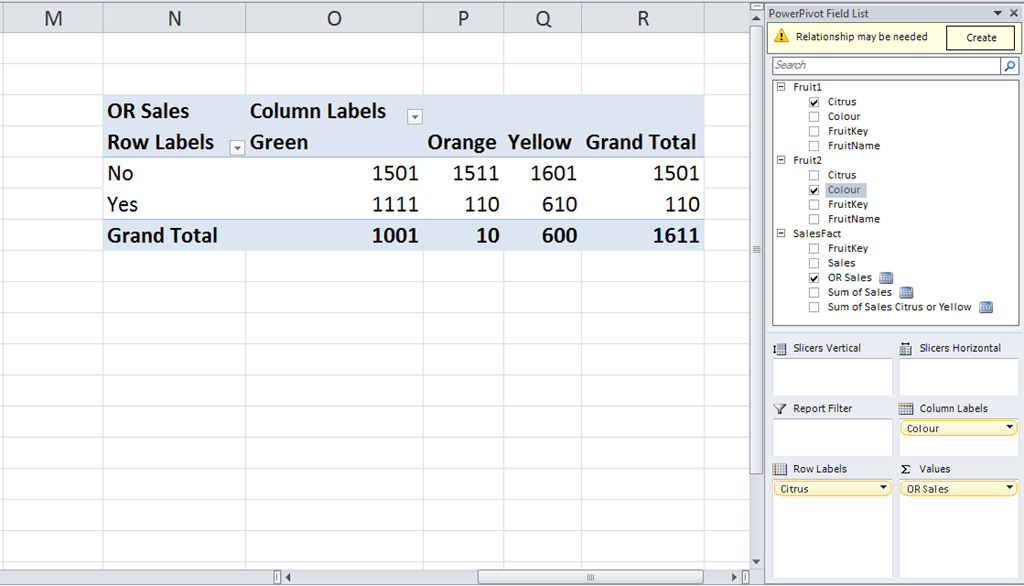
Here’s a PivotTable using this measure with Citrus from Fruit1 on rows and Colour from Fruit2 on columns:

image

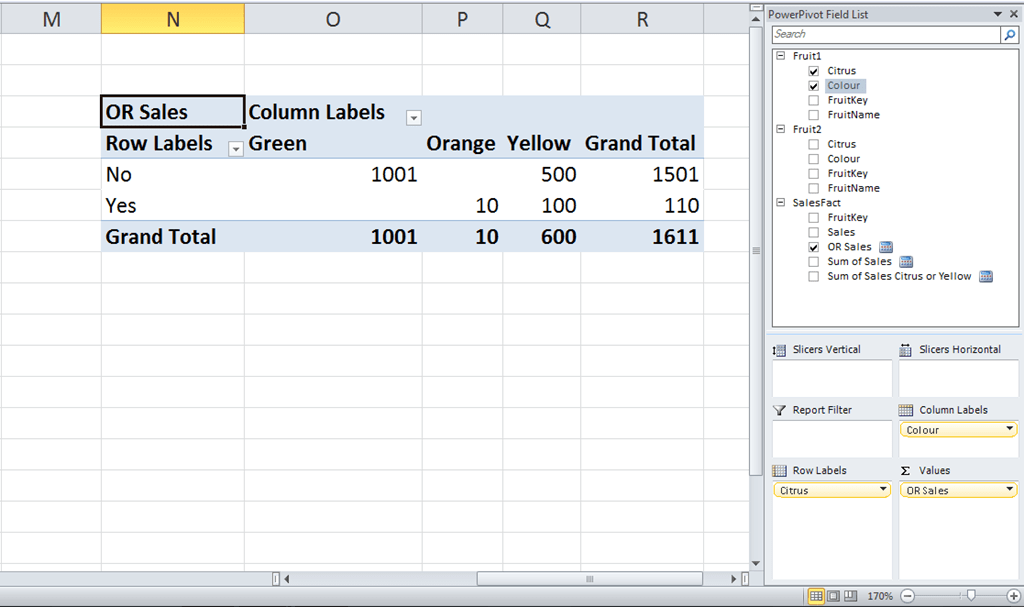
And, if you don’t want this OR functionality, all you need to do is ignore the Fruit2 table. Here’s a PivotTable with Citrus and Colour from Fruit1 on rows and columns:

image

I’m not sure this is the most elegant solution to this problem… if I think of one I’ll blog about it, and if you can think of one then please leave a comment!

Comparing Any Two Time Periods in DAX

Simple time series calculations, such as comparing sales in the current year with the previous year, are easy to do in DAX and well-documented. What happens if, in PowerPivot or the SSAS 2012 Tabular model, you want to compare the sales in any two arbitrary time periods – for example you want to compare (and maybe find the growth from) sales in January last year and February this year?

There are several ways of solving this, but here’s one. First, you need two Date dimension tables, one for each of the two time periods you’re comparing. Using the Adventure Works DW database here’s an example of how this can be done:

image

In this case I loaded DimDate and FactInternetSales and created an active relationship between the two tables on OrderDateKey=DateKey. I then loaded DimDate again, called it DimDateCompare, and created another relationship between it and FactInternetSales on OrderDateKey=DateKey but set this second relationship as inactive. This means that any selection on DimDateCompare will be ignored unless the relationship between it and FactInternetSales is activated using the UseRelationship() function.

You can then create a measure to get the Sum of the SalesAmount column for the selection on DimDate, which is simply:

Sum of Sales Amount:=SUM([SalesAmount])

Then create another measure that uses the relationship between DimDateCompare and FactInternetSales and ignores any selections on DimDate (to do this, you just need to use the All() function):

Sum of Sales Amount for Comparison Period:=
CALCULATE(
    SUM([SalesAmount])
, ALL(DimDate)
, USERELATIONSHIP(FactInternetSales[OrderDateKey], DimDateCompare[DateKey]))

And finally create a measure to find the difference between these two measures:

Difference:=[Sum of Sales Amount] – [Sum of Sales Amount for Comparison Period]

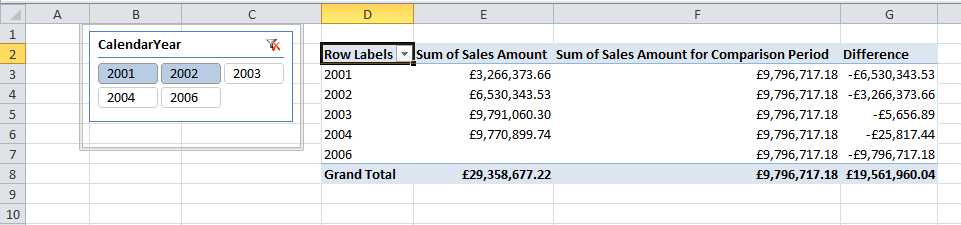
To show how this works, look at the following PivotTable showing these three measures:

image

I have CalendarYear from DimDate on the rows of the PivotTable and CalendarYear from DimDateCompare on the Slicer. The Sum of Sales Amount measure shows, as you would expect, the sum of sales for each year on DimDate; the Sum of Sales Amount for Comparison Period ignores what’s on rows and returns the sum of sales for the two years selected on DimDateComparison, ie 2001 and 2002. This is £3,266,373.66 + £6,530,343.53 = £9,796,717.18; and Difference shows the second of these values subtracted from the first.

Not a very interesting calculation in itself perhaps, but I’m intrigued by the possibilities of having tables in the model that only have inactive relationships with other tables; up to now I’ve only used inactive relationships in scenarios where there have been another active relationship between the same two tables, for example as described in Kasper’s post here.

Handling SSRS Multi-Valued Parameters in DAX Queries

Last year I blogged about using DAX queries inside SSRS reports but one topic I didn’t touch on was how to handle parameters. Marco wrote a post on using parameters in DAX earlier this year but didn’t cover how to handle multi-valued parameters in SSRS, so I thought I’d write a post to fill that gap.

Let’s start by assuming you’ve built a simple SSAS 2012 Tabular model that contains the DimDate table from Adventure Works, that you want to build an SSRS report that shows data from that table and you want to parameterise that report by the values in the EnglishDayNameOfWeek column, ie by day.

If you were writing the query from scratch, probably the best way of doing it would be to use the CalculateTable() function like so:

evaluate
calculatetable(
DimDate
, DimDate[EnglishDayNameOfWeek] = "Monday"
)

This query returns the whole of the DimDate table filtered where EnglishDayNameOfWeek is Monday.

image

To filter by Monday or Tuesday, you’d need to do something like this:

evaluate
calculatetable(
DimDate
, DimDate[EnglishDayNameOfWeek] = "Monday"
|| DimDate[EnglishDayNameOfWeek] = "Tuesday"
)

Since there is no way of doing an IN in DAX, you might be able to guess what the big problem that needs to solved when handling multi-value parameters in DAX is: with this style of query, for each parameter value that is selected you need to add a new OR condition and the only way of doing that is to generate the query dynamically. While that’s perfectly possible in SSRS it’s something you may want to avoid because it makes report development awkward.

As an alternative to dynamic query generation you can make use of the DAX PathContains() function. Although it’s intended for use when flattening out parent/child hierarchies, it’s useful here because it allows you to see whether a particular string value appears in a pipe-delimited list. You can use it with the Filter() function to get all the Mondays and Tuesdays like so:

evaluate
filter(
DimDate
, pathcontains("Monday|Tuesday", DimDate[EnglishDayNameOfWeek])
)

There’s a problem with using it this way, unfortunately – it’s not very efficient. Looking in Profiler at the Vertipaq SE Query Begin/End events, you can see that Storage Engine has to call back to the Formula Engine to use the PathContains() function when filtering:

image

…and as Jeffrey Wang describes here, this can be very expensive indeed. However, its impact can be lessened if you have a small number of potential parameter values by doing this instead:

evaluate
calculatetable(
DimDate
, filter(
values(DimDate[EnglishDayNameOfWeek])
, pathcontains("Monday|Tuesday", DimDate[EnglishDayNameOfWeek])
)
)

Here, I’m only filtering the table of distinct values in the EnglishDayNameOfWeek column (which has only got 7 rows), and then taking that table and using it as a filter with the calculatetable() function on the main DimDate table. In this case there’s still a callback but only on a filter on a relatively small table, and the filter on the larger table, DimDate, is performed in the most efficient way possible.

How, then, can you take this query pattern and use in in your SSRS report? The first thing to do is to create a dataset that returns all the days of the week, using the following query:

evaluate values(DimDate[EnglishDayNameOfWeek])

image

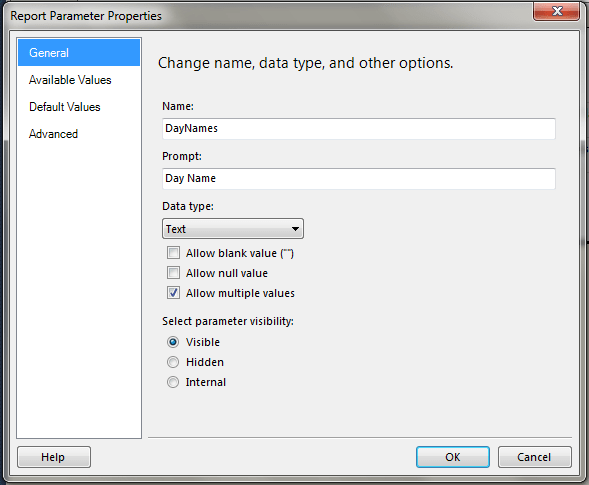
This, then, can be used to provide the available values for an SSRS multi-valued parameter. This should all be straightforward for anyone who has used SSRS before.

image

image

You can then add a new query parameter to our main dataset, the one that queries the DimDate table:

image 

The next problem to solve is the fact that when using the Analysis Services connection type in SSRS, when you have a multi-valued parameter SSRS assumes you’re using MDX to query a cube. Therefore, if you have selected Monday and Tuesday in your parameter, SSRS will pass a string containing an MDX set expression like the one below through to the query parameter:

{ Monday,Tuesday }

You therefore need to do some string manipulation to turn this into a pipe-delimited string of the type that PathContains() can use. Here’s the complete DAX query that shows how this can be done:

evaluate
calculatetable(
DimDate
, filter(
values(DimDate[EnglishDayNameOfWeek])
, pathcontains(
substitute(
substitute(
substitute(
@DayNames
, "{ ", "")
, " }", "")
, ",", "|")
, DimDate[EnglishDayNameOfWeek])
)
)

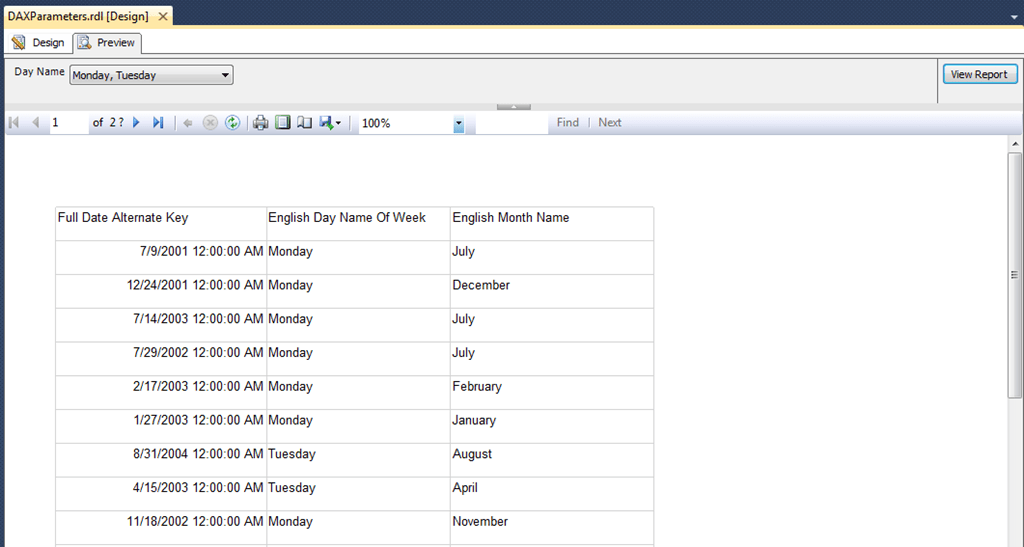
It’s pretty simple: I’m using Substitute() to remove the opening and closing braces, and to turn the commas into pipes.  With that done, you now have an SSRS report using a DAX query that can handle multi-valued parameters!

image

“Unable to Establish Server Mode” Error in SSMS

This morning when I tried to connect to my local SSAS 2012 (RTM) Tabular instance in the Object Explorer in SQL Server Management Studio I got the following error message:

TITLE: Microsoft SQL Server Management Studio
——————————

Error connecting to ‘localhost\tabular’.

——————————
ADDITIONAL INFORMATION:

Unable to establish server mode. (ObjectExplorer)

image

This was an error I’d seen before several times (as had Alberto – see here – and a few other people), and had previously associated it with memory issues and/or corrupted databases. However in this case I was confused because I was still able to query the SSAS Tabular instance in question from Excel and deploy to it from SQL Server Data Tools, so I was pretty sure there wasn’t anything wrong with the instance.

After a bit of looking around I found what the problem was. A few days ago I had been using SQL Server Management Studio to write queries against a workspace database and I had set the name of the database in the ‘Connect to database’ dropdown on the Connection Properties of the Connect to Server dialog, as shown below:

SNAGHTML23b0336

Now the SSDT project associated with this workspace database had its Workspace Retention property set to ‘Unload from Memory’, so when I closed the project the workspace database disappeared from the server. However in SQL Management Studio the Connection Properties dialog was still trying to connect to the database even though it was no longer there, and instead of giving a sensible error message it was giving me the “Unable to establish server mode” error. Fixing the problem was simple: I just went to the Connect to database dropdown and selected “<default>” instead of the name of the workspace database.

I would imagine that a lot of people will run into this issue, not only when they have been connecting to workspace databases but also if they connect to regular databases that are subsequently deleted. Hopefully this blog post will save them a lot of time spent wondering what’s gone wrong!

SQL Server 2012 RTM–and a new SSAS Tabular training course

By now you’ve probably already heard that SQL Server 2012 has been released (you can download the eval here), along with the Feature Pack (which contains some interesting stuff, including a 64-bit version of the Excel Data Mining Addin at last) and PowerPivot V2.0. I know I’m almost 24 hours late on this news but I thought I’d mention it nonetheless…

If you’re a BI professional wondering how you’re going to learn Analysis Services 2012 Tabular, then you might want to check out a new series of training courses on it that I’m teaching with my friends Marco and Alberto at various places around Europe:
http://www.ssasworkshop.com/

It’s based on the book we’ve been co-writing on the Tabular model which will hopefully be available very soon, and since we’ve been living Tabular and DAX for the last few months you can be sure that it’s the very best way to get up to speed on it. We hope to see you at one of the classes!