If you can’t make it to one of my classroom-based courses in London next year, today I’m pleased to announce that my new Power BI video training course is now available via my friends at Project Botticelli. It covers the following topics:
What is Power BI? (Free)
Connecting to Data Sources
Data Import Concepts
Transforming Data with the Query Editor
Advanced Data Loading
Modelling Data
Basic DAX
Power BI Desktop vs Excel
Cloud and Desktop Power BI Dashboards and Reports
Building Reports in Excel
Data Refresh (Free)
Administration and Auditing (Free)
Several of the shorter videos are free to view. Full details can be found here:
I’m pleased to announce two in-person training dates in London next year.
First of all, I’ll be running a three-day “Introduction to Power BI” course from January 29th to January 31st 2018. Suitable for BI pros, analysts and anyone who needs to use Power BI to build reports, I’ll be covering data loading, data modelling, a bit of M, a lot of DAX, report design, publishing, security and administration. Full details and registration can be found here:
Not long after, on February 22nd 2018, I’ll be teaching a full-day preconference seminar at SQLBits in London on Azure Analysis Services. The agenda can be found here:
…but, to be honest, there’s likely to be a lot of cool new functionality released for Azure SSAS between now and then so that will all have to be fitted in too. SQLBits is, of course, the biggest SQL Server/Microsoft data platform conference in Europe, ridiculously good value for money and loads of fun. Pricing and registration details can be found here:
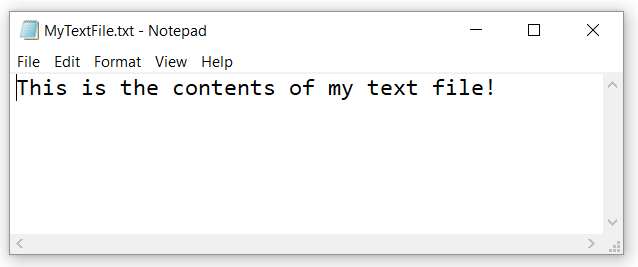
Basically, it allows you to access the contents of any file you include in the .mez file of your custom data connector. Say you have a text file called MyTextFile.txt:
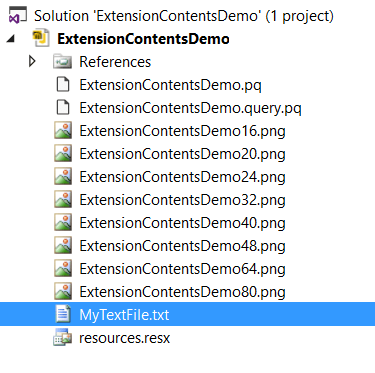
If you create a new Power BI Custom Data Connector project using the SDK, you can add this file to your project in Visual Studio like any other file:
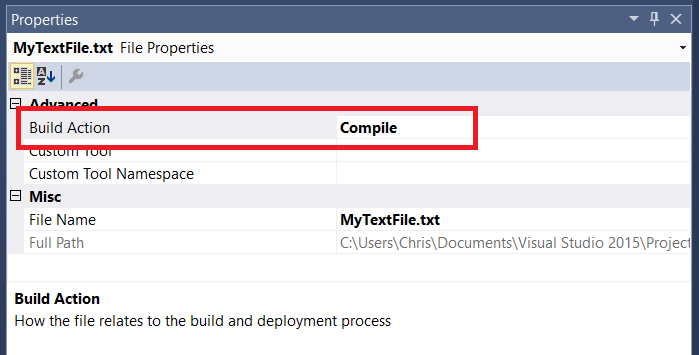
Next, select the file and in the Visual Studio Properties pane set the Build Action property to Compile:
Setting this property means that when your custom data connector is built, this file is included inside it (the .mez file is just a zip file – if you unzip it you’ll now find this file inside).
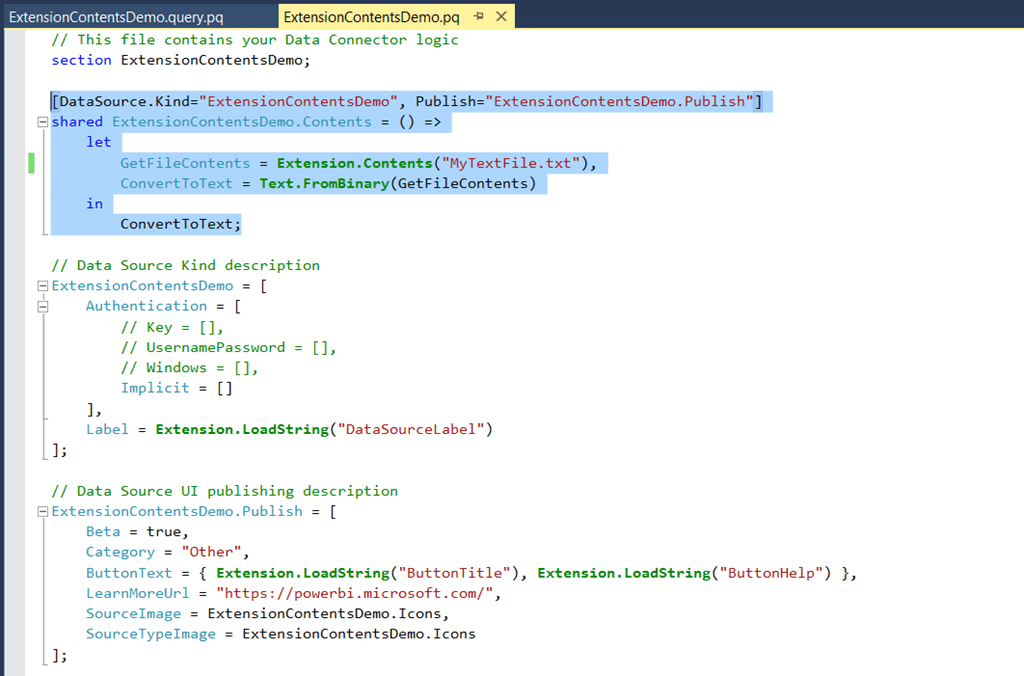
Next, in the .pq file that contains the M code for your custom data connector, you can access the contents of this file as binary data using Extension.Contents(“MyTextFile.txt”). Here’s an example function for use in a custom data connector that does this:
[sourcecode language=”text” padlinenumbers=”true”]
[DataSource.Kind="ExtensionContentsDemo",
Publish="ExtensionContentsDemo.Publish"]
shared ExtensionContentsDemo.Contents = () =>
let
GetFileContents = Extension.Contents("MyTextFile.txt"),
ConvertToText = Text.FromBinary(GetFileContents)
in
ConvertToText;
[/sourcecode]
In the let expression here the GetFileContents step returns the contents of the text file as binary data and the ConvertToText step calls Text.FromBinary() to turn the binary data into a text value.
When this function is, in turn, called it returns the text from the text file. Here’s a screenshot of a query run from Power BI Desktop (after the custom data connector has been compiled and loaded into Power BI) that does this:
Every year, in return for publicising it to my readers, I get sent a copy of the findings of the BI Survey – the largest survey of BI product users in the world. As always they make for very interesting reading indeed, and although I can’t give away all the details I have been allowed to blog about a few of the highlights for Power BI:
Power BI is now the third most frequently considered product in competitive evaluations, after QlikView and Tableau.
Indeed, based on responses from vendors and resellers, Microsoft is now the third ‘most significant competitor’ after Tableau and Qlik and is in a much stronger position than it was two years ago – clearly as a result of the impact that Power BI has made, although Excel, SSAS and SSRS contribute to this too.
Unsurprisingly Power BI’s exceptional price/performance ratio is the main reason that organisations purchase it. Nonetheless it gets very high satisfaction ratings too.
Power BI is also now the third most frequently used front-end for SSAS, after SSRS (which is in the #1 spot and quite a way out in front) and Excel (either on its own or with an AddIn).
Overall it’s a very strong showing for Microsoft. If you’re conducting a competitive evaluation of BI tools, or if you’re a BI vendor, it’s probably worth buying a copy of the full findings.
Here’s one for all you M geeks out there. If you look at the example code for custom data connectors on the Power BI custom data connectors GitHub repo it’s clear that there are several M functions that are available in custom data connectors that aren’t available in Power BI Desktop. But what are they? As I’m sure you know, you can get a list of all the functions, types and enums available in M using the #shared keyword. Well, I created a simple custom data connector that calls #shared and returned a table of all the functions, types and enums available to a custom data connector, and then compared that table with what #shared returns when you run it in Power BI Desktop. This made it easy to find a list of M functions, types and enums that are only available in custom data connectors, and here are all 34:
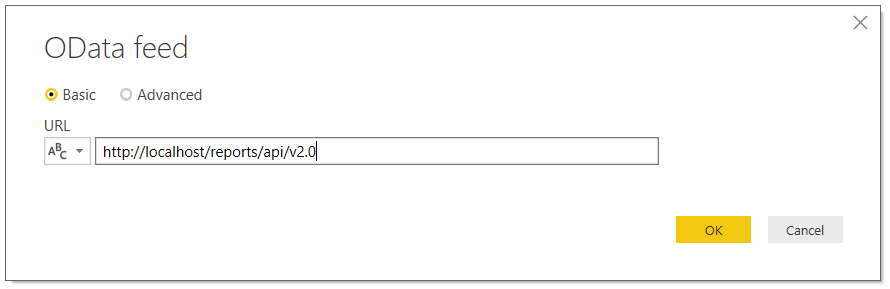
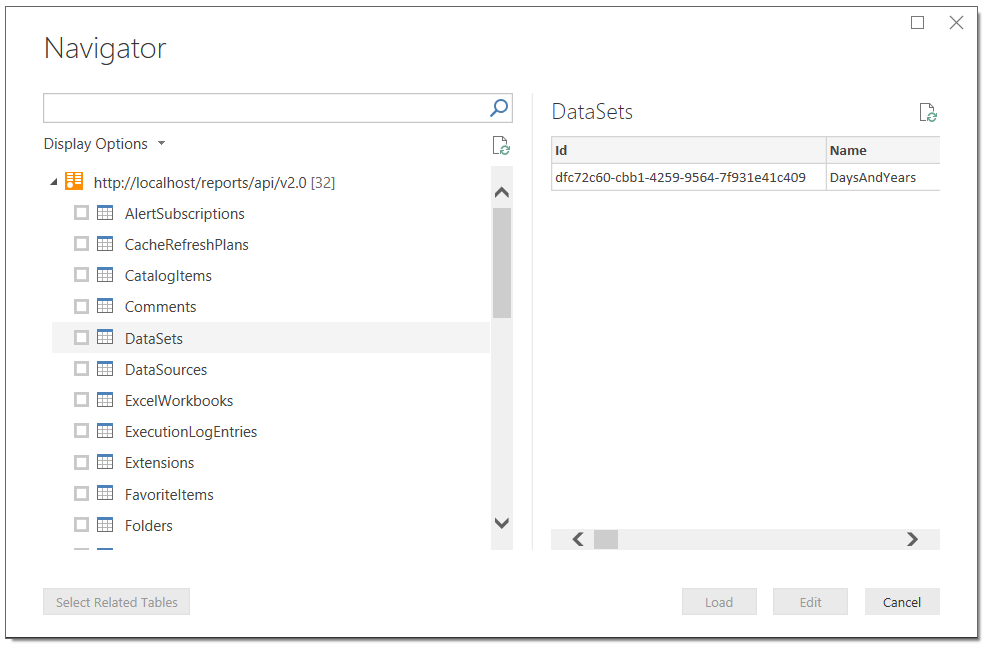
Interestingly, the new API seems to be OData compliant – which means you can browse it in Power BI/Get&Transform/Power Query and build your own reports from it. For example in Power BI Desktop I can browse the API of the SSRS instance installed on my local machine by entering the following URL:
This means you can build Power BI reports on all aspects of your SSRS reports (reports on reports – how meta is that?), datasets, data sources, subscriptions and so on. I guess this will be useful for any Power BI fans who also have to maintain and monitor a large number of SSRS reports.
However, the most interesting (to me) function isn’t exposed when you browse the API in this way – it’s the /DataSets({Id})/Model.GetData function. This function returns the data from an SSRS dataset. It isn’t possible to call this function direct from M code in Power BI or Excel because it involves making a POST request to a web service and that’s not something that Power BI or Excel support. However it is possible to call this function from a Power BI custom data extension – I built a quick PoC to prove that it works. This means that it would be possible to build a custom data extension that connects to SSRS and that allows a user to import data from any SSRS dataset. Why do this? Well, it would turn SSRS into a kind of centralised repository for data, with the same data being shared with SSRS reports and Power BI (and eventually Excel, when Excel supports custom data extensions). SSRS dataset caching would also come in handy here, allowing you to do things like run an expensive SQL query once, cache it in SSRS, then share the cached results with multiple reports both in SSRS and Power BI. Would this really be useful? Hmm, I’m not sure, but I thought I’d post the idea here to see what you all think…
Last week I was working on a Power BI custom data connector for a customer and I came across a problem that has been bothering me for a while. The “Invoke Custom Function” button is a very powerful feature (see here for how to use it) and I was doing something very similar in my code, but after you click it and expand the table column it returns, you always have to set the data types on the new columns that appear – even if the function you have invoked returns a table with data types set on columns. I wanted to avoid this extra step. I knew it was possible because some data sources like SQL Server give you typed columns when you expand a table column; I also saw that TripPin custom data connector tutorial aims to cover this topic… soon. Luckily it wasn’t too hard to work out.
Imagine you have the following function:
(x as number, y as number) as table =>
let
Addition = x + y,
Multiplication = x * y,
Output = #table(
type table [Operation=text, Result=number],
{
{"Addition", Addition},
{"Multiplication", Multiplication}
})
in
Output
It takes two numbers and returns a table with two columns and two rows showing the sum and the product of the two numbers. If the function is called AddAndMult, then the following expression:
AddAndMult(5, 6)
…returns the following table:
Notice that the function returns a table with data types set for the columns: Operation is a text column and Result is a number column. I’ve done this by specifying a table type in the first parameter of the #table() function as described here.
Now, here’s a query that calls the function on a table containing several rows using the Invoke Custom Function button:
let
Source = #table(
type table[x=number, y=number],
{
{4,7},
{8,2},
{1,9}
}),
#"Invoked Custom Function" = Table.AddColumn(
Source,
"AddAndMult",
each AddAndMult([x], [y])),
#"Expanded AddAndMult" = Table.ExpandTableColumn(
#"Invoked Custom Function",
"AddAndMult",
{"Operation", "Result"},
{"AddAndMult.Operation", "AddAndMult.Result"})
in
#"Expanded AddAndMult"
This is the table returned by the Source step:
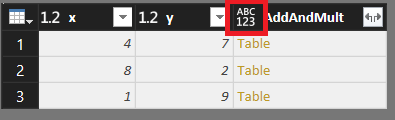
This is what the Invoked Custom Function step looks like:
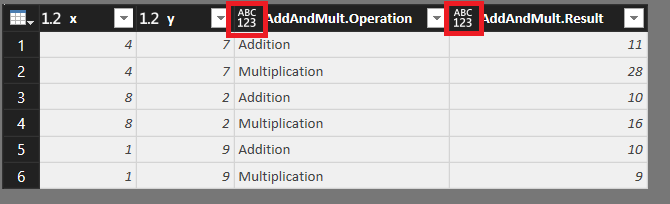
And this is what the Expanded AddAndMult step looks like:
In the last two screenshots the ABC123 icon in the column headers show that they are set to use the Any data type; the columns returned by calling the function have lost their data types.
The key to solving this problem is using the optional fourth parameter of the Table.AddColumn() function, which allows you to set a data type for the column that function adds to a table. Altering the Invoked Custom Function step of the previous query to do this, setting the new column to be a table type like so:
#"Invoked Custom Function" =
Table.AddColumn(
Source,
"AddAndMult",
each AddAndMult([x], [y]),
type table [Operation=number, Result=number]
),
…means the Invoked Custom Function step now returns a column of type table, with the appropriate icon in the top left column:
…and once the AddAndMult column is expanded, the new columns have the desired data types set:
A few years ago I started blogging about Power Query. Back then life was simple: I put “Power Query” in the title of a post and everyone knew what I was writing about, because Power Query was an Excel add-in you could download and install. Now, however, the technology has been renamed “Get & Transform” in Excel 2016 and is a native feature of Excel; the name “Power Query” only applies to the add-in for Excel 2010 and 2013. What’s more, the same technology is used in Power BI’s Query Editor and it’s also now in Azure Analysis Services, Analysis Services 2017 Tabular and the Common Data Service. This is obviously a good thing – I think Power Query is one of the best things to come out of Microsoft in the last decade – but it also presents me with a problem. How can I write about this technology if it doesn’t have a single, official, easily identifiable name?
In more recent times I’ve written posts with unwieldy names like “Introduction to Insert Topic Name Here in Power Query/Power BI/Excel 2016 Get & Transform” and in the future I suppose this will have to grow to “Introduction to Insert Topic Name Here in Power Query/Power BI/Excel 2016 Get & Transform/Analysis Services Data Loading/Common Data Service”. Tagging and categorising blog posts can help here, I know, but it’s the title of a blog post that’s the main determining factor as to whether it gets read or not when someone is looking at a list of search results. It’s getting ridiculous, but how else can I ensure that someone searching for the solution to a data loading problem in Excel 2016 Get & Transform will find a post I’ve written that contains the answer but shown in Power BI?
Inside Microsoft I understand that the team that builds this technology is known as the Power Query team. I certainly think about this technology as being called Power Query, as do a lot of other people in the community. However, my argument is that I can’t just use the name “Power Query” when I’m writing or speaking about this technology because most of its users – especially those who are new to it and who need the most help – don’t think of it as “Power Query”. They think of it as Excel 2016 Get & Transform, the Query Editor in Power BI Desktop and so on, the specific instances of it.
Maybe I’m making too big a deal of this, but in my opinion this is a problem not just for me but for Microsoft too. We all know how much developers rely on internet searches to find solutions to problems, and not having a single name for this technology makes it much harder to search successfully. This in turn makes it less likely that when a developer runs into a problem they will be able to solve it, which in turn means they are less likely to want to use this technology in future.
What’s the answer? It has to be to make the “Power Query” brand visible somewhere in the UI of all the products that use Power Query technology. I know there’s a risk of confusing users instead of helping them here (am I using Power Query or Power BI?), but it could be as simple as making a few small changes like renaming the “Query Editor” window to be the “Power Query Editor”:
I think that would be enough to let people know that “Power Query” is a technology in its own right and that content referring to “Power Query” is relevant to Excel, Power BI, SSAS and everywhere else that Power Query is used. It would also be nice if, now that M is the official name of the M language (and not Power Query Formula Language), the Advanced Editor window and the Custom Column dialog let users know that the code they were writing in them was in a language called M and not some mysterious, nameless scripting language.
What do you think? I’m interested to hear your comments and opinions…
UPDATE: victory is ours! See this comment from Faisal Mohamood of the Power Query team below – Hey there Chris – what you are saying makes complete sense. Power Query is the name of this capability and we will highlight the name of this capability as such in experiences where you are working with Power Query (and M).
I’ve blogged a few times about the tracing functionality that is built into Power Query/Get&Transform and Power BI (see here and here). The trace files themselves clearly contain a lot of interesting information, but there’s no official documentation about what they contain and the format seems to have changed several times. I guess they are meant for Microsoft internal use but that doesn’t stop us from taking a peek at their contents…
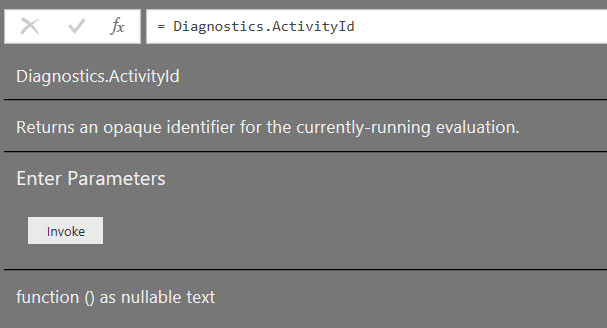
Whenever I’ve looked at the contents of a trace file, one problem I have faced is working out which events relate to the query that I’ve just executed. Today, though, I discovered an M function that can help with this: Diagnostics.ActivityId(). It’s not listed in the online M function reference but here’s the documentation from the function itself:
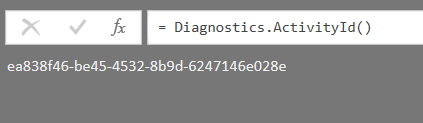
Calling the function does indeed return “an opaque identifier for the currently-running evaluation”. Using the following code in a query:
Every time the query is refreshed a different value is returned.
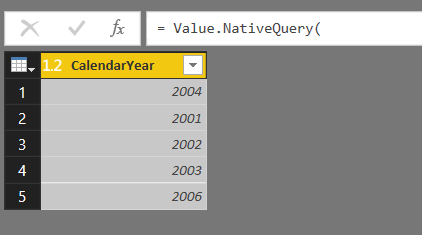
Now, consider the following query that runs a query against a SQL Server database:
[sourcecode language=”text”]
let
Source = Sql.Database("localhost", "Adventure Works DW"),
Test = Value.NativeQuery(
Source,
"SELECT DISTINCT CalendarYear FROM DimDate")
in
Test
[/sourcecode]
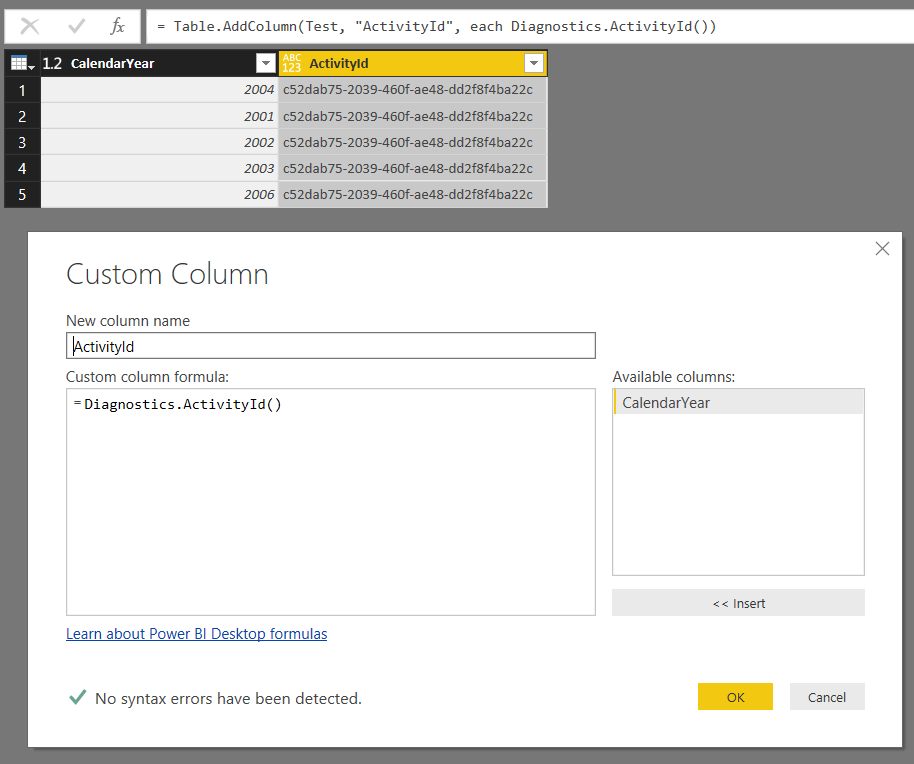
How can you find the trace events that relate to a particular execution of this query? One way is to add a custom column to this query that returns the value returned by Diagnostics.ActivityId():
[sourcecode language=”text”]
let
Source = Sql.Database("localhost", "Adventure Works DW"),
Test = Value.NativeQuery(
Source,
"SELECT DISTINCT CalendarYear FROM DimDate"),
#"Added Custom" = Table.AddColumn(
Test,
"ActivityId",
each Diagnostics.ActivityId())
in
#"Added Custom"
[/sourcecode]
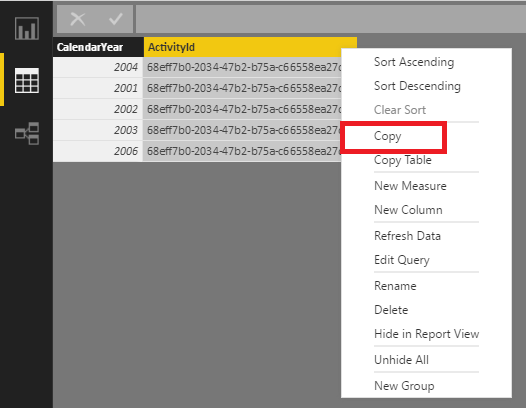
Then, after the query has been loaded into the Data Set you can copy the ActivityID from the table in the Data pane:
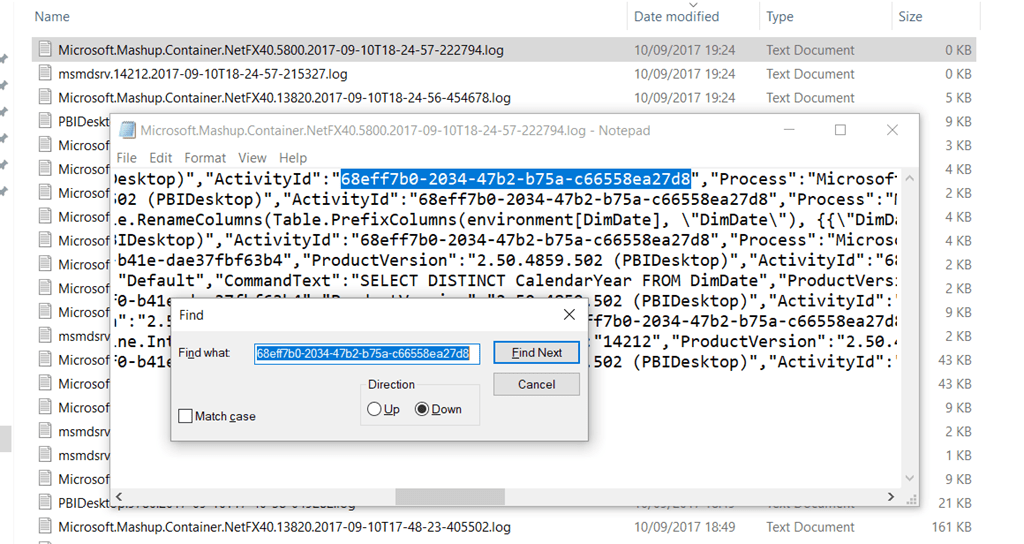
…and then search for the same value in the trace files:
Of course you’re now on your own trying to make sense of what you find in the trace file, but I hope this helps a little bit!
Basically, it acts as a wrapper for the Microsoft Cognitive Services Text Analytics API and makes it extremely easy to do language detection, sentiment analysis and to extract key phrases from text when you are loading data into Power BI.
Full documentation for the Text Analytics API can be found here and there is more detailed documentation available for the Detect Language, Key Phrases and Sentiment APIs. You can learn more about Power BI custom data connectors here and here.
Note: you will need to sign up for the Text Analytics API and obtain an access key before you use this custom data connector. You’ll be prompted to enter the access key in Power BI the first time you use the custom data connector. A number of pricing tiers are available, including a free tier that allows for 5000 calls per month. The custom data connector batches requests so that you can send up to 1000 individual pieces of text per call to the API.
Why build a custom data connector for this? Well, first of all, text analysis in Power BI and Power Query is something I’ve been interested in for a long time (see here for example), and I know a lot of other people want to do this too. However, calling any API – and the Microsoft Cognitive Services APIs in particular – involves a lot of tricky M code that is beyond most Power BI users. I certainly didn’t find it easy to write this custom data connector! I know Gil Raviv has blogged about how to use the Sentiment analysis API this data connector calls in two posts (here and here) but he doesn’t handle all the limitations of the API, including the 1MB limit per request, in his examples – which just goes to show what a complex task this is. Wrapping up the code for calling the Text Analytics API in a custom data connector hides this complexity from the developer, makes the code a lot more portable, and the fact that the code is open source means the community can work together to fix bugs and add new features. I welcome any contributions that anyone wants to make and I know there are a lot of improvements that can be made. Certainly the documentation is a bit sparse right now and I’ll be adding to it over the next week or so.
This is not quite a traditional custom data connector in the sense that it doesn’t act as a data source in its own right – you have to pass data to it in order to get data back. It exposes three M functions:
TextAnalytics.DetectLanguage(inputtext as list, optional numberoflanguages as number) as table
This function takes a list of text values and returns a table containing the input text and the language detected in each piece of text
TextAnalytics.KeyPhrases(inputtext as list, optional languages as list) as table
This function takes a list of text values (and an optional list of language identifiers for each piece of text) and returns a table containing the input text and key phrases detected in each piece of text. More than one key phrase may be returned for each piece of text.
TextAnalytics.Sentiment(inputtext as list, optional languages as list) as table
This function takes a list of text values (and an optional list of language identifiers for each piece of text) and returns a table containing the input text and a score representing the sentiment detected for each piece of text.
Here are a few simple examples of how to use these functions:
First, the TextAnalytics.DetectLanguage() function. This query:
[sourcecode language=”text” padlinenumbers=”true”]
let
input = {"hello all", "bonjour", "guten tag"},
result = TextAnalytics.DetectLanguage(input)
in
result
[/sourcecode]
Returns the following table:
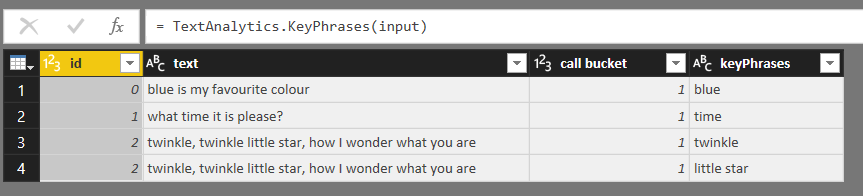
For the TextAnalytics.KeyPhrases() function, the following query:
[sourcecode language=”text”]
let
input =
{
"blue is my favourite colour",
"what time it is please?",
"twinkle, twinkle little star, how I wonder what you are"
},
result = TextAnalytics.KeyPhrases(input)
in
result
[/sourcecode]
Returns this table:
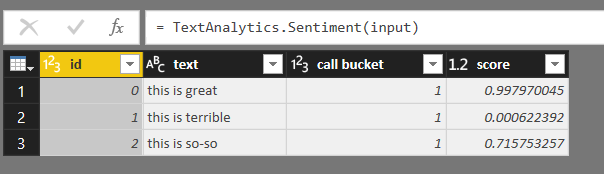
And for the TextAnalytics.Sentiment() function, the following query:
[sourcecode language=”text”]
let
input =
{
"this is great",
"this is terrible",
"this is so-so"
},
result = TextAnalytics.Sentiment(input)
in
result
[/sourcecode]
Returns this table:
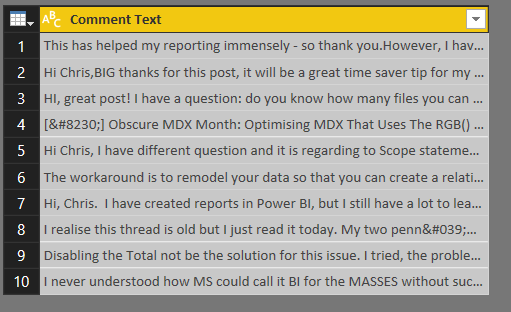
Because the first parameter of each of these functions is a list, it’s super-easy to pass in columns of data from existing tables. For example, here’s the output of a query that gets the last ten comments from the comments RSS feed of this blog:
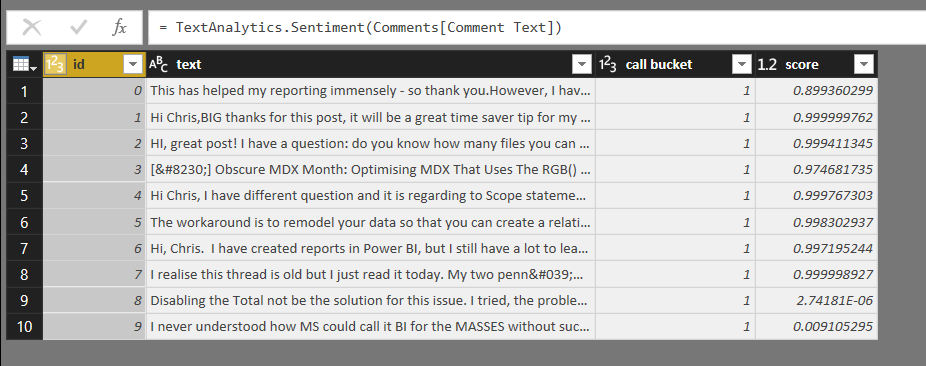
If this query is called Comments, the following single line of code is all that’s needed to call the TextAnalytics.Sentiment() function for the Comment Text column on this table:
You can download a .pbix file containing several examples of how to call these functions, including all the examples above and many more, here.
I hope you enjoy using these functions, and if you have any questions, find any bugs or want to make suggestions for how they can be improved please let me know via the Issues page on GitHub. Finally, this is my first time using GitHub and if I’ve done something really dumb while publishing the code please let me know what I need to do to fix it!