Understanding Power Query Query Diagnostics Data With The Diagnostics.ActivityID M Function

I was looking at the output of Power Query’s Query Diagnostics feature recently (again) and trying to understand it better. One of the more confusing aspects of it is the way that the Power Query engine may evaluate a query more than once during a single refresh. This is documented in the note halfway down this page, which says:

Power Query might perform evaluations that you may not have directly triggered. Some of these evaluations are performed in order to retrieve metadata so we can best optimize our queries or to provide a better user experience (such as retrieving the list of distinct values within a column that are displayed in the Filter Rows experience). Others might be related to how a connector handles parallel evaluations.

I came up with the following M query to illustrate this:

#table(
    type table 
    [#"Activity ID"=text], 
    {{Diagnostics.ActivityId()}}
    )

If you paste this code into a new blank query:

…you have a query that returns a table containing a single cell containing the text value returned by the Diagnostics.ActivityId M function, which I blogged about here. The output – copied from the Data pane of the main Power BI window – looks like this:

The Diagnostics.ActivityId function is interesting because it returns an identifier for the currently-running query evaluation, so in the table above the value in the Activity ID column is the identifier for the query that returned that table.

If you run a Query Diagnostics trace when refreshing this query, you’ll see that the Activity Id column of the Diagnostics_Detailed trace query contains evaluation identifier values:

The following query takes the output of a Diagnostics_Detailed trace query and gets just the unique values from the Id and Activity Id columns:

let
    Source = #"Diagnostics_Detailed_2022-04-24_19:40",
    #"Removed Other Columns" = Table.SelectColumns(Source,{"Id", "Activity Id"}),
    #"Removed Duplicates" = Table.Distinct(#"Removed Other Columns")
in
    #"Removed Duplicates"

This makes it easy to see that my query was actually evaluated (or at least partially evaluated) three times when I clicked refresh. Since the value in the Activity Id column for Id 4.10 matches the value in the table loaded into my dataset, I know that that was the evaluation that loaded my table into the dataset.

Filtering An Excel Cube Function Report By A List Of Manually-Entered Values

In Power BI there’s a popular custom visual called “Filter by list” that lets you filter a Power BI report by any list of values that you paste into it. It can save you a lot of time in some scenarios, for example if you need to copy a list of values from another application and select those values in a slicer. In this post I’ll show how to recreate the same functionality in an Excel report connected to Power BI, Analysis Services or the Excel Data Model/Power Pivot using cube functions and dynamic arrays.

To show how I’m going to use a super-simple model built using Power Pivot consisting of the following single table:

The only other thing to note about the model is that it contains a measure called Sales Amount that sums up the values in the Sales column:

Sales Amount:=SUM(Sales[Sales])

Here’s what a PivotTable connected to this model looks like:

The aim here is to recreate this PivotTable using cube functions and allow the user to enter the list of invoice numbers used to slice the data either manually or by copy-and-pasting them into a table.

The first step is to create an Excel table (which I’ve called InvoiceNumbers) to hold the invoice numbers the user enters:

The next thing to do is to generate the text of the MDX set expression representing the list of invoice numbers in this table, which I’ve put in cell D2:

="{" & TEXTJOIN(",",TRUE, "[Sales].[Invoice Number].[Invoice Number].&[" & InvoiceNumbers & "]" ) &"}"

This text is used to create two named sets using the CUBESET function. The first, which I’ve put in cell D3, simply returns the set of invoice numbers that you get from evaluating the above MDX expression:

=CUBESET("ThisWorkbookDataModel", $D$2, "Invoice Numbers")

The second named set, in D4, is more complicated: it returns the set of customers that have sales for these invoice numbers.

=CUBESET(
"ThisWorkbookDataModel", 
"NONEMPTY( [Sales].[Customer].[Customer].MEMBERS, {[Measures].[Sales Amount]} * " & $D$2 & ")",
"Customers")

Last of all are the cube functions that display the report itself. In cell E6 is the CUBEVALUE function returning the measure Sales Amount:

=CUBEMEMBER("ThisWorkbookDataModel", "[Measures].[Sales Amount]")

In D7 is the formula (using the technique I blogged about here) to get the list of Customers returned by the second named set above:

=MAKEARRAY(
CUBESETCOUNT($D$4), 
1, 
LAMBDA(r,c, CUBERANKEDMEMBER("ThisWorkbookDataModel", $D$4, r))
)

Finally, in D8, is the expression that gets the Sales Amount values for each customer, sliced also by the set of selected invoice numbers:

=MAKEARRAY(
CUBESETCOUNT($D$4),
1,
LAMBDA(r,c,
CUBEVALUE("ThisWorkbookDataModel", INDEX($D$7#,r), $D$3, $E$6))
)

Here are the formulas all together:

And here it all is working:

One last point: to keep things simple I’ve not included any error handling, which means that if a user enters a blank value or a value that isn’t an invoice number in the table the whole thing will break. To handle errors using the technique I blogged about here, alter the formula in D2 to:

="{"&
TEXTJOIN(
",",
TRUE,
LET(
MemberExpression,
"[Sales].[Invoice Number].[Invoice Number].&["&InvoiceNumbers&"]",
"IIF(ISERROR(STRTOMEMBER("""&MemberExpression&""")), {}, STRTOMEMBER("""&MemberExpression&"""))")
) &"}"

You can download the example workbook here (although it may not work unless you’ve got a version of Excel with dynamic arrays enabled).

Forecasting With Power BI Data In Excel Using Cube Functions And The FORECAST.ETS Function, Part 2

In the first post in this series I showed a simple example of how you can use the FORECAST.ETS function in Excel in combination with the Excel cube functions to do forecasting with Power BI data. In this post I’ll show you how you can:

  1. Make the range of data that you display from Power BI, and pass into the FORECAST.ETS function, dynamic and controllable from a slicer
  2. Make the number of periods that you forecast for dynamic too
  3. Put both the actuals and forecast data together in a single range and display that in a chart

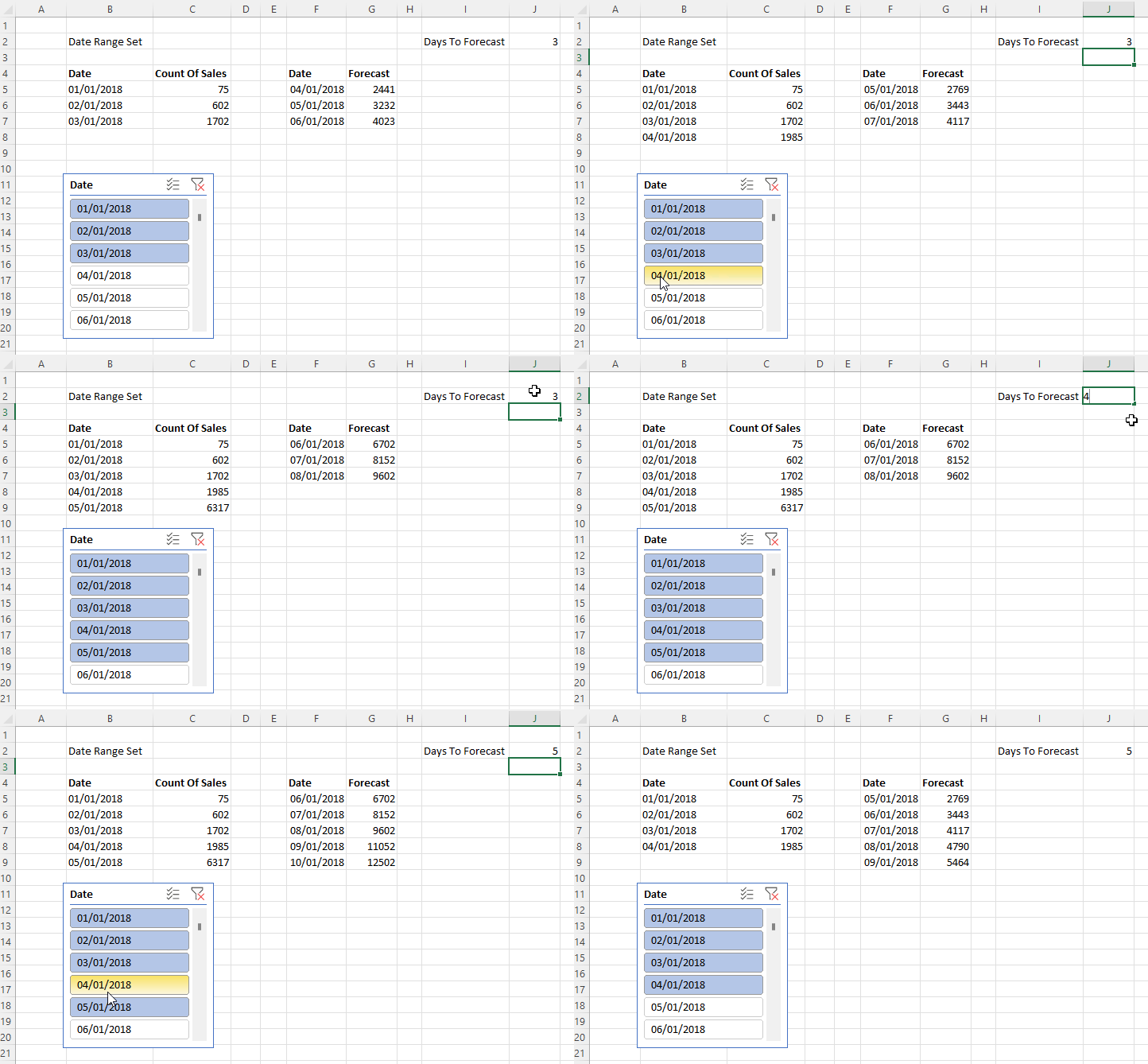
The first problem, making the range of data returned from Power BI via cube functions dynamic, is reasonably straightforward because it’s a variation on a technique I blogged about last year here. A slicer can be used to select the date range, which in turn can be captured using the CUBESET function, and finally the MAKEARRAY function can be used to return a dynamic array of dates and associated measure values. Here it is working:

Cell B2 contains the CUBESET formula that is used to capture the set of selected items in the slicer (which is called Slicer_Date):

=CUBESET("Price Paid", Slicer_Date, "Date Range Set")

B5 contains the dynamic array formula that returns the dates selected in the slicer using the CUBERANKEDMEMBER function:

=MAKEARRAY(
CUBESETCOUNT($B$2), 
1, 
LAMBDA(r,c,CUBERANKEDMEMBER("Price Paid",$B$2,r))
)

C5 contains the dynamic array formula that returns the values for the Count of Sales measure for the date range in B5:

=MAKEARRAY(
CUBESETCOUNT($B$2),
1,
LAMBDA(r,c,
LET(
CubeValueResult,
CUBEVALUE("Price Paid",$C$4,INDEX($B$5#,r)),
IF(ISNUMBER(CubeValueResult), CubeValueResult,0))
))

The second problem is how to create a similar dynamic range of forecast dates and values. Here’s the solution working:

J3 contains the number of days to forecast. F5 contains a formula that returns a list of dates whose length is controlled by the value in J3, and which starts the day after the last day in the range returned by the formula in B5. Here’s the formula in F5:

=SEQUENCE($J$2)+MAX(DATEVALUE($B$5#))

The formula in G5 returns the forecast values for the date range returned by F5, based on the values returned by the formulas in B5 and C5:

=INT(FORECAST.ETS($F$5#, VALUE($C$5#), DATEVALUE($B$5#),7))

The third and final problem is how to combine these two ranges into a single range, like so:

The key to appending the Forecast values underneath the Count Of Sales values is the new VSTACK Excel function. So, for example, in I5 the following formula returns a dynamic array combining the dates used by the two ranges created above:

=VSTACK($B$5#, $F$5#)

For the Count Of Sales and Forecast columns I have padded the data out with zeroes, so for example the Count Of Sales column shows zeroes for the dates that contain forecast values and the Forecast column contains zeroes for the dates that contain Count Of Sales data. I did this by using VSTACK and appending/pre-pending an array containing zeroes created using MAKEARRAY. Here’s the formula for J5, ie the data in the Count Of Sales column:

=VSTACK($C$5#, MAKEARRAY($J$2, 1,LAMBDA(r,c,0)))

Here’s the formula for K5, ie the data in the Forecast column:

=VSTACK(MAKEARRAY(CUBESETCOUNT($B$2), 1,LAMBDA(r,c,0)), $G$5#)

I could have used the HSTACK function to combine these three dynamic arrays into a single array but there’s no real benefit to doing this, and not doing it makes it easy to use the technique Jon Peltier describes here to display dynamic arrays in a chart. I won’t repeat what he says but you need to create Names for these last three dynamic arrays in order to be able to use them in a chart.

One last thing: I haven’t said anything about how to make sure the forecast values are useful and accurate. That’s because I’m not a data scientist and I don’t have any good advice to share. This is a very important topic, though, and I’m very grateful to Sandeep Pawar for providing some tips on Twitter here.

Forecasting With Power BI Data In Excel Using Cube Functions And The FORECAST.ETS Function, Part 1

One of the reasons I love using the Excel cube functions to get Power BI data into Excel instead of PivotTables is because they make it much easier to use other native Excel features and functions in combination with your data. One Excel feature I’ve always been curious about is the FORECAST.ETS function, which allows you to forecast values from time series data. Here’s what the docs have to say about this function:

[This function] calculates or predicts a future value based on existing (historical) values by using the AAA version of the Exponential Smoothing (ETS) algorithm. The predicted value is a continuation of the historical values in the specified target date, which should be a continuation of the timeline. You can use this function to predict future sales, inventory requirements, or consumer trends.

Recently I started playing around with this function to see how it could be used with cube functions and since I learned so many interesting things I thought it would make a good series of blog posts. In this post I’ll look at a basic scenario and in my next post I’ll show how to use dynamic arrays (including one of the newly-released functions) to build something more complex. For these posts I’ll use a dataset containing Land Registry Price Paid data as my source; the exact contents don’t matter much but it contains a Date dimension table, a fact table containing one row for each property (or “real estate” for you Americans) sale in England and Wales in 2018 and a measure called Count Of Sales that returns the aggregated number of property sales.

Let’s start with a worksheet containing cube functions that show the Count of Sales measure broken down by date for the first seven days of 2018:

Here are the underlying formulas:

How can we use FORECAST.ETS on this data? Well, to keep things super-simple I manually entered the next three dates (ie the 8th, 9th and 10th of January) in cells B10, B11 and B12 like so:

The question is, how can we add forecast values to the range C10:C12? The first thing I tried was adding the following formula to C10:

=FORECAST.ETS($B10, $C$3:$C$9, $B$3:$B$9)

It didn’t work though…

The problem here is that the dates don’t come through from Power BI as Excel dates and the values don’t come through from Power BI as numeric values. This can be fixed by using the VALUE and DATEVALUE Excel functions like so:

=FORECAST.ETS($B10, VALUE($C$3:$C$9), DATEVALUE($B$3:$B$9))

Which can then be dragged down to C11 and C12 too:

We now have something working but there are still a few more problems to solve:

  • The forecasts come back as decimal values, which don’t make sense for this measure. This can be fixed by the use of the INT function, for example, to round the values to integers.
  • From looking at the data I can see there is a clear weekly pattern in the sales – very few properties are sold at weekends, whereas Fridays are the most popular day to sell – and this can be added as a hint to the function by setting the Seasonality argument of FORECAST.ETS to 7.
  • Depending on how you slice the data, some dates may return a blank value for Count Of Sales and if there are too many then FORECAST.ETS may not be able to return a value and return a #VALUE error instead. I had hoped setting the Data Completion argument of FORECAST.ETS to 1 would fix this but it didn’t; one solution is to alter the formulas in C3:C9 to return 0 when CUBEVALUE returns a blank value. The standard way to do this is to use ISNUMBER function as detailed on this thread, but I realised this was a great opportunity to use the new(ish) LET function to do things more elegantly.

Here’s the final version of the forecast formula in C10 with these changes:

=INT(FORECAST.ETS($B10, VALUE($C$3:$C$9), DATEVALUE($B$3:$B$9),7))

Here’s the new version of the formula in C3 as an example of this (with a newly added slicer reference too):

=LET(
CubeValueResult,
CUBEVALUE("Price Paid",$B3,C$2, Slicer_Property_Transactions1),
IF(ISNUMBER(CubeValueResult), CubeValueResult, 0)
)

That’s the simple scenario working then. But wouldn’t it be cool if we could vary the number of days of source data or the number of days forecast and put everything together into one big dynamic array so it can be charted easily? I’ll show you how in my next post!

New Options For The Table.Buffer Function In Power Query

The March 2022 release of Power BI Desktop includes some new options for the Table.Buffer M function that can be set in a new second parameter. The options are of type BufferMode.Type; if you look at the built-in documentation for this type you’ll see the following:

The two allowed values are:

  • BufferMode.Eager: The entire value is immediately buffered in memory before continuing
  • BufferMode.Delayed: The type of the value is computed immediately but its contents are not buffered until data is needed, at which point the entire value is immediately buffered

Anyone with previous experience of Table.Buffer will see that BufferMode.Eager is the existing behaviour, but what is BufferMode.Delayed for?

It turns out that it’s there to make development faster. Consider the following M query that loads data from a CSV file with seven columns and a million rows in, and then uses Table.Buffer to buffer that table into memory:

let
  Source = Csv.Document(
    File.Contents(
      "C:\NumbersMoreColumns.csv"
    ),
    [
      Delimiter  = ",",
      Columns    = 7,
      Encoding   = 65001,
      QuoteStyle = QuoteStyle.None
    ]
  ),
  #"Promoted Headers"
    = Table.PromoteHeaders(
    Source,
    [PromoteAllScalars = true]
  ),
  #"Changed Type"
    = Table.TransformColumnTypes(
    #"Promoted Headers",
    {
      {"A", Int64.Type},
      {"B", Int64.Type},
      {"C", Int64.Type},
      {"D", Int64.Type},
      {"E", Int64.Type},
      {"F", Int64.Type},
      {"G", Int64.Type}
    }
  ),
  BufferTable = Table.Buffer(
    #"Changed Type"
  )
in
  BufferTable

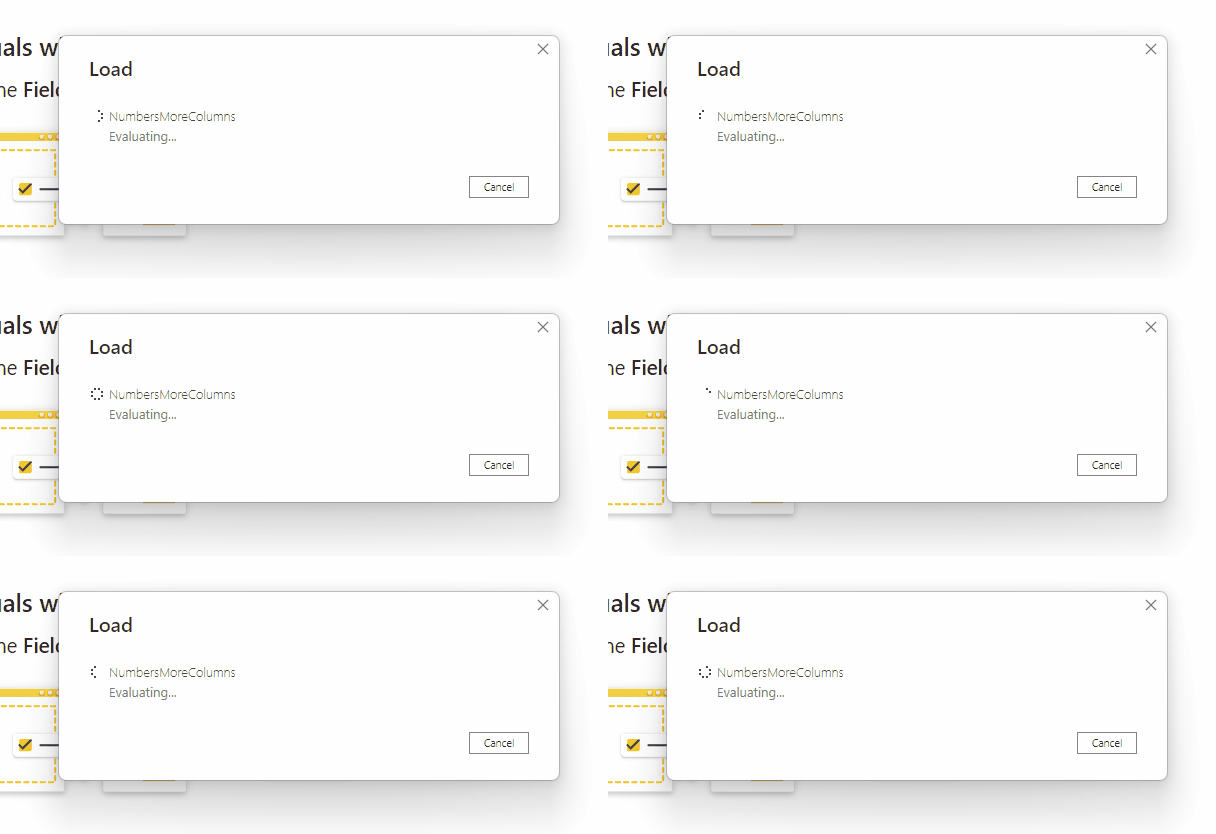
When I refresh this query in Power BI Desktop on my PC I see the “Evaluating…” message for 20 seconds before the data starts to load:

If, however, I add the second parameter [BufferMode = BufferMode.Delayed] to Table.Buffer like so:

let
  Source = Csv.Document(
    File.Contents(
      "C:\NumbersMoreColumns.csv"
    ), 
    [
      Delimiter  = ",", 
      Columns    = 7, 
      Encoding   = 65001, 
      QuoteStyle = QuoteStyle.None
    ]
  ), 
  #"Promoted Headers"
    = Table.PromoteHeaders(
    Source, 
    [PromoteAllScalars = true]
  ), 
  #"Changed Type"
    = Table.TransformColumnTypes(
    #"Promoted Headers", 
    {
      {"A", Int64.Type}, 
      {"B", Int64.Type}, 
      {"C", Int64.Type}, 
      {"D", Int64.Type}, 
      {"E", Int64.Type}, 
      {"F", Int64.Type}, 
      {"G", Int64.Type}
    }
  ), 
  BufferTable = Table.Buffer(
    #"Changed Type", 
    [BufferMode = BufferMode.Delayed]
  )
in
  BufferTable

Then, when I run my refresh, the “Evaluating…” message only appears very briefly before the data starts to load:

It’s important to stress that after the “Evaluating…” phase the data load takes exactly the same amount of time – it’s only the “Evaluating…” phase that is faster. This can save you a lot of time as a developer, nonetheless. I have been told when these options are available in dataflows they will make validation (which occurs when you close Power Query Online after editing a dataflow) much faster too – in fact this developed to partially solve the dataflow validation problem.

[Thanks to Curt Hagenlocher for this information]

Update: something I should make clear is that this functionality is only useful for people who are already using Table.Buffer in their queries. If you’re not using Table.Buffer already then these changes won’t be of any benefit or interest.

The ExtAuth Trace Event In Power BI

When you’re looking at the Log Analytics data for your Power BI Premium dataset, or studying a Profiler trace, you may see a command called ExtAuth in the OperationDetailName column:

It is documented here as “An internal service-generated command to perform authentication” – and as such it’s not something you have any control over. It may be triggered when a report is opened or a dataset refresh is started.

However you may wonder why it’s so slow sometimes. This is because datasets in the Power BI Service are not held in memory 100% of the time (they are sometimes paged out to disk) although they do need to be in memory before they can be queried or refreshed. When a dataset is not held in memory but the Power BI Service needs to connect to it, the dataset is loaded into the Analysis Services engine and into memory and this can take some time, especially if the dataset is large. The ExtAuth event is often the event that triggers the load of a dataset into memory and therefore the time required to load the dataset into memory is associated with it.

[Thanks to Akshai Mirchandani, Kay Unkroth and Rui Romano for the information in this post]

Why Not All SQL Queries Can Be Used As A Source In Power BI DirectQuery Mode

A few days ago I was tagged on a thread on Twitter: my old pal Mim was upset to find that he couldn’t use a SQL query with a Common Table Expression as the source of a table in DirectQuery mode. He worked out why without my help but I thought that it was worth me writing up an explanation for other people who might be struggling with the same problem.

In Power BI DirectQuery mode you can – for most data sources – use your own SQL query as the source for a table in your dataset. For example when connecting to the AdventureWorksDW 2017 sample database in SQL Server using DirectQuery mode, I can use the following SQL query as the source of a table:

SELECT 
FullDateAlternateKey, 
EnglishDayNameOfWeek, 
EnglishMonthName
FROM DimDate

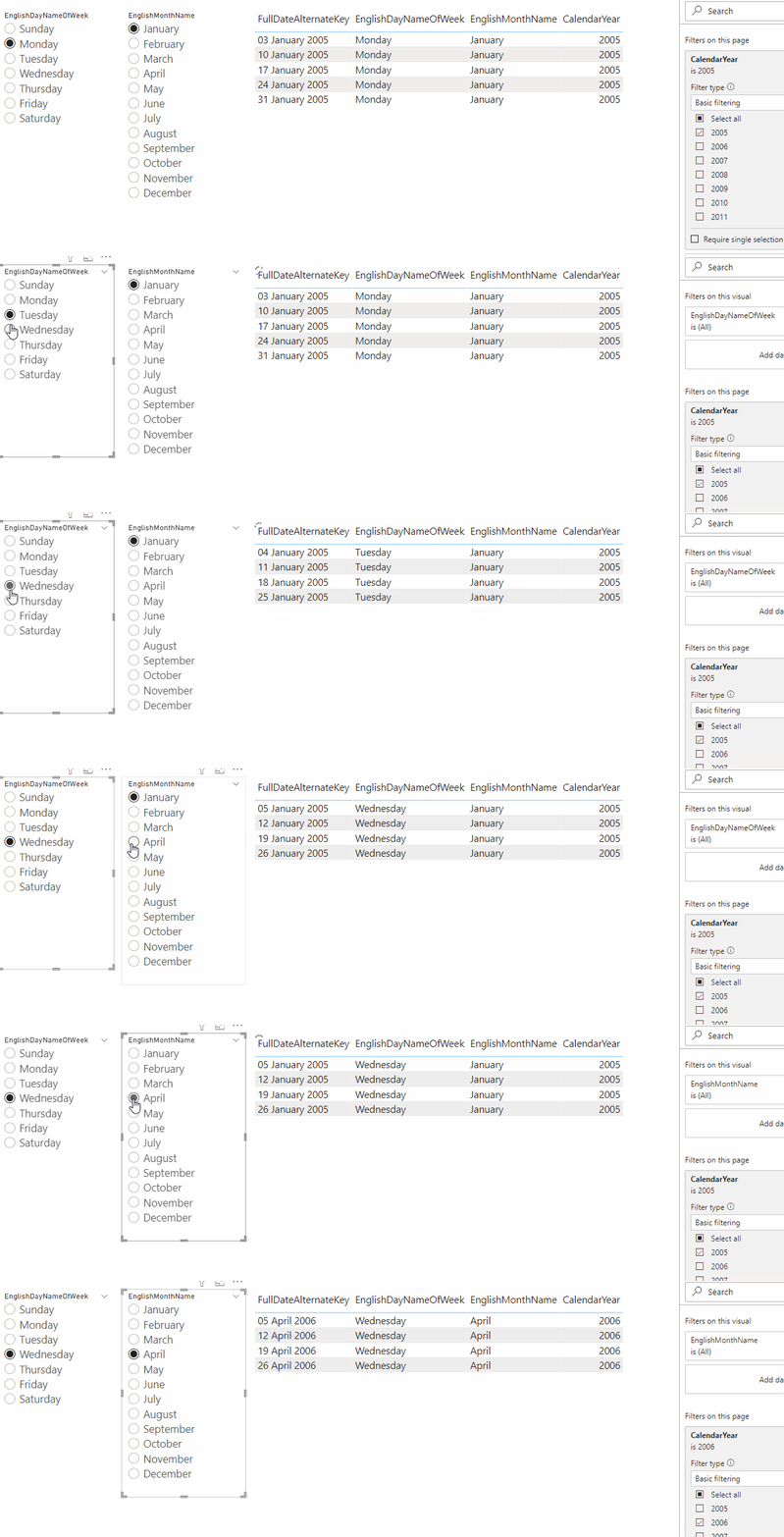
Now, let’s say I use this table in a dataset and build the following report with two slicers and a table, and with a month and a day name selected in the slicers:

The SQL generated by Power BI to populate the table looks like this:

SELECT 
TOP (501) [t0].[FullDateAlternateKey]
FROM 
(
(
SELECT 
FullDateAlternateKey, 
EnglishDayNameOfWeek, 
EnglishMonthName
FROM DimDate
)
)
 AS [t0]
WHERE 
(
(
[t0].[EnglishDayNameOfWeek] = N'Sunday'
)
 AND 
(
[t0].[EnglishMonthName] = N'April'
)
)

GROUP BY [t0].[FullDateAlternateKey],[t0].[EnglishDayNameOfWeek],[t0].[EnglishMonthName]
ORDER BY [t0].[EnglishDayNameOfWeek]
ASC
,[t0].[EnglishMonthName]
ASC
,[t0].[FullDateAlternateKey]
ASC

Notice how the original SQL query I used as the source of the table is used as a subquery in this query. This is how Power BI generates its SQL and this is why there are limitations on the SQL you can use in DirectQuery mode: not all SQL queries that run standalone can be used in subqueries.

Take the following variation on the SQL above for example:

SELECT
FullDateAlternateKey,
EnglishDayNameOfWeek,
EnglishMonthName
FROM DimDate
ORDER BY
EnglishMonthName

It’s the same query as before but with an ORDER BY clause. It works fine in the Power Query Editor but when you go to your report you’ll see the following error:

“Microsoft SQL: The ORDER BY clause is invalid in views, inline functions, derived tables, subqueries and common table expressions unless TOP, OFFSET or FOR XML is also specified”

This is the error message generated by the SQL query that Power BI is trying to run – and as you will have guessed by now, it’s being generated because Power BI is trying to use your query with an ORDER BY clause inside its own subquery. You can’t put an ORDER BY clause in a subquery in TSQL except in the scenarios mentioned in the error message. The same goes for Common Table Expressions.

What can you do to work around this? There is really just one answer: model your data the way Power BI likes it (ie as a star schema) before it gets to Power BI. It’s the now-famous Roche’s Maxim. Even if you aren’t running into this limitation using SQL queries as the source of a table is a bad idea because it makes maintenance difficult and you end up doing any expensive transformations at query time and paying the performance penalty over and over again. And yes, I know, some of you don’t have permissions to create views or get the data modelled correctly in the source and I know it’s tough, but that’s the way it is.

TSQL Table-Valued Functions And Dynamic M Parameters In Power BI DirectQuery

My favourite – and it seems many other people’s favourite – new feature in the February 2022 Power BI Desktop release is support for more datasources (including SQL Server, Azure SQL DB and Synapse) with dynamic M parameters. In my opinion dynamic M parameters are extremely important for anyone planning to use DirectQuery: they give you a lot more control over the SQL that is generated by Power BI and therefore give you a lot more control over query performance.

Teo Lachev has already stolen my thunder and blogged about how the new functionality allows you to use a TSQL stored procedure as the source of a table in DirectQuery mode. In this post I’m going to show you something very similar – but instead of using a stored procedure, I’m going to show a simple example of how to use a TSQL table-valued function, which I think has a slight advantage in terms of ease-of-use.

To start off I created a table-valued function in the Adventure Works 2017 sample database on my local SQL Server which returns some filtered data from the DimDate table:

CREATE FUNCTION [dbo].[udfDates] (
    @day_name varchar(50),
	@month_name varchar(50)
)
RETURNS TABLE
AS
RETURN
    SELECT 
        FullDateAlternateKey, EnglishDayNameOfWeek, EnglishMonthName, CalendarYear
    FROM
        DimDate
    WHERE
        EnglishDayNameOfWeek=@day_name
		and
		EnglishMonthName=@month_name;

Here’s how it can be called in a SQL SELECT statement:

select 
	FullDateAlternateKey,
    EnglishDayNameOfWeek,
    EnglishMonthName,
    CalendarYear
from 
	udfDates('Thursday', 'February')
where
	CalendarYear=2005

Next, I created a Power Query query in my dataset that called this function and returned a table in DirectQuery mode. The great thing about table-valued functions is that they appear in the Navigator pane when you connect to a SQL Server database from the Power Query Editor:

You can only hard-code the values you pass to the function’s parameters at this point but even if you do nothing here you can just return an empty table. After having done this I selected DirectQuery mode:

After this I created two Power Query text parameters, called DayName and MonthName, to hold the month and day names to be passed to the function:

I also created two Import mode queries called DayNames and MonthNames to hold all the valid values for the DayName and MonthName parameters:

The last thing to do in the Power Query Editor was to edit the query calling the function to pass the M parameters to it. Here’s the M code for the query after the modification made to the “Invoked Functiondbo_udfDates1” step:

let
  Source = Sql.Database(
    "localhost", 
    "AdventureWorksDW2017"
  ), 
  dbo_udfDates = Source
    {
      [
        Schema = "dbo", 
        Item   = "udfDates"
      ]
    }
    [Data], 
  #"Invoked Functiondbo_udfDates1"
    = dbo_udfDates(DayName, MonthName)
in
  #"Invoked Functiondbo_udfDates1"

At this point I closed the Power Query Editor and loaded the three tables to my dataset:

Next I bound the EnglishDayNameOfWeek column on the DayNames table to the DayName M parameter and the EnglishMonthName column on the MonthNames table to the MonthName M parameter:

Finally, I built a report with two slicers bound to the two dynamic M parameter columns and a table showing the output of the table-valued function:

Here’s an example of the TSQL generated by Power BI to populate the table in this report:

SELECT 
TOP (501) 
[t0].[FullDateAlternateKey],
[t0].[EnglishDayNameOfWeek],
[t0].[EnglishMonthName]
FROM 
(
(
select [$Table].[FullDateAlternateKey],
    [$Table].[EnglishDayNameOfWeek],
    [$Table].[EnglishMonthName],
    [$Table].[CalendarYear]
from [dbo].[udfDates]('Thursday', 'February') as [$Table]
)
)
 AS [t0]
WHERE 
(
[t0].[CalendarYear] = 2010
)

GROUP BY 
[t0].[FullDateAlternateKey],[t0].[EnglishDayNameOfWeek],
[t0].[EnglishMonthName],[t0].[CalendarYear]
ORDER BY [t0].[FullDateAlternateKey]
ASC
,[t0].[EnglishMonthName]
ASC
,[t0].[CalendarYear]
ASC
,[t0].[EnglishDayNameOfWeek]
ASC
 

I am by no means an expert in writing efficient TSQL so I can’t comment on the pros and cons of table-valued functions, stored procedures or using native SQL queries in Power BI (although the last of these has obvious maintainability issues). Hopefully, though, you can see the possibilities – and if you do get round to using this approach on a project, please let me know how you get on!

Speed Up Power BI Refresh By Increasing The Amount Of Memory On Your On-Premises Data Gateway Machine

If your Power BI dataset needs to connect to an on-premises data source it will need to connect via an On-Premises Data Gateway; what’s more, if you have a Power Query query that combines data from cloud and on-premises data sources, then Power BI needs to connect to all data sources used (even if they are cloud sources) via an On-Premises Data Gateway. And when Power BI connects to a data source via a gateway all the transformation work done by the Power Query engine takes place on the machine where the gateway is installed.

As a result of all this the specification of the machine where the gateway is installed has an impact on the performance of any dataset refreshes that use it. So how powerful does the machine with the gateway installed on it need to be? That’s a tough question because, as you can probably guess, it depends on a lot of different factors: how many datasets get refreshed in parallel, how often, how complex the transformations used are, if you’re using Import mode or DirectQuery, and so on. There’s a great docs article describing how to go about sizing your gateway machine here. Unsurprisingly, the more memory and CPU cores you have available the better refresh performance is likely to be and the more refreshes can take place in parallel.

There is one important thing to point out that is not obvious though: increasing the amount of memory on your gateway machine can improve refresh performance even if it doesn’t look like the machine is under memory or CPU pressure. This is because the total amount of memory made available for a single refresh is calculated relative to the overall amount of memory available on the gateway machine. I’ve written about how the Power Query engine uses memory a few times: this post describes how each refresh can use a fixed maximum amount of memory and how performance suffers if your refresh needs to use more; this post shows how increasing the amount of memory Power Query can use for a single refresh can increase refresh performance dramatically. In short, the more memory on your gateway machine the more memory is available for each individual refresh and – if the Power Query engine needs it, for example if you’re sorting, merging, pivoting/unpivoting, buffering or doing group-bys on large tables and query folding is not taking place – the faster each refresh will be.

You do have the option of changing some properties (listed here) on the gateway to try to influence this behaviour. However since the algorithms involved are not documented and may change at any time, not all the relevant properties are documented, and working out what the optimal settings are yourself is very difficult, I don’t recommend doing this. It’s a lot easier just to increase the amount of memory and CPU on the gateway machine and let the gateway work out how these resources should be used. I’m not saying that you should blindly increase your memory and CPU as much as you can, though – you should test to see what the impact on refresh performance is (the gateway logs will be useful here) and whether that impact is worth the extra cost.

Bonus tip: another easy way to improve gateway refresh performance is to enable the StreamBeforeRequestCompletes property on the gateway. It’s documented here and a few people (see here and here for example) have already blogged about how much this has helped them.

Expanding Azure Data Explorer Dynamic Columns In Power Query

Azure Data Explorer has a data type called dynamic which can be used to hold scalar values as well as arrays and property bags; you can read about it in the docs here. For example (following on from my recent series on DirectQuery on Log Analytics, starting here) the ApplicationContext column in the PowerBIDatasetsWorkspace table that holds the IDs of the dataset, report and visual that generated a DAX query (see this post for more background) is of type dynamic:

This is what the contents of the column look like:

Now you can easily extract the individual property values from this column in KQL, and indeed I did so in the KQL queries in this post, but the interesting thing is you can also extract these values in Power Query M very easily and – crucially – maintain query folding using the Record.FieldOrDefault M function in a custom column without needing to write any KQL yourself, in both Import mode and DirectQuery mode.

In order to do this, first of all you have to enter a table name or KQL query in the third parameter of AzureDataExplorer.Contents function. When you do this you can treat a dynamic column as a record even if the Power Query UI doesn’t display it as such. Here’s an example M query that shows all of this in action on the PowerBIDatasetsWorkspace table that contains Power BI data in Log Analytics:

let
  Source = AzureDataExplorer.Contents(
    "InsertClusterName", 
    "InsertDBName", 
    "PowerBIDatasetsWorkspace", 
    [
      MaxRows                 = null, 
      MaxSize                 = null, 
      NoTruncate              = null, 
      AdditionalSetStatements = null
    ]
  ), 
  #"Added Custom" = Table.AddColumn(
    Source, 
    "Custom", 
    each Record.FieldOrDefault(
      [ApplicationContext], 
      "DatasetId"
    )
  )
in
  #"Added Custom"

From this query, here’s what the Custom Column dialog for the #”Added Custom” step looks like:

Here’s the output in the Power Query Editor:

And here’s the KQL query that this M query folds to (taken from the View Native Query dialog in the Power Query Editor):

PowerBIDatasetsWorkspace
| extend ["Custom"]=["ApplicationContext"]["DatasetId"]

I admit that this is a super-obscure tip but I think it’s fascinating nonetheless, especially given how nested structures are becoming more and more common in the world of big data. It would be great to have similar behaviour in other connectors…

Thanks to my colleague Itay Sagui (whose blog has several posts on Power BI/Azure Data Explorer integration) for this information.