Comparing Any Two Time Periods in DAX

Simple time series calculations, such as comparing sales in the current year with the previous year, are easy to do in DAX and well-documented. What happens if, in PowerPivot or the SSAS 2012 Tabular model, you want to compare the sales in any two arbitrary time periods – for example you want to compare (and maybe find the growth from) sales in January last year and February this year?

There are several ways of solving this, but here’s one. First, you need two Date dimension tables, one for each of the two time periods you’re comparing. Using the Adventure Works DW database here’s an example of how this can be done:

image

In this case I loaded DimDate and FactInternetSales and created an active relationship between the two tables on OrderDateKey=DateKey. I then loaded DimDate again, called it DimDateCompare, and created another relationship between it and FactInternetSales on OrderDateKey=DateKey but set this second relationship as inactive. This means that any selection on DimDateCompare will be ignored unless the relationship between it and FactInternetSales is activated using the UseRelationship() function.

You can then create a measure to get the Sum of the SalesAmount column for the selection on DimDate, which is simply:

Sum of Sales Amount:=SUM([SalesAmount])

Then create another measure that uses the relationship between DimDateCompare and FactInternetSales and ignores any selections on DimDate (to do this, you just need to use the All() function):

Sum of Sales Amount for Comparison Period:=
CALCULATE(
    SUM([SalesAmount])
, ALL(DimDate)
, USERELATIONSHIP(FactInternetSales[OrderDateKey], DimDateCompare[DateKey]))

And finally create a measure to find the difference between these two measures:

Difference:=[Sum of Sales Amount] – [Sum of Sales Amount for Comparison Period]

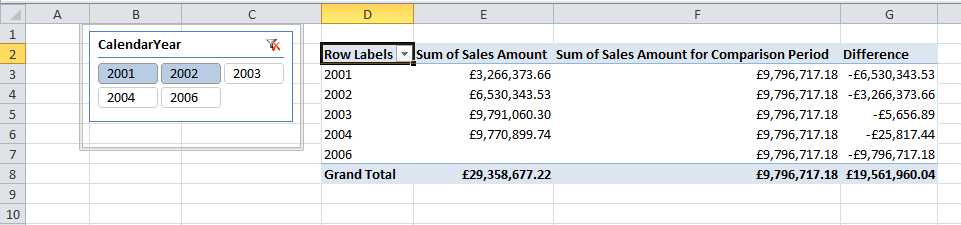
To show how this works, look at the following PivotTable showing these three measures:
image

I have CalendarYear from DimDate on the rows of the PivotTable and CalendarYear from DimDateCompare on the Slicer. The Sum of Sales Amount measure shows, as you would expect, the sum of sales for each year on DimDate; the Sum of Sales Amount for Comparison Period ignores what’s on rows and returns the sum of sales for the two years selected on DimDateComparison, ie 2001 and 2002. This is £3,266,373.66 + £6,530,343.53 = £9,796,717.18; and Difference shows the second of these values subtracted from the first.

Not a very interesting calculation in itself perhaps, but I’m intrigued by the possibilities of having tables in the model that only have inactive relationships with other tables; up to now I’ve only used inactive relationships in scenarios where there have been another active relationship between the same two tables, for example as described in Kasper’s post here.

PASS Global Growth Initiatives

Earlier this year I got involved in one of the slanging matches that seem to blow up every so often about some aspect of PASS politics. I argued that PASS could only grow to become a truly international organisation if changes were made to its constitution, to ensure that all of the different SQL Server communities around the world have a say in the way it is run. I was therefore interested to read this announcement about what PASS has planned in this area:
http://www.sqlpass.org/Community/PASSBlog/entryid/442/PASS-Global-Growth-Initiatives.aspx
More details can be found here:
http://www.sqlpass.org/Community/GlobalGrowth.aspx
http://www.sqlpass.org/LinkClick.aspx?fileticket=-HbsvHNwH_U%3d&tabid=8515
…but if you’ve only got 30 seconds, I think these org charts showing the proposed structure of the PASS Board in the coming years (next year there would be a new “EMEA Director at Large” seat on the board with voting rights, and a similar APAC seat would be created the year after) are important:
http://www.sqlpass.org/LinkClick.aspx?fileticket=95puV_d_sxU%3d&tabid=8515

If you’re reading this outside the US, why should you care about what PASS is doing here? I know from my involvement with SQLBits that a lot of good things can be accomplished at the national level without the direct involvement of PASS; but I also know from my involvement with SQLBits that at a certain point the benefits of international co-operation between different SQL Server communities becomes clear, and that the only body that can co-ordinate these activities is PASS. I don’t want to see PASS assume day-to-day control over every single aspect of the SQL Server community everywhere in the world and I doubt that would ever happen, but I do want to see PASS active in providing help and support to foster the growth of national SQL Server communities when it is needed and requested. I believe that can only happen effectively if PASS has an international leadership.

So if you’ve ever been to a SQLBits, a SQLRally, a SQL Saturday, a user group or any other SQL Server community event and thought it was worthwhile then I’d urge you to get involved. Join PASS if you aren’t already a member (it’s easy and free), vote for the people you think will represent your views and needs, and make your voice heard. It will benefit PASS, it will benefit your local SQL Server community and ultimately it will benefit you.

OData Extensions for Data Aggregation

I was just reading the following blog post on the OASIS OData Technical Committee Call for Participation:
http://www.odata.org/blog/2012/6/11/oasis-odata-technical-committee-call-for-participation

…when I saw this:

In addition to the core OData version 3.0 protocol found here, the Technical Committee will be defining some key extensions in the first version of the OASIS Standard:

OData Extensions for Data Aggregation – Business Intelligence provides the ability to get the right set of aggregated results from large data warehouses. OData Extensions for Analytics enable OData to support Business Intelligence by allowing services to model data analytic "cubes" (dimensions, hierarchies, measures) and consumers to query aggregated data

Follow the link in the quoted text – it’s very interesting reading! Here’s just one juicy quote:

OData services expose a data model that describes the schema of the service in terms of
the Entity Data Model (EDM), an Entity-Relationship model that describes the data and
then allows for querying that data. The responses returned by an OData provider are
based on that exposed data model and retain the relationships between the entities in the
model. Adding the notion of  aggregation to OData, without changing any of the base
principles in OData as is, has two sides to it:
1. Means for the server to describe an “analytical shape” of the data represented by
the service
2. Means for the client to query an “analytical shape” on top of any given data
model (for sufficiently capable servers/services)
It’s important to notice that, while each of these two sides might be valuable in its own
right and can be used independently of the other, their combination provides additional
value for clients. The  descriptions  provided by the server  will help a consumer
understand more of the data structure looking at the service’s exposed data model from an
analytics perspective, whereas the  query extensions allow  the  clients to  express an
“analytical shape” for a particular query. The query extensions will also allow clients to
refer to the server-described “analytical shape” as shorthand.

One of the authors, Siva Harinath, I know from the SSAS dev team and it’s easy to see how this extension for OData would be incredibly useful for Microsoft BI. Not only could you imagine cloud-based SSAS (when it finally arrives) being queryable via OData, but it would allow an OData provider to not only of supply raw data to PowerPivot but the design of the PowerPivot model itself.

Tuning Queries with the WITH CACHE Statement

One of the side-effects of the irritating limitations that SSRS places on the MDX you can use in your reports is the widespread use of calculated measures to get the columns you want. For example, a query like this (note, this query isn’t on the Adventure Works cube but on a simpler cube built on the Adventure Works DW database):

SELECT
{[Measures].[Sales Amount]}
*
[Date].[Day Number Of Week].[Day Number Of Week].MEMBERS
ON 0,
[Product].[Product].[Product].MEMBERS ON 1
FROM [Adventure Works DW]

image

…which wouldn’t be allowed in SSRS, could be rewritten like so:

WITH
MEMBER MEASURES.D1 AS
([Measures].[Sales Amount], [Date].[Day Number Of Week].&[1])
MEMBER MEASURES.D2 AS
([Measures].[Sales Amount], [Date].[Day Number Of Week].&[2])
MEMBER MEASURES.D3 AS
([Measures].[Sales Amount], [Date].[Day Number Of Week].&[3])
MEMBER MEASURES.D4 AS
([Measures].[Sales Amount], [Date].[Day Number Of Week].&[4])
MEMBER MEASURES.D5 AS
([Measures].[Sales Amount], [Date].[Day Number Of Week].&[5])
MEMBER MEASURES.D6 AS
([Measures].[Sales Amount], [Date].[Day Number Of Week].&[6])
MEMBER MEASURES.D7 AS
([Measures].[Sales Amount], [Date].[Day Number Of Week].&[7])
SELECT
{MEASURES.D1,MEASURES.D2,MEASURES.D3,MEASURES.D4,MEASURES.D5,MEASURES.D6,MEASURES.D7}
ON 0,
[Product].[Product].[Product].MEMBERS ON 1
FROM [Adventure Works DW]

…to get it in an SSRS-friendly format with only measures on columns.

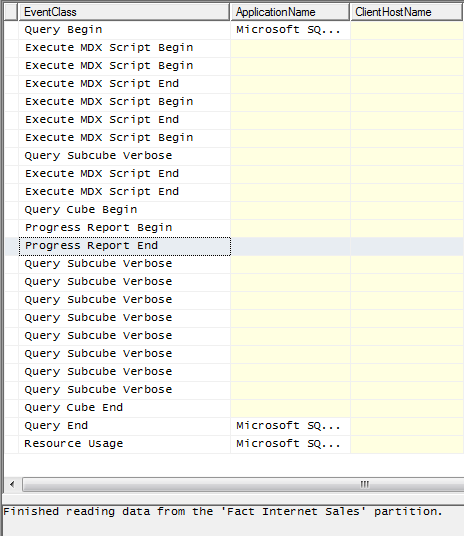
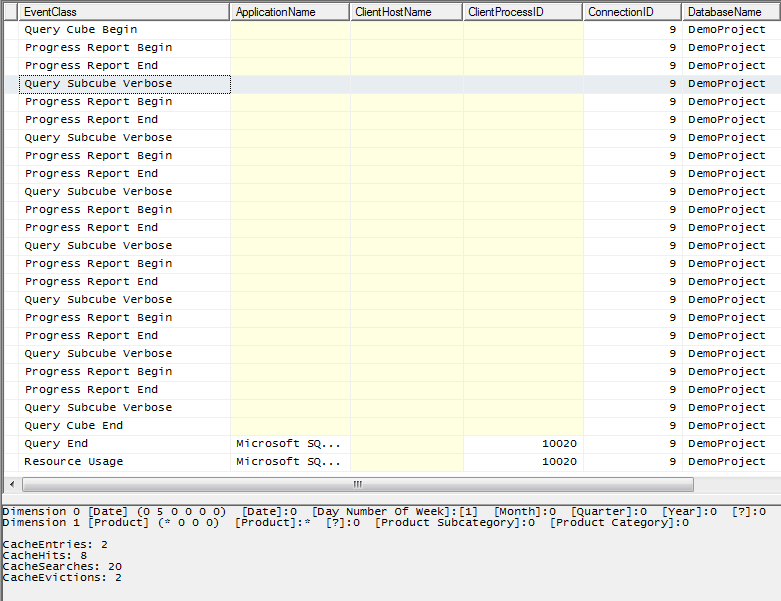
For the last few days I’ve had the pleasure of working with Bob Duffy (a man so frighteningly intelligent he’s not only an SSAS Maestro but a SQL Server MCM as well) on tuning a SSRS report like this on a fairly large cube. As Bob found, the problem with this style of query is that it isn’t all that efficient: if you look in Profiler at what happens on a cold cache, you can see there are seven separate Query Subcube events and seven separate partition scans (indicated by the Progress Report Begin/End events) for each calculated measure on columns.

image

The first thing that Bob tried to tune this was to rewrite the query something like this:

SELECT
{[Measures].[Sales Amount]}
ON 0,
NON EMPTY
[Product].[Product].[Product].MEMBERS
*
[Date].[Day Number Of Week].[Day Number Of Week].MEMBERS
ON 1
FROM [Adventure Works DW]

…and pivot the data in the SSRS tablix to get the desired layout with the Day Numbers on columns. The interesting thing, though, is that for this particular report while rewriting the query in this way made it run faster (there is only one Query Subcube event and partition scan now) it actually made the SSRS report run slower overall, simply because SSRS was taking a long time to pivot the values.

Instead, together we came up with a way to tune the original query using the WITH CACHE statement like so:

WITH
CACHE AS
‘([Measures].[Sales Amount]
, [Product].[Product].[Product].MEMBERS
, [Date].[Day Number Of Week].[Day Number Of Week].MEMBERS)’

MEMBER MEASURES.D1 AS
([Measures].[Sales Amount], [Date].[Day Number Of Week].&[1])
MEMBER MEASURES.D2 AS
([Measures].[Sales Amount], [Date].[Day Number Of Week].&[2])
MEMBER MEASURES.D3 AS
([Measures].[Sales Amount], [Date].[Day Number Of Week].&[3])
MEMBER MEASURES.D4 AS
([Measures].[Sales Amount], [Date].[Day Number Of Week].&[4])
MEMBER MEASURES.D5 AS
([Measures].[Sales Amount], [Date].[Day Number Of Week].&[5])
MEMBER MEASURES.D6 AS
([Measures].[Sales Amount], [Date].[Day Number Of Week].&[6])
MEMBER MEASURES.D7 AS
([Measures].[Sales Amount], [Date].[Day Number Of Week].&[7])
SELECT
{MEASURES.D1,MEASURES.D2,MEASURES.D3,MEASURES.D4,MEASURES.D5,MEASURES.D6,MEASURES.D7}
ON 0,
[Product].[Product].[Product].MEMBERS ON 1
FROM [Adventure Works DW]

What WITH CACHE statement does here is load all the data needed for the query into the Storage Engine cache before anything else happens. So even though there are still seven different Query Subcube events for each column, there’s now only one partition scan and each of the seven Query Subcube events now hits cache:

image

There’s no guarantee that this approach will result in the best performance even when you have a query in this form, but it’s worth testing if you have. It’s certainly the first time in a long while that I’ve used the WITH CACHE statement in the real world – so it’s interesting from an MDX point of view too.

Handling SSRS Multi-Valued Parameters in DAX Queries

Last year I blogged about using DAX queries inside SSRS reports but one topic I didn’t touch on was how to handle parameters. Marco wrote a post on using parameters in DAX earlier this year but didn’t cover how to handle multi-valued parameters in SSRS, so I thought I’d write a post to fill that gap.

Let’s start by assuming you’ve built a simple SSAS 2012 Tabular model that contains the DimDate table from Adventure Works, that you want to build an SSRS report that shows data from that table and you want to parameterise that report by the values in the EnglishDayNameOfWeek column, ie by day.

If you were writing the query from scratch, probably the best way of doing it would be to use the CalculateTable() function like so:

evaluate
calculatetable(
DimDate
, DimDate[EnglishDayNameOfWeek] = "Monday"
)

This query returns the whole of the DimDate table filtered where EnglishDayNameOfWeek is Monday.

image

To filter by Monday or Tuesday, you’d need to do something like this:

evaluate
calculatetable(
DimDate
, DimDate[EnglishDayNameOfWeek] = "Monday"
|| DimDate[EnglishDayNameOfWeek] = "Tuesday"
)

Since there is no way of doing an IN in DAX, you might be able to guess what the big problem that needs to solved when handling multi-value parameters in DAX is: with this style of query, for each parameter value that is selected you need to add a new OR condition and the only way of doing that is to generate the query dynamically. While that’s perfectly possible in SSRS it’s something you may want to avoid because it makes report development awkward.

As an alternative to dynamic query generation you can make use of the DAX PathContains() function. Although it’s intended for use when flattening out parent/child hierarchies, it’s useful here because it allows you to see whether a particular string value appears in a pipe-delimited list. You can use it with the Filter() function to get all the Mondays and Tuesdays like so:

evaluate
filter(
DimDate
, pathcontains("Monday|Tuesday", DimDate[EnglishDayNameOfWeek])
)

There’s a problem with using it this way, unfortunately – it’s not very efficient. Looking in Profiler at the Vertipaq SE Query Begin/End events, you can see that Storage Engine has to call back to the Formula Engine to use the PathContains() function when filtering:

image

…and as Jeffrey Wang describes here, this can be very expensive indeed. However, its impact can be lessened if you have a small number of potential parameter values by doing this instead:

evaluate
calculatetable(
DimDate
, filter(
values(DimDate[EnglishDayNameOfWeek])
, pathcontains("Monday|Tuesday", DimDate[EnglishDayNameOfWeek])
)
)

Here, I’m only filtering the table of distinct values in the EnglishDayNameOfWeek column (which has only got 7 rows), and then taking that table and using it as a filter with the calculatetable() function on the main DimDate table. In this case there’s still a callback but only on a filter on a relatively small table, and the filter on the larger table, DimDate, is performed in the most efficient way possible.

How, then, can you take this query pattern and use in in your SSRS report? The first thing to do is to create a dataset that returns all the days of the week, using the following query:

evaluate values(DimDate[EnglishDayNameOfWeek])

image

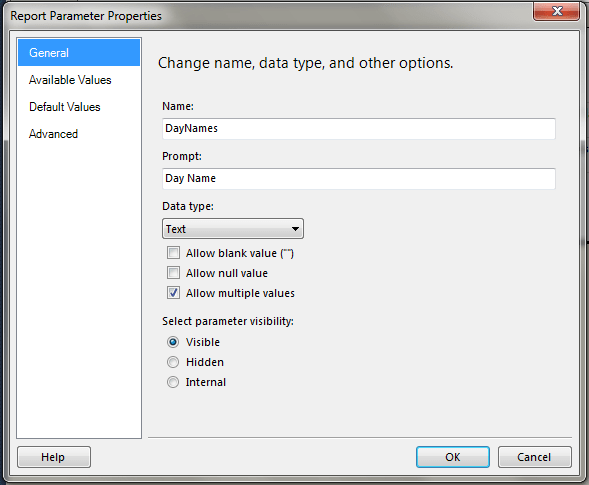
This, then, can be used to provide the available values for an SSRS multi-valued parameter. This should all be straightforward for anyone who has used SSRS before.

image

image

You can then add a new query parameter to our main dataset, the one that queries the DimDate table:

image 

The next problem to solve is the fact that when using the Analysis Services connection type in SSRS, when you have a multi-valued parameter SSRS assumes you’re using MDX to query a cube. Therefore, if you have selected Monday and Tuesday in your parameter, SSRS will pass a string containing an MDX set expression like the one below through to the query parameter:

{ Monday,Tuesday }

You therefore need to do some string manipulation to turn this into a pipe-delimited string of the type that PathContains() can use. Here’s the complete DAX query that shows how this can be done:

evaluate
calculatetable(
DimDate
, filter(
values(DimDate[EnglishDayNameOfWeek])
, pathcontains(
substitute(
substitute(
substitute(
@DayNames
, "{ ", "")
, " }", "")
, ",", "|")
, DimDate[EnglishDayNameOfWeek])
)
)

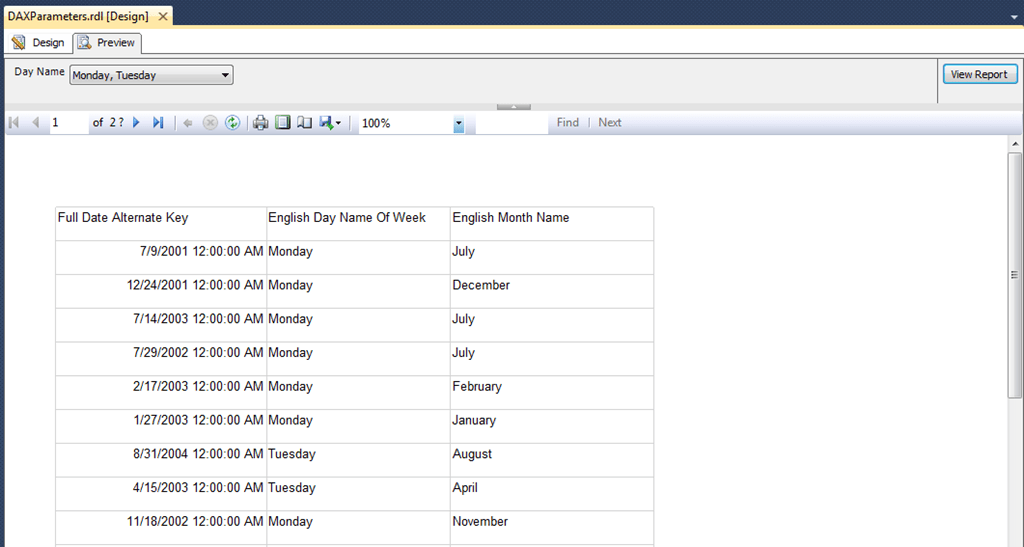
It’s pretty simple: I’m using Substitute() to remove the opening and closing braces, and to turn the commas into pipes.  With that done, you now have an SSRS report using a DAX query that can handle multi-valued parameters!

image

“Unable to Establish Server Mode” Error in SSMS

This morning when I tried to connect to my local SSAS 2012 (RTM) Tabular instance in the Object Explorer in SQL Server Management Studio I got the following error message:

TITLE: Microsoft SQL Server Management Studio
——————————

Error connecting to ‘localhost\tabular’.

——————————
ADDITIONAL INFORMATION:

Unable to establish server mode. (ObjectExplorer)

image

This was an error I’d seen before several times (as had Alberto – see here – and a few other people), and had previously associated it with memory issues and/or corrupted databases. However in this case I was confused because I was still able to query the SSAS Tabular instance in question from Excel and deploy to it from SQL Server Data Tools, so I was pretty sure there wasn’t anything wrong with the instance.

After a bit of looking around I found what the problem was. A few days ago I had been using SQL Server Management Studio to write queries against a workspace database and I had set the name of the database in the ‘Connect to database’ dropdown on the Connection Properties of the Connect to Server dialog, as shown below:

SNAGHTML23b0336

Now the SSDT project associated with this workspace database had its Workspace Retention property set to ‘Unload from Memory’, so when I closed the project the workspace database disappeared from the server. However in SQL Management Studio the Connection Properties dialog was still trying to connect to the database even though it was no longer there, and instead of giving a sensible error message it was giving me the “Unable to establish server mode” error. Fixing the problem was simple: I just went to the Connect to database dropdown and selected “<default>” instead of the name of the workspace database.

I would imagine that a lot of people will run into this issue, not only when they have been connecting to workspace databases but also if they connect to regular databases that are subsequently deleted. Hopefully this blog post will save them a lot of time spent wondering what’s gone wrong!

SSAS Compare

When I was at SQL Saturday in Dublin a few weeks ago I sat in on a sponsor session given by red-gate and heard that they were working on their first tool for Analysis Services: SSAS Compare. Today it appeared on their labs site and you can download it to check it out yourself:
http://www.red-gate.com/labs/ssas-compare/index

Here’s what they have to say about it:

Red Gate SSAS Compare is a tool for Microsoft Business Intelligence professionals that generates XMLA scripts for partial or complete SSAS cube deployment.

Easily deliver updates from development through test and production, minimizing the time spent processing and validating changes.

It’s a very early release and therefore a bit buggy; in fact I haven’t been able to get it to work at all on my laptop (I suspect it doesn’t work with SSAS 2012). However I’m still very excited by the possibilities of this tool: quite a few of my customers have several versions of the same database, and need to find out how they differ and deploy the same changes to all of them. Definitely something to keep an eye on.

A Look At Google BigQuery

Over the years I’ve written quite a few posts about Google’s BI capabilities. Google never seems to get mentioned much as a BI tools vendor but to me it’s clear that it’s doing a lot in this area and is consciously building up its capabilities; you only need to look at things like Fusion Tables (check out these recently-added features), Google Refine and of course Google Docs to see that it’s pursuing a self-service, information-worker-led vision of BI that’s very similar to the one that Microsoft is pursuing with PowerPivot and Data Explorer.

Earlier this month Google announced the launch of BigQuery and I decided to take a look. Why would a Microsoft BI loyalist like me want to do this, you ask? Well, there are a number of reasons:

  • It looked like fun.
  • It’s actually described by Google themselves as an OLAP system here. I don’t agree with this classification – I think it’s better to describe it as an analytical database – but it was enough to make an old OLAP-fan like me curious. It’s also a column-store database. While it’s hardly a complete BI solution in itself it could easily be used as the back-end for one and I believe the French BI vendor BIME already support it as a data source.
  • I’ve argued in the past the only reason that anyone would want to do cloud-based BI would be to scale way beyond whatever on premises hardware they could afford, and Google does make some impressive claims for its scalability: it should be able to provide quick response times for queries on terabytes of data. After all, if I can handle hundreds of millions of rows of data in PowerPivot on my laptop then I’m only going to be tempted to use a cloud-based solution if I need to work with much larger data volumes.
  • It’s based on Dremel, and I’ve heard that one of the developers that works on Dremel is someone we used to know well in the world of Microsoft BI.

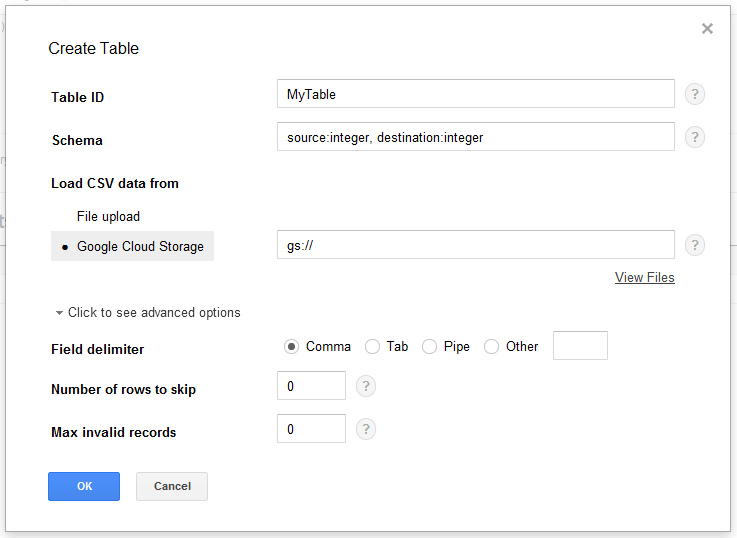
To test it out I thought I’d see how it handled the largest csv file I happened to have handy: a 1.2 GB dataset consisting of two integer columns and 86,220,856 rows. I wasn’t able to load the file direct into BigQuery because it was too large (small files you can load in direct), so I first had to upload it into Google Cloud Storage and then loaded it into BigQuery. The upload into Google Cloud Storage took about an hour, and once that was complete it took about 15 minutes to load it into BigQuery. Here’s the dialog for loading data into BigQuery – it’s pretty straightforward, as you can see:

image

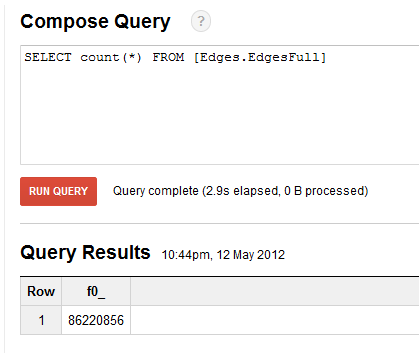
The first query I ran was a simple count(*) to find the number of rows in the table, and that took a respectable 2.9 seconds:

image

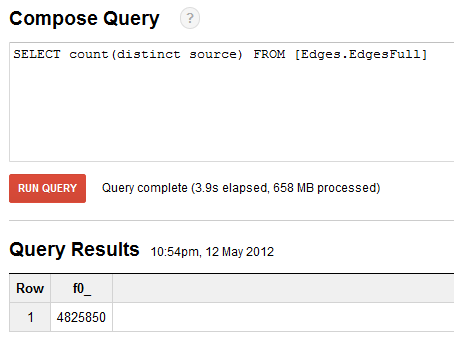
Finding the number of distinct values in one of the columns was a little slower, at 3.9 seconds:

image

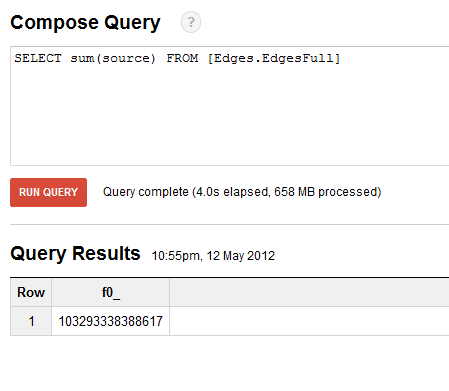
As was getting the sum of the values in a column, at 4.0 seconds:

image

While not astounding fast it, the fact that all these queries executed in under 5 seconds means that performance is good enough for ad hoc data analysis.

Next, I thought I’d have a crack at the problem that this dataset was actually intended for: the scenario described in this post on the Vertica blog from last year:

http://www.vertica.com/2011/09/21/counting-triangles/

Ignoring the my-technology-is-better-than-yours tone of this post, I thought this was an interesting problem: easy to understand but difficult to calculate quickly, and a good test for any product with pretensions to being a ‘big data’ platform. The two columns in the csv file are meant to represent the ids of members of a social network, and with each row representing a relationship between two people. The problem to solve is to find how many ‘triangles’ there are in the data, ie situations where person A has a relationship with person B, person B has a relationship with person C and person C also has a relationship with person A.

It was fairly easy to adapt the SQL in the blog post to the BigQuery syntax, the only slight problem being that it only supports joins between two tables at a time and so you have to use subselects:

select count(*)
from
(select
e2.Source as e2Source, e2.Destination as e2Destination,
e3.Source as e3Source, e3.Destination as e3Destination
from
(select * from [Edges.EdgesFull]) as e2
join
(select * from [Edges.EdgesFull]) as e3
on e2.destination = e3.source
where e2.source < e3.source) as e4
join
(select * from [Edges.EdgesFull]) as e1
on e1.destination = e4.e2source
and e4.e3destination = e1.source
where e1.source < e4.e2source


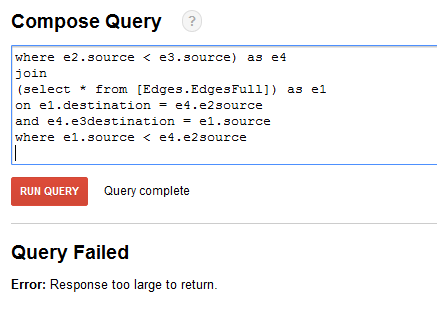
On a small test dataset everything worked OK, but on the full dataset I ran the query and… got an error:

image

Reading the small print in the docs I realised I’d run into the following limitation:

BigQuery provides real-time query performance for JOIN statements where one of the two sides is small. Here small means less than 8MB of compressed data; compression rates vary, but are usually in the range of 2-10X as compared to the corresponding CSV. We expect this 8MB limit to continue to increase over time. For simplicity, we always require the table on the right side of any JOIN clause to be small. Outer joins with a small table on the "outer" side are unsupported, which means that we only support left outer joins.

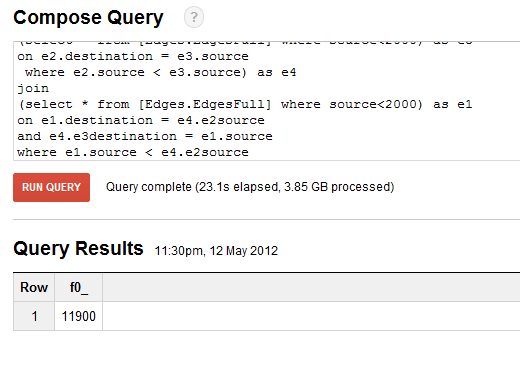
Clearly my entire table was going to be much more than this limit. I had a go at filtering the data so that the first column was less than 2000 (the max value in each column is 4,847,570) and that worked, returning in 23.1 seconds:

select count(*)
from
(select
e2.Source as e2Source, e2.Destination as e2Destination,
e3.Source as e3Source, e3.Destination as e3Destination
from
(select * from [Edges.EdgesFull] where source<2000) as e2
join
(select * from [Edges.EdgesFull] where source<2000) as e3
on e2.destination = e3.source 
where e2.source < e3.source) as e4
join
(select * from [Edges.EdgesFull] where source<2000) as e1
on e1.destination = e4.e2source
and e4.e3destination = e1.source 
where e1.source < e4.e2source
   
image

A bit disappointing, but maybe this is a problem more suited to Pregel than Dremel? Certainly in more traditional OLAP scenarios when you need to join a fact table to a dimension table, many dimension tables will be smaller than 8MB when compressed so this limitation wouldn’t be such an issue.

Overall I was impressed with the performance and ease-of-use of BigQuery, and I’ll be interested to see how it develops in the future and integrates with the rest of the Google stack (it’s already possible to hook it up to Google docs with a bit of coding). I will, of course, be equally interested to see what Microsoft’s cloud BI and Office strategy comes up with to counter this.

Named Sets and Block Computation in SSAS 2012

Greg Galloway (who really should blog more often!) recently came across an otherwise undocumented query performance optimisation in SSAS 2012: using named sets inside aggregate functions in MDX no longer prevents the use of block computation/bulk mode. This was something that was explicitly called out as a Bad Thing To Do in Books Online (the link to the page in question is now dead though, possibly because it’s being updated), but here’s an example of a query that will now run much faster in SSAS 2012 Multidimensional than it used to in R2:

with
set myset as {[Customer].[Customer].[Customer].members}
member measures.demo as
sum(myset,[Measures].[Internet Sales Amount])
select measures.demo on 0,
[Date].[Calendar Year].members on 1
from [Adventure Works]

There are still situations where block computation can’t be used however, namely when the Current() function is used (which are going to be very rare I think):

with
set myset as {[Customer].[Customer].[Customer].members}
member measures.demo as
sum(myset
, iif(myset.current is [Customer].[Customer].&[20075]
, 0, [Measures].[Internet Sales Amount])
)
select measures.demo on 0,
[Date].[Calendar Year].members on 1
from [Adventure Works]

Thanks also to Jeffrey Wang for the background on this.

Controlling the Position of Subtotals in DAX with GenerateAll()

Today I’m teaching the SSAS 2012 Tabular workshop with Alberto Ferrari in Belgium, and an interesting question came up during my session on DAX queries to do with subtotals that I couldn’t answer immediately. However, I found a solution fairly quickly afterwards and so I thought it was worth blogging about – especially since I think it’s a better solution than the one that Alberto knew about already!

Consider this DAX query that runs on a table sourced from the DimDate table in Adventure Works:

evaluate
summarize(
DimDate
, DimDate[CalendarYear]
, rollup(DimDate[DayNumberOfWeek])
, "Number of Days"
, countrows(DimDate)
)

It returns the number of Days in the table by calendar year and day number of week – it’s very similar to a basic GROUP BY query in SQL. I blogged about this use of Summarize() and Rollup() last year here.

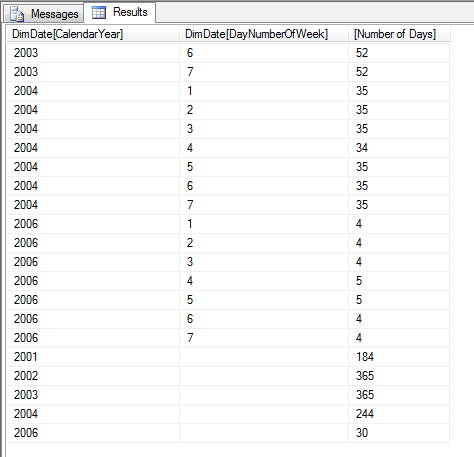
The problem with this query is that all of the year subtotals (which appear as rows with blank values returned in the day number of week column) created by this query appear at the end of the result set, as you can see here:

image

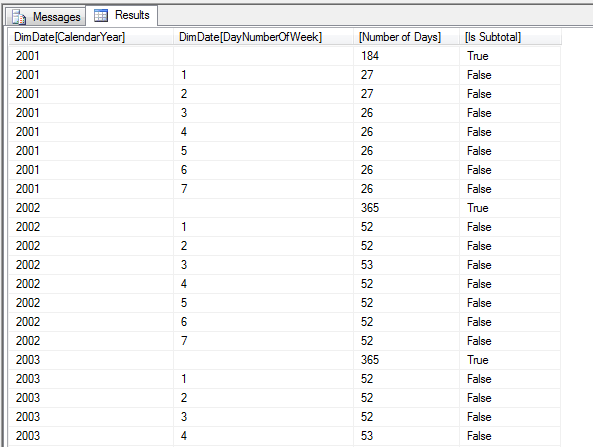
This isn’t very clear though. How can we put each year’s subtotal at the end of the distinct list of day numbers instead? Alberto’s solution (and I think this is the solution we’ve got in our new SSAS 2012 Tabular book) involves using the IsSubtotal() function (see here for more details on this) and ordering, similar to this:

evaluate
summarize(
DimDate
, DimDate[CalendarYear]
, rollup(DimDate[DayNumberOfWeek])
, "Number of Days"
, countrows(DimDate)
, "Is Subtotal"
, IsSubtotal(DimDate[DayNumberOfWeek])
)
order by
DimDate[CalendarYear] ASC
, DimDate[DayNumberOfWeek] ASC
, [Is Subtotal] ASC

image


But I thought there was an alternative, more elegant approach and found one. Here it is:

evaluate
generateall(
values(DimDate[CalendarYear])
,
summarize(
DimDate
, rollup(DimDate[DayNumberOfWeek])
, "Number of Days"
, calculate(countrows(DimDate))
)
)

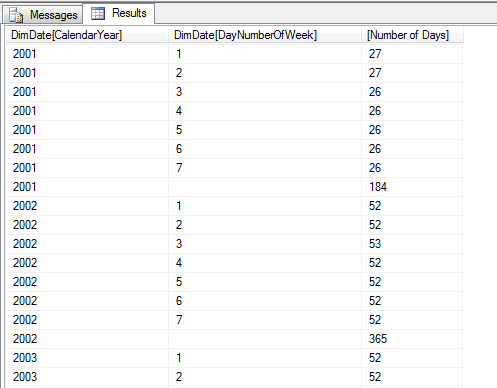
image

As you can see, the subtotals appear after the list of day numbers for each year. There are two important things to understand about how this query works:

  • I’m using the GenerateAll() function to take the list of distinct years returned by the Values() function and then, for each year, return a table of day numbers with a subtotal and crossjoin the result. This gives us our subtotals in the correct position without any sorting required.
  • I had to wrap my original countrows() with calculate to make sure it returned the correct value.