BI Survey 14 Results

Once again, the nice people at BARC have sent me a copy of the results of the latest BI Survey and allowed me to blog about some of their findings (obviously if you want to read them all, buy the survey!). Here are a couple of things that caught my eye:

  • When respondents were asked about which BI products they evaluated, Qlik came top of the list with 36% evaluating it, followed by all of the Microsoft products (Excel/Power BI at 35%, SSAS at 28% and SSRS at 26%). However when it came to picking products Excel/Power BI came top at 25%, followed by ‘other’ products, then SSAS at 21% and SSRS at 17% with Qlik at 16%. I wonder what parts of the Power BI stack the Excel/Power BI users were actually using exactly though? I suppose the point about it is that users can take whatever parts of it they want to complement what they do in Excel. These numbers are very encouraging in any case.
  • Looking at reported usage problems for MS products some familiar issues came up: 25% of Excel/Power BI users complained that the product couldn’t handle the data volumes they wanted and 16% complained of security limitations – both scores were the worst across all products. Partly this can be explained by the desktop-bound nature of the product, but I wonder whether the limitations of 32 bit Excel are behind the data volume problems? Also, 18% of SSRS users complained of missing key features, which again was the worst score for this category across all products. I hope MS plans to show SSRS some more love in the future after several years of neglect. Other products have other weaknesses of course – 26% of Tableau users had administrative problems, 53% of SAP BW users had problems with slow query performance and 21% of TM1 users had issues with poor data governance. Nothing is perfect.
  • Respondents were asked about cloud BI adoption. For those using Excel/Power BI, 15% were in the cloud now (the third best score across all products) which I assume means they are using Power BI for Office 365; a further 15% were planning to go to the cloud in the next 12 months; a further 19% were planning to go in the long term; and 51% had no plans. Presumably this last group of users would like to see more of the Power BI for Office 365 functionality implemented within SharePoint on premises.

Sentiment Analysis In Excel With Azure Machine Learning And Power Query

You may have seen Joseph Sirosh’s blog post last week about the ability to publish Azure Machine Learning models to the Azure Marketplace, and that MS have published a number of APIs there already. There’s a new Excel add-in that can be used with these APIs but I noticed that at least one of them, the Sentiment Analysis API, can be used direct from Power Query too.

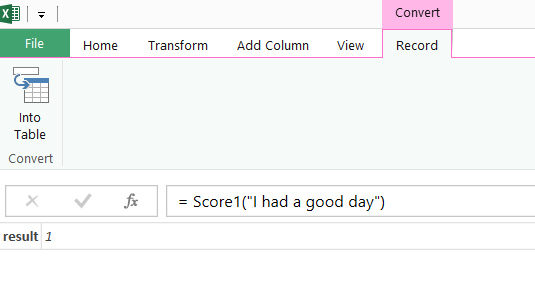
To do this, the first thing you need to do is to go to the Azure Marketplace, sign in with your Microsoft account, and subscribe to the Lexicon Based Sentiment Analysis API. The docs say you get 25000 transactions free per month although there doesn’t appear to be a way to pay for more; that said the number of transactions remaining shown on my account kept resetting, so maybe there is no limit. The API itself is straightforward: pass it a sentence to evaluate and it will return a score between –1 and 1, where 1 represents a positive sentiment and –1 is a negative sentiment. For example, the sentence “I had a good day” returns the value 1:

image

…whereas the sentence “I had a bad day” returns –1:

image

You can now go to Power Query and click From Azure Marketplace (you will need to enter your credentials at this point if this is the first time you’ve used the Azure Marketplace from Power Query):

image

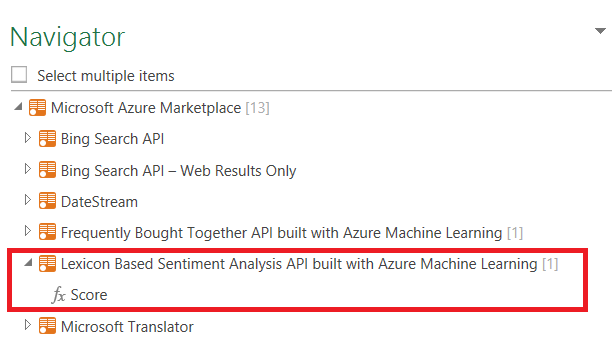
…and then, when the Navigator pane appears, double-click on Score:

image

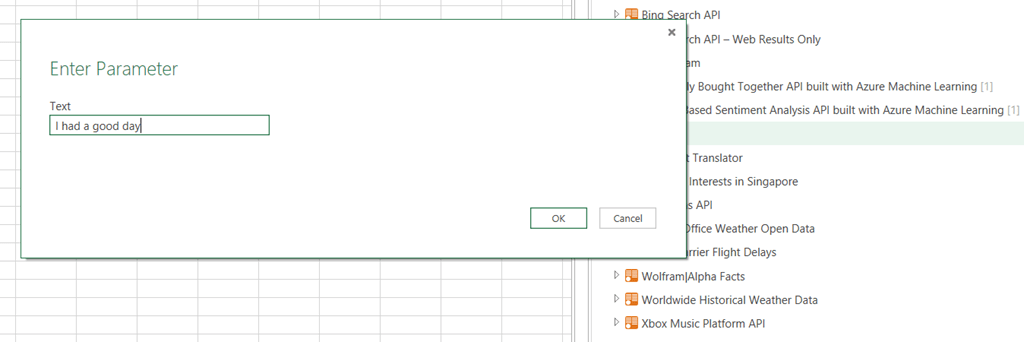
The API is exposed as a function in Power Query (I guess because it’s an OData service operation, but I’m not sure) and double-clicking on Score invokes the function. You can enter a sentence here and the Query Editor will open to show the score:

image

image

However, to do anything useful you don’t want to invoke the function just yet – you want a query that returns the function. To do this you need to edit the query. Go to the Advanced Editor and you’ll see the M code for the query will be something like this:

[sourcecode language='text' ]
let
    Source = Marketplace.Subscriptions(),
    #"https://api.datamarket.azure.com/data.ashx/aml_labs/
      lexicon_based_sentiment_analysis/v1/" = 
      Source{
       [ServiceUrl="https://api.datamarket.azure.com/data.ashx/aml_labs/
       lexicon_based_sentiment_analysis/v1/"]
       }[Feeds],
    Score1 = 
       #"https://api.datamarket.azure.com/data.ashx/aml_labs/
       lexicon_based_sentiment_analysis/v1/"
       {[Name="Score"]}[Data],
    #"Invoked FunctionScore1" = Score1("I had a good day")
in
    #"Invoked FunctionScore1"
[/sourcecode]


You need to remove the last line (called #”Invoked FunctionScore1”) which invokes the function, leaving:

[sourcecode language='text' ]
let
    Source = Marketplace.Subscriptions(),
    #"https://api.datamarket.azure.com/data.ashx/aml_labs/
      lexicon_based_sentiment_analysis/v1/" = 
      Source{[ServiceUrl="https://api.datamarket.azure.com/data.ashx/aml_labs/
      lexicon_based_sentiment_analysis/v1/"]}[Feeds],
    Score1 = #"https://api.datamarket.azure.com/data.ashx/aml_labs/
      lexicon_based_sentiment_analysis/v1/"
      {[Name="Score"]}[Data]
in
    Score1
[/sourcecode]


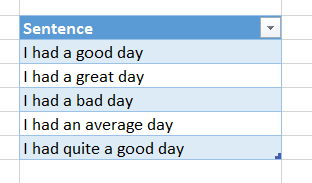
You can now click the Close and Load button to close the Query Editor window; you now have a function called Score that you can call in other queries. For example, take the following Excel table (called Sentences):

image

Click on the From Table button to load this table into Power Query, then in the Query Editor click the Add Custom Column button and add a new custom column called Sentiment Score with the expression

Score([Sentence])

image

You’ll then be prompted to set a data privacy level for the data you’re using, because calling this function involves sending data from your worksheet up to the API where someone could potentially see it.

image

Click the Continue button and set the privacy level for the workbook to Public, so that this data can be sent to the API:

image

Click Save and you’ll see the sentiment score has been added as a column containing a Record value. Click on the Expand icon in the SentimentScore column then OK:

image

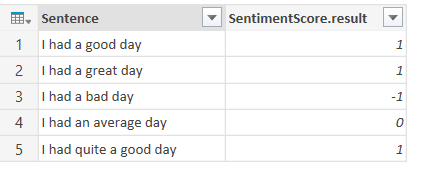
And at last you’ll see the scores themselves:

image

Here’s the code:

[sourcecode language='text' ]
let
    Source = Excel.CurrentWorkbook(){[Name="Sentences"]}[Content],
    #"Added Custom" = Table.AddColumn(Source, "SentimentScore", each Score([Sentence])),
    #"Expand SentimentScore" = 
       Table.ExpandRecordColumn(#"Added Custom", "SentimentScore", 
       {"result"}, {"SentimentScore.result"})
in
    #"Expand SentimentScore"
[/sourcecode]


You can download the sample workbook here.

Of course, I couldn’t resist repeating this exercise with all of my Facebook status updates – which, of course, can be accessed from Power Query very easily. Here’s my monthly average sentiment score from June 2009 to now:

image

As you can see, I was in a particularly good mood this August – probably because I was on holiday for almost the whole month.

MDX Solve Order, SCOPE_ISOLATION and the Aggregate() function

Solve order in MDX is a mess. Back in the good old days of Analysis Services 2000 it was a difficult concept but at least comprehensible; unfortunately when Analysis Services 2005 was released a well-intentioned attempt at making it easier to work with in fact ended up making things much, much worse. In this post I’m going to summarise everything I know about solve order in MDX to try to make this complicated topic a little bit easier to understand.

If you’re an experienced MDXer, at this point you’ll probably lose interest because you think you know everything there is to know about solve order already. Up until two weeks ago that’s what I though too, so even if you know everything I say in the first half of this post keep reading – there’s some new stuff at the end I’ve only just found out about.

Let’s start with a super-simple cube built from a single table, with two measures (Sales Amount and Cost Amount) and a Product dimension containing a single attribute hierarchy with two members (Apples and Oranges). Everything is built from the following table:

image

Solve Order and calculated members in the WITH clause

To understand what solve order is and how it can be manipulated, let’s start off looking at an example that uses only calculated members in the WITH clause of a query. Consider the following:

WITH


MEMBER [Measures].[Cost %] AS

DIVIDE([Measures].[Cost Amount],[Measures].[Sales Amount]),

FORMAT_STRING='0.0%'


MEMBER [Product].[Product].[Total Fruit] AS

SUM({[Product].[Product].&[Apples],

[Product].[Product].&[Oranges]})


SELECT

{[Measures].[Sales Amount],

[Measures].[Cost Amount],

MEASURES.[Cost %]}

ON COLUMNS,

{[Product].[Product].&[Apples],

[Product].[Product].&[Oranges],

[Product].[Product].[Total Fruit]}

ON ROWS

FROM SALES

There are two calculated members here:

  • Cost % divides Cost Amount by Sales Amount to find the percentage that costs make up of the sales amount
  • Total Fruit sums up the values for Apples and Oranges

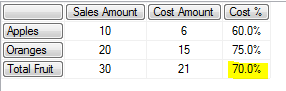
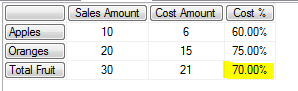
The output of the query is as follows:

image

Solve order controls the order that MDX calculations are evaluated when two or more of them overlap in the same cell. In this case Cost % and Total Fruit are both evaluated in the bottom right-hand cell; Total Fruit is calculated first, giving the values of 30 for Sales Amount and 21 for Cost Amount, and Cost % is calculated after that. The bottom right-hand cell is the only cell where these two calculations overlap and the only cell where solve order is relevant in this query.

In this case, 70% is the value you would expect to get. You, however, can control solve order for calculations in the WITH clause by setting the SOLVE_ORDER property for each calculated member, like so:

WITH


MEMBER [Measures].[Cost %] AS

DIVIDE([Measures].[Cost Amount],[Measures].[Sales Amount]),

FORMAT_STRING='0.0%',

SOLVE_ORDER=1


MEMBER [Product].[Product].[Total Fruit] AS

SUM({[Product].[Product].&[Apples],

[Product].[Product].&[Oranges]}),

SOLVE_ORDER=2


SELECT

{[Measures].[Sales Amount],

[Measures].[Cost Amount],

MEASURES.[Cost %]}

ON COLUMNS,

{[Product].[Product].&[Apples],

[Product].[Product].&[Oranges],

[Product].[Product].[Total Fruit]}

ON ROWS

FROM SALES

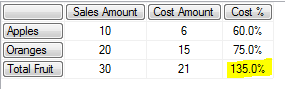
image

Now the value in the bottom right-hand corner is 135% instead of 70%: Cost % is calculated first, then Total Fruit second so 60%+75%=135%. The SOLVE_ORDER property of a calculated member is an integer value, and the lower the SOLVE_ORDER value the earlier the calculation will be evaluated, so with Cost % having a solve order of 1 and Total Fruit having a solve order of 2, this forces Cost % to be calculated first now even though in this case it gives what is clearly an ‘incorrect’ result.

Solve Order and calculated members defined on the cube

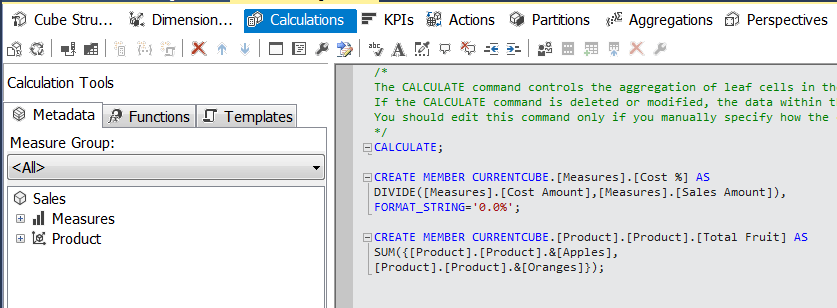
Things now get a bit more complicated. There’s a different way of controlling solve order if your calculations are defined on the cube itself: in this case, solve order is determined by the order that the calculations appear on the Calculations tab. So if the calculations tab of the Cube Editor contains the calculations in this order:

CREATE MEMBER CURRENTCUBE.[Measures].[Cost %] AS

DIVIDE([Measures].[Cost Amount],[Measures].[Sales Amount]),

FORMAT_STRING='0.0%';


CREATE MEMBER CURRENTCUBE.[Product].[Product].[Total Fruit] AS

SUM({[Product].[Product].&[Apples],

[Product].[Product].&[Oranges]});

image

…and you run the following query:

SELECT

{[Measures].[Sales Amount],

[Measures].[Cost Amount],

MEASURES.[Cost %]}

ON COLUMNS,

{[Product].[Product].&[Apples],

[Product].[Product].&[Oranges],

[Product].[Product].[Total Fruit]}

ON ROWS

FROM SALES

You get the incorrect result again:

image

…but if you change the order of the calculations so that Total Fruit comes first:…and rerun the same query, you get the correct results:

image

image

The SOLVE_ORDER property can also be used with calculations defined on the cube to override the effect of the order of calculations. So defining the following calculations on the cube:

CREATE MEMBER CURRENTCUBE.MEASURES.[Cost %] AS

DIVIDE([Measures].[Cost Amount], [Measures].[Sales Amount]),

FORMAT_STRING='PERCENT', SOLVE_ORDER=2;


CREATE MEMBER CURRENTCUBE.[Product].[Product].[Total Fruit] AS

SUM({[Product].[Product].&[Apples],

[Product].[Product].&[Oranges]}), SOLVE_ORDER=1;

image

…means that, even though Total Fruit comes after Cost % on the Calculations tab, because it has a lower solve order set using the SOLVE_ORDER property it is evaluated before Cost % and the query still returns the correct value:

image

Solve order and calculations defined in the WITH clause and on the cube

What happens if some calculations are defined on the cube, and some are defined in the WITH clause of a query? By default, calculations defined on the cube always have a lower solve order than calculations defined in the WITH clause of a query; the SOLVE_ORDER property has no effect here. So if Total Fruit is defined in the WITH clause and Cost % on the cube, you get the incorrect result:

image

WITH


MEMBER [Product].[Product].[Total Fruit] AS

SUM({[Product].[Product].&[Apples],

[Product].[Product].&[Oranges]})


SELECT

{[Measures].[Sales Amount],

[Measures].[Cost Amount],

MEASURES.[Cost %]}

ON COLUMNS,

{[Product].[Product].&[Apples],

[Product].[Product].&[Oranges],

[Product].[Product].[Total Fruit]}

ON ROWS

FROM SALES


image

Of course, if Total Fruit is defined on the cube and Cost % is defined in the WITH clause you will get the correct answer. However, usually measures like Cost % are defined on the cube and it’s calculations like Total Fruit, which define custom groupings, that are defined on an ad hoc basis in the WITH clause. This is a problem.

The SCOPE_ISOLATION property

This default behaviour of calculations defined on the cube always having a lower solve order than calculations in the WITH clause can be overridden using the SCOPE_ISOLATION property. Setting SCOPE_ISOLATION=CUBE for a calculated member defined in the WITH clause will give that calculated member a lower solve order than any calculations defined on the cube. So, with Cost % still defined on the cube the following query now gives the correct results:

WITH


MEMBER [Product].[Product].[Total Fruit] AS

SUM({[Product].[Product].&[Apples],

[Product].[Product].&[Oranges]}),

SCOPE_ISOLATION=CUBE


SELECT

{[Measures].[Sales Amount],

[Measures].[Cost Amount],

MEASURES.[Cost %]}

ON COLUMNS,

{[Product].[Product].&[Apples],

[Product].[Product].&[Oranges],

[Product].[Product].[Total Fruit]}

ON ROWS

FROM SALES

image

The Aggregate() function

Using the MDX Aggregate() function (and in fact also the VisualTotals() function – but you probably won’t ever want to use it) inside a calculation has a similar effect to the SCOPE_ISOLATION property in that it forces a calculation to be evaluated at a lower solve order than anything else. Therefore, in the previous example, instead of using the SCOPE_ISOLATION property you can change the calculation to use the Aggregate() function instead of Sum() and get the correct results:

WITH


MEMBER [Product].[Product].[Total Fruit] AS

AGGREGATE({[Product].[Product].&[Apples],

[Product].[Product].&[Oranges]})


SELECT

{[Measures].[Sales Amount],

[Measures].[Cost Amount],

MEASURES.[Cost %]}

ON COLUMNS,

{[Product].[Product].&[Apples],

[Product].[Product].&[Oranges],

[Product].[Product].[Total Fruit]}

ON ROWS

FROM SALES

image

The general rule is, therefore, whenever you are creating custom-grouping type calculated members like Total Fruit in the WITH clause of a query, to use the Aggregate() function rather than Sum(). The fact that Aggregate() takes into account the AggregateFunction property of each measure on the cube (so that distinct count, min and max measures are dealt with correctly) is another good reason to use it.

Using the Aggregate() function in calculations defined on the cube has the same effect. Even when the Total Fruit calculated member is defined after Cost % on the Calculations tab, as here:

image

…so long as Total Fruit uses the Aggregate() function, running the test query gives the correct result:

SELECT

{[Measures].[Sales Amount],

[Measures].[Cost Amount],

MEASURES.[Cost %]}

ON COLUMNS,

{[Product].[Product].&[Apples],

[Product].[Product].&[Oranges],

[Product].[Product].[Total Fruit]}

ON ROWS

FROM SALES

image


There are some very interesting details about the way Aggregate() changes solve order though.

First of all, using the Aggregate() function in a calculated member doesn’t change the solve order of the whole calculation, just the part of the calculation that uses the Aggregate() function. With the following calculations defined on the cube:

CREATE MEMBER CURRENTCUBE.[Measures].[Cost %] AS

DIVIDE([Measures].[Cost Amount],[Measures].[Sales Amount]),

FORMAT_STRING='0.0%';


CREATE MEMBER CURRENTCUBE.[Product].[Product].[One Aggregate] AS

AGGREGATE({[Product].[Product].&[Apples],

[Product].[Product].&[Oranges]});


CREATE MEMBER CURRENTCUBE.[Product].[Product].[One Sum] AS

SUM({[Product].[Product].&[Apples],

[Product].[Product].&[Oranges]});


CREATE MEMBER CURRENTCUBE.[Product].[Product].[Two Aggregates] AS

AGGREGATE({[Product].[Product].&[Apples],

[Product].[Product].&[Oranges]})

+

AGGREGATE({[Product].[Product].&[Apples],

[Product].[Product].&[Oranges]});


CREATE MEMBER CURRENTCUBE.[Product].[Product].[Two Sums] AS

SUM({[Product].[Product].&[Apples],

[Product].[Product].&[Oranges]})

+

SUM({[Product].[Product].&[Apples],

[Product].[Product].&[Oranges]});


CREATE MEMBER CURRENTCUBE.[Product].[Product].[One Aggregate One Sum] AS

AGGREGATE({[Product].[Product].&[Apples],

[Product].[Product].&[Oranges]})

+

SUM({[Product].[Product].&[Apples],

[Product].[Product].&[Oranges]});

…running the following query:

SELECT

{[Measures].[Sales Amount],

[Measures].[Cost Amount],

MEASURES.[Cost %]}

ON COLUMNS,

{[Product].[Product].&[Apples],

[Product].[Product].&[Oranges],

[Product].[Product].[One Aggregate],

[Product].[Product].[One Sum],

[Product].[Product].[Two Aggregates],

[Product].[Product].[Two Sums],

[Product].[Product].[One Aggregate One Sum]}

ON ROWS

FROM SALES

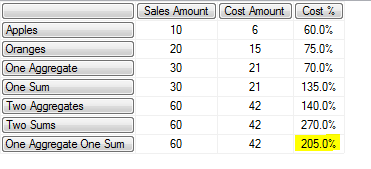
…gives these results:

image

The value returned for the calculation [One Aggregate One Sum], which contains an Aggregate() and a Sum(), shows that the value returned by the Aggregate() is evaluated at a different solve order than the value returned by Sum(), even if they are inside the same calculated member.

Furthermore, in some very obscure cases the contents of the set passed to the Aggregate() function determine whether its special solve order behaviour happens or not. I don’t know for sure what all those cases are but I have seen this happen with time utility (aka date tool aka shell) dimensions. Here’s an example.

The demo cube I’ve been using in this post has been changed to add a new dimension, called Data Type, which has just one hierarchy with one member on it called Actuals; Data Type is a fairly standard time utility dimension. The Cost % calculation has also been changed so that it’s now a calculated member on the Data Type dimension, although it is still defined on the cube. Here’s its new definition:

CREATE MEMBER CURRENTCUBE.[Data Type].[Data Type].[Cost %] AS

DIVIDE(

([Measures].[Cost Amount],[Data Type].[Data Type].&[Actuals]),

([Measures].[Sales Amount],[Data Type].[Data Type].&[Actuals])),

FORMAT_STRING='0.0%';

Now if I run the following query:

WITH


MEMBER [Product].[Product].[Simple Set] AS

AGGREGATE({[Product].[Product].&[Apples],

[Product].[Product].&[Oranges]})


MEMBER [Product].[Product].[Nextmember Function Used] AS

AGGREGATE({[Product].[Product].&[Apples],

[Product].[Product].&[Apples].NEXTMEMBER})


MEMBER [Product].[Product].[Descendants Function Used] AS

AGGREGATE(DESCENDANTS({[Product].[Product].&[Apples],

[Product].[Product].&[Oranges]}))


MEMBER [Product].[Product].[Descendants Function Used Twice] AS

AGGREGATE({

DESCENDANTS([Product].[Product].&[Apples]),

DESCENDANTS([Product].[Product].&[Oranges])

})


MEMBER [Product].[Product].[Descendants Function Used Twice With Union] AS

AGGREGATE(

UNION(

DESCENDANTS([Product].[Product].&[Apples]),

DESCENDANTS([Product].[Product].&[Oranges])

))


SELECT

{[Measures].[Sales Amount]}

*

[Data Type].[Data Type].ALLMEMBERS

ON COLUMNS,

{[Product].[Product].&[Apples],

[Product].[Product].&[Oranges],

[Product].[Product].[Simple Set],

[Product].[Product].[Nextmember Function Used],

[Product].[Product].[Descendants Function Used],

[Product].[Product].[Descendants Function Used Twice],

[Product].[Product].[Descendants Function Used Twice With Union]}

ON ROWS

FROM [Sales With Data Type]

I get these results:

image

Note that for some of the calculations, the Aggregate() function results in a lower solve order in the way we’ve already seen, but not for all of them. Using the NextMember() function, or having two Descendants() functions without wrapping them in a Union() function, seems to stop SSAS assigning the calculation a lower solve order. Ugh. Luckily, though, I have only been able to replicate this with calculated members from two non-measures dimensions; if Cost % is a calculated measure Aggregate() always gives the lower solve order. Apparently this is something that SSAS does on purpose to try to recognise ‘visual total’-like calculated members and make them work the way you want automatically. This is definitely something to beware of if you are using time utility dimensions and calculations on other dimensions though, as it may result in incorrect values being displayed or performance problems if you’re not careful.

[Thanks to Gabi Münster for showing me how Aggregate() works with different sets and Marius Dumitru for confirming that this is intended behaviour]

Thoughts On Office Sway And BI

When I first saw the announcement about Office Sway last week, I thought – well, you can probably guess what I thought. Does it have any potential for BI? After all, the Sway team are clearly targeting business users (as well as hipster designers and schoolchildren): look at the Northwest Aquarium and Smith Fashion Expansion samples, and notice that they contain tables, charts and infographics. What’s more, data storytelling is currently a very hot concept and Sway is clearly all about telling stories. Wouldn’t it be cool if you could have interactive PivotTables, PivotCharts and Power View reports from your Power BI site embedded in a Sway? It would be a much more engaging way of presenting data than yet another PowerPoint deck.

I have no idea whether any integration between Sway and Power BI is actually planned (I have learned not to get my hopes up about this type of thing), but even if it isn’t maybe someone at Microsoft will read this post and think about the possibilities… And isn’t this kind of collaboration between different teams supposedly one of the advantages Microsoft has over its competitors in the BI space?

Office Sway introductory video


PS I want a pink octopus costume just like the one that girl in the video has

Creating Histograms With Power Query

A few months ago someone at a conference asked me what the Power Query Table.Partition() function could be used for, and I had to admit I had no idea. However, when I thought about it, I realised one obvious use: for creating histograms! Now I know there are lots of other good ways to create histograms in Excel but here’s one more, and hopefully it will satisfy the curiosity of anyone else who is wondering about Table.Partition().

Let’s start with a table in Excel (called “Customers”) containing a list of names and ages:

image

Here’s the M code for the query to find the buckets:

let

    //Get data from Customers table

    Source = Excel.CurrentWorkbook(){[Name="Customers"]}[Content],

    //Get a list of all the values in the Age column

    Ages = Table.Column(Source,"Age"),

    //Find the maximum age

    MaxAge = List.Max(Ages),

    //The number of buckets is the max age divided by ten, then rounded up to the nearest integer

    NumberOfBuckets = Number.RoundUp(MaxAge/10),

    //Hash function to determine which bucket each customer goes into

    BucketHashFunction = (age) => Number.RoundDown(age/10),

    //Use Table.Partition() to split the table into multiple buckets

    CreateBuckets = Table.Partition(Source, "Age", NumberOfBuckets, BucketHashFunction),

    //Turn the resulting list into a table

    #"Table from List" = Table.FromList(CreateBuckets, Splitter.SplitByNothing()

                           , null, null, ExtraValues.Error),

    //Add a zero-based index column

    #"Added Index" = Table.AddIndexColumn(#"Table from List", "Index", 0, 1),

    //Calculate the name of each bucket

    #"Added Custom" = Table.AddColumn(#"Added Index", "Bucket", 

                        each Number.ToText([Index]*10) & " to " & Number.ToText(([Index]+1)*10)),

    //Find the number of rows in each bucket - ie the count of customers

    #"Added Custom1" = Table.AddColumn(#"Added Custom", "Count", each Table.RowCount([Column1])),

    //Remove unnecessary columns

    #"Removed Columns" = Table.RemoveColumns(#"Added Custom1",{"Column1", "Index"})

in

    #"Removed Columns"


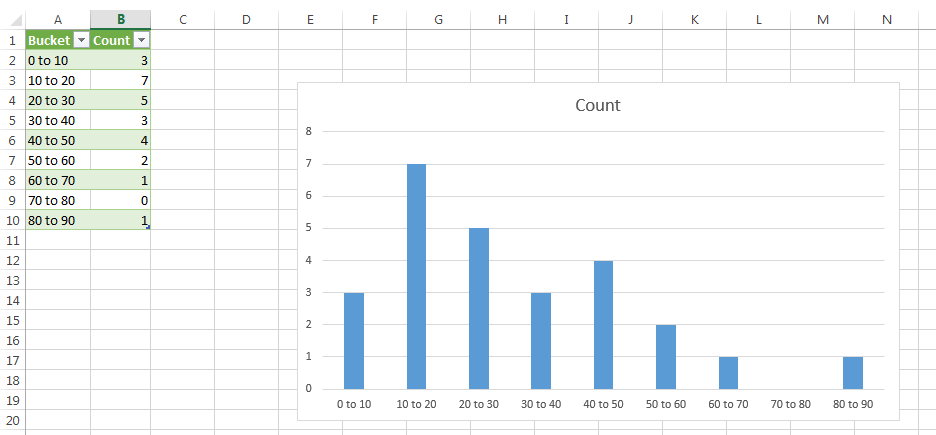
And here’s the output in Excel, with a bar chart:

image 

How does this work?

  • After loading the data from the Excel table in the Source step, the first problem is to determine how many buckets we’ll need. This is fairly straightforward: I use Table.Column() to get a list containing all of the values in the Age column, then use List.Max() to find the maximum age, then divide this number by ten and round up to the nearest integer.
  • Now for Table.Partition(). The first thing to understand about this function is what it returns: it takes a table and returns a list of tables, so you start with one table and end up with multiple tables. Each row from the original table will end up in one of the output tables. A list object is something like an array.
  • One of the parameters that the Table.Partition() function needs is a hash function that determines which bucket table each row from the original table goes into. The BucketHashFunction step serves this purpose here: it takes a value, divides it by ten and rounds the result down; for example pass in the age 88 and you get the value 8 back.
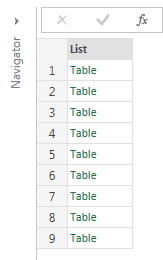
  • The CreateBuckets step calls Table.Partition() with the four parameters it needs: the name of the table to partition, the column to partition by, the number of buckets to create and the hash function. For each row in the original table the age of each customer is passed to the hash function. The number that the hash function returns is the index of the table in the list that Table.Partition() returns. In the example above nine buckets are created, so Table.Partition() returns a list containing nine tables; for the age 8, the hash function returns 0 so the row is put in the table at index 0 in the list; for the age 88 the hash function returns 8, so the row is put in the table at index 8 in the list. The output of this step, the list of tables, looks like this:

    image
  • The next thing to do is to convert the list itself to a table, then add a custom column to show the names for each bucket. This is achieved by adding a zero-based index column and then using that index value to generate the required text in the step #”Added Custom”.
  • Next, find the number of customers in each bucket. Remember that at this point the query still includes a column (called “Column1”) that contains a value of type table, so all that is needed is to create another custom column that calls Table.RowCount() for each bucket table, as seen in the step #”Added Custom1”.
  • Finally I remove the columns that aren’t needed for the output table.

I’m not convinced this is the most efficient solution for large data sets (I bet query folding stops very early on if you try this on a SQL Server data source) but it’s a good example of how Table.Partition() works. What other uses for it can you think of?

You can download the sample workbook here.

The DirectSlice Property And Aggregations

A bit of an obscure one, this, but useful to know nonetheless…

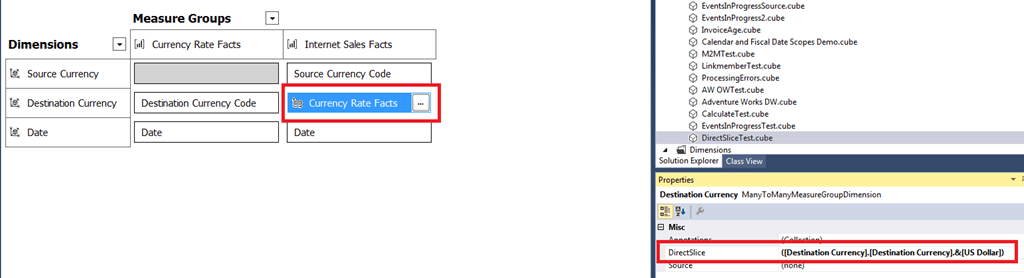
You may or may not be aware of the DirectSlice property, which can be set on a many-to-many relationship in the Dimension Usage pane in Visual Studio:

image

One of the few good descriptions of it comes from this old white paper:

http://technet.microsoft.com/en-us/library/ms345139(v=sql.90).aspx

I quote:

When a measure expression is defined, it may be expensive to compute the result for the all member of the Many-to-Many dimension if the product needs to be computed across an enormous number of rows. And in examples like this, the value for the all member is the simple sum of the fact table. There is one more property on a many-to-many dimension that accommodates this, the Direct Slice. This is a tuple on the Many-to-Many dimension, where the server is instructed to not compute the measure expression except where the cube author guarantees that the aggregate value of the facts matches the result of this expression. For example, in a scenario using measure expression for currency conversion where the sales facts are stored in US Dollars, Currency.USD would be the DirectSlice in the Currency dimension.

Basically, what it does is let you tell SSAS to not evaluate the m2m relationship if a specific selection has been made and if doing so does not change the output of your query. Doing this could improve query performance if evaluating the m2m relationship is expensive – which it often is.

Here’s an example. The screenshot above shows a simplified example based on the Adventure Works cube containing two measure groups, Currency Rate Facts and Internet Sales Facts, and three dimensions, Source Currency, Destination Currency and Date. Destination Currency has a m2m relationship with the Internet Sales Facts measure group that is resolved through the Currency Rate Facts measure group; it also has IsAggregatable=False set and the US Dollar member is the default member.

Now, if you run a query to get data for a measure by year, like this:

select

{[Measures].[Sales Amount]} on 0,

[Date].[Calendar].[Calendar Year].members on 1

from 

[DirectSliceTest]

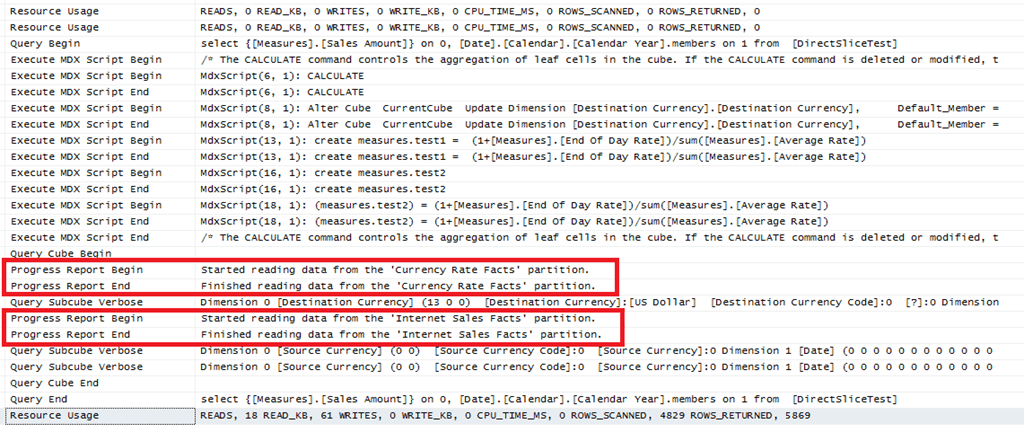
…and look in Profiler, you’ll see that both the measure groups are being queried by the Storage Engine – as you would expect.

image

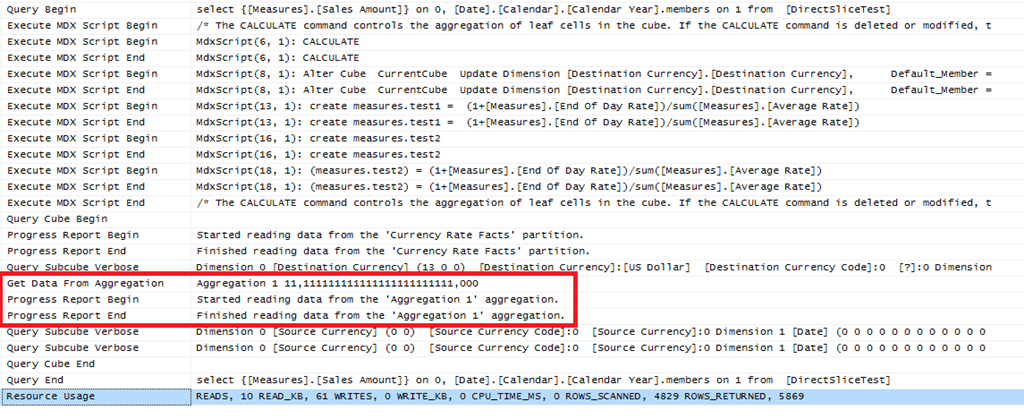
What’s more, if you build an aggregation on the Internet Sales Facts measure group at the correct granularity, you’ll see this aggregation being used by the query:

image

Incidentally, there’s a widely-repeated myth that you can’t use aggregations with m2m relationships or measure expressions – this is not true, although you do have to understand the granularity of data that the Storage Engine is querying and building your aggregation in the right place.

Now it’s time to set the DirectSlice property. In this case I set it to a tuple containing US Dollars, which is as I said earlier the default member on the Destination Currency dimension:

([Destination Currency].[Destination Currency].&[US Dollar])

Remember that by setting this property, I’m telling SSAS that it doesn’t need to evaluate the m2m relationship when this member is selected on Destination Currency because the results of any queries will be identical.

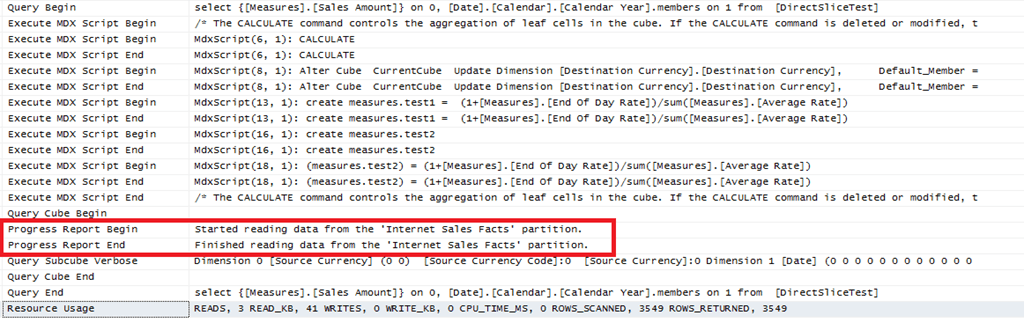
If you rerun the query then there are two things to notice in Profiler:

image

First of all, the Currency Rates Facts measure group is no longer being queried, and so the m2m relationship is not being evaluated. This is good. Second, the aggregation seen above is no longer being used. In fact based on my research there’s no way to get an aggregation to be used when the DirectSlice property is set and the m2m relationship is being bypassed (and I’ve tried several variations, even building aggregations that include attributes from the Destination Currency dimension). This is not good. However as soon as you select something other than what is specified in the DirectSlice property, and the m2m relationship is being evaluated, aggregations can be used again.

In summary, then, using the DirectSlice property is a good idea if you have an expensive m2m relationship and you don’t expect your queries to use aggregations. However if you do need to use aggregations to improve query performance you probably should not set the DirectSlice property.

[Thanks to Akshai Mirchandani for helping with this]

Advanced Options For Loading Data From SQL Server With Power Query

Loading data from SQL Server using Power Query is fairly straightforward, and the basics are well-documented (see here for example). However there are a few advanced options, not all of which are currently shown in the online help although they are in the latest version of the Library Specification document and are visible inside the Power Query window’s own help, and not all of which are documented in a lot of detail.

Here’s what the Power Query window shows for the Sql.Database function when you show help:

image

Here are all of the options available:

MaxDegreeOfParallelism does what you would expect, setting the MAXDOP query hint for the SQL query that Power Query generates. For example, the Power Query query:

let

    Source = Sql.Database("localhost", "adventure works dw", [MaxDegreeOfParallelism=2]),

    dbo_DimDate = Source{[Schema="dbo",Item="DimDate"]}[Data]

in

    dbo_DimDate


Generates the query:

select [$Ordered].[DateKey],

    [$Ordered].[FullDateAlternateKey],

    [$Ordered].[DayNumberOfWeek],

    [$Ordered].[EnglishDayNameOfWeek],

    [$Ordered].[SpanishDayNameOfWeek],

    [$Ordered].[FrenchDayNameOfWeek],

    [$Ordered].[DayNumberOfMonth],

    [$Ordered].[DayNumberOfYear],

    [$Ordered].[WeekNumberOfYear],

    [$Ordered].[EnglishMonthName],

    [$Ordered].[SpanishMonthName],

    [$Ordered].[FrenchMonthName],

    [$Ordered].[MonthNumberOfYear],

    [$Ordered].[CalendarQuarter],

    [$Ordered].[CalendarYear],

    [$Ordered].[CalendarSemester],

    [$Ordered].[FiscalQuarter],

    [$Ordered].[FiscalYear],

    [$Ordered].[FiscalSemester]

from [dbo].[DimDate] as [$Ordered]

order by [$Ordered].[DateKey]

option(maxdop 2)

[as an aside – yes, the SQL query has an Order By clause in it. Power Query likes all of its tables ordered. It would be nice to have an option to turn off the Order By clause though, I think]

CreateNavigationProperties controls the creation of the navigation properties that allow you to browse from table to table in the Power Query Query Editor. For example, when you connect to a table in SQL Server and Power Query can see foreign key relationships between that table and other table, you’ll see extra columns that allow you to follow these relationships:

image

The problem is that these columns will appear as useless text columns when you load the data into a table on the worksheet or the Excel Data Model, although of course you can delete them manually using the Remove Columns functionality in the Power Query Query Editor:

image

Setting CreateNavigationProperties=false will stop these extra columns being created, for example:

let

    Source = Sql.Database("localhost", "adventure works dw",[CreateNavigationProperties=false]),

    dbo_DimDate = Source{[Schema="dbo",Item="DimDate"]}[Data]

in

    dbo_DimDate


I believe it should also prevent the automatic creation of relationships between tables in the Excel Data Model, but I can’t work out how to test this.

NavigationPropertyNameGenerator controls how the names for these columns are generated. There’s no public documentation about this at all, and I’m rather pleased with myself for working out how to use it. It’s quite useful because I find the default names that get generated aren’t as clear as they could be in all cases. Here’s an example of how to build more detailed, albeit more verbose, names:

let

    //declare a function that combines a list of text using commas

    ConcatByComma = Combiner.CombineTextByDelimiter(","),

    //declare a name function

    MyNameFunction = (p, a) => 

      List.Transform(a, each 

        "Navigate from " & _[SourceTableName] & " to " & _[TargetTableName] & 

        " via " & ConcatByComma(_[SourceKeys]) & " and " & ConcatByComma(_[TargetKeys])),

    //use this name function in Sql.Database

    Source = Sql.Database("localhost", "adventure works dw",

      [NavigationPropertyNameGenerator=MyNameFunction]),

    dbo_DimDate = Source{[Schema="dbo",Item="DimDate"]}[Data]

in

    dbo_DimDate

image

The NavigationPropertyNameGenerator option takes a function with two arguments:

  • Pattern, which appears to be a list containing all of the names of the columns on the current table
  • Arguments, which is a list of records containing information about each of the navigation columns. Each record contains the following fields
    • SourceTableName – the name of the source table, ie the table you’re currently on
    • TargetTableName – the name of the table to navigate to
    • SourceKeys – a list containing the names of the columns on the source table involved in the relationship
    • TargetKeys – a list containing the names of the columns on the target table involved in the relationship
    • SingleTarget – not quite sure about this, but it appears to be a logical (ie true or false) value indicating whether there is just one target table involved in all relationships

In my example above, I’ve created two functions. The first, ConcatByComma, is a simple combiner that concatenates all of the text in a list using commas (see here for more details on how to do this). The second, MyNameFunction, is the important one – it uses List.Transform to iterate over the list passed to Arguments (called a in my function) and generate the text for each column header.

Query allows you to specify your own SQL query for Power Query to use. Very useful, but there’s not much to say about this that isn’t already covered in the official help on this feature. The only thing that’s important is that if you do use this option it will prevent query folding from taking place for the rest of your query – which could lead to performance problems.

Here’s an example query:

let

    Source = Sql.Database("localhost", "adventure works dw", 

     [Query="select distinct CalendarYear from DimDate"])

in

    Source


CommandTimeout allows you to specify a query timeout as a value of type duration. The default timeout is ten minutes. Here’s an example of how to set a new timeout of one day, two hours, three minutes and four seconds using the #duration() intrinsic function:

let

    Source = Sql.Database("localhost", "adventure works dw", 

     [CommandTimeout=#duration(1,2,3,4)]),

    dbo_DimDate = Source{[Schema="dbo",Item="DimDate"]}[Data]

in

    dbo_DimDate

Vote James Rowland-Jones For The PASS Board Of Directors

I apologise for two posts in a row on PASS politics, but this will only be a short one and normal service will be resumed soon. If you’re a member of PASS then it’s likely you’ll have received an email allowing you to vote in the PASS Board elections. I’ve just voted for my friend James Rowland-Jones (aka JRJ) and I humbly submit that you should consider doing so too. Here’s why:

  • Although I resigned from SQLBits earlier this year, for a long time I worked alongside him on the SQLBits committee. I know first-hand that he’s intelligent, organised and an experienced manager. His skilful handling of the SQLBits sponsorship portfolio is one of the main reasons why its finances are so healthy and therefore why the conference is so successful.
  • He’s the only European candidate standing and is committed to expanding PASS internationally.
  • He understands the needs of the BI community within PASS.
  • Most importantly he has the diplomatic skills that the job requires. You only have to look at how he has conducted himself in the recent mudslinging over the PASS name-change and the BA conference to know this.

You can read JRJ’s full manifesto here.

Why I Support The PASS Name Change And Its Efforts To Expand Into The BA Community

Unless you take a close interest in the politics of PASS you may have missed the kerfuffle around it changing its name from the “Professional Association of SQL Server” to just PASS a month or so ago. Blog posts from Andy Warren and R. Brian Kelley seem to sum up a lot of people’s feelings. There was a similar outcry on Twitter following an announcement about the way speakers will be selected for next year’s PASS BA Conference. In both cases I read the news when it came out and didn’t give much thought to it, because I agreed with what PASS were doing and I could understand why they were doing it. The strength of feeling these moves stirred up surprised me, and it made me realise that what made perfect sense to me was not so clear-cut to other people in the SQL Server community and needed to be defended – hence this blog post.

Let me start with the name change. I don’t think PASS will ever be anything but a SQL Server-centric organisation, whatever its name. However the definition of what is “SQL Server” and what isn’t has blurred in recent years. You could argue that PASS should confine itself to products that have “SQL Server” in its name, but if you were to apply that rule strictly you’d exclude Azure SQL Database. Aha, you say, that would be silly because the technology behind Azure SQL Database is so closely related to on-prem SQL Server and people who use the former will almost certainly use the latter. But in the same way Power Pivot is SQL Server Analysis Services running inside Excel – it’s more or less the same code base, the development experience is the same, the development team is the same, and the DAX language is identical in both SSAS Tabular and Power Pivot. The SSRS team gave birth to Power View and a lot of MS people closely associated with SSIS now work on Power Query. The worlds of corporate BI and self-service BI are drawing ever closer and soon it will be difficult to say where one starts and the other ends. A lot of SQL Server BI consultants and companies (like me) are now using and building Power BI solutions in addition to the SQL Server BI stack. This is why PASS is right to concern itself with Power BI and self-service BI: it’s a big deal for a lot of PASS community members.

What’s more, Microsoft is working on a number of new product that may have no technological link to SQL Server but will be used and championed by members of the PASS community. Azure Document DB and Azure Machine Learning are two good examples. To me it’s right that PASS takes an interest in these products even if other technical communities do so as well. Anyone with a background in SQL Server – anyone with a background in managing and analysing data with Microsoft’s traditional data platform – will have a natural interest in Microsoft’s new tools for managing and analysing data.

The argument against what’s happening seems to be that it means PASS is no longer focused solely on SQL Server, that it will end up spreading itself too thin. The people making this argument, as far as I can see, are from the DBA side of the SQL Family who equate “SQL Server” with the SQL Server relational database. That’s an easy assumption to make for those who only work with the relational engine. It’s true that “SQL Server” is the name of the relational engine, but “SQL Server” has also meant more than the relational engine for a long time: SQL Server is a suite of tools, and the relational engine is just one part of it. I’ve been a SQL Server MVP for nine years and have almost nothing to do with the relational engine. I started working with OLAP Services with SQL Server 7 and spoke at my first PASS event at (I think) the 2005 PASS European Conference in Munich. I haven’t been involved in the SQL Server community as long as some people, I know, but I feel like I’ve been part of it for long enough for my definition of what “SQL Server” is to carry some weight. As I’ve just argued, SQL Server Analysis Services, the tool that I have worked with for almost all of my professional career, has found a new expression in Power Pivot (even while traditional SSAS still exists) and so I think it is right for PASS to follow me as my career changes. This isn’t PASS losing its focus; this is PASS keeping its focus on what SQL Server has become and what its members are working with. I’m not leaving the world of SQL Server behind. SQL Server itself is changing and I’m changing with it.

Nor do I see any evidence of this stopping PASS from providing support and education for DBAs and those who work exclusively with the relational engine. As the PASS community has grown, as the PASS Summit adds yet more tracks, as other events like SQLBits and SQL Saturdays have taken off, I see that the economies of scale that come from the wider definition of “SQL Server” to include the relational engine and the BI tools have provided even more opportunities for those who are focused on the relational engine alone to learn and grow. Each sub-community may have a smaller slice of the pie, but the pie itself is much larger than it would be if we all went our separate ways.

This brings me on to the topic of the BA Conference. Andy Warren’s assertion, in the blog post I linked to above, that the BA Conference should have been the BI Conference is an opinion I hear repeated a lot and one I disagree with strongly. Before I do get onto that topic, though, I want to be clear that I’m not picking on Andy in particular – I’m engaging with him because he puts his side of the argument in a clear, thoughtful way which I respect (this more recent post is a great example of why I admire him and his thoughts on PASS). Unfortunately this particular discussion risks being turned into a very unpleasant argument, and I hope the PASS Board takes action to stop this happening. Twitter is where this is most obvious: it’s easy to be angry in 140 characters, less easy to have a nuanced debate. The tradition of heckling by certain members of the DBA community on Twitter during PASS Summit keynotes while BI features are announced is something that particularly p*sses me off: I feel like it’s rude and disrespectful to the large number of people in the audience who are interested in these features, and to the people on stage announcing them. Let’s stop this kind of thing, it can only be divisive.

OK, back to the topic of the BA Conference. When it was first announced I wrote a post entitled ”The PASS Business Analytics Conference is not the PASS Business Intelligence Conference” but I think my arguments here need to be clearer. First of all, I do not agree that BI content should be split off from the PASS Summit into its own conference. Some DBAs are not interested in BI; some BI pros like me are not interested in relational engine topics. However we are in the minority. I know from my friends and customers that a lot of people who work in the SQL Server community now deal with both the relational engine and some or all of the BI tools, and having the PASS Summit cover both BI and DBA topics at the same conference makes it appeal to a much wider audience than it would  if it concentrated on just one or the other. Indeed, part of the reason why I felt disappointed with this year’s PASS BA Conference, and why I felt it was a bit of a failure, was because it had fallen into the trap of being a PASS BI Conference.

So why then should PASS have a BA Conference, and why is BA<>BI? Let me give you an example. Last week I ran a private SSAS Tabular/DAX training course for a large company in London. The people on the course were traditional corporate BI developers, smart guys, the kind of people I have worked with all my career. This week I’m going back to the same company to deliver training on Power Pivot, DAX and Power BI to the business analytics team of the same company. A lot of technical topics I’ll be covering will be the same but the people attending will be very different. They are equally smart guys who work outside the IT department, but in close association with the IT department, analysing data to answer business questions. They don’t have the kind of technical background that someone in the IT department might have but they do use many of the same tools and technologies (SSAS as a user; Power Pivot and Power BI; Excel). They ask the business questions and they then work together with the IT guys to find the answer. This is the BA community.

A BA community has always existed within the Microsoft ecosystem, originally around Excel and Access, but with the advent of Power BI and the wider self-service BI and Big Data movements it has grown in size and confidence recently. Evidence of this growth includes the “New Excel” user groups that Rob Collie is involved in organising, and the London Business Analytics User Group that Mark Wilcock organises. Should PASS reach out to this community? Yes, I think so. There is a clear overlap between the technologies that the BI side of the PASS community uses and those that the Microsoft BA community is using. Also, I think the BA community can benefit from the passion, experience and infrastructure built up by PASS. As far as I can see, the BA community is also happy to collaborate and engage with the PASS BI community too. In the past few years I’ve made a lot of new friends in the Excel world, for example Excel MVPs like Bob Phillips, who have this attitude. BI pros and BA pros are now working side by side in the office, so it makes sense that we come together as a professional association.

The BA community is not, however, interested in being swallowed up by an organisation that identifies itself purely with the IT department. It is interested in joining an organisation that has IT focused people as a major component but which also recognises the importance of collaboration between IT and the business to work with data. This is why the PASS name change, and especially a separate BA conference, is important. DBAs will only ever want to attend the PASS Summit. SQL Server generalists, and BI pros, will also want to attend the PASS Summit. Some BI pros will want to attend the BA Conference as well as or maybe instead of the PASS Summit. BA pros will only want to attend the BA Conference. BI pros like me will be presenting on topics like Power BI alongside Excel pros at the BA Conference; this is where the overlap between the existing BI community inside PASS and the new BA community is obvious. There are also a lot of topics such as machine learning, R (which is a big part of Azure Machine Learning as well as a massive topic in its own right), Hadoop and pure Excel that do belong at the BA Conference and do not belong at the PASS Summit.

As I already said, I felt like this year’s second BA Conference was a bit of a step back from the first because it had too much pure BI content. Part of the reason for this was, I suspect, because PASS relied too heavily on its existing speaker community and did not make enough effort reach out to the BA community’s speakers. I believe the PASS Board has come to the same conclusion as me and this is why the BA conference next year will not have an open call for speakers. Brent Ozar did a valiant job of trying to imagine why this has taken place here; he falls a little wide of the mark with his explanation in my opinion, even if he’s dead right that the PASS Board need to make a clear and positive case for why they are doing this. Here’s my take. A large Microsoft BA community undoubtedly exists. There are a number of great speakers out there too, but they are not yet convinced that PASS is serious about engaging with the BA community so they are cautious about investing the time and money to speak at the BA conference. What’s more the economics of the BA community are very different from the economics of the traditional PASS community. In the world of SQL Server there is a virtuous circle that allows someone like me (or Brent, and any number of other well-known speakers and trainers and consultants) to invest our own time and money in attending the PASS Summit, SQLBits and SQL Saturdays and so on because we know that it strengthens the community and therefore benefits our own businesses, which are based on high-rate consultancy and training. I’m not saying that we do this cynically – we are genuinely motivated by a love of the community, it’s just that what benefits the wider community benefits us as well. Unfortunately this virtuous circle does not exist (yet) in the BA community. Potential speakers in the BA community are more likely to be full-time employees, or academics, or people like Mr Excel who make a living from selling their content to a mass market, rather than from a small number of customers who pay high rates. They may not be able to afford the time and money to come and speak, and giving away their content for free at the BA Conference might be detrimental to their business. If PASS is going to make the BA Conference work then it will have to approach these potential speakers individually, convince them that the conference is worth their while to attend, and probably pay travel expenses and maybe also pay them a rate. Let’s not forget that this is normal practice in many other technical communities, and I know that top speakers have in the past been paid quite handsomely to speak at TechEd.

The last thing I want to say is that it could be argued that PASS is changing its name and focus because Microsoft wants it to, and indeed that it depends on Microsoft so much that it has to do Microsoft’s bidding. I don’t accept this argument though. PASS should support the interests of its members regardless of the whims of the marketing folks at Microsoft. My point is that I believe that the changes that PASS has made have been for the right reasons, because they are in the interests of a large number of people like me from the BI pro community who have been part of PASS for a long time. The forces that Microsoft is responding to in the wider world of data are the ones that PASS itself must respond to.

I think this post has gone on for quite long enough, and if you’ve read this far then I’m very grateful. I expect that I’ll provoke yet more debate by what I’ve said here, but I also think it needed to be said because the arguments so far have been one-sided. I don’t pretend to speak for the PASS Board or have any more inside information than anyone else already involved in this discussion. However I do believe that the more we talk about these issues, the more likely we are to understand each other’s points of view and come to some kind of agreement that we are all happy with.

Handling Data Source Errors In Power Query

Recently I was asked an interesting question by Ondra Plánička in the comments of a blog post: how can you handle errors caused by unavailable or missing data sources in Power Query?

Let’s imagine you are loading a csv file like this one into Excel using Power Query:

image

The M query generated by Power Query will be as follows:

let

    Source = Csv.Document(File.Contents("C:\Users\Chris\Documents\SampleData.csv")

                ,null,",",null,1252),

    #"First Row as Header" = Table.PromoteHeaders(Source),

    #"Changed Type" = Table.TransformColumnTypes(#"First Row as Header"

                ,{{"Month", type text}, {"Product", type text}, {"Sales", Int64.Type}})

in

    #"Changed Type"


If you load into the Excel Data Model you’ll see the following in the Power Pivot window:

image

So far so good. But what happens if you try to refresh the query and the csv file is not there any more? The query refreshes but you will see the following in the Power Pivot window:

image

The structure of the table that has been loaded has changed: instead of three columns you get just one, containing the error message. This wipes any selections in Excel PivotTables that are based on this table; they will need to be recreated when the source file is available once again. Similarly, any relationships between this table and other tables in the Excel Data Model get deleted and have to be added again manually when the source file is there again. Not good.

Here’s how to alter the query so that it handles the error more gracefully:

let

    //This is the original code generated by Power Query

    Source = 

      Csv.Document(File.Contents("C:\Users\Chris\Documents\SampleData.csv"),null,",",null,1252),

    #"First Row as Header" = Table.PromoteHeaders(Source),

    #"Changed Type" = Table.TransformColumnTypes(#"First Row as Header",

      {{"Month", type text}, {"Product", type text}, {"Sales", Int64.Type}}),

    //End of original code

    //Define the alternative table to return in case of error    

    AlternativeOutput=#table(type table [Month=text,Product=text,Sales=Int64.Type],

      {{"Error", "Error", 0}}),

    //Does the Source step return an error?

    TestForError= try Source,

    //If Source returns an error then return the alternative table output

    //else return the value of the #"Changed Type" step

    Output = if TestForError[HasError] then AlternativeOutput else #"Changed Type"

in

    Output


While the code from the original query remains intact, the following extra steps have been added:

  • The AlternativeOutput step returns a table (defined using #table) that has exactly the same columns as the csv file. This table has one row containing the text “Error” in the two text columns and 0 in the Sales column.
  • The TestForError step uses a try to see whether the Source step returns an error (for example because the file is missing)
  • The Output step checks to see whether TestForError found an error – if it does, it returns the table defined in the AlternativeOutput step, otherwise it returns the contents of the csv file as returned by the #”Changed Type” step.

Now when you run the query and the csv file is missing, then you see the following in the Power Pivot window:

image

Because this table has the same structure as the one the query returns when the csv file is present, any PivotTables connected to this table will still retain their selections and the relationships in the Excel Data Model are left intact. This means that when the csv file is back in its proper place everything works again with no extra work required.

You can download the example workbook and csv file here.