Handling Added Or Missing Columns In Power Query

A recent conversation in the comments of this blog post brought up the subject of how to handle columns that have either been removed from or added to a data source in Power Query. Anyone who has worked with csv files knows that they have a nasty habit of changing format even when they aren’t supposed to, and added or removed columns can cause all kinds of problems downstream.

Ken Puls (whose excellent blog you are probably already reading if you’re interested in Power Query) pointed out that it’s very easy to protect yourself  against new columns in your data source. When creating a query, select all the columns that you want and then right-click and select Remove Other Columns:

image

This means that if any new columns are added to your data source in the future, they won’t appear in the output of your query. In the M code the Table.SelectColumns() function is used to do this.

Dealing with missing columns is a little bit more complicated. In order to find out whether a column is missing, first of all you’ll need a list of columns that should be present in your query. You can of course store these tables in a table in Excel and enter the column names manually, or you can do this in M fairly easily by creating a query that connects to your data source and using the Table.ColumnNames() function something like this:

[sourcecode language=”text” padlinenumbers=”true”]
let
//Connect to CSV file
Source = Csv.Document(
File.Contents(
"C:\Users\Chris\Documents\Power Query demos\SampleData.csv"
),null,",",null,1252),
//Use first row as headers
FirstRowAsHeader = Table.PromoteHeaders(Source),
//Get a list of column names
GetColumns = Table.ColumnNames(FirstRowAsHeader),
//Turn this list into a table
MakeATable = Table.FromList(
GetColumns,
Splitter.SplitByNothing(),
null,
null,
ExtraValues.Error),
//Rename this table’s sole column
RenamedColumns = Table.RenameColumns(
MakeATable ,
{{"Column1", "ColumnName"}})
in
RenamedColumns
[/sourcecode]

Given a csv file that looks like this:

image

…the query above returns the following table of column names:
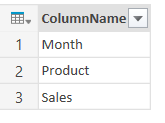
image

You can then store the output of this query in an Excel table for future reference – just remember not to refresh the query!

Having done that, you can then look at the columns returned by your data source and compare them with the columns you are expecting by using the techniques shown in this post. For example, here’s a query that reads a list of column names from an Excel table and compares them with the columns returned from a csv file:

[sourcecode language=”text”]
let
//Connect to Excel table containing expected column names
ExcelSource = Excel.CurrentWorkbook(){[Name="GetColumnNames"]}[Content],
//Get list of expected columns
ExpectedColumns = Table.Column(ExcelSource, "ColumnName"),
//Connect to CSV file
CSVSource = Csv.Document(
File.Contents(
"C:\Users\Chris\Documents\Power Query demos\SampleData.csv"
),null,",",null,1252),
//Use first row as headers
FirstRowAsHeader = Table.PromoteHeaders(CSVSource),
//Get a list of column names in csv
CSVColumns = Table.ColumnNames(FirstRowAsHeader),
//Find missing columns
MissingColumns = List.Difference(ExpectedColumns, CSVColumns),
//Find added columns
AddedColumns = List.Difference(CSVColumns, ExpectedColumns),
//Report what has changed
OutputMissing = if List.Count(MissingColumns)=0 then
"No columns missing" else
"Missing columns: " & Text.Combine(MissingColumns, ","),
OutputAdded = if List.Count(AddedColumns)=0 then
"No columns added" else
"Added columns: " & Text.Combine(AddedColumns, ","),
Output = OutputMissing & " " & OutputAdded
in
Output
[/sourcecode]

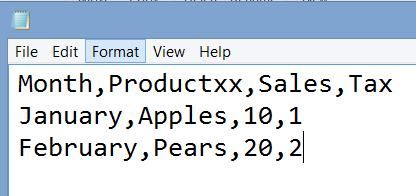
Given a csv file that looks like this:
image

…and an Excel table like the one above containing the three column names Month, Product and Sales, the output of this query is:

image

It would be very easy to convert this query to a function that you could use to check the columns expected by multiple queries, and also to adapt the output to your own needs. Also, in certain scenarios (such as when you’re importing data from SQL Server) you might also want to check the data types used by the columns; I’ll leave that for another blog post though. In any case, data types aren’t so much of an issue with CSV files because it’s Power Query that imposes the types on the columns within a query, and any type conversion issues can be dealt with by Power Query’s error handling functionality (see Gerhard Brueckl’s post on this topic, for example).

You can download a workbook containing the two queries from this post here.
Optimising SSAS Many-To-Many Relationships By Adding Redundant Dimensions

The most elegant way of modelling your SSAS cube doesn’t always give you the best query performance. Here’s a trick I used recently to improve the performance of a many-to-many relationship going through a large fact dimension and large intermediate measure group…

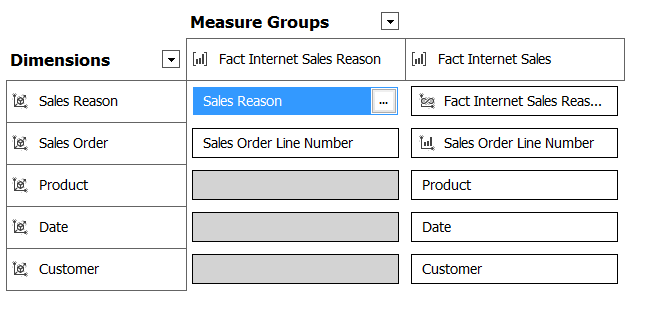
Consider the following cube, built from the Adventure Works DW database and showing a many-to-many relationship:

image

The Fact Internet Sales measure group contains sales data; the Product, Date and Customer dimensions are what you would expect; Sales Order is a fact dimension with one member for each sales transaction and therefore one member for each row in the fact table that Fact Internet Sales is built from. Each Sales Order can be associated with zero to many Sales Reasons, and the Sales Reason dimension has a many-to-many relationship with the Fact Internet Sales measure group through the Fact Internet Sales Reason measure group. Only the Sales Order dimension connects directly to both the Fact Internet Sales Reason and Fact Internet Sales measure groups.

There’s nothing obviously wrong with the way this is modelled – it works and returns the correct figures – and the following query shows how the presence of the many-to-many relationship means you can see the Sales Amount measure (from the Fact Internet Sales measure group) broken down by Sales Reason:

[sourcecode language=”text” padlinenumbers=”true”]
select
{[Measures].[Sales Amount]} on 0,
non empty
[Sales Reason].[Sales Reason].[Sales Reason].members
on 1
from m2m1
where([Date].[Calendar Year].&[2003],
[Product].[Product Category].&[3],
[Customer].[Country].&[United Kingdom])
[/sourcecode]


image

However, to understand how we can improve the performance of a many-to-many relationship you have to understand how SSAS resolves the query internally. At a very basic level, in this query, SSAS starts with all of the Sales Reasons and then, for each one, finds the list of Sales Orders associated with it by querying the Fact Sales Reason measure group. Once it has the list of Sales Orders for each Sales Reason, it queries the Fact Internet Sales measure group (which is also filtered by the Year 2003, the Product Category Clothing and the Customer Country UK) and sums up the value of Sales Amount for those Sales Orders, getting a single value for each Sales Reason. A Profiler trace shows this very clearly:

image

The Resource Usage event gives the following statistics for this query:

READS, 7

READ_KB, 411

WRITES, 0

WRITE_KB, 0

CPU_TIME_MS, 15

ROWS_SCANNED, 87299

ROWS_RETURNED, 129466

Given that the Sales Order dimension is a large one (in this case around 60000 members – and large fact dimensions are quite common with many-to-many relationships) it’s likely that one Sales Reason will be associated with thousands of Sales Orders, and therefore SSAS will have to do a lot of work to resolve the relationship.

In this case, the optimisation comes with the realisation that in this case we can add the other dimensions present in the cube to the Fact Sales Reason measure group to try to reduce the number of Sales Orders that each Sales Reason is resolved to. Since Sales Order is a fact dimension, with one member for each sales transaction, then since each sales transaction also has a Date, a Product and a Customer associated with it we can add the keys for these dimensions to the fact table on which Fact Sales Reasons is built and join these dimensions to it directly:

image

This is not an assumption you can make for all many-to-many relationships, for sure, but it’s certainly true for a significant proportion.

The Product, Date and Customer dimensions don’t need to be present for the many-to-many relationship to work, but adding a Regular relationship between them and Fact Internet Sales Reason helps SSAS speed up the resolution of the many-to-many relationship when they are used in a query. This is because in the original design, in the test query the selection of a single member on Sales Reason becomes a selection on all of the Sales Orders that have ever been associated with that Sales Reason; with the new design, the selection of a single member on Sales Reason becomes a selection on a combination of Dates, Customers, Products and Sales Orders – and since the query itself is also applying a slice on Date, Customer and Product, this is a much smaller selection than before. For the query shown above, with the new design, the Resource Usage event now shows:

READS, 11

READ_KB, 394

WRITES, 0

WRITE_KB, 0

CPU_TIME_MS, 0

ROWS_SCANNED, 47872

ROWS_RETURNED, 1418

The much lower numbers for ROWS_SCANNED and ROWS_RETURNED shows that the Storage Engine is doing a lot less work. For the amount of data in Adventure Works the difference in query performance is negligible, but in the real world I’ve seen this optimisation make a massive difference to performance, resulting in queries running up to 15 times faster.

Don’t forget that there are many other ways of optimising many-to-many relationships such as the those described in this white paper. Also, if you have a large fact dimension, if it does not need to be visible to the end user and is only needed to make the many-to-many relationship work, you can reduce the overhead of processing it by breaking it up into multiple smaller dimensions as described here.

I’m speaking at the PASS BA Conference

I haven’t been shy about stating my support for the PASS BA conference and the associated efforts by PASS to reach out beyond its traditional audience to analysts and other power users (see here for example). I won’t bore you with my opinions again, except to say that at the third attempt I think PASS have got the balance of session topics right at the upcoming PASS BA conference in Santa Clara this April. There’s a stellar team of Excel speakers, including Mr Excel and Chandoo. There’s David Smith from Revolution Analytics, the company bought by Microsoft recently; plenty of sessions on predictive analytics; various Microsoft dev teams will be out in force; and Marco Russo and I will be speaking too. I think it promises to be a great conference, definitely not a PASS BI conference, and very different from the PASS Summit.

You can register here, and using the code BASPCHR will give you a $150 discount.

More Power BI Licensing Details

At the end of last week I came across an interesting link on Twitter (thanks Devin) with more details on how the ‘new’ Power BI will be licensed, and how existing Power BI subscribers will move to the new experience, that I thought was worth highlighting. Here it is:

http://www.microsoft.com/en-us/powerBI/licensing.aspx?utm_content=bufferfe7e5

Some points to highlight:

  • The Power BI service will become a standalone service and will no longer require SharePoint Online
    This is not exactly a surprise based on what’s been announced so far, but it’s the first time it’s been clearly stated that the ‘new’ Power BI is not dependent on Office 365 and SharePoint Online
  • At general availability of the new experience, existing customers will be asked to move to the new experience
    That’s to say the ‘new’ Power BI is a direct replacement for the old, O365-based Power BI, and that there will only be a single version – the ‘new’ version – of Power BI in the future
  • Power BI will seamlessly work with Office 365 for customer with subscriptions to both
    and
    This move will require configuring the new experience to connect to existing Excel workbooks. Users will need to either point to their Excel workbooks on SharePoint Online or reload these workbooks into Power BI
    If you are an existing Office 365/SharePoint Online/Power BI customer, there will be integration between SharePoint Online and the new Power BI service – so it looks like no functionality is going to be lost in the transition
  • Existing Power BI for Office 365 customers will be able to transition from the existing user experience to the new user experience when it is made available using their existing subscription license…
    This license transition should not interrupt access to the Power BI service.
    So existing customers should be able to move to the ‘new’ Power BI very easily when it is released (remember, we’re currently in preview and the preview of the cloud service is only available to US customers)

If you’re a new customer thinking of signing up for the ‘new’ Power BI, you should check out the licensing options here:
http://www.powerbi.com/dashboards/pricing/

…and also this post on the Power BI support blog on making sure you sign up to the service with the appropriate email address:
http://blogs.technet.com/b/powerbisupport/archive/2015/02/06/power-bi-sign-up-walkthrough.aspx

Expression.Evaluate() In Power Query/M

A year ago I wrote a post on loading the M code for a Power Query query from a text file using the Expression.Evaluate() function, but I admit that at the time I didn’t understand how it worked properly. I’ve now had a chance to look at this function in more detail and thought it might be a good idea to post a few more examples of how it works to add to what’s in the Library spec.

The docs are clear about Expression.Evaluate does: it takes some text containing an M expression and evaluates that expression, returning the result. The important thing to remember here is that an M expression can be more than just a single line of code – a Power Query query is in fact a single expression, and that’s why I was able to execute one using Expression.Evaluate() in the blog post referenced above.

Here’s a simple example of Expression.Evaluate():

[sourcecode language=”text” padlinenumbers=”true”]
let
Source = Expression.Evaluate("""Hello World""")
in
Source
[/sourcecode]


It returns, of course, the text “Hello World”:

image

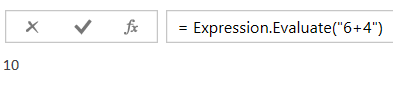
Here’s another example of an expression that returns the number 10:

[sourcecode language=”text”]
let
Source = Expression.Evaluate("6+4")
in
Source
[/sourcecode]


image

Remember that I said that a Power Query query is itself a single M expression? The way Power Query implements multiple steps in each query is using a let expression, which is a single M expression that contains multiple sub-expressions. Therefore the following  example still shows a single expression (consisting of a let expression) being evaluated to return the value 12:

[sourcecode language=”text”]
let
Source = Expression.Evaluate("let a=3, b=4, c=a*b in c")
in
Source
[/sourcecode]


image


OK, so far not very interesting. What we really want to do is evaluate more complex M expressions.

Consider the following query, which uses the Text.Upper() function and returns the text ABC:

[sourcecode language=”text”]
let
Source = Text.Upper("abc")
in
Source
[/sourcecode]


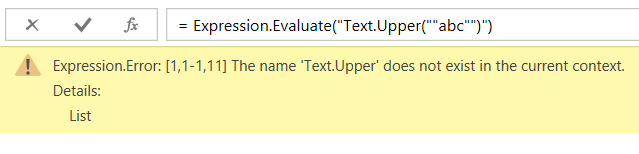
If you run the following query you’ll get the error “The name ‘Text.Upper’ does not exist in the current context.”:

[sourcecode language=”text”]
let
Source = Expression.Evaluate("Text.Upper(""abc"")")
in
Source
[/sourcecode]

image

To get a full understanding of what’s going on here, I recommend you read section “3.3 Environments and Variables” of the language specification document, which is available here. The short explanation is that all M expressions are evaluated in an ‘environment’, where other variables and functions exist and can be referenced. The reason we’re getting an error in the query above is that it’s trying to execute the expression in an environment all of its own, where the global library functions aren’t available. We can fix this though quite easily by specifying the global environment (where the global library of functions that Text.Upper() is a part of are available) in the second parameter of Expression.Evaluate() using the #shared intrinsic variable, like so:

[sourcecode language=”text”]
let
Source = Expression.Evaluate("Text.Upper(""abc"")", #shared)
in
Source
[/sourcecode]

image

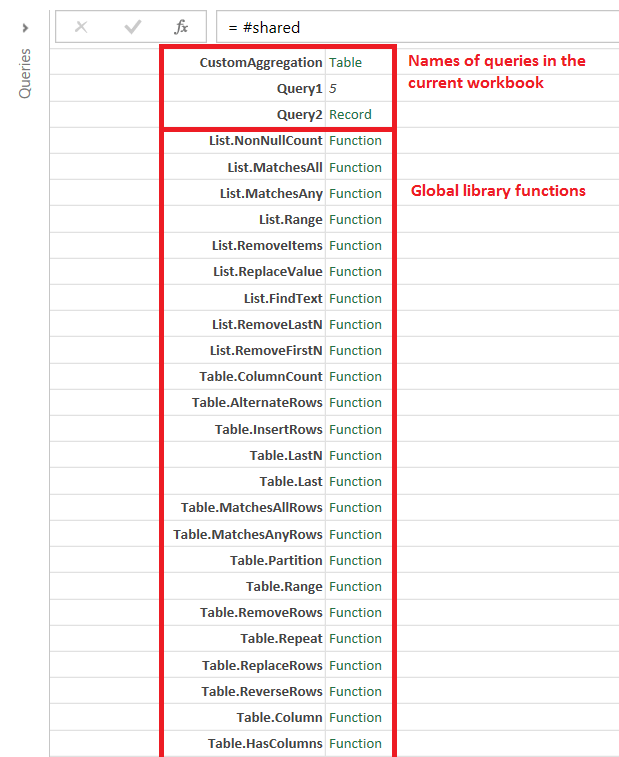
#shared returns a record containing all of the names of the variables in scope for the global environment and as such it can be used on its own in a query that returns all of the variables (including all of the functions in the global library and from all other queries in the current workbook) available:

[sourcecode language=”text”]
let
Source = #shared
in
Source
[/sourcecode]


Here’s what that query returns on the workbook that I’m using to write this post, which contains various queries apart from the one above:

image

Reza Rad has a blog post devoted to this which is worth checking out.

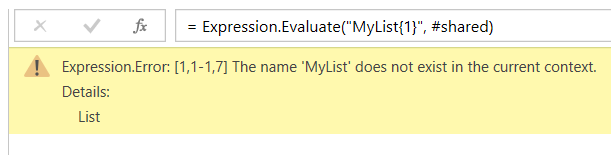
Using #shared will allow you to evaluated expressions that use global library functions but it’s not a magic wand that makes all errors go away. The following query declares a list and then attempts to use Expression.Evaluate() to get the second item in the list:

[sourcecode language=”text”]
let
MyList = {1,2,3,4,5},
GetSecondNumber = Expression.Evaluate("MyList{1}", #shared)
in
GetSecondNumber
[/sourcecode]

image

Despite the use of #shared in the second parameter we still get the context error we saw before because the variable MyList is still not available. What you need to do here is to define a record in the second parameter of Expression.Evaluate() so that the environment that the expression evaluates in knows what the variable MyList refers to:

[sourcecode language=”text”]
let
MyList = {1,2,3,4,5},
GetSecondNumber = Expression.Evaluate("MyList{1}", [MyList=MyList])
in
GetSecondNumber
[/sourcecode]

image

This slightly more complex example, which gets the nth item from a list, might make what’s going on here a little clearer:

[sourcecode language=”text”]
let
MyList_Outer = {1,2,3,4,5},
NumberToGet_Outer = 3,
GetNthNumber = Expression.Evaluate("MyList_Inner{NumberToGet_Inner}",
[MyList_Inner=MyList_Outer, NumberToGet_Inner=NumberToGet_Outer ])
in
GetNthNumber
[/sourcecode]


image

In this example you can see that the two variable names present in the text passed to the first parameter of Expression.Evaluate() are present in the record used in the second parameter, where they are paired up with the two variables from the main query whose values they use.

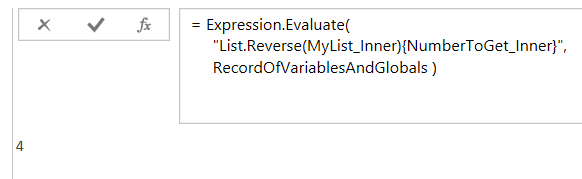
Finally, how can you pass your own variable names and use functions from the global library? You need to construct a single record containing all the names in #shared plus any others that you need, and you can do that using Record.Combine() to merge a manually created record with the one returned by #shared as shown here:

[sourcecode language=”text”]
let
MyList_Outer = {1,2,3,4,5},
NumberToGet_Outer = 1,
RecordOfVariables =
[MyList_Inner=MyList_Outer, NumberToGet_Inner=NumberToGet_Outer ],
RecordOfVariablesAndGlobals = Record.Combine({RecordOfVariables, #shared}),
GetNthNumber = Expression.Evaluate(
"List.Reverse(MyList_Inner){NumberToGet_Inner}",
RecordOfVariablesAndGlobals )
in
GetNthNumber
[/sourcecode]


image

If I Could Have New Features In SSAS Multidimensional, What Would They Be?

Indulge me for a moment, please. Let’s imagine that somewhere in Microsoft, someone is planning for SQL Server v.next and is considering investing in new features for SSAS Multidimensional (don’t laugh – I wouldn’t be writing this post if I didn’t think it was a possibility). What features should they be?

Before I answer that question, it’s worth pointing out that despite what you might think there has been some investment in SSAS Multidimensional over the last few years. This post lists what was new in SSAS 2012 Multidimensional; since then support for DAX queries has been added and, umm, the new Divide() function. This must have been a lot of work for someone – but why does it get overlooked? One reason: none of these changes have made much difference to the ordinary SSAS Multidimensional developer’s life. DAX query support is great if you’re one of the few people that uses the SharePoint version of Power View; shockingly, it still doesn’t work in Excel 2013 Power View yet (though I guess it will be the way the new Power BI connects to on-prem Multidimensional). NUMA support is great if you work for an investment bank and have vast amounts of data and a high-spec server, but that’s only about 0.1% of the installed base.

So from this we can learn that the main consideration when choosing new features to implement should be that they should be relevant to the majority of SSAS Multidimensional developers, otherwise they’ll be ignored and MS may as well have not bothered doing anything. To that we can add these other considerations:

  • These features should provide compelling reasons to upgrade from earlier versions of SSAS to the new version
  • While some features should be available in all editions, there should also be some features that encourage customers to upgrade from Standard Edition to Enterprise Edition
  • There are a limited resources (time and developers) available and Power Pivot/SSAS Tabular will be the priority, so only a few features can be delivered.
  • Features that are only there to support Power BI don’t count

With all of that borne in mind, here’s what I would choose to implement based on what I see as a consultant and from the popularity of particular topics on my blog.

Last-Ever Non Empty

One of the most popular posts I’ve ever written – by a gigantic margin – is this one on the last-ever non-empty problem. Given that so many people seem to come up against this, and that the MDX solution is complex and still doesn’t perform brilliantly, I think it should be built into the engine as a new semi-additive aggregation type. Since semi-additive measures are Enterprise Edition only, this would be my sole Enterprise Edition feature.

MDX Calculation Parallelism

Ever since I’ve been working with SSAS, people have always asked why the Formula Engine has been single-threaded. I understand why the SSAS dev team have ignored this question and instead concentrated on tuning specific scenarios: doing parallelism properly would be extremely difficult given the way MDX calculations can be layered over each other, and in plenty of cases it could lead to worse performance, not better. However I’m not asking for a ‘proper’ implementation of parallelism. I just want something dumb: a boolean property that you can set on a calculation that tells the Formula Engine to do this calculation on a separate thread. If it makes performance better then great; if not, then don’t set it. My guess is that even a crude implementation like this could make a gigantic difference to performance on many calculation-heavy cubes.

Drillthrough

Drillthrough is one of those features that almost everyone wants to use, but for some reason has been left in a semi-broken state ever since 2005. Here’s what needs to change:

  • It should work with calculated members. I don’t expect SSAS to understand magically how to work out which rows to display for any given MDX calculation, but I would like a way of specifying in MDX what those rows should be.
  • Those stupid, ugly column names – SSDT should let us specify readable column names and let us have complete control over the order they appear in.
  • Excel should allow drillthrough on multiselect filters.

‘Between’ Relationships

This might seem a bit of a strange choice, and I suspect it may not be easy to implement, but another problem that I come across a lot in my consultancy is the ‘events-in-progress’ problem. I’ve blogged about solving it in MDX and DAX, as have many others. I would love to see a new ‘between’ dimension/measure group relationship type to solve this. In fact, competing OLAP vendor iccube already implemented this and you can see how it works on that platform here and here. My feeling is that this would open up a massive number of modelling opportunities, almost as many as many-to-many relationships.


And that’s it, four features that I think could make SSAS Multidimensional v.next a must-have upgrade. I’m not so naive to believe that any or all of these will be implemented, or even that we’ll get any new features at all, but who knows? If you have any other suggestions, please leave a comment.

Deprecated/Discontinued Functionality In SSAS 2014

Last week while reading Bill Anton’s blog (which is, by the way, highly recommended) I came across a link to a page in Books Online that I hadn’t seen before: a list of deprecated and discontinued functionality in SSAS 2014. Here it is:

https://msdn.microsoft.com/en-us/library/ms143479.aspx

The most interesting point is that the Non_Empty_Behavior property on calculations will not be supported in SSAS v.next. I still see this property being used a lot, and as I show here if you use it incorrectly it can give you bad results. Although I have seen a few cases where it has been necessary to set Non_Empty_Behavior (for example here) they have been very, very rare and I think deprecating it is the right decision. Other than that, remote partitions, linked dimensions and dimension writeback will also be no longer supported in a ‘future’ version, but I don’t think anyone will be too worried about those features.

Microsoft BI and SQL Server Courses For 2015

The Technitrain course schedule for 2015 has now been finalised, so if you’re looking for top quality Microsoft BI and SQL Server classroom-based training in central London why not check out what we’ve got coming up?

Rendering Images In An Excel Worksheet With Power Query Using Cells As Pixels

It’s a general rule of the internet that, whenever you have a cool idea, a few minutes spent on your favourite search engine reveals that someone else has had the idea before you. In my case, when I first saw the functionality in Power Query for working with binary files I wondered whether it was possible to read the contents of a file containing an image and render each pixel as a cell in a worksheet – and of course, it has already been done and done better than I could ever manage. However, it hasn’t been done in Power Query… until now.

First of all, I have to acknowledge the help of Matt Masson whose blog post on working with binary data in Power Query provided a number of useful examples. I also found this article on the bmp file format invaluable.

Second, what I’ve done only works with monochrome bmp files. I could have spent a few more hours coming up with the code to work with other file types but, frankly, I’m too lazy. I have to do real work too, you know.

So let’s see how this works. Here’s a picture of Fountains Abbey that I took on my phone while on holiday last summer:

FountainsAbbey

I opened it in Paint and saved it as a monochrome bmp file:

FountainsAbbey

Here’s the code for the Power Query query that opens the bmp file and renders the contents in Excel:

let
//The picture to load
SourceFilePath="C:\Users\Chris\Pictures\FountainsAbbey.bmp",
//Or get the path from the output of a query called FileName
//SourceFilePath=FileName,
//Load the picture
SourceFile=File.Contents(SourceFilePath),

//First divide the file contents into two chunks:
//the header of the file, always 62 bytes
//and the rest, which contains the pixels

//Define the format as a record
OverallFormat=BinaryFormat.Record([
Header = BinaryFormat.Binary(62),
Pixels = BinaryFormat.Binary()
]),
//Load the data into that format
Overall = OverallFormat(SourceFile),
//Get the header data
HeaderData = Overall[Header],

//Extract the total file size and
//width and height of the image
HeaderFormat = BinaryFormat.Record([
Junk1 = BinaryFormat.Binary(2),
FileSize = BinaryFormat.ByteOrder(
BinaryFormat.SignedInteger32,
ByteOrder.LittleEndian),
Junk2 = BinaryFormat.Binary(12),
Width = BinaryFormat.ByteOrder(
BinaryFormat.SignedInteger32,
ByteOrder.LittleEndian),
Height = BinaryFormat.ByteOrder(
BinaryFormat.SignedInteger32,
ByteOrder.LittleEndian),
Junk3 = BinaryFormat.Binary()
]),
HeaderValues = HeaderFormat(HeaderData),
FileSize = HeaderValues[FileSize],
ImageWidth = HeaderValues[Width],
ImageHeight = HeaderValues[Height],

//Each pixel is represented as a bit
//And each line is made up of groups of four bytes
BytesPerLine = Number.RoundUp(ImageWidth/32)*4,
//Read the pixel data into a list
PixelListFormat = BinaryFormat.List(
BinaryFormat.ByteOrder(
BinaryFormat.Binary(BytesPerLine),
ByteOrder.LittleEndian)),
PixelList = PixelListFormat(Overall[Pixels]),
//Convert each byte to a number
PixelListNumbers = List.Transform(PixelList, each Binary.ToList(_)),

//A function to convert a number into binary
//and return a list containing the bits
GetBinaryNumber = (ValueToConvert as number) as list =>
let
BitList = List.Generate(
()=>[Counter=1, Value=ValueToConvert],
each [Counter]<9,
each [Counter=[Counter]+1,
Value=Number.IntegerDivide([Value],2)],
each Number.Mod([Value],2)),
BitListReversed = List.Reverse(BitList)
in
BitListReversed,

//A function to get all the bits for a single line
//in the image
GetAllBitsOnLine = (NumberList as list) =>
List.FirstN(
List.Combine(
List.Transform(NumberList, each GetBinaryNumber(_)
)
), ImageWidth),

//Reverse the list - the file contains the pixels
//from the bottom up
PixelBits = List.Reverse(
List.Transform(PixelListNumbers,
each GetAllBitsOnLine(_))),

//Output all the pixels in a table
OutputTable = #table(null, PixelBits)
in
OutputTable

The output of this query is a table containing ones and zeroes and this must be loaded to the worksheet. The final thing to do is to make the table look like a photo by:

  • Hiding the column headers on the table
  • Using the ‘None’ table style so that there is no formatting on the table itself
  • Hiding the values in the table by using the ;;; format (see here for more details)
  • Zooming out as far as you can on the worksheet
  • Resizing the row heights and column widths so the image doesn’t look too squashed
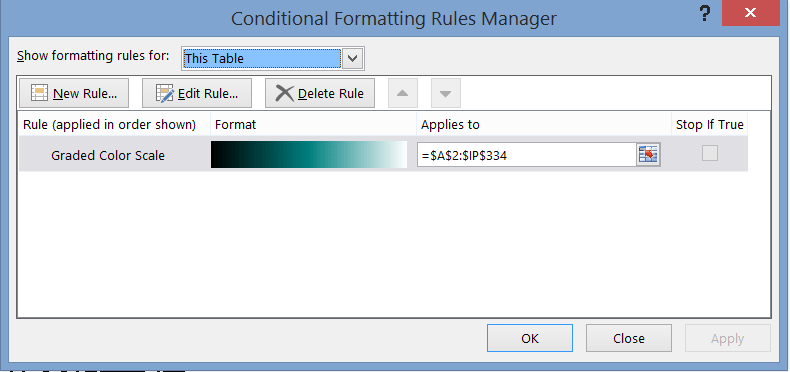
  • Using Excel conditional formatting to make the cells containing 0 black and the cells containing 1 white:

    image

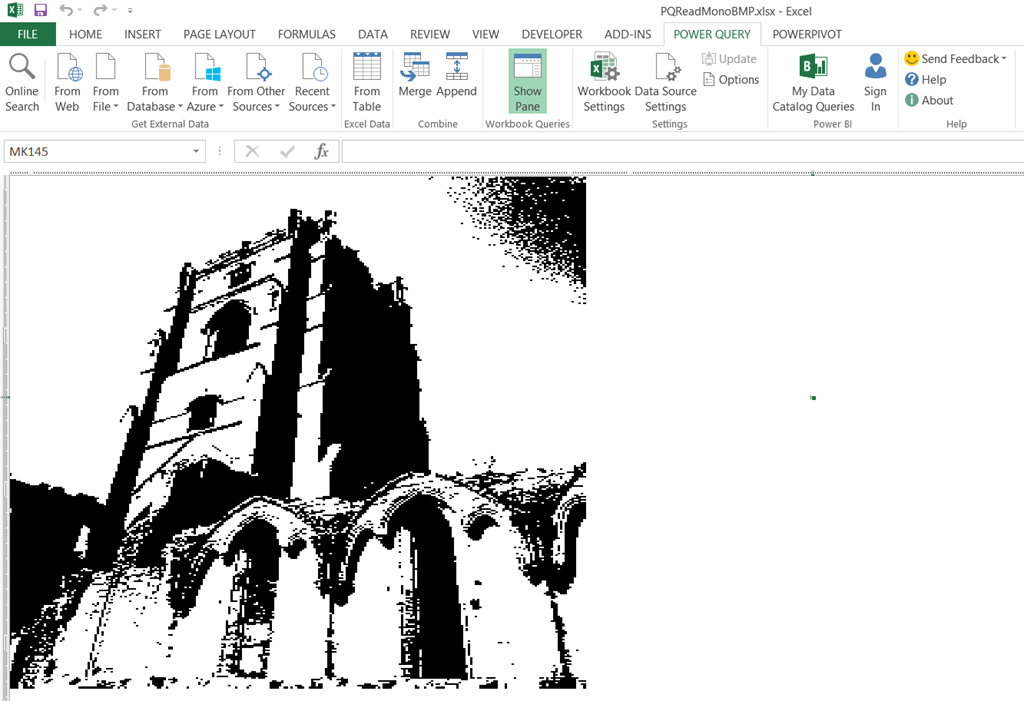
Here’s the photo rendered as cells in the workbook:

image

And here it is again, zoomed in a bit so you can see the individual cells a bit better:

image

You can download the workbook (which I’ve modified so you can enter the filename of your bmp file in a cell in the worksheet, so you don’t have to edit the query – but you will have to turn Fast Combine on as a result) from here. Have fun!

A Closer Look At Power Query/SSAS Integration

In the November release of Power Query the most exciting new feature was the ability to connect to SSAS. I blogged about it at the time, but having used it for a month or so now I thought it was worth writing a more technical post showing how it works in more detail (since some things are not immediately obvious) as well as to see what the MDX it generates looks like.

This post was written using Power Query version 2.18.3874.242, released January 2015; some of the bugs and issues mentioned here will probably be fixed in later versions.

Connecting to SSAS

Power Query officially supports connecting to all versions of SSAS from 2008 onwards, although I’ve heard from a lot of people they have had problems getting the connection working. Certainly when I installed the version of Power Query with SSAS support in on my laptop, which has a full install of SQL Server 2014, it insisted I install the 2012 version of ADOMD.Net before it would work (I also needed to reboot). My guess is that if you’re having problems connecting you should try doing that too; ADOMD.Net 2012 is available to download in the SQL Server 2012 Feature Pack.

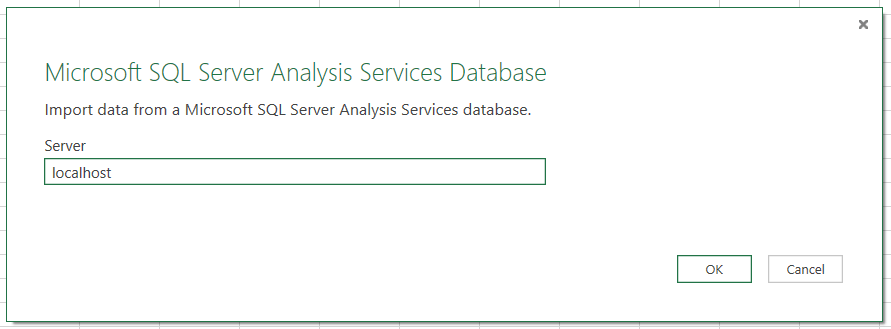
After clicking From Database/From SQL Server Analysis Services the following dialog appears, asking you to enter the name of the server you want to connect to.

image

If this is the first time you’re connecting to SSAS the following dialog will appear, asking you to confirm that you want to use Windows credentials to connect.

image

Unfortunately, if you’re connecting via http and need to enter a username and password you won’t be able to proceed any further. I expect this problem will be fixed soon.

Initial Selection

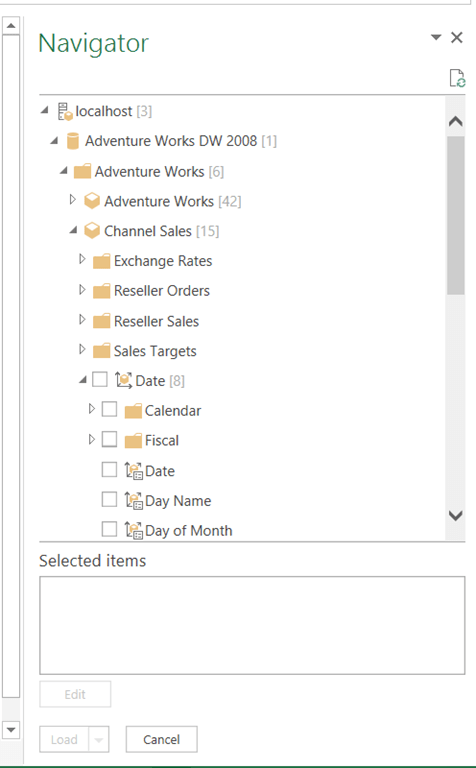
Once you’ve connected the Navigator pane appears on the right-hand side of the screen. Here you see all of the databases on the server you’ve connected to; expand a database and you see the cubes, and within each cube you see all of the measure groups, measures, dimensions and hierarchies.

image

The previous build of Power Query does not display any calculated measures that aren’t associated with measure groups (using the associated_measure_group property); this has been fixed in version 2.18.3874.242.

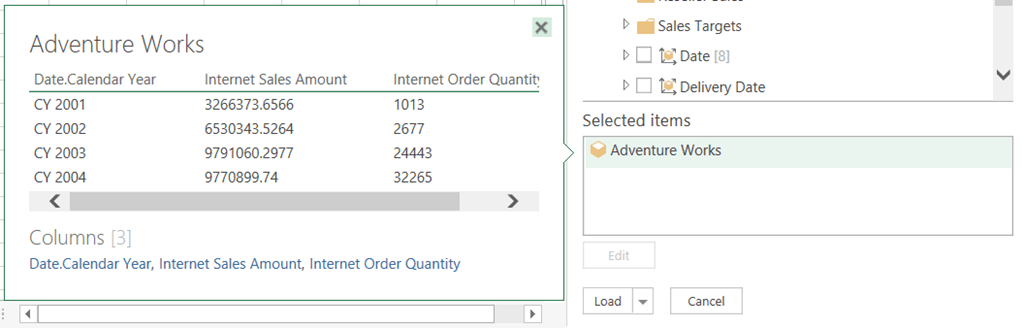
When you start to select measures and hierarchies the name of the cubes you have chosen items from will appear in the Selected items box. If you hover over the name of the cube the peek pane will appear and you’ll see a preview of the results of the query.

image

At this point you can either click the Load button to load the data either to the worksheet or the Excel Data Model, or click the Edit button to edit the query further.

You cannot specify your own MDX query to use for the query as yet.

The Query Editor

Once the Power Query Query Editor opens you’ll see the output of the query as it stands, and also on the Cube tab in the ribbon two new buttons: Add Items and Collapse Columns.

image

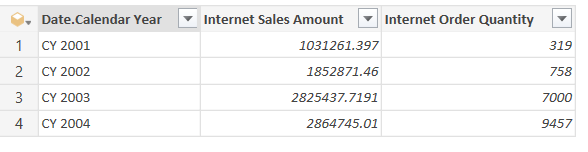
Here’s the MDX (captured from Profiler) showing the MDX generated for the query in the screenshot above:

[sourcecode language=”text” padlinenumbers=”true”]
select
{[Measures].[Internet Sales Amount],[Measures].[Internet Order Quantity]}
on 0,
subset(
nonempty(
[Date].[Calendar Year].[Calendar Year].allmembers
,{[Measures].[Internet Sales Amount],[Measures].[Internet Order Quantity]})
,0,50)
properties member_caption,member_unique_name
on 1
from [Adventure Works]
[/sourcecode]


The MDX Subset() function is used here to ensure that the query doesn’t return more than 50 rows.

Adding Items

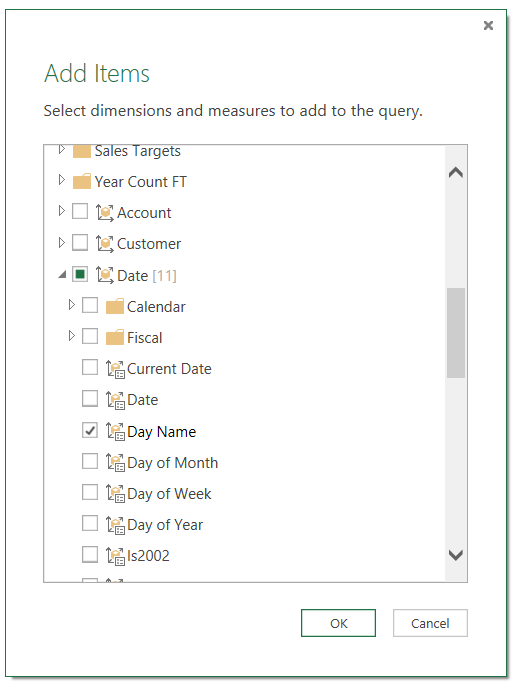
Clicking on the Add Items button allows you to add extra hierarchies and measures to the query. When you click the button the following dialog appears where you can choose what you want to add:

image

In this case I’ve added the Day Name hierarchy to the query, and this hierarchy appears as a new column on the right-hand edge of the query after the measures:

image

You can easily drag the column to wherever you want it though.

Here’s the MDX again:

[sourcecode language=”text”]
select
{[Measures].[Internet Sales Amount],[Measures].[Internet Order Quantity]}
on 0,
subset(
nonempty(
crossjoin(
[Date].[Calendar Year].[Calendar Year].allmembers,
[Date].[Day Name].[Day Name].allmembers)
,{[Measures].[Internet Sales Amount],[Measures].[Internet Order Quantity]})
,0,50)
properties member_caption,member_unique_name
on 1
from [Adventure Works]
[/sourcecode]


Collapsing Columns

Selecting the Day Name column and then clicking the Collapse Columns button simply rolls back to the previous state of the query. However, there’s more to this button than meets the eye. If you filter the Day Name column (for example, by selecting Saturday and Sunday as in the screenshot below) and then click Collapse and Remove, the filter will still be applied to the query even though the Day Name column is no longer visible.

image

Here’s what the Query Editor shows after the filter and after the Day Name column has been collapsed:

image

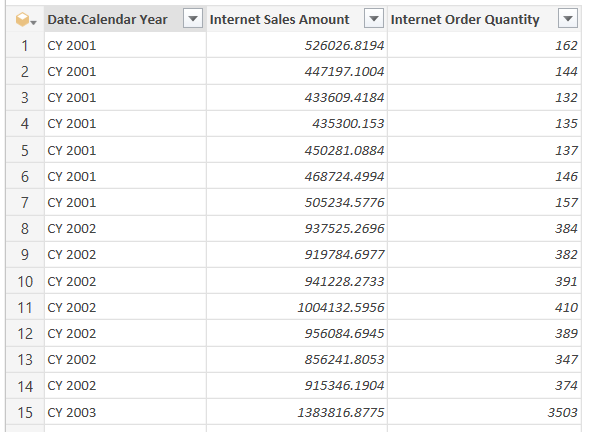
Compare the measure values with those shown in the original query – it’s now showing values only for Saturdays and Sundays, although that’s not really clear from the UI. Here’s the MDX generated to prove it – note the use of the subselect to do the filtering:

[sourcecode language=”text”]
select
{[Measures].[Internet Sales Amount],[Measures].[Internet Order Quantity]}
on 0,
subset(
nonempty(
[Date].[Calendar Year].[Calendar Year].allmembers
,{[Measures].[Internet Sales Amount],[Measures].[Internet Order Quantity]})
,0,1000)
properties member_caption,member_unique_name
on 1
from(
select
({[Date].[Day Name].&amp;[7],[Date].[Day Name].&[1]})
on 0
from
[Adventure Works])
[/sourcecode]


From studying the MDX generated I can tell that certain other operations such as sorting and filtering the top n rows are folded back to SSAS.

It’s also important to realise that using the Remove option to remove a column from the query does not have the same effect as collapsing the column:

image

Using Remove just hides the column; the number of rows returned by the query remains the same.

image

User Hierarchies

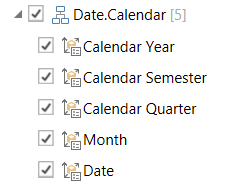
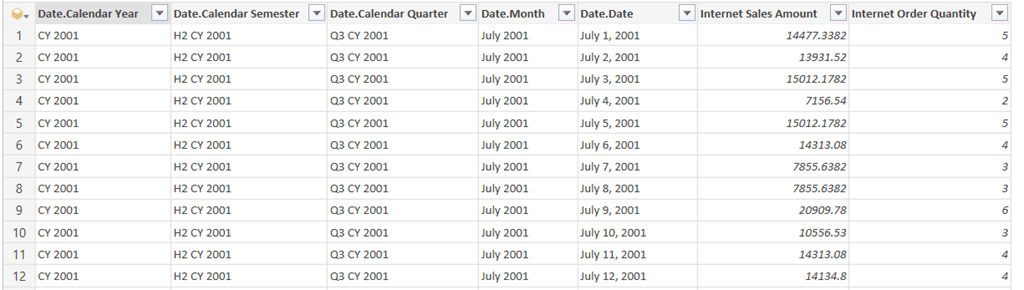
In the examples above I’ve only used attribute hierarchies. User hierarchies aren’t much different – you can select either an individual level or the entire hierarchy (which is the same as selecting all of the levels of the hierarchy).

image

image

Parent-Child Hierarchies

Parent-child hierarchies work very much like user hierarchies, except that you will see some null values in columns to accommodate leaf members at different levels:

image

M Functions

There are a lot of M functions relating to cube functionality, although the documentation in the Library Specification document is fairly basic and all mention of them disappeared from the online help a month or so ago for some reason. Here’s the code for the query in the Collapsing Columns section above:

[sourcecode language=”text”]
let
Source = AnalysisServices.Databases("localhost"),
#"Adventure Works DW 2008" = Source{[Name="Adventure Works DW 2008"]}[Data],
#"Adventure Works1" = #"Adventure Works DW 2008"{[Id="Adventure Works"]}[Data],
#"Adventure Works2" = #"Adventure Works1"{[Id="Adventure Works"]}[Data],
#"Added Items" = Cube.Transform(#"Adventure Works2", {
{Cube.AddAndExpandDimensionColumn,
"[Date]", {"[Date].[Calendar Year].[Calendar Year]"}, {"Date.Calendar Year"}},
{Cube.AddMeasureColumn, "Internet Sales Amount",
"[Measures].[Internet Sales Amount]"},
{Cube.AddMeasureColumn, "Internet Order Quantity",
"[Measures].[Internet Order Quantity]"}}),
#"Added Items1" = Cube.Transform(#"Added Items", {
{Cube.AddAndExpandDimensionColumn, "[Date]",
{"[Date].[Day Name].[Day Name]"}, {"Date.Day Name"}}}),
#"Filtered Rows" = Table.SelectRows(#"Added Items1", each (
Cube.AttributeMemberId([Date.Day Name]) = "[Date].[Day Name].&[7]"
meta [DisplayName = "Saturday"]
or
Cube.AttributeMemberId([Date.Day Name]) = "[Date].[Day Name].&[1]"
meta [DisplayName = "Sunday"])),
#"Collapsed and Removed Columns" = Cube.CollapseAndRemoveColumns(
#"Filtered Rows",
{"Date.Day Name"})
in
#"Collapsed and Removed Columns"
[/sourcecode]


It’s comprehensible but not exactly simple – yet another example of how difficult it is to shoe-horn multidimensional concepts into a tool that expects to work with relational data (see also SSRS). I doubt I’ll be writing any M code that uses these functions manually.