Multiselect, Filtering And Functions In Power Query

If you’re a Power Query enthusiast you’re probably already comfortable with creating functions and passing values to them. However in some scenarios you don’t want to pass just a single value to a parameter, you want to pass multiple values – for example if you are filtering a table by multiple criteria. What’s the best way of handling this in Power Query?

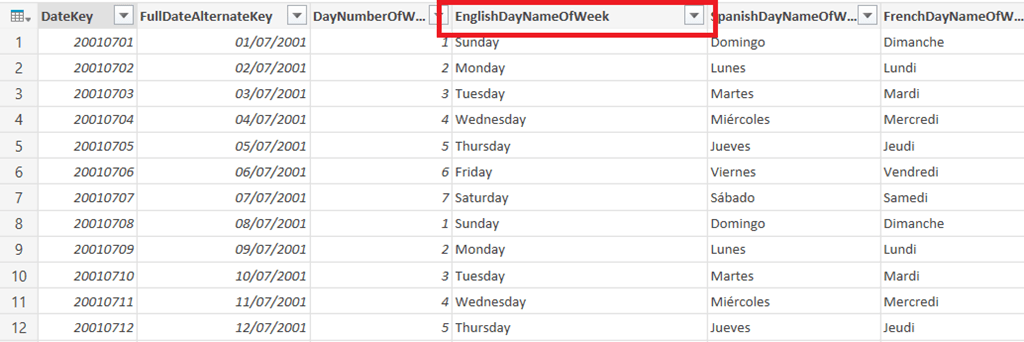
Imagine that you wanted to import data from the DimDate table in the SQL Server Adventure Works DW database. It’s a pretty straightforward date dimension table as you can see:
image

Imagine also that you didn’t want to import all the rows from the table but just those for certain days of the week that the user selects (filtering on the EnglishDayNameOfWeek column).

The first problem is, then, how do you allow the user to make this selection in a friendly way? I’ve already blogged about how the function parameter dialog can be made to show ‘allowed’ selections (here and here) but this only allows selection of single values. One solution I’ve used is to create an Excel table – sourced from a Power Query query of course – and then let users select from there.

In this case, the following query can be used to get all the distinct day names:

[sourcecode language=”text” padlinenumbers=”true”]
let
Source = Sql.Database("localhost", "adventure works dw"),
dbo_DimDate = Source{[Schema="dbo",Item="DimDate"]}[Data],
#"Removed Other Columns" = Table.SelectColumns(dbo_DimDate,
{"DayNumberOfWeek", "EnglishDayNameOfWeek"}),
#"Sorted Rows" = Table.Sort(#"Removed Other Columns",
{{"DayNumberOfWeek", Order.Ascending}}),
#"Removed Duplicates" = Table.Distinct(#"Sorted Rows"),
#"Removed Columns" = Table.RemoveColumns(#"Removed Duplicates",
{"DayNumberOfWeek"}),
#"Added Custom" = Table.AddColumn(#"Removed Columns", "Selected", each "No")
in
#"Added Custom"
[/sourcecode]

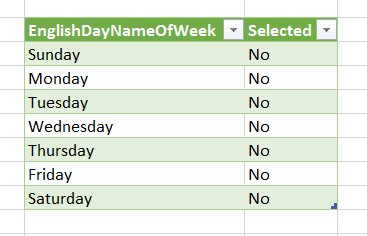
Nothing much interesting to say about this apart from that it was all created in the UI, it shows the day names in the correct order, and it has an extra column called Selected that always contains the value “No”. The output table in Excel looks like this:
image

The Selected column is going to allow the end user to choose which days of the week they want to filter the main table by. Since “Yes” and “No” are going to be the only valid values in this column you can use Excel’s Data Validation functionality to show a dropdown box in all of the cells in this column that allows the user from selecting one of those two values and nothing else.

image

image

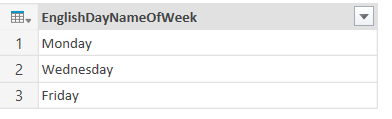
Once the user has selected “Yes” against all of the day names they want to filter by in the Excel table, the next step is to use this table as the source for another Power Query query. To be clear, we’ve used Power Query to load a table containing day names into an Excel table, where the user can select which days they want to filter by, and we then load this data back into Power Query. This second query (called SelectedDays in this example) then just needs to filter the table so it only returns the rows where Selected is “Yes” and then removes the Selected column once it has done that:

[sourcecode language=”text”]
let
Source = Excel.CurrentWorkbook(){[Name="DistinctDates"]}[Content],
#"Filtered Rows" = Table.SelectRows(Source, each ([Selected] = "Yes")),
#"Removed Columns" = Table.RemoveColumns(#"Filtered Rows",{"Selected"})
in
#"Removed Columns"
[/sourcecode]
image

This query doesn’t need to be loaded anywhere – but it will be referenced later.

With that done, you need to create a function to filter the DimDate table. Here’s the M code:

[sourcecode language=”text”]
(SelectedDays as list) =>
let
Source = Sql.Database("localhost", "adventure works dw"),
dbo_DimDate = Source{[Schema="dbo",Item="DimDate"]}[Data],
#"Filtered Rows" = Table.SelectRows(dbo_DimDate,
each List.Contains(SelectedDays,[EnglishDayNameOfWeek]) )
in
#"Filtered Rows"
[/sourcecode]

The thing to notice here is the condition used in the Table.SelectRows() function, where List.Contains() is used to check whether the day name of the current row is present in the list passed in through the SelectedDays parameter.

The final step is to invoke this function and pass the column from the query containing the selected days to it. There is a bit of UI sugar when you invoke a function with a parameter of type list that I blogged about recently. In this case when you invoke the function you just have to pass the pass it the EnglishDayNameOfWeek column from the SelectedDays query.

image

Here’s what the code for the query that invokes the function looks like:

[sourcecode language=”text”]
let
Source = DimDate(SelectedDays[EnglishDayNameOfWeek])
in
Source
[/sourcecode]

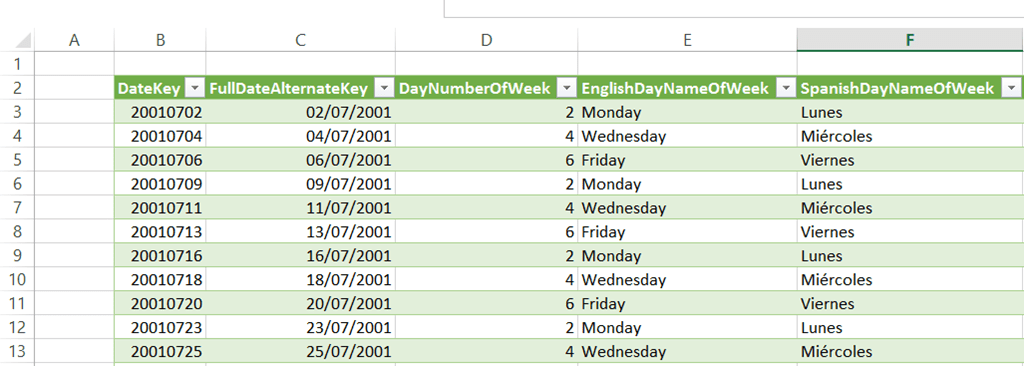
And of course, when you run the query and output the results to a table, you get the DimDate table filtered by all of the days of the week you have selected:
image

To change the output the user just needs to change the selected days and then refresh this last query.

In case you’re wondering, this query does get folded back to SQL Server too. Here’s the SQL generated by Power Query:

[sourcecode language=”text”]
select [$Ordered].[DateKey],
[$Ordered].[FullDateAlternateKey],
[$Ordered].[DayNumberOfWeek],
[$Ordered].[EnglishDayNameOfWeek],
[$Ordered].[SpanishDayNameOfWeek],
[$Ordered].[FrenchDayNameOfWeek],
[$Ordered].[DayNumberOfMonth],
[$Ordered].[DayNumberOfYear],
[$Ordered].[WeekNumberOfYear],
[$Ordered].[EnglishMonthName],
[$Ordered].[SpanishMonthName],
[$Ordered].[FrenchMonthName],
[$Ordered].[MonthNumberOfYear],
[$Ordered].[CalendarQuarter],
[$Ordered].[CalendarYear],
[$Ordered].[CalendarSemester],
[$Ordered].[FiscalQuarter],
[$Ordered].[FiscalYear],
[$Ordered].[FiscalSemester]
from
(
select [_].[DateKey],
[_].[FullDateAlternateKey],
[_].[DayNumberOfWeek],
[_].[EnglishDayNameOfWeek],
[_].[SpanishDayNameOfWeek],
[_].[FrenchDayNameOfWeek],
[_].[DayNumberOfMonth],
[_].[DayNumberOfYear],
[_].[WeekNumberOfYear],
[_].[EnglishMonthName],
[_].[SpanishMonthName],
[_].[FrenchMonthName],
[_].[MonthNumberOfYear],
[_].[CalendarQuarter],
[_].[CalendarYear],
[_].[CalendarSemester],
[_].[FiscalQuarter],
[_].[FiscalYear],
[_].[FiscalSemester]
from [dbo].[DimDate] as [_]
where [_].[EnglishDayNameOfWeek] in (‘Monday’, ‘Wednesday’, ‘Friday’)
) as [$Ordered]
order by [$Ordered].[DateKey]
[/sourcecode]

Notice that the Where clause contains an IN condition with all of the selected days.

You can download the example workbook for this post here.
Bidirectional Relationships And Many-To-Many In The Power BI Designer

There’s a lot of cool stuff in the new Power BI Designer desktop app, but for me the most important new bit of functionality is one that’s not immediately obvious: relationships between tables in the data model have had a significant upgrade. Let me illustrate…

Bidirectional Relationships

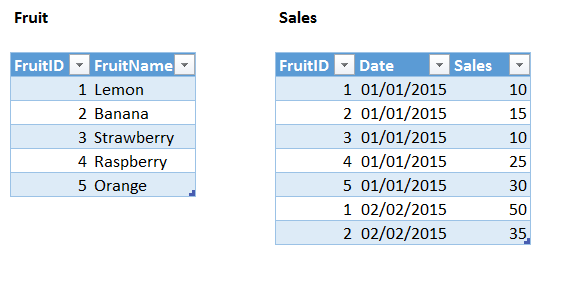
First up: relationships can now filter in two directions. Consider the following two tables in an Excel workbook, a dimension table called Fruit and a fact table called Sales:

image

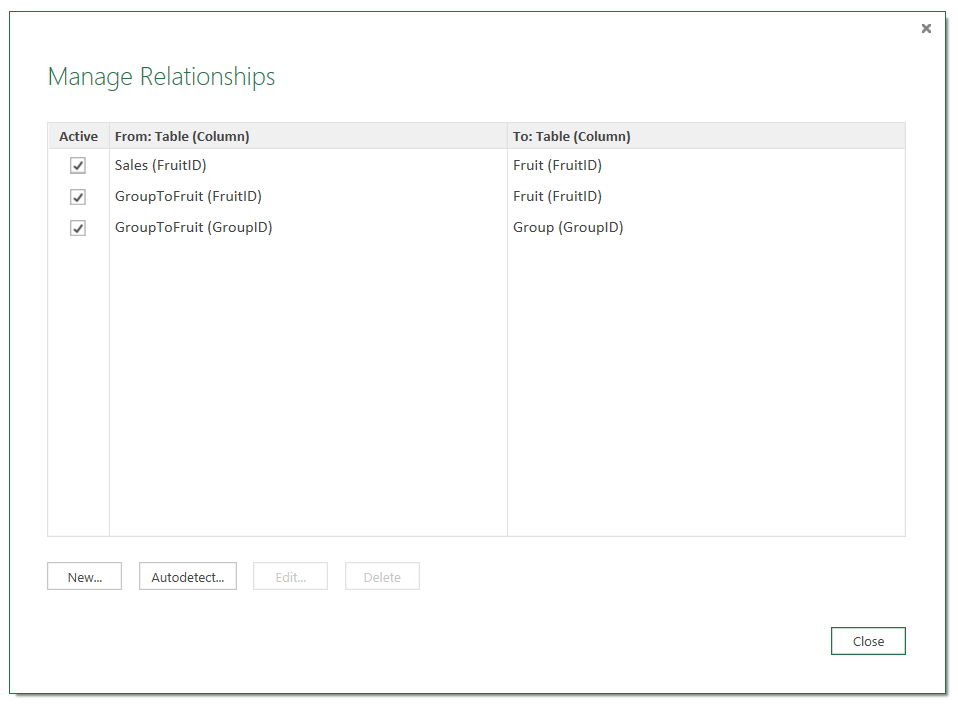
When you first load these tables into the Power BI Designer no relationships are created between the tables. To create relationships you need to click on the Manage button on the Home tab so that the Manage Relationships dialog appears. You can then click the Autodetect button and the relationship between the two FruitID columns is created.

image

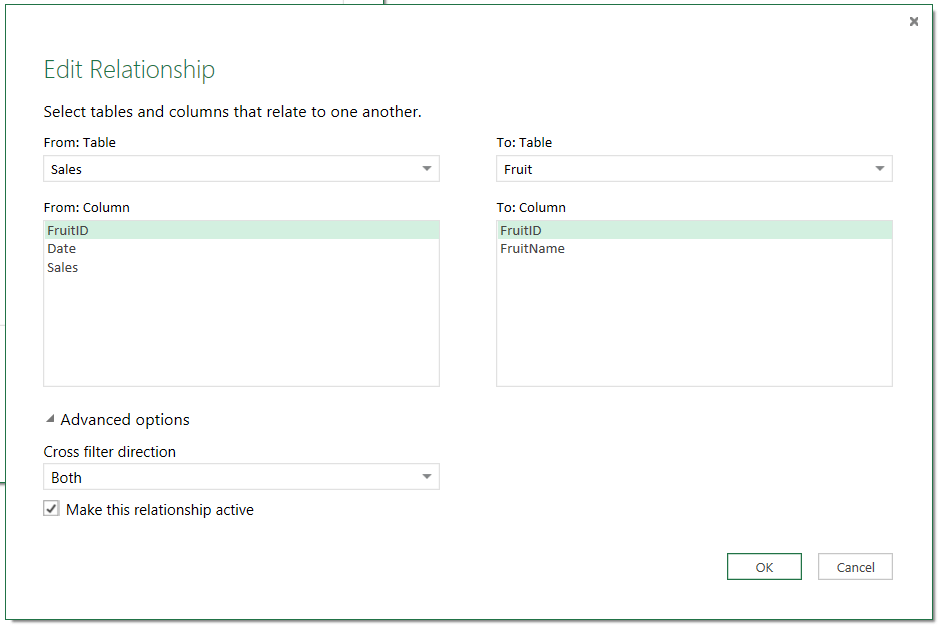
However, click on the Edit button and you’ll see something interesting. In the Edit Relationship dialog, under Advanced options, you’ll see that the Cross filter direction is set to Both (the other option is Single).

image

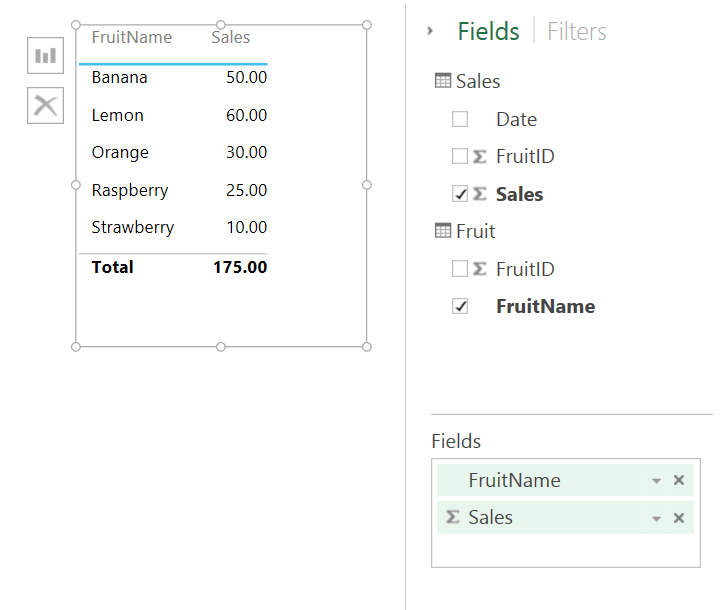
This means that, not only can you create a report like this with FruitName field on rows axis of a table in a Power View report along with a measure showing the sum of values from the Sales field:

image

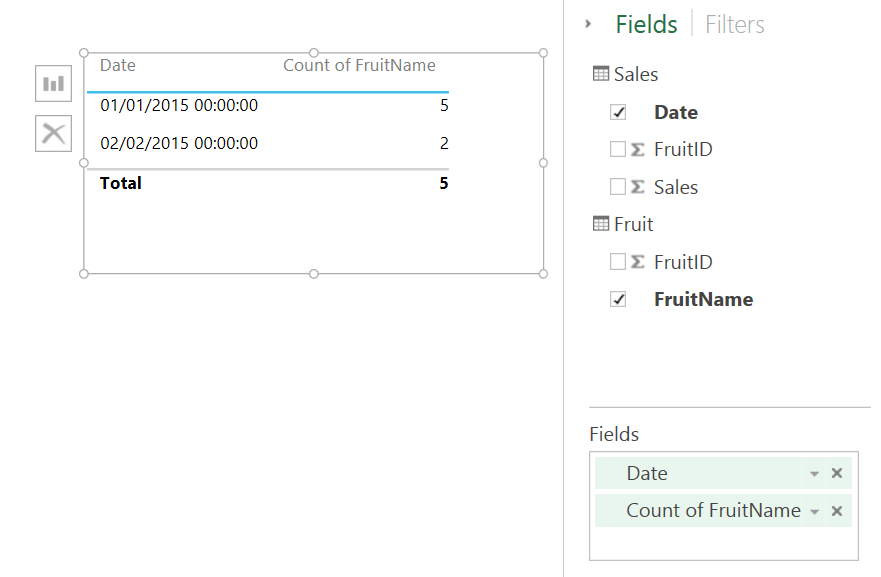
But you can also now take the Date field from the Sales table and put it on rows in the report along with a measure showing the distinct count of values from the Fruit Name field from the Fruit table:

image

The relationship between the two tables is working in both directions, from the dimension table to the fact table and from the fact table to the dimension table, which is a big change from Power Pivot in Excel where a relationship can only work in one direction (from the dimension table to the fact table). You can still get the original Power Pivot relationship behaviour by setting the Cross filter direction property to Single.

Many-To-Many

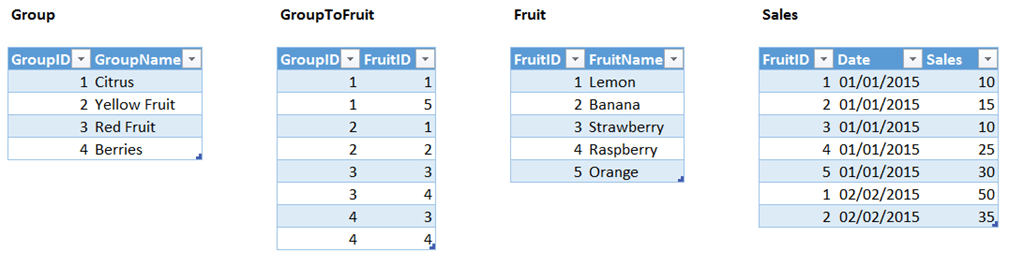
If you thought that was impressive, there’s another implication of this change: many-to-many relationships now work automatically. No nasty DAX is necessary – which is lucky because, at the time of writing, there’s nowhere to use DAX in the Power BI Designer. Here’s the same data as above but with two more tables, so that there is now a classic many-to-many model with a dimension table called Group and a factless fact table called GroupToFruit associating each fruit with one or more groups and each group with one or more fruit.

image

Here are the relationships in the model, all of which were created using the Autodetect button and all of which have their Cross filter direction set to Both:

image

And here’s what you see in a report when you put GroupName on rows with a measure showing the sum of Sales:

image

The sales value for Berries is 35, the sum of the sales for Raspberries and Strawberries; the sales value for Red Fruit is the same because that group contains the same fruit; but the grand total is not the sum of the groups but the total sales for all fruit.

Summary

Anyone that has tried to build a reasonably complex model in Power Pivot or SSAS Tabular will understand how big a change this is. Up to now if you wanted to use many-to-many relationships you needed to add extra DAX code to each measure you created, and that added an unwelcome layer of complexity; now it just works. I haven’t thought it through properly yet but I bet that many other modelling scenarios can now be solved with this new functionality too. Time to do some thinking…

10th Blog Birthday

Earlier this year I celebrated 1000 posts on this blog; now it’s time to celebrate passing another milestone: ten years since my first ever post. Thanks to everyone who has been with me since then!

It’s my habit to post a review of the past year on this date, and as always there’s a lot to think about. This has been the first year where the majority of my posts have not been on SSAS or MDX. Most of my consultancy and training is still on these topics but given the lack of new features in SSAS recently it’s become harder and harder to find anything new to say about it (although a few other bloggers have managed to, such as Richard Lee’s great posts on using PowerShell to automate various SSAS administrative tasks). On the other hand I’ve invested a lot of time learning Power Query and as a result I’ve found a lot to write about, and this is true even after having written a book on it. I really hope that SSAS gets some attention from Microsoft soon – I’ve come to accept that I won’t see anything new in MDX, and the same is probably true of Multidimensional, but Tabular and DAX should get a major upgrade in SQL Server v.next (whenever that comes). Given the strong ties between SSAS Tabular, Power Pivot and now the Power BI Dashboard Designer I would guess that we’ll see new Tabular/DAX features appearing in the Power BI Designer in the coming months, and then later on in Excel and SSAS. When that happens I’ll be sure to write about them.

In the meantime, why the focus on Power Query? It’s not just to have something to blog about. If you’re a regular reader here you’ll know that I’m very enthusiastic about it and it’s worth me explaining why:

  • It solves a significant problem for a lot of people, that of cleaning and transforming data before loading into Excel. My feeling is that more people need Power Query for this than need Power Pivot for reporting.
  • More importantly, it’s a great product. It works well, it’s easy to use and I’m constantly being surprised at the types of problem it can solve. Indeed, where there’s an overlap between what it can do and what Power Pivot can do, I think users will prefer to work with Power Query: its step-by-step approach is much friendlier than a monolithic, impossible-to-debug DAX expression. Whenever I show off Power Query at user groups or to my customers it generates a lot of interest, and the user base is growing all the time.
  • I love the way that the Power Query dev team have released new features on a monthly basis. The amount that they have delivered over the last 18 months has put the rest of Power BI to shame, although I understand that because Power Query isn’t integrated into Excel in the way that Power View and Power Pivot are they have a lot more freedom to deliver. What’s more important though is that the Power Query dev team make an effort to talk to their users and develop the features that they actually want and need (the ability to set the prefix when expanding columns is a great example), rather than build whatever the analysts are hyping up this year. This gives me a lot of confidence in the future of the product.
  • Having seen the way that Power Query has been integrated into the Power BI dashboard designer, it could be the case that in the future the distinctions between Power Query, Power View and Power Pivot disappear and we think of them as parts of a single product.

One other big change for me this year was that I resigned from the SQLBits committee after seven years. There’s no behind-the-scenes scandal here, I just felt like it was time for a change. I work too hard as it is and I needed to free up some time to relax and be with my family; I was also aware that I wasn’t doing a great job on it any more. It was a very tough decision to make nonetheless. I had a great time with SQLBits while I was involved with it and I’ll be at SQLBits XIII in London next March as an attendee and hopefully a speaker. I know it will be another massive success.

Looking forward to next year, I hope the new direction for Power BI will be good for partners like me. There will certainly be continued interest in training for it, but the real test will be whether there’s a lot of demand for consultancy. I’ve done some Power Pivot and Power Query consultancy work this year, and demand is definitely increasing, but it’s still not a mature market by any means. Maybe the move away from Excel will change the nature of the BI projects that people attempt with Power BI, so that there are more formal, traditional implementations as well as the ad hoc self-service use that I’m seeing at the moment. The new Power BI APIs should also encourage more complex, IT department-led projects too. I don’t have a problem with the concept of self-service BI but I think it’s a mistake to believe that all BI projects can be completely self-service. I would like to think that there’s still a need for professional services from the likes of me in the world of Power BI; if there isn’t then I’m going to need to find another career.

Anyway, I’ve probably gone on for long enough now and I need to get back to enjoying what’s left of the holidays. Best wishes to all of you for 2015!

Viewing Error Messages For All Rows In Power Query

One of the great features of Power Query is the way you can view any rows that contain error values when you load data. However, even if you can see the rows that have errors you can’t see the error messages easily – without writing a little bit of M code, which I’ll show you in this post.

Imagine you have the following table of data:

image

…and you load it into Power Query using the following query, which sets the data type for the Sales column to be Whole Number:

[sourcecode language=”text” padlinenumbers=”true”]
let
Source = Excel.CurrentWorkbook(){[Name="Sales"]}[Content],
#"Changed Type" = Table.TransformColumnTypes(
Source,
{{"Sales", Int64.Type},
{"Product", type text}})
in
#"Changed Type"
[/sourcecode]


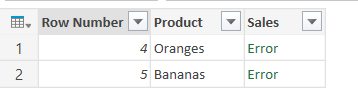
As you’d expect, the last two rows contain error values as a result of this type conversion:

image

You can also see the number of rows that contain errors when you load the query:

image

Clicking on the “2 errors” link in the screenshot above creates a new query that only contains the rows with errors:

image

You can click on the Error link in any cell that contains one to see the error message:

image

But what you really want is to see the error message for each row. To do this add a new custom column with the following definition:

try [Sales]

image

You will then see a new column called Custom containing a value of type Record. You can then click the Expand icon in the column header (highlighted) and then OK:

image

You’ll then see another column called Custom.Error with an Expand icon; click on it and then click OK again.

image

image

And at last you’ll have two columns that show the error messages for each row:

image

Thoughts On The New Power BI

There’s been a lot of Power BI-related news in the last few days. I think it’s enough to say that there is a new Power BI in town, a very different (and much better) story from what we’ve had up to now. Sadly the preview is only available in the US at the moment.

I’m not going to repeat what the official announcements say, though, and you can read them here if you haven’t seen them already:

http://blogs.msdn.com/b/powerbi/archive/2014/12/16/announcing-new-excel-2013-bi-stability-and-usability-improvements.aspx

http://blogs.msdn.com/b/powerbi/archive/2014/12/18/new-power-bi-features-available-for-preview.aspx

http://blogs.msdn.com/b/powerbidev/archive/2014/12/02/introducing-the-power-bi-apis-for-preview.aspx


Here’s the main Power BI website:

http://www.powerbi.com/

Here’s the documentation for the APIs:

http://msdn.microsoft.com/powerbi

Here’s the YouTube channel with lots of videos:

https://www.youtube.com/user/mspowerbi

Here’s the help:

http://support.powerbi.com/knowledgebase


So what does all this mean for us, the Microsoft BI community?

Excel Updates

One of the biggest complaints I’ve heard from people who are just starting to test Power Pivot and Excel 2013 is that it just hasn’t been stable (even compared to Excel 2010 Power Pivot). If you’re evaluated new software then crashes and weird behaviour are a massive turn-off, and I sincerely hope that the new update will improve the situation here and make people’s first impressions of Excel as a BI tool much better.

Power BI Decoupled From Excel And Office 365

OK, so Excel is still important but it’s no longer the centre of the Power BI universe. We can now create models and reports in the browser, and even more significantly we have the Microsoft Power BI Designer, a standalone app which is basically Power Query and Power View (no Power Pivot as yet, but I’m sure that will come) bundled together minus Excel. Also, dashboards and reports no longer have to be stored inside SharePoint, there’s a separate site at https://preview.powerbi.com/ for viewing and even creating them.

This is noteworthy for several reasons:

  • The whole Office 2013 Professional Plus/Office 365 requirement is now gone. Yes, Power BI will integrate well with Office 2013 and Office 365 if you have it, but you don’t need them any more. This removes a massive barrier to adoption for Power BI: in the past year or so I’ve seen lots of customers get excited about Power BI and then realise they can’t use it because their organisation isn’t using the right version of Excel, or isn’t an Office 365 customer, or they have the wrong SKU of Office 365, and so on.
  • We no longer have to wait as long for new functionality. The new HTML5 Power View is available in Office 365 and PowerBI.com but in Excel on the desktop, even after the latest updates, it’s the old Silverlight Power View still. Tight links to Excel slow down the delivery cycle and prevent Power BI from competing effectively. Excel has clearly not been abandoned but my guess is that it won’t see new features arrive in Excel at the same pace as the rest of Power BI because, well, it’s Excel and it moves very slowly (the Excel team are rightly very cautious about new functionality – if Excel is broken then millions of companies around the world have big problems).
  • There is a down side to this: more choices and more confusion over which tool to use. Do you build dashboards and reports with the Power BI Dashboard Designer and PowerBI.com, with all the latest Power View chart types and other cool new stuff; or good old Excel, with its mature, well-understood functionality like PivotTables, cube functions, and the worksheet, plus SharePoint Online and Power BI sites; or a mixture of the two? How well do the options work together? What functionality is available in each option exactly? More conservative users will opt for the latter; BI consultants like me will probably go for the former. But it’s yet another difficult conversation to have with the customer.

Is The New Functionality Any Good?

There are three ways of answering this question: looking at the merits of the new functionality on its own, as it stands now; looking forward to what it will be soon; and comparing it with the competition. The new Power BI is certainly a big improvement over what we’ve had so far, and answers a lot of long-standing requests in terms of functionality. The simple fact that it looks sexy is in itself a great selling point. Here, for example, is what a treemap looks like in a Power View report stored in Office 365:

Treemap

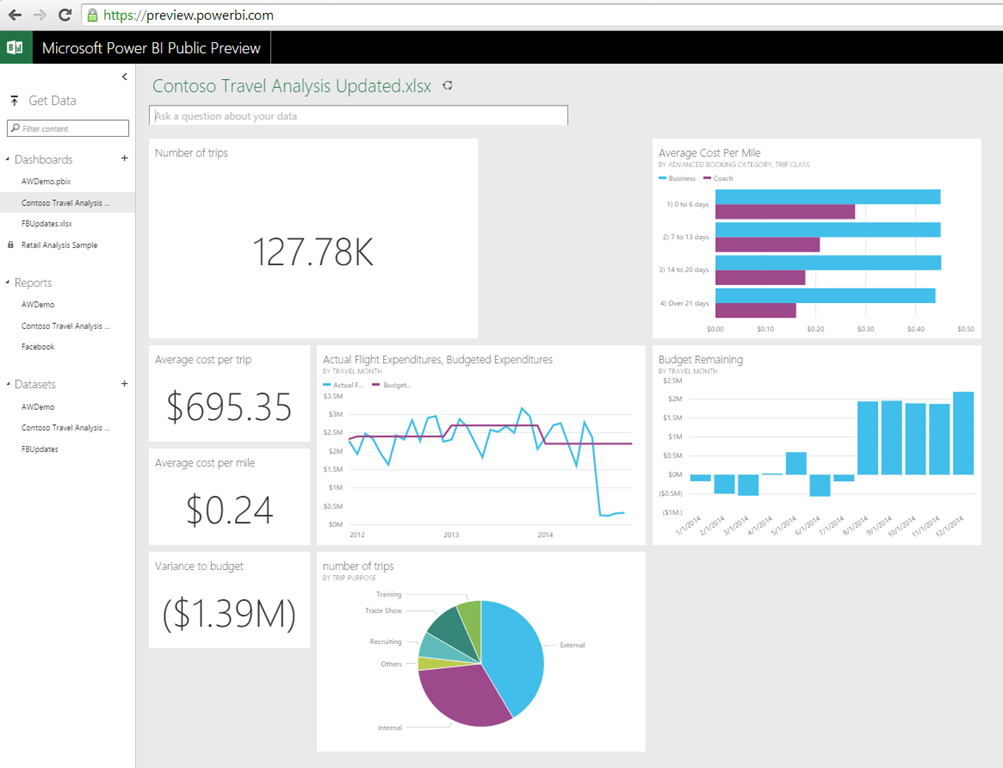
Here’s a dashboard (though I think ‘dashboard’ is a misleading term here, because it’s not what a lot of us would call a dashboard) from PowerBI.com:

image

It’s fast and I am impressed with how easy it is to use too. Although it’s not ready for production use yet (see below) I can imagine it will be quite soon and it should be good enough to win some deals then. It’s still a long way behind some of the competition in some respects, such as variety of chart types, but in other respects (such as the kind of transformations available in Power Query and the types of advanced calculations that are possible in Power Pivot) it’s as good if not better.

Mobile BI On iOS At Last!

At long last we have a mobile BI story on iOS. I haven’t played with it but I have seen demos and it’s pretty good. The touch interface is cool.

This Is Still A Preview

There’s a lot of functionality missing in the current build by the looks of things. The Power BI dashboard designer includes Power Query and Power View, but what about Power Pivot? I’m surprised it’s not included, and I strongly suspect it will be in a later release. Where does Power Map fit in, if at all? We can connect to on-premises SSAS Tabular, but when will be able to connect to Multidimensional? It will be interesting to see what gets released in the next six months. I bet we’ll also see new chart types and data sources very soon. I hope the Power BI team copy the approach the Power Query team have taken and release new builds every month.

And please, please, please Microsoft don’t screw up on the licensing again. No details on it have been released yet. I hope they keep it simple and affordable.

And It’s Still In The Cloud

Apart from the whole Office 2013/365 issue, the other major blocker to adoption of Power BI is the fact that it’s cloud based and that hasn’t changed. Some customers (especially in Europe) are never going to consider a cloud BI tool because of data privacy concerns, and I don’t think that’s going to change soon. Then there are the loyal MS BI customers who have invested heavily in on-premises SharePoint and can’t just ditch all that infrastructure to move to the cloud. Microsoft needs to have a Power BI story for these customers too.

APIs

Finally, what I think could be the killer feature for Power BI: the APIs. Microsoft products are most likely to succeed when they give the partner community a platform to build on. Even if Power BI might not match some of the features of other products out there the ability for a partner to push data into Power BI and support obscure data sources will, I think, allow Power BI to beat its rivals in many cases.

In Summary

Overall I think the changes that Microsoft have made to Power BI are the right ones in the circumstances. If I’m honest, over the last year I saw a lot of hype for Power BI, a lot of interest in it from customers, but while Power Pivot and Power Query are being used more and more there are very few customers who are using the whole package. The reasons are clear: the Office 2013 ProPlus/365 requirements; the fact it’s in the cloud; and the fact that it’s horrendously difficult to understand what Power BI even is and how the components fit together. The new Power BI deals with some of those problems but not all; I hope Microsoft has done enough to ensure that Power BI gets traction in the marketplace. The new functionality is really good and I’m a lot more optimistic about the future than I was. If Microsoft can keep up the momentum it will have a hit on its hands.

Bing Pulse

A recent post on the Bing blog alerted me to a Microsoft service called Bing Pulse that I hadn’t heard about before. It’s a way of collecting and analysing audience feedback in real time during events like TV programmes, sporting events and speeches; the videos at http://pulse.bing.com/how-it-works/ give you a lot of detail on how it works.

It’s free to use until the end of January 2015 while it’s in beta; after that it looks like it will cost between $200 and $1000 per event. Some of the features mentioned as coming soon here suggest that you’ll be able to download the data it generates into your own BI tools, so I guess it would be possible to consume it in Power BI.

Measuring audience feedback like this is nothing new. I guess one reason why I found this service so interesting is that about six months ago I read something about the Hopkins Televoting Machine, developed in the 1940s to test audience reactions during movie screenings (you can read a bit about it here and here) – it’s amazing how similar it is to Bing Pulse. You may be also be interested in reading what Marshall McLuhan thought of this kind of thing back in 1947…

Maybe PASS should use Bing Pulse at next year’s Summit during the keynotes?

Reading The Power Query Trace File–With Power Query

In the September 2014 update of Power Query a new piece of functionality was added: the ability to turn on tracing. There’s no documentation about what the trace files actually contain anywhere (it’s clearly intended to be used only by Microsoft to help them diagnose problems) but I couldn’t help but be curious about what’s in there. And of course, when faced with a strange text file to make sense of, I turned to Power Query!

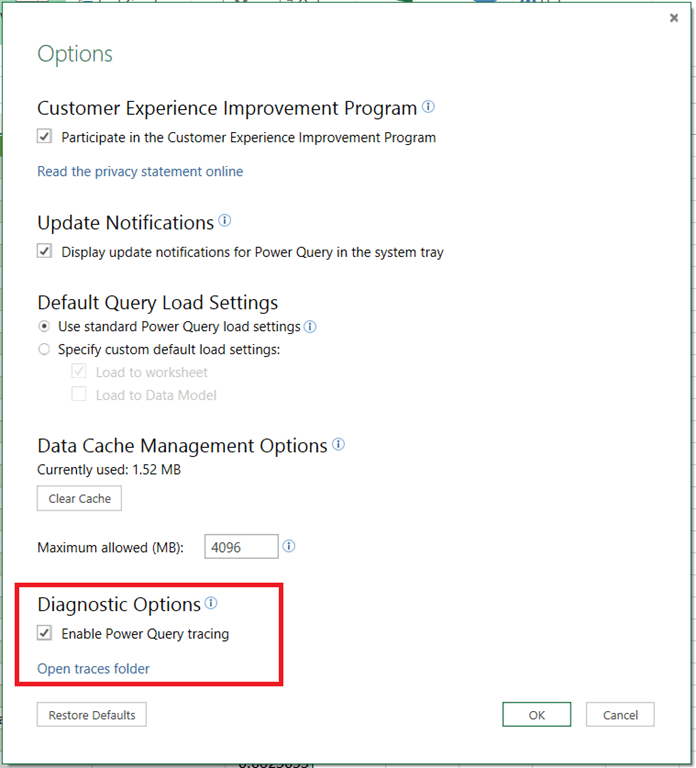
First of all, to turn on tracing, click on the Options button on the Power Query tab in the Excel ribbon, then check the ‘Enable Power Query tracing’ box:

image

Clicking on the ‘Open traces folder’ link will take you to the directory where the trace files are stored, which in my case is:

C:\Users\Chris\AppData\Local\Microsoft\Power Query\Traces

You can then run some queries and you’ll see trace log files appear in that folder:

image

[This is where the speculation starts]

As far as I can see, every time you run a Power Query query two files are created: one with a filename beginning “excel”, the other with a filename beginning “Microsoft.Mashup.Container”. All of the interesting things I found were in the “Microsoft.Mashup.Container” files so I’ll ignore the second type of file from now on.

The format of these files is pretty clear from this screenshot:

image

Each line in the file starts with “DataMashup.Trace.Information”, then there’s a number (which seems to be the same in all cases) and then there’s a JSON fragment. There are two things to point out before you attack this file in Power Query thought:

  • The obvious way to get rid of everything before the JSON is to split the column twice using a colon as the delimiter. However if you do this using the default UI settings you’ll find that the JSON is mysteriously broken – all the double quotes have disappeared. This is in fact a side-effect of the way the UI uses the Splitter.SplitTextByEachDelimiter() function: it uses a null in the second parameter, which translates to the default value of QuoteStyle.Csv, but to stop the JSON breaking you need to change this to QuoteStyle.None.
  • When you have got rid of everything but the JSON,  you just need to click Parse/JSON and you can explore the data in there:

image

Here’s an example of a query I generated to read a log file. I don’t want you to think this is a query that will read every log file though: the format may vary depending on the query you run or the version of Power Query you have. I also encountered a few bugs and strange error messages in Power Query while experimenting (I think some were caused by trying to read from files while tracing was turned on, or while the files were open in Notepad) so I can’t guarantee you’ll be able to read the files you’re interested in.

[sourcecode language=”text” padlinenumbers=”true”]
let
Source = Table.FromColumns({
Lines.FromBinary(
File.Contents(
"Insert full path and file name of log file here!")
,null,null,1252)}),
#"Split Column by Delimiter" = Table.SplitColumn(
Source,
"Column1",
Splitter.SplitTextByEachDelimiter(
{":"},
QuoteStyle.None,
false),
{"Column1.1", "Column1.2"}),
#"Changed Type" = Table.TransformColumnTypes(#"Split Column by Delimiter",
{{"Column1.1", type text}, {"Column1.2", type text}}),
#"Split Column by Delimiter1" = Table.SplitColumn(
#"Changed Type",
"Column1.2",
Splitter.SplitTextByEachDelimiter(
{":"},
QuoteStyle.None,
false),
{"Column1.2.1", "Column1.2.2"}),
#"Changed Type1" = Table.TransformColumnTypes(#"Split Column by Delimiter1",
{{"Column1.2.1", Int64.Type}, {"Column1.2.2", type text}}),
#"Parsed JSON" = Table.TransformColumns(#"Changed Type1",
{{"Column1.2.2", Json.Document}}),
#"Removed Columns" = Table.RemoveColumns(#"Parsed JSON",
{"Column1.1", "Column1.2.1"}),
#"Expand Column1.2.2" = Table.ExpandRecordColumn(
#"Removed Columns",
"Column1.2.2",
{"Start", "Action", "Duration", "Exception",
"CommandText", "ResponseFieldCount"},
{"Start", "Action", "Duration", "Exception",
"CommandText", "ResponseFieldCount"}),
#"Changed Type2" = Table.TransformColumnTypes(#"Expand Column1.2.2",
{{"Start", type datetime}, {"Duration", type duration}})
in
#"Changed Type2"
[/sourcecode]


At this point there’s plenty of useful information available: a list of events, a start time for each event, a duration for each event, and other columns where error messages, durations, SQL queries and the number of fields returned by each SQL query. All very useful information when you’re trying to work out why your Power Query query is slow or why it’s not working properly. It’s a shame there isn’t any documentation on what’s in the trace file but as I said, it’s not really for our benefit so I can understand why.

image

At this point you’re on your own, I’m afraid. Happy exploring!

Power Query And Function Parameters Of Type List

Here’s something interesting that I just discovered about how Power Query deals with function parameters of type list…

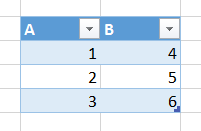
Imagine you have the following table in an Excel worksheet, and a Power Query query called MyTable that loads all of the data from it:

image

Now, create the following function in a new query:

[sourcecode language=”text” padlinenumbers=”true”]
(Mylist as list) => List.Sum(Mylist)
[/sourcecode]


This is just declares a function that takes a single parameter, Mylist, that is a list and it returns the sum of all of the values in that list.

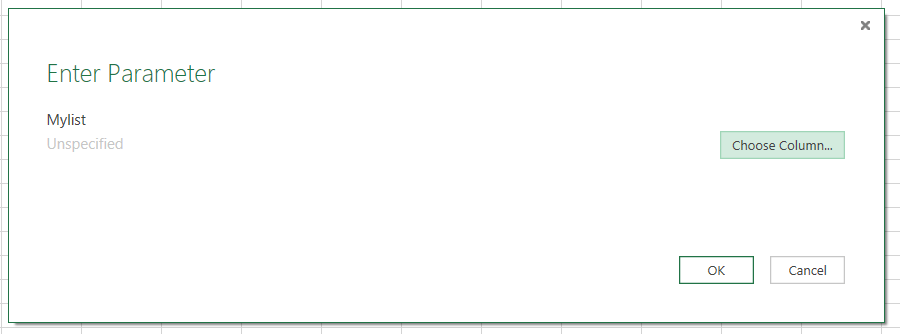
Now invoke the function from the Workbook Queries pane and instead of seeing the normal Enter Parameters dialog box you’ll see the following:

image

Clicking on the Choose Column button displays this:

image

Here you can select another query from your workbook and then select a single column from that query. In this case I’ve chosen column A from the MyTable query. Click OK and all of the values from that column will be passed as a list (using the expression MyTable[A]) through to the new function. Here’s what the resulting query to invoke the function looks like:

[sourcecode language=”text”]
let
Source = Test(MyTable[A])
in
Source
[/sourcecode]


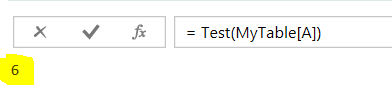
The output in this case is, of course, the value 6 – the sum of all of the values in column A:

image

I’ll use this in a more practical scenario in a future blog post!

Specifying Allowed Values, Sample Values and Descriptions For Function Parameters In Power Query–Part 2

In part 1 of this series I showed how you can set properties for Power Query function parameters so that saw a description, an example value and a dropdown list containing allowed values when they invoked the function. In this post I’ll show a slightly more complex use of this functionality: querying a relational database.

Consider the following function. It connects to the DimDate table in the Adventure Works DW sample database for SQL Server, removes all but the Date, Day, Month and Year columns, and allows you to filter the rows in the table by day, month and/or year.

[sourcecode language=”text” padlinenumbers=”true”]
//Declare function parameters
(optional DayFilter as text,
optional MonthFilter as text,
optional YearFilter as number) =>
let
//Connect to SQL Server
Source = Sql.Database("localhost", "adventure works dw"),
//Connect to DimDate table
dbo_DimDate = Source{[Schema="dbo",Item="DimDate"]}[Data],
//Only keep four columns
RemoveOtherColumns = Table.SelectColumns(dbo_DimDate,
{"FullDateAlternateKey",
"EnglishDayNameOfWeek",
"EnglishMonthName",
"CalendarYear"}),
//Rename columns
RenameColumns = Table.RenameColumns(RemoveOtherColumns,{
{"FullDateAlternateKey", "Date"},
{"EnglishDayNameOfWeek", "Day"},
{"EnglishMonthName", "Month"},
{"CalendarYear", "Year"}}),
//Filter table by Day, Month and Year if specified
FilterDay = if DayFilter=null
then
RenameColumns
else
Table.SelectRows(RenameColumns, each ([Day] = DayFilter)),
FilterMonth = if MonthFilter=null
then
FilterDay
else
Table.SelectRows(FilterDay, each ([Month] = MonthFilter)),
FilterYear = if YearFilter=null
then
FilterMonth
else
Table.SelectRows(FilterMonth, each ([Year] = YearFilter))
in
FilterYear
[/sourcecode]


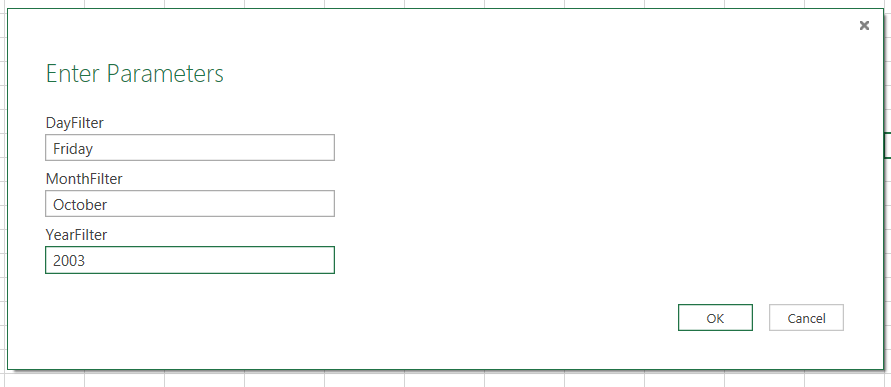
When you invoke the function you can enter the parameter values:

image

…and you get a filtered table as the output:

image

The obvious thing to do here is to make these parameters data-driven, so that the user can pick a day, month or year rather than type the text. Using the technique shown in my previous post, here’s how:

[sourcecode language=”text”]

let

//Get the whole DimDate table
GetDimDateTable =
let
Source = Sql.Database("localhost", "adventure works dw"),
dbo_DimDate = Source{[Schema="dbo",Item="DimDate"]}[Data],
RemoveOtherColumns = Table.SelectColumns(dbo_DimDate,
{"FullDateAlternateKey",
"EnglishDayNameOfWeek",
"EnglishMonthName",
"CalendarYear"}),
RenameColumns = Table.RenameColumns(RemoveOtherColumns,{
{"FullDateAlternateKey", "Date"},
{"EnglishDayNameOfWeek", "Day"},
{"EnglishMonthName", "Month"},
{"CalendarYear", "Year"}})
in
RenameColumns,

//Create a function to filter DimDate
BaseFunction = (
optional DayFilter as text,
optional MonthFilter as text,
optional YearFilter as number) =>
let
FilterDay = if DayFilter=null
then
GetDimDateTable
else
Table.SelectRows(GetDimDateTable, each ([Day] = DayFilter)),
FilterMonth = if MonthFilter=null
then FilterDay
else
Table.SelectRows(FilterDay, each ([Month] = MonthFilter)),
FilterYear = if YearFilter=null
then
FilterMonth
else
Table.SelectRows(FilterMonth, each ([Year] = YearFilter))
in
FilterYear,

//Set AllowedValues on each parameter
AddAllowedValues =
let
AvailableDays = Table.Column(GetDimDateTable, "Day"),
AvailableMonths = Table.Column(GetDimDateTable, "Month"),
AvailableYears = Table.Column(GetDimDateTable, "Year"),
DayParamType = type nullable text
meta [Documentation.AllowedValues = AvailableDays],
MonthParamType = type nullable text
meta [Documentation.AllowedValues = AvailableMonths],
YearParamType = type nullable number
meta [Documentation.AllowedValues = AvailableYears],
NewFunctionType = type function (
optional DayFilter as DayParamType,
optional MonthFilter as MonthParamType,
optional YearFilter as YearParamType)
as table,
CastToType = Value.ReplaceType(BaseFunction, NewFunctionType)
in
CastToType

in
AddAllowedValues
[/sourcecode]


It’s a big chunk of code, but not too difficult to follow I hope. The outer let statement has three steps inside it, each of which itself consists of a let statement. The first two steps, GetDimDateTable and BaseFunction, contain more or less the same code as the original function when put together. GetDimDateTable returns the whole DimDate table with the three columns I need; BaseFunction defines the function to filter it. The reason I split the code across two steps is so that, in the third step (AddAllowedValues) I can call the Table.Column() function on the Day, Month and Year columns returned by GetDimDateTable and get lists containing all the distinct values in these three columns. I’m then using these lists when setting AllowedValues in my custom types. The only other thing to point out here, that wasn’t mentioned in my previous post, is that for optional parameters the custom type used needs to be marked as nullable; this means you get the option to not pick anything in the dropdown box that is displayed.

Now, when you invoke this query, you see the dropdown lists populated with all the available values from the appropriate column in the DimDate table in SQL Server:

image

I also checked to see whether Query Folding takes place for this query, and I was relieved to see it does. Here’s the SQL generated by Power Query for a typical call to the function:

[sourcecode language=”text”]
select [_].[FullDateAlternateKey] as [Date],
[_].[EnglishDayNameOfWeek] as [Day],
[_].[EnglishMonthName] as [Month],
[_].[CalendarYear] as [Year]
from
(
select [_].[FullDateAlternateKey],
[_].[EnglishDayNameOfWeek],
[_].[EnglishMonthName],
[_].[CalendarYear]
from
(
select [_].[FullDateAlternateKey],
[_].[EnglishDayNameOfWeek],
[_].[EnglishMonthName],
[_].[CalendarYear]
from
(
select [FullDateAlternateKey],
[EnglishDayNameOfWeek],
[EnglishMonthName],
[CalendarYear]
from [dbo].[DimDate] as [$Table]
) as [_]
where [_].[EnglishDayNameOfWeek] = ‘Sunday’
) as [_]
where [_].[EnglishMonthName] = ‘August’
) as [_]
where [_].[CalendarYear] = 2003
[/sourcecode]


You can download the sample workbook containing the code shown in this post here.

New Power Query Videos Live

I have recorded two new videos for Project Botticelli about Power Query that are now available to view. They are:

What Is Power Query?

This is short introduction to Power Query is free to view (registration required) and covers just the basics.

https://projectbotticelli.com/knowledge/what-is-power-query-video-tutorial?pk_campaign=tt2014cwb

clip_image001


Power Query Fundamentals

This 45 minute video goes into more detail about all of the cool things you can do in the Power Query Query Editor. You’re going to need a subscription to see this, but if you subscribe you will of course get access to loads of other videos too (including my MDX course, Marco and Alberto’s DAX videos, and lots of other cool MS BI content).

https://projectbotticelli.com/knowledge/power-query-fundamentals-video-tutorial?pk_campaign=tt2014cwb

clip_image001[6]


Don’t forget that my Power Query book is still available (even if it’s now a little out of date because the Power Query UI has changed over the last few months, you’ll probably want it for the more advanced content which is still good) and that I have several classroom-based training courses on Power BI and SSAS in London next year.