The use of parameter tables is a well-known technique in Power Query. It involves using a table from the current Excel workbook to hold various parameter values that are read using a Power Query query, and these parameter values are then passed to another Power Query query to control how it behaves. Ken Puls has a great post describing all this here, and similarly a lot of the demos in my video on on building a reporting solution in Power Query involve reading values from a table which are then used to filter data in a SQL query.
The problem with Power BI Desktop and PowerBI.com is that without a current Excel workbook there’s nowhere to store parameter values (at least at the moment) so you can’t implement the technique in exactly the same way. However, with a bit of creativity, it is possible to do something very similar.
Consider the following M query that gets all the rows from the DimDate table in the Adventure Works DW SQL Server database where the day name is Tuesday.
[sourcecode language=”text” padlinenumbers=”true”]
let
Source = Sql.Database("localhost", "adventure works dw"),
dbo_DimDate = Source{[Schema="dbo",Item="DimDate"]}[Data],
#"Filtered Rows" = Table.SelectRows(
dbo_DimDate,
each ([EnglishDayNameOfWeek] = "Tuesday"))
in
#"Filtered Rows"
[/sourcecode]
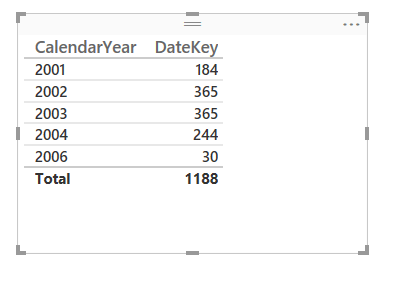
From this you can build a report in Power BI Desktop that looks something like this:

The question is, in this case, how can you make this dynamic and allow your end users to enter a different day name to filter by, and how can you ensure that this dynamic filtering works even when the report has been deployed to PowerBI.com?
There may not be a current workbook to store parameters but in PowerBI.com you can of course display Excel workbooks stored in OneDrive for Business as reports (full details on how to do this are here). Rather than display an Excel report, you can instead display a workbook containing an Excel table containing a day name:

This is going to be your parameter table. First minor irritation: while it seems like you can change the value in the table inside PowerBI.com the value doesn’t get saved; you have to use the Edit option to open the workbook in Excel Online before any changes you make do get saved.


The next problem is this: how can you read the day name parameter value from a table stored in an Excel workbook in OneDrive For Business? It’s actually possible using the Excel Services OData API and I blogged about how to call this API in Power Pivot a few years ago here. With a workbook called FilterParameter.xlsx and an Excel table called FilterDay, here’s an example M query that reads the day name parameter value:
[sourcecode language=”text”]
let
Source = OData.Feed("https://enteryourdomainhere-my.sharepoint.com/_vti_bin/ExcelRest.aspx/personal/chris_enteryourdomainhere_onmicrosoft_com/Documents/FilterParameter.xlsx/OData/FilterDay"),
#"0" = Source{[excelRowID=0]}[Enterparametervalue]
in
#"0"
[/sourcecode]
If this M query is called DayFilter, then the value it returns can be used in the original query to make the filter dynamic (you will also need to set your data privacy levels correctly or enable Fast Combine):
[sourcecode language=”text”]
let
Source = Sql.Database("chriszbook", "adventure works dw"),
dbo_DimDate = Source{[Schema="dbo",Item="DimDate"]}[Data],
#"Filtered Rows" = Table.SelectRows(
dbo_DimDate,
each ([EnglishDayNameOfWeek] = DayFilter))
in
#"Filtered Rows"
[/sourcecode]

At this point you’ll have something that works in Power BI Desktop, but there’s still more to do to make this work after the report has been published to PowerBI.com. For a start you’ll need to make sure you’re using the latest version of the Power BI Personal Gateway and that you have enabled Fast Combine in it by following the instructions in this blog post. You also need to make sure that in PowerBI.com, when you set up the credentials for the OData connection to the Excel table, you use the OAuth2 Authenication Method option:

And with that, you’re done. You can edit the Excel workbook to change the day name that you want to filter by, and to refresh your report in PowerBI.com you can use the Refresh Now option on the dataset:

While dashboards reflect the updated data automatically, if you’re looking at a report you may also need to use the Refresh button on the top of the report to see updated data:

And there you have it: a parameter table in PowerBI.com. To be honest, I think there are slightly too many fiddly steps for users to follow in this technique for me to be happy recommending its use unconditionally, but it should be useful in some scenarios. Hopefully there will be an easier way of accomplishing the same thing in Power BI in future…