Drillthrough On Calculated Members In SSAS MD 2017 Using DAX Expressions, Part 2

If you read part 1 of this series you probably already have a good idea of how I’m going to use DAX queries in actions to implement drillthrough on calculated members. However, there is one last major problem to solve – and no 100% fool-proof way of solving it.

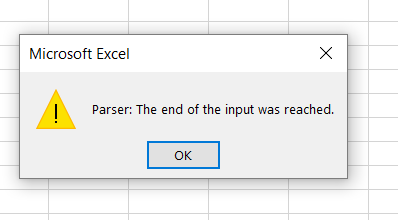
That problem is that there is a maximum length of (as far as I can tell) 32768 characters for the DAX query that is generated by the action. If you exceed that limit you’ll see an error in Excel when you drillthrough:
image

This is the result of the generated DAX query being truncated before Excel tries to run it. As you can imagine, if you have large dimensions and you’re generating a DAX query with thousands of key values in an IN expression, it’s very easy to hit the maximum query length. What can you do to make this less likely?

Probably the most effective method is to check whether the IN clause will contain all of the possible key values on the dimension (most likely because no attributes from the dimension are used in the query), and if so don’t bother including that dimension in the DAX query. Here’s an example of how this can be done:

[sourcecode language=”text” padlinenumbers=”true”]
IIF(
COUNT(EXISTING [Date].[Date].[Date].MEMBERS) =
COUNT([Date].[Date].[Date].MEMBERS),
"",
",’Date'[Date.Key0] IN {
" +
GENERATE(EXISTING [Date].[Date].[Date].MEMBERS ,
[Date].[Date].CURRENTMEMBER.PROPERTIES("KEY"), ",")
+ "}
")
[/sourcecode]

Another option is to use NonEmpty() to remove any members from the drillthrough that have no data, like so:

[sourcecode language=”text” highlight=”8″]
IIF(
COUNT(EXISTING [Date].[Date].[Date].MEMBERS) =
COUNT([Date].[Date].[Date].MEMBERS),
"",
",’Date'[Date.Key0] IN {
" +
GENERATE(EXISTING
NONEMPTY([Date].[Date].[Date].MEMBERS, [Measures].[Sales Amount])
, [Date].[Date].CURRENTMEMBER.PROPERTIES("KEY"), ",")
+ "}
")
[/sourcecode]

However, if these techniques (and there may be others) still don’t reduce the length of the query to an acceptable length you will want to try to fail as gracefully as possible and show a more helpful error message than the one above. You can do this with the DAX Error() function, like so:

[sourcecode language=”text”]
IIF(
COUNT(EXISTING [Customer].[Customer].[Customer].MEMBERS) =
COUNT([Customer].[Customer].[Customer].MEMBERS),
"",
",’Customer'[Customer.Key0] IN {
" +
IIF(COUNT(
{EXISTING
NONEMPTY(
[Customer].[Customer].[Customer].MEMBERS,
[Measures].[Sales Amount])}
AS CustomerList)>7000,
"ERROR(
""Please reduce your selection on the Customer dimension
or remove it from your PivotTable"")",
GENERATE(
CustomerList
, [Customer].[Customer].CURRENTMEMBER.PROPERTIES("KEY"), ",")
)
+ "}
")
[/sourcecode]

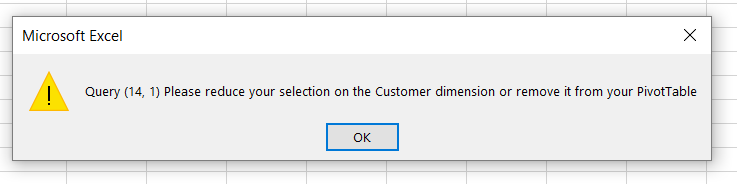
In this example, if the resulting DAX IN expression for the Customer dimension will have more than 7000 keys in it, the entire DAX query returns a custom error message instead:
image

Once again this is a far from perfect solution – I would have liked to test the total number of characters in the query, but if you do that you have to write the expression twice, once in the first parameter of IIF() and once in one of the results, and that would be horrible. My gut feeling is that you should only use this technique on dimensions with a large number of members on the key attribute.

Putting this all together, for a simple cube based on data from Adventure Works with three dimensions (Date, Product and Customer) here’s what a complete Action Expression for a regular measure might look like:

[sourcecode language=”text” padlinenumbers=”true”]
"EVALUATE
FILTER(
CALCULATETABLE(
SELECTCOLUMNS(
‘Sales Order’,
""Sales Order Number"",
‘Sales Order'[Sales Order Number],
""Sales Order Line Number"",
‘Sales Order'[Sales Order Line Number],
""Sales Amount"",
[Sales Amount])
" +
IIF(
COUNT(EXISTING [Date].[Date].[Date].MEMBERS) =
COUNT([Date].[Date].[Date].MEMBERS),
"",
",’Date'[Date.Key0] IN {
" +
GENERATE(EXISTING
NONEMPTY([Date].[Date].[Date].MEMBERS,
[Measures].[Sales Amount])
, [Date].[Date].CURRENTMEMBER.PROPERTIES("KEY"), ",")
+ "}
") +
IIF(
COUNT(EXISTING [Customer].[Customer].[Customer].MEMBERS) =
COUNT([Customer].[Customer].[Customer].MEMBERS),
"",
",’Customer'[Customer.Key0] IN {
" +
IIF(
COUNT(
{EXISTING NONEMPTY([Customer].[Customer].[Customer].MEMBERS,
[Measures].[Sales Amount])} AS CustomerList)>7000,
"ERROR(""Please reduce your selection on the Customer dimension
or remove it from your PivotTable"")",
GENERATE(
CustomerList
, [Customer].[Customer].CURRENTMEMBER.PROPERTIES("KEY"), ",")
)
+ "}
") +
IIF(
COUNT(EXISTING [Product].[Product].[Product].MEMBERS) =
COUNT([Product].[Product].[Product].MEMBERS),
"",
",’Product'[Product.Key0] IN {
" +
GENERATE(EXISTING
NONEMPTY([Product].[Product].[Product].MEMBERS,
[Measures].[Sales Amount])
, [Product].[Product].CURRENTMEMBER.PROPERTIES("KEY"), ",")
+ "}
") +
"),
[Sales Amount]>0)"
[/sourcecode]


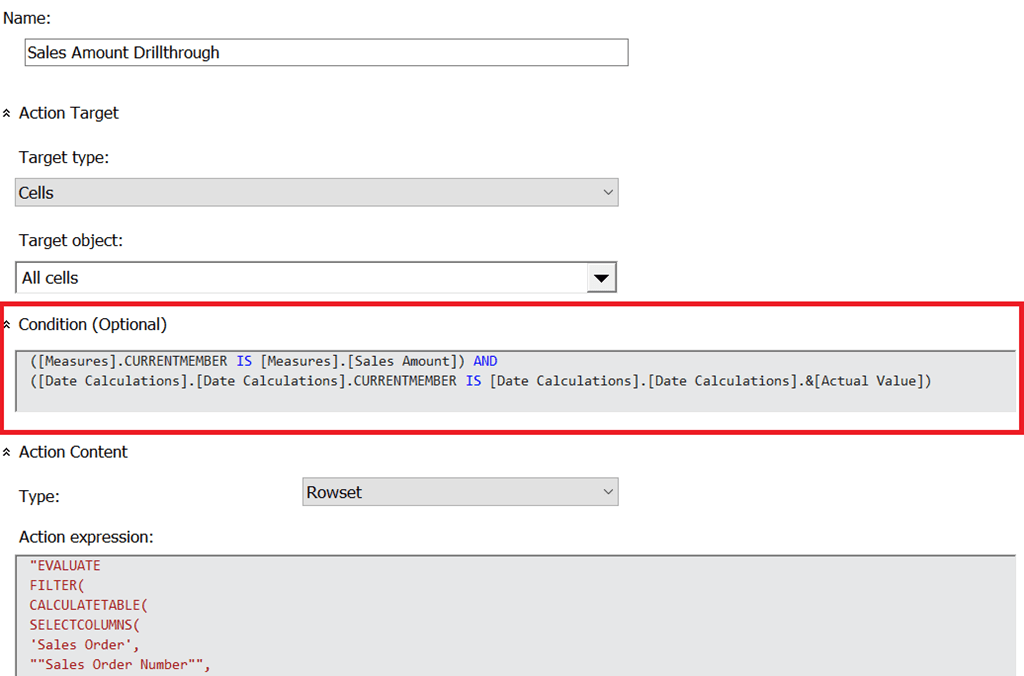
What about a calculated measure though? Assuming that  you have a time utility/date tool/shell dimension, you can use a Condition expression on the action above to make sure it only gets executed for the member on the time utility dimension that contains the non-calculated values, in this case called [Actual Value]:

[sourcecode language=”text”]
([Measures].CURRENTMEMBER IS [Measures].[Sales Amount]) AND
([Date Calculations].[Date Calculations].CURRENTMEMBER IS
[Date Calculations].[Date Calculations].&[Actual Value])
[/sourcecode]
image

Now, let’s say there is a calculated member on the time utility dimension that contains a year-to-date calculation with the following definition:

[sourcecode language=”text”]
CREATE MEMBER
CURRENTCUBE.[Date Calculations].[Date Calculations].[Year-To-Date]
AS
AGGREGATE(
PERIODSTODATE(
[Date].[Calendar].[Year],
[Date].[Calendar].CURRENTMEMBER),
[Date Calculations].[Date Calculations].&[Actual Value]);
[/sourcecode]

You can create a new action that has a Condition expression as follows that restricts it to the year-to-date calculation:

[sourcecode language=”text”]
([Measures].CURRENTMEMBER IS [Measures].[Sales Amount]) AND
([Date Calculations].[Date Calculations].CURRENTMEMBER IS
[Date Calculations].[Date Calculations].[Year-To-Date])
[/sourcecode]

Now, the final problem to solve is to generate a DAX query that returns all of the Sales Orders from the beginning of the current year up to and including the selected date – the Sales Orders that a user would expect to see when they drilled through on the year-to-date calculated member above.

Here’s a modified MDX expression for the Date dimension that returns a DAX expression that finds all of the dates associated with the current selection on the Date dimension, finds the maximum date, then filters the drillthrough DAX query by all dates from the beginning of the current calendar year up to and including the maximum date:

[sourcecode language=”text”]
IIF(
COUNT(EXISTING [Date].[Date].[Date].MEMBERS) =
COUNT([Date].[Date].[Date].MEMBERS),
"",
", VAR FilteredDates = FILTER(‘Date’, ‘Date'[Date.Key0] IN {
" +
GENERATE(
EXISTING
NONEMPTY([Date].[Date].[Date].MEMBERS,[Measures].[Sales Amount]) ,
[Date].[Date].CURRENTMEMBER.PROPERTIES("KEY"), ",")
+ "})
VAR MaxDate = MAXX(FilteredDates, ‘Date'[Date.Key0])
VAR MaxYear = MAXX(FilteredDates, ‘Date'[Year])
RETURN
FILTER(‘Date’, ‘Date'[Date.Key0]<=MaxDate && ‘Date'[Year]=MaxYear)
")
[/sourcecode]

Here’s the complete MDX expression for the year-to-date drillthrough:

[sourcecode language=”text”]
"EVALUATE
FILTER(
CALCULATETABLE(
SELECTCOLUMNS(
‘Sales Order’,
""Sales Order Number"",
‘Sales Order'[Sales Order Number],
""Sales Order Line Number"",
‘Sales Order'[Sales Order Line Number],
""Sales Amount"",
[Sales Amount])
" +
IIF(
COUNT(EXISTING [Date].[Date].[Date].MEMBERS) =
COUNT([Date].[Date].[Date].MEMBERS),
"",
", VAR FilteredDates = FILTER(‘Date’, ‘Date'[Date.Key0] IN {
" +
GENERATE(
EXISTING
NONEMPTY([Date].[Date].[Date].MEMBERS,[Measures].[Sales Amount]) ,
[Date].[Date].CURRENTMEMBER.PROPERTIES("KEY"), ",")
+ "})
VAR MaxDate = MAXX(FilteredDates, ‘Date'[Date.Key0])
VAR MaxYear = MAXX(FilteredDates, ‘Date'[Year])
RETURN
FILTER(‘Date’, ‘Date'[Date.Key0]<=MaxDate && ‘Date'[Year]=MaxYear)
") +
IIF(
COUNT(EXISTING [Customer].[Customer].[Customer].MEMBERS) =
COUNT([Customer].[Customer].[Customer].MEMBERS),
"",
",’Customer'[Customer.Key0] IN {
" +
IIF(COUNT({
EXISTING
NONEMPTY([Customer].[Customer].[Customer].MEMBERS,
[Measures].[Sales Amount])} AS CustomerList)>7000,
"ERROR(""Please reduce your selection on the Customer dimension or
remove it from your PivotTable"")",
GENERATE(
CustomerList
, [Customer].[Customer].CURRENTMEMBER.PROPERTIES("KEY"), ",")
)
+ "}
") +
IIF(
COUNT(EXISTING [Product].[Product].[Product].MEMBERS) =
COUNT([Product].[Product].[Product].MEMBERS),
"",
",’Product'[Product.Key0] IN {
" +
GENERATE(EXISTING
NONEMPTY([Product].[Product].[Product].MEMBERS,
[Measures].[Sales Amount])
, [Product].[Product].CURRENTMEMBER.PROPERTIES("KEY"), ",")
+ "}
") +
"),
[Sales Amount]>0)"
[/sourcecode]

I warned you it was going to be complicated, didn’t I? You can download a SSAS MD 2017 .abf backup file containing the sample database and the two actions here.

Drillthrough On Calculated Members In SSAS MD 2017 Using DAX Expressions, Part 1

Without a doubt one of the most useful features of SSAS Tabular 2017 is the new Detail Rows Expression property. It allows you to control exactly which columns and rows appear when you do a drillthrough – something that is particular important when you’re doing a drillthrough on a calculation, and something that SSAS MD users have also wanted to have for a long time now. For example, imagine that you have an Excel PivotTable that is sliced by a single date and a calculated member that shows a year-to-date sum of sales calculation: when a user does a drillthough they would expect to see data for all the fact data that contributes to the value they have clicked on, which in this case means data for all dates from the beginning of the year up to the selected date; this is what the Detail Rows Expression property makes possible and this is exactly what a regular drillthrough in SSAS MD doesn’t do.

There have been many attempts at solving this problem in SSAS MD, from Mosha’s blog post back in 2008 to these custom functions in the Analysis Services Stored Procedure Project (for a few more weeks still on Codeplex, but when Codeplex dies available here on GitHub). None of these solutions have been perfect and all have involved a certain amount of .NET code. In this series of posts I’m going to describe a slightly different approach, and while it isn’t perfect either and is very complex (you’ll need to be good at MDX and DAX to implement it) I think it has a lot to recommend it, not least because no .NET code is required. In this first post I’m going to demonstrate some of the functionality that makes my approach possible; in part 2 I’ll put it all together into a working solution.

First thing to note: you have been able to query SSAS MD using DAX as well as MDX since SQL Server 2012 SP1 CU3. Most client tools, like Excel, generate MDX queries but Power BI for example generates DAX queries when you create a Live connection to SSAS MD. To learn more about DAX support in SSAS MD this video of a session of mine from SQLBits from a few years ago is a good place to start; it’s fairly old but most of the content is still relevant.

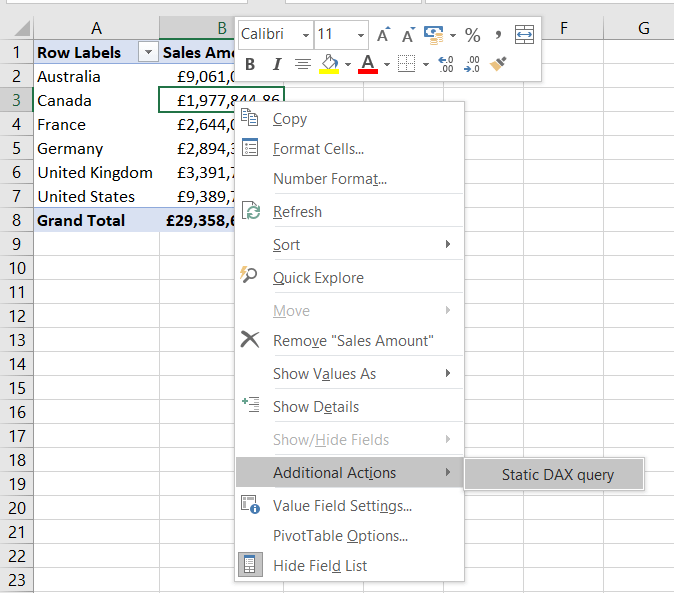
This in turn means that you can create a Rowset action (not a Drillthrough action) in SSAS MD that return the results of a DAX query. Here’s an example of an action that does this:

image

The Action Expression property is an MDX expression that returns the text of the query to be executed and whose results will be displayed to the user as the output of the drillthrough. In this case the MDX expression consists of one string, and that string is a DAX query that returns a list of Sales Order Numbers, Line Numbers and their associated Sales Amounts:

[sourcecode language=”text”]
EVALUATE
SELECTCOLUMNS(
‘Sales Order’,
"Sales Order Number",
‘Sales Order'[Sales Order Number],
"Sales Order Line Number",
‘Sales Order'[Sales Order Line Number],
"Sales Amount",
[Sales Amount])
[/sourcecode]

Here’s the result in Excel:

image

image

This is just a static query though, and for an action you will need to generate a query dynamically to return an appropriate table of data depending on which cell the user has drilled through on.

However before I carry on there’s an important question that needs to be addressed. You may be wondering why I’m using a DAX query for this, when I could be using an MDX DRILLTHROUGH statement (as in the approaches linked to above) or an MDX SELECT statement. The problem with a DRILLTHROUGH statement is that it can only accept an MDX SELECT statement that returns a single cell in its first parameter; this means it’s not possible to get it to return more complex resultsets like the one required for the year-to-date example above. Normal MDX SELECT statements don’t suffer from this restriction and it would indeed be possible to dynamically generate one that meets any need. Unfortunately when the results of an MDX SELECT statement are returned from a Rowset action you have no control over the format of the column headers that are returned, and they are often not pretty at all. A DAX query, in contrast, gives you complete control over the data that is returned and the way the column headers are formatted.

The last question I’m going to address in this post is how the DAX query can be made dynamic. To do this I’m going to use the new DAX IN operator, which is only available in SSAS 2017. As always with DAX, there’s a great article describing it written by Marco Russo here:

https://www.sqlbi.com/articles/the-in-operator-in-dax/

Here’s how the DAX query above can be adapted to return the Sales Orders for just two dates using the IN operator:

[sourcecode language=”text” highlight=”12″]
EVALUATE
FILTER(
CALCULATETABLE(
SELECTCOLUMNS(
‘Sales Order’,
"Sales Order Number",
‘Sales Order'[Sales Order Number],
"Sales Order Line Number",
‘Sales Order'[Sales Order Line Number],
"Sales Amount",
[Sales Amount]),
‘Date'[Date.Key0] IN {20030101, 20030102}),
[Sales Amount]>0)
[/sourcecode]

image

In this example, the ‘Date’[Date.Key0] column is the column that contains the key values of the Date attribute on the Date dimension in my SSAS cube. To make this dynamic, you need an MDX expression that will return a query like the one above and, in particular, return a different list of date keys depending on what the user has drilled through on. The MDX GENERATE() function can be used to do this: you can use it to iterate over the set of existing members on the Date attribute of the Date dimension and output a comma-delimited list of key values from each member:

[sourcecode language=”text” highlight=”13,14″]
"EVALUATE
FILTER(
CALCULATETABLE(
SELECTCOLUMNS(
‘Sales Order’,
""Sales Order Number"",
‘Sales Order'[Sales Order Number],
""Sales Order Line Number"",
‘Sales Order'[Sales Order Line Number],
""Sales Amount"",
[Sales Amount]),
‘Date'[Date.Key0] IN {" +
GENERATE(EXISTING [Date].[Date].[Date].MEMBERS,
[Date].[Date].CURRENTMEMBER.PROPERTIES("KEY"), ",")
+ "}),
[Sales Amount]>0)"
[/sourcecode]

If this expression is used in an action and a user drills down on, say, the month April 2003, the following DAX query is generated and run to get all the Sales Orders for all the days in April 2003:

[sourcecode language=”text”]
EVALUATE
FILTER(
CALCULATETABLE(
SELECTCOLUMNS(
‘Sales Order’,
"Sales Order Number",
‘Sales Order'[Sales Order Number],
"Sales Order Line Number",
‘Sales Order'[Sales Order Line Number],
"Sales Amount", [Sales Amount]),
‘Date'[Date.Key0] IN
{20030401,20030402,20030403,20030404,20030405,
20030406,20030407,20030408,20030409,20030410,20030411,
20030412,20030413,20030414,20030415,20030416,20030417,
20030418,20030419,20030420,20030421,20030422,20030423,
20030424,20030425,20030426,20030427,20030428,20030429,
20030430})
, [Sales Amount]>0)
[/sourcecode]

OK, that’s more than enough for one post. In my next post I’m going to look at some of the shortcomings of this approach, how they can be (partly) worked around, and demonstrate a full solution for drillthrough on a regular measure and also on a year-to-date calculation.

Exploring The New SSRS 2017 API In Power BI

One of the new features in Reporting Services 2017 is the new REST API. The announcement is here:

https://blogs.msdn.microsoft.com/sqlrsteamblog/2017/10/02/sql-server-2017-reporting-services-now-generally-available/

And the online documentation for the API is here:

https://app.swaggerhub.com/apis/microsoft-rs/SSRS/2.0

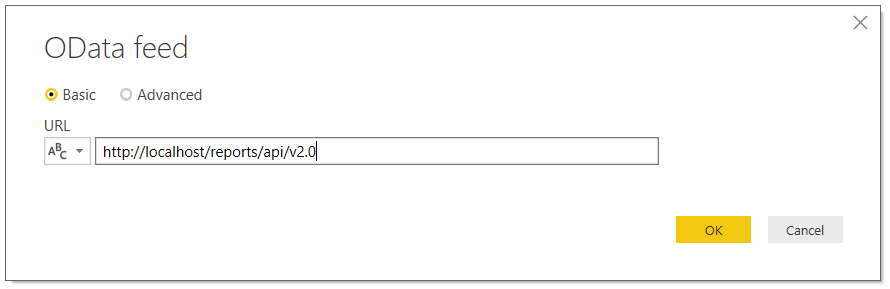
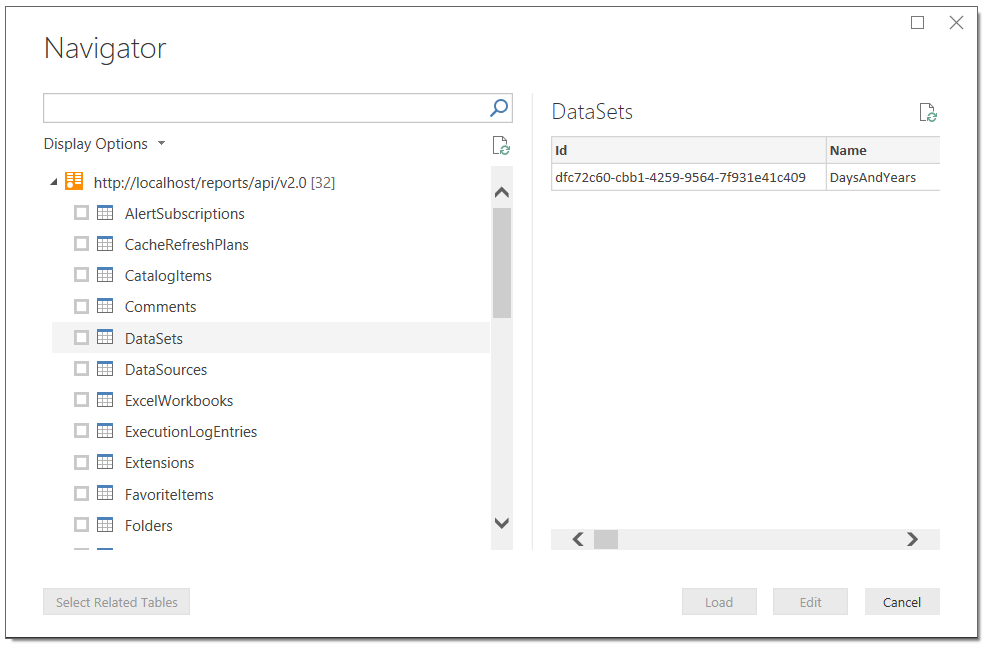
Interestingly, the new API seems to be OData compliant – which means you can browse it in Power BI/Get&Transform/Power Query and build your own reports from it. For example in Power BI Desktop I can browse the API of the SSRS instance installed on my local machine by entering the following URL:

[sourcecode language='text'  padlinenumbers='true']
http://localhost/reports/api/v2.0
[/sourcecode]

…into a new OData feed connection:

image

image

image

This means you can build Power BI reports on all aspects of your SSRS reports (reports on reports – how meta is that?), datasets, data sources, subscriptions and so on. I guess this will be useful for any Power BI fans who also have to maintain and monitor a large number of SSRS reports.

However, the most interesting (to me) function isn’t exposed when you browse the API in this way – it’s the /DataSets({Id})/Model.GetData function. This function returns the data from an SSRS dataset. It isn’t possible to call this function direct from M code in Power BI or Excel because it involves making a POST request to a web service and that’s not something that Power BI or Excel support. However it is possible to call this function from a Power BI custom data extension – I built a quick PoC to prove that it works. This means that it would be possible to build a custom data extension that connects to SSRS and that allows a user to import data from any SSRS dataset. Why do this? Well, it would turn SSRS into a kind of centralised repository for data, with the same data being shared with SSRS reports and Power BI (and eventually Excel, when Excel supports custom data extensions). SSRS dataset caching would also come in handy here, allowing you to do things like run an expensive SQL query once, cache it in SSRS, then share the cached results with multiple reports both in SSRS and Power BI. Would this really be useful? Hmm, I’m not sure, but I thought I’d post the idea here to see what you all think…

Creating A Partitioned Table In SSAS Tabular 2017 And SSDT Using M Functions

One of the coolest new features in SSAS Tabular 2017 and Azure Analysis Services is the integration of Power Query and M for data loading. Over the last year or so the Analysis Services team blog has posted a lot of fairly complex examples of how to use this functionality, but now that the latest release of SSDT has proper support for shared expressions I thought it would be a good idea to show a simple example of how to use it to create a partitioned table using M functions.

For this example I’ll be using the FactInternetSales fact table from the Adventure Works DW sample database, and the aim is to create a table in an SSAS Tabular project that has one partition for each year of data in FactInternetSales. Assuming that a new SSAS Tabular project has been created at the 1400 compatibility level with an integrated workspace:

image

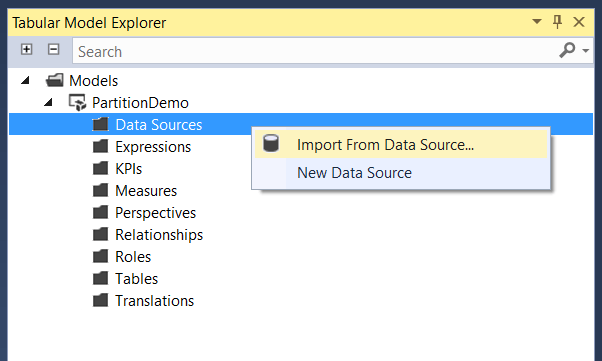
…the first thing to do is to right-click on the Data Sources folder in the Tabular Model Explorer pane and select Import From Data Source:

image

This brings up the Get Data dialog:

image

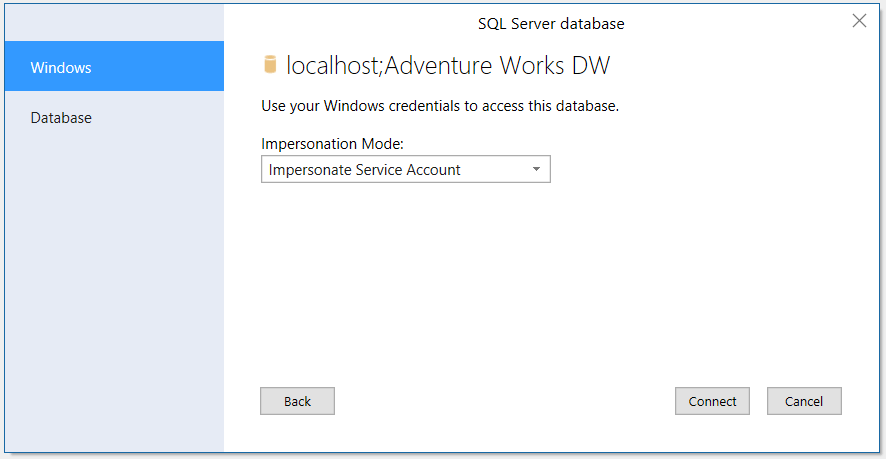
Select SQL Server database and then click Connect. Enter the server name and database name in the SQL Server database dialog:

image

Choose how SSAS is to authenticate when it connects to the SQL Server database and click Connect:

image

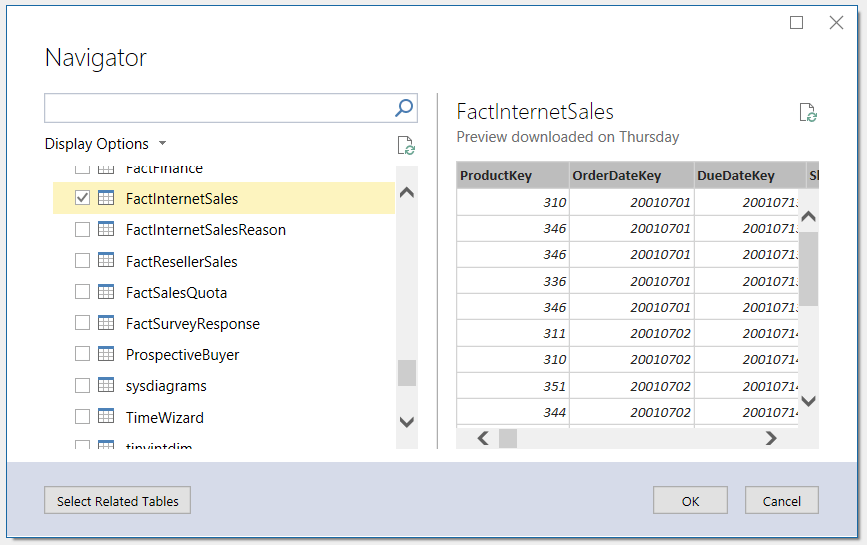
Select the FactInternetSales table from the list of tables in the Adventure Works DW database:

image

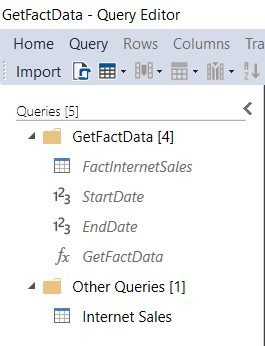
This opens the Query Editor window; in it there is one query called FactInternetSales:

image

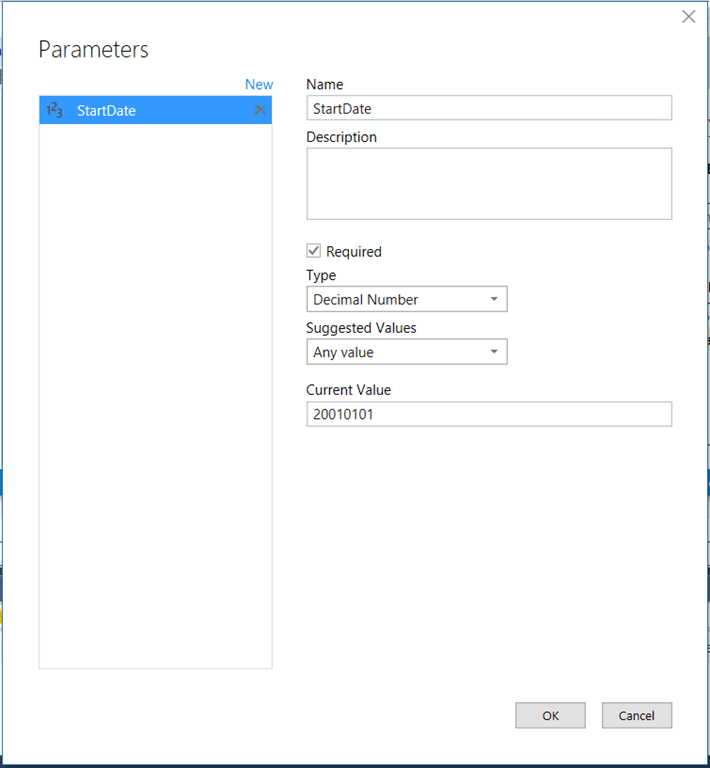
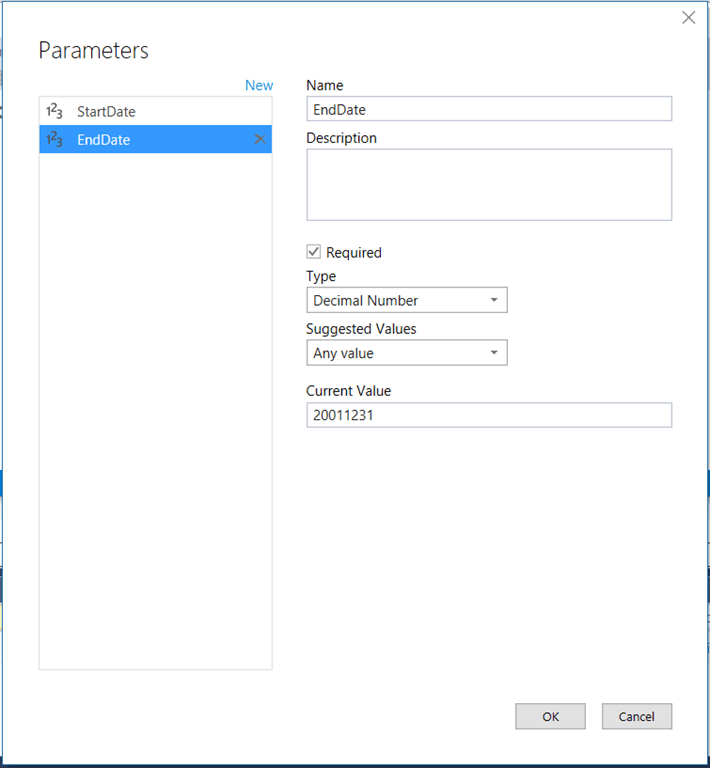
Here’s where it gets interesting. The first thing to do is to create a function that returns a filtered subset of the rows in the FactInternetSales table using the technique I blogged about here for Power BI. On the Query Editor menu bar, click Query/Parameters/New Parameter and create two new parameters called StartDate and EndDate that return the numbers 20010101 and 20011231. Here’s what they should look like:

image

image

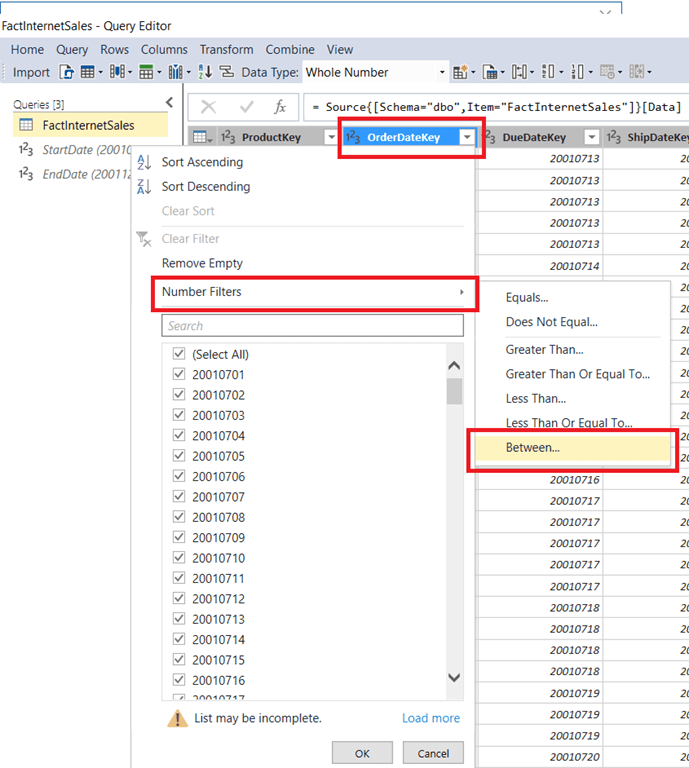
These parameters are going to be used to filter the OrderDateKey column on the FactInternetSales table. Do this by clicking on the down arrow on the column header of OrderDateKey then selecting Number Filters and then Between:

image

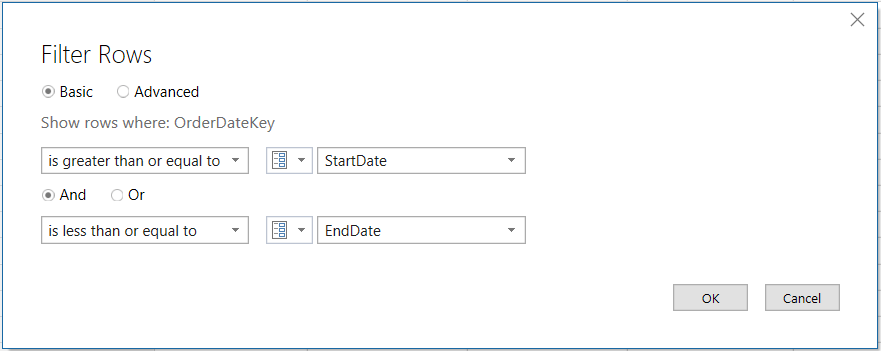
In the Filter Rows dialog use the StartDate parameter for the start of the filter range and the EndDate parameter for the end of the filter range, then click OK:

image

Because the OrderDateKey contains dates stored as numbers in the YYYYMMDD format the result is a table that only contains sales where the order date is in the year 2001. This table should not be loaded into SSAS though, so right click on the FactInternetSales in the Queries pane and make sure that the Create New Table is not checked:

image

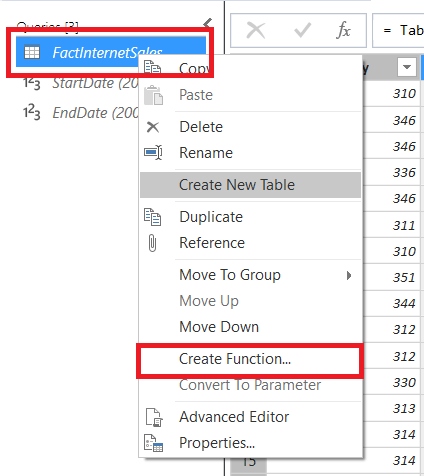
Next, on the same right-click menu, select Create Function:

image

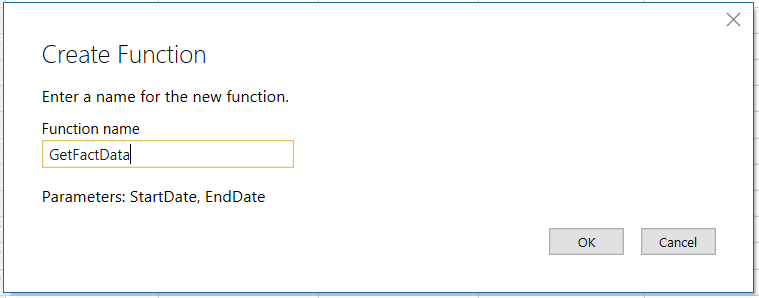
In the Create Function dialog name the new function GetFactData then click OK:

image

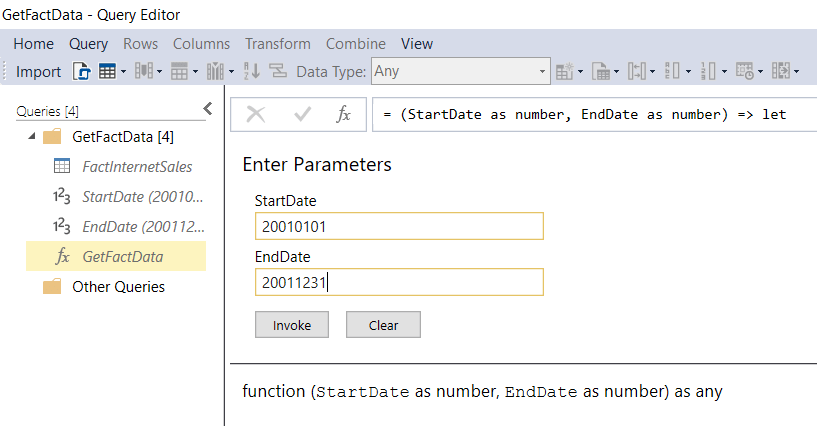
The new GetFactData function will now be visible in the Queries pane; enter 20010101 for the StartDate parameter and 20011231 for the EndDate parameter and click Invoke:

image

This creates yet another new query called Invoked Function which should be renamed Internet Sales:

image

Right-click on this query and make sure Create New Table is selected. Next, click the Import button on the toolbar to close the Query Editor and load the Internet Sales table into SSAS.

At this point the Tabular Model Explorer will show all of the queries created above listed under the Expressions folder, and a single table called Internet Sales with a single partition:

image

Next, right-click on the Internet Sales table in the Tables folder and select Partitions:

image

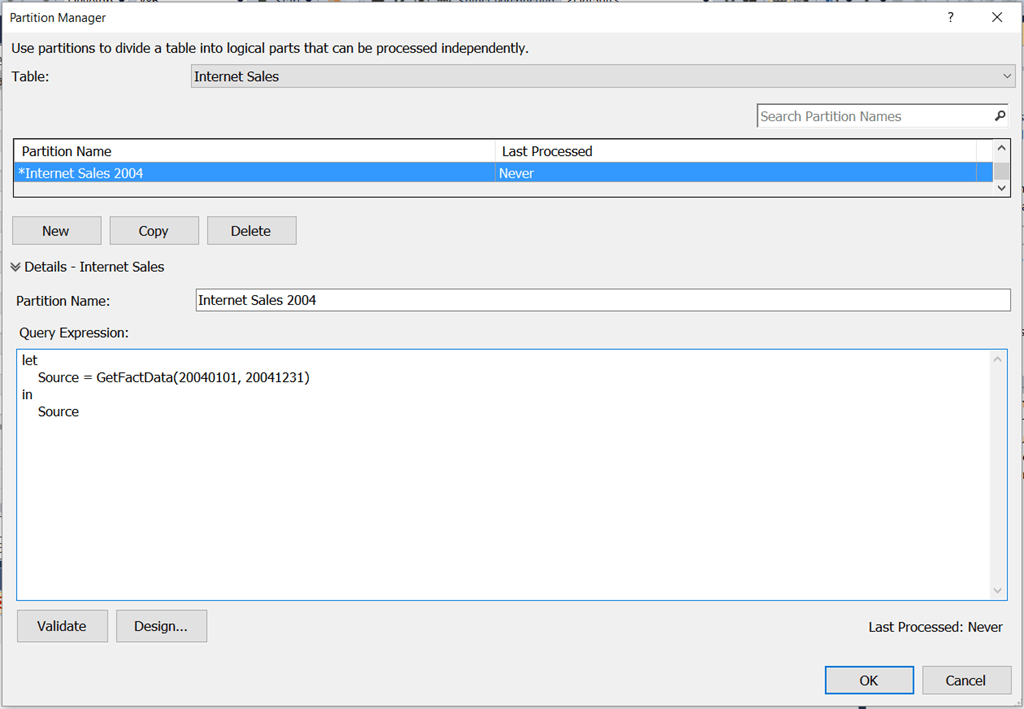
This opens the Partition Manager dialog. Rename the existing partition to Internet Sales 2001:

image

Note that the M query for this partition calls the GetFactData() function to get the rows from FactInternetSales where OrderDateKey is between 20010101 and 20011231:

[sourcecode language='text'  padlinenumbers='true']
let
    Source = GetFactData(20010101, 20011231)
in
    Source
[/sourcecode]

Click the New button to create new partitions, one for each year of data in the FactInternetSales table. Each new partition will initially contain the same M code shown above and should be edited so that the query gets data for the appropriate year:

image

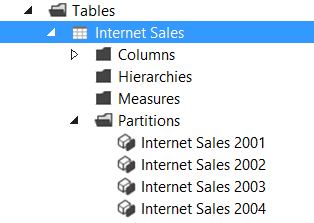
Click OK, and the end result is a table with one partition per year:

image

What’s the point of using M functions to return the data for a partition, rather than the traditional method of using a SQL query embedded in each partition? One reason to do this would be to make maintenance easier: if you need to do something like add a new column to a fact table, rather than editing lots of partitions you just need to edit the function and all the partitions will reflect that change. I can think of a few others, but I’ll save them for future blog posts…

SSAS Multidimensional HOLAP Storage: Even More Useless Than You Might Think

In almost 20 years of using Analysis Services I have never, ever used HOLAP storage. However the other week I was with a customer that was using ROLAP storage on top of Exasol and while query performance was generally good, I wondered whether building an aggregation or two in SSAS might help query performance in some cases. Surely HOLAP could be useful here? Sadly not.

What I hadn’t realised was that when you use HOLAP storage and process a partition, SSAS generates exactly the same fact table-level SQL query that is used to process a MOLAP partition. It then uses this data to build any aggregations you have defined and after that throws the data it has read away, leaving only the aggregations stored in MOLAP mode. Therefore you get exactly the same, slow processing performance as pure MOLAP storage and worse query performance! It even executes the SQL query when there are no aggregations defined. I had assumed SSAS would generate one SQL query for each aggregation and get just the summarised data needed by the aggregation but I was wrong. This means that for the kind of scenarios where ROLAP on a fast relational database is becoming more popular (for example when working with large data volumes and/or real-time data) HOLAP is not a viable option.

Setting Data Types On Columns Containing Table Values In M

Last week I was working on a Power BI custom data connector for a customer and I came across a problem that has been bothering me for a while. The “Invoke Custom Function” button is a very powerful feature (see here for how to use it) and I was doing something very similar in my code, but after you click it and expand the table column it returns, you always have to set the data types on the new columns that appear – even if the function you have invoked returns a table with data types set on columns. I wanted to avoid this extra step. I knew it was possible because some data sources like SQL Server give you typed columns when you expand a table column; I also saw that TripPin custom data connector tutorial aims to cover this topic… soon. Luckily it wasn’t too hard to work out.

Imagine you have the following function:

(x as number, y as number) as table =>
let
Addition = x + y,
Multiplication = x * y,
Output = #table(
type table [Operation=text, Result=number],
{
{"Addition", Addition},
{"Multiplication", Multiplication}
})
in
Output

It takes two numbers and returns a table with two columns and two rows showing the sum and the product of the two numbers. If the function is called AddAndMult, then the following expression:

AddAndMult(5, 6)

…returns the following table:

image

Notice that the function returns a table with data types set for the columns: Operation is a text column and Result is a number column. I’ve done this by specifying a table type in the first parameter of the #table() function as described here.

Now, here’s a query that calls the function on a table containing several rows using the Invoke Custom Function button:

let
Source = #table(
type table[x=number, y=number],
{
{4,7},
{8,2},
{1,9}
}),
#"Invoked Custom Function" = Table.AddColumn(
Source,
"AddAndMult",
each AddAndMult([x], [y])),
#"Expanded AddAndMult" = Table.ExpandTableColumn(
#"Invoked Custom Function",
"AddAndMult",
{"Operation", "Result"},
{"AddAndMult.Operation", "AddAndMult.Result"})
in
#"Expanded AddAndMult"

This is the table returned by the Source step:

image

This is what the Invoked Custom Function step looks like:

image

And this is what the Expanded AddAndMult step looks like:

image

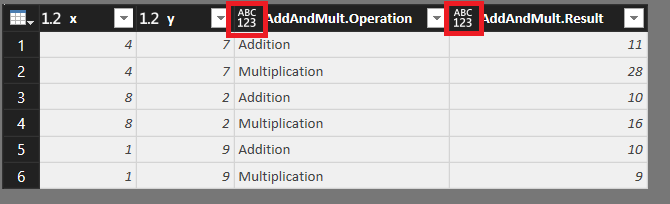
In the last two screenshots the ABC123 icon in the column headers show that they are set to use the Any data type; the columns returned by calling the function have lost their data types.

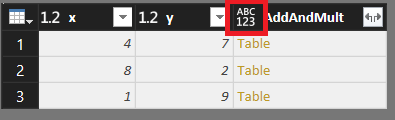
The key to solving this problem is using the optional fourth parameter of the Table.AddColumn() function, which allows you to set a data type for the column that function adds to a table. Altering the Invoked Custom Function step of the previous query to do this, setting the new column to be a table type like so:

#"Invoked Custom Function" =
Table.AddColumn(
Source,
"AddAndMult",
each AddAndMult([x], [y]),
type table [Operation=number, Result=number]
),

…means the Invoked Custom Function step now returns a column of type table, with the appropriate icon in the top left column:

image

…and once the AddAndMult column is expanded, the new columns have the desired data types set:

DT

Tuning MDX Calculations That Use The Root() Function

Something that I have vaguely known about for years (for example from Mosha’s post here), but somehow never blogged about, is that using the Root() function in MDX calculations is not great for performance. I’m pretty sure that someone once told me that it was intended for use with defining subcubes for SCOPE statements and not inside calculations at all, which maybe why it hasn’t been optimised. Anyway, here’s an example of the problem and how to work around it.

Take the following query on the Adventure Works cube:

[sourcecode language='text'  padlinenumbers='true' highlight='4']
WITH
MEMBER MEASURES.DEMO AS
([Measures].[Internet Sales Amount],
ROOT([Date]))

SELECT 
{[Measures].[Internet Sales Amount],
MEASURES.DEMO} 
ON 0,
NON EMPTY
[Date].[Calendar].[Calendar Year].MEMBERS
*
[Customer].[Customer].[Customer].MEMBERS
ON 1
FROM
[Adventure Works]
[/sourcecode]

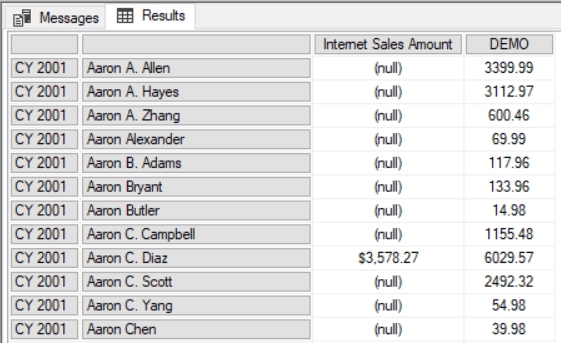
It returns sales for all customers by year, and the calculated measure returns the sales for each customer across all dates using the Root() function.

image

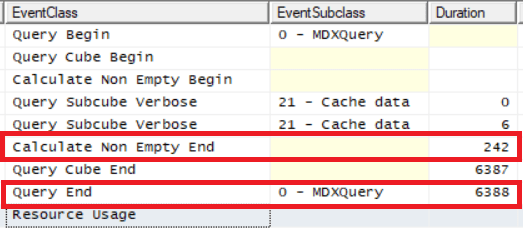
On a warm SE cache (which means the amount of time taken by the query will be dependent on how quickly SSAS can do the calculation and evaluate the Non Empty) on my laptop this takes a touch over 7 seconds:

image

Notice also that the Calculate Non Empty End event tells us that the Non Empty filter alone took 2.8 seconds (see here for some more detail on this event).

Now if you rewrite the query, replacing the Root() function with the All Member on the Calendar hierarchy like so:

[sourcecode language='text'  highlight='4']
WITH
MEMBER MEASURES.DEMO AS
([Measures].[Internet Sales Amount],
[Date].[Calendar].[All Periods])

SELECT 
{[Measures].[Internet Sales Amount],
MEASURES.DEMO} 
ON 0,
NON EMPTY
[Date].[Calendar].[Calendar Year].MEMBERS
*
[Customer].[Customer].[Customer].MEMBERS
ON 1
FROM
[Adventure Works]
[/sourcecode]

The query returns the same results, but in just over 5.5 seconds and with the Non Empty taking about 10% of the time it previously took.

image

I’m making a big assumption here though: the Root() function in the first query returns a tuple containing every All Member from every hierarchy on the Date dimension, not just the All Member from the Calendar hierarchy, so while these two queries return the same results the calculations are not equivalent. You can still get a performance improvement, though, by replacing the Root() function with the tuple it returns, although the resulting MDX will look very messy.

First, to find what the Root() function returns just use a query like this:

[sourcecode language='text' ]
WITH
MEMBER MEASURES.ROOTRETURNS as 
TUPLETOSTR(ROOT([Date]))
SELECT {MEASURES.ROOTRETURNS} ON 0
FROM
[Adventure Works]
[/sourcecode]

Run it in SQL Server Management Studio and you can copy/paste the tuple from the query results:

image

Here’s the tuple I get from my (somewhat hacked around) Date dimension:

[sourcecode language='text' ]
([Date].[Fiscal].[All Periods],[Date].[Calendar].[All Periods],[Date].[Calendar Weeks].[All Periods],
[Date].[Fiscal Weeks].[All Periods],[Date].[Fiscal Year].[All Periods],[Date].[Date].[All Periods],
[Date].[Calendar Quarter].[All Periods],[Date].[Fiscal Quarter].[All Periods],
[Date].[Calendar Semester].[All Periods],[Date].[Fiscal Semester].[All Periods],
[Date].[Day of Week].[All Periods],[Date].[Day Name].[All Periods],
[Date].[Day of Month].[All Periods],[Date].[Day of Year].[All Periods],
[Date].[Calendar Week].[All Periods],[Date].[Month Name].[All Periods],
[Date].[Calendar Year].[All Periods],[Date].[Fiscal Semester of Year].[All Periods],
[Date].[Calendar Semester of Year].[All Periods],[Date].[Fiscal Quarter of Year].[All Periods],
[Date].[Calendar Quarter of Year].[All Periods],[Date].[Month of Year].[All Periods],
[Date].[Fiscal Week].[All Periods],[Date].[Calendar Week of Year].[All Periods],
[Date].[Fiscal Week of Year].[All Periods],[Date].[Current Date].[All Periods],
[Date].[Is2002].[All Periods],[Date].[Month Day].[All Periods])
[/sourcecode]

Yuck. Anyway, with this gigantic tuple inserted into our calculation like so:

[sourcecode language='text'  highlight='4']
WITH
MEMBER MEASURES.DEMO AS
([Measures].[Internet Sales Amount],
[Date].[Fiscal].[All Periods],[Date].[Calendar].[All Periods],[Date].[Calendar Weeks].[All Periods],[Date].[Fiscal Weeks].[All Periods],[Date].[Fiscal Year].[All Periods],[Date].[Date].[All Periods],[Date].[Calendar Quarter].[All Periods],[Date].[Fiscal Quarter].[All Periods],[Date].[Calendar Semester].[All Periods],[Date].[Fiscal Semester].[All Periods],[Date].[Day of Week].[All Periods],[Date].[Day Name].[All Periods],[Date].[Day of Month].[All Periods],[Date].[Day of Year].[All Periods],[Date].[Calendar Week].[All Periods],[Date].[Month Name].[All Periods],[Date].[Calendar Year].[All Periods],[Date].[Fiscal Semester of Year].[All Periods],[Date].[Calendar Semester of Year].[All Periods],[Date].[Fiscal Quarter of Year].[All Periods],[Date].[Calendar Quarter of Year].[All Periods],[Date].[Month of Year].[All Periods],[Date].[Fiscal Week].[All Periods],[Date].[Calendar Week of Year].[All Periods],[Date].[Fiscal Week of Year].[All Periods],[Date].[Current Date].[All Periods],[Date].[Is2002].[All Periods],[Date].[Month Day].[All Periods])

SELECT 
{[Measures].[Internet Sales Amount],
MEASURES.DEMO} 
ON 0,
NON EMPTY
[Date].[Calendar].[Calendar Year].MEMBERS
*
[Customer].[Customer].[Customer].MEMBERS
ON 1
FROM
[Adventure Works]
[/sourcecode]

The query is a little slower – just over 6 seconds- but still faster than the first query using Root(), and the Non Empty filter is still fast:

image

Something else to watch out for with Root(), and another good reason not to use it in calculations, is that it returns an error in certain multiselect scenarios as Richard Lees describes here.

The Power Query Branding Problem

A few years ago I started blogging about Power Query. Back then life was simple: I put “Power Query” in the title of a post and everyone knew what I was writing about, because Power Query was an Excel add-in you could download and install. Now, however, the technology has been renamed “Get & Transform” in Excel 2016 and is a native feature of Excel; the name “Power Query” only applies to the add-in for Excel 2010 and 2013. What’s more, the same technology is used in Power BI’s Query Editor and it’s also now in Azure Analysis Services, Analysis Services 2017 Tabular and the Common Data Service. This is obviously a good thing – I think Power Query is one of the best things to come out of Microsoft in the last decade – but it also presents me with a problem. How can I write about this technology if it doesn’t have a single, official, easily identifiable name?

In more recent times I’ve written posts with unwieldy names like “Introduction to Insert Topic Name Here in Power Query/Power BI/Excel 2016 Get & Transform” and in the future I suppose this will have to grow to “Introduction to Insert Topic Name Here in Power Query/Power BI/Excel 2016 Get & Transform/Analysis Services Data Loading/Common Data Service”. Tagging and categorising blog posts can help here, I know, but it’s the title of a blog post that’s the main determining factor as to whether it gets read or not when someone is looking at a list of search results. It’s getting ridiculous, but how else can I ensure that someone searching for the solution to a data loading problem in Excel 2016 Get & Transform will find a post I’ve written that contains the answer but shown in Power BI?

Inside Microsoft I understand that the team that builds this technology is known as the Power Query team. I certainly think about this technology as being called Power Query, as do a lot of other people in the community. However, my argument is that I can’t just use the name “Power Query” when I’m writing or speaking about this technology because most of its users – especially those who are new to it and who need the most help – don’t think of it as “Power Query”. They think of it as Excel 2016 Get & Transform, the Query Editor in Power BI Desktop and so on, the specific instances of it.

Maybe I’m making too big a deal of this, but in my opinion this is a problem not just for me but for Microsoft too. We all know how much developers rely on internet searches to find solutions to problems, and not having a single name for this technology makes it much harder to search successfully. This in turn makes it less likely that when a developer runs into a problem they will be able to solve it, which in turn means they are less likely to want to use this technology in future.

What’s the answer? It has to be to make the “Power Query” brand visible somewhere in the UI of all the products that use Power Query technology. I know there’s a risk of confusing users instead of helping them here (am I using Power Query or Power BI?), but it could be as simple as making a few small changes like renaming the “Query Editor” window to be the “Power Query Editor”:

image

I think that would be enough to let people know that “Power Query” is a technology in its own right and that content referring to “Power Query” is relevant to Excel, Power BI, SSAS and everywhere else that Power Query is used. It would also be nice if, now that M is the official name of the M language (and not Power Query Formula Language), the Advanced Editor window and the Custom Column dialog let users know that the code they were writing in them was in a language called M and not some mysterious, nameless scripting language.

What do you think? I’m interested to hear your comments and opinions…

UPDATE: victory is ours! See this comment from Faisal Mohamood of the Power Query team below
Hey there Chris – what you are saying makes complete sense. Power Query is the name of this capability and we will highlight the name of this capability as such in experiences where you are working with Power Query (and M).

The Diagnostics.ActivityId() M Function

I’ve blogged a few times about the tracing functionality that is built into Power Query/Get&Transform and Power BI (see here and here). The trace files themselves clearly contain a lot of interesting information, but there’s no official documentation about what they contain and the format seems to have changed several times. I guess they are meant for Microsoft internal use but that doesn’t stop us from taking a peek at their contents…

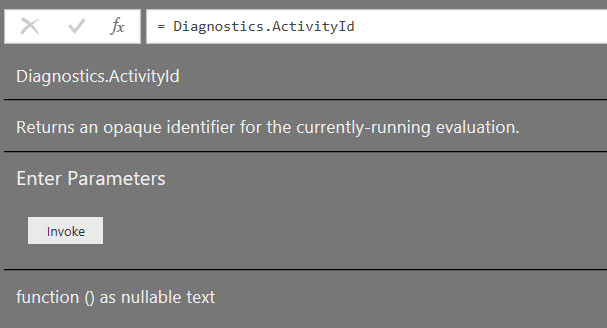
Whenever I’ve looked at the contents of a trace file, one problem I have faced is working out which events relate to the query that I’ve just executed. Today, though, I discovered an M function that can help with this: Diagnostics.ActivityId(). It’s not listed in the online M function reference but here’s the documentation from the function itself:

image

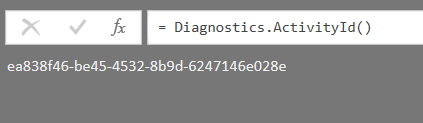
Calling the function does indeed return “an opaque identifier for the currently-running evaluation”. Using the following code in a query:

[sourcecode language=”text” padlinenumbers=”true”]
Diagnostics.ActivityId()
[/sourcecode]

…returns the following:

image

Every time the query is refreshed a different value is returned.

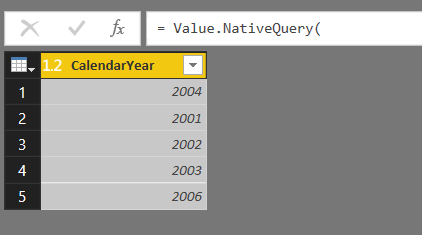
Now, consider the following query that runs a query against a SQL Server database:

[sourcecode language=”text”]
let
Source = Sql.Database("localhost", "Adventure Works DW"),
Test = Value.NativeQuery(
Source,
"SELECT DISTINCT CalendarYear FROM DimDate")
in
Test
[/sourcecode]

image

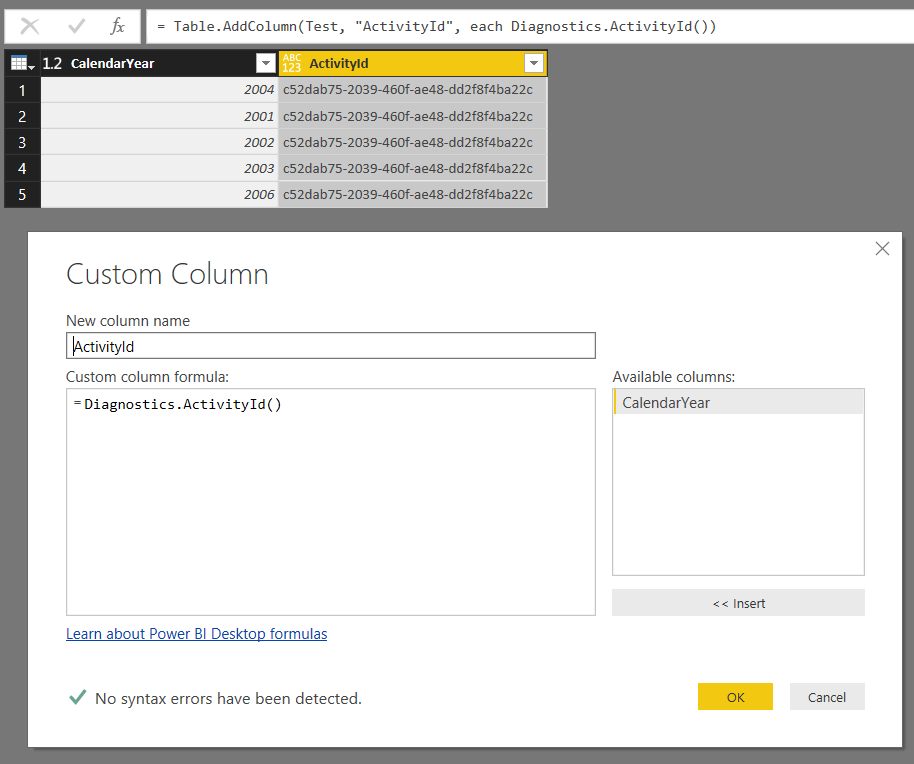
How can you find the trace events that relate to a particular execution of this query? One way is to add a custom column to this query that returns the value returned by Diagnostics.ActivityId():

image

[sourcecode language=”text”]
let
Source = Sql.Database("localhost", "Adventure Works DW"),
Test = Value.NativeQuery(
Source,
"SELECT DISTINCT CalendarYear FROM DimDate"),
#"Added Custom" = Table.AddColumn(
Test,
"ActivityId",
each Diagnostics.ActivityId())
in
#"Added Custom"
[/sourcecode]

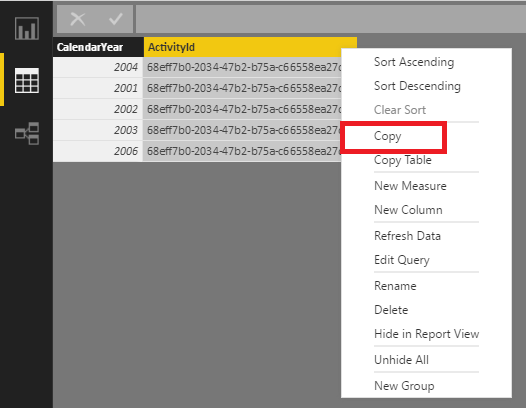
Then, after the query has been loaded into the Data Set you can copy the ActivityID from the table in the Data pane:

image

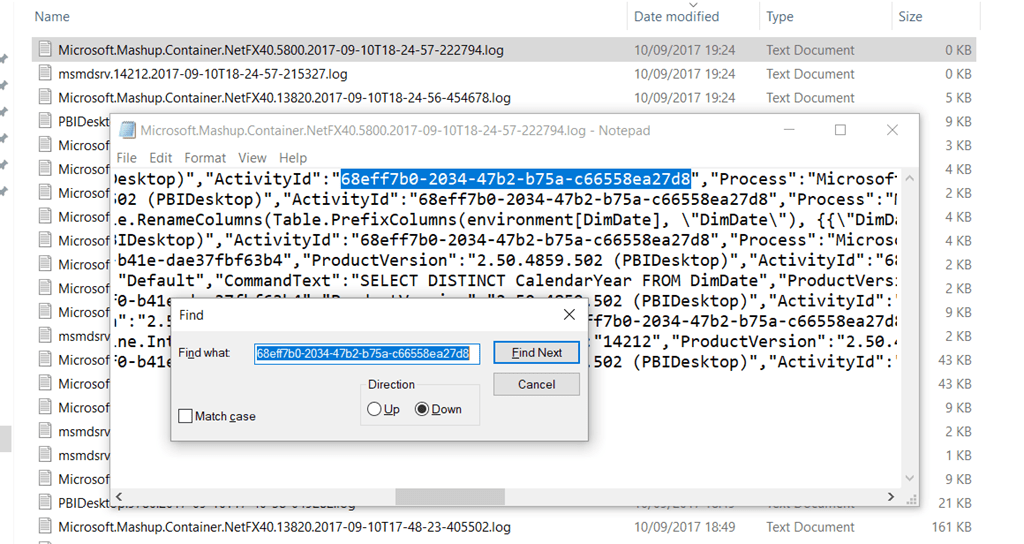
…and then search for the same value in the trace files:

image

Of course you’re now on your own trying to make sense of what you find in the trace file, but I hope this helps a little bit!

Power BI Custom Data Connector For Language Detection, Key Phrase Extraction And Sentiment Analysis

I’m pleased to announce that I’ve published my first Power BI custom data connector on GitHub here:

https://github.com/cwebbbi/PowerBITextAnalytics

Basically, it acts as a wrapper for the Microsoft Cognitive Services Text Analytics API and  makes it extremely easy to do language detection, sentiment analysis and to extract key phrases from text when you are loading data into Power BI.

Full documentation for the Text Analytics API can be found here and there is more detailed documentation available for the Detect Language, Key Phrases and Sentiment APIs. You can learn more about Power BI custom data connectors here and here.

Note: you will need to sign up for the Text Analytics API and obtain an access key before you use this custom data connector. You’ll be prompted to enter the access key in Power BI the first time you use the custom data connector. A number of pricing tiers are available, including a free tier that allows for 5000 calls per month. The custom data connector batches requests so that you can send up to 1000 individual pieces of text per call to the API.

Why build a custom data connector for this? Well, first of all, text analysis in Power BI and Power Query is something I’ve been interested in for a long time (see here for example), and I know a lot of other people want to do this too. However, calling any API – and the Microsoft Cognitive Services APIs in particular – involves a lot of tricky M code that is beyond most Power BI users. I certainly didn’t find it easy to write this custom data connector! I know Gil Raviv has blogged about how to use the Sentiment analysis API this data connector calls in two posts (here and here) but he doesn’t handle all the limitations of the API, including the 1MB limit per request, in his examples – which just goes to show what a complex task this is. Wrapping up the code for calling the Text Analytics API in a custom data connector hides this complexity from the developer, makes the code a lot more portable, and the fact that the code is open source means the community can work together to fix bugs and add new features. I welcome any contributions that anyone wants to make and I know there are a lot of improvements that can be made. Certainly the documentation is a bit sparse right now and I’ll be adding to it over the next week or so.

This is not quite a traditional custom data connector in the sense that it doesn’t act as a data source in its own right – you have to pass data to it in order to get data back. It exposes three M functions:

  • TextAnalytics.DetectLanguage(inputtext as list, optional numberoflanguages as number) as table
    This function takes a list of text values and returns a table containing the input text and the language detected in each piece of text
  • TextAnalytics.KeyPhrases(inputtext as list, optional languages as list) as table
    This function takes a list of text values (and an optional list of language identifiers for each piece of text) and returns a table containing the input text and key phrases detected in each piece of text. More than one key phrase may be returned for each piece of text.
  • TextAnalytics.Sentiment(inputtext as list, optional languages as list) as table
    This function takes a list of text values (and an optional list of language identifiers for each piece of text) and returns a table containing the input text and a score representing the sentiment detected for each piece of text.

Here are a few simple examples of how to use these functions:

First, the TextAnalytics.DetectLanguage() function. This query:

[sourcecode language=”text” padlinenumbers=”true”]
let
input = {"hello all", "bonjour", "guten tag"},
result = TextAnalytics.DetectLanguage(input)
in
result
[/sourcecode]

Returns the following table:

image

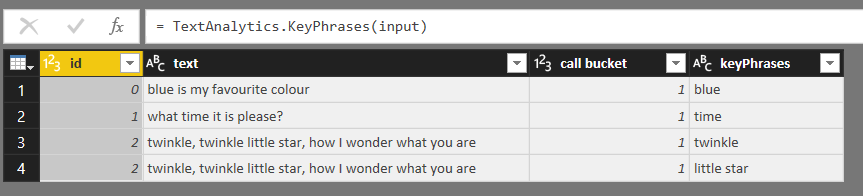
For the TextAnalytics.KeyPhrases() function, the following query:

[sourcecode language=”text”]
let
input =
{
"blue is my favourite colour",
"what time it is please?",
"twinkle, twinkle little star, how I wonder what you are"
},
result = TextAnalytics.KeyPhrases(input)
in
result
[/sourcecode]

Returns this table:

image

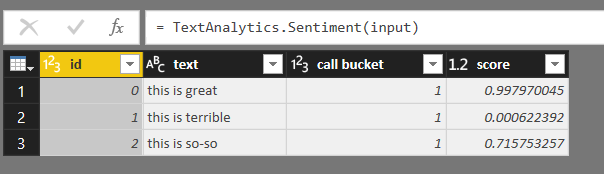
And for the TextAnalytics.Sentiment() function, the following query:

[sourcecode language=”text”]
let
input =
{
"this is great",
"this is terrible",
"this is so-so"
},
result = TextAnalytics.Sentiment(input)
in
result
[/sourcecode]

Returns this table:

image

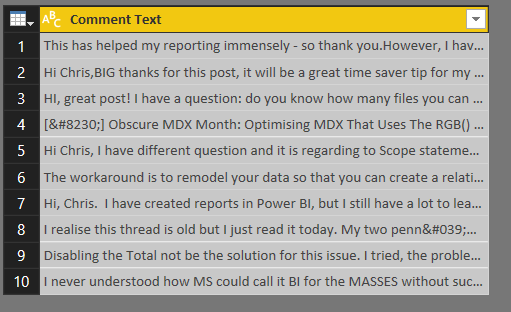
Because the first parameter of each of these functions is a list, it’s super-easy to pass in columns of data from existing tables. For example, here’s the output of a query that gets the last ten comments from the comments RSS feed of this blog:

image

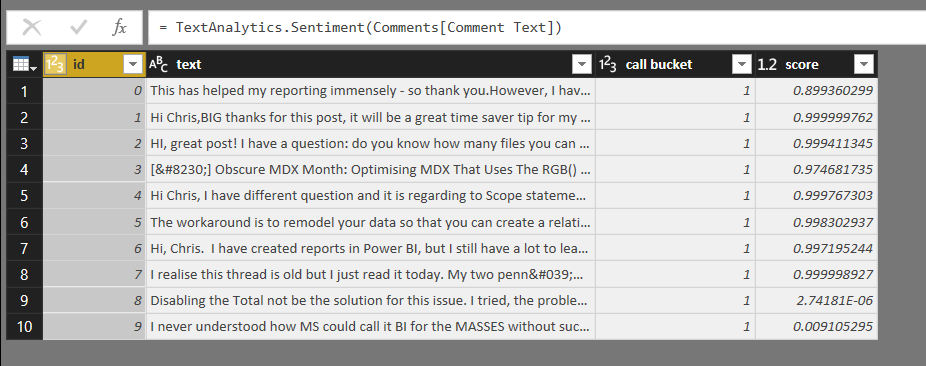
If this query is called Comments, the following single line of code is all that’s needed to call the TextAnalytics.Sentiment() function for the Comment Text column on this table:

[sourcecode language=”text”]
TextAnalytics.Sentiment(Comments[Comment Text])
[/sourcecode]

image

You can download a .pbix file containing several examples of how to call these functions, including all the examples above and many more, here.
I hope you enjoy using these functions, and if you have any questions, find any bugs or want to make suggestions for how they can be improved please let me know via the Issues page on GitHub. Finally, this is my first time using GitHub and if I’ve done something really dumb while publishing the code please let me know what I need to do to fix it!