Writing M in the Advanced Editor in Excel or Power BI can be a frustrating experience unless you’re the kind of masochist who loves writing code in Notepad. There are some options for writing M code outside Excel and Power BI, for example Lars Schreiber’s M extension for Notepad++ (see here for details) or the M extension for Visual Studio Code (available from the Visual Studio Marketplace here; more details on Brett Powell’s blog here), but the trouble with them is that you have to copy the code back into Excel or Power BI to run it. What many people don’t realise, however, is that it is possible to write M code and have IntelliSense, formatting, keyword highlighting and also the ability to execute your own M queries, using the Power Query SDK in Visual Studio.
The Power Query SDK (which you can download here) supports Visual Studio 2015 and 2017 and is intended for people who are writing custom Data Connectors for Power BI. To let you test your Data Connector you can create a .pq file containing M code, and this in fact allows you to run any M query you want whether you’re building a Data Connector or not.
Here’s how. First, install the Power Query SDK and then open Visual Studio and create a new project. Find the Power Query template, select the PQ file option and give your file a name:

Then, in the .pq file that is created, you can enter an M query and then either press the Start button on the toolbar or hit F5 to run the query. The output of the query is shown on the Output tab in the M Query Output window:

Right-clicking on your project in the Solution Explorer pane and selecting Properties brings up a Properties dialog with various properties that control how your queries behave:


Many of the properties are self-explanatory, at least for anyone used to writing M in Power BI or Excel. FastCombine turns off data privacy checks. Allow Native Query lets you use M queries that contain ‘native’ queries (for example your own SQL queries if you’re using a SQL Server data source), as Cédric Charlier shows here. A few of them, such as Legacy Redirects, I have no idea about yet (I should really ask someone…). Turning on Show Engine Traces displays engine trace information in the Log tab of the M Query Output pane; turning on Show User Traces displays trace information generated by the use of the Diagnostics.Trace() function in your code in the Log tab. You can save the contents of the Log tab to a text file.

Error messages are displayed on the Errors tab of the M Query Output pane:

When you have a query that connects to an external data source, the first time you try to run your query you will be prompted to set the credentials used to connect to that data source (as you would in Power BI Desktop), and the data privacy level for the data source, on the Errors pane:
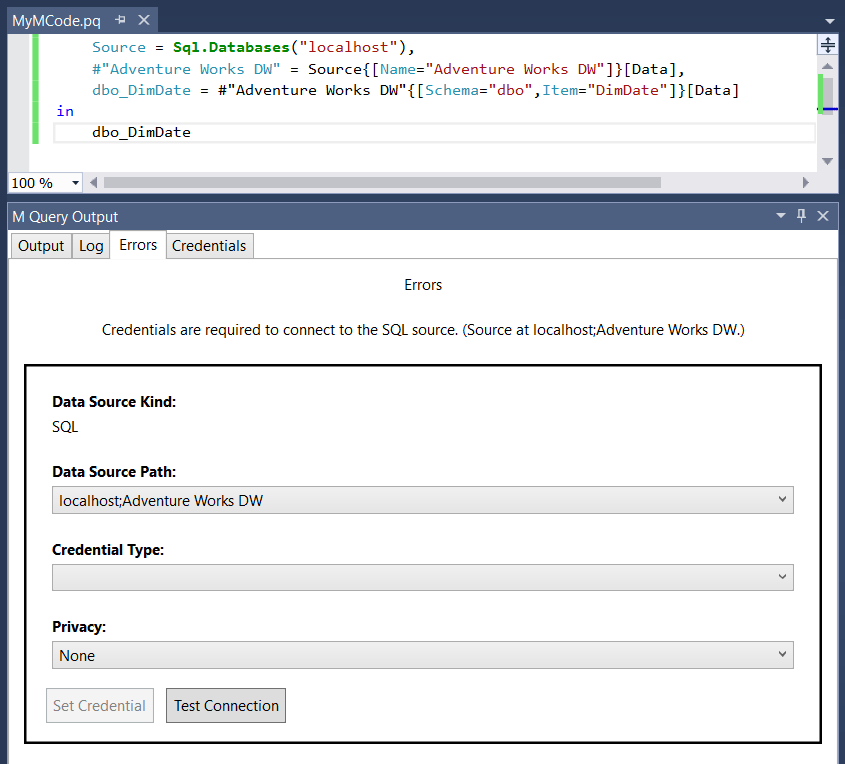
The query won’t actually run this first time though; you’ll need to hit Start/F5 again to see the results. If you close the project and then reopen it you will need to enter credentials again; alternatively, on the Credentials tab you can save the credentials used for a data source to a .crd file which can then be reloaded when you reopen your project. You can also edit and delete credentials on the Credentials tab.

If I’m honest it’s all very basic but it does the job. The main thing that I miss from writing M code in Power BI is the Query Editor UI – when I write M code there I only write about 50% of it manually, the rest I generate by clicking buttons in the UI because it’s faster. Give me the Query Editor (or the ribbonless version of it that comes with SSDT, because Visual Studio doesn’t support ribbons apparently) and I’ll be happy. Even better, give me the improved code editing functionality in the Advanced Editor in Power BI Desktop and Excel that we’ve been promised!