At the end of last year two new, fairly minor, improvements were made to Excel VBA’s support for Power Query: you can now refresh and delete individual Power Query queries. These methods are available now for everyone using the Insiders build of Excel. Not particularly interesting on its own (I wrote a post a few years ago about Excel VBA and Power Query if you’re interested) but it got me thinking about this subject again. Also, at the end of last year, I upgraded to Windows 11 which has Power Automate for desktop built in. Power Automate desktop makes it super easy to automate everyday tasks and it has great support for Excel – including the ability to run Excel VBA macros. So I wondered: can you use Power Automate for desktop to automatically refresh your Excel Power Query queries? Yes, you can!
Here’s a simple example. I created a Power Query query called GetTheDateAndTime that returns the current date and time in a table with one row and column. Here’s the M code for the query:
Next, I created a VBA macro called RunPQQuery to refresh this Power Query query using the new refresh method I mentioned earlier:
Sub RunPQQuery()
    ActiveWorkbook.Queries("GetTheDateAndTime").Refresh
End Sub
I then saved the Excel workbook as a .xlsm file.
Next I opened Power Automate for desktop and created a new desktop flow following the instructions here to open Excel, run the macro and close Excel again. I realised that if I closed Excel immediately after running the macro it would close Excel before the Power Query query had finished, so I added a delay of ten seconds after running the macro to give it time to finish. There are probably more sophisticated ways to solve this problem: for example you could read the value of a cell in the table returned by the query that you knew would change, then after running the query loop until the value you’ve read has changed. Here’s my desktop flow:
Finally I created a cloud flow to run this desktop flow:
And that’s it! A very simple example but very easy to implement.
My favourite – and it seems many other people’s favourite – new feature in the February 2022 Power BI Desktop release is support for more datasources (including SQL Server, Azure SQL DB and Synapse) with dynamic M parameters. In my opinion dynamic M parameters are extremely important for anyone planning to use DirectQuery: they give you a lot more control over the SQL that is generated by Power BI and therefore give you a lot more control over query performance.
Teo Lachev has already stolen my thunder and blogged about how the new functionality allows you to use a TSQL stored procedure as the source of a table in DirectQuery mode. In this post I’m going to show you something very similar – but instead of using a stored procedure, I’m going to show a simple example of how to use a TSQL table-valued function, which I think has a slight advantage in terms of ease-of-use.
To start off I created a table-valued function in the Adventure Works 2017 sample database on my local SQL Server which returns some filtered data from the DimDate table:
CREATE FUNCTION [dbo].[udfDates] (
    @day_name varchar(50),
	@month_name varchar(50)
)
RETURNS TABLE
AS
RETURN
    SELECT
        FullDateAlternateKey, EnglishDayNameOfWeek, EnglishMonthName, CalendarYear
    FROM
        DimDate
    WHERE
        EnglishDayNameOfWeek=@day_name
		and
		EnglishMonthName=@month_name;
Here’s how it can be called in a SQL SELECT statement:
select
	FullDateAlternateKey,
    EnglishDayNameOfWeek,
    EnglishMonthName,
    CalendarYear
from
	udfDates('Thursday', 'February')
where
	CalendarYear=2005
Next, I created a Power Query query in my dataset that called this function and returned a table in DirectQuery mode. The great thing about table-valued functions is that they appear in the Navigator pane when you connect to a SQL Server database from the Power Query Editor:
You can only hard-code the values you pass to the function’s parameters at this point but even if you do nothing here you can just return an empty table. After having done this I selected DirectQuery mode:
After this I created two Power Query text parameters, called DayName and MonthName, to hold the month and day names to be passed to the function:
I also created two Import mode queries called DayNames and MonthNames to hold all the valid values for the DayName and MonthName parameters:
The last thing to do in the Power Query Editor was to edit the query calling the function to pass the M parameters to it. Here’s the M code for the query after the modification made to the “Invoked Functiondbo_udfDates1” step:
At this point I closed the Power Query Editor and loaded the three tables to my dataset:
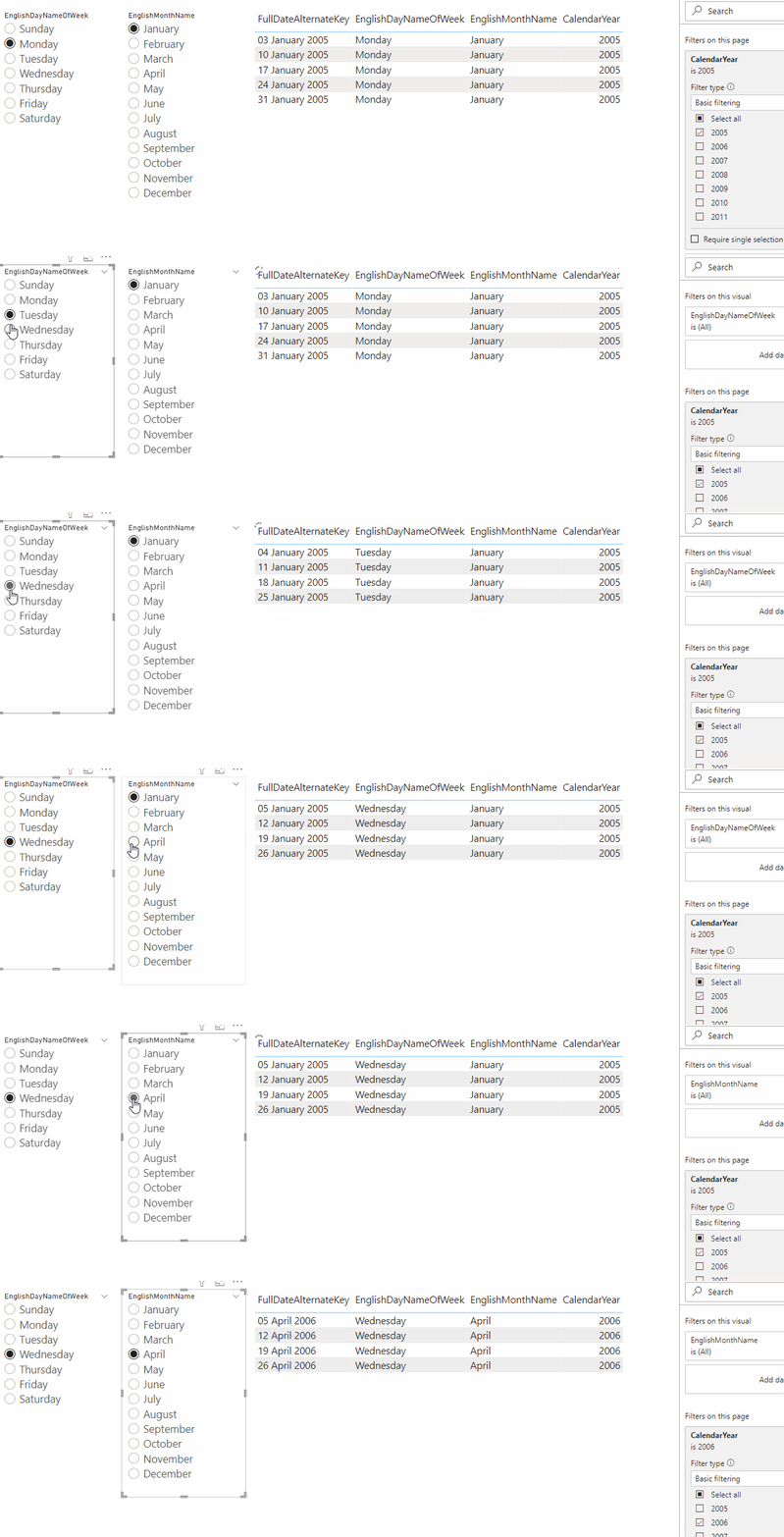
Next I bound the EnglishDayNameOfWeek column on the DayNames table to the DayName M parameter and the EnglishMonthName column on the MonthNames table to the MonthName M parameter:
Finally, I built a report with two slicers bound to the two dynamic M parameter columns and a table showing the output of the table-valued function:
Here’s an example of the TSQL generated by Power BI to populate the table in this report:
SELECT
TOP (501)
[t0].[FullDateAlternateKey],
[t0].[EnglishDayNameOfWeek],
[t0].[EnglishMonthName]
FROM
(
(
select [$Table].[FullDateAlternateKey],
    [$Table].[EnglishDayNameOfWeek],
    [$Table].[EnglishMonthName],
    [$Table].[CalendarYear]
from [dbo].[udfDates]('Thursday', 'February') as [$Table]
)
)
 AS [t0]
WHERE
(
[t0].[CalendarYear] = 2010
)

GROUP BY
[t0].[FullDateAlternateKey],[t0].[EnglishDayNameOfWeek],
[t0].[EnglishMonthName],[t0].[CalendarYear]
ORDER BY [t0].[FullDateAlternateKey]
ASC
,[t0].[EnglishMonthName]
ASC
,[t0].[CalendarYear]
ASC
,[t0].[EnglishDayNameOfWeek]
ASC
I am by no means an expert in writing efficient TSQL so I can’t comment on the pros and cons of table-valued functions, stored procedures or using native SQL queries in Power BI (although the last of these has obvious maintainability issues). Hopefully, though, you can see the possibilities – and if you do get round to using this approach on a project, please let me know how you get on!
If your Power BI dataset needs to connect to an on-premises data source it will need to connect via an On-Premises Data Gateway; what’s more, if you have a Power Query query that combines data from cloud and on-premises data sources, then Power BI needs to connect to all data sources used (even if they are cloud sources) via an On-Premises Data Gateway. And when Power BI connects to a data source via a gateway all the transformation work done by the Power Query engine takes place on the machine where the gateway is installed.
As a result of all this the specification of the machine where the gateway is installed has an impact on the performance of any dataset refreshes that use it. So how powerful does the machine with the gateway installed on it need to be? That’s a tough question because, as you can probably guess, it depends on a lot of different factors: how many datasets get refreshed in parallel, how often, how complex the transformations used are, if you’re using Import mode or DirectQuery, and so on. There’s a great docs article describing how to go about sizing your gateway machine here. Unsurprisingly, the more memory and CPU cores you have available the better refresh performance is likely to be and the more refreshes can take place in parallel.
There is one important thing to point out that is not obvious though: increasing the amount of memory on your gateway machine can improve refresh performance even if it doesn’t look like the machine is under memory or CPU pressure. This is because the total amount of memory made available for a single refresh is calculated relative to the overall amount of memory available on the gateway machine. I’ve written about how the Power Query engine uses memory a few times: this post describes how each refresh can use a fixed maximum amount of memory and how performance suffers if your refresh needs to use more; this post shows how increasing the amount of memory Power Query can use for a single refresh can increase refresh performance dramatically. In short, the more memory on your gateway machine the more memory is available for each individual refresh and – if the Power Query engine needs it, for example if you’re sorting, merging, pivoting/unpivoting, buffering or doing group-bys on large tables and query folding is not taking place – the faster each refresh will be.
You do have the option of changing some properties (listed here) on the gateway to try to influence this behaviour. However since the algorithms involved are not documented and may change at any time, not all the relevant properties are documented, and working out what the optimal settings are yourself is very difficult, I don’t recommend doing this. It’s a lot easier just to increase the amount of memory and CPU on the gateway machine and let the gateway work out how these resources should be used. I’m not saying that you should blindly increase your memory and CPU as much as you can, though – you should test to see what the impact on refresh performance is (the gateway logs will be useful here) and whether that impact is worth the extra cost.
Bonus tip: another easy way to improve gateway refresh performance is to enable the StreamBeforeRequestCompletes property on the gateway. It’s documented here and a few people (see here and here for example) have already blogged about how much this has helped them.
Azure Data Explorer has a data type called dynamic which can be used to hold scalar values as well as arrays and property bags; you can read about it in the docs here. For example (following on from my recent series on DirectQuery on Log Analytics, starting here) the ApplicationContext column in the PowerBIDatasetsWorkspace table that holds the IDs of the dataset, report and visual that generated a DAX query (see this post for more background) is of type dynamic:
This is what the contents of the column look like:
Now you can easily extract the individual property values from this column in KQL, and indeed I did so in the KQL queries in this post, but the interesting thing is you can also extract these values in Power Query M very easily and – crucially – maintain query folding using the Record.FieldOrDefault M function in a custom column without needing to write any KQL yourself, in both Import mode and DirectQuery mode.
In order to do this, first of all you have to enter a table name or KQL query in the third parameter of AzureDataExplorer.Contents function. When you do this you can treat a dynamic column as a record even if the Power Query UI doesn’t display it as such. Here’s an example M query that shows all of this in action on the PowerBIDatasetsWorkspace table that contains Power BI data in Log Analytics:
I admit that this is a super-obscure tip but I think it’s fascinating nonetheless, especially given how nested structures are becoming more and more common in the world of big data. It would be great to have similar behaviour in other connectors…
Thanks to my colleague Itay Sagui (whose blog has several posts on Power BI/Azure Data Explorer integration) for this information.
In my last post I showed how to use Log Analytics data to analyse Power BI query activity. The problem with looking at a long list of queries, though, is that it can be overwhelming and it can be hard to get a sense of when users were and weren’t actively interacting with a report. In this post I’ll show you how you can write a KQL query that gives you a summary view that solves this problem by grouping queries into sessions.
What is a session? I’m going to define it as a group of DAX queries – sessions – run by the same user that occur within 90 seconds of each other. If a user opens a Power BI report, clicks on a slicer or filter, changes a page or whatever, then so long as each of the DAX queries that are generated in the background when they do this have end times that are no more than 90 seconds apart, then that will count as a single session.
The key to solving this problem is the KQL scan operator. If, like me, you’re the kind of geek that likes data analysis you’re going to love the scan operator! There’s a great blog post explaining what it does here; in summary it allows you to do process mining, ie find sequences of events that match a given pattern. I can think of a few cool things I could do with it but grouping DAX queries into sessions is fairly straightforward. Here’s my KQL query:
PowerBIDatasetsWorkspace
| where TimeGenerated > ago(4h)
| where isempty(ExecutingUser)==false
and ExecutingUser<>"Power BI Service"
and OperationName=="QueryEnd"
| project OperationName, OperationDetailName, TimeGenerated,
EventText, DurationMs, ExecutingUser
| partition by ExecutingUser
(
sort by TimeGenerated asc
| scan declare (SessionStartTime:datetime) with
(
    step x: true =>
        SessionStartTime =
            iif(isempty(x.SessionStartTime),
                TimeGenerated,
                iif((TimeGenerated-x.TimeGenerated)>90s,
                    TimeGenerated,x.SessionStartTime));
)
)
| summarize
    SessionEndTime=max(TimeGenerated),
    QueryCount=count()
    by ExecutingUser, SessionStartTime
| extend SessionLength = SessionEndTime - SessionStartTime
| sort by SessionStartTime asc
This is how the query works:
Filters the Log Analytics data down to the queries run in the last four hours which were run by a real user and not the Power BI Service
Splits this data into separate tables (using the KQL partition operator) for each user
Sorts these tables by the TimeGenerated column
For each of these tables, add a new column called SessionStartTime that contains the value from the TimeGenerated column and copies it down for each subsequent query if its start time is less than 90 seconds; if a query starts more than 90 seconds after the previous one then SessionStartTime contains that query’s TimeGenerated value again
Uses the summarize operator to group the data by the values in SessionStartTime and ExecutingUser
Here’s the output:
This query returns one row per user session where:
SessionStartTime is the end time of the first DAX query run in the session
SessionEnd is the end time of the last DAX query run in the session
QueryCount is the number of DAX queries run in the session
SessionLength is the duration of the session
Let me know if you have any ideas for modifying or improving this…
In the first part of this series I showed how to create a Power BI DirectQuery dataset connected to Log Analytics to do near real-time monitoring of Analysis Services activity; in the second part I showed how to use this technique to monitor dataset refreshes in a workspace. In this blog post I’ll discuss how you can use this technique to monitor queries on your datasets.
As with the post on refreshes, the first and most important question to ask is: why do you need a DirectQuery dataset to monitor query activity? In all Power BI projects Import mode should be used where possible because it gives you better performance and more functionality. If you want to do long-term analysis of query activity then you’re better off importing the data from Log Analytics rather than using DirectQuery. So when and why would you use DirectQuery to monitory query activity in Power BI? The answer has to be when you need to be able to see what queries have been run recently, in the last hour or two, so when someone calls up to complain that their queries are slow you can see what queries they have just run and try and work out why they are slow.
It’s actually very easy to build a simple KQL query to look at query activity on your datasets: you just need to look at the QueryEnd event (or operation, as its called in Log Analytics), which is fired when a query finishes running. This event gives you all the information you need: the type of query (DAX or MDX), the duration, the CPU time, the query text and so on. The main challenge is that while you also get the IDs of the report and visual that generated the query, you don’t get the names of the report or visual. I wrote about how to get a list of visual and report IDs here and here, but how can you use that information?
Here’s an example KQL query that does just that:
let Reports =
datatable (ReportId:string, ReportName:string)
[
    "Insert Report ID here",
    "My Test Report"
];
let Visuals=
externaldata(VisualId: string,VisualTitle: string,VisualType: string)
[
    "Insert Shared Access Signature To CSV File Here"
]
with (format="csv", ignoreFirstRecord=true);
PowerBIDatasetsWorkspace |
where TimeGenerated > ago(2h) |
where OperationName == 'QueryEnd' |
extend a = todynamic(ApplicationContext)|
extend VisualId = tostring(a.Sources[0].VisualId),
ReportId = tostring(a.Sources[0].ReportId),
Operation = coalesce(tostring(a.Sources[0].Operation), "Query"),
DatasetName = ArtifactName, Query = EventText |
lookup kind=leftouter Visuals on VisualId |
lookup kind=leftouter Reports on ReportId |
project
ExecutingUser, TimeGenerated, WorkspaceName, DatasetName,
Operation, OperationDetailName,
VisualTitle, VisualType,
Status, DurationMs, CpuTimeMs, Query |
order by TimeGenerated desc
To extract the report and visual IDs from the JSON in the ApplicationContext column I’ve used the todynamic() function and then split them out into separate columns. Then, in order to have tables to do the lookups, I used two different techniques. I used the datatable operator to create a hard-coded table with the report IDs and names; in this case I’ve only got one report, but even if you were doing this in the real world at the workspace level I think it’s feasible to create hard-coded tables with report IDs and names in because there wouldn’t be that many of them. For the visuals I saved a table with the visual IDs, names and types in a CSV file and saved it to ADLSgen2 storage, then used the externaldata() (with a shared access signature in this case just to make authentication simple) operator to read this data into a table used for the lookup.
Here’s the output:
It’s then easy to use this table in a Power BI DirectQuery dataset to build a report that shows you what queries have been run recently. This report looks a bit rubbish and I’m sure you can build something that looks a lot nicer:
Log Analytics contains information on the dataset, report and visual that are associated with a DAX query but that information is in the form of IDs rather than names. Getting the IDs for specific datasets and reports is fairly straightforward – you can get them from urls in the Power BI Portal – and as I wrote here, it’s possible to get a list of IDs and names for the visuals in a report from the JSON file you get when you export from Performance Analyzer in Power BI Desktop. However, my colleague Rui Romano recently showed me a different way to get the same information using the Power BI Embedded Analytics Playgound, which may be an easier option to use in some cases.
The Power BI Embedded Analytics Playground (more details here and here) is a site where developers can learn how to use Power BI’s APIs for embedding reports and dashboards in their own applications. “But Chris!”, I hear you cry, “I’m not using Power BI Embedded!” – don’t worry, this is all about embedding not Power BI Embedded (yes, there’s a difference) so it works with the regular Power BI Service. “I’m not a developer though!”, you add – don’t worry, neither am I and you don’t need to understand any code to do what I’m going to show you.
When you go there you’ll see the following prompt:
Choose “Select report” under “Use my own Power BI report” and select the report whose visuals you want to get the IDs for.
At this point a page will open with a code editor at the top and your report shown at the bottom. Before you continue you will also need to open the Console pane in your browser’s developer tools. If you’re using Microsoft Edge you can learn how to do this here; if you’re using Chrome you can learn how to do this here.
At this point you should see something like this:
At this point you can start to generate some code by dragging and dropping from the left-hand pane to the code pane in the top-centre of the screen. There are two things you will need to do here: first, generate code to get the report to display the right page and second generate code to get all the visual IDs.
The easiest way to set the page is to generate code to set the page is to expand the Navigation node on the left hand pane and drag the “Page – Set active” item onto the bottom of the code in the code pane. You should then change the page index in the code to select the page; it’s zero-based, so to get the first page you set the index to 0, for the second page set it to 1 and so on.
Next, underneath that code, drag the “Get visuals” item and then click the Run button:
Finally, in the Console pane on the right-hand side of the screen, you’ll see a line was added that you can expand and when you do so, you’ll see the ID, visual type and title of all the visuals on the page:
There’s still a lot of manual work to do but it’s still a fairly easy process. I’m also sure there’s a developer out there who can write a script that can be pasted into the code window that a) loops through all the pages in the report and b) returns the IDs, name and titles in a more friendly format. I’m very impressed with how easy the Embedded Analytics Playground makes all this, though, even for a non-developer like me.
In the first post in this series I showed how it was possible to create a DirectQuery dataset connected to Log Analytics so you could analyse Power BI query and refresh activity in near real-time. In this post I’ll take a closer look into how you can use this data to monitor refreshes.
The focus of this series is using DirectQuery on Log Analytics to get up-to-date information (remember there’s already an Import-mode report you can use for long-term analysis of this data), and this influences the design of the dataset and report. If you’re an administrator these are the refresh-related questions you will need answers to:
Which datasets are refreshing right now?
Which recent datasets refreshes succeeded and which ones failed?
If a dataset refresh failed, why did it fail?
How long did these refreshes take?
To answer these questions I built a simple dataset with two tables in. First of all, I built a KQL query that answers these four questions and used it as the source for a DirectQuery table in my dataset. Here’s the query:
let
//get all refresh events
RefreshesInLast24Hours =
//this table holds all the Power BI log data for a workspace
PowerBIDatasetsWorkspace
//assume that no currently running refresh has run for more than 24 hours
| where TimeGenerated > ago(24h)
//only return the events fired when refreshes begin and end
| where OperationName in ('CommandBegin', 'CommandEnd')
and EventText has_any ('<Refresh xmlns', '\"refresh\"');
//gets just the events fired when the refreshes begin
let
CommandBegins =
RefreshesInLast24Hours
| where OperationName == 'CommandBegin' ;
//gets just the events fired when the refreshes end
let
CommandEnds =
RefreshesInLast24Hours
| where OperationName == 'CommandEnd' ;
//do a full outer join between the previous two tables
CommandBegins
| join kind=fullouter CommandEnds on XmlaRequestId, EventText
//select just the columns relevant to refreshes
| project ArtifactName, XmlaRequestId,
StartTime = TimeGenerated, EndTime = TimeGenerated1,
DurationMs = DurationMs1, CpuTimeMs = CpuTimeMs1,
Outcome = coalesce(Status1, 'In Progress'),
ErrorCode = StatusCode1,
WorkspaceId, WorkspaceName
| summarize StartTime=min(StartTime), EndTime=max(EndTime), DurationMs=max(DurationMs),
CpuTimeMs=max(CpuTimeMs), ErrorCode=min(ErrorCode)
by XmlaRequestId, ArtifactName, Outcome, WorkspaceId, WorkspaceName
Here’s an example of the output, a table with one row for each refresh in the last 24 hours:
Here’s how the query works:
Gets all the CommandBegin and CommandEnd events – the events that are fired when a refresh begins and ends – that occurred in the last 24 hours and stores them in two tables.
Only some of the CommandBegin and and CommandEnd events are related to refreshes, so the query filters on the EventText column to find them.
I chose to limit the data to the last 24 hours to keep the amount of data displayed to a minimum and because it’s unlikely that any refresh will take more than 24 hours. If I limited the data to the last hour, for example, then the query would not return the CommandBegin events or the CommandEnd events for any refreshes that started more than an hour ago and were still in progress, so these refreshes would not be visible in the report.
Does a full outer join between the table with the CommandBegin events and the table with the CommandEnd events, so the query returns one row for every that either started or ended in the last 24 hours.
Limits the columns in the results to show:
XmlaRequestId – the unique identifier that links all the events for a specific refresh operation
ArtifactName – the dataset name
WorkspaceId, WorkspaceName – the ID and name of the Power BI workspace where the dataset is stored
StartTime and EndTime – the refresh start time and end time,
DurationMs – the duration of the refresh in milliseconds
CpuTimeMs – the CPU Time consumed by the refresh in milliseconds,
Outcome – whether the refresh succeeded, failed or is still in progress
Errorcode – the error code that tells you why the refresh failed
Next I created a second table to return more detailed information about a specific refresh. Here’s an example of the KQL:
PowerBIDatasetsWorkspace
| where TimeGenerated > ago(24h)
| where OperationName in
('CommandBegin', 'CommandEnd',
'ProgressReportEnd','Error')
| where XmlaRequestId in
('5306b4ef-d74a-4962-9fc0-f7a299f16d61')
|project OperationName, OperationDetailName, TimeGenerated,
EventText, XmlaRequestId, DurationMs, CpuTimeMs
This query returns the CommandBegin, CommandEnd, ProgressReportEnd and Error events for a specific refresh (so all these events have the same XmlaRequestId value).
One last complication was that, in my Power BI dataset, I was not able to create a relationship between these two table (I got some kind of query folding error although I don’t know why), so in order to be able to drill from the summary table to the detail table I had to use a dynamic M parameter for the XmlaRequestId used to filter the second table (see this post for more details on how to implement dynamic M parameters when working with KQL queries).
Here’s the report I built on this dataset showing how you can drill from the summary page to the details page for a particular refresh:
Not exactly pretty, but I’m not much of a data visualisation person and I think tables are fine for this type data. You can download a sample .pbix file (I couldn’t make a .pbit file work for some reason…) for this report here and prettify it yourself if you want. All you need to do is change the Cluster and Database parameters in the Power Query Editor to match the details of your Log Analytics workspace and database (see my last post for more details).
[Thanks to Chris Jones at Microsoft for his ideas and suggestions on this topic]
[Update 10th January 2022 – I’ve modified the summary KQL query based on feedback from another Microsoft colleague, Xiaodong Zhang, who pointed out that it didn’t work for TMSL scripts or datasets that use incremental refresh]
As a Power BI administrator you want to see what’s happening in your tenant right now: who’s running queries, which datasets are refreshing and so on. That way if a user calls you to complain that their report is slow or their dataset hasn’t refreshed yet you can start troubleshooting immediately. Power BI’s integration with Log Analytics (currently in preview with some limitations) is a great source of information for this kind of troubleshooting: it gives you the ability to send various useful Analysis Services engine events, events that give you detailed information about queries and refreshes among other things, to Log Analytics with a latency of only a few minutes. Once you’ve done that you can write KQL queries to understand what’s going on, but writing queries is time consuming – what you want, of course, is a Power BI report.
The dataset behind that Power BI report will need to be in DirectQuery mode if you want to see the most up-to-date data; unfortunately the current Log Analytics for Power BI Datasets template app is Import mode, which is only good if you want to look at long-term trends. It’s not obvious how to connect Power BI to Log Analytics in DirectQuery mode but it is possible: some time ago John White wrote a detailed blog post showing how you could use the Azure Data Explorer connector to allow Power BI to connect to Log Analytics in DirectQuery mode. If you read the comments on that post you’ll see that this method stopped working soon afterwards, although there was a workaround using an older version of the connector. The good news is that as of the December 2021 release of Power BI Desktop the bug was fixed and the details in John’s post are correct again. There is one other issue that needs mentioning: at the time of writing it only seems to be possible to create a DirectQuery dataset on Log Analytics if you specify a native KQL query, but since that can be simply the name of the table you want to query in Log Analytics that’s not much of a blocker.
Putting this all together, to be able to build a Power BI DirectQuery dataset and report to analyse query and refresh activity, you need to:
Set up a Log Analytics workspace in the Azure Portal – see here for instructions.
Connect the Power BI Service to this new Log Analytics workspace – see here for instructions – so that query and refresh events are logged to it.
Open up Power BI Desktop and connect to the Log Analytics workspace using the Azure Data Explorer connector. In the connection dialog:
Enter a url pointing to your Log Analytics workspace in the following format in the Cluster box: https://ade.loganalytics.io/subscriptions/enter Azure subscription id here/resourcegroups/enter Azure resource group name here/providers/microsoft.operationalinsights/workspaces/enter Log Analytics workspace name here
Enter your Log Analytics workspace name in the Database box
In the “Table name or Azure Data Explorer query (optional)” box you need to enter a custom KQL query, which can simply be the following table name: PowerBIDatasetsWorkspace
Scroll down to the end of the dialog (which may be off the screen) and select DirectQuery for the Data Connectivity mode.
At this point you’ll have a dataset with a single table in DirectQuery mode that you can build your reports from; you might also want to use automatic page refresh to make sure the report page always shows the latest data. For example, here’s a very simple report showing query durations:
How do you interpret the data in the table in the dataset? Are there any interesting analyses you can do with more complex KQL queries or different ways of modelling the data? All good questions and ones that are out of scope for now. I’ll try to answer these questions in my next few posts though.
Every year, on the anniversary of the first-ever post on this blog, I write a post reflecting on what has happened to me professionally in the past year. In the past this has meant I’ve written about learning some new technology or language (yes, DAX and M were new once), dealing with a business issue back when I had my own company, or more recently adjusting to life as a full-time employee at Microsoft. This year’s new challenge has been becoming a manager for the first time.
One of the great things about working for Microsoft is that, unlike many other companies, you don’t need to become a manager to progress in your career. However, the Power BI CAT team is growing and when I was given the opportunity to manage a part of it I thought, why not? I’m in my late 40s and have never had anyone reporting to me before – in my defence I spent many years working for myself – so I thought it would be good to get out of my comfort zone and try something new. It helped that I have a very supportive manager and that several other people on the team made the transition to management at the same time, which means we’re all learning together. I have particularly enjoyed recruiting new people for my team from inside and outside Microsoft: I have some extremely talented people on my team already, with several more due to start in early 2022.
This doesn’t mean I have left technical things behind though, just that I’m spending less time doing technical things and more time managing other people who do technical things. I think it’s important to stay as technical as I can and to maintain some direct contact with customers in order for me to be an effective manager; again, one of the things I like about Microsoft and my team in particular is that I haven’t had to make a binary choice between being a manager or being technical. That said I have had to accept that, more than before, there are problems I can’t help solve and shiny new things I don’t have time to learn about, and that has been hard.
None of this will affect this blog’s focus on Power BI (I’m certain no-one is interested in my thoughts about management…) or how often I blog but it will accelerate a trend that I suspect has been apparent for the last year or so. The primary motivation for me to blog has always been my own education: writing down information I can’t find anywhere else means it doesn’t get lost and explaining it to other people helps me understand it myself. Now, though, this is pretty much the only reason for me to blog, which means even more of the obscure factoids about Power Query data privacy settings and even less of the click-friendly top ten lists about Power BI/Excel integration type of content. I don’t think many people came here for the introductory tutorials though, did they?