
Here’s something I found out a few weeks ago, just before I went on holiday: installing SP1 for SSAS 2008R2 breaks a PowerPivot installation on the same machine. After I’d installed SP1 on my laptop I found I got an “Unable to open file” error message in PowerPivot whenever I tried to import data, at which point PowerPivot crashed. For me the fix was easy – reinstall PowerPivot and it worked again – but I’m glad I found this out before I needed to use PowerPivot in front of a customer.
Category: PowerPivot
Querying PowerPivot DMVs from Excel
One of the more popular posts on my blog is one I wrote just over a year ago on binding the results of an MDX query to a table inside Excel. I was thinking about it again recently when I was looking at the list of DMVs (=Dynamic Management Views – views that can be queried using SQL in SSAS and which contain all kinds of useful admin data) available in Analysis Services and noticed several new ones in 2008 R2 that are PowerPivot-related; I assume these are the DMVs that the Sharepoint management dashboard uses to track usage of PowerPivot models after they’ve been uploaded, but it struck me that it would also be cool to have this information available for PowerPivot models while they’re still in Excel. Wouldn’t it be good to query a DMV from Excel? Well, here’s how.
First of all, take an Excel workbook with a PowerPivot model in it. Go to the Data tab and click on Connections, and you’ll see the connection that is created automatically to the PowerPivot model:

This is the connection we want to use to run our DMVs. We now need to be able to use a table to show the results of our query, and this requires something similar to the method Greg Galloway described after I published the above post. First, on a new sheet open a connection to any relational data source you have handy such as SQL Server and import a table from that data source into a table in Excel. I used the DimProductCategory table from Adventure Works, and did this by going to the Data tab, clicking on From Other Data Sources and then From SQL Server, and running the wizard. The result is this:
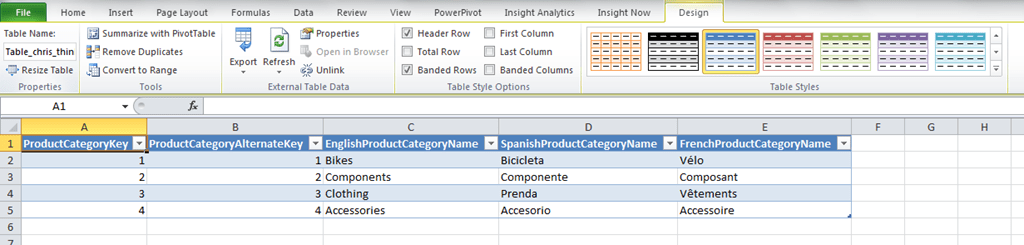
Then go to the Connections dialog and copy the connection string from the PowerPivot connection shown in the first screenshot above (found when you click Properties and go to the Definition tab), then go to the SQL table you’ve just created, right-click and select Table and Edit Query, then paste the PowerPivot connection string into the Connection textbox, change the Command Type to Default, and then put your query into the Command Text box. I also had to add an extra connection string property setting Locale Identifier=1033 to get things working on my machine (and re-add it every time I edited the query), but I suspect this might not be necessary if you have a US English machine. Anyway, here’s what my connection string looked like:
Provider=MSOLAP.4;Persist Security Info=True;Initial Catalog=Microsoft_SQLServer_AnalysisServices;Data Source=$Embedded$;MDX Compatibility=1;Safety Options=2;MDX Missing Member Mode=Error;Optimize Response=3;Cell Error Mode=TextValue; locale identifier=1033
And here’s the dialog:
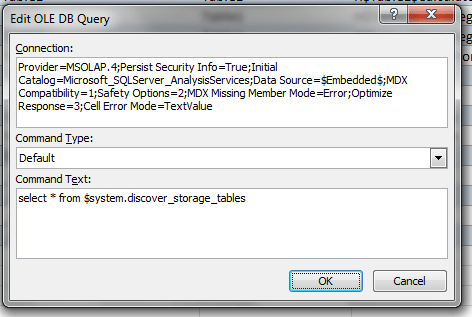
Having done this, when you click ok you’ll see the table update with the contents of the query.
Of course you can enter any MDX query here but I’m going to stick to talking about DMVs. So what useful information can you get from a DMV then? Vincent Rainardi has a great post on SSAS DMVs here which covers all the useful ones and has plenty of syntax examples, but here are some things you might want to do with PowerPivot.
First of all, to get a list of all the DMVs supported you can run the query:
select * from $system.discover_schema_rowsets
To get a list of tables in your model along with the dates they were last edited and when the data was last updated, use the following query:
select cube_name, last_schema_update, last_data_update from $system.mdschema_cubes
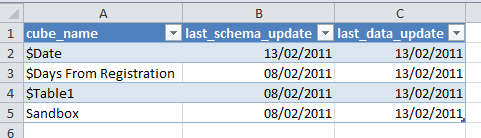
…although I’ve noticed some weird behaviour with the dates for some tables, so be careful using it.
To get a list of the number of distinct values in each column, use:
select dimension_name, table_id, rows_count from $system.discover_storage_tables
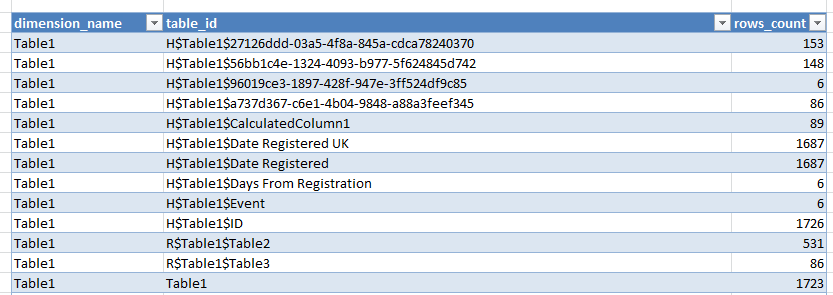
The query:
select * from $system.discover_storage_table_columns
gives more metadata on table columns; however:
select * from $system.discover_storage_table_column_segments
…although it gives some information on the amount of memory allocated to different columns, does not give the complete picture on memory usage. For that you need to use:
select * from $system.discover_object_memory_usage
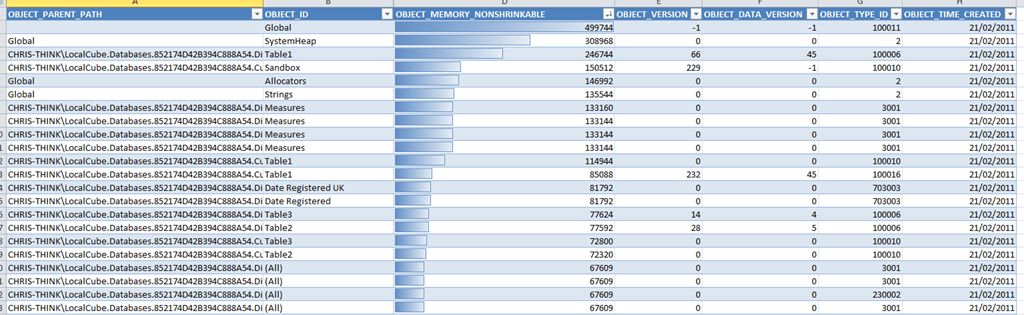
This gives a full breakdown of memory usage (in the OBJECT_MEMORY_NONSHRINKABLE column) by each object in the PowerPivot model. It’s not all that easy to interpret this information though, because it only gives the memory used directly by each object and you also need to take into account the memory used by all the objects ‘owned’ by a given object too. It’s also worth pointing out that this is not the same view of memory usage that is given by looking at the temp folder created by Vertipaq, which Vidas has blogged about here and here; it shows the size of the database when it has been loaded into memory as opposed to the size of the database when it is persisted to disk, and there can be a big disparity between the two.
How can we make sense of the data returned by discover_object_memory_usage? We load it back into PowerPivot of course! I created a linked table and then a calculated column called OBJECT_PATH concatenating OBJECT_PARENT_PATH and OBJECT_ID using the following expression:
=[OBJECT_PARENT_PATH]&"."&[OBJECT_ID]
This gave me the full path of each object in a format that’s directly comparable with the object’s parent as stored in OBJECT_PARENT_PATH.
I then created a calculated measure with the following expression to return the amount of memory used by each object, including the objects it owns, in KB:
=(SUM(Memory[OBJECT_MEMORY_NONSHRINKABLE]) + CALCULATE(SUM(Memory[OBJECT_MEMORY_NONSHRINKABLE]),FILTER(ALL(Memory), COUNTROWS(FILTER(VALUES(Memory[OBJECT_PATH]), IFERROR(SEARCH(Memory[OBJECT_PATH],EARLIER(Memory[OBJECT_PARENT_PATH])), 0)=1))>0)))/1024
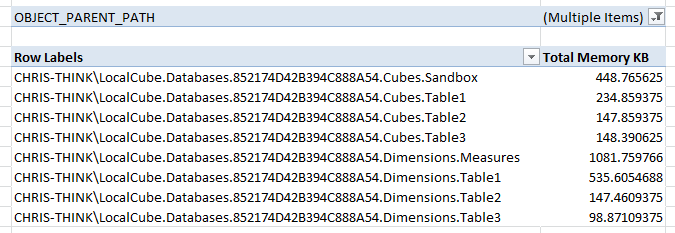
It’s then easy to see the memory used by the cubes and dimensions that make up the PowerPivot model:
And the memory used by objects associated with the columns in a particular table:
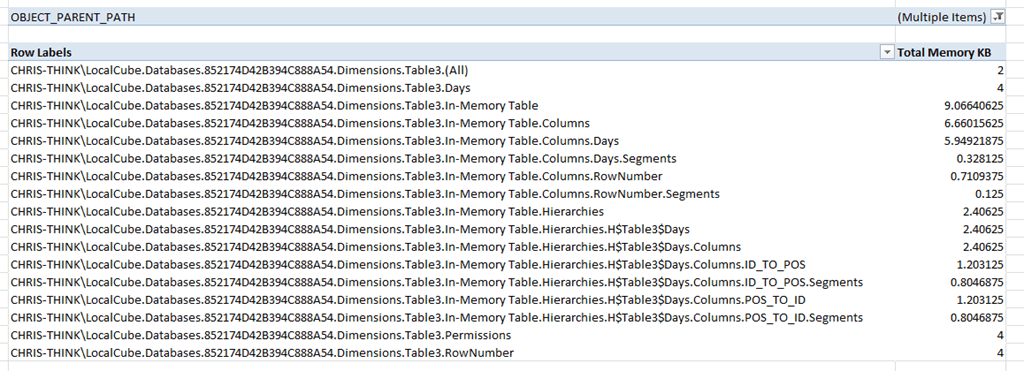
All of which is very useful if you’re trying to work out what’s eating memory in your PowerPivot model. If anyone comes across any other interesting thing to do with DMVs for PowerPivot then please let me know…
PowerPivot Videos from SQL Server Day 2010
Last month I had the pleasure of speaking at SQL Server Day 2010 in Belgium (I had a nightmare getting there and back because of the snow, but that’s another story). I’ve just seen that all the videos from the event are now available to view online and download here:
http://sqlserverday.be/video/
Both the sessions I gave are up: “Implementing Common Business Calculations in DAX” and “Comparing Analysis Services with PowerPivot”.
On a related note, we’ve aggregated all the content we’ve got for every single SQLBits on a new page on the SQLBits site:
http://sqlbits.com/content/
As far as I can see there are 152 videos on there alone!
PowerPivot Training in London (and elsewhere)
As you’re probably aware by now, PowerPivot and DAX are important parts of the Microsoft BI story going forward – self-service BI is the big new thing, while on the corporate side BISM will use DAX as its calculation language and BISM models will essentially be PowerPivot models. So it makes sense to learn PowerPivot and DAX as soon as possible to get a head start, right?
While that thought’s in your head, I’m pleased to mention that I’m helping Marco Russo and Alberto Ferrari (authors of the excellent book “PowerPivot for Excel 2010”) organise the London leg of their European PowerPivot training tour. Marco has more details on the course on his blog here, and you can find the course website here:
http://www.powerpivotworkshop.com/
Whether you’re a BI professional or an Excel power user, I think this represents an excellent opportunity to get training from acknowledged PowerPivot gurus. I’ll be there in the audience!
PowerPivot vs SSAS Quiz
Last week, at the PASS Summit, I did a session on ‘Comparing PowerPivot with Analysis Services’. The aim of the session was to compare the two products in terms of positioning and functionality, and help people work out which tool would be appropriate for their product – and the reason I submitted this session was because I’ve seen an awful lot of people over the last year who are confused about this issue, and it’s not an easy question to answer. Although there are many things that both tools do equally well, there are some things that PowerPivot is good at and that SSAS is not, and there are other things that SSAS is good at and which PowerPivot is not.
Anyway, to make the presentation a bit more fun I came up with the idea of creating a quiz (like the kind you find in women’s magazines) to help make the decision. It took the form of an Excel spreadsheet with a series of yes/no questions, and once the questions had been answered the spreadsheet would tell you which tool you should use. Since a number of people have since asked me to share the workbook, I’ve decided to make it available via the Excel Web App here:
All you need to do is answer each question by entering 1 under either the Yes or the No column, and then when you’re finished look in cell C67 for the answer. You might also want to download a local copy to Excel and play with it there, rather than edit the document online. The way it works is that each question has a weight attached to the yes or no answer, and that’s found in the hidden columns F and G. A positive weight favours SSAS, a negative weight favours PowerPivot; I should also point out that the weights aren’t always equal. So, for example, in the question about security, if you answer that everyone in your organisation should be able to see all your data that favours neither SSAS or PowerPivot, but if you answer that you do need to restrict access to data then that favours SSAS (because only SSAS has features like dimension and cell security).
Before anyone complains to me about the questions being stacked in favour of SSAS or PowerPivot (and I’d like to point out one more time that I am not some kind of PowerPivot-hating BI Luddite, I do like PowerPivot and I’m also excited about using BISM too, so there), I’m going to add the following disclaimer: these questions should only act as a guide, and I cannot guarantee that this worksheet will give the correct answer in every case. It only represents a personal opinion! Before you use it, I suggest you review the weights associated with each question and change them according to your own ideas. Oh, and before you show this sheet to the boss you might want to delete the pictures of hearts at the top…
Basket Analysis, PowerPivot and NodeXL
While I was thinking about basket analysis last week I started wondering what kind of visualisations would be useful for this problem, and I remembered NodeXL (which I blogged about earlier this year). After all, isn’t basket analysis pretty similar to network analysis? It’s all just connections between things…
Anyway, taking the PowerPivot model and calculated measures from my last post, I started to look at how to import that data into the NodeXL Excel template. The first problem was how to present the data in a tabular form and the answer was the new Excel 2010 flattened pivot table that Kasper and Rob have blogged about before, with subtotals turned off. This gave an output that looked like this:

The second problem was slightly more tricky. NodeXL wants a set of edges to draw its graph, and in our case an edge will represent an instance where two products were bought together. However in the results above we have rows where the two products are identical, eg showing the number of customers who bought Apples with Apples, and we also have rows that show the same data in different ways, eg one row showing the number of customers who bought Apples and Cake and another row showing the number of customers who bought Cake with Apples. We need to get rid of these unwanted rows and we can do that with Excel 2010’s ability to use custom MDX to generate a named set. Here’s the set expression I used:
GENERATE(
[Product].[Product].[Product].MEMBERS
, {[Product].[Product].CURRENTMEMBER}
*
{LINKMEMBER(
[Product].[Product].CURRENTMEMBER
, [Product Bought With].[And Product]).NEXTMEMBER : NULL})
What I’m doing here is to taking the set of all Products, then using the Generate function to crossjoin each Product with the set of all Products from the And Product dimension, starting from the And Product that’s immediately after the And Product that has the same name as the current Product, to the end of the level.
This gives us the following set of rows:

We can now paste this into the Edges worksheet of the NodeXL template, so that NodeXL can work its magic. I’m not going to pretend to be an expert on NodeXL and indeed this data isn’t the most exciting in the world to visualise, but once I’d got the graph drawn a quick look through the NodeXL tutorial (and especially the section on analysing voting patterns in the Senate) showed me how to use the value of the measure ‘Customers buying both Products’ to control the opacity of the lines in the graph. And here it is:

From this we can see clearly that Bread and Cake were never bought together and that Apples and Bread were bought together more often that any other combination. Job done! With real data, I think NodeXL would prove very useful indeed for this kind of analysis and it would be great if NodeXL could work direct with data in PowerPivot (hint, hint) in the future. If anyone out there does try using NodeXL with their data for basket analysis, I’d be very interested to hear from them…
Using PowerPivot to Analyse Windows Search Results
My whole life is on my laptop hard drive, and as a consequence my laptop hard drive has a lot of stuff on it. Luckily, when I need to find something, there’s always Windows Search to help me out – but even so a single search query can return a lot of data. How can we make sense of all the data in the Windows Search Index? Well, we can use PowerPivot of course!
I first got the idea for doing this when I saw ‘Microsoft OLE DB Provider for Search’ in my list of OLE DB Providers; a quick look around on the net revealed the following useful sources of information about it:
http://msdn.microsoft.com/en-us/library/bb231256(v=VS.85).aspx
http://www.thejoyofcode.com/Using_Windows_Search_in_your_applications.aspx
So if you can query Windows Search using SQL, I thought, then I should be able to take the data that is returned from running one of these SQL queries and load it into PowerPivot. And after a lot of trial and error, I managed it – and it works rather well. Here’s how to do it…
First of all, you need to make sure you have the OLE DB Provider for Search installed. If you don’t, you need to download and install the Windows SDK. Then you can open up a new Excel workbook and open the PowerPivot window. Next you need to create a new connection by going to the Home tab, clicking the Get External Data/From Other Sources button, and then clicking the Others(OLEDB/ODBC) option.

Next, type in the following connection string:
Provider=Search.CollatorDSO;Extended Properties=Application=Windows
Do not try to click the Build button and select the provider from the list – when I did this, I got the error “Provider is no longer available. Ensure that the provider is installed properly”. Next, choose the “Write a query to specify the data to import” option (again, if you choose the “Select from a list of tables…” you’ll get an error) and enter your SQL query.
Here’s where the fun begins. From the two links above, you can see that there are loads of possibilities as to what you can query. Here’s a sample query that returns a list of all the files in the Documents folder on my c:\ drive and below, along with their file types, the folder path and the file size in bytes:
SELECT
System.ItemTypeText,
System.Size, System.ItemFolderNameDisplay,
CAST(System.ItemFolderPathDisplay as DBTYPE_BSTR),
System.DateCreated,
System.DateAccessed,
System.FileExtension,
CAST(System.ItemName AS DBTYPE_BSTR)
FROM SYSTEMINDEX
WHERE SCOPE=’file:C:\Users\Chris Webb\Documents’
Notice that I’ve had to cast some columns to DBTYPE_BSTR – I found that if I didn’t do this, the columns simply didn’t appear in the query results in PowerPivot. Other things you can do here in the query include searching for all items that include particular words or phrases, or which are above a certain size, or have a particular file extension.
With that done, you’re good to go. In a pivot table you can slice and dice all the data returned to your heart’s content. Here, for example, are the top five files with the .ABF extension (ie SSAS backup files) from my c:\ drive:

With a separate time dimension table joining to System.DateCreated you can do even more. Here’s the total size of files on my c:\ drive in bytes broken down by the year they were created:

You can also use the DAX time intelligence functionality. I added a running total calculation that shows the growth in the total size in MB of all files, over time, based on the creation date of each file. Here’s the formula:
=CALCULATE(SUM(Files[SYSTEMSIZE]), DATESBETWEEN(Time[Date], BLANK(), LASTDATE(Time[Date])))/1024/1024
This chart shows that running sum from November 2008, when I bought the laptop, to today:

There are plenty of tools out there that help you analyse this type of data but I doubt any of them can do what the PowerPivot/Excel combo can do. And it’s this kind of personal BI that PowerPivot makes easy. The only thing missing is an API which would allow you to build the SQL query used here dynamically: imagine having an interface where users could type their own search terms and then be able to analyse the results in PowerPivot at the click of a button. Hopefully PowerPivot will get an API soon. And as I’ve said before in the past, wouldn’t it be cool if Bing could do this kind of thing with web search results and data found on the web?