PowerPivot Top N Reports Using Excel Cube Formulas

Top N reports are an extremely common requirement: my customers are always trying to find their top 10 products or sales people or geographies by some measure or other. Luckily this type of report is fairly easy to build in PowerPivot if you’re using a PivotTable; in fact, Rob Collie wrote a good blog post on this subject only last week which is well worth a read. The problem with PivotTables is, however, that they are a pain to format and many people prefer to use Excel cube formulas for their dashboards – and unfortunately dynamic Top N reports are surprisingly difficult to implement with cube formulas. As the discussions here and here show, even when you’re using CubeSet and CubeRankedMember you need to know MDX pretty well and even then it’s a bit messy. Here, instead, is a pure DAX solution to the problem which, while not as simple as I’d like, involves no MDX, no clever use of Excel cube functions, and works when you select more than one item in a slicer.

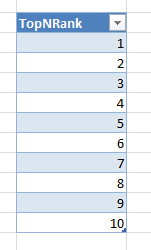
The first thing you need to do is to create a table with as many rows in as you need items in your Top N report. In my example I’m going to return the top 10 products in a model built from the Adventure Works database, so here’s my table (called TopNRank):
image

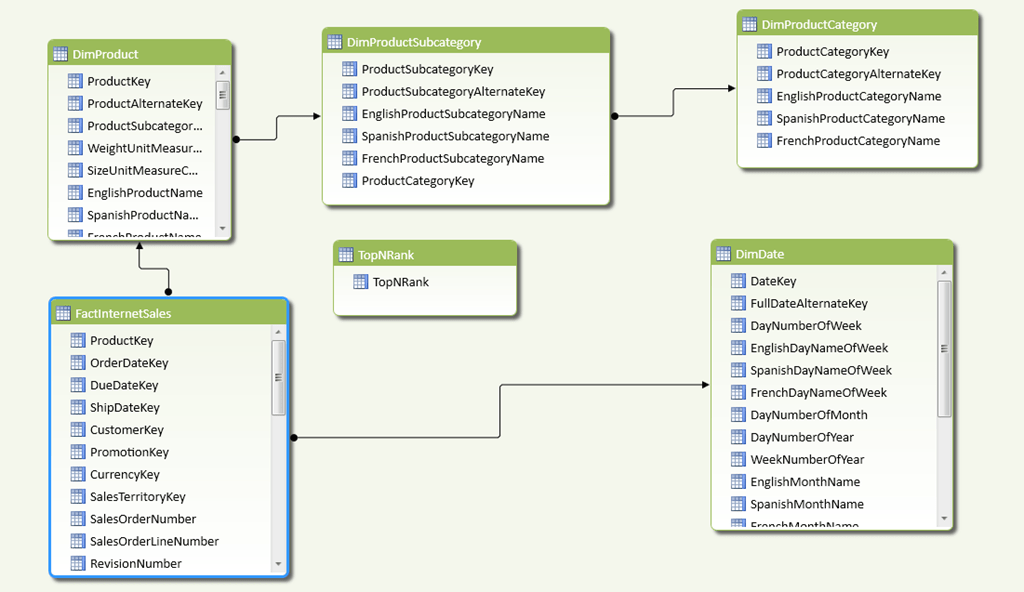
Here’s my model in Diagram View:

image

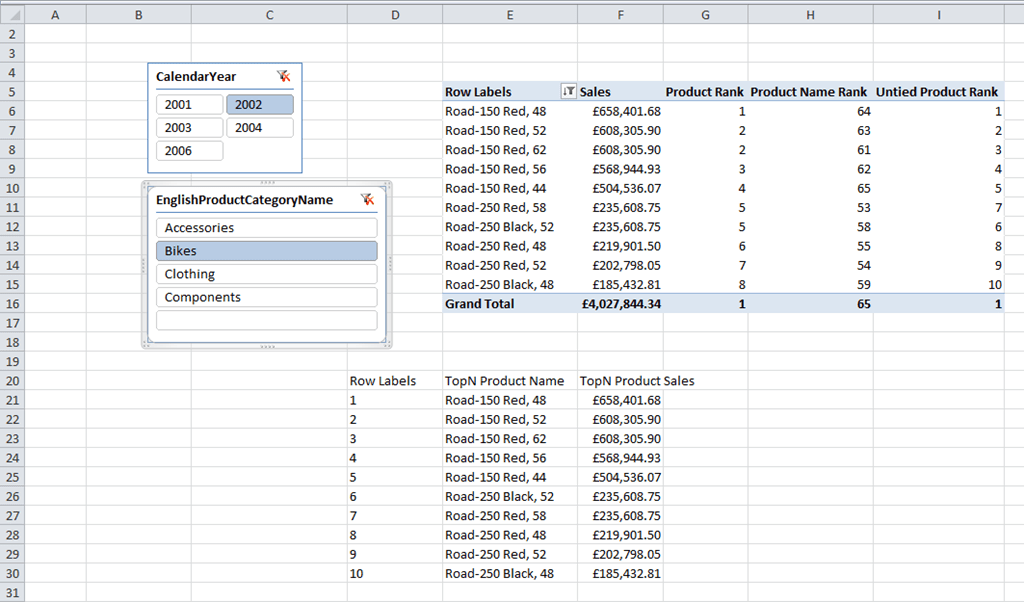
And here’s a screenshot of my main worksheet, for reference, with two Slicers on CalendarYear and EnglishProductCategoryName; a PivotTable with a Top 10 filter applied on EnglishProductName (to check the output and for debugging); and below it my Excel formulas, with the ten values from the TopNRank table on rows and two measures called [TopN Product Name] and [TopN Product Sales] on columns, showing the same top 10 values:
image

Step 1 is to create a measure called [Sales] that simply sums up the values in the [Sales Amount] column:

Sales:=SUM([SalesAmount])

You can then create a measure, called [Product Rank] here (and shown in the PivotTable above), that returns the rank of each product by [Sales] for the current year and category:

Product Rank:=
IF(
  ISBLANK([Sales])
    , BLANK()
    , RANKX(ALL(DimProduct[EnglishProductName]), [Sales], [Sales], 0, Dense)
)

The basic idea for this approach is that with the Excel cube formulas, you’re going to use the values from the TopNRank table on rows and then use a measure to return the name of the top Nth Product for each row. This measure needs to return the name of the product that has the same rank value as whichever value from the TopNRank table is on rows. For example, in the screenshot above, in cell D21 there is a CubeMember function that returns the value 1 from TopNRank table; in cell D22 there is a CubeValue function that references the new measure, and this filters the list of all Products to return the name of the Product where [Product Rank] is 1, which is Road-150 Red, 48 (as you can see from the PivotTable).

There’s a problem with this approach, however, and that is that the RankX function always returns tied ranks when two products have the same value for [Sales]. So, in the PivotTable in the screenshot above, there are two products with the rank 2 because they have the same value for the [Sales] measure – and this causes big problems for the approach described in the previous paragraph. Despite what BOL says you can’t calculate a rank by more than one column, so the only way to get around this is to ensure that tied ranks can never occur, and the way I’ve done this is to rank by [Sales] and the name of the product by using the following measures:

Product Name:=
FIRSTNONBLANK(VALUES(DimProduct[EnglishProductName]), DimProduct[EnglishProductName])

Product Name Rank:=
IF(
  ISBLANK([Sales])
    , BLANK()
    , RANKX(ALL(DimProduct[EnglishProductName]),[Product Name])
)

Combined Rank:=
[Product Rank] + (1/[Product Name Rank])

Untied Product Rank:=
RANKX(ALL(DimProduct[EnglishProductName]), [Combined Rank],,1)

With this done, at long last it’s possible to create the measure that returns the name of the Top Nth product as follows:

TopN Product Name:=
IF(
  ISFILTERED(‘TopNRank'[TopNRank]) && ISBLANK([Sales])=FALSE()
    , FIRSTNONBLANK(
        FILTER(VALUES(DimProduct[EnglishProductName])
        , [Untied Product Rank]=VALUES(‘TopNRank'[TopNRank]))
    , DimProduct[EnglishProductName])
  , BLANK()
)

And here’s the measure that returns the value of [Sales] for each product:

TopN Product Sales:=
IF(
  ISFILTERED(‘TopNRank'[TopNRank]) && ISBLANK([Sales])=FALSE()
  , CALCULATE(
    SUM(FactInternetSales[SalesAmount])
    , FILTER(
      VALUES(DimProduct[EnglishProductName])
      , DimProduct[EnglishProductName]=[TopN Product Name]))
    , BLANK()
)

I’ve been told by the customer that implemented this approach that performance on larger models, while acceptable, is a bit slow and that it gets worse the more items you display in your top n list. This doesn’t surprise me and to be honest I’ll need to do some experiments to see if I can improve performance.

You can download my sample workbook (Excel 2010 64 bit, PowerPivot V2.0) from here.
My PowerPivot Post on the Microsoft BI Blog

Just a quick note to mention that a guest post I wrote on PowerPivot and how it can be used with some other new, obscure and/or experimental BI tools in Excel is now live here on the Microsoft BI Blog:

http://blogs.msdn.com/b/microsoft_business_intelligence1/archive/2012/07/05/the-microsoft-self-service-bi-stack-it-s-more-than-just-powerpivot.aspx

This post follows the outline of a session I’ll be presenting at the PASS Summit this year; I’ve presented it a few times already to whip it into shape (including last week at the Leeds UG) and I can promise you it’s even more fun in person!

OR Selections in DAX

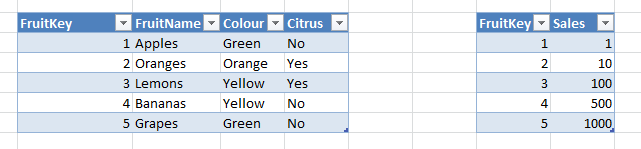
Most of the time, selecting items in a PivotTable in a PowerPivot or SSAS 2012 Tabular model works in the way you want: if you select more than one item from a column it acts as an OR filter on that column; selecting items on another column acts as an AND filter on the selection. Consider a simple PowerPivot model built from the following Excel tables (where the only relationship is on the FruitKey columns):

image

With a measure that sums up the Sales column, such as:

Sum of Sales:=SUM(SalesFact[Sales])

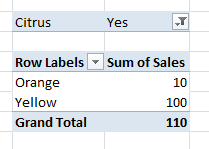
You can built a PivotTable like the one below that shows the sales of Citrus fruit that are Orange or Yellow (Citrus=Yes and (Colour=Orange OR Colour=Yellow):

image

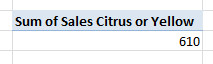
So far so good. What happens if you want to see the sales of fruit that are either Citrus OR Yellow? If you know the selection in advance, or you have control over how your DAX is generated, you can build an expression like this measure that does the job:

Sum of Sales Citrus or Yellow:=
CALCULATE(
  SUM(SalesFact[Sales])
  , FILTER(ALL(Fruit1), Fruit1[Citrus]="Yes" || Fruit1[Colour]="Yellow")
)

image

But what if you don’t want to hard-code the filter you’re using, and want to let your users control what they are ORing? Here’s how…

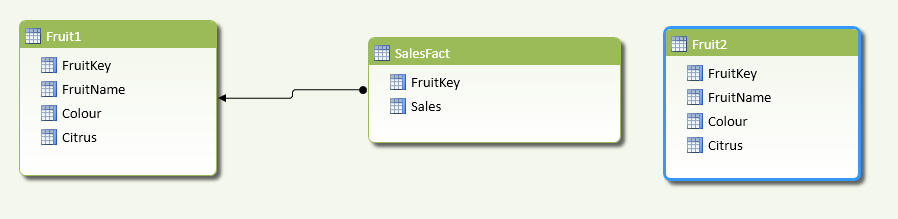
First of all, you need to have two identical tables in your model that allow the user to make selections for the two conditions they are ORing. Here’s an example with the data from above:

image

Here I’ve got two tables, Fruit1 and Fruit2, for controlling the OR selection; only Fruit1 has a relationship with SalesFact though. Next, you need a measure that will apply the OR filter. The way this needs to work is as follows: take the whole of the Fruit table and if the user has selected something on Fruit1 then allow those rows through, and if the user has selected something on Fruit2 then allow those rows through the filter as well. Here’s the final DAX measure:

OR Sales:=
IF(
  OR(ISCROSSFILTERED(Fruit1[FruitKey]), ISCROSSFILTERED(Fruit2[FruitKey]))
  ,CALCULATE(
    SUM(SalesFact[Sales])
    , FILTER(
      ALL(Fruit1)
      , IF(ISCROSSFILTERED(Fruit1[FruitKey]), CONTAINS(Fruit1, Fruit1[FruitKey], [FruitKey]), FALSE())
      ||
      IF(ISCROSSFILTERED(Fruit2[FruitKey]), CONTAINS(Fruit2, Fruit2[FruitKey], [FruitKey]), FALSE())
    )
  )
  , SUM(SalesFact[Sales])
)

The key points here are (starting from the inside of the expression and working outwards):

  • I’m using ALL(Fruit1) to get all the rows from the Fruit1 table, regardless of what has been selected, and then passing that table to the FILTER() function
  • I’m then using the ISCROSSFILTERED() function on the FruitKey columns on both tables to see if the user has selected anything from any columns on those tables; if they have, then the FruitKey column will be filtered in some way
  • Then, if something has been selected on either table, in my filter of ALL(Fruit1) I’m allowing a row to pass through the filter if the value of FruitKey is present in the user-selections on Fruit1 or Fruit2. This preserves the original selection on Fruit1 and adds the selection on Fruit2 to it. It would be much easier to do this if there was a way of unioning table expressions in DAX!
  • Finally, I’m using the resulting table in the CALCULATE() function to get the sum of Sales for that selection. If nothing has been selected, however, the outer IF() simply returns the sum of Sales Amount with none of this logic applied.

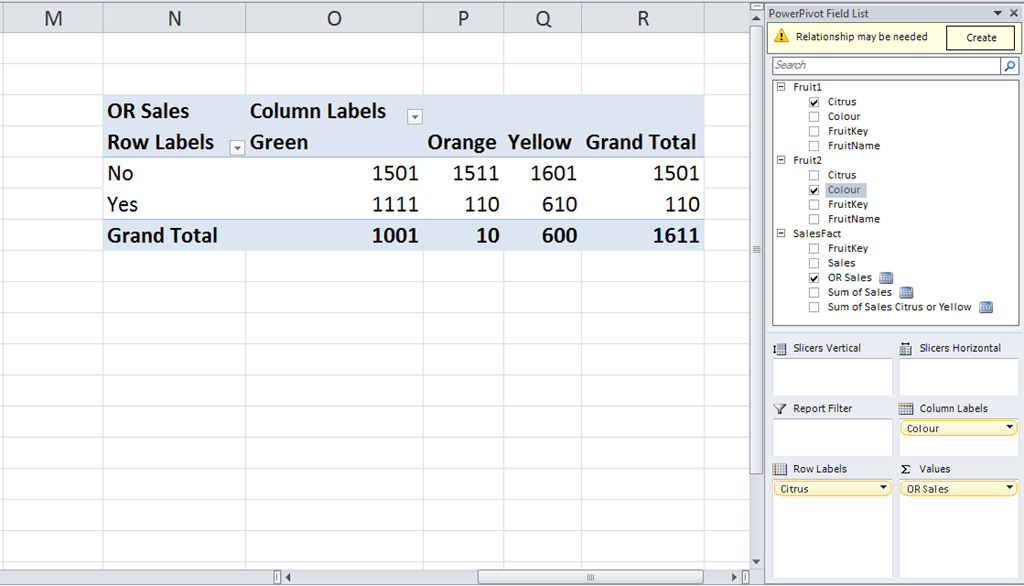
Here’s a PivotTable using this measure with Citrus from Fruit1 on rows and Colour from Fruit2 on columns:

image

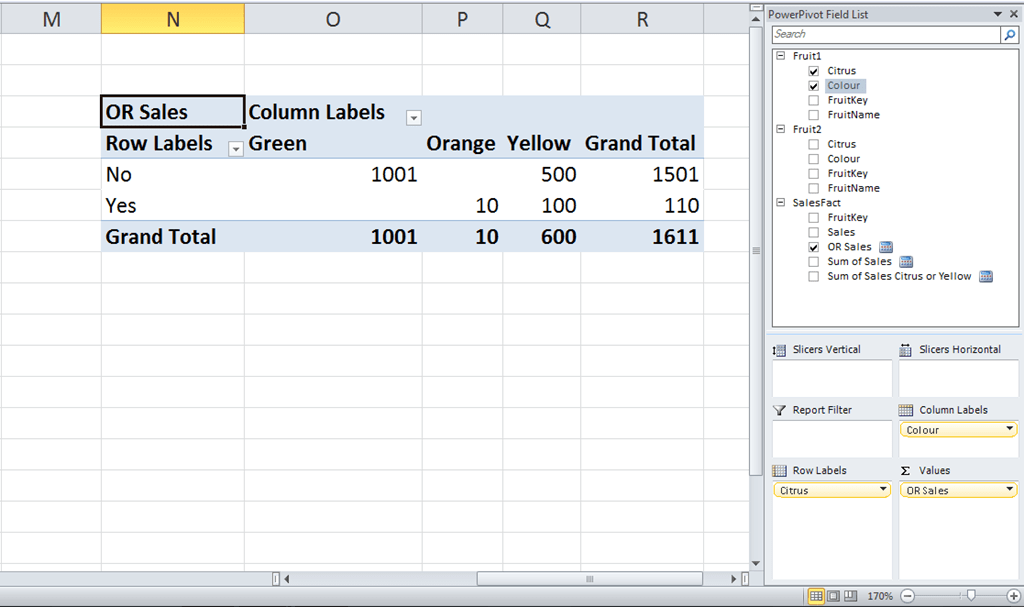
And, if you don’t want this OR functionality, all you need to do is ignore the Fruit2 table. Here’s a PivotTable with Citrus and Colour from Fruit1 on rows and columns:

image

I’m not sure this is the most elegant solution to this problem… if I think of one I’ll blog about it, and if you can think of one then please leave a comment!

Comparing Any Two Time Periods in DAX

Simple time series calculations, such as comparing sales in the current year with the previous year, are easy to do in DAX and well-documented. What happens if, in PowerPivot or the SSAS 2012 Tabular model, you want to compare the sales in any two arbitrary time periods – for example you want to compare (and maybe find the growth from) sales in January last year and February this year?

There are several ways of solving this, but here’s one. First, you need two Date dimension tables, one for each of the two time periods you’re comparing. Using the Adventure Works DW database here’s an example of how this can be done:

image

In this case I loaded DimDate and FactInternetSales and created an active relationship between the two tables on OrderDateKey=DateKey. I then loaded DimDate again, called it DimDateCompare, and created another relationship between it and FactInternetSales on OrderDateKey=DateKey but set this second relationship as inactive. This means that any selection on DimDateCompare will be ignored unless the relationship between it and FactInternetSales is activated using the UseRelationship() function.

You can then create a measure to get the Sum of the SalesAmount column for the selection on DimDate, which is simply:

Sum of Sales Amount:=SUM([SalesAmount])

Then create another measure that uses the relationship between DimDateCompare and FactInternetSales and ignores any selections on DimDate (to do this, you just need to use the All() function):

Sum of Sales Amount for Comparison Period:=
CALCULATE(
    SUM([SalesAmount])
, ALL(DimDate)
, USERELATIONSHIP(FactInternetSales[OrderDateKey], DimDateCompare[DateKey]))

And finally create a measure to find the difference between these two measures:

Difference:=[Sum of Sales Amount] – [Sum of Sales Amount for Comparison Period]

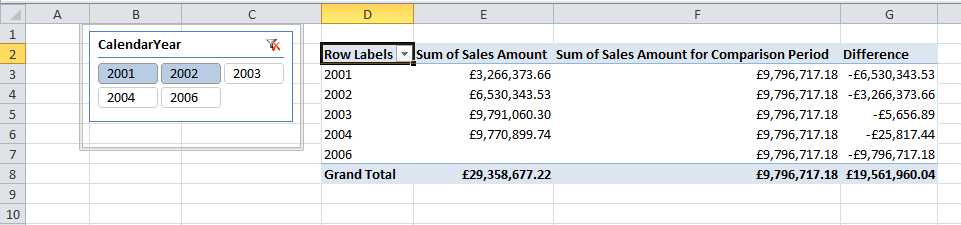
To show how this works, look at the following PivotTable showing these three measures:

image

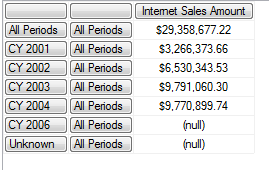
I have CalendarYear from DimDate on the rows of the PivotTable and CalendarYear from DimDateCompare on the Slicer. The Sum of Sales Amount measure shows, as you would expect, the sum of sales for each year on DimDate; the Sum of Sales Amount for Comparison Period ignores what’s on rows and returns the sum of sales for the two years selected on DimDateComparison, ie 2001 and 2002. This is £3,266,373.66 + £6,530,343.53 = £9,796,717.18; and Difference shows the second of these values subtracted from the first.

Not a very interesting calculation in itself perhaps, but I’m intrigued by the possibilities of having tables in the model that only have inactive relationships with other tables; up to now I’ve only used inactive relationships in scenarios where there have been another active relationship between the same two tables, for example as described in Kasper’s post here.

Self-Service BI Mapping with Microsoft Research’s Layerscape–Part 2

In my last post I showed how to load data from Excel into Layerscape, the new data visualisation tool from Microsoft Research; in the post before that I showed how to load UK weather data from Windows Azure Datamarket into PowerPivot. Now let’s take that weather data and plot it on a map!

When doing this, the first decision I made with this data was about what to show. The main problem is that the data volumes involved here are very close to the upper limit of what Layerscape is able to handle: in a few cases I crashed Layerscape, but that was when I was trying to load around 150000 rows of data into it; I found that just over 110000 rows of data was ok however. As a result I made the decision to only show data for cloud or rain, not sun (which is ok – if you want to visualise a clear day, you don’t want to show anything on a map I think) or mist or fog (which I was less happy about).

To achieve this I created a calculated column on my Three Hourly Forecast table in PowerPivot called Cloud with the following definition:

=if([SignificantWeatherId]>=7, TRUE, BLANK())

Then, after having created a flattened PivotTable with the data I wanted to display, I dropped the Cloud field into the Values box in my PivotTable and was able to filter it to only show Weather Stations and time periods where there was cloud:

SNAGHTML31b117d

I also created a few other calculated columns:

  • ActualPredictionForStart and ActualPredictionForEnd: the former is mentioned in my previous post, and the latter returns a value three hours after the former:
    =[Date] + (([TimeStep]+3)/24)
    These two values represent the start time and the end time for each row in the Three Hourly Forecast table.
  • WeatherDepth: in the Significant Weather table there’s a distinction made between low-altitude cloud and high altitude cloud, and in LayerScape when you’re plotting data you can control how high off the ground a point is displayed, so the WeatherDepth column contains some fairly arbitrary numbers for cloud altitudes based on the [Code] column. Here’s the definition:
    =SWITCH([Code], 5, 150, 6, 150, 7, 100, 8, 120, 10)
  • WeatherColor: again, in Layerscape you can control the colour of your points and their opacity, which again is useful for displaying dark/light and thin/thick clouds. The only compromise I had to make was to display dark clouds (ie where clouds are described as either black or where the weather is rainy or snowy) in blue rather than black, because I couldn’t get Layerscape to display black – white clouds are shown in white.  To calculate WeatherColor I created two intermediate calculated columns on the Significant Weather table, InitialColor (which contains colours for weather that I’m not displaying in this demo – I thought dust storms should be shown in yellow for instance):
    =SWITCH([Code], 1, "yellow", 2, "white", 3, "yellow", 4, "yellow", 5, "white", 6, "white", 7, "white",  8, "blue", "blue")
    …and Opacity:
    =SWITCH([Code], -99, 0, 0, 0, 1,10, 2, 25, 3, 10, 4, 100, 5, 25, 6, 75, 7, 50, 8, 50, 9, 60, 10, 60, 11, 60, 12, 65, 13, 75, 14, 75, 15, 80, 90)
    …making the definition of WeatherColor:
    =[Opacity] & "% " & [InitialColor]
  • Depth and Color: calculated columns on the Three Hourly Forecast table that copied the WeatherDepth and WeatherColor values down to the main fact table:
    =RELATED(‘Significant Weather'[WeatherDepth])
    =RELATED(‘Significant Weather'[WeatherColor])

This screenshot gives you some idea of the values that the depth and colour calculations return:

image

With this all done I was able to load the data into Layerscape in the way I showed in my previous post, tweak some of the settings for the markers and time decay, and come up with a nice-looking visualisation. The big difference in this case compared to my previous examples is that here we have time series data and Layerscape is able to show values changing over time. The only thing I needed to do to make this happen was to check the Time Series box in the Layers pane on the main screen; with this done I could show the data for a particular point in time or let Layerscape cycle through time showing how the forecast weather changed.

image 

With that done, was able to save my demo as a very basic guided tour and upload it to the Layerscape site from where you can download it yourself :
http://www.layerscape.org/Content/Index/620

I also created a video showing the tour:


I’m quite happy to admit that this tour doesn’t show off the full capabilities of Layerscape (I’m not sure my graphics card is up to the job, frankly) and I’ve not taken much time to ensure that the visualisation is as accurate as it could be, but I’m still quite proud if it!

Self-Service BI Mapping with Microsoft Research’s Layerscape–Part 1

Sometimes you find a tool that is so cool, you can’t believe no-one else has picked up on it before. This is one of those times: a few month or so ago I came across a new tool called Layerscape (http://www.layerscape.org) from Microsoft Research which allows you to overlay data from Excel onto maps in Microsoft WorldWide Telescope (http://www.worldwidetelescope.org). “What is WorldWide Telescope?” I hear you ask – well, it’s basically Microsoft Research’s answer to Google Earth, although it’s not limited to the Earth in that it also contains images of the universe from a wide range of ground and space-based telescopes. It’s a pretty cool toy in its own right, but Layerscape – which seems to be aimed at academics, despite the obvious business uses – turns it into a pretty amazing BI visualisation tool.

Layerscape is very easy to use: it’s an Excel addin, and once you have it and WWT installed all you need to do is select a range of data in Excel to be able to visualise it in WWT. For some cool examples of what it can do, take a look at the videos posted on the Layerscape website like this one (Silverlight required):
http://www.layerscape.org/Content/Index/384

Here are some screenshots of two sample datasets that come with Layerscape. First, here’s some data on earthquakes in Excel with the Layerscape addin open:

SNAGHTML10e603d

Here’s an example of what this looks like visualised:

SNAGHTML1101b33

SNAGHTML111082f

Here’s a second dataset with polygon data for the outlines of the countries of the world:

SNAGHTML11307d2

Now maybe you don’t have any really sexy scientific data to explore, but it’s increasingly likely that a business will have spatial data that needs visualising somehow. There are no end of ways this is possible in the SQL Server BI stack (here’s a good post by Alex Whittles about using maps in SSRS for example) but I think the most exciting thing about a tool like Layerscape is that it’s so easy to use that most reasonable competent, non-technical Excel users would have no trouble with it; also, because it integrates with Excel, it also plays nicely with PowerPivot.

Here’s a simple example of how to get data from PowerPivot into Layerscape. Let’s start with a dataset I found courtesy of this post on Alastair Aitchison’s superb spatial data blog:
http://alastaira.wordpress.com/2012/02/20/load-garmin-poi-data-to-sql-server/

Let’s imagine you’re a tourist visiting the UK – perhaps you’ve come over for SQLBits and you want to see some sights while you’re here. If you like castles and stately homes you might want to visit a National Trust property: the National Trust owns and protects over 500 historic buildings in England, Wales and Northern Ireland. How can we find out where these properties are?
Using one of the datasets listed in Alastair’s post above, I downloaded a CSV file containing the names, latitudes and longitudes of all the National Trusts properties and imported it into a table in PowerPivot. The data’s very simple: just a latitude, longitude and a site name, and the only cleanup I did was to create a new calculated column that removed the string “NatTrust” from the beginning of each site name:

image

Then on a blank sheet in Excel I created a new flattened PivotTable:

image

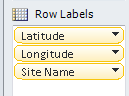
Added the Latitude, Longitude and Site Name columns onto rows:

image

Turned off subtotals and grand totals on the PivotTable:

image

image

And ended up with a PivotTable that looked like this:

image

All I then needed to do was select the whole table, right-click and choose “Visualize in WWT”, then in the Layer Manager pane ensure the Latitude and Longitude columns were all mapped correctly:

image

And change the following properties on the Marker tab: Scale Type to Power, Scale Factor to 16,  Scale Relative to Screen and Marker Type to Pushpin.

image

Then finally click on the View in WWT button at the bottom of the Layer Manager pane to push the data over to WWT. Here’s the result with all the National Trust properties plotted on a map:

SNAGHTML151434d

SNAGHTML1520997

Of course the problem with visiting a National Trust property is that you won’t be able to do much outdoors if it’s raining. I wonder where I can get some weather data and add that to my map? We’ll find out how in part 2…

Importing UK Weather Data from Azure Marketplace into PowerPivot

I don’t always agree with everything Rob Collie says, much as I respect him, but his recent post on the Windows Azure Marketplace (part of which used to be known as the Azure Datamarket) had me nodding my head. The WAM has been around for a while now and up until recently I didn’t find anything much there that I could use in my day job; I had the distinct feeling it was going to be yet another Microsoft white elephant. The appearance of the DateStream date dimension table (see here for more details) was for me a turning point, and a month ago I saw something really interesting: detailed weather data for the UK from the Met Office (the UK’s national weather service) is now available there too. OK, it’s not going to be very useful for anyone outside the UK, but the UK is my home market and for some of my customers the ability to do things like use weather forecasts to predict footfall in shops will be very useful. It’s exactly the kind of data that analysts want to find in a data market, and if the WAM guys can add other equally useful data sets they should soon reach the point where WAM is a regular destination for all PowerPivot users.

Importing this weather data into PowerPivot isn’t completely straightforward though – the data itself is quite complex. The Datamarket guys are working on some documentation for it but in the meantime I thought I’d blog about my experiences; I need to thank Max Uritsky and Ziv Kaspersky for helping me out on this.

The first step in the process of importing this data is to go to the Azure Marketplace and construct a query to get the slice of data that you want – this is a big dataset and you won’t want to get all of it. Once you’ve signed in, go to https://datamarket.azure.com/dataset/0f2cba12-e5cf-4c6d-83c9-83114d44387a, subscribe to the dataset and then click on the “Explore this Dataset” link:

SNAGHTML190a951

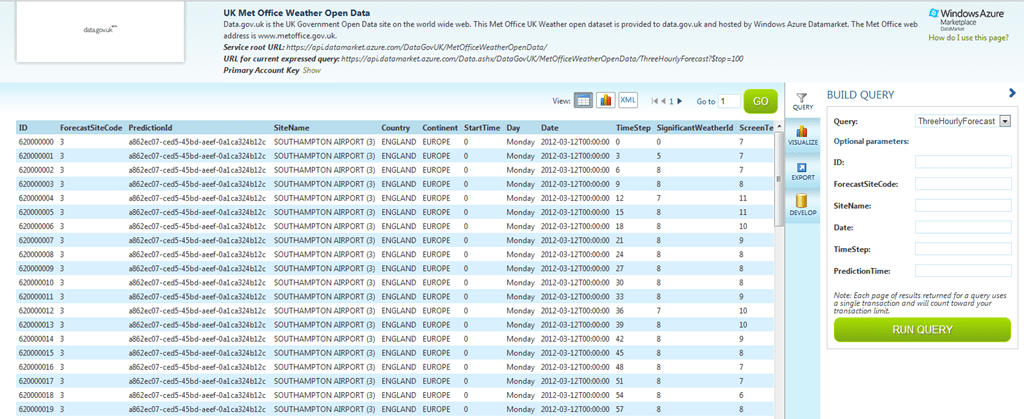
This takes you to the query builder page, where you get to explore the data in the different tables that make up this dataset:

image

You choose the table you want to explore in the confusingly-named ‘Query’ dropdown box on the right-hand side of the screen. The available tables are:

  • ThreeHourlyForecast, a fact tables containing three hourly weather forecasts
  • ThreeHourlyForecastArchive, a fact table containing aggregated, averaged values for the various forecasts for a given date and time
  • SignificantWeather, a dimension table containing the different types of weather that can be forecast
  • Visibility, a dimension table containing the different levels of visibility
  • DailyForecast, a fact table containing daily weather forecasts
  • Observations, a fact table containing observed weather
  • Site, a dimension table containing all the UK’s weather stations

As far as I can tell, this data is more or less the same as what’s available through the Met Office’s own DataPoint service, and the documentation for this is here: http://www.metoffice.gov.uk/public/ddc/datasets-documentation.html

Once you’ve selected a table you can construct a filter by entering values in the Optional Parameters boxes below the query dropdown. These changes are then reflected in the URL shown at the top of the screen:

image

This URL represents an OData query. One thing I didn’t notice initially is that the query that is generated here includes a top 100 filter in it which you’ll need to remove (by deleting &$top=100 from the end of the URL) if you want to do anything useful with the data; you might also want to build a more complex query than is supported by the query builder, and you can learn how to do this by reading this article.

In my case I decided to look at the full three hourly forecast data. As I said, this is a big dataset – initially I thought I’d download the whole thing, but 18 million rows and several hours later I cancelled the import into PowerPivot. Instead I opted to look at data for the whole of the UK for just one forecast made on one day, which worked out at a more manageable 250000 rows. What’s not clear from any of the current documentation is what all of the columns in the three hourly forecast fact table represent:
  • Date is the date the forecast is issued
  • StartTime is the time the forecast is issued and is either 0, 6, 12 or 18, representing midnight, 06:00, 12:00 and 18:00 – new forecasts are issued every 6 hours
  • PredictionTime is the time that an incremental update to a forecast is issued; these incremental updates appear every hour. PredictionTime is an actual time value going from 0 to 23 representing the hour the incremental update was issued.
  • TimeStep is an offset in hours from the StartTime, and represents the time that the forecast is predicting the weather for. It ranges in value from 0 to 120, going up in 3s (so the values go 0, 3, 6, 9… 120), meaning we have weather predictions for 5 days into the future for each forecast.

Therefore, for any given row in the ThreeHourlyForecast table, if the Date is April 10th 2012, StartTime is 6, PredictionTime is 8 and TimeStep is 9, then this is data from a forecast that was issued on April 10th 2012 at 8am (the second incremental update to the 6am forecast) and this row contains the prediction for the weather for the time StartTime+TimeStep = 6 + 9 = 15:00 on April 10th 2012.

Here’s the OData url I used to grab data for the three hourly forecast issued on April 10th at midnight (StartTime=0 and PredictionTime=0) for all weather stations and all time steps:

https://api.datamarket.azure.com/Data.ashx/DataGovUK/MetOfficeWeatherOpenData/ThreeHourlyForecast?$filter=Date%20eq%20datetime%272012-04-10T00%3a00%3a00%27%20and%20PredictionTime%20eq%200

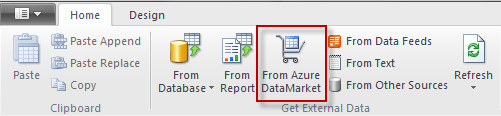
To use this URL in PowerPivot, you need to create a new PowerPivot workbook, open the PowerPivot window and then click the From Azure DataMarket button:

image

Then enter your query URL and Account Key (which you can find on the Query Explorer page by clicking on the Show link, as indicated in the screenshot above):

image

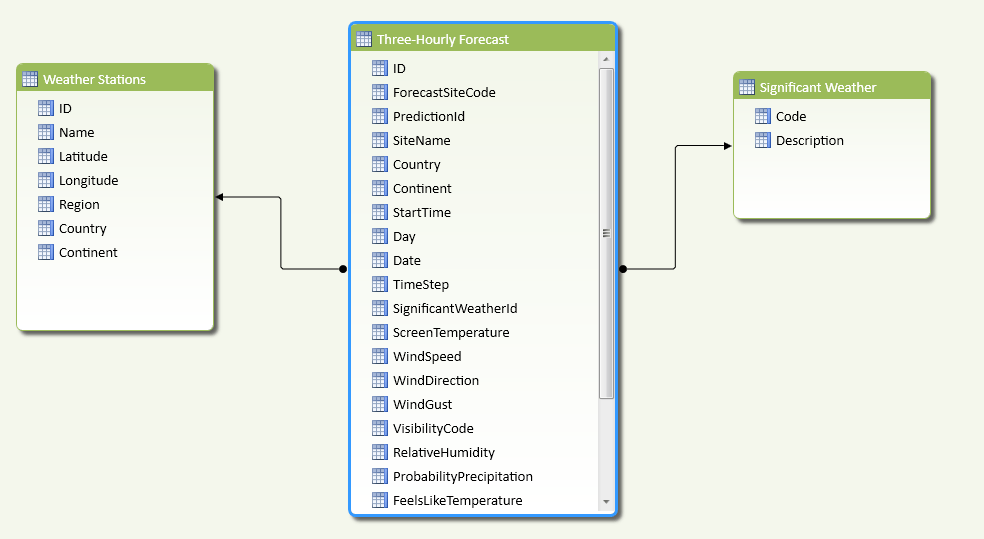
Having imported this data I also imported the whole of Site (renamed here to Weather Stations) and SignificantWeather tables to give the following PowerPivot model:

image

Here are the joins I used:

image

I also created a few calculated columns, including one called ActualPredictionForStart which added the TimeStep to the Start Time and the Date to get the actual date and time that the prediction is for:

=[Date] + (([StartTime] + [TimeStep])/24)

With this all done, I was able to find out what the predicted weather for the current time and my home town was in this (as of the time of writing) two-day old forecast:

image

…and do all the usual PivotTable-y  and chart-y things you can do with data once it’s in Excel:

image

Incidentally, the forecast is wrong – it’s not raining outside right now!

PivotTables and Excel charts are all very well, but there’s a better way of visualising this data when it’s in Excel – and in my next post I’ll show you how…


UPDATE: First of all, I owe an apology to the Met Office – as soon as I hit publish on this post it started pouring with rain, so they were right after all. Secondly, in a weird co-incidence, Rob Collie posted about using the other weather dataset in the DataMarket on his blog: http://www.powerpivotpro.com/2012/04/download-10000-days-of-free-weather-data-for-almost-any-location-worldwide/

Natural and Unnatural Hierarchies in the SSAS 2012 Tabular Model

I’m sure you’re all aware of the difference between natural and unnatural user hierarchies in the Analysis Services Multidimensional model (if you’re confused as to what I mean when I say ‘Multidimensional model’, have a quick read of this post from a few weeks ago which explains the terminology). To recap, natural user hierarchies in Multidimensional look like this in BIDS:

image

There is a one-to-many set of attribute relationships between each level, so each Calendar Year has multiple Calendar Semesters but one Calendar Semester has only one Calendar Year, and they are a Good Thing as far as query performance is concerned. Unnatural user hierarchies look like this:

image

They work, but there aren’t one-to-many relationships between every level and query performance may be worse than with a natural user hierarchy.

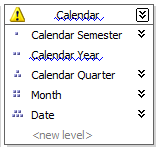
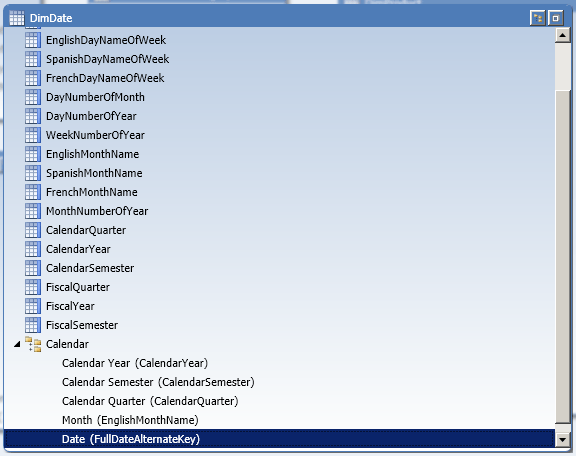
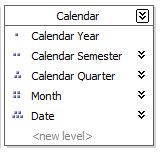
But what does all this have to do with the Tabular model? In SSDT when you create a hierarchy there’s no indication as to whether it’s natural or unnatural:

image

…and up to recently I assumed that this was an issue that simply wasn’t relevant to Tabular. However, after a recent conversation with Marius Dumitru from the dev team and Greg Galloway I now know this isn’t the case!

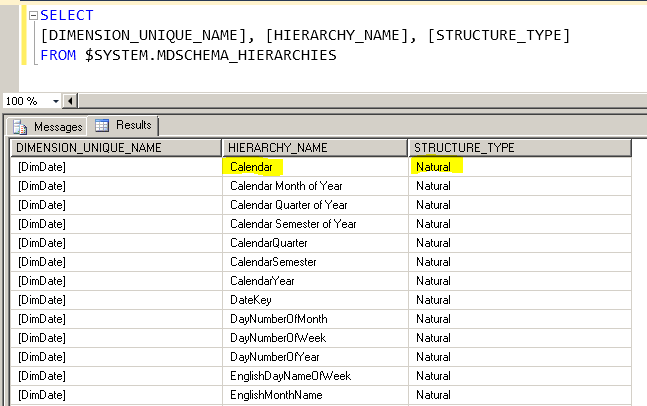
If you query the MDSCHEMA_HIERARCHIES DMV as follows:

SELECT
[DIMENSION_UNIQUE_NAME], [HIERARCHY_NAME], [STRUCTURE_TYPE]
FROM $SYSTEM.MDSCHEMA_HIERARCHIES

You can see whether a hierarchy in a Tabular model is natural or unnatural:

image

In this case you can see that the Calendar hierarchy that I created on the DimDate table is unnatural; SSAS has determined this during processing (specifically during the Process ReCalc stage) by examining the data itself automatically.

It turns out that natural hierarchies in Tabular can result in faster query performance because certain MDX and Formula Engine code paths in the SSAS engine are still not optimised for unnatural hierarchies. I don’t have any specific examples of when this occurs at the moment but if I do find them I’ll be sure to update this post. And if anyone else using Tabular, or even PowerPivot (and I assume this is relevant to PowerPivot too) finds a good example of how changing to a natural user hierarchy improves performance please leave a comment.

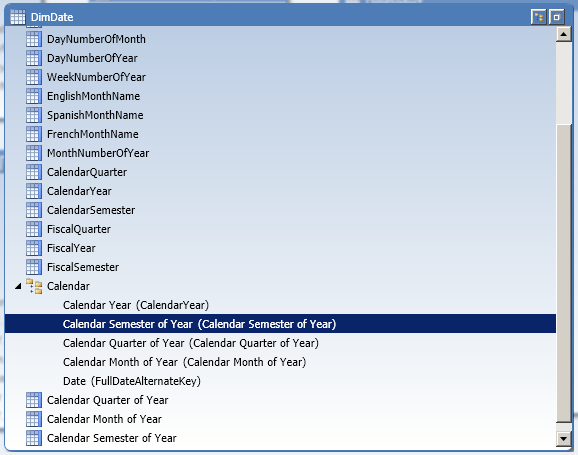
In the example above, I created the Calendar hierarchy in the Tabular model by simply dragging the CalendarYear, CalendarSemester, CalendarQuarter, EnglishMonthName and FullDateAlternateKey columns underneath each other in the new hierarchy. It’s unnatural because there are only two distinct values in Calendar Semester (the semester numbers 1 and 2), four distinct values in Calendar Quarter (the quarter numbers 1 to 4) and there are only twelve distinct values in EnglishMonthName (the names of the months), so there is a many-to-many relationship between the values in all these columns. I can make it natural by creating three calculated columns that concatenate CalendarYear and CalendarSemester, CalendarYear and CalendarQuarter, and CalendarYear and EnglishMonthName as follows:

DimDate[Calendar Semester of Year] =DimDate[CalendarYear] & " " & DimDate[CalendarSemester]

DimDate[Calendar Quarter of Year] = DimDate[CalendarYear] & " Q" & DimDate[CalendarQuarter]

DimDate[Calendar Month of Year] = DimDate[CalendarYear] & " " & DimDate[EnglishMonthName]

Using these calculated columns for the Semester, Quarter and Month levels of the hierarchy as follows:

image

…will make the Calendar hierarchy natural:

image

Self-service ETL with Data Explorer

One of the most interesting things I saw last week at the PASS Summit was Data Explorer, the cloud-based data transformation and publishing tool that was demoed in the keynote on day 1. While it was roundly dismissed as ‘yet more Excel’ by the disgruntled DBA faction I thought it showed some potential (you can see a walkthrough of what was shown here) – even if the fact that it was a SQL Azure Labs project suggested it was not destined to be a real product.

Today, however, I came across this post on Tim Mallalieu’s blog with a 10 minute video demo of an Excel addin version of Data Explorer, made earlier this year. Tim notes in his blog that:

We still have both the client and the cloud service but we only showed the cloud bits at PASS last week.

I would urge you to go and watch the video, because what’s shown is a very substantial, capable tool: an Excel addin for doing self-service ETL. Tellingly the name of the tool in the demo is “PowerImport” – and although Tim suggests in his blog that “some names and concepts have evolved quite a bit since March”, the choice of name speaks volumes. It looks like this could be to SSIS what PowerPivot is to SSAS, and a big selling point for Microsoft’s self-service BI story if it does get released.

Excel subtotals when querying Multidimensional and Tabular models

As I mentioned briefly in a recent post, the fact that Excel generates some pretty rubbish MDX for detail-level reports has been well documented by Richard Lees and Rui Quintino. The new Excel 2010 named set functionality allows you to work around these problems if you can write your own MDX, but let’s face it most people who are building Excel reports will not be able to do this so this problem can be a major headache and cause severe performance problems. One interesting point to note, however, is that Excel 2010 will generate slightly better MDX when querying a Tabular Model (and I’m including PowerPivot models here) compared to when it’s querying a Multidimensional Model (ie a SSAS cube). Take the following pivot table built using Excel 2010 against the Adventure Works cube running on SQL 2008 R2:

image

I’ve put the Internet Sales Amount measure on columns, the Calendar Year and Day Name hierarchies from the Date dimension on rows, and turned off all subtotals and grand totals. Here’s the MDX that Excel generates for this pivot table:

SELECT
NON EMPTY
CrossJoin(
Hierarchize(
{DrilldownLevel(
{[Date].[Calendar Year].[All Periods]},,,INCLUDE_CALC_MEMBERS)})
, Hierarchize(
{DrilldownLevel({[Date].[Day Name].[All Periods]},,,INCLUDE_CALC_MEMBERS)}))
DIMENSION PROPERTIES PARENT_UNIQUE_NAME,HIERARCHY_UNIQUE_NAME ON COLUMNS 
FROM [Adventure Works]
WHERE ([Measures].[Internet Sales Amount])
CELL PROPERTIES VALUE, FORMAT_STRING, LANGUAGE, BACK_COLOR, FORE_COLOR, FONT_FLAGS

If you run this query you’ll see it returns 40 columns and that the first few columns contain the subtotals and grand totals that we specifically said we didn’t want, which can be the cause of performance problems:

image

However, if you create a PowerPivot model containing DimDate and FactInternetSales and build exactly the same pivot table, you’ll see a different pattern of MDX being produced. To enable easy comparison, I’ve taken the MDX that my PowerPivot model generated and changed the hierarchy names so it will work on the SSAS Adventure Works cube:

SELECT
NON EMPTY
Hierarchize(
DrilldownMember(
CrossJoin(
{[Date].[Calendar Year].[All],[Date].[Calendar Year].[Calendar Year].AllMembers}
, {([Date].[Day Name].[All])})
, [Date].[Calendar Year].[Calendar Year].AllMembers
, [Date].[Day Name]))
DIMENSION PROPERTIES PARENT_UNIQUE_NAME,HIERARCHY_UNIQUE_NAME
ON COLUMNS 
FROM [Adventure Works]
WHERE ([Measures].[Internet Sales Amount])
CELL PROPERTIES VALUE, FORMAT_STRING, LANGUAGE, BACK_COLOR, FORE_COLOR, FONT_FLAGS

If you look at the results, you see that while the grand total is still being returned, the most of the unwanted subtotals are not and we only get 33 columns returned:

image

So if all other things were equal (and they’re not – the Tabular and Multidimensional engines are very different) then this MDX query has a big advantage over the first one because it’s doing much less work. Excel knows to use this new type of query by looking at the PREFERRED_QUERY_PATTERNS value returned by the MDSCHEMA_CUBES rowset; I’m told that the reason it isn’t used with Multidimensional models is that in many cases it could lead to worse, rather than better performance. This is another good reason to prefer Tabular models over Multidimensional models for detail-level reporting if you’re using Excel as a front-end.

An interesting side-note is that this new style of MDX is only possible in SSAS 2008 R2 because the DrillDownMember has got a new parameter called Target_Hierarchy, which allows you to specify which hierarchy you want to drill down on in a tuple (note there were some other changes with this type of function that I blogged about here). You can see the documentation here:
http://msdn.microsoft.com/en-us/library/ms145580(v=SQL.105).aspx

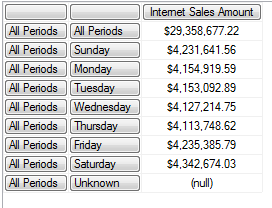
Here’s a quick example on Adventure Works. Consider the following query, where we’re drilling down on a tuple containing the all members from the Day Name and the Calendar Year hierarchies:

SELECT {[Measures].[Internet Sales Amount]} ON 0,
DRILLDOWNMEMBER(
{([Date].[Calendar Year].[All Periods],[Date].[Day Name].[All Periods])}
,{([Date].[Calendar Year].[All Periods],[Date].[Day Name].[All Periods])}
)
ON 1
FROM [Adventure Works]

Here are the results:

image

You’ll see that only the Day Name hierarchy has been drilled down on, and this is (as far as I can see) because it’s the last hierarchy that appears in the tuple. However, with the new parameter, we can specify that we want the Calendar Year hierarchy drilled down on instead:

SELECT {[Measures].[Internet Sales Amount]} ON 0,
DRILLDOWNMEMBER(
{([Date].[Calendar Year].[All Periods],[Date].[Day Name].[All Periods])}
,{([Date].[Calendar Year].[All Periods],[Date].[Day Name].[All Periods])}
, [Date].[Calendar Year]
)
ON 1
FROM [Adventure Works]

image

Thanks, as always, to Akshai, Marius, Greg Galloway, Teo Lachev and the usual string of SSAS obsessives for providing the background info for this post…