Creating A Partitioned Table In SSAS Tabular 2017 And SSDT Using M Functions

One of the coolest new features in SSAS Tabular 2017 and Azure Analysis Services is the integration of Power Query and M for data loading. Over the last year or so the Analysis Services team blog has posted a lot of fairly complex examples of how to use this functionality, but now that the latest release of SSDT has proper support for shared expressions I thought it would be a good idea to show a simple example of how to use it to create a partitioned table using M functions.

For this example I’ll be using the FactInternetSales fact table from the Adventure Works DW sample database, and the aim is to create a table in an SSAS Tabular project that has one partition for each year of data in FactInternetSales. Assuming that a new SSAS Tabular project has been created at the 1400 compatibility level with an integrated workspace:

image

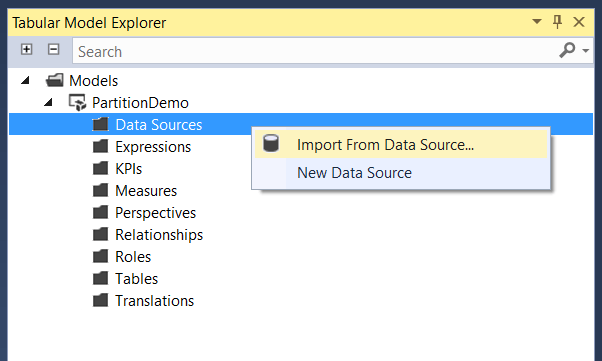
…the first thing to do is to right-click on the Data Sources folder in the Tabular Model Explorer pane and select Import From Data Source:
image

This brings up the Get Data dialog:

image

Select SQL Server database and then click Connect. Enter the server name and database name in the SQL Server database dialog:

image

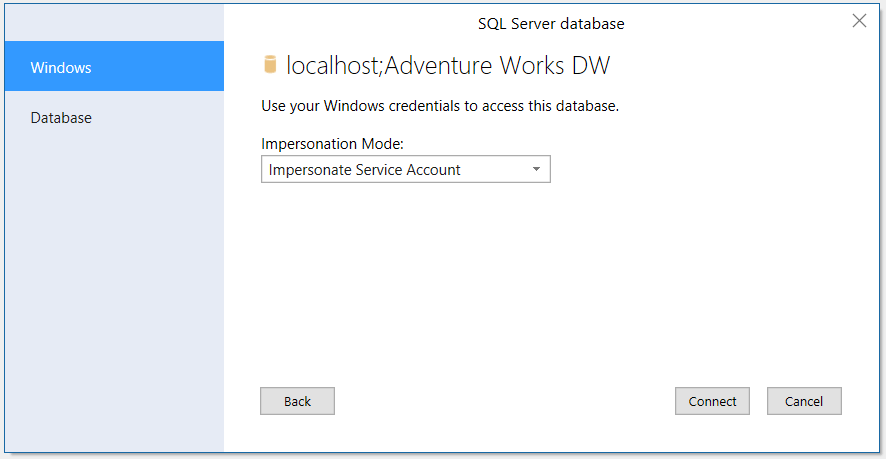
Choose how SSAS is to authenticate when it connects to the SQL Server database and click Connect:
image

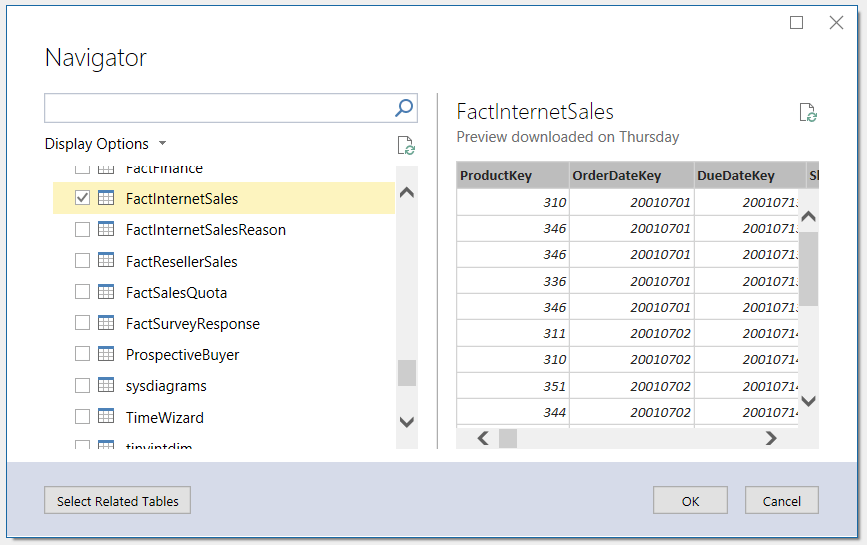
Select the FactInternetSales table from the list of tables in the Adventure Works DW database:
image

This opens the Query Editor window; in it there is one query called FactInternetSales:

image

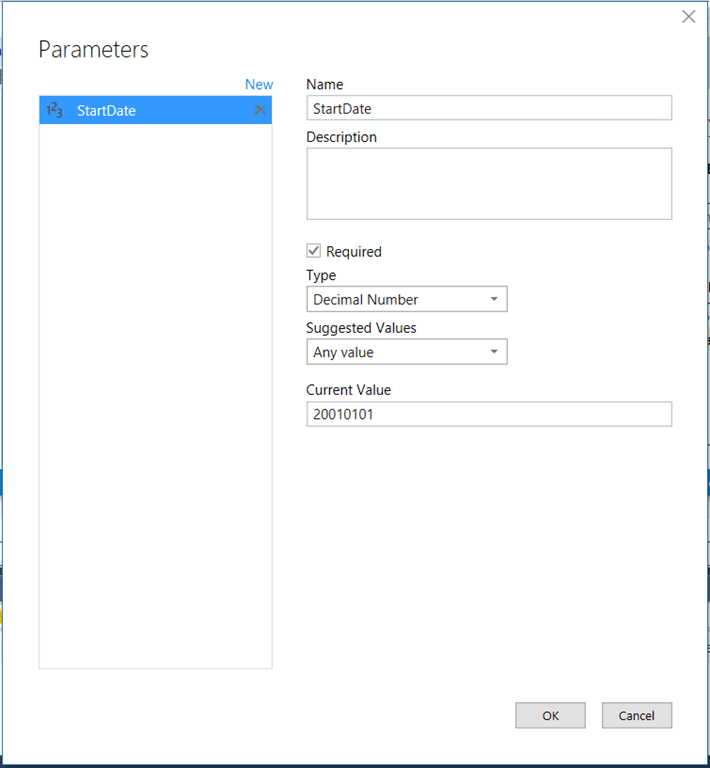
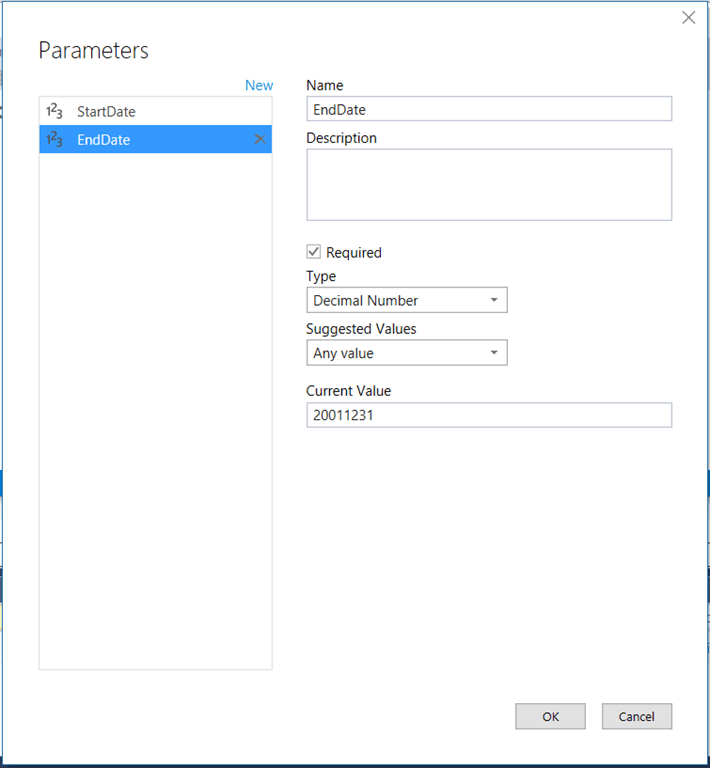
Here’s where it gets interesting. The first thing to do is to create a function that returns a filtered subset of the rows in the FactInternetSales table using the technique I blogged about here for Power BI. On the Query Editor menu bar, click Query/Parameters/New Parameter and create two new parameters called StartDate and EndDate that return the numbers 20010101 and 20011231. Here’s what they should look like:
image

image

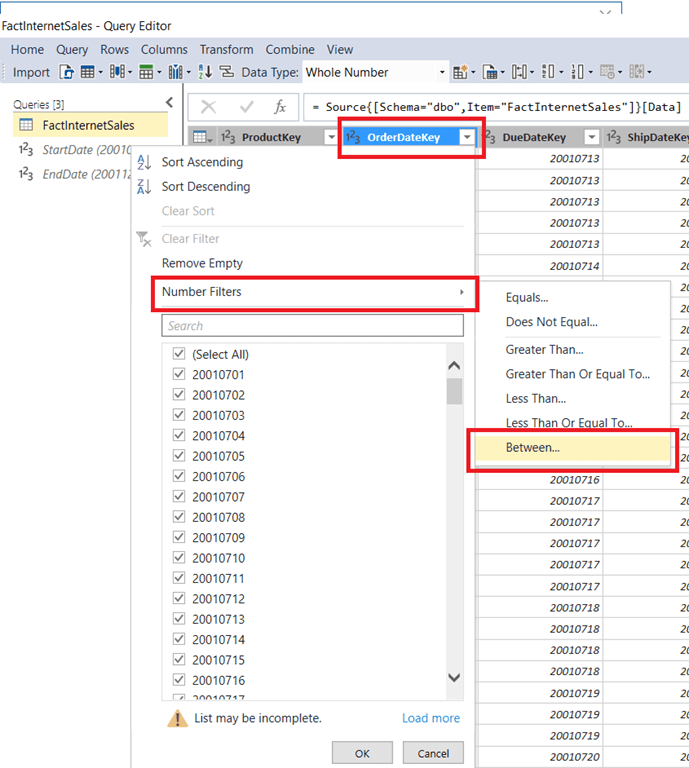
These parameters are going to be used to filter the OrderDateKey column on the FactInternetSales table. Do this by clicking on the down arrow on the column header of OrderDateKey then selecting Number Filters and then Between:
image

In the Filter Rows dialog use the StartDate parameter for the start of the filter range and the EndDate parameter for the end of the filter range, then click OK:
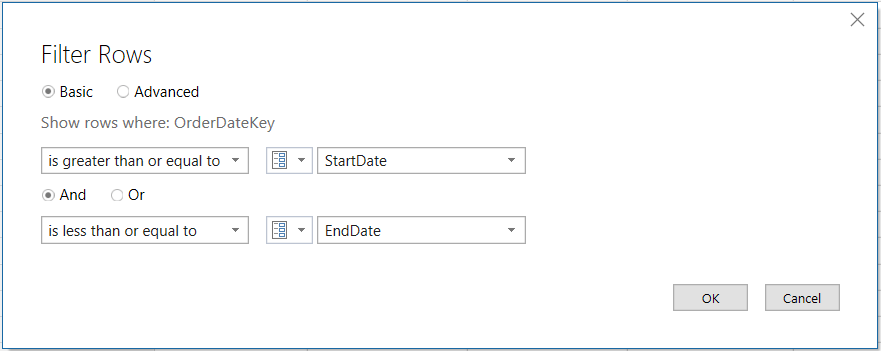
image

Because the OrderDateKey contains dates stored as numbers in the YYYYMMDD format the result is a table that only contains sales where the order date is in the year 2001. This table should not be loaded into SSAS though, so right click on the FactInternetSales in the Queries pane and make sure that the Create New Table is not checked:

image

Next, on the same right-click menu, select Create Function:
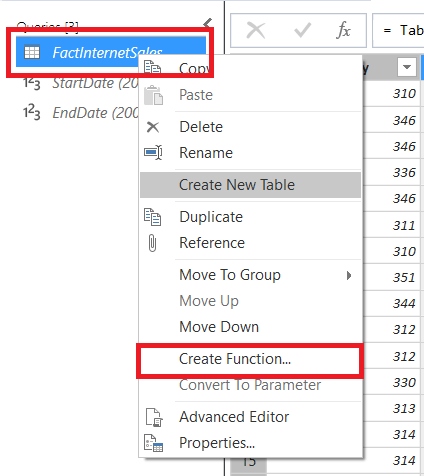
image

In the Create Function dialog name the new function GetFactData then click OK:
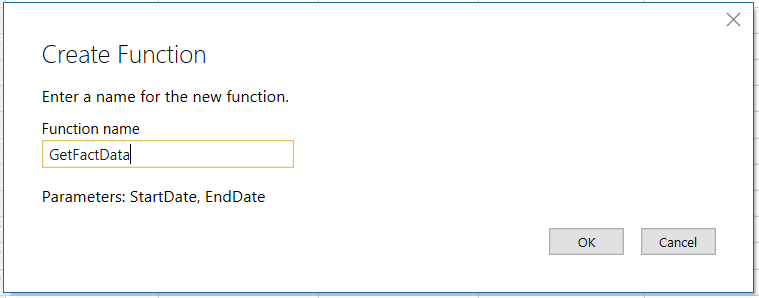
image

The new GetFactData function will now be visible in the Queries pane; enter 20010101 for the StartDate parameter and 20011231 for the EndDate parameter and click Invoke:
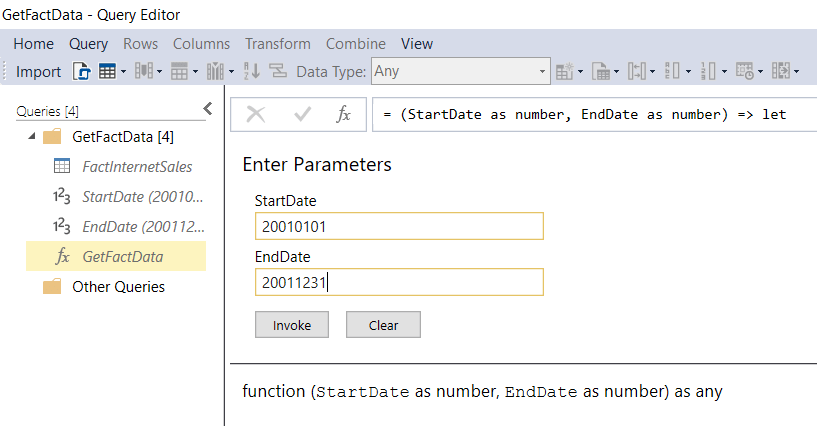
image

This creates yet another new query called Invoked Function which should be renamed Internet Sales:
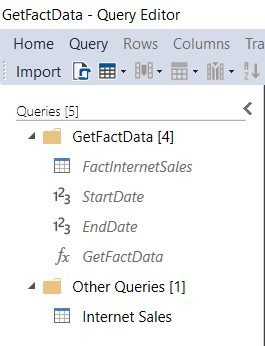
image

Right-click on this query and make sure Create New Table is selected. Next, click the Import button on the toolbar to close the Query Editor and load the Internet Sales table into SSAS.

At this point the Tabular Model Explorer will show all of the queries created above listed under the Expressions folder, and a single table called Internet Sales with a single partition:

image

Next, right-click on the Internet Sales table in the Tables folder and select Partitions:

image

This opens the Partition Manager dialog. Rename the existing partition to Internet Sales 2001:

image

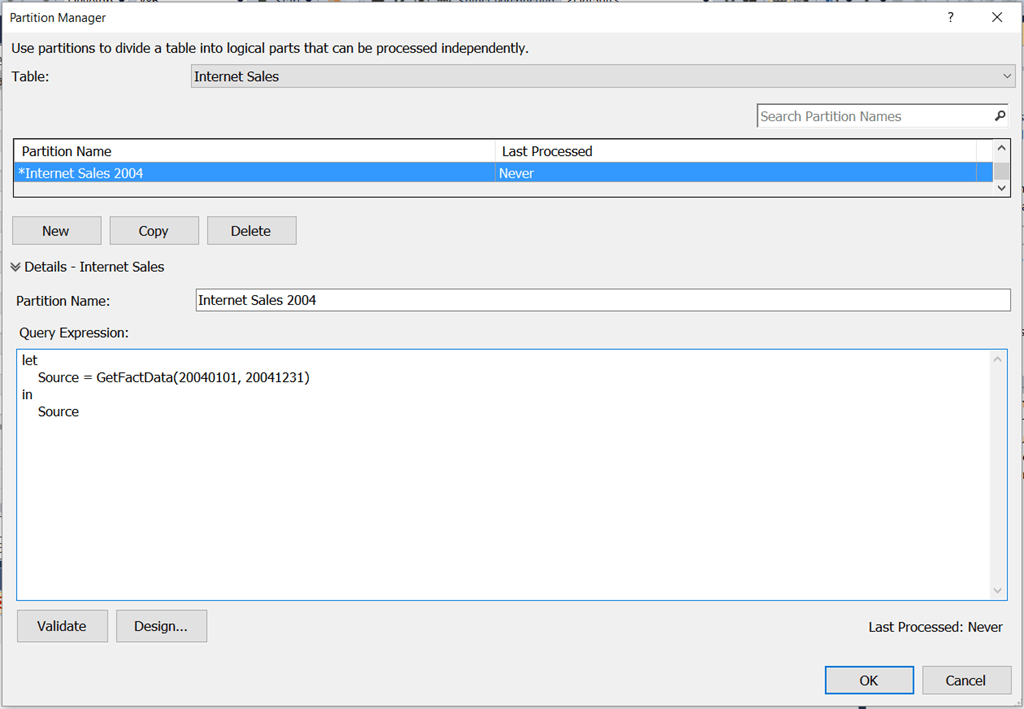
Note that the M query for this partition calls the GetFactData() function to get the rows from FactInternetSales where OrderDateKey is between 20010101 and 20011231:

[sourcecode language='text'  padlinenumbers='true']
let
    Source = GetFactData(20010101, 20011231)
in
    Source
[/sourcecode]

Click the New button to create new partitions, one for each year of data in the FactInternetSales table. Each new partition will initially contain the same M code shown above and should be edited so that the query gets data for the appropriate year:
image

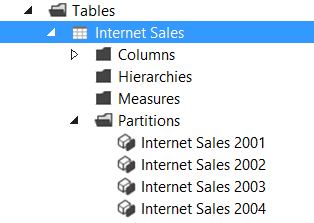
Click OK, and the end result is a table with one partition per year:
image

What’s the point of using M functions to return the data for a partition, rather than the traditional method of using a SQL query embedded in each partition? One reason to do this would be to make maintenance easier: if you need to do something like add a new column to a fact table, rather than editing lots of partitions you just need to edit the function and all the partitions will reflect that change. I can think of a few others, but I’ll save them for future blog posts…

Setting Data Types On Columns Containing Table Values In M

Last week I was working on a Power BI custom data connector for a customer and I came across a problem that has been bothering me for a while. The “Invoke Custom Function” button is a very powerful feature (see here for how to use it) and I was doing something very similar in my code, but after you click it and expand the table column it returns, you always have to set the data types on the new columns that appear – even if the function you have invoked returns a table with data types set on columns. I wanted to avoid this extra step. I knew it was possible because some data sources like SQL Server give you typed columns when you expand a table column; I also saw that TripPin custom data connector tutorial aims to cover this topic… soon. Luckily it wasn’t too hard to work out.

Imagine you have the following function:

(x as number, y as number) as table =>
let
Addition = x + y,
Multiplication = x * y,
Output = #table(
type table [Operation=text, Result=number],
{
{"Addition", Addition},
{"Multiplication", Multiplication}
})
in
Output

It takes two numbers and returns a table with two columns and two rows showing the sum and the product of the two numbers. If the function is called AddAndMult, then the following expression:

AddAndMult(5, 6)

…returns the following table:

image

Notice that the function returns a table with data types set for the columns: Operation is a text column and Result is a number column. I’ve done this by specifying a table type in the first parameter of the #table() function as described here.

Now, here’s a query that calls the function on a table containing several rows using the Invoke Custom Function button:

let
Source = #table(
type table[x=number, y=number],
{
{4,7},
{8,2},
{1,9}
}),
#"Invoked Custom Function" = Table.AddColumn(
Source,
"AddAndMult",
each AddAndMult([x], [y])),
#"Expanded AddAndMult" = Table.ExpandTableColumn(
#"Invoked Custom Function",
"AddAndMult",
{"Operation", "Result"},
{"AddAndMult.Operation", "AddAndMult.Result"})
in
#"Expanded AddAndMult"

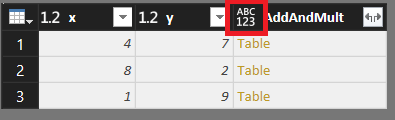
This is the table returned by the Source step:

image

This is what the Invoked Custom Function step looks like:

image

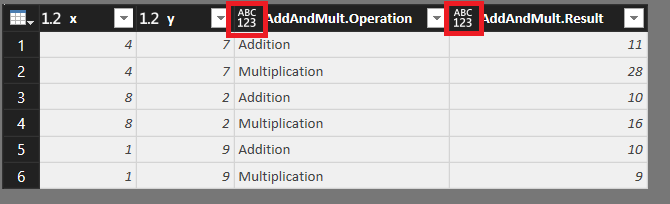
And this is what the Expanded AddAndMult step looks like:

image

In the last two screenshots the ABC123 icon in the column headers show that they are set to use the Any data type; the columns returned by calling the function have lost their data types.

The key to solving this problem is using the optional fourth parameter of the Table.AddColumn() function, which allows you to set a data type for the column that function adds to a table. Altering the Invoked Custom Function step of the previous query to do this, setting the new column to be a table type like so:

#"Invoked Custom Function" =
Table.AddColumn(
Source,
"AddAndMult",
each AddAndMult([x], [y]),
type table [Operation=number, Result=number]
),

…means the Invoked Custom Function step now returns a column of type table, with the appropriate icon in the top left column:

image

…and once the AddAndMult column is expanded, the new columns have the desired data types set:

DT

The Power Query Branding Problem

A few years ago I started blogging about Power Query. Back then life was simple: I put “Power Query” in the title of a post and everyone knew what I was writing about, because Power Query was an Excel add-in you could download and install. Now, however, the technology has been renamed “Get & Transform” in Excel 2016 and is a native feature of Excel; the name “Power Query” only applies to the add-in for Excel 2010 and 2013. What’s more, the same technology is used in Power BI’s Query Editor and it’s also now in Azure Analysis Services, Analysis Services 2017 Tabular and the Common Data Service. This is obviously a good thing – I think Power Query is one of the best things to come out of Microsoft in the last decade – but it also presents me with a problem. How can I write about this technology if it doesn’t have a single, official, easily identifiable name?

In more recent times I’ve written posts with unwieldy names like “Introduction to Insert Topic Name Here in Power Query/Power BI/Excel 2016 Get & Transform” and in the future I suppose this will have to grow to “Introduction to Insert Topic Name Here in Power Query/Power BI/Excel 2016 Get & Transform/Analysis Services Data Loading/Common Data Service”. Tagging and categorising blog posts can help here, I know, but it’s the title of a blog post that’s the main determining factor as to whether it gets read or not when someone is looking at a list of search results. It’s getting ridiculous, but how else can I ensure that someone searching for the solution to a data loading problem in Excel 2016 Get & Transform will find a post I’ve written that contains the answer but shown in Power BI?

Inside Microsoft I understand that the team that builds this technology is known as the Power Query team. I certainly think about this technology as being called Power Query, as do a lot of other people in the community. However, my argument is that I can’t just use the name “Power Query” when I’m writing or speaking about this technology because most of its users – especially those who are new to it and who need the most help – don’t think of it as “Power Query”. They think of it as Excel 2016 Get & Transform, the Query Editor in Power BI Desktop and so on, the specific instances of it.

Maybe I’m making too big a deal of this, but in my opinion this is a problem not just for me but for Microsoft too. We all know how much developers rely on internet searches to find solutions to problems, and not having a single name for this technology makes it much harder to search successfully. This in turn makes it less likely that when a developer runs into a problem they will be able to solve it, which in turn means they are less likely to want to use this technology in future.

What’s the answer? It has to be to make the “Power Query” brand visible somewhere in the UI of all the products that use Power Query technology. I know there’s a risk of confusing users instead of helping them here (am I using Power Query or Power BI?), but it could be as simple as making a few small changes like renaming the “Query Editor” window to be the “Power Query Editor”:

image

I think that would be enough to let people know that “Power Query” is a technology in its own right and that content referring to “Power Query” is relevant to Excel, Power BI, SSAS and everywhere else that Power Query is used. It would also be nice if, now that M is the official name of the M language (and not Power Query Formula Language), the Advanced Editor window and the Custom Column dialog let users know that the code they were writing in them was in a language called M and not some mysterious, nameless scripting language.

What do you think? I’m interested to hear your comments and opinions…

UPDATE: victory is ours! See this comment from Faisal Mohamood of the Power Query team below
Hey there Chris – what you are saying makes complete sense. Power Query is the name of this capability and we will highlight the name of this capability as such in experiences where you are working with Power Query (and M).

The Diagnostics.ActivityId() M Function

I’ve blogged a few times about the tracing functionality that is built into Power Query/Get&Transform and Power BI (see here and here). The trace files themselves clearly contain a lot of interesting information, but there’s no official documentation about what they contain and the format seems to have changed several times. I guess they are meant for Microsoft internal use but that doesn’t stop us from taking a peek at their contents…

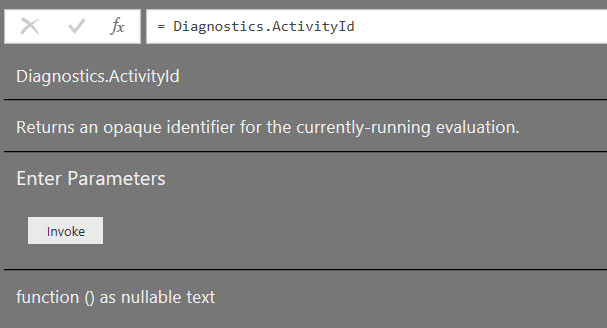
Whenever I’ve looked at the contents of a trace file, one problem I have faced is working out which events relate to the query that I’ve just executed. Today, though, I discovered an M function that can help with this: Diagnostics.ActivityId(). It’s not listed in the online M function reference but here’s the documentation from the function itself:

image

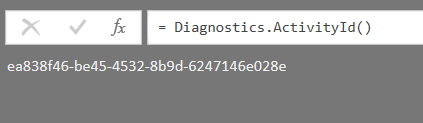
Calling the function does indeed return “an opaque identifier for the currently-running evaluation”. Using the following code in a query:

[sourcecode language=”text” padlinenumbers=”true”]
Diagnostics.ActivityId()
[/sourcecode]

…returns the following:

image

Every time the query is refreshed a different value is returned.

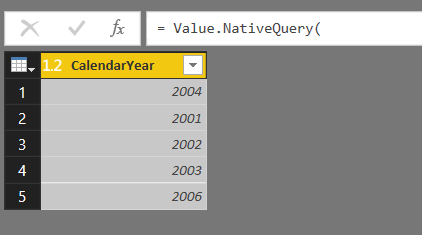
Now, consider the following query that runs a query against a SQL Server database:

[sourcecode language=”text”]
let
Source = Sql.Database("localhost", "Adventure Works DW"),
Test = Value.NativeQuery(
Source,
"SELECT DISTINCT CalendarYear FROM DimDate")
in
Test
[/sourcecode]

image

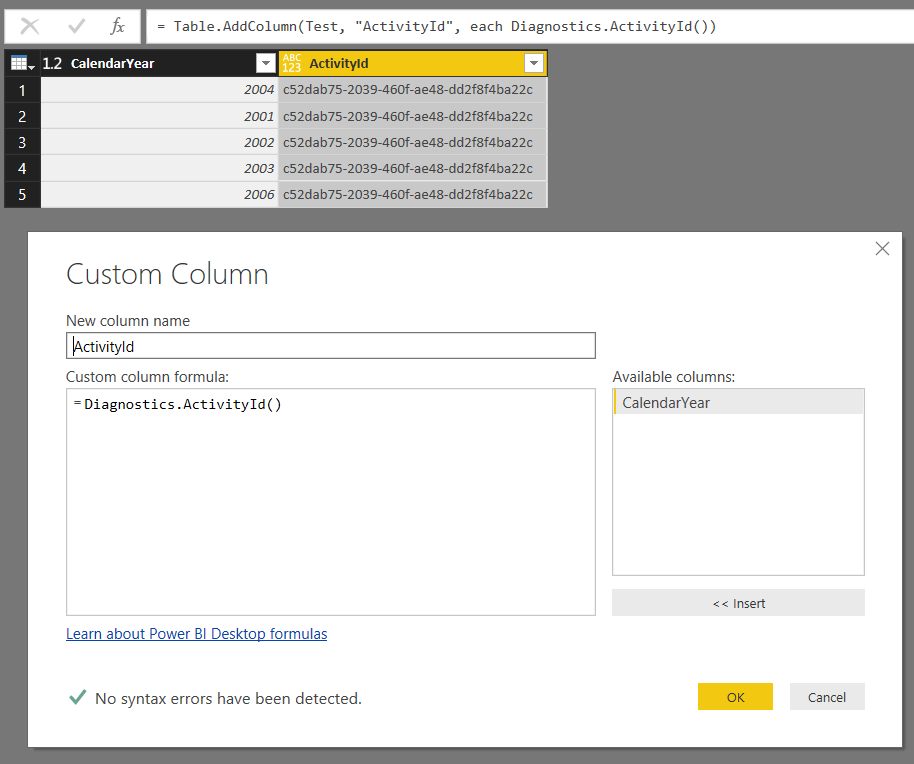
How can you find the trace events that relate to a particular execution of this query? One way is to add a custom column to this query that returns the value returned by Diagnostics.ActivityId():

image

[sourcecode language=”text”]
let
Source = Sql.Database("localhost", "Adventure Works DW"),
Test = Value.NativeQuery(
Source,
"SELECT DISTINCT CalendarYear FROM DimDate"),
#"Added Custom" = Table.AddColumn(
Test,
"ActivityId",
each Diagnostics.ActivityId())
in
#"Added Custom"
[/sourcecode]

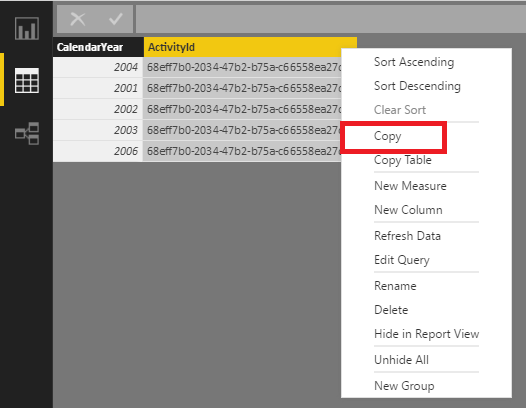
Then, after the query has been loaded into the Data Set you can copy the ActivityID from the table in the Data pane:

image

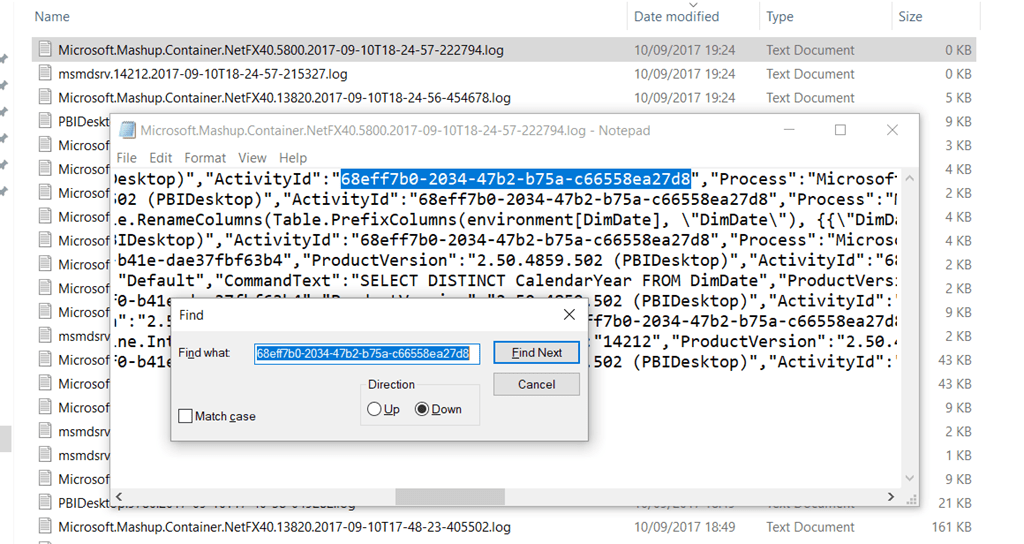
…and then search for the same value in the trace files:

image

Of course you’re now on your own trying to make sense of what you find in the trace file, but I hope this helps a little bit!

Thoughts On Power Query/Common Data Service Integration

Yesterday there was a webinar on how Power Query is going to be used as the way to load data into the Microsoft Common Data Service. You can watch it online here (if you’re in a hurry, skip to 24 minutes in for the details on the Power Query integration):

I don’t have much to add to what’s in the webinar, but there are a few things that occurred to me:

  • This is Power Query in a browser. If they can build a web interface for Power Query for CDS, why not for Power BI? It would give us the full power of Power BI Desktop in the browser, on any platform (I know a few people have been asking for Power BI Desktop for Mac), with no tedious manual updating.
    image
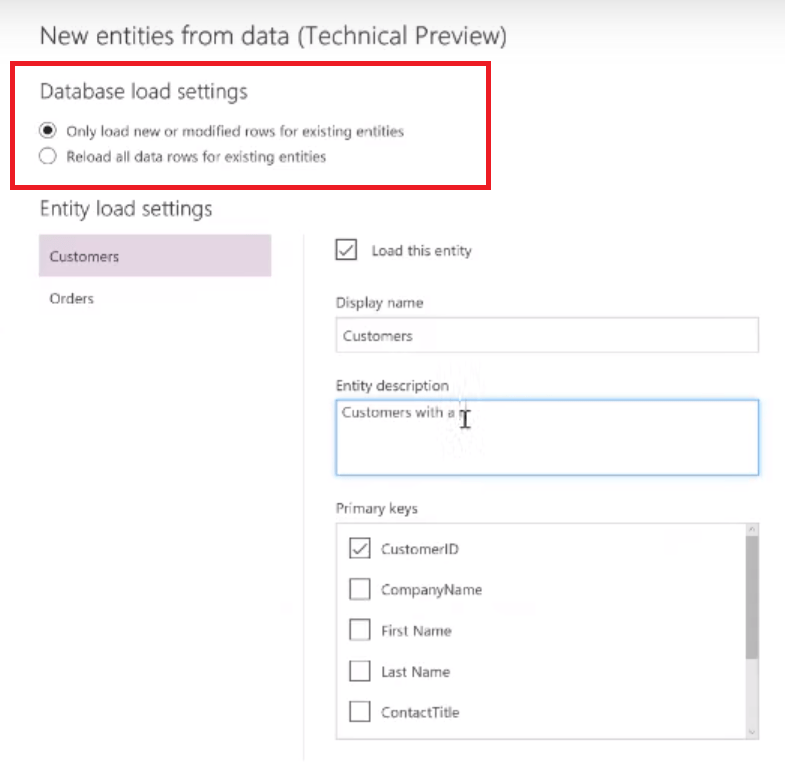
  • In the demo at around the 54 minute mark, Miguel shows a screen where there are two Database Load options:
    image
    The “Only load new or modified rows for existing entities” options is… incremental load! This makes me wonder whether Power BI users who want incremental load should be using using the CDS as a staging area (a super-simple data warehouse…?) and then connecting Power BI to it?

I’ll be honest, I’ve not done anything with the CDS so I can’t really say how useful this new functionality will actually be – and I’ve heard mixed reports about the CDS, if I’m honest. Certainly, as someone (I suspect Meagan), mentions in a question, the only way Power BI can connect to the CDS right now is via DirectQuery and not Import, which seems pretty crazy. Still… I’m very curious and will be paying close attention to how it develops. More Power Query in the world can only be a good thing!

Data Privacy Settings In Power BI/Power Query, Part 5: The Inheritance Of Data Privacy Settings And The None Data Privacy Level

Something I didn’t understand at all when I started writing this series was how the “None” data privacy level worked. Now, however, the ever- helpful Curt Hagenlocher of the Power Query dev team has explained it to me and in this post I’ll demonstrate how it behaves and show how data privacy levels can be inherited from other data sources.

Let’s go back to the original example I used in part 1 of this series where I showed how data from an Excel workbook can be combined with data from SQL Server, and how the data privacy settings on each data source determine whether query folding takes place or not (I suggest you read that post before continuing to get some background). Now, imagine that the Excel workbook is in a folder called C:\Data Privacy Demo, and a query called FilterDay is used to get data from it:

let
Source =
Excel.Workbook(
File.Contents(
"C:\Data Privacy Demo\FilterParameter.xlsx"
)
, null, true),
FilterDay_Table =
Source{[Item="FilterDay",Kind="Table"]}[Data],
ChangedType =
Table.TransformColumnTypes(
FilterDay_Table,
{{"Parameter", type text}}
),
Output =
ChangedType{0}[#"Parameter"]
in
Output

This query gets the name of a weekday from a table in the workbook, for example the text “Friday”:

image

When this query is referenced in a second query that uses the day name to filter the data in a table in SQL Server, like so:

let
Source = Sql.Databases("localhost"),
DB = Source{[Name="Adventure Works DW"]}[Data],
dbo_DimDate = DB{[Schema="dbo",Item="DimDate"]}[Data],
RemovedColumns = Table.SelectColumns(dbo_DimDate,
{"DateKey", "EnglishDayNameOfWeek"}),
FilteredRows = Table.SelectRows(RemovedColumns,
each ([EnglishDayNameOfWeek] = FilterDay))
in
FilteredRows

…and the query is run for the first time, then you will get prompted for credentials to access SQL Server and after that you’ll get prompted to set data privacy levels on both data sources used:

image

The dropdown boxes in the second column allow you to set the data privacy settings for each data source, but look at the data sources listed in the first column. There are two things to point out:

  • The data sources the two queries are accessing are the DimDate table in the Adventure Works DW database on localhost, and the file C:\Data Privacy Demo\FilterParameter.xlsx. However you’re not being prompted to set data privacy levels on those exact data sources, you’re being prompted to set data privacy levels on the localhost instance and the c:\ drive
  • The data source names are displayed in dropdown boxes, so there are other options to select here

Clicking each dropdown box is revealing:

image
image

For the SQL Server database you can set the data privacy level at two places: the localhost instance (the default), or the Adventure Works DW database on that instance. For the Excel workbook you get set the data privacy level at three places: the c:\ drive (the default), the folder c:\Data Privacy Demo that the Excel workbook is in, or the Excel workbook itself.

Let’s say you accept the defaults and set the data privacy settings to Public on localhost and the c:\ drive:

image

As you would expect after reading part 1 of this series, the query runs and query folding takes place:

image
image

Now, let’s say you copy the Excel file up to the root of the c:\ drive and rename it to filterparameter2.xlsx, then update the FilterDay query above to load data from this new Excel file instead:

let
Source =
Excel.Workbook(
File.Contents(
"C:\FilterParameter2.xlsx"
)
, null, true),
FilterDay_Table =
Source{[Item="FilterDay",Kind="Table"]}[Data],
ChangedType =
Table.TransformColumnTypes(
FilterDay_Table,
{{"Parameter", type text}}
),
Output =
ChangedType{0}[#"Parameter"]
in
Output

At this point, when you click the Data Source Settings button and look at the permissions for the file c:\filterparameter2.xlsx you will see that the privacy level is set to None:

image

However, it behaves as if it has a data privacy level of Public: the second query that gets data from SQL Server runs successfully, query folding still takes place and you are not prompted to set a data privacy level for this data source. Why?

The “None” data privacy level means that no privacy level has been set for this exact data source. However, when this happens the engine checks to see if a data privacy level has been set for the folder that this file is in and then for all folders up to the root. In this case, since the data privacy level has been set to Public for the c:\ drive, all files in all folders on that drive that have a data privacy level set to None (like this one) will inherit the c:\ drive’s setting of Public:

image

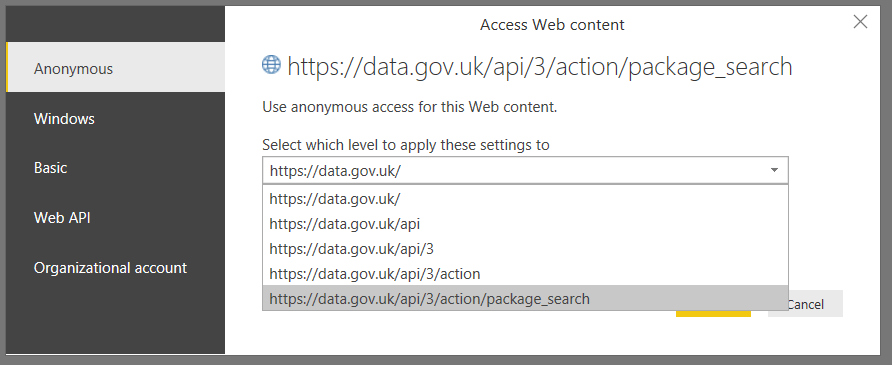
The same goes for databases on a SQL Server instance: they can inherit the data privacy settings set for the instance. The same is also true for web services, where data privacy settings can be set for different parts of a URL; for example, here’s the list of options for a call to the https://data.gov.uk/api/3/action/package_search web service described in part 2 of this series:

image

The general rule is that the engine looks for permissions for the exact data source that it’s trying to access, and if none are set then it keeps looking for more general permissions until it runs out of places to look.

In my opinion, I don’t think the way the “None” privacy level and inheritance works is very clear right now – it makes sense now I’ve had it explained to me, but the UI does nothing to help you understand what’s going on. Luckily it sounds like the dev team are considering some changes to make it more transparent. I would like to see the fact that data privacy levels have been inherited for a data source, and where they have been inherited from, called out in the Edit Permissions dialog.

Data Privacy Settings In Power BI/Power Query, Part 4: Disabling Data Privacy Checks

So far in this series (click here for part 1), I have shown how changing the data privacy settings for a data source can affect the performance of queries and even prevent them from executing completely. What I haven’t mentioned yet is that you also have the option of disabling data privacy checks completely in Power BI Desktop and Excel. In this post I will show you how you can disable data privacy checks and discuss the pros and cons of doing so.

In Power BI Desktop you can change whether data privacy checks are applied when a query executes by going to File/Options And Settings and selecting Options:

image_thumb[7]

The same settings can be found in Excel 2016 by going to the Data tab, clicking Get Data and then selecting Query Options.

image

In both cases this brings up the Options dialog.

There are two panes in the Options dialog with properties that are relevant to how data privacy checks are applied. First of all, in Global/Privacy, there are global properties that are relevant for every .pbix or Excel file that you open on your PC:

image_thumb[6]

The three options here need a little bit of explanation:

  1. Always combine data according to your Privacy Level settings for each source means that data privacy settings are always applied for every .pbix or Excel file you open, regardless of the properties (described below) that you have saved for individual files.
  2. Combine data according to each file’s Privacy Level settings means that the properties set on individual .pbix or Excel files control how the data privacy checks are applied.
  3. Always ignore Privacy Level settings means that data privacy settings are always ignored, in every .pbix or Excel file you open, regardless of settings saved for individual files.

Then, in the Current File/Privacy pane, there are properties that are saved in and apply to the current .pbix or Excel file that you have open:

image

The radio buttons here are greyed out if you have options #1 or #3 selected in the previous pane; it’s only if you have selected option #2, Combine data according to each file’s Privacy Level settings, that these properties are taken into account. You may need to close and reopen the Options dialog if you have changed settings in the previous pane but the radio buttons here remain greyed out.

The two options here are:

  1. Combine data according to your Privacy Level settings for each source, which means that the data privacy settings that you have set for each data source are used to control how queries that combine data from multiple data sources behave. This is the default setting.
  2. Ignore the Privacy Levels and potentially improve performance, which means that data privacy settings are completely ignored when queries combine data from multiple data sources.

To sum up, these two groups of properties allow you to choose whether data privacy settings are applied differently for different .pbix or Excel files, or whether, on your PC, they are always applied or always ignored.

For Power BI users it is important to remember that these settings only apply to Power BI Desktop. After a report has been published, if you are using the On-Premises Data Gateway, you also need to configure data privacy settings on the data sources used by your dataset in the Power BI portal. If you are using the On-Premises Data Gateway in Personal Mode (what used to be called the Personal Gateway) then you can configure it to ignore data privacy settings as described here. Unfortunately if you are not using Personal Mode (ie you are using what used to be called the Enterprise Gateway, and what is now just called the On-Premises Data Gateway) then at the time of writing there is no way to configure the gateway to ignore data privacy levels. You can vote here to get this changed. It’s also worth mentioning that right now you can’t combine data from online and on-premises data sources in a gateway either, although it sounds like this limitation will be addressed soon. To work around these limitations you have to import data into separate tables in the dataset and then use DAX calculated tables to combine the data instead – a nasty hack I know, but one that I’ve had to implement myself a few times.

It can be incredibly tempting to avoid the problems associated with data privacy checks by setting Power BI and Excel to ignore them completely. Doing this certainly avoids a lot of headaches and confusion with the Formula.Firewall error message and so on. It also ensures that your queries execute as fast as they can: this is not just because query folding happens whenever possible but because the act of applying the data privacy checks alone can hurt query performance. Recently I saw a case where the only data source used was an Excel workbook (so no query folding was possible) and turning off the data privacy checks made a massive difference to query performance.

However, I cannot recommend that you turn off data privacy checks for all your Excel workbooks and .pbix files by default. Firstly, if you are working with sensitive or highly-regulated data, leaving the data privacy checks in place at least forces you to consider the privacy implications of query folding on a case-by-case basis. On the other hand ignoring data privacy checks by default makes it more likely that you or one of your users will create a query that accidentally sends data to an external data source and breaches your organisation’s rules – or even the law – concerning how this data should be handled. Secondly, if you are a Power BI user and need to use the On-Premises Data Gateway, then you risk creating reports that work fine in Power BI Desktop when the data privacy checks are ignored but which cannot be refreshed after they have been published because the On-Premises Gateway still applies those checks.

In the next part of this series I’ll show how data privacy settings for a data source can be inherited from other data sources.

Data Privacy Settings In Power BI/Power Query, Part 3: The Formula.Firewall Error

In the first two parts of this series (see here and here) I showed how Power BI/Power Query/Excel Get & Transform’s data privacy settings can influence whether query folding takes place or even whether a query is able to run or not. In this post I’m going to talk about the situations where, whatever data privacy level you use, the query will not run at all and you get the infamous Formula.Firewall error.

I’ll admit I don’t understand this particular topic perfectly (I’m not sure anyone outside the Power Query dev team does) so what I will do is explain what I do know, demonstrate a few scenarios where the error occurs and show how to work around it.

Assume you have the two data sources described in my previous posts: an Excel workbook that contains just a single day name, and the DimDate table in SQL Server that can be filtered by the day name from Excel. Let’s also assume that both data sources have their data privacy levels set to Public. The following query, called FilterDay, loads the data from Excel and returns a text value containing the day name:

let
Source =
Excel.Workbook(
File.Contents("C:\FilterParameter.xlsx"),
null, true),
FilterDay_Table =
Source{[Item="FilterDay",Kind="Table"]}[Data],
ChangedType =
Table.TransformColumnTypes(
FilterDay_Table,
{{"Parameter", type text}}
),
Output =
ChangedType{0}[#"Parameter"]
in
Output
image

Now, look at the following query:

let
Source =
Sql.Database(
"localhost",
"adventure works dw",
[Query="select DateKey, EnglishDayNameOfWeek
from DimDate"]),
FilteredRows =
Table.SelectRows(Source,
each ([EnglishDayNameOfWeek] = FilterDay)
)
in
FilteredRows

It filters the contents of the DimDate table and only returns the rows where the EnglishDayNameOfWeek column matches the day name returned by the FilterDay query. Notice that there are two steps in the query, Source (which runs a SQL query) and FilteredRows (which does the filtering). Here’s the output:

image

As you can see from the screenshot, the query runs. In fact it runs whatever data privacy settings you have set on both the data sources, although it’s worth pointing out that if you use your own SQL in an M query (as I do in this case) this stops query folding in all subsequent steps, as described here.

Now take a look at the following version of the query:

let
Source =
Table.SelectRows(
Sql.Database(
"localhost",
"adventure works dw",
[Query="select DateKey,
EnglishDayNameOfWeek
from DimDate"]
),
each ([EnglishDayNameOfWeek] = FilterDay)
)
in
Source

The important difference here is that there is now one step in this query instead of two: the query and the filtering take place in the same step. Even more importantly, regardless of the data privacy settings, the query fails with the error:

Formula.Firewall: Query ‘DimDate With Native Query Single Step Fails’ (step ‘Source’) references other queries or steps, so it may not directly access a data source. Please rebuild this data combination.

image

The problem here is that the Power Query engine is not allowed to access two different data sources originating from different queries in the same step – as far as I understand it this is because it makes it too hard for the engine to work out whether a step connects to a data source or not, and so which data privacy rules should be applied.

At this point you might think that it’s straightforward to break your logic up into separate steps, as in the first example above. However there are some situations where it’s not so easy to work around the problem. For example, consider the following query:

let
Source =
Sql.Database(
"localhost",
"adventure works dw",
[Query="
select DateKey, EnglishDayNameOfWeek
from DimDate
where
EnglishDayNameOfWeek='" & FilterDay & "'"
]
)
in
Source

In this example I’m dynamically generating the SQL query that is being run and passing the name of the day to filter by into the WHERE clause. In the two previous examples the query that was run had no WHERE clause and the filtering on day name took place inside Power BI – in this case the filtering is happening inside the query, so in order to generate the WHERE clause I have to refer to the value that the FilterDay query returns in the same step. Therefore, this query also gives the same Formula.Firewall error seen above.

How can you work around this? Well, the following version of the query that attempts to reference FilterDay in a separate step doesn’t work either:

let
DayAsStep = FilterDay,
Source =
Sql.Database(
"localhost",
"adventure works dw",
[Query="
select DateKey, EnglishDayNameOfWeek
from DimDate
where
EnglishDayNameOfWeek='" & DayAsStep & "'"
]
)
in
Source

Luckily, it turns out that if you use the Value.NativeQuery() function to run your query instead you can avoid the error. As I showed here, you can use this function to pass parameters to SQL queries. If you generate the record containing the parameters for the query as a separate step (called ParamRecord here), like so:

let
Source = Sql.Database("localhost", "adventure works dw"),
ParamRecord = [FilterParameter=FilterDay],
Query = Value.NativeQuery(
Source,
"select DateKey, EnglishDayNameOfWeek
from DimDate
where
EnglishDayNameOfWeek=@FilterParameter",
ParamRecord)
in
Query

Then the query runs successfully.

There is another way to avoid the error. In all the examples above I have two queries: one to get data from Excel, one to get filtered data from SQL Server. If these two queries are combined into a single query, it doesn’t matter if data from different data sources is accessed in the same step. So, for example, unlike all of the queries above the following query does not reference any other queries; instead it gets the day name from the Excel workbook in the ExcelSource step and then runs the dynamic SQL query in the SQLSource step, and runs successfully:

let
ExcelSource =
Excel.Workbook(
File.Contents("C:\FilterParameter.xlsx")
, null, true),
FilterDay_Table =
ExcelSource{[Item="FilterDay",Kind="Table"]}[Data],
ChangedType =
Table.TransformColumnTypes(FilterDay_Table,
{{"Parameter", type text}}),
FilterDayStep =
ChangedType{0}[#"Parameter"],
SQLSource = Sql.Database(
"localhost",
"adventure works dw",
[Query="
select DateKey, EnglishDayNameOfWeek
from DimDate
where
EnglishDayNameOfWeek='"
& FilterDayStep &
"'" ])
in
SQLSource

Clearly the M engine doesn’t get confused about accessing data from different sources in the same step if those data sources are created in the same query.

Of course you can avoid the Formula.Firewall error and make query folding happen as often as possible by turning off data privacy checks completely in the Options dialog. This will be the subject of the next post in this series.

Pre-Conference Training Day On Data Loading With Power BI/Excel Get & Transform/Power Query At PASS Summit

I’m pleased to announce that I’m running a pre-conference training day on “Loading and transforming data with Power BI and Power Query” at this year’s PASS Summit in Seattle. For the full agenda and details on how to register, see:
http://www.pass.org/summit/2017/Sessions/Details.aspx?sid=66485

This full-day session will teach you everything you need to know about loading data into Power BI or Excel; it’s specifically focussed on self-service BI scenarios, but if you want to learn M for SSAS 2017 you might find some of what I cover useful too. Topics covered include using the UI to build queries; using parameters and functions; the M language; data privacy settings; and creating custom data connectors. I hope to see you there!

Query Folding And Writing Your Own SQL Queries In Power Query/Power BI/Excel Get & Transform

When you connect to a relational database like SQL Server in Power BI/Power Query/Excel Get & Transform you have two choices about how to get the data you need:

  1. You can choose a table from the database and then either use the Query Editor UI or write some M to get the data you need from that table. For example, you might choose a table that has one row for every product that your company sells and then, using the UI, filter that down to only the products that are red.
  2. You can enter a SQL query that gets the data you need.

Something that you might not realise is that if you choose the second option and then subsequently use the UI to apply even more filtering or transformation, then those subsequent steps will not be able to make use of query folding.

As an example of option (1), imagine you connect to the DimProduct table in the SQL Server Adventure Works DW database like so:

image

image

The following M query is generated by the Query Editor when you filter the table to only return the red products and remove all columns except EnglishProductName. That’s very easy to do so I won’t describe it, but here’s the M:

[sourcecode language=”text”]
let
Source =
Sql.Databases("localhost"),
#"Adventure Works DW" =
Source{
[Name="Adventure Works DW"]
}[Data],
dbo_DimProduct =
#"Adventure Works DW"{
[Schema="dbo",Item="DimProduct"]
}[Data],
#"Filtered Rows" =
Table.SelectRows(
dbo_DimProduct,
each ([Color] = "Red")
),
#"Removed Other Columns" =
Table.SelectColumns(
#"Filtered Rows",
{"EnglishProductName"}
)
in
#"Removed Other Columns"
[/sourcecode]

image

Using the View Native Query option, you can find out that the following SQL is generated to get this data:

[sourcecode language=”text”]
select [_].[EnglishProductName]
from [dbo].[DimProduct] as [_]
where [_].[Color] = ‘Red’
[/sourcecode]

image

image

It’s pretty clear that query folding is taking place for the filter on “red” and for the selection of the required column.

However, if you enter the following SQL query when you first connect to the database:

[sourcecode language=”text”]
select * from dimproduct
[/sourcecode]

image

And then, after that, filter the table and remove columns in exactly the same way, you get the following M query:

[sourcecode language=”text”]
let
Source =
Sql.Database(
"localhost",
"Adventure Works DW",
[Query="select * from dimproduct"]),
#"Filtered Rows" =
Table.SelectRows(
Source,
each ([Color] = "Red")),
#"Removed Other Columns" =
Table.SelectColumns(
#"Filtered Rows",
{"EnglishProductName"})
in
#"Removed Other Columns"
[/sourcecode]

If you now try to use the View Native Query option on either the Removed Other Columns or Filtered Rows steps you’ll find it’s greyed out, indicating query folding is not taking place for those steps:

image

The query you enter is run and then Power BI applies the filter and selects the column itself in the resultset that the SQL query returns.

This obviously has big implications for performance. The lesson here is that if you’re going to write your own SQL query in the Query Editor, you should make sure it does all of the expensive filters and transformations you need because anything else you do in the query will happen outside the database in Power BI or Excel.