An In-Depth Look At The Csv.Document M Function

CSV files are one of the most commonly used data sources in Power BI and Power Query/Get&Transform, and yet the documentation for the Csv.Document M function is very limited and in some cases incorrect. In this rather long post I’ll show you as many of the capabilities of this useful function as I’ve been able to discover.

The Source parameter

The Csv.Document function returns a table, and the first (and only non-optional) parameter of this function is the source data in CSV format. Normally this is a binary value returned by the File.Contents function. For example take the this simple CSV file with no column headers and one row of data:

image

The following M code uses File.Contents to read the contents of the file, and then passes the contents to Csv.Document to be interpreted as a CSV file:

[sourcecode language=”text” padlinenumbers=”true”]
let
Source = File.Contents("C:\CSVTests\SourceFile.csv"),
ToCSV = Csv.Document(Source)
in
ToCSV
[/sourcecode]

The output is this:

image

However it is also possible to pass text to the first parameter of Csv.Document too, for example:

[sourcecode language=”text”]
let
SourceText = "February,Oranges,2",
ToCSV = Csv.Document(SourceText)
in
ToCSV
[/sourcecode]

The output of this query is:

image

In both of these examples I’m relying on the default behaviour of the Csv.Document function with regard to delimiters and other properties, which I’ll explain in more detail below.

Using a record in the second parameter

The second parameter of Csv.Document can be used in several different ways. In code generated by the Query Editor UI it usually takes the form of a record, and the different fields in the record specify how the function behaves in different scenarios. For example, if you connect to the CSV file shown above by selecting the Text/CSV source in the Query Editor UI, you’ll see the following window appear showing a preview of the data and three options:

image

This results in the following M query:

[sourcecode language=”text” padlinenumbers=”true” highlight=”4,5,6,7,8,9″]
let
Source =
Csv.Document(
File.Contents("C:\CSVTests\SourceFile.csv"),
[
Delimiter=",",
Columns=3,
Encoding=1252,
QuoteStyle=QuoteStyle.None
]),
#"Changed Type" =
Table.TransformColumnTypes(
Source,
{
{"Column1", type text},
{"Column2", type text},
{"Column3", Int64.Type}
})
in
#"Changed Type"
[/sourcecode]

The query above shows the Csv.Document function with a record in its second parameter containing four fields: Delimiter, Columns, Encoding and QuoteStyle. There is also a fifth field that can be added to the record, CsvStyle, but this cannot be set anywhere in the UI.

The Data Type Detection option shown in the screenshot gives you three options for detecting the data types in each column of your file: by default it looks at the first 200 rows in the dataset, but you can also ask it to look at the entire dataset (which may be slower) or not to detect data types at all, in which case it will treat all columns as text. In this case data types are not set in the Csv.Document function but in the #”Changed Type” step with the Table.TransformColumnTypes function, but as we will see later it is possible to set column names and data types in a single step with Csv.Document instead.

The Encoding field

The File Origin dropdown menu shown above corresponds to the Encoding field in the Csv.Document function. This integer value specifies the code page used to encode the contents of the file:

image

In the M query in the previous section the 1252 code page is set explicitly. The following M query sets the (incorrect) 1200 code page for the CSV file shown above:

[sourcecode language=”text”]
let
Source = File.Contents("C:\CSVTests\SourceFile.csv"),
ToCSV = Csv.Document(Source,[Encoding=1200])
in
ToCSV
[/sourcecode]

…with the following result:

image

The Delimiter field

The Delimiter dropdown allows you to specify the delimiter used to separate the columns in each row of data. There are a number of options available through the UI, including commas and tabs, and the Custom option allows you to enter your own delimiter:

image

If you specify a single character delimiter at this point then the Delimiter field of the record in the second parameter of Csv.Document is set; the Custom and Fixed Width options shown here use a different form of the Csv.Document function described below. If the Delimiter record is not set then a comma is used as the delimiter. If you want to use a special character like a tab then you need to use an M escape sequence; for example to use a tab character as delimiter you need to use the text “#(tab)” which returns a text value containing just a single tab character.

For example, the following query:

[sourcecode language=”text”]
let
Source = "123a456a789",
ToCSV = Csv.Document(Source, [Delimiter="a"])
in
ToCSV
[/sourcecode]

Returns:

image

And this query:

[sourcecode language=”text”]
let
Source = "789#(tab)456#(tab)123",
ToCSV = Csv.Document(Source, [Delimiter="#(tab)"])
in
ToCSV
[/sourcecode]

Returns:

image

The Columns field

The Columns field specifies the number of columns in the table returned by Csv.Document, regardless of how many columns are actually present in the source data. For example, the following query:

[sourcecode language=”text”]
let
Source = "a,b,c",
ToCSV = Csv.Document(Source, [Delimiter=",", Columns=3])
in
ToCSV
[/sourcecode]

…returns a table with three columns:

image

While the following query returns a table with four columns, even though only three columns are present in the data:

[sourcecode language=”text”]
let
Source = "a,b,c",
ToCSV = Csv.Document(Source, [Delimiter=",", Columns=4])
in
ToCSV
[/sourcecode]

image

And the following query returns a table with only two columns, discarding the third column of data present in the data:

[sourcecode language=”text”]
let
Source = "a,b,c",
ToCSV = Csv.Document(Source, [Delimiter=",", Columns=2])
in
ToCSV
[/sourcecode]

image

The Columns field is not explicitly set by the user when you first connect to a CSV file via the UI, but the UI infers its value from the number of columns it finds in the CSV file. This can be a problem if the number of columns in the source data changes in the future because, as shown above, when the Columns field is set the table returned always has a fixed number of columns. As a result if the number of columns in the data source increases in the future you will find columns on the right-hand side of the table are not returned; similarly if the number of columns decreases you’ll see unwanted empty columns. Several people such as Prathy Kamasani have blogged about this problem and it may be better to delete the Columns field from the record, or not set the Columns field in the first place, in order to avoid it. If you do not set the Columns field then Csv.Document returns a table with the number of columns that are present in the first row of your source data.

The QuoteStyle field

The QuoteStyle field can take two possible values of type QuoteStyle: QuoteStyle.None and QuoteStyle.Csv. Here’s what the built-in documentation has to say about the QuoteStyle type:

image

While the value for QuoteStyle is set automatically when you connect to a file, if you edit a step in the Query Editor that uses Csv.Document you can change this value in the UI in the Line Breaks dropdown shown here:

image

As the screenshot above suggests this field controls whether line breaks inside text values are respected. For both QuoteStyle.None and QuoteStyle.Csv, if you wrap a text value inside double quotes those double quotes are used to indicate the start and the end of the text value and are not shown in the output; if you want a double quote to appear, you have to double it up. However if QuoteStyle.None is set then line breaks are always respected, even if they appear inside double quotes; if QuoteStyle.Csv is set, then line breaks inside double quotes are ignored. Take the following CSV file for example:

image

The following M query, using QuoteStyle.None:

[sourcecode language=”text”]
let
Source = File.Contents("C:\CSVTests\SourceFileWithQuotes.csv"),
ToCSV = Csv.Document(Source,[QuoteStyle=QuoteStyle.None])
in
ToCSV
[/sourcecode]

…returns the following table with two rows in it:

image

Whereas the following M query, using QuoteStyle.Csv:

[sourcecode language=”text”]
let
Source = File.Contents("C:\CSVTests\SourceFileWithQuotes.csv"),
ToCSV = Csv.Document(Source,[QuoteStyle=QuoteStyle.Csv])
in
ToCSV
[/sourcecode]

…returns a table with just one row, and a line break present in the text value in the first column:

image

The CsvStyle field

The final field that can be used, CsvStyle, is also related to quotes. It can take one of two values of type CsvStyle: Csv.QuoteAfterDelimiter and CsvStyle.QuoteAlways.

image

If the CsvStyle field is not set, the default is CsvStyle.QuoteAlways. Consider the following CSV file:

image

Notice that on the second line there is a space after the comma. The following M query:

[sourcecode language=”text” padlinenumbers=”true”]
let
Source =
File.Contents("C:\CSVTests\SourceFileWithQuotes.csv"),
ToCSV =
Csv.Document(
Source,
[CsvStyle=CsvStyle.QuoteAlways])
in
ToCSV
[/sourcecode]

Returns this, because the space before the comma is not treated as significant:

image

Whereas the following M query:

[sourcecode language=”text”]
let
Source =
File.Contents("C:\CSVTests\SourceFileWithQuotes.csv"),
ToCSV =
Csv.Document(
Source,
[CsvStyle=CsvStyle.QuoteAfterDelimiter])
in
ToCSV
[/sourcecode]

Returns the text “four” in double quotes on the second line, because the space before the comma on the second line changes how the double quotes are treated:

image


Using a list or a table type in the second parameter

If the first line of your CSV file contains column headers and you connect to the file using the Query Editor user interface, in most cases this will be detected and an extra step will be added to your query that uses Table.PromoteHeaders to use these values as the column headers. However if you don’t have column headers inside your CSV file, instead of a record it is also possible to supply a list of column names or even better a table type to define the columns present in your CSV file. When you do this Csv.Document has three other parameters that can be used to do some of the same things that are possible if you use a record in the second parameter – Delimiter, ExtraValues and Encoding – and they are described below.

For example, in the following CSV file there are three columns: Month, Product and Sales.

image

Using a list of text values containing these column names in the second parameter of Csv.Document, as in the following M query:

[sourcecode language=”text”]
let
Source = File.Contents("C:\CSVTests\SourceFile.csv"),
ToCSV = Csv.Document(Source,{"Month","Product","Sales"})
in
ToCSV
[/sourcecode]

Returns the following table:

image

This has set the column names correctly but the data types of the three columns are set to text. What if I know that only the Month and Product columns contain text and the Sales column should be a number? Instead of a list of column names, using a table type allows you to set names and data types for each column:

[sourcecode language=”text”]
let
Source = File.Contents("C:\CSVTests\SourceFile.csv"),
ToCSV = Csv.Document(
Source,
type table
[#"Month"=text, #"Product"=text, #"Sales"=number])
in
ToCSV
[/sourcecode]

image

Notice how now the Sales column has its data type set to number.

The Delimiter parameter

If you have used a list of column names or a table type in the second parameter of Csv.Document, you can use the third parameter to control how each row of data is split up into columns. There are two ways you can do this.

First of all, you can pass any piece of text to the third parameter to specify a delimiter. Unlike the delimiter field of the second parameter described above, this can be a single character or multiple characters. For example, the following M query:

[sourcecode language=”text” padlinenumbers=”true”]
let
Source = "abcdefg",
ToCSV = Csv.Document(Source,{"first","second"},"c")
in
ToCSV
[/sourcecode]

Returns:

image

And the following M query:

[sourcecode language=”text”]
let
Source = "abcdefg",
ToCSV = Csv.Document(Source,{"first","second"},"cd")
in
ToCSV
[/sourcecode]

Returns:

image

Instead of text, the Delimiter parameter can also take a list of integer values to allow you to handle fixed-width files. This functionality is available from the UI when you choose the Fixed Width option from the Delimiter dropdown box when you connect to a CSV file for the first time:

image

Each integer in the list represents the number of characters from the start of the row that marks the start of each column; as a result, each integer in the list has to be a larger than the preceding integer. The values are 0-based so 0 marks the start of a row. For example, the M query:

[sourcecode language=”text”]
let
Source = "abcdefg",
ToCSV = Csv.Document(Source,{"first","second","third"},{0,3,5})
in
ToCSV
[/sourcecode]

Returns:

image


The ExtraValues parameter

The ExtraValues parameter allows you to handle scenarios where there are extra columns on the end of lines. This isn’t quite as useful as it sounds though: most of the time when the number of columns varies in a CSV file it’s because there are unquoted line breaks in text columns, in which case you should make sure your source data always wraps text in double quotes and use the QuoteStyle option described above, or if you can’t fix your data source, see this post.

The ExtraValues parameter can take one of three values of type ExtraValues: ExtraValues.List, ExtraValues.Ignore and ExtraValues.Error.

image

Consider the following CSV file with two extra columns on the second row:

image

The following query reads data from this file:

[sourcecode language=”text” padlinenumbers=”true”]
let
Source = File.Contents("C:\CSVTests\SourceFile.csv"),
ToCSV = Csv.Document(Source,{"Month","Product","Sales"})
in
ToCSV
[/sourcecode]

As you can see from the screenshot below, because we have specified that there are three columns in the table, the error “There were more columns in the result than expected” is returned for each cell on the second line:

image

The same thing happens when ExtraValues.Error is explicitly specified in the fourth parameter, like so:

[sourcecode language=”text”]
let
Source = File.Contents("C:\CSVTests\SourceFile.csv"),
ToCSV =
Csv.Document(
Source,
{"Month","Product","Sales"},
",",
ExtraValues.Error
)
in
ToCSV
[/sourcecode]

If you set ExtraValues.Ignore instead, though:

[sourcecode language=”text”]
let
Source = File.Contents("C:\CSVTests\SourceFile.csv"),
ToCSV =
Csv.Document(
Source,
{"Month","Product","Sales"},
",",
ExtraValues.Ignore
)
in
ToCSV
[/sourcecode]

The extra columns are ignored and no errors are returned:

image

Setting ExtraValues.List allows you to capture any extra column values in a list; however, if you want to do this you will need to add an extra column to your table to hold these values. For example, notice in this query that four columns rather than three have been defined:

[sourcecode language=”text”]
let
Source = File.Contents("C:\CSVTests\SourceFile.csv"),
ToCSV =
Csv.Document(
Source,
{"Month","Product","Sales","Extra Columns"},
",",
ExtraValues.List)
in
ToCSV
[/sourcecode]

The output looks like this:

image

On the first and third rows the Extra Columns column contains an empty list. On the second row, however, the Extra Columns column contains a list containing two values – the two values from the two extra columns on that line.

The Encoding parameter

The Encoding parameter corresponds directly to the Encoding field used when you pass a record to the second parameter, as described above. The one difference is that it can take an integer or a value of type TextEncoding, although the TextEncoding data type only contains values for some of the more common code pages so the only reason to use it would be for readability:

image

As a result, the following two M queries:

[sourcecode language=”text”]
let
Source = File.Contents("C:\CSVTests\SourceFile.csv"),
ToCSV = Csv.Document(
Source,
{"Month","Product","Sales"},
",",
ExtraValues.Ignore,
TextEncoding.Windows
)
in
ToCSV
[/sourcecode]

[sourcecode language=”text”]
let
Source = File.Contents("C:\CSVTests\SourceFile.csv"),
ToCSV = Csv.Document(
Source,
{"Month","Product","Sales"},
",",
ExtraValues.Ignore,
1252
)
in
ToCSV
[/sourcecode]

…return the same result.

What about CsvStyle and QuoteStyle?

If you specify a list of column names or a table type in the second parameter of Csv.Document there’s no way to set CsvStyle or QuoteStyle – these options are only available when you use a record in the second parameter. The behaviour you get is the same as CsvStyle.QuoteAlways and QuoteStyle.Csv, so with the following source data:

image

This M query:

[sourcecode language=”text”]
let
Source = File.Contents("C:\CSVTests\SourceFileWithQuotes.csv"),
ToCSV = Csv.Document(
Source,
{"Month","Sales"},
",",
ExtraValues.Ignore,
1252)
in
ToCSV
[/sourcecode]

returns:

image

Character Escape Sequences In M

When you’re working with M code in Power BI or Power Query/Get&Transform you may want to include special characters such as carriage returns, line feeds or tabs inside a text value. To do this you’ll need to use character escape sequences inside your text. Information on this topic is buried in the Power Query Formula Language Specification document that can be downloaded here, but since that’s not an easy read I thought I’d write a quick post repeating the information in there with a few examples.

The escape sequence for a tab character is #(tab), the escape sequence for a carriage return is #(cr) and the escape sequence for a line feed is #(lf). You can combine multiple special characters inside the same escape sequence too, so #(cr,lf) is equivalent to #(cr)#(lf). So, for example, following M code:

"A tab:#(tab), a carriage return and a line feed #(cr,lf) and stop"

…used as a query and entered as follows in the Advanced Editor:

image

…returns this output:

image

[Interestingly, in the formula bar, the value #(cr,lf) is displayed as #(cr)#(lf) although that’s not what I wrote in the Advanced Editor]

To use the two character sequence #( in your text you’ll need to escape those values; if you don’t, you’ll get an error. For example the following M code:

"This causes an error #("

Gives an “Invalid literal” error:

image

Whereas this works:

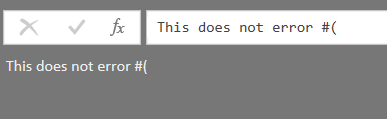
"This does not error #(#)("
image

Finally, this can be used to return any Unicode character in your text by putting either the four-digit or eight-digit hex code of the Unicode character in between the brackets. For example this expression returns the Unicode character with the four-digit hex code 2605, which is a star:

"This is a star #(2605)"
image

Filtering Data Loaded Into A Workspace Database In Analysis Services Tabular 2017 And Azure Analysis Services

The first mistake that all new Analysis Services Tabular developers make is this one: they create a new project in SSDT, they connect to their source database, they select the tables they want to work with, they click Import, and they then realise that trying to load a fact table with several million rows of data into their Workspace Database (whether that’s a separate Workspace Database instance or an Integrated Workspace) is not a good idea when they either end up waiting for several hours or SSDT crashes because it has run out of memory. You of course need to filter your data down to a manageable size before you start developing in SSDT. Traditionally, this has been done at the database level, for example using views, but modern data sources in SSAS 2017 and Azure Analysis Services allow for a new approach using M.

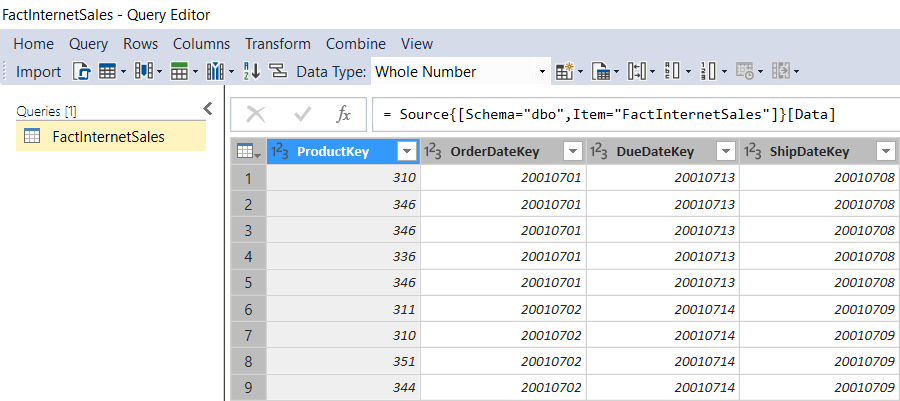
Here’s a simple example of how to do this using the Adventure Works DW database. Imagine you are developing a Tabular model and you have just connected to the relational database, clicked on the FactInternetSales table and clicked Edit to open the Query Editor window before importing. You’ll see something like this:

image

…that’s to say there’ll be a single query visible in the Query Editor with the same name as your source table. The M code visible in the Advanced Editor will be something like this:

[sourcecode language=”text” padlinenumbers=”true”]
let
Source =
#"SQL/localhost;Adventure Works DW",
dbo_FactInternetSales =
Source{[Schema="dbo",Item="FactInternetSales"]}[Data]
in
dbo_FactInternetSales
[/sourcecode]

At this point the query is importing all of the data from this table, but the aim here is to:

  1. Filter the data down to a much smaller number of rows for the Workspace Database
  2. Load all the data in the table after the database has been deployed to the development server

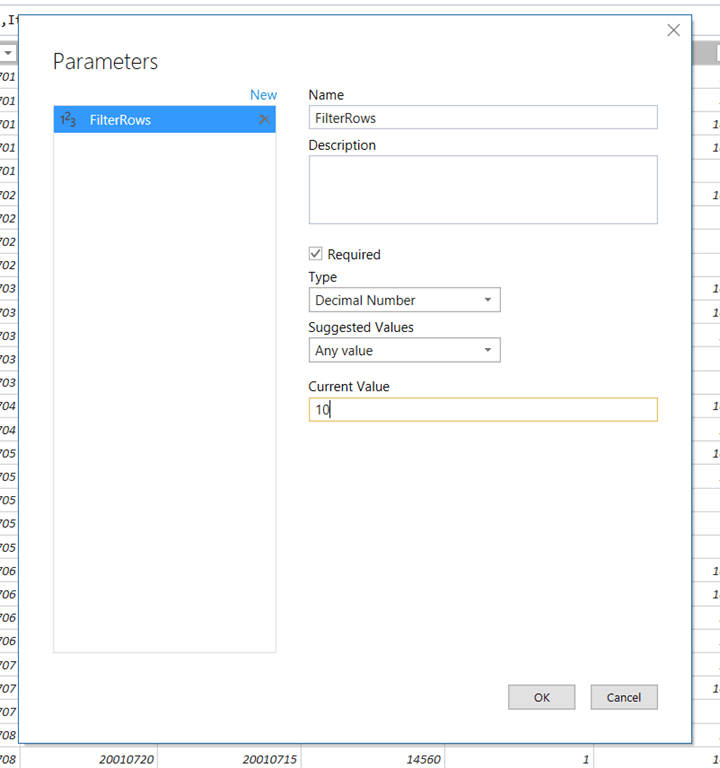
To do this, stay in the Query Editor and create a new Parameter by going to the menu at the top of the Query Editor and clicking Query/Parameters/New Parameter, and creating a new parameter called FilterRows of type Decimal Number with a Current Value of 10:

image

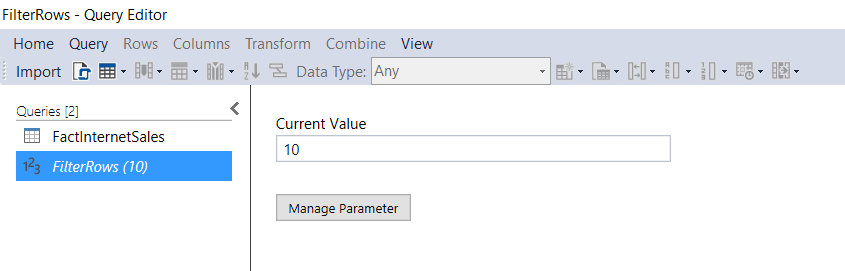
The parameter will now show up as a new query in the Queries pane on the left of the screen:

image

Note that at the time of writing there is a bug in the Query Editor in SSDT that means that when you create a parameter, close the Query Editor, then reopen it, the parameter is no longer recognised as a parameter – it is shown as a regular query that returns a single value with some metadata attached. Hopefully this will be fixed soon but it it’s not a massive problem for this approach.

Anyway, with the parameter created you can now use the number that it returns to filter the rows in your table. You could, for example, decide to implement the following logic:

  • If the parameter returns 0, load all the data in the table
  • If the parameter returns a value larger than 0, interpret that as the number of rows to import from the table

Here’s the updated M code from the FactInternetSales query above to show how to do this:

[sourcecode language=”text” highlight=”6,7,8,9,10,11,12″]
let
Source =
#"SQL/localhost;Adventure Works DW",
dbo_FactInternetSales =
Source{[Schema="dbo",Item="FactInternetSales"]}[Data],
FilterLogic =
if
FilterRows<=0
then
dbo_FactInternetSales
else
Table.FirstN(dbo_FactInternetSales, FilterRows)
in
FilterLogic
[/sourcecode]

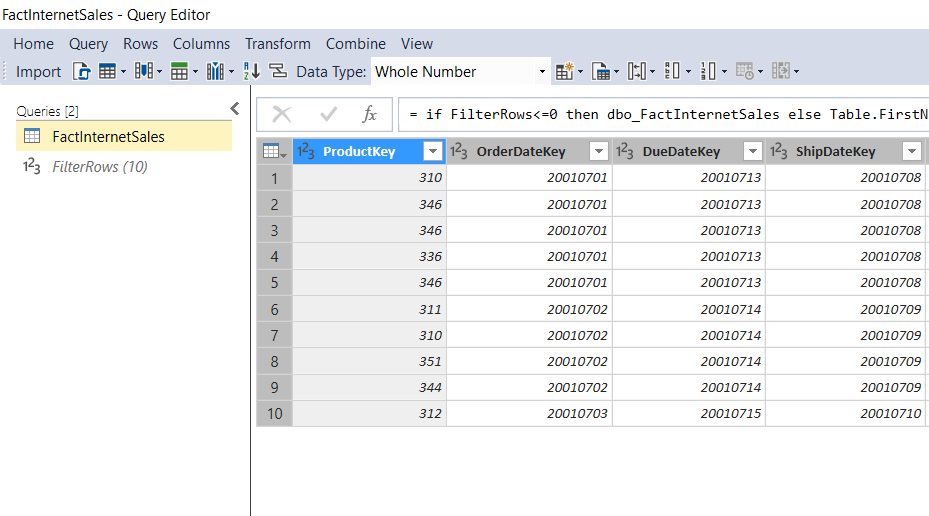
The FactInternetSales query will now return just 10 rows because the FilterRows parameter returns the value of 10:

image

And yes, query folding does take place for this query.

You now have a filtered subset of rows for development purposes, so you can click the Import button and carry on with your development as usual. Only 10 rows of data will be imported into the Workspace Database:

image

What happens when you need to deploy to development though?

First, edit the FilterRows parameter so that it returns the value 0. To do this, in the Tabular Model Explorer window, right-click on the Expressions folder (parameters are classed as Expressions, ie queries whose output is not loaded into Analysis Services) and select Edit Expressions:

image

Once the bug I mentioned above has been fixed it should be easy to edit the value that the parameter returns in the Manage Parameters pane; for now you need to open the Advanced Editor window by clicking the button shown below on the toolbar, and then edit the value in the M code directly:

image

Then close the Advanced Editor and click Import. Nothing will happen now – the data for FactInternetSales stays filtered until you manually trigger a refresh in SSDT – and you can deploy to your development server as usual. When you do this, all of the data will be loaded from the source table into your development database:

image

At this point you should go back to the Query Editor and edit the FilterRows parameter so that it returns its original value, so that you don’t accidentally load the full dataset next time you process the data in your Workspace Database.

It would be a pain to have to change the parameter value every time you wanted to deploy, however, and luckily you don’t have to do this if you use BISM Normalizer – a free tool that all serious SSAS Tabular developers should have installed. One of its many features is the ability to do partial deployments, and if you create a new Tabular Model Comparison (see here for detailed instructions on how to do this) it will show the differences between the project and the version of the database on your development server. One of the differences it will pick up is the difference between the value of the parameter in the project and on in the development database, and you can opt to Skip updating the parameter value when you do a deployment from BISM Normalizer:

image

Running M Queries In Visual Studio With The Power Query SDK

Writing M in the Advanced Editor in Excel or Power BI can be a frustrating experience unless you’re the kind of masochist who loves writing code in Notepad. There are some options for writing M code outside Excel and Power BI, for example Lars Schreiber’s M extension for Notepad++ (see here for details) or the M extension for Visual Studio Code (available from the Visual Studio Marketplace here; more details on Brett Powell’s blog here), but the trouble with them is that you have to copy the code back into Excel or Power BI to run it. What many people don’t realise, however, is that it is possible to write M code and have IntelliSense, formatting, keyword highlighting and also the ability to execute your own M queries, using the Power Query SDK in Visual Studio.

The Power Query SDK (which you can download here) supports Visual Studio 2015 and 2017 and is intended for people who are writing custom Data Connectors for Power BI. To let you test your Data Connector you can create a .pq file containing M code, and this in fact allows you to run any M query you want whether you’re building a Data Connector or not.

Here’s how. First, install the Power Query SDK and then open Visual Studio and create a new project. Find the Power Query template, select the PQ file option and give your file a name:

image

Then, in the .pq file that is created, you can enter an M query and then either press the Start button on the toolbar or hit F5 to run the query. The output of the query is shown on the Output tab in the M Query Output window:

image

Right-clicking on your project in the Solution Explorer pane and selecting Properties brings up a Properties dialog with various properties that control how your queries behave:

image

image

Many of the properties are self-explanatory, at least for anyone used to writing M in Power BI or Excel. FastCombine turns off data privacy checks. Allow Native Query lets you use M queries that contain ‘native’ queries (for example your own SQL queries if you’re using a SQL Server data source), as Cédric Charlier shows here. A few of them, such as Legacy Redirects, I have no idea about yet (I should really ask someone…). Turning on Show Engine Traces displays engine trace information in the Log tab of the M Query Output pane; turning on Show User Traces displays trace information generated by the use of the Diagnostics.Trace() function in your code in the Log tab. You can save the contents of the Log tab to a text file.

image

Error messages are displayed on the Errors tab of the M Query Output pane:

image

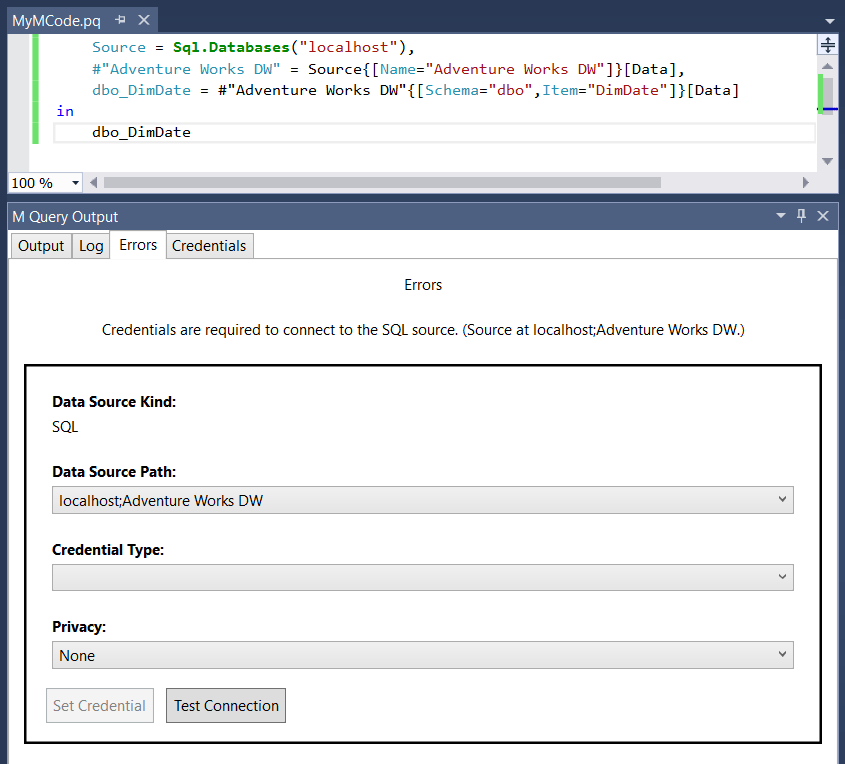
When you have a query that connects to an external data source, the first time you try to run your query you will be prompted to set the credentials used to connect to that data source (as you would in Power BI Desktop), and the data privacy level for the data source, on the Errors pane:

image

The query won’t actually run this first time though; you’ll need to hit Start/F5 again to see the results. If you close the project and then reopen it you will need to enter credentials again; alternatively, on the Credentials tab you can save the credentials used for a data source to a .crd file which can then be reloaded when you reopen your project. You can also edit and delete credentials on the Credentials tab.

image

If I’m honest it’s all very basic but it does the job. The main thing that I miss from writing M code in Power BI is the Query Editor UI – when I write M code there I only write about 50% of it manually, the rest I generate by clicking buttons in the UI because it’s faster. Give me the Query Editor (or the ribbonless version of it that comes with SSDT, because Visual Studio doesn’t support ribbons apparently) and I’ll be happy. Even better, give me the improved code editing functionality in the Advanced Editor in Power BI Desktop and Excel that we’ve been promised!

Setting SQL Server Connection String Properties In Power BI and SSAS Tabular Modern Data Sources

It may not be immediately obvious, but you cannot set your own connection string properties when connecting to SQL Server using the built-in SQL Server connector from either Power BI or a modern data source in Azure SSAS/SSAS Tabular 2017:

image

All you can do is configure the options that are available in the UI, which in the current version of SSDT looks like this:
image

…and which are documented in the Sql.Databases() M function here.

It turns out that the restriction on using your own connection string properties in the built-in SQL Server connector is a deliberate design decision on the part of the Power Query team because, behind the scenes, they use different providers in different circumstances to optimise performance, and because allowing arbitrary connection string properties might make maintaining backwards compatibility difficult in the future.

While your average Power BI user is unlikely to even notice this, for SSAS Tabular developers it could be a big problem: complete control over the connection string is often necessary in enterprise BI scenarios. What are the alternatives then? Well you can use the OLE DB and ODBC connectors instead:
image

Both of these connectors do allow you to set your own connection string properties. For example here’s the UI for a new ODBC connection in SSDT:

image 

The documentation for the Odbc.DataSource and OleDb.DataSource M functions has more detail on how these connectors can be used and how connection string properties can be set. Remember also that the OLE DB Provider for SQL Server was un-deprecated in October 2017.

However, apart from possible performance differences between the two (which you should test yourself – Henk van der Valk wrote a good post on this for SSAS MD and most of what he said is relevant for Tabular) there’s one less-than-obvious difference between these two options: the OLE DB connector does not appear to support query folding right now whereas the ODBC connector does. Of course this isn’t an issue if you’re writing your own SQL queries to import data, but if you do want to use M functions for partitioning (as I show here) you’re likely to get very poor performance with the OLE DB connector.

“In the Previous” Date Filters In Power BI/Get&Transform/Power Query

The Query Editor in Power BI/Excel Get&Transform/Power Query has a number of built-in ways to filter data in date columns relative to the current date, such as the “In the Previous” option. However these filters behave in a way I find non-intuitive (and I’m not alone) and it’s not obvious how to get the behaviour I think most people would expect. In this post I’ll show you what the built-in relative date filters actually do and how you can get change them to do something more useful.

Let me give you a simple example. Imagine you’re using the following table of dates (in DD/MM/YYYY format) in an Excel table as a data source:

image

Now, let’s also assume that the today’s date is January 8th 2018 and you only want to load data from the last six months. If you load the data into Power BI in a new query:

image

…and then click on the dropdown menu in the top right-hand corner of the Date column (highlighted), you can select Date Filters/In the Previous:

image

…and then set up the filter for “Keep rows where ‘Date’ is in the previous 6 months” as shown here:

image

…you get the following table back:

image

Six out of the seven dates in the original table are returned, but not the six I would expect. Remember that today’s date is January 8th 2018, and notice that January 1st 2018 is not present in the filtered table and July 1st 2017 is present! I don’t know about you, but I would say that January 1st 2018 should be considered as being “in the previous 6 months” and July 1st 2017 should not be.

The reason this is happening is that the M code generated by the UI uses the Date.IsInPreviousNMonths function, so as a result the filter is getting all the dates that are present in the six months before the month that today’s date is in. Hmmmmm.

In many cases you can get a “last six months” filter of the type I would expect quite easily, by altering the filter dialog box shown above to filter by the last 5 months and including an Or condition that also filters by the current month, like so:

image

This returns the following table:

image

You’ll see now that January 1st 2018 is present and July 1st 2017 is not present. However you will need to be careful with this: if your source data contains dates that are after today’s date but in still in the current month, these dates will now also be included! For example, if the source data is changed to include a new row for January 31st 2018:

image

This new filter will include January 31st 2018 because it is in the same month as today’s date:

image

What if you want to exclude dates that are after today but in the current month? This is where things get tricky, and where you’ll need to write some M code. Let’s imagine that you want to get all the dates that occur in the range July 9th 2017 (the day after the date that is six months before today) and January 8th 2017 (today). You can do this by editing the original query as follows:

let
Source =
Excel.Workbook(
File.Contents("C:\SixMonths.xlsx"),
null,
true
),
Source_Table =
Source{[Item="Source",Kind="Table"]}[Data],
ChangedType =
Table.TransformColumnTypes(
Source_Table,
{{"Date", type date}}
),
EndDate =
Date.From(DateTime.FixedLocalNow()),
StartDate =
Date.AddDays(Date.AddMonths(EndDate,-6),1),
FilteredRows =
Table.SelectRows(
ChangedType,
each [Date]>=StartDate and [Date]<=EndDate
)
in
FilteredRows

In this query, the EndDate step returns today’s date using DateTime.FixedLocalNow(), the StartDate step returns the day after the date that is six months before today’s date, and the FilteredRows step filters the dates so that only those that occur between StartDate and EndDate are returned. And yes, I checked, if you do this with a SQL Server data source then query folding does occur.

With this query, you finally get the dates you’d expect from your filter:

image

To be honest, though, I don’t think it should be this hard!

Removing Punctuation From Text With The Text.Select M Function In Power BI/Power Query/Excel Get&Transform

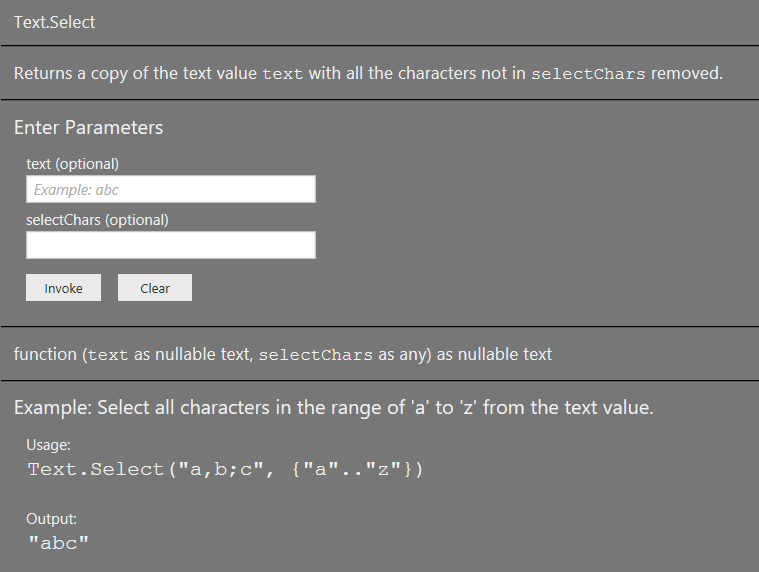
A new, as-yet undocumented, M function appeared in the December 2017 release of Power BI Desktop (I assume it will appear in Excel soon): Text.Select. Here’s the documentation from the Query Editor:

TextSelect

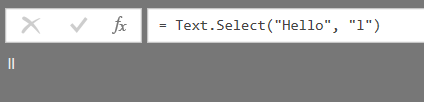
It’s very easy to use: the first parameter takes a text value, the second parameter takes either a text value containing a single text value or a list of single characters, and it returns the text from the first parameter minus all characters that are not in the second parameter. For example, the expression:

[sourcecode language=”text” padlinenumbers=”true”]
Text.Select("Hello", "l")
[/sourcecode]

…returns the text value “ll”:

image

…and the expression:

[sourcecode language=”text”]
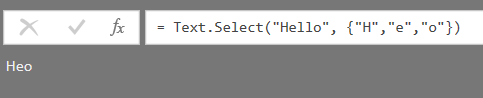
Text.Select("Hello", {"H","e","o"})
[/sourcecode]

…returns the text value “Heo”:

image

There are a lot of scenarios where Text.Select will be useful, and the one that I immediately thought of was to remove punctuation from text. In one of my earliest M posts on this blog I used Text.Remove to do this while trying to find Shakespeare’s favourite words, but the problem with this approach is that you have to explicitly specify all the characters you want to remove from your text – and there could be a lot of characters that need to be excluded. Text.Select is a much better option here because it allows you to specify the characters you want to keep.

The first step to doing this is to understand how to construct the list of the characters you do want to keep. You can do this very easily in M when declaring a list using the range technique I blogged about here, so you should read that post before carrying on. The following expression returns a list containing all 26 uppercase and lowercase letters in the alphabet plus a space:

[sourcecode language=”text”]
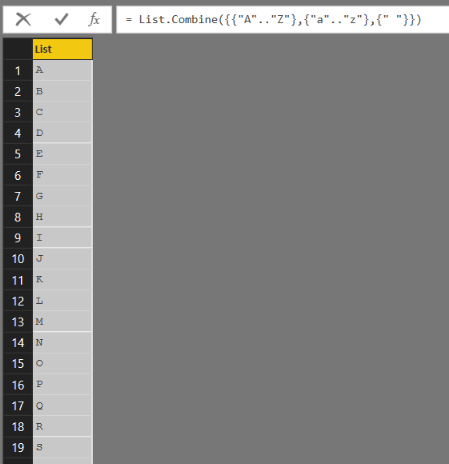
List.Combine({{"A".."Z"},{"a".."z"},{" "}})
[/sourcecode]

image

Of course depending on the scenario or language you’re working with you may want to include other characters, for example apostrophes or letters with accents, too. Here’s a slightly more complex example of how this list can be used with Text.Select:

[sourcecode language=”text”]
let
SourceText = "Hi! Stop, please. What is your name?",
CharsToInclude = List.Combine({{"A".."Z"},{"a".."z"},{" "}}),
RemovePunc = Text.Select(SourceText, CharsToInclude)
in
RemovePunc
[/sourcecode]

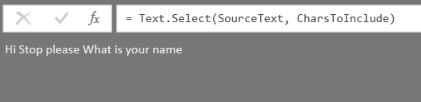
The query above takes the text “Hi! Stop, please. What is your name?” and returns the text “Hi Stop please What is your name”.

image

Finally, because I couldn’t read my old M code without cringing a little bit, here’s an updated version of my query that gets the top 100 words from the Complete Works Of Shakespeare (direct from the Project Gutenberg website):

[sourcecode language=”text”]
let
URL = "http://www.gutenberg.org/cache/epub/100/pg100.txt&quot;,
Source = Text.FromBinary(Web.Contents(URL)),
Lowercase = Text.Lower(Source),
RemovePunctuation = Text.Select(Lowercase,
List.Combine({{"a".."z"},{" "}})),
SplitText = Splitter.SplitTextByWhitespace(QuoteStyle.None),
SplitIntoWords = SplitText(RemovePunctuation),
RemoveBlanks = List.Select(SplitIntoWords, each _<>" "),
TableFromList = Table.FromColumns({RemoveBlanks},
type table [Word=text]),
FindWordCounts = Table.Group(
TableFromList,
{"Word"},
{{"Count", each Table.RowCount(_), type number}}),
SortedRows = Table.Sort(
FindWordCounts,
{{"Count", Order.Descending}}),
KeptFirstRows = Table.FirstN(SortedRows,100)
in
KeptFirstRows
[/sourcecode]

Here they are as a word cloud (yes I know it’s not good dataviz practice, but it’s for fun):

image

You can download the .pbix file with this example in here.

BONUS FACT: another new M function appeared recently too: Function.From. You can read all about it on this thread on the Power Query forum.

Making Sure All Columns Appear When You Combine Data From Multiple Files In Power BI/Power Query M

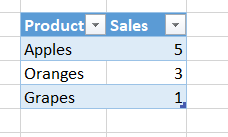
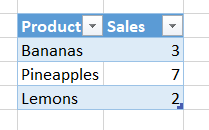
Here’s a really common problem that occurs when combining data from multiple files, or indeed any type of data source, in Power BI/Power Query/Excel Get&Transform. Imagine you have a folder with two Excel files in, and each Excel file contains a table called SalesTable:

image

image

image

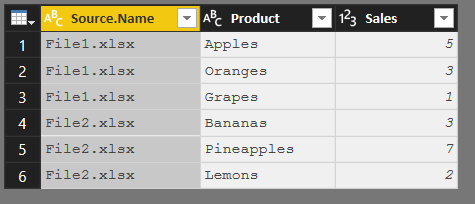
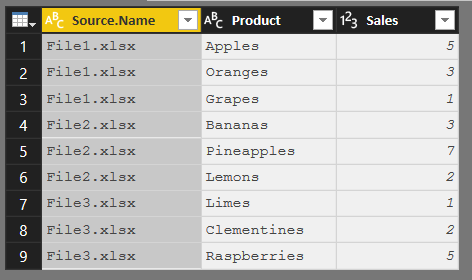
You use the “From Folder” data source to combine all the data from all the Excel files in this folder, you get a table like this:

image

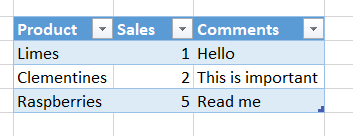
…and you’re happy. Then, at some later date a third file is added to the folder that has an extra column in its SalesTable table called Comments:

image

You refresh your query, though, and you don’t see the Comments column anywhere:

image

Why not? If you look at the query that has been generated and go back to the “Removed Other Columns1” step you’ll see a table containing a column containing table values:

image

…and you’ll also see that the next step in the query, “Expanded Table Column1”, uses the Table.ExpandTableColumn function – the M function that gets called if you click the Expand/Aggregate button in the column header highlighted in the previous screenshot – to flatten these nested tables out. And the problem is that Table.ExpandTableColumn needs to know in advance the names of the columns you want to expand.

Now this is an extremely common, and powerful, Power Query/M pattern. Apart from the “From Folder” functionality for automatically combining data from multiple files it’s something I find myself building manually all the time: write a function, for example to make a single call to a web service; create a table containing one row for each call to the web service that I want to make, use the Invoke Custom Function button to call my function for each row, and then expand to get all the data from all the function calls. And the more I use this pattern, the more I run into situations where I don’t see columns I’m expecting to see because I’ve done an Expand in an earlier step that has a hard-coded list of column names in it (it’s a very similar problem to the one that Ken Puls blogged about here). It’s a pain to have to keep changing this list, and the real problem comes when you don’t actually know in advance what the names of the columns to expand are.

One solution would be to do something similar to what I show in this post: iterate through all the tables in the table column, find a distinct list of column names, and then use this list with Table.ExpandTableColumn. However, there is an easier way to handle this: use Table.Combine instead of Table.ExpandTableColumn. The great thing about Table.Combine is that it will always return all of the columns from all of the tables it’s combining.

Here’s a function that shows how it can be used:

[sourcecode language=”text” padlinenumbers=”true”]
(TableColumn as list, optional SourceNameColumn as list) =>
let
AddIDs =
if
SourceNameColumn=null
then
TableColumn
else
let
ZipNames =
List.Zip({TableColumn, SourceNameColumn}),
AddColumnFunction =
(ListIn as list) =>
Table.AddColumn(ListIn{0}, "Source", each ListIn{1}),
AddColumns =
List.Transform(ZipNames, each AddColumnFunction(_))
in
AddColumns,
Combine = Table.Combine(AddIDs)
in
Combine
[/sourcecode]

This function takes a list of tables and, optionally, a list of text values that contain a name for each table (this optional parameter accounts for the majority of the code – without it all you would need is the Combine step). If you paste this code into a new query called, say, CombineTables, you can either call it by adding some M code to an existing query or more easily just call it direct from the UI. In the latter case when you click on the function query in the Query Editor window you’ll see this:

image

Assuming you already have a query like the one shown above that contains a column with table values in it and another column containing the original Excel file names, you need to click the Choose Column button for the TableColumn parameter and select the column that contains the table values in the dialog that appears:

image

…and then do the same thing for the SourceNameColumn parameter:

image

…and then click the Invoke button back in the Query Editor, and you’ll get a table containing all of the data from the SalesTable table in each workbook, including the Comments column from the third Excel workbook:

image

With no hard-coded column names you’ll now always get all of the data from all of the columns in the tables you’re trying to combine.

The Extension.Contents() M Function

Following on from my post last week about M functions that are only available in custom data extensions, here’s a quick explanation of one of those functions: Extension.Contents().

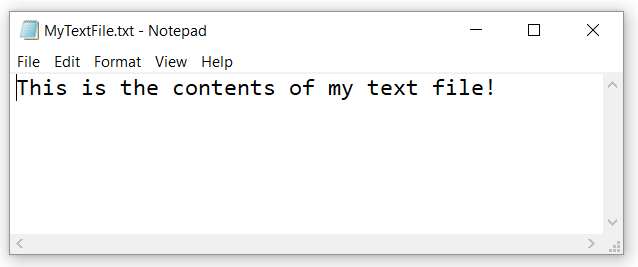
Basically, it allows you to access the contents of any file you include in the .mez file of your custom data connector. Say you have a text file called MyTextFile.txt:

image

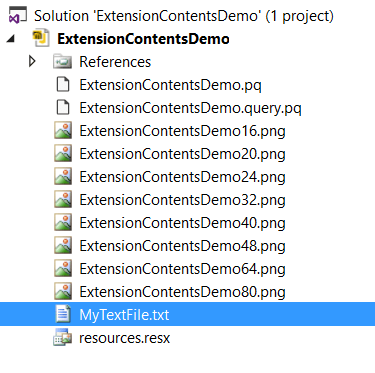
If you create a new Power BI Custom Data Connector project using the SDK, you can add this file to your project in Visual Studio like any other file:

image

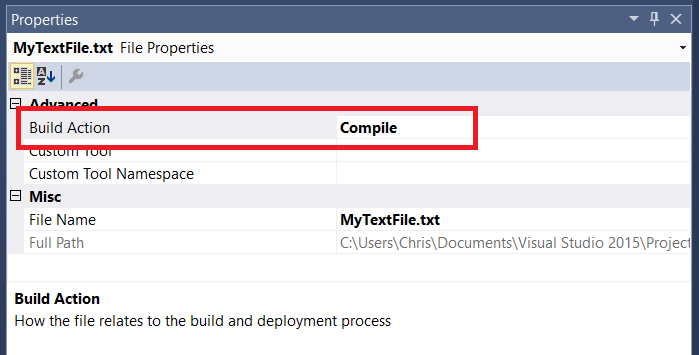
Next, select the file and in the Visual Studio Properties pane set the Build Action property to Compile:

image

Setting this property means that when your custom data connector is built, this file is included inside it (the .mez file is just a zip file – if you unzip it you’ll now find this file inside).

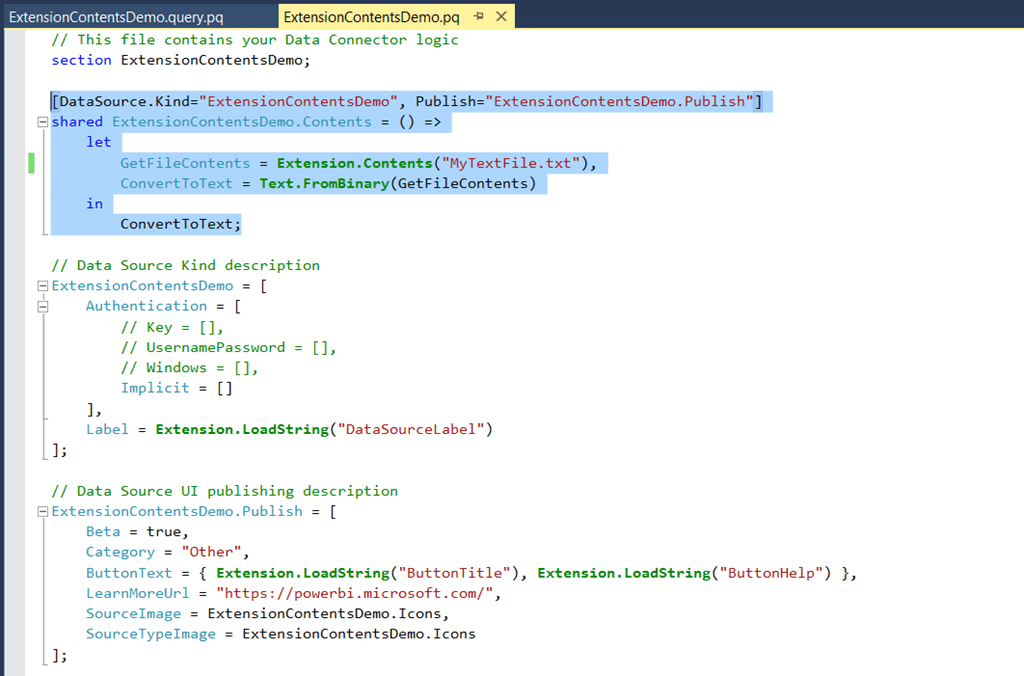
Next, in the .pq file that contains the M code for your custom data connector, you can access the contents of this file as binary data using Extension.Contents(“MyTextFile.txt”). Here’s an example function for use in a custom data connector that does this:

[sourcecode language=”text” padlinenumbers=”true”]
[DataSource.Kind="ExtensionContentsDemo",
Publish="ExtensionContentsDemo.Publish"]
shared ExtensionContentsDemo.Contents = () =>
let
GetFileContents = Extension.Contents("MyTextFile.txt"),
ConvertToText = Text.FromBinary(GetFileContents)
in
ConvertToText;
[/sourcecode]

image

In the let expression here the GetFileContents step returns the contents of the text file as binary data and the ConvertToText step calls Text.FromBinary() to turn the binary data into a text value.

When this function is, in turn, called it returns the text from the text file. Here’s a screenshot of a query run from Power BI Desktop (after the custom data connector has been compiled and loaded into Power BI) that does this:

image

Exploring The New SSRS 2017 API In Power BI

One of the new features in Reporting Services 2017 is the new REST API. The announcement is here:

https://blogs.msdn.microsoft.com/sqlrsteamblog/2017/10/02/sql-server-2017-reporting-services-now-generally-available/

And the online documentation for the API is here:

https://app.swaggerhub.com/apis/microsoft-rs/SSRS/2.0

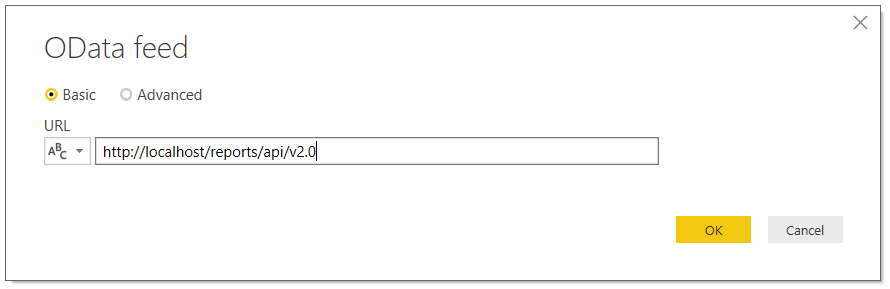
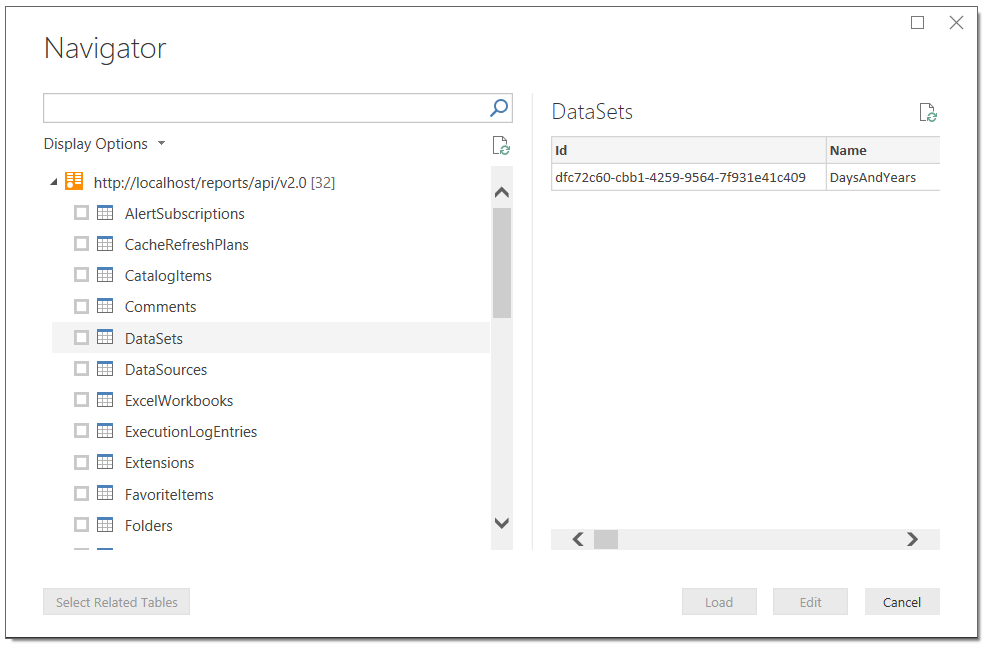
Interestingly, the new API seems to be OData compliant – which means you can browse it in Power BI/Get&Transform/Power Query and build your own reports from it. For example in Power BI Desktop I can browse the API of the SSRS instance installed on my local machine by entering the following URL:

[sourcecode language='text'  padlinenumbers='true']
http://localhost/reports/api/v2.0
[/sourcecode]

…into a new OData feed connection:

image

image

image

This means you can build Power BI reports on all aspects of your SSRS reports (reports on reports – how meta is that?), datasets, data sources, subscriptions and so on. I guess this will be useful for any Power BI fans who also have to maintain and monitor a large number of SSRS reports.

However, the most interesting (to me) function isn’t exposed when you browse the API in this way – it’s the /DataSets({Id})/Model.GetData function. This function returns the data from an SSRS dataset. It isn’t possible to call this function direct from M code in Power BI or Excel because it involves making a POST request to a web service and that’s not something that Power BI or Excel support. However it is possible to call this function from a Power BI custom data extension – I built a quick PoC to prove that it works. This means that it would be possible to build a custom data extension that connects to SSRS and that allows a user to import data from any SSRS dataset. Why do this? Well, it would turn SSRS into a kind of centralised repository for data, with the same data being shared with SSRS reports and Power BI (and eventually Excel, when Excel supports custom data extensions). SSRS dataset caching would also come in handy here, allowing you to do things like run an expensive SQL query once, cache it in SSRS, then share the cached results with multiple reports both in SSRS and Power BI. Would this really be useful? Hmm, I’m not sure, but I thought I’d post the idea here to see what you all think…