Up-to-date list of VBA Functions in MDX

Some of you may be aware that a few VBA functions have been implemented as native MDX functions to improve performance. I blogged about this a few years ago, but I’ve now received an up-to-date list of all the VBA functions that that this has happened for as of SSAS 2012 SP1 from those nice people on the SSAS dev team:

CDate
CDbl
CInt
CLng
CStr
Int
Month
Now
IsArray
IsError
Abs
Round
InStr
LCase
Left
Len
Mid
Right

As far as I can see, it’s Month() and LCase() that are the new ones on this list, and which were added in 2012 SP1. Still no Log10() function though, alas.

Thanks to Akshai and Marius for their help with this.

Introduction to MDX for PowerPivot Users, Part 4: Filtering

The combination of the filtering functionality built into PivotTables, and the ability to delete and reorder tuples in a set without needing to edit the set expression itself that the Excel named set functionality gives you, means that you can usually implement the filters you need in PowerPivot without needing to resort to MDX. However there are some scenarios where knowing the MDX functions that allow you to filter a set are useful and in this post I’ll show a few of them.

FILTER()

The Filter() function is the Swiss-Army penknife of filtering in MDX: it can do pretty much anything you want, but isn’t always the most elegant method. It’s quite simple in that it takes two parameters, the set that is to be filtered and a boolean expression that is evaluated for every item in the set and which determines whether that item passes through the filter or not.

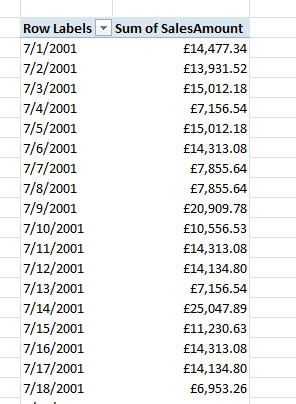
Here’s a simple example. Consider a simple PivotTable (using my example model, described here) with FullDateAlternateKey on rows and the Sum of SalesAmount measure on columns:

image

The set of members on the FullDateAlternateKey level of the FullDateAlternateKey hierarchy can be obtained by using the .Members() function as I showed earlier in this series:
[DimDate].[FullDateAlternateKey].[FullDateAlternateKey].MEMBERS

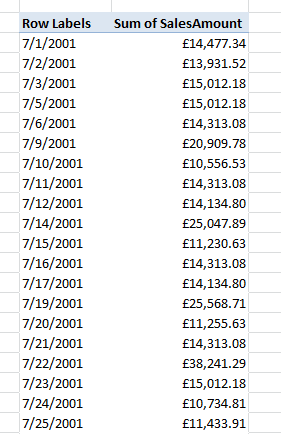
This set can then be filtered by passing it to the Filter function, which itself returns a set, so it too can be used to create a named set. Let’s say we only wanted the set of dates where Sum of SalesAmount was greater than £10000; we could get it using the following expression:

image

Filter(
[DimDate].[FullDateAlternateKey].[FullDateAlternateKey].MEMBERS
, ([Measures].[Sum of SalesAmount])>10000)

What I’m doing is passing the set of all dates into the first parameter of Filter() and then, in the second parameter, testing to see if the value of the tuple ([Measures].[Sum of SalesAmount]) is greater than 10000 for each item in that set.

Here’s the result:

image

As I’ve mentioned before, it’s very important that you remember to check the ‘Recalculate set with every update’ button if you want the filter to be re-evaluated every time you change a slicer, which you almost always want to do.

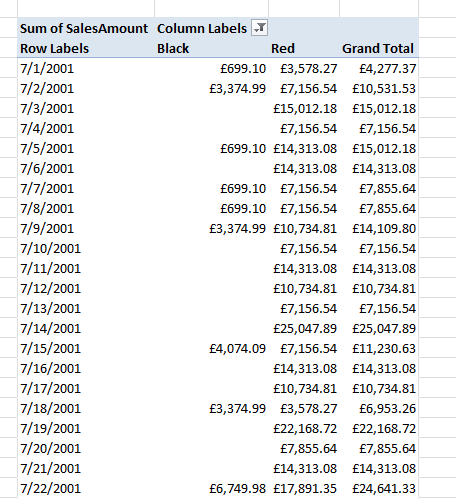
Where is the filter function actually useful though? Here’s the same PivotTable but with Color on columns and with only Red and Black showing:

image

It’s not possible to filter this PivotTable to show only the dates where sales for Black products are greater than Sales of Red products using native functionality, but it is using MDX. Here’s the set expression:

Filter(
[DimDate].[FullDateAlternateKey].[FullDateAlternateKey].MEMBERS
, ([Measures].[Sum of SalesAmount], [DimProduct].[Color].&[Black])
>
([Measures].[Sum of SalesAmount], [DimProduct].[Color].&[Red])
)

Here I’m doing something similar to what I did in the first example, but now comparing two tuple values for each date: the tuple that returns the value of Sum of SalesAmount for Black products, which is
([Measures].[Sum of SalesAmount], [DimProduct].[Color].&[Black])
and the tuple that returns the value of Sum of SalesAmount for Red products, which is
([Measures].[Sum of SalesAmount], [DimProduct].[Color].&[Red])

NONEMPTY()

The NonEmpty() function also does filtering, but it’s much more specialised than the Filter() function – it filters items from a set that have empty values for one or more tuples. As with the Filter() function its first parameter is the set to be filtered, but its second parameter is another set, each of whose items are evaluated for each item in the first set. If one item in the second set evaluates to a non empty value for an item in the first set then that item passes through the filter.

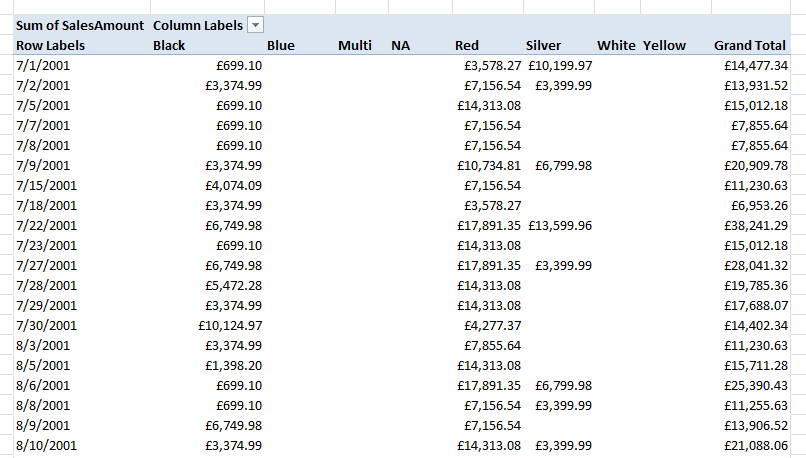
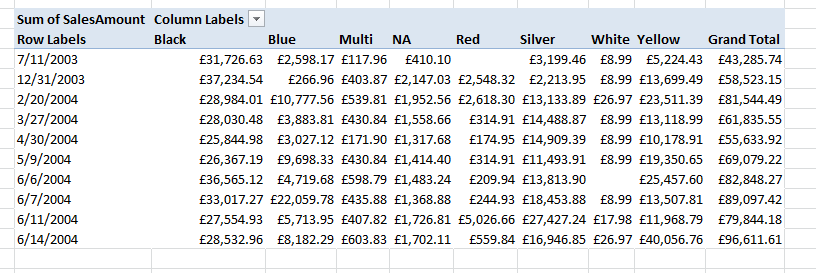
That explanation is, I know, quite hard to digest so let’s look at an example. Here’s our PivotTable with no filter applied on rows and all Colors displayed on columns:

image

If you wanted to see only the rows where there were sales for Black products, you could use the following expression:

NonEmpty(
[DimDate].[FullDateAlternateKey].[FullDateAlternateKey].MEMBERS
, {([Measures].[Sum of SalesAmount], [DimProduct].[Color].&[Black])})

image

If you wanted to see only the rows where there were sales for Black OR Silver products, you could use this expression:

NonEmpty(
[DimDate].[FullDateAlternateKey].[FullDateAlternateKey].MEMBERS
, {([Measures].[Sum of SalesAmount], [DimProduct].[Color].&[Black])
,([Measures].[Sum of SalesAmount], [DimProduct].[Color].&[Silver])})

image

If you wanted to see only the rows where there were sales for Black AND Silver products you’d need to use two, nested NonEmpty functions:

NonEmpty(
NonEmpty(
[DimDate].[FullDateAlternateKey].[FullDateAlternateKey].MEMBERS
, {([Measures].[Sum of SalesAmount], [DimProduct].[Color].&[Black])})
, {([Measures].[Sum of SalesAmount], [DimProduct].[Color].&[Silver])})

image

TOPCOUNT(), BOTTOMCOUNT(), TOPPERCENT(), BOTTOMPERCENT()

The TopCount() and related functions are, as you’ve probably guessed from their names, useful for doing top N style filters. If you wanted to see the top 10 dates for sales of Black products you could use the following expression:

TopCount(
[DimDate].[FullDateAlternateKey].[FullDateAlternateKey].MEMBERS
, 10
, ([Measures].[Sum of SalesAmount], [DimProduct].[Color].&[Black])
)

image

Notice here how the dates are displayed in descending order for the Black column, but no other – that’s how you can tell that the TopCount() function is doing what you want.

To get the top N dates that provide at least 5% of the total sales across all time for Black products, you can use the following expression:

TopPercent(
[DimDate].[FullDateAlternateKey].[FullDateAlternateKey].MEMBERS
, 5
, ([Measures].[Sum of SalesAmount], [DimProduct].[Color].&[Black])
)

image

The BottomCount() and BottomPercent() function (I’m always reminded of one of the old, old jokes here when I use the BottomCount() function…) do the opposite and return the bottom items in a set, but you need to be careful using them because the bottom items in a set often have no values at all which is not very useful. So, for example, if you wanted to find the bottom 10 dates that have sales for Black products you need to use the NonEmpty() function as well as the BottomCount() function as follows:

BottomCount(
NonEmpty(
[DimDate].[FullDateAlternateKey].[FullDateAlternateKey].MEMBERS
, {([Measures].[Sum of SalesAmount], [DimProduct].[Color].&[Black])})
, 10
, ([Measures].[Sum of SalesAmount], [DimProduct].[Color].&[Black])
)

image

Here I’m taking the set of all members on the FullDateAlternateKey level of the FullDateAlternateKey hierarchy, passing that to the NonEmpty() function to return only the dates that have values for Black products and Sum of SalesAmount, and then getting the bottom 10 of those dates.

In part 5, I take a look at running MDX queries against a PowerPivot model.

Free MDX Training Video Now Live

I’m sure a lot of you have seen Rafal Lukawiecki speak at BI events around the world; well, a few months ago he launched a new online training business at http://projectbotticelli.com/ and I’m honoured to announce that the first video I’ve recorded for him is now live. It’s a 30 minute session on some of the basic theory of MDX (the concepts of unique names, tuples and sets), it’s free to view and it’s available here:
http://projectbotticelli.com/knowledge/mdx-basic-concepts-unique-names-tuples-sets-video-tutorial?pk_campaign=cw2012cwb

I’ll be recording some more MDX videos with him next year, and I’ll post again when they’re done. There are also many other great videos from Rafal, Marco and Alberto on DAX, SSAS 2012 Tabular, PowerPivot, Data Mining and other MS BI topics available which you can find here:
http://projectbotticelli.com/video?tid=All&pk_campaign=cw2012cwb

Hope you enjoy them! And if you’re looking for some classroom-based MDX training, the course I’m teaching in London in December still has some spaces left:
http://www.technitrain.com/coursedetail.php?c=12&trackingcode=CWB

Returning Selected Items in an Excel Slicer Using MDX in PowerPivot and SSAS

One problem I came up against recently is how to find out what has been selected on an Excel slicer connected to SSAS or a PowerPivot model. There are a number of blog posts showing solutions to this problem, both for scenarios where only one item has been selected and when multiple items have been selected, for example (look at the comments as well as the posts themselves):
http://www.powerpivotpro.com/2010/12/another-way-to-get-and-use-slicer-values-in-formulas/
http://www.powerpivotpro.com/2011/09/catching-multiple-slicer-selections-in-a-formula/

…but I’ve come up with a new, MDX-based approach that handles the multiple selection scenario no matter how many items there are in the slicer, and which I thought was worth blogging about. I was tempted to include this in my series on MDX for PowerPivot but since it’s equally relevant for SSAS users, and the MDX is a bit complicated for an introductory series, I thought I’d make it into a standalone post.

To describe this technique I’m going to use same PowerPivot model I describe here, which is based on the AdventureWorks DW sample database. First of all, create a new PivotTable with CalendarYear in a slicer and CalendarYear on rows and any relevant measure on columns:

image

Selecting a Year in the slicer means that that Year appears on rows in the PivotTable, and selecting multiple years means multiple rows are displayed, as you would expect. Next you need to add a new MDX calculated measure to the PivotTable. If you’re using SSAS you can simply add the calculation onto your cube or you can use the OLAP PivotTable Extensions addin; for PowerPivot users the OLAP PivotTable Extensions approach is the only option, so that’s what I’ll demonstrate. Right-click inside the PivotTable and choose OLAP PivotTable Extensions from the right-click menu, and then in the Calculations tab create a new calculation called SelectedYears with the following definition:

Generate(
Except(
  Axis(1)
  , {[DimDate].[CalendarYear].Defaultmember}
)
, [DimDate].[CalendarYear].Currentmember.Name
, ", "
)

image

…and click Add to PivotTable. The result will be a new measure that returns a comma-delimited list of the names of everything selected on the rows axis of the query, and therefore everything selected in the slicer:

image

How does this work? Well, first of all Axis(1) is used to return the set used on the rows axis of the query used to populate the PivotTable (incidentally, this is why it’s important to have another measure in the PivotTable – if it’s not there, the structure of the query generated by Excel will be different and while the MDX can be altered to handle this, some of the items in the slicer will be partially greyed-out). The set returned by Axis(1) will include the All Member of the CalendarYear hierarchy, so the Except() function is used to remove it; finally, the Generate() function is used to iterate over this set and return the comma-delimited list of member names. In this example the CalendarYear field on the DimDate table in my PowerPivot model has become the MDX hierarchy with the unique name [DimDate].[CalendarYear]; please read this post for some background on how PowerPivot objects map to MDX objects.

Now you have the PivotTable you can refer to the top-right cell in it (in this example it’s cell F3)  in it to return the list of years and hide the PivotTable itself; this allows you to create dynamic titles like the following:

="Sales For Years: " & F3

You can then also create other, new PivotTables and hook them up to the original slicer and they will all work as normal:

 image

Introduction to MDX for PowerPivot Users, Part 3: The Members() and Crossjoin() functions

In the previous post in this series I looked at how MDX set expressions could be used inside Excel to give you total control over what appears on the rows and columns axis of your PowerPivot PivotTables. However, I only showed how to construct basic MDX set expressions using members and tuples; in this post I’ll show you how to use two of the commonest MDX set functions: Members() and Crossjoin().

MEMBERS()

The Members() function returns the set of members from either an entire hierarchy or a single level from that hierarchy. I’d say it is by far the most widely-used of all MDX functions, even if a lot of the time people don’t realise they are using it (see here for why that is). As far as PowerPivot goes it’s not all that useful on its own – if you want to see all the members on a level or a hierarchy, it’s easy to do that without using named sets – but it is frequently used in conjunction with other set functions. Some examples:
[DimDate].[EnglishDayNameOfWeek].MEMBERS
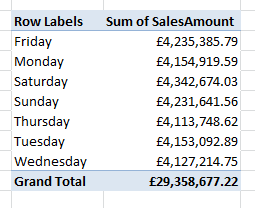
…returns the set of all members on the EnglishDayNameOfWeek hierarchy, whose unique name is [DimDate].[EnglishDayNameOfWeek]. Remember that in PowerPivot, as I said in the first post in this series, a column in a table becomes a hierarchy in MDX and a hierarchy in PowerPivot also becomes a hierarchy in MDX; also that this expression will also return the All Member from the hierarchy, which means that this expression will return a Grand Total row:

image

Compare this with the results returned by the expression:
[DimDate].[EnglishDayNameOfWeek].[EnglishDayNameOfWeek].MEMBERS
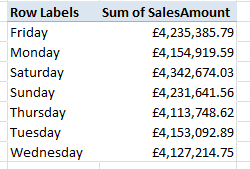
Here I’m using the Members() function with the unique name of the EnglishDayNameOfWeek level on the EnglishDayNameOfWeek hierarchy, whose unique name is [DimDate].[EnglishDayNameOfWeek].[EnglishDayNameOfWeek]. I don’t want to go into too much detail about how this is different from the previous expression; for a PowerPivot user the thing to note is that the All Member is now not returned in the set, and there is no Grand Total row returned:

image

CROSSJOIN()

The Crossjoin() function takes two or more sets and returns a set of tuples representing all possible combinations of items in these sets. So, for example, the crossjoin of the two sets {A, B} and {X, Y} is the set of tuples {(A,X), (A,Y), (B,X), (B,Y)}. There are in fact several ways to write a crossjoin in MDX as I showed in this post, and I prefer to use the * operator over the Crossjoin() function because it’s less verbose. Here’s an example of two set expressions that return the same result using the Crossjoin() function and the * operator:

[DimDate].[EnglishDayNameOfWeek].[EnglishDayNameOfWeek].MEMBERS
*
[DimProductCategory].[EnglishProductCategoryName].[EnglishProductCategoryName].MEMBERS

…and…

CROSSJOIN(
[DimDate].[EnglishDayNameOfWeek].[EnglishDayNameOfWeek].MEMBERS
,
[DimProductCategory].[EnglishProductCategoryName].[EnglishProductCategoryName].MEMBERS
)

…and here’s the output:

image

Using Members() And Crossjoin() To Optimize PivotTables With Many Hierarchies On Rows And Columns

In this series I want to balance out each dose of theory with some useful practical tips, and here’s the first practical tip: when you have a PivotTable with many hierarchies on rows or columns, you may find that it takes a long time to refresh and that using a named set instead may help improve performance. This is because of a design flaw in the way Excel generates the MDX for PivotTables which means that even when you opt not to display subtotals and grand totals, Excel still requests some of them in the queries it runs against your PowerPivot model. This issue has been blogged about in detail several times by Rui Quintino, Richard Lees and me:
http://rquintino.wordpress.com/2010/10/25/excel-20072010-pivot-tables-getting-detailedgranular-table-reports-from-olap-in-seconds/
http://richardlees.blogspot.ch/2010/04/improving-excels-cube-performance.html
http://blog.crossjoin.co.uk/2011/10/07/excel-subtotals-when-querying-multidimensional-and-tabular-models/

So, for example, if you have put CalendarYear, EnglishDayNameOfWeek and EnglishProductCategoryName on rows in your PivotTable like so:

image

You can replace this with a named set with the following definition:

[DimDate].[CalendarYear].[CalendarYear].MEMBERS
*
[DimDate].[EnglishDayNameOfWeek].[EnglishDayNameOfWeek].MEMBERS
*
[DimProductCategory].[EnglishProductCategoryName].[EnglishProductCategoryName].MEMBERS

Here, I’m asking for the crossjoin of all the members (except the All Members) on the CalendarYear, EnglishDayNameOfWeek and EnglishProductCategoryName hierarchies and not requesting any subtotals or grand totals at all in the query. The larger the number of hierarchies on rows or columns in your PivotTable the more noticeable the improvement in performance will be when using this MDX pattern. The penalty for doing this, though, is that end users lose the ability to drill up or down or to alter the selection made without editing the MDX.

In part 4, I’ll take a closer look at how to filter sets.

Introduction to MDX for PowerPivot Users, Part 2: Basic Sets

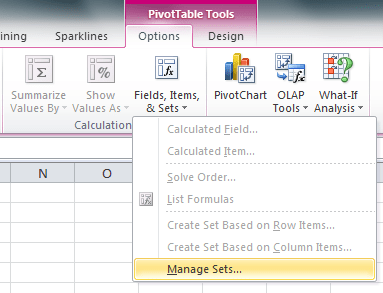
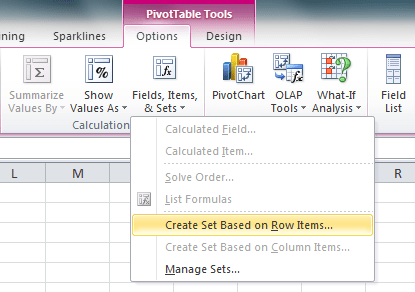
In the first post in this series I looked at how the objects in a PowerPivot model mapped onto MDX objects; now, I’m going to start looking at some practical uses for MDX with Excel’s named sets functionality. Once you’ve created a PivotTable on top of your PowerPivot model, you can find this functionality on the PivotTable Tools/Options tab on the ribbon by clicking on the Fields, Items and Sets button:

image

What it does is allow you fine control over what appears on the rows and columns axes of your PivotTable. Now you don’t need to know any MDX to use this functionality to do fairly basic things like delete rows or to change the order, but with MDX you can do some pretty amazing things!

Consider the following simple PowerPivot model built from the Adventure Works DW database:

image

From this you can create a PivotTable with Calendar Years on rows and a measure that sums up the SalesAmount column:

image

With this PivotTable created, you can now go to the ribbon and you’ll see that there is the option to create a named set based on the selection you’ve made on rows:

image

Clicking on the Create Set Based on Row Items menu item opens the New Set dialog:

image

It’s here you can add, delete, copy and move rows; if you click the Edit MDX button then you can see the MDX representation of the selection you’ve made:

image

Here’s the actual MDX from this screenshot:

{([DimDate].[CalendarYear].&[2005]),([DimDate].[CalendarYear].&[2006]),([DimDate].[CalendarYear].&[2007]),([DimDate].[CalendarYear].&[2008]),([DimDate].[CalendarYear].[All])}

This is an MDX set expression: a set is just an ordered list of things, and there’s no equivalent object in DAX or SQL. Sets are written as comma delimited lists of members or tuples (we’ll come to what a tuple is later!) surrounded by curly brackets or braces, ie {}. This example is a set of Calendar Years in the following order: 2005, 2006, 2007, 2008 and a member called “All” which returns the Grand Total value. Sets can be given names – and so become named sets – and this means that anywhere MDX expects a set expression you can use the name of the set you’ve defined to return that set.

If, at this point, you click OK, a new named set called “Set1” will be created and that will be used as the selection on the rows axis of the PivotTable; since you haven’t changed any of the MDX, though, the PivotTable itself will look identical. The fact that the set is now used to control what’s on rows can be seen in the field list:

image

You can now go back and edit the set by clicking on the Manage Sets menu option under Fields, Items and Sets, selecting Set1 from the list of named sets and clicking Edit.

Rearranging and deleting items in the set expression in the Modify Set dialog that then appears (which looks the same as the New Set dialog above) changes the contents of the named set and so changes what is selected on the rows axis of the PivotTable. You can find the unique names of members and other objects by dragging them from the Fields, Items and Sets pane on the left hand side into the Set Definition text box on the right hand side.

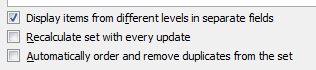
It’s important, if you want the order of items in your set to be maintained (and you almost always do when writing your own MDX), that you also uncheck the Automatically Order and Remove Duplicates From the Set option at the bottom of the dialog:

image

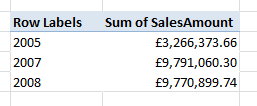
For example, using the following set expression with automatic ordering turned on:

{([DimDate].[CalendarYear].&[2008]),
([DimDate].[CalendarYear].&[2005]),
([DimDate].[CalendarYear].&[2007])}

Gives you the set of years 2008, 2005 and 2007 in the order 2005, 2007 and 2008 and results in a PivotTable looking like this:

image

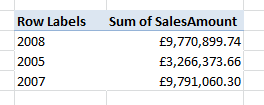
With automatic ordering turned off you get the set of years 2008, 2005, 2007 in that order, which is of course the order they are listed in the set:

image

MDX is a language plagued with brackets and commas and it’s very easy to make syntax errors when writing it. To check that your MDX is syntactically correct you can click the Test MDX button in the Modify Set dialog.

Now let’s talk about tuples. A tuple is another MDX concept that doesn’t have an equivalent in DAX or SQL; you can think of it as a kind of co-ordinate. Tuples are written as comma delimited lists of members surrounded by round brackets, ie (). As I said before, you can have sets of members or sets of tuples (well, strictly speaking all sets are sets of tuples but I won’t go there…) and the two sets you’ve seen above are sets of tuples. So the set:

{([DimDate].[CalendarYear].&[2008]),
([DimDate].[CalendarYear].&[2005]),
([DimDate].[CalendarYear].&[2007])}

…contains three tuples, and this:
([DimDate].[CalendarYear].&[2008])

…is a single tuple containing one member, the member for the year 2008 which has the unique name:
[DimDate].[CalendarYear].&[2008]

The set:

{[DimDate].[CalendarYear].&[2008],
[DimDate].[CalendarYear].&[2005],
[DimDate].[CalendarYear].&[2007]}

…is a set of three members – notice that the round brackets have disappeared – but will return the same three rows in a PivotTable as the previous set. In these two examples, each tuple or member (ie each item) in the set becomes a single row in the PivotTable.

Tuples can have more than one member in them though. Consider the following set:

{([DimDate].[CalendarYear].&[2008], [DimDate].[EnglishDayNameOfWeek].&[Monday]),
([DimDate].[CalendarYear].&[2005], [DimDate].[EnglishDayNameOfWeek].&[Friday]),
([DimDate].[CalendarYear].&[2007], [DimDate].[EnglishDayNameOfWeek].&[Tuesday])}

It still contains three tuples, but this time each tuple is composed of a year and a day name. Each tuple still becomes a row in the PivotTable (something which is best observed if you choose Show in Tabular Form on the PivotTable Design tab of the ribbon), but now each row has two levels of nesting, a year followed by a day name:

image

You can have as many members as you like in a tuple, so for example you could add some quarters too:

{([DimDate].[CalendarYear].&[2008],
[DimDate].[EnglishDayNameOfWeek].&[Monday],
[DimDate].[CalendarQuarter].&[1]),
([DimDate].[CalendarYear].&[2005],
[DimDate].[EnglishDayNameOfWeek].&[Friday],
[DimDate].[CalendarQuarter].&[4]),
([DimDate].[CalendarYear].&[2007],
[DimDate].[EnglishDayNameOfWeek].&[Tuesday],
[DimDate].[CalendarQuarter].&[1])}

image

I’ll finish off this post by mentioning the two important rules that you have to remember when defining sets and tuples, namely:

  • Each item in a set has to be the same type of thing. So, if you have a set of members, each member has to come from the same hierarchy; if you have a set of tuples, each tuple has to contain the same number of members and each tuple has to contain members from the same hierarchy in the same position.
  • Each item in a tuple has to be a member from a different hierarchy.

For example:

This is a valid set containing three members, because each member comes from the CalendarYear hierarchy:

{[DimDate].[CalendarYear].&[2008],
[DimDate].[CalendarYear].&[2005],
[DimDate].[CalendarYear].&[2007]}

This is not a valid set however, because it consists of two members from the CalendarYear hierarchy and one member from the CalendarQuarter hierarchy:

{[DimDate].[CalendarYear].&[2008],
[DimDate].[CalendarYear].&[2005],
[DimDate].[CalendarQuarter].&[1]}

This is a valid tuple because it contains three members from three different hierarchies:

([DimDate].[CalendarYear].&[2007],
[DimDate].[EnglishDayNameOfWeek].&[Tuesday],
[DimDate].[CalendarQuarter].&[1])

This is not a valid tuple because it contains two members from the CalendarYear hierarchy:

([DimDate].[CalendarYear].&[2007],
[DimDate].[CalendarYear].&[2005],
[DimDate].[CalendarQuarter].&[1])

This is a valid set of tuples because each of the three tuples consists of a member from the CalendarYear hierarchy followed by a member from the EnglishDayNameOfWeek hierarchy:

{([DimDate].[CalendarYear].&[2008], [DimDate].[EnglishDayNameOfWeek].&[Monday]),
([DimDate].[CalendarYear].&[2005], [DimDate].[EnglishDayNameOfWeek].&[Friday]),
([DimDate].[CalendarYear].&[2007], [DimDate].[EnglishDayNameOfWeek].&[Tuesday])}

Whereas this is not a valid set of tuples, even though each tuple on its own is valid, because the final tuple in the set contains a member from the EnglishDayNameOfWeek hierarchy followed by a member from the CalendarYear hierarchy, rather than a CalendarYear followed by an EnglishDayName of week:

{([DimDate].[CalendarYear].&[2008], [DimDate].[EnglishDayNameOfWeek].&[Monday]),
([DimDate].[CalendarYear].&[2005], [DimDate].[EnglishDayNameOfWeek].&[Friday]),
([DimDate].[EnglishDayNameOfWeek].&[Tuesday], [DimDate].[CalendarYear].&[2007])}

This is not a valid set of tuples either, because the final tuple (which again is valid in its own right) contains a CalendarYear followed by a CalendarQuarter:

{([DimDate].[CalendarYear].&[2008], [DimDate].[EnglishDayNameOfWeek].&[Monday]),
([DimDate].[CalendarYear].&[2005], [DimDate].[EnglishDayNameOfWeek].&[Friday]),
([DimDate].[CalendarYear].&[2007], [DimDate].[CalendarQuarter].&[1])}

Phew! I know the theory behind MDX can be very heavy going, but I promise you it’s important to learn it in order to be able to get the most out of the language. Next time, in part 3, I’ll look at some functions that returns sets and see how they can be used to construct more complex selections.

Introduction to MDX for PowerPivot Users, Part 1

This is a series of posts I’ve wanted to write for a long time. The more I use PowerPivot, the more I realise how many more cool things you can do when building your Excel reports if you know a bit of MDX. Of course it seems a bit strange to say this, because (at least if you hear Marco and Alberto present at a conference!) MDX is a bit passé and DAX is the native language of PowerPivot, SSAS Tabular and, well the future. But Excel speaks MDX and Excel will continue to speak MDX for a long time to come, so it’s MDX that you need to know if you want to get the most out of PowerPivot.

So, before I start, when is it useful to know MDX with PowerPivot? Here’s the functionality that it’s relevant for:

  • The Excel cube functions, especially but by no means limited to, the CubeSet() function.
  • The Create Set Based on Rows/Columns options under the Fields, Items and Sets button on the PivotTable Options tab on the ribbon
  • When binding the results of an MDX query to a table in Excel, as described here
  • If you ever wanted to write MDX calculations using OLAPPivotTableExtensions, though I’m struggling to think of scenarios where you’d want to do this

I’ll come back to the practical uses of MDX in future posts; the next task is to understand how the objects in a PowerPivot model map onto the multidimensional objects that MDX understands. From now on I’ll be using the MDX terminology so it might be useful to refer back to the list below if you get confused!

  • A PowerPivot model is seen as a single cube in MDX; you can think of a cube and a PowerPivot model as being the thing that holds all the data, the thing you’re querying. The cube that a PowerPivot model is exposed as is called [Model].
  • In PowerPivot a model is made up of multiple tables; in MDX a cube is made up of multiple dimensions. Each table in a PowerPivot model becomes a dimension in MDX.
  • In PowerPivot a table is made up of multiple columns, each of which can be dragged onto the rows and columns of a PivotTable. Each of these columns becomes a hierarchy in MDX. Confusingly, hierarchies in PowerPivot also become hierarchies in MDX. Basically, anything that you can put on rows, columns, a filter or in a slicer is a hierarchy in MDX.
  • Each distinct value in a column becomes a member on a hierarchy in MDX. For example, the value ‘Bikes’ from a column called EnglishProductCategoryName on a table called DimProductCategory becomes an MDX member with the name:
    [DimProductCategory].[EnglishProductCategoryName].&[Bikes]
  • Each measure in a PowerPivot model becomes a member on a dimension called [Measures] (which only has one, invisible hierarchy) in MDX. For example a PowerPivot model called [Sum of SalesAmount] becomes an MDX member with the following name:
    [Measures].[Sum of SalesAmount]

In Part 2 I’ll introduce the concept of sets and how they can be used.

Storage Engine Cache Aggregation and its Implications for Dimension Design

SSAS Multidimensional does caching in a number of places, but the most important type of caching for most cubes happens in the Storage Engine (SE) – the part of SSAS that reads data from disk and aggregates it up to a given granularity. After the SE has answered a single request for data it stores the resulting subcube in cache so that if the same request is made in the future then it can be answered from there very quickly. In addition, in some cases the SE is also able to answer requests at a higher granularity from data that is currently in its cache, and increasing the likelihood of this happening can have a significant positive impact on the performance of large cubes.

Let’s see an example of how SE caching works using a very simple cube built on the Adventure Works database, with one Sum measure and just one dimension, a Date dimension with the following attribute relationships:

image

Running the following query on a cold cache:

select {[Measures].[Sales Amount]} on 0,
[Date].[Year].[Year].members
on 1
from [SECacheDemo]

…and then looking in Profiler shows that the SE has to go to disk to get the data it needs (as shown by the Progress Report Begin/End events):

image

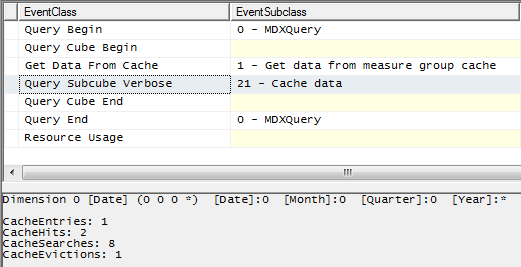
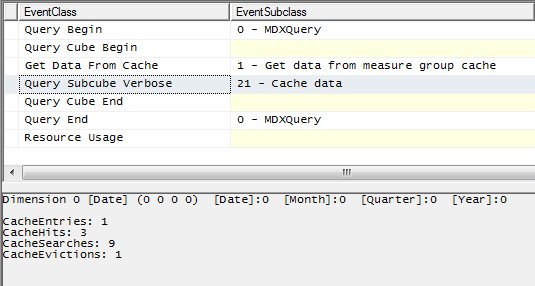
Running the same query immediately afterwards shows the SE can get the data it needs from cache:

image

Running the following query, where I’m getting the All Member from the Year hierarchy, shows that the SE is also able to answer this request from cache:

select {[Measures].[Sales Amount]} on 0,
{[Date].[Year].[All]}
on 1
from [SECacheDemo]

image

This is as you’d expect because, of course, the All Member on the Years hierarchy represents the aggregated total of all the years returned in the first query.

There are several limits on the ability of the SE to derive aggregated totals from data it already has in cache. For a start, the SE cannot aggregate multiple cache entries to derive a single figure. So, for example, if I run the following three queries:

select {[Measures].[Sales Amount]} on 0,
{[Date].[Year].&[2001],[Date].[Year].&[2002]}
on 1
from [SECacheDemo]

select {[Measures].[Sales Amount]} on 0,
{[Date].[Year].&[2003],[Date].[Year].&[2004]}
on 1
from [SECacheDemo]

select {[Measures].[Sales Amount]} on 0,
{[Date].[Year].&[2006]}
on 1
from [SECacheDemo]

…which together return all the years, when I run the query to get the All Member that will not be answered from the SE cache. Each of the three queries above create separate entries in the SE cache; this is one of the reasons why, when cache warming, it’s better to use a few very large queries rather than lots of small, filtered queries.

Furthermore (and this is something that surprised me a little when I found out about it recently), despite the presence of attribute relationships, the SE cannot always work out how to derive higher-level values from lower-level cached data. Running the following query on a cold cache:

select {[Measures].[Sales Amount]} on 0,
[Date].[Date].[Date].members
on 1
from [SECacheDemo]

image

…populates the SE cache with data at the Date granularity, but the following query to get the values for all years:

select {[Measures].[Sales Amount]} on 0,
[Date].[Year].[Year].members
on 1
from [SECacheDemo]

…is not answered from cache, even though the year values could be derived from the date values already in cache.

image

Why is this happening? Well, the SE does not (at least at the time of writing) decode the attribute relationships when working out which granularities can be aggregated from cache. If you look at the granularities as represented in the Query Subcube Verbose events shown in the previous two screenshots, the granularity for the request at Date is
* 0 0 0
…and the granularity for the request at Year is
0 0 0 *
The four characters in this representation of the granularity stands for the four attributes on the dimension: Date, Month, Quarter and Year. The 0 character shows that a request is not at the granularity of that attribute, any other value shows that it is, and the asterisk character shows the request returns all the values at the specified granularity (this white paper gives more detail on how to interpret these values). So, without knowing anything about attribute relationships, the SE can say that the granularity
0 0 0 0
can be aggregated from
* 0 0 0
but it cannot say that
0 0 0 *
can be aggregated from
* 0 0 0

Luckily these limitations on what can be aggregated do not apply to aggregations: if I was to build an aggregation at the Date granularity, my query at the Year granularity would be able to make use of that aggregation.

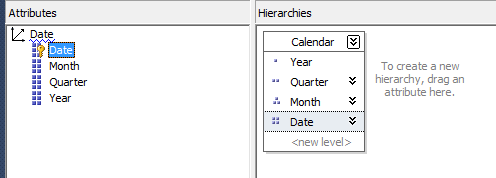
Also, the use of natural user hierarchies can work around this limitation. Consider the following user hierarchy built on the dimension:

image

Querying at the Date level of this user hierarchy, like so:

select {[Measures].[Sales Amount]} on 0,
[Date].[Calendar].[Date].members
on 1
from [SECacheDemo]

image

…results in a request at the granularity
* * * *
which can then be aggregated up to many more granularities – querying at a level in a natural user hierarchy automatically includes the granularities of all the attributes used for the levels above in the user hierarchy.

Therefore, both the following queries:

select {[Measures].[Sales Amount]} on 0,
[Date].[Calendar].[Year].members
on 1
from [SECacheDemo]

select {[Measures].[Sales Amount]} on 0,
[Date].[Year].[Year].members
on 1
from [SECacheDemo]

…can be answered from the cache created by the query at the [Date].[Calendar].[Date] level.

The conclusion must be, then, that using natural user hierarchies will allow for much better SE cache reuse than using the attribute hierarchies on their own. Also, if you have a natural user hierarchy, it might be a good idea to hide the underlying attribute hierarchies so users and other developers do not reference them in their queries and calculations. You may not notice the performance difference that better SE cache reuse gives you on most cubes, but on very large cubes or cubes that are very SE-intensive (for example, because they are reprocessed frequently) this could make a noticeable difference to your overall query performance.

Thanks to Akshai Mirchandani and Hrvoje Piasevoli for their help in understanding this.

Tuning Queries with the WITH CACHE Statement

One of the side-effects of the irritating limitations that SSRS places on the MDX you can use in your reports is the widespread use of calculated measures to get the columns you want. For example, a query like this (note, this query isn’t on the Adventure Works cube but on a simpler cube built on the Adventure Works DW database):

SELECT
{[Measures].[Sales Amount]}
*
[Date].[Day Number Of Week].[Day Number Of Week].MEMBERS
ON 0,
[Product].[Product].[Product].MEMBERS ON 1
FROM [Adventure Works DW]

image

…which wouldn’t be allowed in SSRS, could be rewritten like so:

WITH
MEMBER MEASURES.D1 AS
([Measures].[Sales Amount], [Date].[Day Number Of Week].&[1])
MEMBER MEASURES.D2 AS
([Measures].[Sales Amount], [Date].[Day Number Of Week].&[2])
MEMBER MEASURES.D3 AS
([Measures].[Sales Amount], [Date].[Day Number Of Week].&[3])
MEMBER MEASURES.D4 AS
([Measures].[Sales Amount], [Date].[Day Number Of Week].&[4])
MEMBER MEASURES.D5 AS
([Measures].[Sales Amount], [Date].[Day Number Of Week].&[5])
MEMBER MEASURES.D6 AS
([Measures].[Sales Amount], [Date].[Day Number Of Week].&[6])
MEMBER MEASURES.D7 AS
([Measures].[Sales Amount], [Date].[Day Number Of Week].&[7])
SELECT
{MEASURES.D1,MEASURES.D2,MEASURES.D3,MEASURES.D4,MEASURES.D5,MEASURES.D6,MEASURES.D7}
ON 0,
[Product].[Product].[Product].MEMBERS ON 1
FROM [Adventure Works DW]

…to get it in an SSRS-friendly format with only measures on columns.

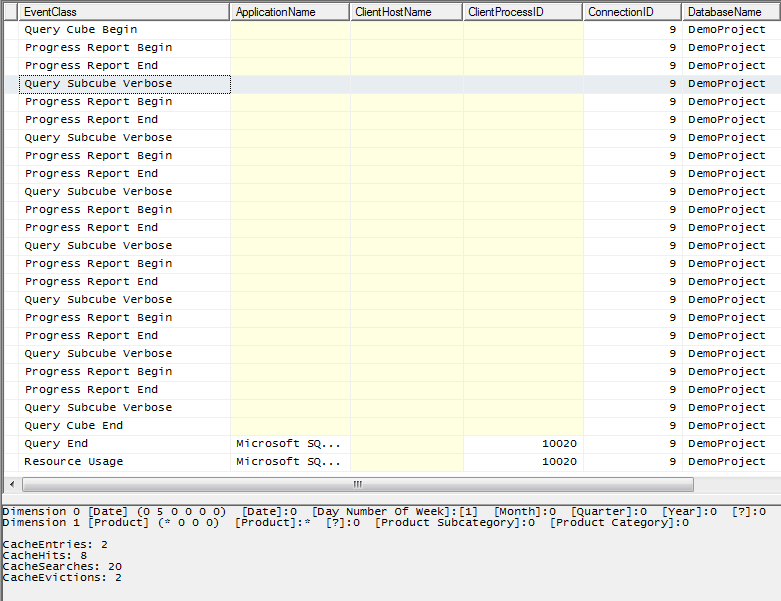
For the last few days I’ve had the pleasure of working with Bob Duffy (a man so frighteningly intelligent he’s not only an SSAS Maestro but a SQL Server MCM as well) on tuning a SSRS report like this on a fairly large cube. As Bob found, the problem with this style of query is that it isn’t all that efficient: if you look in Profiler at what happens on a cold cache, you can see there are seven separate Query Subcube events and seven separate partition scans (indicated by the Progress Report Begin/End events) for each calculated measure on columns.

image

The first thing that Bob tried to tune this was to rewrite the query something like this:

SELECT
{[Measures].[Sales Amount]}
ON 0,
NON EMPTY
[Product].[Product].[Product].MEMBERS
*
[Date].[Day Number Of Week].[Day Number Of Week].MEMBERS
ON 1
FROM [Adventure Works DW]

…and pivot the data in the SSRS tablix to get the desired layout with the Day Numbers on columns. The interesting thing, though, is that for this particular report while rewriting the query in this way made it run faster (there is only one Query Subcube event and partition scan now) it actually made the SSRS report run slower overall, simply because SSRS was taking a long time to pivot the values.

Instead, together we came up with a way to tune the original query using the WITH CACHE statement like so:

WITH
CACHE AS
‘([Measures].[Sales Amount]
, [Product].[Product].[Product].MEMBERS
, [Date].[Day Number Of Week].[Day Number Of Week].MEMBERS)’

MEMBER MEASURES.D1 AS
([Measures].[Sales Amount], [Date].[Day Number Of Week].&[1])
MEMBER MEASURES.D2 AS
([Measures].[Sales Amount], [Date].[Day Number Of Week].&[2])
MEMBER MEASURES.D3 AS
([Measures].[Sales Amount], [Date].[Day Number Of Week].&[3])
MEMBER MEASURES.D4 AS
([Measures].[Sales Amount], [Date].[Day Number Of Week].&[4])
MEMBER MEASURES.D5 AS
([Measures].[Sales Amount], [Date].[Day Number Of Week].&[5])
MEMBER MEASURES.D6 AS
([Measures].[Sales Amount], [Date].[Day Number Of Week].&[6])
MEMBER MEASURES.D7 AS
([Measures].[Sales Amount], [Date].[Day Number Of Week].&[7])
SELECT
{MEASURES.D1,MEASURES.D2,MEASURES.D3,MEASURES.D4,MEASURES.D5,MEASURES.D6,MEASURES.D7}
ON 0,
[Product].[Product].[Product].MEMBERS ON 1
FROM [Adventure Works DW]

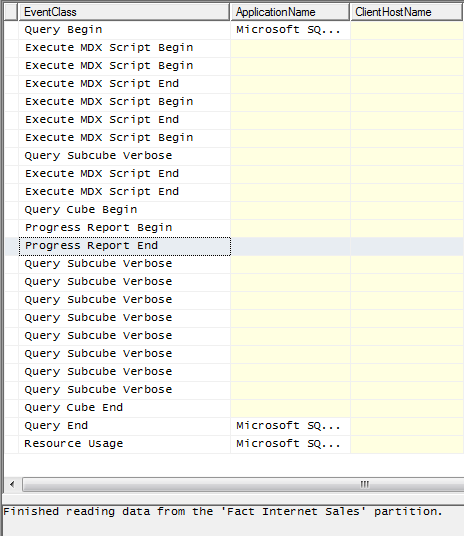
What WITH CACHE statement does here is load all the data needed for the query into the Storage Engine cache before anything else happens. So even though there are still seven different Query Subcube events for each column, there’s now only one partition scan and each of the seven Query Subcube events now hits cache:

image

There’s no guarantee that this approach will result in the best performance even when you have a query in this form, but it’s worth testing if you have. It’s certainly the first time in a long while that I’ve used the WITH CACHE statement in the real world – so it’s interesting from an MDX point of view too.

Named Sets and Block Computation in SSAS 2012

Greg Galloway (who really should blog more often!) recently came across an otherwise undocumented query performance optimisation in SSAS 2012: using named sets inside aggregate functions in MDX no longer prevents the use of block computation/bulk mode. This was something that was explicitly called out as a Bad Thing To Do in Books Online (the link to the page in question is now dead though, possibly because it’s being updated), but here’s an example of a query that will now run much faster in SSAS 2012 Multidimensional than it used to in R2:

with
set myset as {[Customer].[Customer].[Customer].members}
member measures.demo as
sum(myset,[Measures].[Internet Sales Amount])
select measures.demo on 0,
[Date].[Calendar Year].members on 1
from [Adventure Works]

There are still situations where block computation can’t be used however, namely when the Current() function is used (which are going to be very rare I think):

with
set myset as {[Customer].[Customer].[Customer].members}
member measures.demo as
sum(myset
, iif(myset.current is [Customer].[Customer].&[20075]
, 0, [Measures].[Internet Sales Amount])
)
select measures.demo on 0,
[Date].[Calendar Year].members on 1
from [Adventure Works]

Thanks also to Jeffrey Wang for the background on this.