Building Relative Date Reports in PowerPivot

It’s a very common requirement when you’re building a report in PowerPivot (or indeed in any BI tool) for it to automatically show data for today’s date, the current week or month (plus maybe a set number of preceding days, weeks or months), without the user needing to change anything when they open the workbook. There are a number of ways of achieving this, but in this post I’m going to focus on one: building relative date columns in your Date dimension table. This stuff is by no means new and ground-breaking and I’ve seen this particular technique implemented many, many times, but it’s also something I get asked about fairly frequently and I can’t find any other blog posts detailing it so I thought I’d write it up.

To show how this works I’ve built a sample PowerPivot model in Excel. An important part of this sample model is a proper Date dimension table of course, and if you don’t have one in your data source there are plenty of ways of generating one automatically (Boyan Penev’s DateStream dataset in the Azure Marketplace, for instance, or this cool new Excel 2013 app I found today in the Office Store). Here’s the example I’ll be working with which has a Date dimension table and a Sales fact table with some values in it:

image 

On the Date dimension table I’ve added four new columns, two to handle relative dates and two to handle relative months:

Relative Date Offset
=INT([Date] – TODAY())

Relative Month Offset
=((12 * YEAR([Date])) +  MONTH([Date])) – ((12 * YEAR(TODAY())) +  MONTH(TODAY()))

Relative Date
=IF([Relative Date Offset]=0
, "Today"
, "Today " & IF([Relative Date Offset]>0, "+", "") & [Relative Date Offset])

Relative Month
=IF([Relative Month Offset]=0
, "Current Month"
, "Current Month " & IF([Relative Month Offset]>0, "+", "") & [Relative Month Offset])

The first two of these columns contain integer values that are the number of days and months between today’s date and the date in the [Date] column on the dimension table. I’ve hidden these from client tools, and then then used them in the expressions for (and as the Sort Columns for) the next two columns which show the same values in a more human-readable form. Here’s what the results look like:

image

These new columns can be used in a variety of ways. For instance, I can now put my Sales measure in a PivotTable, put Relative Date in the Filter and select the ‘Today’ value, and then put Date on columns in the PivotTable and I’ll only see today’s date:

image

image

This is because, of course, selecting ‘Today’ on Relative Date automatically filters the [Date] column down to one value – today’s date (ie January 24 2013).

I can now also build reports that show data for the current month and previous month, without showing any dates at all:

image

image

There’s one final problem that needs to be solved though: the relative dates are calculated when the Date dimension is loaded and the calculated columns evaluated, but what happens tomorrow when the relative dates need recalculating? If I was building this solution in SSAS Tabular and reprocessing your model every night automatically then I wouldn’t have this issue; in PowerPivot I need to make sure I handle this. In Excel 2010 there’s no way to automate loading data into a table, alas, so the user would have to do the refresh manually alas. In Excel 2013 I can do this using VBA very easily, by putting the following code in the WorkBook_Open() event:

ActiveWorkbook.Model.ModelTables("Date").Refresh

Refreshing the Date table also automatically refreshes your PivotTables too, which is handy. This means that when I open the workbook tomorrow (ie January 25 2013), the relative dates will have shifted accordingly and my report will show data as of January 25 2013 and not January 24 2013.

You can download my Excel 2013 sample workbook here.

SQLBits and PASS Business Analytics Conference News

I’m going to be speaking at quite a few conferences this year (I’ll blog about them all soon once they’re confirmed) but I thought I’d post something quickly about the two big events in the first half of this year that I’ll be going to.

First of all, registration for SQLBits XI, which will be taking place on May 2nd-4th in Nottingham, UK, is now open. You can find all the details here:
http://sqlbits.com/
SQLBits is the largest SQL Server conference in Europe and a must-attend if you’re serious about SQL Server (but then I would say that – I’m one of the organisers). We’ve attracted some big names to come and speak this time: just take a look at the precons and the sessions that have been submitted. There will also be some Robin Hood-themed fun, so don’t forget your bow and arrows!

I’ll also be speaking at the PASS Business Analytics Conference in Chicago in April. Again, there’s a great line-up of sessions plus a keynote from Steven Levitt of Freakonomics fame; you can get an idea of what’s going to be presented by attending the Business Analytics 24 Hours of PASS on January 30th. Also, if you use the following code during registration:
BAC521BL
You’ll get a $150 discount on the conference rate!
Unfortunately if you’ve already registered the discount can’t be applied retrospectively…

A Different Approach To Last-Ever Non-Empty in DAX

The post I wrote on the last-ever non-empty problem in MDX has been by far the most popular post I’ve ever written. It was the most popular post on my blog in 2012, and I wrote it in 2011! I hadn’t thought about how to solve the problem in DAX though, and when a few months ago Javier Guillen wrote an excellent post on exactly this subject I thought it wasn’t worth bothering with any more.

However, I changed my mind when was writing some DAX for a PowerPivot project recently and came across a totally different way to solve this problem which I thought I should write about. I’m not sure whether this approach is better or worse than Javier’s in terms of performance or maintainability, but it returns the same values as my original MDX solution and I’m sure those of you out there who like DAX would be interested in seeing it…

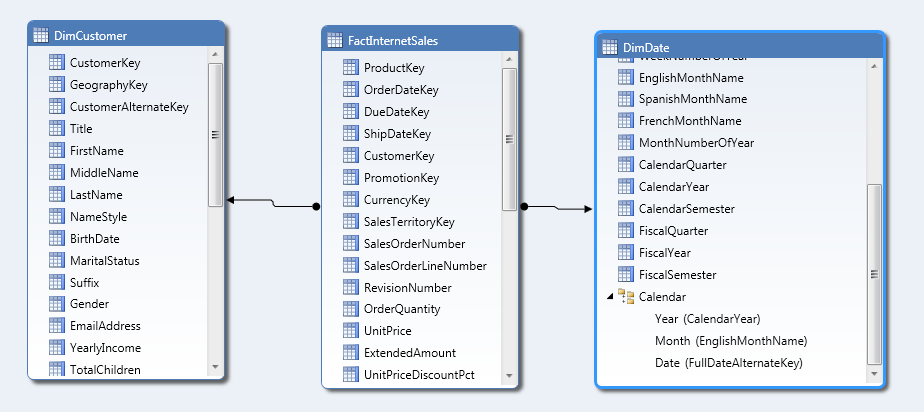
First of all, here’s the SSAS Tabular model I’m using for this post, which uses data from Adventure Works DW:

image

At the core of this approach is the idea that when you’re searching for the last non empty date on which a sale was made, all you need to do is this:

  • Find the table of dates from the beginning of time up to the current date on your Date dimension table, then
  • Find the last date from the date key column on your fact table (the column which joins onto the key column on your dimension table) in the context established by the table found in the previous step

Here’s a simple measure that illustrates this approach:

Last Ever Sales Date:=
CALCULATE(
LASTDATE(FactInternetSales[OrderDate])
, DATESBETWEEN(DimDate[FullDateAlternateKey], BLANK(), LASTDATE(DimDate[FullDateAlternateKey]))
,ALL(DimDate)
)

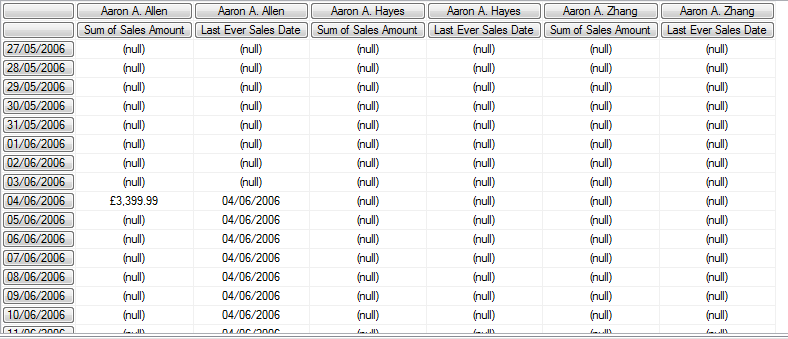
Running the following MDX query against the Tabular model (yes, I know, I’m using an MDX query, but wanted to have Customers on columns for testing purposes!) shows that it does indeed return the last ever non empty sales date:

SELECT
HEAD([DimCustomer].[Customer].[Customer].MEMBERS, 3)
*
{[Measures].[Sum of Sales Amount], [Measures].[Last Ever Sales Date]}
ON 0,
[DimDate].[FullDateAlternateKey].[FullDateAlternateKey].MEMBERS
ON 1
FROM [Model]

image

If we then want to return the value of [Sum of Sales Amount] for the last ever non empty date, then we just need to do this:

LENE Sales Date:=
CALCULATE([Sum of Sales Amount]
, CALCULATETABLE(
LASTDATE(FactInternetSales[OrderDate])
, DATESBETWEEN(DimDate[FullDateAlternateKey], BLANK(), LASTDATE(DimDate[FullDateAlternateKey]))
,ALL(DimDate))
, ALL(DIMDATE)
)

image

However, there’s a problem here: this measure works at the Date level, but it doesn’t return what you’d expect (or at least it isn’t consistent with my original MDX solution) at the year level. What happens if someone buys on two different dates in the same year? This code will still return the value of [Sum of Sales Amount] for the last sales date, not the value of [Sum of Sales Amount] for the last year that had a value. For example, take customer Carl A. She:

SELECT
{HEAD([DimCustomer].[Customer].[Customer].MEMBERS, 3)
,[DimCustomer].[Customer].&[Carl A. She]}
*
{[Measures].[Sum of Sales Amount], [Measures].[LENE Sales Date]}
ON 0,
[DimDate].[CalendarYear].[CalendarYear].MEMBERS
ON 1
FROM [Model]

image

Carl made two purchases on different dates in 2007, but this calculation returns only the value of the last purchase.

To get around this, I had to use some conditional logic. At the year level, instead of returning the sales for the last ever date that had a sale, what I actually want is the sales for all dates from the last ever date that had a sale back to the beginning of the year that contains that last date:

LENE Sales Year:=
CALCULATE(
[Sum of Sales Amount]
, CALCULATETABLE(
DATESYTD(FactInternetSales[OrderDate])
, DATESBETWEEN(DimDate[FullDateAlternateKey], BLANK(), LASTDATE(DimDate[FullDateAlternateKey]))
, ALL(DimDate))
, ALL(DimDate)
)

Here, instead of using LastDate, I’ve used DatesYTD to get that table of dates. The same problem happens at Month level too, so DatesMTD must be used:

LENE Sales Month:=
CALCULATE(
[Sum of Sales Amount]
, CALCULATETABLE(
DATESMTD(FactInternetSales[OrderDate])
, DATESBETWEEN(DimDate[FullDateAlternateKey], BLANK(), LASTDATE(DimDate[FullDateAlternateKey]))
, ALL(DimDate))
, ALL(DimDate)
)

Finally, a measure that detects whether we’re looking at a Year, Month or Date is necessary so the right value can be returned:

LENE Sales:=
IF(
HASONEVALUE(DimDate[FullDateAlternateKey])
, [LENE Sales Date]
, IF(HASONEVALUE(DimDate[EnglishMonthName])
, [LENE Sales Month]
, [LENE Sales Year])
)

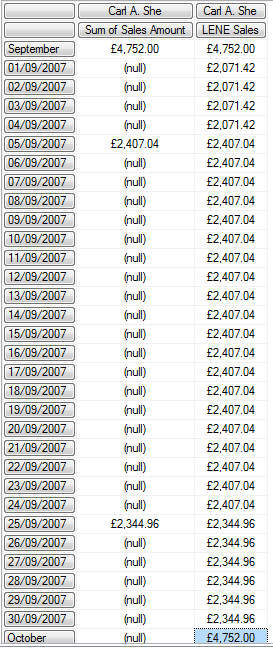
Here’s a query, using a hierarchy on DimDate that contains Year, Month and Date levels, to show the results:

SELECT
{[DimCustomer].[Customer].&[Carl A. She]}
*
{[Measures].[Sum of Sales Amount], [Measures].[LENE Sales]}
ON 0,
[DimDate].[Calendar].MEMBERS
ON 1
FROM [Model]

image

I can’t help wondering whether there’s a better way to solve this problem of getting the Year, Month and Date values correct… but that’s a topic for a separate post I think.

Technitrain 2013 Course Schedule: SSAS, PowerPivot, MDX, SSIS, TSQL and SQL Server Engine Training in London

As you probably know, when I’m not blogging or wrestling with SSAS I run a small SQL Server training company here in the UK called Technitrain. If you’ve got some training budget to spare and London is convenient for you, you might want to check out the 2013 course schedule below:

As you can see, I’m doing a fair bit of teaching myself but I’m also proud to have Thomas Kejser, Allan Mitchell, Dave Ballantyne, Bob Phillips and Andy Leonard teaching courses for me too. The aim is to deliver reasonably-priced, expert-level Microsoft BI and SQL Server training of the sort the regular training companies don’t provide; it’s basically the kind of training you’d get at a SQLBits or SQL Saturday pre-con but in a more traditional classroom environment and not limited to one day. If you’re reading my blog, you’re my target audience for these courses – so I hope to see you at one of them this year!

Parameterising PowerPivot Connection Strings in Excel 2013

One of the things I’ve always wanted to do with PowerPivot is to parameterise the connections used to import data. Despite PowerPivot’s ability to handle massive data volumes, most of the time you want your end users to import only the data they actually need – and for them to be able to specify filters on the data themselves somehow. The only way to do this in Excel 2010 was to have them go into the PowerPivot model and change the connection themselves, which is not very user-friendly, but now we have a proper PowerPivot object model in 2013 we can modify connection strings in VBA (so we can take filtering information direct from the worksheet) and this post shows how. I’d like to acknowledge the help I got from Kasper’s post here which covers very similar ground, but I came across a few interesting things while building the example here so I thought it was worth a post on its own.

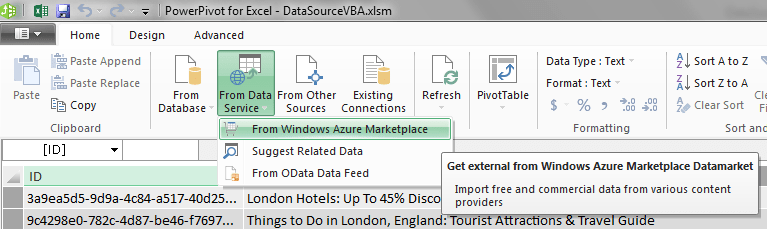
Let’s say we want to build our own Bing search engine client in Excel 2013, where a user can enter a search term in a cell, click a button to run the search and then not only be able to see the search results but analyse them in PowerPivot and Power View. The first step is to sign up to the Bing search API in the Azure Marketplace and then import some search results with a hard-coded search term (this tutorial will help if you’re not sure how to do this); I used Bing image search to return some results with urls pointing to images on the web. This will create a connection in the Workbook which we can then modify programmatically. However I ran into a problem at this point: I found that only connections created on the Data tab on the ribbon can be modified in VBA, whereas connections created in the PowerPivot addin cannot. This means I had to click here:

image

..to create my connection, and NOT here:

image

When you open connections created in the PowerPivot window in the Connections dialog from the Data tab, you see the following message: “Some properties cannot be changed because the connection was modified using the PowerPivot Add-In”

image

Trying to edit connections created in PowerPivot using VBA just gave me an error.

Not much of a issue though. With the connection in place, here’s the VBA code that’s needed to alter the connection string and replace the search term with a value from a cell in the worksheet:

Sub RunImageSearch()
Dim mdl As ModelTable
Dim wcon As WorkbookConnection
Dim cs As String
Dim ss As String
Dim azurekey As String
azurekey = "Insert your Azure Marketplace account key here"
Set mdl = ActiveWorkbook.Model.ModelTables("Image")
Set wcon = mdl.SourceWorkbookConnection
cs = "DATAFEED;" & _
 "Data Source=https://api.datamarket.azure.com/Bing/Search/v1/" & _
 "Image?Query=%27ReplacePlaceholder%27;" & _
 "Namespaces to Include=*;Max Received Message Size=4398046511104;Integrated Security=Basic;" & _
 "User ID=AccountKey;Password=" & azurekey & _
 ";Persist Security Info=false;" & _
 "Base Url=https://api.datamarket.azure.com/Bing/Search/v1/Image?Query=%27ReplacePlaceholder%27"
ss = WorksheetFunction.EncodeURL(CStr(ActiveWorkbook.Sheets("Search Term").Cells(2, 3).Value))
wcon.DataFeedConnection.Connection = Replace(cs, "ReplacePlaceholder", ss)
mdl.SourceWorkbookConnection.Refresh
End Sub


Three points to note here:

  • If you’re copying this code, you need to enter your own Azure Marketplace account key in the place specified
  • The search term needs to be url encoded, and luckily there’s a new function to do this in 2013: EncodeURL()
  • If you’re using a different data source then obviously the connection string will be different. Also, because I’m using data from the Azure Marketplace my SourceWorkbookConnection object has a connection of type DataFeedConnection – other data sources will have different connection types, so check the value returned by SourceWorkbookConnection.Type (the list of values in the XLConnectionType enumeration on the web is, at the time of writing, out of date but Object Explorer is up-to-date)

That’s all there is to it. The macro can be bound to a button on the worksheet like so:

image

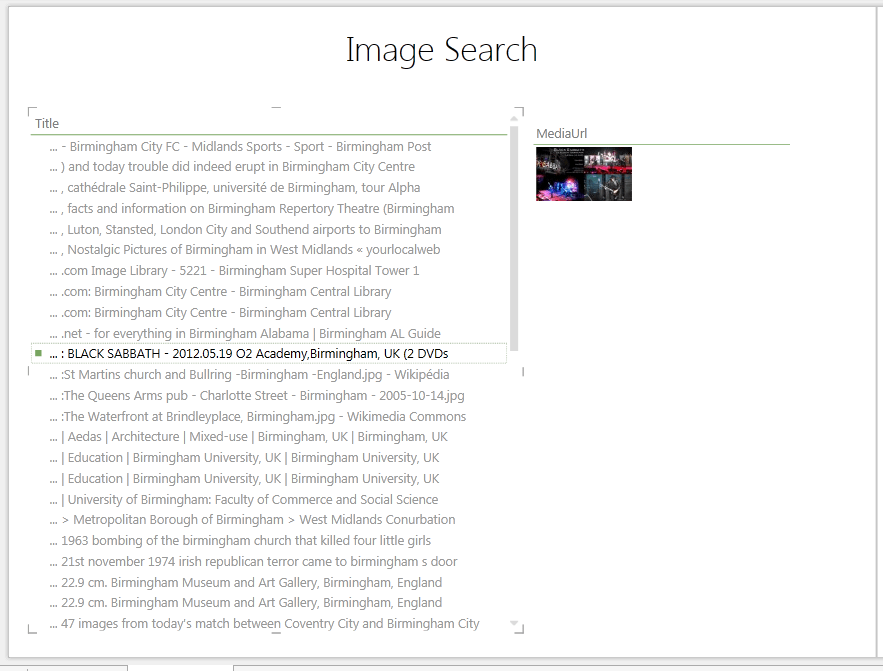
And we can then do all kinds of clever things to analyse the search results. For example, with the image search results we can show thumbnails in a Power View report (see Jeremy Kashel’s post for details):

image

You can download the whole example workbook here, although again you’ll have to edit the VBA to enter your own Azure Marketplace account key if you want it to work.

Eighth Blog Birthday

Today marks eight years since my first ever post on this blog, and every year on this date I write a review of what’s happened to me professionally and what’s gone on in the world of Microsoft BI in the previous year.

For me, 2012 has been yet another busy year. The SSAS Tabular book that Marco, Alberto and I wrote – “SQL Server Analysis Services 2012: The BISM Tabular Model” – was published in July and has been selling well, and the balance of my consultancy and training work has started to move away from Multidimensional and MDX towards Tabular, PowerPivot and DAX. It’s always exciting to learn something new and, frankly, the lack of any significant new functionality in Multidimensional and MDX has meant they have got a bit boring for me; at the same time, though, moving out of my comfort zone has been disconcerting. It seems like I’m not the only Microsoft BI professional feeling like this though: the most popular post on my blog by a long chalk was this one on Corporate and Self-Service BI, and judging by the comments it resonated with a lot of people out there.

Whether or not Microsoft is neglecting corporate BI (and I’m not convinced it is), it’s definitely making a serious investment in self-service BI. The biggest Microsoft BI release of this year was for me not SQL Server 2012 but Office 2013. That’s not to say that SQL Server 2012 wasn’t a big release for BI, but that Office 2013 was massive because of the amount of functionality that was packed into it and because the functionality was so well executed. You can read this post if you want details on why I think it’s significant, but I’ve really enjoyed playing with Excel 2013, PowerPivot, Power View and Office 365; there’s more cool stuff in form of Mobile BI, GeoFlow and Data Explorer coming next year, all of which are very much part of the Office 2013 story too. No Microsoft BI professional can afford to ignore all this.

The other big theme in Microsoft BI this year, and indeed BI as a whole, was Big Data. I reckon that 90% of everything I read about Big Data at the moment is utter b*llocks and as a term it’s at the peak of its hype cycle; Stephen Few has it right when he says it’s essentially a marketing campaign. However, as with any over-hyped technological development there’s something important buried underneath all the white papers, and that’s the increasing use of tools like Hadoop for analysing the very large data sets that traditional BI/database tools can’t handle, and the convergence of the role of business analyst and BI professional in the form of the data scientist. I’m still not convinced that Hadoop and the other tools that currently get lumped in under the Big Data banner will take over the world though: recently, I’ve seen a few posts like this one that suggest that most companies don’t have the expertise necessary for using them. Indeed, Google, the pioneer of MapReduce, felt the need to invent Dremel/BigQuery (which is explicitly referred to as an OLAP tool here and elsewhere) to provide the easy, fast analysis of massive datasets that MapReduce/Hadoop cannot give you. My feeling is that the real future of Big Data lies with tools like Dremel/BigQuery and Apache Drill rather than Hadoop; certainly, when I played with BigQuery it clicked with me in a way that Hadoop/HDInsight didn’t. I hope someone at Microsoft has something similar planned… or maybe this is the market that PDW and Polybase are meant to address? In which case, I wonder if we’ll see a cloud-based PDW at some point?

Unnecessary All Members and Performance Problems

Maybe an obscure problem, this one, but worth recording nonetheless. The other week I was performance tuning some queries on a customer’s SSAS 2008R2 instance and came across a very strange issue related to the presence of unnecessary All Members in tuples. In this case it was in machine-generated MDX but it’s certainly the case the people new to MDX often include All Members in tuples when they are not actually needed; it’s a not good idea to do this because it can sometimes have unexpected effects as a result of attribute overwrite and because, as I found, it can also cause severe performance problems too.

The problem can be reproduced very easily against Adventure Works on the Customer dimension. Consider the following query that returns a list of customers who bought more than $1000 of goods in 2003:

with
set filteredcustomers as
filter(
[Customer].[Customer Geography].[Customer].members
, ([Measures].[Internet Sales Amount]
, [Date].[Calendar Year].&[2003])>1000)
select
{}
on columns,
filteredcustomers 
on rows
from [Adventure Works]

Pretty straightforward, and it returns instantly on my laptop as I’d expect. However, adding the All Member from the City hierarchy into the tuple used in the filter() function makes the query run very slowly indeed (I killed it after several minutes):

with
set filteredcustomers as
filter(
[Customer].[Customer Geography].[Customer].members
, ([Measures].[Internet Sales Amount]
, [Customer].[City].[All Customers]
, [Date].[Calendar Year].&[2003])>1000)
select
{}
on columns,
filteredcustomers 
on rows
from [Adventure Works]

The All Member here isn’t necessary at all; it won’t affect how the filter works or the set returned at all. Looking in Profiler it seems as though its presence triggers cell-by-cell mode, which is the cause of the awful performance. Interestingly, the performance got worse the more attributes were on the hierarchy – deleting attributes, even when they weren’t used in the query, improved query performance. I’m told the problem could be the result of attribute decoding (which Mosha referred to here, but which I don’t know much else about) as a result of attribute overwrite

Anyway in my case it wasn’t possible to change the MDX because it was being generated by a client tool – the All Member was there because the City hierarchy was being used as a parameter in the query, although in this case nothing had been selected on it. There was a workaround that I found though: it turns out the problem does not occur for user hierarchies that include the key attribute as their lowest level. So, I renamed the City attribute, hid it, and then created a new user hierarchy called City that had Customer as its lowest level:

image

With this done, both of the queries above return instantly.

Introduction to MDX for PowerPivot Users, Part 5: MDX Queries

In part 4 of this series (sorry for the long wait since then!) I finished off looking at what you can do with named sets. Now, before I go on to more important topics like Excel cube functions and calculated members I’d like to take a high-level look at what you can do with MDX queries running against PowerPivot – high level, because there’s much more to MDX queries than can be covered in a single post and, as I explain below, you probably won’t want to do this very often.

So why would I need to write whole queries against a PowerPivot model?

This is a very good question, given that in my opinion 99% of the time you can achieve what you want when building Excel reports using either PivotTables (either with or without named sets) or Excel cube functions. Having said that, the post I wrote a few years ago about binding a table in Excel to an MDX query has been one of the most popular I’ve ever written, so maybe I’m wrong about how frequently people need to do this…

I’d say that you would probably only want to write your own queries when you needed complete control over the MDX and didn’t mind that it made linking the query up to filters or slicers very difficult – for example, if you wanted a list of unpaid invoices, or a list of customers that met some specific criteria, in a dashboard.

Also, when you run MDX queries in Excel you’re going to use an Excel table to show the results rather than a PivotTable. This is actually the format you need to use to pass data to other Excel-based tools like like Excel Data Mining Addins (as well as PowerPivot), so writing your own MDX queries might actually save you having to convert to formulas, as Kasper does here, or cutting/pasting in cases like this.

Why use MDX instead of DAX?

From PowerPivot V2, PowerPivot models can be queried in either MDX or the DAX query language (if you want to learn about DAX queries take a look at the posts I wrote on this topic last year, starting here), and if you’ve already learned a lot of DAX for PowerPivot you’re probably going to be more comfortable using DAX queries. However, I know there are a lot of old SSAS-fans out there doing work with PowerPivot who prefer MDX, and there are still a few things that MDX can do that PowerPivot can’t, so choosing MDX over DAX is a legitimate choice. Examples would be when you want to pivot your resultset and put something other than measures on columns, or show a calculated member on rows, and I show how to do both of these things below.

How do I display the results of an MDX query in Excel?

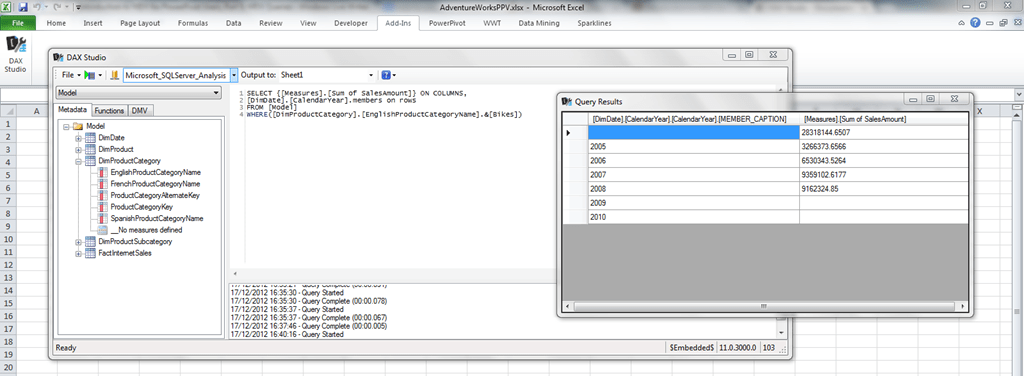
As I said, when you display the results of an MDX query in Excel you’ll need to use an Excel table to do so. I blogged about a few ways to do this here but there’s actually a better way now: using DAX Studio. DAX Studio is a free Excel addin for people who want to write DAX queries against a PowerPivot model, but it can run MDX queries too. Unfortunately it doesn’t display any MDX metadata for you to use – only DAX metadata – but it’s still a much more convenient way of running MDX queries than doing a drillthrough and then editing the query property of a table.

The DAX Studio documentation gives you a good overview of how to use the tool and I won’t repeat that here, but to prove it does work here’s a screenshot of an MDX query run against a PowerPivot model:

image

OK, so get on with it and tell me how to write an MDX query…

The basic MDX query is quite simple. Books online has all the details:

http://msdn.microsoft.com/en-us/library/ms146002.aspx
http://msdn.microsoft.com/en-us/library/ms144785.aspx

…but really all you need to know is this:

Each MDX query needs a SELECT clause. Inside the SELECT clause you need to define one or two axes, either just a columns axis or a columns axis or a rows axis, and the way you define what appears on an axis is using a set, an object we’ve seen a lot of in the last few posts in this series. Each MDX query also needs a FROM clause, with the name of the cube that is to be queried; for PowerPivot the name of the ‘cube’ is always [Model].

Here’s an example of a simple MDX query on a PowerPivot model built on Adventure Works DW that returns a measure on columns and three years on rows:

SELECT
{[Measures].[Sum of SalesAmount]}
ON COLUMNS,
{[DimDate].[CalendarYear].&[2005]
, [DimDate].[CalendarYear].&[2006]
, [DimDate].[CalendarYear].&[2007]}
ON ROWS
FROM [Model]

image

Everything you do on columns, you can do on rows, and vice versa, so:

SELECT 
{[DimDate].[CalendarYear].&[2005]
, [DimDate].[CalendarYear].&[2006]
, [DimDate].[CalendarYear].&[2007]}  
ON COLUMNS,
{[Measures].[Sum of SalesAmount]}
ON ROWS
FROM [Model]

Returns this:

image

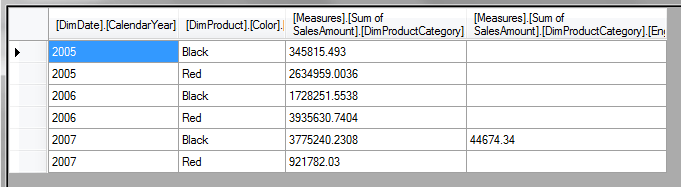
Using a set of tuples on rows and/or columns gives a crosstabbed effect:

SELECT 
{[Measures].[Sum of SalesAmount]}
*
{[DimProductCategory].[EnglishProductCategoryName].[EnglishProductCategoryName].&[Bikes]
, [DimProductCategory].[EnglishProductCategoryName].[EnglishProductCategoryName].&[Clothing]}
ON COLUMNS,
{[DimDate].[CalendarYear].&[2005]
, [DimDate].[CalendarYear].&[2006]
, [DimDate].[CalendarYear].&[2007]} *
{[DimProduct].[Color].&[Black]
, [DimProduct].[Color].&[Red]}
ON ROWS
FROM [Model]

image

After the FROM clause, you can add a WHERE clause to slice the resultset. Do not confuse the MDX WHERE clause with the SQL WHERE clause: it does something similar but it doesn’t directly affect what appears on rows or columns, it filters the values returned inside the query. For example:

SELECT 
{[Measures].[Sum of SalesAmount]}
ON COLUMNS,
{[DimDate].[CalendarYear].&[2005]
, [DimDate].[CalendarYear].&[2006]
, [DimDate].[CalendarYear].&[2007]}  
ON ROWS
FROM [Model]
WHERE(
[DimProductCategory].[EnglishProductCategoryName].[EnglishProductCategoryName].&[Bikes]
, [DimProduct].[Color].&[Black])

…returns sales for Black Bikes for the years 2005 to 2007:

image

Notice that the Colour Black and the Product Category Bikes don’t appear anywhere on rows or columns, but the values that are shown are for Black Bikes nonetheless.

The WITH clause

You can define your own calculated members (which I’ll talk about in a future post) and named sets inside a query if you add a WITH clause before your SELECT clause. Here’s an example of this:

WITH
SET [MY YEARS] AS
{[DimDate].[CalendarYear].&[2005]
, [DimDate].[CalendarYear].&[2006]
, [DimDate].[CalendarYear].&[2007]}
MEMBER [DimDate].[CalendarYear].[Total 2005-7] AS
AGGREGATE([MY YEARS])
MEMBER [Measures].[Percent of Total] AS
([Measures].[Sum of SalesAmount])
/
([Measures].[Sum of SalesAmount]
, [DimDate].[CalendarYear].[Total 2005-7])
, FORMAT_STRING=’PERCENT’
SELECT 
{[Measures].[Sum of SalesAmount]
,[Measures].[Percent of Total]}
ON COLUMNS,
{[MY YEARS], [DimDate].[CalendarYear].[Total 2005-7]}
ON ROWS
FROM [Model]

image

Here I’ve defined a named set called [MY YEARS] which I’ve then used to define what goes on the rows axis, and two calculated members, [Total 2005-7] which returns the subtotal of the years 2005 to 2007, and a new measure [Percent of Total] that shows the percentage that each row makes up of this subtotal. Incidentally, even though DAX can do this kind of subtotalling, it’s only in MDX that you can define any calculation you want on any axis in your query.

Flattened Rowsets

You might be wondering, looking at the examples above, why the column headers are all in human-unfriendly MDX and why the [Percent of Total] measure hasn’t had any formatting applied. You will also notice in this query how the name of the All Member on the [CalendarYear] hierarchy doesn’t get returned, and you get a blank row name instead:

SELECT 
{[Measures].[Sum of SalesAmount]}
ON COLUMNS,
{[DimDate].[CalendarYear].[All]
,[DimDate].[CalendarYear].&[2005]}
ON ROWS
FROM [Model]

image

This is because, when you run queries that get bound to an Excel table they are returned as flattened rowsets and not cellsets (which is how most SSAS client tools and SQL Server Management Studio returns MDX queries). Basically, this means your nice, multidimensional resultset gets squashed into something tabular – and when this happens, a lot of useful stuff gets lost along the way. Here’s the official documentation on how flattened rowsets are generated:
http://msdn.microsoft.com/en-us/library/windows/desktop/ms716948(v=vs.85).aspx

This is a pain, but there’s no way around it unless you want to write your own code to render a cellset in Excel unfortunately.

Conclusion

Writing your own MDX queries against a PowerPivot model isn’t exactly something you’ll need to do every day, but it’s a useful addition to your PowerPivot toolbox and I wanted to mention it in this series for the sake of completeness. In my next post I’ll be taking a look at MDX calculated members.

Up-to-date list of VBA Functions in MDX

Some of you may be aware that a few VBA functions have been implemented as native MDX functions to improve performance. I blogged about this a few years ago, but I’ve now received an up-to-date list of all the VBA functions that that this has happened for as of SSAS 2012 SP1 from those nice people on the SSAS dev team:

CDate
CDbl
CInt
CLng
CStr
Int
Month
Now
IsArray
IsError
Abs
Round
InStr
LCase
Left
Len
Mid
Right

As far as I can see, it’s Month() and LCase() that are the new ones on this list, and which were added in 2012 SP1. Still no Log10() function though, alas.

Thanks to Akshai and Marius for their help with this.

Why Corporate BI and Self-Service BI Are Both Necessary

I was chatting to a friend of mine a few days ago, and the conversation turned to Microsoft’s bizarre decision to make two big BI-related announcements (about Mobile BI and GeoFlow) at the Sharepoint Partner Conference and not at PASS the week before. I’d been content to write this off as an anomaly but he put it to me that it was significant: he thought it was yet more evidence that Microsoft is abandoning ‘corporate’ BI and that it is shifting its focus to self-service BI, so that BI is positioned as a feature of Office and not of SQL Server.

My first response was that this was a ridiculous idea, and that there was no way Microsoft would do something so eye-poppingly, mind-bogglingly stupid as to abandon corporate BI – after all, there’s a massive, well-established partner and customer community based around these tools. I personally don’t think it would ever happen and I don’t see any evidence of it happening. My friend then reminded me that the Proclarity acquisition was a great example of Microsoft making an eye-poppingly, mind-bogglingly stupid BI-related decision in the past and that it was perfectly capable of making another similar mistake in the future, especially when Office BI and SQL Server BI are fighting over territory. That forced me to come up with some better arguments about why Microsoft should not, and hopefully would not, ever abandon corporate, SQL Server BI in favour of an exclusively Office-BI approach. Some of these might seem blindingly obvious, and it might seem strange that I’m taking the time to even write them down, but conversations like this make me think that the time has come when corporate BI does need to justify its continued existence.

  • From a purely technical point-of-view, while most BI Pros have been convinced that the kind of self-service BI that PowerPivot and Excel 2013 enables is important, it’s never going to be a complete replacement for corporate BI. PowerPivot might be useful in scenarios where power users want to build their own models but the vast majority of users, even very sophisticated users, are not interested in or capable of doing this. This is where BI Pros and SSAS are still needed: centralised models (whether built in SSAS Tabular or Multidimensional) give users the ability to run ad hoc queries and build their own reports without needing to know how to model the data they use.
  • Even when self-service BI tools are used it’s widely accepted (even by Rob Collie) that you’ll only get good results if you have clean, well-modelled data – and that usually means some kind of data warehouse. Building a data warehouse is something that you need BI Pros for, and BI Pros need corporate BI tools like SSIS to do this. Self-service BI isn’t about power users working in isolation, it’s really about power users working more closely with BI Pros and sharing some of their workload.
  • Despite all the excitement around data visualisation and self-service, the majority of BI work is still about running scheduled, web-based or printed reports and sending them out to a large user base who don’t have the time or know-how to query an SSAS cube via a PivotTable, let alone build a PowerPivot model. Microsoft talks about bringing BI to the masses – well, this is what the masses want for their BI most of the time, however unsexy it might seem. This is of course what SSRS is great for and this is why SSRS is by far the most widely used of Microsoft’s corporate BI tools; you just can’t do the same things with Excel and Sharepoint yet.
  • Apart from the technical arguments about why corporate BI tools are still important, there’s another reason why Microsoft needs BI Pros: we’re their sales force. One of the ways in which Microsoft is completely different from most other technology companies is that it doesn’t have a large sales force of its own, and instead relies on partners to do its selling and implementation for it. To a certain extent Microsoft software sells itself and gets implemented by internal IT departments, but in a lot of cases, especially with BI, it still needs to be actively ‘sold’ to customers. The BI Partner community have, for the last ten years or so, been making a very good living out of selling and implementing Microsoft’s corporate BI tools but I don’t think they could make a similar amount of money from purely self-service BI projects. This is because selling and installing Office in general and Sharepoint in particular is something that BI partners don’t always have expertise in (there’s a whole different partner community for that), and if self-service BI is all about letting the power users do everything themselves then where is the opportunity to sell lots of consultancy and SQL Server licenses? If partners can’t make money doing this from Microsoft software they might instead turn to other BI vendors; I’ve seen some evidence of this happening recently. And then there’ll be nobody to tell the Microsoft BI story to customers, however compelling it might be.

These are just a few of the possible reasons why corporate BI is still necessary; I know there are many others and I’d be interested to hear what you have to say on the matter by leaving a comment. As I said, I think it’s important to rehearse these arguments to counter the impression that some people clearly have about Microsoft’s direction.

To be clear, I’m not saying that it should be an either/or choice between self-service/Office BI and corporate/SQL Server BI, I’m saying that both are important and necessary and both should and will get an equal share of Microsoft’s attention. Neither am I saying that I think Microsoft is abandoning corporate BI – it isn’t, in my opinion. I’m on record as being very excited about the new developments in Office 2013 and self-service but that doesn’t mean I’m anti-corporate BI, far from it – corporate BI is where I make my living, and if SSAS died I very much doubt I could make a living from PowerPivot or Excel instead. Probably the main reason I’m excited about Office 2013 is that it finally seems like we have a front-end story that’s as good as our back-end, corporate BI story, and the front-end has been the main weakness of Microsoft BI for much too long. If Microsoft went too far in the direction of self-service we would end up with the opposite problem: a great front-end and neglected corporate BI tools. I’m sure that won’t be the case though.