NOTE: This post was written before Data Explorer was renamed as Power Query. All of the content is still relevant to Power Query.
The more I play with Data Explorer, the more I think my initial assessment of it as a self-service ETL tool was wrong. As Jamie pointed out recently, it’s really the M language with a GUI on top of it and the GUI itself, while good, doesn’t begin to expose the power of the underlying language: I’d urge you to take a look at the Formula Language Specification and Library Specification documents which can be downloaded from here to see for yourself. So while it can certainly be used for self-service ETL it can do much, much more than that…
In this post I’ll show you an example of what Data Explorer can do once you go beyond the UI. Starting off with a text file containing the complete works of William Shakespeare (which can be downloaded from here – it’s strange to think that it’s just a 5.3 MB text file) I’m going to find the top 100 most frequently used words and display them in a table in Excel.
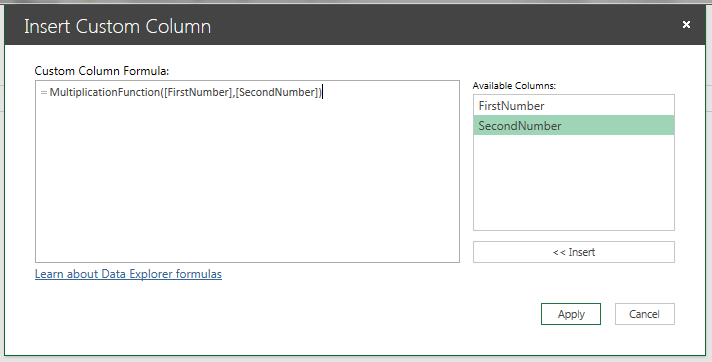
Before I do that, though, some things to point out. First, there’s a new update of Data Explorer that appeared a few days ago – the Data Explorer team blog has the details. One of the new bits of functionality is a button that allows you to edit all of the expressions in your query at once:

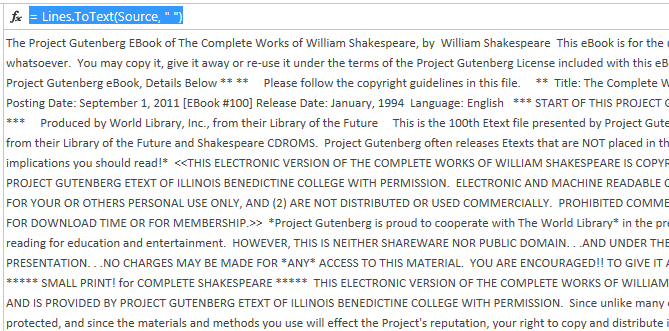
Second, when you’re building a query, when you want to add a new step manually that refers to the previous step but doesn’t apply any calculations or transforms, you need to click on the fx button next to the expression on an existing step:

I’ve used this quite extensively to write custom steps that aren’t possible with the UI.
Here is the full code for my query to find the top 100 words:
Source = Lines.FromBinary(File.Contents("C:\Users\Chris\Documents\CompleteShakespeare.txt")),
RemoveLineBreaks = Lines.ToText(Source, " "),
RemovePunctuation =
Text.Remove(RemoveLineBreaks,{"," ,"." ,"?" ,";" ,":" ,";" ,"'"
,"@" ,"#" ,"~" ,"{" ,"[" ,"}" ,"]" ,"(" ,")", "*"}),
Lowercase = Text.Lower(RemovePunctuation),
TurnIntoTable = Table.FromValue(Lowercase),
SplitIntoWords = Table.TransformColumns(TurnIntoTable, {"Value", Splitter.SplitTextByWhitespace()}),
ListOfWords = SplitIntoWords{0}[Value],
TableFromList = Table.FromList(ListOfWords, Splitter.SplitByNothing(), null, null, ExtraValues.Error),
RenameColumnToWord = Table.RenameColumns(TableFromList,{{"Column1", "Word"}}),
RemoveBlanks = Table.SelectRows(RenameColumnToWord, each ([Word] <;> "")),
FindWordCounts = Table.Group(RemoveBlanks, {"Word"}, {{"Count", each Table.RowCount(_), type number}}),
SortedRows = Table.Sort(FindWordCounts,{{"Count", Order.Descending}}),
KeptFirstRows = Table.FirstN(SortedRows,100)
Broken down step-by-step:
Source = Lines.FromBinary(File.Contents(“C:\Users\Chris\Documents\CompleteShakespeare.txt”))
This loads the contents of CompleteShakespeare.txt into Data Explorer and breaks it up into lines of text:

RemoveLineBreaks = Lines.ToText(Source, ” “)
This removes all the line breaks and creates a single chunk of text:

RemovePunctuation = Text.Remove(RemoveLineBreaks,{“,” ,”.” ,”?” ,”;” ,”:” ,”;” ,”‘” ,”@” ,”#” ,”~” ,”{” ,”[” ,”}” ,”]” ,”(” ,”)”, “*”})
Removes any punctuation, and
Lowercase = Text.Lower(RemovePunctuation)
Turns all the words to lowercase:

TurnIntoTable = Table.FromValue(Lowercase)
Takes the text and creates a table with one column and one row containing the text:

SplitIntoWords = Table.TransformColumns(TurnIntoTable, {“Value”, Splitter.SplitTextByWhitespace()})
Takes the text and creates a List object with one entry for every word in the text.
ListOfWords = SplitIntoWords{0}[Value]
TableFromList = Table.FromList(ListOfWords, Splitter.SplitByNothing(), null, null, ExtraValues.Error)
RenameColumnToWord = Table.RenameColumns(TableFromList,{{“Column1”, “Word”}})
Takes the list and turns it into a table with one column and one row for each word:

RemoveBlanks = Table.SelectRows(RenameColumnToWord, each ([Word] <> “”))
Removes any rows containing blanks.
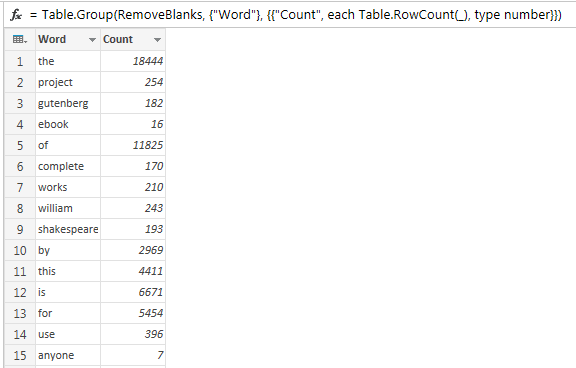
FindWordCounts = Table.Group(RemoveBlanks, {“Word”}, {{“Count”, each Table.RowCount(_), type number}})
Does a ‘group by’ to return a table with one row for each distinct word, and a column containing the number of occurrences of that word:

SortedRows = Table.Sort(FindWordCounts,{{“Count”, Order.Descending}})
Sorts this table in descending order by word count.
KeptFirstRows = Table.FirstN(SortedRows,100)
Only returns the first 100 rows from this table.
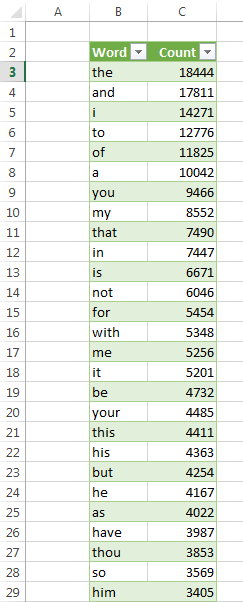
And at this point, we have the top 100 words used by Shakespeare (admittedly including the text at the beginning and end of the file inserted by Project Gutenberg that I couldn’t be bothered to remove):

No surprises here really – ‘the’ comes in at #1 with 18444 occurrences, “lord” comes in at #45, “king” at #69 and so on.
While you probably aren’t interested in Shakespeare for your own business purposes, it shows what would be possible if you wanted to analyse what was being said in Facebook updates, Tweets, product reviews and so on. It wasn’t all that hard to write either, especially considering that I’m fairly new to Data Explorer, so more sophisticated variations on this would certainly be possible without much extra effort. And it’s worth pointing out that it’s fast too: it takes a couple of seconds to refresh, and I’m not even sure I’ve done everything in the most efficient way possible.
You can download the sample workbook (but not the Complete Works of Shakespeare) here. If you want to point it at a different text file, just modify the first line of the code.
UPDATE: it turns out there is either a bug in PQ or I’m hitting one of its limits, and the counts here aren’t all correct. See the comments from Frank below for a version that works.
Like this:
Like Loading...