Comments And Descriptions In DAX

With my Technitrain hat on I’m sitting in on Marco’s Advanced DAX course in London today, and the question of comments in DAX came up – which reminded me that this is something I’ve been meaning to blog about. DAX as a language supports comments, but unfortunately it’s not possible to add comments inside a DAX measure or calculated column expression in either PowerPivot or SSAS Tabular right now (which is where they’re most needed – I hope this changes in the future). That said, there are some other things you can do to add textual explanations and descriptions to your DAX measure code.

Before we get onto the workarounds, a quick word about comments in DAX. These can only be used in DAX queries, and the types of comment supported are the same as in MDX: double-dashes and double-forward-slashes for single line comments, and forward-slash-asterisk to start a multi-line comment and asterisk-forward-slash to close a multi-line comment. Here’s an example:

--single line comment

//another single line comment

/*a multi-line

comment*/

evaluate table1


What can be done with measures though? After all, that’s where the most complex DAX is usually written.

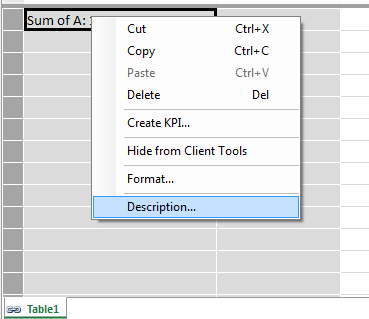
First of all, you can add a description to a measure by right-clicking on it in the measure grid and selecting Description:
image

image

Unfortunately this description is not easily accessible to end users anywhere (it would be great if it appeared as a tooltip in a PivotTable, for example) but it can be seen in an Excel worksheet by running a DMV query. DMV queries can be run in Excel 2013 in the same way as DAX queries, using a query table as described here; the DMV query to use is:

select 

measure_name as [Measure Name], [description], measure_is_visible 

from $system.mdschema_measures


image

Unfortunately all hidden and implicit measures are returned, and even when the table is filtered so that only measure_is_visible=true there are still a lot of measures that probably shouldn’t be shown.

Similarly, descriptions can be added to any column (calculated or not) in your model, again by right-clicking on it and selecting Description.

image

This description can be displayed in the worksheet using the following DMV query:

select

hierarchy_name as [Column Name], [description] as [Description] 

from $system.mdschema_hierarchies

where cube_name='model'


image

You can also write text direct to cells in the measure grid too. When I first saw a customer do this I was worried that it might not be supported, but I’ve been told that it is; so long as you don’t use the =: used for defining measures then you should be ok.

image

This is probably the best way to add comments to your code, if only because it’s the most visible to anyone looking at your PowerPivot/SSAS Tabular model. Of course, for it to be effective you’ll need to have a system for arranging your measures in the measure grid; in “SQL Server Analysis Services 2012: The BISM Tabular Model”, Marco, Alberto and I recommended that you arrange all your measures in the top-left hand corner of the measure grid and I think that’s still a good idea, but the use of text in cells to create headings for groups of measures as well as descriptions can help a lot too.
Accumulating Data In An Excel Table Using Data Explorer (Power Query) and PowerPivot

NOTE: This post was written before Data Explorer was renamed as Power Query. All of the content is still relevant to Power Query.

One of the first questions I get asked after showing someone PowerPivot for the first time is “Can I add new data to a PowerPivot table that already has data in it?”. Out of the box, of course, the answer is no: when you process a table in PowerPivot you have to reload all the data from your data source, you can’t just append new data (unless you’re using copy/paste to load data, which isn’t a good idea). However, there are a lot of self-service BI scenarios where the ability to do this would be extremely useful: for example, you might want to scrape stock quotes from a web page every day and then, in an Excel workbook, accumulate that data in a table so you can analyse historical stock prices with PowerPivot. I ran into a scenario very much like this last week and I thought that Data Explorer should be able to help here. It can, but it’s not obvious how to do it – hence this blog post!

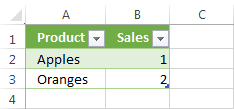
Here’s a super-simple example of how to accumulate data in a table then. Let’s start with a csv file that contains the following data:

Product,Sales
Apples,1
Oranges,2

It’s straightforward to import this data into Excel using Data Explorer and the ‘From csv’ data source:

image


Here’s the code that Data Explorer generates:

let

    Source = Csv.Document(File.Contents("C:\InputData.csv")),

    FirstRowAsHeader = Table.PromoteHeaders(Source),

    ChangedType = Table.TransformColumnTypes(FirstRowAsHeader,

                              {{"Product", type text}, {"Sales", type number}})

in

    ChangedType


Now, let’s imagine that you want to keep the data from this file in Excel and every time you click Refresh in Data Explorer you add the data from the file onto the end of the existing data you’ve already captured. The first thing you’ll probably want to do in this scenario is add a new column to the data that gives the date and time that the data was loaded, and you can do that quite easily in Data Explorer using the DateTimeZone.UtcNow() function as follows:

Table.AddColumn(ChangedType, “Load Date”, each DateTimeZone.UtcNow())

Data Explorer has functionality to append the data from one query onto the end of another query, but the problem you have to solve now is that when you click Refresh you want the new data to be appended onto the end of the data that has already been collected. It’s a recursive scenario not unlike the one I grappled with here. The solution to this problem is to first of all load the data into the PowerPivot (ie what we should be calling the Excel Data Model now) by clicking on the Load To Data Model link in the Data Explorer query pane:

image

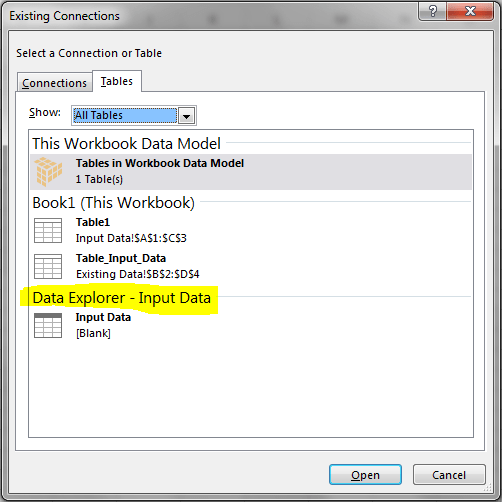
Then, on a new sheet, create an Excel query table that returns all the data from the PowerPivot table that you’ve just loaded data into. Kasper shows how to do this here; there’s no need for any special DAX, you just need to connect to the PowerPivot table in the Existing Connections dialog:

image

image

At this point you should have two tables on two sheets that contain the same data. The next step is to modify the original Data Explorer query so that it contains a new step that appends data from the table you’ve just created (ie the table getting the data from PowerPivot) onto the data from the csv file. This can be done with three new steps, first to get the data from the new Excel table:

Excel.CurrentWorkbook(){[Name=”ExistingData”]}[Content]

Then to make sure the Load Date is treated as a DateTimeZone type:

Table.TransformColumnTypes(GetExistingData,{{“Load Date”, type datetimezone}})

Then finally to combine the two tables:

Table.Combine({ChangedType1,InsertedCustom})

Now, whenever you Refresh your Data Explorer query, you will see the data from the csv file appended to the data that has already been loaded:

image

image

Here’s the complete code:

let

    Source = Csv.Document(File.Contents("C:\InputData.csv")),

    FirstRowAsHeader = Table.PromoteHeaders(Source),

    ChangedType = Table.TransformColumnTypes(FirstRowAsHeader,

                  {{"Product", type text}, {"Sales", type number}}),

    InsertedCustom = Table.AddColumn(ChangedType, "Load Date", each DateTimeZone.UtcNow()),

    Custom1 = Excel.CurrentWorkbook(){[Name="Table_Input_Data"]}[Content],

    ChangedType1 = Table.TransformColumnTypes(Custom1,{{"Load Date", type datetimezone}}),

    Custom2 = Table.Combine({ChangedType1,InsertedCustom})

in

    Custom2

Now as I said, this is just a super-simple example and in the real world you’d need extra functionality to do things like delete rows you’ve already loaded and so on; but that’s all doable I think. It’s also worth mentioning that I encountered some strange errors and behaviour when implementing this, partly due to Data Explorer still being in preview I guess, so if you want to recreate this query you’ll need to follow my instructions exactly.

You can download the sample workbook here, and the csv file here.

UseRelationship() and Tabular Row Security

Quick summary: DAX measures in SSAS Tabular that use the UseRelationship() function return an error when row security is applied to a table. I’m surprised this hasn’t been documented somewhere – I know Marco came across it some time ago, but I ran into it again recently so I thought I’d mention it.

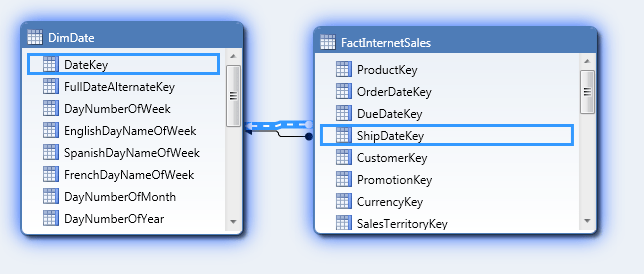
Consider the following simple SSAS Tabular model, based on Adventure Works DW:

image

There’s an active relationship between DateKey and OrderDateKey, and an inactive relationship between DateKey and ShipDateKey. The following measure returns the sum of Sales Amount and activates the inactive relationship:

Sales Amount by Ship Date:=
CALCULATE(SUM([SalesAmount]), USERELATIONSHIP(FactInternetSales[ShipDateKey], DimDate[DateKey]))

image

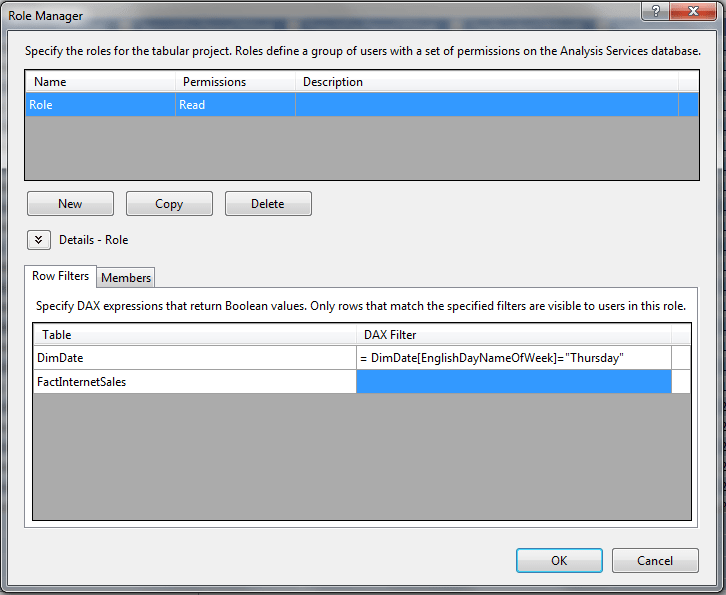
However, when there’s row-level security defined on the DimDate table (though not FactInternetSales) you will see an error for this measure when you browse the model:

image

image

ERROR – CALCULATION ABORTED: USERELATIONSHIP function cannot be used while querying table ‘FactInternetSales’ because of the row level security defined on table ‘DimDate’.

No workaround, I’m afraid, but this isn’t a bug, it’s a known limitation.

SQLBits XI Summary

So, another SQLBits is over. After the London event last year, we (ie the SQLBits Committee, which I’m a member of) decided to scale things back a bit and return to a more manageable, friendly size, and to concentrate more on making the conference fun to attend. That’s not to say we didn’t want to maintain our high standards regarding content – and yet again we had some great sessions from world-class speakers – but a conference isn’t just about the presentations, it’s also about networking, meeting people face-to-face that you’ve only had contact with online, and having a few beers to facilitate this. As SQL Server professionals we’re a lot better off as part of a wider community: in terms of our technical knowledge, in terms of who we know to ask for help when we hit a problem, in terms of finding our next job, and in many other ways. I hope SQLBits does its bit to help build that community.

You can see what people are saying about SQLBits by following @SQLBits and searching for the #SQLBits hashtag on Twitter, and liking the SQLBits Facebook page; there are some eye-popping photos there, not to mention a video of my performance in the pie-eating competition. If you were there and you’ve got more photos and videos, please share them!

It only remains for me to thank the rest of the committee, Simon, Martin, JRJ, Darren, Chris T-O, Tim and Allan; our team of helpers, ably led by Annette; Helen, for her work on the party and merchandising; our sponsors; our speakers; and of course everyone who attended and made this the best SQLBits so far. I know I always say that, but it really is true.

PowerPivot Workbook Size Optimizer

Browsing through my RSS feeds this morning, I saw a new download on the Microsoft site: an Excel addin (Excel 2013 only, I think) called the PowerPivot Workbook Size Optimizer. You can get it here:
http://www.microsoft.com/en-us/download/details.aspx?id=38793

Here’s the blurb from the site:

The Workbook Size optimizer for Excel can better compress data inside workbooks that use PowerPivot or PowerView if this data comes from external data sources. The best size compression can be achieved for workbooks based on SQL Server databases and there are a few tricks we can do for other SQL datasources as well. The optimizer will install as an add in to excel and will provide you with a nice wizard to better compress the size of your workbook. Using the optimizer you can often get more than 1,000,000 rows datasets in a workbook under 10 MB, share it in SharePointOnline and interact withit using the Excel Web App in any browser.

Here’s a screenshot:

image

Despite a testing a few models with data from Adventure Works I couldn’t get it to suggest any changes (it didn’t spot that I had imported a column containing binary data, hmmm) but I guess it needs more testing on larger/more diverse data sources. Maybe there’s a blog post coming from the PowerPivot team coming soon explaining how to use this?

UPDATE: after playing around with it a bit more, I was able to get it to suggest some changes to tables. Marco has some more details:
http://sqlblog.com/blogs/marco_russo/archive/2013/04/30/powerpivot-workbook-size-optimizer-powerpivot-tabular.aspx

And there’s a white paper on the rules that it uses:
http://office.microsoft.com/en-gb/excel-help/create-a-memory-efficient-data-model-using-excel-2013-and-the-powerpivot-add-in-HA103981538.aspx

A Partly Successful Attempt To Create Life With Data Explorer (Power Query)

NOTE: This post was written before Data Explorer was renamed as Power Query. All of the content is still relevant to Power Query.

I’ll apologise for the title right away: this post isn’t about a Frankenstein-like attempt at creating a living being in Excel, I’m afraid. Instead, it’s about my attempt to implement Jon Conway’s famous game ‘Life’ using Data Explorer, how it didn’t fully succeed and some of the interesting things I learned along the way…

When I’m learning a new technology I like to set myself mini-projects that are more fun than practically useful, and for some reason a few weeks ago I remembered ‘Life’ (which I’m sure almost anyone who has learned programming has had to write a version of at some stage), so I began to wonder if I could write a version of it in Data Explorer. This wasn’t because I thought Data Explorer was an appropriate tool to do this – there are certainly better ways to implement Life in Excel – but I thought doing this would help me in my attempts to learn Data Explorer’s formula language and might also result in an interesting blog post.

Here’s the code I came up with eventually:

let

    Source = Excel.CurrentWorkbook(){[Name="Input"]}[Content],

    GetAction = Excel.CurrentWorkbook(){[Name="Source"]}[Content]{0}[Source],

    GetLastOutput = try Excel.CurrentWorkbook(){[Name="Output"]}[Content],

    ChooseInput = if GetAction="Input" or GetLastOutput[HasError]

        then Source else GetLastOutput[Value],

    Unpivot = Table.Unpivot(ChooseInput,{"1", "2", "3", "4", "5", "6"

        , "7", "8", "9", "10"},"Column","Value"),

    InsertedIndex = Table.AddIndexColumn(Unpivot,"Index"),

    PivotedRows = Table.RowCount(InsertedIndex),

    OriginalColumnCount = Table.ColumnCount(ChooseInput),

    GetValue = (i) =>; if i<0 or i>=PivotedRows then 0 

        else InsertedIndex[Value]{i},

    GetNeighbours = (i) =>; GetValue(i-1) + GetValue(i+1) 

        + GetValue(i-OriginalColumnCount) + GetValue(i+OriginalColumnCount)

        + GetValue(i-OriginalColumnCount-1) + GetValue(i-OriginalColumnCount+1)

        + GetValue(i+OriginalColumnCount-1) + GetValue(i+OriginalColumnCount+1),

    NeighbourCount = Table.AddColumn(InsertedIndex, "Neighbours",

        each GetNeighbours([Index])),

    Custom1 = Table.AddColumn(NeighbourCount , "NewValue",

        each if [Value]=1 and ([Neighbours]=2 or [Neighbours]=3)

        then 1 else if [Value]=0 and [Neighbours]=3 then 1 else 0),

    HiddenColumns = Table.RemoveColumns(Custom1,{"Value", "Index", "Neighbours"}),

    Custom2 = Table.Group(HiddenColumns, {"Column"},

        {{"Count", each Table.Transpose(Table.RemoveColumns(_,"Column")), type table}}),

    #"Expand Count" = Table.ExpandTableColumn(Custom2, "Count", {"Column1", "Column2"

        , "Column3", "Column4", "Column5", "Column6", "Column7", "Column8", "Column9"

        , "Column10"}, {"1", "2", "3", "4", "5", "6", "7", "8", "9","10"}),

    HiddenColumns1 = Table.RemoveColumns(#"Expand Count",{"Column"})

in

    HiddenColumns1

You can download the associated Excel 2013 workbook here.

Some explanation of the code:

  • The first problem that I faced was that in Life you need to start with a grid of cells, apply the rules of the game, and then output the results to the same grid. This is a problem for Data Explorer because, unless you have already run a query, the output table doesn’t exist, and even if you have you can’t update the values in that table without them being overwritten. So I decided to create a table where you can enter the initial state of your grid as a series of 1s and 0s. It’s on the Input sheet and its called Input:

    image

  • Whether the Input table is used as the starting point for the query depends on the contents of yet another table, called Source, on the sheet called Output in the workbook. It can hold one of two text values: “Input” or “Output” (I used Excel’s Data Validation functionality to lock this down), and the ChooseInput step then determines whether the Input table or the table called Output is used as the input for the Data Explorer query. Here’s what the Output worksheet looks like:image

    The workflow is therefore as follows: enter the starting point on the Input table, make sure the Source table shows “Input”, refresh the query, change the Source table to “Output” and then refresh the query to show each subsequent iteration.

  • The Output table simply displays the same values as the table that shows the results of the Data Explorer query. I created a separate table for two reasons: one, I wanted to use custom formatting to show the results; and two, to try to work around the big problem that I eventually found I couldn’t work around completely, which is that Data Explorer doesn’t actually support this type of recursive query (ie scenarios where the output of a query is also used as the input). This thread on the Data Explorer MSDN Forum has some details on the problem. I found I got errors after just about every other step when using the Data Explorer-created table as the input, whereas the errors were much less frequent if I duplicated the values in a separate table. It now works most of the time, but it still errors far too much for my liking. Hohum.
  • I did also use Data Explorer’s error-handling functionality, using the try statement in the GetLastOutput step, to solve this problem but it made no difference. It was good to find out how a try statement works: basically when you use it, the return value is a record containing two values, one which indicates whether an error occurred in the try, and the other the value that was returned if there was no error. You can see me checking these values in the ChooseInput step, with the calls to GetLastOutput[HasError] (which returns true if there was an error in the try) and GetLastValue[Value] (which returns the value tested in the try if there was no error).
  • Once the query worked out which input to use, the next step is to calculate the values in the grid for the next iteration. I decided that the easiest way to do this was to unpivot the resultset using the the new UnPivot() function; with all the data in a single column it was then relatively easy to declare the functions GetValue() and GetNeighbours() to apply the rules of Life, output the results in a new column in the Custom1 step.
  • The final problem to solve was that I needed to re-pivot the data to get it back into original table format. Although Data Explorer has an UnPivot() function it doesn’t have a Pivot() function; luckily, Peter Qian showed me how to do this on the forum in this thread using Table.Group() and my code is in the Custom2 step.

So despite the errors (and Data Explorer is still in beta, so some errors are only to be expected), many lessons learned. I hope you find this useful too.

Cloud-Based DAX and MDX Formatter

It’s been away for a while, but now it’s back – the site where you can enter your MDX or DAX code and have it formatted for you! Here’s the link:

http://formatmdx.azurewebsites.net/

image

Thanks to Nick Medveditskov, the man responsible for it.

SSAS on Windows Azure Virtual Machines

You may have already seen the announcement about Windows Azure Virtual Machines today; what isn’t immediately clear (thanks to Teo Lachev for the link) is that Analysis Services 2012 Multidimensional and Reporting Services are installed on the new SQL Server images. For more details, see:
http://msdn.microsoft.com/en-us/library/jj992719.aspx

SSAS 2012 Tabular is also supported but not initially installed.

Applying a Function to Every Cell in a Table in Data Explorer (Power Query)

NOTE: This post was written before Data Explorer was renamed as Power Query. All of the content is still relevant to Power Query.

Now that the PASS Business Analytics Conference is over, I can get back to playing around with Data Explorer and blogging about it. I’ve been working on a fun demo that I’ll try to blog about later this week, but in the course of creating this demo I came across a technique that I didn’t end up using but which I thought deserved a post on its own: how to apply a function to every cell in a table, rather than just every cell in a column.

For example, let’s imagine that you have a table that looks like this:

image

…and you want to add one to every single cell in the table, so you get:

image

It’s possible in the UI by creating lots of custom columns and then deleting the original columns, for sure, but I found a more elegant solution. Here’s the full DE code:

let

    Source = Excel.CurrentWorkbook(){[Name="Input"]}[Content],

    FunctionToApply = (x) =>; x + 1,

    GetColumnNames = Table.ColumnNames(Source),

    TransformList = List.Transform(GetColumnNames, each {_ , FunctionToApply}),

    Output = Table.TransformColumns(Source, TransformList)

in

    Output

Here’s what each step does:

  • Source: gets the data from the Excel table named Inputimage
  • FunctionToApply: defines a new function that takes a single parameter, x, and returns the value x+1. See this post for more details on using function in Data Explorer.image
  • GetColumnNames: returns a list object which contains the names of all of the columns in the table returned in the Source step.image
  • TransformList: this is the interesting step! It creates a new list based on GetColumnNames, but whereas GetColumnNames contains just one record per item in the list (the column name), this returns a list of lists, each with two items: the column name and a reference to the function FunctionToApply. It looks like this in the UI:imageIf you click on the first of the list links shown (and this isn’t part of the process, I’m only doing this to show what’s there) you see the following:

    image

  • Output: the list of lists created in the previous step can now be passed to the Table.TransformColumns() function to apply the function FunctionToApply() to every cell in every column in the table.image

I’m sure this is going to be useful to me at some point in the future… You can download the sample workbook here.

PASS Business Analytics Conference Summary

The PASS Business Analytics Conference in Chicago finished yesterday, and because I was there and because I did a fair amount of cheerleading for it (see here and here for example) I wanted to post a few thoughts on how it went.

I’ll be honest and say that I had a few worries before the event. Would anyone want to go? Would the sessions be a repeat of what get on the BI tracks at the PASS Summit and hundreds of other SQL Server conferences? In fact, everything went really, really well. Some of the sessions were quite sparsely attended (though this had nothing to do with the quality of the content – some of the best sessions didn’t get much of an audience) but overall there was a very respectable number of people (1200ish?). I had as many people in my session on OData as I’d get at any other large conference, and it was standing room only in at least one of Marco’s sessions. I also rather liked the fact that it was smaller than the Summit – it made it much easier to meet all the people I wanted to meet. If it carries on for a few years it could easily attract a much larger number of people.

Regarding the content I was particularly pleased because a lot of the topics I’d asked for turned up on the schedule. In fact one thing that struck me (and a few other people said the same thing to me as well) was that this was the first conference I’d been to in a long time where there were sessions that I really wanted to see in every time slot. My favourite session of the whole conference was Marc Smith on NodeXL; anyone that reads my blog knows I’ve been a big fan of NodeXL for a long time, but I learned a lot from this session because it concentrated on the basics of social network analysis rather than the tool itself. This was a prime example of the kind of topic that you simply wouldn’t get at a regular SQL Server conference – it was a business analytics session. Even the more technical presentations, such as the one on HPC Services for Excel, was outside the usual boundaries of SQL Server BI. Incidentally, I must get round to playing with HPC Services for Excel – you could use it to parallelise some DAX calculations, or even to batch process large numbers of PowerPivot models on desktop machines overnight…

So, in summary, the conference was a big success and I had a great time. I’ll definitely be going back next year. And did I mention that I got to meet Steven Levitt of Freakonomics fame?