Semi-Additive Measures, Unary Operators, Custom Rollups And The Calculate() Statement

Last week I was doing some performance tuning on SSAS Multidimensional and saw something very strange: when the MDX Script of the cube was executed (as always happens after the cache has been cleared, or processing has taken place – you can monitor this via the Execute MDX Script Begin/End events in Profiler) the Calculate() statement was taking just over four seconds. I’d never seen this before so I asked the nice people on the SSAS dev team what was going on, and Akshai Mirchandani very kindly filled me in on the details.

There are two types of calculation on an SSAS cube: those explicitly defined in the MDX Script (ie those seen on the Calculations tab of the cube editor); and semi-additive measures, unary operators and custom rollups, which are defined in the model itself. This second type of calculation is added to the cube when the Calculate() statement fires, and the more of them there are the longer it takes SSAS to work out where they should be applied in the space of the cube. In my customer’s case there were several large (80000+ members) parent/child hierarchies with unary operators as well as a few semi-additive measures and so this was the reason why Calculate() was so slow. Up to now I had only known that Calculate() triggers the aggregation of data up through the cube, which is why if you delete it the cube seems to contain no data.
Updating Data In SQL Server With Power Query

As of the November update of Power Query, it’s now possible to write your own SQL query when you’re moving data out of SQL Server into Excel using Power Query. So I got thinking… if you can write your own SQL query, can you execute any other SQL statement? Can you use Power Query to move data out of Excel and into SQL Server? Well, it turns out you can… with some limitations. This blog post details what I found out while researching this problem.

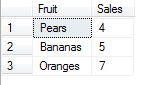
I started with a simple table in a SQL Server database with two columns, Fruit and Sales, and some data:

image

I then created a new function in Power Query with the following definition:

let

    UpdateFunction = (Fruit, Sales) => 

                        Sql.Database(

                            "MySQLServerInstance", 

                            "PowerQueryTest", 

                            [Query="UPDATE [FruitSales] SET [Sales]=" & Number.ToText(Sales) 

                            & " WHERE Fruit='" & Fruit & "'"])

in

    UpdateFunction


As you can see, it takes the name of a fruit and a sales value and updates the appropriate row in the SQL Server table. I then created a new table in Excel with some new fruit sales values:

image

Used this table as the source for another Power Query query, and for each row in this table called the function above:

let

    Source = Excel.CurrentWorkbook(){[Name="Table1"]}[Content],

    InsertedCustom = Table.AddColumn(Source, "Custom", each UpdateFunction([Fruit],[Sales])),

    #"Expand Custom" = Table.ExpandTableColumn(InsertedCustom, "Custom"

                        , {"Records Affected"}, {"Custom.Records Affected"})

in

    #"Expand Custom"


I ran this query, and lo! My table in SQL Server was updated:

image

There are some interesting things to note here though. First, for each row in my Excel table, and each time an UPDATE statement was run, Power Query showed a prompt warning me that it was about to make a change to my database:

image 

Probably the safe thing to do here, I think.

Furthermore, running a Profiler trace showed that each UPDATE statement was run at least twice. In fact, I originally started my tests with an INSERT INTO rather than an UPDATE, and found that since the INSERT INTO was run multiple times I ended up with duplicate rows in my table.

None of the code I’ve showed here should be used in a real application of course, but with some thought (and maybe a few changes to the way Power Query behaves), in the future it might be possible to use Power Query to move data out of Excel as well as in.

My Online MDX Training Course Is Now Live!

Recently I spent a few days with Rafal Lukawiecki recording videos of my MDX training course for Project Botticelli. I’m now pleased to announce that the first two videos (to add to the free video I recorded last year) from the course are now live with more to follow soon. You can find the main course page here; the two videos available as of today are:

The MDX SELECT Statement

This video covers writing simple MDX queries and looks at the SELECT clause, the FROM clause and the WHERE clause. The cool thing is that it’s free to view – although you will need to register on the site first.

clip_image001


MDX Calculated Members

This video covers the basics of creating calculated members in MDX in the WITH clause and using the CREATE MEMBER statement. It’s available to subscribers only.

clip_image001[7]


Apart from my course there’s a lot of other great Microsoft BI video training available via Project Botticelli, including several DAX videos by my old friends Marco Russo and Alberto Ferrari. Subscriptions to the site are very reasonably priced, but if you register before the end of December 2013 you can get a 20% discount by using the following promotion code:

TECHNITRAIN20HOLS2013

Of course, if you prefer your training in a classroom, you can always attend one of my Technitrain courses in London next year.

BI Survey 13 Results

As in previous years, in return for promoting their survey the people at BARC have given me a free copy of the latest BI Survey – always an interesting read. I saw a story in the press last week about adoption of mobile BI slowing based on research from the BI Survey, but what does it have to say about Analysis Services? To be honest, much the same as in previous years: it’s a good, cheap, reliable, mature solution. A few points that caught my eye:

  • 11% of SSAS users are still using Proclarity as their front-end. That’s down from 22% two years ago, but still… I guess that the likes of Pyramid Analytics, which specialises in Proclarity migration, will be pleased to hear that.
  • 29% of SSAS users are using Power View. That’s a big surprise for me – I haven’t seen it at any of my customers yet. Presumably this must be the Sharepoint version of Power View going against SSAS Tabular.
  • I found the ‘cost per seat’ (calculated as license fees plus external implementation cost divided by number of deployed seats) table particularly interesting: SSAS comes out with a score of $1111, about a quarter of the way from the bottom; Qliktech comes in at $1499, Tableau at $1039. In general self-service BI tools don’t appear to cost any less to implement overall than traditional corporate BI tools.
  • SSAS has a very respectable win-rate in competitive evaluations of 64%, although this is declining over time (it has to be said that almost all other large vendors are showing a decline too). Again, compare this with a win-rate of 34% for Tableau and 37% for Qliktech.
  • Sadly there’s no mention of PowerPivot anywhere. It would have been good to know how it’s doing…

Pivoting Data In Power Query

One of the features I’ve loved right from the start in Power Query is the ability to UnPivot data right from the UI (I’m not alone – Ken Puls has written a good blog post summing up this functionality and is equally impressed). However earlier this year when I was trying to implement Life in Power Query, I found that I needed to do the opposite: I needed to pivot data. I was able to do this with some pretty complex M, but since then the nice people on the Power query team have added a new Table.Pivot() function to allow this to be done easily. Unfortunately pivoting is not something that can be done using the UI alone (at least not at the time of writing), but it’s pretty straightforward to write your own M expression to use this new function.

Let’s take the following table as a starting point:

image

You can see, in the Measure column, we have values Sales Units and Sales Value that tell us what the numbers in each row in the Value column represent. For most purposes, it’s better to pivot this data so that we have two columns, one for Sales Units and one for Sales Value. You can do this pivot operation in a single step using Table.Pivot(). Here’s an example script that loads the data from the table above and pivots it:

let

    Source = Excel.CurrentWorkbook(){[Name="Table1"]}[Content],

    Pivot = Table.Pivot(Source, {"Sales Units", "Sales Value"}, "Measure", "Value")

in

    Pivot

Here’s the output:

image

It’s worth pointing out that if you don’t include each distinct value from your chosen column in the second parameter, those rows will be lost after the pivot takes place. So

= Table.Pivot(Source, {"Sales Units"}, "Measure", "Value")

Returns just:

image


Listing out all the column names in that second parameter is a bit of a pain, so we can get a list with all the distinct values in that column and improve our expression as follows:

= Table.Pivot(Source, List.Distinct(Table.Column(Source, "Measure")), "Measure", "Value")

This returns the same result as our first query – it uses Table.Column() to get a list of all the values in the Measure column, then List.Distinct() to return only the distinct values from that list.

Finally, there is an optional fifth parameter that can be used to aggregate data. The following source table has two rows for Sales Value for March:

image

If I use my original expression the pivot will work but I’ll get an error value in the cell for Sales Value for March:

image

Specifying a function to aggregate the data in these scenarios, where two cells need to be pivoted to one, solves the problem:

= Table.Pivot(Source, {"Sales Units", "Sales Value"}, "Measure", "Value", List.Sum)

image

In this case I’m passing the function List.Sum() to get the value 10+15=25 in the cell for Sales Value for March.

UPDATE: this feature is now available through the UI. Still, it’s nice to know how to do it in code 🙂

Generating A Date Dimension Table In Power Query

There are hundreds of different methods for generating a Date dimension table for use in Power Pivot: you can use TSQL, Excel formulas, import from the DateStream table in the Windows Azure Marketplace, and there’s even an app for it. Nevertheless I thought it would be a good idea to solve this problem in Power Query because:

  • It seems like the natural tool to use, and a date table is one of the first tables a data steward will want to share with his/her users.
  • It’s a very good way to learn about and demonstrate all the date functionality in M and Power Query. The more M code examples that there are out there, the better, right?
  • Having just signed the contract to write a whole book on Power Query I need to master M very quickly!

Here’s how I did it. First of all, I decided to implement a function to create the table rather than a regular query; this function takes two parameters: the start date and the end date of the range of dates to appear in the table. Here’s the function I came up with:

let

    CreateDateTable = (StartDate, EndDate) =>

let

    /*StartDate=#date(2012,1,1),

    EndDate=#date(2013,12,31),*/

    //Create lists of month and day names for use later on

    MonthList = {"January", "February", "March", "April", "May", "June"

                 , "July", "August", "September", "October", "November", "December"},

    DayList = {"Sunday", "Monday", "Tuesday", "Wednesday", "Thursday", "Friday", "Saturday"},

    //Find the number of days between the end date and the start date

    NumberOfDates = Duration.Days(EndDate-StartDate)+1,

    //Generate a continuous list of dates from the start date to the end date

    DateList = List.Dates(StartDate, NumberOfDates, #duration(1, 0, 0, 0)),

    //Turn this list into a table

    TableFromList = Table.FromList(DateList, Splitter.SplitByNothing(), {"Date"}

                     , null, ExtraValues.Error),

    //Caste the single column in the table to type date

    ChangedType = Table.TransformColumnTypes(TableFromList,{{"Date", type date}}),

    //Add custom columns for day of month, month number, year

    DayOfMonth = Table.AddColumn(ChangedType, "DayOfMonth", each Date.Day([Date])),

    MonthNumber = Table.AddColumn(DayOfMonth, "MonthNumberOfYear", each Date.Month([Date])),

    Year = Table.AddColumn(MonthNumber, "Year", each Date.Year([Date])),

    DayOfWeekNumber = Table.AddColumn(Year, "DayOfWeekNumber", each Date.DayOfWeek([Date])+1),

    //Since Power Query doesn't have functions to return day or month names, 

    //use the lists created earlier for this

    MonthName = Table.AddColumn(DayOfWeekNumber, "MonthName", each MonthList{[MonthNumberOfYear]-1}),

    DayName = Table.AddColumn(MonthName, "DayName", each DayList{[DayOfWeekNumber]-1}),

    //Add a column that returns true if the date on rows is the current date

    IsToday = Table.AddColumn(DayName, "IsToday", each Date.IsInCurrentDay([Date]))

in

    IsToday

in

    CreateDateTable


Some things to point out:

  • Look – comments! Both multi-line /* */ and single line //. Adding comments to complex Power Query queries and functions is of course a Good Thing and something we should all be doing.
  • The way I created the table from the start and end date is quite interesting: the List.Dates() function allows you to generate a list of dates from one date to another; I was then able to take this list and turn it into a table with Table.FromList().
  • Adding extra columns to the table for the year and month number and so on is fairly straightforward. However, as far as I can see, Power Query does not have the ability to return month or day names (as opposed to numbers) from a date, so to get round this I created two lists called MonthList and DayList containing the months of the year and the days of the week, in order, took the day and month numbers and used these to find the name at the nth position in the list (see the MonthName and DayName steps).
  • Date.IsInCurrentDay() compares a date with the current system date and allows you to see if a date is today’s date. There are a whole bunch of other interesting functions like this such as Date.IsInPreviousWeek(), Date.IsInCurrentYear() and so on, useful for creating relative date dimension tables like the one I describe here.

With the function created it’s very easy to generate a table using it. For example, I created a parameter table with start date and end date columns like so:

image

I then used this table as the starting point for a new query that called my function:

let

    Source = Excel.CurrentWorkbook(){[Name="Table3"]}[Content],

    ChangedType = Table.TransformColumnTypes(Source,{{"Start Date", type date}

                  , {"End Date", type date}}),

    CallCreateDateTable = CreateDateTable(ChangedType[Start Date]{0}

                          ,ChangedType[End Date]{0})

in

    CallCreateDateTable

Here’s the output:

image

You can download my demo workbook with all the code in from here.

PS If you haven’t downloaded the November update for Power Query already, I recommend you do so – the UI has been improved a lot.

Now(), The Formula Engine Cache And The Where Clause

Back in 2009 I blogged about how the use of the Now() function inside calculated members prevents the results of those calculations being cached for longer than the lifetime of a query. It might be worth rereading that post before you carry on to get some background on the problem here:
http://blog.crossjoin.co.uk/2009/09/10/now-and-the-formula-cache/

Today I had an interesting email from a customer (thank you, Per!) showing me something I didn’t know: that using the Now() function in the Where clause of a query has the same effect.

Here’s the repro. On the MDX Script of the Adventure Works cube, I created the following calculated measure:

CREATE MEMBER CURRENTCUBE.MEASURES.TEST AS [Measures].[Internet Sales Amount] + 1;

Now consider the following query:

SELECT {MEASURES.TEST} ON 0,

{[Date].[Day Name].&[1]}

ON 1

FROM [Adventure Works]

WHERE(

STRTOMEMBER("[Date].[Calendar Year].&[" + "2003"  +  "]")

)


The first time the query is run you can see in Profiler the SSAS Storage Engine retrieving values; the second time it’s run you can see the values for MEASURES.TEST being returned from the Formula Engine cache.

Now consider this second query:

SELECT {MEASURES.TEST} ON 0,

{[Date].[Day Name].&[1]}

ON 1

FROM [Adventure Works]

WHERE(

STRTOMEMBER("[Date].[Calendar Year].&[" + cstr(Year(Now())-10)  +  "]")

)


It returns the same result as the previous query (at least so long as the current year is 2013), but you can see in Profiler that the second time the query is run, once again the Storage Engine cache is queried and the Formula Engine cache is not used:

image

So clearly the use of the Now() function in the Where clause is enough to prevent the use of global scope by the Formula Engine cache, and some limited testing suggests the same applies for other non-deterministic functions like Username() – which is hardly surprising. Something to watch out for, then…

Caching The Rows Returned By An MDX Query

Here’s another tip for those of you struggling with the performance of SSRS reports that run on top of an Analysis Services Multidimensional cube. Quite often, SSRS reports require quite complex set expressions to be used on the rows axis of an MDX query, and one of the weaknesses of SSAS is that while it can (usually) cache the values of cells returned by a query it can’t cache the structure of the cellset returned by the query. What does this mean exactly? Well, consider the following query:

SELECT

{[Measures].[Internet Sales Amount]} ON 0,

NONEMPTY(

GENERATE(

[Date].[Calendar].[Month].MEMBERS,

{[Date].[Calendar].CURRENTMEMBER}

*

HEAD(ORDER([Customer].[Customer].[Customer].MEMBERS,

[Measures].[Internet Sales Amount],

BDESC),2)

),

[Measures].[Internet Sales Amount])

ON 1

FROM [Adventure Works]

WHERE([Product].[Category].&[3])

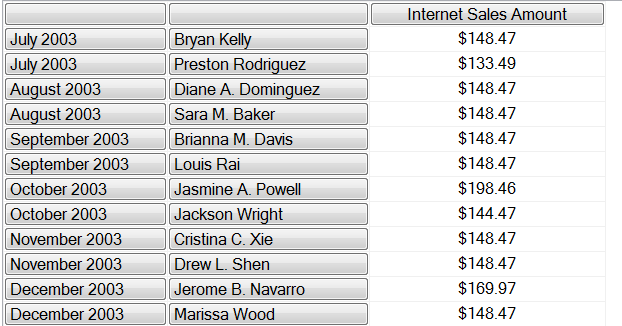
Here I’m taking every month on the Calendar hierarchy of the Date dimension and finding the top two customers by Internet Sales Amount for each Month; notice also that I’m slicing the query by a Product Category. The results look like this:

image

On my laptop this query takes just over three seconds to run however many times you run it (and yes, I know there are other ways this query can be optimised, but let’s imagine this is a query that can’t be optimised). The reason it is consistently slow is because the vast majority of the time taken for the query is to evaluate the set used on rows – even when the Storage Engine has cached the values for Internet Sales Amount for all combinations of month and customer, it still takes the Formula Engine a long time to find the top two customers for each month. Unfortunately, once the set of rows has been found it is discarded, and the next time the query is run it has to be re-evaluated.

How can we improve this? SSAS can’t cache the results of a set used on an axis in a query, but SSAS can cache the result of a calculated measure and calculated measures can return strings, and these strings can contain representations of sets. Therefore, if you go into Visual Studio and add the following calculated measure onto the MDX Script of the cube on the Calculations tab of the Cube Editor:

CREATE MEMBER CURRENTCUBE.MEASURES.REPORTROWS AS

SETTOSTR(

NONEMPTY(

GENERATE(

[Date].[Calendar].[Month].MEMBERS,

{[Date].[Calendar].CURRENTMEMBER}

*

HEAD(ORDER([Customer].[Customer].[Customer].MEMBERS,

[Measures].[Internet Sales Amount],

BDESC),2)

),

[Measures].[Internet Sales Amount])

);

You can then use this calculated measure in your query as follows:

SELECT

{[Measures].[Internet Sales Amount]} ON 0,

STRTOSET(MEASURES.REPORTROWS)

ON 1

FROM [Adventure Works]

WHERE([Product].[Category].&[3])

Having done this, on my laptop the query is just as slow as before the first time it is run but on subsequent executions it returns almost instantly. This is because the first time the query is run the set expression used on rows is evaluated inside the calculated measure ReportRows and it is then turned into a string using the SetToStr() function; this string is then returned on the rows axis of the query and converted back to a set using the StrToSet() function. The second time the query is run the string returned by the ReportRows measure has already been cached by the Formula Engine, which explains why it is so fast.

Couldn’t I have used a static named set declared on the cube to do this instead? I could, if I knew that the Where clause of the query would never change, but if I wanted to change the slice and look at a different Product Category I would expect to see a different set of rows displayed. While in theory I could create one gigantic named set containing every set of rows that ever might need to be displayed and then display the appropriate subset based on what’s present in the Where clause, this set could take a very long time to evaluate and thus cause performance problems elsewhere. The beauty of the calculated measure approach is that if you change the Where clause the calculated measure will cache a new result for the new context.

There are some things to watch out for if you use this technique, however:

  • It relies on Formula Engine caching to work. That’s why I declared the calculated measure on the cube – it won’t work if the calculated measure is declared in the WITH clause. There are a lot of other things that you can do that will prevent the Formula Engine cache from working too, such as declaring any other calculated members in the WITH clause, using subselects in your query (unless you have SSAS 2012 SP1 CU4), using non-deterministic functions and so on.
  • Remember also that users who are members of different roles can’t share formula engine caches, so if you have a lot of roles then the effectiveness of this technique will be reduced.
  • There is a limit to the size of strings that SSAS calculated measures can return, and you may hit that limit if your set is large. In my opinion an SSRS report should never return more than a few hundred rows at most for the sake of usability, but I know that in the real world customers do love to run gigantic reports…
  • There is also a limit to the size of the Formula Engine flat cache (the cache that is being used here), which is 10% of the TotalMemoryLimit. I guess it is possible that if you run a lot of different queries you could hit this limit, and if you do then the flat cache is completely emptied.

Reusing A Power Query Connection

One of the things I like least about Power Query at the moment is the lack of control over where the results of your queries end up in Excel. For example, if you create a new query and load it onto a worksheet, your table always ends up in the top left hand corner of a worksheet. Furthermore, it seems like every time you refresh your query, then the table it’s bound to gets deleted and recreated so any extra calculated columns or formatting you have added to the table disappear.

There is, however, a way around this. If you go to the Data tab in Excel and click the Existing Connections button you can see the OLEDB connection that Power Query creates in the “Connections in this Workbook” section:

image

You can then double-click on the connection and create a new table from that connection, call it whatever you want, add formatting, calculated columns and so on and all of these things will remain intact when you refresh. Even better, when you refresh the table it will re-execute the underlying Power Query query. This is a much better experience for consuming the results of your Power Query query, in my opinion.

Incidentally, Miguel Llopis of the Power Query team told me on the forum that this is an area of functionality that they hope to address in early 2014, so hopefully this blog post will be redundant in a few months.

Implementing Common Calculations In Power Query

When I first saw Data Explorer (as Power Query used to be called), I immediately started thinking of it as a self-service ETL tool; indeed, it’s how Microsoft itself is positioning it. However I suspect that a lot of Power Query users might also want to use it for building reports too: it could be that they find DAX too difficult, and if all they need is a simple table-based report they might not want to bother with using Power Pivot at all.

If that happens then it’s going to be important to be able implement common business calculations in Power Query… hence this blog post. I’ll also admit that I wanted to know how easy it is to write these calculations – because if it isn’t easy, or if it isn’t easier than DAX or the equivalent Excel formulas, then no-one will bother doing it. So let’s look at some examples.

Simple Percentage Share

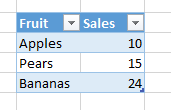
Take the following table in Excel as a starting point:

image

Now let’s imagine that we want to find the percentage that each fruit makes up of the grand total (ie 10+15+24=49). The way to calculate the percentage is quite easy: you need to find the grand total, then divide the sales for each fruit by the grand total. Finding the grand total requires some code though – you might think you could do it easily in the UI using the Group By functionality, but that does not allow you to sum up all the values in a column and not group by anything! (I hope this gets fixed soon). Luckily the code is quite easy: you use Table.Column() to convert the Sales column into a List, then use List.Sum() to sum up all the values in that List. Finally, you insert a new custom column to the original table and calculate the percentage. Here’s the code:

let

    Source = Excel.CurrentWorkbook(){[Name="Table1"]}[Content],

    Sales = Table.Column(Source, "Sales"),

    GrandTotal = List.Sum(Sales),

    TableWithShare = Table.AddColumn(Source, "Share", each [Sales]/GrandTotal)

in

    TableWithShare

image

It would also be nice if I could get the table that Power Query outputs to remember the number formatting I apply to it after it refreshes… again, I hope this gets fixed.

Nested Share

A more complex example of a Share calculation might be where we need a share of a subtotal. Consider the following table:

image

In this case, let’s say we need to show each Fruit’s sales as a percentage of the total sales of its Category. This time we can use the Group By functionality to get a table containing the subtotals very easily. Next, we can join our subtotal table with the original table using Table.Join() so we have the subtotals on each row. Finally, we can do the share calculation and remove the subtotal column again. Here’s the code:

let

    Source = Excel.CurrentWorkbook(){[Name="Table4"]}[Content],

    Subtotals = Table.Group(Source, {"Category"}, {{"Category Sales", 

        each List.Sum([Sales]), type number}}),

    JoinTables = Table.Join(Source, "Category", Subtotals, "Category"),

    InsertedCustom = Table.AddColumn(JoinTables, "Share", each [Sales]/[Category Sales]),

    RemovedColumns = Table.RemoveColumns(InsertedCustom,{"Category Sales"})

in

    RemovedColumns

image

Previous Period Growth

Now consider a table with a date column (Americans: the dates are in dd/mm/yyyy format) and a sales column:

image

Let’s say we want to find the absolute change in Sales from the previous date to the current date on each row. Here we need to copy the table, shift the dates forward one day (by adding a value of type Duration onto the date) and then join the original table onto this new table using Table.Join() so we can see the current day sales and the previous day sales in two columns next to each other; this will then mean we can subtract one from the other to find the growth. Here’s the code:

let

    Source = Excel.CurrentWorkbook(){[Name="Table7"]}[Content],

    ChangedType = Table.TransformColumnTypes(Source,{{"Date", type date}}),

    InsertedCustom = Table.AddColumn(ChangedType, "Next Date", each [Date]+#duration(1,0,0,0)),

    RemovedColumns = Table.RemoveColumns(InsertedCustom,{"Date"}),

    RenamedColumns = Table.RenameColumns(RemovedColumns,{{"Sales", "Previous Sales"}}),

    JoinTables = Table.Join(ChangedType, "Date", RenamedColumns, "Next Date",JoinKind.LeftOuter),

    RemovedColumns1 = Table.RemoveColumns(JoinTables,{"Next Date"}),

    SortedRows = Table.Sort(RemovedColumns1,{{"Date", Order.Ascending}}),

    Growth = Table.AddColumn(SortedRows, "Growth", each [Sales]-[Previous Sales])

in

    Growth

image

Year-to-Date Sales

For the final example, take the same starting table and before and now let’s calculate a year-to-date running sum. In this case, I decided to use a function (see here for some background on this, and here for a more complex example of a function) to do the calculation. Here’s the code of the function, called YTD(), that I created:

let

    YTD = (SalesTable, EndDate) =>

    let

        FilteredTable=Table.SelectRows(SalesTable, 

            each [Date]<=EndDate and Date.Year([Date])=Date.Year(EndDate) ),

        SalesColumn = Table.Column(FilteredTable, "Sales"),

        YTDSales = List.Sum(SalesColumn)

    in

        YTDSales

in

    YTD

It takes a table structured in the same way as the source table (ie it has to have a [Date] column and a [Sales] column), filters the data using Table.SelectRows() so only rows with a date less than or equal to the EndDate parameter, but in the same year as it, are returned, and then sums up the values in the [Sales] column of the filtered table.

It’s then very easy to use this function in a new calculated column in a query:

let

    Source = Excel.CurrentWorkbook(){[Name="Table7"]}[Content],

    ChangedType = Table.TransformColumnTypes(Source,{{"Date", type date}}),

    InsertedCustom = Table.AddColumn(ChangedType, "YTD Sales", each YTD(ChangedType, [Date]))

in

    InsertedCustom

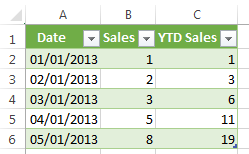
And voila, we have a column containing the year-to-date sum:

image

Conclusion

All of these examples here required me to write M code, and to be honest this is not something an ordinary user will ever be able to do. Furthermore, I suspect that end users will always prefer to write their calculations as Excel formulas, although more complex calculations such as nested shares might prove beyond them. However, I believe that a good data steward will certainly be able to write M code, and the last example above makes me think that if a data steward can write a function that performs a calculation and shares it with the end users, the end users should be able to use it in their own queries quite easily. I don’t think the code I’ve written here is any worse or better than the DAX equivalent but the ability to share functions could tip the balance in favour of Power Query for some simple reporting scenarios.

You can download a workbook with all the examples above here.