Thank You!

Voting has closed in the Power BI competition, and I just wanted to say thank you to everyone who supported me. I ended up in 6th place with 681 votes and 4812 votes – so I made it to the top ten, and I’m very pleased with that result.

There are too many people to thank individually, but I would like to single out Carmel Gunn, Jen Stirrup, and the whole of the UK, Irish, Belgian and French SQL Server communities, as well as the (literally) hundreds of people I contacted to ask for their support. Special thanks is reserved for my long-suffering wife Helen. I am extremely grateful, and I promise I won’t be bothering you like this ever again!

I am very much aware that the number of votes that I or anyone else received doesn’t necessarily correspond to the quality of the entry. There are a number of other entries that I thought were great that didn’t get any attention and I recommend you check them out while you still can here.

In case the Power BI competition site disappears at some point in the future, you can see my entry on YouTube here. If you want to see the workbook I created for the demos, that can be downloaded here; I’ll be doing a session on March 27th for the PASS Business Analytics Virtual Chapter showing in a lot more detail how I built it, exploring the data more thoroughly, and covering topics like Q&A that I wasn’t able to include in the original video.

Comparing Columns In Power Query

A few weeks ago I wrote a post about comparing the contents of entire tables in Power Query, and a question came up in the comments about how you might go about comparing values in columns rather than whole tables. Of course this prompted me to investigate how different types of comparison might be done – and here’s the blog post with the results of the investigation.

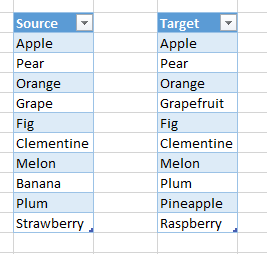
Consider the following two single-column tables in an Excel worksheet:

image

Which items are present in one column and not in the other? Which are present in both? The easiest way to answer these questions is to take each table and turn it into a List object (using Table.ToList() ); once you’ve done that you’ll find there are loads of really useful functions for this type of thing. Here’s a query that compares the values in each column:

let

    Source = Excel.CurrentWorkbook(){[Name="Source"]}[Content],

    Target = Excel.CurrentWorkbook(){[Name="Target"]}[Content],

    SourceList = Table.ToList(Source),

    TargetList = Table.ToList(Target),

    InSourceNotTarget = List.Difference(SourceList, TargetList),

    InTargetNotSource = List.Difference(TargetList, SourceList),

    InTargetAndSource = List.Intersect({SourceList, TargetList}),

    CombineWithComma = Combiner.CombineTextByDelimiter(", "),

    ResultsTable = Table.FromRows(

             {

         {"In Source but not in Target", CombineWithComma(InSourceNotTarget)},

             {"In Target but not in Source", CombineWithComma(InTargetNotSource)},

             {"In both Target and Source", CombineWithComma(InTargetAndSource)}

             },

             {"Comparison Type", "ListResult"}

             )


in

    ResultsTable


Here’s the output:

image

Fairly self-explanatory, I think. List.Difference() finds the items that are in one list and not another: List.Intersect() finds items that are in both. In fact it’s probably more interesting to look at how I’ve generated the output. Table.FromRows() returns a manually constructed table. The CombineWithComma step uses Combine.CombineTextByDelimiter() to return a function that turns all of the items in a list into a single, comma-delimited piece of text, and I then use that function inside each row of the table I’m returning to get a readable version of what List.Difference() and List.Intersect() return.

Rather than looking at the distinct values in each column, though, you might want to do a row-by-row comparison. Here’s another query that does that:

let

    Source = Excel.CurrentWorkbook(){[Name="Source"]}[Content],

    Target = Excel.CurrentWorkbook(){[Name="Target"]}[Content],

    SourceList = Table.ToList(Source),

    TargetList = Table.ToList(Target),

    PositionList = List.Positions(SourceList),

    RowComparison = List.Transform(

                      PositionList, 

                      each 

                       if 

                        SourceList{_}=TargetList{_} 

                       then 

                        {_+1, "No Change",  SourceList{_} } 

                       else 

                        {_+1, "Change", "Source: " & SourceList{_} & 

                        ", Target: " & TargetList{_} }),

    ResultsTable = Table.FromRows(RowComparison, {"Row Number", "Changed?", "Comparison"})


in

    ResultsTable

Here’s the output:

image

Again I’m turning each table into a list, and then I’m using List.Positions() to generate a list of integer values from 0 to 9 representing the index of each item in the source list, then using List.Transform() to iterate over each item in this list and compare the values at the given index in the source and target list.

Frankly, an even easier way of doing this might have been to import both tables in separate queries, add an index column to both of them using the Insert Index Column button, then join the two tables together on the index column using the Merge button and then finally create some custom columns to do the comparison. This is certainly how any end-user would do it, but the resulting code is a bit less elegant I didn’t learn anything interesting about M from doing it that way. I’ve left the example in the demo workbook, which you can download here.

PS Even if you have voted for me already in the Power BI competition, please vote for me again (you can vote once every 24 hours)! Here’s the link:

CLICK HERE TO VOTE FOR ME IN THE POWER BI COMPETITION! EVEN IF YOU’VE VOTED ALREADY YOU CAN DO SO AGAIN!

Analysing Voting In the Power BI Competition – With Power BI!

As I mentioned the other day, the public voting round of the Power BI competition has now started and the entrants are now competing for a place in the top ten and a whole bunch of cool prizes including XBoxes and Surface Pros. Having entered a demo myself I’m naturally very keen to see how I’m doing, but unfortunately doing this is a bit of a pain – you have to go to www.powerbicontest.com, click on the Entries tab, sort them, find your entry, and so on… So I thought to myself, isn’t there a better way? And of course there is… using Power BI!

Power Query is of course the tool to use to scrape the voting data from the Power BI site. It wasn’t straightforward to do but on the other hand it wasn’t impossible: there’s no single table of results, and indeed the results are spread over four different pages. To load the data into the Excel Data Model I:

  • Created a Power Query function to scrape the data from the first page
    • First I created a query to scrape the data from the first page using the “From Web” button
    • I then did a *lot* of searching around in the HTML to get the data (for this reason I’m not going to paste the code of the function here because it’s ugly)
    • I then deleted a lot of columns, created some new custom columns, and pivoted the data until in was in a nice tabular form
    • Finally, once I was sure the query was working properly I turned it into a function that could get data from any page
  • Next I created a table with five rows in it, called the function five times, once for each row, to get the data from each page
  • Then I merged all the data into a single table of results
  • I created another function to calculate the rank of an entry (which itself was an interesting challenge) and added a rank column to the merged table
  • Last of all, I created some Power View sheets to analyse the data

You can download the entire workbook here. I’ll warn you, the code isn’t pretty but it does the job and it’s got a few interesting features in for all you Power Query fans.

Now let’s have a look at what the data shows.

At the time of writing this I’m currently in 16th place – and not in line for an XBox alas. You can of course change this by

CLICKING HERE AND PRESSING THE ‘VOTE FOR THIS ENTRY’ BUTTON

and that’s even if you’ve voted for me already – you can vote once every 24 hours! But I digress…

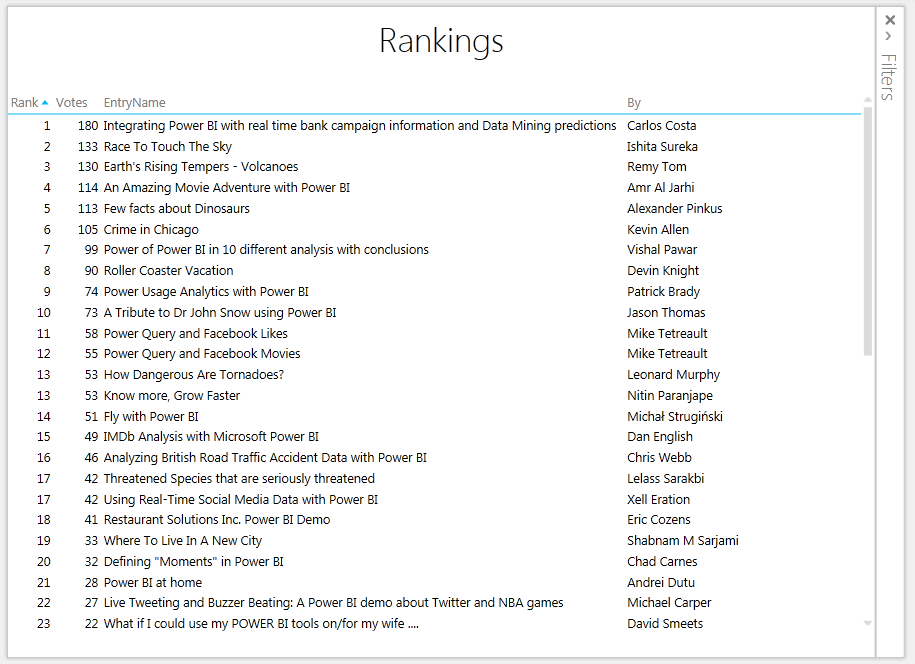
The obvious first thing to do was to create a leader board sorted by rank:

image

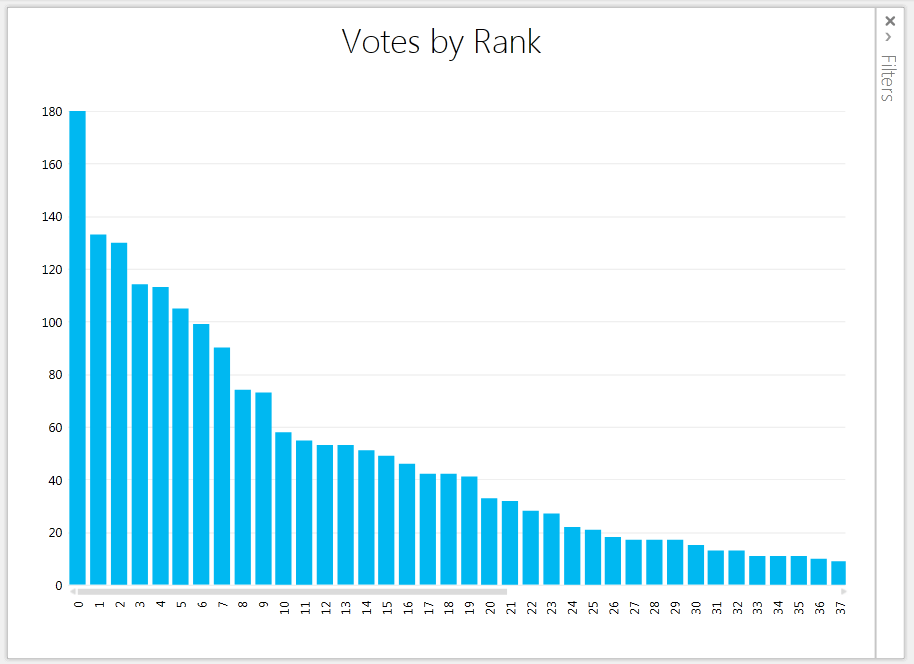
As you can see, at the moment Carlos Costa is way out in front with a massive 180 votes; after that there’s a group of people fighting for a top five finish; and after that there’s a large group of people who might just squeeze into the lower reaches of the top ten.

Here’s a column chart showing this more clearly:

image

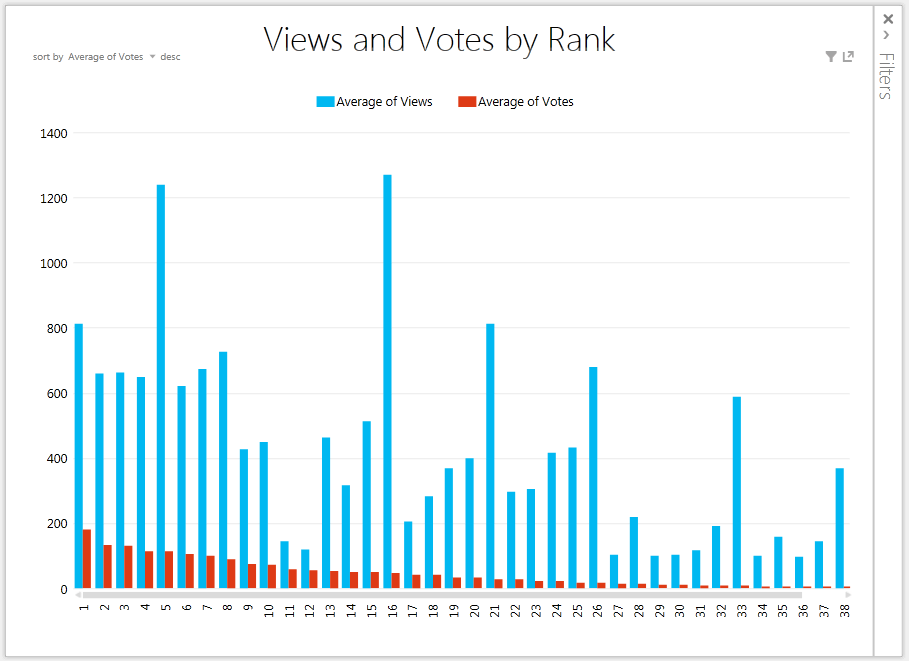
What are the top-ranked guys doing to get so many votes? Is it something to do with the number of people seeing their entry? If you put votes and views next to each other, it’s not easy to say what’s going on:

image

I’ve got the second largest number of views, but I’m in the middle of the pack. The problem for me is that I was one of the first people to enter and most of my views were well before voting opened; unfortunately there’s no way of knowing how many views each entry had after voting opened so I can’t say for sure what’s going on here. Certainly Alexander Pinkus submitted his demo “Few Facts About Dinosaurs” around the same time as me, has around the same number of views, and he’s currently ranked number 5. From that I can only deduce that his demo is better than mine (and having watched it I can say it is very good); he certainly has more exciting subject matter. Who doesn’t love dinosaurs? There are several other demos that have got particularly eye-catching subject matter and/or titles and they’re also doing well.

Here are views and votes plotted on a scatter chart, with the top 10, 20, 30 and so on shown in different colours:

image

I think this makes it a little easier to disregard outliers like me, and it’s probably fair to say that there is some kind of link between views and votes, at least for those in the top 20.

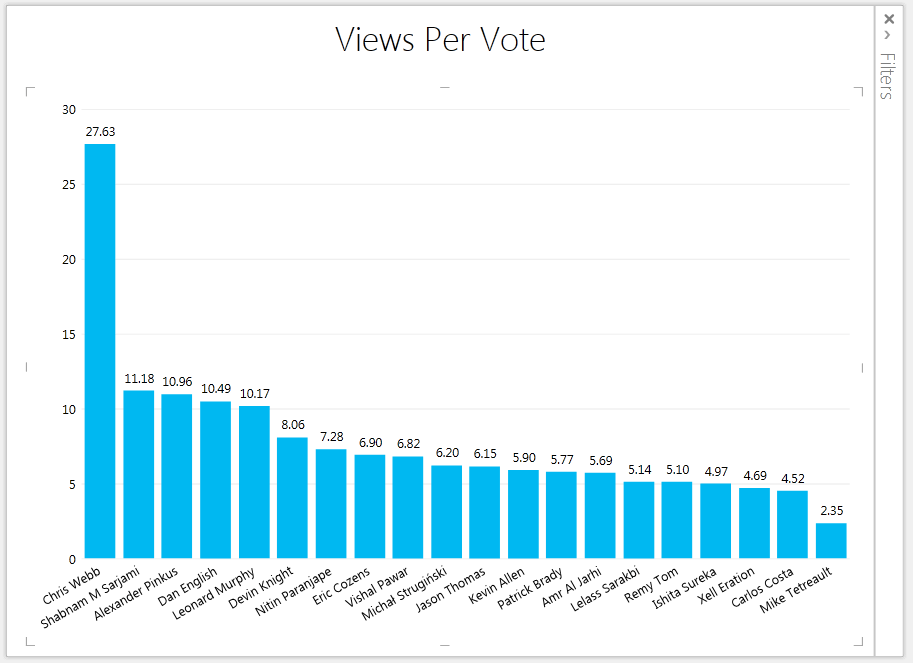
Now here’s one last column graph, showing the average number of views per vote for the top 20 ranked entrants:

image

You can see how badly I’m doing in this respect, despite my begging and pleading both here and on Twitter; conversely you can see that Mike Tetreault at the other end is obviously very good at getting his vote out.

I would like to say at this point that it’s tempting to moan and complain that people have ‘cheated’ and got their friends, family and colleagues to vote for them. To be honest, I think that everyone who’s got any significant number of votes will have ‘cheated’ like this to some extent. I certainly have – I’ve used my blog and other social media to try to get as many votes as possible. Indeed this post itself is a ruse to try to get more votes! At the end of the day the whole point of this competition is for Microsoft to get as many people as possible to see Power BI, so more people want to buy it. Therefore this mad scramble by entrants to get as many votes as possible will benefit all of us in the end.

Anyway, by the time you read this post there’s a strong chance that the patterns here will have changed completely. It’s a shame there isn’t more data available to play with – it would be great to have the time and date of each vote cast, and even the location of the person casting the vote. Given that you have to have a Facebook account to vote I suspect that someone somewhere does have all of this data, and more… so I wonder if they’re using Power BI too?

My Power BI Competition Entry

So the Power BI competition has entered the shameless self-promotion public voting round and I would like to direction your attention to my entry, which can be found here. Please follow the link and vote for me! Your support is much appreciated.

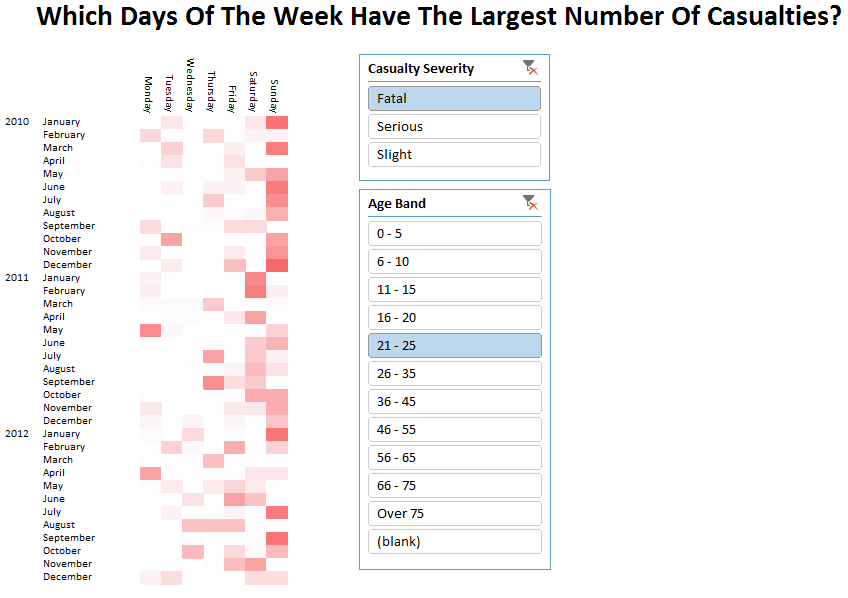
In the video I take a look at road traffic accident open data released by the UK government and answer questions such as:

  • Are British roads getting safer or more dangerous?
  • Which days of the week do most accidents occur on?
  • Which age groups are most likely to be involved in accidents?
  • Which is the most dangerous section of the M4 motorway? (Spoiler: avoid Port Talbot when visiting South Wales)

The video itself is more thrill-packed than Star Wars, more epic than the Lord of the Rings trilogy and more intellectual than any film Ingmar Bergman ever made. It is guaranteed to win several Oscars and recommended viewing for the whole family.

Here are some screenshots to whet your appetite:

image

image

image

There are plenty of other very impressive entries that deserve to be seen, so head over to www.powerbicontest.com to take a look. 

Incidentally, if you’re planning to attend the PASS BA Conference this year you can get a $150 discount by using the discount code:
BASF5O

And if you can’t make it to the conference but do want to learn more about Microsoft’s self-service BI stack, check out my Power BI and Power Pivot courses in London this March.

“My Power BI” Sites

One feature that was released in the December update for Power BI but got lost in all the fuss over Q&A was the ability to favourite a report and have it appear in your own “My Power BI” site. In fact there are several interesting things to see here, and while they are documented I thought it would be useful to show some screenshots.

On the main Power BI page, you can now click on the ellipses at the bottom right hand corner of a report to favourite it.

image

This means it will appear in your own “My Power BI” site. I hadn’t really noticed this page before; you can find a link to it in the top right hand corner of the screenshot above.

With no reports favourited your “My Power BI” site looks like this:

image

With a report favourited it looks like this:

image

So, it’s a nice place to find a user’s top reports. There’s more though. Clicking on the ‘data’ link shows you a dashboard with your own usage stats on:

image

Plus a list of all the Power Query queries you have shared:

image

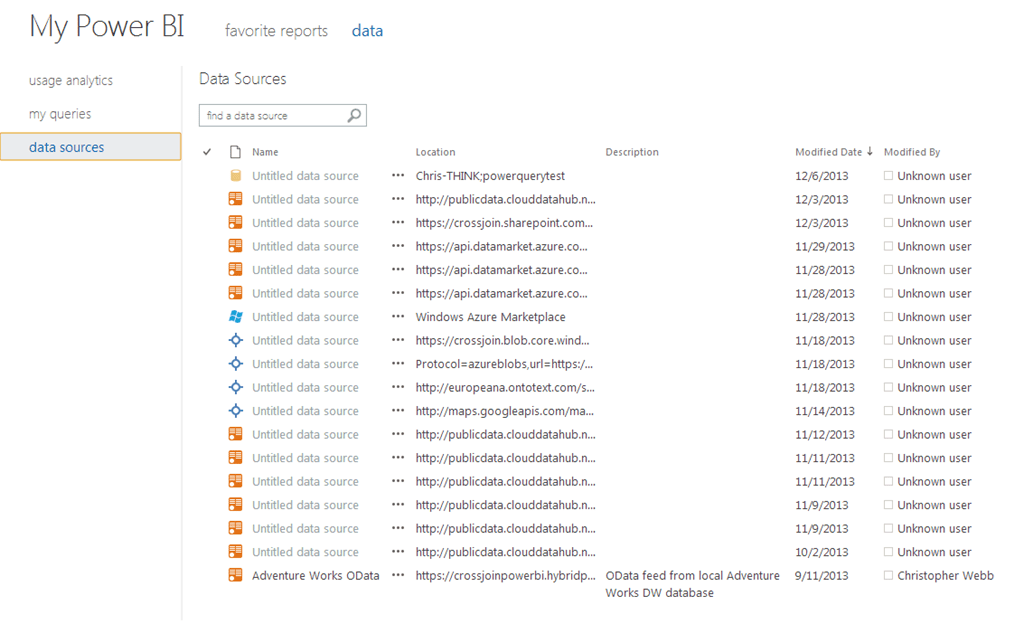
And finally metadata for all of the OData data sources (this includes data sources made available through the Data Management Gateway as well as public data searches) you have used in Power Query on the desktop, even if you have never saved the workbook they’re used in to Power BI:

image

You can find more information on what’s going on in this last screenshot here. I quote:

When users either connect to various external and internal data sources or share queries using Power Query, metadata for the connected data sources or the underlying data sources for the shared queries respectively gets created in the cloud-based metadata repository of Power BI for Office 365. The metadata of such data sources become available in the Manage Data portal.

The Manage Data portal displays all the data sources available in the cloud-based metadata repository of Power BI whether or not you have access to the data in the data source. The data source listing displays the name, location, description, the user who last modified it, and the date when it was last modified.

I have to admit that this was a bit of a surprise to see, but I probably read something about this and forgot about it. I can understand why it’s necessary: Power BI is doing this is to help data stewards manage requests for permissions to access these data sources. Here’s the metadata that gets stored:

image 

So, lots of interesting stuff there. I have to say that SharePoint Online and Power BI are a bit of a rabbit warren and some of the functionality in there is very well hidden, however good the docs are…

Comparing Tables In Power Query

An interesting Power Query nugget for you: you can compare two tables using the Value.Equals() function. For example, take the following worksheet with five Excel tables on it:

image

The following Power Query query compares Table 1 with each of the other four tables and tells me whether they are identical or not:

let

    Table1 = Excel.CurrentWorkbook(){[Name="Table1"]}[Content],

    Table2 = Excel.CurrentWorkbook(){[Name="Table2"]}[Content],

    Table3 = Excel.CurrentWorkbook(){[Name="Table3"]}[Content],

    Table4 = Excel.CurrentWorkbook(){[Name="Table4"]}[Content],

    Table5 = Excel.CurrentWorkbook(){[Name="Table5"]}[Content],

    Output = Table.FromRows(

                {

                {"Table2", Value.Equals(Table1, Table2)},

                {"Table3", Value.Equals(Table1, Table3)},

                {"Table4", Value.Equals(Table1, Table4)},

                {"Table5", Value.Equals(Table1, Table5)}

                },

                {"Compared Table", "Is Equal To Table 1"}

        )

in

    Output


All the code here is doing is loading the five Excel tables and then outputting a single table that shows the result of Value.Equals() when you compare the first table with the other four. Here’s the output:

image

I’ve tested this on tables sourced from SQL Server and quickly ran into a bug that crashed Power Query, but it seems as though Value.Equals() returns True when you pass it two identical tables and False when you pass it a table and a view which is just a SELECT * from that table. I wonder if there’s some extra metadata that allows Power Query to tell the difference between a table and a view? More research needed I think.

Overall this seems quite a handy trick to know about. This post has barely scratched the surface of what you can do with Value.Equals() though – you can compare any two values, not just tables, and you can specify your own function to do the comparison. As with so much of Power Query there’s a lot to learn… but that’s what makes it so fun!

You can download the sample workbook here.

Power BI Pricing Announced

I saw today that the prices and licensing options for Power BI have been announced. You can see the details here:
http://www.microsoft.com/en-us/powerBI/pricing.aspx

Thankfully, it’s pretty simple and straightforward.

  • If you already have an Office 365 E3 or E4 subscription, right now you pay $20 per user per month (though that will go up to $33pupm after June 30th this year). This gives you all the cloud-based functionality we’ve seen in the Power BI including Power BI sites, connections to on-prem data sources, mobile BI, data refresh etc.
  • If you already have an Office 2013 Professional Plus licence for your desktop and do not have an Office 365 subscription you can pay $40pupm to get all of the above plus the Sharepoint Online Plan 2 licence you need as a prerequisite for this functionality.
  • If you don’t have an Office 2013 Professional Plus licence either, you can pay $52pupm to get all the Power BI functionality plus Sharepoint Online Plan 2 plus an Office 365 Professional Plus subscription.

Some comments:

  • I’ve heard from Microsoft sources that this works out at about 50% of the cost of Tableau, which is the right price point to aim at in my opinion. As Jen Underwood said in this post, trying to compare the broad range of functionality available in Tableau with Power BI is difficult (though Brad Llewellyn has done a good job looking at specific scenarios); but it’s unavoidable that customers will be comparing Power BI with Tableau and the likes of QlikView. So very good news here.
  • As I’ve said numerous times already, looking at cost of Power BI on its own is misleading because the decision to use it or not will be bound up with larger corporate decisions about migrating to Office 2013 and Office 365.
  • As far as I can see, if you have Excel 2013 standalone, Office 2013 Professional Plus or an equivalent Office 365 SKU and if you do not want to use the cloud functionality, the Excel components (Power Pivot, Power Query, Power View and Power Map) are free to use and do not require a subscription. Some of these Excel addins are also available to users of Office 2010, though not all and for different SKUs of Office 2010. I want to double-check this though. Some functionality of course, such as the ability to share Power Query queries, will only work if you do have a Power BI subscription.
  • While I’m really pleased to see that users with existing desktop installations of Excel are being catered for here, as we’ve seen with the Synonyms functionality it’s clear that if you want the latest functionality in Excel as soon as it’s available you will need to have an Office 365 subscription and a streamed installation. This is the future, although I suspect it may take a long time for corporate IT departments to get round to using the streamed versions.

Aggregating By Local Groups In Power Query

When looking through the Power Query library reference I noticed that the Table.Group() function has a very useful option to aggregate data using what it calls local groups. Rather than explain what this does, let me show you…

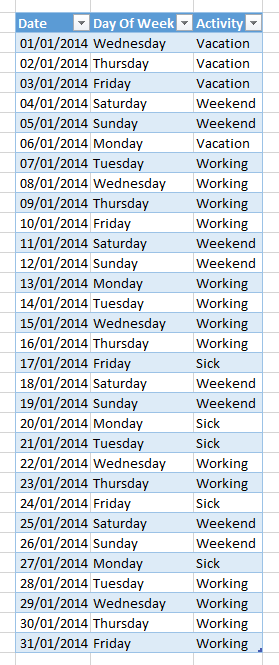
Consider the following table showing all of the days in January and whether an employee was on holiday, at work or off sick on any given day in January 2014:

image

Importing this into Power Query and finding the number of days spent on each activity is trivial using the Group By functionality in the Power Query window. Here’s the script that the UI generates:

let

    Source = Excel.CurrentWorkbook(){[Name="Calendar"]}[Content],

    GroupedRows = Table.Group(Source, {"Activity"}, 

        {{"Count of Days", each Table.RowCount(_), type number}})

in

    GroupedRows


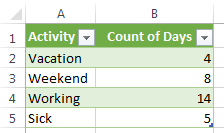
And here’s the output it generates:

image

So far so good. But wouldn’t it be useful to know about distinct time ranges spent on each activity? For example, you can see from the first screenshot that this particular employee was off sick from Friday January 17th to Tuesday January 21st, and then again from Friday January 24th to Monday January 27th; you might want to see these aggregated into two separate time ranges. Table.Group() also allows you to do this.

First, here’s a script with an example:

let

    Source = Excel.CurrentWorkbook(){[Name="Calendar"]}[Content],

    FilteredRows = Table.SelectRows(

                    Source

                    , each ([Day Of Week] <> "Saturday" and [Day Of Week] <> "Sunday")),

    TimeRanges = Table.Group(

                    FilteredRows

                    , "Activity"

                    , {

                        {"Start Date", each List.Min([Date]), type date}

                        , {"End Date", each List.Max([Date]), type date}

                        , {"Number of Days", each List.Count([Date]), type number}

                      }

                    , GroupKind.Local)

in

    TimeRanges

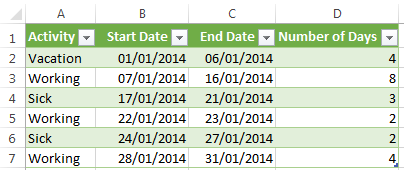
Here’s the output:

image

You can see from this screenshot that I now have one row for each consecutive range of days (ignoring weekends) spent either on vacation, working or off sick.

Step-by-step, here’s an explanation of what’s happening in the script:

  • Source imports the data from the table in the worksheet
  • FilteredRows filters out the days that fall on a weekend
  • TimeRanges uses the Table.Group function to do all the interesting stuff:
    • It takes the table returned by the FilteredRows step
    • Does a Group By on the Activity column
    • It calculates the min, max and count of the Date column and adds them as new columns
    • The GroupKind.Local optional parameter is the key to getting the behaviour you can see here. The default type of grouping, GroupKind.Global, does a standard group by across the whole table as seen in the first example above. GroupKind.Local on the other hand aggregates only over consecutive sequences of rows, and this means we see three separate time ranges for the activity “Working” and two separate groups for “Sick”.

Pretty cool, isn’t it?

You can download the sample workbook here.

Ninth Blog Birthday

This is the ninth anniversary of the first post on my blog, and every year at this time I take a moment to reflect on what’s happened in the last twelve months in my professional life and in the world of Microsoft BI.

Without a doubt 2013 has been the year of Power BI. It’s true we’ve had PowerPivot Power Pivot for a while now, but in my opinion the combination of Excel 2013, Power Query, Power Map, Power BI Sites and Q&A is a much stronger proposition for customers interested in self-service BI; I’ve already blogged at great length about what I think are the strengths and weaknesses of Power BI (see here, here and here) so I won’t repeat myself here. As you would expect Microsoft marketing has gone into overdrive to promote it (have you entered the Power BI competition yet?) and it will be in 2014 that we see whether Power BI is a success or not. What will success look like though, if it comes? It won’t be lots of customers lining up to buy Power BI in they way they’ve bought traditional BI solutions, I think: instead it will be organisations that have already signed up for Office 365 being upsold to Power BI based on their existing commitment to the Office platform. This presents a number of challenges to someone like me who makes a living as an independent consultant and trainer.

At the moment more than 90% of my consultancy income comes from SSAS and MDX, but the overall percentage of my time that I spend doing consultancy has reduced over the last few years to about 60%. This is partly the result of SSAS and MDX skills becoming more widespread; partly due to the fact that I’ve been promoting my public and private training more aggressively; and possibly due to fewer new SSAS projects kicking off. In the future I expect this trend to continue. Just how much consultancy will be necessary in the world of self-service Power BI solutions remains to be seen, but it’s going to be less than is necessary for corporate SSAS solutions and the rates will probably be lower too.

For the same reason, though, the demand for all forms of training for Power BI will almost certainly be much greater. That’s why I’ve been scheduling more public training courses through Technitrain; why I’ve signed up to write a book on Power Query next year; and why I’ve started recording video training courses with Project Botticelli (there’s a new video available there, by the way, on set and member functions). If I’m honest I prefer doing consultancy to training and I don’t think you can be a really good trainer if you don’t have a substantial amount of practical experience gained from consultancy, so I’m going to have to make a special effort to maintain a balance between the two.

Speaking at conferences and user groups is an aspect of my work that I’ve always really enjoyed, and I’m pleased to say that I’ll be speaking at the PASS BA Conference next year for example. I’m also still involved with SQLBits but please, please don’t ask me when the next SQLBits will be – we don’t have anything to announce yet but I can assure you we are working on it and I promise there will be one in 2014. I won’t be speaking at quite so many events as I have done in the past however. I travel a lot for work and this makes it hard to justify spending even more time away from my family, especially at weekends, so I’ve made a conscious decision to cut down on my speaking engagements. The thing is that the number of SQL Server events has increased a lot in the last couple of years and this has led to an increased number of invitations to speak, and I’m one of those people who finds it hard to say no when someone asks me to do something. I’m just going to have to be a bit more choosy from now on, and concentrate on events close to home, events that coincide with business trips and online sessions.

All that remains is to wish you all a happy and prosperous 2014, and to thank you for reading my blog! This time next year I’ll have been blogging for ten years, and that’s a scary thought…

Power BI Review, Part 2.5: Q&A (Now I’ve Used It With My Data)

A few months ago I posted a review of Q&A, the natural language query functionality in Power BI, based on the sample data sets that were then available. Last week, finally, we got the news that we could enable Q&A on our own Power Pivot models, and having played with this new release I thought it was a good idea to post an update to my original thoughts.

The first thing to point out is that even if you’ve got a Power BI Preview tenant you will need the latest version of Power Pivot for Excel to be able to get the best out of Q&A. This latest release contains some new functionality to add ‘Synonyms’ to the model – what this means is that it allows you, as a model creator, to tell Power BI about other names that end users might use when querying your model. For example on a Geography dimension you might have a column called State but if you are a multinational company you may find that while your State column contains the names of states in the USA, it might contain the names of cantons in Switzerland, counties in the UK, departments in France and so on. As a result you will want Power BI to know that if a user asks for sales by county in the UK that it should actually look in the State column. Devin Knight has already written a good post showing how synonyms work with Q&A which you can see here.

Another complication is that, at the time of writing, the Synonym functionality is only available to users who have installed the streamed version of Office 2013 from Office 365. I have an Office 365 subscription but I had installed Office from an msi before that, so I had to uninstall Office and reinstall the streamed version to be able to see Synonyms – I assume that support for Synonyms in the non-streamed version of Excel will come at some point soon in the future, but in general I would expect that new Power BI functionality will appear first in the streamed version of Office first so if you’re serious about BI you should change over to it as soon as you can. Melissa Coates has a lot more detail on this issue here.

But enough about setup, what about Q&A? The data that I tested it on was a model I’ve been using for user group and conference demos for about six months now, which contains data from the UK’s Land Registry and details all residential property transactions in England and Wales in 2013. It’s fairly simple – two tables, a date table and a transactions table containing around 0.5 million rows – so probably a lot simpler than the average Power Pivot model, but nonetheless real data and one which had been polished for demo purposes. The Excel file holding it is around 25MB so I was well within the Power BI file size limits.

My initial impression after I had added my existing model (with no synonyms etc) to Q&A was that while it worked reasonably well, it worked nowhere near as well as the demo models I had seen. I then set about making changes to the model and re-uploading it, and these changes made all the difference. Some examples of the things I did are:

  • Changed table and column names. In my model I had already taken the trouble to make them human readable, but this did not necessarily mean they were suitable for Q&A. For example, my main fact table was called ‘Land Registry’, so at first Q&A kept suggesting questions like “How many land registries were there in June…” which clearly makes no sense. Renaming the fact table to ‘Sales’ fixed this.
  • Setting synonyms. Unsurprisingly, this had a big impact on usability in the same way that changing the table and column names did. I found that I had to go through several iterations of uploading the data, writing questions, seeing what worked and what didn’t, and adding more synonyms before I had a set that I was happy with; I can imagine that in the real world you’d need to round up several end users and lock them in a room to see how they phrased their questions so as to get a really good list of synonyms for them.
  • Setting Power View-related properties. This included setting the Default Field Set on a table, so I only saw a few important fields in a meaningful order when Q&A returned a table result; and also Summarize By so that Q&A didn’t try to aggregate year values. All of this makes sense given how closely-related Q&A and Power View are, but even though I had a reasonably ‘finished’ model to start off with I still hadn’t set all of these properties because I knew I was never going to try to sum up a year column.
  • Adding new columns. There were a number of cases where I realised that I, as a human user, was able to make assumptions about the data that Q&A could not. For example the source data records sales of four different types of residential property: terraced, detached, semi-detached and flat. The first three are types of house, but the source data doesn’t actually state that they are types houses anywhere so in order to see the total number of sales of houses I had to add another column to explicitly define which property types were houses.
  • Disambiguation. Probably the most irritating thing about the Bing geocoding service that Power View and Q&A use is the way it always chooses a US location when you give it an ambiguous place name. Therefore when looking at sales by town I would see the town name “Bristol” show up on the map as Bristol, Tennessee (population 24,821) rather than Bristol in England (population 416,400). Creating a new column with town name and country concatenated stopped this happening.

The Microsoft blog post I referenced above announcing Q&A promises that a more detailed guide to configuring models for Q&A will be published soon, which is good news. The important point to take away from this, though, is that even the most polished Power Pivot models will need additional tweaks and improvements in order to get the best out of Q&A.

The big question remains, though, whether Q&A will be something that end users actually get some value from. As a not-very-scientific test of this I handed my laptop over to my wife (who has no experience of BI tools but who has a healthy interest in property prices) to see how easy it was for her to use, and straight away she was able to write queries and find the information she was looking for, more or less. There were a still few cases where Q&A and/or my model failed, such as when she searched for “average house price in Amersham” – the model has a measure for “average price”, it knows about the property type “house” and the town “Amersham”, but “average house price” confused it and the query had to be rewritten as “average price of a house in Amersham”. Overall, though, I was pleasantly surprised and as a result I’m rather less sceptical than I was about Q&A’s usefulness, even if I’m still not 100% convinced yet.