This morning I was wondering whether we’d see any cool new stuff announced at the PASS BA Conference this year, or whether we’d see the same old Power BI demos yet again. It turns out there were a whole load of announcements, some of them very cool indeed – and here’s a brief summary:
A native Power BI mobile for iOS will be available by the end of the summer. Other platforms (which means Android I guess) will come soon after that.
SSRS will be available in Power BI sites and will be able to connect back to on-prem data sources. This is big, in my opinion – it will be very attractive for a lot of existing MS BI customers. Also the way to get SSRS reports on mobile?
Power View in Power BI will be able to connect back to SSAS on premises (just Tabular though, or Multidimensional too?)
A new KPI editor in the Power BI site will allow you not only create KPIs but arrange them to create dashboards. This looks like the replacement for PerformancePoint.
Time series forecasting is available in Power View online now. It’s available in charts and you just forecast by dragging the chart forward; outliers can be corrected easily. Will need to check this out later.
Power View is getting a treemap visualisation.
Power View is getting a new Data Exploration mode that allows you to edit reports in the browser. This has a lot of cool new stuff, such as the ability to drag data points out of existing charts to create new charts.
Lots to follow up on there… more blog posts on this coming soon, I promise!
Matt Masson and Theresa Palmer gave an excellent presentation on Power Query and M for the PASS DW/BI Virtual Chapter a few days ago (hopefully it will be on their YouTube channel soon). One thing that they showed which I hadn’t seen before was that you can display help for a function in M’s built in library simply by typing its name in the formula bar.
Take, for example, the Text.Replace() function. With a new blank query, if you create a step with the following definition:
= Text.Replace
You will see help and examples as shown below:
By doing this you are creating a step that returns the function itself – note that this is not the same as invoking the function, although it does mean you can invoke the function in a subsequent step. If you do decide to use the function you just need to click Invoke and a dialog will appear to prompt you for the values to pass to the function:
Clicking OK will show the output of the function:
Here’s the full M code for the query for those of you who are curious:
let
Source = Text.Replace,
InvokedSource = Source("the cat sat on the mat", "cat", "dog")
in
InvokedSource
A very useful tip! Unfortunately you can’t specify help text for your own functions yet, although Matt did say it was something they wanted to do.
I was wondering the other day (as you do) which of the MDX cell properties Excel PivotTables actually support. This page has all the details on the cell properties that are available in an MDX query but most client tools don’t bother retrieving all of them and Excel is no different. Of course it retrieves the most important properties and it retrieves one or two others, but I couldn’t resist doing a bit of research to find out the exact situation with Excel 2013.
The first thing to note is that you can control which cell properties Excel retrieves for a given connection in the connection properties dialog, in the OLAP Server Formatting section:
If you can live with not getting all of the cell properties back from SSAS there are some scenarios where unchecking all of the boxes in the OLAP Server Formatting section can improve performance:
When you have a large number of databases and cubes on your server, and/or complex security, because a side effect of the way Excel retrieves properties is that it causes all cubes in all databases to be loaded, their MDX Scripts executed and security evaluated. See here for more details.
When your queries return a lot of data and your network is slow. See page 61 of the SQLCAT Guide to BI and Analytics for more details.
You can also quite easily see which cell properties Excel is retrieving by looking at the MDX queries it generates (thank you OLAP PivotTable Extensions). Here’s an example of a simple PivotTable query run on a connection which has all of the boxes checked in the OLAP Server Formatted section:
In the cell properties clause of this query you can see the six properties returned. Here’s a breakdown of each of them.
VALUE and FORMAT_STRING
Excel doesn’t actually retrieve the FORMATTED_VALUE cell property, which gives you the measure value with formatting applied by SSAS. Instead, assuming you have the Number Format box checked in the Connection Properties dialog, it retrieves the VALUE property from SSAS (which contains the raw, unformatted measure value) and the FORMAT_STRING property (which contains the format string you defined on the server). It then tries to convert the format string into an Excel format for the PivotTable. Unfortunately it can’t always do the conversion successfully – I blogged about a problem with the Percent format some time ago and this is still a problem with Excel 2013. Excel also doesn’t support formats defined in the fourth section (see here for more details) of the FORMAT_STRING property for null values, and there are probably lots of other relatively obscure types of formatting it doesn’t support too.
LANGUAGE
The language property of a cell controls things like the currency symbol displayed when you are using the “Currency” built-in format string and the thousands and decimal separators used. Whether Excel returns the language property or not is also linked to the Number Format checkbox in the Connection Properties dialog. I strongly recommend that you do not use the “Currency” format string and the Language property if you are working with multiple currencies, for reasons I outlined here.
BACK_COLOR and FORE_COLOR
I’ve never particularly liked using the BACK_COLOR and FORE_COLOR properties on a cell to do traffic light-style reporting, to be honest, although I know some people love it. However I do use these properties a lot when debugging scoped assignments as seen here. BACK_COLOR is retrieved if you have the Fill Color box checked on the connection properties dialog; FORE_COLOR is retrieved if you have the Text Color box checked on the connection properties dialog.
FONT_FLAGS
Probably the only surprise of this whole exercise was the fact that Excel retrieved the FONT_FLAGS property if you have the Font Style box checked on the connection properties dialog; alas it doesn’t support FONT_SIZE or FONT_NAME. For example if you put the following calculated members on your cube:
CREATE MEMBER CURRENTCUBE.MEASURES.BOLD as "This is BOLD", FONT_FLAGS=1;
CREATE MEMBER CURRENTCUBE.MEASURES.ITALIC as "This is ITALIC", FONT_FLAGS=2;
CREATE MEMBER CURRENTCUBE.MEASURES.UNDERLINE as "This is UNDERLINE", FONT_FLAGS=4;
CREATE MEMBER CURRENTCUBE.MEASURES.STRIKEOUT as "This is STRIKEOUT", FONT_FLAGS=8;
If you drop them into a PivotTable, you will see the following returned:
In my recent post on web services in Power Query I mentioned that while the Power Query Web.Contents() function generates a GET request by default, you can make it generate a POST request by specifying the Content option. Since this is a useful thing to be able to do I thought I’d put together a detailed example of how this works.
For my example I’m going to use the Bing Maps Elevations API, which allows you to get the elevation in metres for a set of geographic locations. You can read the documentation here:
As it says at the bottom of the page, if you have a large number of locations to pass to the web service you can do so by passing them as a comma delimited list of latitudes and longitudes using a POST request. Here’s the code for a Power Query query that generates a list of latitudes and longitudes that stretches across the UK from North Wales in the west to the Wash in the east and finds the elevation for each point:
let
//Insert your Bing Maps API key here
BingMapsKey = "xxxx",
//Latitude
Latitude = 53,
//Generate a list of longitudes
Longitudes = List.Numbers(-4.5,66,0.1),
//Generate a list of latitudes and longitudes
PointList = List.Transform(Longitudes,
each Number.ToText(Latitude) & "," & Number.ToText(_)),
{{"Elevations", type number}, {"Latitude", type number},
{"Longitude", type number}})
in
ChangedType
It’s quite easy to edit the code so that it generates a list of latitudes and longitudes across the country of your choice…
Two things to point out:
To get this to work you need to insert a Bing Maps API key in the first step where indicated. If you don’t have one, you can get your own at https://www.bingmapsportal.com
You can see here how the list of locations is passed to the Web.Contents() function (documentation here) via the Content field; notice also that I’ve had to use Text.ToBinary() on the text that I’m passing in.
I stopped writing book reviews on my blog a long time ago because, frankly, I knew most of the authors of the books I featured so it was hard to be impartial. That doesn’t mean I can’t plug my friends’ books in a totally biased way, though, in the same way that I plug my own books/courses/consultancy etc!
I’ve known Paul te Braak for several years now and he’s one of the best SSAS guys out there. “Microsoft Tabular Modeling Cookbook” is a great introduction to building models in Power Pivot and SSAS Tabular models, and also covers client-side interaction with Excel and Power View. As the name suggests it follows the cookbook format rather than the more verbose, traditional tech book style of, for example, the SSAS Tabular book that Marco, Alberto and I wrote. I like the cookbook format a lot – it gives you information in a concise, easy-to-follow way and doesn’t force you to read the whole book cover-to-cover. Paul has done a superb job of covering all of the important points without getting bogged down with unnecessary detail. Highly recommended.
If you’d like to subscribe to my MDX course then you can get a 10% discount by using the code TECHNITRAIN2014 when registering. When you subscribe you also get access to the entire Project Botticelli course catalogue including videos on Power Pivot, DAX, SSAS data mining, Excel and much more, recorded by the likes of Marco Russo, Alberto Ferrari and Rafal Lukawiecki.
Don’t forget, if you are looking for classroom training in London for MDX, DAX, Analysis Services Multidimensional or Tabular, Power BI, Integration Services or the SQL Server engine check out http://www.technitrain.com/courses.php
You learn all kinds of interesting things on the forums! Recently I saw this post from Nils Rottgardt about a problem with the CREATE SESSION CUBE statement and SSAS Multidimensional:
Basically, when you run a CREATE SESSION CUBE statement SSAS creates a shadow copy of the cube on disk – and if you have a very large cube, with very large dimensions, this could use up a lot of storage space on the server. When you use the custom grouping functionality in a PivotTable Excel generates a CREATE SESSION CUBE statement behind the scenes, so it’s possible to cause a lot of mischief just by using custom grouping in Excel.
Incidentally, this isn’t a problem for SSAS Tabular because it doesn’t support the CREATE SESSION CUBE statement.
I always knew this particular functionality could be very slow and always warned people against using it, but I didn’t know about the disk space issue… if your users haven’t found out about custom grouping yet, I recommend you don’t tell them about it!
One of many cool things about Power Query is the way that it allows you to retrieve data from web services and load it into Excel. While this is a subject that lots of people (including me) have already blogged about, the Web.Contents() function – which is the M function that you’ll need to use to call a web service in your query – has gained some new, useful functionality over the last few releases that isn’t fully documented anywhere and which is important to know about.
For this post I’ll use a real-life example of a web service that I’ve been working with recently. As you may know, I’m one of the organisers of SQLBits and a few weeks ago I was given the task of building a Power BI solution to monitor registrations. SQLBits uses RegOnline to handle registrations and they have an API that allows developers to access registration data for events. I’ve been using this API in Power Query.
To take a simple example that illustrates the new functionality in Web.Contents(), take a look at the documentation for RegOnline’s GetEvents method: http://developer.regonline.com/getevents/
When calling this method in Power Query using Web.Contents() there are two things I need to do:
Pass two query parameters to it, called filter and orderBy – although I only need to pass empty values to these parameters
Handle authentication by passing an API token either through another query parameter called APIToken or via an HTTP header also called APIToken
Here’s one way of doing this by handling authentication using the APIToken query parameter:
To explain what’s going on in this second example, the second parameter to Web.Contents() is a record (so it has to be enclosed in square brackets) containing two options fields, Query and Headers. The Query field is itself a record, with one field for each of the two query parameters I’m passing. The Headers field is another record, with one field for each custom HTTP header I need (see this post on the Power Query forum for more details). The RegOnline API specifies that for the purposes of authentication a header is needed called APIToken which contains the API token, so the Headers option here contains one field for that header.
The problem with handling authentication as I do in both these examples is that I need to hard-code the RegOnline API token in the code for my Power Query query, which is not exactly secure because anyone who can see the code for my query can see the API token.
Instead, Power Query gives you the option of storing the API token in its own secure credentials store on your own PC (the same one that it uses for storing the usernames and passwords you enter for all other data sources). This only works if authentication takes place through a query parameter, as in the first example above – unfortunately it can’t be used if authentication needs to take place via a HTTP header as in the second example.
To use this technique I have to use the ApiKeyName option to tell Power Query the name of the query parameter that should contain the RegOnline API token:
Now, when the Power Query query is executed for the first time, you get prompted to tell Power Query how to authenticate the GetEvents method and in the dialog you have to choose Web API and enter the API token in the Key box, as shown below:
After this the API token gets stored separately from the query in the secure credentials store and you don’t need to enter it again each time the query runs; this also means that the API token will not travel with the workbook if you email it to someone else, for example.
One last thing to mention (and this is something that deserves a separate blog post really) is that while Web.Contents() generates a GET request by default, you can make it generate a POST request by specifying the Content option. You can find details on how to do this on this thread started by Lee Hawthorn on the old Data Explorer forum.
Here’s something with no practical use whatsoever. Today, after I finished writing the first draft of the chapter on M of my upcoming Power Query book, I got thinking about how Power View and Power Map get all the attention because of all the eye-catching demos you can create with them. And then I thought – why bother spending time finding real data for these demos when you can generate artificial data in Power Query to create patterns? So I got to work…
As you probably know, you can create animated charts in Power Map so long as you have date-based data. I therefore created a function in Power Query to draw a circle as a series of points on a graph where each point is associated with a date; I also added data for height and colour for each point. Here’s the function definition:
let
//declare function to draw a circle
CircleFunction = (CircleRadius as number, StartDate asdate, Reverse as logical) =>
let
//set the radius
radius = CircleRadius,
//create a list of numbers from 0 to 359
anglelist = List.Numbers(0, 359, 1),
//function to convert degrees to radians
radians = (a) => (a * 2 * Number.PI)/360,
//create a list of 360 dates starting from the start date
Here’s a short follow-up to my last post on conditional logic in M. After that post went live, Ehren Vox of the Power Query team made a good suggestion on Twitter: rather than hard-code the list of conditions and values inside the query, why not take those values from the Excel spreadsheet too? That way end-users can maintain the conditions and values themselves.
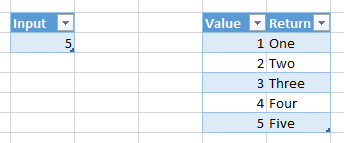
Here’s my Excel spreadsheet, now with two tables: one called Input, containing my input value, and one called CaseValues containing my conditions and return values.
And here’s my new query, a variation on the simple case statement query from my previous post, but this time using the values from the CaseValues table to drive the logic:
//look for the input value in the CaseValues list and return the value associated with it
SimpleCase = List.First(List.Select(CaseValues, each _{0}=InputValue)){1}
in
SimpleCase
The output here, once again, is the text value “Five”. Two interesting things to notice here:
I used the Table.ToRows() function to turn the table containing my case values into a list of lists
I used List.Combine() to append the else condition (a list containing two values, the input value and the text “Else condition”) onto the end of the list returned by Table.ToRows()
I’ve added this example to my original demo workbook, which can be downloaded here.