Thoughts On The Power BI Announcements At The MS Data Insights Summit

I’m not at the Microsoft Data Insights Summit, unfortunately, but I watched the live stream of the keynote today and was duly overwhelmed by the new features announced. I’m not going to summarise what was said because there’s already a post on the official Power BI blog that does that here:

https://powerbi.microsoft.com/en-us/blog//over-5-million-subscribers-are-embracing-power-bi-for-modern-business-intelligence/

…but I wanted to pick out a two topics for more in-depth discussion.

Query Power BI Datasets from Excel

For me, by far, the biggest announcement made today was that by the end of this month we’ll be able to connect an Excel PivotTable up to a Power BI dataset and query it as if it was an Analysis Services cube or a local Power Pivot Data Model. In my opinion this a true killer feature. For the last few years my customers have asked me when MS was going to release SSAS in the cloud and I’ve always replied that Power BI is SSAS in the cloud – it’s just tightly coupled with a front-end right now. That makes things simple in some ways but it also causes problems:

  • You have to build your data model and reports all in the same file, which is a pain because when you want to update one you need to deploy both
  • Other report authors who want to use your model for their reports need to get hold of your .pbix file and edit it
  • Everyone has to use Power BI to build reports on data stored in Power BI

This move solves these problems. It makes manageability much easier: you can build a Data Model, publish it, then you and other developers can build reports on it separately. What’s more it means that all those users who prefer to use Excel, either because it’s the tool they are most comfortable with or because it’s the best option for building the reports they want to build (Excel has a lot of great functionality that Power BI reports don’t have right now and will probably never have), to build reports can do so without having to copy the data into Excel.

Even better, as Amir hinted, this isn’t going to just work with just Excel. If this works the way I assume it works you’ll be able to use all the other MDX-capable front-end tools out there, like SSRS or Pyramid, to query your Power BI data, meaning that you have even more choices for consuming data held in Power BI.

SandDance: A symbol of how MS is finally exploiting all of its assets

SandDance is undoubtedly a cool data visualisation tool and will be great for creating ‘wow’ demos. It’s also not, as the hype is suggesting, something new – I saw it on the Microsoft Research site at least two years ago. What is really important about SandDance is that it shows off another area that Microsoft has got right with Power BI: it has created a platform that other developers both inside and outside Microsoft has build on top of. In this case Microsoft Research had some eye-catching data visualisation technology but not something that made sense as a standalone tool (yes, I know it is actually available as a standalone tool but let’s face it, it wouldn’t make sense as a commercial product). Integrate this data visualisation technology with Power BI, though, and suddenly you’re part of a much richer product that is commercially viable. SandDance gets the chance to be used for real-world purposes by a lot more users; Power BI gets another great bit of functionality; it’s a win-win.

The ‘build a platform’ strategy is classic Microsoft. It’s the story of Windows. It has some disadvantages in that the different pieces might not always fit together as smoothly as it should (compare and contrast with Tableau, which could be seen as the Apple of the data visualisation world) but it gets useful, specialised features out there very quickly. Microsoft has a wealth of great technology scattered across its different divisions that, historically, it has struggled to bring together coherently, but it looks like Power BI is managing to buck the trend. The integration with Azure Stream Analytics and Azure SQL DW that exist today, the integration Power Apps that was demoed in the keynote, the use of machine learning in Quick Insights and the integration with Azure ML that I also saw mentioned on Twitter today, are other examples of this happening.

Microsoft also has a strong partner community in the BI space that did good business building solutions on the SQL Server BI stack; Power BI v1 did not offer the same opportunities and was neglected by partners as a result but Power BI today offers partners a lot more opportunities and so the they are back out there building and selling on Microsoft’s behalf again. It’s happening in the Custom Visuals Gallery, it’s happening with the Power BI API and apps like Power BI Tiles,  and it’s going to happen in a lot of other ways in the future too.
Monitoring SSAS Multidimensional Non Empty Filtering Using Profiler, Part 1

Filtering out empty values is something that SSAS does a lot of during query execution, and it is also a common cause of performance problems. In this series of posts (similar to my series earlier this year on results serialisation) I’ll look at the different types of non empty filtering that can occur in an MDX query, how they can be monitored using Profiler and what you can do to improve their performance.

Some of this information has come from an old white paper, but I’ve found that some of what that paper says is now out of date and I’m extremely grateful to Akshai Mirchandani of Microsoft for answering my questions on this subject. Even with the long-suffering Akshai’s help a lot of the information here is based on my own research and therefore potentially incomplete/inaccurate, potentially different for different versions of SSAS (I’m using SSAS 2014 for this series) and could potentially change again in the future, so take due care!

The first question to ask is: what counts as non empty filtering? There are actually several different operations that the engine treats as a non empty filter, a few of which I was surprised by; here are the ones I know about.

1) The NON EMPTY statement

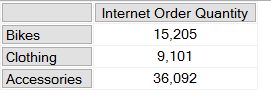
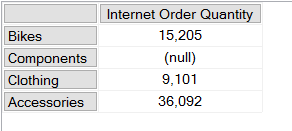
Most MDX queries generated by client tools include a NON EMPTY statement on the rows and columns axis. For example, take a look at the results returned by this MDX query on the Adventure Works cube:

[sourcecode language=”text” padlinenumbers=”true”]
SELECT
{[Measures].[Internet Order Quantity]}
ON 0,
[Product].[Category].[Category].MEMBERS
ON 1
FROM
[Adventure Works]
[/sourcecode]

image

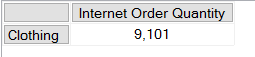
As you can see, the Product Category Components has no data and returns a null. One way to remove the row for Components would be to add a NON EMPTY statement to the rows axis:

[sourcecode language=”text” highlight=”4″]
SELECT
{[Measures].[Internet Order Quantity]}
ON 0,
NON EMPTY
[Product].[Category].[Category].MEMBERS
ON 1
FROM
[Adventure Works]
[/sourcecode]

image

2) The NONEMPTY() function

Often confused with the NON EMPTY statement, but not the same thing: the NON EMPTY statement can only be used on an axis in a SELECT statement, whereas the NONEMPTY() function can be used in any MDX expression. Continuing our example, here’s how to use it to remove the Component category:

[sourcecode language=”text” highlight=”4,6″ padlinenumbers=”true”]
SELECT
{[Measures].[Internet Order Quantity]}
ON 0,
NONEMPTY(
[Product].[Category].[Category].MEMBERS,
{[Measures].[Internet Order Quantity]})
ON 1
FROM
[Adventure Works]
[/sourcecode]

The NONEMPTY() function is much more flexible than the NON EMPTY statement but essentially does the same thing – it isn’t any faster in what it does, but it does allow you to make certain assumptions about your data that can improve query performance (more of that later). One thing to remember is to always set the second parameter, because if you don’t you may get unexpected results.

There is also a NONEMPTYCROSSJOIN() function but it is deprecated and you should not be using it – everything that it does can be done more reliably with other functions.

3) Autoexists

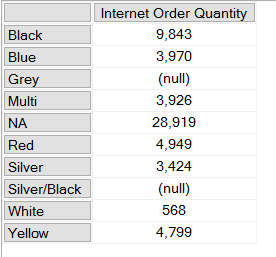
Autoexists is not a feature of the MDX language but rather something that SSAS does automatically to remove tuples from a set that it knows must always be null. It’s described in great detail here, but it’s quite easy to illustrate. We already know from the queries above which categories have data; similarly the following query shows there is data for all colours except Grey and Silver/Black:

[sourcecode language=”text”]
SELECT
{[Measures].[Internet Order Quantity]}
ON 0,
[Product].[Color].[Color].MEMBERS
ON 1
FROM
[Adventure Works]
[/sourcecode]

image

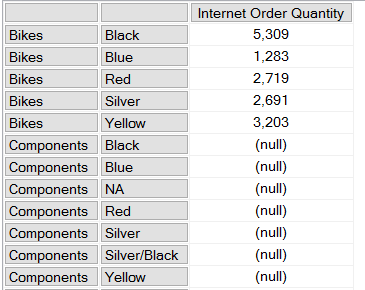
However if you crossjoin every category and every colour on the rows axis, you don’t see every combination of category and colour returned:

[sourcecode language=”text” padlinenumbers=”true”]
SELECT
{[Measures].[Internet Order Quantity]}
ON 0,
[Product].[Category].[Category].MEMBERS
*
[Product].[Color].[Color].MEMBERS
ON 1
FROM
[Adventure Works]
[/sourcecode]

image

There is no row for the category Bikes and the colour White, for example. This is because the SSAS engine knows from the data in the dimension that no product exists that is both the colour White and in the category Bikes, so it doesn’t return that combination from the crossjoin – that particular tuple could never contain any data so there’s no point returning it. Notice that there are combinations, such as Components/Black, that exist in the dimension and are present on the rows axis but still return null because there is no value for Internet Order Quantity.

It’s important to remember that autoexists only takes place when you are working with sets of members from different hierarchies on the same dimension, never with sets of members from different dimensions.

4) The EXISTS() function and the EXISTING keyword

The EXISTS() function and the EXISTING keyword allow you to take advantage of autoexists for filtering inside your own expressions without having to actually do a crossjoin (there’s another variant of EXISTS() with a third parameter that behaves more like NONEMPTY() but it’s very rarely used so I’m going to ignore it).

For example, here’s how you can use the EXISTS() function to return all the categories that have a product that is White:

[sourcecode language=”text”]
SELECT
{[Measures].[Internet Order Quantity]}
ON 0,
EXISTS(
[Product].[Category].[Category].MEMBERS
, {[Product].[Color].&[White]})
ON 1
FROM
[Adventure Works]
[/sourcecode]

image

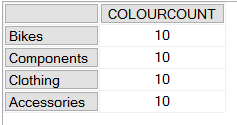
The EXISTING keyword is used within calculations to apply autoexists filtering to a set based on the other hierarchies from the same dimension. The following query contains a calculated measure that counts the number of members on the Color level of the Color hierarchy, and unsurprisingly returns the same value each time it’s called:

[sourcecode language=”text”]
WITH
MEMBER MEASURES.COLOURCOUNT AS
COUNT([Product].[Color].[Color].MEMBERS)
SELECT
{MEASURES.COLOURCOUNT}
ON 0,
[Product].[Category].[Category].MEMBERS
ON 1
FROM
[Adventure Works]
[/sourcecode]

image

However, if you add the EXISTING keyword just before the set in the calculated measure definition, like so:

[sourcecode language=”text” highlight=”3″]
WITH
MEMBER MEASURES.COLOURCOUNT AS
COUNT(EXISTING [Product].[Color].[Color].MEMBERS)
SELECT
{MEASURES.COLOURCOUNT}
ON 0,
[Product].[Category].[Category].MEMBERS
ON 1
FROM
[Adventure Works]
[/sourcecode]

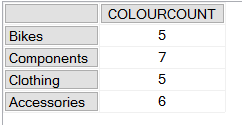
Then you’ll see that the calculation now returns the number of members on the Color level of the Color hierarchy after autoexists filtering has been applied; so for example the first line shows there are five distinct colours associated with the Category Bikes:

image

Summary

OK, after that somewhat lengthy introduction, in part 2 I’ll show you how to use Profiler to monitor what’s going on inside SSAS when you do all of these different types of non empty filtering.

Generating Fixed-Width Text Files In Excel With Power Query

While it’s fairly common to need to load fixed-width files using Power Query or Power Query (and there’s a nice walkthrough of how to do this here), occasionally you might want to use Power Query and Excel to create a fixed-width output for another system, or maybe to create some test data. You might not want to do it often but I can imagine that when/if Power Query is integrated into SSIS this will be a slightly less obscure requirement; at the very least, this post should show you how to use a couple of M functions that are under-documented.

Before we begin, a quick tip: when working with any fixed width file always check the Monospaced box on the View tab in the Query Editor window, to make it easier to just the widths. You’ll notice I’ve done this in all the screenshots in this post.

image

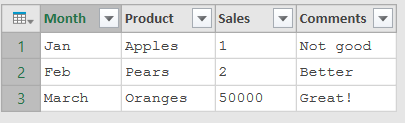
For source data, let’s take the following expression which returns a table:

[sourcecode language=”text” padlinenumbers=”true”]
#table(
type table[Month=text,Product=text,Sales=text,Comments=text],
{
{"Jan","Apples","1","Not good"},
{"Feb","Pears","2","Better"},
{"March","Oranges","50000","Great!"}
})
[/sourcecode]


image

Of course this could be any table of data that you choose, it’s just that using an expression like this makes the examples easier to follow. The only thing to notice here is that all the columns have a data type of text, even the Sales column: if your table doesn’t, I suggest you convert all the data types to text before you start – it will save you having to do it later.

The next thing you’ll need to do is to create a custom column that returns a list containing all the values from each of the columns from the current row. The expression to use here is:

[sourcecode language=”text”]
Record.FieldValues(_)
[/sourcecode]

For more information about what the underscore means here, see my previous post; basically it refers to the values in the current row.

Finally, you need to concatenate all the values in this list (which should all be text already, of course) into a single piece of fixed-width text. To do this we’ll need to use a Combiner function – a function that returns a function that, in turn, combines multiple pieces of text together in a specific way. I’ve already blogged about the Combiner.CombineTextByDelimiter() function here but in this case we’ll be using Combiner.CombineTextByRanges() which is a little more complex. You can’t use Combiner.CombineTextByRanges() to combine text directly, you have to call it to get a function that combines text in the way you want and then use this function on your data. To do this you need an expression like:

[sourcecode language=”text”]
Combiner.CombineTextByRanges({{0,3},{9,10},{19,10},{29,255}})
[/sourcecode]

How does this work? For each line, remember, we now have a value of type list that contains all of the values from the four columns in our table. The expression above returns a function that takes a list and constructs a single line of text from it. The list passed to the first parameter consists of a series of lists of two integers, and each value pair gives the position to place each value on the line and the number of characters to allow. So, in this example, the first value in the input list is put at position 0 on the line and is given a space of 3 characters; the second value in the input list is put at position 9 and given a space of 10 characters; the third value in the input list is put at position 19 and given a space of 10 characters; and the fourth value in the input list is put at position 29 and given a space of 255 characters.

This function can now be called in a second custom column to get the  combined text for each line. Here’s the full M code for the query:

[sourcecode language=”text”]
let
Source = #table(
type table
[Month=text,Product=text,Sales=text,Comments=text],
{
{"Jan","Apples","1","Not good"},
{"Feb","Pears","2","Better"},
{"March","Oranges","50000","Great!"}
}),
ListOfValues = Table.AddColumn(
Source,
"List Of Values",
each Record.FieldValues(_)),
MyCombinerFunction = Combiner.CombineTextByRanges({
{0,3},
{9,10},
{19,10},
{29,255}
}),
OutputColumn = Table.AddColumn(
ListOfValues,
"Output Column",
each MyCombinerFunction([List Of Values]))
in
OutputColumn
[/sourcecode]

And here’s the output:

image

One thing to notice: on the third line, the month name March has been truncated to Mar because we only specified a space of three characters for the month name.

image

There’s an optional second parameter to Combiner.CombineTextByRanges() that also needs some explanation. By default, the function that Combiner.CombineTextByRanges() returns will place your text on an otherwise blank line. However you can get it to place your text on a line that contains other characters apart from blank space. For example, if you alter the MyCombinerFunction step in the query shown above to be:

[sourcecode language=”text” padlinenumbers=”true” highlight=”7″]
MyCombinerFunction = Combiner.CombineTextByRanges({
{0,3},
{9,10},
{19,10},
{29,255}
}
,Text.Repeat("#",285)
),
[/sourcecode]

You get:

image

The Text.Repeat() function, as used in the expression above, returns a piece of text with the # character repeated 285 times, and that piece of text is used as the ‘background’ on which the values are superimposed.

Of course, now you’ve got your desired output all you need to do to create a fixed width file is to remove all other columns apart from Output Column in your query, load your query to a table in the Excel worksheet, turn off the header row for the table by unchecking the Header Row option on the ribbon:

image

…and then save the workbook in a .txt file format.

You can download the sample workbook for this query here.

Dynamic Column Selection In Custom Columns In Power BI/Power Query/M

When you’re writing an M expression for a custom column in Power BI or Power Query it’s easy to reference the values in other columns. A slightly more difficult question, however, is how can you reference column values dynamically? For example, given the following input table:

image

How can you use the values in the “Column To Select” column to dynamically select values from either Column 1, Column 2 or Column 3? For example, on the first line of the table the “Column To Select” column contains the value 2, so the calculated column should contain the value from “Column 2”; on the second line of the table the “Column To Select” column contains the value 1, so the calculated column should contain the value from “Column 1” and so on:

image

There are a number of different ways to achieve this. You could, for instance, write a nested if or do some other kind of fancy conditional logic in M, but this could result in a lot of code. You could also unpivot all the columns except “Column To Select”, do some filtering, then pivot the data again but that would also be quite complicated. Probably the easiest way of doing this is with the Record.Field() function, which allows you to get the value of any given field in a record by passing the name of that field as a text value.

Here’s an example query that generates the table shown in the first screenshot above in its first step, sets some data types on the columns in the second step, then creates the custom column shown in the second screenshot in the final step:

[sourcecode language=”text” padlinenumbers=”true” highlight=”18,19,20″]
let
Source = #table(
{"Column 1", "Column 2",
"Column 3", "Column To Select"},
{{10,20,30,2},
{30,40,50,1},
{50,60,70,3}}),
#"Changed Type" = Table.TransformColumnTypes(
Source,
{{"Column 1", Int64.Type},
{"Column 2", Int64.Type},
{"Column 3", Int64.Type},
{"Column To Select", Int64.Type}}),
#"Added Custom" = Table.AddColumn(
#"Changed Type",
"Selected Column Value",
each
Record.Field(
_,
"Column " & Text.From([Column To Select])))
in
#"Added Custom"
[/sourcecode]

Here’s the expression for the custom column isolated, in the form that you would use in the Add Custom Column dialog:

[sourcecode language=”text”]
Record.Field(_, "Column " & Text.From([Column To Select]))
[/sourcecode]

image

Understanding how to use the Record.Field() function here leads us to an interesting side discussion about custom columns, functions, records and each expressions. The full M expression for the third step in the query is:

[sourcecode language=”text”]
Table.AddColumn(
//the table returned by the previous step
#"Changed Type",
//the name of the new custom column
"Selected Column Value",
//a function to call for each row of the table
//returning the value to display in the custom column
each Record.Field(_, "Column " & Text.From([Column To Select])))
[/sourcecode]

The first two parameters of the Table.AddColumn() function are straightforward but if you read the documentation you’ll see that the third parameter requires a value of type function. This function is called for every row in the table and returns the values in the custom column. It doesn’t look like it but there is a new function being defined here. In M an each expression can be used to define a function that has no name and that takes one parameter whose name is _ (ie the underscore character). The Table.AddColumn() function passes this new function a value of type record representing all of the values in the current row of the table, and that means Record.Field() can access this record by using _. What’s more, when referring to fields in this record you don’t even have to say _[Column To Select], you can drop the underscore and just say [Column To Select], as in the code example above. All this means that the expression

[sourcecode language=”text”]
each Record.Field(_, "Column " & Text.From([Column To Select]))
[/sourcecode]

is basically the same as

[sourcecode language=”text”]
(_)=> Record.Field(_, "Column " & Text.From(_[Column To Select]))
[/sourcecode]

…which, if you know a bit of M, makes a lot more sense but for the average user is probably more intimidating.

A Quick Look At Azure Data Catalog

I’ve been meaning to look at Azure Data Catalog for a long time but somehow never got round to it until now. I’m not sure why – perhaps it’s because there’s so much other cool stuff happening in the world of Power BI and Azure, and Azure Data Catalog seems a bit, um, boring in comparison. Maybe it’s a bit too much like documentation and all that other stuff we instinctively try to avoid. Whatever the reason, now I have looked at it I’m impressed and I can see its uses, not just for Power BI but also for traditional corporate BI scenarios. It certainly deserves a lot more attention from the Microsoft BI community than it seems to be getting at the moment.

First of all, what is Azure Data Catalog anyway? There’s lots of good documentation, videos and a tutorial here:
https://azure.microsoft.com/en-us/documentation/services/data-catalog/

…but the short answer is that it’s a cloud based service for cataloguing all the data sources you want to use for BI. It doesn’t store any of the data itself (except for a small amount for preview purposes, and you can turn that off), just the connection details; it also stores metadata (column names, data types etc) as well as descriptions, documentation and contact details for people who own or know about the data. End users can search the catalogue for data and even, for some data source types like SSAS, click a button to open that data source directly in Excel or Power BI Desktop.

image

Is it any good? Well, I managed to get going with it very easily. As well as an Azure subscription it does require you to have Azure Active Directory set up though, which is a pain – some of my customers (mostly the ones that have bought into Office 365 and Power BI) have it already, but I know for others it would be a showstopper. After setting everything up I was able to register SQL Server, SSAS and other types of data source very quickly using both the desktop application and the browser interface. It’s certainly simple enough for a reasonably technical end user to use and the implementation is very solid. I do have a few minor quibbles (I found the search results interface slightly confusing at first but soon came to grips with it) and it’s clear that it’s still very much a work in progress (right now the browser interface supports registering more data types than the desktop app, for example) but nothing very significant.

There is an obvious need for Azure Data Catalog if you are going to use Power BI and have embraced the whole concept of self-service BI: it makes it much easier for your users to find and consume the various different data sources that you have available. However, as I said earlier, I think on-premises users of SSAS and SSRS could also benefit from it too. It’s becoming increasingly common for me to see organisations with several SSAS cubes in production across various servers, each of them with a confusing list of measures and dimensions. Equally I’ve seen plenty of SSRS implementations with hundreds of reports, with nobody knowing what many of these reports do or even if they are used at all. Azure Data Catalog could provide a convenient central place to document and discover these cubes and reports. I guess it all depends on whether you can be bothered to do this documentation and annotation though, rather than whether you have a suitable tool for this purpose; I don’t think many organisations can be bothered, unfortunately.

One last thing: Azure Data Catalog is meant to include replacement functionality for the old Power BI for Office 365 Data Catalog but as yet it doesn’t allow you to publish or share Power Query queries. This is something that I and other Power Query/Power BI fans would love to see, especially if (unlike the old Data Catalog) it let you publish updates to your code without needing to manually update each Excel workbook/Power BI report that used it afterwards.

Finding All Selected Items In A Slicer In Excel 2016 Using TextJoin()

When you are using slicers with an Excel PivotTable it’s often useful to be able to get a comma-delimited list of the items selected in that slicer for use in a report title. It’s not easy to do though, and in fact this is one of those topics that lots of people have blogged about over the years: here’s my MDX approach, here’s Erik Svensen’s post on using the new DAX ConcatenateX() function, and there are also posts by Rob Collie like this one. None of these techniques are ideal though: my personal favourite is the ConcatenateX() approach, but that only works with SSAS Tabular 2016 (and then only if you can create a measure on the model) or Power Pivot in Excel 2016, and not at all if you’re using SSAS Multidimensional or earlier versions of SSAS Tabular.

However, after discovering the new TextJoin() function in Excel 2016 the other week I realised that this would provide yet another way to solve this problem. Here’s a simple example using a PivotTable and slicer connected to a Power Pivot model:

image

The highlighted cell F3 showing a comma-delimited list of all the items selected in the slicer has the following Excel formula:

[sourcecode language=”text” padlinenumbers=”true”]
=TEXTJOIN(
", ",
TRUE,
IFERROR(
CUBERANKEDMEMBER(
"ThisWorkbookDataModel",
Slicer_Product,
ROW(
INDIRECT("1:"&CUBESETCOUNT(Slicer_Product))
)
),
"")
)
[/sourcecode]

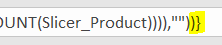
Important: this needs to be entered as an array formula, so instead of hitting Enter after typing in the formula you need to hit Ctrl+Shift+Enter. You’ll see the formula surrounded by braces {} in the formula bar when you do this:

image

image

This formula relies on the fact that the selection in a slicer (in the example above the slicer has the name Slicer_Product) can be treated the same as the output of the Excel CubeSet() function, which means that you can use the CubeSetCount() function to find the number of items selected and the CubeRankedMember() function to get the name of any single item in the selection. It also uses the Row()/Indirect() trick described here to create an array of numbers from 1 to the number of items selected in the slicer, which in turn provides the rank values to pass to the CubeRankedMember() function.

The beauty of this approach is that it works for Power Pivot and all versions of SSAS Tabular and Multidimensional, and doesn’t require any measures to be created on your models/cubes. It even works in Excel Online, so it will work inside Power BI, although it doesn’t seem to be possible to create array formulas in Excel Online yet so you need to create the formula on the desktop before you deploy. Of course you need the latest build of Excel 2016 for all this to work, and at the time of writing most people don’t have Excel 2016 and even if they do they probably won’t have a build (Version 16.0.6568.2025 or higher) with TextJoin() in it yet. But this will be a great solution in the distant future when everyone has Excel 2016, I promise!

You can download the sample Excel 2016 workbook here.

I also have to acknowledge the help of David Hager in writing this formula – we had a conversation about how TextJoin() behaves in array formulas in the comments of my earlier post and in doing so he provided the basic approach for me.

BI Survey 16

It’s that time of year again, so if you’ve got a few moments to spare here’s the link to take part in the BI Survey 16:

https://digiumenterprise.com/answer/?link=2908-SE68TH8Z

The BI Survey is the world’s largest survey of BI users and provides a fascinating insight into what’s really going on in the world of BI, as opposed to what the journalists and analysts are hyping.

In return for promoting it here, I get a free copy of the results and permission to blog about them. I’m particularly looking forward to finding out what it says about Power BI this year: just about all of the problems with the Excel/Power-add-ins combination identified in last year’s survey (data volume problems with 32-bit Excel, no real mobile story, the SharePoint dependency, confusion about what each of the add-ins does) have now been addressed with the new Power BI strategy, and I’m seeing a lot of customers starting projects with it.

Working With CSV Files That Contain Rogue Line Breaks In Power Query And Power BI

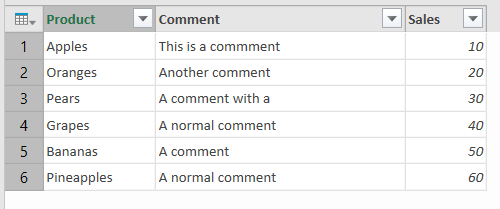
CSV files often contain text fields, and text fields often contain line breaks that shouldn’t be there (especially if the text is entered by end users). For example, here is are the contents of a simple CSV file that should contain three fields(Product, Comment and Sales) and six rows:

[sourcecode language=”text” padlinenumbers=”true”]
Product,Comment,Sales
Apples,This is a commment,10
Oranges,Another comment,20
Pears,A comment with a
line break in,30
Grapes,A normal comment,40
Bananas,A comment
with
two line breaks,50
Pineapples,A normal comment,60
[/sourcecode]

However, as you can see, the Comment field contains line breaks in some cases. If you try to load this file into Power Query/Power BI, you’ll see that it doesn’t handle things well:

image

The easiest way of solving this problem is to make sure you have double quotes around the text in the Comment field, so that Power Query/Power BI knows to ignore the line breaks:

[sourcecode language=”text” padlinenumbers=”true”]
Product,Comment,Sales
Apples,"This is a commment",10
Oranges,"Another comment",20
Pears,"A comment with a
line break in",30
Grapes,"A normal comment",40
Bananas,"A comment
with
two line breaks",50
Pineapples,"A normal comment",60
[/sourcecode]

image

[By the way, no text in the screenshot above has been truncated. The line breaks are still there in the Comment field; you can see the full text in the bottom pane of the Query Editor by clicking on a cell in the table.]

But what if you can’t fix the source data? I was asked this question the other week, and since I had been asked about it before and not come up with a good answer, I decided to spend some time researching the problem.

What I found was that it was relatively easy to write some M code that gave me the correct results, but very hard to write code that performed acceptably well on a large data set (I was testing on a CSV file containing almost half a million rows). Here’s the code for the function I ended up with:

[sourcecode language=”text” wraplines=”false” light=”true”]
(FileName as text, DelimiterCharacter as text, DelimitersPerLine as number, UseFirstRowAsHeaders as logical) =>
let
// Load file and buffer in memory
BufferedBinary = Binary.Buffer(File.Contents(FileName)),
// Convert to a single block of text
Source = Text.FromBinary(BufferedBinary),
// Find the position of all line breaks
LineBreaks = List.Buffer(Text.PositionOf(Source, "#(cr,lf)", Occurrence.All)),
// Get a list of numbers from 0 to the number of line breaks-1
LinePositions = List.Positions(LineBreaks),
// Count the number of line breaks
TotalLines = List.Count(LineBreaks),
// Split the text by line breaks
FirstSplit = Text.Split(Source, "#(cr,lf)"),
// On each line, count the number of column delimiter characters
DelimiterCounts = List.Buffer(
List.Transform(
LinePositions,
each List.Count(Text.PositionOf(FirstSplit{_},
DelimiterCharacter,
Occurrence.All)))),
// Loop through each line and
// a) Calculate a running total of the number of column delimiter characters on each line
// b) Divide the running total by the expected number of delimiters per line, and round down to the nearest integer
RunningSums = List.Buffer(
List.Generate(
()=>[Counter=0, RunningTotal=0],
each [Counter]<TotalLines,
each [Counter=[Counter]+1, RunningTotal=[RunningTotal]+DelimiterCounts{[Counter]}],
each Number.IntegerDivide([RunningTotal]+DelimiterCounts{[Counter]},DelimitersPerLine))),
// If the result of the division calculated in the previous step is
// the same as on the previous line, then the line break can be ignored
// so return null, otherwise return the position of the line break
FindFullLines = List.Transform(LinePositions, each if _=0 or RunningSums{_}<>RunningSums{_-1} then LineBreaks{_} else null),
// Remove nulls from the list
RemoveNulls = List.RemoveNulls(FindFullLines),
// Split the original text by the positions of the line breaks left
LineSplitterFunction = Splitter.SplitTextByPositions(List.Combine({{0},RemoveNulls})),
ActualLines = LineSplitterFunction(Source),
// Convert the result to a table
ConvertToTable = Table.FromList(ActualLines, Splitter.SplitTextByDelimiter(DelimiterCharacter), null, null, ExtraValues.Ignore),
// Use the first rows as headers if desired
PromoteHeaders = if UseFirstRowAsHeaders then Table.PromoteHeaders(ConvertToTable) else ConvertToTable
in
PromoteHeaders
[/sourcecode]

Assuming that you called this function LoadFile(), here’s an example of how to call it:

[sourcecode language=”text” padlinenumbers=”true”]
LoadFile(
//File name
"C:\MyFile.csv",
//Column delimiter character – in this case a comma
",",
//The expected number of commas to be found per line
//ie one less than the number of columns
2,
//If true then first row contains header values
true)
[/sourcecode]

The comments in the code should give you an idea of how it all works. A few other things to note:

  • If any of your lines contain extra columns, this approach won’t work
  • I’ve noticed a difference between how the Power BI Desktop and Excel 2016 behave with this code: the current Excel 2016 Query Editor will keep any line breaks after splitting on them, whereas Power BI Desktop does not. It’s easy to fix the Excel output though: just use the Clean transform to remove the line breaks.

I’m not really sure why it was so hard to come up with code that performed well, even after liberal use of List.Buffer(). It seemed like any time I referenced the original text (as returned by the Source step) in the List.Generate() function then performance died – so you’ll notice in the code above that I’m only referencing the list that contains the number of delimiters found per line.

Rendering Text On A Map With Power Query And Power Map

They say a good magician never reveals his tricks. Luckily, I’m a rubbish magician and so (at the request of Jason Thomas and David Eldersveld) I can reveal the secret behind one of the magic tricks I used in my sessions at SQLBits and the PASS Summit last year: my mind-reading card trick. More specifically, this post will show you how I was able to find out which card my helper had picked from a deck and how I was able to make its name appear in Power Map. Alas the video of the hour-long SQLBits session isn’t available for some reason, but the video of the shortened version of the session I did at the BI Power Hour at the PASS Summit is available for purchase here along with other, much more useful content.

First of all, the mind-reading bit. I hate to admit it but it had nothing to do with this rather fetching hat – the Microsoft Brain Interface – modelled here by Matt Masson:

image

In fact I had some accomplices (Bob Duffy and Carmel Gunn at SQLBits, Matt Masson at PASS) who entered the name of the card into a text file stored in OneDrive when my helper showed it to the audience. I then used the technique Melissa Coates blogged about here to read the name from the text file using Power Query on my laptop.

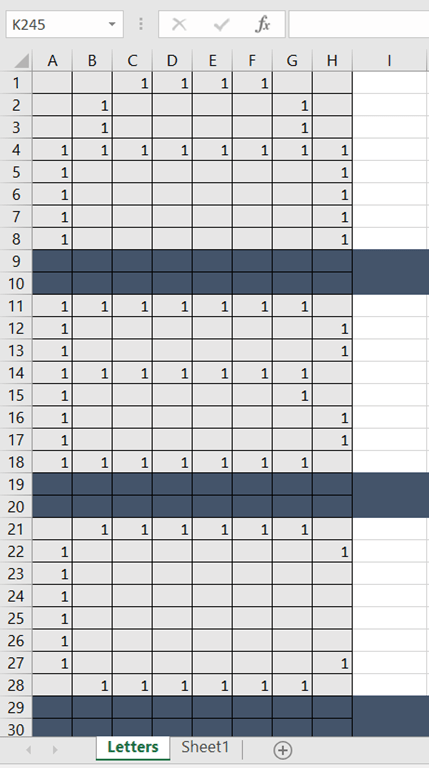
Second, the harder problem of taking the name of the card and making it appear in Power Map. Again, I used the magic of Power Query. On an Excel worksheet I used 1s and blanks to represent each letter of the alphabet in its own 8×8 grid:

image

…and then I read this into Power Query, matched each 8×8 grid up to the letter it represented, split the name of the card into letters, put the two together and got a table containing a set of data points that, when plotted on a custom map in Power Map, could be read as text:

image

You can download a modified version of the workbook here which reads data from the worksheet instead of a text file and renders the text over a regular map in Power Map. Here’s an example of the output:

Sadly I’m even less of an artist than I am a magician, and I admit that the output could be prettier. David Eldersveld recently showed off a very impressive Power BI report that uses a scatter chart to display the Power BI logo (you can see the report live here):

image

I guess the logical next step would be to take my code, move it to Power BI, add a column with date values in and use the play axis on the scatter chart to display animated text or pictures. But, to be honest, that might be too geeky a project even for me.

Disabling Excel PivotTable Grouping And Session Cubes In SSAS Multidimensional

The Excel PivotTable grouping functionality that is available when you are connected to an SSAS Multidimensional cube (but not a Tabular model) is a Very Bad Thing indeed. In my experience it is a major cause of query performance problems – not just for the person running the query, but because it is so resource intensive for everyone else trying to query the cube too. This post from a few years ago gives some more details about why custom grouping, and the CREATE SESSION CUBE MDX statements that it uses behind the scenes, are so expensive.

Up until now it was impossible to prevent users from using custom grouping but in a recent cumulative update this changed. First of all, I encourage you to read the details of the fix because you will probably want to install the relevant CU for security reasons anyway:

https://support.microsoft.com/en-us/kb/3080856

[And if you are wondering whether you should be installing CUs I strongly suggest you read this post by Aaron Bertrand]

Once the CU has been installed the following new property is added to the msmdrv.ini file:

\OLAP\Query\SessionCubesMode

This will be set to 1. Setting this property to 0 will prevent users from creating session cubes and therefore prevent them from using Excel’s custom grouping functionality.

My opinion is that it’s a good idea to disable session cubes and custom grouping even if you don’t know whether your users are using these features. Yes, your users will lose some functionality and some reports might even break, but you will also save yourself and your users a lot of problems. If your users need to do custom grouping in a report that is usually an indication that you have missed something in your dimension design, and that an extra attribute hierarchy or two is necessary.

[Thanks to Akshai for this information]