Variables are the best thing to happen to DAX since, well forever – they are so cool I’m almost ready to like DAX as much as I like MDX. There are already several good articles and blog posts out there describing how to use them (see here and here), but I was looking at a Profiler trace the other day and saw something I hadn’t yet realised about them: you can declare and use variables in the DEFINE clause of a DAX query. Since my series of posts on DAX queries still gets a fair amount of traffic, I thought it would be worth writing a brief post showing how this works.
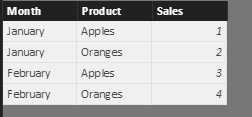
Say you have the following table (called Sales) in your model:
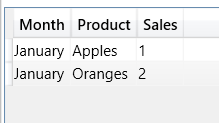
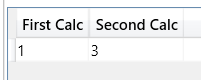
You can declare DAX variables in the DEFINE clause of a query like so:
The benefits of using variables in this way are the same as you get when using variables in measures and calculated columns: improved readability, less repetition and potential performance improvements.
I also wondered whether I would be able to refer to these variables inside measures declared in the DEFINE clause, but unfortunately you can’t. The following query:
In a lot of cases, multiple calculations contain some of the same logic and being able to use variables to share tables and values between calculations opens up some really interesting opportunities for performance optimisations.
Often, when calling web services from Power BI or Power Query, you’ll need to generate some JSON inside your query to send to these web services. The M language makes this relatively easy to do with the Json.FromValue() function but there’s only one example of how to use it in the help so I though it might be useful to provide some worked examples of M data types and how Json.FromValue() turns them into JSON.
First, here’s a function – that I’ve called GetJson() for the examples here – that takes a parameter of any data type, passes it to Json.FromValue() and returns the JSON representation of the input as text:
(InputData) =>

let

JsonOutput = Json.FromValue(InputData),

OutputText = Text.FromBinary(JsonOutput)

in

OutputText
Now, let’s see what this returns for a variety of different data types.
Tables
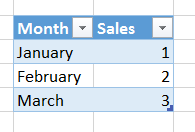
Take the following table on an Excel worksheet, called “Sales”:
The following query loads the data from this table and calls the GetJson() function defined above:
let

Source = Excel.CurrentWorkbook(){[Name="Sales"]}[Content],

#"Changed Type" = Table.TransformColumnTypes(

Source,

{{"Month", type text}, {"Sales", Int64.Type}}),

Output = GetJson(#"Changed Type")

in

Output
It returns the following JSON, an array of objects:
Finally, in M it’s possible to have nested data structures: lists of tables, records containing lists and so on. These can be converted to JSON too, so in the following example of a record containing a text value, a list and a table (created using #table):
There are a lot of cool new features in the September 2016 update for Power BI, so many in fact that several of the really important changes in the Query Editor are in danger of going unnoticed. In this post I want to walk through how to use the new Invoke Custom Function button in the Query Editor in Power BI and explain why it’s such a useful thing to have.
More advanced Power BI users will know that a lot of data loading patterns involve using custom M functions. In the past implementing these patterns involved learning M both for writing functions and also for invoking those functions. A few months ago Power BI introduced the ability to automatically generate functions from queries that use parameters, without needing to write code, and now with the latest update we can also invoke functions easily by clicking a button. This means that a lot more advanced data loading patterns are now available to users who don’t know any M and there’s even less need for someone like me to open the Advanced Editor window and start writing code.
Let’s take a look at how this works with a very simple example. Say you have a table that contains sales data, with the number of units sold and the price paid:
You now want to add a new column to this table that calculates the sales value as Units * Price, and you have a function to do this. Here’s what the M code for that function (called “Calculate Value”) could look like:
[sourcecode language=”text” padlinenumbers=”true”]
(Units as number, Price as number) => Units * Price
[/sourcecode]
With a query that returns your sales data and another query that returns the Calculate Value function, you can easily create a new column on the sales data query and invoke the function for each row. Go to the Sales query, go to the Add Column tab on the ribbon, and click Invoke Custom Function:
You’ll see the Invoke Custom Function dialog appear. Here you can choose the query that returns the function you want to use and enter the values you want to pass to that functions’ parameters. At the moment you can type in a value or pass values from a column in the table you’re invoking (strangely enough you don’t seem to be able to use Power BI parameters here yet though?):
Click OK and the function is invoked for every row in the table:
To take a more realistic example, look at this post – this new functionality replaces the step where I create a new Custom Column and invoke the GetSheet1() function that I created.
This is why Power BI is so successful: Microsoft are not only implementing high-profile wow features but also adding the obscure, unsexy features that nonetheless make a real difference to the productivity of advanced users.
Last week I was doing some performance tuning for a customer using Power BI on top of a large SSAS Multidimensional cube via a Live connection. Some of their reports were performing particularly badly and I uncovered a problem with the DAX generated by Power BI for tables with a large number of rows, fields from two or more large hierarchies and totals turned on.
The problem is very easy to reproduce; I’m going to do it using a simplified version of the Adventure Works cube that contains only the Date and Product dimensions. Take a look at the following table from a Power BI report:
It has the Date attribute from the Date dimension, and the Product attribute from the Product dimension, on rows and two measures on columns. The table has a large number of rows in it (both Date and Product are fairly large hierarchies) and if you look at the DAX generated by Power BI you can see that it only requests the first 501 rows. That’s fine – the real problem is that Power BI also generates a second DAX query to get the two values displayed in the Total line at the bottom of the table. The DAX looks something like this, and is easily identifiable because it uses the Row() function:
This query has something in it – I don’t know what – that means that it cannot make use of the Analysis Services Storage Engine cache. Every time you run it SSAS will go to disk, read the data that it needs and then aggregate it, which means you’ll get cold-cache performance all the time. On a big cube this can be a big problem. This is very similar to problems I’ve seen with MDX queries on Multidimensional and which I blogged about here; it’s the first time I’ve seen this happen with a DAX query though. I suspect a lot of people using Power BI on SSAS Multidimensional will have this problem without realising it.
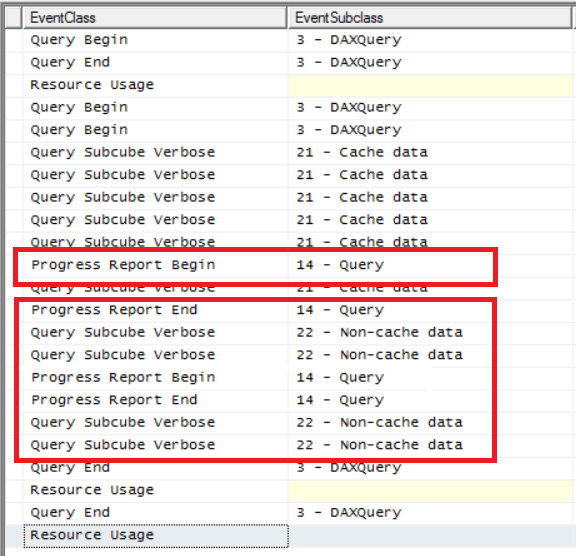
This problem does not occur for all tables – as far as I can see it only happens with tables that have a large number of rows and two or more hierarchies in. The easy way to check whether you have this problem is to refresh your report, run a Profiler trace that includes the Progress Report Begin/End and Query Subcube Verbose events (and any others you find useful) and then refresh the report again by pressing the Refresh button in Power BI Desktop without changing it at all. In your trace, if you see any of the Progress Report events appear when that second refresh happens, as well as Query Subcube Verbose events with an Event Subclass of Non-cache data, then you know that the Storage Engine cache is not being used.
Also look at the Duration column in the trace for these events which shows the time in milliseconds that they took to execute. This will tell you how much of an impact this problem is having on your report refresh times.
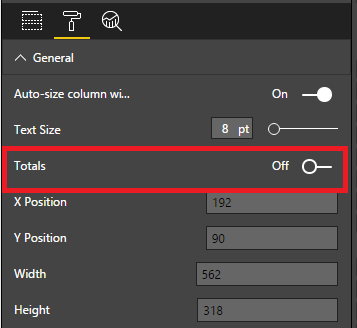
The easy way to stop this happening is to turn off the totals row in the table:
Displaying the totals in a separate table also seems to avoid the problem, although of course it doesn’t look as good. Only putting one hierarchy in the table apart from your measures, also seems to solve the problem. You could also try all the usual methods to improve SSAS performance such as building aggregations on the cube.
The dev team is aware of this problem but it’s unlikely to be fixed in the short term.
I can hear you yawning already – yet another blog post on getting data from multiple Excel workbooks in Power Query and Power BI. Just about everyone who has ever written a blog post on Power BI has written about this subject, including me. However there’s a twist this time: what if your Excel workbooks are stored in SharePoint or OneDrive For Business? If they are, then your dataset may not refresh successfully after you have published unless you load your data in a particular way.
Some background first. A few weeks ago I was contacted by a reader who had seen my post on data refresh errors and the Web.Contents() function and was experiencing the same issue when using Web.Contents() to get data from multiple Excel workbooks stored in SharePoint. Up until recently the Web.Contents() function – which is used by the From Web option in Power BI’s Get Data experience – was the only way to get data reliably from single Excel files stored in SharePoint or OneDrive For Business. However the limitations on Web.Contents(), M functions and data refresh described in my blog post meant that it wasn’t possible to use Web.Contents() to get data from multiple Excel files stored in SharePoint or OneDrive For Business.
The April 2016 Power BI Desktop update introduced a new way of getting data from Excel files stored in SharePoint: the SharePoint Files data source, based on the SharePoint.Files() M function. Both Mike Carlo and Ken Puls have already blogged about this in depth and so I won’t repeat what they’ve written; their posts have a lot of good information on how to construct the URLs to find your files in SharePoint. How do you use it to combine data from multiple Excel workbooks though?
Imagine you have four identically-structure Excel workbooks stored in a folder in OneDrive For Business:
Each one has a table called Table1 with some sales data in it:
In Power BI Desktop, create a new query and click the Get Data button. In the Get Data dialog, go to Files and click on SharePoint Folder:
Enter the URL for your OneDrive For Business site:
You’ll then see all the files in all your folders in OneDrive For Business:
Filter the folders in the Folder Path column so you only see the files in the folder containing your Excel workbooks:
Right-click on the Content column and select Remove Other Columns to get rid of all but the Content column. Then click the Add Custom Column button and add the following expression:
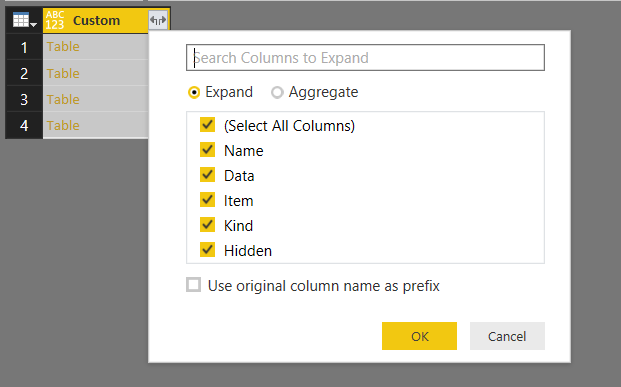
This tells Power BI to treat each file in this folder as an Excel Workbook. Click OK, and then right-click on the Content column and select Remove (you won’t need this any more). Next, click on the Expand icon in the top right-hand corner of the Custom column and click OK on the flyout:
This will give you a table listing all of the contents of each workbook:
Filter this table so you only have the four tables from each workbook:
Next, right-click on the Data column and select Remove Other Columns, then finally click OK on the Expand icon again:
You’ll now have a table containing all of the data from the tables called Table1 in each workbook in the folder:
Don’t forget to set appropriate data types for each column (columns will have the data type Any by default, which will be treated as text later on)! You can now build your report and publish it:
In order for refresh to work, you’ll need to configure the credentials used by the Power BI service to connect to your data. In the browser, click on the ellipses for the Dataset for your report and select Schedule Refresh:
This will take you to the Datasets tab on the Settings page. You can schedule refresh here if you want, but the important thing is to click the Edit Credentials link:
If like me you have an Office 365 subscription and use SharePoint Online, then the dialog choose oAuth2 in the Authentication Method dropdown box and click Sign In:
You’ll see the Windows Organizational Account sign-in page appear briefly while you are signed in but you shouldn’t need to do anything. And that’s it!
You can now edit the data in any of your Excel workbooks and, once the dataset has refreshed, those changes will show up in the report. If you want to do a manual refresh of the data, clicking the Refresh button at the top of the report won’t do any good; you have to click on the Refresh Now option on the dataset (seen in the screenshot above, just below the Schedule Refresh option).
Since my last post on the Excel cube functions proved to be very popular, I thought I’d write a follow-up that shows off some more little-known but interesting functionality: how to use the CubeSet() function to combine selections from multiple slicers.
The Problem
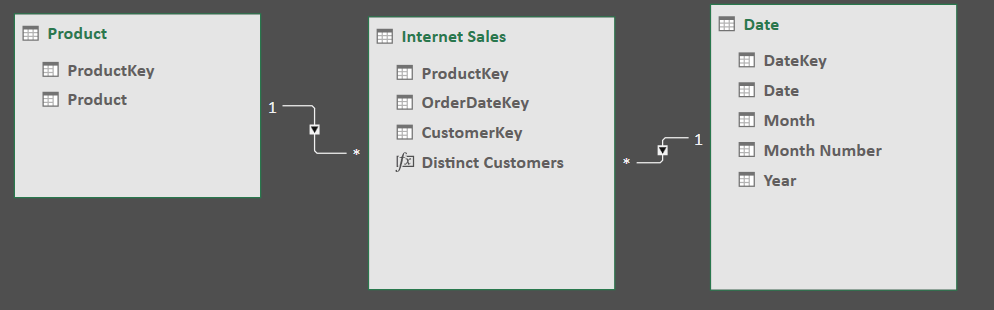
Consider the following Power Pivot model based on data from the Adventure Works DW database:
The Internet Sales table contains one row per sales transaction; Product and Date are dimension tables that provide more information on the product bought in the transaction and the date the order was taken on. There’s one measure called Distinct Customers that returns the distinct count of customers; its definition is as follows:
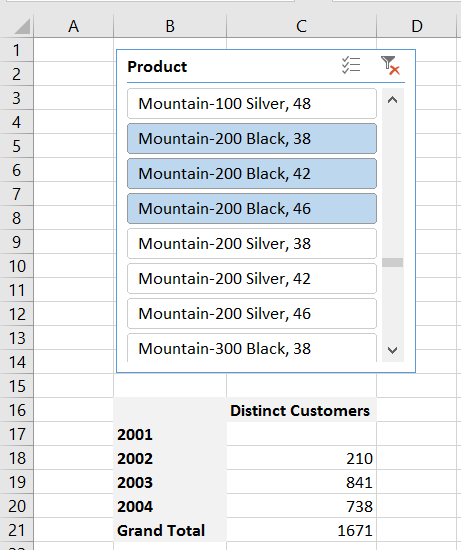
With this model you could build the following simple report by converting a PivotTable to cube functions:
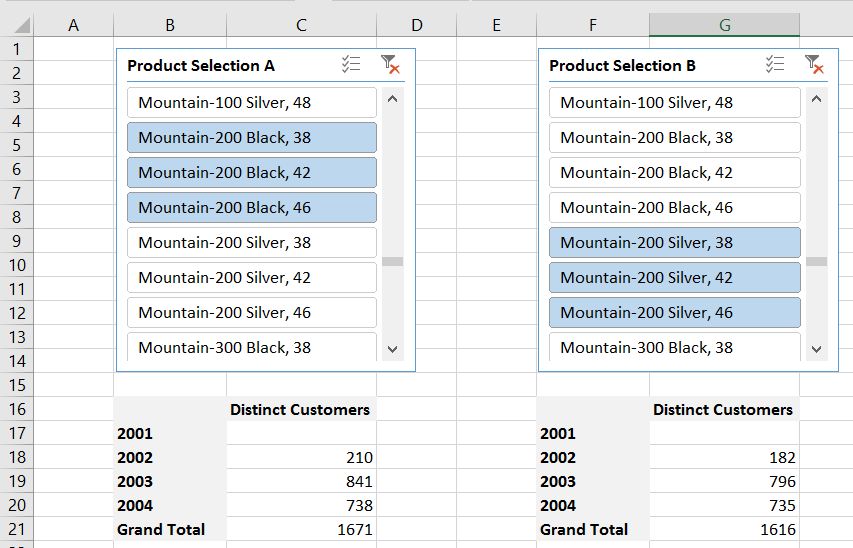
Obviously this will tell you how many distinct customers bought the products selected in the slicer each year. You could also duplicate the slicer and the cube functions and have two reports side-by-side so you could compare the number of customers that bought two different groups of products:
The question here is, though, how can you create a third report that shows the number of distinct customers that bought any of the products selected across both slicers? So, using the example above, the report on the left shows the number of customers that bought Mountain-200 Black 38, Mountain-200 Black 42 or Mountain-200 Black 46; the report on the right shows the number of customers that bought Mountain-200 Silver 38, Mountain-200 Silver 42 or Mountain-200 Silver 46; the aim is to create a third report that shows the number of distinct customers that bought Mountain-200 Black 38, Mountain-200 Black 42, Mountain-200 Black 46, Mountain-200 Silver 38, Mountain-200 Silver 42 or Mountain-200 Silver 46 without having to select all those products in a third slicer.
The Solution
Step 1
The first thing to point out is that you can use the CubeSet() function to return the set of items selected in an Excel slicer. This is a widely-known technique – Rob Collie has a great post describing it here. What I didn’t realise until recently though was that one CubeSet() function can point to other cells containing CubeSet() functions and union all the items returned by those CubeSet() functions. This allows you to combine the selections made in multiple slicers, assuming that those slicers refer to the same field in your Power Pivot model. Here are the formulas in three cells that do this:
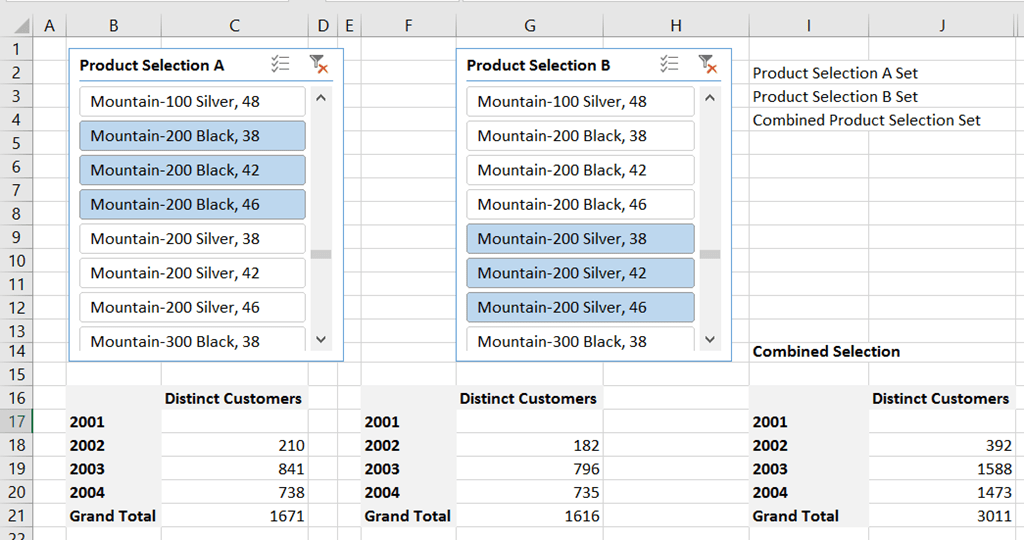
In cell I2 the formula uses the CubeSet() function to capture the selection made in the left-hand slicer in the report above, captioned Product Selection A, which has the name Slicer_Product. In cell I3 there is a similar formula to capture the selection made in the slicer on the right in the report, captioned Product Selection B, which has the name Slicer_Product1. The formula in I4 then uses a third CubeSet() function to combine the sets returned by the last two formulas into a third set.
Step 2
Now that you have a single CubeSet() formula in I4 that combines the selections in both slicers, you can use the trick I showed in my last post and reference that cell in CubeValue() formulas to get the number of distinct customers that bought any of the products listed in either slicer:
Here’s what the report looks like at this point:
Step 3
Notice that, thanks to the power of Power Pivot, customers are not double-counted in the new combined selection report on the right-hand side. For example, in 2003 841 customers bought one or more products selected in the slicer Product Selection A while in 2003 796 customers bought one or more products listed in the slicer Product Selection B. 841+796=1637, but in the combined selection report correctly states that only 1588 distinct customers bought products listed in either Selection A or Selection B. We can use these numbers to do one final, useful calculation: 1637-1588=49, so there were 49 customers who must have bought products in both Selection A and Selection B. The formula to do this is pretty straightforward and looks like this:
The Excel Cube Functions are incredibly powerful, and I’m still amazed at the kind of problems they can solve. This post describes how they can be used to build a report with a complex OR filter using data from Power Pivot (it’s equally applicable to SSAS) that shows a number of advanced uses of these functions. No knowledge of MDX or DAX is needed but if you’re new to the Excel Cube Functions I recommend that you watch this video of a presentation by Peter Myers, which provides an excellent introduction to them.
The Problem
Imagine you’ve got a very simple Power Pivot model that looks like this:
There’s a Date table with dates, months and years in, and an Internet Sales table with sales data in and a measure called Sales Amount. Here’s what the data looks like in a PivotTable:
Now, imagine that you want a report with the Sales Amount measure on columns and Years on rows, and you want to filter the data so that you only see values for Mondays in July or Wednesdays in September. Using the Fields, Items and Sets functionality you could filter the data to only show the day/month combinations you need for each year, but since you can’t put a named set into the Filter area of a PivotTable you would have to use Excel formulas to sum up the combinations to get the totals you need:
Lukcily it is possible to build the report you need using the Cube Functions! Here’s how:
Step 1: Build Your Combinations Using CubeMember()
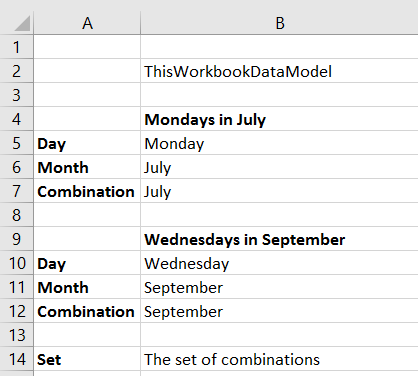
The first thing to point out is that the CubeMember() function does not have to just return a member, it can return a combination of members (in MDX this is known as a tuple). These combinations can be built in several ways, one of which is by using cell references to other cells that themselves contain CubeMember() functions. It’s probably easier to explain this by showing a worksheet that contains six cells with CubeMember() functions in. Here it is with the formulas visible:
Cells B5 and B10 contain references to days of the week; cells B6 and B11 contain references to months. Cells B7 and B12 contain CubeMember() functions that return the combinations we want to filter by: Mondays in July and Wednesdays in September respectively.
Here’s what the formulas above return:
You’ll notice that the ‘combination’ cells only show the month names, not the day/month combinations – this is just a feature of the CubeMember() function and can be a bit misleading, but rest assured they do return the combinations you need.
Step 2: Build A Set Using CubeSet()
The CubeSet() function is also able to build sets using cell references to cells containin CubeMember() functions. In this case I want a set containing the two ‘combination’ CubeMember() functions from B7 and B12. I can do this by using the formula:
[sourcecode language=”text” padlinenumbers=”true”]
=CUBESET($B$2,($B$7,$B$12), "The set of combinations")
[/sourcecode]
Here are the formulas on the worksheet at this point:
And here’s the output:
Step 3: Reference The CubeSet() Function In Your Report
Now you have a CubeSet() function that returns the two day/month combinations, you can use this in a cube function report. When you reference a cell containing the CubeSet() function in a CubeValue() formula, the CubeValue() formula will return the aggregated value of all of the combinations in the CubeSet(). So for example, here’s a report with the Sales Amount measure on columns, Years on rows, and displaying the Sales Amount for each year filtered by the two day/month combinations:
And here’s the actual output:
Compare the numbers from the report at the bottom with the values calculated from the PivotTable in the screenshot earlier in this post, and you’ll see that we have indeed shown just the combined Sales Amount for Mondays in July and Wednesdays in September, broken down by Year.
You can download the example Power Pivot workbook for this post here.
The July 2016 update for Power BI Desktop included the ability to make parameters data-driven, by giving the option to bind the Suggested Values (previously called the Allowed Values) property of a parameter to the output of a query that returns a list. However that’s pretty much all the information blog post gives you, so if you’re wondering what a list is and how to get query to return one so you can use it in a parameter then read on…
A list is one of the most useful data types in M, the language behind all of Power BI Desktop’s data-loading functionality. A list is nothing more than an ordered list of values of any data type and it’s written in M as a comma-delimited list enclosed in braces. Any query can return a list – most queries you build in the Query Editor window in Power BI Desktop will return tables but a query can in fact return a value of any data type.
Here’s an example of how to define a list containing three values in M:
You can create a query that returns this list in Power BI Desktop by clicking on the Get Data button and selecting the New Blank Query option:
…and then, in the Query Editor window, opening the Advanced Editor, deleting all the code in there and replacing it with an expression like the one above that returns a list:
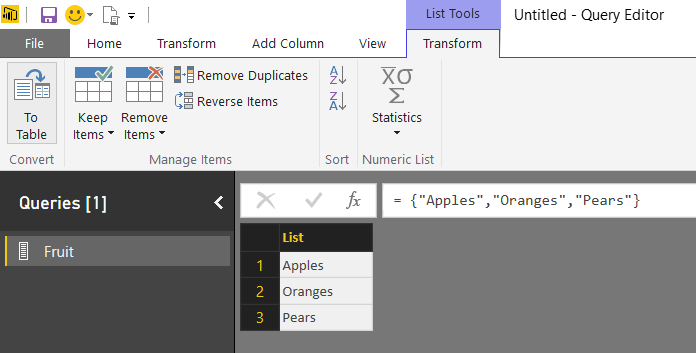
When you click Done the Advanced Editor dialog will close and you’ll see the values in the list displayed in the Query Editor, along with the List Tools tab on the ribbon above it:
Although this looks table-like, it isn’t a table – don’t get confused between tables and lists!
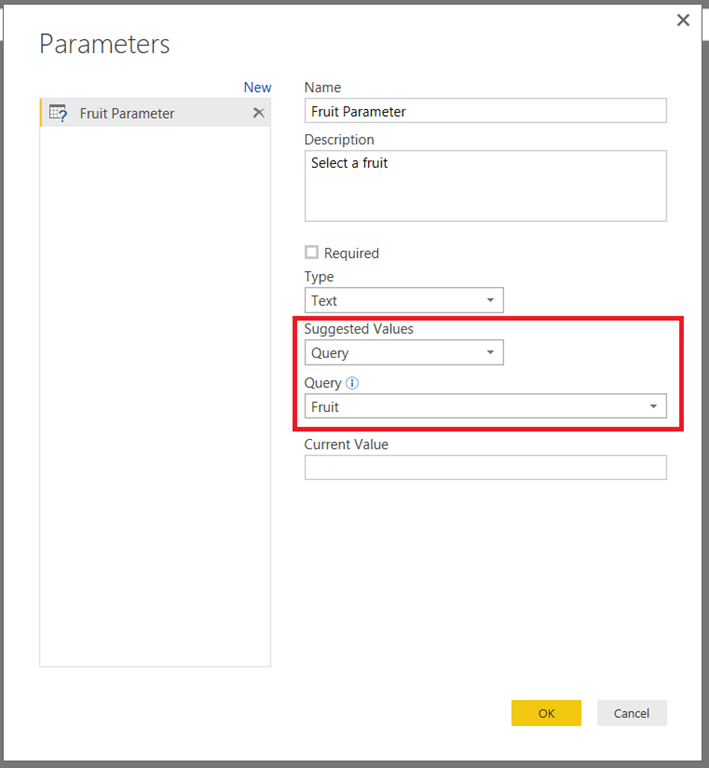
Now you have a query that returns a list you can create a new parameter that uses it. In the Parameters dialog, create a new parameter then choose Query in the Suggested Values dropdown box and then choose the name of the query that returns the list (in this case I’ve called the query Fruit) in the Query dropdown box:
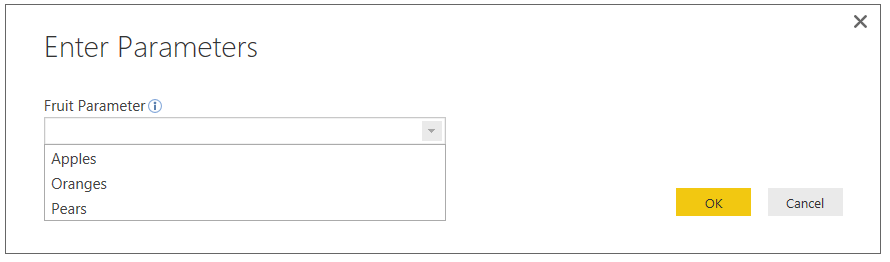
You now have a parameter whose suggested values are provided by the output of a query:
OK, so now you know what a query that returns a list looks like and how to use it in a parameter. The example above isn’t very practical though – how do you get a list of values from a real-world query? It’s actually very easy.
Imagine you have a query returning the contents of the DimDate table from the Adventure Works DW SQL Server sample database and you want to create a parameter that allows your user to select a day of the week. The EnglishDayNameOfWeek column in the DimDate table contains the day names that you need.
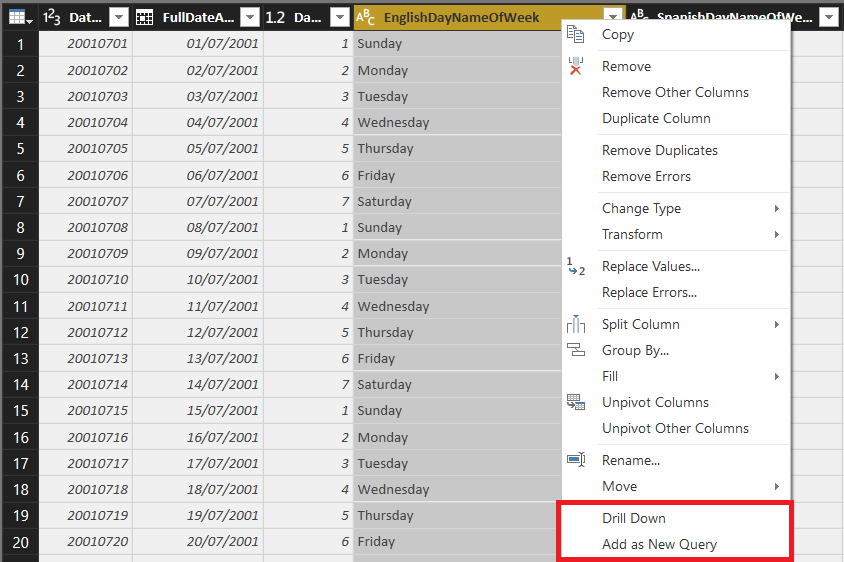
To get a list from a column in a table you need to click on the column to select it and then right-click and select either:
Drill Down
Add as New Query
Drill Down creates a new step in the current query that returns a list of all of the values in the selected table; Add as New Query gives you the same list but as a new query.
The last thing to do is to click the Remove Duplicates button so that the list only contains the seven distinct values:
Now you have a list whose values are derived from an external data source, ready to create a data-driven parameter.
One final thing to note: you may be wondering if it’s possible to create cascading parameters (like in Reporting Services) where the selection made in one parameter controls the available values for another parameter. As far as I can see this isn’t supported yet, unfortunately.
One slightly frustrating feature of Power BI is that some of the cool stuff you can do in M code for loading data, and which works in Power BI Desktop (and in Power Query), causes errors when you try to refresh your dataset after it has been published to PowerBI.com. I recently learned some interesting tricks for working around these problems when you are using Web.Contents() and M custom functions, which I thought deserved a wider audience and which are the subject of this post; thanks are due to Curt Hagenlocher of Microsoft and Idan Cohen for sharing this information.
First of all, I recommend you read my previous post on using the RelativePath and Query options with Web.Contents() to get some background, not just on the M functionality I’ll be using but also on the web service I’ll be using in my examples.
Let’s look at an example of where the problem occurs. The following M query uses a function to call the UK government’s open data metadata search API multiple times and then return a result into a table:
let
    Terms =
      #table(
       {"Term"},
       {{"apples"}, {"oranges"}, {"pears"}}
       ),
    SearchSuccessful = (Term) =>
    let
        Source =
         Json.Document(
           Web.Contents(
             "https://data.gov.uk/api/3/action/package_search?q="
             & Term
            )
           ),
        Success = Source[success]
    in
        Success,
    Output =
     Table.AddColumn(
       Terms,
       "Search Successful",
       each SearchSuccessful([Term])
      )
in
    Output
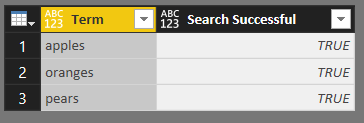
Here’s the output:
This is just a variation on the widely-used M pattern for using functions to iterate over and combine data from multiple data sources; Matt Masson has a good blog describing this pattern here. In this case I’m doing the following:
Defining a function that calls the metadata API. It takes one parameter, a search term, and returns a value indicating whether the search was successful or not from the JSON document returned. What the API actually returns isn’t relevant here, though, just the fact that I’m calling it. Note the highlighted lines in the code above that show how I’m constructing the URL passed to Web.Contents() by simply concatenating the base URL with the string passed in via the custom function’s Term parameter.
Adding a custom column to the table returned by the first step, and calling the function defined in the second step using the search term given in each row.
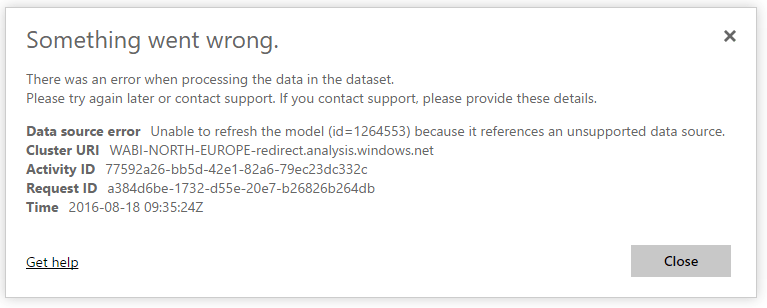
This query refreshes with no problems in Power BI Desktop. However, when you publish a report that uses this code to PowerBI.com and try to refresh the dataset, you’ll see that refresh fails and returns a rather unhelpful error message:
Data source error Unable to refresh the model (id=1264553) because it references an unsupported data source.
The problem is that when a published dataset is refreshed, Power BI does some static analysis on the code to determine what the data sources for the dataset are and whether the supplied credentials are correct. Unfortunately in some cases, such as when the definition of a data source depends on the parameters from a custom M function, that static analysis fails and therefore the dataset does not refresh.
The good news is that when, as in this case, the data source is a call to Web.Contents() then Power BI only checks the base url passed into the first parameter during static analysis – and as my previous blog post shows, by using the RelativePath and Query options with Web.Contents() you can leave the value passed to the first parameter as a static string. Therefore, the following version of the query does refresh successfully in Power BI:
let
    Terms =
      #table(
       {"Term"},
       {{"apples"}, {"oranges"}, {"pears"}}
       ),
    SearchSuccessful = (Term) =>
    let
        Source =
         Json.Document(
           Web.Contents(
             "https://data.gov.uk/api/3/action/package_search",
             [Query=[q=Term]]
            )
           ),
        Success = Source[success]
    in
        Success,
    Output =
     Table.AddColumn(
       Terms,
       "Search Successful",
       each SearchSuccessful([Term])
      )
in
    Output
This technique will only work if the url passed to the first parameter of Web.Contents() is valid in itself, is accessible and does not return an error. But what if it isn’t? Luckily there’s another trick you can play: when you specify the Query option it can override parts of the url supplied in the first parameter. For example, take the following expression:
..is evaluated. However when the dataset is actually refreshed, the search term in the Query option overrides the search term in the base url, so that the call to the web service that is actually made and whose data is used by the query is:
This means you can specify a base url that isn’t really just a base url just so that static analysis succeeds, and then use the Query option to construct the url you really want to use.
Of course this is all a bit of a hack and I’m sure, eventually, we’ll get to the point where any M code that works in Power BI Desktop and/or Power Query works in a published report. However it doesn’t sound as though this will be happening in the near future so it’s good to know how to work around this problem. I wonder whether there are other, similar tricks you can play with functions that access data sources apart from Web.Contents()? I need to do some testing…
UPDATE #2: since writing this post the error message you’ll get in the Power BI Service has changed to this: You can’t schedule refresh for this dataset because the following data sources currently don’t support refresh The problem and the solution are exactly the same though.
The Web.Contents() function in M is the key to getting data from web pages and web services, and has a number of useful – but badly documented – options that make it easier to construct urls for your web service calls.
It is a call to the metadata api (documentation here) for https://data.gov.uk/, the UK government’s open data portal, and returns a JSON document listing all the datasets found for a search on the keyword “cows”. You can make this call using Web.Contents() quite easily like so:
However, instead of having one long string for your url (which will probably need to be constructed in a separate step) you can use the RelativePath and Query options with Web.Contents(). They are given in the second parameter of the function and passed through as fields in a record. RelativePath adds some extra text to the base url given in the first parameter for the function, while Query allows you to add query parameters to the url, and is itself a record.
So, taking the example above, if the base url for the api is https://data.gov.uk/api we can use these options like so:
RelativePath is just the string “3/action/package_search” and is added to the base url. There is just one query parameter “q”, the search query, and the search term is “cows”, so Query takes a record with one field: [q=”cows”]. If you want to specify multiple query parameters you just need to add more fields to the Query record; for example:
Obviously these options make it easier to construct urls and the code is much clearer, but there are also other benefits to using these options which I’ll cover in another blog post soon.
Note: at the time of writing there is a bug that causes the value given in RelativePath to be appended twice when the Web.Page() function is also used. Hopefully this will be fixed soon.