DAX Functions, DirectQuery And Unrestricted Measures

If you use Power BI to connect to a data source such as SQL Server in DirectQuery mode, you’ll find that by default you cannot use the complete range of DAX functions inside your calculations. For example, here’s a screenshot from Power BI Desktop in DirectQuery mode with a measure where I’m trying to use the RankX() function:

image

Whenever you get an error message like “Function ‘RANKX’ is not supported in DirectQuery mode” you know you’re trying to use a DAX function that isn’t allowed by default in DirectQuery mode.

Why does this limitation exist? Well, as the documentation points out here:

https://powerbi.microsoft.com/en-us/documentation/powerbi-desktop-use-directquery/#limitations-of-directquery

…this is done for performance reasons. In Power BI, every time you interact with a report (by opening it, clicking on a slicer etc) a series of DAX queries is sent back to the Data Model to get the data needed by the report. In DirectQuery mode, all of these DAX queries – including any calculations – are translated into queries that are sent back to the data source. If that data source is SQL Server, then Power BI generates SQL queries. Not everything that you can do in a DAX calculation can be translated back into efficient SQL, so to prevent you from accidentally building calculations that will perform badly in DirectQuery mode Power BI tries to prevent you from using any DAX functions that it thinks it can’t generate efficient SQL for.

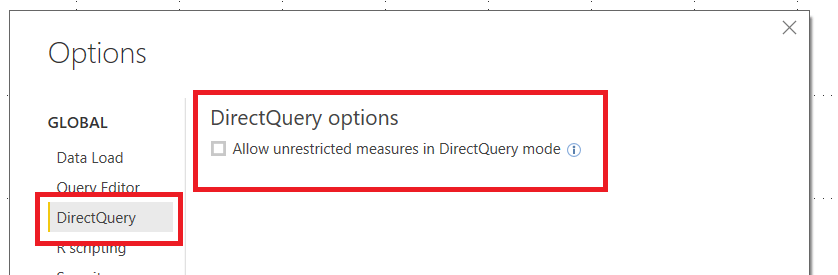
You can remove this restriction by clicking File/Options and Settings/Options to open the Options dialog and then going to the DirectQuery pane and selecting “Allow unrestricted measures in DirectQuery mode”:
image

There is no documented list of functions that work in DirectQuery mode (probably because it might change with each release) but there is a way to get one. Using SQL Server Management Studio it is possible to connect to Power BI Desktop and run DMV queries against the Power BI Data Model. If you query the MDSCHEMA_FUNCTIONS DMV like so:

[sourcecode language=”text” padlinenumbers=”true”]
select * from $SYSTEM.MDSCHEMA_FUNCTIONS
[/sourcecode]

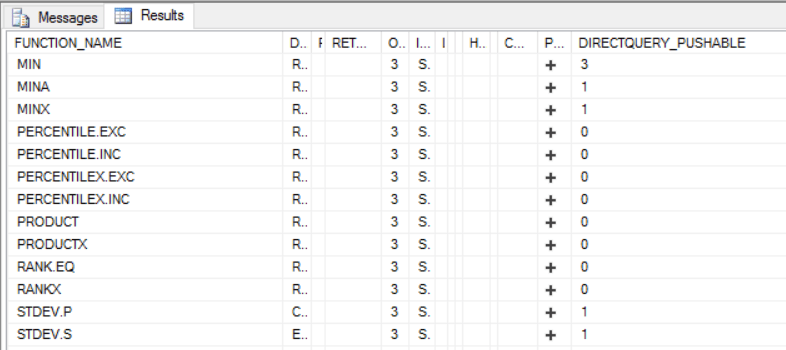
You’ll see that it returns a list of all of the DAX and MDX functions understood by Power BI; the last column, called DIRECTQUERY_PUSHABLE contains information used by Power BI to decide whether a calculation is available in DirectQuery mode or not:
image

[At the time of writing this query doesn’t work in DAX Studio for some reason, I think because of the data returned in the PARAMETERINFO column, but if you try to restrict the rows or columns returned by the DMV in any way the DIRECTQUERY_PUSHABLE column only returns empty values. This is why I say you have to use SQL Server Management Studio]

For the DAX functions in the list, if DIRECTQUERY_PUSHABLE is 0 then it is not available in DirectQuery mode by default. If it returns 1 then it is available in measures but not calculated columns; if it returns 3 it is available in both measures and calculated columns (I guess 2 means that it is only available in calculated columns, but there are no functions with this property value right now). However this is not a definitive guide to whether a function is actually ‘pushable’ or not: some functions could be pushable in some scenarios, or with certain combinations of parameters, and not others and the UI may perform additional checks to decide whether a function can be used.

Thanks to Jeffrey Wang and Marius Dumitru for answering my questions about this.

By the way, if you’re reading this, you might also be interested in this post I wrote a while back on the functionality available in the Query Editor in DirectQuery mode:

https://blog.crossjoin.co.uk/2015/11/11/power-bi-directquery-mode-not-just-ssas-directquery-v2-0/

UPDATE – as Marco points out in his comments below, there *is* documentation on which functions are supported in DirectQuery mode now. I just didn’t know about it…

New Book: Tabular Modelling In SQL Server Analysis Services

My good friends Marco Russo and Alberto Ferrari have published a second edition of the SSAS Tabular book that we wrote together a few years ago. It’s called “Tabular Modelling In SQL Server Analysis Services” and it covers pretty much everything you need to know about building models in SSAS 2016 Tabular. Although I didn’t have anything to do with preparing the second edition, it does include a few things I wrote for the first edition so I can’t pretend that this is an unbiased review – that said, I think it’s fair to say that everyone working with SSAS Tabular 2016 should have a copy of this book on their shelf. No-one knows SSAS Tabular better than Marco and Alberto and the chapters on engine internals and performance tuning are worth the price of the book alone. The only topic it doesn’t cover in detail is DAX, and of course if you want to learn DAX you should get a copy of Marco and Alberto’s equally brilliant book “The Definitive Guide To DAX”.

More details on the new book can be found in Marco’s blog post here and you can buy the book from Amazon UK here.

Using Text.BetweenDelimiters() To Extract URLs From A Web Page In Power BI/Power Query M

The Add Column By Example functionality that appeared in the April 2017 release of Power BI Desktop is, I have to say, very cool: I’ve used it quite a bit in the last few weeks and it really does work well. One thing I noticed while using it is that three new functions have been added to the M language to support this feature:

  • Text.BetweenDelimiters() which takes a text value and extracts the part that appears between two given delimiter values
  • Text.BeforeDelimiter() which takes a text value and extracts the part that appears before a given delimiter value
  • Text.AfterDelimiter() which takes a text value and extracts the part that appears after a given delimiter value

The functions themselves are quite straightforward and the online documentation has some good examples of how to use them. To save you the click here’s an extra example – the expression:

[sourcecode language=”text” padlinenumbers=”true”]
Text.BetweenDelimiters("Hello *world!??", "*", "!")
[/sourcecode]

…returns the text “world”:

image

As it happens last week I received an email from a reader who wanted to know if it was possible to extract all the links from the href attributes in the source of a web page using M, and I realised that Text.BetweenDelimiters() would be very useful for doing this. I wrote the following M function to demonstrate:

[sourcecode language=”text”]
(SourceURL as text, AttributeDelimiter as text) =>
let
//Get HTML source
Source = Text.FromBinary(Web.Contents(SourceURL)),
//Function to find each link
GetLink = (Counter as number) =>
let
CurrentLink =
Text.BetweenDelimiters(
Source,
"href=" & AttributeDelimiter,
AttributeDelimiter,
Counter
)
in
if CurrentLink=""
then
{}
else
List.Combine({
{CurrentLink},
@GetLink(Counter+1)}
),
//Call function
Output = GetLink(0)
in
Output
[/sourcecode]

A few things to note:

  • I’m using a combination of Text.FromBinary() and Web.Contents() to get the HTML source for the web page whose links we’re extracting
  • Since HTML allows the use of single and double quotes for attributes, I’ve added a parameter to my function called AttributeDelimiter to allow either to be passed in
  • Text.BetweenDelimiters only extracts one piece of text at a time, but you can specify which occurrence of the start delimiter it uses. I therefore used recursion to extract the contents of every href attribute in the HTML: I declare a function called GetLink, and from within that function I can make a recursive call by putting an @ before the function name as in line 22 above. It would probably be better to use List.Generate() instead of recursion here though.

Assuming the query that returns this function is called GetAllLinks

image

…then it can be called in a new query like so:

[sourcecode language=”text”]
GetAllLinks(
"https://msdn.microsoft.com/en-us/library/mt798303.aspx",
""""
)
[/sourcecode]

One other thing to point out is how, in order to pass a double quote character to the function as text, since text has itself to be enclosed in double quotes I need to use four double quotes: “”””

The output of this query is a list containing all of the links from the href attributes on the page that are enclosed in double quotes:

image

I guess this could be taken even further to create a function that crawls a series of web pages and returns the links in all of them, then uses the Force Directed Graph custom visual or better still NodeXL in Excel to show which pages link to each other. I’ll leave that to someone else to do though…!

You can download a pbix file with all of the examples in this post here.

Power BI, SSAS Multidimensional And Dynamic Format Strings

If you’re building reports in Power BI against SSAS Multidimensional cubes then you may have encountered situations where the formatting on your measures disappears. For example, take a very simple SSAS Multidimensional cube with a single measure called Sales Amount whose FormatString property is set in SSDT to display values with a £ sign:

image

When you build a report using the Table visualisation in Power BI Desktop using this measure, the formatted values are displayed correctly:

image

However, if you add a SCOPE statement to the cube to alter the format string of the measure for certain cells, as in this example which sets the format string for the Sales Amount measure to $ for Bikes:

[sourcecode language=”text” padlinenumbers=”true”]
SCOPE([Measures].[Sales Amount], [Product].[Category].&[1]);
FORMAT_STRING(THIS)="$0,0.00";
END SCOPE;
[/sourcecode]

…then you’ll find that Power BI displays no formatting at all for the measure:

image

What’s more (and this is a bit strange) if you look at the DAX queries that are generated by Power BI to get data from the cube, they now request a new column to get the format string for the measure even though that format string isn’t used. Since it increases the amount of data returned by the query much larger, this extra column can have a negative impact on query performance if you’re bringing back large amounts of data.

There is no way of avoiding this problem at the moment, unfortunately. If you need to display formatted values in Power BI you will have to create a calculated measure that returns the value of your original measure, set the format string property on that calculated measure appropriately, and use that calculated measure in your Power BI reports instead:

[sourcecode language=”text”]
SCOPE([Measures].[Sales Amount], [Product].[Category].&[1]);
FORMAT_STRING(THIS)="$0,0.00";
END SCOPE;

CREATE MEMBER CURRENTCUBE.[Measures].[Test] AS
[Measures].[Sales Amount],
FORMAT_STRING="£0,0.00";
[/sourcecode]

image

Thanks to Kevin Jourdain for bringing this to my attention and telling me about the workaround, and also to Greg Galloway for confirming the workaround and providing extra details.

UPDATE October 2017: this issue appears to be fixed in the latest release of Power BI https://powerbi.microsoft.com/en-us/blog/power-bi-desktop-october-2017-feature-summary/#analytics

The DAX Unichar() Function And How To Use It In Measures For Data Visualisation

A few weeks ago I was asked whether it was possible to display line breaks in text in a Power BI visualisation. It turns out it isn’t possible – at the moment Power BI always strips line breaks out of text when it gets loaded into the Data Model. However while researching this I came across the DAX Unichar() function, which returns the unicode character associated with an integer value – and which also seems to be completely undocumented for some reason, I guess because it’s new (it isn’t in Excel 2016 DAX yet as far as I can see).

It’s very straightforward to use: for example, the DAX expression UNICHAR(65) returns the character A; see here for a list of unicode characters and their associated codes. You can have a lot of fun with this function in Power BI when you use it to return symbols that in turn can be used to represent data, so I thought I would put together a few examples to show you.

Take the following table which contains scores for restaurants in the range of 0 to 5:

image

The following measure:

Stars =
REPT(UNICHAR(9733), AVERAGE('Restaurants'[Score]))
&
REPT(UNICHAR(9734), 5-AVERAGE('Restaurants'[Score]))

…which uses the Unichar() function to return characters 9733 and 9734, filled and unfilled stars, and the Rept() function to return a string with those characters repeated N times, can be used to create a table like this in Power BI:

image

[I’m sure I read a blog post somewhere that describes this trick with Rept() but I can’t find it anywhere – if you know the one I’m talking about please leave a link in the comments]

Similarly, with the following source data showing the days that customers made a purchase in a week:

image

…you can use the following measure, which returns characters 9635 (a square with a black dot inside) and 9634 (an empty black square), in a matrix to visualise this information:

Purchase Indicator =
IF(
COUNTROWS('Purchase Days')>0,
UNICHAR(9635),
UNICHAR(9634)
)
& REPT(" ", 5)
image

Finally, an example using the box drawing unicode block to visualise the following date ranges (nb the dates are in dd/mm/yyyy format). Here’s the source data:

image

Here’s the measure, which uses characters 9500, 9472 and 9508 to draw bars:

Employment Range =
VAR OverallMinimumDate =
CALCULATE(
MIN('Employment Dates'[Start Date]),
ALLSELECTED('Employment Dates'))
VAR DaysBeforeStart =
MAX('Employment Dates'[Start Date]) -
OverallMinimumDate
VAR DaysBetweenStartAndEnd =
MAX('Employment Dates'[End Date]) -
MAX('Employment Dates'[Start Date])
VAR BarsBetween =
IF(DaysBetweenStartAndEnd>1,
DaysBetweenStartAndEnd-2,
0)
RETURN
REPT(" ", DaysBeforeStart) &
UNICHAR(9500) &
REPT(UNICHAR(9472), BarsBetween) &
UNICHAR(9508)

And here’s the output in a table:

image

You can download the Power BI .pbix file with these examples in here.

Is this going to revolutionise how you design reports? No of course not, but I think it could be a useful trick in certain scenarios. If you do come up with other creative ways to use unicode characters in your reports I would be interested to see the results!

BI Survey 2017

Once again it’s time to complete the BI Survey and take part in the largest annual survey of BI users. By taking part you get the chance to win some Amazon gift vouchers, and by promoting it here I get a free copy of the results which always provides some very interesting insights and will be the basis for a blog post this autumn. I wonder what people will say about Power BI this year?

Click here to fill out the survey, which should only take 20 minutes.

Daylight Saving Time And Time Zones In M

Quite a few people (Ken Puls, Reza Rad and today Chris Koester) have blogged about how the M date/time zone functions work in Power Query/Power BI, and the related problem of turning a UTC time into the actual time in any given location taking Daylight Saving Time changes into account. I don’t have much to add to what they have written, but I did learn something new about this subject from a customer last week: it is possible to do the conversion in pure M if the time zone you’re converting to is your PC’s own local time zone.

Here’s an example. In 2017 the clocks in the UK went forward at 1am on Sunday March 26th. Given the following table with two times in it, one of which is 1pm on Saturday March 25th and one of which is 1pm on Sunday March 26th:

image

…if you assume that these times are both UTC, here’s a query that returns the correct equivalent local time for me (because my PC is set to UK time) for both of them:

[sourcecode language=”text” padlinenumbers=”true”]
let
//Read data from Excel table
Source =
Excel.CurrentWorkbook(){[Name="Table1"]}[Content],
//Change the type of the column to datetime
ChangeType1 =
Table.TransformColumnTypes(
Source,
{{"Time", type datetime}}),
//Turn this into a UTC time
ConvertToUTC =
Table.AddColumn(
ChangeType1,
"UTC",
each DateTime.AddZone([Time],0)),
//Change the data type to datetimezone
ChangeType2 =
Table.TransformColumnTypes(
ConvertToUTC,
{{"UTC", type datetimezone}}),
//Convert to local PC time
ConvertToLocal =
Table.AddColumn(
ChangeType2,
"Local",
each DateTimeZone.ToLocal([UTC])),
//Change type to datetimezone
ChangeType3 =
Table.TransformColumnTypes(
ConvertToLocal ,
{{"Local", type datetimezone}})
in
ChangeType3
[/sourcecode]

image

Here’s a brief explanation of what the query does:

  • First it reads the times from the Excel table and sets the Time column to be datetime data type
  • It then creates a new column called UTC and then takes the values in the Time column and converts them to datetimezone values, using the DateTime.AddZone() function to add a time zone offset of 0 hours, making them UTC times
  • Finally it creates a column called Local and converts the UTC times to my PC’s local time zone using the DateTimeZone.ToLocal() function

As you can see from the output table, the DateTimeZone.ToLocal() function has correctly handled the UK Daylight Saving Time change by converting the UTC time 13:00 on March 25th 2017 to 13:00 UK time, and converting the UTC time 13:00 on March 26th 2017 to 14:00 UK time.

Frustratingly there doesn’t seem to be a way to convert a UTC time to the correct local time in any given time zone in M – the DateTimeZone.SwitchZone() function just adds/removes hours without taking Daylight Saving Time into account, so it’s not really very useful. Apart from all the blog posts linked to at the start of this post, when I posted this question on the Power Query forum I got a very helpful answer from Marcel Beug with a completely different approach to solving the problem here, although it’s still not a straightforward one. If anyone from Microsoft is reading, it would be great to have a new M function to handle this requirement!

Quick Tip: Working With Multiple Power BI Subscriptions/Accounts

As a consultant I frequently work with customers who want to add me to their Power BI tenant so I can publish reports, monitor data refresh and so on. However, this means I end up with many different Microsoft “Work or School” accounts, one for each customer, and signing in and out of each one can be a real pain. I use Chrome as my main browser so instead I create one profile in Chrome for each customer – it makes it very easy to switch between Power BI accounts without having to sign in and out.

For more details, see the Google documentation here:

https://support.google.com/chrome/answer/2364824

…and here’s the blog post by James Callaghan on using this feature with multiple Office 365 subscriptions that I got the idea from:

https://jcallaghan.com/2014/06/login-multiple-office-365-azure-accounts/

It looks like you can do something similar with other browsers too.

SSAS 2016 Locking Improvements

I first became aware of the server-wide lock taken out by SSAS when processing finishes – and the issues that this can cause – from this blog post by Andrew Calvett back in 2009. More information on how locking works in SSAS can be found in chapter 26 of “Microsoft SQL Server 2008 Analysis Services Unleashed”, while the most comprehensive discussion of this topic can be found in this post by Jason Howell:
https://blogs.msdn.microsoft.com/jason_howell/2012/07/03/analysis-services-stops-accepting-new-connections-processing-commit-locks-hurt/

Over the years I’ve worked with several customers who have run into locking problems as a result of users querying while processing or synchronisation are taking place, so as a result I was interested to read the following paragraph in the white paper on “Automated Partition Management For Analysis Services Tabular Models” that was published a few months ago:

Note that commit operations have been optimized considerably for tabular models in SQL Server 2016. This has caused noticeable improvements in locking and blocking for some customers with near-real time processing requirements. Database write-commit locks are required to safely complete tasks such as merging pending changes, persisting files to disk, clearing some cached state, deletion of old files, etc. In previous versions of Analysis Services, a server-level write commit lock was taken while most of these tasks were performed. With SQL Server 2016, the server-level locks are far more limited; they are only taken while producing the delta of transaction updates, and are then immediately released.

This is very good news, and in fact the improvements apply to SSAS Multidimensional 2016 as well as SSAS Tabular 2016. The ever-helpful Akshai Mirchandani of the dev team has given me more details on the changes, so here’s a summary of what happens during a commit operation and what’s new in SSAS 2016:

  • First of all, a database read-commit lock is taken to analyse all the pending changes.
  • Next a database write-commit lock is taken so that the transaction can be committed safely. This is the lock that can be blocked by long-running queries, and this is where the ForceCommitTimeout property comes into play with the result that these long-running queries may get cancelled.
  • This lock is held while the pending changes are merged together.
  • At this point SSAS is ready to do the commit, and where it takes a server-level write-commit lock. This is also the point where the improvements in SSAS 2016 have been made.
    • In previous versions SSAS would update the master.vmp file in place and hold the server-level write-commit lock while that happens and while some other, potentially time-consuming things like clearing cached state and deleting all the old files take place. This could in some cases result in the server-level write-commit lock being held for an extended period.
    • Instead in SSAS 2016 a delta of all the transaction updates are written to a .txn file, and after that the server commit lock is released. The time-consuming tasks mentioned in the previous bullet still take place but after the server-level write-commit lock has been released. This means the server-level write-commit lock is now held for a very short amount of time, and what’s more that amount of time is quite consistent.
  • Finally, all remaining locks such as the database write-commit lock are released.

I haven’t had a chance to test these changes in a production system yet but it sounds like anyone that needs to process or synchronise regularly throughout the day will benefit from upgrading to SSAS 2016.

Thoughts On Visio And How It Could Integrate With Power BI

The recent release of Visio Online (which means most people with an Office 365 subscription can now see Visio diagrams in the browser) and updates for Visio Pro for Office 365 (the desktop version of Visio, needed for creating diagrams, available on subscription but annoyingly not included in any of the Office 365 Enterprise plans) made me wonder if there’s anything new for BI pros in the latest version of Visio. This is a subject I come back to every few years – the last time was in back in 2013 – but I’m still a bit disappointed by some aspects of Visio when it comes to working with data even though there’s a massive amount of potential there.

To recap, there are actually two features of Visio that are interesting for BI purposes. First, you can import data into Visio and then link rows of data to shapes in your diagram (see here for a basic intro; this presentation has a lot more detail and is a must-read) to create data-linked diagrams; if your data source is an Excel workbook stored in SharePoint Online/OneDrive for Business or a SharePoint Online list then you can even refresh the data in Visio Online in the browser. While it doesn’t do exactly the same thing, the fact that the Synoptic Panel custom visual for Power BI is so popular shows that people really like the idea of seeing their data visualised in diagram form. If you know what you’re doing, you can do some really amazing stuff with Visio data-linked diagrams: not just change shape colours but also their formatting, geometry, size and more.

Secondly there are Pivot Diagrams, the Visio equivalent of Excel’s PivotTables. This blog post by David Parker is a really good guide to what they can do; like PivotTables they can even be linked direct to SSAS. The enduring popularity of the old Proclarity Decomposition Tree and the fact that so many people want something similar to be added to Power BI shows the appeal that this way of analysing data has for BI pros and Visio Pivot Diagrams are much more powerful than any custom visual the Power BI team could hope to develop.

So where does Visio fall short and what could be done about it? Here are some thoughts:

  • The data import options are limited, both in terms of where you can get data from and what you can do with it after that. These are all problems that Excel has solved in recent years with Power Pivot and Power Query, so why not borrow what Excel have implemented? Power Query/Get & Transform functionality for data loading and transformation, and a Visio Data Model (like the Excel Data Model/Power Pivot) would solve all these problems at a stroke and mean that anyone who had experience with Excel or Power BI would be able to move over to using Visio for BI easily.
  • Publishing to Office 365 is all well and good, but publishing to Power BI would also be useful. This might involve:
    • The ability to publish Visio diagrams to Power BI in the same way we can publish Excel workbooks to Power BI today.
    • A Visio equivalent to “Analyze in Excel” so you could create Pivot Diagrams connected to Power BI datasets. This should be straightforward to implement because Pivot Diagrams already work with SSAS, so all you would need to do is fire the same MDX at Power BI.
    • Once published, the ability to pin Visio diagrams to a Power BI dashboard.
    • The ability to schedule data refresh in the same way you can today with Power BI datasets and Excel workbooks.
  • The separate and relatively pricey ($13USD per month) subscription needed for Visio on the desktop suggests that Microsoft now thinks of it as a niche product, not something that even a top-of-the-range Office 365 E5 subscriber gets by default. I guess they’re allowed to make that assumption but it will be very hard for a BI pro to justify that expense for a product that isn’t essential for their job. Adding Visio into the top Office 365 SKUs would expose it to a much wider audience including BI pros. Incidentally the same argument can be made about Visio’s newly re-acquired ability to create diagrams from relational databases: it looks nice, but how many DBAs will be able to justify the cost of a subscription just for it?

In summary, while I know that I’m guilty of looking at Visio from a BI pro point of view and that data visualisation isn’t necessarily Visio’s primary purpose, I do think both Visio and Power BI could both benefit a lot from closer integration just as Excel and Power BI have done in recent years. With a bit of investment from both teams we could have another killer feature added to Power BI, one that none of Microsoft’s competitors could begin to match.