If you’re looking for classroom-based training on Microsoft BI, data science or SQL Server then check out the list of courses I have coming up at Technitrain this autumn:
Introduction to Power BI, taught by me, September 25th-27th – a three day course covering the basics of Power BI suitable for BI pros and business analysts with no previous experience of the product.
Database DevOps, taught by Alex Yates, September 25th-27th – a course for DBAs, developers or anyone who plays a role in writing, testing or deploying changes to SQL Server.
Practical Data Science with Cortana Intelligence, taught by Rafal Lukawiecki, November 6th-10th – an introductory course for budding data scientists covering theory and how to apply it to Microsoft tools including Azure Machine Learning and SQL Server 2016 R Services.
Mastering DAX, taught by Alberto Ferrari, November 27th-29th – a three day introductory course that will teach you how to write DAX calculations and queries in Power BI, Power Pivot and Analysis Services Tabular.
Optimising DAX, taught by Alberto Ferrari, November 30th-1st December – learn about performance tuning DAX from one of the leading experts in the field!
In the first two parts of this series (see here and here) I showed how Power BI/Power Query/Excel Get & Transform’s data privacy settings can influence whether query folding takes place or even whether a query is able to run or not. In this post I’m going to talk about the situations where, whatever data privacy level you use, the query will not run at all and you get the infamous Formula.Firewall error.
I’ll admit I don’t understand this particular topic perfectly (I’m not sure anyone outside the Power Query dev team does) so what I will do is explain what I do know, demonstrate a few scenarios where the error occurs and show how to work around it.
Assume you have the two data sources described in my previous posts: an Excel workbook that contains just a single day name, and the DimDate table in SQL Server that can be filtered by the day name from Excel. Let’s also assume that both data sources have their data privacy levels set to Public. The following query, called FilterDay, loads the data from Excel and returns a text value containing the day name:
let
Source =
Excel.Workbook(
File.Contents("C:\FilterParameter.xlsx"),
null, true),
FilterDay_Table =
Source{[Item="FilterDay",Kind="Table"]}[Data],
ChangedType =
Table.TransformColumnTypes(
FilterDay_Table,
{{"Parameter", type text}}
),
Output =
ChangedType{0}[#"Parameter"]
in
Output
Now, look at the following query:
let
Source =
Sql.Database(
"localhost",
"adventure works dw",
[Query="select DateKey, EnglishDayNameOfWeek
from DimDate"]),
FilteredRows =
Table.SelectRows(Source,
each ([EnglishDayNameOfWeek] = FilterDay)
)
in
FilteredRows
It filters the contents of the DimDate table and only returns the rows where the EnglishDayNameOfWeek column matches the day name returned by the FilterDay query. Notice that there are two steps in the query, Source (which runs a SQL query) and FilteredRows (which does the filtering). Here’s the output:
As you can see from the screenshot, the query runs. In fact it runs whatever data privacy settings you have set on both the data sources, although it’s worth pointing out that if you use your own SQL in an M query (as I do in this case) this stops query folding in all subsequent steps, as described here.
Now take a look at the following version of the query:
let
Source =
Table.SelectRows(
Sql.Database(
"localhost",
"adventure works dw",
[Query="select DateKey,
EnglishDayNameOfWeek
from DimDate"]
),
each ([EnglishDayNameOfWeek] = FilterDay)
)
in
Source
The important difference here is that there is now one step in this query instead of two: the query and the filtering take place in the same step. Even more importantly, regardless of the data privacy settings, the query fails with the error:
Formula.Firewall: Query ‘DimDate With Native Query Single Step Fails’ (step ‘Source’) references other queries or steps, so it may not directly access a data source. Please rebuild this data combination.
The problem here is that the Power Query engine is not allowed to access two different data sources originating from different queries in the same step – as far as I understand it this is because it makes it too hard for the engine to work out whether a step connects to a data source or not, and so which data privacy rules should be applied.
At this point you might think that it’s straightforward to break your logic up into separate steps, as in the first example above. However there are some situations where it’s not so easy to work around the problem. For example, consider the following query:
let
Source =
Sql.Database(
"localhost",
"adventure works dw",
[Query="
select DateKey, EnglishDayNameOfWeek
from DimDate
where
EnglishDayNameOfWeek='" & FilterDay & "'"
]
)
in
Source
In this example I’m dynamically generating the SQL query that is being run and passing the name of the day to filter by into the WHERE clause. In the two previous examples the query that was run had no WHERE clause and the filtering on day name took place inside Power BI – in this case the filtering is happening inside the query, so in order to generate the WHERE clause I have to refer to the value that the FilterDay query returns in the same step. Therefore, this query also gives the same Formula.Firewall error seen above.
How can you work around this? Well, the following version of the query that attempts to reference FilterDay in a separate step doesn’t work either:
let
DayAsStep = FilterDay,
Source =
Sql.Database(
"localhost",
"adventure works dw",
[Query="
select DateKey, EnglishDayNameOfWeek
from DimDate
where
EnglishDayNameOfWeek='" & DayAsStep & "'"
]
)
in
Source
Luckily, it turns out that if you use the Value.NativeQuery() function to run your query instead you can avoid the error. As I showed here, you can use this function to pass parameters to SQL queries. If you generate the record containing the parameters for the query as a separate step (called ParamRecord here), like so:
let
Source = Sql.Database("localhost", "adventure works dw"),
ParamRecord = [FilterParameter=FilterDay],
Query = Value.NativeQuery(
Source,
"select DateKey, EnglishDayNameOfWeek
from DimDate
where
EnglishDayNameOfWeek=@FilterParameter",
ParamRecord)
in
Query
Then the query runs successfully.
There is another way to avoid the error. In all the examples above I have two queries: one to get data from Excel, one to get filtered data from SQL Server. If these two queries are combined into a single query, it doesn’t matter if data from different data sources is accessed in the same step. So, for example, unlike all of the queries above the following query does not reference any other queries; instead it gets the day name from the Excel workbook in the ExcelSource step and then runs the dynamic SQL query in the SQLSource step, and runs successfully:
let
ExcelSource =
Excel.Workbook(
File.Contents("C:\FilterParameter.xlsx")
, null, true),
FilterDay_Table =
ExcelSource{[Item="FilterDay",Kind="Table"]}[Data],
ChangedType =
Table.TransformColumnTypes(FilterDay_Table,
{{"Parameter", type text}}),
FilterDayStep =
ChangedType{0}[#"Parameter"],
SQLSource = Sql.Database(
"localhost",
"adventure works dw",
[Query="
select DateKey, EnglishDayNameOfWeek
from DimDate
where
EnglishDayNameOfWeek='"
& FilterDayStep &
"'" ])
in
SQLSource
Clearly the M engine doesn’t get confused about accessing data from different sources in the same step if those data sources are created in the same query.
Of course you can avoid the Formula.Firewall error and make query folding happen as often as possible by turning off data privacy checks completely in the Options dialog. This will be the subject of the next post in this series.
Melissa has already blogged about the white paper here.
Topics covered include the different ways that Power BI can be deployed (as a self-service BI tool or as a corporate BI tool); licensing; preparing data for use in Power BI; choosing a data storage mode (import vs Live connections to SSAS vs DirectQuery); data refresh and the on-premises gateway; best practices for report development; collaboration and sharing (covering apps and content packs); options for consuming reports and data published to Power BI; and security, compliance and administration. If that sounds like a lot, it is: it’s 105 pages long!
It was a real pleasure working with Melissa on this, and I’d also like to thank Meagan Longoria for reviewing it. I’m also extremely grateful to Adam Wilson and an army of Microsoft employees for providing information, answering our questions and correcting our mistakes.
This full-day session will teach you everything you need to know about loading data into Power BI or Excel; it’s specifically focussed on self-service BI scenarios, but if you want to learn M for SSAS 2017 you might find some of what I cover useful too. Topics covered include using the UI to build queries; using parameters and functions; the M language; data privacy settings; and creating custom data connectors. I hope to see you there!
I can’t remember ever attending a conference where there was so much new functionality revealed. I’m not talking about things like Power BI Premium – that’s last month’s news – I’m talking about lots and lots of really cool new features that I had not seen before, so many that I feel completely overwhelmed by them all. There are a few blog posts out there that try to summarise the announcements (apart from the post on the official Power BI blog, check out Matt Allington and Dustin Ryan’s posts) but really your only option is to watch as many of the session videos as you can! I thought I would call out some videos about the new features for you to start off with:
The keynote on the first day was pretty amazing (Amir Netz’s demo should be watched in full) with some highlights being:
The PowerApp custom visual will not only allow you to embed a PowerApp directly in a Power BI report allowing users to write values back to the underlying data source, similar to writeback in SSAS
My star rating measure from this blog post has been turned into a Quick Measure! My name is in Power BI! I am so chuffed! The important thing here is that this is the first example of a calculation submitted to the Quick Measures Gallery making it into the product.
Drillthrough pages and bookmarks will revolutionise how we can navigate through a Power BI report, and turn Power BI into a true data storytelling tool, and are really exciting.
What-if analysis will allow you to move a slider and change values that feed into measures
New AI features to explain what’s happening in your data, the evolution of Quick Insights
The session on the Visio custom visual for Power BI had a lot of detail on how Visio/Power BI integration will work, and was very impressive. You can sign up for the preview here.
Power BI/PowerApps/Flow integration, with Power BI content appearing in Power Apps and vice versa is something I am going to watch with interest.
One major announcement (at least for me) that slipped out in the session on the Common Data Model is that there’s going to be a standalone, SaaS version of Power Query available that will be able to load data into the Common Data Model
Azure Analysis Services will soon have a much better web interface that will allow you to create simple models, and also to import models from Power BI .pbix files. Christian Wade’s session on Azure Analysis Services also has a great extended demo showing off new SSAS Tabular features, including one showing using BISM Normalizer to merge parts of a mode in a .pbix file into a Tabular model.
This is by no means comprehensive. I haven’t been able to watch all the videos yet either, so there may be other important new features in other sessions that I completely missed.
When you connect to a relational database like SQL Server in Power BI/Power Query/Excel Get & Transform you have two choices about how to get the data you need:
You can choose a table from the database and then either use the Query Editor UI or write some M to get the data you need from that table. For example, you might choose a table that has one row for every product that your company sells and then, using the UI, filter that down to only the products that are red.
You can enter a SQL query that gets the data you need.
Something that you might not realise is that if you choose the second option and then subsequently use the UI to apply even more filtering or transformation, then those subsequent steps will not be able to make use of query folding.
As an example of option (1), imagine you connect to the DimProduct table in the SQL Server Adventure Works DW database like so:
The following M query is generated by the Query Editor when you filter the table to only return the red products and remove all columns except EnglishProductName. That’s very easy to do so I won’t describe it, but here’s the M:
[sourcecode language=”text”]
let
Source =
Sql.Databases("localhost"),
#"Adventure Works DW" =
Source{
[Name="Adventure Works DW"]
}[Data],
dbo_DimProduct =
#"Adventure Works DW"{
[Schema="dbo",Item="DimProduct"]
}[Data],
#"Filtered Rows" =
Table.SelectRows(
dbo_DimProduct,
each ([Color] = "Red")
),
#"Removed Other Columns" =
Table.SelectColumns(
#"Filtered Rows",
{"EnglishProductName"}
)
in
#"Removed Other Columns"
[/sourcecode]
Using the View Native Query option, you can find out that the following SQL is generated to get this data:
[sourcecode language=”text”]
select [_].[EnglishProductName]
from [dbo].[DimProduct] as [_]
where [_].[Color] = ‘Red’
[/sourcecode]
It’s pretty clear that query folding is taking place for the filter on “red” and for the selection of the required column.
However, if you enter the following SQL query when you first connect to the database:
[sourcecode language=”text”]
select * from dimproduct
[/sourcecode]
And then, after that, filter the table and remove columns in exactly the same way, you get the following M query:
[sourcecode language=”text”]
let
Source =
Sql.Database(
"localhost",
"Adventure Works DW",
[Query="select * from dimproduct"]),
#"Filtered Rows" =
Table.SelectRows(
Source,
each ([Color] = "Red")),
#"Removed Other Columns" =
Table.SelectColumns(
#"Filtered Rows",
{"EnglishProductName"})
in
#"Removed Other Columns"
[/sourcecode]
If you now try to use the View Native Query option on either the Removed Other Columns or Filtered Rows steps you’ll find it’s greyed out, indicating query folding is not taking place for those steps:
The query you enter is run and then Power BI applies the filter and selects the column itself in the resultset that the SQL query returns.
This obviously has big implications for performance. The lesson here is that if you’re going to write your own SQL query in the Query Editor, you should make sure it does all of the expensive filters and transformations you need because anything else you do in the query will happen outside the database in Power BI or Excel.
A really useful new feature was added to Get & Transform (the functionality previously known as Power Query) in the latest updates for the Office 365 click-to-run version of Excel 2016: the ability to export and import ODC files containing M queries. This makes sense given that Get & Transform is the new default way for loading data into Excel, but it’s nonetheless very welcome.
It’s very straightforward to use, and all the details are available in the section on “How do I get data from recently used sources, Office Database Connection (ODC) files, other workbook connections, or tables?” halfway down this article:
You just need to right-click on your query in the Queries & Connections pane to export it:
…and after that you can import the ODC file in the normal way when you want to create a new connection.
As always, I want more though. Some ideas/requests:
Power BI Desktop should be able to import and export ODC files in this format too: it would make it much easier to reuse queries. Vote here if you agree.
Power BI should have a central repository for Power BI and Excel users to store these ODC files for easy sharing and reuse by report developers. It’s a shame that the Azure Data Catalog integration with Excel/Power BI hasn’t had any love recently because that would have been the obvious place to create such a repository.
We also desperately need some kind of source control for M queries inside Excel and Power BI (not quite the same requirement as the previous point). I know a lot of people are doing this manually with services like Git, but I would love to be able to check my code in and out directly from the Query Editor.
I’ve also noticed that the old “Load To” dialog (that I found incredibly confusing) has been replaced by the standard Excel Import Data dialog in this release – another improvement. After you hit Close & Load in the Query Editor, this is what you now see:
In part 1 of this series I showed how the data privacy settings in Excel Power Query/Get & Transform and Power BI could impact the performance of your queries. In this post I’m going to show you how they can stop a query from running at all.
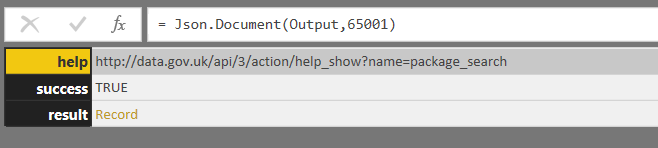
Let’s say you have the Excel workbook from part 1 of this series, but now instead of using the day name to filter data from a SQL Server table you want to pass that value to a web service. The web service I’m going to use for my examples is one that allows you to search for open data published by the UK government on https://data.gov.uk. It’s very simple: you give it a search term and it returns a JSON document with the search results in, no authentication or anything else required. For example:
In fact it doesn’t really matter what it does, just know that it is a web service that I can pass a text parameter to and get a result from.
Here’s a query that reads a single piece of text from the FilterDay table in my Excel workbook:
…and then passes that value to the web service:
let
ExcelSource =
Excel.Workbook(
File.Contents("C:\FilterParameter.xlsx")
, null, true),
FilterDay_Table =
ExcelSource{[Item="FilterDay",Kind="Table"]}[Data],
ChangedType =
Table.TransformColumnTypes(
FilterDay_Table,
{{"Parameter", type text}}
),
Day = ChangedType{0}[#"Parameter"],
Output =
Web.Contents(
"https://data.gov.uk/api/3/action/package_search",
[Query=[q=Day]]
),
ImportedJSON = Json.Document(Output,65001)
in
ImportedJSON
This query succeeds if any of the following conditions are true:
The data privacy levels of both the Excel workbook and the web service are set to Public
The data privacy levels of both the Excel workbook and the web service are set to Organizational
The data privacy level of the Excel workbook is set to None and the data privacy level of the web service is set to Public
[See here to find out how to set privacy levels for a data source. Interestingly the data privacy level of the web service cannot be set to None for this query – the UI always prompts for it to be set before the query will run]
Here’s the output of a successful run:
Any other combinations of data privacy settings, for example if both the Excel workbook and the web service are set to Private, result in the following error message:
Formula.Firewall: Query ‘WebFunctionSucceeds’ (step ‘ImportedJSON’) is accessing data sources that have privacy levels which cannot be used together. Please rebuild this data combination.
While it’s ok to send data from one Public data source to another Public data source, or from one Organizational data source to another Organizational data source, you cannot send data from one Private data source to any other data source, or even send data from a Public data source to a Private data source.
In the example in my previous post when the engine found it wasn’t allowed to send data from one source to another because of the data privacy rules used it was still able to run the query, but had to do so in a less efficient way. In this example there is no way to run this query without sending data from the Excel workbook to the web service – you can’t call this web service without sending a search term to it. As a result, if incompatible data privacy levels are set then the query returns the error shown.
Notice that in the query above I’m reading data from Excel and sending it to the web service in a single M query. This is deliberate! In the next post in this series I’ll be looking at examples where the engine can’t work out what it’s supposed to do and errors, even if the privacy levels used suggest the query should run.
One of the most confusing, under-documented and widely-misunderstood features of Power BI and Power Query (or Excel “Get & Transform” or whatever you want to call it) are the data privacy settings. I get caught out by them all the time, so I thought it would be a good idea to write a series of blog posts demonstrating how they work and what effect they have in different scenarios using example M queries.
Before carrying on, I suggest you read the official Microsoft documentation on the subject here: https://powerbi.microsoft.com/en-us/documentation/powerbi-desktop-privacy-levels/ It gives you a good grounding in what the different data privacy levels are and where you can set them in the Power BI UI. The same options are available in Excel with Power Query/Get & Transform.
In this first post I’m going to look at what the performance implications of different privacy levels can be. Let’s say you have two data sources. First, an Excel workbook with a single table in that contains the name of a day of the week:
The second is the DimDate table in the Adventure Works DW SQL Server sample database:
Here’s an M query called FilterDay that returns the day name from the table in the Excel workbook:
let
Source = Excel.Workbook(
File.Contents("C:\Filter.xlsx")
, null, true),
FilterDay_Table = Source{[Item="FilterDay",Kind="Table"]}[Data],
ChangedType =
Table.TransformColumnTypes(
FilterDay_Table,
{{"Parameter", type text}}),
Output = ChangedType{0}[#"Parameter"]
in
Output
Here’s an M query called DimDate that filters data from the DimDate table in the Adventure Works DW database, returning only the rows where the EnglishDayNameOfWeek column matches the value returned by the FilterDay query above.
let
Source = Sql.Databases("localhost"),
DB = Source{[Name="Adventure Works DW"]}[Data],
dbo_DimDate = DB{[Schema="dbo",Item="DimDate"]}[Data],
RemovedColumns = Table.SelectColumns(dbo_DimDate,
{"DateKey", "EnglishDayNameOfWeek"}),
FilteredRows = Table.SelectRows(RemovedColumns,
each ([EnglishDayNameOfWeek] = FilterDay))
in
FilteredRows
The first time you run this second query you’ll be prompted to enter credentials to connect to SQL Server, and then (assuming you haven’t set any of the options that get Power BI to ignore privacy levels) you’ll see the “Information is required about data privacy” prompt:
Clicking “Continue” allows you to set a privacy level for the SQL Server database and the root of the drive that the Excel workbook is on:
The dropdown boxes in the left-hand column allow you to be more specific in what you set privacy levels on; in the case of the Excel file you can choose to set permissions at all folders in the path down to the workbook and the workbook itself; in the case of SQL Server there is the option of setting privacy levels on the database rather than the server.
You can choose any of the three privacy levels (Public, Organizational or Private) for the SQL Server instance and the Excel file and the query will still run:
This is where things start to get confusing. At this point the workbook has a privacy level set to None, which is the default for newly-created data sources:
However, this “None” setting means it inherits its data privacy settings from the level set for the c:\ drive set earlier, even though this setting isn’t displayed on the “Data sources in current file” tab. Hopefully the fact this is happening will be addressed in a future release: I think the current UI is misleading.
For the purposes of this blog post the data privacy settings for SQL Server are irrelevant and it’s the settings on the Excel workbook that are important. So, to make things clearer, let’s say you explicitly set the data privacy setting for SQL Server to private and the data privacy setting for the Excel workbook itself to Public like so:
If you right-click on the FilteredRows step of the query that returns data from the DimDate table in SQL Server and select “View Native Query” (see here for more details on this feature) to see the SQL query generated in the background for this step like so:
You’ll see that query folding is taking place for this step and the filter on the EnglishDayNameOfWeek column is taking place in the SQL query:
select [_].[DateKey],
[_].[EnglishDayNameOfWeek]
from
(
select [DateKey],
[EnglishDayNameOfWeek]
from [dbo].[DimDate] as [$Table]
) as [_]
where [_].[EnglishDayNameOfWeek] = 'Friday'
Query folding is almost always a good thing for the performance of a query. For more details on what query folding is, see here.
If, however, you set the privacy level for the Excel workbook to Private like so:
…even though the DimDate query still works, query folding does not take place for the Filtered Rows step. The View Native Query right-click option is greyed out, and Profiler shows that the following SQL is executed when the query is refreshed:
select [$Ordered].[DateKey],
[$Ordered].[EnglishDayNameOfWeek]
from
(
select [DateKey],
[EnglishDayNameOfWeek]
from [dbo].[DimDate] as [$Table]
) as [$Ordered]
order by [$Ordered].[DateKey]
Note that there is no WHERE clause in this query and that the whole of the DimDate table is returned from SQL Server.
Data from a data source that has a privacy level of Private can never be sent to another data source. That is exactly what needs to happen for query folding to take place though: a value from the Excel workbook – the text “Friday” – needs to be embedded in the WHERE clause of the SQL query sent to SQL Server in order for filtering to happen inside the database. The risk with query folding is that a DBA could monitor the queries that are being run on SQL Server, look at the WHERE clauses, and see data from your Excel workbook. That’s maybe not a problem with day names, but potentially an issue if you were working with more sensitive data like customer names or addresses. Therefore, with the Excel workbook’s privacy level set to Private, the whole of the DimDate table is downloaded into the M engine and the filtering has to take place there to maintain the privacy of the data in Excel. The query still runs but it will probably be a lot slower than it would have been had query folding taken place. With the privacy level of the Excel workbook set to Public, on the other hand, it is ok to send data from Excel to SQL Server so query folding does take place.
To sum up, in this post I have shown how different data privacy settings can affect the performance of a query by determining whether query folding takes place or not. In part 2 of this series I will show how different data privacy settings can determine whether a query executes at all.
[This post was updated on June 19th 2017 with details on how the “None” privacy level behaves and how permissions can be set at different levels and inherited – thanks to Curt Hagenlocher for providing these details]
If you are using SSAS Multidimensional and you use Process Update to process your dimensions, here’s something for you to try: run a Process Default on your cube. Does it finish in a few seconds? Then you’re ok. If it doesn’t, and it takes minutes or even longer then read on – you might have a problem that’s causing slow query performance.
One of the most common sources of query performance problems I see with my SSAS Multidimensional customers is unprocessed aggregations and indexes. If you run a Process Update on a dimension it may result in indexes and aggregations being dropped from partitions in your cubes; for more details on this, and why it happens, see this post:
However, unprocessed indexes can also be a problem for query performance too. You can tell if the indexes on a partition are built by using the discover_partition_dimension_stat DMV. Here’s an example of how to use it for a partition in the Adventure Works database:
[For some background on running SSAS DMV queries, see here]
Here’s what the above query returns, a list of dimensions and attributes that are related to the partition:
If the ATTRIBUTE_INDEXED column shows false then indexes are not built for the attribute on the dimension. In this example no indexes are built at all on the partition; if I do a Process Index or Process Default on this partition, here’s what the DMV returns:
Now you can see the ATTRIBUTE_INDEXED property is set to true for most attributes. Note that there is an (All) attribute that is never indexed, and if you have set the AttributeHierarchyEnabled property to false or the AttributeHierarchyOptimizedState property to NotOptimized on an attribute, it will not have indexes built for it either (this is typically done to improve processing performance – see here for a few more details).
In a real-world cube it is likely that only a few indexes will be dropped on partitions as a result of a Process Update on a dimension, and even then this will depend on whether any changes take place in the dimension’s data, so you will have to look down the list of attributes returned by this DMV very carefully to see if ATTRIBUTE_INDEXED returns false when it should be returning true.
The solution to this problem, as several of the posts I’ve linked to above suggest, is to always run a Process Default on your cube as the last step in your processing schedule. A Process Default will process any object that is in an unprocessed state, so it will automatically rebuild any aggregations or indexes that are dropped as a result of Process Updates on dimensions.