Yet another new M function for you this week: the Table.Schema() function, which returns information about the columns in a table. There’s some fairly detailed documentation about what it returns here; a simple demo is always a lot more helpful though, I think.
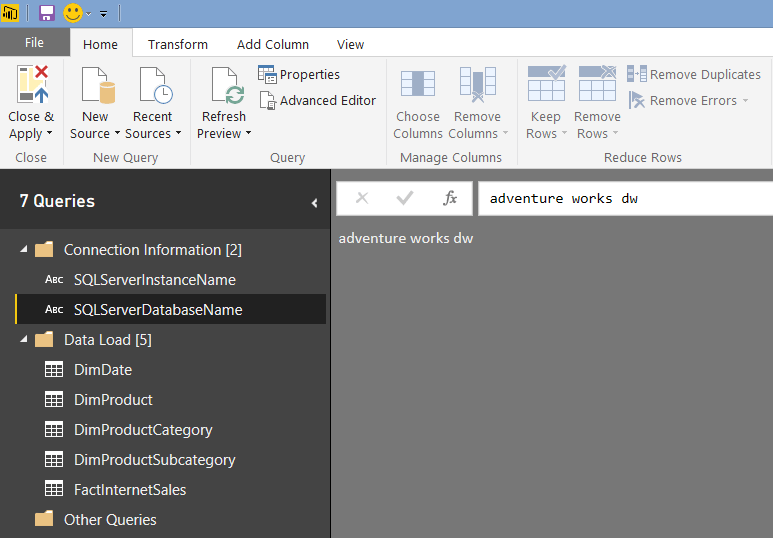
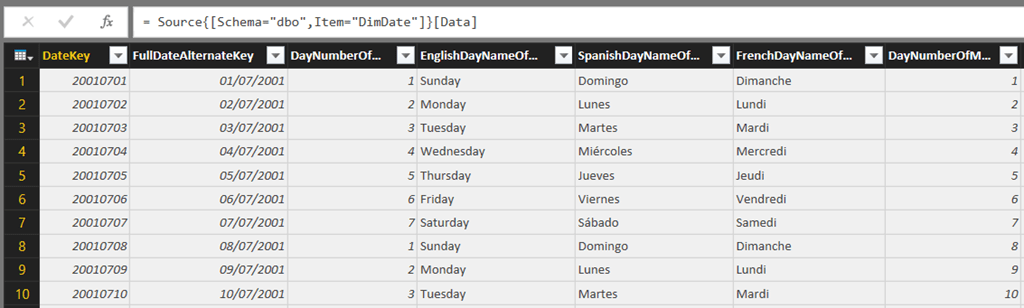
If you connect to the Adventure Works DW database in SQL Server and import the DimDate table, you’ll get an M query that returns the contents of that table (along with some extra columns that describe the relationships between that table and the others in the database):
[sourcecode language=”text” padlinenumbers=”true”]
let
Source = Sql.Database("localhost", "adventure works dw"),
dbo_DimDate = Source{[Schema="dbo",Item="DimDate"]}[Data]
in
dbo_DimDate
[/sourcecode]
If you add an extra step to this query that calls the Table.Schema() function on the table returned by the dbo_DimDate step, like so:
[sourcecode language=”text” highlight=”4″]
let
Source = Sql.Database("localhost", "adventure works dw"),
dbo_DimDate = Source{[Schema="dbo",Item="DimDate"]}[Data],
GetSchema = Table.Schema(dbo_DimDate)
in
GetSchema
[/sourcecode]
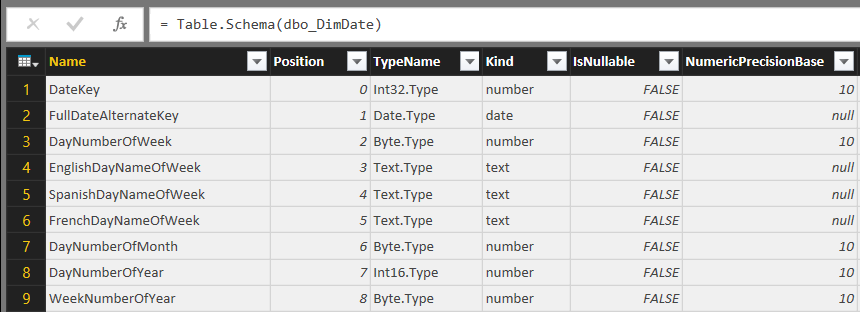
…you get a table with one row for each column in the table returned by dbo_DimDate, and a lot of columns that give you information on each column such as its position in the table, its M data type, its data type in the original data source and so on:
I can think of a lot of uses for this. Documenting a database is an obvious one; it would also serve as a much richer source of data when checking for changes in the structure of a data source, as I described here. Also, given how easy it is to tell whether two tables contain the same data in M, you could use this function to compare whether two tables have the same columns like so:
[sourcecode language=”text”]
let
Source = Sql.Database("localhost", "adventure works dw"),
dbo_DimDate = Source{[Schema="dbo",Item="DimDate"]}[Data],
SomeOtherTable =
Source{[Schema="dbo",Item="SomeOtherTable"]}[Data],
TablesEquivalent =
(Table.Schema(dbo_DimDate)=Table.Schema(SomeOtherTable ))
in
TablesEquivalent
[/sourcecode]
If you want more detail when doing comparisons you can do that with a little bit more M code, but that’s probably a topic for another post..