Using Email Attachments As A Data Source In Power BI

Many of my customers get the source data for their Power BI reports – usually Excel or csv files – sent to them as an email attachment on a regular basis. When they get one of these emails what usually happens next is that they save the attachment to a folder so Power BI can connect to it. This a tedious manual process and of course one that breaks down if they’re off sick or away on holiday. However if you are using Exchange or Exchange Online it is possible to eliminate this step and have Power BI connect directly to the attachment without downloading it. In this post I’ll show you how, using Exchange Online as an example.

First of all, the source data. Here’s an inbox with the usual junk in it; the most recent three emails are from the same person, with the same subject line, and each of them has an Excel file attachment called MailSalesDemo.xlsx:

image

The Excel files contain a simple table called SalesTable with some sales data in it:

image

If you’re going to do this properly it will be better to create a folder in your mailbox, and add a rule to make sure that all the emails with the data you need go to that folder, but I’m going to keep things simple and assume that the emails I need are in my inbox.

Next, you need to connect Power BI to Exchange. There are surprisingly few examples of how to do this, but this video is a good place to start:

https://www.youtube.com/watch?v=wvBR41V7_Yk

…and Ken Puls has good post (it’s written for Excel/Power Query but it’s all relevant for Power BI) here:

https://www.excelguru.ca/blog/2014/01/09/using-powerquery-with-email/


image

In my case after I selected the Microsoft Exchange Online data source all I needed to do was enter my email address in the Mailbox Address dialog box, and then in the authentication dialog select Microsoft Account and sign in, to get access to my data.

Once you have connected the Navigator pane will appear; you should select Mail and then click the Edit button:

image


At this point the Power Query Editor screen will open and you will see a table containing one row for each email in your mailbox. You will now have to filter your emails so you only see the emails with the attachments containing data (don’t worry if there is more than one of these emails though). You will need to something like this:

  • Filter by the Folder Path column so you only get the emails in the relevant folder
  • Expand the Sender column so you can see the name and email address of the sender of each email, and filter so that you only get emails from the relevant person (assuming that these emails are always have the same sender)
  • Filter by the Subject column (assuming that these emails always have the same subject line)
  • Filter the Has Attachments column so you only get the emails with attachments – ie where the Has Attachments column contains a TRUE value

Once you’ve done this you should see a table that looks something like this (I have removed all non-relevant columns too to make things clearer):

image

The final step is to find the most recent email and get the attachment from it. To do this:

  • Sort the table in descending order by the DateTimeReceived column

image

  • Go to the Home tab on the ribbon, click the Keep Rows/Keep Top Rows button and enter the value 1

image

  • UPDATE: something changed since I first wrote this post, resulting in an extra step being necessary at this point. You need to delete all the columns in the table except the Attachments column now; if you don’t, the query will return the specific email that’s listed when you’re designing the query, not whichever email is the most recent. This means the next screenshot is out of date, because it shows the columns that you need to delete, but it’s not a big change.
  • Click on the value Table in the Attachments column of the one remaining row in the table:

image

  • This will display a table with one row for each attachment on the selected email. If there is more than one attachment (which is not the case in my example) filter the table of attachments, for example by the Name column, so that you only have the attachment you want to get data from. Click on the value Binary in the AttachmentContent column of the one row:

image

  • From this point on the experience should be very similar to the one you get when you connect direct to an Excel file: you should see a table containing all the worksheets, tables and named ranges in the Excel file attachment. Click on the Table value in the Data column for whatever worksheet/table/named range you need for your report and then use the Power Query Editor as normal, click Close and Apply and design your report. In my case I clicked on the Table link for the SalesTable table:

image


Here’s the very basic report I built:

image

After you have published your report you will also need to set up scheduled refresh on the dataset for a reasonable amount of time after whenever you expect to have received the email containing the data. There’s no need to use a Gateway if you are using Exchange Online, so in the Settings pane for the dataset in PowerBI.com choose Connect directly:

image

Under Data Source Credentials choose OAuth2 in the Authentication method dropdown box and then sign in:

image

Once you’ve done this, every time your report refresh it will use the data from the attachment in the most recently-received email and you have one less thing to remember to do every day. To be honest it’s a bit of a hack but it works so long as the emails you receive always come from the same sender, with the same subject, same attachment and so on.

It’s a shame that Flow doesn’t have a “refresh Power BI dataset” action built-in (why doesn’t it??) because if it did, it would be very easy to refresh the dataset whenever an email with data was received. I know this is possible with Flow if you call the Power BI API but that involves a lot of technical skill to set up. Thinking about it, if you use Flow you could probably solve the problem in a completely different way by saving the email attachment to OneDrive every time an email arrived… but that needs a separate blog post.
A Few More Power BI Roadmap Details From The Dynamics 365 Release Notes

Back in March, with the publication of the Dynamics 365 Release Notes document (which you can download here, halfway down the page), we learned a lot about the roadmap of Power BI; my blog post here summarises the announcements. However, on Twitter Matthew Roche reminded me that it is a living document and indeed it turns out that it has been updated several times since March. So what has been added since then about the future of Power BI?

The change history section at the start helps identify what’s new in the document, but it’s not easy to tell what genuinely new Power BI features have been announced. There are plenty of changes to availability dates for sure. Here’s what little I’ve found in terms of new, interesting stuff (page numbers are for document version 18.1.2):

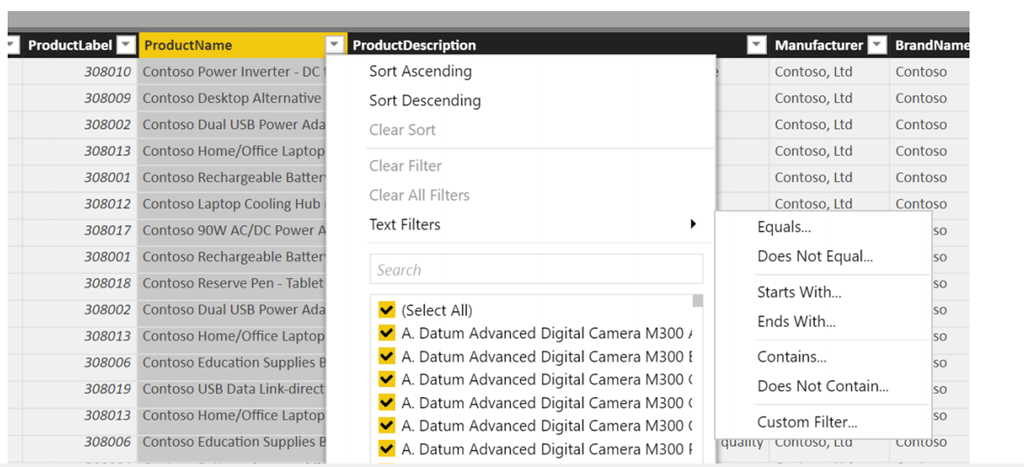
  • Filtering in the data view (p205) – finally! This is a really useful feature from Excel’s Power Pivot window that allows you to sort and filter the data that is shown in the data view after you have loaded data into tables in your dataset:

image

  • Various improvements to SAP BW and SAP Hana data connectors (p241) – I don’t think some of the details here have been officially announced yet, but I’m not an SAP person so I could be wrong.
  • Power BI custom connectors written in M will also work in Flow, PowerApps and Logic Apps (p261). This is something that Matt Masson talked about in his session at the Dublin Power BI conference too, but which I don’t think has been mentioned anywhere else. This makes custom connectors even more powerful!

Let me know if you find anything else! I’ll need to remember to check for changes to this document on a regular basis…

More Details On Creating Tables In Power BI/Power Query M Code Using #table()

About two years ago I wrote a blog post describing how the #table M function can be used to generate tables, but in that post I only covered the functionality I used regularly – namely using #table with a list of column names or a table type in the first parameter. However there two other variations on #table that I have used recently that I thought were worth pointing out.

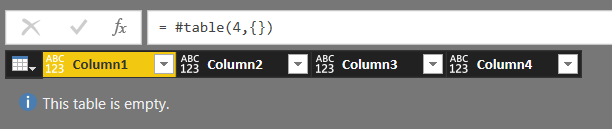
For example, if you need to generate a table with a set number of columns but you don’t care what the columns are called, you can use an integer in the first parameter to get a table with that number of columns. The following expression returns a table with four columns of data type Any called Column1, Column2, Column3 and Column3, and no rows:

[sourcecode language='text'  padlinenumbers='true']
#table(4,{})
[/sourcecode]

image

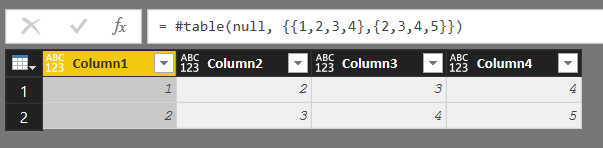
Also, if you have a list of lists with an unknown number of items in and you want to use each nested list for the row values in a table, you can use a null value in the first parameter of #table. The following expression returns a table with four columns like the one above, but with two rows of integer values:

[sourcecode language='text' ]
#table(null, {{1,2,3,4},{2,3,4,5}})
[/sourcecode]

image

How To Tell Whether Query Folding Is Taking Place When Importing Data From Analysis Services In Power BI And Excel Power Query

As a quick follow-on from last week’s post on how to detect whether query folding is taking place when importing from OData data sources, if you’re importing data from Analysis Services you have a similar problem: how do you know whether query folding is taking place? Ensuring that query folding takes place for as many of the steps in your query – especially those that filter or otherwise reduce the amount of data returned – is very important for data refresh performance.

Although the Power Query engine generates MDX queries when importing from Analysis Services in the same way it generates SQL queries when it imports from a relational database, the View Native Query option doesn’t work for Analysis Services data sources. You can of course use a Profiler trace or xEvents to see the MDX, but for most users that will not be an option for security reasons. The UI does tell you in another way though. If query folding is taking place for a step, then the Cube Tools menu on the ribbon (with the Add Items and Collapse Columns buttons) will be available, and in the top right-hand corner of the table in the results area there will be a cube icon:

image

If query folding is not taking place for a step (even though it might be taking place for previous steps in the query) then the Cube Tools menu will not be visible, and the cube icon will be replaced by a table icon. For example, in the following screenshot an Index column has been added to the query shown above, so query folding is not taking place from this step on:

image

[Thanks to Jure Jaklic for pointing this out]

Troubleshooting Data Refresh Performance Issues With OData Data Sources In Power BI And Excel Using Fiddler

A lot of people have problems with the performance of OData data sources when loading data into Power BI and Excel. One possible cause of these problems is query folding not taking place – if this is the case then the Power Query engine will be requesting more data that is needed and applying any filters itself locally, rather than requesting filtered data from the data source. How do you know whether query folding is taking place or not though? The Power Query Editor UI doesn’t give you this information, unfortunately. Last week, at the Data and BI Summit in Dublin, Matt Masson demonstrated how to use Fiddler to check if query folding is taking place when loading data from an OData data source and he’s very kindly allowed me to write about what he showed here.

The following examples use the UK Parliament’s public OData API which is documented here. The M query below, generated using the Power Query Editor in Power BI Desktop, returns all the rows from the Government Organisation table from the API:

[sourcecode language=’text’ padlinenumbers=’true’]
let
Source = OData.Feed(“https://api.parliament.uk/odata”),
GovernmentOrganisation_table =
Source{[
Name=”GovernmentOrganisation”,
Signature=”table”
]}[Data]
in
GovernmentOrganisation_table
[/sourcecode]

image

To monitor communication between Power BI Desktop and the OData API you will need to install Fiddler, a free tool from Telerik. You can download it here:

https://www.telerik.com/fiddler

You’ll probably also need to configure Fiddler to intercept https traffic, which you can find out how to do here. It’s a very powerful tool and I am by no means an expert in using it, but even a basic understanding of its features can be very useful for a Power BI developer.

With Fiddler running you can add a filter so that it only shows traffic to certain hosts; in this case I’m filtering to only show traffic to api.parliament.uk:

image

Refreshing the query shown above in the Query Editor results in the following activity being shown in Fiddler:

image

There are several calls to the service root URL, but the important call is to get the top 1000 rows from the GovernmentOrganisation table:

https://api.parliament.uk/odata/GovernmentOrganisation?$top=1000

Notice the use of the $top query option to restrict the number of rows returned – the first example of the Power Query engine pushing a filter back to the data source. This only happens when you refresh the query in the Power Query Editor so you can see a sample of the data; when you click the Close and Apply button and load the query into your dataset you’ll see that this $top filter is not applied and all the rows from the table are requested.

Altering the query to filter the rows down to where the GroupName column equals “Cabinet Office” like so:

image

Results in the following M query:

[sourcecode language=’text’ ]
let
Source = OData.Feed(“https://api.parliament.uk/odata”),
GovernmentOrganisation_table =
Source{[
Name=”GovernmentOrganisation”,
Signature=”table”
]}[Data],
#”Filtered Rows” =
Table.SelectRows(
GovernmentOrganisation_table,
each ([GroupName] = “Cabinet Office”)
)
in
#”Filtered Rows”
[/sourcecode]

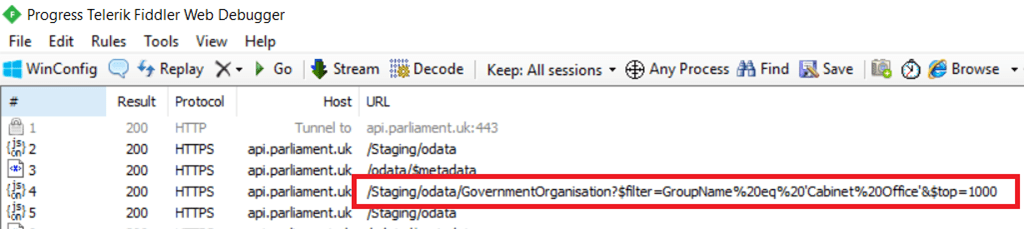
Fiddler shows the following call that includes the filter:

image

https://api.parliament.uk/odata/GovernmentOrganisation?$filter=GroupName%20eq%20’Cabinet%20Office’&$top=1000

[The Power Query Editor does quite a lot of caching so you may need to click the Refresh button on the ribbon to make sure it actually does call the API]

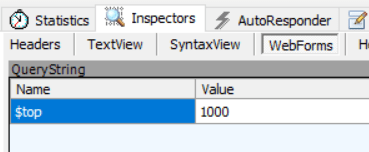
It can be quite difficult to work out what’s going on in a call like this, so with the highlighted row in the screenshot above selected you can go to the Inspectors tab and then the WebForms sub-tab, and it will show the different query options used:

image

In this case you can see the $filter query option has been used to do the filter, so query folding has taken place in this case and the API is only returning the one row that the query returns:

image

However it is all too easy to do something in your query that prevents query folding from happening. For example if you add an index column to the table before filtering by GroupName, as shown in this query:

[sourcecode language=’text’ highlight=’9,10,11,12,13′]
let
Source = OData.Feed(“https://api.parliament.uk/odata”),
GovernmentOrganisation_table =
Source{[
Name=”GovernmentOrganisation”,
Signature=”table”
]}[Data],
#”Added Index” =
Table.AddIndexColumn(
GovernmentOrganisation_table,
“Index”,
0,
1),
#”Filtered Rows” =
Table.SelectRows(
#”Added Index”,
each ([GroupName] = “Cabinet Office”))
in
#”Filtered Rows”
[/sourcecode]


image

…then Fiddler shows that only the $top filter is being applied in the call to the API, not the $filter on GroupName, so query folding is no longer taking place for the filter step:

image

image

Not everything you do in your M queries can or will be folded back to an OData API, but in general you should aim to get query folding to take place on the steps in your query that reduce the amount of data returned by the API the most. Row filters like the one shown above are a prime example of the type of transformation that will need to be folded in order to get the best possible data refresh performance. You may need to experiment with reordering steps and applying transformations in different ways to get the Power Query engine to call the API in the way you want.

Dynamically Changing A Chart Axis In Power BI Using Bookmarks And Buttons

A very common requirement when building Power BI reports is to allow the end user to change what is displayed on a chart axis dynamically. A lot of people have blogged about how to do this – Kasper’s blog post here is a great example – but the problem is that all of these solutions involve a lot of work remodelling your data and writing DAX code. However, the good news is that now we have Bookmarks and Buttons in Power BI there’s a new, easy, code-free way of achieving the same result, at least for some chart types. In this post I’ll show you how using the same data that Kasper used in his post.

Say you have the following dataset (using data from the Adventure Works DW sample database) in Power BI Desktop:

image

…and you need to display a column chart that shows the sum of SalesAmount broken down by either Country, Region or Currency.

The first step is to create a column chart and to drag Country, Region and Currency into the Axis well:

image

At this point the column chart will show Country and you’ll have the option to drill down – but don’t drill down yet. Add a Bookmark at this point and call it Country. Do not turn on drill down mode, but click on the “Go to the next level in the hierarchy” button:

image

When you do this, Country will be completely replaced by Region:

image

Add another Bookmark called Region, then click “Go to the next level in the hierarchy” again to show Currency:

image

Add a third and final Bookmark and call this one Currency. At this point you should have three Bookmarks for the three drill states:

image

The last thing to do is to add three buttons to the report linked to the three Bookmarks:

image

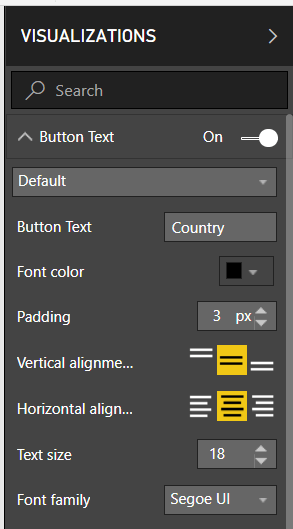
In this case I’ve used the “blank” button type, turned on the Outline, added button text that matches the name of the Bookmark, and set the Action Type property to “Bookmark” and then selected the appropriate Bookmark in the Bookmark property. Here’s how my Country button is configured:

image

image

image

image

And that’s it. After the report is published (notice that I’ve also used the new ability to turn off the visual header which makes everything look much tidier) you’ll be able to click the three buttons and switch between viewing Country, Region and Currency like so:

PQSwitchAxis

Of course this only approach works with visuals like the column chart that support drilldown so you can’t use it in all cases, but it does show off how powerful and useful the Button/Bookmark combination is. Ideally the Selection Pane would be able to control the visibility not just of entire visualisations but also of the fields and measures used within a visualisation, which would enable even more scenarios like this.

You can download the sample .pbix file for this post here.

Reordering Multiple Columns With ‘Remove Other Columns’ In The Power Query Editor

In the comments to my last blog post on how the order that you select columns can affect the output of certain calculations, both Bradley Sawler and John B. Thomas pointed out something very useful that I didn’t know about: that the order you select columns can also be used with the ‘Remove Other Columns’ functionality to reorder columns in bulk.

For example, imagine you have a table with columns called A, B, C, D, E and F. If you select the columns in the order F, E, D, A, B and C and the select ‘Remove Other Columns’, the columns are reordered in the order that you clicked them:

PQReorderCols

As you can see from the demo above, ‘Remove Other Columns’ uses the Table.SelectColumns M function behind the scenes and the order the columns are listed in that function is the order that you have clicked them in. A great trick for reordering a large number of columns quickly!

The Order You Select Columns In The Power Query Editor Can Affect The Output Of Some Transformations

Maybe this is obvious to more experienced Power Query users, but something I always point out when I’m training people up on Power Query is that the order that you select columns in the Power Query Editor window (both in Power BI Desktop and Excel) can affect the output of certain transformations. For example, say you have a table with two columns A and B that both contain numbers; if you select A first and then B, and then go to Add Column/Standard/Divide, you’ll get a new column that contains the value of the calculation A/B. However, if you select B first and then A and do the division you’ll get B/A:

PQDivide

The order that you select columns is also significant for some other types of calculation such as Percent Of and Power, and also when you do a Merge Columns.

Make Excel Reports Created With Analyze In Excel Work After Publishing To Power BI!

I think Power BI’s a great tool, but like most Power BI users I have a list of my own pet features that I would like to see implemented to make Power BI even greater. What I would most like to see addressed is the fact that, right now, Analyze In Excel only works with Excel on the desktop but not after you have published a workbook to Power BI. It seems crazy to me (and it’s very hard to explain to customers too) that Analyze In Excel lets you create reports in Excel using PivotTables and cube functions connected to a Power BI dataset, but when you publish your report to a Power BI workspace – so that the Excel workbook and the source data are both in Power BI – the reports stop working because Excel Online cannot connect back to Power BI.

There has been a post on the Power BI Ideas forum about this for some time, but recently I was talking to some guys from the Excel dev team and they told me that it’s actually something they, not the Power BI team, need to address. Therefore I created a post on the Excel UserVoice forum too:

https://excel.uservoice.com/forums/274580-excel-online/suggestions/33793252-pivottables-created-with-power-bi-using-analyze-in

Please vote for it! The more votes it gets, the more likely it is to be implemented quickly. Ken Puls managed to get a lot of votes for his idea to improve Power Query performance, and since that’s now in the process of being implemented it just goes to show that voting does influence what the Excel dev team works on.

Why is this important? In my opinion, Power BI is not a good ad-hoc data exploration tool and isn’t intended to be – its strengths lie elsewhere. However people do want to explore data stored in Power BI and an Excel PivotTable is the ideal way to do this (the Power BI matrix visual is very limited in comparison), and after you have found something interesting it’s only natural that you should want to share it. PivotTables aren’t the only thing Excel has to offer though: I’m a big fan of cube functions too, especially for creating financial reports, and Power BI has nothing remotely like them. Finally, don’t forget all those people who want to build reports in Excel because it’s Excel and that’s what they know. All in all getting this feature implemented would be a major boost for Power BI and broaden its range of capabilities.

Power BI Roadmap Announcements In the Dynamics 365 Spring ‘18 Release Notes

There have been a lot of important Power Apps and Flow announcements today, as well as the announcement about the Common Data Service for Analytics which is undoubtedly massive news for Power BI users, but buried in the very large “Dynamics 365 Spring ‘18 Release Notes” pdf file (downloadable from https://aka.ms/businessappsreleasenotes) are a number of equally significant revelations about the Power BI roadmap for the next few months. I’ve summarised them here, along with the relevant page numbers; I’ve also highlighted what I think are the most important ones.

  • (P177) Control over linguistic schema – it looks like the phrasing and synonyms functionality for Q&A that was in the old Power BI service has been added back
  • (P178) User experiences for Q&A in reports – report authors will be able to allow report consumers (I assume people who have had reports shared with them via Apps) to use Q&A, as well as to provide suggested questions
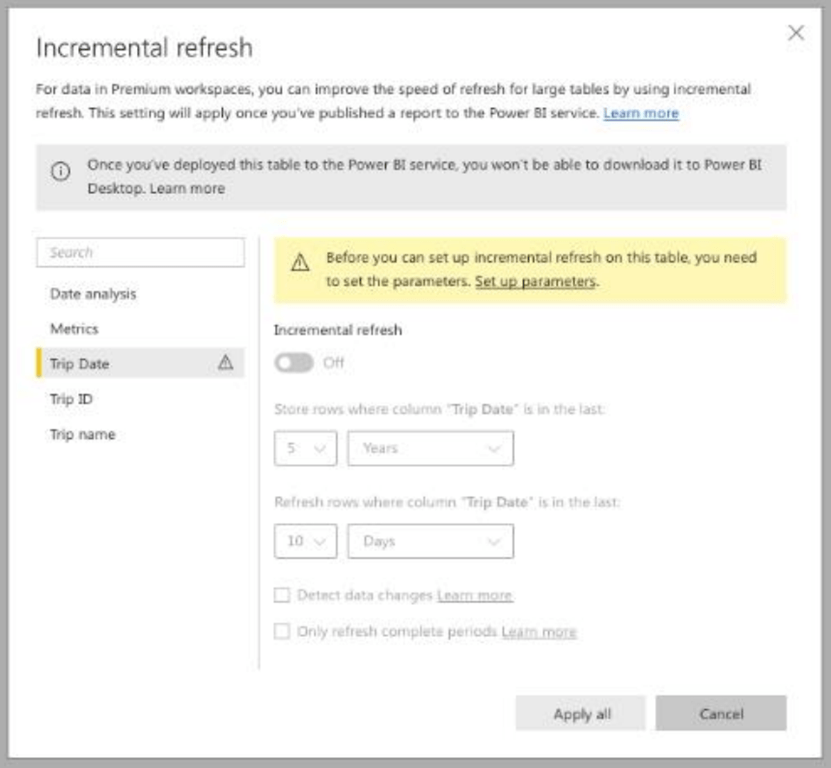
  • (P178) Incremental refresh policies – the first sighting of incremental refresh in Power BI! But as the screenshot shows, this is for Premium only (which is not a surprise). It looks like it will be a lot easier to use than managing incremental refresh using partitions in SSAS.
    image
  • (P185) Performance reporting for Power BI Premium – seems to be more detailed metrics for Power BI usage and performance
  • (P186) Data source setup improvements – better UI for configuring datasets and links to gateways
    image
  • (P186) Query acceleration for large datasets – this will allow you to create DirectQuery datasets but then create some in-memory aggregate tables to improve query performance
  • (P186) Power BI metadata translations – translations like we have in SSAS Tabular today, I guess, allowing table and column names to be translated and users to see these translations when they connect
  • (P187) Smart alerts – seemingly an improvement on the existing alert functionality, with some extra AI thrown in?
  • (P187) Slideshow mode – cycle through pages in a report when the report is in full-screen mode
  • (P187) Workspaces with Azure AD Groups – workspaces are being separated from O365 Groups (at last!) and instead permissions can be controlled using Azure AD security groups or Office 365 modern groups
  • (P188) Report Snapshots for Power BI Premium – more subscription options for Premium users
  • (P188) SSRS Reports in Power BI Premium – run SSRS reports inside Premium, with no separate installation of SSRS required. Azure Reporting Services has been resurrected!?
    image
  • (P188) Subscribe other users for email subscriptions – at last!
  • (P189) XMLA connectivity for Power BI Premium – connect to Premium workspaces as if they were Analysis Services instances (which they pretty much are, I guess)
  • (P189 and P209) Common Data Services for Analytics capability in Power BI – Iots more detail on this new service in this section than is available in the post on the Power BI blog linked to above
  • (P192) Power BI Insight apps – pre-built Power BI solutions for services like Dynamics 365 and Salesforce
  • (P194) Details on the roadmap for Power BI Embedded
  • (P204) Details on the roadmap for the Power BI Mobile apps

Not in this document, but mentioned in this blog post today is the fact that the web-based version of Power Query that can be used to load data into the Common Data Service is out of Preview.

All I can say is wow – there’s so much to take in here, and it seems like the pace of innovation is only getting faster. It’s also nice to see Microsoft publishing a comprehensive roadmap document like this: it’s something many of my customers have wanted for a long time, and really helps them with their planning.