New Performance Optimisation for Excel PivotTables Connected To Power BI Semantic Models

Some good news: an important optimisation has rolled out for Excel PivotTables connected to Power BI semantic models! Back in 2019 I wrote about a very common problem affecting the MDX generated by PivotTables connected to Analysis Services where, when subtotals are turned off and grand totals are turned on, the query nevertheless returns the subtotal values. This led to extremely slow, expensive MDX queries being run and a lot of complaints. The nice people on the Excel team have now fixed this problem and PivotTables connected to Power BI semantic models generate MDX queries that only return the values needed by the PivotTable.

Here’s an example of a PivotTable connected to a published Power BI semantic model:

Note that the subtotals have been turned off but the grand totals are displayed – this is important. Here’s the MDX query generated for this PivotTable:

SELECT NON EMPTY 
{ /* GTOPT-BEGIN CSECTIONS=2 */ 
 /* GTOPT-SECT-BEGIN-1 Desc:GrandTotal */ 
{([Property Transactions].[New].[All],[Property Type].[Property Type Name].[All])}
 /* GTOPT-SECT-END-1 */ 
,
 /* GTOPT-SECT-BEGIN-2 Desc:Detailed */ 
{Hierarchize(CrossJoin({[Property Transactions].[New].[New].AllMembers}, 
{([Property Type].[Property Type Name].[Property Type Name].AllMembers)}))}
 /* GTOPT-SECT-END-2 */ 
} /* GTOPT-END */ 
 DIMENSION PROPERTIES PARENT_UNIQUE_NAME,HIERARCHY_UNIQUE_NAME ON COLUMNS  
 FROM [Model] 
 WHERE ([Measures].[Count Of Sales]) 
 CELL PROPERTIES VALUE, FORMAT_STRING, LANGUAGE, BACK_COLOR, FORE_COLOR, FONT_FLAGS

And here’s what this query returns:

There are 11 values displayed in the PivotTable and the MDX query returns 11 values. It’s what you’d expect but as I said, up to now, Excel would have generated an MDX query that returned 13 values – a query that also requested the subtotal values that aren’t displayed.

This optimisation should now be rolled out to 100% of Excel users. You can tell if you are using the new query pattern by looking for comments in the MDX code with the text “GTOPT” in – they’re easy to spot in the query shown above. Right now the optimisation only happens for PivotTables connected to Power BI semantic models but I’ve been told that in future it should also happen for PivotTables connected to Azure Analysis Services and SSAS; this is because some server-side optimisations are necessary to make the new MDX perform as well as possible.

You might be thinking that, despite my excitement, this is a very niche scenario but I assure you it’s not: Excel users very frequently create PivotTables that are formatted to look like tables, and having subtotals turned off and grand totals turned on is a key part of this. The more fields that are put on rows the more subtotals there are to calculate and the more the overhead increases; it’s not uncommon to find situations where the number of subtotal values is much greater than the number of values actually displayed in the PivotTable.

This doesn’t solve all the performance problems associated with PivotTables and Power BI though and more work is planned for the future.

[Thanks to Yaakov Ben Noon for driving this work!]

Why DAX Is Better Than MDX For Bulk Extracts Of Data From Power BI

This is a post I’ve avoided writing for many years, and before I carry on let me make one thing clear:

Doing bulk extracts of data from a Power BI semantic model is a **really** bad idea

My colleague Matthew Roche wrote a great post on this topic a couple of years ago that is still relevant: using Power BI (or Analysis Services) as a data source for other systems, including other Power BI Import mode semantic models, is an anti-pattern. Power BI is optimised for small, analytical queries that return the amount of data that can be visualised on a single page. It is not optimised for queries that return millions of rows. Running this kind of query on a Power BI semantic model will be slow, is likely to run into timeouts and memory errors, and is also likely to cause CU spikes – and perhaps throttling – on a Premium capacity. If you want the data from a semantic model it’s much better to go back to the original data sources that the semantic model uses.

But

People still use Power BI semantic models as data sources all the time. This is either because they don’t know any better, because they can’t get access to the underlying data sources, or because they want to get the result of any DAX calculations on the model.

So

If you do need to extract large amounts of data from a semantic model I have one important piece of advice: write a DAX query to get the data and not an MDX query. There are two reasons for this:

  • Writing a DAX query to get granular data is usually a lot simpler than writing an MDX query
  • DAX queries that return large amounts of data are typically faster (and so less likely to hit timeouts), more CPU efficient (and therefore less likely to cause throttling on a capacity) and more memory efficient (and so less likely to cause memory errors)

The bad news is that the two client tools most often used to bulk extract data from Power BI, Excel PivotTables and Power Query using the Analysis Services connector and its query builder, generate MDX queries. What’s more, they don’t always generate the most efficient MDX queries either.

Let’s see an example. I have a semantic model in a Premium workspace with a table called Property Transactions with around a million rows in it. I connected to the model via the XMLA Endpoint using the “From SQL Server Analysis Services Database (Import)” option in Power Query in Excel:

…and then created a query to get the data from all the columns on the Property Transactions table plus one measure, called Count of Sales, using Power Query’s query builder:

While the query builder generated the MDX for me, you can see that it was not a simple query:

I ran a Profiler trace while this query ran and from the Execution Metrics I saw that:

  • The query took 54 seconds to complete
  • CPU Time was also 54 seconds
  • The approximate peak memory usage of the query was 626292KB

I then created a second Power Query query that used the following DAX query to get the same data, which I think you’ll agree is much more straightforward:

EVALUATE 
ADDCOLUMNS('Property Transactions', "Count of Sales", [Count of Sales])

[You have the option of entering a customer MDX or DAX query when you create your Power Query query]

This time, Execution Metrics showed me that:

  • The query took 6 seconds to complete
  • CPU Time was 6 seconds too
  • The approximate peak memory usage was 142493KB

So the DAX query was simple to write and maintain, took 11% of the time that the MDX query to run, used 11% of the CPU and 22% of the memory. That’s a big improvement. Even though I might be able to rewrite the MDX generated by Power Query to be more efficient there’s no way it would be as simple or as efficient as the DAX query.

[Thanks to Akshai Mirchandani for the information in this post]

Excel PivotTable Query Performance With Analysis Services, Power Pivot And Power BI (Revisited)

Back in 2016 I wrote the following blog post about changes to the way Excel 365 generated MDX queries for PivotTables connected to Analysis Services, Power Pivot/the Excel Data Model and Power BI datasets:

https://blog.crossjoin.co.uk/2016/07/08/excel-2016-pivottable-mdx-changes-lead-to-big-query-performance-gains/

I know it sounds boring and not something you need to worry about but trust me, this is important – these changes solved the vast majority of Excel PivotTable performance problems that I encountered when I was a consultant so you should read the above post before continuing.

Unfortunately, earlier this year these changes had to be partially rolled back because in some rare cases the queries generated returned incorrect results; this means that you may find that values for subtotals and grand totals are again being returned even when they aren’t being displayed. The good news is that you should still be able to get the improved performance with a few minor tweaks.

Using the example from the previous post, a PivotTable connected to SSAS MD and the Adventure Works cube (the queries generated for SSAS Tabular, Power Pivot and Power BI may be slightly different and slightly better but the basic problem is the same), if you build the following in Excel:

image

image

…even though the subtotals in the PivotTable are not displayed in Excel, the MDX query generated by Excel not only returns them but also returns others that are not needed at all – in fact 36 rows (although the query returns them as columns) of data rather than the 13 rows that are displayed. Here’s a screenshot of the results returned when you run the MDX query in SQL Server Management Studio:

image

image

Any time you see a row or column containing an All Member (in this case All Customers or All Products) you know you are looking at a subtotal or grand total.

[NB The easiest way to get the MDX query generated by your PivotTable is to install the OLAP PivotTable Extensions add-in https://olappivottableextensions.github.io/]

In this case, to get an efficient query, you need to explicitly turn off subtotals and grand totals for the PivotTable in Excel:

image

image

In the PivotTable the only difference you’ll see is that the grand totals are now not displayed:

image

But the query generated now only returns the values that are actually needed, and as a result will be a lot more efficient and potentially a lot faster. In this case, the query now only returns the 12 rows of data displayed:

image

image

Even with subtotals and grand totals turned off there are still some cases where unwanted values will be returned. Take the following PivotTable, where I have used the Calendar hierarchy from the Date dimension on columns and filtered it so I only see the three months in Q1 CY 2012:

image

image

The MDX query generated by Excel requests requests four extra columns with subtotals and a grand total that aren’t displayed:

image

There is a fairly simple workaround though. By changing how the PivotTable is constructed – in this case by not putting a hierarchy on columns but just the Month Of Year attribute, then adding slicers for Calendar Year and Calendar Quarter to control which months are displayed – you can get an efficient query. This version of the PivotTable:

image

image

…results in this query being generated, which only returns the required values:

image

To sum up, then, if you have a PivotTable that seems a bit slow:

  • Turn off subtotals and grand totals unless you really need to see them
  • Look at the MDX query being generated by Excel and see if it is still returning unnecessary subtotals and grand totals, and if it is try rebuilding the PivotTable to get the same results in a different way (for example by not drilling down on hierarchies as in the last example) to get a more efficient query

[All the queries in this post were generated by Excel 365 version 1910 build 12130.20238]

SSAS Tabular 2019, Calculation Groups And Migration From SSAS Multidimensional

With the release of CTP 2.3 of SQL Server 2019 today there was big news for Analysis Services Tabular developers: Calculation Groups. You can read all about them in detail in this blog post:

https://blogs.msdn.microsoft.com/analysisservices/2019/03/01/whats-new-for-sql-server-2019-analysis-services-ctp-2-3/

In my opinion this is the most important new feature in DAX since… well, forever. It allows you to create a new type of calculation – which in most cases will be a time intelligence like a year-to-date or a previous period growth – that can be applied to multiple measures; basically the same thing that we have been doing in SSAS Multidimensional for years with the time utility/shell/date tool dimension technique. It’s certainly going to solve a lot of problems for a lot of SSAS Tabular implementations, many of which have hundreds or even thousands of measures for every combination of base measure and calculation type needed.

I’m not going to repeat any of the detailed technical information in the blog post here, though. Instead the point I want to make is that this is very big news for SSAS Multidimensional users too. In the past couple of years many people who have existing SSAS Multidimensional implementations have thought about migrating to SSAS Tabular so they can take advantage of its new features or move to the cloud, and indeed many of them have already migrated successfully. However, up to now, the biggest blocker for those wanting to migrate from Multidimensional to Tabular has been the fact that some complex calculations that can be expressed in MDX cannot be recreated (or recreated easily and efficiently) in DAX, because DAX has not had an equivalent of calculated members not on the Measures dimension or the MDX SCOPE statement.

Calculation groups do not remove this roadblock completely, but they do remove the roadblock for a large group of existing SSAS Multidimensional users whose only complex calculation requirement is a time utility/shell/date tool dimension. As a result these SSAS Multidimensional users will now be able to migrate to SSAS Tabular 2019, Azure Analysis Services or Power BI if they want to. Only those people who have more exotic uses for calculated members not on the Measures dimension (which are not very common at all) and those who use SCOPE statements (a larger group – many people working with financial data use SCOPE statements heavily) will find that Multidimensional is still the correct platform for them.

Finding All Selected Items In An Excel Slicer Connected To SSAS, Power BI Or the Excel Data Model Using Dynamic Arrays

The big news in the world of Excel right now is the introduction of dynamic arrays. They’re only available in the Office 365 click-to-run version of Excel and, at the time of writing, only available to people on the Office Insiders programme, but eventually they’ll be available to anyone running Excel for Office 365 on their desktop. There are already lots of blog posts about them including this overview by Jon Acampora, and you probably also want to download Bill Jelen’s detailed mini-book on them here which is free for the rest of 2018. Now I’m not an Excel expert by any stretch of the imagination but I’m as excited as anyone else about them because they will be incredibly useful for anyone building reports using Excel cube functions against Analysis Services, the Excel Data Model/Power Pivot and Power BI. Bill Jelen’s book has a short section on this subject but the possibilities are limitless…

Here’s one example of how they can be used. A while ago I blogged about how to use a regular array formula and the TextJoin() Excel function to get all the selected items from a slicer. Dynamic arrays make this problem much easier to solve. Take the following table loaded into the Excel Data Model:

Capture1

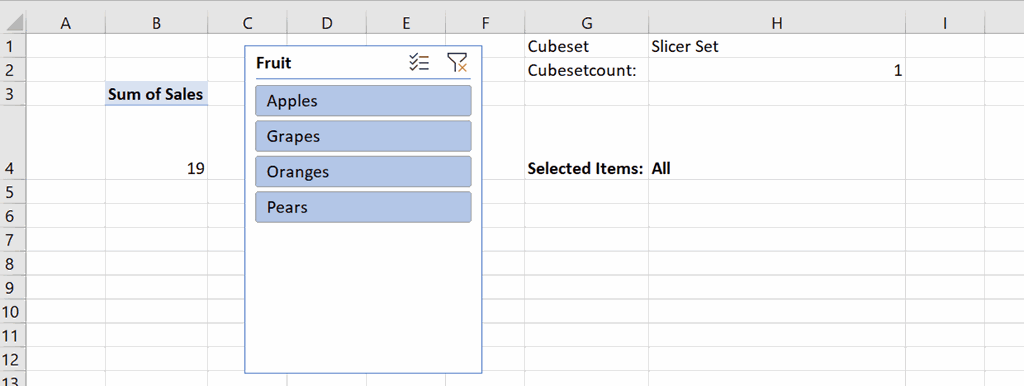
Now, say you have a PivotTable built from this and a slicer (called Slicer_Fruit) connected to it:

Capture2

It’s possible to use the CubeSet() function to get the set of selected items in a slicer using the following formula:

[sourcecode language=’text’ padlinenumbers=’true’]
=CUBESET(“ThisWorkbookDataModel”,Slicer_Fruit,”Slicer Set”)
[/sourcecode]

Assuming this formula is in cell H1, you can then get the number of items in this set using CubeSetCount():

[sourcecode language=’text’ ]
=CUBESETCOUNT($H$1)
[/sourcecode]

Assuming this is in cell H2, all you need to do to get a comma-delimited list of all the selected items in the slicer via this set is:

[sourcecode language=’text’ ]
=
TEXTJOIN(
“, “,
TRUE,
CUBERANKEDMEMBER(
“ThisWorkbookDataModel”,
$H$1,
SEQUENCE($H$2,1)
)
)
[/sourcecode]

Capture3

Here it is in action:

demo

It works as follows:

  • The new Sequence() function is used to create a dynamic array of numbers from one to the number returned by the CubeSetCount() function.
  • The CubeRankedMember() gets the name of each of the items in the set using the numbers returned by Sequence()
  • TextJoin() then concatenates all of the names returned by CubeRankedMember() into a single comma-delimited list.

You can download the sample workbook here (remember it will only work if you have a version of Excel installed that includes dynamic arrays!).

Performance Problems With MDX Calculated Measures That Return Constants In Analysis Services Multidimensional

Recently I was working on an MDX calculation that calculated a value at a low granularity and aggregated the result – basically what I described in my blog post here. Here’s a simplified version of the calculation written on a cube built from Adventure Works data running on my local SSAS 2017 MD instance:

[sourcecode language='text'  padlinenumbers='true']
SCOPE([Measures].[Tax Amount]);
    SCOPE(
	[Customer].[Customer].[Customer].MEMBERS, 
	[Date].[Date].[Date].MEMBERS, 
	[Product].[Product].[Product].MEMBERS);
        THIS = [Measures].[Sales Amount]*0.08;
    END SCOPE;
END SCOPE;
[/sourcecode]

All it does is take the value of the Sales Amount measure at the lowest granularities of the Customer, Date and Product dimensions, multiply it by 0.08 to find a tax value, and because [Tax Amount] is a real, non-calculated measure, the result of the calculation aggregates up through the cube. [I know that I don’t have to aggregate the result of this specific calculation but remember that this is a simplified example – in the real case I did have to write the calculation using Scope statements – and anyway the best way of handling a basic multiplication like this would be with a measure expression]

The performance was sub-second for my test query and I was happy, but then I realised that the same tax rate was being used in other calculations and may change in the future, so I thought I would store the value 0.08 in a calculated measure:

[sourcecode language='text' ]
CREATE MEMBER CURRENTCUBE.[Measures].[Tax Rate] AS  
0.08;

SCOPE([Measures].[Tax Amount]);
    SCOPE(
	[Customer].[Customer].[Customer].MEMBERS, 
	[Date].[Date].[Date].MEMBERS, 
	[Product].[Product].[Product].MEMBERS);
        THIS = [Measures].[Sales Amount]*[Measures].[Tax Rate];
    END SCOPE;
END SCOPE;
[/sourcecode]

Surely a simple change? But no, as soon as I did this my query ran for several minutes and memory usage went through the roof until the query was automatically cancelled:

image

Clearly the SSAS MD Formula Engine could optimise the version with the hard-coded constant value but could not optimise the version with the calculated measure. There was nothing in Profiler to indicate the calculation was being evaluated in cell-by-cell mode though.

So I tried another variation:

[sourcecode language='text' ]
CREATE MEMBER CURRENTCUBE.[Measures].[Tax Rate] AS  
IIF([Measures].[Sales Amount]=0, NULL, 0.08);

SCOPE([Measures].[Tax Amount]);
    SCOPE(
	[Customer].[Customer].[Customer].MEMBERS, 
	[Date].[Date].[Date].MEMBERS, 
	[Product].[Product].[Product].MEMBERS);
        THIS = [Measures].[Sales Amount]*[Measures].[Tax Rate];
    END SCOPE;
END SCOPE;
[/sourcecode]

This time the memory usage was completely flat but the query was still so slow had to be cancelled. Next, I thought I’d try setting the NON_EMPTY_BEHAVIOR property:

[sourcecode language='text' ]
CREATE MEMBER CURRENTCUBE.[Measures].[Tax Rate] AS  
0.08
, NON_EMPTY_BEHAVIOR = [Measures].[Sales Amount];

SCOPE([Measures].[Tax Amount]);
    SCOPE(
	[Customer].[Customer].[Customer].MEMBERS, 
	[Date].[Date].[Date].MEMBERS, 
	[Product].[Product].[Product].MEMBERS);
        THIS = [Measures].[Sales Amount]*[Measures].[Tax Rate];
    END SCOPE;
END SCOPE;
[/sourcecode]

And guess what? The query went back to being sub-second. Strange. Now the NON_EMPTY_BEHAVIOR property is very dangerous and this is a clear example of how it should not be set – the expression 0.08 is never going to return an empty value, regardless of the value of the [Sales Amount] measure. As a result I would be very wary of using this trick in production in case it ended up returning inconsistent results. It’s also worth noting that the following calculation, which is a correct use of NON_EMPTY_BEHAVIOR, is as slow as the other examples above:

[sourcecode language='text'  padlinenumbers='true']
CREATE MEMBER CURRENTCUBE.[Measures].[Tax Rate] AS  
IIF([Measures].[Sales Amount]=0, NULL, 0.08)
, NON_EMPTY_BEHAVIOR = [Measures].[Sales Amount];
[/sourcecode]

Finally I created a dummy table in my DSV with one row and one column to hold the 0.08 value, and then created a real, non-calculated measure from the column. When I used this measure in my calculation then performance of my test query was also sub-second.

So, to sum up, it looks like hard-coding constant values in calculated measures is a bad idea, at least in cases like this, and either using the values themselves in your MDX calculations or creating a table and non-calculated measure specifically to hold the value is better for performance.

Analysis Services Import Performance Improvements In The August 2018 Release Of Power BI

While I was playing around with the new release (August 2018) of Power BI Desktop I noticed there was an undocumented change: similar to the OData improvements I blogged about here, there is a new option in the AnalysisServices.Database() and AnalysisServices.Databases() M functions that turns on a newer version of the MDX generation layer used by the Power Query engine. Like the OData improvements it is an option called Implementation=”2.0”, used like this:

[sourcecode language=’text’ padlinenumbers=’true’ highlight=’5′]
AnalysisServices.Databases(
“localhost”,
[
TypedMeasureColumns=true,
Implementation=”2.0″
]
)
[/sourcecode]

…and also, as with the OData improvements, you will need to manually edit any existing M queries to take advantage of this.

In fact first heard about this option in a comment on this blog post back in January, but as I was told by the dev team that it hadn’t been tested properly I didn’t blog about it. However as it is now set by default in the M code generated by the Power Query Editor, I guess it’s ready for production use. I’m told it should improve the performance of M queries that import data from Analysis Services – and I would be very interested to hear from anyone who tests this about how much of an improvement they see.

I’ve done a little bit of testing myself and I can see there are indeed some differences in the MDX generated. For example, I created an M query that connected to the Adventure Works DW database and returned all combinations of customer and day name where the Internet Sales Amount measure is greater than 100. In the old version of the MDX generation layer (ie without Implementation=”2.0” set) the following MDX query is generated:

[sourcecode language=’text’ ]
SELECT
{
[Measures].[Internet Sales Amount]
}ON 0,
SUBSET(
NONEMPTY(
CROSSJOIN(
[Date].[Day Name].[Day Name].ALLMEMBERS,
[Customer].[Customer].[Customer].ALLMEMBERS
),
{
[Measures].[Internet Sales Amount]
}
),
4096
)
PROPERTIES MEMBER_CAPTION, MEMBER_UNIQUE_NAME ON 1
FROM(
SELECT
FILTER(
CROSSJOIN(
[Date].[Day Name].[Day Name].ALLMEMBERS,
[Customer].[Customer].[Customer].ALLMEMBERS
),
(
NOT((
ISEMPTY(
[Measures].[Internet Sales Amount]
)
OR
ISEMPTY(
100
)
))
AND
([Measures].[Internet Sales Amount] > 100)
)
)ON 0
FROM [Adventure Works]
)CELL PROPERTIES VALUE
[/sourcecode]


However with the Implementation=”2.0” option set, the following query is generated:

[sourcecode language=’text’ ]
SELECT
{
[Measures].[Internet Sales Amount]
}ON 0,
SUBSET(
NONEMPTY(
FILTER(
CROSSJOIN(
[Date].[Day Name].[Day Name].ALLMEMBERS,
[Customer].[Customer].[Customer].ALLMEMBERS
),
(
NOT(ISEMPTY(
[Measures].[Internet Sales Amount]
))
AND
([Measures].[Internet Sales Amount] > 100)
)
),
{
[Measures].[Internet Sales Amount]
}
),
4096
)
PROPERTIES MEMBER_CAPTION, MEMBER_UNIQUE_NAME ON 1
FROM [Adventure Works] CELL PROPERTIES VALUE
[/sourcecode]

The difference between the two is that the first query uses a subselect to do the filtering whereas the second does not; subselects in MDX are not necessarily bad, but I generally try to avoid using them unless I need to. There may be other differences in the way the MDX is generated in the new version but I haven’t had a chance to do any detailed testing.

More Details On The RowsetSerializationLimit Server Property For Analysis Services

The recent blog post on the Analysis Services team blog about new memory options contained information about some very interesting functionality that has just been added. The first of the new features I decided to try was the RowsetSerializationLimit server property, which restricts the number of rows returned by a query and which is intended to stop rogue users running queries that return very large amounts of data. It certainly works but there are two things to point out about it that aren’t immediately obvious.

First of all, an example of it in action. In Azure Analysis Services, using a database that contains one very simple table with one column and 5000 rows, the following DAX query returns all 5000 rows from the table:

[sourcecode language='text'  padlinenumbers='true']
EVALUATE 'MyTable'
[/sourcecode]

image

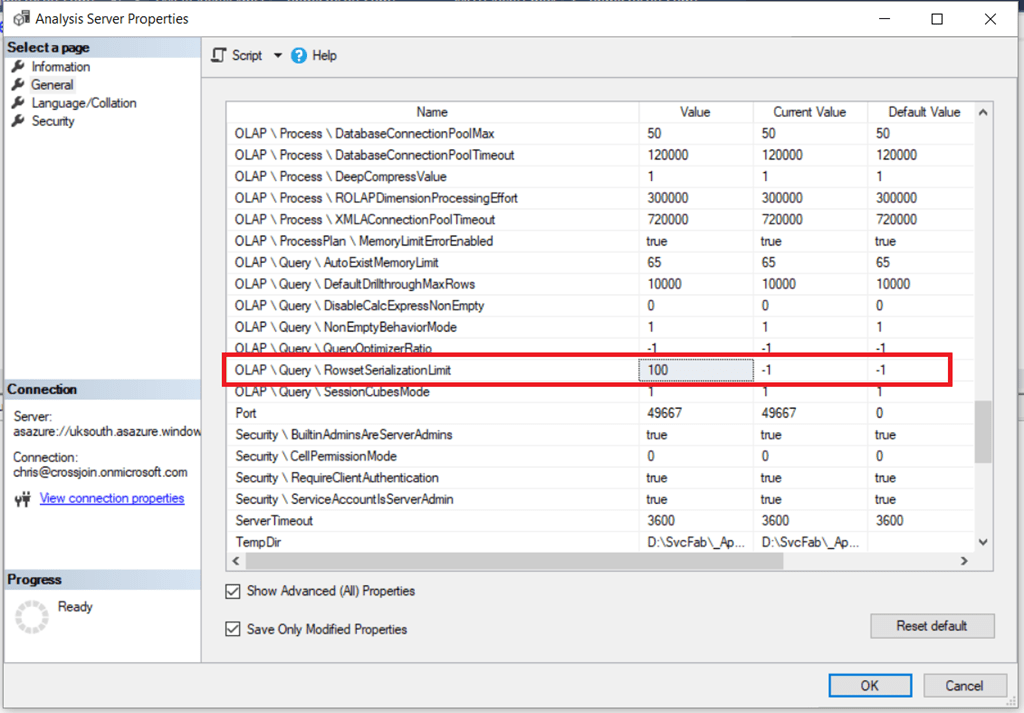
To change the RowsetSerializationLimit server property, open SQL Server Management Studio, right-click on your server name in the Object Explorer pane and select Properties. Then go to the General page, check the Show Advanced (All) Properties box, and you’ll see the property listed under OLAP\Query\RowsetSerializationLimit:

image

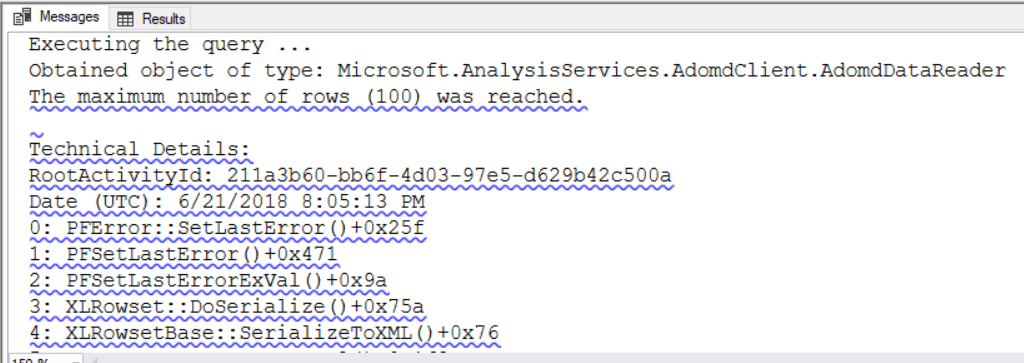
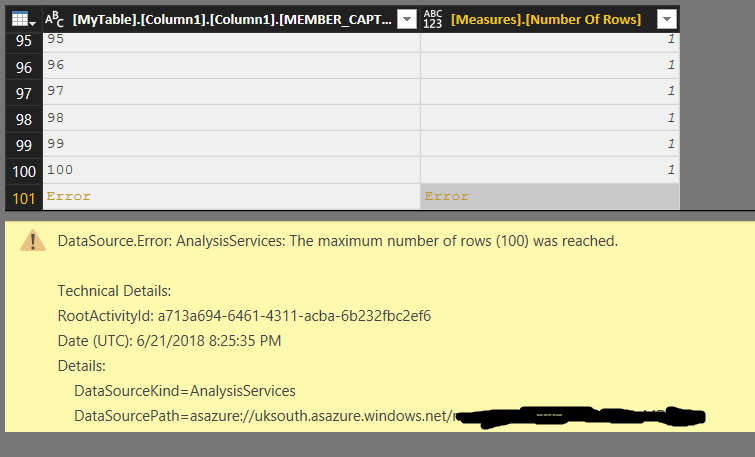
The default value is –1, meaning no limit is placed on the number of rows returned by a rowset. Changing it to 100 and then running the above query results in the following error:

image

Executing the query …
Obtained object of type: Microsoft.AnalysisServices.AdomdClient.AdomdDataReader
The maximum number of rows (100) was reached.

A query that returns less than 99 rows, for example

[sourcecode language='text' ]
EVALUATE TOPN(99,'MyTable')
[/sourcecode]

…is ok though.

The important thing to understand is that although this applies to both DAX and MDX queries, it only applies to queries that are returned as rowsets (a tabular format) and not as cellsets (a multidimensional format). Most client tools that generate MDX, including Excel, use cellsets so this property will not apply to them unfortunately.

For example, the following MDX query run from a SQL Server Management Studio MDX query window (which also returns a cellset) on the same database runs ok and returns 5000 rows:

[sourcecode language='text' ]
SELECT
{[Measures].[Number Of Rows]} ON 0,
[MyTable].[Column1].[Column1].MEMBERS ON 1
FROM
[Model]
[/sourcecode]


image

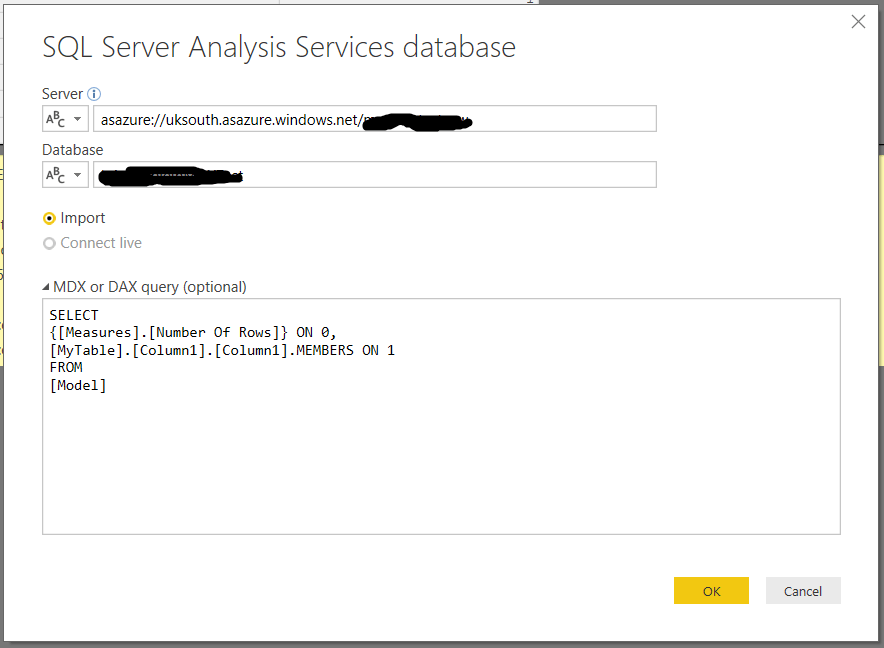
However the same query run from Power BI Desktop to import data from the same database:

image

…runs, but returns only 100 rows and then an error:

image

Something else to point out is that this applies to all queries that return rowsets, even Discover requests and DMV queries. As a result, setting this property to a very low value can cause problems in tools like SQL Server Management Studio: for example if you set the property to 10 and you had 11 tables in a database, you would see an error when you tried to expand the Tables node of a database in the Object Explorer pane!

Even though this property only applies to rowsets I think it’s still going to be very useful, especially in scenarios where Power BI Desktop users are importing vast amounts of data from Analysis Services and causing major problems on the server.

Analysis Services Query Analyzer

Last week a new, free tool for analysing the performance of MDX queries on SSAS Multidimensional was released: Analysis Services Query Analyzer. You can get all the details and download it here:

https://ssasqueryanalyzer.github.io/

…and here’s a post on LinkedIn by one of the authors, Francesco De Chirico, explaining why he decided to build it:

https://www.linkedin.com/pulse/asqa-10-released-francesco-de-chirico/

I’ve played around with it a bit and I’m very impressed – it’s a really sophisticated and powerful tool, and one I’m going to spend some time learning because I’m sure it will be very useful to me. It’s an AddIn for SQL Server Management Studio and captures Profiler and Perfmon data for an MDX query when you run it, does so for a cold and warm cache, and then displays the results in a variety of graphs and charts. And it even has an MDX formatter built in!

image

image

image

You can find a full list of features here, and when you download the tool it comes with very detailed documentation. Definitely a must-have for all serious SSAS Multidimensional developers.

Drillthrough On Calculated Members In SSAS MD 2017 Using DAX Expressions, Part 2

If you read part 1 of this series you probably already have a good idea of how I’m going to use DAX queries in actions to implement drillthrough on calculated members. However, there is one last major problem to solve – and no 100% fool-proof way of solving it.

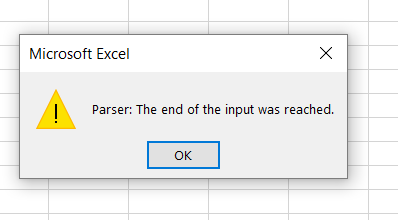
That problem is that there is a maximum length of (as far as I can tell) 32768 characters for the DAX query that is generated by the action. If you exceed that limit you’ll see an error in Excel when you drillthrough:

image

This is the result of the generated DAX query being truncated before Excel tries to run it. As you can imagine, if you have large dimensions and you’re generating a DAX query with thousands of key values in an IN expression, it’s very easy to hit the maximum query length. What can you do to make this less likely?

Probably the most effective method is to check whether the IN clause will contain all of the possible key values on the dimension (most likely because no attributes from the dimension are used in the query), and if so don’t bother including that dimension in the DAX query. Here’s an example of how this can be done:

[sourcecode language=”text” padlinenumbers=”true”]
IIF(
COUNT(EXISTING [Date].[Date].[Date].MEMBERS) =
COUNT([Date].[Date].[Date].MEMBERS),
"",
",’Date'[Date.Key0] IN {
" +
GENERATE(EXISTING [Date].[Date].[Date].MEMBERS ,
[Date].[Date].CURRENTMEMBER.PROPERTIES("KEY"), ",")
+ "}
")
[/sourcecode]

Another option is to use NonEmpty() to remove any members from the drillthrough that have no data, like so:

[sourcecode language=”text” highlight=”8″]
IIF(
COUNT(EXISTING [Date].[Date].[Date].MEMBERS) =
COUNT([Date].[Date].[Date].MEMBERS),
"",
",’Date'[Date.Key0] IN {
" +
GENERATE(EXISTING
NONEMPTY([Date].[Date].[Date].MEMBERS, [Measures].[Sales Amount])
, [Date].[Date].CURRENTMEMBER.PROPERTIES("KEY"), ",")
+ "}
")
[/sourcecode]

However, if these techniques (and there may be others) still don’t reduce the length of the query to an acceptable length you will want to try to fail as gracefully as possible and show a more helpful error message than the one above. You can do this with the DAX Error() function, like so:

[sourcecode language=”text”]
IIF(
COUNT(EXISTING [Customer].[Customer].[Customer].MEMBERS) =
COUNT([Customer].[Customer].[Customer].MEMBERS),
"",
",’Customer'[Customer.Key0] IN {
" +
IIF(COUNT(
{EXISTING
NONEMPTY(
[Customer].[Customer].[Customer].MEMBERS,
[Measures].[Sales Amount])}
AS CustomerList)>7000,
"ERROR(
""Please reduce your selection on the Customer dimension
or remove it from your PivotTable"")",
GENERATE(
CustomerList
, [Customer].[Customer].CURRENTMEMBER.PROPERTIES("KEY"), ",")
)
+ "}
")
[/sourcecode]

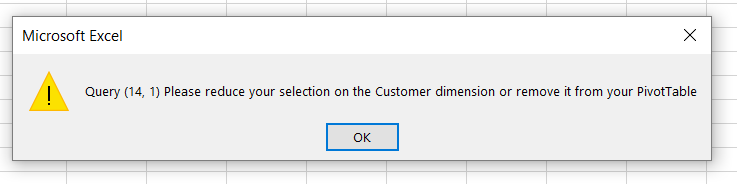
In this example, if the resulting DAX IN expression for the Customer dimension will have more than 7000 keys in it, the entire DAX query returns a custom error message instead:

image

Once again this is a far from perfect solution – I would have liked to test the total number of characters in the query, but if you do that you have to write the expression twice, once in the first parameter of IIF() and once in one of the results, and that would be horrible. My gut feeling is that you should only use this technique on dimensions with a large number of members on the key attribute.

Putting this all together, for a simple cube based on data from Adventure Works with three dimensions (Date, Product and Customer) here’s what a complete Action Expression for a regular measure might look like:

[sourcecode language=”text” padlinenumbers=”true”]
"EVALUATE
FILTER(
CALCULATETABLE(
SELECTCOLUMNS(
‘Sales Order’,
""Sales Order Number"",
‘Sales Order'[Sales Order Number],
""Sales Order Line Number"",
‘Sales Order'[Sales Order Line Number],
""Sales Amount"",
[Sales Amount])
" +
IIF(
COUNT(EXISTING [Date].[Date].[Date].MEMBERS) =
COUNT([Date].[Date].[Date].MEMBERS),
"",
",’Date'[Date.Key0] IN {
" +
GENERATE(EXISTING
NONEMPTY([Date].[Date].[Date].MEMBERS,
[Measures].[Sales Amount])
, [Date].[Date].CURRENTMEMBER.PROPERTIES("KEY"), ",")
+ "}
") +
IIF(
COUNT(EXISTING [Customer].[Customer].[Customer].MEMBERS) =
COUNT([Customer].[Customer].[Customer].MEMBERS),
"",
",’Customer'[Customer.Key0] IN {
" +
IIF(
COUNT(
{EXISTING NONEMPTY([Customer].[Customer].[Customer].MEMBERS,
[Measures].[Sales Amount])} AS CustomerList)>7000,
"ERROR(""Please reduce your selection on the Customer dimension
or remove it from your PivotTable"")",
GENERATE(
CustomerList
, [Customer].[Customer].CURRENTMEMBER.PROPERTIES("KEY"), ",")
)
+ "}
") +
IIF(
COUNT(EXISTING [Product].[Product].[Product].MEMBERS) =
COUNT([Product].[Product].[Product].MEMBERS),
"",
",’Product'[Product.Key0] IN {
" +
GENERATE(EXISTING
NONEMPTY([Product].[Product].[Product].MEMBERS,
[Measures].[Sales Amount])
, [Product].[Product].CURRENTMEMBER.PROPERTIES("KEY"), ",")
+ "}
") +
"),
[Sales Amount]>0)"
[/sourcecode]


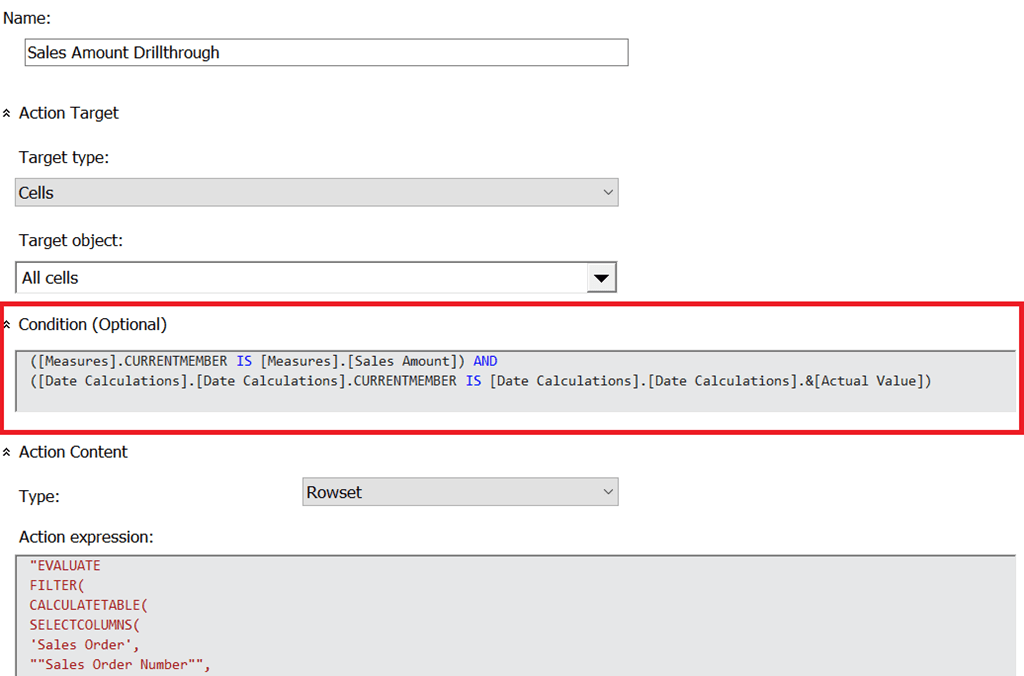
What about a calculated measure though? Assuming that  you have a time utility/date tool/shell dimension, you can use a Condition expression on the action above to make sure it only gets executed for the member on the time utility dimension that contains the non-calculated values, in this case called [Actual Value]:

[sourcecode language=”text”]
([Measures].CURRENTMEMBER IS [Measures].[Sales Amount]) AND
([Date Calculations].[Date Calculations].CURRENTMEMBER IS
[Date Calculations].[Date Calculations].&[Actual Value])
[/sourcecode]

image

Now, let’s say there is a calculated member on the time utility dimension that contains a year-to-date calculation with the following definition:

[sourcecode language=”text”]
CREATE MEMBER
CURRENTCUBE.[Date Calculations].[Date Calculations].[Year-To-Date]
AS
AGGREGATE(
PERIODSTODATE(
[Date].[Calendar].[Year],
[Date].[Calendar].CURRENTMEMBER),
[Date Calculations].[Date Calculations].&[Actual Value]);
[/sourcecode]

You can create a new action that has a Condition expression as follows that restricts it to the year-to-date calculation:

[sourcecode language=”text”]
([Measures].CURRENTMEMBER IS [Measures].[Sales Amount]) AND
([Date Calculations].[Date Calculations].CURRENTMEMBER IS
[Date Calculations].[Date Calculations].[Year-To-Date])
[/sourcecode]

Now, the final problem to solve is to generate a DAX query that returns all of the Sales Orders from the beginning of the current year up to and including the selected date – the Sales Orders that a user would expect to see when they drilled through on the year-to-date calculated member above.
Here’s a modified MDX expression for the Date dimension that returns a DAX expression that finds all of the dates associated with the current selection on the Date dimension, finds the maximum date, then filters the drillthrough DAX query by all dates from the beginning of the current calendar year up to and including the maximum date:

[sourcecode language=”text”]
IIF(
COUNT(EXISTING [Date].[Date].[Date].MEMBERS) =
COUNT([Date].[Date].[Date].MEMBERS),
"",
", VAR FilteredDates = FILTER(‘Date’, ‘Date'[Date.Key0] IN {
" +
GENERATE(
EXISTING
NONEMPTY([Date].[Date].[Date].MEMBERS,[Measures].[Sales Amount]) ,
[Date].[Date].CURRENTMEMBER.PROPERTIES("KEY"), ",")
+ "})
VAR MaxDate = MAXX(FilteredDates, ‘Date'[Date.Key0])
VAR MaxYear = MAXX(FilteredDates, ‘Date'[Year])
RETURN
FILTER(‘Date’, ‘Date'[Date.Key0]<=MaxDate && ‘Date'[Year]=MaxYear)
")
[/sourcecode]

Here’s the complete MDX expression for the year-to-date drillthrough:

[sourcecode language=”text”]
"EVALUATE
FILTER(
CALCULATETABLE(
SELECTCOLUMNS(
‘Sales Order’,
""Sales Order Number"",
‘Sales Order'[Sales Order Number],
""Sales Order Line Number"",
‘Sales Order'[Sales Order Line Number],
""Sales Amount"",
[Sales Amount])
" +
IIF(
COUNT(EXISTING [Date].[Date].[Date].MEMBERS) =
COUNT([Date].[Date].[Date].MEMBERS),
"",
", VAR FilteredDates = FILTER(‘Date’, ‘Date'[Date.Key0] IN {
" +
GENERATE(
EXISTING
NONEMPTY([Date].[Date].[Date].MEMBERS,[Measures].[Sales Amount]) ,
[Date].[Date].CURRENTMEMBER.PROPERTIES("KEY"), ",")
+ "})
VAR MaxDate = MAXX(FilteredDates, ‘Date'[Date.Key0])
VAR MaxYear = MAXX(FilteredDates, ‘Date'[Year])
RETURN
FILTER(‘Date’, ‘Date'[Date.Key0]<=MaxDate && ‘Date'[Year]=MaxYear)
") +
IIF(
COUNT(EXISTING [Customer].[Customer].[Customer].MEMBERS) =
COUNT([Customer].[Customer].[Customer].MEMBERS),
"",
",’Customer'[Customer.Key0] IN {
" +
IIF(COUNT({
EXISTING
NONEMPTY([Customer].[Customer].[Customer].MEMBERS,
[Measures].[Sales Amount])} AS CustomerList)>7000,
"ERROR(""Please reduce your selection on the Customer dimension or
remove it from your PivotTable"")",
GENERATE(
CustomerList
, [Customer].[Customer].CURRENTMEMBER.PROPERTIES("KEY"), ",")
)
+ "}
") +
IIF(
COUNT(EXISTING [Product].[Product].[Product].MEMBERS) =
COUNT([Product].[Product].[Product].MEMBERS),
"",
",’Product'[Product.Key0] IN {
" +
GENERATE(EXISTING
NONEMPTY([Product].[Product].[Product].MEMBERS,
[Measures].[Sales Amount])
, [Product].[Product].CURRENTMEMBER.PROPERTIES("KEY"), ",")
+ "}
") +
"),
[Sales Amount]>0)"
[/sourcecode]

I warned you it was going to be complicated, didn’t I? You can download a SSAS MD 2017 .abf backup file containing the sample database and the two actions here.