Drillthrough On Calculated Members In SSAS MD 2017 Using DAX Expressions, Part 1

Without a doubt one of the most useful features of SSAS Tabular 2017 is the new Detail Rows Expression property. It allows you to control exactly which columns and rows appear when you do a drillthrough – something that is particular important when you’re doing a drillthrough on a calculation, and something that SSAS MD users have also wanted to have for a long time now. For example, imagine that you have an Excel PivotTable that is sliced by a single date and a calculated member that shows a year-to-date sum of sales calculation: when a user does a drillthough they would expect to see data for all the fact data that contributes to the value they have clicked on, which in this case means data for all dates from the beginning of the year up to the selected date; this is what the Detail Rows Expression property makes possible and this is exactly what a regular drillthrough in SSAS MD doesn’t do.

There have been many attempts at solving this problem in SSAS MD, from Mosha’s blog post back in 2008 to these custom functions in the Analysis Services Stored Procedure Project (for a few more weeks still on Codeplex, but when Codeplex dies available here on GitHub). None of these solutions have been perfect and all have involved a certain amount of .NET code. In this series of posts I’m going to describe a slightly different approach, and while it isn’t perfect either and is very complex (you’ll need to be good at MDX and DAX to implement it) I think it has a lot to recommend it, not least because no .NET code is required. In this first post I’m going to demonstrate some of the functionality that makes my approach possible; in part 2 I’ll put it all together into a working solution.

First thing to note: you have been able to query SSAS MD using DAX as well as MDX since SQL Server 2012 SP1 CU3. Most client tools, like Excel, generate MDX queries but Power BI for example generates DAX queries when you create a Live connection to SSAS MD. To learn more about DAX support in SSAS MD this video of a session of mine from SQLBits from a few years ago is a good place to start; it’s fairly old but most of the content is still relevant.

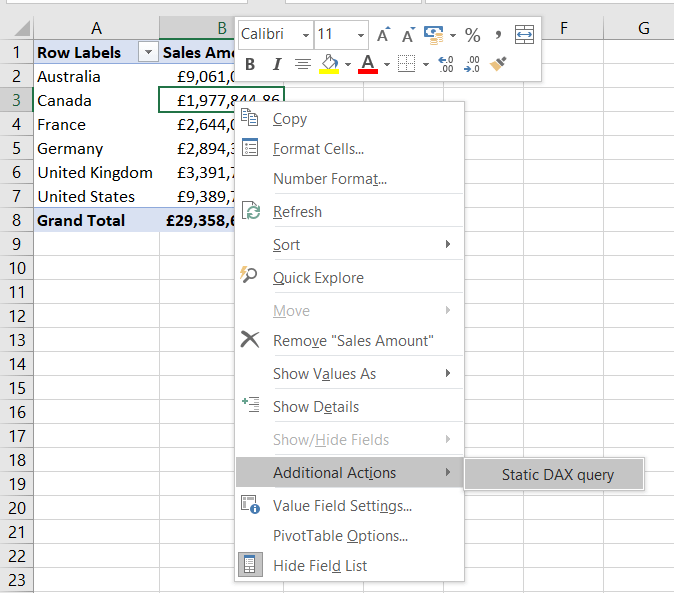
This in turn means that you can create a Rowset action (not a Drillthrough action) in SSAS MD that return the results of a DAX query. Here’s an example of an action that does this:

image

The Action Expression property is an MDX expression that returns the text of the query to be executed and whose results will be displayed to the user as the output of the drillthrough. In this case the MDX expression consists of one string, and that string is a DAX query that returns a list of Sales Order Numbers, Line Numbers and their associated Sales Amounts:

[sourcecode language=”text”]
EVALUATE
SELECTCOLUMNS(
‘Sales Order’,
"Sales Order Number",
‘Sales Order'[Sales Order Number],
"Sales Order Line Number",
‘Sales Order'[Sales Order Line Number],
"Sales Amount",
[Sales Amount])
[/sourcecode]

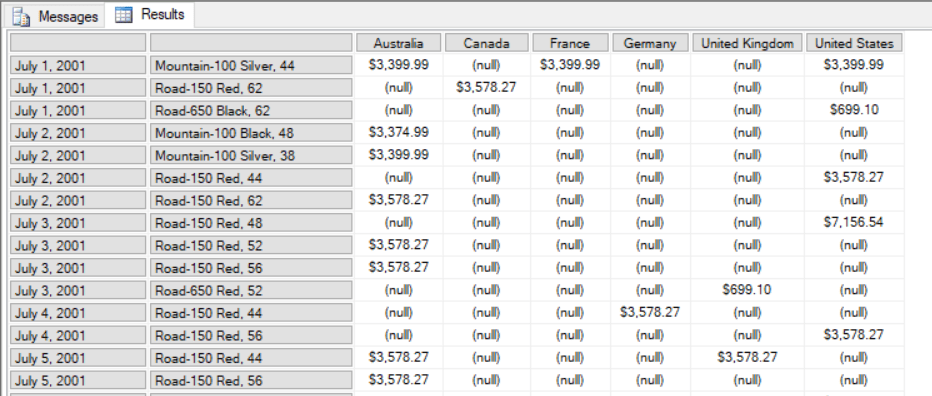
Here’s the result in Excel:
image

image

This is just a static query though, and for an action you will need to generate a query dynamically to return an appropriate table of data depending on which cell the user has drilled through on.

However before I carry on there’s an important question that needs to be addressed. You may be wondering why I’m using a DAX query for this, when I could be using an MDX DRILLTHROUGH statement (as in the approaches linked to above) or an MDX SELECT statement. The problem with a DRILLTHROUGH statement is that it can only accept an MDX SELECT statement that returns a single cell in its first parameter; this means it’s not possible to get it to return more complex resultsets like the one required for the year-to-date example above. Normal MDX SELECT statements don’t suffer from this restriction and it would indeed be possible to dynamically generate one that meets any need. Unfortunately when the results of an MDX SELECT statement are returned from a Rowset action you have no control over the format of the column headers that are returned, and they are often not pretty at all. A DAX query, in contrast, gives you complete control over the data that is returned and the way the column headers are formatted.

The last question I’m going to address in this post is how the DAX query can be made dynamic. To do this I’m going to use the new DAX IN operator, which is only available in SSAS 2017. As always with DAX, there’s a great article describing it written by Marco Russo here:

https://www.sqlbi.com/articles/the-in-operator-in-dax/

Here’s how the DAX query above can be adapted to return the Sales Orders for just two dates using the IN operator:

[sourcecode language=”text” highlight=”12″]
EVALUATE
FILTER(
CALCULATETABLE(
SELECTCOLUMNS(
‘Sales Order’,
"Sales Order Number",
‘Sales Order'[Sales Order Number],
"Sales Order Line Number",
‘Sales Order'[Sales Order Line Number],
"Sales Amount",
[Sales Amount]),
‘Date'[Date.Key0] IN {20030101, 20030102}),
[Sales Amount]>0)
[/sourcecode]

image

In this example, the ‘Date’[Date.Key0] column is the column that contains the key values of the Date attribute on the Date dimension in my SSAS cube. To make this dynamic, you need an MDX expression that will return a query like the one above and, in particular, return a different list of date keys depending on what the user has drilled through on. The MDX GENERATE() function can be used to do this: you can use it to iterate over the set of existing members on the Date attribute of the Date dimension and output a comma-delimited list of key values from each member:

[sourcecode language=”text” highlight=”13,14″]
"EVALUATE
FILTER(
CALCULATETABLE(
SELECTCOLUMNS(
‘Sales Order’,
""Sales Order Number"",
‘Sales Order'[Sales Order Number],
""Sales Order Line Number"",
‘Sales Order'[Sales Order Line Number],
""Sales Amount"",
[Sales Amount]),
‘Date'[Date.Key0] IN {" +
GENERATE(EXISTING [Date].[Date].[Date].MEMBERS,
[Date].[Date].CURRENTMEMBER.PROPERTIES("KEY"), ",")
+ "}),
[Sales Amount]>0)"
[/sourcecode]

If this expression is used in an action and a user drills down on, say, the month April 2003, the following DAX query is generated and run to get all the Sales Orders for all the days in April 2003:

[sourcecode language=”text”]
EVALUATE
FILTER(
CALCULATETABLE(
SELECTCOLUMNS(
‘Sales Order’,
"Sales Order Number",
‘Sales Order'[Sales Order Number],
"Sales Order Line Number",
‘Sales Order'[Sales Order Line Number],
"Sales Amount", [Sales Amount]),
‘Date'[Date.Key0] IN
{20030401,20030402,20030403,20030404,20030405,
20030406,20030407,20030408,20030409,20030410,20030411,
20030412,20030413,20030414,20030415,20030416,20030417,
20030418,20030419,20030420,20030421,20030422,20030423,
20030424,20030425,20030426,20030427,20030428,20030429,
20030430})
, [Sales Amount]>0)
[/sourcecode]

OK, that’s more than enough for one post. In my next post I’m going to look at some of the shortcomings of this approach, how they can be (partly) worked around, and demonstrate a full solution for drillthrough on a regular measure and also on a year-to-date calculation.
Tuning MDX Calculations That Use The Root() Function

Something that I have vaguely known about for years (for example from Mosha’s post here), but somehow never blogged about, is that using the Root() function in MDX calculations is not great for performance. I’m pretty sure that someone once told me that it was intended for use with defining subcubes for SCOPE statements and not inside calculations at all, which maybe why it hasn’t been optimised. Anyway, here’s an example of the problem and how to work around it.

Take the following query on the Adventure Works cube:

[sourcecode language='text'  padlinenumbers='true' highlight='4']
WITH
MEMBER MEASURES.DEMO AS
([Measures].[Internet Sales Amount],
ROOT([Date]))

SELECT 
{[Measures].[Internet Sales Amount],
MEASURES.DEMO} 
ON 0,
NON EMPTY
[Date].[Calendar].[Calendar Year].MEMBERS
*
[Customer].[Customer].[Customer].MEMBERS
ON 1
FROM
[Adventure Works]
[/sourcecode]

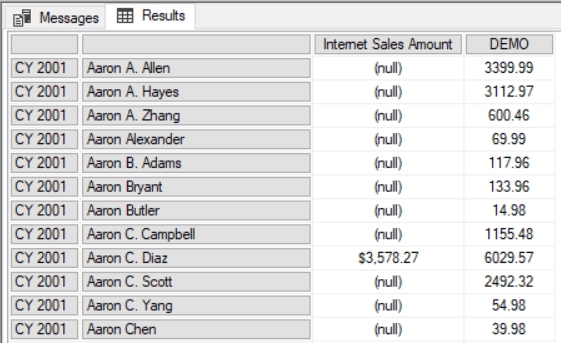
It returns sales for all customers by year, and the calculated measure returns the sales for each customer across all dates using the Root() function.

image

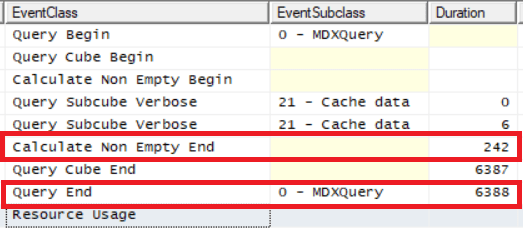
On a warm SE cache (which means the amount of time taken by the query will be dependent on how quickly SSAS can do the calculation and evaluate the Non Empty) on my laptop this takes a touch over 7 seconds:

image

Notice also that the Calculate Non Empty End event tells us that the Non Empty filter alone took 2.8 seconds (see here for some more detail on this event).

Now if you rewrite the query, replacing the Root() function with the All Member on the Calendar hierarchy like so:

[sourcecode language='text'  highlight='4']
WITH
MEMBER MEASURES.DEMO AS
([Measures].[Internet Sales Amount],
[Date].[Calendar].[All Periods])

SELECT 
{[Measures].[Internet Sales Amount],
MEASURES.DEMO} 
ON 0,
NON EMPTY
[Date].[Calendar].[Calendar Year].MEMBERS
*
[Customer].[Customer].[Customer].MEMBERS
ON 1
FROM
[Adventure Works]
[/sourcecode]

The query returns the same results, but in just over 5.5 seconds and with the Non Empty taking about 10% of the time it previously took.

image

I’m making a big assumption here though: the Root() function in the first query returns a tuple containing every All Member from every hierarchy on the Date dimension, not just the All Member from the Calendar hierarchy, so while these two queries return the same results the calculations are not equivalent. You can still get a performance improvement, though, by replacing the Root() function with the tuple it returns, although the resulting MDX will look very messy.

First, to find what the Root() function returns just use a query like this:

[sourcecode language='text' ]
WITH
MEMBER MEASURES.ROOTRETURNS as 
TUPLETOSTR(ROOT([Date]))
SELECT {MEASURES.ROOTRETURNS} ON 0
FROM
[Adventure Works]
[/sourcecode]

Run it in SQL Server Management Studio and you can copy/paste the tuple from the query results:

image

Here’s the tuple I get from my (somewhat hacked around) Date dimension:

[sourcecode language='text' ]
([Date].[Fiscal].[All Periods],[Date].[Calendar].[All Periods],[Date].[Calendar Weeks].[All Periods],
[Date].[Fiscal Weeks].[All Periods],[Date].[Fiscal Year].[All Periods],[Date].[Date].[All Periods],
[Date].[Calendar Quarter].[All Periods],[Date].[Fiscal Quarter].[All Periods],
[Date].[Calendar Semester].[All Periods],[Date].[Fiscal Semester].[All Periods],
[Date].[Day of Week].[All Periods],[Date].[Day Name].[All Periods],
[Date].[Day of Month].[All Periods],[Date].[Day of Year].[All Periods],
[Date].[Calendar Week].[All Periods],[Date].[Month Name].[All Periods],
[Date].[Calendar Year].[All Periods],[Date].[Fiscal Semester of Year].[All Periods],
[Date].[Calendar Semester of Year].[All Periods],[Date].[Fiscal Quarter of Year].[All Periods],
[Date].[Calendar Quarter of Year].[All Periods],[Date].[Month of Year].[All Periods],
[Date].[Fiscal Week].[All Periods],[Date].[Calendar Week of Year].[All Periods],
[Date].[Fiscal Week of Year].[All Periods],[Date].[Current Date].[All Periods],
[Date].[Is2002].[All Periods],[Date].[Month Day].[All Periods])
[/sourcecode]

Yuck. Anyway, with this gigantic tuple inserted into our calculation like so:

[sourcecode language='text'  highlight='4']
WITH
MEMBER MEASURES.DEMO AS
([Measures].[Internet Sales Amount],
[Date].[Fiscal].[All Periods],[Date].[Calendar].[All Periods],[Date].[Calendar Weeks].[All Periods],[Date].[Fiscal Weeks].[All Periods],[Date].[Fiscal Year].[All Periods],[Date].[Date].[All Periods],[Date].[Calendar Quarter].[All Periods],[Date].[Fiscal Quarter].[All Periods],[Date].[Calendar Semester].[All Periods],[Date].[Fiscal Semester].[All Periods],[Date].[Day of Week].[All Periods],[Date].[Day Name].[All Periods],[Date].[Day of Month].[All Periods],[Date].[Day of Year].[All Periods],[Date].[Calendar Week].[All Periods],[Date].[Month Name].[All Periods],[Date].[Calendar Year].[All Periods],[Date].[Fiscal Semester of Year].[All Periods],[Date].[Calendar Semester of Year].[All Periods],[Date].[Fiscal Quarter of Year].[All Periods],[Date].[Calendar Quarter of Year].[All Periods],[Date].[Month of Year].[All Periods],[Date].[Fiscal Week].[All Periods],[Date].[Calendar Week of Year].[All Periods],[Date].[Fiscal Week of Year].[All Periods],[Date].[Current Date].[All Periods],[Date].[Is2002].[All Periods],[Date].[Month Day].[All Periods])

SELECT 
{[Measures].[Internet Sales Amount],
MEASURES.DEMO} 
ON 0,
NON EMPTY
[Date].[Calendar].[Calendar Year].MEMBERS
*
[Customer].[Customer].[Customer].MEMBERS
ON 1
FROM
[Adventure Works]
[/sourcecode]

The query is a little slower – just over 6 seconds- but still faster than the first query using Root(), and the Non Empty filter is still fast:

image

Something else to watch out for with Root(), and another good reason not to use it in calculations, is that it returns an error in certain multiselect scenarios as Richard Lees describes here.

Obscure MDX Month: Deselecting Members In An Excel PivotTable Leads To Missing Rows

Here’s some interesting (and borderline buggy) Excel PivotTable behaviour I learned about today from Charles-Henri Sauget, as well as the workaround for it courtesy of the great Greg Galloway.

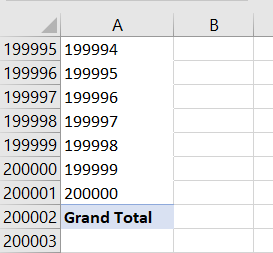
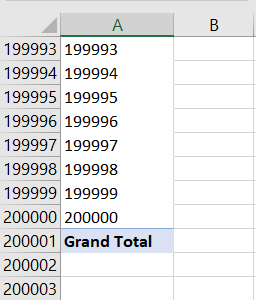
Say you have a large dimension attribute hierarchy with 200,000 members on it in SSAS MD (or the equivalent in Tabular or Power Pivot) and drop it onto the rows of an Excel PivotTable. As you would expect, you get a PivotTable with 200,000 rows in it:

image

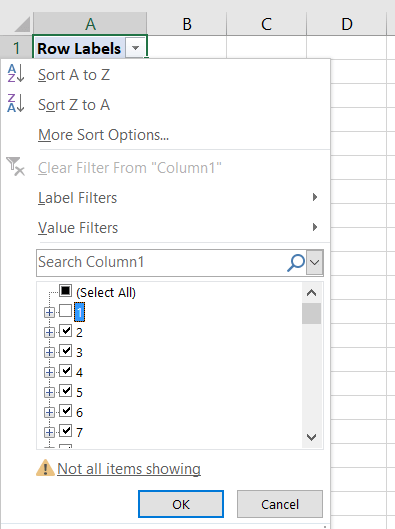
However if you then deselect just one member on rows like so:

image

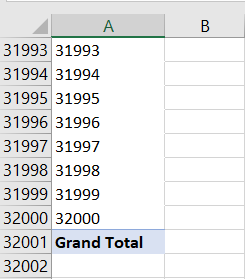
…you’ll find that the PivotTable does not have 199,999 rows – in Excel 2016 it only has 32,000 rows:

image

(different versions of Excel may return different numbers of rows here, but still not the full number).

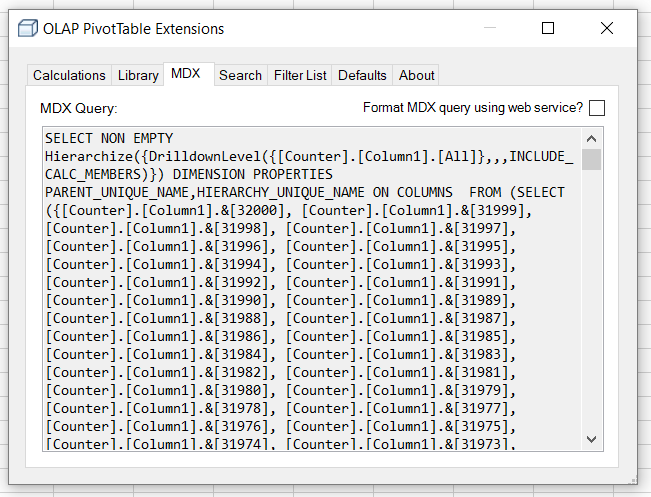
If you look at the MDX generated by Excel it consists of all of the member unique names that are still selected, and unsurprisingly it’s a gigantic query:

image

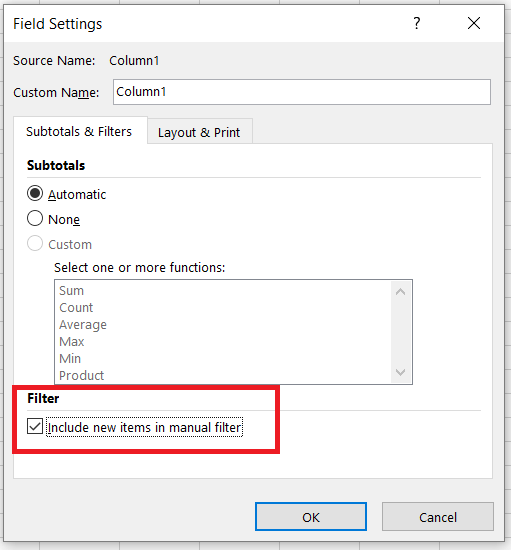
However, it turns out you can make Excel do the sensible thing and use the Except() function to return everything apart from the deselected member by going to the Field Settings dialog and selecting “Include new items in manual filter”:

image

image

This then gives you the expected number of rows in the PivotTable:

image

I suspect the reason Excel is generating the crazy-long MDX statement by default is that it’s the only way to prevent new members being added to the PivotTable if they are added to the attribute hierarchy in future. On a really large attribute hierarchy, though, the risk is that the resulting MDX query might exceed the maximum length of a query, so Excel has to truncate the number of members returned to make the query shorter. With “Include new items in manual filter” selected, though, it’s ok if new members do get added to the PivotTable in the future so it’s ok to use the Except() function in the query.

Obscure MDX Month: Optimising MDX That Uses The RGB() Function

In the first blog post in this series a few weeks ago I mentioned that calling Excel and VBA functions from MDX came with a query performance penalty. In this post I’ll give you an illustration of this using the VBA function that I suspect is most frequently called in MDX: the RGB() function.

Take the following MDX query as a baseline:

[sourcecode language=”text”]
WITH
MEMBER MEASURES.TEST AS
[Measures].[Internet Sales Amount]
SELECT {[Customer].[Country].[Country].MEMBERS} ON 0,
NON EMPTY
[Date].[Date].[Date].MEMBERS
*
[Product].[Product].[Product].MEMBERS
ON 1
FROM
[Adventure Works]
WHERE(MEASURES.TEST)
CELL PROPERTIES
VALUE,
FORMATTED_VALUE,
BACK_COLOR
[/sourcecode]


It returns Countries on columns and all non empty combinations of Date and Product on rows, and the calculated measure returns the value of the Internet Sales Amount measure:

image

On a SE engine cache it runs in 2.5 seconds on my laptop. With a BACK_COLOR property added to the calculated measure that uses the RGB() function to return the code for red if the measure value is greater than $5000, query performance is a lot worse: it goes up to 6.5 seconds on a warm SE cache.

[sourcecode language=”text” highlight=”4,5,6,7″]
WITH
MEMBER MEASURES.TEST AS
[Measures].[Internet Sales Amount]
,BACK_COLOR=
IIF([Measures].[Internet Sales Amount]>5000,
RGB(255,0,0),
RGB(255,255,255))
SELECT {[Customer].[Country].[Country].MEMBERS} ON 0,
NON EMPTY
[Date].[Date].[Date].MEMBERS
*
[Product].[Product].[Product].MEMBERS
ON 1
FROM
[Adventure Works]
WHERE(MEASURES.TEST)
CELL PROPERTIES VALUE, FORMATTED_VALUE, BACK_COLOR
[/sourcecode]


image

That’s a big increase just to do some cell highlighting! However in this case the RGB() function can only return two possible integer values, so if you replace the RGB() function with the integers it returns, like so:

[sourcecode language=”text” highlight=”4,5,6,7″]
WITH
MEMBER MEASURES.TEST AS
[Measures].[Internet Sales Amount]
,BACK_COLOR=
IIF([Measures].[Internet Sales Amount]>5000,
255,
16777215)
SELECT {[Customer].[Country].[Country].MEMBERS} ON 0,
NON EMPTY
[Date].[Date].[Date].MEMBERS
*
[Product].[Product].[Product].MEMBERS
ON 1
FROM
[Adventure Works]
WHERE(MEASURES.TEST)
CELL PROPERTIES VALUE, FORMATTED_VALUE, BACK_COLOR
[/sourcecode]

…then the query returns in around 3.5 seconds. The last thing to remember is that IIF() statements can perform better if one branch returns null, and in this case we can replace the integer value 16777215 that gives the white background with a null and get the same result:

[sourcecode language=”text” highlight=”4,5,6,7″]
WITH
MEMBER MEASURES.TEST AS
[Measures].[Internet Sales Amount]
,BACK_COLOR=
IIF([Measures].[Internet Sales Amount]>5000,
255,
16777215)
SELECT {[Customer].[Country].[Country].MEMBERS} ON 0,
NON EMPTY
[Date].[Date].[Date].MEMBERS
*
[Product].[Product].[Product].MEMBERS
ON 1
FROM
[Adventure Works]
WHERE(MEASURES.TEST)
CELL PROPERTIES VALUE, FORMATTED_VALUE, BACK_COLOR
[/sourcecode]

Now the query returns in around 3 seconds, only 0.5 seconds slower than the original with no colour coding.

Obscure MDX Month: Optimising The Performance Of Total-To-Date Calculations In SSAS Multidimensional

Here’s a SSAS Multidimensional MDX tip that I picked up at the PASS Summit back in 2008 at Mosha’s excellent “MDX Deep Dive” precon (incidentally the slides and supporting material are still available here, although a lot of the material is out of date). It’s regarding total-to-date calculations, ie calculations where you are doing a running total from the very first date you have data for up to the current date. The standard way of writing these calculations is something like this:

[sourcecode language='text'  padlinenumbers='true' highlight='3,4,5']
WITH
MEMBER MEASURES.[TTD Sales] AS
SUM(
NULL:[Date].[Calendar].CURRENTMEMBER,
[Measures].[Internet Sales Amount])

SELECT
[Customer].[Country].[Country].MEMBERS 
ON 0,
NON EMPTY
[Date].[Calendar].[Date].MEMBERS
*
[Product].[Product].[Product].MEMBERS
ON 1
FROM
[Adventure Works]
WHERE(MEASURES.[TTD Sales])
[/sourcecode]

This query runs in around 19.2 seconds on my laptop on a cold cache. However if you rewrite it like this:

[sourcecode language='text'  highlight='3,4,5,8,9,10,11,12,13']
WITH
MEMBER MEASURES.[PTTD SALES] AS
SUM(
NULL:[Date].[Calendar].CURRENTMEMBER.PARENT.PREVMEMBER,
[Measures].[Internet Sales Amount])

MEMBER MEASURES.[TTD Sales] AS
MEASURES.[PTTD SALES]
+
SUM(
[Date].[Calendar].CURRENTMEMBER.FIRSTSIBLING:
[Date].[Calendar].CURRENTMEMBER,
[Measures].[Internet Sales Amount])

SELECT
[Customer].[Country].[Country].MEMBERS 
ON 0,
NON EMPTY
[Date].[Calendar].[Date].MEMBERS
*
[Product].[Product].[Product].MEMBERS
ON 1
FROM
[Adventure Works]
WHERE(MEASURES.[TTD Sales])
[/sourcecode]

…it runs slightly faster: around 16.1 seconds on a cold cache on my laptop. Of course this is a very big query, and on most normal queries the difference in performance would be much less significant, but it could still be useful. In fact it’s very similar to the kind of tricks people used to optimise the performance of YTD calculations back in the days of SSAS 2000 – the subject of my second-ever blog post from December 2004! The idea here is that instead of summing up a large set of dates, the calculation sums up all the dates in the current month and then all the months from the beginning of time up to and including the previous full month. For YTD and most other something-to-date calculations trick like this are no longer needed, and indeed are counter-productive and will make your calculations slower. However it seems that for total-to-date calculations they can still help performance.

Obscure MDX Month: Current and CurrentOrdinal

When you are writing an MDX expression, everywhere you use a set you can give that set a name and then reference the name later on. This is known as creating an inline named set, something I have blogged about a few times (see here and here) over the years. When you are iterating over a set using a function like Generate() or Filter(), if you give that set a name you can then use the Current and CurrentOrdinal functions to find out more about the item in the set returned at the current iteration.

Consider the following MDX query on the Adventure Works cube:

[sourcecode language=”text”]
SELECT
{[Measures].[Internet Sales Amount]}
ON 0,
{[Customer].[Gender].[Gender].MEMBERS
*
[Customer].[Marital Status].[Marital Status].MEMBERS}
ON 1
FROM
[Adventure Works]
[/sourcecode]

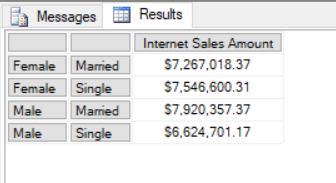
It returns a set of four tuples on rows: every combination of Gender and Marital Status:

image

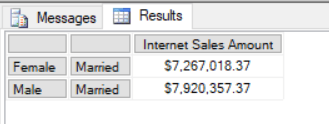
If you pass the set on rows to the Filter() function and give it a name (for example MySet) you can then use the CurrentOrdinal function to find the 1-based ordinal of the current iteration. This query uses the CurrentOrdinal function to filter the set shown above so only the first and third items in the set are returned:

[sourcecode language=”text”]
SELECT {[Measures].[Internet Sales Amount]} ON 0,
FILTER(
{[Customer].[Gender].[Gender].MEMBERS
*
[Customer].[Marital Status].[Marital Status].MEMBERS}
AS MYSET,
MYSET.CURRENTORDINAL=1 OR
MYSET.CURRENTORDINAL=3)
ON 1
FROM
[Adventure Works]
[/sourcecode]


image

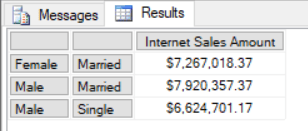
With an inline named set you can also use the Current function to return the tuple at the current iteration. Here’s another query that uses the Current function to remove the tuple (Female, Single) from the set:

[sourcecode language=”text”]
SELECT
{[Measures].[Internet Sales Amount]} ON 0,
FILTER(
{[Customer].[Gender].[Gender].MEMBERS
*
[Customer].[Marital Status].[Marital Status].MEMBERS}
AS MYSET,
NOT(
MYSET.CURRENT IS
([Customer].[Gender].&[F],[Customer].[Marital Status].&[S])
)
)
ON 1
FROM
[Adventure Works]
[/sourcecode]

image

I won’t pretend that these functions are massively useful, but fans of super-complex MDX will enjoy this vintage post where I used them.

Obscure MDX Month: Recreating The Star Ratings Measure In MDX Using Excel Functions

I still love MDX, but I’m aware that I blog about it less and less – which is a shame, I know. Therefore I’ve decided that for the next four weeks I’m going to write about some obscure MDX topics that hopefully will make all you SSAS MD diehards out there feel less neglected… even if they don’t have much practical use.

Let’s start off with recreating my ever-popular DAX star-ratings measure in MDX. Well, not exactly pure MDX, but did you know that in MDX you can call some Excel functions (in the same way you can call some VBA functions)? It’s a really, really bad thing to do from a query performance point of view, but it does allow you to do some useful calculations that might otherwise be impossible. Here’s a query on the Adventure Works cube that uses the Excel Rept() and Unichar() functions (functions that do not exist in MDX proper) to recreate my start-ratings measure:

[sourcecode language=”text” padlinenumbers=”true”]
WITH
MEMBER MEASURES.STARS AS
REPT(
UNICHAR(9733),
CINT([Measures].[Internet Sales Amount]/10000))
+
REPT(
UNICHAR(9734),
10-CINT([Measures].[Internet Sales Amount]/10000))

SELECT {[Measures].[Internet Sales Amount],MEASURES.STARS} ON 0,
ORDER(
[Date].[Date].[Date].MEMBERS,
[Measures].[Internet Sales Amount],
BDESC)
ON 1
FROM
[Adventure Works]
[/sourcecode]


image

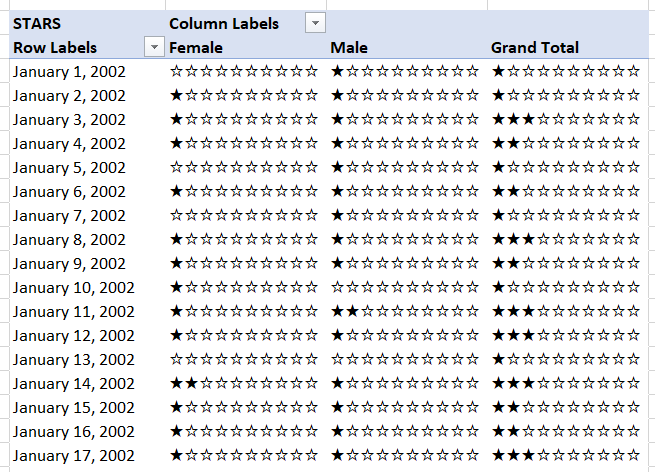
Here’s the same measure used in a PivotTable:

image

Power BI, SSAS Multidimensional And Dynamic Format Strings

If you’re building reports in Power BI against SSAS Multidimensional cubes then you may have encountered situations where the formatting on your measures disappears. For example, take a very simple SSAS Multidimensional cube with a single measure called Sales Amount whose FormatString property is set in SSDT to display values with a £ sign:

image

When you build a report using the Table visualisation in Power BI Desktop using this measure, the formatted values are displayed correctly:

image

However, if you add a SCOPE statement to the cube to alter the format string of the measure for certain cells, as in this example which sets the format string for the Sales Amount measure to $ for Bikes:

[sourcecode language=”text” padlinenumbers=”true”]
SCOPE([Measures].[Sales Amount], [Product].[Category].&[1]);
FORMAT_STRING(THIS)="$0,0.00";
END SCOPE;
[/sourcecode]

…then you’ll find that Power BI displays no formatting at all for the measure:

image

What’s more (and this is a bit strange) if you look at the DAX queries that are generated by Power BI to get data from the cube, they now request a new column to get the format string for the measure even though that format string isn’t used. Since it increases the amount of data returned by the query much larger, this extra column can have a negative impact on query performance if you’re bringing back large amounts of data.

There is no way of avoiding this problem at the moment, unfortunately. If you need to display formatted values in Power BI you will have to create a calculated measure that returns the value of your original measure, set the format string property on that calculated measure appropriately, and use that calculated measure in your Power BI reports instead:

[sourcecode language=”text”]
SCOPE([Measures].[Sales Amount], [Product].[Category].&[1]);
FORMAT_STRING(THIS)="$0,0.00";
END SCOPE;

CREATE MEMBER CURRENTCUBE.[Measures].[Test] AS
[Measures].[Sales Amount],
FORMAT_STRING="£0,0.00";
[/sourcecode]

image

Thanks to Kevin Jourdain for bringing this to my attention and telling me about the workaround, and also to Greg Galloway for confirming the workaround and providing extra details.

UPDATE October 2017: this issue appears to be fixed in the latest release of Power BI https://powerbi.microsoft.com/en-us/blog/power-bi-desktop-october-2017-feature-summary/#analytics

Handling Missing Members In The CubeSet() Function With Power Pivot

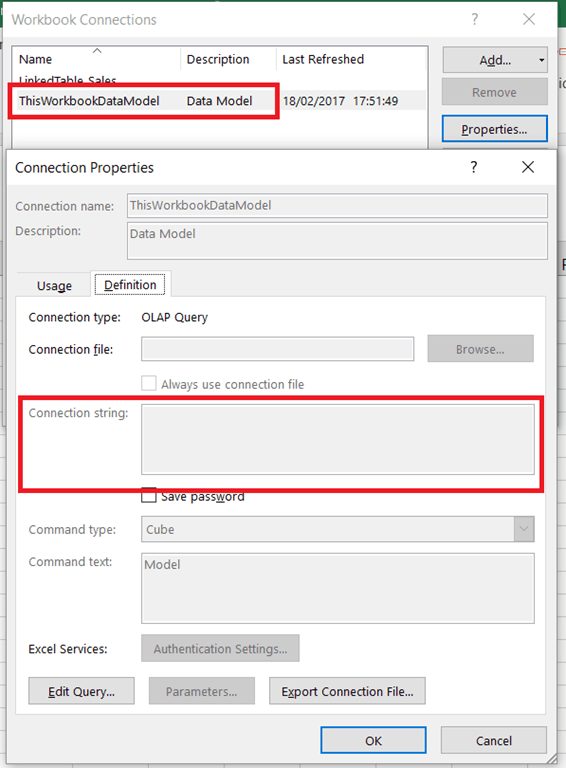
Last week I received an email from a reader asking how to handle missing members in MDX used in the Excel CubeSet() function. My first thought was that this could be solved easily with the MDXMissingMemberMode connection string property but it turns out this can’t be used with Power Pivot in Excel 2013/6 because you can’t edit the connection string back to the Excel Data Model:

image

Instead, you have no choice but to handle this in MDX.

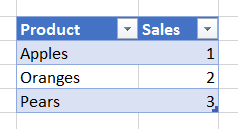
Here’s an illustration of the problem. Imagine you have the following table of data on your Excel worksheet:

image

With this table added to the Excel Data Model, you could write the following Excel formula using CubeSet():

[sourcecode language=”text” padlinenumbers=”true”]
=CUBESET(
"ThisWorkbookDataModel",
"{[Sales].[Product].[All].[Apples],
[Sales].[Product].[All].[Oranges],
[Sales].[Product].[All].[Pears]}",
"Set")
[/sourcecode]

image

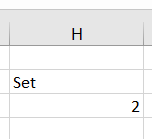
In the screenshot above the CubeSet() formula is used in H3, while in H4 there’s a formula using CubeSetCount() that shows the set contains three members.

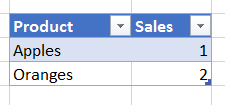
If the source data is updated so that the row for Pears is deleted like so:

image

Then the CubeSet() formula returns an error because the member Pears no longer exists:

image

How can this be avoided? If what you actually wanted was all of the Products, whatever they were, the best thing to do is to use the MDX Members function like so:

[sourcecode language=”text”]
=CUBESET(
"ThisWorkbookDataModel",
"{[Sales].[Product].[Product].MEMBERS}",
"Set")
[/sourcecode]

[I talk about the Members function in this post in my series of posts on MDX for Power Pivot users]

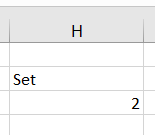
This formula does not return an error and you can see that the CubeSetCount() formula below shows the set only contains two members now:

image

If you do need to refer to individual members then the MDX you need is more complicated:

[sourcecode language=”text”]
=CUBESET(
"ThisWorkbookDataModel",
"{[Sales].[Product].[All].[Apples],
[Sales].[Product].[All].[Oranges],
iif(
iserror(
strtomember(""[Sales].[Product].[All].[Pears]"")
),
{},
{strtomember(""[Sales].[Product].[All].[Pears]"")}
)
}",
"Set")
[/sourcecode]

image

This MDX uses the StrToMember() function to interpret the contents of a string as an MDX expression returning a member; if this expression returns an error then it is trapped by the IsError() function and an empty set is returned.

This isn’t particularly pretty, though, and ideally the MDXMissingMemberMode connection string property would be set to Ignore in the Excel Data Model connection string property.

Finding Out (Approximately) How Long A Calculation Contributes To The Duration Of An MDX Query

In my last two blog posts (see here and here) I showed how to use the Calculation Evaluation and Calculation Evaluation Detailed Information trace events to work out which MDX calculations are evaluated when a query runs in Analysis Services Multidimensional. That’s very useful, but wouldn’t it be great if you could work out how long any single calculation contributes to the overall duration of a query? If you could, it would make performance tuning MDX calculations much easier.

While you can’t get an exact amount of time taken for each calculation, the good news is that it is possible to get a duration rounded to the next second if your calculation is evaluated in bulk mode.

Take a look at the following query:

[sourcecode language='text'  padlinenumbers='true']
WITH

MEMBER MEASURES.DAYRANK AS
RANK(
[Date].[Date].CURRENTMEMBER, 
[Date].[Date].[Date].MEMBERS)-1

MEMBER MEASURES.HADSALE AS
IIF(
[Measures].[Internet Sales Amount]=0,
NULL,
MEASURES.DAYRANK)

MEMBER MEASURES.LASTSALERANK AS
MAX(
NULL:[Date].[Date].CURRENTMEMBER, 
MEASURES.HADSALE)

MEMBER MEASURES.LASTSALE AS
([Measures].[Internet Sales Amount], 
[Date].[Date].[Date].MEMBERS.ITEM(MEASURES.LASTSALERANK))

MEMBER MEASURES.SIMPLECALC AS
[Measures].[Internet Sales Amount] * 2

SELECT 
HEAD([Customer].[Customer].[Customer].MEMBERS, 200)
*
{MEASURES.SIMPLECALC, MEASURES.LASTSALE}
ON 0,
[Date].[Date].[Date].MEMBERS
ON 1
FROM
[Adventure Works]
[/sourcecode]

This query contains five calculated measures: the first four in the WITH clause, DAYRANK, HADSALE, LASTSALERANK and LASTSALE, are based on my approach for finding the last ever non-empty value for a measure across time; the final measure, SIMPLECALC, is as the name suggests a very simple calculation. On my laptop this query takes around 13 seconds to run on my laptop, on a warm Storage Engine cache. Why does it take so long? It’s clearly the calculations that are the problem, but which one(s)?

Luckily all of the calculations in this query are evaluated in bulk mode so, as I discussed in my last two posts, there is an event raised with:

Event Class = Calculation Evaluation Detailed Information

Event Subclass = 107 – RunEvalNode Finished Calculating Item

…for each of the calculations when they are evaluated. Unfortunately the Duration column for this event always shows 0, but there is a way to see approximately how long the calculation took by comparing the Start Time and Current Time columns in the trace.

The 107 – RunEvalNode event for the measure SIMPLECALC shows the same time for the Start Time and Current Time columns:

image

This indicates that the SIMPLECALC calculation is evaluated in under a second.

However, sequence of 107 – RunEvalNode events for the LASTSALE calculation shows something different:

image

There’s a gap of 7 seconds between the StartTime and the CurrentTime, and this indicates that the calculation took 7 seconds to evaluate. It’s a bit frustrating that there isn’t a way to get a more accurate duration here, but it’s still very clear which calculation is taking all the time. Even though the time for calculating LASTSALE includes the time taken for calculating LASTSALERANK, HADSALE and DAYRANK (all of which need to be calculated in order to calculation LASTSALE), the equivalent rows in the trace for these other calculations show they took under a second each. It’s only the logic inside LASTSALE itself that is slow – so that’s where any tuning needs to take place. Indeed, modifying the query to return LASTSALERANK instead of LASTSALE makes the query faster by around 6 seconds, supporting this conclusion.

If you’re curious about what the other 6 seconds of the query execution time is taken up by, it seems like it’s serialisation of the results – something I blogged about here. The query returns a cellset with 400*1190=476000 cells in, and SSAS doesn’t cope well with queries that return a large amount of data.