Power Query/Excel 2016 VBA Examples

In Excel 2016, Power Query is no longer an Excel add-in but a native feature of Excel, and what’s more, you can now use VBA to create and manage Power Query queries.

I’ve found two sources of information about how to use VBA with Power Query in Excel 2016. First, there are some code samples on the Technet Gallery here:
https://gallery.technet.microsoft.com/VBA-to-automate-Power-956a52d1#content
…and Gil Raviv, a Program Manager at Microsoft, has also asked for feedback on this functionality on this thread:
https://social.technet.microsoft.com/Forums/en-US/1eac9c36-b6e4-48f0-a51a-fa92b24cf1d9/vba-and-power-query-in-excel-2016-preview-lets-get-started?forum=powerquery

Secondly, I was contacted recently by Kiara Grouwstra who shared with me some of the interesting work they have done using VBA and Power Query in the Excel 2016 Preview, and who has very kindly allowed me to blog about it here. Their work is much more representative of how I think most people will want to use this feature.

Kiara sent me a .xlsm file containing all of the VBA code, which you can download here. Obviously the code only works in the Excel 2016 Preview, but you can still open the file and look at the code in Excel 2013. However if you’re worried about downloading a workbook with macros in, I extracted the code to a text document which you can see here. If you want to copy the code to use in your own workbook, you’ll need to go to the VBA Editor, select Tools/References and add a reference to “Microsoft ActiveX Data Objects 6.1 Library”.

image

The VBA code includes examples of how to:

  • Delete all the Power Query queries in a workbook
  • Export/import the M code for all queries to/from another Excel workbook
  • Export/import the M code for all queries to text files
  • Refresh all the Power Query queries in the workbook
  • Load a query to an Excel table

A few bugs/features in the Preview are also pointed out, namely:

  • Imported queries don’t always show up in the Workbook Queries pane; the workaround is to close and reopen the workbook
  • Functions aren’t recognised as functions (ie they don’t have the fx icon) until you open the Query Editor and the Close & Load
  • Query groups aren’t supported yet – which is a bit of an oversight, in my opinion, but the forums thread linked to above indicates it won’t be addressed before RTM unfortunately
  • Loading the output of a query into an Excel table using the code given here doesn’t seem to have the same result as loading a query to a table in the worksheet using the Power Query UI: it creates a blue, rather than green, table that doesn’t always retain row order.

I can imagine a lot of serious Power Query users will create workbooks containing a library of their most useful queries and functions, and use VBA code to copy these queries and functions into new workbooks as and when necessary. We’ll have to wait and see what Microsoft’s plans for sharing Power Query queries are, whether they’ll go beyond what’s already been seen in Office 365 Power BI, whether they will be part of a bigger bundle of services and what the cost will be.

Incidentally, the sample workbook contains a lot of interesting, generally useful Power Query queries and functions written by Kiara and others which is also available in the following GitHub repository: https://github.com/KiaraGrouwstra/pquery

Using SelectColumns() To Alias Columns In DAX

A few years ago I wrote this post on how to alias columns in a table in DAX, using a combination of AddColumns() and Summarize(). The good news is that in Excel 2016/the Power BI Designer/SSAS Tabular 2016 there’s a new DAX function specifically for this purpose: SelectColumns(). Here’s an example of how it can be used:

Imagine you have the following source table, called Products:

image

You can write a DAX query to get all the rows and columns from this table like so:

[sourcecode language=”text” padlinenumbers=”true”]
EVALUATE Products
[/sourcecode]

Here’s the output of that query in DAX Studio (and remember, DAX Studio can connect to data loaded into the Power BI Designer, which is what I’m doing here):

image

You can alias the columns in this table using SelectColumns() very easily, like so:

[sourcecode language=”text”]
EVALUATE
SELECTCOLUMNS (
Products,
"Column One", Products[Product],
"Column Two", Products[Colour]
)
[/sourcecode]

Here’s the output:

image

The syntax for SelectColumns() is straightforward: the first parameter is a table expression, and after that there are pairs of parameters consisting of:

  • A new column name
  • An expression returning a column from the table given in the first parameter

As you can see in the output of the query above, I’ve renamed the Product column “Column One” and the Colour column “Column Two”.

This means I can now crossjoin a table with itself without needing to worry about conflicting column names, like so:

[sourcecode language=”text”]
EVALUATE
CROSSJOIN (
Products,
SELECTCOLUMNS (
Products,
"Column One", Products[Product],
"Column Two", Products[Colour]
)
)
[/sourcecode]

image

One other interesting thing to note about SelectColumns() is that it allows you to do projection in a DAX query easily – as Marco notes here, it was possible before but it wasn’t pleasant. For example, the query:

[sourcecode language=”text”]
EVALUATE
SELECTCOLUMNS (
Products,
"Just Colour", Products[Colour]
)
[/sourcecode]

Returns:

image

Notice how there are three rows in the output here and that the value Green occurs twice. If you’re a true DAX afficionado, you might get excited about that.

Thoughts On All The Recent Power BI/SQL Server 2016 BI/Excel 2016 News

The last few weeks have seen more Microsoft BI-related announcements in a short time than I can ever remember before. Some of them I’ve blogged about; most I’ve at least tweeted. For good summaries of what’s coming for Power BI, on-premises SQL Server BI and Excel 2016 I can recommend the following posts by other people, all of which are worth reading:

http://www.jenunderwood.com/2015/05/14/sql-server-bi-2016/

http://www.jenunderwood.com/2015/04/23/april-microsoft-bi-world-news/

http://byobi.com/blog/2015/05/ssas-related-enhancements-in-sql-server-2016/

https://gqbi.wordpress.com/2015/05/14/bi-nsight-excel-2016-power-bi-updates-including-new-data-sources-azure-sql-data-warehouse/

https://gqbi.wordpress.com/2015/05/07/bi-nsight-sql-server-2016-power-bi-updates-microsoft-azure-stack/

Even then I’m not sure everything has been covered, and because new stuff is coming thick and fast (custom regions in Power Map! DirectQuery/ROLAP in the cloud with Power BI connecting to Azure SQL Database!) it’s hardly worth trying. However, I do think this is as good a point as any to work out what I think about all this activity and where Microsoft is heading.

SSAS Multidimensional Improvements

I’m well past the stage of feeling angry about the neglect of SSAS Multidimensional over the past few years, and I’m genuinely grateful that it’s getting some investment rather than nothing at all. That said, I’m not sure which customers asked for Netezza support or DBCC – they aren’t things I’ve ever needed. The promised performance improvements are where I expect the real value to be, and on their own they will probably give existing customers reason enough to upgrade to 2016. It would have been nice to get even one new feature from this list though.

SSAS Tabular Improvements

As expected, the Tabular engine in SSAS 2016 gets a lot of new stuff for free because of its shared heritage with other Power BI tools. My feeling is that uptake of Tabular has been slower than it should have been because 2012 was, frankly, a bit v1.0 with all the immaturity that implies, and there haven’t been any substantial improvements since then. With 2016, though, it looks like Tabular will take a great leap forward and as a result be seen as a much more capable platform. There will certainly be fewer reasons to choose Multidimensional over Tabular, although for applications that require complex calculations (such as financial applications) Multidimensional will still have the upper hand. The more reasons I have to love Tabular, the less I’ll worry about the lack of new features in Multidimensional.

Power Query And The Corporate/Self-Service BI Crossover

As regular readers of this blog may have noticed, I like Power Query a lot and I’m pleased to see that it has extended its reach into corporate BI. Power Query as a data source for SSAS will be important for scenarios where Power Pivot models are upgraded to server-side solutions; I don’t think it will be a good idea to use Power Query if you’re building an SSAS solution from scratch though. Power Query in SSIS was another predictable development and one which should make it easier to work with certain data sources (such as Excel files); the existing ability to publish the output of an SSIS package as an OData feed using the Data Streaming Destination, which can then be consumed by Power Query, could open up some interesting scenarios where a user builds a data set in Power Query and publishes it via SSIS for consumption by other Power Query users.

It’s the promised integration of Power Query and SSRS that excites me most though. I asked for it here and it looks like my wish has been granted! As well as providing access to a wider range of data sources and a common ‘get data’ experience with other tools, I think it will be the key to making SSRS and in particular Report Builder the self-service BI tool that so many customers want it to be. Report Builder has struggled with two problems since it first appeared: first, make it easier for users to lay out a nice-looking report on a canvas, something that the current version does a reasonable job of I think; and second, make it easy for non-technical users (who, for example, might have little or no SQL knowledge) to get data from data sources for their reports – this is where it has not succeeded in the past, and where Power Query could make all the difference. Power Query, among other things, is a solid, user friendly, SQL generation tool. This, plus the fact that SSRS will be updated for all modern browsers and get new visualisations and report themes etc, means that the vast number of existing SSRS customers will have a lot of good reasons to upgrade to 2016, and when they do they’ll also find it easy to integrate with the rest of Power BI.

Power BI: Will Anyone Buy It?

It’s very easy for Microsoft BI fanboys like me to get all worked up by the constant drip feed of tweets about new Power BI features. An impartial observer will point out that some of these features, like the ability to change the colours of your charts in Power View, are actually things we should be embarrassed at not having already. Nonetheless I think it’s fair to say that Microsoft are doing a good job of getting its core customers excited about Power BI and there’s also a lot of evidence that people outside this core at, at least, curious, so from a marketing perspective everything’s going well.

Even if the marketing is good, that will only get Power BI evaluated. Those evaluations will only turn into purchases if the product itself is up to the task. Microsoft set itself an extremely difficult task when it decided to change the direction of Power BI and deliver a respectable version 1.0 this year; the impressive speed that new features are arriving at suggests that they will manage it. When this product is put side-by-side with competing tools it will have some advantages – Power Query is excellent, the Power Pivot engine is fast and can handle all kinds of complex calculations – but will inevitably appear immature in other respects such as visualisation. I think the limit on the amount of data that can be held in a single data model, either on the desktop or in the cloud, is also something that will be a problem for those of us who are used to building server-side SSAS solutions that can hold all the data the user ever needs to see. Maybe DirectQuery/ROLAP on SQL Azure and perhaps Azure SQL Data Warehouse will make this irrelevant? Overall though in my opinion the version of ‘new’ Power BI that will RTM later this year will be seen as more than good enough from a technical standpoint, and if this rate of change is maintained for version 2.0 then it will be something special.

I also think that the focus on building APIs and connectors to other web services is a really clever move. There are a lot of other vendors out there who don’t want to build their own BI functionality, and if Microsoft can convince them to use Power BI that will bring a lot of customers on board. Even at this early stage it looks like Microsoft is doing a good job of recruiting these vendors (SQL Sentry for example, but there are many others) as well as getting other teams inside Microsoft (like Visual Studio Online) to do the same. Close integration with new Microsoft services like Azure Stream Analytics and Azure SQL Data Warehouse should have a similar effect, although less pronounced given that these new services will have few users initially.

While I admit the divorce from Excel was the right thing to do in the circumstances, I still find that I prefer working in Excel over the Power BI Dashboard Designer. Maybe that’s partly due to habit, but Power View still has a long way to go before it has the flexibility of Excel PivotTables and especially cube formulas. That’s why I think Marco Russo’s campaign to create an API for the Dashboard Designer and to support external connections from Excel and other tools is so important. If you haven’t voted already, please do so now! This would be a killer feature in that it would allow you to continue to build reports in Excel (maybe 32-bit) while still making use of new features in the engine. It would give use all the good things we have today with the Excel Power add-ins and more. It would also, as Marco points out, be another reason for third party vendors to use the Power BI platform.

The final factor to consider is price. Making the Dashboard Designer free is important, because it’s not just a Dashboard Designer but a complete, standalone desktop self-service BI solution in itself. Many customers will use it as such without buying a Power BI subscription – that is, if they know that is an option. The free/$9.99 cloud subscription model is also very attractive, and all in all the new pricing model is a refreshing change from the nightmare that ‘old’ Power BI licensing was. I wonder if there will be any particular incentives (financial or otherwise) for partners to sell or recommend Power BI to their customers? If not,there probably should be.

Conclusion

Overall, I’m happier with the direction that Microsoft BI is going in than I have been for a long time. Power BI now seems like it has some momentum behind it, and that it is a coherent product rather than a collection of (individually impressive) tools bound into Excel that, for one reason or another, customers couldn’t use to their full potential. We’ll have to see whether it does become a commercial success or not but I think it has a good chance of doing so now. Excel 2016 also has some welcome improvements, even if it is now the ‘slow track’ for self-service BI; the more users discover Power Pivot and Power Query via Excel 2013 and soon 2016, the more likely it is that they’ll start using the rest of the Power BI stack.

Meanwhile it seems like at last there is at last a serious commitment to improve the on-premises SQL Server BI stack on the part of Microsoft. Some time ago I wrote a post on why corporate BI and self-service BI are both necessary and I still stand by what I said there; it’s also clear that a lot of customers, especially enterprise customers and especially in Europe, are not yet ready to put their most valuable data in the cloud. Microsoft has the chance to be one of the few vendors with great self-service and corporate BI stories, and great on-premises and cloud BI stories. Also, given that today’s SQL Server BI customers are the most likely to become tomorrow’s Power BI customers, keeping them happy in the medium term while Power BI matures should be a priority.

Let’s see where we are this time next year…?

Power Query Announcements At The PASS BA Conference

There were a couple of big (well, big if you’re a Power Query fan like me) announcements made today by Miguel Llopis at the PASS BA Conference:

  • Today Power Query is available only to people who have Excel Professional Plus or Excel standalone, but as of May a version of Power Query will be available on every Excel SKU. There will be some limitations around data sources that are supported if you don’t have Excel Professional Plus, but that’s ok – this change will make it much easier for people to learn about and use Power Query, and I’m really happy about that.
  • Other new features coming in the May update of Power Query include the ability to turn off prompts about native database queries (useful in this scenario, for example), OData v4.0 support, the ability to use alternative Windows credentials to run queries, and a couple of new transformations such as removing empty rows.
  • Excel 2016 – where Power Query is now native to Excel – will have support for creating Power Query queries using VBA and macro recording. I understand you won’t be able to edit individual steps in a query, but you’ll be able to create and delete queries programmatically and change where they load their data too.
  • Excel 2016 will also support undo/redo for Power Query and give you the ability to copy/paste queries (even from workbook to workbook).
  • There was a commitment that Power Query in Excel 2016 will keep getting updates on a regular basis, rather than get tied to the much slower Office release cycle, so it retains parity with the Power Query functionality in the Power BI Dashboard Designer.

All very cool stuff!

Documentation For New Excel 2016 DAX Functions

Microsoft has published documentation for the new DAX functions in the Excel 2016 preview here:

https://support.office.com/en-us/article/New-DAX-functions-for-Excel-2016-Preview-8192a787-aa91-4d7f-9a82-4e2c607e629a

There’s a lot of detail, including examples (although the ConcatenateX() page isn’t live at the time of writing – but I’ve blogged about that already), so it’s well worth reading through.

NaturalInnerJoin And NaturalLeftOuterJoin DAX Functions In Excel 2016

Continuing my series on new DAX functions in Excel 2016, here are two more: NaturalInnerJoin() and NaturalLeftOuterJoin(). Both do pretty much what you’d expect.

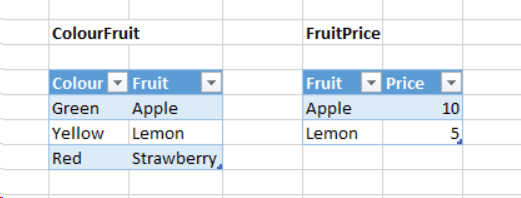
Consider the following two tables in an Excel worksheet, called ColourFruit and FruitPrice:

image

With these tables loaded into the Excel Data Model as linked tables, the next step is to create a relationship between the tables on the Fruit column:

image

Both functions only work with two tables that have an active relationship between them, and both take two tables from the Excel Data Model as parameters. Once you’ve done that you can use these functions in a DAX query.

The queries

evaluate naturalinnerjoin(ColourFruit,FruitPrice)

and

evaluate naturalinnerjoin(FruitPrice,ColourFruit)

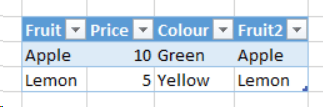
…both perform an inner join between the two tables on the Fruit column and both return the same table:

image

The query

evaluate naturalleftouterjoin(ColourFruit,FruitPrice)

…returns

image

The query

evaluate naturalleftouterjoin(FruitPrice,ColourFruit)

…returns:

image

For NaturalLeftOuterJoin() the table given in the first parameter is on the left-hand side of the left outer join, so all rows from it are returned, whereas the table in the second parameter is on the right-hand side of the join so only the matching rows are returned.

ConcatenateX() DAX Function In Excel 2016

This is the first of many posts on the new DAX functions that have appeared in Excel 2016 (for a full list see this post). Today: the ConcatenateX() function.

The mdschema_functions schema rowset gives the following description of this function:

Evaluates expression for each row on the table, then return the concatenation of those values in a single string result, separated by the specified delimiter

Its signature is:

CONCATENATEX(Table, Expression, [Delimiter])

It’s easier to understand what it does using a simple example though. Consider the following table on a worksheet in Excel 2016:

image

When you add this table to the Excel Data Model (I called the table Sales) you can add the following measure:

[sourcecode language=”text” padlinenumbers=”true”]
Purchasing Customers:=
CONCATENATEX(
VALUES(Sales[Customer]),
Sales[Customer],
","
)
[/sourcecode]

If you then use this measure in a PivotTable, you see the following:

image

As you can see, the measure returns a comma-delimited list of all of the customers who have bought each product. Very useful…

What’s New In The Excel 2016 Preview For BI?

Following on from my recent post on Power BI and Excel 2016 news, here are some more details about the new BI-related features in the Excel 2016 Preview. Remember that more BI-related features may appear before the release of Excel 2016, and that with Office 365 click-to-run significant new features can appear in between releases, so this is not a definitive list of what Excel 2016 will be able to do at RTM but a snapshot of functionality available as of March 2015 as outlined in this document and which I’ve found from my own investigations. When I find out more, or when new functionality appears, I’ll either update this post or write a new one.

Power Query

Yesterday, in the original version of my post, I mistakenly said that Power Query was a native add-in in Excel 2016: that’s not true, it’s not an add-in at all, it’s native Excel functionality. Indeed you can see that there is no separate Power Query tab any more, and instead there is a Power Query section on the Data tab instead:

DataTab

Obviously I’m a massive fan of Power Query so I’m biased, but I think this is a great move because it makes all the great Power Query functionality a lot easier to discover. There’s nothing to enable – it’s there by default – although I am a bit worried that users will be confused by having the older Data tab features next to their Power Query equivalents.

There are no new features for Power Query here compared to the latest version for Excel 2013, but that’s what I expected.

Excel Forecasting Functions

I don’t pretend to know anything about forecasting, but I had a brief play with the new Forecast.ETS function and got some reasonable results out of it as seen in the screenshot below:

image

Slicer Multiselect

There’s a new hammer icon on a slicer, which, when you click it, changes the way selection works. The default behaviour is the same as Excel 2013: every time you click on an item, that item is selected and any previous selection is lost (unless you were holding control or shift to multiselect). However with the hammer icon selected each new click adds the item to the previously selected items. This is meant to make slicers easier to use with a touch-screen.

Slicer

Time Grouping in PivotTables

Quite a neat feature this, I think. If you have a table in the Excel Data Model that has a column of type date in it, you can add extra calculated columns to that table from within a PivotTable to group by things like Year and Month. For example, here’s a PivotTable I built on a table that contains just dates:

Group1

Right-clicking on the field containing the dates and clicking Group brings up the following dialog:

Group2

Choosing Years, Quarters and Months creates three extra fields in the PivotTable:

Group3

And these fields are implemented as calculated columns in the original table in the Excel Data Model, with DAX definitions as seen here:

Group4

Power View on SSAS Multidimensional

At-bloody-last. I haven’t installed SSAS on the VM I’m using for testing Excel 2016, but I assume it just works. Nothing new in Power View yet, by the way.

Power Map data cards

Not sure why this is listed as new in Excel 2016 when it seems to be the same feature that appeared in Excel 2013 Power Map recently:

https://support.office.com/en-za/article/Customize-a-data-card-in-Power-Map-797ab684-82e0-4705-a97f-407e4a576c6e

Power Pivot

There isn’t any obvious new functionality in the Power Pivot window, but it’s clear that the UI in general and the DAX formula editor experience in particular has been improved.

image

Suggested Relationships

When you use fields from two Excel Data Model tables that have no relationship between them in a PivotTable, you get a prompt to either create new relationships yourself or let Excel detect the relationships:

image

Renaming Tables and Fields in the Power Pivot window

In Excel 2013 when you renamed tables or fields in the Excel Data Model, any PivotTables that used those objects had them deleted. Now, in Excel 2016, the PivotTable retains the reference to table or field and just displays the new name. What’s even better is that when you create a measure or a calculated column that refers to a table or column, the DAX definition of the measure or calculated column gets updated after a rename too.

DAX

There are lots of new DAX functions in this build. With the help of the mdschema_functions schema rowset and Power Query I was able to compare the list of DAX functions available in 2016 with those in 2013 and create the following list of new DAX functions and descriptions:

[sourcecode language=”text” wraplines=”true” gutter=”false”]
FUNCTION NAME DESCRIPTION
DATEDIFF Returns the number of units (unit specified in Interval)
between the input two dates
CONCATENATEX Evaluates expression for each row on the table, then
return the concatenation of those values in a single string
result, separated by the specified delimiter
KEYWORDMATCH Returns TRUE if there is a match between the
MatchExpression and Text.
ADDMISSINGITEMS Add the rows with empty measure values back.
CALENDAR Returns a table with one column of all dates between
StartDate and EndDate
CALENDARAUTO Returns a table with one column of dates
calculated from the model automatically
CROSSFILTER Specifies cross filtering direction to be used in
the evaluation of a DAX expression. The relationship is
defined by naming, as arguments, the two columns that
serve as endpoints
CURRENTGROUP Access to the (sub)table representing current
group in GroupBy function. Can be used only inside GroupBy
function.
GROUPBY Creates a summary the input table grouped by the
specified columns
IGNORE Tags a measure expression specified in the call to
SUMMARIZECOLUMNS function to be ignored when
determining the non-blank rows.
ISONORAFTER The IsOnOrAfter function is a boolean function that
emulates the behavior of Start At clause and returns
true for a row that meets all the conditions mentioned as
parameters in this function.
NATURALINNERJOIN Joins the Left table with right table using the
Inner Join semantics
NATURALLEFTOUTERJOIN Joins the Left table with right table
using the Left Outer Join semantics
ROLLUPADDISSUBTOTAL Identifies a subset of columns specified
in the call to SUMMARIZECOLUMNS function that should be
used to calculate groups of subtotals
ROLLUPISSUBTOTAL Pairs up the rollup groups with the column
added by ROLLUPADDISSUBTOTAL
SELECTCOLUMNS Returns a table with selected columns from the table
and new columns specified by the DAX expressions
SUBSTITUTEWITHINDEX Returns a table which represents the semijoin of two
tables supplied and for which the common set of
columns are replaced by a 0-based index column.
The index is based on the rows of the second table
sorted by specified order expressions.
SUMMARIZECOLUMNS Create a summary table for the requested
totals over set of groups.
GEOMEAN Returns geometric mean of given column
reference.
GEOMEANX Returns geometric mean of an expression
values in a table.
MEDIANX Returns the 50th percentile of an expression
values in a table.
PERCENTILE.EXC Returns the k-th (exclusive) percentile of
values in a column.
PERCENTILE.INC Returns the k-th (inclusive) percentile of
values in a column.
PERCENTILEX.EXC Returns the k-th (exclusive) percentile of an
expression values in a table.
PERCENTILEX.INC Returns the k-th (inclusive) percentile of an
expression values in a table.
PRODUCT Returns the product of given column reference.
PRODUCTX Returns the product of an expression
values in a table.
XIRR Returns the internal rate of return for a schedule of
cash flows that is not necessarily periodic
XNPV Returns the net present value for a schedule of cash flows
[/sourcecode]

Plenty of material for future blog posts there, I think – there are lots of functions here that will be very useful. I bet Marco and Alberto are excited…

VBA

We now have support for working with Power Query in VBA.

Power BI And Excel 2016 BI News

There have been quite a few Power BI and Office BI-related announcements over the last few weeks, and while I’ve tweeted about them (I’m @Technitrain if you’re not following me already) I though it would be a good idea to summarise them all in one post.

Power BI Announcements at Convergence and SQLBits

You’ve probably already seen the announcement today on the Power BI blog that Power BI is FINALLY available to those of us outside the USA:

http://blogs.msdn.com/b/powerbi/archive/2015/03/16/power-bi-preview-now-available-worldwide.aspx

At last! I’m sure MS had very good reasons why they couldn’t make the Power BI Preview available worldwide back in December, but this decision caused a lot of frustration in the MS BI community and I hope it’s not something that happens again. I can also confirm that the Power BI iPhone app is now available in the UK as well. The new data sources for Power BI that are coming soon – especially Google Analytics – will be very popular I think.

While I’m on the topic of Power BI, a few interesting nuggets about upcoming functionality emerged at SQLBits last week. Kasper mentioned that there will be some new DAX functions appearing in Power BI soon: Median, Percentile, DateDiff and XPNV. Presumably they will appear when we get the ability to create DAX measures and calculated columns in the Power BI Dashboard Designer. Also, following on from the bidirectional relationships functionality I blogged about earlier this year, there was the news that Power BI will also understand 1:1 relationships as well as 1:many, many:1 and many:many.

Office 2016 Preview BI Features

The Office 2016 preview went public today too:

http://blogs.office.com/2015/03/16/announcing-the-office-2016-it-pro-and-developer-preview/

There’s a great overview of what’s new for BI in Office 2016 here:

https://support.office.com/en-gb/article/Whats-new-in-Office-2016-Preview-4841f061-d019-45cc-af74-3e89c8cff1c4#data

The main points are:

  • Power Query is now a native feature of Excel 2016.
  • Power View works on SSAS Multidimensional (this is only going to work on the versions of SSAS Multidimensional that support DAX queries, ie SSAS 2014 or SSAS 2012 SP2)
  • New Excel forecasting functions
  • Time grouping functionality in PivotTables

I’ll be writing a more detailed blog on all of this at some point soon, once I know what’s officially public and what isn’t.

The Power Query announcement is interesting because, as things stand at the moment, we’ll be able to use full Power Query, Power Pivot and Power View functionality for free in the Power BI Dashboard Designer, but in Excel the same functionality is restricted to users of the Professional Plus SKUs. This is crazy, and I hope Microsoft makes the Power add-ins available for every SKU of Excel 2016. Have you signed the petition for this yet?

Power Map

Last week the Power Map team released a new video showcasing functionality from an upcoming release:

https://www.youtube.com/watch?v=aP-vZfC3Fd4&feature=youtu.be

Although there are no details about what is shown in the video, it certainly looks like the ability to use custom shapes (the main missing feature in Power Map up to now) will be coming soon.

PowerMap

Wow, psychedelic…

Surface Hub

Finally, BI is clearly one of the main use-cases of the new Surface Hub (see also this video):

SufaceHubPowerBI_small

I wonder if I can justify buying one for demo purposes?

Rendering Images In An Excel Worksheet With Power Query Using Cells As Pixels

It’s a general rule of the internet that, whenever you have a cool idea, a few minutes spent on your favourite search engine reveals that someone else has had the idea before you. In my case, when I first saw the functionality in Power Query for working with binary files I wondered whether it was possible to read the contents of a file containing an image and render each pixel as a cell in a worksheet – and of course, it has already been done and done better than I could ever manage. However, it hasn’t been done in Power Query… until now.

First of all, I have to acknowledge the help of Matt Masson whose blog post on working with binary data in Power Query provided a number of useful examples. I also found this article on the bmp file format invaluable.

Second, what I’ve done only works with monochrome bmp files. I could have spent a few more hours coming up with the code to work with other file types but, frankly, I’m too lazy. I have to do real work too, you know.

So let’s see how this works. Here’s a picture of Fountains Abbey that I took on my phone while on holiday last summer:

FountainsAbbey

I opened it in Paint and saved it as a monochrome bmp file:

FountainsAbbey

Here’s the code for the Power Query query that opens the bmp file and renders the contents in Excel:

let
//The picture to load
SourceFilePath="C:\Users\Chris\Pictures\FountainsAbbey.bmp",
//Or get the path from the output of a query called FileName
//SourceFilePath=FileName,
//Load the picture
SourceFile=File.Contents(SourceFilePath),

//First divide the file contents into two chunks:
//the header of the file, always 62 bytes
//and the rest, which contains the pixels

//Define the format as a record
OverallFormat=BinaryFormat.Record([
Header = BinaryFormat.Binary(62),
Pixels = BinaryFormat.Binary()
]),
//Load the data into that format
Overall = OverallFormat(SourceFile),
//Get the header data
HeaderData = Overall[Header],

//Extract the total file size and
//width and height of the image
HeaderFormat = BinaryFormat.Record([
Junk1 = BinaryFormat.Binary(2),
FileSize = BinaryFormat.ByteOrder(
BinaryFormat.SignedInteger32,
ByteOrder.LittleEndian),
Junk2 = BinaryFormat.Binary(12),
Width = BinaryFormat.ByteOrder(
BinaryFormat.SignedInteger32,
ByteOrder.LittleEndian),
Height = BinaryFormat.ByteOrder(
BinaryFormat.SignedInteger32,
ByteOrder.LittleEndian),
Junk3 = BinaryFormat.Binary()
]),
HeaderValues = HeaderFormat(HeaderData),
FileSize = HeaderValues[FileSize],
ImageWidth = HeaderValues[Width],
ImageHeight = HeaderValues[Height],

//Each pixel is represented as a bit
//And each line is made up of groups of four bytes
BytesPerLine = Number.RoundUp(ImageWidth/32)*4,
//Read the pixel data into a list
PixelListFormat = BinaryFormat.List(
BinaryFormat.ByteOrder(
BinaryFormat.Binary(BytesPerLine),
ByteOrder.LittleEndian)),
PixelList = PixelListFormat(Overall[Pixels]),
//Convert each byte to a number
PixelListNumbers = List.Transform(PixelList, each Binary.ToList(_)),

//A function to convert a number into binary
//and return a list containing the bits
GetBinaryNumber = (ValueToConvert as number) as list =>
let
BitList = List.Generate(
()=>[Counter=1, Value=ValueToConvert],
each [Counter]<9,
each [Counter=[Counter]+1,
Value=Number.IntegerDivide([Value],2)],
each Number.Mod([Value],2)),
BitListReversed = List.Reverse(BitList)
in
BitListReversed,

//A function to get all the bits for a single line
//in the image
GetAllBitsOnLine = (NumberList as list) =>
List.FirstN(
List.Combine(
List.Transform(NumberList, each GetBinaryNumber(_)
)
), ImageWidth),

//Reverse the list - the file contains the pixels
//from the bottom up
PixelBits = List.Reverse(
List.Transform(PixelListNumbers,
each GetAllBitsOnLine(_))),

//Output all the pixels in a table
OutputTable = #table(null, PixelBits)
in
OutputTable

The output of this query is a table containing ones and zeroes and this must be loaded to the worksheet. The final thing to do is to make the table look like a photo by:

  • Hiding the column headers on the table
  • Using the ‘None’ table style so that there is no formatting on the table itself
  • Hiding the values in the table by using the ;;; format (see here for more details)
  • Zooming out as far as you can on the worksheet
  • Resizing the row heights and column widths so the image doesn’t look too squashed
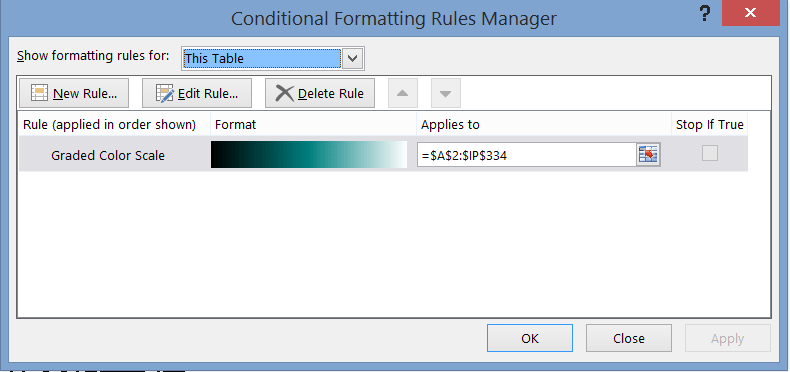
  • Using Excel conditional formatting to make the cells containing 0 black and the cells containing 1 white:

    image

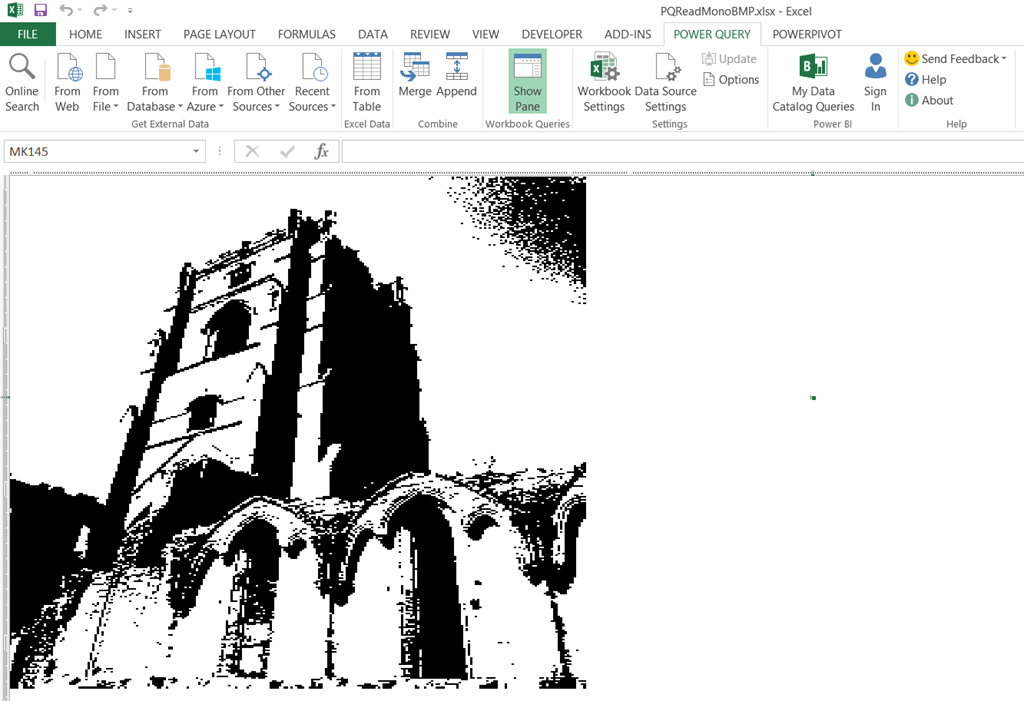
Here’s the photo rendered as cells in the workbook:

image

And here it is again, zoomed in a bit so you can see the individual cells a bit better:

image

You can download the workbook (which I’ve modified so you can enter the filename of your bmp file in a cell in the worksheet, so you don’t have to edit the query – but you will have to turn Fast Combine on as a result) from here. Have fun!