Working With CSV Files That Contain Rogue Line Breaks In Power Query And Power BI

CSV files often contain text fields, and text fields often contain line breaks that shouldn’t be there (especially if the text is entered by end users). For example, here is are the contents of a simple CSV file that should contain three fields(Product, Comment and Sales) and six rows:

[sourcecode language=”text” padlinenumbers=”true”]
Product,Comment,Sales
Apples,This is a commment,10
Oranges,Another comment,20
Pears,A comment with a
line break in,30
Grapes,A normal comment,40
Bananas,A comment
with
two line breaks,50
Pineapples,A normal comment,60
[/sourcecode]

However, as you can see, the Comment field contains line breaks in some cases. If you try to load this file into Power Query/Power BI, you’ll see that it doesn’t handle things well:

image

The easiest way of solving this problem is to make sure you have double quotes around the text in the Comment field, so that Power Query/Power BI knows to ignore the line breaks:

[sourcecode language=”text” padlinenumbers=”true”]
Product,Comment,Sales
Apples,"This is a commment",10
Oranges,"Another comment",20
Pears,"A comment with a
line break in",30
Grapes,"A normal comment",40
Bananas,"A comment
with
two line breaks",50
Pineapples,"A normal comment",60
[/sourcecode]
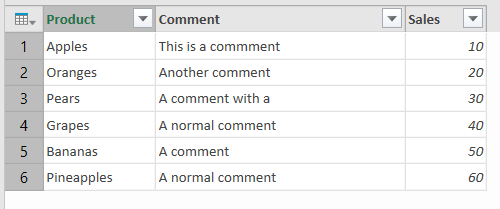
image

[By the way, no text in the screenshot above has been truncated. The line breaks are still there in the Comment field; you can see the full text in the bottom pane of the Query Editor by clicking on a cell in the table.]

But what if you can’t fix the source data? I was asked this question the other week, and since I had been asked about it before and not come up with a good answer, I decided to spend some time researching the problem.

What I found was that it was relatively easy to write some M code that gave me the correct results, but very hard to write code that performed acceptably well on a large data set (I was testing on a CSV file containing almost half a million rows). Here’s the code for the function I ended up with:

[sourcecode language=”text” wraplines=”false” light=”true”]
(FileName as text, DelimiterCharacter as text, DelimitersPerLine as number, UseFirstRowAsHeaders as logical) =>
let
// Load file and buffer in memory
BufferedBinary = Binary.Buffer(File.Contents(FileName)),
// Convert to a single block of text
Source = Text.FromBinary(BufferedBinary),
// Find the position of all line breaks
LineBreaks = List.Buffer(Text.PositionOf(Source, "#(cr,lf)", Occurrence.All)),
// Get a list of numbers from 0 to the number of line breaks-1
LinePositions = List.Positions(LineBreaks),
// Count the number of line breaks
TotalLines = List.Count(LineBreaks),
// Split the text by line breaks
FirstSplit = Text.Split(Source, "#(cr,lf)"),
// On each line, count the number of column delimiter characters
DelimiterCounts = List.Buffer(
List.Transform(
LinePositions,
each List.Count(Text.PositionOf(FirstSplit{_},
DelimiterCharacter,
Occurrence.All)))),
// Loop through each line and
// a) Calculate a running total of the number of column delimiter characters on each line
// b) Divide the running total by the expected number of delimiters per line, and round down to the nearest integer
RunningSums = List.Buffer(
List.Generate(
()=>[Counter=0, RunningTotal=0],
each [Counter]<TotalLines,
each [Counter=[Counter]+1, RunningTotal=[RunningTotal]+DelimiterCounts{[Counter]}],
each Number.IntegerDivide([RunningTotal]+DelimiterCounts{[Counter]},DelimitersPerLine))),
// If the result of the division calculated in the previous step is
// the same as on the previous line, then the line break can be ignored
// so return null, otherwise return the position of the line break
FindFullLines = List.Transform(LinePositions, each if _=0 or RunningSums{_}<>RunningSums{_-1} then LineBreaks{_} else null),
// Remove nulls from the list
RemoveNulls = List.RemoveNulls(FindFullLines),
// Split the original text by the positions of the line breaks left
LineSplitterFunction = Splitter.SplitTextByPositions(List.Combine({{0},RemoveNulls})),
ActualLines = LineSplitterFunction(Source),
// Convert the result to a table
ConvertToTable = Table.FromList(ActualLines, Splitter.SplitTextByDelimiter(DelimiterCharacter), null, null, ExtraValues.Ignore),
// Use the first rows as headers if desired
PromoteHeaders = if UseFirstRowAsHeaders then Table.PromoteHeaders(ConvertToTable) else ConvertToTable
in
PromoteHeaders
[/sourcecode]

Assuming that you called this function LoadFile(), here’s an example of how to call it:

[sourcecode language=”text” padlinenumbers=”true”]
LoadFile(
//File name
"C:\MyFile.csv",
//Column delimiter character – in this case a comma
",",
//The expected number of commas to be found per line
//ie one less than the number of columns
2,
//If true then first row contains header values
true)
[/sourcecode]

The comments in the code should give you an idea of how it all works. A few other things to note:

  • If any of your lines contain extra columns, this approach won’t work
  • I’ve noticed a difference between how the Power BI Desktop and Excel 2016 behave with this code: the current Excel 2016 Query Editor will keep any line breaks after splitting on them, whereas Power BI Desktop does not. It’s easy to fix the Excel output though: just use the Clean transform to remove the line breaks.

I’m not really sure why it was so hard to come up with code that performed well, even after liberal use of List.Buffer(). It seemed like any time I referenced the original text (as returned by the Source step) in the List.Generate() function then performance died – so you’ll notice in the code above that I’m only referencing the list that contains the number of delimiters found per line.
Disabling Excel PivotTable Grouping And Session Cubes In SSAS Multidimensional

The Excel PivotTable grouping functionality that is available when you are connected to an SSAS Multidimensional cube (but not a Tabular model) is a Very Bad Thing indeed. In my experience it is a major cause of query performance problems – not just for the person running the query, but because it is so resource intensive for everyone else trying to query the cube too. This post from a few years ago gives some more details about why custom grouping, and the CREATE SESSION CUBE MDX statements that it uses behind the scenes, are so expensive.

Up until now it was impossible to prevent users from using custom grouping but in a recent cumulative update this changed. First of all, I encourage you to read the details of the fix because you will probably want to install the relevant CU for security reasons anyway:

https://support.microsoft.com/en-us/kb/3080856

[And if you are wondering whether you should be installing CUs I strongly suggest you read this post by Aaron Bertrand]

Once the CU has been installed the following new property is added to the msmdrv.ini file:

\OLAP\Query\SessionCubesMode

This will be set to 1. Setting this property to 0 will prevent users from creating session cubes and therefore prevent them from using Excel’s custom grouping functionality.

My opinion is that it’s a good idea to disable session cubes and custom grouping even if you don’t know whether your users are using these features. Yes, your users will lose some functionality and some reports might even break, but you will also save yourself and your users a lot of problems. If your users need to do custom grouping in a report that is usually an indication that you have missed something in your dimension design, and that an extra attribute hierarchy or two is necessary.

[Thanks to Akshai for this information]

New Ways To Concatenate Text In Excel 2016 With CONCAT() And TEXTJOIN()

I don’t normally blog about Excel topics outside of Power Query and Power Pivot, but I think anyone who has ever done any serious work in Excel has found how difficult it is to concatenate more than two text values (although there are plenty of blog posts like this one showing how to do it). Well, not any more – Microsoft have finally got around to addressing this problem with two new Excel functions, TEXTJOIN() and CONCAT(). The announcement, plus news of other new Excel functions and a new funnel chart type, is here:

https://support.office.com/en-us/article/What-s-new-in-Excel-2016-for-Windows-5fdb9208-ff33-45b6-9e08-1f5cdb3a6c73

First, the bad news: at the time of writing you’ll only be able to use these functions in Excel on the desktop if you’re using the click-to-run version of Excel 2016 that you get through an Office 365 subscription (ie the version installed through the Office 365 portal that gets updated by Microsoft automatically – probably not the same version that you’re running on your desktop if you work for a big company). It is available in Excel Online and Excel Mobile too. I guess they’ll appear in the regular, Windows-installer version of Excel 2016 in a service pack at some point in the future.

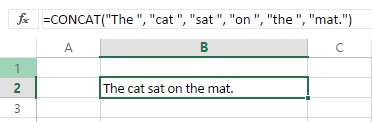
How about some examples? First of all, CONCAT() is a successor function for the old CONCATENATE() function – as far as I can see it does everything CONCATENATE() does but crucially also supports ranges as inputs as well as individual text values. So

=CONCAT("The ", "cat ", "sat ", "on ", "the ", "mat.")

Returns

The cat sat on the mat.

image

…but also, if you have each of your words in different cells (nb I’ve added spaces at the end of each word here), you can concatenate all the values in a range like this:

=CONCAT(B2:B7)

image

The TEXTJOIN() function is more flexible and I suspect will be very popular. It gives you two benefits over CONCAT():

  1. The ability to specify a delimiter – a character or characters (for example a comma or a space) to insert between each item of text you want to concatenate
  2. The ability to ignore empty values

Some examples…

First, using a space in the first parameter:

=TEXTJOIN(" ",FALSE,"The","cat","sat","on","the","mat.")

Returns once again

The cat sat on the mat.

…without having to add spaces to the end of each word, as I did with the CONCAT() example above:

image

And

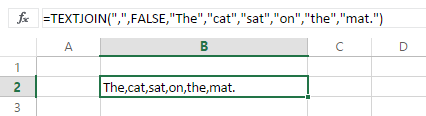
=TEXTJOIN(",",FALSE,"The","cat","sat","on","the","mat.")

Returns

The,cat,sat,on,the,mat.

image

Finally, here’s an example of how TEXTJOIN() can be used with a range with the second parameter being set to TRUE to ignore empty cells in a range:

=TEXTJOIN(",", TRUE,B2:B9)

With the data in the screenshot below again returns

The,cat,sat,on,the,mat.

image

You can see an Excel Online worksheet with all these examples here.

Power BI Desktop, Sort By Column And DAX Calculations That Use The All() Function

Recently I came across a problem where a DAX measure gave different results in Excel and Power BI Desktop. It turned out not to be a bug or even a feature, but since it confused me for a few minutes I thought it was worth writing up in case anyone else ran into it.

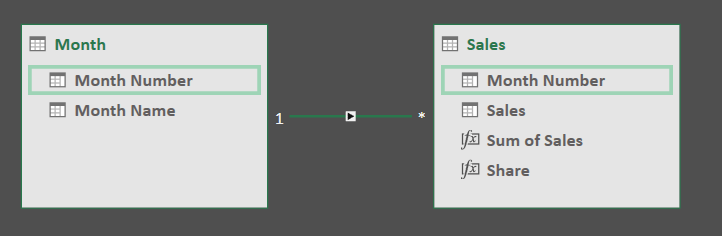
Consider a model built in Excel using Power Pivot from the following two tables:

image

image

With two measures defined in the model as follows:

Sum of Sales:=SUM(Sales[Sales])

Share:=DIVIDE([Sum of Sales], CALCULATE([Sum of Sales], ALL(Month[Month Name])))

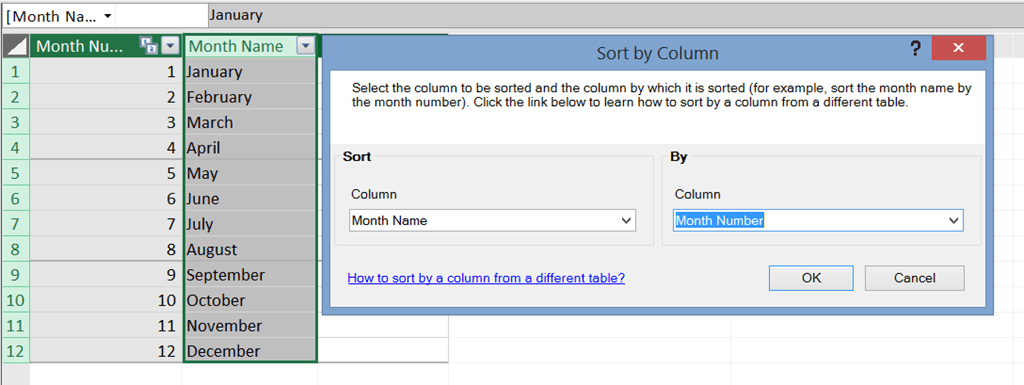
…and, importantly, the Sort By Column property on the Month Name column set to Month Number:

image

…it’s possible to build a PivotTable that looks like this:

image

However, when you import the same model into Power BI Desktop and recreate the PivotTable above in the Report view you’ll see that the Share calculation no longer gives the same values:

image

What’s the problem here? It’s all down to the way Power BI Desktop generates DAX queries when you set the Sort By Column property. The Excel PivotTable above generates the following MDX:

[sourcecode language=”text” padlinenumbers=”true”]
SELECT
{[Measures].[Sum of Sales],[Measures].[Share]}
DIMENSION PROPERTIES PARENT_UNIQUE_NAME,MEMBER_VALUE,
HIERARCHY_UNIQUE_NAME ON COLUMNS ,
NON EMPTY
Hierarchize(
{DrilldownLevel({[Month].[Month Name].[All]},,,INCLUDE_CALC_MEMBERS)})
DIMENSION PROPERTIES PARENT_UNIQUE_NAME,MEMBER_VALUE,
HIERARCHY_UNIQUE_NAME ON ROWS
FROM [Model]
CELL PROPERTIES VALUE, FORMAT_STRING, LANGUAGE,
BACK_COLOR, FORE_COLOR, FONT_FLAGS
[/sourcecode]

On the rows axis, as you would expect, the only hierarchy you see is Month Name.

However, if you run a Profiler trace (you can find out how to do this here although it’s much easier to get the Process ID from DAX Studio) to look at the DAX query generated by Power BI you’ll see

[sourcecode language=”text”]
EVALUATE
TOPN (
102,
SUMMARIZECOLUMNS (
ROLLUPADDISSUBTOTAL (
ROLLUPGROUP ( ‘Month'[Month Name], ‘Month'[Month Number] ),
"IsGrandTotalRowTotal"
),
"Share", ‘Sales'[Share],
"Sum_of_Sales", ‘Sales'[Sum of Sales]
),
[IsGrandTotalRowTotal], 0,
‘Month'[Month Number], 1,
‘Month'[Month Name], 1
)
ORDER BY
[IsGrandTotalRowTotal] DESC,
‘Month'[Month Number],
‘Month'[Month Name]
[/sourcecode]

The difference here is that the Month Number and Month Name fields are both present – they have to be since the query has to sort by Month Number. In MDX the order of members on a hierarchy can be set inside the model; in a DAX query you can only sort using an ORDER BY clause and for that to work, the field you’re ordering by must be present in the query.

The Share measure calculation needs to be changed in order to fix this, then. Here’s one way of doing this:

Share =

DIVIDE([Sum of Sales],

CALCULATE([Sum of Sales], ALL(Month[Month Name], ‘Month'[Month Number])))

Drillthrough On Multiselect Now Works In Excel 2016 And SSAS 2016

One unadvertised – but still very welcome – feature of Excel 2016 is that it is now possible to do a drillthrough in a PivotTable when there is a multiselect on a filter or a slicer. It only works if you are using SSAS 2016 on the server, or if you’re querying the Excel Data Model/Power Pivot, because the fix needed changes both in Excel and on the server.

In Excel 2013 and earlier, when you try to do a default drillthrough where there is a multiselect on a filter or a slicer, you get the following error message:

image

Show Details cannot be executed when multiple items are selected in a report filter or in a slicer. Select a single item for each field in the report filter area and for each slicer connected to this PivotTable before performing a drillthrough.

For drillthrough actions, where there is a multiselect, you won’t see the action listed under the Additional Actions right-click menu at all.

This is the result of two limitations. First, there’s the issue with the MDSCHEMA_ACTIONS schema rowset that I blogged about here. In SSAS 2016 you can now pass in multiple members from the same hierarchy in the COORDINATE restriction column, as shown in this example I captured in Profiler:

[sourcecode language=”text” padlinenumbers=”true”]
<RestrictionList xmlns="urn:schemas-microsoft-com:xml-analysis"
xmlns:soap="http://schemas.xmlsoap.org/soap/envelope/"&gt;
<CUBE_NAME>Model</CUBE_NAME>
<ACTION_TYPE>401</ACTION_TYPE>
<COORDINATE>
([DimDate].[DateKey].&amp;[20010701],
[DimDate].[DateKey].&amp;[20010702],
[Measures].[Sum of SalesAmount])
</COORDINATE>
<COORDINATE_TYPE>6</COORDINATE_TYPE>
</RestrictionList>
[/sourcecode]

Second, subselects on a drillthrough MDX query are ignored in SSAS 2014 and earlier. For example, here’s a drillthrough query generated by an Excel 2016 PivotTable with a multiselect slicer connected to an SSAS Tabular model:

[sourcecode language=”text” padlinenumbers=”true”]
DRILLTHROUGH MAXROWS 1000
SELECT [Measures].[Sum of SalesAmount] ON COLUMNS
FROM
(SELECT FROM (
SELECT
({[DimDate].[DateKey].&[20010702],[DimDate].[DateKey].&[20010701]})
ON COLUMNS
FROM [Model]))
[/sourcecode]

When run against SSAS 2014, this drillthrough returns records that are not filtered by date; when run against the same model in SSAS 2016, the subselect is respected and the resultset is filtered by the selected dates.

Excel 2016 BI Branding Changes

Office 2016 is on the verge of being released, and although Power BI is the cool new thing Excel 2016 has added several new BI-related features too. What is also interesting – and less well publicised – is that several of the BI features in Excel 2016 have been rebranded. Specifically:

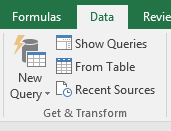
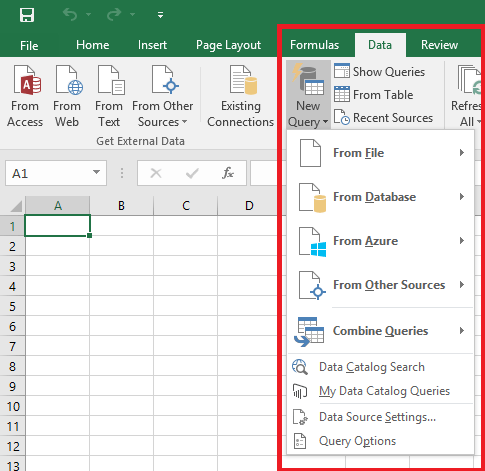
  • Power Query (which is now no longer an add-in, but native Excel functionality) is not called Power Query any more, but “Get & Transform”. It has also been squeezed onto the Data tab, next to the older data import functionality:
    image

    image

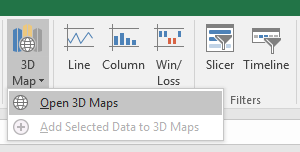
  • Power Map is not called Power Map any more, but “3D Maps”
    image
  • Power View is still Power View, but as John White points out here it is no longer visible on the ribbon by default, hidden from new users, although it’s easy to add the Power View button back onto the ribbon. Power View in Excel 2016 is unchanged from Power View in Excel 2013. Read into this what you will.
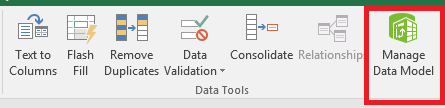
  • Although Power Pivot still has its own tab on the ribbon (and has finally got a space in the middle of its name), there’s also a “Manage Data Model” button on the Data tab in the ribbon that is visible even when the Power Pivot add-in has not been enabled:
    image
    Clicking this button opens the Power Pivot window. There’s a subtle distinction between Power Pivot the add-in and the Excel Data Model (which is the database engine behind Power Pivot, and which is present in all Windows desktop editions of Excel regardless of whether the add-in is enabled or not) that has existed since Excel 2013 and which is generally unknown or misunderstood. The fact this button is titled “Manage Data Model” rather than “Power Pivot” is telling.
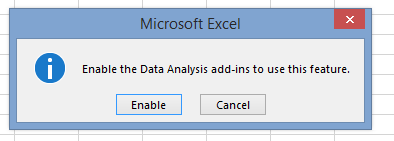
  • All the add-ins now have the collective name “Data Analysis add-ins” and can be enabled with a single click:
    image

So, clearly Excel has moved away from branding all its BI functionality as Power-something. My guess, informed by various conversations with various people in the know, is that this has happened for a couple of reasons:

  • The ‘Power’ prefix was intimidating for regular Excel users, who thought it represented something difficult and therefore not for them; it also made it look like this was functionality alien to Excel rather than a natural extension of Excel.
  • Having separate Power add-ins led to a disjointed experience, rather than giving the impression that all of these tools could and should be used together. It also made comparisons, by analysts and in corporate bake-offs, with other competing tools difficult – were the Power-addins separate tools, or should they be considered a single tool along with Excel?
  • Previously there was a lot of confusion about whether these add-ins are anything to do with ‘Power BI’ or not. Up to now, depending on who you talked to, they either were or weren’t officially part of Power BI. Now there is a clear distinction between Excel and Power BI, despite the close technical relationships that remain.

The new names certainly address these problems and on balance I think this change was the right thing to do, even if I was quite annoyed when I first found out about them. There are significant downsides too: for example, changing the names means that several years of books, blog posts, articles and conference presentations about Power Query and Power Map now won’t be found by new users when they search the internet for help. Similarly, it won’t be obvious to new users that a lot of content is relevant for both Power BI Desktop and Excel. Now that the Power Query name has been de-emphasised, why should anyone looking at my old blog posts on that subject know that what I’ve written is still relevant for Excel 2016’s “Get & Transform” and Power BI Desktop? What would I call a second edition of my Power Query book, if I wrote one, given that Power Query exists only as the relatively nondescript “Get & Transform” in Excel 2016 and “Get Data” in Power BI Desktop?

Exporting All M Code From Power Query In Excel 2013

UPDATE – there’s now a better way to do this using copy/paste. See

Exporting Your Queries’ M Code From Power Query And Power BI Using Copy/Paste

Here’s a tip that I found out about on the Power Query Technet forum that I thought was worth repeating. If you ever need a quick way of exporting all the M code for all of the queries in an Excel 2013 workbook, just open the Power Query window and click the Send a Frown button shown here:

image

Then, when the Send Feedback dialog appears, make sure Include Formulas is ticked then click OK:

image

When you do that, you’ll get an email created for you that contains a whole lot of debugging information, plus all of the M code for your queries:

image

Obviously, don’t send this email to Microsoft!

It’s quite easy to see the individual queries. You then need to go to your new workbook, create a new query by selecting the Blank Query option under Other Sources, and then open the Advanced Editor window and paste the code for each query in. However, when you do that you will need to modify the code a bit. There are three pieces of code you will need to delete:

  • At the beginning of the M code, where it says
    section Section1;
  • At the beginning of each query, a piece of code that contains the original name of the query:
    shared MyOriginalQueryName =
  • At the very end, a semi-colon

Of course in Excel 2016 we’ll have much better options for copying, pasting and moving queries in VBA, but until then we’ll have to live with hacks like this.

Checking Columns Are Present In Power Query

Something I was meaning to mention in my previous post (but forgot about…) was that in a lot of cases you don’t really care if your output contains all the required columns – it’s enough just to check that your input contains all the required columns. Luckily M has a function called Table.HasColumns() to help you do this. For example, using the csv source file from my previous post, which should have three columns called Product, Month and Sales, the following query will return true if the source file has these columns and false if it doesn’t:

[sourcecode language=”text” padlinenumbers=”true”]
let
Source = Csv.Document(File.Contents("C:\MissingColumnDemo.csv"),[Delimiter=",",Encoding=1252]),
PromotedHeaders = Table.PromoteHeaders(Source),
CheckColumns = Table.HasColumns(PromotedHeaders, {"Product", "Month", "Sales"})
in
CheckColumns
[/sourcecode]

Ensuring Columns Are Always Present In A Table Returned By Power Query

Disappearing or renamed columns in your data source can cause all kinds of problems when you’re importing data using Power Query: errors when you try to refresh the query, broken calculations in Power Pivot, PivotTables that reformat themselves and then need to be manually recreated. As a result, it can be a very good idea to build some logic into your Power Query queries that ensures that a table always contains the columns you’re expecting.

Consider the following csv file:

image

In Power Query, if you connect to it and create a query you’ll end up with something like this:

[sourcecode language=”text” padlinenumbers=”true”]
let
Source = Csv.Document(File.Contents("C:\Demo.csv"),null,",",null,1252),
#"First Row as Header" = Table.PromoteHeaders(Source),
#"Changed Type" = Table.TransformColumnTypes(#"First Row as Header",{{"Sales", Int64.Type}})
in
#"Changed Type"
[/sourcecode]

Let’s assume that this query is called GetSourceData. Let’s also assume that your output from Power Query should always be a table that has the three columns Product, Month and Sales, and that Product and Month should be text columns and Sales should be numeric. The basic steps to take to ensure that this always happens, even if the columns in the csv file change, are as follows:

  1. Create a query that connects to your data source, for example like GetSourceData above
  2. Create a query that will always return a table with the columns you want, but which contains no rows
  3. Append the second table onto the end of the first table. This will result in a table that contains all of the columns from both tables.
  4. Remove any unwanted columns.

There are a number of ways to create the empty table needed in step 2. You could use the #table() function if you’re confident writing M code, and the following single line query (no Let needed) does the job:

[sourcecode language=”text”]
#table(
type table [Product=text, Month=text, Sales=number],
{})
[/sourcecode]

image

Alternatively, if you wanted something that an end user could configure themselves, you could start with a table in Excel like this:

image

then transpose it, use the first row of the resulting table as the header row, then set the data types on each table to get the same output:

[sourcecode language=”text”]
let
Source = Excel.CurrentWorkbook(){[Name="Columns"]}[Content],
#"Transposed Table" = Table.Transpose(Source),
#"First Row as Header" = Table.PromoteHeaders(#"Transposed Table"),
#"Changed Type" = Table.TransformColumnTypes(#"First Row as Header",
{{"Product", type text}, {"Month", type text}, {"Sales", Int64.Type}})
in
#"Changed Type"
[/sourcecode]

Assuming that this query is called ExpectedColumns, it’s then a trivial task to create a third query that appends the ExpectedColumns query onto the end of the GetSourceData query. If GetSourceData includes all the columns it should then this append will have no effect at all; if some of the columns have changed names or disappeared, you’ll see all of the columns present from both GetSourceData and ExpectedColumns in the output of the append. For example if the Month column in GetSourceData is renamed Months then the output of the append will look like this:

image

Finally, in this third query you need to select all the columns you want (ie all those in the ExpectedColumns query) and right click/Remove Other Columns, so you remove all the columns you don’t want. In the previous example that gives you:

image

The point here is that even though the Month column only contains nulls, and the actual month names have been lost, the fact that the columns are all correct means that you won’t get any errors downstream and your PivotTables won’t be reformatted etc. Once you’ve fixed the problem in the source data and refreshed your queries, everything will go back to normal.

Here’s the code for this third query:

[sourcecode language=”text” padlinenumbers=”true”]
let
Source = GetSourceData,
Append = Table.Combine({Source,ExpectedColumns}),
#"Removed Other Columns" = Table.SelectColumns(Append,{"Product", "Month", "Sales"})
in
#"Removed Other Columns"
[/sourcecode]

For bonus points, here’s another query that compares the columns in GetSourceData and ExpectedColumns and lists any columns that have been added to or are missing from GetSourceData:

[sourcecode language=”text”]
let
//Connect to Excel table containing expected column names
ExcelSource = Excel.CurrentWorkbook(){[Name="Columns"]}[Content],
//Get list of expected columns
ExpectedColumns = Table.Column(ExcelSource, "ColumnName"),
//Get a list of column names in csv
CSVColumns = Table.ColumnNames(GetSourceData),
//Find missing columns
MissingColumns = List.Difference(ExpectedColumns, CSVColumns),
//Find added columns
AddedColumns = List.Difference(CSVColumns, ExpectedColumns),
//Report what has changed
OutputMissing = if List.Count(MissingColumns)=0 then
"No columns missing" else
"Missing columns: " & Text.Combine(MissingColumns, ","),
OutputAdded = if List.Count(AddedColumns)=0 then
"No columns added" else
"Added columns: " & Text.Combine(AddedColumns, ","),
Output = OutputMissing & " " & OutputAdded
in
Output
[/sourcecode]

image

You can download the sample workbook for this post here.

Automatically Generating Date Dimension Tables In Excel 2016 Power Pivot

As you probably know, whenever you are doing any kind of date or time-based calculations in DAX you should always have a separate Date table in your Power Pivot model. There are a number of ways of building these tables (see, for example, my Power Query query here) but they are all a bit of a hassle – which is why it’s so cool that, in Excel 2016, you can get one built automatically inside the Power Pivot window.

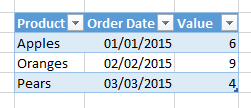
Consider the following table of sales data on an Excel worksheet:

Source

With this table loaded into the Data Model (and the Order Date column recognised as containing data of the Date data type), when you go to the Design tab in the Power Pivot window you’ll see the new Date Table button enabled:

Menu

Clicking on the New button will add a new date table to the Data Model, called Calendar:

CalendarBasic

This table is automatically marked as the Date Table in your model.

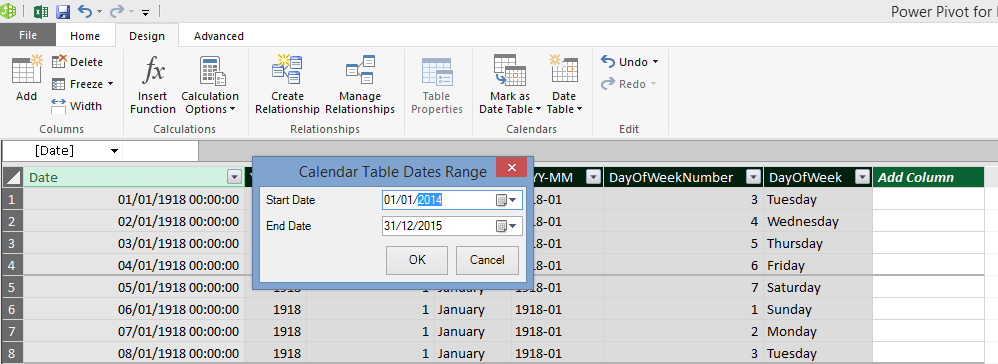
The table contains a continuous range of dates starting from the beginning of the year of the earliest date found in any column in any table in your Data Model, up to the end of the year containing the latest date found in any column in any table in your Data Model. Obviously, this means that your table could contain a very large date range if, for example, you have a Customer table containing a Date Of Birth column. Luckily, you also have the option of manually configuring the range of dates used by clicking the Update Range button:

Range

One other thing to point out is that the resulting table is a table like any other, so you can add, delete or rename columns as you wish. You should also be able to set the table back to its default state by using the Set Default menu option, but I couldn’t make that work (possibly it hasn’t been implemented yet – this post was written using the Excel 2016 Preview).

If you do make changes like adding calculated columns, such as the Month Year calculated column shown below:

Calc

You can then click the Save Configuration button to save the current state of the table as your default. This means that the next time you create a new Date table in the same workbook, the table will include any customisations. However these changes don’t seem to be applied in Date tables created in new workbooks – maybe this will also change before RTM?

All in all, this is a very handy feature that will save Power Pivot modellers a lot of time. I wonder if it uses the new Calendar() or CalendarAuto() DAX functions under the covers?