Thoughts On All The Recent Power BI/SQL Server 2016 BI/Excel 2016 News

The last few weeks have seen more Microsoft BI-related announcements in a short time than I can ever remember before. Some of them I’ve blogged about; most I’ve at least tweeted. For good summaries of what’s coming for Power BI, on-premises SQL Server BI and Excel 2016 I can recommend the following posts by other people, all of which are worth reading:

http://www.jenunderwood.com/2015/05/14/sql-server-bi-2016/

http://www.jenunderwood.com/2015/04/23/april-microsoft-bi-world-news/

http://byobi.com/blog/2015/05/ssas-related-enhancements-in-sql-server-2016/

https://gqbi.wordpress.com/2015/05/14/bi-nsight-excel-2016-power-bi-updates-including-new-data-sources-azure-sql-data-warehouse/

https://gqbi.wordpress.com/2015/05/07/bi-nsight-sql-server-2016-power-bi-updates-microsoft-azure-stack/

Even then I’m not sure everything has been covered, and because new stuff is coming thick and fast (custom regions in Power Map! DirectQuery/ROLAP in the cloud with Power BI connecting to Azure SQL Database!) it’s hardly worth trying. However, I do think this is as good a point as any to work out what I think about all this activity and where Microsoft is heading.

SSAS Multidimensional Improvements

I’m well past the stage of feeling angry about the neglect of SSAS Multidimensional over the past few years, and I’m genuinely grateful that it’s getting some investment rather than nothing at all. That said, I’m not sure which customers asked for Netezza support or DBCC – they aren’t things I’ve ever needed. The promised performance improvements are where I expect the real value to be, and on their own they will probably give existing customers reason enough to upgrade to 2016. It would have been nice to get even one new feature from this list though.

SSAS Tabular Improvements

As expected, the Tabular engine in SSAS 2016 gets a lot of new stuff for free because of its shared heritage with other Power BI tools. My feeling is that uptake of Tabular has been slower than it should have been because 2012 was, frankly, a bit v1.0 with all the immaturity that implies, and there haven’t been any substantial improvements since then. With 2016, though, it looks like Tabular will take a great leap forward and as a result be seen as a much more capable platform. There will certainly be fewer reasons to choose Multidimensional over Tabular, although for applications that require complex calculations (such as financial applications) Multidimensional will still have the upper hand. The more reasons I have to love Tabular, the less I’ll worry about the lack of new features in Multidimensional.

Power Query And The Corporate/Self-Service BI Crossover

As regular readers of this blog may have noticed, I like Power Query a lot and I’m pleased to see that it has extended its reach into corporate BI. Power Query as a data source for SSAS will be important for scenarios where Power Pivot models are upgraded to server-side solutions; I don’t think it will be a good idea to use Power Query if you’re building an SSAS solution from scratch though. Power Query in SSIS was another predictable development and one which should make it easier to work with certain data sources (such as Excel files); the existing ability to publish the output of an SSIS package as an OData feed using the Data Streaming Destination, which can then be consumed by Power Query, could open up some interesting scenarios where a user builds a data set in Power Query and publishes it via SSIS for consumption by other Power Query users.

It’s the promised integration of Power Query and SSRS that excites me most though. I asked for it here and it looks like my wish has been granted! As well as providing access to a wider range of data sources and a common ‘get data’ experience with other tools, I think it will be the key to making SSRS and in particular Report Builder the self-service BI tool that so many customers want it to be. Report Builder has struggled with two problems since it first appeared: first, make it easier for users to lay out a nice-looking report on a canvas, something that the current version does a reasonable job of I think; and second, make it easy for non-technical users (who, for example, might have little or no SQL knowledge) to get data from data sources for their reports – this is where it has not succeeded in the past, and where Power Query could make all the difference. Power Query, among other things, is a solid, user friendly, SQL generation tool. This, plus the fact that SSRS will be updated for all modern browsers and get new visualisations and report themes etc, means that the vast number of existing SSRS customers will have a lot of good reasons to upgrade to 2016, and when they do they’ll also find it easy to integrate with the rest of Power BI.

Power BI: Will Anyone Buy It?

It’s very easy for Microsoft BI fanboys like me to get all worked up by the constant drip feed of tweets about new Power BI features. An impartial observer will point out that some of these features, like the ability to change the colours of your charts in Power View, are actually things we should be embarrassed at not having already. Nonetheless I think it’s fair to say that Microsoft are doing a good job of getting its core customers excited about Power BI and there’s also a lot of evidence that people outside this core at, at least, curious, so from a marketing perspective everything’s going well.

Even if the marketing is good, that will only get Power BI evaluated. Those evaluations will only turn into purchases if the product itself is up to the task. Microsoft set itself an extremely difficult task when it decided to change the direction of Power BI and deliver a respectable version 1.0 this year; the impressive speed that new features are arriving at suggests that they will manage it. When this product is put side-by-side with competing tools it will have some advantages – Power Query is excellent, the Power Pivot engine is fast and can handle all kinds of complex calculations – but will inevitably appear immature in other respects such as visualisation. I think the limit on the amount of data that can be held in a single data model, either on the desktop or in the cloud, is also something that will be a problem for those of us who are used to building server-side SSAS solutions that can hold all the data the user ever needs to see. Maybe DirectQuery/ROLAP on SQL Azure and perhaps Azure SQL Data Warehouse will make this irrelevant? Overall though in my opinion the version of ‘new’ Power BI that will RTM later this year will be seen as more than good enough from a technical standpoint, and if this rate of change is maintained for version 2.0 then it will be something special.

I also think that the focus on building APIs and connectors to other web services is a really clever move. There are a lot of other vendors out there who don’t want to build their own BI functionality, and if Microsoft can convince them to use Power BI that will bring a lot of customers on board. Even at this early stage it looks like Microsoft is doing a good job of recruiting these vendors (SQL Sentry for example, but there are many others) as well as getting other teams inside Microsoft (like Visual Studio Online) to do the same. Close integration with new Microsoft services like Azure Stream Analytics and Azure SQL Data Warehouse should have a similar effect, although less pronounced given that these new services will have few users initially.

While I admit the divorce from Excel was the right thing to do in the circumstances, I still find that I prefer working in Excel over the Power BI Dashboard Designer. Maybe that’s partly due to habit, but Power View still has a long way to go before it has the flexibility of Excel PivotTables and especially cube formulas. That’s why I think Marco Russo’s campaign to create an API for the Dashboard Designer and to support external connections from Excel and other tools is so important. If you haven’t voted already, please do so now! This would be a killer feature in that it would allow you to continue to build reports in Excel (maybe 32-bit) while still making use of new features in the engine. It would give use all the good things we have today with the Excel Power add-ins and more. It would also, as Marco points out, be another reason for third party vendors to use the Power BI platform.

The final factor to consider is price. Making the Dashboard Designer free is important, because it’s not just a Dashboard Designer but a complete, standalone desktop self-service BI solution in itself. Many customers will use it as such without buying a Power BI subscription – that is, if they know that is an option. The free/$9.99 cloud subscription model is also very attractive, and all in all the new pricing model is a refreshing change from the nightmare that ‘old’ Power BI licensing was. I wonder if there will be any particular incentives (financial or otherwise) for partners to sell or recommend Power BI to their customers? If not,there probably should be.

Conclusion

Overall, I’m happier with the direction that Microsoft BI is going in than I have been for a long time. Power BI now seems like it has some momentum behind it, and that it is a coherent product rather than a collection of (individually impressive) tools bound into Excel that, for one reason or another, customers couldn’t use to their full potential. We’ll have to see whether it does become a commercial success or not but I think it has a good chance of doing so now. Excel 2016 also has some welcome improvements, even if it is now the ‘slow track’ for self-service BI; the more users discover Power Pivot and Power Query via Excel 2013 and soon 2016, the more likely it is that they’ll start using the rest of the Power BI stack.

Meanwhile it seems like at last there is at last a serious commitment to improve the on-premises SQL Server BI stack on the part of Microsoft. Some time ago I wrote a post on why corporate BI and self-service BI are both necessary and I still stand by what I said there; it’s also clear that a lot of customers, especially enterprise customers and especially in Europe, are not yet ready to put their most valuable data in the cloud. Microsoft has the chance to be one of the few vendors with great self-service and corporate BI stories, and great on-premises and cloud BI stories. Also, given that today’s SQL Server BI customers are the most likely to become tomorrow’s Power BI customers, keeping them happy in the medium term while Power BI matures should be a priority.

Let’s see where we are this time next year…?

Analysing SSAS Extended Event Data With Power Query: Part 2, Storage Engine Activity

In part 1 of this series I showed how to use Power Query to extract Extended Event data generated by SSAS. Having done that, I now want to show the first (I hope of many) examples of how this data can be used for performance tuning: analysing activity in the Storage Engine, the part of SSAS that reads data from disk and aggregates it up.

I won’t go into the technical details of how I’ve used Power Query to crunch this data; you can download the sample workbook here and see for yourself. There’s nothing particularly complex going on. In brief, what I’ve done is the following:

  • Called the function shown in part 1 to get the raw Extended Event data
  • Filtered that data so that only the Query End, Query Subcube Verbose and Progress Report End events are left
  • Calculated the start time of each event relative to the start time of the earliest recorded event, to make plotting these events on a waterfall chart possible
  • Built an Excel report, including various Power Pivot measures, some normal slicers to make it easy to filter the data, some disconnected slicers for filtering so you only see events that started within a given time range, and a PivotChart showing the waterfall chart (since Excel doesn’t support this type of chart natively, I’ve used this technique to reproduce a waterfall chart with a stacked bar chart)

Here’s an example screenshot of the result, showing Storage Engine activity for a single query:

image

Though it’s hard to see the details at this resolution, the yellow line is the Query End event associated with the query, the grey lines are the Query Subcube Verbose events associated with the query, and the brown lines are the Progress Report events associated with each Query Subcube Verbose event.

What could this be used for? Here are some ideas:

  • Looking for times when there are a lot of queries running simultaneously – and which, as a result, may be performing poorly.
  • Looking for long-running Query Subcube Verbose and Progress Report End events which could be optimised by the creation of aggregations.
  • Visualising the amount of parallelism inside the Storage Engine, in particular the number of Progress Report End events that are running in parallel. This would be very interesting for queries using distinct count measures when you are testing different ways of partitioning your measure group.
  • Highlighting situations where calculations are being evaluated in cell-by-cell mode. When this happens you typically see a very large number of Query Subcube Verbose events being fired off within a query.

I’d like to stress once again that the object of this exercise is not to show off a ‘finished’ tool, but to show how Power Query, Power Pivot and Excel can be used for self-service analysis of this data. This workbook is just a starting point: if you wanted to use this on your own data it’s extremely likely you’d need to change the Power Query queries, the Power Pivot model and the report itself. Hopefully, though, this workbook will save you a lot of time if you do need to understand what’s going on in the Storage Engine when you run an MDX query.

Analysing SSAS Extended Event Data With Power Query: Part 1

The other day, while I was reading this post by Melissa Coates, I was reminded of the existence of extended events in SSAS. I say ‘reminded’ because although this is a subject I’ve blogged about before, I have never done anything serious with extended events because you can get the same data from Profiler much more easily, so I had pretty much forgotten about them. But… while Profiler is good, it’s a long way from perfect and there’s a lot of information that you can get from a trace that is still very hard to analyse. I started thinking: what if there was a tool we could use to analyse the data captured by extended events easily? [Lightbulb moment] Of course, Power Query!

I’m not going to go over how to use Extended Events in SSAS because the following blog posts do a great job already:
http://byobi.com/blog/2013/06/extended-events-for-analysis-services/
http://markvsql.com/2014/02/introduction-to-analysis-services-extended-events/
https://francescodechirico.wordpress.com/2012/08/03/identify-storage-engine-and-formula-engine-bottlenecks-with-new-ssas-xevents-5/

You may also want to check out these (old, but still relevant) articles on performance tuning SSAS taken from the book I co-wrote with Marco and Alberto, “Expert Cube Development”:

http://www.packtpub.com/article/query-performance-tuning-microsoft-analysis-services-part1
http://www.packtpub.com/article/query-performance-tuning-microsoft-analysis-services-part2

What I want to concentrate on in this series of posts is how to make sense of this data using Power BI in general and Power Query in particular. The first step is to be able to load data from the .xel file using Power Query, and that’s what this post will cover. In the future I want to explore how to get at and use specific pieces of text data such as that given by the Query Subcube Verbose, Calculation Evaluation and Resource Usage events, and to show how this data can be used to solve difficult performance problems. I’m only going to talk about SSAS Multidimensional, but of course a lot of what I show will be applicable (or easily adapted to) Tabular; I guess you could also do something similar for SQL Server Extended Events too. I’m also going to focus on ad hoc analysis of this data, rather than building a more generic performance monitoring solution; the latter is a perfectly valid thing to want to build, but why build one yourself when companies like SQL Sentry have great tools for this purpose that you can buy off the shelf?

Anyway, let’s get on. Here’s a Power Query function that can be used to get data from one or more .xel files generated by SSAS:

[sourcecode language=”text” padlinenumbers=”true”]
(servername as text,
initialcatalog as text,
filename as text)
as table =>
let
//Query the xel data
Source = Sql.Database(servername,
initialcatalog,
[Query="SELECT
object_name, event_data, file_name
FROM sys.fn_xe_file_target_read_file ( ‘"
& filename & "’, null, null, null )"]),
//Treat the contents of the event_data column
//as XML
ParseXML = Table.TransformColumns(Source,
{{"event_data", Xml.Tables}}),
//Expand that column
Expandevent_data = Table.ExpandTableColumn(ParseXML,
"event_data",
{"Attribute:timestamp", "data"},
{"event_data.Attribute:timestamp",
"event_data.data"}),
//A function to tranpose the data held in the
//eventdata.data column
GetAttributeData = (AttributeTable as table) as table =>
let
RemoveTextColumn = Table.RemoveColumns(AttributeTable,
{"text"}),
SetTypes = Table.TransformColumnTypes(RemoveTextColumn ,
{{"value", type text}, {"Attribute:name", type text}}),
TransposeTable = Table.Transpose(SetTypes),
ReverseRows = Table.ReverseRows(TransposeTable),
PromoteHeaders = Table.PromoteHeaders(ReverseRows)
in
PromoteHeaders,
//Use the function above
ParseAttributeData = Table.TransformColumns(Expandevent_data,
{"event_data.data", GetAttributeData})
in
ParseAttributeData
[/sourcecode]


This function can be thought of as the starting point for everything else: it allows you to load the raw data necessary for any SSAS performance tuning work. Its output can then, in turn, be filtered and transformed to solve particular problems.

The function takes three parameters:

  • The name of a SQL Server relational database instance – this is because I’m using sys.fn_exe_file_target_read_file to actually read the data from the .xel file. I guess I could try to parse the binary data in the .xel file, but why make things difficult?
  • The name of a database on that SQL Server instance
  • The file name (including the full path) or pattern for the .xel files

The only other thing to mention here is that the event_data column contains XML data, which of course Power Query can handle quite nicely, but even then the data in the XML needs to be cleaned and transposed before you can get a useful table of data. The GetAttributeData function in the code above does this cleaning and transposing but, when invoked, the function still returns an unexpanded column called event_data.data as seen in the following screenshot:

image

There are two reasons why the function does not expand this column for you:

  1. You probably don’t want to see every column returned by every event
  2. Expanding all the columns in a nested table, when you don’t know what the names of these columns are, is not trivial (although this post shows how to do it)

Here’s an example of how the function can be used:

[sourcecode language=”text”]
let
//Invoke the GetXelData function
Source = GetXelData(
"localhost",
"adventure works dW",
"C:\SSAS_Monitoring*.xel"),
//Only return Query End events
#"Filtered Rows" = Table.SelectRows(Source,
each ([object_name] = "QueryEnd")),
//Expand Duration and TextData columns
#"Expand event_data.data" = Table.ExpandTableColumn(
#"Filtered Rows", "event_data.data",
{"Duration", "TextData"},
{"event_data.data.Duration",
"event_data.data.TextData"}),
//Set some data types
#"Changed Type" = Table.TransformColumnTypes(
#"Expand event_data.data",
{{"event_data.Attribute:timestamp", type datetime},
{"event_data.data.Duration", Int64.Type}}),
//Sort by timestamp
#"Sorted Rows" = Table.Sort(#"Changed Type",
{{"event_data.Attribute:timestamp", Order.Ascending}}),
//Add an index column to identify each query
#"Added Index" = Table.AddIndexColumn(#"Sorted Rows", "Query Number", 1, 1),
//Remove unwanted columns
#"Removed Columns" = Table.RemoveColumns(#"Added Index",
{"object_name", "file_name"})
in
#"Removed Columns"
[/sourcecode]


All that’s happening here is that the function is being called in the first step, Source, and then I’m filtering by the Query End event, expanding some of the columns in event_data.data and setting column data types. You won’t need to copy all this code yourself though – you just need to invoke the function and then expand the event_data.data column to reveal whatever columns you are interested in. When you run a query that calls this function for the first time, you may need to give Power Query permission to connect to SQL Server and also to run a native database query.

Here’s an example PivotChart showing query durations built from this data after it has been loaded to the Excel Data Model:

image

Not very useful, for sure, but in the next post you’ll see a more practical use for this function.

You can download the sample workbook for this post here.

SSAS Multidimensional Cube Design Video Training

I’ve been teaching my SSAS Cube Design training course for several years now (there are still a few places free for the London course next month if you’re interested) and I have now recorded a video training version of it for Project Botticelli.

The main page for the course is here:

https://projectbotticelli.com/cubes?pk_campaign=tt2015cwb

There’s also a free, short video on using the SSAS Deployment Wizard that you can see here:

https://projectbotticelli.com/knowledge/using-deployment-wizard-ssas-cube-design-video-tutorial?pk_campaign=tt2015cwb

clip_image001

If you register before the end of March using the code TECHNITRAIN2015MARCH you’ll get a 15% discount.

Submit Your Feedback On BI Features In SQL Server V.Next

Following on from last month’s post on ideas for new features in SSAS Multidimensional, if you are interested in telling Microsoft what features you think should be added to the on-prem SQL Server BI tools in the next version you can do so here:

http://support.powerbi.com/forums/282523-bi-in-sql-vnext/filters/top

Unsurprisingly, there are plenty of pleas for SSRS to get some love. My suggestion is to integrate Power Query with SSRS: it would add a lot of new data sources that SSRS desperately needs; it would add data transformation and calculation capabilities; and it would also provide the beginnings of a common developer experience for corporate and self-service BI tools – Power Query integrated with Report Builder would be a useful companion to the Power BI Dashboard Designer.

Optimising SSAS Many-To-Many Relationships By Adding Redundant Dimensions

The most elegant way of modelling your SSAS cube doesn’t always give you the best query performance. Here’s a trick I used recently to improve the performance of a many-to-many relationship going through a large fact dimension and large intermediate measure group…

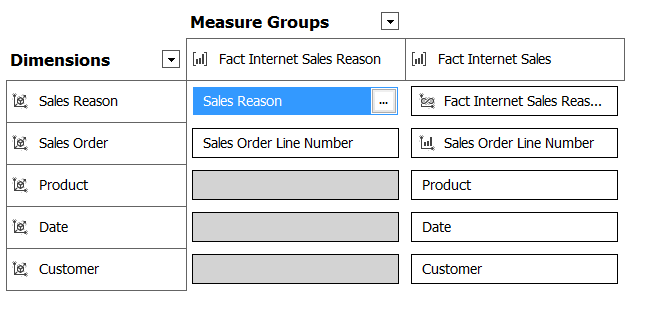
Consider the following cube, built from the Adventure Works DW database and showing a many-to-many relationship:

image

The Fact Internet Sales measure group contains sales data; the Product, Date and Customer dimensions are what you would expect; Sales Order is a fact dimension with one member for each sales transaction and therefore one member for each row in the fact table that Fact Internet Sales is built from. Each Sales Order can be associated with zero to many Sales Reasons, and the Sales Reason dimension has a many-to-many relationship with the Fact Internet Sales measure group through the Fact Internet Sales Reason measure group. Only the Sales Order dimension connects directly to both the Fact Internet Sales Reason and Fact Internet Sales measure groups.

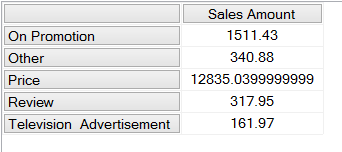
There’s nothing obviously wrong with the way this is modelled – it works and returns the correct figures – and the following query shows how the presence of the many-to-many relationship means you can see the Sales Amount measure (from the Fact Internet Sales measure group) broken down by Sales Reason:

[sourcecode language=”text” padlinenumbers=”true”]
select
{[Measures].[Sales Amount]} on 0,
non empty
[Sales Reason].[Sales Reason].[Sales Reason].members
on 1
from m2m1
where([Date].[Calendar Year].&[2003],
[Product].[Product Category].&[3],
[Customer].[Country].&[United Kingdom])
[/sourcecode]


image

However, to understand how we can improve the performance of a many-to-many relationship you have to understand how SSAS resolves the query internally. At a very basic level, in this query, SSAS starts with all of the Sales Reasons and then, for each one, finds the list of Sales Orders associated with it by querying the Fact Sales Reason measure group. Once it has the list of Sales Orders for each Sales Reason, it queries the Fact Internet Sales measure group (which is also filtered by the Year 2003, the Product Category Clothing and the Customer Country UK) and sums up the value of Sales Amount for those Sales Orders, getting a single value for each Sales Reason. A Profiler trace shows this very clearly:

image

The Resource Usage event gives the following statistics for this query:

READS, 7

READ_KB, 411

WRITES, 0

WRITE_KB, 0

CPU_TIME_MS, 15

ROWS_SCANNED, 87299

ROWS_RETURNED, 129466

Given that the Sales Order dimension is a large one (in this case around 60000 members – and large fact dimensions are quite common with many-to-many relationships) it’s likely that one Sales Reason will be associated with thousands of Sales Orders, and therefore SSAS will have to do a lot of work to resolve the relationship.

In this case, the optimisation comes with the realisation that in this case we can add the other dimensions present in the cube to the Fact Sales Reason measure group to try to reduce the number of Sales Orders that each Sales Reason is resolved to. Since Sales Order is a fact dimension, with one member for each sales transaction, then since each sales transaction also has a Date, a Product and a Customer associated with it we can add the keys for these dimensions to the fact table on which Fact Sales Reasons is built and join these dimensions to it directly:

image

This is not an assumption you can make for all many-to-many relationships, for sure, but it’s certainly true for a significant proportion.

The Product, Date and Customer dimensions don’t need to be present for the many-to-many relationship to work, but adding a Regular relationship between them and Fact Internet Sales Reason helps SSAS speed up the resolution of the many-to-many relationship when they are used in a query. This is because in the original design, in the test query the selection of a single member on Sales Reason becomes a selection on all of the Sales Orders that have ever been associated with that Sales Reason; with the new design, the selection of a single member on Sales Reason becomes a selection on a combination of Dates, Customers, Products and Sales Orders – and since the query itself is also applying a slice on Date, Customer and Product, this is a much smaller selection than before. For the query shown above, with the new design, the Resource Usage event now shows:

READS, 11

READ_KB, 394

WRITES, 0

WRITE_KB, 0

CPU_TIME_MS, 0

ROWS_SCANNED, 47872

ROWS_RETURNED, 1418

The much lower numbers for ROWS_SCANNED and ROWS_RETURNED shows that the Storage Engine is doing a lot less work. For the amount of data in Adventure Works the difference in query performance is negligible, but in the real world I’ve seen this optimisation make a massive difference to performance, resulting in queries running up to 15 times faster.

Don’t forget that there are many other ways of optimising many-to-many relationships such as the those described in this white paper. Also, if you have a large fact dimension, if it does not need to be visible to the end user and is only needed to make the many-to-many relationship work, you can reduce the overhead of processing it by breaking it up into multiple smaller dimensions as described here.

If I Could Have New Features In SSAS Multidimensional, What Would They Be?

Indulge me for a moment, please. Let’s imagine that somewhere in Microsoft, someone is planning for SQL Server v.next and is considering investing in new features for SSAS Multidimensional (don’t laugh – I wouldn’t be writing this post if I didn’t think it was a possibility). What features should they be?

Before I answer that question, it’s worth pointing out that despite what you might think there has been some investment in SSAS Multidimensional over the last few years. This post lists what was new in SSAS 2012 Multidimensional; since then support for DAX queries has been added and, umm, the new Divide() function. This must have been a lot of work for someone – but why does it get overlooked? One reason: none of these changes have made much difference to the ordinary SSAS Multidimensional developer’s life. DAX query support is great if you’re one of the few people that uses the SharePoint version of Power View; shockingly, it still doesn’t work in Excel 2013 Power View yet (though I guess it will be the way the new Power BI connects to on-prem Multidimensional). NUMA support is great if you work for an investment bank and have vast amounts of data and a high-spec server, but that’s only about 0.1% of the installed base.

So from this we can learn that the main consideration when choosing new features to implement should be that they should be relevant to the majority of SSAS Multidimensional developers, otherwise they’ll be ignored and MS may as well have not bothered doing anything. To that we can add these other considerations:

  • These features should provide compelling reasons to upgrade from earlier versions of SSAS to the new version
  • While some features should be available in all editions, there should also be some features that encourage customers to upgrade from Standard Edition to Enterprise Edition
  • There are a limited resources (time and developers) available and Power Pivot/SSAS Tabular will be the priority, so only a few features can be delivered.
  • Features that are only there to support Power BI don’t count

With all of that borne in mind, here’s what I would choose to implement based on what I see as a consultant and from the popularity of particular topics on my blog.

Last-Ever Non Empty

One of the most popular posts I’ve ever written – by a gigantic margin – is this one on the last-ever non-empty problem. Given that so many people seem to come up against this, and that the MDX solution is complex and still doesn’t perform brilliantly, I think it should be built into the engine as a new semi-additive aggregation type. Since semi-additive measures are Enterprise Edition only, this would be my sole Enterprise Edition feature.

MDX Calculation Parallelism

Ever since I’ve been working with SSAS, people have always asked why the Formula Engine has been single-threaded. I understand why the SSAS dev team have ignored this question and instead concentrated on tuning specific scenarios: doing parallelism properly would be extremely difficult given the way MDX calculations can be layered over each other, and in plenty of cases it could lead to worse performance, not better. However I’m not asking for a ‘proper’ implementation of parallelism. I just want something dumb: a boolean property that you can set on a calculation that tells the Formula Engine to do this calculation on a separate thread. If it makes performance better then great; if not, then don’t set it. My guess is that even a crude implementation like this could make a gigantic difference to performance on many calculation-heavy cubes.

Drillthrough

Drillthrough is one of those features that almost everyone wants to use, but for some reason has been left in a semi-broken state ever since 2005. Here’s what needs to change:

  • It should work with calculated members. I don’t expect SSAS to understand magically how to work out which rows to display for any given MDX calculation, but I would like a way of specifying in MDX what those rows should be.
  • Those stupid, ugly column names – SSDT should let us specify readable column names and let us have complete control over the order they appear in.
  • Excel should allow drillthrough on multiselect filters.

‘Between’ Relationships

This might seem a bit of a strange choice, and I suspect it may not be easy to implement, but another problem that I come across a lot in my consultancy is the ‘events-in-progress’ problem. I’ve blogged about solving it in MDX and DAX, as have many others. I would love to see a new ‘between’ dimension/measure group relationship type to solve this. In fact, competing OLAP vendor iccube already implemented this and you can see how it works on that platform here and here. My feeling is that this would open up a massive number of modelling opportunities, almost as many as many-to-many relationships.


And that’s it, four features that I think could make SSAS Multidimensional v.next a must-have upgrade. I’m not so naive to believe that any or all of these will be implemented, or even that we’ll get any new features at all, but who knows? If you have any other suggestions, please leave a comment.

Deprecated/Discontinued Functionality In SSAS 2014

Last week while reading Bill Anton’s blog (which is, by the way, highly recommended) I came across a link to a page in Books Online that I hadn’t seen before: a list of deprecated and discontinued functionality in SSAS 2014. Here it is:

https://msdn.microsoft.com/en-us/library/ms143479.aspx

The most interesting point is that the Non_Empty_Behavior property on calculations will not be supported in SSAS v.next. I still see this property being used a lot, and as I show here if you use it incorrectly it can give you bad results. Although I have seen a few cases where it has been necessary to set Non_Empty_Behavior (for example here) they have been very, very rare and I think deprecating it is the right decision. Other than that, remote partitions, linked dimensions and dimension writeback will also be no longer supported in a ‘future’ version, but I don’t think anyone will be too worried about those features.

A Closer Look At Power Query/SSAS Integration

In the November release of Power Query the most exciting new feature was the ability to connect to SSAS. I blogged about it at the time, but having used it for a month or so now I thought it was worth writing a more technical post showing how it works in more detail (since some things are not immediately obvious) as well as to see what the MDX it generates looks like.

This post was written using Power Query version 2.18.3874.242, released January 2015; some of the bugs and issues mentioned here will probably be fixed in later versions.

Connecting to SSAS

Power Query officially supports connecting to all versions of SSAS from 2008 onwards, although I’ve heard from a lot of people they have had problems getting the connection working. Certainly when I installed the version of Power Query with SSAS support in on my laptop, which has a full install of SQL Server 2014, it insisted I install the 2012 version of ADOMD.Net before it would work (I also needed to reboot). My guess is that if you’re having problems connecting you should try doing that too; ADOMD.Net 2012 is available to download in the SQL Server 2012 Feature Pack.

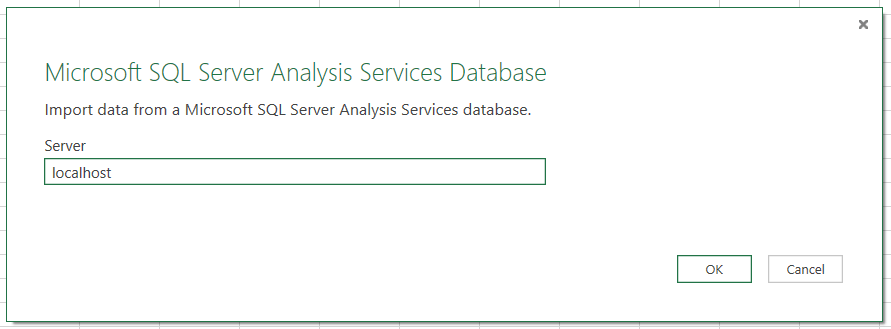
After clicking From Database/From SQL Server Analysis Services the following dialog appears, asking you to enter the name of the server you want to connect to.

image

If this is the first time you’re connecting to SSAS the following dialog will appear, asking you to confirm that you want to use Windows credentials to connect.

image

Unfortunately, if you’re connecting via http and need to enter a username and password you won’t be able to proceed any further. I expect this problem will be fixed soon.

Initial Selection

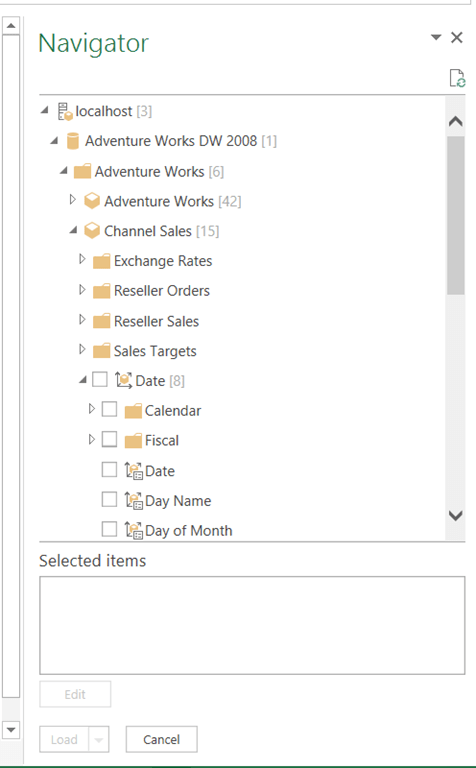
Once you’ve connected the Navigator pane appears on the right-hand side of the screen. Here you see all of the databases on the server you’ve connected to; expand a database and you see the cubes, and within each cube you see all of the measure groups, measures, dimensions and hierarchies.

image

The previous build of Power Query does not display any calculated measures that aren’t associated with measure groups (using the associated_measure_group property); this has been fixed in version 2.18.3874.242.

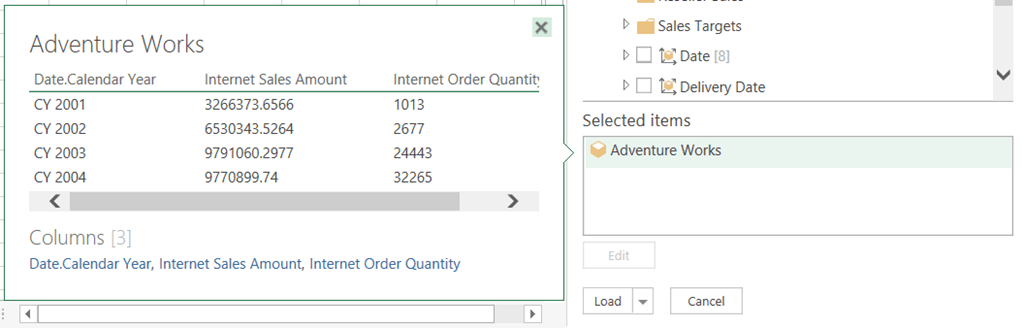
When you start to select measures and hierarchies the name of the cubes you have chosen items from will appear in the Selected items box. If you hover over the name of the cube the peek pane will appear and you’ll see a preview of the results of the query.

image

At this point you can either click the Load button to load the data either to the worksheet or the Excel Data Model, or click the Edit button to edit the query further.

You cannot specify your own MDX query to use for the query as yet.

The Query Editor

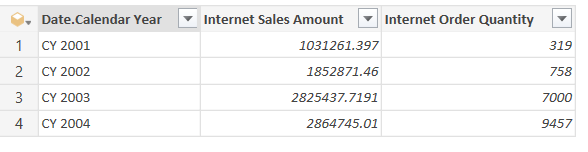
Once the Power Query Query Editor opens you’ll see the output of the query as it stands, and also on the Cube tab in the ribbon two new buttons: Add Items and Collapse Columns.

image

Here’s the MDX (captured from Profiler) showing the MDX generated for the query in the screenshot above:

[sourcecode language=”text” padlinenumbers=”true”]
select
{[Measures].[Internet Sales Amount],[Measures].[Internet Order Quantity]}
on 0,
subset(
nonempty(
[Date].[Calendar Year].[Calendar Year].allmembers
,{[Measures].[Internet Sales Amount],[Measures].[Internet Order Quantity]})
,0,50)
properties member_caption,member_unique_name
on 1
from [Adventure Works]
[/sourcecode]


The MDX Subset() function is used here to ensure that the query doesn’t return more than 50 rows.

Adding Items

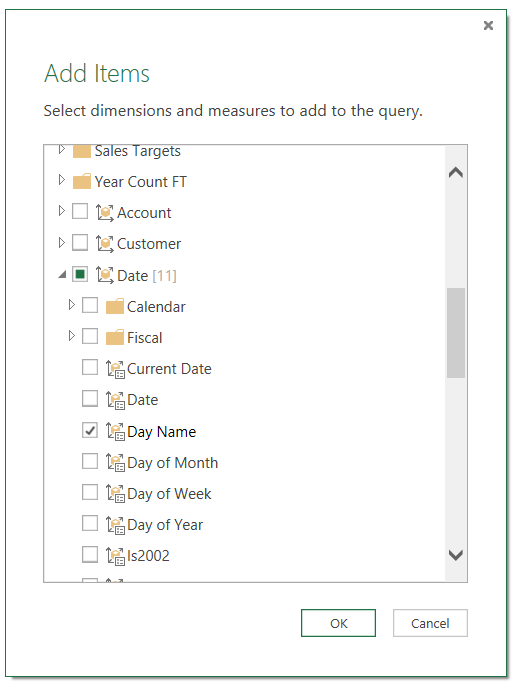
Clicking on the Add Items button allows you to add extra hierarchies and measures to the query. When you click the button the following dialog appears where you can choose what you want to add:

image

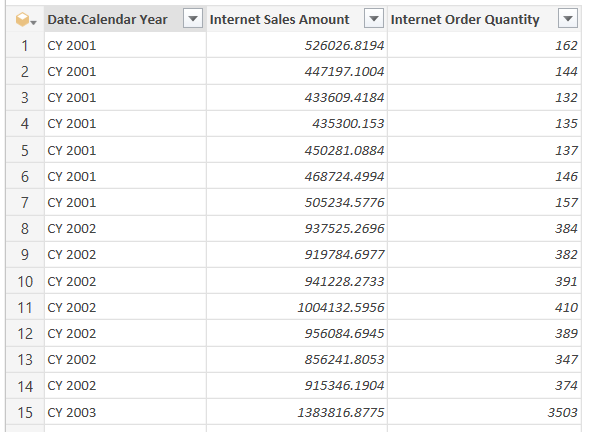
In this case I’ve added the Day Name hierarchy to the query, and this hierarchy appears as a new column on the right-hand edge of the query after the measures:

image

You can easily drag the column to wherever you want it though.

Here’s the MDX again:

[sourcecode language=”text”]
select
{[Measures].[Internet Sales Amount],[Measures].[Internet Order Quantity]}
on 0,
subset(
nonempty(
crossjoin(
[Date].[Calendar Year].[Calendar Year].allmembers,
[Date].[Day Name].[Day Name].allmembers)
,{[Measures].[Internet Sales Amount],[Measures].[Internet Order Quantity]})
,0,50)
properties member_caption,member_unique_name
on 1
from [Adventure Works]
[/sourcecode]


Collapsing Columns

Selecting the Day Name column and then clicking the Collapse Columns button simply rolls back to the previous state of the query. However, there’s more to this button than meets the eye. If you filter the Day Name column (for example, by selecting Saturday and Sunday as in the screenshot below) and then click Collapse and Remove, the filter will still be applied to the query even though the Day Name column is no longer visible.

image

Here’s what the Query Editor shows after the filter and after the Day Name column has been collapsed:

image

Compare the measure values with those shown in the original query – it’s now showing values only for Saturdays and Sundays, although that’s not really clear from the UI. Here’s the MDX generated to prove it – note the use of the subselect to do the filtering:

[sourcecode language=”text”]
select
{[Measures].[Internet Sales Amount],[Measures].[Internet Order Quantity]}
on 0,
subset(
nonempty(
[Date].[Calendar Year].[Calendar Year].allmembers
,{[Measures].[Internet Sales Amount],[Measures].[Internet Order Quantity]})
,0,1000)
properties member_caption,member_unique_name
on 1
from(
select
({[Date].[Day Name].&[7],[Date].[Day Name].&[1]})
on 0
from
[Adventure Works])
[/sourcecode]


From studying the MDX generated I can tell that certain other operations such as sorting and filtering the top n rows are folded back to SSAS.

It’s also important to realise that using the Remove option to remove a column from the query does not have the same effect as collapsing the column:

image

Using Remove just hides the column; the number of rows returned by the query remains the same.

image

User Hierarchies

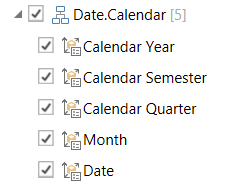
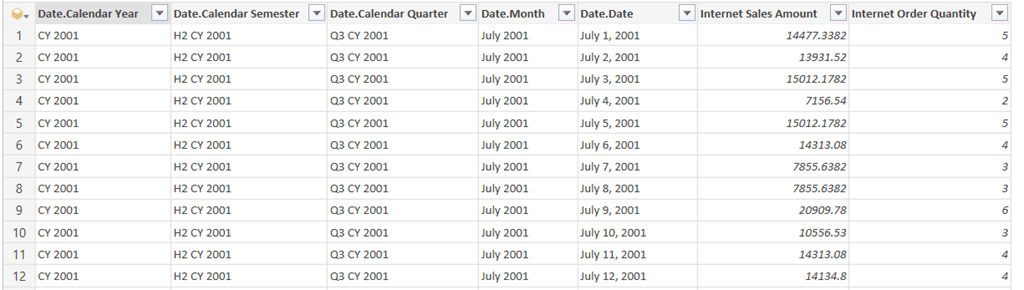
In the examples above I’ve only used attribute hierarchies. User hierarchies aren’t much different – you can select either an individual level or the entire hierarchy (which is the same as selecting all of the levels of the hierarchy).

image

image

Parent-Child Hierarchies

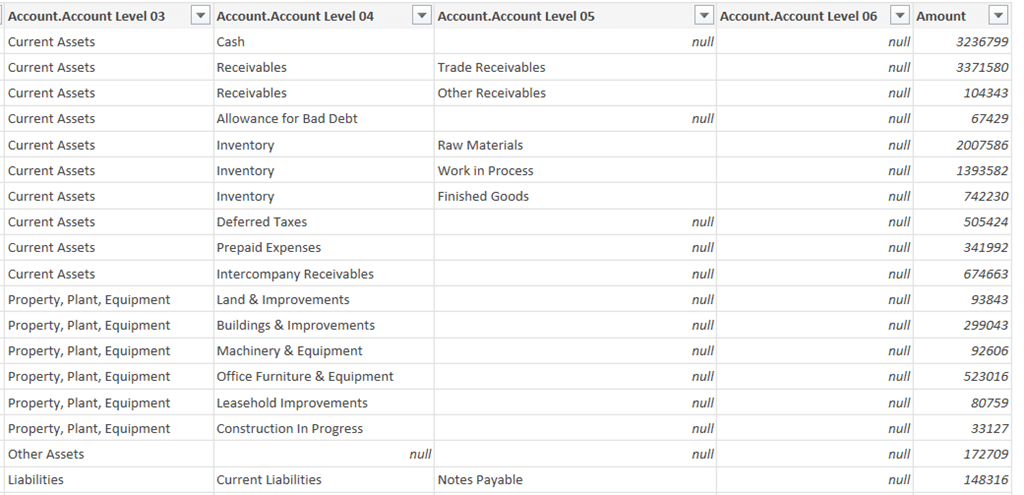
Parent-child hierarchies work very much like user hierarchies, except that you will see some null values in columns to accommodate leaf members at different levels:

image

M Functions

There are a lot of M functions relating to cube functionality, although the documentation in the Library Specification document is fairly basic and all mention of them disappeared from the online help a month or so ago for some reason. Here’s the code for the query in the Collapsing Columns section above:

[sourcecode language=”text”]
let
Source = AnalysisServices.Databases("localhost"),
#"Adventure Works DW 2008" = Source{[Name="Adventure Works DW 2008"]}[Data],
#"Adventure Works1" = #"Adventure Works DW 2008"{[Id="Adventure Works"]}[Data],
#"Adventure Works2" = #"Adventure Works1"{[Id="Adventure Works"]}[Data],
#"Added Items" = Cube.Transform(#"Adventure Works2", {
{Cube.AddAndExpandDimensionColumn,
"[Date]", {"[Date].[Calendar Year].[Calendar Year]"}, {"Date.Calendar Year"}},
{Cube.AddMeasureColumn, "Internet Sales Amount",
"[Measures].[Internet Sales Amount]"},
{Cube.AddMeasureColumn, "Internet Order Quantity",
"[Measures].[Internet Order Quantity]"}}),
#"Added Items1" = Cube.Transform(#"Added Items", {
{Cube.AddAndExpandDimensionColumn, "[Date]",
{"[Date].[Day Name].[Day Name]"}, {"Date.Day Name"}}}),
#"Filtered Rows" = Table.SelectRows(#"Added Items1", each (
Cube.AttributeMemberId([Date.Day Name]) = "[Date].[Day Name].&[7]"
meta [DisplayName = "Saturday"]
or
Cube.AttributeMemberId([Date.Day Name]) = "[Date].[Day Name].&[1]"
meta [DisplayName = "Sunday"])),
#"Collapsed and Removed Columns" = Cube.CollapseAndRemoveColumns(
#"Filtered Rows",
{"Date.Day Name"})
in
#"Collapsed and Removed Columns"
[/sourcecode]


It’s comprehensible but not exactly simple – yet another example of how difficult it is to shoe-horn multidimensional concepts into a tool that expects to work with relational data (see also SSRS). I doubt I’ll be writing any M code that uses these functions manually.

News On SSAS Data Source Support In Power BI

Yesterday we heard (again) that SSAS will be supported as a data source for cloud-based reports in Power BI. Today, in a session, two new important details on this emerged:

  • It will work with both Tabular and Multidimensional
  • It will connect as the user running the query, so SSAS security (eg dimension security) will work just the same as it does on-premises. No special setup will be needed; there were no details apart from the fact it will work using the EffectiveUserName connection string property.

I’m sure a lot of people will be interested to hear this…