Removing Punctuation From Text With The Text.Select M Function In Power BI/Power Query/Excel Get&Transform

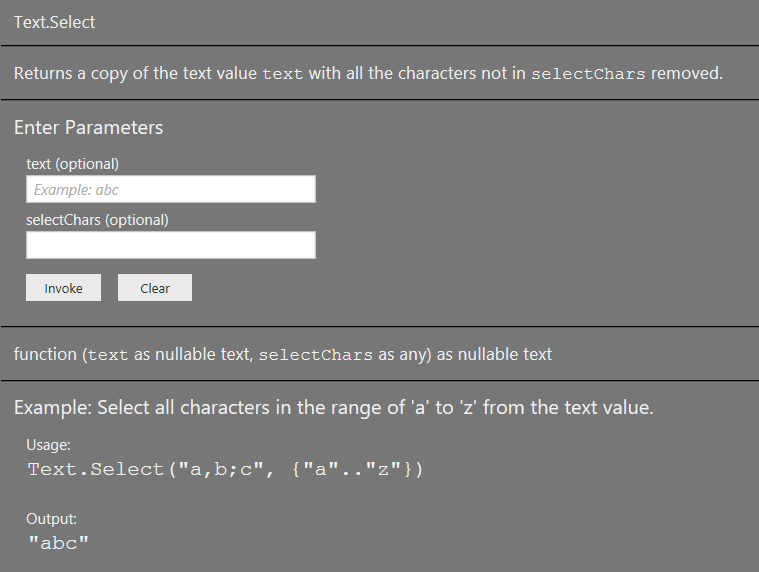
A new, as-yet undocumented, M function appeared in the December 2017 release of Power BI Desktop (I assume it will appear in Excel soon): Text.Select. Here’s the documentation from the Query Editor:
TextSelect

It’s very easy to use: the first parameter takes a text value, the second parameter takes either a text value containing a single text value or a list of single characters, and it returns the text from the first parameter minus all characters that are not in the second parameter. For example, the expression:

[sourcecode language=”text” padlinenumbers=”true”]
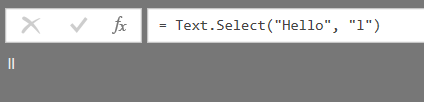
Text.Select("Hello", "l")
[/sourcecode]

…returns the text value “ll”:
image

…and the expression:

[sourcecode language=”text”]
Text.Select("Hello", {"H","e","o"})
[/sourcecode]

…returns the text value “Heo”:

image

There are a lot of scenarios where Text.Select will be useful, and the one that I immediately thought of was to remove punctuation from text. In one of my earliest M posts on this blog I used Text.Remove to do this while trying to find Shakespeare’s favourite words, but the problem with this approach is that you have to explicitly specify all the characters you want to remove from your text – and there could be a lot of characters that need to be excluded. Text.Select is a much better option here because it allows you to specify the characters you want to keep.

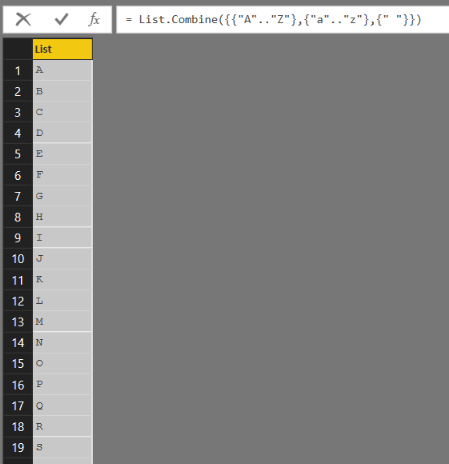
The first step to doing this is to understand how to construct the list of the characters you do want to keep. You can do this very easily in M when declaring a list using the range technique I blogged about here, so you should read that post before carrying on. The following expression returns a list containing all 26 uppercase and lowercase letters in the alphabet plus a space:

[sourcecode language=”text”]
List.Combine({{"A".."Z"},{"a".."z"},{" "}})
[/sourcecode]
image

Of course depending on the scenario or language you’re working with you may want to include other characters, for example apostrophes or letters with accents, too. Here’s a slightly more complex example of how this list can be used with Text.Select:

[sourcecode language=”text”]
let
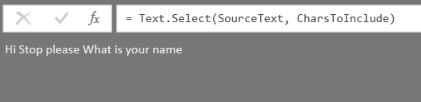
SourceText = "Hi! Stop, please. What is your name?",
CharsToInclude = List.Combine({{"A".."Z"},{"a".."z"},{" "}}),
RemovePunc = Text.Select(SourceText, CharsToInclude)
in
RemovePunc
[/sourcecode]

The query above takes the text “Hi! Stop, please. What is your name?” and returns the text “Hi Stop please What is your name”.
image

Finally, because I couldn’t read my old M code without cringing a little bit, here’s an updated version of my query that gets the top 100 words from the Complete Works Of Shakespeare (direct from the Project Gutenberg website):

[sourcecode language=”text”]
let
URL = "http://www.gutenberg.org/cache/epub/100/pg100.txt",
Source = Text.FromBinary(Web.Contents(URL)),
Lowercase = Text.Lower(Source),
RemovePunctuation = Text.Select(Lowercase,
List.Combine({{"a".."z"},{" "}})),
SplitText = Splitter.SplitTextByWhitespace(QuoteStyle.None),
SplitIntoWords = SplitText(RemovePunctuation),
RemoveBlanks = List.Select(SplitIntoWords, each _<>" "),
TableFromList = Table.FromColumns({RemoveBlanks},
type table [Word=text]),
FindWordCounts = Table.Group(
TableFromList,
{"Word"},
{{"Count", each Table.RowCount(_), type number}}),
SortedRows = Table.Sort(
FindWordCounts,
{{"Count", Order.Descending}}),
KeptFirstRows = Table.FirstN(SortedRows,100)
in
KeptFirstRows
[/sourcecode]

Here they are as a word cloud (yes I know it’s not good dataviz practice, but it’s for fun):

image

You can download the .pbix file with this example in here.

BONUS FACT: another new M function appeared recently too: Function.From. You can read all about it on this thread on the Power Query forum.
Using the Resource Usage Profiler Event For SSAS Multidimensional Query Performance Tuning, Part 1: Rows Scanned And Rows Returned

If you’re performance tuning SSAS Multidimensional Storage Engine issues, the Resource Usage Profiler event can provide a lot of useful information about what’s going on behind the scenes when you run a query. This is something I have blogged about in the past (and it will be useful to read this post before carrying on) but recently I’ve done some more research into this area and found out a lot more things about what this event tells you.

For my testing I created a very simple cube from a single fact table. The table contained 5000 rows and two columns: a dimension key column containing the values 1 to 5000, and a measure column that always contained the value 1. From this I built a single measure group with a single measure called My Measure, and a single dimension built from the dimension key column with 5000 members on it called ID.

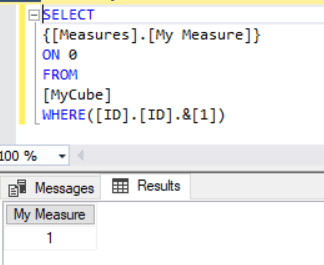
Consider the following MDX query:

[sourcecode language=”text” padlinenumbers=”true”]
SELECT
{[Measures].[My Measure]}
ON 0
FROM
[MyCube]
WHERE([ID].[ID].&[1])
[/sourcecode]

Here’s the output:

image

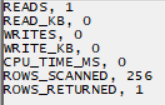
In this query the WHERE clause filters the output to one member from the ID dimension, which in turn returns data from one row in the underlying fact table, and so My Measure returns 1. If the query is run on cold cache, the Resource Usage Profiler event returns the following:

image

The ROWS_RETURNED value here returns 1, which is what you might expect – the query results show data from one row in the underlying fact table. The ROWS_SCANNED value is 256 though. Why? Chapter 20 of the book “Microsoft SQL Server 2008 Analysis Services Unleashed” has a lot of detail about how SSAS MD stores data on disk, but the important point here is that the data in a partition is stored on disk in segments, with each segment made up of pages, and when a query is run SSAS will scan all the pages that it thinks contain data. The ever-reliable Akshai Mirchandani of the SSAS dev team helped me with the remaining information I needed:

  • There are 65536 rows of data per segment
  • There are 256 pages per segment
  • There are therefore, at most, 256 rows per page

So in this case ROWS_SCANNED shows 256 because one complete page was scanned.

Modifying the query to slice on two members from ID like so:

[sourcecode language=”text”]
SELECT
{[Measures].[My Measure]}
ON 0
FROM
[MyCube]
WHERE([ID].[ID].&[1]:[ID].[ID].&[2])
[/sourcecode]

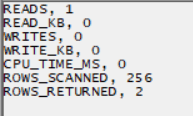
image

…results in a ROWS_RETURNED of 2 and a ROWS_SCANNED that is still 256, because the two rows must be stored in the same page:

image

…while asking for 257 members from ID in the WHERE clause like so:

[sourcecode language=”text”]
SELECT
{[Measures].[My Measure]}
ON 0
FROM
[MyCube]
WHERE([ID].[ID].&[1]:[ID].[ID].&[257])
[/sourcecode]

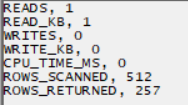
Results in a ROWS_RETURNED of 257 and a ROWS_SCANNED of 257 – obviously 2 pages are now being scanned to get the data needed for the query.

image

Finally, the query:

[sourcecode language=”text” padlinenumbers=”true”]
SELECT
{[Measures].[My Measure]}
ON 0
FROM
[MyCube]
WHERE([ID].[ID].&[5000])
[/sourcecode]

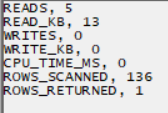
…returns a rows scanned of 136:

image

This must be because the final page, which doesn’t contain the full 256 rows, is scanned. 5000-136=4864, and 4864/256=19, so there must be 20 pages of data: 19 pages of 256 rows and one final page of 136 rows.

I don’t think it’s worth getting too hung up on the exact values that ROWS_SCANNED and ROWS_RETURNED, especially given that they return totals for all Storage Engine activity for all measure groups for the whole query, but knowing that they tell you roughly how much work is being done my the Storage Engine means that you can use them to watch for warning signs that something isn’t working properly when you’re performance tuning queries. In subsequent parts of this series I’ll show some practical examples of this.

Making Sure All Columns Appear When You Combine Data From Multiple Files In Power BI/Power Query M

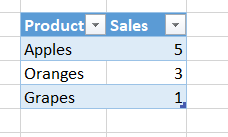
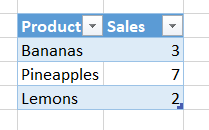
Here’s a really common problem that occurs when combining data from multiple files, or indeed any type of data source, in Power BI/Power Query/Excel Get&Transform. Imagine you have a folder with two Excel files in, and each Excel file contains a table called SalesTable:

image

image

image

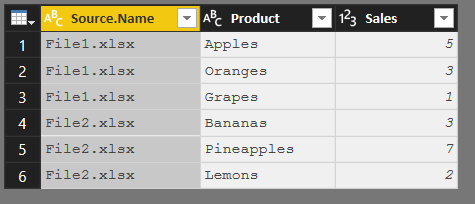
You use the “From Folder” data source to combine all the data from all the Excel files in this folder, you get a table like this:

image

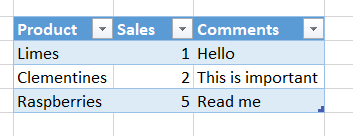
…and you’re happy. Then, at some later date a third file is added to the folder that has an extra column in its SalesTable table called Comments:

image

You refresh your query, though, and you don’t see the Comments column anywhere:

image

Why not? If you look at the query that has been generated and go back to the “Removed Other Columns1” step you’ll see a table containing a column containing table values:

image

…and you’ll also see that the next step in the query, “Expanded Table Column1”, uses the Table.ExpandTableColumn function – the M function that gets called if you click the Expand/Aggregate button in the column header highlighted in the previous screenshot – to flatten these nested tables out. And the problem is that Table.ExpandTableColumn needs to know in advance the names of the columns you want to expand.

Now this is an extremely common, and powerful, Power Query/M pattern. Apart from the “From Folder” functionality for automatically combining data from multiple files it’s something I find myself building manually all the time: write a function, for example to make a single call to a web service; create a table containing one row for each call to the web service that I want to make, use the Invoke Custom Function button to call my function for each row, and then expand to get all the data from all the function calls. And the more I use this pattern, the more I run into situations where I don’t see columns I’m expecting to see because I’ve done an Expand in an earlier step that has a hard-coded list of column names in it (it’s a very similar problem to the one that Ken Puls blogged about here). It’s a pain to have to keep changing this list, and the real problem comes when you don’t actually know in advance what the names of the columns to expand are.

One solution would be to do something similar to what I show in this post: iterate through all the tables in the table column, find a distinct list of column names, and then use this list with Table.ExpandTableColumn. However, there is an easier way to handle this: use Table.Combine instead of Table.ExpandTableColumn. The great thing about Table.Combine is that it will always return all of the columns from all of the tables it’s combining.

Here’s a function that shows how it can be used:

[sourcecode language=”text” padlinenumbers=”true”]
(TableColumn as list, optional SourceNameColumn as list) =>
let
AddIDs =
if
SourceNameColumn=null
then
TableColumn
else
let
ZipNames =
List.Zip({TableColumn, SourceNameColumn}),
AddColumnFunction =
(ListIn as list) =>
Table.AddColumn(ListIn{0}, "Source", each ListIn{1}),
AddColumns =
List.Transform(ZipNames, each AddColumnFunction(_))
in
AddColumns,
Combine = Table.Combine(AddIDs)
in
Combine
[/sourcecode]

This function takes a list of tables and, optionally, a list of text values that contain a name for each table (this optional parameter accounts for the majority of the code – without it all you would need is the Combine step). If you paste this code into a new query called, say, CombineTables, you can either call it by adding some M code to an existing query or more easily just call it direct from the UI. In the latter case when you click on the function query in the Query Editor window you’ll see this:

image

Assuming you already have a query like the one shown above that contains a column with table values in it and another column containing the original Excel file names, you need to click the Choose Column button for the TableColumn parameter and select the column that contains the table values in the dialog that appears:

image

…and then do the same thing for the SourceNameColumn parameter:

image

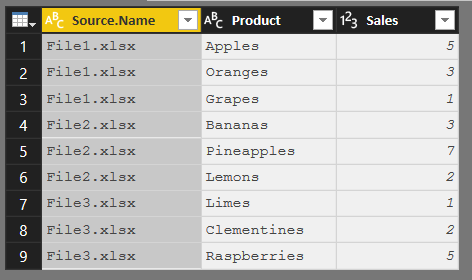
…and then click the Invoke button back in the Query Editor, and you’ll get a table containing all of the data from the SalesTable table in each workbook, including the Comments column from the third Excel workbook:

image

With no hard-coded column names you’ll now always get all of the data from all of the columns in the tables you’re trying to combine.

The Biml Book, And Some Thoughts On Biml And SSAS

I know what you’re thinking: why is Chris blogging about a book on Biml when he’s not remotely interested in SSIS? Well, you’re right, SSIS isn’t my thing (though as an SSAS developer it’s important to keep up-to-date on the tools that the SSIS people on your team use) and yes, as you may have guessed, I got a freebie review copy because I’m an Apress author and I’m friends with one of the authors, Andy Leonard. There is, though, a good reason why I want to learn about Biml: you can use it to generate SSAS databases as well as SSIS packages.

First of all, the book itself. “The Biml Book” is a new book written by a team of Biml experts that teaches you pretty much everything you need to know about Biml. I’m always a bit worried by books with a large number of authors because I know how difficult it is to maintain a consistent style, but in this case I couldn’t see any joins. As someone with no previous experience of Biml. I found the book very clear, concise and easy to read. I highly recommend it as an introduction to the topic.

Of course the chapter on using Biml with SSAS was the most interesting for me. The main reason why SSAS people aren’t as excited about Biml as SSIS people are is that we just don’t usually have the same amount of boring, repetitive work that begs to be automated, and we already have AMO and TOM when we do need to automate the creation of SSAS objects. Indeed, I’ve only ever met one person who is using Biml with SSAS. So when would you use Biml and SSAS? The book provides a good, honest answer:

Biml can be a great fit for Analysis Services use cases, but there are some exceptions.

Just as with SSIS, one of the great advantages of Biml is that it easily allows scale-out architectures through automation. This makes it a good choice when it comes to multi-tenancy and/or multi-server environments.

Given the ability to automate structures and deployments through metadata, Biml frameworks can also include cube projects that can be driven with some of the same metadata that was used to build data integration frameworks.

Conversely, SSAS Multidimensional/Tabular can require the specification of additional types of metadata to automate its creation. After all, cubes and tabular models are largely just metadata containers on top of relational structures. If you want to use your own metadata to drive the creation of bespoke SSAS projects that could support any SSAS feature, you essentially need to duplicate the entire SSAS feature set in your metadata store. This will result in complex models that may be very difficult and time-consuming to maintain, potentially leading to longer instead of shorter development and deployment times. In a nutshell, Biml isn’t for all SSAS projects, but for the pattern-heavy, scale-out projects where it does fit, it’s tremendously valuable.

I’ll give you an example of where I think Biml and SSAS make a good match. I’ve worked with several companies who do what I call B2B BI: they create, host and manage Microsoft BI solutions for their customers. They have a standard template solution that connects to a particular type of data source (for example, their customers’ Dynamics databases), builds a data warehouse and then puts SSAS and maybe some reports on top. As a result they end up with multiple copies of the same solution, with the only difference being that each copy contains a different customer’s data – a classic example of a “multi-tenancy and/or multi-server environment” as described in the extract above. This style of BI will become more and more common in the future because cloud-based services like Azure SSAS and Power BI (both now support Azure AD B2B) make it much easier to implement, and I think Biml could play a very important role here: you don’t want to build and manage hundreds of near-identical SSAS databases, and their supporting ETL, manually.

Power BI Video Training Now Available

If you can’t make it to one of my classroom-based courses in London next year, today I’m pleased to announce that my new Power BI video training course is now available via my friends at Project Botticelli. It covers the following topics:

  • What is Power BI? (Free)
  • Connecting to Data Sources
  • Data Import Concepts
  • Transforming Data with the Query Editor
  • Advanced Data Loading
  • Modelling Data
  • Basic DAX
  • Power BI Desktop vs Excel
  • Cloud and Desktop Power BI Dashboards and Reports
  • Building Reports in Excel
  • Data Refresh (Free)
  • Administration and Auditing (Free)

Several of the shorter videos are free to view. Full details can be found here:

https://projectbotticelli.com/power-bi-desktop-and-cloud-course-video-tutorial?pk_campaign=tt2017a

Other courses available on the site include my MDX and SSAS Multidimensional courses, plus Marco Russo’s DAX course and many others.

If you’re quick, you can use the code CHRIS2017CYBER15 to get a 15% discount on subscriptions before Tuesday November 28th 2017!

In-Person Power BI And Azure Analysis Services Training In London

I’m pleased to announce two in-person training dates in London next year.

First of all, I’ll be running a three-day “Introduction to Power BI” course from January 29th to January 31st 2018.  Suitable for BI pros, analysts and anyone who needs to use Power BI to build reports, I’ll be covering data loading, data modelling, a bit of M, a lot of DAX, report design, publishing, security and administration. Full details and registration can be found here:

http://technitrain.com/coursedetail.php?c=84&trackingcode=CWB

Not long after, on February 22nd 2018, I’ll be teaching a full-day preconference seminar at SQLBits in London on Azure Analysis Services. The agenda can be found here:

http://sqlbits.com/information/event17/Introduction_to_Azure_Analysis_Services/trainingdetails.aspx

…but, to be honest, there’s likely to be a lot of cool new functionality released for Azure SSAS between now and then so that will all have to be fitted in too. SQLBits is, of course, the biggest SQL Server/Microsoft data platform conference in Europe, ridiculously good value for money and loads of fun. Pricing and registration details can be found here:

http://sqlbits.com/information/pricing

UPDATE: the SQLBits team wanted me to make a video to promote my precon, so I outsourced the job to my daughter. Here’s the result:

The Extension.Contents() M Function

Following on from my post last week about M functions that are only available in custom data extensions, here’s a quick explanation of one of those functions: Extension.Contents().

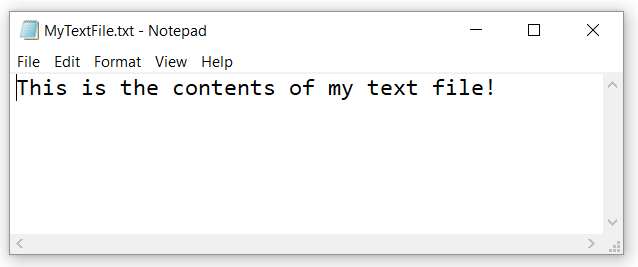
Basically, it allows you to access the contents of any file you include in the .mez file of your custom data connector. Say you have a text file called MyTextFile.txt:

image

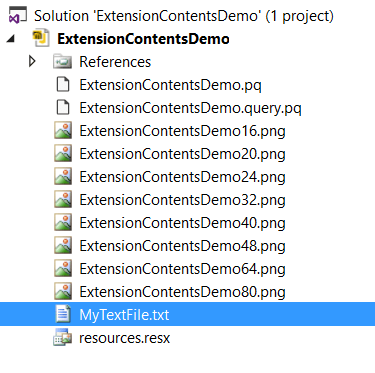
If you create a new Power BI Custom Data Connector project using the SDK, you can add this file to your project in Visual Studio like any other file:

image

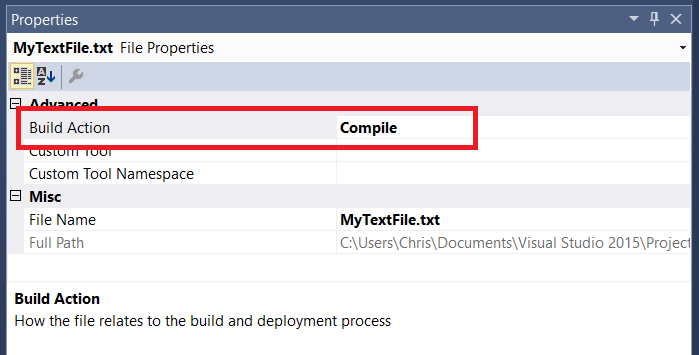
Next, select the file and in the Visual Studio Properties pane set the Build Action property to Compile:

image

Setting this property means that when your custom data connector is built, this file is included inside it (the .mez file is just a zip file – if you unzip it you’ll now find this file inside).

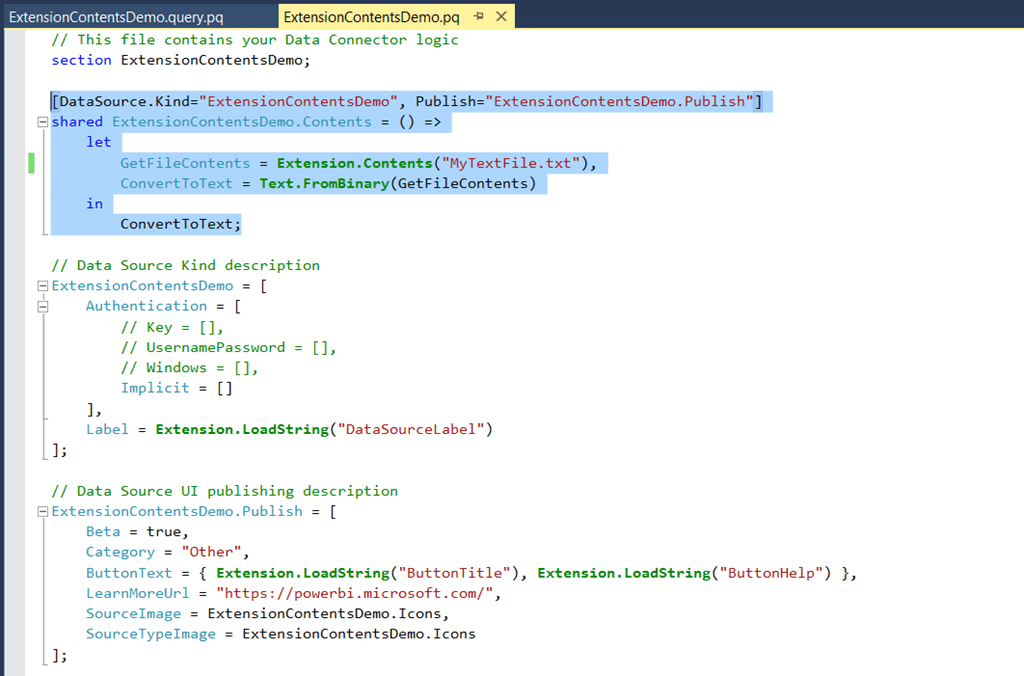
Next, in the .pq file that contains the M code for your custom data connector, you can access the contents of this file as binary data using Extension.Contents(“MyTextFile.txt”). Here’s an example function for use in a custom data connector that does this:

[sourcecode language=”text” padlinenumbers=”true”]
[DataSource.Kind="ExtensionContentsDemo",
Publish="ExtensionContentsDemo.Publish"]
shared ExtensionContentsDemo.Contents = () =>
let
GetFileContents = Extension.Contents("MyTextFile.txt"),
ConvertToText = Text.FromBinary(GetFileContents)
in
ConvertToText;
[/sourcecode]

image

In the let expression here the GetFileContents step returns the contents of the text file as binary data and the ConvertToText step calls Text.FromBinary() to turn the binary data into a text value.

When this function is, in turn, called it returns the text from the text file. Here’s a screenshot of a query run from Power BI Desktop (after the custom data connector has been compiled and loaded into Power BI) that does this:

image

BI Survey 17: Power BI Highlights

Every year, in return for publicising it to my readers, I get sent a copy of the findings of the BI Survey – the largest survey of BI product users in the world. As always they make for very interesting reading indeed, and although I can’t give away all the details I have been allowed to blog about a few of the highlights for Power BI:

  • Power BI is now the third most frequently considered product in competitive evaluations, after QlikView and Tableau.
  • Indeed, based on responses from vendors and resellers, Microsoft is now the third ‘most significant competitor’ after Tableau and Qlik and is in a much stronger position than it was two years ago – clearly as a result of the impact that Power BI has made, although Excel, SSAS and SSRS contribute to this too.
  • Unsurprisingly Power BI’s exceptional price/performance ratio is the main reason that organisations purchase it. Nonetheless it gets very high satisfaction ratings too.
  • Power BI is also now the third most frequently used front-end for SSAS, after SSRS (which is in the #1 spot and quite a way out in front) and Excel (either on its own or with an AddIn).

Overall it’s a very strong showing for Microsoft. If you’re conducting a competitive evaluation of BI tools, or if you’re a BI vendor, it’s probably worth buying a copy of the full findings.

Which M Functions Are Only Available To Custom Data Connectors?

Here’s one for all you M geeks out there. If you look at the example code for custom data connectors on the Power BI custom data connectors GitHub repo it’s clear that there are several M functions that are available in custom data connectors that aren’t available in Power BI Desktop. But what are they? As I’m sure you know, you can get a list of all the functions, types and enums available in M using the #shared keyword. Well, I created a simple custom data connector that calls #shared and returned a table of all the functions, types and enums available to a custom data connector, and then compared that table with what #shared returns when you run it in Power BI Desktop. This made it easy to find a list of M functions, types and enums that are only available in custom data connectors, and here are all 34:

  • CryptoAlgorithm.Type
  • CryptoAlgorithm.SHA1
  • CryptoAlgorithm.SHA256
  • Crypto.CreateHmac
  • Crypto.CreateHash
  • Web.SignForOAuth1
  • OAuth1.Type
  • OAuth1.HMACSHA1
  • OAuth1.RSASHA1
  • Extension.Module
  • Extension.CurrentCredential
  • Extension.CurrentApplication
  • Extension.CredentialError
  • Extension.LoadString
  • Extension.Contents
  • Credential.AccessDenied
  • Credential.AccessForbidden
  • Credential.EncryptionNotSupported
  • Credential.NativeQueryPermission
  • Error.Unexpected
  • Uri.Type
  • Binary.End
  • Action.Type
  • Action.Sequence
  • Action.Return
  • Action.Try
  • Action.DoNothing
  • ValueAction.Replace
  • ValueAction.NativeStatement
  • TableAction.InsertRows
  • TableAction.UpdateRows
  • TableAction.DeleteRows
  • WebAction.Request
  • Delta.Since

Some of these, like the Action functions, are documented in the Power Query function reference, and as I said others are mentioned in the Power BI custom data connectors GitHub repo, but there’s definitely some detective work to do here…

PASS Summit 2017 Day 1 BI News

There haven’t been any really big BI announcements at the PASS Summit this year – I guess we get so much amazing new stuff every month with Power BI that there’s no need to make ‘big’ announcements at conferences any more. However there have been several cool new features unveiled that I thought it would be good to highlight.

Azure SSAS automated scale-out

I’m a big fan of Azure SSAS, and what I particularly like is the way the dev team are making tasks that are complex with on-premises SSAS much easier when you go to the cloud. SSAS scale-out is a great example: on-premises you have to solve this by buying multiple servers, licensing and maintaining multiple instances of SSAS, and then setting up network load balancing on top of them. Today the Azure SSAS team announced their automated scale-out feature is live, and now all you need to do to scale out is drag a slider to the right:

image

Of course this is all scriptable too, so if you know you need to have to handle more users on a Monday morning you can scale-out appropriately and then when the rush is over you can reduce the number of query replicas and pay less.

Power BI Report Server

There’s a new release of Power BI Report Server available, and you can read all about it here:

https://powerbi.microsoft.com/en-us/blog/new-version-of-power-bi-report-server-now-available/

The blog post highlights the fact that you can connect to SSRS shared datasets via OData – which is basically what I was talking about here.

Preview of in-memory/DirectQuery hybrid datasets

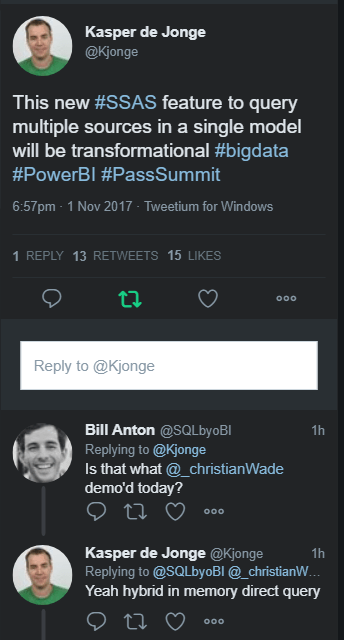
Christian Wade of the SSAS dev team gave a very cool demo of building Power BI reports on a trillion row dataset. Not many details are available about how this works, or when it will be released, but it seems to be through a feature where you can combine tables stored in-memory and tables that use DirectQuery storage (in the demo this was DirectQuery on Spark) in the same dataset. It sounds a bit like HOLAP: queries that request aggregated values hit the fast, in-memory data, but when you want to look at detail-level data queries use DirectQuery. Someone is very excited about this:

image

PowerApps/Power BI integration

Something that was going to be demoed – but the demo failed so we didn’t see it – was the promised integration between PowerApps and Power BI. Apparently this will be released soon.

ESRI Plus subscription for Power BI

Mentioned in the keynote but again with very few details is the fact that ESRI is going to offer a special subscription for users of the ESRI maps visual in Power BI. It looks like this is it and it is slated for release in November:

http://go.esri.com/plus-subscription

Here’s what the ESRI site says the benefits will be:

  • Access global demographics
  • Access verified ready-to-use data, curated from authoritative sources
  • Access more basemaps including satellite imagery and terrain
  • Map and view more locations on your visualization