Since last week’s post proved very popular (it turns out people want video – who knew?) I thought I’d post the recording of a presentation I did earlier this year at the Power BI User Group in Wellington, New Zealand, called “Introduction to M in Power Query and Power BI”. It’s a session I’ve presented at various conferences and user groups over the years but this is the best version of it I think:
It’s an hour-long introduction to the M language that sits behind Power Query in Power BI, Excel, dataflows, Analysis Services and other tools. It covers pretty much everything you need to now about the language including let expressions; tables, records and lists; error handling; and writing custom M functions.
If you’re keen to watch even more Power BI-related videos, my colleague Matthew Roche has just started his own YouTube channel and published a video on dataflows vs datasets.
This week I was honoured to be a guest on the Guy In A Cube channel, and for my topic I decided to tackle one of life’s eternal questions: why does Power BI query my data source more than once when I refresh my dataset?
You can watch the video here:
Although I’ve never answered this question directly in a blog post before, nevertheless almost every technique I showed in the video is something I’ve blogged about so I thought it would be useful to collect all the links to these posts in one place to provide some background to what I show in the video.
The first thing to say is that this is really a Power Query question, not just a Power BI question; a lot of what I show will therefore be relevant to Excel’s Get&Transform, Power BI dataflows and every other manifestation of Power Query out there, although I can’t guarantee that all the options and behaviour will be the same in these places.
If you’re developing in Power BI Desktop and you think that refresh is taking a long time, you should definitely check whether the Power Query engine is hitting your data source more than once. There are lots of ways to do this. Some data sources have tools that show when they are queried, such as the Run History screen in Microsoft Flow that I show in the video or SQL Server Profiler. Other ways include using Fiddler for web services or Process Monitor for files.
Next, if you find that Power Query is indeed querying your data source multiple times, the most common explanation is that it’s doing a “background refresh”. This happens by default when you refresh a dataset and is Power Query refreshing all the data previews that you see when you click on a step in the Power Query Editor window. In most cases this is so quick you don’t notice it but when you have lots of queries with lots of steps it can be a gigantic problem. You can turn it off in the Options dialog in Power BI Desktop, as shown in the video, or in the Excel Query Options dialog. I blogged about this issue here.
Another possible reason is the data privacy settings you have applied. This is a gigantic, complex topic and something that I and other people have blogged about many times. I wrote a multi-part series of posts explaining data privacy settings starting here and there’s also a great explanation of what’s going on in behind the scenes written by the dev team that I link to here; I also wrote a post here showing an example of the performance impact of data privacy checks. As I say in the post, however, do not play around with these settings unless you really know what you’re doing.
If you’re ok with writing some M code, using the technique I blogged about here to implement basic query folding on a web data source can be important – in the example in the video, it was doing this that reduced the number of calls to the web service from six to three.
Some transformations can also lead to data being read from a data source more than once. For example, in this post I showed how a merge transformation leads to multiple reads from the same Excel file and how to stop this happening and drastically improve performance.
Moving on, another important lesson to learn is how referenced queries are evaluated. This is one of the most counter-intuitive things about Power Query! With the set of referenced queries used in my demo:
…where three queries called Referenced Query 1, Referenced Query 2 and Referenced Query 3 each reference a query called Call Web Service and are loaded into a dataset (and where Call Web Service is not loaded into the dataset), most people would assume that when a refresh takes place the following happens:
The Call Web Service query is run, getting the data from the web service
The data returned is then passed to Referenced Query 1, Referenced Query 2 and Referenced Query 3
This is wrong. In fact what happens is this:
Referenced Query 1 is refreshed. Because it references the Call Web Service query, that means the Call Web Service query is also evaluated.
Referenced Query 2 is refreshed. Because it references the Call Web Service query, that means the Call Web Service query is also evaluated.
Referenced Query 3 is refreshed. Because it references the Call Web Service query, that means the Call Web Service query is also evaluated.
This explains why the Call Web Service query is still being evaluated three times once the M code above has been added to it. You can read a detailed explanation of how referenced queries are evaluated here.
There is something we can do to help here though: the Power Query engine can cache the results returned from some types of data source, such as web services, but to take full advantage of this caching in this particular scenario you have to turn off the Enable Parallel Loading Of Tables option on the Options dialog as I show here. With that done, each of the three referenced queries run one after the other, instead of in parallel. When the first of these queries runs its calls the Call Web Service query, which gets data from the web service; when the next two queries run, though, and they trigger two more evaluations of Call Web Service, the data for the call to the web service has been cached. This caching can be turned off using the IsRetry option in Web.Contents as Curt Hagenlocher explains in a comment here.
The final thing shown in the video is that the infamous Table.Buffer M function does not improve performance in this case and in fact makes performance worse. If you use Table.Buffer inside the Call Web Service query it will indeed buffer the result of the call to the web service into memory, but the data that is buffered cannot be shared between separate query executions – so the buffering happens three times, once for each time Call Web Service is evaluated by the three referenced queries. Again this is something discussed in this post. Of course there are plenty of other scenarios where Table.Buffer will help performance, but these will only be in cases where the same query requests data from the same data source more than once.
Phew, that was a lot. I don’t pretend to know everything about when and why Power Query gets data from a data source multiple times but this is the sum total of my knowledge right now. I hope it’s useful!
[Update: it’s just been pointed out to me, quite rightly, that the names of my queries are confusing. For example, “Referenced Query 1” is the query doing the referencing, not the query being referenced – which is Call Web Service. I haven’t changed the names because I want the blog post to remain consistent with the video, and I hope the diagrams and the context make everything clear]
Case sensitivity is one of the more confusing aspects of Power BI: while the Power Query engine is case sensitive, the main Power BI engine (that means datasets, relationships, DAX etc) is case insensitive. Imke Feldmann shows how to make Power Query case insensitive through custom M here; in this blog post I’m going to concentrate on what case insensitivity means in datasets and DAX and show a way to (kind of) work around it.
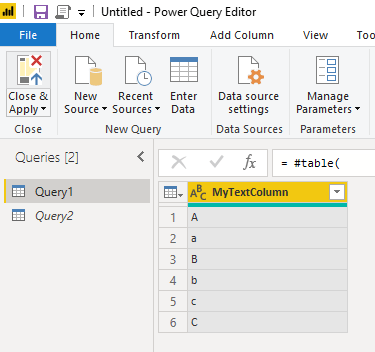
Starting with a simple example, let’s say you have a data source that contains data that looks like this:
This is what the data looks like in the Power Query Editor which is, as I said, case sensitive – which means that it sees “A” and “a” as different characters, so you see six distinct characters in each row of the table. This could be data from any data source; to make things easy I’ve used the following M query to generate this table:
let
    Source =
    #table(
        type table
        [MyTextColumn = text],
        {
            {"A"},
            {"a"},
            {"B"},
            {"b"},
            {"C"},
            {"c"}
        })
in
    Source
When this data gets loaded into a Power BI dataset, however, you’ll see the following in the Data pane of the main Power BI window:
Because the main Power BI engine is case insensitive – so for example “a” and “A” are considered as the same character – when this data is loaded in, it only sees three distinct characters and you can’t be sure whether you’ll get the lower case or upper case character stored twice. This is just the way it works; while an instance of Analysis Services Tabular, which is basically the same engine that is found in Power BI, can be either case sensitive or case insensitive, this option isn’t available in Power BI. There is an idea to support case sensitivity as an option in Power BI here and while there are some valid scenarios where you need this, in my experience case sensitivity causes a lot of problems so I can see why it wasn’t a priority.
What’s more you’ll find that DAX calculations are case insensitive too. If you try the following DAX expression to create a calculated table:
DAX measures behave in a similar way. Given the following table:
If you use the following measure in a table visual:
Demo Measure =
IF(
    SELECTEDVALUE('Demo Table 2'[MyIntColumn])=1,
    "A",
    "a"
)
…you’ll see:
The only way you can work around this case insensitivity is to make text values that would otherwise look the same to the Power BI engine somehow different. One way of doing this would be to add some extra characters to your text. You might think adding some extra spaces would be the way to go; revisiting the first M query shown above, you could add a space to every lower case character in the table like so:
let
    Source =
    #table(
        type table
        [MyTextColumn = text],
        {
            {"A"},
            {"a "},
            {"B"},
            {"b "},
            {"c "},
            {"C"}
        })
in
    Source
But this doesn’t work because another little-known behaviour of the Power BI engine is that all leading and trailing spaces are trimmed when text is loaded. Anyway, spaces may not be visible but they still take up… well space. A better option – and one that actually works – is to use the Unicode Zero-Width Space character and the M Character.FromNumber function instead like so:
let
    Source =
    #table(
        type table
        [MyTextColumn = text],
        {
            {"A"},
            {"a" & Character.FromNumber(8203)},
            {"B"},
            {"b" & Character.FromNumber(8203)},
            {"c" & Character.FromNumber(8203)},
            {"C"}
        })
in
    Source
The great thing about this character is that although it’s there, it’s invisible and takes no space. When you load this last M query into Power BI you see the following table:
Let’s finish off with a more advanced example of how to use this rather excellent character. Say you have the following source data returned by an M query called SourceData:
Of course, when this table is loaded into Power BI, you see the following:
BUT, the following M query takes this table and for each row goes through the text in the OriginalText column and adds a zero-width space after each lower case character:
let
    Source =
    SourceData,
    ToList =
    Table.AddColumn(
        Source,
        "Chars",
        each Text.ToList([OriginalText])
        ),
    LowerCaseChars =
    {"a".."z"},
    AddInvisibleChars =
    Table.AddColumn(
        ToList,
        "AddInvisibleChars",
        each
        List.Transform(
            [Chars],
            each
            if
            List.Contains(LowerCaseChars, _)
            then
            _ & Character.FromNumber(8203)
            else _
            )
            ),
    RecombineList =
    Table.AddColumn(
        AddInvisibleChars,
        "OutputText",
        each
        Text.Combine([AddInvisibleChars]),
        type text
        ),
    RemovedOtherColumns =
    Table.SelectColumns(
        RecombineList,
        {"OutputText"}
        )

in
    RemovedOtherColumns
When you load the output of this query into Power BI, because the zero-width spaces after each lower case character make Power BI see each piece of text as being different, it looks like case has been preserved even when it hasn’t:
You can download the Power BI file for this last example here.
[Thanks to Greg Galloway, Akshai Mirchandani and Jeffrey Wang for their help with this post]
While the documentation on how to import data from Azure Data Lake Gen2 Storage into Power BI is pretty detailed, the connector (which at the time of writing is in beta) that supports this functionality in the Power Query engine has some useful functionality that isn’t so obvious. If you look at the built-in documentation on the AzureStorage.DataLake M function in the Power Query Editor you’ll see there are a lot of options that aren’t in the documentation on the web yet:
These options are:
BlockSize: the number of bytes to read before waiting on the data consumer. The default value is 4MB.
RequestSize: the number of bytes to read in a single HTTP request to the server. The default value is 4MB.
ConcurrentRequests: The ConcurrentRequests option supports faster download of data by specifying the number of requests to be made in parallel, at the cost of memory utilization. The memory required is (ConcurrentRequest * RequestSize). The default value is 16.
HierarchicalNavigation: A logical (true/false) that controls whether the files are returned in a tree-like directory view on in a flat list. The default value is true.
All of these options derserve more detailed examination, but in this post I’m going to focus on the HierarchicalNavigation property.
Say you have the following set of files and folders in ADLSGen2: at the root level there’s a csv file called SimpleSales.csv and a folder called ParentFolder; inside ParentFolder there’s a folder called ChildFolder; and inside ChildFolder there’s another csv file called SimpleSales2.csv.
When you connect first in the Power Query Editor you’ll see a table that looks like this (there are some other columns but I’ve removed them to make the screenshot legible):
In this table there are two rows, one for each csv file, and a Folder Path column that shows where each file sits within the folder structure. Here’s the M code for this query:
let
    Source =
    AzureStorage.DataLake("https://x.dfs.core.windows.net/powerbi")
in
    Source
If you alter this to use the HierarchicalNavigation option, like so:
let
    Source =
    AzureStorage.DataLake(
        "https://x.dfs.core.windows.net/powerbi",
        [HierarchicalNavigation=true]
        )
in
    Source
…you’ll see a different table is returned by the query:
In this case the two rows show ParentFolder and SimpleSales.csv; if you click on the Table link in the first row of the Content column you can drill down to ChildFolder; if you click on the Table link with ChildFolder you’ll see SimpleSales2.csv:
If you have a large number of files and folders in ADLSGen2 this way of viewing them is likely to be much easier to work with, I think.
Just a quick post to let you know that an interview I recorded for the BIFocal Show podcast at the Microsoft Business Applications Summit in Atlanta a few months ago is now available for your listening pleasure:
John White and Jason Himmelstein, like less-furry versions of Paginated Report Bear, speak to all the top people in the world of Microsoft BI (they spoke to Marco Russo last week) so I highly recommend subscribing if you don’t do so already.
In my last post I showed lots of examples of how Power BI’s new custom format string feature can be used to format numbers. This post, looking at dates and times, will be a bit different for two reasons: there are a lot more useful examples of custom date and time formats built into Power BI Desktop, and some of the format placeholders listed in the VBA documentation aren’t supported in Power BI. As a result I’m going to concentrate on some useful formats that aren’t covered well by the examples and highlight a few things that aren’t possible right now.
Here’s the table containing the sample data, in the form of date/time values, for my examples:
[Note that the dates shown above are formatted in dd/mm/yyyy format]
The reason I’ve used date/time values for my examples is that they can be used to demonstrate formats for values of data type date and data type time, as well as data type date/time. As with my previous post I’m going to create a series of measures to show the effects of different format strings, each with the same DAX definition:
Eg1 = SELECTEDVALUE(Examples[DateAndTime])
With the default format of :
…applied, here’s what the output looks like in a Power BI report:
Dates
Let’s start by looking at date formats. The first thing to point out is that you can format a date/time so it only shows the date part and not the time and vice versa. For example, applying the custom format string:
dd/mm/yyyy
…where dd is day number, mm is month number and yyyy is a four digit year, gives you:
If you’re American and want your months to come before your days you can simply swap the dd and the mm, for example with the format string:
mm/dd/yyyy
You’re not forced to use a / as your separator in a date; in fact you can use any character. For example, the custom format:
dd*mm*yyyy
…gives you:
If you don’t want a leading zero in front of your day or month number you can use a single d or m, and if you want a two-digit year you can use yy instead of yyyy. So, for example:
d/m/yy
…gives you:
You can add full day names and month names using dddd and mmmm, so the format:
dddd dd mmmm yyyy
…gives you:
You can also get abbreviated day and month names using ddd and mmm, so:
ddd dd mmm yyyy
…gives you:
Last of all, for dates, if you want to make it clear that you’re not showing really, really, really old data you can put a g on the end of your date format like so:
dd/mm/yyyy g
…and you get the following:
Although the VBA documentation talks about showing day number of week, week number and quarter number, I haven’t found a way of making that work in Power BI (although I may have missed something and it may be possible).
Times
Times are a bit more straightforward. The main placeholders are hh for hours, mm or nn for minutes and ss for seconds. So for example:
hh:mm:ss
and
hh:nn:ss
…both give you times formatted using the 24-hour clock as follows:
If you prefer to use the 12-hour clock you can add AM/PM onto the end of your format string, so:
hh:nn:ss AM/PM
…gives you:
The VBA documentation has several variants on AM/PM with slightly different outputs, but this is the only format that I could make work in Power BI.
The very last thing to mention is that, at the time of writing, although Power BI can store times with millisecond values there is no way to make milliseconds appear in a formatted time or date/time. For example in all the screenshots above there are two rows displaying 11/11/2019 15:15:15; they appear as different rows in the table because the millisecond values for each are different, but there’s no way of formatting these values to show that they are different. Hopefully this will be rectified soon; in the meantime you will need to store the millisecond part of any time or date/time separately in a different column in your dataset if you want to display it.
You can download the example .pbix file for this post here.
Now that we can apply custom format strings to fields and measures in Power BI in the September 2019 release, I thought it would be useful to provide some examples of what’s possible with this very flexible new feature because the existing documentation for VBA isn’t easy to make sense of. In fact there’s so much to say I’m going to have to write a series of blog posts to cover everything! In this first post I’m going to look at formatting numbers.
First of all, here’s the source data I’m going to use for my examples:
I’m going to create a whole series of identical measures defined like this:
SalesEg1 = SUM('ExampleTable'[Sales])
…and apply different custom format strings to each one so you can compare the output in a Power BI table visual. For reference, here’s what a blank custom format gives you with this measure:
Let’s start with the basics of formatting numeric values. The first thing to point out is that custom format strings are built up using a series of placeholder characters that allow you to control things like thousands separators, the number of decimal places, whether digits are displayed in a placeholder and so on.
Setting the number of decimal places
As you can see in the screenshots above, two of the values have four decimal places but by default only two decimal places are shown. To always show three decimal places, use the following format string:
0.000
Here’s the result:
In this case the 0 is a placeholder for a digit that must always be displayed and the . is the decimal separator; three 0s after the . means you always get three decimal places for non-blank numeric values.
Optional digits
You may have noticed in the last screenshot that all numbers show three decimal places, even the value for Pears and the Total. If you don’t want the decimal places to appear – or indeed you don’t want a digit to appear in a particular place if it’s a zero – you can use a # character as a placeholder instead. The following format string:
0.###
…always shows a zero before the decimal separator, but will only show the decimal places if they aren’t zeroes:
Thousands separators
If you want to display a thousands separator in your numbers you can use a comma placeholder in your format string, like so:
#,0.###
Percentages
If you have values that you want to display as percentages, you can use the % placeholder as follows:
#,0.###%
Notice that two things have happened here:
A percentage sign has been added to the end of each value
The values appear to have been multiplied by 100. They actually haven’t, but the percentage format makes them look as though they have been. Any calculations that reference this measure will still get the unmultiplied value as you would expect.
Currency symbols
If you want currency symbols to appear in your format string you can just add them in either before or after the main part of your format string. For example to put a UK pound sign in a format string you can use the following:
£#,0.00
Different formats for positive values, negative values and zeroes
If you need to format positive values, negative values and zeroes differently, you can add up to three different sections to your custom format string separated by a semi colon, as follows:
#,0.0;-#,0.000;0
In this case notice how the positive values have one decimal place, the negative value has three decimal places and the zero has no decimal places. In Analysis Services Multidimensional it used to be possible to add a fourth section to format blanks/nulls, but that does not seem to work here unfortunately…
Formatting negative values with parentheses
A common requirement in financial reporting is to format negative values with parentheses (round brackets) instead of a minus sign, and that’s possible with custom format strings. For example:
#,0.0;(#,0.000);0
Other Text
You can escape individual characters in your format string by preceding them with a \ placeholder. Say you wanted a # to actually appear in your formatted output and not have it considered as a placeholder, you could use the following:
\##,0.00
You can also include whole chunks of text by putting it in double quotes, like so:
“Positive”;”Negative”;”Zero”
That’s enough for today; tune in for my next post with even more examples!
You can download the sample pbix file for this post here.
In Shabnam Watson’s recent blog post on a bug she found when trying to create a Live connection from Power BI to Analysis Services she mentioned that the AutoSetDefaultInitialCatalog server property could be used to solve her problem. This piqued my interested because I’d seen this property but had no idea what it did exactly or why it was there. Luckily, now I work for Microsoft, it’s even easier for me to find out about things like this from the dev team and Akshai Mirchandani was able to help.
First of all, what does it do? The documentation on this property has just been added here, and this is what it says:
AutoSetDefaultInitialCatalog
A Boolean property. When set to true, new client connections automatically default to the first catalog (database) the user has permissions to connect to.
When set to false, no initial catalog is specified. Clients must select a default catalog prior to running queries or discover operations against a database on the server. If no default catalog is specified, an error is returned. If Initial Catalog property is specified in the connection string, the default catalog will be applied from this property.
The default value for this property is true.
Let me illustrate what this means. Say you have an instance of Analysis Services (in this case it’s Tabular, but it could be Multidimensional) with two databases on it:
I’ve expanded the Roles tab for each database reasons that will become clear later.
Next, let’s say you run a simple trace on this server looking at the Discover End and Session Initialize events:
…and while this trace is running, you open up SQL Server Management Studio and connect to the SSAS instance. Here’s what you see in Profiler:
Now, just to be clear, all I did was open up SQL Server Management Studio and connect to the instance. I did not open up a DAX query window or anything like that; all that happened was the list of databases on the instance was displayed in the Object Explorer pane.
The interesting thing to notice from the trace above is that when I did that there are five Session Initialize events and even though the Database column in Profiler is blank, you can see from the list of role names in the TextData column that in each case a connection has been made to the Adventure Works Internet Sales database.
This is because when you open a connection to Analysis Services and do not set the Initial Catalog connection string property, what happens is that you will get a connection to the default database on the instance. Which database is the default? It’s just the first database that the user has permission to access on the instance, which is a bit random.
This happens at other times too. Let’s say you right click on the EmptyDB database and process it in SQL Management Studio:
Here’s what I see in Profiler:
In this case there are three connections to the default database, Adventure Works Internet Sales, when the database I am processing is EmptyDB!
Most of the time these unnecessary connections have no impact at all but sometimes they can cause problems such as the ones Shabnam describes in her blog post. For example:
It can cause performance problems, because there is an overhead to opening a connection – for example roles are evaluated when a connection is opened
Monitoring and auditing gets complicated because, as you can see from the traces above, there are a whole lot of connections to the default database taking place that you aren’t expecting
Most importantly, when a connection is opened a read-commit lock is acquired on that database and in a few rare cases this can cause deadlocks and other locking-related issues
This is why the AutoSetDefaultInitialCatalog server property was introduced. With this server property set to False, when you open a connection to SSAS with no Initial Catalog set, then you get a connection with no database set. You can find this server property in SQL Server Management Studio in the Analysis Server properties dialog (which you can find by right-clicking on your instance name, selecting Properties, and going to the General tab) and checking the Advanced (All) Properties box.
With AutoSetDefaultInitialCatalog set to False, here’s what Profiler shows when I rerun my original test of connecting to SQL Server Management Studio:
Note that there are now no Session Initialize events now.
Here’s what opening up a new MDX query window in SQL Management Studio shows with AutoSetDefaultInitialCatalog set to False if you don’t explicitly set a database when you connect:
Note the empty database dropdown box on the toolbar and the “Error loading metadata: No cubes were found” error message shown in the Metadata pane.
So why didn’t the dev team set AutoSetDefaultInitialCatalog to False by default on new instances? The problem with doing this is that it is a potential breaking change that could cause errors in some client tools. I’m not aware of any specific cases where this might happen but if you did decide to change AutoSetDefaultInitialCatalog to False on your instance you would need to test thoroughly to make sure it didn’t break anything. My feeling is, though, it is probably a good idea to AutoSetDefaultInitialCatalog to False on production servers and do the appropriate testing just in case those unnecessary connections are causing problems.
If you’re a Power BI fan there are three possible answers to the question “Did you know that the second edition of The Definitive Guide To DAX has just been published?”:
Answer#1: Yup, I’ve already got my copy!
If this is your answer there’s no need to read any further.
Answer #2: What’s “The Definitive Guide To DAX”?
If, on the other hand, you’re new to Power BI and this is what you’re thinking then I should explain that “The Definitive Guide To DAX” is a book by Marco Russo and Alberto Ferrari and is what its title suggests it is – the sum total of human knowledge about the DAX calculation and query language used by Power BI, written by the two people who know most about it outside the development team. Marco and Alberto are friends of mine but I don’t think anyone can accuse me of bias when I say that it’s a book that every Power BI developer needs to own, so go out and buy it! If you use Power BI you need to learn DAX and while this book may not be a simple step-by-step tutorial it has in it somewhere answers to just about every question you’ll ever ask about DAX – and, more importantly, the answers it has are as correct and as up-to-date as they possibly can be. I can tell you that it’s proved invaluable to me in my work at least twice in the last week alone.
Answer #3: Yes, I saw that but I already have the first edition – is it worth buying this one too?
This is a slightly more difficult question to answer, but I’m still going to recommend that you buy the second edition. As Marco says in his announcement blog post, a lot of the existing content has been updated and rewritten and a lot of new content has been added. If you care about following all the latest DAX best practices and you don’t want the new hire in your department to mock you because you’ve never heard of DAX Studio, you need to buy this new edition.
[Note: I didn’t get a free copy of this book for review (yet?) but I have an O’Reilly Online Learning account which means I could read it as soon as it was published]
PS I know someone needs to write the “Definitive Guide to M” but it’s not going to be me, at least not right now.
Users of on-premises Analysis Services will know that most of the useful server properties can be set in SQL Server Management Studio, some (such as MaxIntermediateRowsetSize) can only be set by editing the msmdsrv.ini file. How do you set these properties in Azure Analysis Services though, when there is no msmdsrv.ini file to edit?
The solution is to use an XMLA script to make the change. The easy way to do this is to open up the server properties dialog in SQL Management Studio by right clicking on your instance name in the Object Explorer and selecting Properties:
Then, in the server properties dialog, change any server property but do not click ok. Instead, click on the Script button and then select Script Action to New Query Window:
This will create a new XMLA query window in SSMS (the connection dialog for this window will be open too, which will freeze the server properties dialog, so you’ll need to either connect or dismiss the dialog to close the server properties dialog) with the XMLA script to make the server properties change you made. The actual change won’t take place, though, unless you execute the script – so don’t do that.
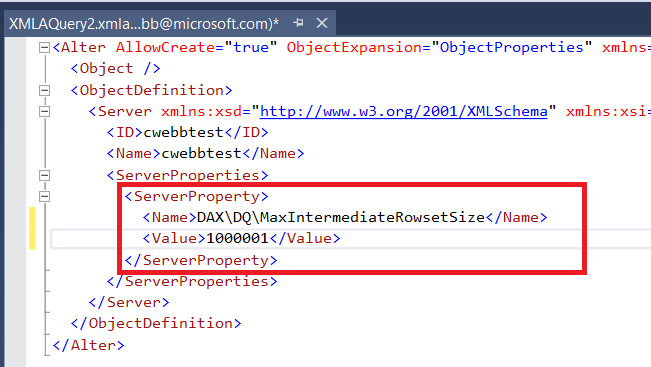
Instead, change the name of the server property in the script to the one you actually want to set and enter the value you want to set it to:
Note that you can’t just enter the name of the server property in most cases because server properties can be grouped into sections, so you’ll need to enter the section names too. For example for the MaxIntermediateRowsetSize property you’ll need to enter DAX\DQ\MaxIntermediateRowsetSize.
After that, all you need to do is hit the Execute button and the change will be made.