Using Function.InvokeAfter() In Power Query

Last year I blogged about how to introduce a delay between web service requests in M code. Since then a new function has been added to Power Query which makes this a lot easier: Function.InvokeAfter(). This function doesn’t seem to be documented anywhere apart from the Power Query language reference (downloadable from here); the signature is as follows:

Function.InvokeAfter(function as function, delay as duration) as any

It invokes a function after waiting for a given amount of time. Here’s a simple example of how it can be used that declares a function which returns the current date/time as text, then calls it twice with a five second delay in between:

let
GetTimeAsText = ()=> DateTime.ToText(DateTime.LocalNow()),
Output = GetTimeAsText() & " "
& Function.InvokeAfter(GetTimeAsText, #duration(0,0,0,5))
in
Output

The output of this query (at the time of writing) is:

28/04/2015 23:06:38 28/04/2015 23:06:43

One thing that did confuse me a bit was the fact that Function.InvokeAfter() doesn’t allow you to pass a list of arguments for the function you’re invoking like Function.Invoke(). The nice people at Microsoft helped me out with this though, and here’s a slightly more complicated example showing how to use Function.InvokeAfter() with a function that appends “Hello “ to a person’s name:

let
SayHello = (personname as text) as text => "Hello " & personname,
Output = Function.InvokeAfter(()=>SayHello("Chris"), #duration(0,0,0,5))
in
Output

Analysing SSAS Extended Event Data With Power Query: Part 2, Storage Engine Activity

In part 1 of this series I showed how to use Power Query to extract Extended Event data generated by SSAS. Having done that, I now want to show the first (I hope of many) examples of how this data can be used for performance tuning: analysing activity in the Storage Engine, the part of SSAS that reads data from disk and aggregates it up.

I won’t go into the technical details of how I’ve used Power Query to crunch this data; you can download the sample workbook here and see for yourself. There’s nothing particularly complex going on. In brief, what I’ve done is the following:

  • Called the function shown in part 1 to get the raw Extended Event data
  • Filtered that data so that only the Query End, Query Subcube Verbose and Progress Report End events are left
  • Calculated the start time of each event relative to the start time of the earliest recorded event, to make plotting these events on a waterfall chart possible
  • Built an Excel report, including various Power Pivot measures, some normal slicers to make it easy to filter the data, some disconnected slicers for filtering so you only see events that started within a given time range, and a PivotChart showing the waterfall chart (since Excel doesn’t support this type of chart natively, I’ve used this technique to reproduce a waterfall chart with a stacked bar chart)

Here’s an example screenshot of the result, showing Storage Engine activity for a single query:

image

Though it’s hard to see the details at this resolution, the yellow line is the Query End event associated with the query, the grey lines are the Query Subcube Verbose events associated with the query, and the brown lines are the Progress Report events associated with each Query Subcube Verbose event.

What could this be used for? Here are some ideas:

  • Looking for times when there are a lot of queries running simultaneously – and which, as a result, may be performing poorly.
  • Looking for long-running Query Subcube Verbose and Progress Report End events which could be optimised by the creation of aggregations.
  • Visualising the amount of parallelism inside the Storage Engine, in particular the number of Progress Report End events that are running in parallel. This would be very interesting for queries using distinct count measures when you are testing different ways of partitioning your measure group.
  • Highlighting situations where calculations are being evaluated in cell-by-cell mode. When this happens you typically see a very large number of Query Subcube Verbose events being fired off within a query.

I’d like to stress once again that the object of this exercise is not to show off a ‘finished’ tool, but to show how Power Query, Power Pivot and Excel can be used for self-service analysis of this data. This workbook is just a starting point: if you wanted to use this on your own data it’s extremely likely you’d need to change the Power Query queries, the Power Pivot model and the report itself. Hopefully, though, this workbook will save you a lot of time if you do need to understand what’s going on in the Storage Engine when you run an MDX query.

Power Query Announcements At The PASS BA Conference

There were a couple of big (well, big if you’re a Power Query fan like me) announcements made today by Miguel Llopis at the PASS BA Conference:

  • Today Power Query is available only to people who have Excel Professional Plus or Excel standalone, but as of May a version of Power Query will be available on every Excel SKU. There will be some limitations around data sources that are supported if you don’t have Excel Professional Plus, but that’s ok – this change will make it much easier for people to learn about and use Power Query, and I’m really happy about that.
  • Other new features coming in the May update of Power Query include the ability to turn off prompts about native database queries (useful in this scenario, for example), OData v4.0 support, the ability to use alternative Windows credentials to run queries, and a couple of new transformations such as removing empty rows.
  • Excel 2016 – where Power Query is now native to Excel – will have support for creating Power Query queries using VBA and macro recording. I understand you won’t be able to edit individual steps in a query, but you’ll be able to create and delete queries programmatically and change where they load their data too.
  • Excel 2016 will also support undo/redo for Power Query and give you the ability to copy/paste queries (even from workbook to workbook).
  • There was a commitment that Power Query in Excel 2016 will keep getting updates on a regular basis, rather than get tied to the much slower Office release cycle, so it retains parity with the Power Query functionality in the Power BI Dashboard Designer.

All very cool stuff!

Building A Reporting Solution Using Power Query

The video of my SQLBits conference session “Building a reporting solution using Power Query” is now available to view (for free) on the SQLBits website:

http://sqlbits.com/Sessions/Event14/Building_A_Reporting_Solution_Using_Power_Query

It’s not your normal Power Query session about self-service ETL – instead it’s about using Power Query to create a SSRS-like reporting solution inside Excel. This is a topic I’ve been thinking about for a while, and while I have blogged about some of the tricks I show in the session (like this one about using slicers to pass parameters to Power Query) there’s a lot of new material in there too that should interest all you Power Query fans.

Of course there are literally hundreds of other great videos to watch for free at http://sqlbits.com/content/ including many others on Power BI, Power Pivot and Power Query. Alas my “Amazing Things You Can Do With Power BI” session video hasn’t been posted yet though…

[Don’t forget I’m running public Power BI and Power Query training courses in London next month! Full details at http://technitrain.com/courses.php]

Analysing SSAS Extended Event Data With Power Query: Part 1

The other day, while I was reading this post by Melissa Coates, I was reminded of the existence of extended events in SSAS. I say ‘reminded’ because although this is a subject I’ve blogged about before, I have never done anything serious with extended events because you can get the same data from Profiler much more easily, so I had pretty much forgotten about them. But… while Profiler is good, it’s a long way from perfect and there’s a lot of information that you can get from a trace that is still very hard to analyse. I started thinking: what if there was a tool we could use to analyse the data captured by extended events easily? [Lightbulb moment] Of course, Power Query!

I’m not going to go over how to use Extended Events in SSAS because the following blog posts do a great job already:
http://byobi.com/blog/2013/06/extended-events-for-analysis-services/
http://markvsql.com/2014/02/introduction-to-analysis-services-extended-events/
https://francescodechirico.wordpress.com/2012/08/03/identify-storage-engine-and-formula-engine-bottlenecks-with-new-ssas-xevents-5/

You may also want to check out these (old, but still relevant) articles on performance tuning SSAS taken from the book I co-wrote with Marco and Alberto, “Expert Cube Development”:

http://www.packtpub.com/article/query-performance-tuning-microsoft-analysis-services-part1
http://www.packtpub.com/article/query-performance-tuning-microsoft-analysis-services-part2

What I want to concentrate on in this series of posts is how to make sense of this data using Power BI in general and Power Query in particular. The first step is to be able to load data from the .xel file using Power Query, and that’s what this post will cover. In the future I want to explore how to get at and use specific pieces of text data such as that given by the Query Subcube Verbose, Calculation Evaluation and Resource Usage events, and to show how this data can be used to solve difficult performance problems. I’m only going to talk about SSAS Multidimensional, but of course a lot of what I show will be applicable (or easily adapted to) Tabular; I guess you could also do something similar for SQL Server Extended Events too. I’m also going to focus on ad hoc analysis of this data, rather than building a more generic performance monitoring solution; the latter is a perfectly valid thing to want to build, but why build one yourself when companies like SQL Sentry have great tools for this purpose that you can buy off the shelf?

Anyway, let’s get on. Here’s a Power Query function that can be used to get data from one or more .xel files generated by SSAS:

[sourcecode language=”text” padlinenumbers=”true”]
(servername as text,
initialcatalog as text,
filename as text)
as table =>
let
//Query the xel data
Source = Sql.Database(servername,
initialcatalog,
[Query="SELECT
object_name, event_data, file_name
FROM sys.fn_xe_file_target_read_file ( ‘"
& filename & "’, null, null, null )"]),
//Treat the contents of the event_data column
//as XML
ParseXML = Table.TransformColumns(Source,
{{"event_data", Xml.Tables}}),
//Expand that column
Expandevent_data = Table.ExpandTableColumn(ParseXML,
"event_data",
{"Attribute:timestamp", "data"},
{"event_data.Attribute:timestamp",
"event_data.data"}),
//A function to tranpose the data held in the
//eventdata.data column
GetAttributeData = (AttributeTable as table) as table =>
let
RemoveTextColumn = Table.RemoveColumns(AttributeTable,
{"text"}),
SetTypes = Table.TransformColumnTypes(RemoveTextColumn ,
{{"value", type text}, {"Attribute:name", type text}}),
TransposeTable = Table.Transpose(SetTypes),
ReverseRows = Table.ReverseRows(TransposeTable),
PromoteHeaders = Table.PromoteHeaders(ReverseRows)
in
PromoteHeaders,
//Use the function above
ParseAttributeData = Table.TransformColumns(Expandevent_data,
{"event_data.data", GetAttributeData})
in
ParseAttributeData
[/sourcecode]


This function can be thought of as the starting point for everything else: it allows you to load the raw data necessary for any SSAS performance tuning work. Its output can then, in turn, be filtered and transformed to solve particular problems.

The function takes three parameters:

  • The name of a SQL Server relational database instance – this is because I’m using sys.fn_exe_file_target_read_file to actually read the data from the .xel file. I guess I could try to parse the binary data in the .xel file, but why make things difficult?
  • The name of a database on that SQL Server instance
  • The file name (including the full path) or pattern for the .xel files

The only other thing to mention here is that the event_data column contains XML data, which of course Power Query can handle quite nicely, but even then the data in the XML needs to be cleaned and transposed before you can get a useful table of data. The GetAttributeData function in the code above does this cleaning and transposing but, when invoked, the function still returns an unexpanded column called event_data.data as seen in the following screenshot:

image

There are two reasons why the function does not expand this column for you:

  1. You probably don’t want to see every column returned by every event
  2. Expanding all the columns in a nested table, when you don’t know what the names of these columns are, is not trivial (although this post shows how to do it)

Here’s an example of how the function can be used:

[sourcecode language=”text”]
let
//Invoke the GetXelData function
Source = GetXelData(
"localhost",
"adventure works dW",
"C:\SSAS_Monitoring*.xel"),
//Only return Query End events
#"Filtered Rows" = Table.SelectRows(Source,
each ([object_name] = "QueryEnd")),
//Expand Duration and TextData columns
#"Expand event_data.data" = Table.ExpandTableColumn(
#"Filtered Rows", "event_data.data",
{"Duration", "TextData"},
{"event_data.data.Duration",
"event_data.data.TextData"}),
//Set some data types
#"Changed Type" = Table.TransformColumnTypes(
#"Expand event_data.data",
{{"event_data.Attribute:timestamp", type datetime},
{"event_data.data.Duration", Int64.Type}}),
//Sort by timestamp
#"Sorted Rows" = Table.Sort(#"Changed Type",
{{"event_data.Attribute:timestamp", Order.Ascending}}),
//Add an index column to identify each query
#"Added Index" = Table.AddIndexColumn(#"Sorted Rows", "Query Number", 1, 1),
//Remove unwanted columns
#"Removed Columns" = Table.RemoveColumns(#"Added Index",
{"object_name", "file_name"})
in
#"Removed Columns"
[/sourcecode]


All that’s happening here is that the function is being called in the first step, Source, and then I’m filtering by the Query End event, expanding some of the columns in event_data.data and setting column data types. You won’t need to copy all this code yourself though – you just need to invoke the function and then expand the event_data.data column to reveal whatever columns you are interested in. When you run a query that calls this function for the first time, you may need to give Power Query permission to connect to SQL Server and also to run a native database query.

Here’s an example PivotChart showing query durations built from this data after it has been loaded to the Excel Data Model:

image

Not very useful, for sure, but in the next post you’ll see a more practical use for this function.

You can download the sample workbook for this post here.

Benford’s Law And Power Query

Probably my favourite session at SQLBits the other week was Professor Mark Whitehorn on exploiting exotic patterns in data. One of the things he talked about was Benford’s Law, something I first heard about several years ago (in fact I’m sure I wrote a blog post on implementing Benford’s Law in MDX but I can’t find it), about the frequency distribution of digits in data. I won’t try to explain it myself but there are plenty of places you can read up on it, for example: http://en.wikipedia.org/wiki/Benford%27s_law . I promise, it’s a lot more interesting that it sounds!

Anyway, it struck me that it would be quite useful to have a Power Query function that could be used to find the distribution of the first digits in any list of numbers, for example for fraud detection purposes. The first thing I did was write a simple query that returned the expected distributions for the digits 1 to 9 according to Benford’s Law:

[sourcecode language=”text” padlinenumbers=”true”]
let
//function to find the expected distribution of any given digit
Benford = (digit as number) as number => Number.Log10(1 + (1/digit)),
//get a list of values between 1 and 9
Digits = {1..9},
// get a list containing these digits and their expected distribution
DigitsAndDist = List.Transform(Digits, each {_, Benford(_)}),
//turn that into a table
Output = #table({"Digit", "Distribution"}, DigitsAndDist)
in
Output
[/sourcecode]


image

Next I wrote the function itself:

[sourcecode language=”text”]
//take a single list of numbers as a parameter
(NumbersToCheck as list) as table=>
let
//remove any non-numeric values
RemoveNonNumeric = List.Select(NumbersToCheck,
each Value.Is(_, type number)),
//remove any values that are less than or equal to 0
GreaterThanZero = List.Select(RemoveNonNumeric, each _>0),
//turn that list into a table
ToTable = Table.FromList(GreaterThanZero,
Splitter.SplitByNothing(), null, null,
ExtraValues.Error),
RenameColumn = Table.RenameColumns(ToTable,{{"Column1", "Number"}}),
//function to get the first digit of a number
FirstDigit = (InputNumber as number) as
number =>
Number.FromText(Text.Start(Number.ToText(InputNumber),1))-1,
//get the distributions of each digit
GetDistributions = Table.Partition(RenameColumn,
"Number", 9, FirstDigit),
//turn that into a table
DistributionTable = Table.FromList(GetDistributions,
Splitter.SplitByNothing(), null, null, ExtraValues.Error),
//add column giving the digit
AddIndex = Table.AddIndexColumn(DistributionTable, "Digit", 1, 1),
//show how many times each first digit occurred
CountOfDigits = Table.AddColumn(AddIndex,
"Count", each Table.RowCount([Column1])),
RemoveColumn = Table.RemoveColumns(CountOfDigits ,{"Column1"}),
//merge with table showing expected distributions
Merge = Table.NestedJoin(RemoveColumn,{"Digit"},
Benford,{"Digit"},"NewColumn",JoinKind.Inner),
ExpandNewColumn = Table.ExpandTableColumn(Merge, "NewColumn",
{"Distribution"}, {"Distribution"}),
RenamedDistColumn = Table.RenameColumns(ExpandNewColumn,
{{"Distribution", "Expected Distribution"}}),
//calculate actual % distribution of first digits
SumOfCounts = List.Sum(Table.Column(RenamedDistColumn, "Count")),
AddActualDistribution = Table.AddColumn(RenamedDistColumn,
"Actual Distribution", each [Count]/SumOfCounts)
in
AddActualDistribution
[/sourcecode]

There’s not much to say about this code, apart from the fact that it’s a nice practical use case for the Table.Partition() function I blogged about here. It also references the first query shown above, called Benford, so that the expected and actual distributions can be compared.

Since this is a function that takes a list as a parameter, it’s very easy to pass it any column from any other Power Query query that’s in the same worksheet (as I showed here) for analysis. For example, I created a Power Query query on this dataset in the Azure Marketplace showing the number of minutes that each flight in the US was delayed in January 2012. I then invoked the function above, and pointed it at the column containing the delay values like so:

image

The output is a table (to which I added a column chart) which shows that this data follows the expected distribution very closely:

image

You can download my sample workbook containing all the code from here.

What’s New In The Excel 2016 Preview For BI?

Following on from my recent post on Power BI and Excel 2016 news, here are some more details about the new BI-related features in the Excel 2016 Preview. Remember that more BI-related features may appear before the release of Excel 2016, and that with Office 365 click-to-run significant new features can appear in between releases, so this is not a definitive list of what Excel 2016 will be able to do at RTM but a snapshot of functionality available as of March 2015 as outlined in this document and which I’ve found from my own investigations. When I find out more, or when new functionality appears, I’ll either update this post or write a new one.

Power Query

Yesterday, in the original version of my post, I mistakenly said that Power Query was a native add-in in Excel 2016: that’s not true, it’s not an add-in at all, it’s native Excel functionality. Indeed you can see that there is no separate Power Query tab any more, and instead there is a Power Query section on the Data tab instead:

DataTab

Obviously I’m a massive fan of Power Query so I’m biased, but I think this is a great move because it makes all the great Power Query functionality a lot easier to discover. There’s nothing to enable – it’s there by default – although I am a bit worried that users will be confused by having the older Data tab features next to their Power Query equivalents.

There are no new features for Power Query here compared to the latest version for Excel 2013, but that’s what I expected.

Excel Forecasting Functions

I don’t pretend to know anything about forecasting, but I had a brief play with the new Forecast.ETS function and got some reasonable results out of it as seen in the screenshot below:

image

Slicer Multiselect

There’s a new hammer icon on a slicer, which, when you click it, changes the way selection works. The default behaviour is the same as Excel 2013: every time you click on an item, that item is selected and any previous selection is lost (unless you were holding control or shift to multiselect). However with the hammer icon selected each new click adds the item to the previously selected items. This is meant to make slicers easier to use with a touch-screen.

Slicer

Time Grouping in PivotTables

Quite a neat feature this, I think. If you have a table in the Excel Data Model that has a column of type date in it, you can add extra calculated columns to that table from within a PivotTable to group by things like Year and Month. For example, here’s a PivotTable I built on a table that contains just dates:

Group1

Right-clicking on the field containing the dates and clicking Group brings up the following dialog:

Group2

Choosing Years, Quarters and Months creates three extra fields in the PivotTable:

Group3

And these fields are implemented as calculated columns in the original table in the Excel Data Model, with DAX definitions as seen here:

Group4

Power View on SSAS Multidimensional

At-bloody-last. I haven’t installed SSAS on the VM I’m using for testing Excel 2016, but I assume it just works. Nothing new in Power View yet, by the way.

Power Map data cards

Not sure why this is listed as new in Excel 2016 when it seems to be the same feature that appeared in Excel 2013 Power Map recently:

https://support.office.com/en-za/article/Customize-a-data-card-in-Power-Map-797ab684-82e0-4705-a97f-407e4a576c6e

Power Pivot

There isn’t any obvious new functionality in the Power Pivot window, but it’s clear that the UI in general and the DAX formula editor experience in particular has been improved.

image

Suggested Relationships

When you use fields from two Excel Data Model tables that have no relationship between them in a PivotTable, you get a prompt to either create new relationships yourself or let Excel detect the relationships:

image

Renaming Tables and Fields in the Power Pivot window

In Excel 2013 when you renamed tables or fields in the Excel Data Model, any PivotTables that used those objects had them deleted. Now, in Excel 2016, the PivotTable retains the reference to table or field and just displays the new name. What’s even better is that when you create a measure or a calculated column that refers to a table or column, the DAX definition of the measure or calculated column gets updated after a rename too.

DAX

There are lots of new DAX functions in this build. With the help of the mdschema_functions schema rowset and Power Query I was able to compare the list of DAX functions available in 2016 with those in 2013 and create the following list of new DAX functions and descriptions:

[sourcecode language=”text” wraplines=”true” gutter=”false”]
FUNCTION NAME DESCRIPTION
DATEDIFF Returns the number of units (unit specified in Interval)
between the input two dates
CONCATENATEX Evaluates expression for each row on the table, then
return the concatenation of those values in a single string
result, separated by the specified delimiter
KEYWORDMATCH Returns TRUE if there is a match between the
MatchExpression and Text.
ADDMISSINGITEMS Add the rows with empty measure values back.
CALENDAR Returns a table with one column of all dates between
StartDate and EndDate
CALENDARAUTO Returns a table with one column of dates
calculated from the model automatically
CROSSFILTER Specifies cross filtering direction to be used in
the evaluation of a DAX expression. The relationship is
defined by naming, as arguments, the two columns that
serve as endpoints
CURRENTGROUP Access to the (sub)table representing current
group in GroupBy function. Can be used only inside GroupBy
function.
GROUPBY Creates a summary the input table grouped by the
specified columns
IGNORE Tags a measure expression specified in the call to
SUMMARIZECOLUMNS function to be ignored when
determining the non-blank rows.
ISONORAFTER The IsOnOrAfter function is a boolean function that
emulates the behavior of Start At clause and returns
true for a row that meets all the conditions mentioned as
parameters in this function.
NATURALINNERJOIN Joins the Left table with right table using the
Inner Join semantics
NATURALLEFTOUTERJOIN Joins the Left table with right table
using the Left Outer Join semantics
ROLLUPADDISSUBTOTAL Identifies a subset of columns specified
in the call to SUMMARIZECOLUMNS function that should be
used to calculate groups of subtotals
ROLLUPISSUBTOTAL Pairs up the rollup groups with the column
added by ROLLUPADDISSUBTOTAL
SELECTCOLUMNS Returns a table with selected columns from the table
and new columns specified by the DAX expressions
SUBSTITUTEWITHINDEX Returns a table which represents the semijoin of two
tables supplied and for which the common set of
columns are replaced by a 0-based index column.
The index is based on the rows of the second table
sorted by specified order expressions.
SUMMARIZECOLUMNS Create a summary table for the requested
totals over set of groups.
GEOMEAN Returns geometric mean of given column
reference.
GEOMEANX Returns geometric mean of an expression
values in a table.
MEDIANX Returns the 50th percentile of an expression
values in a table.
PERCENTILE.EXC Returns the k-th (exclusive) percentile of
values in a column.
PERCENTILE.INC Returns the k-th (inclusive) percentile of
values in a column.
PERCENTILEX.EXC Returns the k-th (exclusive) percentile of an
expression values in a table.
PERCENTILEX.INC Returns the k-th (inclusive) percentile of an
expression values in a table.
PRODUCT Returns the product of given column reference.
PRODUCTX Returns the product of an expression
values in a table.
XIRR Returns the internal rate of return for a schedule of
cash flows that is not necessarily periodic
XNPV Returns the net present value for a schedule of cash flows
[/sourcecode]

Plenty of material for future blog posts there, I think – there are lots of functions here that will be very useful. I bet Marco and Alberto are excited…

VBA

We now have support for working with Power Query in VBA.

Using Excel Slicers To Pass Parameters To Power Query Queries

Power Query is great for filtering data before it gets loaded into Excel, and when you do that you often need to provide a friendly way for end users to choose what data gets loaded exactly. I showed a number of different techniques for doing this last week at SQLBits but here’s my favourite: using Excel slicers.

Using the Adventure Works DW database in SQL Server as an example, imagine you wanted to load only only rows for a particular date or set of dates from the FactInternetSales table. The first step to doing this is to create a query that gets all of the data from the DimDate table (the date dimension you want to use for the filtering). Here’s the code for that query – there’s nothing interesting happening here, all I’m doing is removing unnecessary columns and renaming those that are left:

[sourcecode language=”text” padlinenumbers=”true”]
let
Source = Sql.Database("localhost", "adventure works dw"),
dbo_DimDate = Source{[Schema="dbo",Item="DimDate"]}[Data],
#"Removed Other Columns" = Table.SelectColumns(dbo_DimDate,
{"DateKey", "FullDateAlternateKey", "EnglishDayNameOfWeek",
"EnglishMonthName", "CalendarYear"}),
#"Renamed Columns" = Table.RenameColumns(#"Removed Other Columns",{
{"FullDateAlternateKey", "Date"}, {"EnglishDayNameOfWeek", "Day"},
{"EnglishMonthName", "Month"}, {"CalendarYear", "Year"}})
in
#"Renamed Columns"
[/sourcecode]


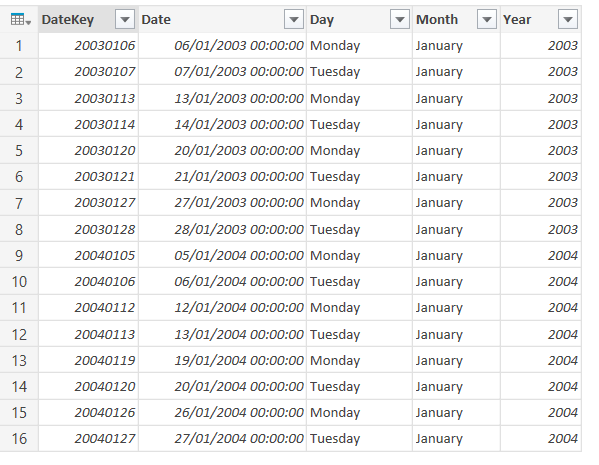
Here’s what the output looks like:

image

Call this query Date and then load it to a table on a worksheet. Once you’ve done that you can create Excel slicers on that table (slicers can be created on tables as well as PivotTables in Excel 2013 but not in Excel 2010) by clicking inside it and then clicking the Slicer button on the Insert tab of the Excel ribbon:

image

Creating three slicers on the Day, Month and Year columns allows you to filter the table like so:

image

The idea here is to use the filtered rows from this table as parameters to control what is loaded from the FactInternetSales table. However, if you try to use Power Query to load data from an Excel table that has any kind of filter applied to it, you’ll find that you get all of the rows from that table. Luckily there is a way to determine whether a row in a table is visible or not and I found it in this article written by Excel MVP Charley Kyd:

http://www.exceluser.com/formulas/visible-column-in-excel-tables.htm

You have to create a new calculated column on the table in the worksheet with the following formula:

=(AGGREGATE(3,5,[@DateKey])>0)+0

image

This calculated column returns 1 on a row when it is visible, 0 when it is hidden by a filter. You can then load the table back into Power Query, and when you do you can then filter the table in your new query so that it only returns the rows where the Visible column contains 1 – that’s to say, the rows that are visible in Excel. Here’s the code for this second query, called SelectedDates:

[sourcecode language=”text”]
let
Source = Excel.CurrentWorkbook(){[Name="Date"]}[Content],
#"Filtered Rows" = Table.SelectRows(Source, each ([Visible] = 1)),
#"Removed Columns" = Table.RemoveColumns(#"Filtered Rows",{"Visible"})
in
#"Removed Columns"
[/sourcecode]


image

This query should not be loaded to the Excel Data Model or to the worksheet.

Next, you must use this table to filter the data from the FactInternetSales table. Here’s the code for a query that does that:

[sourcecode language=”text”]
let
Source = Sql.Database("localhost", "adventure works dw"),
dbo_FactInternetSales = Source{[Schema="dbo",Item="FactInternetSales"]}[Data],
#"Removed Other Columns" = Table.SelectColumns(dbo_FactInternetSales,
{"ProductKey", "OrderDateKey", "CustomerKey", "SalesOrderNumber",
"SalesOrderLineNumber", "SalesAmount", "TaxAmt"}),
Merge = Table.NestedJoin(#"Removed Other Columns",{"OrderDateKey"},
SelectedDates,{"DateKey"},"NewColumn",JoinKind.Inner),
#"Removed Columns" = Table.RemoveColumns(Merge,
{"ProductKey", "OrderDateKey", "CustomerKey"}),
#"Expand NewColumn" = Table.ExpandTableColumn(#"Removed Columns",
"NewColumn", {"Date"}, {"Date"}),
#"Reordered Columns" = Table.ReorderColumns(#"Expand NewColumn",
{"Date", "SalesOrderNumber", "SalesOrderLineNumber",
"SalesAmount", "TaxAmt"}),
#"Renamed Columns" = Table.RenameColumns(#"Reordered Columns",{
{"SalesOrderNumber", "Sales Order Number"},
{"SalesOrderLineNumber", "Sales Order Line Number"},
{"SalesAmount", "Sales Amount"},
{"TaxAmt", "Tax Amount"}}),
#"Changed Type" = Table.TransformColumnTypes(#"Renamed Columns",
{{"Date", type date}})
in
#"Changed Type"
[/sourcecode]


Again, most of what this query does is fairly straightforward: removing and renaming columns. The important step where the filtering takes place is called Merge, and here the data from FactInternetSales is joined to the table returned by the SelectedDates query using an inline merge (see here for more details on how to do this):

image

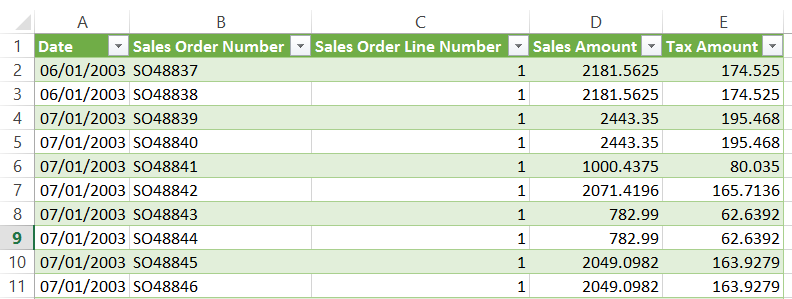
The output of this query is a table containing rows filtered by the dates selected by the user in the slicers, which can then be loaded to a worksheet:

image

The last thing to do is to cut the slicers from the worksheet containing the Date table and paste them onto the worksheet containing the Internet Sales table:

image

You now have a query that displays rows from the FactInternetSales table that are filtered according to the selection made in the slicers. It would be nice if Power Query supported using slicers as a data source direct without using this workaround and you can vote for it to be implemented here.

You can download the sample workbook for this post here.

Handling Added Or Missing Columns In Power Query

A recent conversation in the comments of this blog post brought up the subject of how to handle columns that have either been removed from or added to a data source in Power Query. Anyone who has worked with csv files knows that they have a nasty habit of changing format even when they aren’t supposed to, and added or removed columns can cause all kinds of problems downstream.

Ken Puls (whose excellent blog you are probably already reading if you’re interested in Power Query) pointed out that it’s very easy to protect yourself  against new columns in your data source. When creating a query, select all the columns that you want and then right-click and select Remove Other Columns:

image

This means that if any new columns are added to your data source in the future, they won’t appear in the output of your query. In the M code the Table.SelectColumns() function is used to do this.

Dealing with missing columns is a little bit more complicated. In order to find out whether a column is missing, first of all you’ll need a list of columns that should be present in your query. You can of course store these tables in a table in Excel and enter the column names manually, or you can do this in M fairly easily by creating a query that connects to your data source and using the Table.ColumnNames() function something like this:

[sourcecode language=”text” padlinenumbers=”true”]
let
//Connect to CSV file
Source = Csv.Document(
File.Contents(
"C:\Users\Chris\Documents\Power Query demos\SampleData.csv"
),null,",",null,1252),
//Use first row as headers
FirstRowAsHeader = Table.PromoteHeaders(Source),
//Get a list of column names
GetColumns = Table.ColumnNames(FirstRowAsHeader),
//Turn this list into a table
MakeATable = Table.FromList(
GetColumns,
Splitter.SplitByNothing(),
null,
null,
ExtraValues.Error),
//Rename this table’s sole column
RenamedColumns = Table.RenameColumns(
MakeATable ,
{{"Column1", "ColumnName"}})
in
RenamedColumns
[/sourcecode]

Given a csv file that looks like this:

image

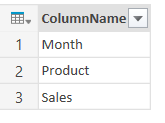
…the query above returns the following table of column names:

image

You can then store the output of this query in an Excel table for future reference – just remember not to refresh the query!

Having done that, you can then look at the columns returned by your data source and compare them with the columns you are expecting by using the techniques shown in this post. For example, here’s a query that reads a list of column names from an Excel table and compares them with the columns returned from a csv file:

[sourcecode language=”text”]
let
//Connect to Excel table containing expected column names
ExcelSource = Excel.CurrentWorkbook(){[Name="GetColumnNames"]}[Content],
//Get list of expected columns
ExpectedColumns = Table.Column(ExcelSource, "ColumnName"),
//Connect to CSV file
CSVSource = Csv.Document(
File.Contents(
"C:\Users\Chris\Documents\Power Query demos\SampleData.csv"
),null,",",null,1252),
//Use first row as headers
FirstRowAsHeader = Table.PromoteHeaders(CSVSource),
//Get a list of column names in csv
CSVColumns = Table.ColumnNames(FirstRowAsHeader),
//Find missing columns
MissingColumns = List.Difference(ExpectedColumns, CSVColumns),
//Find added columns
AddedColumns = List.Difference(CSVColumns, ExpectedColumns),
//Report what has changed
OutputMissing = if List.Count(MissingColumns)=0 then
"No columns missing" else
"Missing columns: " & Text.Combine(MissingColumns, ","),
OutputAdded = if List.Count(AddedColumns)=0 then
"No columns added" else
"Added columns: " & Text.Combine(AddedColumns, ","),
Output = OutputMissing & " " & OutputAdded
in
Output
[/sourcecode]

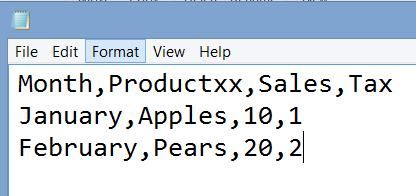
Given a csv file that looks like this:

image

…and an Excel table like the one above containing the three column names Month, Product and Sales, the output of this query is:

image

It would be very easy to convert this query to a function that you could use to check the columns expected by multiple queries, and also to adapt the output to your own needs. Also, in certain scenarios (such as when you’re importing data from SQL Server) you might also want to check the data types used by the columns; I’ll leave that for another blog post though. In any case, data types aren’t so much of an issue with CSV files because it’s Power Query that imposes the types on the columns within a query, and any type conversion issues can be dealt with by Power Query’s error handling functionality (see Gerhard Brueckl’s post on this topic, for example).

You can download a workbook containing the two queries from this post here.

Expression.Evaluate() In Power Query/M

A year ago I wrote a post on loading the M code for a Power Query query from a text file using the Expression.Evaluate() function, but I admit that at the time I didn’t understand how it worked properly. I’ve now had a chance to look at this function in more detail and thought it might be a good idea to post a few more examples of how it works to add to what’s in the Library spec.

The docs are clear about Expression.Evaluate does: it takes some text containing an M expression and evaluates that expression, returning the result. The important thing to remember here is that an M expression can be more than just a single line of code – a Power Query query is in fact a single expression, and that’s why I was able to execute one using Expression.Evaluate() in the blog post referenced above.

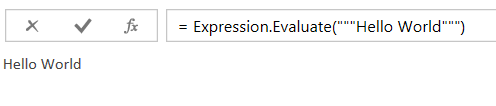
Here’s a simple example of Expression.Evaluate():

[sourcecode language=”text” padlinenumbers=”true”]
let
Source = Expression.Evaluate("""Hello World""")
in
Source
[/sourcecode]


It returns, of course, the text “Hello World”:

image

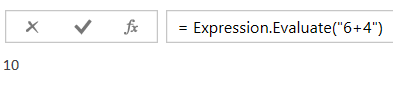
Here’s another example of an expression that returns the number 10:

[sourcecode language=”text”]
let
Source = Expression.Evaluate("6+4")
in
Source
[/sourcecode]


image

Remember that I said that a Power Query query is itself a single M expression? The way Power Query implements multiple steps in each query is using a let expression, which is a single M expression that contains multiple sub-expressions. Therefore the following  example still shows a single expression (consisting of a let expression) being evaluated to return the value 12:

[sourcecode language=”text”]
let
Source = Expression.Evaluate("let a=3, b=4, c=a*b in c")
in
Source
[/sourcecode]


image


OK, so far not very interesting. What we really want to do is evaluate more complex M expressions.

Consider the following query, which uses the Text.Upper() function and returns the text ABC:

[sourcecode language=”text”]
let
Source = Text.Upper("abc")
in
Source
[/sourcecode]


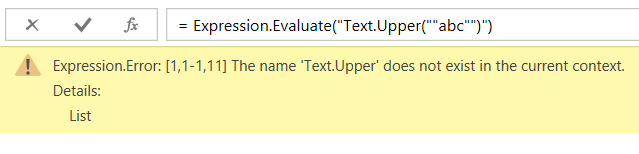
If you run the following query you’ll get the error “The name ‘Text.Upper’ does not exist in the current context.”:

[sourcecode language=”text”]
let
Source = Expression.Evaluate("Text.Upper(""abc"")")
in
Source
[/sourcecode]

image

To get a full understanding of what’s going on here, I recommend you read section “3.3 Environments and Variables” of the language specification document, which is available here. The short explanation is that all M expressions are evaluated in an ‘environment’, where other variables and functions exist and can be referenced. The reason we’re getting an error in the query above is that it’s trying to execute the expression in an environment all of its own, where the global library functions aren’t available. We can fix this though quite easily by specifying the global environment (where the global library of functions that Text.Upper() is a part of are available) in the second parameter of Expression.Evaluate() using the #shared intrinsic variable, like so:

[sourcecode language=”text”]
let
Source = Expression.Evaluate("Text.Upper(""abc"")", #shared)
in
Source
[/sourcecode]

image

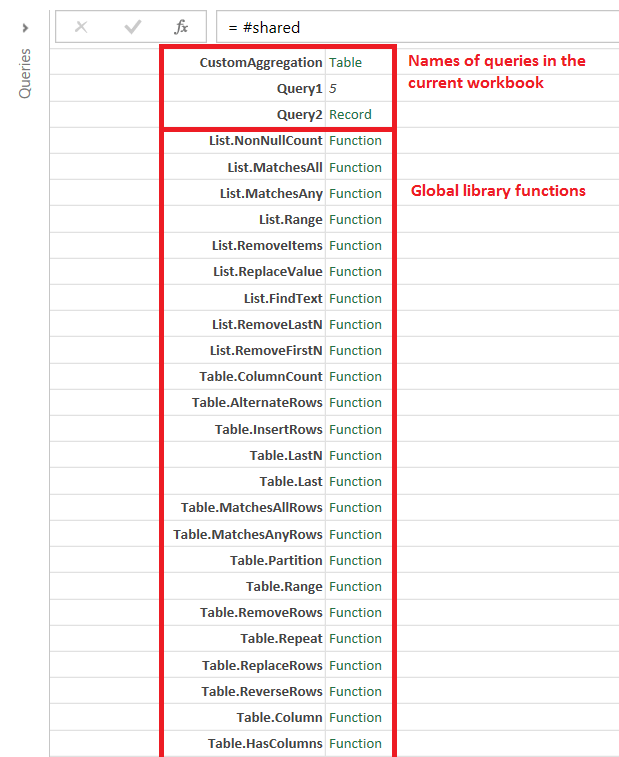
#shared returns a record containing all of the names of the variables in scope for the global environment and as such it can be used on its own in a query that returns all of the variables (including all of the functions in the global library and from all other queries in the current workbook) available:

[sourcecode language=”text”]
let
Source = #shared
in
Source
[/sourcecode]


Here’s what that query returns on the workbook that I’m using to write this post, which contains various queries apart from the one above:

image

Reza Rad has a blog post devoted to this which is worth checking out.

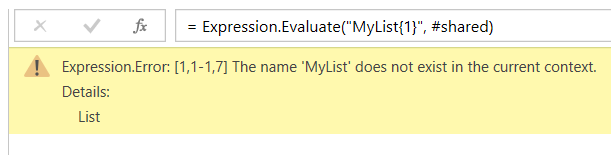
Using #shared will allow you to evaluated expressions that use global library functions but it’s not a magic wand that makes all errors go away. The following query declares a list and then attempts to use Expression.Evaluate() to get the second item in the list:

[sourcecode language=”text”]
let
MyList = {1,2,3,4,5},
GetSecondNumber = Expression.Evaluate("MyList{1}", #shared)
in
GetSecondNumber
[/sourcecode]

image

Despite the use of #shared in the second parameter we still get the context error we saw before because the variable MyList is still not available. What you need to do here is to define a record in the second parameter of Expression.Evaluate() so that the environment that the expression evaluates in knows what the variable MyList refers to:

[sourcecode language=”text”]
let
MyList = {1,2,3,4,5},
GetSecondNumber = Expression.Evaluate("MyList{1}", [MyList=MyList])
in
GetSecondNumber
[/sourcecode]

image

This slightly more complex example, which gets the nth item from a list, might make what’s going on here a little clearer:

[sourcecode language=”text”]
let
MyList_Outer = {1,2,3,4,5},
NumberToGet_Outer = 3,
GetNthNumber = Expression.Evaluate("MyList_Inner{NumberToGet_Inner}",
[MyList_Inner=MyList_Outer, NumberToGet_Inner=NumberToGet_Outer ])
in
GetNthNumber
[/sourcecode]


image

In this example you can see that the two variable names present in the text passed to the first parameter of Expression.Evaluate() are present in the record used in the second parameter, where they are paired up with the two variables from the main query whose values they use.

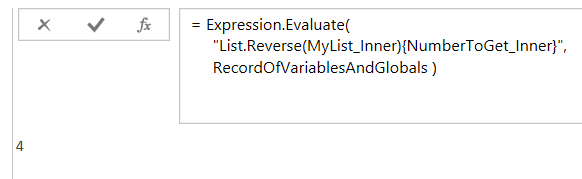
Finally, how can you pass your own variable names and use functions from the global library? You need to construct a single record containing all the names in #shared plus any others that you need, and you can do that using Record.Combine() to merge a manually created record with the one returned by #shared as shown here:

[sourcecode language=”text”]
let
MyList_Outer = {1,2,3,4,5},
NumberToGet_Outer = 1,
RecordOfVariables =
[MyList_Inner=MyList_Outer, NumberToGet_Inner=NumberToGet_Outer ],
RecordOfVariablesAndGlobals = Record.Combine({RecordOfVariables, #shared}),
GetNthNumber = Expression.Evaluate(
"List.Reverse(MyList_Inner){NumberToGet_Inner}",
RecordOfVariablesAndGlobals )
in
GetNthNumber
[/sourcecode]


image