Web.Contents(), Caching And The ExcludedFromCacheKey Option In Power BI And Power Query

When you’re using the Web.Contents() M function to call a web service from Power Query or Power BI, you don’t necessarily get one HTTP request each time you call the function: some caching takes place, so that if you make the same request multiple times your query won’t waste time asking for the same data over and over. In this post I’m going to share the results of some tests I made to show how caching works with Web.Contents() and what factors influence it.

For my tests I built a simple web service in Microsoft Flow, similar to the one I blogged about here, that accepts a HTTP POST request and calls a stored procedure in an Azure SQL Database. The stored procedure then updates a table in the database and this in turn allows me to count the number of times the web service is called. Finally, the web service returns the value 0 if the stored procedure has executed successfully.

This web service can then be called from either Power Query or Power BI using the Web.Contents() function, something like this (because the URL for the web service is very long I stored it in a parameter called WebServiceURL):

[sourcecode language=”text” padlinenumbers=”true”]
let
Source = Web.Contents(
WebServiceURL,
[Content=Text.ToBinary("Hello")]
),
#"Imported JSON" = Json.Document(Source,1252)
in
#"Imported JSON"
[/sourcecode]

The output of the query when run in Power Query and loaded to an Excel table is this:

image

The first important thing to point out is that the above query, when refreshed in the latest versions of Power Query (I’m running Excel 2016 build 7571.2109) and Power BI (build 2.41.4581.361- November 2016 release), results in a single call to the web service. It might seem like I’m stating the obvious but in the past I’ve seen plenty of cases where a data source has been queried multiple times by Power Query/Power BI even if I was only expecting it to be queried once.

Now, let’s look at a query that calls this web service several times. Here’s the query above converted to a function called fnCallWebService:

[sourcecode language=”text”]
() =>
let
Source = Web.Contents(
WebServiceURL,
[Content=Text.ToBinary("Hello")]),
#"Imported JSON" = Json.Document(Source,1252)
in
#"Imported JSON"
[/sourcecode]

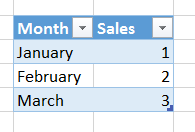
Here’s a query that calls this function once for each row of the following table:

image

[sourcecode language=”text”]
let
Source = Excel.CurrentWorkbook(){[Name="MyTable"]}[Content],
#"Changed Type" = Table.TransformColumnTypes(
Source,
{{"Row", Int64.Type}}),
#"Invoked Custom Function" = Table.AddColumn(
#"Changed Type",
"fnCallWebService",
each fnCallWebService())
in
#"Invoked Custom Function"
[/sourcecode]

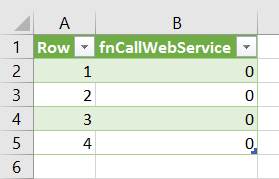
In the query above I used the Invoke Custom Function button to call the function for each row in the source table and put the value returned by the function in a new column. The output is this:
image

Even though the function is called four times, once for each row in the original table, that does not mean that the web service is called four times – it isn’t, it’s only called once. In this case Power BI/Power Query knows that each of the four calls to the function is making an identical request to the web service and so it only goes to the web service once, and thereafter uses a cached result the other three times.

One way to stop this caching from taking place is to add an HTTP header to the request to the web service and pass a different value to that header for each call. Here’s another version of my function, now called fnCallWebServiceWithHeaders, which this time takes a number as a parameter and then passes that number to the web service via a header called MyHeader:

[sourcecode language=”text” highlight=”5″]
(RowNum as number) => let
Source = Web.Contents(
WebServiceURL,
[Content=Text.ToBinary("Hello"),
Headers=[MyHeader=Text.From(RowNum)]]),
#"Imported JSON" = Json.Document(Source,1252)
in
#"Imported JSON"
[/sourcecode]

Now if I call this function for each row of the table, and for each call pass the value in the [Row] column through to the function like so:
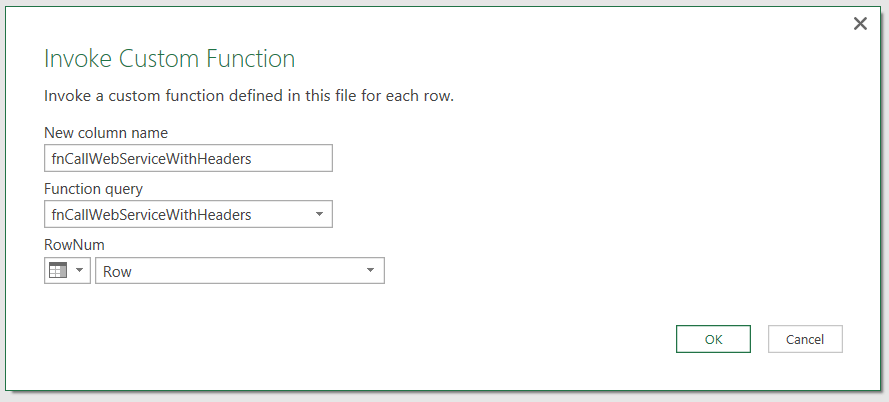
image

[sourcecode language=”text”]
let
Source = Excel.CurrentWorkbook(){[Name="MyTable"]}[Content],
#"Changed Type" = Table.TransformColumnTypes(
Source,
{{"Row", Int64.Type}}),
#"Invoked Custom Function" = Table.AddColumn(
#"Changed Type",
"fnCallWebServiceWithHeaders",
each fnCallWebServiceWithHeaders([Row]))
in
#"Invoked Custom Function"
[/sourcecode]

…the web service gets hit four times. The presence of a different value for the MyHeader header in each request is enough to prevent any caching from taking place.

It is possible, however, to get Power BI/Power Query to ignore one or more headers when working out whether caching should take place using the ExcludedFromCacheKey option in Web.Contents(). Here’s one more version of my function, now called fnCallWebServiceWithHeadersExlCache, which uses this option:

[sourcecode language=”text” highlight=”7″]
(RowNum as number) =>
let
Source = Web.Contents(
WebServiceURL,
[Content=Text.ToBinary("Hello"),
Headers=[MyHeader=Text.From(RowNum)],
ExcludedFromCacheKey={"MyHeader"}]),
#"Imported JSON" = Json.Document(Source,1252)
in
#"Imported JSON"
[/sourcecode]

The ExcludedFromCacheKey option takes a list of text values which represent the names of headers that are to be ignored when considering which requests can be cached. In the example above my list contains just the one header, MyHeader, and when this is used in a query like so:

[sourcecode language=”text”]
let
Source = Excel.CurrentWorkbook(){[Name="MyTable"]}[Content],
#"Changed Type" = Table.TransformColumnTypes(
Source,
{{"Row", Int64.Type}}),
#"Invoked Custom Function" = Table.AddColumn(
#"Changed Type",
"fnCallWebServiceWithHeaders",
each fnCallWebServiceWithHeadersExlCache([Row]))
in
#"Invoked Custom Function"
[/sourcecode]

…even though the function is called four times, once for each row in the table, and even though each time Web.Contents() is called it is with a different value passed through to the MyHeader header, only one request is made to the web service and the three subsequent requests are answered from cache again.

In summary, if you’re calling a web service multiple times in a query and especially if you’re using the Headers option in Web.Contents(), this is important stuff to understand because caching can make a big difference to the performance of your queries.

First Thoughts On The Integration Of Power Query/M Into Analysis Services Tabular

Last Friday’s big news was the release of the first CTP for Analysis Services v.next. Among several major new pieces of functionality (Ragged hierarchies! Drillthrough that works properly, even for calculations! Table-level security!) probably the biggest is the integration of Power Query/M into Analysis Services. As you can probably guess, I’m incredibly pleased that my two favourite technologies have got together. The technical details are given in this blog post, which I suggest you read if you haven’t done so already, but what I think is missing is an explanation of why this is so important and what kind of opportunities it opens up – hence this post. Of course this is just my take on the subject and not what Microsoft may actually thinking; it’s also very early days, so as the functionality develops and I have more chance to think about this my opinions may change. If you have any ideas on this subject I would be interested to hear them so please leave a comment!

Why this had to happen: Power BI

There is an obvious reason why Microsoft decided to integrate Power Query/M into SSAS, and that is because it needs to support the conversion of Power BI models into Analysis Services Tabular models. There are two scenarios where this will be necessary.

The first is the ability to convert a Power BI model into an Azure Analysis Services Tabular model (listed as ‘planned’ here), something that will be a key selling point for Azure Analysis Services when it releases. The engine behind Power BI is essentially the same as the one used in Analysis Services so migrating the data model should be straightforward, but since Power BI uses Power Query/M to load data then a migrated Azure Analysis Services model will also have to use Power Query/M.

The second scenario is similar to the first. We now know that on-premises Power BI will be delivered through Reporting Services v.next, and it’s reasonable to assume Reporting Services will need a database engine to store the data for published Power BI reports. That engine will have to be an Analysis Services instance of some kind (either standalone or running in-process inside Reporting Services) and again for that to work Analysis Services will have to support the same data access mechanisms as Power BI.

Better support for a larger number of data sources

I’ve just argued why Microsoft was obliged to include this functionality in SSAS v.next but in fact there are many positive reasons for doing this too. The most obvious one is to do with support for more data sources. At the moment SSAS Tabular supports a pretty good range of data sources, but the world of BI is getting more and more diverse and in order to stay relevant SSAS needs to support far more than it does today. By using Power Query/M as its data access mechanism, SSAS v.next will immediately support a much larger number of data sources and this number is going to keep on growing: any investment that Microsoft or third parties make for Power BI in this area will also benefit SSAS. Also, because Power Query/M can query and fold to more than just relational databases, I suspect that in the future this will allow for DirectQuery connections to many of these non-relational data sources too.

Different data sources for partitions in the same table

Another benefit of this change is that we’ll have a lot more flexibility with partitioning tables in an SSAS Tabular model. As the blog post says:

As long as a partition’s M query adheres to the column mappings of the table, you are free to perform any transformations and pull in data from any data source defined in the model.

In SSAS 2016 the partitions in a table all have to get data from the same data source whereas in v.next we’ll be able to get data from different data sources in different partitions, and this opens up some interesting new possibilities. For example, I can imagine a simple budgeting application where the partitions in a table get data from different Excel workbooks stored in OneDrive for Business, and where the each partition gets processed automatically when changes are saved to one of these workbooks.

Does this replace SSIS and my data warehouse? 

The short answer is no. Power Query/M is not a full-featured ETL tool and I don’t think it ever will be; it certainly does not have the kind of functionality needed to perform enterprise-level ETL right now. My view is that Microsoft have built Power Query/M into SSAS for the reasons above and not to encourage enterprise SSAS users to do their own quick-and-dirty ETL when loading data (although there is a risk that that will happen anyway). That said, I think the dividing line between corporate and self-service BI will become increasingly blurred over the next few years as the Microsoft BI stack develops, and we’ll see Analysis Services being used in self-service scenarios as well as the more traditional corporate ones.

Centralised data source objects

One last thing to point out is that the way SSAS v.next makes a distinction between data sources and other queries is very interesting. In Power BI and Power Query it’s easy to end up with data source connection information duplicated across multiple queries unless you know what you’re doing, and this can cause no end of problems later on in a project. As far as I can see, in SSAS v.next a “data source object” is an M query that only contains the connection to external data, while all other queries have to reference a data source to be able to access external data. This means, as the blog post says:

Referring to data source objects helps to centralize data source settings for multiple queries and simplifies deployments and maintenance if data source definitions must be updated later on. When updating a data source definition, all M queries that refer to it automatically use the new settings.

I wonder whether this concept is coming to Power BI and Power Query at some point? I hope so – it makes a lot of sense.

Passing Parameters To SQL Queries With Value.NativeQuery() In Power Query And Power BI

I first came across the Value.NativeQuery() M function about six months ago, but it didn’t do anything useful then so I didn’t blog about it. I checked it again recently though and now it does something very handy indeed: it allows you to pass parameters to SQL queries. Before this, if you wanted to use parameters in your SQL, you had to do some nasty string manipulation in the way Ken Puls shows here. Now, with Value.NativeQuery(), you can handle SQL query parameters properly in M.

Here’s a simple example that shows how it works, passing two parameters to a SQL query on the Adventure Works DW database:

let
    Source = Sql.Database("localhost", "Adventure Works DW"),
    Test = Value.NativeQuery(
            Source,
            "SELECT * FROM DimDate
            WHERE EnglishMonthName=@MonthName
            AND
            EnglishDayNameOfWeek=@DayName",
            [MonthName="March", DayName="Tuesday"])
in
    Test
image

Some explanation of what’s happening here:

  • The Source step returns a reference to a SQL Server database, and this is passed to the first parameter of Value.NativeQuery().
  • The second parameter of the Value.NativeQuery() function is the SQL query to be executed. It contains two parameters called @MonthName and @DayName.
  • The parameters to the SQL query are passed using a record in the third parameter of Value.NativeQuery(). Note how the named of the fields in the records match the names of the parameters in the SQL query.

It looks like, eventually, this will be the way that any type of ‘native’ query (ie a query that you write and give to Power Query, rather than a query that is generated for you) is run against any kind of data source – instead of the situation we have today where different M functions are needed to run queries against different types of data source. I guess at some point the UI will be updated to use this function. I don’t think it’s ‘finished’ yet either, because it doesn’t work on Analysis Services data sources, although it may work with other relational data sources – I haven’t tested it on anything other than SQL Server and SSAS. There’s also a fourth parameter for Value.NativeQuery() that can be used to pass data source specific options, but I have no idea what these could be and I don’t think there are any supported for SQL Server. It will be interesting to see how it develops over the next few releases.

[Update February 2021]

For relational databases that use question marks (?) instead of @ names for parameter placeholders, you need to use Value.NativeQuery in a slightly different way by passing a list of values rather than a record to the second parameter. Here’s an example:

Value.NativeQuery(
  Source,
  "SELECT * FROM DimDate
   WHERE EnglishMonthName=?
   AND
   EnglishDayNameOfWeek=?",
   {"March", "Tuesday"})

Power Query, Power BI And The “Allow Data Preview To Download In The Background” Option

Recently I was asked by a customer to do some tuning on an Excel workbook with a lot of Power Query queries in it. Although all of the data used in the queries was coming from tables in the workbook itself and the data volumes were small, there were fifty Power Query queries and clicking Refresh All resulted in a large, prolonged spike in CPU and memory usage by Excel.

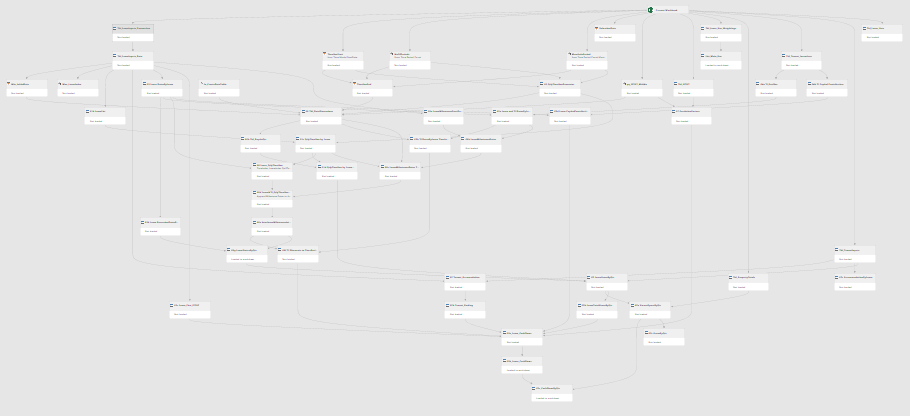
Only a small number of these fifty queries were being loaded into the workbook and none were being loaded into the Excel Data Model. The queries that were being loaded into the workbook were referencing several other queries that in turn referenced several other queries, and indeed there were some reference chains that were over ten queries long. To give you an idea of the complexity here’s what the Query Dependencies view looked like:

image

I’m a big fan of using references to split complex logic up into separate queries, and in this case it was absolutely the right thing to do because otherwise the workbook would have been unmaintainable. That said, there was clearly something going wrong with the refresh in this case.

On further investigation I found that if I individually refreshed the small number of queries that actually loaded data into the workbook, they all refreshed very quickly and with none of the ill-effects seen with a Refresh All. So if it wasn’t the queries that were being loaded into the workbook, what was the problem? It turns out it was the queries that weren’t being loaded into the workbook.

Both Power Query and Power BI load previews of the data returned by a query for display in the Query Editor; clicking Refresh All in the workbook was obviously triggering a refresh of these previews and this was what was using all the memory and CPU. I found that to prevent this happening I had to use an option that was introduced in Power BI in January 2016 and is also now present in Power Query/Get & Transform in Excel: Allow Data Preview To Download In The Background.

You can find this option in Excel by going to the Query Options dialog:

image

…and then going to Current Workbook/Data Load. If you then deselect “Allow data preview to download in the background”:

image

…you will find that the background refresh of query previews stops.

In my case, after I had done this – and with a bit of other tuning using Table.Buffer() – the workbook refreshed very quickly indeed and there was no spike in CPU or memory after a Refresh All.

Other people have run into the same problem in Excel and also in Power BI Desktop (see here and here), so it looks like this is an important property to change if you have a large number of queries in a single workbook or pbix file.

Sharing Power Query Queries With Azure Data Catalog

About a week ago, without any warning, a much-awaited new feature lit up in Azure Data Catalog: the ability to share Power Query queries between workbooks and users. In fact it’s not really a new feature but the reappearance of something that was present in the original version of Power BI for Office 365; it works in a very similar way, although some functionality like the option to search public data sources has now disappeared and some functionality seems to have changed.

How It Works

First, make sure you have an Azure Data Catalog subscription. You can sign up here and a free subscription is fine. If you want to learn more about Azure Data Catalog you can read my post from earlier this year which has a quick overview.

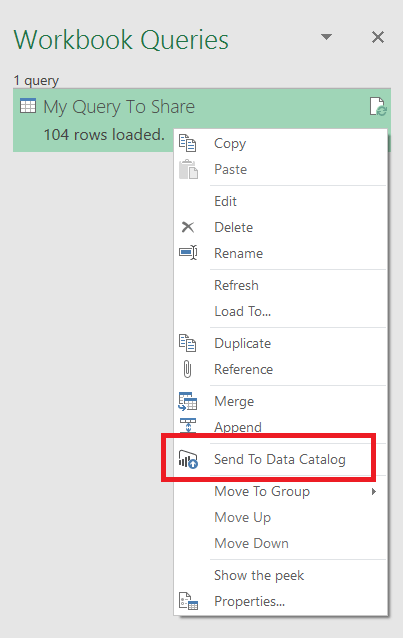
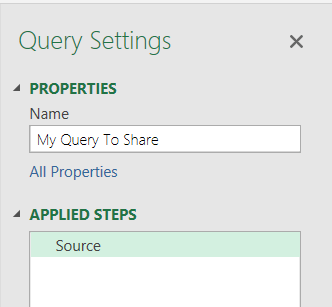
Now imagine that you have just created a really cool Power Query query that you think all of your colleagues will want to use. In Excel right click on the Power Query query that you want to share in the Query Pane, then select Send To Data Catalog:

image

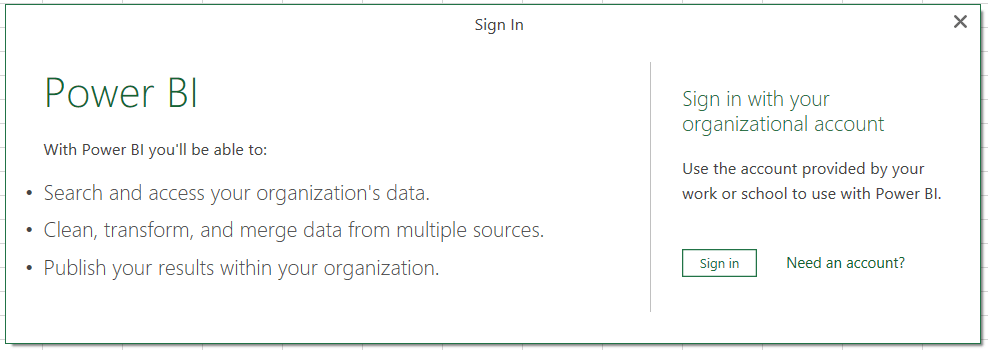
You may need to sign in at this point – use the Organizational account that is associated with your Azure Data Catalog subscription.

image

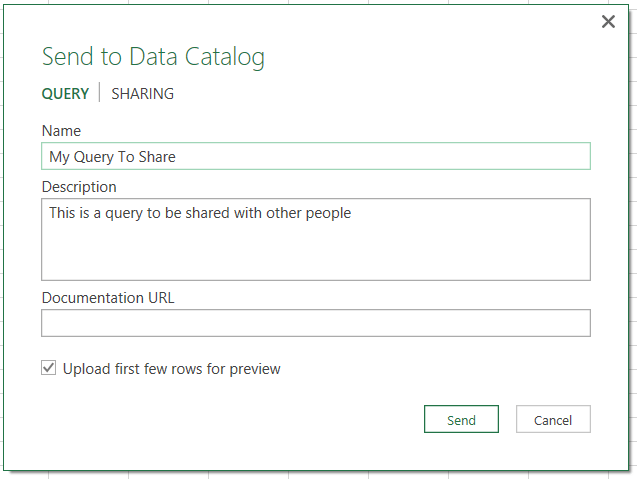
Next you’ll see the Send to Data Catalog dialog. On the Query tab you can edit the description of the query and supply a URL to documentation:

image

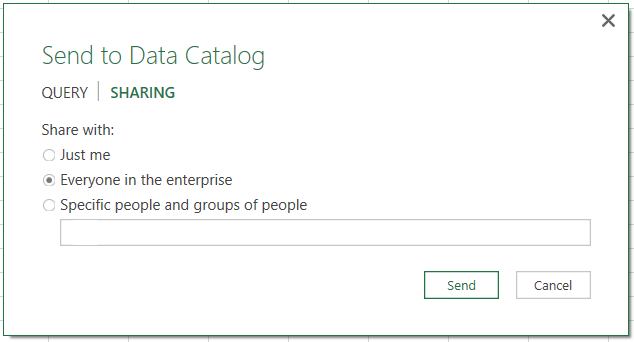
You can also specify who the query is shared with:

image

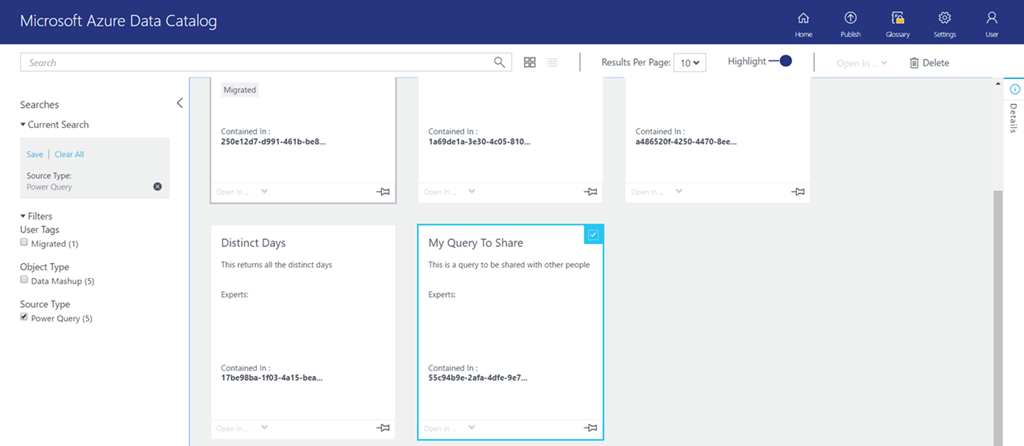
Click Send and you have shared your query. At this point it will be visible in the Azure Data Catalog web portal along with all of your other assets:

image

Here you can also manage sharing, add more documentation, look at the columns returned and see a preview (if you enabled it when you shared the query). Unfortunately the Open In option is disabled at the time of writing, so you can’t open a new Excel workbook containing this query yet.

Back in Excel, if you want to use a shared query in a new workbook, you have two options on the New Query dropdown menu on the Data tab:

image

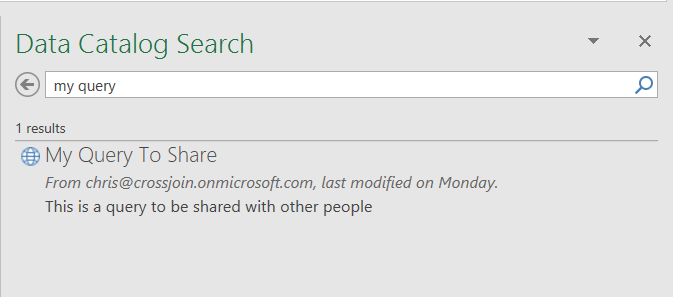
You can either search the catalog:

image

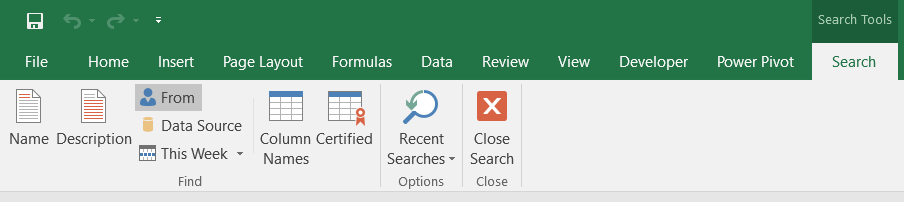
When you do this a new Search tab appears on the Excel ribbon, giving several different search options:

image

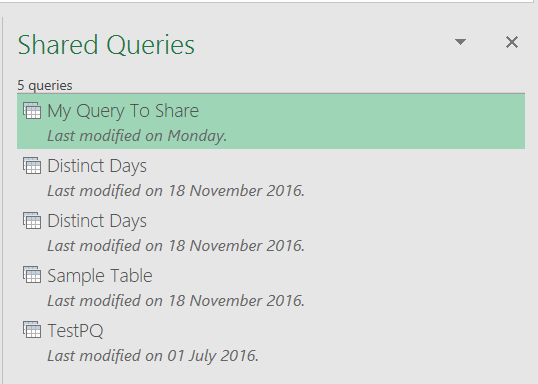
Alternatively, the My Data Catalog option allows you to see the queries you have shared:

image

Once you’ve found your query, you have two ways to consume it and it’s not immediately obvious what the differences are between them.

First you have the Load/Load To options that copy the query into your workbook and load its output to your destination of choice. At this point the new query runs like any other query, but when you open the Query Editor you’ll see it only has one step:

image

If you look at the M code you’ll see something like this:

[sourcecode language=”text” padlinenumbers=”true”]
let
Source = Embedded.Value("959d482b-3b06-483c-84dd-f6fee2900bf9")
in
Source
[/sourcecode]

The actual query is embedded somewhere in the workbook but the M source code isn’t available for you to view or edit, you can only run it.

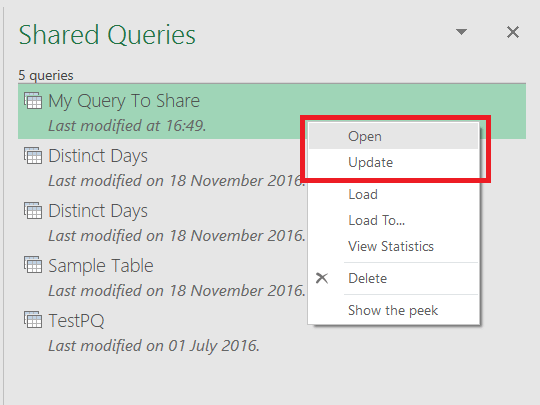
If you want to edit the query or see the M code you have to use the Open option in the Shared Queries pane:

image

If you do this a new workbook is created with this query in it, and in the Query Editor you’ll see you can edit this query as normal: all the steps and the M code are visible.

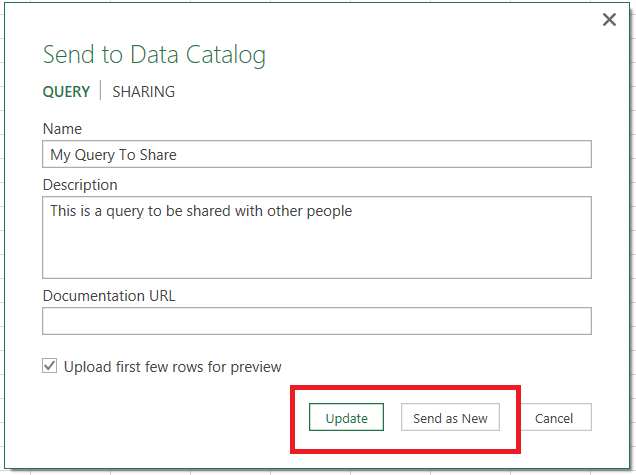
Finally, if you do change the query, you can update the definition or share it as a new query by using the Send To Data Catalog option again. When the Send To Data Catalog dialog appears you have two new options to update the existing shared query in the Data Catalog or to create a new shared query:

image

How Could It Be Improved?

While I’m really happy to have this functionality back, and I think a lot of people will find it useful, there’s still a lot of room for improvement. Some thoughts:

  • This really needs to extended to work with Power BI Desktop too. In fact, it’s such an obvious thing to do it must be happening soon…?
  • Both Power Query and Power BI should also extend their integration with Azure Data Catalog: you should be able to search for all types of data source and be able to create new queries from them. I know you can create new Power BI Desktop files and Excel files with Power Query queries using the Open In functionality in the Azure Data Catalog web portal, but that’s the wrong place to start the process in my opinion.
  • I find the difference between Load/Load To (where the query isn’t editable) and Open (where it is) confusing. It would be clearer to have options to download editable and non-editable versions.
  • It would be useful for Azure Data Catalog to store different versions of queries, so when you uploaded a query it didn’t overwrite the previous version and so you could roll back to an earlier version if you needed to. Source control, basically.
  • I’d like to see some kind of message appear in Excel or Power BI Desktop if a new version of a query I was using had been published, and then have the option to upgrade to the new version.
  • While it’s great to share queries in this way, it would also be cool to publish queries up to some kind of central place (a server, something cloudy) where they also executed and be available as a new data source. That way, other people could just consume the output of the query and not have to copy the query into their workbooks or Power BI reports. Maybe if you could publish an M query as an Azure Function…?

Converting Lists Of Numbers To Text Ranges In Power Query

In a comment on my post on Creating Sequences of Integers And Characters In Power BI/Power Query Lists a reader, Paul G, asked me the following question:

can you reverse this? e.g i have a list (1,2,3,5,7,8,9,12,13,14,15) can i convert this to (1-3, 5 ,7-9,12-15)

This got me thinking… I was sure it could be done in M, but would it be possible using just the UI? As far as I can see, it isn’t – there’s one crucial thing I can’t do – but I would be interested to see if anyone else can come up with a no-code solution.

The Almost UI-Only Solution

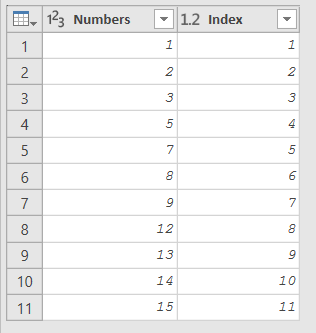
Here’s the source data, an Excel table called SourceTable:

image

Here’s what I did to create the ranges in a new Power Query query:

  1. Load the table into Power Query and set the Numbers column to have a data type of Whole Number
    image
  2. Sort the Numbers column in ascending order (even though in this case it already is)
    image
  3. Add an Index Column. It doesn’t matter what number it starts at (though I started it at one) but it does matter that it has a consecutive list of whole numbers in it:
    image
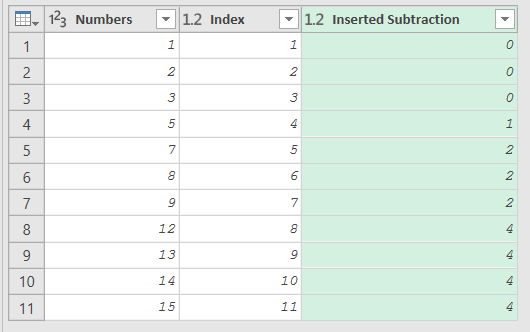
  4. Select both columns in the table, go to the Add Column tab in the query editor and under the Standard button select Subtract to add a new column containing the value of [Numbers]-[Index]:
    image
    Each distinct value in this column equates to a range of numbers in our final output – for example the rows that have the value 0 in this table will become the 1-3 range in the output.
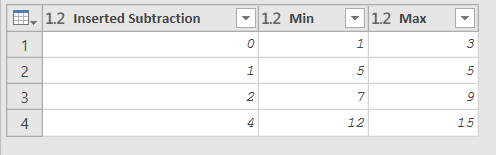
  5. Do a Group By on this table, grouping by the Inserted Subtraction column and finding the minimum and maximum values in each range:
    imageimage
  6. Remove the Inserted Subtraction column because we don’t need it any more:
    image
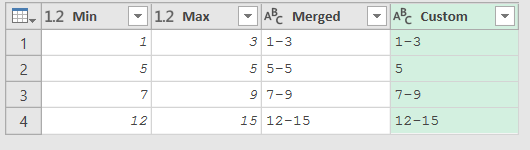
  7. Select the Min and Max columns and then do a Merge Columns to combine these two sets of values using a dash:
    image
    image
  8. You now have your range names, but in the case of 5-5 you need to just return 5, so add a Conditional Column to handle this like so:
    image
    image
  9. Set the resulting column to have a data type of text:
    image
  10. Remove all other columns apart from Custom:
    image
  11. And finally, combine all the values together into a single comma-delimited list. This is where the UI lets you down, at the last step! Gil Raviv shows one way to solve this problem in a recent post, and then in a follow-up posts a much more elegant solution using M from Imke Feldmann which is my preferred approach too.  I won’t repost all the steps (which are very well described here anyway) but basically you do another Group By, then alter the code of the resulting step to use Text.Combine() to aggregate the text.
    image

Job done! If anyone from the Power Query team is reading this blog, here’s a message for you: please give us a new option in the Group By dialog to concatenate all the text values in a column, rather like the DAX ConcatenateX() function. Thanks!

The Pure M Solution

Of course you would like to see a pure M solution too, wouldn’t you? Here you go:

[sourcecode language=”text” padlinenumbers=”true”]
let
//The list to find ranges in
Source = {1,2,3,5,7,8,9,12,13,14,15},
//Sort in ascending order
SortedSource = List.Sort(Source, Order.Ascending),
//Get a list of all the positions in the list
//rather like adding an index column
Positions = List.Positions(SortedSource),
//Create a list of all the groups by subtracting
//each number from its position in the list
Groups = List.Transform(Positions, each SortedSource{_}-_),
//The function to use with List.Accumulate
RangeAccFunction = (state, current) =>
let
//Get the current number from the iteration
CurrentNumber = Text.From(SortedSource{current}),
//Get the current group number
CurrentGroup = Groups{current},
//Get the previous group number
LastGroupIndex = if current=0 then 0
else current-1,
LastGroup = Groups{LastGroupIndex},
//Get the next group number
NextGroupIndex = if current=List.Max(Positions)
then 0
else current+1,
NextGroup = Groups{NextGroupIndex},
//Generate the text for this iteration
TextToAdd =
if current=0 then CurrentNumber
else
if CurrentGroup<>LastGroup
then ", " & CurrentNumber
else
if CurrentGroup<>NextGroup
then "-" & CurrentNumber
else ""
in
//Return the previous text plus
//the newly generated text
state & TextToAdd,
//Use List.Accumulate to iterate over the list of positions
//And generate the text for the ranges
Output = List.Accumulate(Positions, "", RangeAccFunction)

in
Output
[/sourcecode]

The output in this case is just the text we’re looking for:

image

This turned out to be a great opportunity to use the List.Accumulate() function; once again, Gil Raviv has a great post describing this function and how it can be used. In this case I’m using a very similar approach to the one above to group the numbers, then declaring a function called RangeAccFunction that can be passed to List.Accumulate() to generate the output text. Again, I would be curious to see other solutions!

You can download the sample workbook for this post here.

Referenced Queries And Caching In Power BI And Power Query

Last week, Maxim Zelensky (whose blog is well worth checking out) tweeted about a very interesting answer he had received to a question he posted on the Power Query MSDN forum, on the subject of caching and referenced queries in Power Query. You can read the thread here:

https://social.technet.microsoft.com/Forums/en-US/8d5ee632-fdff-4ba2-b150-bb3591f955fb/queries-evaluation-chain?forum=powerquery

…but since this is such important information – it’s certainly something I’ve wondered about myself – I though I would share Maxim’s question and the response from Ehren of the Power Query dev team here in full so it gets the wider visibility it deserves. I’m very grateful to Maxim for letting me share this and to Ehren for writing such a detailed response.

First, Maxim’s original question:

There are two different scenarios I am working with:

1) Query1 connects to the data source (flat file) and make basic cleaning and transformations.

Then Query2 and Query3 reference to Query1, performing other transformations needed.

Query3 also take some data from Query2.

Query2 and Query3 then exported to sheet, Query1 – connection only.

As far as I can understand, PQ can define refresh chain like this: evaluate Query1, then evaluate Query2, then evaluate Query3 (as it need the results from Query2). The question is: When PQ performs calculation of Query3, will it recalculate Query1? Or, as it was evaluated in the chain before, Query3 will use cached results of previous Query1 calculation (performed when Query2 was evaluated)?

2) I have a set of flat files, and I take data from them with one Query1. Query1 also performs some transformations. Then I have two independent Query2 and Query3, both connected to Query1 performing different transformations of source data. Results of Query2 and Query3 evaluations then used in Query4, which exports its results to the sheets, Query1, Query2 and Query3 – connection only

The second question is: performing "Refresh" on Query4, how much times will be Query1 evaluated – one, two or three ? Or there also will be chain: calculate Q1, caching, then Q2 or Q3, calculate next using cached results of Q1 evaluation, and then – Q4?

3) Is there is a difference with connection to database?

4) Is there any rules of evaluation chain (like each expression/query will be calculated once in the evaluation chain)?

And here’s Ehren’s reply:

There’s a lot involved in answering your question, so let me back up and explain a few things first.

Caching
Power Query (in both Excel and Power BI Desktop) utilizes a "persistent cache", stored on disk, when refreshing queries. But what exactly does that mean?

First, let’s look at what gets cached. The persistent cache does not store the results of your M Queries (Q1, Q2, etc. in your example). Instead, it stores the results of the behind-the-scenes requests sent to data sources.
So if Q1 queries a SQL Server database called "MyServer/MyDatabase" and returns a single unfiltered table called "MyTable", the query sent to the server might be "select [Col1] from [MyTable]". In this case, the persistent cache will now know the result of sending "select [Col1] from [MyTable]" to "MyServer/MyDatabase". If another M query (whether through referencing Q1, or by querying the same table directly) needs the same result, the persistent cache can provide it, and the result won’t have to be fetched a second time from the SQL Server.
"Great," you might say. "So if I’m pulling from a flat file in Q1, and in a few places in Q2 I need to do Table.RowCount(Q1), the file should only be read from disk once, right?" And the answer would be…no. This is because not all data sources are cached. Specifically, the results of calls to File.Contents are not stored in the persistent cache. Why not? Well, the cache is stored on disk, and caching local files (which are already on disk) elsewhere on disk doesn’t really make sense. (Using Table.Buffer in this context may help…see more on Table.Buffer below.)
"Okay", you might say. "But if Q1 is pulling from a SQL table, and in a few places in Q2 I reference Q1, that should hit the persistent cache, right?" Maybe. It depends on how Q2 is using Q1, since doing additional operations on Q1 (such as filtering or merging) might cause the M engine to compute a different SQL query, resulting in the server being hit again.
Next, let’s look at the scope of caching. The scope of caching differs depending on what you’re doing, as well as what tool you’re using.

Previewing
If you’ve opened the Power Query editor in Excel or Power BI Desktop, you might have seen warnings like "This preview may be up to 3 days old". This is because there is a persistent cache used for interactive previewing of query results. As you can imagine from the fact that we have warnings about preview results being days old, this cache is long-lived and is intended to make the experience of working in the editor faster.

Loading to Excel
If you load/refresh three queries in Excel, each of them gets their own persistent cache. So the fact that a SQL result is cached during the load of Q2 won’t benefit the loading of Q3, even if it needs the same result.

Loading to Power BI Desktop
If you load/refresh three queries in PBI Desktop, they all share a single persistent cache. When you refresh multiple times, each refresh operation gets its own cache (shared by all the queries being refreshed at that particular time). This means that if SQL result is cached during the load of Q2, it will still be cached during the loading of Q3 (assuming they’re both being loaded at the same time).

What about Table.Buffer?
Table.Buffer can be useful if you want to store an intermediate result in memory and avoid pulling content from disk, a remote file share, a SQL Server, a website, or any other data source multiple times during an evaluation.  Think of Table.Buffer as, "load this table into memory, and stop folding subsequent operations back to the data source".

However, because buffering happens in memory and is not persisted on disk, buffering during the load of one query does not affect the load of another query. If Q1 is buffered when Q2 is loaded, Q1 will be re-buffered when Q3 is loaded.

And now to answer your question…
Now let’s take a look at your example (Q4 references Q2 and Q3, and Q2 and Q3 both reference Q1).
Since you’re pulling from a flat file, and File.Contents results aren’t cached, the flat file will be read each time Q1 is referenced (twice in Q4, once in Q3, Q2, and Q1). If you buffered the result of Q1, then Q4 would only read the file once. But when Q1, Q2, and Q3 are loaded (even in PBI Desktop), they will still each also read the file.

What about immutability?
You asked about the fact that M values are supposed to be immutable. This is true for the "pure" parts of the language, but breaks down when you introduce external data sources and folding. (In fact, you could think of Table.Buffer as transferring a table from the fuzzy unpredictable world of folding to the immutable world of pure M values.) You can see this in action by doing the following test, using a query called "MyTextFileQuery" that pulls from a local file on disk.

Reads the file five times
= Table.RowCount(MyTextFileQuery) + Table.RowCount(MyTextFileQuery) + Table.RowCount(MyTextFileQuery) + Table.RowCount(MyTextFileQuery) + Table.RowCount(MyTextFileQuery)

Reads the file once
= let rowCount = Table.RowCount(MyTextFileQuery) in rowCount + rowCount + rowCount + rowCount + rowCount

I’ve read this response several times and it’s still sinking in, but clearly there are some important implications here for anyone doing more advanced data loading work in Power Query and Power BI. I’m sure it will be the inspiration for many future blog posts on tuning Power Query query performance.

Calling Microsoft Flow From Power Query And Power BI

Since last week’s blog post caused quite a lot of interest, here’s something similar: did you know you can trigger a Flow in Microsoft Flow and get a response from it back using Power Query/Power BI?

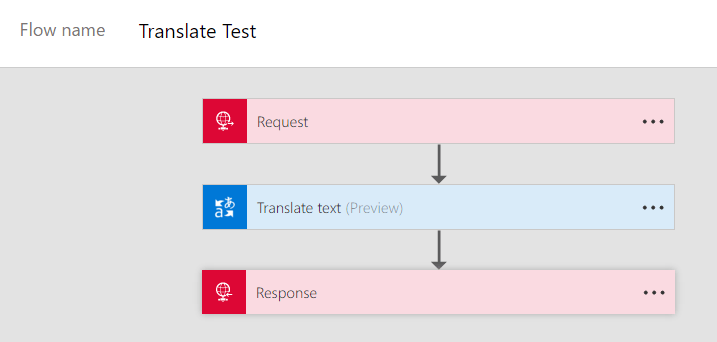
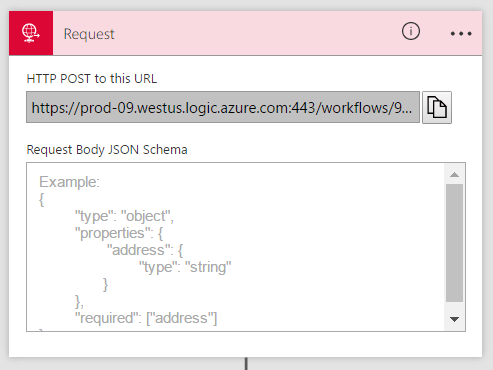
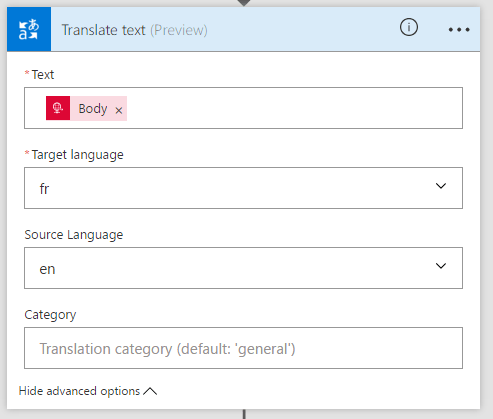
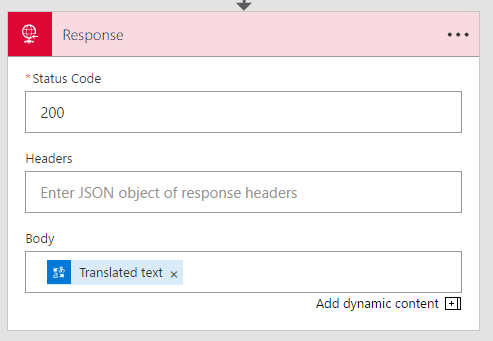
To start off, I suggest you read this post by Irina Gorbach which shows how a Flow can be triggered by a call to a REST API. Now consider the following Flow which is similar to the one in that post:

image

It has a Request trigger:

image

…a Translate text step as the second step, that takes the text passed in to the Request trigger through the request body and passes it to the Microsoft Translator API where it is translated from English to French:

image

…and then, finally, returns the translated text back using a Response step:

image


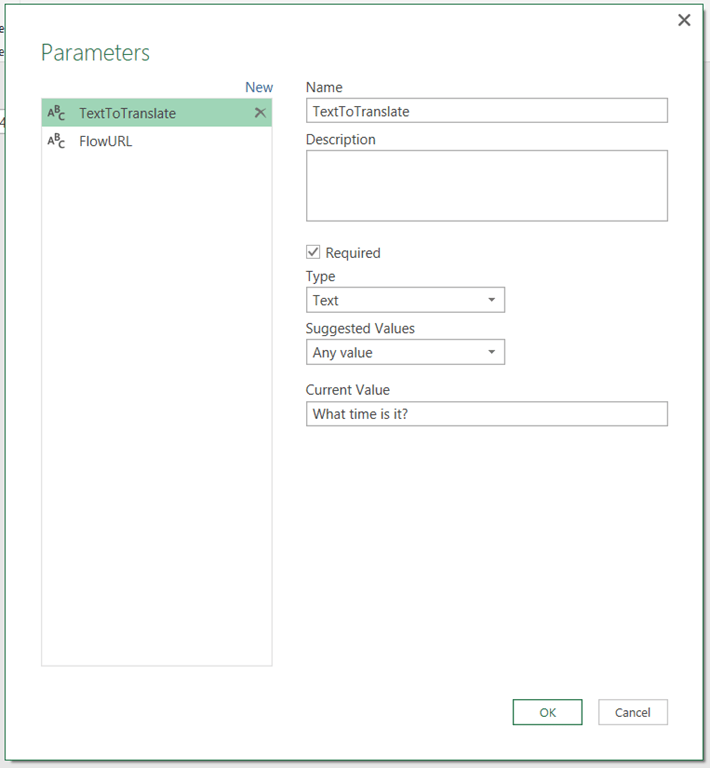
It’s very easy to call this Flow from Power Query or Power BI. First, create two parameters in the Query Editor: one called TextToTranslate that contains the text you want to translate from English to French (in this case, “What time is it?”)

image

…and another called FlowURL which is the URL copied from the Request trigger of the Flow

image

Then all you need to do is to call the Flow using a query that makes a POST request to the Request trigger:

[sourcecode language='text'  padlinenumbers='true']
let
    Source = Web.Contents(FlowURL,
                [Content=Text.ToBinary(TextToTranslate)]),
    GetText = Text.FromBinary(Source)
in
    GetText
[/sourcecode]

And voilà, your query will pass the text in the TextToTranslate parameter to the Flow and return the translated text:

image

So basically, in this case I’ve used Flow to create a web service without writing a single line of code. I can see a lot of potential uses for this and I suspect I’ll be blogging about Flow a lot in the future. A word of warning though: do not try to use this as a way of updating a data source. As I mentioned last time, when you run your query you’ll find Power Query/Power BI calls the web service twice. For example, I created a Flow similar to the one above that used the Insert Row step to take text sent to a Request trigger and add it to a table in an Excel workbook, and of course every time I refreshed my query I got two identical rows in my Excel table.

Pushing Data From Excel To Power BI Using Streaming Datasets

One Power BI feature that almost passed me by (because it was released in August while I was on holiday) was the ability to create streaming datasets in the Power BI web app and push data to them via the Power BI REST API. This blog post has the announcement:
https://powerbi.microsoft.com/en-us/blog/real-time-in-no-time-with-power-bi/
The documentation is here:
https://powerbi.microsoft.com/en-us/documentation/powerbi-service-real-time-streaming/
And Charles Sterling has an example of how to use it with Flow and PowerApps here:
https://blogs.msdn.microsoft.com/charles_sterling/2016/10/17/how-to-create-and-customize-applications-with-powerapps-with-laura-onu-webinar-1020-10am-pst/

However, when I played around with this I found there were a few things that were either confusing or not properly documented, so I thought it would be useful to give an example of how to use this functionality to automatically synch data from a table in Excel to Power BI using a Power Query query.

Creating the streaming dataset in Power BI

Imagine that you have a table called Sales in an Excel workbook on your desktop:

image

There are three columns: Month and Product, which contain text values, and Sales, which contains an integer value. This is the data that we want to push up to Power BI.

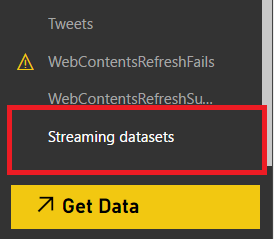
The first step is to create a streaming dataset in Power BI to receive this data. Go to PowerBI.com and on the left-hand menu, under the Datasets heading, you’ll find a link called Streaming Datasets right at the bottom next to the Get Data button:

image

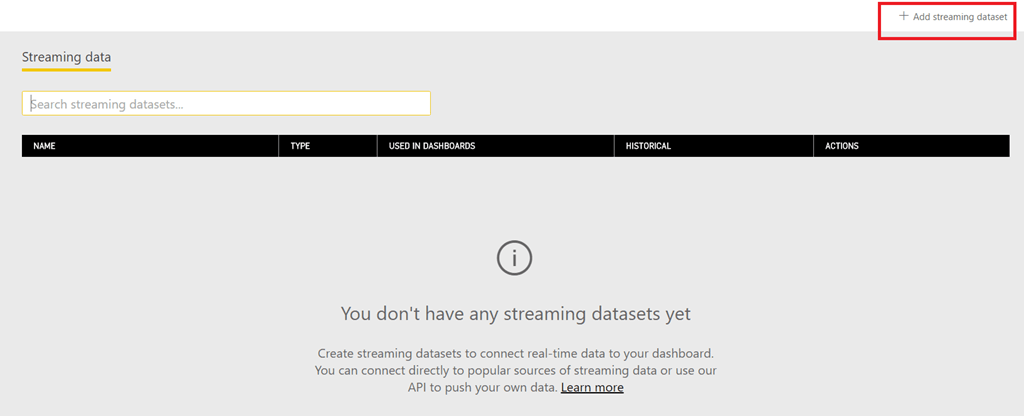
Click it and you’ll go to the Streaming data screen. Click on the “Add streaming dataset” button in the top-right to create a new streaming dataset:

image

Choose the API option in the pop-out pane then click Next:

image

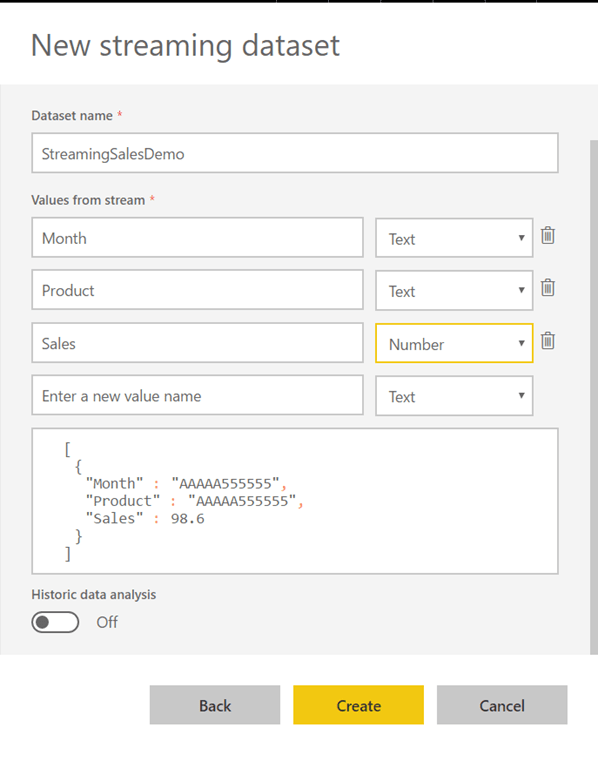
Then give your dataset a name, enter the names and data types for the columns in the table and leave the Historic data analysis option turned off (we’ll come back to this later):

image

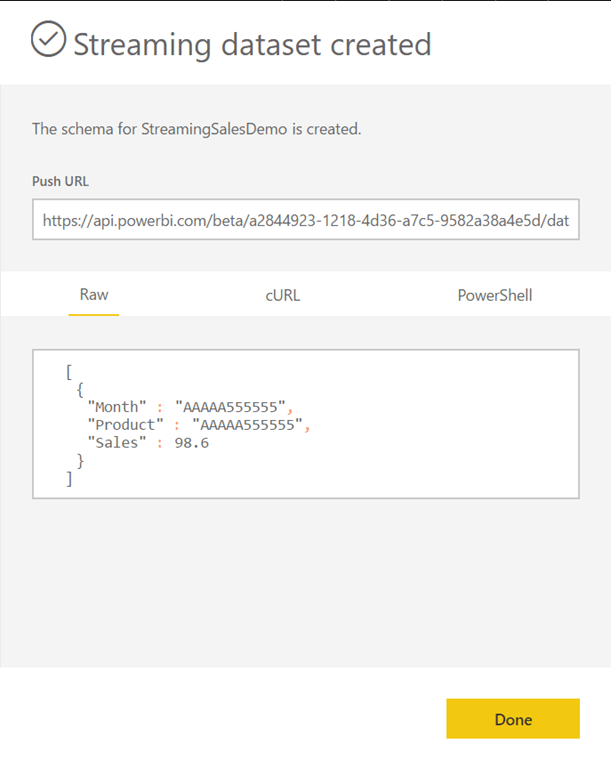
Hit Create and you’ll see a screen showing the URL to use to push data to the dataset and an example of the JSON to use to send the data:

image

Copy the URL and put it somewhere handy – you’ll need it in a moment.

Pushing data to the streaming dataset from Excel

Back in your Excel workbook, open the Power Query Query Editor window and create a new text parameter called PowerBIStreamingDatasetURL and paste in the URL for the streaming dataset:

image

Next, create a new blank query and use the following M code:

[sourcecode language=”text” padlinenumbers=”true”]
let
Source = Excel.CurrentWorkbook(){[Name="Sales"]}[Content],
ChangedType = Table.TransformColumnTypes(
Source,
{
{"Month", type text},
{"Product", type text},
{"Sales", Int64.Type}
}),
ConvertToJson = Json.FromValue(ChangedType),
SendToPowerBI = Web.Contents(PowerBIStreamingDatasetURL,
[Content=ConvertToJson,
ManualStatusHandling={400,404}]),
GetMetadata = Value.Metadata(SendToPowerBI),
GetResponseCode = GetMetadata[Response.Status],
CurrentTime = DateTime.ToText(DateTime.FixedLocalNow()),
Output = #table({"Status"},
{{
if GetResponseCode=200 then
"Data updated successfully at " & CurrentTime
else
"Failure at " & CurrentTime}})
in
Output
[/sourcecode]

This query does the following:

  • Reads the data from the Sales table in the workbook
  • Converts the data to JSON (for some background on how it does this, see here)
  • Sends the data to the streaming dataset using Web.Contents() to make a POST request. See this post on how to make POST requests using Web.Contents() and this post on the technique I’m using to handle HTTP errors manually.
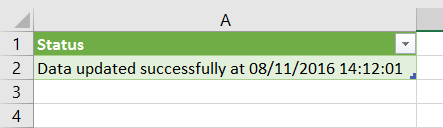
  • Returns a table containing a message saying whether the data was updated successfully or not, and the time of execution like so:image

Finally, back in Excel, go to the Data tab on the ribbon, click on the Connections button to open the Workbook Connections dialog, select the connection that represents the query you’ve just created, click Properties, then in the Connection Properties dialog tick the “Refresh every” box and set the query to refresh automatically every minute:

image

Displaying data in a Power BI dashboard

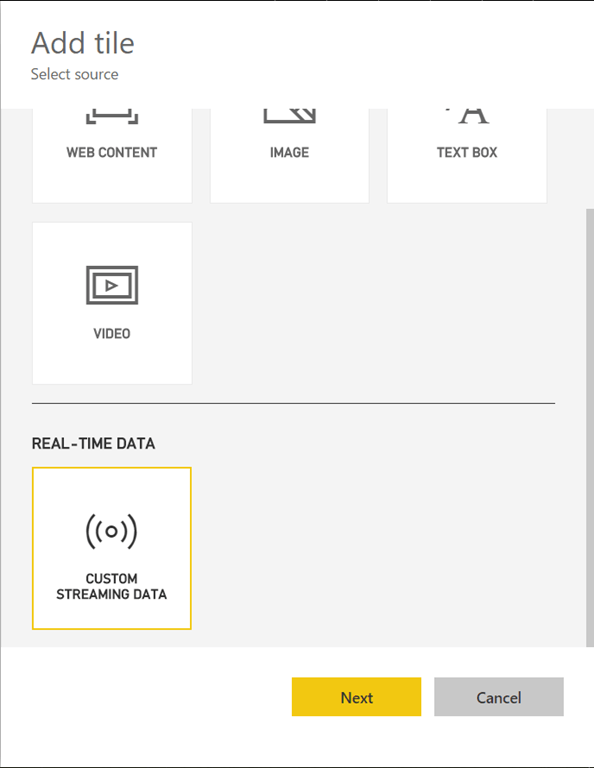
Back in the browser in Power BI, create a new dashboard, click the Add Tile button and choose the Custom Streaming Data option:

image

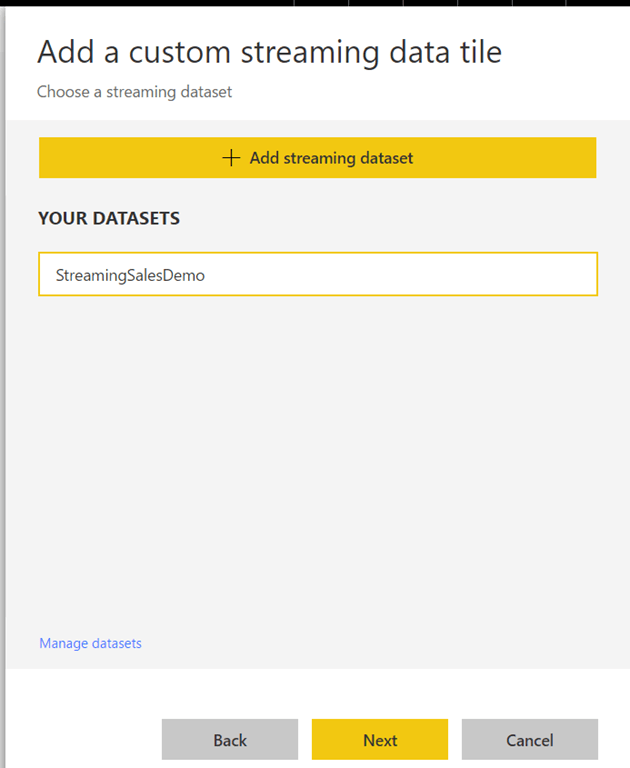
Click Next and select the streaming dataset created earlier:

image

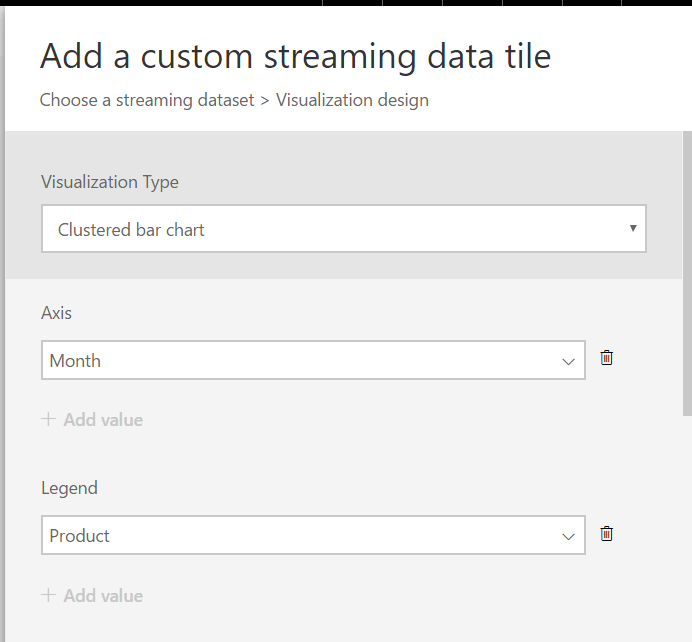
Click Next again and then choose Clustered bar chart as your Visualization Type, select the Month field of the dataset for the Axis, Product for the Legend…

image

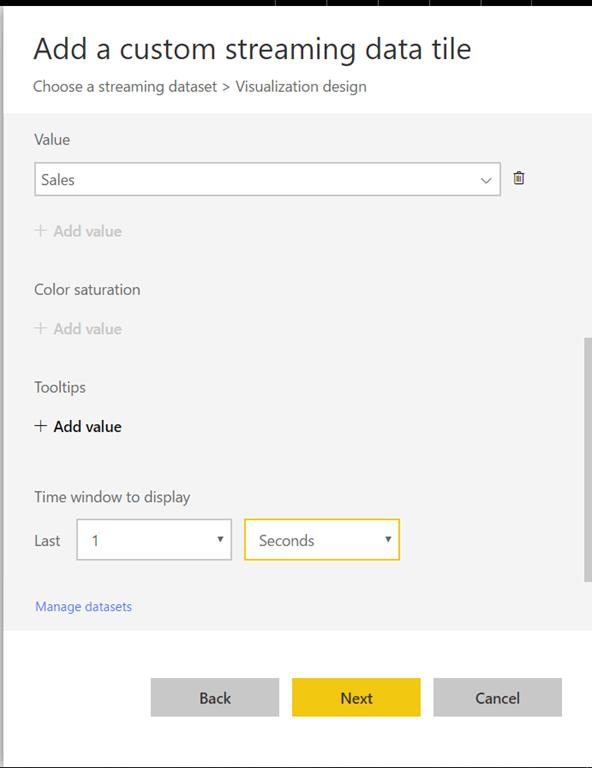
…the Sales field for the Value and set the time window to display to 1 second:

image

Frustratingly there’s no way to create a measure or otherwise aggregate data here. In this example you’re using all of the fields in dataset in the chart; if you left out Product, however, you wouldn’t see aggregated sales for all products you would just see data for one (the last?) row in the table for each month.

Finally, set a title for the chart:

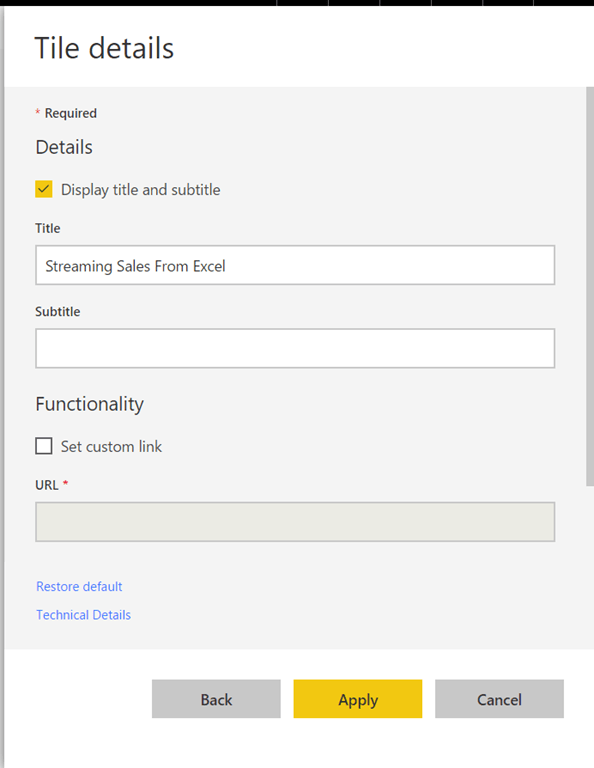
image

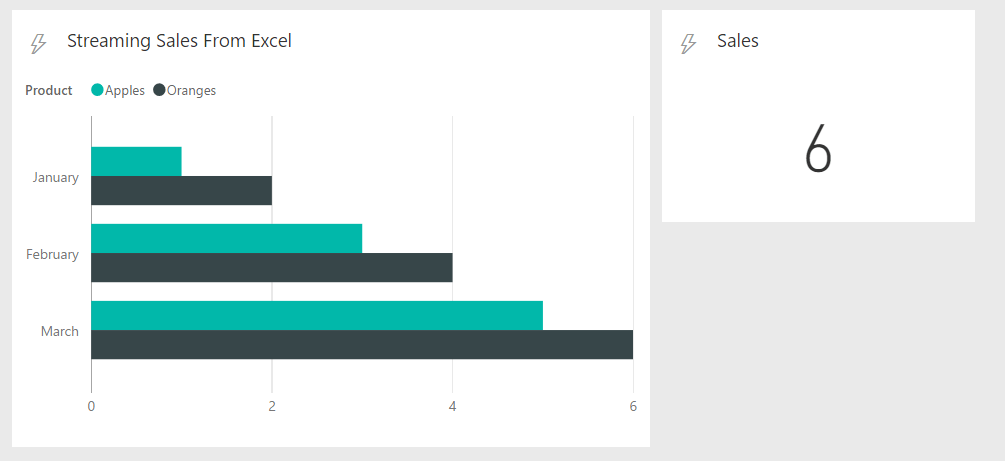
You now have a dashboard that gets updated automatically and shows the data from the Sales table in the Excel workbook:

image

When you change the data in Excel, after the Power Query query has run in the background every minute, the new data will appear in the chart.

[Be aware that it might take a few minutes for everything to start working when you first create a new tile]

Other ways of visualising the data

There are other types of data visualisation your can use such as line charts that are all very straightforward. One thing that did confuse me was the card visual: it shows one number, but which number? In this example if you create a card and link it to the Sales field in the dataset, it will always display the value from the last row in the table:

image

Again, it would be really nice if there was a way of creating a measure here…

The Historic Data Analysis option

You may remember the Historic Data Analysis option from an earlier step. What happens if you turn it on? Basically, instead of storing just one copy of the table you push through the API it stores multiple copies of the table (although it doesn’t store everything – I guess it’s subject to this retention policy or something similar). For example, consider the following variation on the streaming dataset above:

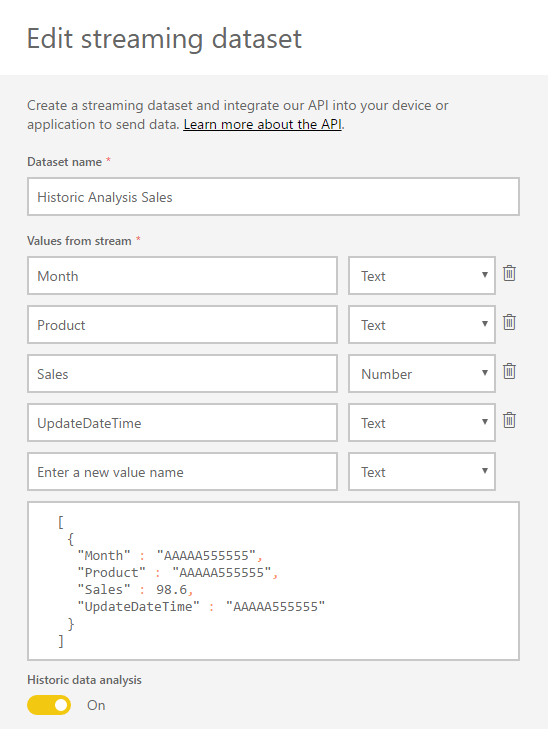
image

There’s a new field called UpdateDateTime (which is of type text, not datetime, because I found this worked better in reports) and the Historic data analysis switch is turned on.

Here’s an updated version of the Power Query query that populates the UpdateDateTime field with the date and time that the query was run:

[sourcecode language=”text”]
let
Source = Excel.CurrentWorkbook(){[Name="Sales"]}[Content],
CurrentTime = DateTime.ToText(DateTime.FixedLocalNow()),
AddUpdateDateTime = Table.AddColumn(Source, "UpdateDateTime",
each "Data Update: " & CurrentTime),
ChangedType = Table.TransformColumnTypes(
AddUpdateDateTime ,
{
{"Month", type text},
{"Product", type text},
{"Sales", Int64.Type},
{"UpdateDateTime", type text}
}),
ConvertToJson = Json.FromValue(ChangedType),
SendToPowerBI = Web.Contents(PowerBIStreamingDatasetURL,
[Content=ConvertToJson,
ManualStatusHandling={400,404}]),
GetMetadata = Value.Metadata(SendToPowerBI),
GetResponseCode = GetMetadata[Response.Status],
Output = #table({"Status"},
{{
if GetResponseCode=200 then
"Data updated successfully at " & CurrentTime
else
"Failure at " & CurrentTime}})
in
Output
[/sourcecode]

You can download a demo workbook with this second example query in here.

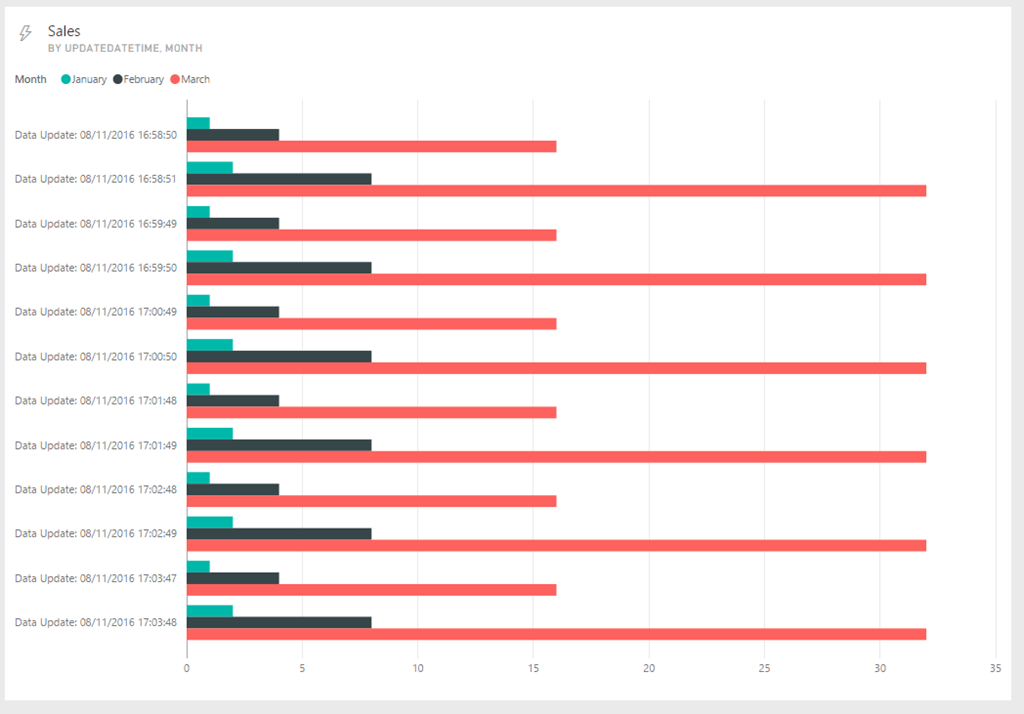
The dashboards now work in more or less the same way. The Time Window To Display option that we set to 1 Second above can be used to control the number of copies of the pushed table that are displayed. For example, setting it to five minutes shows data from all of the copies of the table pushed in the last five minutes:

image

[Incidentally, if you’re using the Power Query query above you’ll see that every time the query runs, the web service is actually called twice! This is a feature of Power Query and M in general – there’s no guarantee that the web service will be called just once even if the query itself is executed once. This is why the dev team always tells people never to use Power Query to update data in a data source (see here for another example of this)]

You now also get a new option to create a report from a streaming dataset on the Streaming Data screen – you need to click the small graph icon next to the name of the streaming dataset:

image

image

So now you can create reports that show how the data in your Excel table has changed over time, and slice by the values in the UpdateDateTime field:

image

It’s important to realise that unlike the dashboards, reports connected to a streaming dataset don’t refresh automatically – you have to click the Refresh button on the report.

Conclusion

Although the examples in this post are perhaps not all that practical, hopefully they show what’s possible with the streaming API and some M code. It would be great if we could do data modelling-type stuff like add measures in the web interface, in the same way that we can in Power BI Desktop, because that would open the door to doing even more cool things with streaming data.

Generating JSON In Power BI And Power Query

Often, when calling web services from Power BI or Power Query, you’ll need to generate some JSON inside your query to send to these web services. The M language makes this relatively easy to do with the Json.FromValue() function but there’s only one example of how to use it in the help so I though it might be useful to provide some worked examples of M data types and how Json.FromValue() turns them into JSON.

First, here’s a function – that I’ve called GetJson() for the examples here – that takes a parameter of any data type, passes it to Json.FromValue() and returns the JSON representation of the input as text:

(InputData) =>

let
JsonOutput = Json.FromValue(InputData),
OutputText = Text.FromBinary(JsonOutput)
in
OutputText

Now, let’s see what this returns for a variety of different data types.

Tables

Take the following table on an Excel worksheet, called “Sales”:

image

The following query loads the data from this table and calls the GetJson() function defined above:

let

Source = Excel.CurrentWorkbook(){[Name="Sales"]}[Content],
#"Changed Type" = Table.TransformColumnTypes(
Source,
{{"Month", type text}, {"Sales", Int64.Type}}),
Output = GetJson(#"Changed Type")
in
Output

It returns the following JSON, an array of objects:

[

{"Month":"January","Sales":1},
{"Month":"February","Sales":2},
{"Month":"March","Sales":3}
]

Lists

M language lists are represented as JSON arrays, so the following query:

GetJson({"Apples", "Oranges", "Pears"})

…returns

["Apples","Oranges","Pears"]

And

GetJson({{1,"Apples"}, {2,"Oranges"}, {3,"Pears"}})

…returns

[[1,"Apples"],[2,"Oranges"],[3,"Pears"]]

Records

M language records are represented as JSON objects, so:

GetJson([month="January", product="Apples", sales=1])

…returns

{"month":"January","product":"Apples","sales":1}

Nested Data

Finally, in M it’s possible to have nested data structures: lists of tables, records containing lists and so on. These can be converted to JSON too, so in the following example of a record containing a text value, a list and a table (created using #table):

GetJson(

[
product="Apples",
colours={"Red","Green"},
sales=
#table({"Month", "Sales"},
{
{"January", 1},
{"February", 2}
}
)
]
)

…the JSON output is:

{

"product":"Apples",
"colours":[
"Red",
"Green"
],
"sales":[
{
"Month":"January",
"Sales":1
},
{
"Month":"February",
"Sales":2
}
]
}

You can download the sample Excel 2016 workbook with these examples in here.