Calling The Power BI REST API From Microsoft Flow, Part 2: Refreshing A Dataset When a Data Source Changes

For a while now I’ve had an idea stuck in my head: wouldn’t it be cool to build a Power BI solution where a user could enter data into an Excel workbook and then, as soon as they had done so, they could see their new data in a Power BI report? It would be really useful for planning/budgeting applications and what-if analysis. I had hoped that a DirectQuery model using the CData Excel custom connector (mentioned here) might work but the performance wasn’t good enough; using Flow with the Power BI REST API (see Part 1 of this series for details on how to get this set up) gets me closer to my goal, even if there’s still one major problem with the approach. Here’s how…

First of all, I have two Excel files saved in a OneDrive For Business folder:
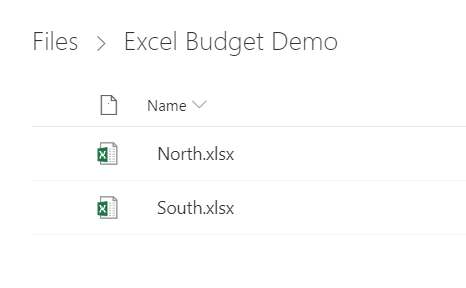
image

The contents of each Excel file is more or less the same, a table containing budget data for four quarters:
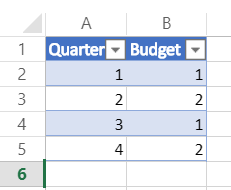
image

These are the files that my hypothetical users will be editing. I also have a very basic Power BI dataset that imports the data from these two files, and a report to display the data:

image

Now for the Flow. For the trigger I use a OneDrive For Business “When a file is modified” that fires when a file in the above folder is changed:
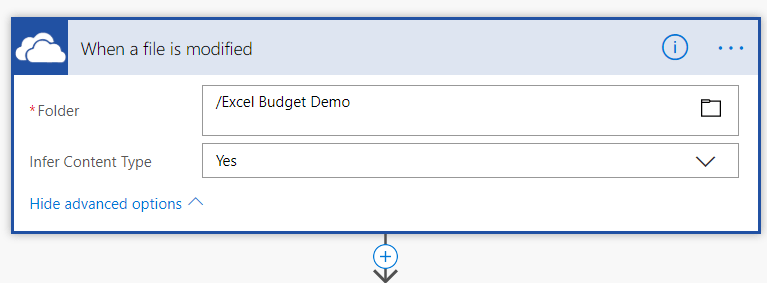
image

I had to turn on Concurrency Control for the trigger and set the Degree of Parallelism property to 1, to make sure only one instance of the Flow ran at any one time – there’s no point trying to refresh the dataset if another instance of the Flow is already running.

image

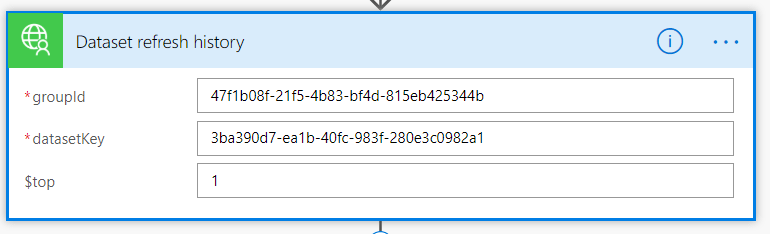
Next I have an action from the Power BI custom connector created in my last post. It calls the Power BI API’s Get Refresh History In Group endpoint and gets details of the last refresh of the dataset:
image

This returns a JSON value containing the details of the last refresh; the JSON goes to a Parse JSON action so later on I can get the Status of the last refresh. This action requires a schema, which I generated from a sample payload given in the Power BI REST API documentation. I had to delete endTime from the list of required properties in the schema because it won’t be returned if the most recent refresh is currently in progress:

image

Next there’s an Apply to each to loop over each refresh returned by the API; since only the most recent refresh is returned I know this will only ever execute once.

image

Inside the Apply to each I have a Condition that looks at the Status property of the most recent refresh and checks whether the Status is Completed:

image

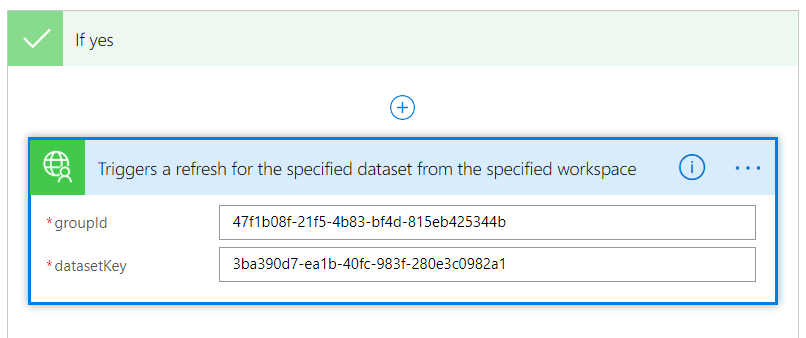
If the Status is indeed Completed, then the Flow calls the Refresh Dataset In Group endpoint to refresh the dataset:
image

If the Status of the last refresh is not Completed (either because it failed for some reason, or because there is already a refresh in progress), there is a delay of one minute and the Flow then starts itself again:

image

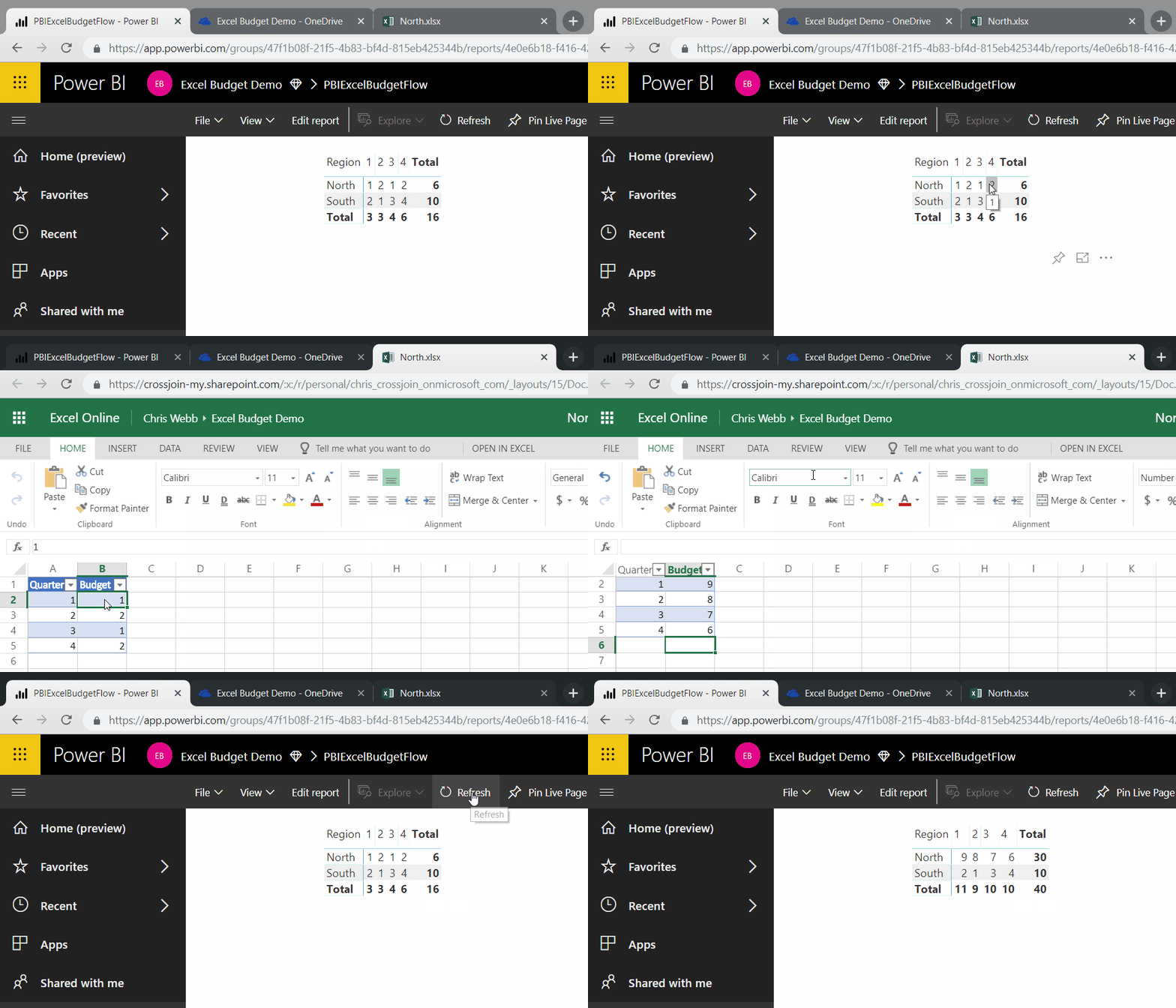
As I’ve said before, I’m not an expert on Flow but this seems to work reliably with the limited testing I’ve done on it. Here it is in action:
ExcelBudgetDemo

So what is the problem with this approach? It’s that if you are using Power BI Pro you can only refresh a dataset eight times a day and if you are using Power BI Premium you can only refresh a dataset forty-eight times a day. There have been rumours that this forty-eight times a day refresh limit for Premium has been lifted, or might be lifted soon, or doesn’t apply when you refresh via the API, but I specifically tested this and got the following error message: “Invalid dataset refresh request. Number of refresh requests in last 24 hours exceeded limit” (interestingly this didn’t appear as a failed refresh in the refresh history of the dataset). Since it’s reasonable to assume that any Excel file will be updated more than forty-eight times per day in a busy period I don’t think this approach is usable in the real world; all the same I’m happy with this as a proof-of-concept showing what might be possible if the refresh limit is lifted in the future though.

Calling The Power BI REST API From Microsoft Flow, Part 1: Creating A Flow Custom Connector

Playing around with Microsoft Flow recently, I was reminded of the following blog post from a few months ago by Konstantinos Ioannou about using Flow to call the Power BI REST API to refresh a dataset:

https://medium.com/@Konstantinos_Ioannou/refresh-powerbi-dataset-with-microsoft-flow-73836c727c33

I was impressed by this post when I read it, but don’t think I understood quite how many exciting possibilities this technique opens up for Power BI users until I started to use it myself. The Power BI dev team are making a big investment in the API yet most Power BI users, myself included, are not developers and can’t easily write code (or PowerShell scripts) to call the API. With Flow, however, you can use the API without writing any code at all and solve a whole series of  common problems easily. In this series of blog posts I’m going to show a few examples of this.

Before that, though, there is something to add to what Konstantinos says about creating the custom connector. In his post he describes how you can add individual actions to the custom connector, but with Flow you can also create a custom connector from an OpenAPI definition and it turns out that there is an OpenAPI definition file for the Power BI REST API available here. As a result you can create a Flow custom connector with (at the time of writing) a whopping 116 actions by following the instructions in Konstantinos’s post, but instead of using the “Create from blank” option using the “Import an OpenAPI file” option instead and uploading the Power BI REST API OpenAPI definition file. You’ll find that the text for the summaries and descriptions of many of the actions needs cleaning up – in particular, Flow doesn’t allow actions with names that finish with a dot so you’ll have to go through each one and remove that character – but doing this is much faster and easier than adding the actions manually.

image

And one last thing to point out: as Konstantinos mentions in his post, if you get a 404 error while testing the connector, just wait a few minutes!

Testing Power BI Premium Features With Power BI Embedded

It is very difficult for an organisation to decide whether to buy Power BI Premium or to stick with Power BI Pro. Power BI Premium represents a big financial commitment, but how do you know whether the benefits will be worth the costs involved? This was a question that Melissa Coates and I dealt with in great detail in the second version of our white paper “Planning A Power BI Enterprise Deployment”, and I strongly suggest you read the relevant section (pages 37-42) if you are considering buying Premium.

However, it’s one thing to read a white paper and another to actually test Premium yourself – and right now there is no way of trying Premium before you buy it. As more and more features like SSRS paginated reports or linked entities in dataflows get added to Premium, the more likely it is you are going to want to test these features before buying Premium. So what do you do? The answer is to use Power BI Embedded instead. It’s not exactly the same thing as Premium (the setup experience is different, for one thing), but there are three significant facts to point out:

  • I have been assured by several senior Microsoft employees that all new Premium features will be available in both the Premium (EM and P) SKUs and the Embedded (A) SKUs. So, for example, when the SSRS paginated report feature is released it will be available in both Premium and Embedded.
  • The resources available (in terms of the number of v-cores and memory) in the various Premium SKUs mirror those available in the Embedded SKUs. For example a P1 Premium SKU has the same resources available as an A4 Embedded SKU.
  • With Power BI Embedded, unlike Power BI Premium, you only need to pay for what you use: you can pause a Power BI Embedded capacity when you are not using it and pay nothing.

Therefore, to sum up, if you want to test Premium features before you buy, all you need to do is create a new Power BI Embedded capacity in the Azure portal and assign a Workspace to it – and you’ll get access to all the Premium features. When you’ve finished just pause the capacity. You’ll still need to pay while you’re testing but it will be a fraction of the cost of buying Premium.

Can You Use Power Query In Power BI Or Excel To Write Data To A Data Source?

The short answer: no.

The long answer:

It is, technically, possible to use Power Query (in either Power BI or Excel) to write data to a data source; for example, here’s an old post I wrote showing how to run a UPDATE statement to update data in a table in SQL Server. However because the Power Query engine may evaluate a value or statement more than once when a query is executed, it is therefore not safe or supported to use it to try to create, insert, update, delete or otherwise change data in a data source – it should only be used to read data. You may see some functions listed in the M function reference that suggest otherwise but they aren’t supported either, and indeed may not work at all.

Thanks to Matt Masson of the dev team for providing the official position on this.

Converting Decimal Numbers To Hexadecimal In Power Query M

This is a very short post! A lot of people have blogged about how to convert numbers between different bases in M (see for example Maxim Zelensky’s very elegant solution for converting from binary to decimal), but today I noticed there was a very easy way to convert a decimal number to hexadecimal using the Number.ToText() function: you just need to use “x” in the second parameter. For example:

[sourcecode language=”text” padlinenumbers=”true”]
Number.ToText(12, "x") //returns c
Number.ToText(123, "x") //returns 7b
[/sourcecode]

I’m sure this will come in handy somewhere…

Invoking M Functions In Parallel Using List.ParallelInvoke()

I was looking at the list of M functions supported in custom connectors and not in Power BI Desktop (using the technique I blogged about here) in the latest version of the Power Query SDK when I came across an intriguing new function: List.ParallelInvoke(). It doesn’t seem to be documented anywhere, but I think I’ve worked out what it does and it’s very exciting!

Consider the following M function, declared in a custom connector:

[sourcecode language=”text”]
SlowFunction = () as number =>
Function.InvokeAfter(()=>1, #duration(0,0,0,5));
[/sourcecode]

When you call it, it waits 5 seconds and returns the value 1. If you call it three times and sum up the results, as follows:

[sourcecode language=”text”]
List.Sum({SlowFunction(), SlowFunction(), SlowFunction()})
[/sourcecode]

…then after 15 seconds you get the value 3 back.

Now, consider the following expression:

[sourcecode language=”text”]
List.Sum(
List.ParallelInvoke(
{SlowFunction, SlowFunction, SlowFunction}
)
)
[/sourcecode]

When this is evaluated in a custom connector, you get the value 3 back after 5 seconds – so it looks like List.ParallelInvoke() allows you to invoke a list of functions in parallel. There’s also an optional second parameter called concurrency, which seems to control the amount of parallelism. So, for example:

[sourcecode language=”text”]
List.Sum(
List.ParallelInvoke(
{SlowFunction, SlowFunction, SlowFunction},
2
)
)
[/sourcecode]

…returns after 10 seconds, suggesting that only two function calls at a time are invoked in parallel.

I can imagine all kinds of uses for this, for example making multiple parallel calls to data sources or doing expensive calculations in parallel. I wonder if it will ever be allowed to be used outside custom connectors?

UPDATE: see Curt Hagenlocher’s comment below for some important information about this function.

A Quick Look Some Power BI And SSAS-Related Products And Books

I  don’t like writing reviews of books or products here on my blog for a couple of reasons, the main one being that I don’t usually have the time to read/test/understand something properly so I can write a thorough review. That said I do get sent a lot of free books and evaluation licences for products that deserve a wider audience, so I thought I would write a post rounding up some of them along with a few thoughts of my own.

Custom Visuals

One of the most interesting questions related to Power BI is whether third-party software companies will be able to build businesses selling extensions to it. The most obvious way that Power BI can be extended is through custom visuals and there are several companies that have paid-for (as opposed to free) custom visuals. Zebra BI is one such company and I’ve been really impressed by what they have produced for visualising financial data:

image

I also saw recently that OKViz (part of the Marco and Alberto/SQLBI family) now have a paid-for version of their excellent Smart Filter visual with some premium features – see here for more details; similarly new features in Klaus Birringer’s Ultimate Waterfall and Ultimate Decomposition Tree visuals are only available in the paid version.

I know many Power BI users who use custom visuals have suffered with various bugs and limitations in functionality over the past few users, and I think buying commercial custom visuals rather than relying on free equivalents is one way of dealing with reliability and support problems. It’s certainly in Microsoft’s interests to have a thriving partner community in this space given that flashy visuals are a major selling point of the product. But will Power BI users want to pay for visuals when so much is available out of the box for free, especially when the cost of the visuals seems relatively high when compared to the overall cost of Power BI? I guess we’ll see.

Custom Connectors

A lot of what I’ve just said about custom visuals also applies to custom connectors, although custom connectors are a lot less mature (at the time of writing, support for custom connectors in the on-premises gateway is still in preview). However I was pleased to see this announcement from CData software that they now have over 100 custom connectors available for Power BI. It looks like what they have done is wrapped their existing ODBC providers, and as a result some of their connectors are for sources that are already available in Power BI, but even so there are a lot of new data sources here.

Incidentally, I got very, very excited when I realised that the CData connectors for Excel and Excel Online supported DirectQuery mode as well as import mode. Why, I hear you ask? Well, just think about a planning/budgeting solution where users can enter data into an Excel spreadsheet and when the numbers change in Excel, the numbers change in Power BI too; think also how this could work with Composite Models. I tried this with CData’s Excel on-premises connector and unfortunately it returned errors when the source Excel worksheet was open; I did get it to work with the Excel Online connector but it was painfully slow, even with a small amount of data. If I can get it to work better (and I may be missing some optimisations within the connector) I’ll blog about it.

Books

One of the few Power BI-related books that have been published recently is Phil Seamark’s “Beginning DAX with Power BI”. He was kind enough to send me a review copy; it’s a good introduction to the subject and I particularly like the way he introduces DAX variables early one. Definitely worth a look if you’re just starting to learn DAX.

I was also sent a copy of a slightly older book, David Parker’s “Mastering Data Visualization with Visio 2016”. David knows pretty much all there is to know about using Visio for BI (his blog is great) and while this book doesn’t cover the most exciting new development in this area – the Visio custom visual for Power BI – if you want to learn all the advanced features of Visio that you could take advantage of in Power BI then this is the book to get.

Other Products

I’ve been a big fan of SentryOne’s SSAS monitoring tool, BI Sentry, for years now but up until recently it only supported SSAS Multidimensional. It now supports SSAS Tabular too (details here), and it looks like SentryOne have done a great job of adapting it to the specific needs of the Tabular engine. I always advise my SSAS customers to invest in some kind of monitoring solution because it makes the job of detecting and solving issues like poor query performance so much easier, and to be honest BI Sentry is better than anything you would be able to build yourself.

Moving onto Power BI, if you need to generate documentation for your Power BI datasets and reports check out Power BI Documenter; the August release looks like it has some cool new features. Alternatively the latest release of Power BI Helper also allows you to generate documentation as well as lots of other useful stuff.

Something that hasn’t been properly released yet, but will be incredibly useful when it is, is MAQ Software’s Application Lifecycle Management Toolkit for Power BI. Closely related to BISM Normalizer, it will allow you to compare two Power BI datasets, merge changes, deploy only parts of a dataset (for example individual measures), and deploy to multiple datasets – all of which are things Power BI developers have been crying out for.

Last of all, the guys at DevScope also have a new(ish) product out, Power BI Robots, which automatically takes screenshots of Power BI reports and dashboards and can deliver them to various destinations such as email address and SharePoint. I haven’t looked at it yet but it seems like it could have a lot of interesting uses.

Using Html.Table() To Extract URLs From A Web Page In Power BI/Power Query M

Last year I blogged about how to use the Text.BetweenDelimiters() function to extract all the links from the href attributes in the source of a web page. The code was reasonably simple but there’s now an even easier way to solve the same problem using the new Html.Table() function. This function doesn’t seem to be documented online yet, but the built-in documentation for the function available in the Query Editor is up-to-date:

image

Miguel Escobar also has a great post showing how to use it and the new Web.BrowserContents function here.

Here’s an example M query that extracts all the links that start with the letters “http” from my company homepage:

[sourcecode language=’text’ padlinenumbers=’true’]
let
Source =
Web.BrowserContents(“https://www.crossjoin.co.uk/”),
Links =
Html.Table(
Source,
{{
“Link”,
“a[href^=””http””]”,
each [Attributes][href]}})
in
Links
[/sourcecode]

image

To explain what’s going on here:

  • Web.BrowserContents returns the text of the html DOM for the web page
  • In the second step Html.Table takes that text and searches for all <a> elements whose href attribute starts with the letters “http”. I found this CSS selector here.

Creating Map Small Multiples In Power BI With The Azure Maps API

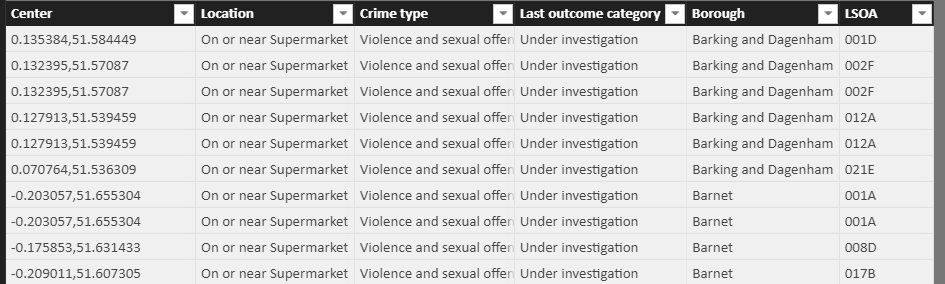
Since my post last week on using the Google Image Charts API to create sparklines and small multiples in Power BI has proved very popular, I thought I would do a follow-up showing how to use the Azure Maps API to create map small multiples. Here’s an example of what’s possible, a table from a sample report I built that displays crimes committed in London (sourced from here) in June 2018 with one row for each crime and a map column displaying the location of the crime:

image

You can find out how to sign up for an Azure Maps account here; it isn’t free to use but you do get 250,000 free map renders per month (which should be more than enough for Power BI use) and any use over that is extremely cheap. Full details on pricing can be found here.

Here’s what the source data in my dataset looks like:

image

The only important column is the Center column, which contains the longitude of the crime location followed by a comma followed by the latitude of the crime location in a single text value.

With the data in this format you can call the Get Map Image API relatively easily in DAX using a measure something like this:

[sourcecode language=”text” padlinenumbers=”true” highlight=”7″]
Map =
var BaseURL =
"https://atlas.microsoft.com/map/static/png&quot;
var SubscriptionKey =
"?subscription-key="
&
"insert your key here"
var ApiVersion =
"&api-version=1.0"
var Layer =
"&layer=hybrid"
var Center =
"&center=" & SELECTEDVALUE(‘London Crime'[Center])
var ZoomLevel =
"&zoom=16"
var HeightWidth =
"&height=150&width=150"
return
IF(
HASONEVALUE(‘London Crime'[Center]),
BaseURL & SubscriptionKey & ApiVersion &
Layer & Center & ZoomLevel & HeightWidth
)
[/sourcecode]

You’ll need to paste your Azure Maps API key in on the line highlighted above and set the Data Category for the measure to Image URL. The maximum possible height of an image in a table or matrix in Power BI is, as far as I can see, 150 pixels so that’s why the code above requests an image that is 150×150. You may want to experiment with different zoom levels and layer types to see what looks best on your report.

You can view the sample report here and download a copy of the report (without my API key in) here.

Charticulator And Power BI Custom Visuals

I’ve just come across an interesting new project from Microsoft Research called Charticulator.  It’s described as a tool for the “Interactive Construction of Bespoke Chart Layouts”, and you can use it for creating some very nice data visualisations like this:

Global Trade of Natural Resources in 2016

So I had a play with it, was quite impressed, and then I watched the video on the home page and noticed that towards the end (watch from 3:55 onwards) there’s a demo of how the charts you create in it can be exported as Power BI custom visuals! No code required!

After that I was a lot more than quite impressed – this looks really useful. Unfortunately the feature is not released yet, although according to one of the creators it will be coming soon.

image