Power BI Sentinel: Backup, Documentation, Change Tracking And Lineage Tracking For Power BI

A few weeks ago at SQLBits I had a demo of a very interesting new tool for Power BI users called Power BI Sentinel. The website, with all the details, is here:

https://www.powerbisentinel.com

It helps solve several problems that everyone managing a Power BI deployment has to deal with. It can:

  • Backup reports and datasets (as .pbix files) direct from your App Workspaces to Azure Blob storage on a schedule, so you are able to access earlier versions and roll back if you need to.
  • Generate documentation on your datasets, including the DAX calculations used.
  • Identify what visuals and filters have changed in different versions of a report, and when those changes took place.
  • Track which data sources are used by which datasets and, in turn, which reports use those datasets.

image

It’s still a very new tool and adding functionality all the time; there is also a lot of functionality that you’d want from a tool like this that Microsoft hasn’t built the APIs to support yet. It’s definitely worth checking out though and (in my opinion) quite reasonably priced. I dare say Microsoft will build some of this functionality into Power BI at some point, but I don’t know what it will deliver exactly or when that will happen.

Full disclosure: I’ve known the owners of the company for a long time through their involvement with the UK SQL Server and Power BI community, and I was given a free licence for Power BI Sentinel by them.

Defining Relationships Between Entities In The Common Data Model To Automatically Create Relationships In Power BI

Following on from my last post on attaching manually-created Common Data Model folders in Power BI dataflows, I was asked whether defining relationships between entities in the model.json file of the CDM folder results in relationships being created between tables in a Power BI dataset. I’ve just tested it, and I can confirm it does.

Consider a CDM folder that contains two entities, Sales and Fruit. The Sales entity contains monthly sales data:

image

…and the Fruit entity contains a list of fruit sold:

image

Now –and this is important – let’s say you have defined the entities in the model.json so that the Sales entity  has attributes Month, Product and Sales:

image

…and the Fruit entity has a single attribute called Fruit:

image

Because the Sales entity and the Fruit entity use different names for the attributes that contain the names of the fruit sold, when the two entities are loaded into Power BI no relationships are created between the two tables. There’s no way that Power BI can guess that there should be a relationship between the Product and Fruit columns based on these names.

However, if you add a relationship definition (as documented here) to the model.json file like so:

image

Then, when you load the two entities as tables in the same Power BI dataset, you get a relationship created automatically:

image

As far as I can see it does this by adding a key definition to the Sales table in a similar way to the way the Table.AddKeyM M function/Remove Duplicates transformation does, as I blogged here.

Now if we could add DAX calculations (calculated columns and especially measures) to the definition of the model.json file, so they were automatically created when entities were imported from a dataflow, that would be really cool. I don’t see why this would not be possible because you could store all kinds of useful information – such as the DAX for the calculations – in the metadata record of an M query (you can access this yourself using the Value.Metadata M function) loaded into a dataset, and the Power BI engine could read it when the table is loaded and create the calculations from this.

Attaching Manually-Created Common Data Model Folders In Power BI Dataflows

Most of the focus on Power BI dataflows so far has been on the use of Power Query Online to load data from external data sources. However, when you create a dataflow you also have the option to attach an existing Common Data Model (CDM) folder stored in Azure Data Lake Storage Gen2:

image

The documentation has some very detailed information on this subject: you can read how to configure Power BI to use your own Azure Data Lake Storage Gen2 account here, and you can read about how to attach an existing CDM folder here.

The interesting thing for me is that this means that any external service – whether it’s a Microsoft service, a third party service or something you build yourself – can output data into a folder in Azure Data Lake Storage Gen2, and so long as it’s in the right format you can expose this data as a dataflow in Power BI. So, I thought, why not create some data manually, put it in the cloud and see if I can get Power BI to attach it as a dataflow?

It turns out it isn’t too difficult to do, and what’s more when you look at the documentation for the Common Data Model and specifically the documentation for the format of the model.json file there are all kinds of interesting features to check out.

Consider the following folder containing three files, all created manually and uploaded to my Azure Data Lake Storage Gen2 account using Azure Storage Explorer:

image

The two csv files are pretty simple:

image

image

The model.json file, which contains the metadata for the dataflow, is also not that complicated:

image

This model.json file describes a single entity called Sales with three columns: Month, Product and Sales. It also specifies that the data for this entity is stored in two partitions and these partitions are linked to the two csv files above (I’m pretty sure this is how incremental refresh is handled in dataflows too). I like the idea of another application being able to save new csv files to a folder and, after updating the model.json file to add a new partition, this data being appended onto the table of data returned by the entity.

It took a few goes to attach the folder to a dataflow, mostly because when it fails the error messages (at least at the time of writing) are completely unhelpful. Two things I ran into are:

  • Any spaces in folder or file paths need to be url encoded, ie replaced with %20
  • You really do need to grant permissions on the folder to the Power BI users who are going to access the dataflow. RTFM.

After that, the dataflow is visible in the Power BI service:

image

…and the data from the Sales entity can be loaded into your dataset in Power BI Desktop:

image

image

As I said, there’s more for me to research here. For example, looking in the documentation, you can create two types of entities – Local and Referenced (are the latter the same as Linked Entities?) – and you can also define relationships between entities (do these become relationships between tables in Power BI?). I think this opens up a lot of new possibilities for close integration between Power BI and other services!

Book Review: “Collect, Combine And Transform Data Using Power Query In Excel And Power BI” by Gil Raviv

I generally try to avoid writing book reviews here, but the fact that there are so few books available on Power Query and M means that I’m making an exception for “Collect, Combine and Transform Data using Power Query in Excel and Power BI” by Gil Raviv.

The first thing to say about this book is that it takes the approach of teaching through exercises and worked examples, rather than by explaining abstract concepts. If this suits your style of learning (and I know that it does for a lot of people) then you’re in luck; if you’re looking for a book that will explain what all the different join types for Merge operations do, for example, then you’ll be disappointed. This isn’t a criticism though – I don’t think it’s possible to write a book that will satisfy everyone – and Gil has done a good job of covering a lot of common data preparation scenarios. One important exception to this is the chapter on M which provides a very clear introduction to the language and the way it works. I suspect a lot of people will want to buy the book for this chapter alone.

The second thing to say about this book is that while it covers both Power Query in Excel and Power BI, in my opinion it’s aimed slightly more at Excel users. Again, this is not a criticism: although advanced Excel users and Power BI report designers have to solve many of the same problems, they also have some very different concerns too. What’s more, if you can assume your readers have good Excel skills and can explain Power Query concepts in Excel terms then you’ll serve that particular set of readers well, and probably do a better job for them than if you assume they are completely new to the area of data transformation and preparation have no existing skills in this area.

All in all it’s a good book that I can recommend to anyone who wants to learn Power Query and M, and also for intermediate users who want to deepen their knowledge. I still think there’s a need for a book completely devoted to M and covering topics such as custom connectors and dataflows; hopefully someone writes one soon!

Full disclosure: I received a free copy of the book from the author. I’m also the author of a Power Query book myself, but to be honest it’s several years old now and a bit out-of-date, so it’s hard to recommend it any more.

You can buy a copy of this book from Amazon UK here.

SQLBits Power BI And Analysis Services Videos Now Free To View Online

SQLBits is one of the best Microsoft data platform conferences around, and last week’s event in Manchester was particularly good. As usual, videos of almost all of the sessions are available for everyone to view for free online (no registration required) here:

https://sqlbits.com/content/Event18

There were lots of Power BI and Analysis Services related sessions, so I thought I’d call out a few:

  • If you’re interested in the new calculation groups feature in SSAS 2019 that I blogged about last week, you should definitely watch Christian Wade’s two-part session here and here (part two has all the juicy details in), which also gives some details about other upcoming features such as XMLA endpoints. Kasper’s session here covers a lot of the same topics.
  • There’s more insight into Microsoft’s Power BI roadmap and thinking in the Q&A session with Christian, Kasper and Adam here
  • Marco and Alberto always do great sessions, and Alberto’s session on Aggregations here and Marco’s session on many-to-many relationships here are up to their usual high standards.
  • My session on Power BI Dataflows here sums up my current thoughts about them.

Of course there’s lots more there (more than I have had a chance to watch) so let me know if there are other sessions that are good!

SSAS Tabular 2019, Calculation Groups And Migration From SSAS Multidimensional

With the release of CTP 2.3 of SQL Server 2019 today there was big news for Analysis Services Tabular developers: Calculation Groups. You can read all about them in detail in this blog post:

https://blogs.msdn.microsoft.com/analysisservices/2019/03/01/whats-new-for-sql-server-2019-analysis-services-ctp-2-3/

In my opinion this is the most important new feature in DAX since… well, forever. It allows you to create a new type of calculation – which in most cases will be a time intelligence like a year-to-date or a previous period growth – that can be applied to multiple measures; basically the same thing that we have been doing in SSAS Multidimensional for years with the time utility/shell/date tool dimension technique. It’s certainly going to solve a lot of problems for a lot of SSAS Tabular implementations, many of which have hundreds or even thousands of measures for every combination of base measure and calculation type needed.

I’m not going to repeat any of the detailed technical information in the blog post here, though. Instead the point I want to make is that this is very big news for SSAS Multidimensional users too. In the past couple of years many people who have existing SSAS Multidimensional implementations have thought about migrating to SSAS Tabular so they can take advantage of its new features or move to the cloud, and indeed many of them have already migrated successfully. However, up to now, the biggest blocker for those wanting to migrate from Multidimensional to Tabular has been the fact that some complex calculations that can be expressed in MDX cannot be recreated (or recreated easily and efficiently) in DAX, because DAX has not had an equivalent of calculated members not on the Measures dimension or the MDX SCOPE statement.

Calculation groups do not remove this roadblock completely, but they do remove the roadblock for a large group of existing SSAS Multidimensional users whose only complex calculation requirement is a time utility/shell/date tool dimension. As a result these SSAS Multidimensional users will now be able to migrate to SSAS Tabular 2019, Azure Analysis Services or Power BI if they want to. Only those people who have more exotic uses for calculated members not on the Measures dimension (which are not very common at all) and those who use SCOPE statements (a larger group – many people working with financial data use SCOPE statements heavily) will find that Multidimensional is still the correct platform for them.

Handling Different Granularities In Power BI Using Slicer Groups

Reading Prathy Kamasani’s excellent blog post on Sync Slicers the other week I had a revelation: in the post Prathy shows how it is possible to sync selections between two slicers that are based on different columns from different tables in your dataset, something I had not known was possible. As soon as I read this, I realised this technique could be used to solve a number of common problems including that of handling data at different granularities.

This problem has been written about extensively over the years by Marco Russo and Alberto Ferrari in the following articles, which are all worth reading for background:

https://www.daxpatterns.com/handling-different-granularities/

https://www.sqlbi.com/articles/physical-and-virtual-relationships-in-dax/

https://www.sqlbi.com/articles/propagate-filters-using-treatas-in-dax/

Let me be clear: the solution I’m showing in this post is not the “best”, fastest or most elegant solution to this problem. It does, however, have the advantage of not requiring any changes to relationships or the DAX of your measures – and this could be important in scenarios when making these changes would be time-consuming or have other knock-on effects.

Now, consider the following dataset:

image

There is a Date dimension table and a relationship has been built between it and the Daily Sales table, which contains sales information at the date granularity. There is also a Monthly Budget table that contains data at the Month granularity, and no relationship between it and the Date dimension table. The requirement is, however, to be able to select a month on the Date dimension table and for this selection to filter the Daily Sales table and the Monthly Budget table.

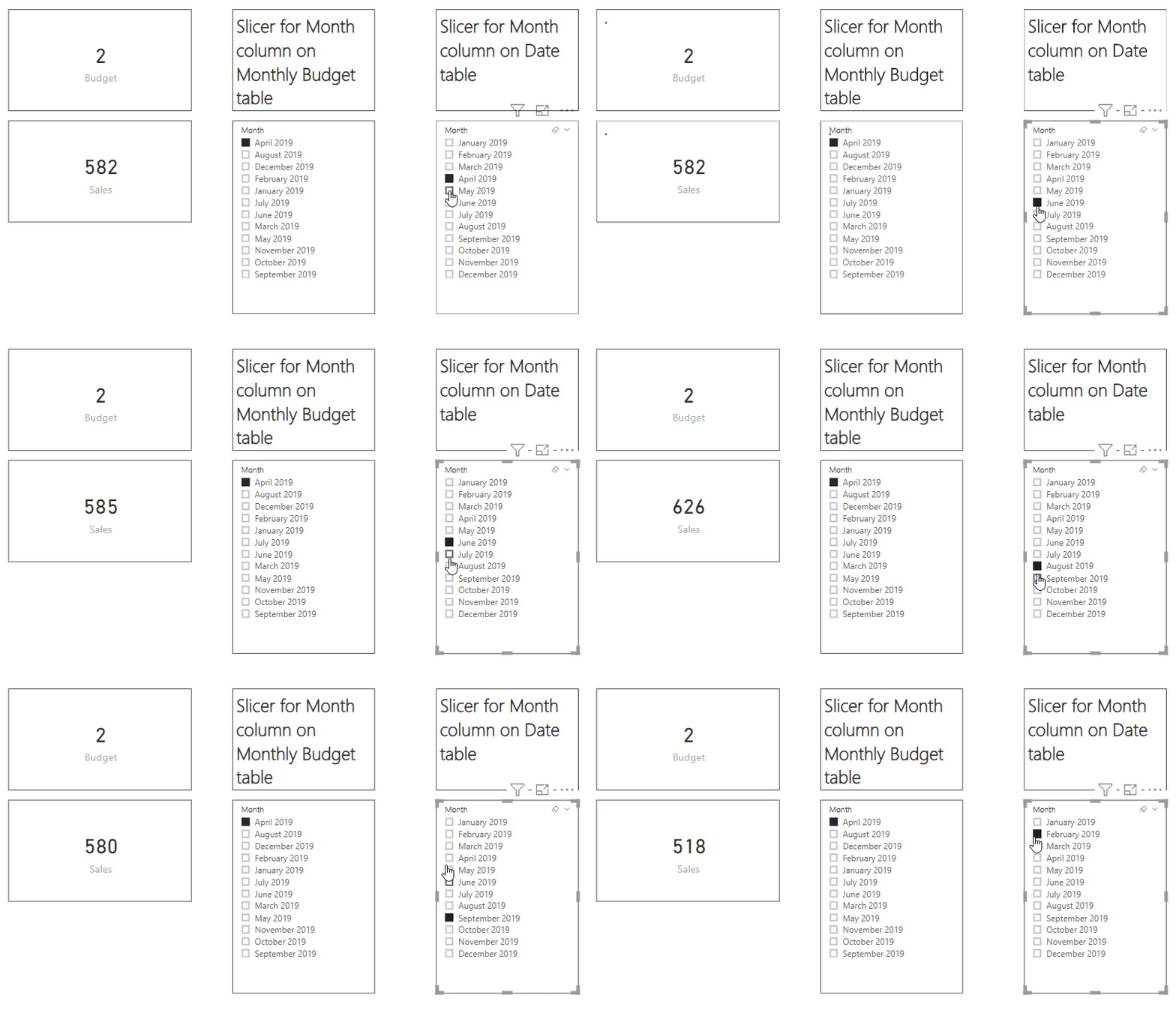
Now look at the following report. With two slicers built from the Month columns of the Date and Monthly Budget tables, selecting a month from the slicer built on the Month column of the Date table filters the sales value but not the Budget value, as you would expect:

SynchSlicersNoSynch

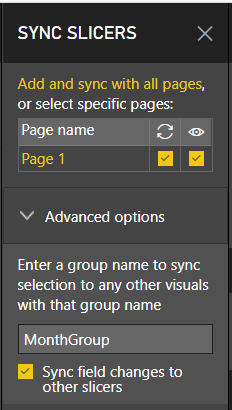
The key thing is that the two Month columns contain month names in exactly the same format, “MonthName Year”, which means that a selection on one can be transferred over to the other. Next, for both slicers on the report, go to the Sync Slicers pane, expand the Advanced options section and enter the same group name for both. Make sure the “Sync field changes to other slicers” option is selected too.

image

Once you’ve done this you’ll find that the selection on the slicer built on the Date table is transferred to the slicer built on the Monthly Budget table, even though there is no relationship between them and no clever DAX used, and this in turn means that both the Budget and the Sales values shown are affected:

SynchSlicersWithSynch

The last step is to hide the slicer for the Month column on the Monthly Budget table so the user only sees the slicer for the Month column on the Date table. You can do this either on the Selection pane or by deselecting the “eye” option on the Sync Slicers pane:

image

The end result is this:

SynchSlicersWithSynchHidden

One last thing to mention is that, if you look at the DAX queries generated behind the scenes, it’s all done using the TreatAs function. Here’s an example of a query that shows this:

[sourcecode language=’text’ padlinenumbers=’true’]
DEFINE
VAR __DS0FilterTable =
TREATAS({“December 2019”}, ‘Monthly Budget'[Month])

VAR __DS0FilterTable2 =
TREATAS({“December 2019”}, ‘Date'[Month])

EVALUATE
SUMMARIZECOLUMNS(
__DS0FilterTable,
__DS0FilterTable2,
“SumBudget”, IGNORE(CALCULATE(SUM(‘Monthly Budget'[Budget])))
)
[/sourcecode]

You can download the sample pbix file for this post here.

Splitting Text By Character Transition In Power BI And Excel Power Query

The February 2019 release of Power BI Desktop includes some new functionality not mentioned in the summary blog post, functionality that is already in the latest Excel 365 builds (thanks Ed Hansberry for pointing this out) and will be extremely useful. It takes the form of four new options under the Split Column button in the Query Editor:

image

The four options allow you to split text by:

  • Lowercase to uppercase
  • Uppercase to lowercase
  • Digit to non-digit
  • Non-digit to digit

They are intended to solve problems like the one Gil Raviv blogged about here where he shows how to split camel case text in M.

Here’s an example of the lowercase to uppercase split. With the following input table:

image

The output is:

image

Here’s the M code behind:

[sourcecode language=’text’ padlinenumbers=’true’]
let
Source =
#table(
{“MyData”},
{
{“CamelCase”},
{“DimDate”}
}
),
#”Split Column by Character Transition” =
Table.SplitColumn(
Source,
“MyData”,
Splitter.SplitTextByCharacterTransition(
{“a”..”z”},
{“A”..”Z”}),
{“MyData.1”, “MyData.2″}
)
in
#”Split Column by Character Transition”
[/sourcecode]

It turns out that the new Splitter function that’s behind this, Splitter.SplitTextByCharacterTransition, has been in Power BI for at least a month already (if you want some background on Splitter functions, see my blog post here), but I don’t think anyone noticed. This new function is very flexible, and I can see it will be useful for a lot more scenarios than just these new four options in the Query Editor: it allows you to split text when there is a transition from any one character or characters to any other character or characters.

Finding Power Query Query Execution Times In Power BI And Excel Using SQL Server Profiler

Working out how long a Power Query M query takes to run – the first step to troubleshooting refresh performance problems in Power BI or Excel – is something I have blogged about several times (see here, here and here for example). However, there are problems with all of these methods such as the need to alter the M code of your query. Luckily there is another method that I have found, using a combination of DAX Studio and SQL Server Profiler.

How can you get hold of these tools? You can download DAX Studio for free here:

https://daxstudio.org/

Any serious Power BI developer should have it installed already, but if you have an older version you may need to update it to get the features I talk about in this post.

SQL Server Profiler is part of SQL Server Management Studio, and you can download it for free from here:

https://docs.microsoft.com/en-us/sql/ssms/download-sql-server-management-studio-ssms?view=sql-server-2017

You can generate SQL Server Profiler trace files for diagnostic purposes from Power BI Desktop, as Kasper shows here, but these traces don’t show any information about refreshes as far as I can see. You can also hook Profiler up to Power BI Desktop direct, as Sam Lester shows here, but that’s a bit fiddly to do. Luckily DAX Studio now has a preview feature which makes connecting Profiler to Power BI Desktop much easier.

First of all, open up your report in Power BI Desktop, then open up DAX Studio and connect it to the instance of Power BI Desktop you just opened; if you want to use this technique with Excel Power Query queries then you will need to launch DAX Studio from inside Excel. Then, in DAX Studio, open the Options dialog and enable the “Show External Tools” preview feature:

image

Once you have done this, on the Advanced tab on DAX Studio’s ribbon you’ll see an option to launch SQL Profiler and connect it to the Power BI report or Excel file that DAX Studio is currently connected to:

image

Clicking the button opens up Profiler with a trace running. You’ll see that a lot of trace events are selected – probably too many to make sense of – so I suggest that you stop the trace, click the Properties button on the toolbar and then, on the Events Selection tab of the Trace Properties dialog select just the following four trace events:

image

  • Command Begin
  • Command End
  • Progress Report Begin
  • Progress Report End

Restart the trace and then refresh your dataset in Power BI Desktop. You’ll still see a lot of events generated in Profiler, but look for the following:

  • A Command Begin event followed by a lot of Progress Report Begin/End events, which is the command that marks the start of the refresh.
  • After that there will be a series of Progress Report Begin events that have an  EventSubclass of “25 – ExecuteSQL” – one for each of the tables that are being loaded into your dataset and therefore one for each of the Power Query M queries associated with those tables. Don’t be confused by the name of the EventSubclass, these events will appear whatever data source you are using: it looks like the Vertipaq engine requests data from the Power Query engine using a basic form of SQL. For example, here’s a screenshot showing the three events I get when refreshing a dataset with three tables in it called “Property Type”, “Date” and “Price Paid 2017”:
    image
  • Finally, below that there will be a series of Progress Report End events (one for each Progress Report Begin event) with the EventSubclass of “25 – ExecuteSQL”, and the Duration column here will tell you how long it took to get data from the Power Query M query associated with the table. For example, this screenshot shows that it took 5460ms (about 5.5 seconds) to get the data from the “Price Paid 2017” Power Query query:
    image


And there you have it, exact timings for each of the Power Query M queries associated with each of the tables in your dataset. Remember that the time taken by each Power Query M query will include the time taken by any other queries that it references, and it does not seem to be possible to find out the amount of time taken by any individual referenced query in Profiler.

There is a lot more interesting information that can be found in this way: for example, dataset refresh performance is not just related to the performance of the Power Query M queries that are used to load data; time is also needed to build all of the structures inside the dataset by the Vertipaq engine once the data has been returned, and Profiler gives you a lot of information on these operations too. Discussion of that will have to wait until a future blog post though…

UPDATE April 2019:

Having used this technique quite a lot in the last few months, I’ve seen that the Progress Report End/25 – Execute SQL event doesn’t always give an accurate value for the amount of time taken to execute an M query – or rather it does, but things are more complicated than I initially understood. You may also need to look at the trace events that come immediately afterwards: Progress Report Begin/17 – Read Data and Progress Report Begin/17 – End Data. Akshai Mirchandani of the SSAS team gave me a great explanation of the significance of these events:

The SQL query traces indicate the begin/end of query execution against the data source – theoretically, once this is done, rows are ready to be pulled from the source.

That’s when you will see the “ReadData” begin event. Rows start getting pulled at that point, until all rows are read (and encoded/compressed) – then you see the end event.

It is not always predictable how each provider/source behaves. Some of them might defer the expensive query execution until the first “Read” operation, but typically the SQL execution step tries to ensure that the command is valid, prepare the command and (at the very least) start the execution of the command.

Sometimes, the command execution might compute all the results and buffer them too.

In effect, its up to the provider/source exactly how this actually behaves…

It looks like the Power Query engine can behave in both of the ways Akshai describes depending on what you’re doing in the query.

Excel.Workbook() And The delayTypes Option In Power Query/Power BI

A while ago I found myself wondering – as I often do about this kind of thing – about what the undocumented third parameter of the Excel.Workbook() M function (called delayTypes) actually does. I found a forums post from Guy Hunkin of the Excel Power Query team in 2017 here, which gives the following summary:

Originally, Excel.Workbook used to read the entire workbook data to accurately assign types to the columns. This was EXTREMELY slow on large workbooks.

Having this in mind, we added this flag to delay the behavior. When set to “true”, we don’t infer any column types. Instead, the UI uses its normal inference algorithm to generate a Table.TransformColumnTypes step with the inferred types and if it inferred wrongly, the user can update the transformation explicitly.

I also posted a question on the Power Query MSDN forum and got some more details from Colin Banfield, one of the many M experts who hang out there, as well as doing some investigations of my own. This post summarises what I found out.

First of all, a simple demonstration of what it does. Consider the following Excel table:

image

Connecting to this table in the December 2018 release of Power BI Desktop generates the following M query:

[sourcecode language=”text” padlinenumbers=”true” highlight=”8″]
let
Source =
Excel.Workbook(
File.Contents(
"C:\DelayTypesTest.xlsx"
),
null,
true
),
SourceData_Table =
Source{[Item="SourceData",Kind="Table"]}[Data],
#"Changed Type" =
Table.TransformColumnTypes(
SourceData_Table,
{
{"TextColumn", type text},
{"IntegerColumn", Int64.Type},
{"DecimalColumn", type number},
{"DateColumn", type date}
}
)
in
#"Changed Type"
[/sourcecode]

Notice that the delayTypes option is now automatically set to true and that there is a “Changed Type” step. The output of this query, as seen in the Power Query Editor, is what you would expect:

image

Compare this with the output of the following query which has delayTypes set to false and has no “Changed Type” step:

[sourcecode language=”text”]
let
Source =
Excel.Workbook(
File.Contents(
"C:\DelayTypesTest.xlsx"
),
null,
false
),
SourceData_Table =
Source{[Item="SourceData",Kind="Table"]}[Data]
in
SourceData_Table
[/sourcecode]

image

There are two things to notice:

  • With delayTypes set to false no “Changed Type” step is necessary, the data types on the columns are set by Excel.Workbook(). With delayTypes set to true all the columns returned by Excel.Workbook() have their data type set to Any and a subsequent “Changed Type” step is necessary to set data types to something useful.
  • With delayTypes set to true the IntegerColumn and the DecimalColumn columns have different data types assigned to them by the “ChangedType” step: IntegerColumn becomes Int64.Type whereas DecimalColumn becomes type number. With delayTypes set to false both columns are set to number. So it looks like Excel.Workbook with delayTypes set to false will only convert columns to primitive data types.

The second question is: if it is, primarily, a performance optimisation how much of an impact does it have? I built four queries that read all the data from an 80MB xlsx file to test the performance of all of the variations of delayTypes true/false and having a “Changed Type” step present or not (just in case there was an overhead to having a “Changed Type” step). Here are the results – the main timings are in minutes and seconds, and in brackets is the length of the “Evaluating” phase of query execution:

delayTypes=false delayTypes=true
no “Changed Type” step 2:08
(1:21)
1:06
(0:00)
“Changed Type” present 2:19
(1:30)
1:08
(0:00)

I wouldn’t read too much into these exact timings because in my experience timings for the same query can fluctuate quite a lot, but one thing is clear: setting delayTypes to true results in much better performance. Indeed with delayTypes set to false nearly half the time was spent in the “Evaluating” phase whereas with delayTypes set to true there was no “Evaluating” phase at all. As a result I can’t think of a reason not to set the delayTypes option to true.

It’s worth noting that delayTypes is set to false by default if you don’t specify this option, so be aware of this if you are writing your own M code.