An M Function To Help You Explore Power Query Diagnostics Data

Last week’s post showed an M function that took Power Query diagnostics data and formatted in a way that made it suitable for visualisation in a Power BI Decomposition Tree visual. This is great for understanding what’s going on at a high level, but by doing this you also lose a lot of detailed information from the diagnostics logs that could be useful for performance tuning. This week I have an M function for you that takes a different approach to solving the same problem that might be more appealing for the hardcore Power Query fans out there.

Here’s the code for the function:


(Input as table) as table =>
let
Source = Input,
#"Expanded Additional Info" = Table.ExpandRecordColumn(Source, "Additional Info", {"Message"}, {"Message"}),
#"Calculated Total Seconds" = Table.TransformColumns(#"Expanded Additional Info",{{"Exclusive Duration", Duration.TotalSeconds, type number}}),
#"Sorted Rows" = Table.Sort(#"Calculated Total Seconds",{{"Id", Order.Ascending},{"Start Time", Order.Ascending}}),
#"Removed Other Columns" = Table.SelectColumns(#"Sorted Rows",{"Id", "Query", "Category", "Operation", "Start Time", "End Time", "Exclusive Duration (%)", "Exclusive Duration", "Data Source Query", "Message", "Row Count", "Content Length", "Path", "Group Id"}),
#"Changed Type" = Table.TransformColumnTypes(#"Removed Other Columns",{{"Message", type text}}),
#"Replaced Value" = Table.ReplaceValue(#"Changed Type",null,"Missing",Replacer.ReplaceValue,{"Path"}),
BufferedTable = Table.Buffer(#"Replaced Value"),
GetAllChildRows = (CurrentId, CurrentPath) =>
Table.SelectRows(BufferedTable, each [Path]<>"Missing" and [Id]=CurrentId and Text.StartsWith([Path], CurrentPath)),
AddTotalED = Table.AddColumn(#"Replaced Value", "Exclusive Duration (Including Child Operations)", each List.Sum(GetAllChildRows([Id],[Path])[Exclusive Duration]), type number),
AddTotalEDPct = Table.AddColumn(AddTotalED, "Exclusive Duration (%) (Including Child Operations)", each List.Sum(GetAllChildRows([Id],[Path])[#"Exclusive Duration (%)"]), Percentage.Type),
#"Inserted Text Before Delimiter" = Table.AddColumn(AddTotalEDPct, "Parent Path", each Text.BeforeDelimiter([Path], "/", {0, RelativePosition.FromEnd}), type text),
#"Added Custom" = Table.AddColumn(#"Inserted Text Before Delimiter", "Child Operations", each
let
CurrentPath = [Path],
CurrentId = [Id],
ChildRows =
Table.SelectRows(
@#"Added Custom",
each
[Path]<>"Missing" and [Parent Path]=CurrentPath and [Id] = CurrentId
),
Output = if Table.RowCount(ChildRows)=0 then null else ChildRows
in
Output),
#"Filtered Rows" = Table.SelectRows(#"Added Custom", each ([Path] = "0" or [Path]="Missing")),
#"Removed Columns" = Table.RemoveColumns(#"Filtered Rows",{"Parent Path"})
in
#"Removed Columns"

As before you need to pass a query created by the Power Query diagnostics functionality to the function:

InvokeFunction

[Note: I recommend calling the function on the “detailed” diagnostics query and not the summarised view, because I’ve found what might be a bug with the summarised view]

The function will then return a table with one row for each query that is evaluated while the diagnostics were running:

QueryList

[Note: You may find that some query evaluations have nulls instead of the name of the query; that’s an issue with the diagnostics data that will be addressed soon]

You could get the same thing simply by filtering the raw diagnostics data down to the rows where the Path column contains 0, but I’ve added two extra things that make the data much easier to understand.

First of all, the original data contains columns called “Exclusive Duration” and “Exclusive Duration (%)”, which tell you the amount of time each operation took in seconds and what percentage this was of the entire query evaluation. However, the data itself is in a parent/child structure so while a parent operation may have a very small duration it may have many slow descendant operations. Therefore my function adds two new columns called “Exclusive Duration (Including Child Operations)” and “Exclusive Duration (%)(Including Child Operations)”. The first of these new columns returns the total duration of each operation and all its child operations, while the second returns the percentage that the duration of each operation and all its child operations make up of the whole query duration. At the root level, this means the first of these new columns shows the total duration of each query in seconds and the second of these new columns should always show 100%.

Durations

Secondly, the function adds a new column called Child Rows that contains a nested table containing the child operations associated with each operation:

ChildRows

You can either click on the Table link in this column to navigate to a new table containing all the child operations, or use the Expand/Aggregate button in the top-right hand corner to keep the current operations and join the nested rows onto them (I strongly recommend you do the former). Experienced Power Query developers will be familiar with the concept of nested tables and I think this provides an easy way of navigating the parent/child operation structure that is similar to what you see with a Decomposition Tree but keeps all the detail columns that the diagnostics data provides you with and means you don’t have to leave the Power Query Editor.

I would love to hear your feedback about this and know if there are any bugs or other information that could be added. You can download a sample pbix file for this function here.


Visualising Power Query Diagnostics Data In A Power BI Decomposition Tree

Recently I’ve been working with the Power Query team to come up with some ways to help developers understand the data returned by the new Power Query diagnostics functionality. In this, the first of two posts, I’m going to share a Power Query function that reformats diagnostics data in a way that makes it easy to visualise using the Power BI Decomposition Tree visual.

Here’s the code for the function:


(Input as table)=>
let
Source = Table.Buffer(Input),
RemoveColumns = Table.SelectColumns(Source,{"Id", "Query", "Step", "Category", "Operation", "Exclusive Duration", "Path"}),
ReplaceNullsInPath = Table.ReplaceValue(RemoveColumns,null,"",Replacer.ReplaceValue,{"Path"}),
GetNodeOperation = (pId, pPath) as text =>
let
FilterRows = Table.SelectRows(ReplaceNullsInPath, each [Id]=pId and [Path]=pPath),
FirstRow = FilterRows{0},
Op = try FirstRow[Operation] otherwise "Trace Gaps"
in
Op,
CreatePath = Table.AddColumn(ReplaceNullsInPath, "Level", each
let
LevelNumber = List.Count(Text.Split([Path],"/")),
CurrentPath = [Path],
CurrentId = [Id],
PosList = {0..LevelNumber-1},
GenerateText = List.Transform(PosList, each CurrentId & " " & Text.BeforeDelimiter(CurrentPath, "/", _) & " " & GetNodeOperation(CurrentId, Text.BeforeDelimiter(CurrentPath, "/", _))),
Output = Text.Combine(GenerateText, "|")
in
Output
),
FindMaxLevels = Table.AddColumn(CreatePath, "NumberOfLevels", each 1+Text.Length( Text.Select([Level],{"|"}))),
MaxLevels = List.Max(FindMaxLevels[NumberOfLevels]),
SplitLevels = Table.SplitColumn(FindMaxLevels, "Level", Splitter.SplitTextByDelimiter("|", QuoteStyle.Csv),MaxLevels),
RemoveMaxLevels = Table.RemoveColumns(SplitLevels,{"NumberOfLevels"}),
CalculateDuration = Table.TransformColumns(RemoveMaxLevels,{{"Exclusive Duration", Duration.TotalSeconds, type number}})
in
CalculateDuration

Here’s how to use it:

  1. Copy the code above into a new blank query in the Power Query Editor window, and give the query a meaningful name like DiagnosticsForDecompTree
  2. Pass in the name of a query created by using the Query Diagnostics functionality (you’ll be able to choose any query in your pbix file using the dropdown box) and invoke the functionInvokeFunction
  3. Load the output of the new query that gets created by invoking the function into your Power BI dataset
  4. Add a new Decomposition Tree visual to a report page
  5. Drag the Exclusive Duration column into the Analyze well of the visual
  6. Drag all the columns whose names start with “Level” (ie “Level.1”, “Level.2” and so on) into the Explain By well of the visualWell
  7. Add a filter or slicer on the Query column to filter the data shown in the visual down to a single query evaluation.

The output will look something like this:

DecompTree

What does this function do? The original output of a diagnostics query has one row for each event; each event may have one or more child event, and the Path column shows the details of this parent/child structure. The function takes this structure and expands it out to multiple columns, so for each event you see all of its ancestor events in a separate column on the same row. Since each event’s duration only gives you the time taken for it to run and doesn’t include the time taken its child events, when you break down an event in the Decomposition Tree you’ll see some child events with the name (Blank) – these give you the duration of just the parent event and make sure everything adds up properly. This function should work for both the detailed diagnostics output as well as the summary output.

You can download a sample pbix file showing an example of how to use it here.

This is only a first draft of the function, so I’d really appreciate it if you could try this with your own diagnostics data and check if it works properly and also if it produces useful output. Please leave your feedback in a comment either here or on the Github Gist. There are almost certainly going to be bugs!

Of course the real question is is how you interpret what you see in the Decomposition Tree and how you can use it to improve the performance of your queries. That, my friends, is a journey we’re on together, but I think that being able to visualise diagnostics data easily is an important first step to being able to understand what’s going on inside the Power Query engine when a query is evaluated.

[Thanks to Jorge Gomez Basanta, Colin Popell and Matt Masson for their help with this code]

Sending Power BI Alerts To Users Via Teams Using Power Automate And Adaptive Cards

A few months ago my esteemed colleague Patrick LeBlanc published a great video showing how you could use Power Automate (formerly known as Microsoft Flow) to send an email when a Power BI alert is triggered. This post is going to cover almost the same ground, except that I’m going to show you how to send an alert to a user via Teams and instead of dynamically generating text for the message I’m going to use an Adaptive Card to format the alert data.

Although Adaptive Cards have been around for a while now, I’m slightly embarrassed to admit that I only learned about them a few weeks ago when I read this blog post. Full details about Adaptive Cards can be found at https://adaptivecards.io/; for those of you too lazy to click the link, here’s the official description and a short explainer video:

Adaptive Cards are platform-agnostic snippets of UI, authored in JSON, that apps and services can openly exchange. When delivered to a specific app, the JSON is transformed into native UI that automatically adapts to its surroundings. It helps design and integrate light-weight UI for all major platforms and frameworks.


There’s documentation on how Adaptive Cards can be used in Power Automate here and a comprehensive video here:


When I first saw them I knew that they would be perfect way to send Power BI alerts to people. Here’s a simple example showing how to use them for this purpose.

First of all, I set up a simple Power BI report and dashboard containing a card visual with a value in and created an alert on it, just as Patrick shows in his video. Then I went to the Adaptive Cards designer at https://adaptivecards.io/designer/ and created an Adaptive Card to display alert data:

AdaptiveCardsDesigner

Then I created a simple Flow in Power Automate with the “When a data driven alert is triggered” trigger (again, just as Patrick shows) but then used the “Post your own adaptive card as the Flow bot to a user” action:

Flow1

I pasted the JSON definition of the Adaptive Card I created in the designer earlier into the message of this action, and made it dynamic:

Flow2

…and having done that, once the alert was triggered in Power BI I got a message in Teams from the Flow bot with the alert data shown in my Adaptive Card:

AdaptiveCardTeams

My design skills are very limited and this is only my first attempt at creating an Adaptive Card, but hopefully you can see what is possible. You could also use a different data source, such as the “Transform data using Power Query” action (similar to what I showed here), instead of using a Power BI alert to supply the data.

Even better, as the blog post I referred to earlier explains, Power Automate now has a preview feature that allows you to wait for a response from an Adaptive Card that collects user input as well as displays data. Imagine a scenario where:

  • A Power BI alert is triggered because the number of widgets in your warehouse is getting dangerously low
  • This alert triggers a Flow that sends a message as an Adaptive Card to a user via Teams which not only displays the current stock level but also asks the user how many widgets to order
  • The Flow waits for a response and, when it gets one, goes away and orders that number of widgets

Hmm, this sounds like a good subject for a future blog post…


The “Visual Has Exceeded The Available Resources” Error In Power BI

[Update 18th June 2023: this post about this error in the Power BI Service. If you’re running into this error in Power BI Desktop read this post]

Very occasionally you may find that a report that is slow to render – but still renders successfully – in Power BI Desktop, shows the error “Visual has exceeded the available resources” for some visuals when published to the Power BI Service:

Main Error

Clicking on “See details” will show a dialog that looks something like this:

SecondError

This visual has exceeded the available resources. Try filtering to decrease the amount of data displayed.

Please try again later or contact support. If you contact support, please provide these details.More details Resource Governing: The query exceeded the maximum memory allowed for queries executed in the current workload group (Requested 1048580KB, Limit 1048576KB).

The official Power BI documentation has similar advice to what’s shown in this dialog about what to do here, but what’s really going on?

The information in the “More details” section of the section dialog gives you a clue: in this case it’s resource governance. When you run a DAX query in Power BI it will always use a certain amount of memory; inefficient DAX calculations can cause a query to try to grab a lot of memory. In Power BI Desktop these queries may run successfully but be slow, but the Power BI Service can’t just let a query use as many resources as it wants (if it did, it may affect the performance of other queries being run by other users) so there is a resource governor that will kill queries that are too resource hungry. In the case of the visual above the query behind it tried to use more than 1GB of memory and was killed by the resource governor.

The limits enforced by the resource governor cannot be changed in Power BI shared capacity. The limits are higher in a Premium capacity and vary depending on the capacity size, and if you are a Premium Capacity Admin there are a number of different settings on a capacity you can change that will affect this, described here. For example the Query Memory Limit (%) setting controls the amount of memory that any given query can use before the resource governor kicks in.
To demonstrate this I moved the workspace containing the report in the screenshot above to a Power BI Embedded A4 capacity and then changed the Query Memory Limit % setting to 1.

QueryMemoryLimit

This resulted in the error dialog showing that the resource governor killed the query when it tried to use 1% of the 25GB of RAM available in an A4, which is 262144KB:

LowerLimit

While it may be useful to change this setting if you’re the admin of an overloaded Premium capacity, the real solution is to tune the DAX calculations used in this visual (I suggest you read the section on materialisation starting on p568 of “The Definitive Guide to DAX” or this older article which covers the same ground) so they use less memory and return faster or change what the visual displays.

You may see the “Visual has exceeded the available resources” error in other scenarios where the resource governor is not involved. For example, setting the Query Timeout setting on the capacity to 5 seconds like so:

TimeoutSetting

…means that the visual now times out after five seconds instead, and the “See details” dialog shows the following error instead:

Timeout

More details The XML for Analysis request timed out before it was completed. Timeout value: 5 sec.

Power BI Dataset Refresh Scheduling Using Outlook And Power Automate

When the new “Refresh a dataset” action for Power Automate (formerly Flow) was released last year I couldn’t help thinking there must be something really cool you could do with it – I just didn’t know what. There are lots of great resources explaining the basics (see Jon Levesque’s video here for example) and Adam Saxton did a nice demo here using the “When an item is modified” trigger to show how to refresh a dataset when a value in a SQL Server table is updated, but that’s it. So I got thinking about the types of problem it could solve and the fun I could have with it…

While Power BI’s scheduled refresh functionality is great, it doesn’t give you as much flexibility as you might need. For example:

  • You might want to schedule your dataset to refresh only on weekdays, not weekends, and you might also want to cancel refresh on certain days like public holidays. You might also only want to refresh a dataset on a monthly basis or at less than the half-hourly granularity that the UI allows. Why? Perhaps because it’s important to minimise the load you put on your source systems; it’s also the case that for many cloud data sources the more data you read, the more you pay.
  • If you have a lot of datasets to refresh you might want to control which datasets are refreshing in parallel, again to reduce the load on your data sources and if you’re using Premium, to reduce the load on your capacity. It’s hard to get an overview of when all your refreshes are scheduled in the Power BI Portal and manage what’s happening when.

The ideal way to view when multiple events are scheduled is a calendar and we’ve got great calendar functionality in Outlook. What if you could schedule refresh of your datasets from a calendar in Outlook? It turns out to be easier than you might think! Here’s how.

The first thing I did was create a new calendar in Outlook called Power BI Refreshes:

Calendar

In this calendar I created appointments (either recurring or one-off) for every dataset refresh:

Cal2

For each appointment, I entered the unique identifier of the dataset in the Title and the unique identifier of the workspace in the Location like so:

Event

You can find these unique identifiers by going to the Settings screen for your dataset in the Power BI Portal and looking at the url:

Settings

Cathrine Wilhelmsen has more details on finding these ids here.

Last of all, I created a very simple Flow in Power Automate:

Flow

The “When an upcoming event is starting soon” trigger is fired when each of the appointments on the Power BI Refreshes calendar is about to start. It then passes the Location and Subject from the event – which of course contain the ids the workspace and dataset to be refreshed – to the Refresh a dataset action, which does the refresh.

This isn’t something I recommend putting into production but I think it’s very interesting as a proof-of-concept. I guess Logic Apps would be a more robust alternative than Power Automate and I would want to be 100% sure that events fired when I was expecting them to fire, so some thorough testing would be needed. I’m not experienced enough with Power Automate/Logic Apps to know if I’m doing the right thing, to be honest. I also feel like using ids in the meeting title and location is a bit hacky and there must be a nicer way of handling this.

On the Power BI side, it’s worth remembering that when a refresh is kicked off in Power BI the actual refreshing only starts when the Power BI Service has the required resources available, and especially in Shared capacity this can involve a wait of several minutes. What’s more the “Refresh a dataset” action does not know whether the refresh it kicks off succeeds or fails; I guess if you wanted to handle retries or notifications on failure then you would need to call the Power BI API get the refresh history of a dataset – there’s no built in action to do it, but it’s possible with a Power Automate custom connector.

If you have any thoughts about this, ideas on how to make this better or if you do put something like this into production, let me know – I would love to hear from you!

Performance Overhead Of Using Power BI Custom Visuals

Following on from the series of posts I wrote last month (starting here) about testing the performance of Power BI reports in the browser, I would now like to highlight one possible cause of slow report rendering performance: the over-use of custom visuals. Before we go any further, though, let me be absolutely clear about something:

I am NOT saying that custom visuals are bad and that you should never use them. Custom visuals are an incredibly useful feature of Power BI and be used to solve a wide range of problems.

However if you are using an older browser to view reports, have a slow PC and/or have a slow network connection, then having a large number of custom visuals on the same page can be bad for performance. In fact having a large number of any kind of visual on the same report page can be bad for performance, as Mike Carlo shows here. Even so there is an extra performance overhead when you use a custom visual instead of one of the built-in visuals.

Take for example, the following report. The dataset it uses has one table with one column and one row containing the value 1, so retrieving data from it is going to be super-fast. This page has 26 Advance Card custom visuals on it displaying the value 1 from the dataset:

image

Using Chrome DevTools and the functionality on the Network tab to simulate a cold cache and a fast 3G network (as I show here), this page takes 45 seconds to render. Another page on the same report has 26 instances of the built-in card visual to show the same data:

image

Under the same simulated network conditions, Chrome DevTools shows this page takes 25 seconds to render. So the version of the page with the custom visuals is 20 seconds slower to render than the version with the built-in visuals, although this is obviously an extreme example. Without the network throttling (but with the cold cache) the version with the Advance Card visuals loads in 8.5 seconds and the version with the built-in cards takes 5.5 seconds; still a noticeable difference but maybe not one that your users would complain about.

Let me be clear about something else here:

I am NOT saying that the Advance Card visual is badly implemented – it’s a great visual and one that is used by a lot of people without any problems. What I am saying is that any custom visual comes with some kind of performance overhead and the more custom visuals you use on a page, the more the overhead will be.

How much overhead there is will depend on a lot of different factors so you should test to see if there is any noticeable impact from using custom visuals in your own reports – it’s very likely that there won’t be one. I would go as far as saying that 99% of the time you won’t see any impact. What’s more, there are improvements being made to the Power BI Service all the time and it’s highly probable that some optimisations for the loading of custom visuals will be made in the future.

One last tip for you. If you have imported a custom visual in Power BI Desktop but are not using it, you should always delete it (as shown here). There is another, smaller overhead associated with even having a custom visual imported into a report – although, again, this may well change in the future.

New “Diagnose Step” Power Query Feature In Power BI

One new feature that was introduced in the December 2019 release of Power BI Desktop, but which wasn’t mentioned in the release blog post, is the “Diagnose Step” button on the Tools tab of the Power Query Editor ribbon:

image

As you might have guessed, it’s closely related to the Query Diagnostics functionality that was introduced back in October. Whereas the existing Query Diagnostics functionality allows you to see what happens inside the Power Query when a query is executed, this new feature does something similar but allows you to run a query up to a specific step. This is useful in scenarios where you want to reduce the diagnostics data you are collecting to a subset of the steps in the query without having to comment out a lot of M code.

To illustrate this, consider the following super-simple query with three steps:

image

If you click the Start Diagnostics button on the Tools tab of the ribbon of the Power Query Editor, refresh the query from the main Power BI window (as I show here), then click the Stop Diagnostics button, then the query will be run, the result of Step3 will be loaded into the dataset and the diagnostic data collected will be for the whole query.

However, if you select Step2 in the Applied Steps pane:

image

…and then click the new Diagnose Step button on the Tools tab of the ribbon, the query will only be executed up to Step2 (meaning any steps that Step2 is dependent on will also be evaluated) and the diagnostics data collected will reflect that.

Testing Performance Of Power BI Reports In The Browser, Part 3

In part 1 of this series I talked about why you might want to test the performance of your Power BI report in the browser; in part 2 I showed how you could test report performance in the browser; and in this blog post I’ll walk through an example of a report that is slow and show how to find out what the problem is.

Let’s say you are building reports for a chain of fast food restaurants and you have just created a new one showing sales of your products. It consists of one page with one rather smart-looking column chart visual on it:

image

Performance Analyzer in Power BI Desktop shows that the report is nice and fast:

image

…so you go ahead and publish. You view the report after publishing and it still seems fast. Then the complaints start coming in: the report is slow!?! It seems to be users who are viewing the report on their phone who are having the most problems. So, following the instructions in my last post, you open up Chrome DevTools and run an audit using a simulated slow 4G connection:

image

You get the following results:

image

They look pretty awful – 30.5 seconds for the report to render! Scrolling down on the audit results you also see the likely cause:

image

A large network payload, with the number one culprit a large jpg? So next you go to the Network tab and do a hard refresh of the report, disabling the cache and simulating a fast 3G connection:

image

Here’s what the report render looks like:

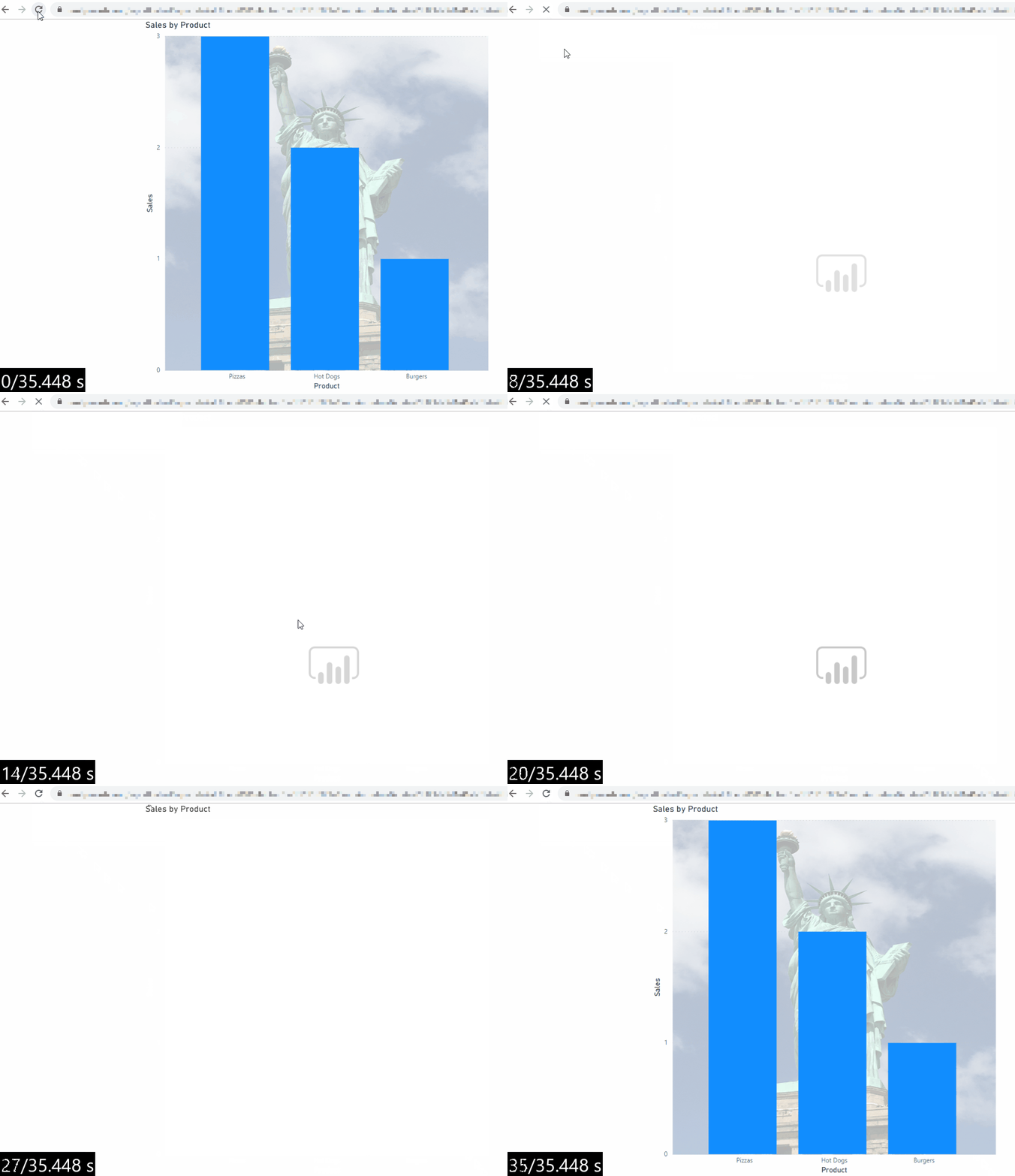
SlowReportRefresh

As you can see, it not only takes over 30 seconds to render the report, but worst of all the column chart is only visible right at the end. The waterfall shows something is being downloaded that is 1.2MB in size and that this takes 7.23 seconds:

image

Hovering over this request displays a tooltip that gives the full filename which, again, is a jpg file. The only image on the report is the background image used in the column chart and it turns out it is 1.2MB in size:

image

So it’s the background image used in the column chart that is the main problem! You remove the background image from the visual:

image

…and as expected, when you re-run the audit using the same settings as before the report renders seven seconds faster, taking 23.4 seconds:

image

Still not great, I know, but remember this is worst-case performance: not only does the audit recreate slow network and hardware, but it also recreates a cold cache – something your users will rarely encounter.

Hopefully this fairly simple example shows how useful the tools and techniques shown in the first two parts of this series are for troubleshooting certain types of report performance problem. It also goes to show how important it is to make sure any images you use in your report are as small as possible – something that, in my experience, many Power BI developers don’t always do.

Testing Performance Of Power BI Reports In The Browser, Part 2

In the first part of this series I talked about why you might want to test the performance of a Power BI report in the browser, as opposed to using Performance Analyzer in Power BI Desktop, and the different factors you have to take into account when doing this kind of testing. In this post I’ll describe how you can find out how long it takes for your report to run in a browser.

You can think of Power BI as a low code/no code tool for creating web applications for reporting and analytics, and as such you can use the same tools that web developers use for measuring web site performance to measure Power BI report render time. Now I am not a web developer (I guess most of you aren’t either) so I’ve had a lot to learn about this subject, and I’m all too aware of how much more there is still to learn, but I wanted to write up what I have learned so far because I think it’s so useful. Please excuse any mistakes, misconceptions or over-simplifications!

I’m going to use Google Chrome as my browser in this post. Yes, I know, I work for Microsoft but this is the new Microsoft and I have used Chrome as my browser of choice for the last few years; anyway, Edge is moving to be Chromium-based so everything I show in this post works in exactly the same way in the current Edge beta I have installed on my PC. As I said last time, it’s also important to test performance in whatever browser your end users use to understand what their experience is, but any optimisations you make in your report that work for Chrome or Edge beta are likely to work for other browsers too.

Here’s the methodology that I have come up with for measuring report performance in the browser:

Choose the page you want to test

You can only test the performance of one page in a report at a time, so choose the page that is either the most used, used by the most important users, or takes the longest time to render.

Add a blank page to your report

Before you publish your report, in Power BI Desktop add a blank page with no visuals on to it. It doesn’t need to be the page that is opened when the report opens and you will be able to delete it later. Why do this? When you’re testing how long it takes for your report page to render, you’re probably doing so because you want to improve performance. Some things in the report page that influence performance you have the power to change, such as the design of the dataset, the DAX in the measures, the number and type of visuals on a page; some things will always happen when a report runs and you have to accept that overhead. Testing how long a blank page takes to render will give you an idea of how long this latter category of “things that always happen” takes, and you can subtract this time from the time your chosen report page takes to run.

Get the embed url for your report page and the blank page

After you have published your report, get the secure embedding urls for your chosen report page and the blank page. You can find out how to do this here. Getting the embed url for the report takes a few clicks, but you will need to do a bit of copy-and-pasting to get the embed urls to open the report on the blank page and your chosen report page.

Why do this? Once again, it’s all down to focusing on what you have control over. When a user views a report they normally do so in the Power BI Service portal and the time this takes consists of the time taken to render the portal plus the time taken to render the report. Since you don’t have any control over how long the portal takes to render you might as well ignore this in your testing, so you can get a clearer picture of the amount of time taken to run the report. When you paste the embed url for the report into a browser tab the portal will not be displayed and you’ll only see the report.

Create a new user profile in Chrome

This is something I do anyway for each customer I work with, because it makes handling multiple Power BI logins much easier, but for performance testing you should create and use a new user profile in Chrome. This allows you to delete any Chrome extensions just for this profile (apparently they can affect page render times) and delete the cache if you want, without affecting your main profile. You may also need to test from an incognito window if there are some extensions you can’t delete.

Run your report pages to warm the SSAS/Power BI cache

Copy the embed urls for the blank page and the report page into new tabs and let them load before you do anything else, to warm the SSAS/Power BI cache. I discussed testing performance on a cold or warm SSAS/Power BI cache in my last post, and as I said then, while I believe it is extremely important to understand the impact of SSAS/Power BI caching on report rendering performance, it’s only really feasible to do the kind of DAX performance testing that requires this in Power BI Desktop. For testing report page rendering performance in the browser it’s easier to assume that you are running on a warm SSAS/Power BI cache.

Create an audit

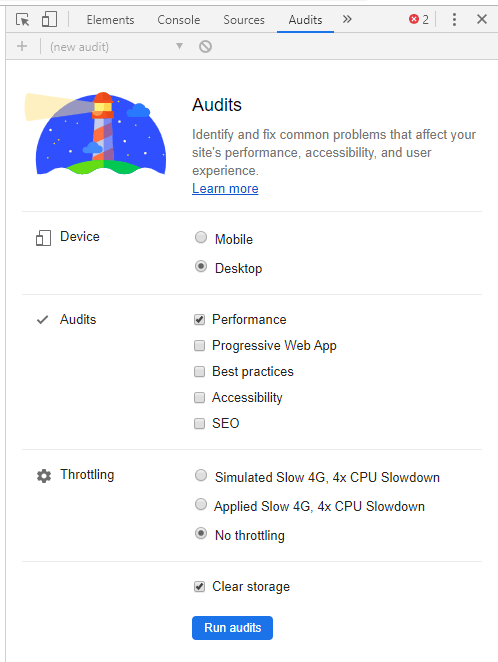
The easiest way to measure report load time is to open Chrome DevTools (you can do this by clicking Control+Shift+j in Chrome) while on the browser tab with the report page you want to test and use the functionality on the Audits tab. To get an understanding of what the Audits tab does I recommend you read this page and watch the accompanying video, paying particular attention to the steps in the section on how to establish a baseline. To keep things simple I suggest you choose the Desktop option in the Device section (choosing Mobile does not seem to render the Phone layout of your report if you have created one); check the Performance box in the Audits section; and then choose to apply one of the throttling options if you want:

image

When you click the Run audits button various tests will be run, and after a short wait you’ll see the results:

image

You can read more about what these results mean here but there is one number that a Power BI developer should be particularly interested in: Time to Interactive. As far as I can see this is pretty much the amount of time it takes for the report page to render (because, of course, defining what “render” means is complicated). Subtract the amount of time it takes to render the blank page from the amount of time it takes to render your chosen report page and you will know how much of the report page render time you can actually influence with any changes you make. I strongly recommend you run tests both with and without network throttling applied, because applying throttling really highlights any inefficiencies in your report design.

Use the Network tab

If you want to peak behind the scenes and see more detail about what happens when your report page renders, as well as have more control over things like network throttling, you can use the Network tab in Chrome DevTools. You can find out how to use it here (with more details here) but all you really need to do is:

  • Open up a new tab with the embed url of the report page you want to test
  • Open Chrome DevTools and go to the Network tab
  • Make sure the Disable Cache box is checked and set up any network throttling options you want to use for your tests. The ability to add custom network configurations is particularly useful:image
  • Press and hold the refresh button on the browser toolbar and a dropdown menu will appear; click on Empty Cache and Hard Reload to refresh the page and simulate a user’s first visit to the report. This will automatically start data capture in the Network tab.image
  • When your report page has finished rendering, click on the red stop button in the top left hand corner of the Network tab. You need to be quick but not that quick, for reasons I’ll explain in the next bullet.image
  • Down at the bottom of the Network tab you’ll see some useful metrics, including the number of requests made, the amount of data transferred and most importantly, the finish time. This last metric is not the time elapsed from the start of the refresh until the point you clicked the stop button; it’s the time elapsed from the start of the refresh until the last request before you clicked stop, so this is another good way of finding the render time of your report. You’ll see that requests do get made after the report has finished rendering which is why you need to be fairly quick clicking the stop button, but this is still a lot more accurate than using a stopwatch to time report page rendering.image
  • The majority of the pane will be taken up with a list of requests made and a waterfall chart that visualises how long each request took.image

Don’t get too clever!

You’ll see a lot of really interesting information on both the Audits tab and the Network tab and I’m sure most of you will be able to interpret what you see there and use it to tune your reports. I hesitated about mentioning the waterfall chart of the Network tab in this post but decided to do because I have found things on there that have helped me while performance tuning that I would not have found any other way. However, remember everything that you see on the waterfall chart in the Network tab is internal, undocumented and subject to change at any time. As a result please, please, please do not send me messages like “I’ve seen x happening on the Network tab, can you tell me what it means?” or “I’m a web developer and I can’t believe the stupid stuff I can see Microsoft doing here, why are you doing this?” because I’m not able to provide any answers.

As always, if you have any feedback or suggestions please leave a comment. In the next part of this series I’ll show you a worked example of how you can use all this to solve a performance problem that does not manifest in Power BI Desktop.

Testing Performance Of Power BI Reports In The Browser, Part 1

If your Power BI report is slow, most of the time the reason is something to do with the way you have modelled your data or the way you have written the DAX in your measures. There are plenty of resources out there to help you troubleshoot this kind of problem (Marco’s video “My Power BI report is slow: what should I do?” is a great place to start) but it’s important to understand that there are several other possible reasons why a Power BI report is slow, and these types of performance problem may only manifest themselves after the report has been published when a user is viewing it in the browser. As a result, it’s important to be able to test how long a report takes to render in a browser. If you can’t do this, how can you know if any changes you make help or hurt performance?

It turns out that testing performance of a report in the browser is not as straightforward as it seems. In this post I’m going to describe some of the factors you have to take into account when doing this type of testing; in the next post I’ll go into more detail about how you actually measure report rendering times in the browser and how to see what happens when the report is rendered.

Power BI is always changing

The first thing to remember is that the Power BI Service is always being updated and improved, which means that even if everything else in your environment stays the same the performance of any given report may vary (and hopefully get better) from day to day. Most changes to the Power BI Service are not publicised and there’s no way of knowing how much impact they will have on your report.  You need to take this into account when you do testing: don’t create a benchmark and then wait a week to see if any changes you have made have improved performance. Instead create a new benchmark every day you are testing and compare the changes you make to it.

Use the browser your users are using

Report performance can vary a lot depending on the browser you’re using. Before you ask, I don’t have any recommendations for the best or fastest browser to use for Power BI but generally speaking the more ‘modern’ your browser the better; this tweet from my colleague Chris Hamill showing how much faster the new Chromium-based version of Edge is compared to regular Edge is really striking. If you’re going to test performance of a report, though, you need to use the browser(s) your users are using, especially if that browser is IE.

Client hardware

The spec of the PC or mobile device running the browser is also a major factor in performance. As a Power BI developer it’s likely your hardware will be far superior to whatever device your users have to view your report with. It may be a good idea to borrow a PC, laptop, phone or tablet that is equivalent to what your users use, just for testing purposes.

Network factors

Users in different parts of the world with different internet connections will experience different report performance, and network conditions and therefore report performance may also vary by time of day. Power BI has some basic functionality to show the network latency that users are experiencing but it’s better to get someone who really knows what they are doing to help you understand what’s happening at the network level (I am absolutely not an expert in this). To a certain extent you can reproduce a different network conditions in the browser for testing purposes, but ideally you should to try to reproduce any problems and do any testing wherever the users are based and at the times of day they are using Power BI.

Power BI query caching

Datasets in Power BI Premium have an option to cache queries and improve performance for the initial page of a report. If you have this turned on, it means that the initial report load might be faster than subsequent interactions such as changing a filter or a slicer, so you should not just test the initial render time.

The Power BI/Analysis Services cache

Even if your dataset is perfectly modelled and your DAX is tuned to perfection, the caching that takes place within the Power BI engine (or Analysis Services, if you are using a Live connection) will almost always mean that the first time you run a query it will be slower than subsequent executions.

With Analysis Services Live connections you can clear the cache, and get worst-case cold-cache execution timings by running and XMLA ClearCache command from SQL Server Management Studio or by using DAX Studio’s Clear Cache button. You should also ensure that you are running your tests on an instance of Analysis Services that no-one else is connected to or doing anything on: this ensures that other users’ queries do not populate the cache, or use resources that affect the performance of your queries.

Things aren’t so simple with Power BI Import mode datasets – I’m pretty sure you can use XMLA to clear the cache of a Premium capacity via XMLA endpoints although I’ve not tried it, but even then it’s not likely you can ensure that you’re the only user on that capacity. With Shared capacity there’s no way to clear the cache. As a result you should instead accept that you can only test warm cache performance in the browser by loading your report once before you test performance. In any case, I think the kind of DAX-focussed testing that requires a cold cache can be done more easily in Power BI Desktop.

DirectQuery

If you’re using a DirectQuery dataset then you also need to worry about caching, security and other users running queries in the underlying data source. Again, as far as possible you should try to ensure that no-one else is running queries or doing anything else in the data source that could have an effect on the performance of your queries.

Simulating activity from other users

With DirectQuery connections, Live connections and Import mode, it might be that other users’ activity or processing/refreshing of cubes/models/datasets is causing the performance problem. I still think it’s important to do any testing when there are no other real users around – if you want to simulate other users running queries while you do your testing there are tools that can do that, including the Premium capacity load testing tool.

Do what your users do

Sometimes performance problems only occur in very specific circumstances, for example when a specific item has been selected in a filter or more than one item is selected, so it’s really important to create tests that reflect real-world patterns of interaction. Don’t forget that users might also be subject to row-level security that you as a developer are not affected by.

Conclusion

As you will have realised by now, creating realistic, repeatable tests for Power BI reports in the browser is not an easy task because there are so many different things to take into account. I’m not going to pretend this is an exhaustive list (I haven’t mentioned factors such as using a dataset that has the same data volumes as your production dataset, because that’s not specific to testing reports in the browser) but if you think I have forgotten something please leave a comment below – I would be interested to hear your thoughts.

Click here for part 2 in this series, where I show how to measure report render time in the browser. Click here for part 3, where I show a worked example of how to use the tools and techniques described in part 2.