Analysing Power BI DMV Queries In Power BI Desktop

Experienced Analysis Services and Power Pivot developers will know all the interesting things you can learn from DMV queries. For example, in this blog post Kasper de Jonge shows how to use a DMV to find out which columns are using the most memory in a Power Pivot model; here’s an older post from me on using DMVs to show the dependencies between DAX calculations. There’s plenty of other interesting stuff about how data is stored and so on that you can find with a bit of digging, and there’s some reasonably up-to-date documentation on DMVs for SSAS here.

However, running DMV queries against a Power BI Desktop model (which of course runs a local version of the same engine that powers Analysis Services Tabular and Power Pivot) and more importantly doing something useful with the information they return, isn’t straightforward. You can run DMV queries from DAX Studio but that will only give you the table of data returned; you need to copy and paste that data out to another tool to be able to analyse this data. Instead it’s possible to use Power BI Desktop’s own functionality for connecting to Analysis Services to connect to its own local data model and run DMV queries.

If you’re connecting to an instance of Analysis Services in Power BI Desktop you need a server name and a database name and the same goes when you’re connecting Power BI Desktop to itself. This episode of Adam Saxton’s excellent Guy In A Cube YouTube show details how to connect SQL Server Profiler to Power BI Desktop in order to run a trace, and the method he uses to find the connection details also works for our purpose here; it’s definitely worth a watch because it goes into a lot of detail. However it’s much easier to get the connection details from DAX Studio using the following steps (thanks to Darren Gosbell for pointing this out):

  1. Open Power BI Desktop and load data as normal.
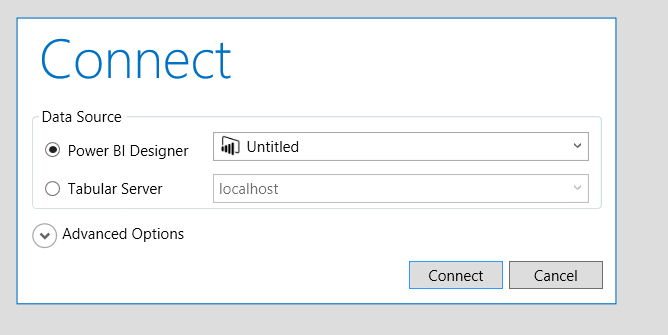
  2. Open DAX Studio and choose the Power BI Designer data source option:image
  3. Look in the bottom right-hand corner of the screen and you’ll see the server name, including the all-important port number, that you have connected to. In this case it’s
    localhost:52981image
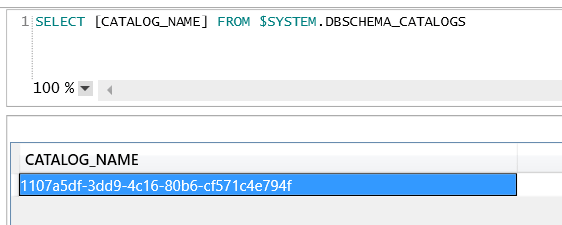
  4. Run the following DMV query in a DAX query window. This will give you the nasty GUID that is the name of the only database in the Power BI data model:

    [sourcecode language=”text” padlinenumbers=”true”]
    SELECT [CATALOG_NAME] FROM $SYSTEM.DBSCHEMA_CATALOGS
    [/sourcecode]

    image


  5. Now go back to Power BI Desktop, click the Get Data button and choose Analysis Services. In the connection dialog enter just the server name and port number and the database name found in the previous steps, as well as your DMV query:image


Once you have done this, you can load the results of your DMV query into the data model and analyse the results just like any other data. Here’s an M query using the DMV from the blog post by Kasper referenced earlier that looks at the memory used by just one table in the model:

[sourcecode language=”text”]
let
Source = AnalysisServices.Database(
"localhost:52981",
"1107a5df-3dd9-4c16-80b6-cf571c4e794f",
[Query="SELECT dimension_name, attribute_name, DataType,
(dictionary_size/1024) AS dictionary_size
FROM $system.DISCOVER_STORAGE_TABLE_COLUMNS"]),
#"Filtered Rows" = Table.SelectRows(Source,
each ([dimension_name] = "FactInternetSales"))
in
#"Filtered Rows"
[/sourcecode]

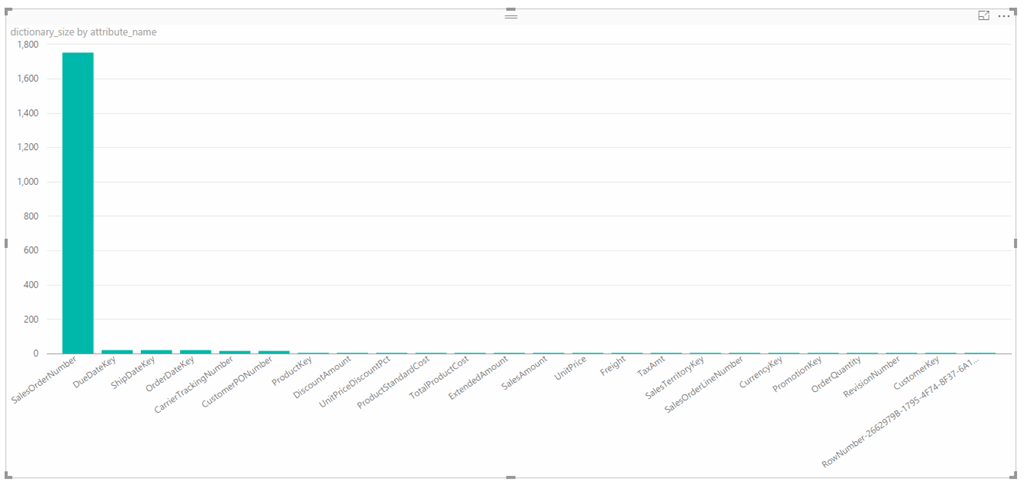
And here’s a bar chart built from that query showing clearly that the SalesOrderNumber column in the FactInternetSales table is very expensive:
image

Before you get too excited about this, there are two major problems you need to be aware of when using this technique:

  1. The port number used to connect to the local data model and the database name will change every time you open the Power BI Desktop file, so you will have to edit the connection information manually if you want to refresh the data after reopening.
  2. You won’t be able to make this connection refresh once you have published the file to PowerBI.com – so this will only work on the desktop.

That said, I think this is still very useful for development purposes. At some point I expect we’ll probably get a range of management reports in PowerBI.com that show similar data on published reports – just like we used to have in the old Office 365 Power BI.

Two New Books: “The Definitive Guide To DAX” And “’M’ Is For Data Monkey”

I’m not going to pretend that this blog post is a properly impartial review – I know the authors of both of these books to varying degrees – but I thought it was worth writing a few words on two new books I’ve acquired recently which are worth additions to any Power BI enthusiast’s bookshelf or e-reader.

The Definitive Guide To DAX

Something I’ll never understand about my friends Marco Russo and Alberto Russo is their love of writing books – they generally have a new one out every year, sometimes two (personally I find writing books painful). Their latest publication is “The Definitive Guide To DAX” and it does indeed live up to its title. No-one outside the dev team comes close to Marco and Alberto’s knowledge of DAX, the language of Power Pivot, Power BI Desktop modelling and SSAS Tabular, and in this book they have documented everything that they know about it down to the smallest detail. Want to know what the KeepFilters() function does? Or the GenerateAll() function? How about all the new DAX functions and features in the latest versions of Power BI Desktop which will also appear in SSAS 2016 Tabular? They’re all here, and more. As such this is essential purchase for anyone doing serious work on the Microsoft BI platform, although probably more as a reference than a book to read end-to-end. It’s fair to say there’s a certain amount of overlap between this and some of their previous books on Power Pivot and SSAS Tabular, but the language – and the community’s understanding of it – has evolved sufficiently to justify buying this book too.

[I received a free copy of this book for review]

Buy it here from Amazon UK | US

‘M’ Is For Data Monkey

As the author of the only other book on Power Query, I suppose I should really be keeping quiet about “’M’ Is For Data Monkey” in case you buy it instead of mine. However 18 months of UI changes and functionality improvements mean my book is now a bit out-of-date, and what’s more important is that Ken Puls and Miguel Escobar have had the advantage of a lot of real-world experience with Power Query that I didn’t have (indeed no-one had) when I was writing in early 2014. The book itself is not a formal introduction to the M language but a guide to what you can do with it in Power Query; while a lot of what’s here will be useful in Power BI this is definitely a Power Query book and the target audience is Excel Pros rather than BI Pros. The decision to focus on Excel Pros was a good one to make, in my opinion, because it plays to the authors’ strengths and means that the book has a very practical focus. A lot of the tips and tricks here are ones I’ve used successfully myself, and I don’t mind admitting that I learned one or two things from this book as well.

Buy it here from Amazon UK | US

Other Books Are Available…

There are a couple of other new books out that, although I haven’t seen them, will also be worth checking out. Rob Collie has just released Power Pivot and Power BI, essentially the second edition of DAX Formulas For Power Pivot; Matt Allington has just released Learn To Write DAX; both are going to be good choices for Excel users wanting a DAX tutorial. Finally, last week Teo Lachev announced on his blog that he has published the world’s first dedicated Power BI book. Teo is another author whose books I admire so I’m sure it will be excellent, although I’ll be interested to see how he handles the problem of writing about a product that changes so much so quickly.

Working With Compression In Power Query And Power BI Desktop

If you’re reading this post there’s one important question you’ll probably want to ask: is it possible to extract data from a zip file in Power Query/Power BI? The answer is, unfortunately, no (at least at the time of writing). As this answer from Tristan on the dev team explains, because there are so many flavours of zip file out there it’s an extremely difficult problem to solve – so it hasn’t been attempted yet. That said, there are two other mildly interesting things to learn about compression in Power Query/Power BI Desktop that I thought were worth blogging about…

The first is that Power Query/Power BI can work with gzip files. For example, given a gzip file that contains a single csv file, here’s an example M query showing how the Binary.Decompress() function can be used to extract the csv file from the gzip file and then treat the contents of the csv file as a table:

[sourcecode language=”text” padlinenumbers=”true”]
let
Source = Binary.Decompress(
File.Contents(
"C:\Myfolder\CompressedData.csv.gz"),
Compression.GZip),
#"Imported CSV" = Csv.Document(Source,
[Delimiter=",",Encoding=1252]),
#"Promoted Headers" = Table.PromoteHeaders(#"Imported CSV"),
#"Changed Type" = Table.TransformColumnTypes(
#"Promoted Headers",{
{"Month", type text}, {" Sales", Int64.Type}
})
in
#"Changed Type"
[/sourcecode]

The other is that you’ll see Binary.Decompress() used when you import an Excel workbook that contains a linked table into Power BI Desktop. For example, consider an Excel workbook that contains the following table:

image

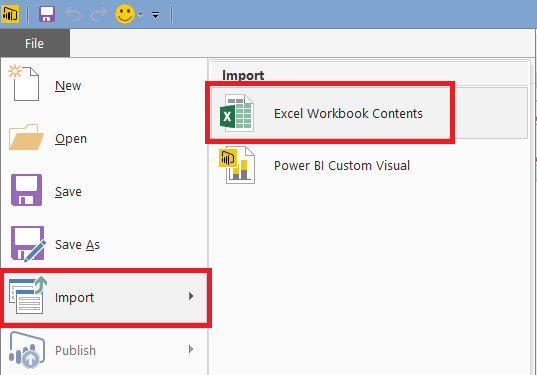
If this table is imported into the Excel Data Model as a linked table, and you then save the workbook and try to import it into Power BI using File/Import/Excel Workbook Contents:

image

… you’ll see this message:

image

Click Start and you’ll get another message:

image

If you choose the Copy Data option, the data from the Excel table will be copied into Power BI. But where is it stored exactly? A look in the Query Editor at the query that returns the data shows that it’s embedded in the M code itself:

[sourcecode language=”text”]
let
Source = Table.FromRows(
Json.Document(
Binary.Decompress(
Binary.FromText(
"i45WMlTSUTJSitWJVjIGskzALFMgy0wpNhYA",
BinaryEncoding.Base64),
Compression.Deflate)),
{"A","B"}),
#"Changed Type" = Table.TransformColumnTypes(
Source,{{"A", Int64.Type}, {"B", Int64.Type}})
in
#"Changed Type"
[/sourcecode]

That big chunk of text in the middle of the Source step is the data from the Excel table stored as a compressed JSON document, and again Binary.Decompress() is used to extract this data.

The Text.Format() Function In Power BI/Power Query M

New functions are appearing in M all the time, many with no announcement or documentation. I came across Text.Format() the other day and I thought it was worth blogging about because I can see a lot of uses for it: it makes it very easy to insert values into a piece of text.

The function signature is:
Text.Format(formatString as text, arguments as any, optional culture as nullable text)

Here’s a simple example:

Text.Format(“The #[Animal] sat on the #[Furniture]”, [Animal=”cat”, Furniture=”mat”])

It returns the text:

The cat sat on the mat

image

As you can see, the references to each record field in the first piece of text are replaced with the values from those fields from the record in the second parameter. Those of you who know a little M will realise how this works: the placeholder in the text passed to the first parameter is actually the same M expression you would use to extract the value you need from the record in code. So [Animal] is the M expression you’d use to return the value from the Animal field from the record [Animal=”cat”, Furniture=”mat”], as in following expression which returns the text value “cat”:

[sourcecode language=”text”]
let
MyRecord = [Animal="cat", Furniture="mat"],
GetAnimal = MyRecord[Animal]
in
GetAnimal
[/sourcecode]

The second parameter can take other data types too. You can pass a list instead of a record; so for example the expression

Text.Format(

“The first number is #{0}, the second number is #{1}, the third number is #{2}”,

{5,8,9})

returns the text

The first number is 5, the second number is 8, the third number is 9

The optional third parameter of Text.Format() controls the locale/culture used when formatting the values. So for example the expression

Text.Format(

“Decimal example #{0} – Date example #{1}”, {100.001, #date(2015,12,1)},

“en-us”)

returns a decimal number and date formatted for US English, with a full stop (or period, as the Americans say) as the decimal separator and the date shown as mm/dd/yyyy:

Decimal example 100.001 – Date example 12/1/2015

While the expression

Text.Format(

“Decimal example #{0} – Date example #{1}”, {100.001, #date(2015,12,1)},

“fr-fr”)

Returns the same values formatted for French/France, where the decimal separator is a comma and dates are formatted dd/mm/yyy:

Decimal example 100,001 – Date example 01/12/2015

How about some more advanced examples? Here’s a table in Excel:

image

If you load it into Power Query and then create a custom column, in your custom column expression you can refer to the current row as a record using the _ (underscore) character. So creating a custom column using the following expression:

Text.Format(“the #[Animal] sat on the #[Furniture]”, _)

image

Returns a table that looks like this:

image

You could also use Text.Format() to create parameterised queries to run against a database. Here’s an example of an MDX query on the Adventure Works DW database with a parameterised WHERE clause:

[sourcecode language=”text” padlinenumbers=”true”]
let
MDXQueryTemplate =
"SELECT#(lf)
{[Measures].[Internet Sales Amount]} ON 0,#(lf)
NON EMPTY#(lf)
[Date].[Calendar Year].[Calendar Year].MEMBERS ON 1#(lf)
FROM#(lf)
[Adventure Works]#(lf)
WHERE(
STRTOMEMBER(
""[Customer].[Country].&[#[Country]]"",
CONSTRAINED))",
ReplaceCountryParameter =
Text.Format(
MDXQueryTemplate,
[Country="Australia"]),
RunQuery =
AnalysisServices.Database(
"localhost",
"adventure works dw 2008",
[Query=ReplaceCountryParameter])
in
RunQuery
[/sourcecode]

Remember, if you do something like this you’ll probably want to disable native database prompts – if you don’t, you’ll be asked to approve every new query that gets run. Also, you’ll notice that I’m using the StrToMember() function with the Constrained flag in the WHERE clause because, even though it’s not really necessary, it’s good from a security point of view. It would be really good if we could use proper MDX parameters in our queries but I don’t think it’s possible, unless there’s some other new feature or function that I don’t know about.

Power BI DirectQuery Mode: Not Just SSAS DirectQuery v2.0

When DirectQuery mode for Power BI was announced I assumed it was just the next version of SSAS Tabular DirectQuery mode with the same extra features that we’ll get in SSAS 2016 (such as better SQL generation, and other benefits enabled by Super-DAX). If it was just that I would have been happy, but there’s something else that was mentioned in Miguel’s video introducing the feature that I almost missed, something that is also hinted at in the documentation where it mentions the following limitation:

If the Query Editor query is overly complex an error will occur. To remedy the error you must: delete the problematic step in Query Editor, or Import the data instead of using DirectQuery

It turns out that Power BI in DirectQuery mode is actually SSAS DirectQuery version 2.0 combined with Power Query/Power BI “Get Data”’s query folding capabilities (where the logic in your queries is pushed back to the data source rather than evaluated inside Power BI) – which is quite interesting.

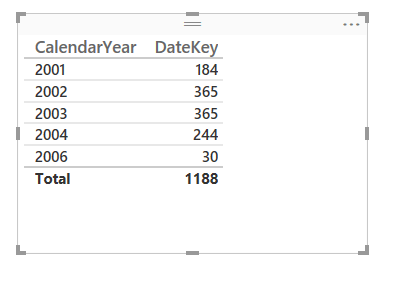
Let’s look at an example using the Adventure Works DW database and SQL Server. If you import just the DimDate table in DirectQuery mode and create a table that shows the count of values from the DateKey column grouped by CalendarYear, like this:

image

The following SQL will be generated:

[sourcecode language='text'  padlinenumbers='true']
SELECT 
TOP (1000001) [t0].[CalendarYear] AS [c15],
COUNT_BIG([t0].[DateKey])
 AS [a0]
FROM 
(
(select [$Table].[DateKey] as [DateKey],
    [$Table].[FullDateAlternateKey] as [FullDateAlternateKey],
    [$Table].[DayNumberOfWeek] as [DayNumberOfWeek],
    [$Table].[EnglishDayNameOfWeek] as [EnglishDayNameOfWeek],
    [$Table].[SpanishDayNameOfWeek] as [SpanishDayNameOfWeek],
    [$Table].[FrenchDayNameOfWeek] as [FrenchDayNameOfWeek],
    [$Table].[DayNumberOfMonth] as [DayNumberOfMonth],
    [$Table].[DayNumberOfYear] as [DayNumberOfYear],
    [$Table].[WeekNumberOfYear] as [WeekNumberOfYear],
    [$Table].[EnglishMonthName] as [EnglishMonthName],
    [$Table].[SpanishMonthName] as [SpanishMonthName],
    [$Table].[FrenchMonthName] as [FrenchMonthName],
    [$Table].[MonthNumberOfYear] as [MonthNumberOfYear],
    [$Table].[CalendarQuarter] as [CalendarQuarter],
    [$Table].[CalendarYear] as [CalendarYear],
    [$Table].[CalendarSemester] as [CalendarSemester],
    [$Table].[FiscalQuarter] as [FiscalQuarter],
    [$Table].[FiscalYear] as [FiscalYear],
    [$Table].[FiscalSemester] as [FiscalSemester]
from [dbo].[DimDate] as [$Table])
)
 AS [t0]
GROUP BY [t0].[CalendarYear] 
[/sourcecode]

Then, if you go to Edit Queries and set a filter on EnglishDayNameOfWeek so that you only get the dates that are Fridays, like so:

image

The click Close And Apply, you’ll see that the table now shows the count of dates in each year that are Fridays (as you would expect):

image

…and the SQL generated also reflects that filter:

[sourcecode language='text'  highlight='27']
SELECT 
TOP (1000001) [t0].[CalendarYear] AS [c15],
COUNT_BIG([t0].[DateKey])
 AS [a0]
FROM 
(
(select [_].[DateKey],
    [_].[FullDateAlternateKey],
    [_].[DayNumberOfWeek],
    [_].[EnglishDayNameOfWeek],
    [_].[SpanishDayNameOfWeek],
    [_].[FrenchDayNameOfWeek],
    [_].[DayNumberOfMonth],
    [_].[DayNumberOfYear],
    [_].[WeekNumberOfYear],
    [_].[EnglishMonthName],
    [_].[SpanishMonthName],
    [_].[FrenchMonthName],
    [_].[MonthNumberOfYear],
    [_].[CalendarQuarter],
    [_].[CalendarYear],
    [_].[CalendarSemester],
    [_].[FiscalQuarter],
    [_].[FiscalYear],
    [_].[FiscalSemester]
from [dbo].[DimDate] as [_]
where [_].[EnglishDayNameOfWeek] = 'Friday')
)
 AS [t0]
GROUP BY [t0].[CalendarYear] 
[/sourcecode]

What’s happening here is that the output of “Get Data” (we so need a better name for this feature – how about “the functionality formerly known as Power Query”?) becomes the inner SELECT statement with the filter on EnglishDayNameOfWeek; while the table in the report that returns the count of dates by Year is responsible for generating the outer SELECT statement with the GROUP BY (this is the part of the Power BI engine that is related to SSAS DirectQuery).

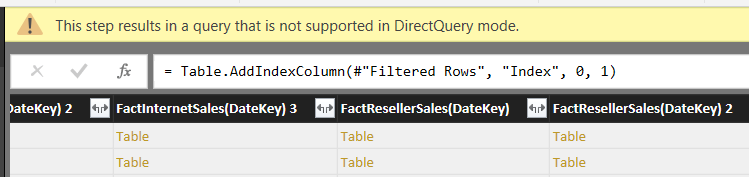
Now, you can only do this if all the steps in “Get Data” can be folded back to SQL. How do you know if they can or not? Well, if query folding can’t take place then you’ll get an error: this is what is meant by the warning about your query being “overly complex” in the documentation. Unfortunately there’s no way of knowing in advance what can be folded and what can’t; with every release of Power BI Desktop and Power Query I’ve noticed that more and more things can be folded (and I’m always pleasantly surprised at the transformations that can be folded, such as pivots and basic calculated columns), but there are still plenty of limitations. For example at the time of writing adding an index column to your query will prevent query folding and therefore break DirectQuery. If you do this, you’ll see the following error in the Query Editor window:

This step results in a query that is not supported in DirectQuery mode

image

Even with this restriction I think the ability to apply transformations in Get Data is very useful indeed, because it means you have a lot of scope for cleaning and filtering data in DirectQuery mode and therefore building ‘live’ reporting solutions on data that isn’t modelled the way you’d like it to be.

While I’m talking about DirectQuery mode, there are a few other points I’d like to mention:

  • Remember, it’s still in Preview and so it has some limitations and bugs. For example, I’ve hit an issue where DirectQuery fails with a connection from my “Recent Sources” list, but works ok if I create a new connection.
  • Prepare to be underwhelmed by the performance of DirectQuery, people: remember this is just ROLAP by another name, ROLAP has been around for years, and ROLAP has always had performance problems. These problems are not just related to the speed of the underlying engine or the size of the data – the ability of the OLAP engine to generate the SQL to get the data it needs also plays a major role. SSAS Multidimensional ROLAP and SSAS Tabular 2012-4 DirectQuery generate some pretty wretched SQL even in the most simple scenarios and it looks like Power BI DirectQuery is a big improvement on them. But what about more complex queries? This is a very difficult problem to crack. My feeling is that if your data does fit into Power BI’s native engine then you should import it rather than use DirectQuery, if you want to get the best possible query performance.
  • I suspect that this performance issue is also the reason why the New Measure button is greyed out in Power BI Desktop when you’re in DirectQuery mode. This isn’t a limitation of the engine because SSAS Tabular does support more complex DAX measures in DirectQuery mode, albeit with some restrictions on the functions you can use. However, the more complex your DAX measures are, the more complex the problem of generating SQL becomes and the more likely your queries are to be slow. I don’t think this is a good reason for completely preventing users from creating their own measures though: there are lots of scenarios where you will need to create measures and performance would still be acceptable. Maybe this is an example of an ‘advanced’ feature that could be switched on by power users?

Running Your Own MDX And DAX Queries In Power BI Desktop

Every time there’s a new release of Power Query or Power BI Desktop, I always check to see if there are any interesting new M functions that have been added (I used #shared to do this, as detailed here). For the RTM version of Power BI Desktop I spotted two new functions:

image

As well as ODBC connections, we can now use OLEDB and ADO.NET data sources – although they aren’t shown in the UI yet. And you know what this means… with an OLEDB connection we can now run our own MDX and DAX queries against SSAS data sources! I assume this will be coming in Power Query in Excel soon too.

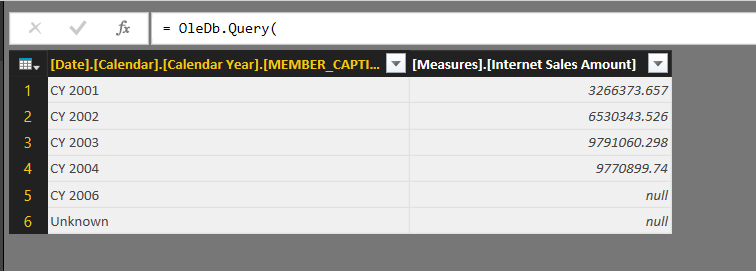
Here’s an example query showing how to use OleDB.Query() to run an MDX query against the Adventure Works DW cube in SSAS Multidimesional:

[sourcecode language=”text”]
let
Source = OleDb.Query(
"Provider=MSOLAP.5;Data Source=localhost;
Initial Catalog=Adventure Works DW 2008",
"select {measures.[internet sales amount]} on 0,
[date].[calendar].[calendar year].members on 1
from [adventure works]"
)
in
Source
[/sourcecode]

As you can see, it’s pretty straightforward: you just need to supply a connection string and a query. You will need to tell Power BI Desktop which credentials to use when running the query the first time you connect to SSAS, and that’s probably going to be Windows:

image

You will also see a prompt the first time you run the query, asking for permission to run a Native Database Query:

image

This prompt will appear each time a different MDX query is run; you can turn off this prompt in the Options dialog on the Security tab by unchecking the Require user approval for new native database queries box:

image

Here’s the output of the MDX query from the example code:

image