Semi-Additive Measures, Unary Operators, Custom Rollups And The Calculate() Statement

Last week I was doing some performance tuning on SSAS Multidimensional and saw something very strange: when the MDX Script of the cube was executed (as always happens after the cache has been cleared, or processing has taken place – you can monitor this via the Execute MDX Script Begin/End events in Profiler) the Calculate() statement was taking just over four seconds. I’d never seen this before so I asked the nice people on the SSAS dev team what was going on, and Akshai Mirchandani very kindly filled me in on the details.

There are two types of calculation on an SSAS cube: those explicitly defined in the MDX Script (ie those seen on the Calculations tab of the cube editor); and semi-additive measures, unary operators and custom rollups, which are defined in the model itself. This second type of calculation is added to the cube when the Calculate() statement fires, and the more of them there are the longer it takes SSAS to work out where they should be applied in the space of the cube. In my customer’s case there were several large (80000+ members) parent/child hierarchies with unary operators as well as a few semi-additive measures and so this was the reason why Calculate() was so slow. Up to now I had only known that Calculate() triggers the aggregation of data up through the cube, which is why if you delete it the cube seems to contain no data.

My Online MDX Training Course Is Now Live!

Recently I spent a few days with Rafal Lukawiecki recording videos of my MDX training course for Project Botticelli. I’m now pleased to announce that the first two videos (to add to the free video I recorded last year) from the course are now live with more to follow soon. You can find the main course page here; the two videos available as of today are:

The MDX SELECT Statement

This video covers writing simple MDX queries and looks at the SELECT clause, the FROM clause and the WHERE clause. The cool thing is that it’s free to view – although you will need to register on the site first.

clip_image001


MDX Calculated Members

This video covers the basics of creating calculated members in MDX in the WITH clause and using the CREATE MEMBER statement. It’s available to subscribers only.

clip_image001[7]


Apart from my course there’s a lot of other great Microsoft BI video training available via Project Botticelli, including several DAX videos by my old friends Marco Russo and Alberto Ferrari. Subscriptions to the site are very reasonably priced, but if you register before the end of December 2013 you can get a 20% discount by using the following promotion code:

TECHNITRAIN20HOLS2013

Of course, if you prefer your training in a classroom, you can always attend one of my Technitrain courses in London next year.

Caching The Rows Returned By An MDX Query

Here’s another tip for those of you struggling with the performance of SSRS reports that run on top of an Analysis Services Multidimensional cube. Quite often, SSRS reports require quite complex set expressions to be used on the rows axis of an MDX query, and one of the weaknesses of SSAS is that while it can (usually) cache the values of cells returned by a query it can’t cache the structure of the cellset returned by the query. What does this mean exactly? Well, consider the following query:

SELECT

{[Measures].[Internet Sales Amount]} ON 0,

NONEMPTY(

GENERATE(

[Date].[Calendar].[Month].MEMBERS,

{[Date].[Calendar].CURRENTMEMBER}

*

HEAD(ORDER([Customer].[Customer].[Customer].MEMBERS,

[Measures].[Internet Sales Amount],

BDESC),2)

),

[Measures].[Internet Sales Amount])

ON 1

FROM [Adventure Works]

WHERE([Product].[Category].&[3])

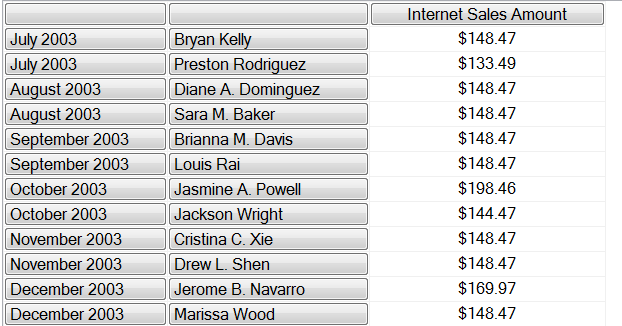
Here I’m taking every month on the Calendar hierarchy of the Date dimension and finding the top two customers by Internet Sales Amount for each Month; notice also that I’m slicing the query by a Product Category. The results look like this:

image

On my laptop this query takes just over three seconds to run however many times you run it (and yes, I know there are other ways this query can be optimised, but let’s imagine this is a query that can’t be optimised). The reason it is consistently slow is because the vast majority of the time taken for the query is to evaluate the set used on rows – even when the Storage Engine has cached the values for Internet Sales Amount for all combinations of month and customer, it still takes the Formula Engine a long time to find the top two customers for each month. Unfortunately, once the set of rows has been found it is discarded, and the next time the query is run it has to be re-evaluated.

How can we improve this? SSAS can’t cache the results of a set used on an axis in a query, but SSAS can cache the result of a calculated measure and calculated measures can return strings, and these strings can contain representations of sets. Therefore, if you go into Visual Studio and add the following calculated measure onto the MDX Script of the cube on the Calculations tab of the Cube Editor:

CREATE MEMBER CURRENTCUBE.MEASURES.REPORTROWS AS

SETTOSTR(

NONEMPTY(

GENERATE(

[Date].[Calendar].[Month].MEMBERS,

{[Date].[Calendar].CURRENTMEMBER}

*

HEAD(ORDER([Customer].[Customer].[Customer].MEMBERS,

[Measures].[Internet Sales Amount],

BDESC),2)

),

[Measures].[Internet Sales Amount])

);

You can then use this calculated measure in your query as follows:

SELECT

{[Measures].[Internet Sales Amount]} ON 0,

STRTOSET(MEASURES.REPORTROWS)

ON 1

FROM [Adventure Works]

WHERE([Product].[Category].&[3])

Having done this, on my laptop the query is just as slow as before the first time it is run but on subsequent executions it returns almost instantly. This is because the first time the query is run the set expression used on rows is evaluated inside the calculated measure ReportRows and it is then turned into a string using the SetToStr() function; this string is then returned on the rows axis of the query and converted back to a set using the StrToSet() function. The second time the query is run the string returned by the ReportRows measure has already been cached by the Formula Engine, which explains why it is so fast.

Couldn’t I have used a static named set declared on the cube to do this instead? I could, if I knew that the Where clause of the query would never change, but if I wanted to change the slice and look at a different Product Category I would expect to see a different set of rows displayed. While in theory I could create one gigantic named set containing every set of rows that ever might need to be displayed and then display the appropriate subset based on what’s present in the Where clause, this set could take a very long time to evaluate and thus cause performance problems elsewhere. The beauty of the calculated measure approach is that if you change the Where clause the calculated measure will cache a new result for the new context.

There are some things to watch out for if you use this technique, however:

  • It relies on Formula Engine caching to work. That’s why I declared the calculated measure on the cube – it won’t work if the calculated measure is declared in the WITH clause. There are a lot of other things that you can do that will prevent the Formula Engine cache from working too, such as declaring any other calculated members in the WITH clause, using subselects in your query (unless you have SSAS 2012 SP1 CU4), using non-deterministic functions and so on.
  • Remember also that users who are members of different roles can’t share formula engine caches, so if you have a lot of roles then the effectiveness of this technique will be reduced.
  • There is a limit to the size of strings that SSAS calculated measures can return, and you may hit that limit if your set is large. In my opinion an SSRS report should never return more than a few hundred rows at most for the sake of usability, but I know that in the real world customers do love to run gigantic reports…
  • There is also a limit to the size of the Formula Engine flat cache (the cache that is being used here), which is 10% of the TotalMemoryLimit. I guess it is possible that if you run a lot of different queries you could hit this limit, and if you do then the flat cache is completely emptied.

Problems With Calculated Members And Level Names

Here’s something strange I came across today: a customer had created a calculated member, not on the measures dimension but on another hierarchy, and even though it had been selected in their client tool it wasn’t appearing in the query results. I tested in Excel and saw some strange error message. I was mystified, but after a bit of thought I found out what was going on…

Take the following query in Adventure Works:

WITH
MEMBER [Customer].[Gender].[CALC] AS 123
SELECT {[Measures].[Internet Sales Amount]} ON 0,
{[Customer].[Gender].&[F],
[Customer].[Gender].&[M],
[Customer].[Gender].[CALC]}
ON 1
FROM [Adventure Works]

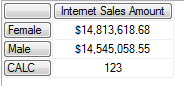
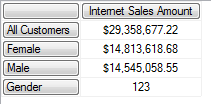
When you run it, you get the results you would expect:

image

Now, if you change the calculated member name, you’ll see the problem that my customer was running into:

WITH
MEMBER [Customer].[Gender].[Gender] AS 123
SELECT {[Measures].[Internet Sales Amount]} ON 0,
{[Customer].[Gender].&[F],
[Customer].[Gender].&[M],
[Customer].[Gender].[Gender]}
ON 1
FROM [Adventure Works]

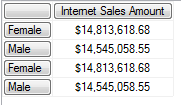
image

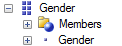
Instead of the calculated member, you now see Female and Male repeated twice. The reason why this is happening is down to how SSAS interprets the expression [Customer].[Gender].[Gender]. It’s the name of the calculated member that’s been defined, but it’s also the unique name of the Gender level on the Gender hierarchy of the Customer dimension:

image

As I explained in this blog post, when SSAS sees the unique name of a level it sticks the .MEMBERS function on the end and this returns the set of all members on the Gender level of the Gender hierarchy – and not the calculated member.

Of course, if you rewrite the query to use the ALLMEMBERS function as follows:

WITH
MEMBER [Customer].[Gender].[Gender] AS 123
SELECT {[Measures].[Internet Sales Amount]} ON 0,
[Customer].[Gender].ALLMEMBERS
ON 1
FROM [Adventure Works]

…you’ll see the calculated member returned:

image

So, the moral of this post is don’t create calculated members that have the same name as a level on a hierarchy. It’s unlikely that you’ll do this, but possible – in my customer’s case they had a hierarchy on a time utility dimension called “Periods To Date” and a calculated member on that hierarchy with the same name.

Subselects And Formula Engine Caching In SSAS 2012

One of the many interesting things that caught my eye in the new SSAS Tabular Performance Tuning white paper is actually about new functionality in the SSAS 2012 Multidimensional and nothing to do with Tabular! It turns out that in the DAXMD release of SSAS 2012, ie SQL Server 2012 SP1 CU4, some work was done to enable the Formula Engine to cache the results of MDX calculations for longer than the lifetime of a query when a query includes a subselect. Here’s an excerpt from the paper:

Certain types of queries cannot benefit from MDX caching. For example, multi-select filters (represented in the MDX query with a subselect) prevent use of the global MDX formula engine cache. However, this limitation was lifted for most subselect scenarios as part of SQL Server 2012 SP1 CU4 (http://support.microsoft.com/kb/2833645/en-us). However, subselect global scope caching is still prevented for arbitrary shapes (http://blog.kejser.org/2006/11/16/arbitrary-shapes-in-as-2005/), transient calculations like NOW(), and queries without a dimension on rows or columns. If the business requirements for the report do not require visual totals and caching is not occurring for your query, consider changing the query to use a set in the WHERE clause instead of a subselect as this enables better caching in some scenarios.

This is a subject I’ve blogged about in the past, both for SSRS reports (which almost always use subselects in the MDX created by the query editor) and Excel PivotTables (which sometimes, but not always, use subselects) and you may want to read this posts to get some background. In my experience, if you have a lot of complex MDX calculations on your cube (financial applications are a great example), this issue can have a major impact on your overall query performance, even if it isn’t immediately obvious that this is the case. On builds of SSAS before 2012 SP1 CU4, even if Storage Engine caching is working properly, if a query references a lot of MDX calculations and includes a subselect it will be consistently slow however many times you run it because the calculations will need to be re-evaluated every time the query is run.

I’ve heard of a few problems with CU4 regarding SSRS so I don’t recommend upgrading your production SSAS servers just yet, but when these problems have been ironed out in the next full service pack I think this could be a compelling reason for many people to move to SSAS 2012. There’s also still a limitation whereby queries that return a single cell value and use a subselect may still not be able to use the global Formula Engine cache, but hopefully this will be dealt with in a future release too. Overall, though, I’m extremely pleased to see yet another improvement to the Multidimensional engine.

Thanks to Jeffrey Wang for answering my questions about this functionality.

Ordering Of Named Sets In Excel

A bit of an obscure one, this, but it’s come up twice this week so worth mentioning. When you define a named set on your SSAS Multidimensional cube, Excel doesn’t respect the order of items in that set by default when you use it in a PivotTable. Consider the following named set defined on the Adventure Works cube (on the Calculations tab of the cube, not in defined in Excel itself):

CREATE SET [MY COUNTRIES] AS
{[Customer].[Country].&[France], [Customer].[Country].&[Canada], [Customer].[Country].&[Australia]};

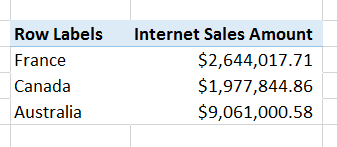
Note that the countries are in the order France, Canada, Australia. When you use this named set in Excel, this order is overridden and the countries come out in hierarchy order, that’s to say the order that they appear on the Country hierarchy: Australia, Canada, France.

image 

image

How can you stop this? After all, in a lot of cases the order of members in a named set is important. If you have Excel 2010 or Excel 2013 (I believe this option isn’t available in Excel 2007), you need to click on the name of the set in the PivotTable Field List pane and select Field Settings:

image

Then in the Field Settings dialog go to the Layout and Print tab and uncheck the “Automatically order and remove duplicates from the set” option:

image

When you do that, the order of your set is respected:

image

New MDX Divide() Function

A few weeks ago I saw Rob Collie’s blog post about the DAX Divide() function, and I was a bit surprised that I hadn’t seen it before. Then, yesterday, I found that the same function has appeared in MDX in SSAS 2012 Multidimensional. Here’s the entry in BOL:
http://msdn.microsoft.com/en-us/library/jj873944.aspx

The syntax is:
Divide (<numerator>, <denominator> [,<alternateresult>])

Numerator and Denominator are self-explanatory; alternateresult is the constant value you want to return in case of division by zero, and if it is not specified a null is returned.

It turns out that it was added after RTM of SSAS 2012, and officially first appeared in SSAS 2012 SP1. This is the first new MDX function since… what, 2005? 2008? Five long years at least.

[A loud bump is heard as Chris falls off his chair in amazement]

This is important because there have been requests for a safe divide function in MDX for a long time. I posted a request on Connect, for example, and Darren Gosbell blogged about it here. It would have been nice if someone had mentioned to me that this feature had been added…

Why should you care about this? Well, anyone with any experience of MDX will know that you need to trap for division-by-zero and division-by-null when writing calculations. Consider the following query in Adventure Works:

with
member measures.[France Sales] as
([Measures].[Internet Sales Amount],
[Customer].[Country].&[France])
member measures.[US Sales] as
([Measures].[Internet Sales Amount],
[Customer].[Country].&[United States])

member measures.[France as a % of US] as
measures.[France Sales]/measures.[US Sales]
, format_string=’0.00%’

select
{measures.[France Sales],
measures.[US Sales],
measures.[France as a % of US]}
on 0,
[Date].[Date].[Date].members
on 1
from [Adventure Works]

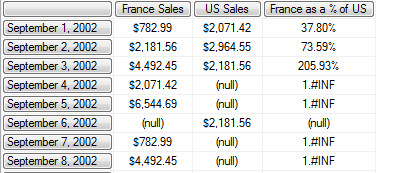
The measure I’ve highlighted divides two other measures, and returns the value 1.#INF (infinity) when the measure [US Sales] is null:

image

1.#INF is not something you want to show to your end users. Furthermore, Mosha showed us all a long time ago that when dividing we should always use the pattern
iif(measures.x=0, null, measures.y/measures.x)
to get the best performance.

It now looks like this pattern has been superseded by the Divide() function. Here’s the measure in bold from the query above rewritten to use it:

member measures.[France as a % of US] as
divide(measures.[France Sales],measures.[US Sales])
, format_string=’0.00%’

From my limited testing on Adventure Works performance seems to be the same as with the iif() pattern, but I have heard that in other scenarios it may perform better. So I would recommend you try testing it on your cube, and use it in all your MDX from now on.

Defining DAX Measures In The With Clause Of An MDX Query

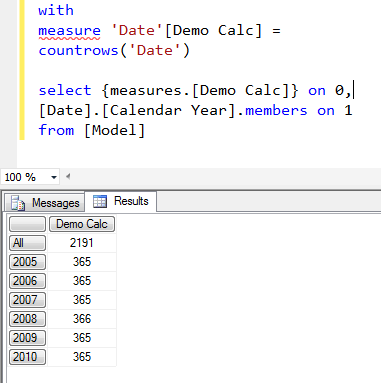
It’s a little-known fact (but certainly not completely unknown – it was mentioned in Marco, Alberto and my SSAS Tabular book I think) that you can define measures using DAX in the WITH clause of an MDX query. This means you can write queries like the following against an SSAS Tabular model:

with
measure ‘Date'[Demo Calc] =
countrows(‘Date’)

select {measures.[Demo Calc]} on 0,
[Date].[Calendar Year].members on 1
from [Model]

image

The official documentation, such as it is, is here:
http://msdn.microsoft.com/en-us/library/hh758441.aspx

Unfortunately you can’t use it from Excel 2013 using the new ‘create calculated measure’ functionality; I also talked to the nice people behind OLAP PivotTable Extensions and there are some very good reasons why they can’t support this either.

What use is this then? You’re only going to be able to use it in scenarios where you control the generation of the MDX on the client side, such as SSRS reports, which may not be all that often; in fact, in these situations you might be better off writing the whole query in DAX. It’s only going to be useful when you need the power of MDX and DAX in the same query. For example, you might want to take advantage of DAX’s superior ability to detect multiselects, but write all your other calculations in MDX. I’m clutching at straws here though! Still, it’s an interesting thing to know about. Please leave a comment if you can thing of a situation where you can use it…

Optimising Returning Customers Calculations in MDX

One of the more popular blog posts from my archives (86 comments so far) is the one I wrote on “Counting New and Returning Customers in MDX”. The trouble with all of the calculations in there is that they execute in cell-by-cell mode, and therefore perform quite badly.

For example, take the following query on Adventure Works to find the number of returning customers (customers who have bought from us today and have also bought something before in the past):

with

member measures.[Returning Customers V1] as

count(

intersect(

nonempty([Customer].[Customer].[Customer].members, [Measures].[Internet Sales Amount])

,

nonempty([Customer].[Customer].[Customer].members, 

    [Measures].[Internet Sales Amount] * {null : [Date].[Date].currentmember.prevmember})

)

)


select {measures.[Returning Customers V1]} on 0,

[Date].[Date].[Date].members

on 1

from 

[Adventure Works]


On a cold cache this takes 47 seconds on my laptop and a quick look in Profiler shows this executes in cell-by-cell mode. In the comments on the original post Deepak Puri suggested an alternative approach using the Customer Count distinct count measure:

with

member measures.customerstodate as

aggregate(null:[Date].[Date].currentmember, [Measures].[Customer Count])


member measures.customerstoprevdate as

([Date].[Date].currentmember.prevmember, [Measures].customerstodate)


member measures.newcustomers as

measures.customerstodate - measures.customerstoprevdate


member measures.[Returning Customers V2] as

[Measures].[Customer Count] - measures.newcustomers


select {measures.[Returning Customers V2]} on 0,

[Date].[Date].[Date].members

on 1

from 

[Adventure Works]

Interestingly, this performs even worse than the previous query (although I would have expected it to be better). So how can we write a query that returns in a reasonable amount of time?

I haven’t found a way to do this for a calculated measure defined on the server, to be used in a true ad hoc query environment like Excel (any suggestions welcome – please leave a comment if you can do it), but I have got a way of optimising this calculation for scenarios where you have control over the MDX being used, such as in SSRS.

Here’s the query:

with


set customerdates as

nonempty(

[Date].[Date].[Date].members

*

[Customer].[Customer].[Customer].members

, [Measures].[Internet Sales Amount])


set nondistinctcustomers as

generate(

customerdates,

{[Customer].[Customer].currentmember}, all)


member measures.customercountsum as

sum(null:[Date].[Date].currentmember, [Measures].[Customer Count])


member measures.[Returning Customers V3] as

count(

intersect(

subset(nondistinctcustomers

    , (measures.customercountsum, [Date].[Date].currentmember.prevmember)

    , [Measures].[Customer Count])

,

head(nondistinctcustomers

    , (measures.customercountsum, [Date].[Date].currentmember.prevmember))

)

)


select {measures.[Returning Customers V3]} on 0,

[Date].[Date].[Date].members

on 1

from 

[Adventure Works]


On my laptop, this query executes in around 5 seconds on a cold cache. The reason it’s so much faster is also the reason it can’t be used in ad hoc queries – it uses named sets to find all the combinations of customer date needed by the query in one operation. Here’s a step-by-step explanation of how it works:

  • First of all, the customerdates set gets a set of tuples containing every single combination of day and customer where a purchase was made, using a simple Nonempty().
  • Next, the nondistinctcustomers set takes the customerdates set and removes the dates, so what we are left with is a list of customers. It’s not a list of distinct customers, however – a given customer may appear more than once. This still represents a list of the customers that bought something each day, it’s just that we no longer have any information about which day we’re looking at.
  • The customercountsum measure allows us to take the list of customers in the nondistinctcustomers set and find out which customers bought something in any given day. It’s a running sum of the Customer Count measure. This is a distinct count measure, and usually you wouldn’t use the Sum() function on a distinct count, but it’s important we do here. How is it used? For example, let’s imagine we had just three days of data: on the first day we had three customers, on the second four customers and on the third five customers. That would result in the nondistinctcustomers set containing twelve (not necessarily distinct) customers. We can then use the running sum of a distinct count of customers to find out the index of the item in nondistinctcustomers that is the last customer in the list for each day. So on day two we would have a running sum of seven, and therefore the seventh item in nondistinctcustomers gives us the last customer in the list for that day.
  • Finally, the Returning Customers V3 measure gives us the number of returning customers each day. It uses the customercountsum measure to find the subsets of the nondistinctcustomers set that represent the customers that bought on the current day and the customers that bought on all days up to yesterday, then uses the Intersect() function to find the returning customers.

Aggregating the Result of an MDX Calculation Using Scoped Assignments

I don’t usually like to blog about topics that I think other people have blogged about already, but despite the fact that Mosha blogged about this several years ago (in fact more than eight years ago, blimey) this particular problem comes up so often with my customers and on the MSDN Forum that I thought I should write something about it myself. So apologies if you know this already…

Here’s the problem description. If you define a calculated measure in MDX, that calculation will take place after the real measure values have all aggregated. For example, consider a super-simple cube with a Year dimension, two real measures called A and B and a calculated measure called [A * B] that returned the value of A multiplied by B. In a PivotTable you’d see the following result:

image

Note how the Grand Total for the [A * B] calculated measure is 12*16=192, and not 12+12+12+12=48. This is expected behaviour for calculated measures, and indeed the way you want your calculations to behave most of the time.

However, there are some scenarios where you want to do the calculation first and then aggregate up the result of that calculation; in our previous example that means you’d get 48 for the Grand Total instead. Currency conversion and weighted averages are common examples of calculations where this needs to happen. How can you handle this in MDX?

Let’s look at a slightly more complex example than the one above. In the following cube, based on Adventure Works data, I created a Date dimension that looks like this:

image

image

…and a Product dimension that looks like this:

image

image

I also created two measures on a fact table called A and B:

image

Now, let’s say that once again you want to calculate the value of A*B at the Date and Product granularity, and aggregate the result up. Probably the easiest way of handling this would be to do the calculation in the fact table, or in the DSV, and then bringing the result in as a new real measure. However this may not be possible with some types of calculation, or if the granularity that you want to do the calculation is not the same as the granularity of the fact table.

One way of approaching this in MDX would be to create a calculated measure like this:

CREATE MEMBER CURRENTCUBE.MEASURES.[CALC] AS
SUM(
DESCENDANTS([Date].[Calendar].CURRENTMEMBER, [Date].[Calendar].[Date])
*
DESCENDANTS([Product].[Category – Product].CURRENTMEMBER, [Product].[Category – Product].[Product])
, [Measures].[A] * [Measures].[B]);

image

The big problem with this approach (apart from the fact that it may break when you do a multi-select in certain client tools – but you could work around that) is that it is usually very, very slow indeed. Depending on the calculation, it may be unusably slow. So you need a different approach.

This is where scoped assignments come in. If you make a scoped assignment to a real measure, as opposed to a calculated measure, then the value of the assignment will aggregate up outside of the original scope. So, in this case, since you want the calculation to take place at the Date and Product granularity, if you scope on a real measure at that granularity the result of the calculation will aggregate up automatically.

The first step here is to create a new real (ie not calculated) measure for the calculation. This can be done in the DSV by creating a named calculation on your fact table which returns the value NULL:

image

You then need to create a new real measure on your measure group from this new named calculation:

image

In this example, I’ve left the AggregateFunction property of the measure to be the default of Sum, but you could use a different setting if you wanted a different type of aggregation. The next step is to process the cube, and once you’ve done that you’ll see a new measure that only returns the value 0:

image

Next, you need to create the scoped assignment on the Calculations tab of the Cube Editor. If you remember in my post last week about scoped assignments, I recommended avoiding writing scopes using user hierarchies; using only attribute hierarchies the scope statement becomes:

SCOPE([Measures].[A Multiplied By B]);
    SCOPE([Date].[Date].[Date].MEMBERS);
        SCOPE([Product].[Product].[Product].MEMBERS);
            THIS = [Measures].[A] * [Measures].[B];
        END SCOPE;
    END SCOPE;
END SCOPE;

image

One very important thing to notice: the sets I’ve used for scoping on the Dates and Products do not include the All Member: for example, [Date].[Date].[Date].MEMBERS. If you use a set that includes the All Member, such as [Date].[Date].MEMBERS, the calculation will not aggregate up correctly.

Here’s the result:

image

This is going to be much more efficient than the pure MDX calculated measure approach, though just how well the calculation performs will depend on the complexity of the calculation and the size of the area that you are scoping on.