Finding Out Which MDX Calculations Are Being Evaluated By Your Query In Analysis Services Multidimensional, Part 2

In part 1 of this series I showed how you can use Profiler to find out which MDX calculations are being evaluated when a query runs on SSAS Multidimensional. In this post I’ll show a practical example of why this is so useful: a situation where SSAS evaluates a calculation that isn’t needed by a query.

Do you have a Date Tool dimension (also known as a Shell dimension or Time Utility dimension) in your cube? A lot of enterprise-level SSAS cubes use this technique to allow you to write a calculation once and have it apply to multiple measures. There are two main approaches to implementing Date Tool dimensions:

  • You can create a dimension with one hierarchy and one real member and then use calculated members for your calculations, or
  • You can create a dimension with one hierarchy and as many real members as you need calculations, and then use SCOPE statements on these members for your calculations

The second approach, described in detail in this article, is very popular but over the years I have seen several cases where customers of mine who use it have suffered from unexplained query performance problems, problems that have been solved by using the calculated member approach instead. It turns out that the Calculation Evaluation and Calculation Evaluation Detailed Information Profiler events can shed some light on the causes of these problems.

Here’s a simple test cube with a Date Tool dimension that has three real members on it:

image

Here’s the contents of the MDX Script, copied from the Calculations tab in the Cube Editor in SSDT:

[sourcecode language=”text” padlinenumbers=”true”]
CALCULATE;

SCOPE([Date Calc].[Date Calc].&[2 PPG]);
THIS = ([Date Calc].[Date Calc].&[1 Value],
[Date].[Calendar].CURRENTMEMBER.PREVMEMBER);
END SCOPE;

SCOPE([Date Calc].[Date Calc].&[3 YTD]);
THIS = AGGREGATE(
YTD([Date].[Calendar].CURRENTMEMBER),
[Date Calc].[Date Calc].&[1 Value]);
END SCOPE;
[/sourcecode]

As you can see, two of the members on the [Date Calc] dimension are overwritten by scoped assignments: [2 PPG] is overwritten with a previous period growth calculation and [3 YTD] is overwritten by a year-to-date calculation.

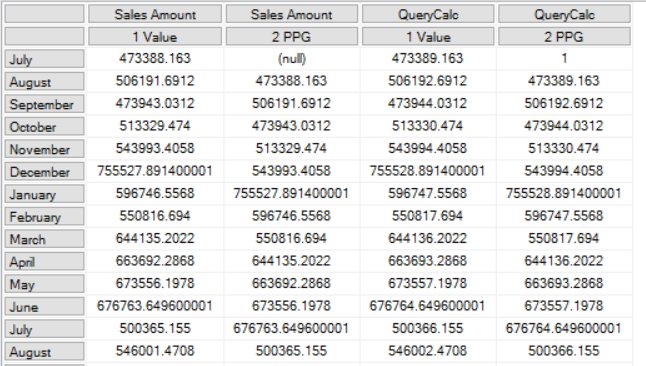
Here’s a query that includes a calculated measure defined in the WITH clause and returns two out of three of the members on the [Date Calc] dimension – but does not return the [3 YTD] calculation:

[sourcecode language=”text”]
WITH
MEMBER [Measures].QueryCalc AS
[Measures].[Sales Amount] + 1

SELECT
{
[Measures].[Sales Amount],
[Measures].QueryCalc
}
*
{
[Date Calc].[Date Calc].&[1 Value],
[Date Calc].[Date Calc].&[2 PPG]
}
ON 0,
[Date].[Calendar].[Month].MEMBERS
ON 1
FROM
TEST
[/sourcecode]
image

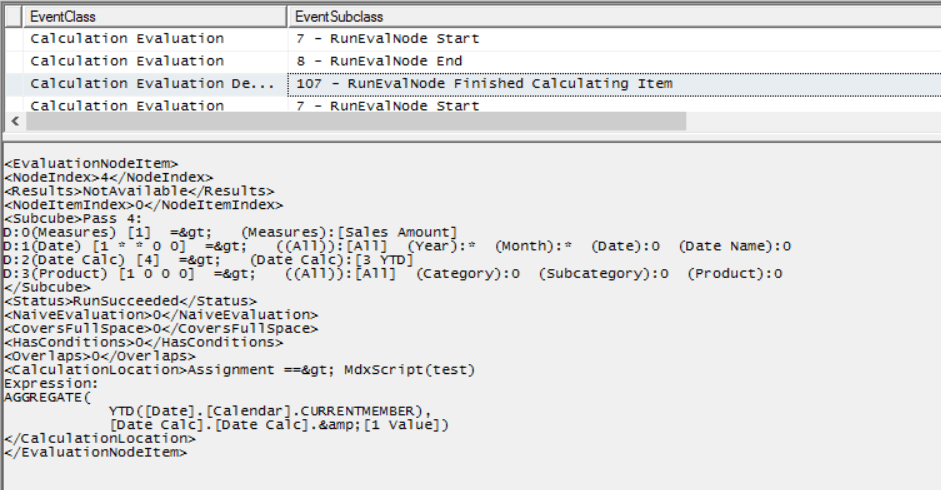
Running a Profiler trace as described in my previous post reveals that when this query is run, not only are the [Query Calc] and [2 PPG] calculations evaluated, but [3 YTD] is evaluated too:
image

It’s worth pointing out that this query was constructed deliberately to show a scenario where SSAS does decide to evaluate the [3 YTD] calculation, but in other cases it may decide otherwise. The reason it decides to do so here is due to a number of factors, including prefetching – see Jeffrey’s blog post here and the section on “Unexpected partition scans” here for some background information on this topic. Remember that in most cases prefetching is a good thing and is beneficial for performance, so if you see something like this happening in your cube you need to be sure that it’s actually causing you a performance problem before you try to prevent it.

If this is a problem for you there are a few things you can do. Rewriting your query to use subselects (if you have control over the MDX query that is being used) is one option:

[sourcecode language=”text”]
WITH
MEMBER [Measures].QueryCalc AS
[Measures].[Sales Amount] + 1

SELECT
{
[Measures].[Sales Amount],
[Measures].QueryCalc
}
*
{
[Date Calc].[Date Calc].MEMBERS
}
ON 0,
[Date].[Calendar].[Month].MEMBERS
ON 1
FROM
(SELECT
{
[Date Calc].[Date Calc].&[1 Value],
[Date Calc].[Date Calc].&[2 PPG]
}
ON 0
FROM
TEST)
CELL PROPERTIES VALUE
[/sourcecode]

Using the following connection string properties also works, because it turns off prefetching:

[sourcecode language=”text”]
disable prefetch facts=true; cache ratio=1
[/sourcecode]

…but as I said, this might hurt query performance in other ways.

Finally, as I said, using calculated members on your Date Tool dimension instead of the real members/scope statements approach will also work too. In my opinion this is the best solution since the problems with calculated member selection in Excel that caused problems for the calculated member Date Tool approach in the past were fixed a long time ago, and it will work even if you can’t change how your MDX queries are generated.
Finding Out Which MDX Calculations Are Being Evaluated By Your Query In Analysis Services Multidimensional, Part 1

Since Analysis Services 2012 there have been two trace events that provide a lot of information about what’s going on in the Formula Engine when you run a query in Analysis Services Multidimensional: Calculation Evaluation and Calculation Evaluation Detailed Information. The problem is that they are not properly documented anywhere and they provide so much information that it’s difficult to interpret what they are telling you. This post on Thomas Ivarrsson’s blog (which I strongly advise you to read before you carry on) with information provided by Akshai Mirchandani of the dev team  is the only place that has any details about them and unfortunately it’s by no means comprehensive.

I don’t have the knowledge to provide a full description of these two trace events, so instead in this series of posts I want to do something less ambitious but hopefully still useful: show how you can use them to find out which MDX calculations are being evaluated when you run a query, which is of course going to be useful if you are trying to tune that query. It’s not always as easy as you might think to work out which calculations are referenced by a query: for example financial cubes often have hundreds of calculated members and/or scoped assignments, many of which are dependent on other calculations.

Here’s a super-simple example to start off with. Imagine you have a cube with just one regular measure, Sales Amount, and just one calculated measure with the following definition:

[sourcecode language='text'  padlinenumbers='true']
CREATE MEMBER 
CURRENTCUBE.MEASURES.[Sales Forecast] AS
[Measures].[Sales Amount] * 2;
[/sourcecode]

Now, consider the following query:

[sourcecode language='text' ]
WITH
MEMBER MEASURES.X as 123
SELECT
{[Measures].[Sales Forecast]}
ON 0
,
[Date].[Date].[Date].MEMBERS
ON 1
FROM
[test]
CELL PROPERTIES VALUE
[/sourcecode]

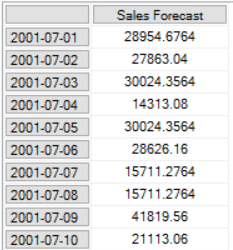
image

The query returns the Sales Forecast calculated measure on columns and every member on the Date level of the Date hierarchy on rows – so not all that interesting. However there are two things to point out:

  • The WITH clause has a calculated measure that isn’t used in the query. The reason I’ve put this in the query is to stop the Formula Engine from caching the results of any MDX calculations for longer than the lifetime of the query (see here for more details); it doesn’t affect the Storage Engine cache however. This means that every time the query is run you know that all the calculations will be evaluated and that you’ll be able to see any related activity in Profiler, and that you can run the query on a warm Storage Engine cache and won’t see many Storage Engine-related events.
  • The CELL PROPERTIES clause only returns the VALUE property and not the FORMAT_STRING property which is normally returned as well. This reduces the number of Calculation Evaluation events that are raised in Profiler when the query runs and makes it easier to see the important information.

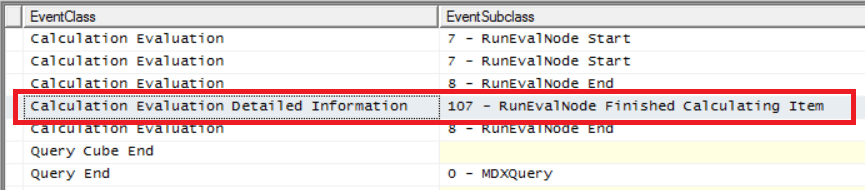
With a Profiler trace that includes the Calculation Evaluation and Calculation Evaluation Detailed Information events, when you run the query above you’ll see this:

image

There are a lot of events generated in the trace even for this simple query, but the important thing to look for is the line highlighted in the screenshot above: a Calculation Evaluation Detailed Information event with the following event subclass:

107 – RunEvalNode Finished Calculating Item

Any time you see this event you know that a calculation has been evaluated in bulk mode for a subcube (ie an area of cells) in your cube. You may see more than one RunEvalNode event for the same calculation in the same query if it was evaluated for more than one subcube.

The contents of the TextData column (which is displayed in the lower half of the screen in Profiler) for the RunEvalNode event in the trace shown above are as follows:

image

As you can see, it tells you the MDX expression that has been evaluated for the subcube. It also tells you the name of the calculated measure, but it’s the MDX expression that’s important here because scoped assignments that overlap with a single calculated measure could mean that many different MDX expressions must be evaluated for that calculated measure.

Now for the bad news: you won’t see a RunEvalNode event for any calculations that are evaluated in cell-by-cell mode. You probably know that inefficient or badly-written calculations are often evaluated in cell-by-cell mode, which is usually slower than bulk mode, but there are cases where the Formula Engine evaluates a perfectly good calculation in cell-by-cell mode because it’s the right thing to do. For example, take a look at the following query:

[sourcecode language='text' ]
WITH
MEMBER MEASURES.X as 123
SELECT
{[Measures].[Sales Forecast]}
ON 0
FROM
[test]
CELL PROPERTIES VALUE
[/sourcecode]


image

It’s basically the same query as the one above but with the Rows axis removed, so it only returns a single cell. In Profiler you won’t see a RunEvalNode event because in this case the Sales Forecast calculation is evaluated in cell-by-cell mode.

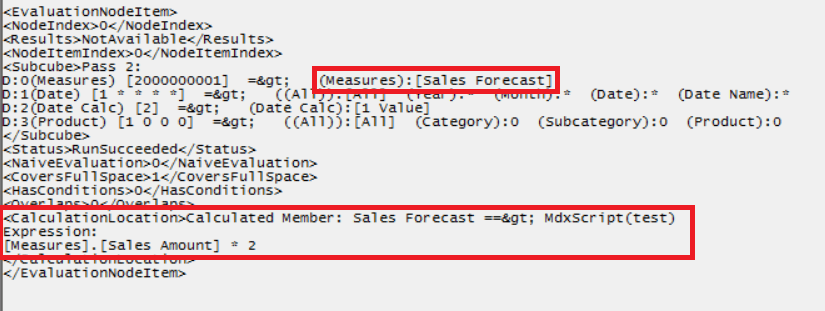
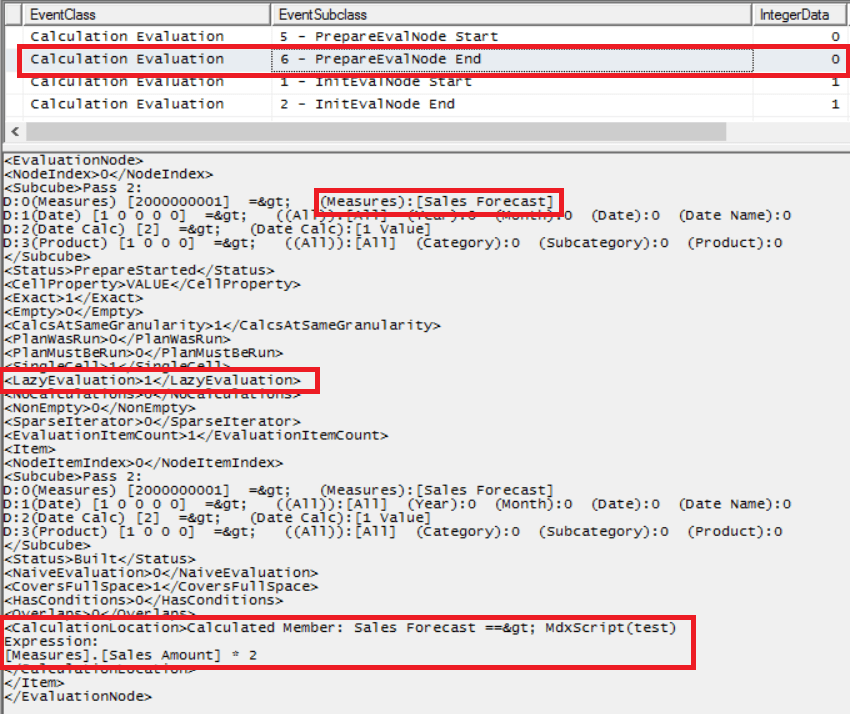
That said you will see other events relating to the evaluation node for the Sales Forecast calculation, such as the Calculation Evaluation event shown here, the last for this node (NodeIndex=0, the same value that is shown in the IntegerData column) in the trace:

image

Notice also the LazyEvaluation tag which is 1, which indicates a calculation that is evaluated in cell-by-cell mode.

So, to sum up, there are two ways to see which calculations are referenced by your query. With a Profiler trace and that includes the Calculation Evaluation and Calculation Evaluation Detailed Information events:

  1. If your calculation is evaluated in bulk mode you will see a Calculation Evaluation Detailed Information event with the Event Subclass 107 – RunEvalNode Finished Calculating Item.
  2. If your calculation is evaluated in cell-by-cell mode you will see Calculation Evaluation events for the Init-Build-Prepare stages of the evaluation node.

In the next post in this series I’ll look at a more complex scenario that shows some unexpected behaviour by SSAS.

[I am extremely grateful to Akshai Mirchandani for answering a lot of questions relating to this topic. If you want to learn more about the internals of the Formula Engine there are two other useful resources: this post by Jeffery Wang, also of the dev team, and chapter 29 of the book “Microsoft SQL Server 2008 Analysis Services Unleashed”]

Deprecated And Discontinued Functionality In SSAS 2016

Some time ago I blogged about the deprecated and discontinued functionality in SSAS 2014, so I thought it would be a good idea to follow my last post on what’s new in SSAS 2016 Multidimensional with a discussion of what’s going or gone from it.

The same page that I linked to last time has been updated for 2016, and there are four more subpages with all the details. There’s nothing much interesting to say about the breaking changes (basically AMO has been rejigged) or behaviour changes (there’s no in-place upgrade for Tabular models using DirectQuery – you have to open the project and edit some settings) but the other two pages do have some news worthy of comment:

Discontinued Functionality

Here’s the official definition of a discontinued feature:

A discontinued feature is one that is no longer supported. It might also be physically removed from the product.

A few comments about what is now discontinued:

  1. The Non_Empty_Behavior property for calculated measures. To be honest, I’m happy to see this go: it doesn’t usually make much difference to performance and in most cases people use it incorrectly too. It really should be removed from Form View in the SSDT cube editor.
  2. COM assemblies. Note that this is not the same thing as .NET assemblies like the Analysis Services Stored Procedure Project! If you are using a custom MDX function implemented in a COM assembly you will probably find that the equivalent function implemented in a .NET assembly is a lot slower, but in my experience it’s almost always possible to avoid custom functions completely and use pure MDX – and this will give you the best query performance.
  3. I’m a bit sad to see the CalculationCurrentPass() and CalculationPassValue() functions die because you could do cool things like this with them, but I haven’t actually needed to use them for a long, long time.

Deprecated Functionality

Here’s the official definition of a deprecated feature:

A deprecated feature is a feature will be cut from the product in a future release, but is still supported and included in the current release to maintain backward compatibility. Typically, a deprecated feature is removed in a major release, often within two releases of the original announcement. For example, deprecated features announced in SQL Server 2012 are likely to be unsupported by SQL Server 2016.

A few comments on what’s been deprecated:

  1. The only thing that someone may possibly be using on the list of features that will not be supported in the next major release is linked dimensions; remote partitions and remote linked dimensions were always a very bad idea.
  2. The death of dimension writeback (note: not the same thing as writing values back to cells) is a bit of a shame: I never needed to use it, and most client tools didn’t support it, but it always struck me as one of those features that people might have used more if they had known about it.
  3. I see session cubes (as used by Excel PivotTables’ grouping functionality) will not be supported in a future release, which is probably a good thing given all the problems they cause. However I bet there are a lot of Excel workbooks out there that will be affected when this does go.
  4. Local cubes will also go in a future release, though I doubt anyone uses them anymore. That said, I think it would be really useful if there was something similar that allows you to create a Power Pivot model that was a local copy of an SSAS Tabular database, with the option to filter the data in it. Offline access is not so important these days but this would allow users to create their own customised Power Pivot models from a properly designed, central model rather than always having to start from scratch.
  5. Profiler for trace capture is also deprecated, and I discussed this in-depth here.


Excel 2016 PivotTable MDX Changes Lead To Big Query Performance Gains

Yesterday, the Excel team announced a bunch of performance improvements in Excel 2016 for PivotTables connected to Analysis Services (Multidimensional or Tabular), Power Pivot and Power BI. If you haven’t read the official blog post already, here it is:

https://blogs.office.com/2016/07/07/faster-olap-pivottables-in-excel-2016/

In that post, Microsoft point out that how much of a performance increase you get will depend on a number of factors. I guess they have to do this to manage expectations. However I’m going to come right out and say that these changes are probably the most important thing that has happened in the last five years for Analysis Services or Power Pivot query performance and if you are using Excel PivotTables with SSAS or Power Pivot for reporting, you should upgrade to Excel 2016 (you’ll need the Office 365 click-to-run version) just for these changes.

The key improvement that Microsoft have made here is to stop Excel bringing back unnecessary subtotal values in the MDX queries that it generates. This has been a gigantic problem for years and several people have blogged about it: I did here, and among other people Rui Quintino and Richard Lees have posts on the subject that are worth reading. A lot of my consultancy work involves SSAS and MDX performance tuning and I think I see around five to ten customers every year who are seriously affected by this – and I’m sure this is just the tip of the iceberg. Even if you don’t think you are affected, you may have users who are putting up with slow refresh times for Excel-based reports without your knowledge.

Let’s go into some technical detail, see what the original problem was and what has changed in Excel 2016. I’m going to provide some examples using Excel 2013/2016 against SSAS Multidimensional but as I said the same problems occur (although less severely) with SSAS Tabular and Power Pivot.

Consider the following Excel 2013 PivotTable connected to the Adventure Works cube:

image
image

It’s typical of the kind of thing an end user wants to build, and there are two things to point out:

  1. Notice there are three fields that have been placed on the Rows axis of the PivotTable: the Gender and Marital Status hierarchies from the Customer dimension, and the Category hierarchy from the Product dimension. It’s pretty common for users to put many more fields together on an axis when they want to display detailed data.
  2. The user has also turned off grand totals and subtotals in the PivotTable so that only the detailed data is shown. This often happens in combination with (1) because if the user only wants to see the detailed data the subtotals and grand totals are a distraction.

In this case the PivotTable layout has been switched Tabular and the Repeat All Item Labels option is selected to make the PivotTable look like a table, but these are just aesthetic changes.

This PivotTable contains 12 rows, but if you look at the MDX query that is generated by Excel 2013 to populate it, it returns 36 rows of data (actually the MDX in this case returns 36 columns, but that’s a quirk of Excel) because the subtotals and grand total that Excel is not displaying are still being returned. Here’s the query:

SELECT 
NON EMPTY 
CrossJoin(
CrossJoin(
Hierarchize(
{DrilldownLevel(
{[Customer].[Gender].[All Customers]}
,,,INCLUDE_CALC_MEMBERS)}), 
Hierarchize(
{DrilldownLevel({[Customer].[Marital Status].[All Customers]}
,,,INCLUDE_CALC_MEMBERS)})), 
Hierarchize(
{DrilldownLevel({[Product].[Category].[All Products]}
,,,INCLUDE_CALC_MEMBERS)})) 
DIMENSION PROPERTIES PARENT_UNIQUE_NAME,HIERARCHY_UNIQUE_NAME 
ON COLUMNS  
FROM 
[Adventure Works] 
WHERE ([Measures].[Internet Sales Amount]) 
CELL PROPERTIES VALUE, FORMAT_STRING, 
LANGUAGE, BACK_COLOR, FORE_COLOR, FONT_FLAGS

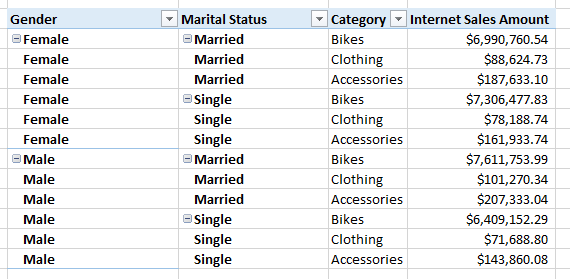
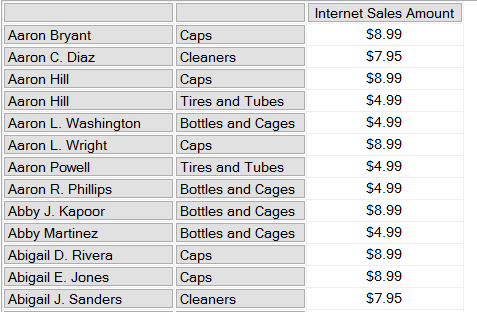
And here’s a sample of what it returns, with the unwanted values highlighted:

image

You can probably guess that these unwanted subtotals and grand totals make the query slower, and the more fields you put together on the rows or columns of a PivotTable the greater the number of subtotals/grand totals are returned and slower things get. PivotTables connected to SSAS or Power Pivot often become completely unusable with more than six or seven fields put together on the same axis, and the only workarounds before Excel 2016 are either to write custom MDX in a named set (I show how to do this here) or if you are using SSAS Multidimensional try to use member properties instead of separate fields (as Richard Lees shows here), but neither are really great alternatives.

Building the same PivotTable using Excel 2016, however, gives the following MDX:

SELECT 
NON EMPTY 
CrossJoin(
CrossJoin(
Hierarchize(
{[Customer].[Gender].[Gender].AllMembers}), 
Hierarchize(
{[Customer].[Marital Status].[Marital Status].AllMembers})), 
Hierarchize(
{[Product].[Category].[Category].AllMembers})) 
DIMENSION PROPERTIES PARENT_UNIQUE_NAME,HIERARCHY_UNIQUE_NAME 
ON COLUMNS  FROM [Adventure Works] 
WHERE ([Measures].[Internet Sales Amount]) 
CELL PROPERTIES VALUE, FORMAT_STRING, 
LANGUAGE, BACK_COLOR, FORE_COLOR, FONT_FLAGS

Which returns just the data needed for the PivotTable:

image

What has changed? Focusing on just the Gender hierarchy, the difference between the two queries is that in Excel 2013 the selection on Gender is given using the DrillDownLevel() function on the All Member of the hierarchy. Isolated and put in its own query, the set expression used looks like this:

SELECT 
{[Measures].[Internet Sales Amount]}
ON COLUMNS,
DrilldownLevel(
{[Customer].[Gender].[All Customers]}
,,,INCLUDE_CALC_MEMBERS)
ON ROWS
FROM
[Adventure Works]
image

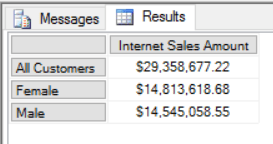
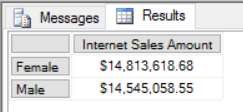
Notice how the All Member, used by Excel to return subtotals and grand totals, is returned by the set. Excel 2016 instead just asks for the members on the Gender level of the Gender hierarchy, not including the All Member. Again, put inside its own query, you can see what it returns:

SELECT 
{[Measures].[Internet Sales Amount]}
ON COLUMNS,
{[Customer].[Gender].[Gender].AllMembers}
ON ROWS
FROM
[Adventure Works]
image

Apart from the fact that no All Member is returned, it’s also a lot cleaner and easier to read.

I’ve been very excited about this change since I first heard it was happening, and I think it will benefit a lot of people. A big thanks to Alexander Lahuerta and the rest of the Excel team for making this happen!

Monitoring SSAS Multidimensional Non Empty Filtering Using Profiler, Part 3

In Part 1 of this series I introduced the different types of non empty filtering that occur in Analysis Services Multidimensional and in Part 2 I showed how you can use monitor this activity using Profiler. In this, the final part of the series, I’m going to show some examples of how you can use this information while tuning MDX queries.

Let’s start by looking at the following query:

[sourcecode language=”text” padlinenumbers=”true”]
SELECT
{[Measures].[Internet Sales Amount]}
ON 0,
NON EMPTY
[Customer].[Customer].[Customer].MEMBERS
*
[Product].[Subcategory].[Subcategory].MEMBERS
ON 1
FROM
[Adventure Works]
WHERE([Date].[Calendar Year].&[2003])
[/sourcecode]


It returns 19004 rows – all of the combinations of Customer and Subcategory that have a value in the year 2003:

image

Here’s what you can see in Profiler:

image

There are two Non Empty operations here: the ProgressTotal column shows that first is the NON EMPTY statement on the rows axis; the second we can ignore because it’s the evaluation of the WHERE clause. The Duration column shows that the first Non Empty operation takes just 54ms and the query as a whole takes 1021ms.

Now, let’s make things a bit more complicated by adding an extra filter so we only see the Customer/Subcategory combinations where Internet Sales Amount is less than $10:

[sourcecode language=”text” highlight=”5,10″]
SELECT
{[Measures].[Internet Sales Amount]}
ON 0,
NON EMPTY
FILTER(
[Customer].[Customer].[Customer].MEMBERS
*
[Product].[Subcategory].[Subcategory].MEMBERS
,
[Measures].[Internet Sales Amount]<10)
ON 1
FROM
[Adventure Works]
WHERE([Date].[Calendar Year].&[2003])
[/sourcecode]

image

Here’s what Profiler shows:

image

The query now takes 2512ms. But why is it slower? The obvious assumption to make is that it’s the Filter() that has slowed things down, but it looks like the Filter() and the NON EMPTY are now being evaluated as a single operation because the first Non Empty operation in the trace is now taking 2408ms – the majority of the query duration.

Removing the NON EMPTY statement from the rows axis and putting the logic to filter out the customers with no sales into the Filter() function, like so:

[sourcecode language=”text”]
SELECT
{[Measures].[Internet Sales Amount]}
ON 0,
FILTER(
[Customer].[Customer].[Customer].MEMBERS
*
[Product].[Subcategory].[Subcategory].MEMBERS
,
[Measures].[Internet Sales Amount]<10
AND
(NOT ISEMPTY([Measures].[Internet Sales Amount])))
ON 1
FROM
[Adventure Works]
WHERE([Date].[Calendar Year].&[2003])
[/sourcecode]


…only makes things worse, increasing query duration to 4139ms. This confirms our suspicion that Filter() is the problem here and that NON EMPTY can remove the empty customers faster than Filter() can.

The problem with the last query but one is that the NON EMPTY statement is being applied after the Filter(). Wouldn’t it be faster to remove the empty customers first and then filter out the ones where Internet Sales Amount is less than $10, so the slower Filter() can be applied over a smaller set?

There are two ways we can do this. First of all, we can use the NonEmpty() function instead of the NON EMPTY statement to remove the empty customers. NonEmpty() is not faster than the NON EMPTY statement per se, but it does allow us to change the order that the different types of filtering are applied here, and that can make all the difference to performance. Here’s a new version of the query:

[sourcecode language=”text”]
SELECT
{[Measures].[Internet Sales Amount]}
ON 0,
FILTER(
NONEMPTY(
[Customer].[Customer].[Customer].MEMBERS
*
[Product].[Subcategory].[Subcategory].MEMBERS,
[Measures].[Internet Sales Amount]),
[Measures].[Internet Sales Amount]<10)
ON 1
FROM
[Adventure Works]
WHERE([Date].[Calendar Year].&[2003])
[/sourcecode]

image

Query duration is now down to 217ms and the first Non Empty operation is only 57ms.

There’s another way of doing this. For MDX geek-points you could use the ultra-obscure HAVING clause in your query to do the filtering after the NON EMPTY, like so:

[sourcecode language=”text” highlight=”8,9″]
SELECT
{[Measures].[Internet Sales Amount]}
ON 0,
NON EMPTY
[Customer].[Customer].[Customer].MEMBERS
*
[Product].[Subcategory].[Subcategory].MEMBERS
HAVING
[Measures].[Internet Sales Amount]<1000
ON 1
FROM
[Adventure Works]
WHERE([Date].[Calendar Year].&[2003])
[/sourcecode]

From what I can see, the HAVING clause performs a few milliseconds faster than the previous query – measurable but not something a user would notice. I also tested a variation on Mosha’s classic calculated measure approach for Count/Filter optimisation but that performed worse than the two previous queries.

Monitoring SSAS Multidimensional Non Empty Filtering Using Profiler, Part 2

In part 1 of this series I introduced all of the different types of non empty filtering that can occur in Analysis Services and MDX. In this post I’ll show you how you can monitor each of these types of non empty filtering using Profiler using the queries from part 1 as examples.

Profiler events

The three Profiler events we’re going to be most concerned with here are:

  • Calculate Non Empty Begin, which is raised when the engine starts a non empty filter
  • Calculate Non Empty Current, which will be raised one or more times when the non empty filter is in progress and which will give us more detail about what’s happening
  • Calculated Non Empty End, which is raised when the engine finishes evaluating a non empty filter

I’ve also included the Query Begin/End events in my traces just to show when query execution starts and finishes. All the queries in this post will be run on a warm cache; although the values used for non empty filtering can be cached, SSAS can’t cache the output of a non empty filter (unless you do something like this) so for our purposes whether the cache is warm or cold is irrelevant.

image

NON EMPTY and NONEMPTY()

In the simplest cases SSAS treats the NON EMPTY statement and the NONEMPTY() function the same, so let’s look again at the following query from my previous post:

[sourcecode language=”text” padlinenumbers=”true”]
SELECT
{[Measures].[Internet Order Quantity]}
ON 0,
NON EMPTY
[Product].[Category].[Category].MEMBERS
ON 1
FROM
[Adventure Works]
[/sourcecode]

image

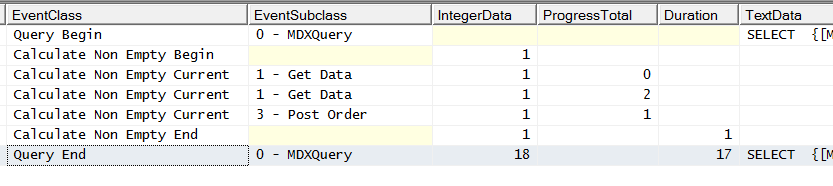
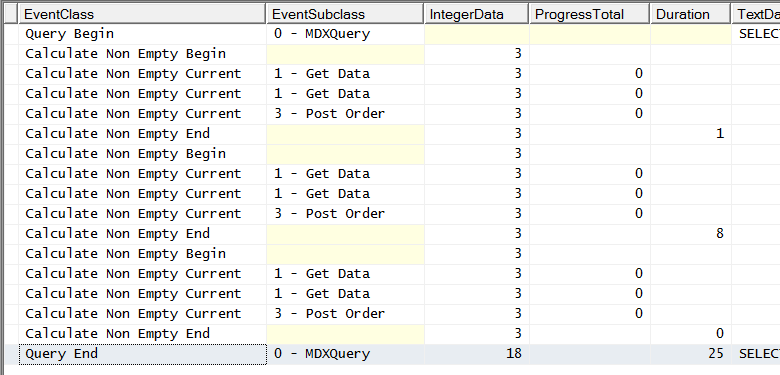
Here’s what our Profiler trace shows us when this query is run:

image

There are several things to notice here:

  • The Duration column tells us how long, in ms, both the query took to run (on the Query End line) and the non empty filter took to evaluate (on the Calculate Non Empty End line).
  • The EventSubclass column, for the Calculate Non Empty Current events, shows the different stages of evaluation. The possible values here are:
    • 1 – cell values are evaluated for the filtering
    • 2 – calculated members are evaluated (this is no longer used from SSAS 2008 on)
    • 3 – the tuples are rendered in the resultset
  • The IntegerData column shows what type of non empty filtering is taking place. The possible values here are:
    • 1 – All non empty filtering using NON EMPTY and NONEMPTY() using a fast algorithm (as shown in the screenshot above)
    • 2 – EXISTING operations using a fast algorithm.  This is a bit misleading though, because due to an internal bug this event will not fire for most uses of the EXISTING statement but will fire for some operations related to regular autoexists.
    • 3 – Autoexists operations using a fast algorithm
    • 11 – All non empty filtering using NON EMPTY and NONEMPTY() using a slower algorithm, for when complex calculations need to be evaluated
    • 12 – as (2) but with the slower algorithm (theoretically possible but should never occur in practice)
    • 13 – as (3) but with the slower algorithm (again, theoretically possible but should never occur in practice)
  • The ProgressTotal column for the Calculate Non Empty Current (as with the Serialize Results Current event) and EventSubclass 1 should return the number of tuples evaluated for the non empty filter. If the number of tuples is greater than 1000 you’ll see multiple events, one for each 1000 tuples, with the last event showing the overall total. Unfortunately there’s a bug here that means it returns one less than the actual number of tuples evaluated. What’s more, in most cases, the non empty filter operations in the SSAS engine are difficult to match to whatever’s going on in the query, so it’s only really useful as a relative measure of how expensive the operation is.
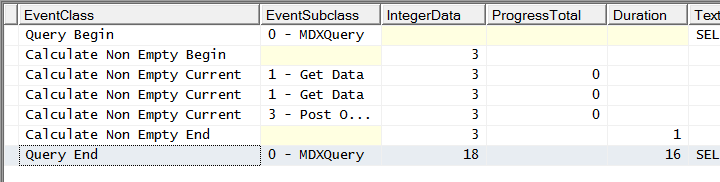
Putting this all together, for this query we can see that there was one non empty filter operation, it was using the fast NON EMPTY algorithm, the ProgressTotal column shows 3 tuples were returned (ie the three Categories on rows) and it took 1ms.

Autoexists

Now let’s look at the autoexists query from the previous post in this series:

[sourcecode language=”text” padlinenumbers=”true”]
SELECT
{[Measures].[Internet Order Quantity]}
ON 0,
[Product].[Category].[Category].MEMBERS
*
[Product].[Color].[Color].MEMBERS
ON 1
FROM
[Adventure Works]
[/sourcecode]

image

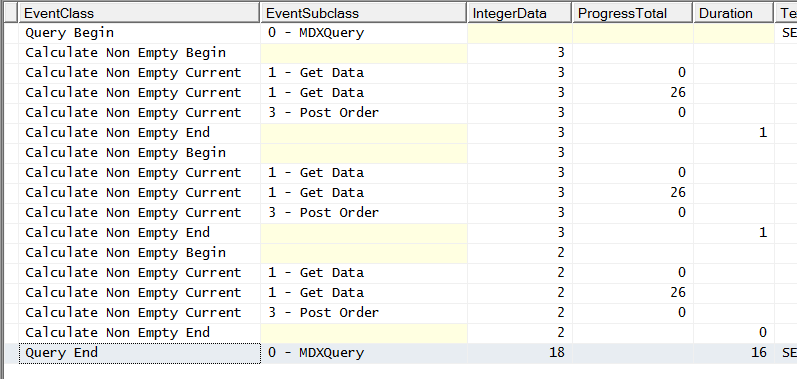
Here’s what Profiler shows:

image

Even with what looks like a single autoexists operation there are three sets of Non Empty events here, two of which have IntegerData 3 (for autoexists) and one with IntegerData 2 (for EXISTING which, as noted above, is to be expected here with autoexists). The ProgressTotal column returns 26 for a query that returns 24 rows which I guess is near enough correct to be useful.

EXISTS() And Existing

As you might expect, the EXISTS() function produces a result very similar to a straightforward autoexists. Taking the EXISTS() query from my previous post:

[sourcecode language=”text” padlinenumbers=”true”]
SELECT
{[Measures].[Internet Order Quantity]}
ON 0,
EXISTS(
[Product].[Category].[Category].MEMBERS
, {[Product].[Color].&[White]})
ON 1
FROM
[Adventure Works]
[/sourcecode]

image

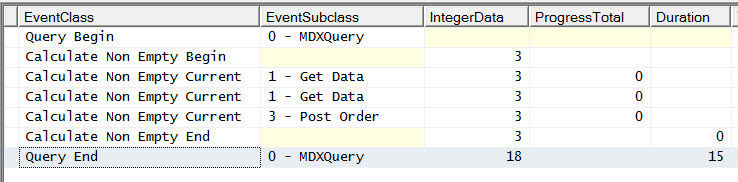
You can see there’s just one Non Empty Begin/End event pair generated, with IntegerData 3, and ProgressTotal returns 0 which means that one tuple is returned:

image

Whereas the use of EXISTING inside a calculated measure, like so:

[sourcecode language=”text”]
WITH
MEMBER MEASURES.COLOURCOUNT AS
COUNT(EXISTING [Product].[Color].[Color].MEMBERS)
SELECT
{MEASURES.COLOURCOUNT}
ON 0,
[Product].[Category].[Category].MEMBERS
ON 1
FROM
[Adventure Works]
[/sourcecode]

image

Causes multiple Non Empty Begin/End pairs, very probably one for each member on the hierarchy based on the number of events and the values in the ProgressTotal column (the ProgressTotal values for the second, third, fourth and fifth non empty filters tally with the four values returned by the calculated measure; I don’t know what the first non empty filter is doing) :

image

The WHERE Clause And Subselects

Weirdly enough, the presence of a WHERE clause or a subselect in a query also triggers Non Empty Begin/End events [Subselects are something that a lot of SSAS developers get confused by, especially when it comes to the differences between a subselect and the WHERE clause – I recommend watching this short video if you’re unsure of what they do].

The following query with a WHERE clause generates a single Non Empty Begin/End event pair:

[sourcecode language=”text”]
SELECT
{[Measures].[Internet Order Quantity]}
ON 0,
[Product].[Color].[Color].MEMBERS
ON 1
FROM
[Adventure Works]
WHERE([Customer].[Total Children].&[5])
[/sourcecode]

image

image

Probably the only value in knowing that this happens is that you can ignore it when you see it.

A query with a subselect instead of a WHERE clause, while it returns exactly the same results in this case, produces different activity in Profiler:

[sourcecode language=”text”]
SELECT
{[Measures].[Internet Order Quantity]}
ON 0,
[Product].[Color].[Color].MEMBERS
ON 1
FROM
(SELECT {[Customer].[Total Children].&[5]} ON 0
FROM
[Adventure Works])
[/sourcecode]

image

image

Again, if you have a subselect in your query (they are very common in MDX generated by SSRS and Excel) you should ignore this activity. In both cases you’ll note that the IntegerData column shows 3 for autoexists and ProgressTotal shows 0.

Summary

What’s clear from these examples is that trying to relate what’s going on in the query to what you see in Profiler is quite tricky even for seemingly simple queries; for most real-world queries it would be almost impossible to do so with total confidence. That said, when I’m tuning queries I usually comment out large parts of the code to try to isolate problems, thus creating much simpler queries, and I hope the value of this post will lie in you being able to spot similar patterns in Profiler to the ones I show here when you do the same thing. In part 3 of this series I’ll show you some practical examples of how all this information can help you tune your own queries.

Monitoring SSAS Multidimensional Non Empty Filtering Using Profiler, Part 1

Filtering out empty values is something that SSAS does a lot of during query execution, and it is also a common cause of performance problems. In this series of posts (similar to my series earlier this year on results serialisation) I’ll look at the different types of non empty filtering that can occur in an MDX query, how they can be monitored using Profiler and what you can do to improve their performance.

Some of this information has come from an old white paper, but I’ve found that some of what that paper says is now out of date and I’m extremely grateful to Akshai Mirchandani of Microsoft for answering my questions on this subject. Even with the long-suffering Akshai’s help a lot of the information here is based on my own research and therefore potentially incomplete/inaccurate, potentially different for different versions of SSAS (I’m using SSAS 2014 for this series) and could potentially change again in the future, so take due care!

The first question to ask is: what counts as non empty filtering? There are actually several different operations that the engine treats as a non empty filter, a few of which I was surprised by; here are the ones I know about.

1) The NON EMPTY statement

Most MDX queries generated by client tools include a NON EMPTY statement on the rows and columns axis. For example, take a look at the results returned by this MDX query on the Adventure Works cube:

[sourcecode language=”text” padlinenumbers=”true”]
SELECT
{[Measures].[Internet Order Quantity]}
ON 0,
[Product].[Category].[Category].MEMBERS
ON 1
FROM
[Adventure Works]
[/sourcecode]

image

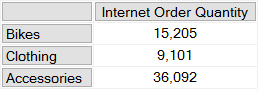
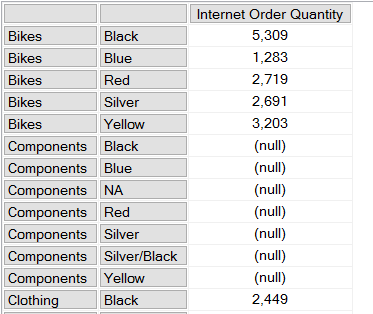
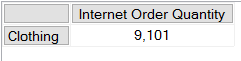
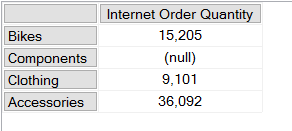
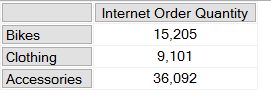
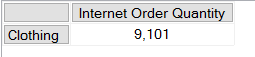
As you can see, the Product Category Components has no data and returns a null. One way to remove the row for Components would be to add a NON EMPTY statement to the rows axis:

[sourcecode language=”text” highlight=”4″]
SELECT
{[Measures].[Internet Order Quantity]}
ON 0,
NON EMPTY
[Product].[Category].[Category].MEMBERS
ON 1
FROM
[Adventure Works]
[/sourcecode]

image

2) The NONEMPTY() function

Often confused with the NON EMPTY statement, but not the same thing: the NON EMPTY statement can only be used on an axis in a SELECT statement, whereas the NONEMPTY() function can be used in any MDX expression. Continuing our example, here’s how to use it to remove the Component category:

[sourcecode language=”text” highlight=”4,6″ padlinenumbers=”true”]
SELECT
{[Measures].[Internet Order Quantity]}
ON 0,
NONEMPTY(
[Product].[Category].[Category].MEMBERS,
{[Measures].[Internet Order Quantity]})
ON 1
FROM
[Adventure Works]
[/sourcecode]

The NONEMPTY() function is much more flexible than the NON EMPTY statement but essentially does the same thing – it isn’t any faster in what it does, but it does allow you to make certain assumptions about your data that can improve query performance (more of that later). One thing to remember is to always set the second parameter, because if you don’t you may get unexpected results.

There is also a NONEMPTYCROSSJOIN() function but it is deprecated and you should not be using it – everything that it does can be done more reliably with other functions.

3) Autoexists

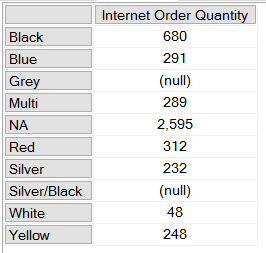
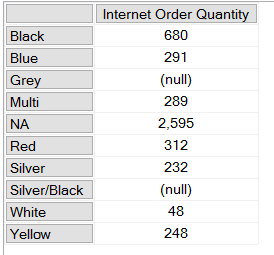
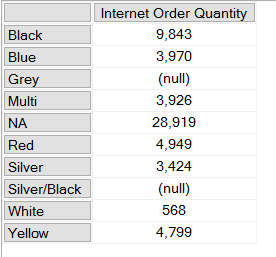
Autoexists is not a feature of the MDX language but rather something that SSAS does automatically to remove tuples from a set that it knows must always be null. It’s described in great detail here, but it’s quite easy to illustrate. We already know from the queries above which categories have data; similarly the following query shows there is data for all colours except Grey and Silver/Black:

[sourcecode language=”text”]
SELECT
{[Measures].[Internet Order Quantity]}
ON 0,
[Product].[Color].[Color].MEMBERS
ON 1
FROM
[Adventure Works]
[/sourcecode]

image

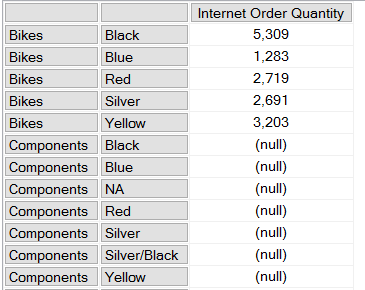
However if you crossjoin every category and every colour on the rows axis, you don’t see every combination of category and colour returned:

[sourcecode language=”text” padlinenumbers=”true”]
SELECT
{[Measures].[Internet Order Quantity]}
ON 0,
[Product].[Category].[Category].MEMBERS
*
[Product].[Color].[Color].MEMBERS
ON 1
FROM
[Adventure Works]
[/sourcecode]

image

There is no row for the category Bikes and the colour White, for example. This is because the SSAS engine knows from the data in the dimension that no product exists that is both the colour White and in the category Bikes, so it doesn’t return that combination from the crossjoin – that particular tuple could never contain any data so there’s no point returning it. Notice that there are combinations, such as Components/Black, that exist in the dimension and are present on the rows axis but still return null because there is no value for Internet Order Quantity.

It’s important to remember that autoexists only takes place when you are working with sets of members from different hierarchies on the same dimension, never with sets of members from different dimensions.

4) The EXISTS() function and the EXISTING keyword

The EXISTS() function and the EXISTING keyword allow you to take advantage of autoexists for filtering inside your own expressions without having to actually do a crossjoin (there’s another variant of EXISTS() with a third parameter that behaves more like NONEMPTY() but it’s very rarely used so I’m going to ignore it).

For example, here’s how you can use the EXISTS() function to return all the categories that have a product that is White:

[sourcecode language=”text”]
SELECT
{[Measures].[Internet Order Quantity]}
ON 0,
EXISTS(
[Product].[Category].[Category].MEMBERS
, {[Product].[Color].&[White]})
ON 1
FROM
[Adventure Works]
[/sourcecode]

image

The EXISTING keyword is used within calculations to apply autoexists filtering to a set based on the other hierarchies from the same dimension. The following query contains a calculated measure that counts the number of members on the Color level of the Color hierarchy, and unsurprisingly returns the same value each time it’s called:

[sourcecode language=”text”]
WITH
MEMBER MEASURES.COLOURCOUNT AS
COUNT([Product].[Color].[Color].MEMBERS)
SELECT
{MEASURES.COLOURCOUNT}
ON 0,
[Product].[Category].[Category].MEMBERS
ON 1
FROM
[Adventure Works]
[/sourcecode]

image

However, if you add the EXISTING keyword just before the set in the calculated measure definition, like so:

[sourcecode language=”text” highlight=”3″]
WITH
MEMBER MEASURES.COLOURCOUNT AS
COUNT(EXISTING [Product].[Color].[Color].MEMBERS)
SELECT
{MEASURES.COLOURCOUNT}
ON 0,
[Product].[Category].[Category].MEMBERS
ON 1
FROM
[Adventure Works]
[/sourcecode]

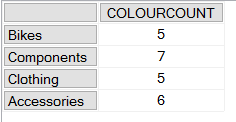
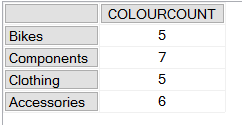
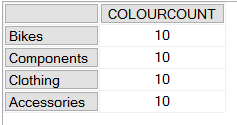
Then you’ll see that the calculation now returns the number of members on the Color level of the Color hierarchy after autoexists filtering has been applied; so for example the first line shows there are five distinct colours associated with the Category Bikes:

image

Summary

OK, after that somewhat lengthy introduction, in part 2 I’ll show you how to use Profiler to monitor what’s going on inside SSAS when you do all of these different types of non empty filtering.

Disabling Excel PivotTable Grouping And Session Cubes In SSAS Multidimensional

The Excel PivotTable grouping functionality that is available when you are connected to an SSAS Multidimensional cube (but not a Tabular model) is a Very Bad Thing indeed. In my experience it is a major cause of query performance problems – not just for the person running the query, but because it is so resource intensive for everyone else trying to query the cube too. This post from a few years ago gives some more details about why custom grouping, and the CREATE SESSION CUBE MDX statements that it uses behind the scenes, are so expensive.

Up until now it was impossible to prevent users from using custom grouping but in a recent cumulative update this changed. First of all, I encourage you to read the details of the fix because you will probably want to install the relevant CU for security reasons anyway:

https://support.microsoft.com/en-us/kb/3080856

[And if you are wondering whether you should be installing CUs I strongly suggest you read this post by Aaron Bertrand]

Once the CU has been installed the following new property is added to the msmdrv.ini file:

\OLAP\Query\SessionCubesMode

This will be set to 1. Setting this property to 0 will prevent users from creating session cubes and therefore prevent them from using Excel’s custom grouping functionality.

My opinion is that it’s a good idea to disable session cubes and custom grouping even if you don’t know whether your users are using these features. Yes, your users will lose some functionality and some reports might even break, but you will also save yourself and your users a lot of problems. If your users need to do custom grouping in a report that is usually an indication that you have missed something in your dimension design, and that an extra attribute hierarchy or two is necessary.

[Thanks to Akshai for this information]

Monitoring SSAS Multidimensional MDX Query Results Serialisation, Part 2

In part 1 of this series I looked at the basics of monitoring SSAS Multidimensional query resultset serialisation in Profiler. In this post, I’ll be taking a look at what happens for queries that return large amounts of data

Consider the following query on the Adventure Works DW database, which, when I run it in SQL Server Management Studio returns a cellset with 60391 rows:

[sourcecode language='text'  padlinenumbers='true']
SELECT
{[Measures].[Internet Order Quantity], 
[Measures].[Internet Sales Count]}
ON 0,
NON EMPTY
[Date].[Date].[Date].MEMBERS
*
[Customer].[Customer].[Customer].MEMBERS
*
[Product].[Product].[Product].MEMBERS
ON 1
FROM
[Adventure Works]
[/sourcecode]

image

There are a couple of interesting things to note about this query. First, SQL Server Management Studio on my laptop says that it takes nine seconds to run, even on a warm cache; the Duration column for the Query End event in Profiler, however, shows a value of around six seconds. The three second difference must be the time it takes for SSAS to return the cellset to SQL Server Management Studio, and for SQL Server Management Studio to render the results (my guess is that it’s the second operation that takes the majority of this time – other client tools may be more efficient at rendering large resultsets).

Secondly, in Profiler, you’ll see a much larger number of Serialize Results Current events. In situations where an axis contains more than a thousand tuples, or a cellset contains more than a thousand cells, you’ll see one Serialize Results Current event for each thousand tuples or cells. The ProgressTotal column will show values incrementing by one thousand up to the total number of tuples or cells. So, here’s some of what Profiler shows for the serialisation of the Rows axis:

image

…and here’s the end of the trace, showing the end of the serialisation of the cells (60391 rows * 2 columns = 120782 cells):

image

The third thing to notice is that there is only one Storage Engine operation – shown by the Query Subcube Verbose event in the first Profiler screenshot above – and that hits the Storage Engine cache and is so quick the Duration column shows 0 ms. Getting the raw data isn’t the problem here, and there aren’t any MDX calculations either – which means that it’s the Non Empty filter and construction of the cellset that is taking all the time. Since neither of these operations can be cached (although you can play tricks like this), this explains why the query always takes six seconds to run, even on a warm cache. Further investigation reveals that the Non Empty filter in fact only takes about a quarter of a second, so it’s the construction of a large cellset that’s the real problem here. This is why I say you should always avoid queries that return large amounts of data! SSAS is not very good at returning large resultsets.

Incidentally, don’t fall into the trap of thinking that the values shown in the Duration column for the Serialize Results End event only represents the amount of time taken to construct the cellset. It shows the amount of time since the Serialize Results Begin event, and in between the Begin and End events all kinds of other things necessary for the query to return (such as the evaluation of MDX calculations) could be going on. In a lot of cases the Serialize Results End event shows a duration that is almost the same as the duration for the whole query, but that only means that serialisation was able to start soon after the query began. In order to find the overhead of serialisation you need to work out how long all these other things take and subtract that from the duration shown for Serialize Results End, and that’s easier said than done.

Finally, what can you do to improve performance? Well, in the first post in this series I showed there was a tabular alternative to a cellset, and this is certainly a lot more efficient at returning large amounts of data (although you probably won’t have a choice in this unless you are building your own client tool, and, SSRS uses the tabular format anyway). For this query a tabular resultset is almost two seconds faster to return than a cellset, at just over four seconds:

image

There’s another important technique you can use, once that I have already mentioned in a blog post a couple of years ago but which is worth mentioning again: each cell returned by this query returns a large number of properties that you may not need, and these extra properties have a significant effect on the size of the resultset. Adding a CELL PROPERTIES clause to the query so that you only return the value property, like so:

[sourcecode language='text'  highlight='14']
SELECT
{[Measures].[Internet Order Quantity], 
[Measures].[Internet Sales Count]}
ON 0,
NON EMPTY
[Date].[Date].[Date].MEMBERS
*
[Customer].[Customer].[Customer].MEMBERS
*
[Product].[Product].[Product].MEMBERS
ON 1
FROM
[Adventure Works]
CELL PROPERTIES VALUE
[/sourcecode]

…takes another two seconds off the duration of the query, whether you use a tabular resultset or a cellset:

image

Monitoring SSAS Multidimensional MDX Query Results Serialisation, Part 1

Profiler (or indeed XEvents) can tell you a lot of interesting things about what happens when SSAS Multidimensional serialises the resultset returned by an MDX query. To be honest, this isn’t something I’ve looked at in detail before but recently I decided to do some research in this area – it turns out that monitoring the Profiler events related to serialisation can be very useful when you’re trying to understand what a Profiler trace is telling you about query execution as a whole.

To start off, let’s look at some very simple examples. Consider the following MDX query on the Adventure Works DW database:

[sourcecode language=”text” padlinenumbers=”true”]
SELECT
{[Measures].[Internet Order Quantity],
[Measures].[Internet Sales Count]}
ON 0,
[Date].[Calendar Year].[Calendar Year].MEMBERS
ON 1
FROM
[Adventure Works]
[/sourcecode]

If you run it in SQL Server Management Studio in an MDX query window, you’ll get the following cellset back:

image

Running a Profiler trace using, amongst others, the Serialize Results Begin, Serialize Results Current and Serialize Results End events shows how SSAS is constructing the cellset returned:

image

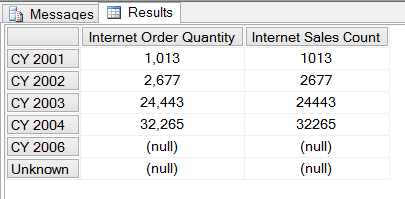
The Serialize Results Begin event marks the point where SSAS starts to construct the cellset returned. The Serialize Results Current events that immediately follow it, with EventSubclass “1 – Serialize Axes” show SSAS serialising the tuples that are present on the Columns axis (listed as Axis 0 in the TextData column), the Rows axis (Axis 1) and the Where clause (Slicer Axis). The numeric values in the ProgressTotal column for the Serialize Results Current events shows the number of tuples on each axis: the two tuples on columns are the two measures, the six tuples on rows are the six years, and there’s one tuple on the slicer. After that SSAS gets the data for each of the cell values (as shown by the Query Subcube Verbose event – note that this query is running on a warm cache) and there is then a Serialize Results Current event with EventSubclass “2 – Serialize Cells”; the ProgressTotal column shows that twelve cells (2 columns * 6 rows) in total were returned.  The Serialize Results End event shows that SSAS has finished constructing the cellset and not surprisingly it’s followed immediately by the Query Cube End and Query End events.

Sometimes SSAS needs to do a bit more work to find out what tuples are on an axis before serialisation can begin. The following query adds a NON EMPTY to the rows axis of the query above, so that only the rows that have values are returned:

[sourcecode language=”text” highlight=”5″]
SELECT
{[Measures].[Internet Order Quantity],
[Measures].[Internet Sales Count]}
ON 0,
NON EMPTY
[Date].[Calendar Year].[Calendar Year].MEMBERS
ON 1
FROM
[Adventure Works]
[/sourcecode]

image

In order to know which years will appear on rows it has to query the cube to find out which ones have values for the measures on columns; as a result the Profiler trace shows a Query Subcube Verbose event appearing now before Serialize Results Begin:

image

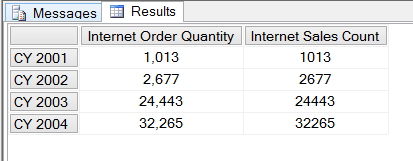
This trace deliberately doesn’t show any of events related to the NON EMPTY operation (something I’ll be writing about in future blog posts), but it looks like SSAS can work out which years have values and get the values needed for the cellset back in a single operation so there’s no need for another Query Subcube Verbose event before the Serialize Cells event. Note that now the empty rows have been excluded, the ProgressTotal shows that only four tuples are returned on rows and eight cells are returned overall.

Cellsets are not the only type of resultset that SSAS can return though. Some client tools, most notably Reporting Services, return a tabular dataset that doesn’t have the concept of axes; running the previous query in SSRS gives the following in Profiler:

image

As you can there is now only one Serialize Results Current event and it has the EventSubclass “3 – Serialize SQL Rowset” (even though this is still an MDX query); the ProgressTotal column shows four, which is the number of rows returned.

In Part 2, I’ll look at what happens when a query returns a much larger amount of data.